




Classifica Utenti
Utenti più Apprezzati
(Scegli il periodo) Utenti più Apprezzati
(Storia giorno per giorno) Classifica dall'Origine
(da Marzo 2003)
(Scegli il periodo) Utenti più Apprezzati
(Storia giorno per giorno) Classifica dall'Origine
(da Marzo 2003)
-
Pandino
Reporter (Staff)41Punti21430Numero contenuti pubblicati -
Alfa Romeo 83
Utente Registrato25Punti202Numero contenuti pubblicati -
stev66
Moderatore (Staff)25Punti47820Numero contenuti pubblicati -
LucioFire
Utente Registrato24Punti32902Numero contenuti pubblicati



Contenuti più Popolari
Stai visualizzando i contenuti con il più alto punteggio, pubblicati in data 02/06/18 e localizzati in Risposte
-
Per il semplice fatto che siamo ne su Facebook ne in una chat dove cazzeggiare, ergo cerchiamo di scrivere e pubblicare contenuti utili ai fini della discussione. Parlare per far prendere aria alla bocca non è mai una buona idea. Fidati che leggere PAGINE di "chiamiamola Alfasuv, no chiamiamola Stelvietta, no è meglio Fernanda" è veramente pesante.15 punti
-
Tutto giusto tranne il fatto che ho dei grossi dubbi che chiunque altro al posto del palestrato sarebbe stato capace di fare molto meglio8 punti
-
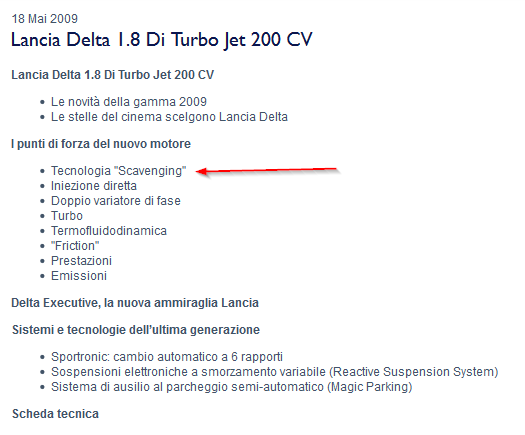
7 punti7 punti6 puntiQuando sento parlare di 1.7 diesel, non posso fare a meno di pensare all'epopea dell'Isuzu6 punti6 punti@Nick for Speed sta ufficialmente iniziando il processo di canonizzazione della Delta6 punti6 puntiNo ma zio porcone ci sono mille alternative per avere una segmento B. E tutte non sono convenienti? Eh ma gli altri marchi allora sono tutti cretini. C'è chi fa un singolo modello in joint....c'è chi lo fa nuovo di pacca....c'è chi piglia un pianale segmento C e lo riduce a B...c'è chi fa pesanti restyling di modelli vecchi come la punto (corsa e fiesta)... Poi c'è fiat...che non fa un cazzo. Fai una cavolo di macchina brasiliana si? ecco fa in modo che si venda anche da noi no? Ricarrozza una ypsilon...unisci 2 500 abarth...taglia una tipo che ne so io? Le hai viste le vendite in europa delle segmento B? che sono tutti coglioni? Basta con la storiella "non ci sono soldi"... che dopo tutti questi anni se non c'erano soldi avevano già chiuso da un pezzo. Pure tipo non volevano fare e vende e probabilmente rende più di panda per ogni singolo esemplare venduto. Ricarrozzi la punto...i motori ce li hai e via. O europeizzi argo Per un solo modello o joint in generale?5 puntiLancia ha sempre basato il suo successo su tre semplici caratteristiche: comfort, prestazioni e stile. Se le tre componenti sono equilibrate si ha la Lancia perfetta. Gli ultimi modelli non sono stati all'altezza proprio perché non hanno rispettato queste semplici regole. Ad esempio la Lancia più vicina alla perfezione è stata l'Aurelia B24, bella, veloce e assolutamente comoda. La Lancia tra qualche anno forse non esisterà più, ma sicuramente la sua filosofia continuerà a vivere nel marchio Audi. Auto comode, belle e prestazionali. Hanno saputo valorizzare la loro trazione "quattro" e in Lancia c'era "l'integrale". Hanno creato un reparto per le versioni sportive S-RS, quando il Lancia c'era HF. Hanno ripreso anche la stessa configurazione meccanica, trazione anteriore-integrale. Si possono dire tante cose, ma di sicuro gli insegnamenti che questo storico marchio ha lasciato al mondo dell'auto non sono andati perduti5 punti5 punti...è curioso come si vorrebbe che le Alfa montassero solo motori da certe potenze in su e contemporaneamente qualcuno si lamenta che non ne vendono come la Panda.................5 punti5 puntiNessuno credo abbia mai messo Giulietta in competizione con le C della triade tedesca. Quanto al resto, forse conviene ricordare anche che Giulietta è un modello che è stato presentato nel 2010, ormai quasi 8 anni fa. La Classe A W176, che questo nuovo modello MB va a sostituire, è del 2012. Quando Giulietta uscì, venne chiaramente ammesso che la sua principale competitor sarebbe stata la Golf (all'epoca Golf VI) e mi pare che la qualità generale del progetto fosse paragonabile...Poi è altrettanto chiaro che, in questi 8 anni, di modelli e nuove generazioni di vetture concorrenti ne sono uscite parecchie. Allo stato attuale Giulietta è una Segmento C onesta (a differenza di altre, tipo questa classe A ), ma senza dubbio ha problemi derivanti dall'età, dalla qualità delle finiture e, genericamente dal design un po' datato...senza contare che la sua componentistica è stata riciclata su 1000 altre vetture FCA. Le principali competitor di Classe A, ad oggi, sono Audi A3 e Bmw Sr1, fine. Se mai Alfa Romeo, nel pieno di questo suo nuovo corso, immettere sul mercato una nuova vettura di segmento C, trarremo conclusioni.5 puntiMelissa Greta Marchetto, da "quelli che il calcio".5 puntii pretendenti a questa carica che gravitano fra FB e la rete in generale ci saranno rimasti male per non essere stati considerati per la sostituzione di Bigland5 punti4 puntiSi, puo. boh,,questa tecnologia ha gia avuto Delta III quasi 10 anni fa - complimenti a Mercedes che adesso sono arrivati anche a questa tecnologia
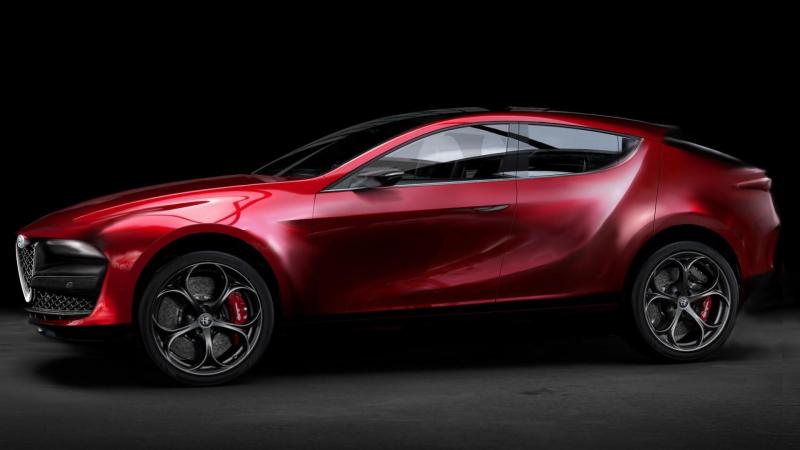
 4 punti4 puntiSe ci fossero state scelte industriali più ponderate non ci sarebbe stata la cessione.4 punti4 punti4 punti4 puntiNo, non giova. Non c'entra una mazza, dà solo fastidio per il gusto di darlo, ergo possiamo farne allegramente a meno4 punti4 puntiPosto che cosi’ di primo acchito come detto non mi piace, mi tocca paradossalmente difenderla. Non sappiamo quanto costa, come va, come e’ fatta dentro ma si dice che hyndai e peugeot sono meglio. Questa avra’ versioni top, infinte possibilita’ di personalizzazione, interni immagino fatti bene e appaganti per la piu’ parte delle persone. Forse giova ricordare che al momento la concorrenza italiana nel segmento ha questi interni qui (con, al di la del design trapassato, hanno una qualita’ piu’ da segmento B che da C, imho):4 punti4 puntiRumors sulla generazione della classe A del 2024 dicono che al posteriore monterà le balestre4 punti4 puntiNe avevo molte da suggerirti,poi ho letto "europea",allora mi ritiro......pero' sta storia del gas non e' che la digerisco molto...su di una storica3 puntiLa Join ci sarà, ma non con Mazda. Di più non posso dire3 punti3 puntidovremmo creare una roba del genere a 5 porte e rialzetta3 punti3 puntiNon buttiamola sul vittimismo.. e comunque ricordo che un mulo di 4c era uscito fuori strada vicino alla Mandria nei collaudi. Questo può spiegarne le vendite deludenti3 puntiIl cambio manuale di Stelvio non esiste. Giulia ne ha due: sulla Quadrifoglio, è uno ZF 6S-53. Sulla diesel, è un Getrag 6MTI300 (G217).3 punti3 punti3 puntiE' indubbiamente una macchina figlia del nostro tempo. Gli esterni non mi sembrano male, già gli interni per quanto saranno probabilmente ben rifiniti, mi lasciano un po perplesso. Sarebbe da vedere nelle versioni "comprabili" con cerchi 16/17, interni in stoffa, schermi non panoramici e cambio manuale per poter dare un giudizio. Probabilmente le versioni ad ora mostrate viaggiano sui 50.000€ tranquilli. Peraltro in versione meno tamarra, non pare neanche male: Sarebbe interessante vedere se la A200d presumibilmente sui 150cv, avrà il multilink. In tal caso sarebbe probabilmente il miglior acquisto. Diversamente possono andare a zappare. Ritengo comunque questo segmento (specie le premium) oramai anacronistico. Con qualche spiccio in piu (a volte nemmeno) girando un po ci si porta a casa una segmento D a km0. Magari con qualche accessorio in meno, ma con meccaniche e componentistiche che almeno valgono i tanti soldi che chiedono. Andare a pagare una A180d ben piu di 30.000€, quando con gli stessi soldi si porta via una A4, Serie 3, Classe C, Giulia mi fa venire il sangue.3 puntisi evolve....ora forse sa più di gtv che di montreal, però, non mi convince ancora frontale e coda
 2 puntiNon solo, si auspica che costino anche meno di ventimila euro...2 punti2 punti2 puntiDevo dissentire nel modo più assoluto. Brutte forse sì. Dipende dai gusti. Qualità percepita non al livello delle europee...anche. Ma dai un'occhiata agli indici di affidabilità. Surclassano qualsiasi costruttore europeo. Non a caso in Nordamerica, pick-up a parte, hanno praticamente preso il controllo del mercato. In quei mercati, gli europei non riescono a sfondare.2 puntiIl problema di Thesis, e che prima, non aveva un o piu mercati di riferimento, gia all'epoca il seg.E in Italia era in collasso. Poi non era Lancia, era troppo "British", anche se bellissima (a suo modo perche il frontale era veramente "speciale"). Mike Robinson ha distrutto Lancia come design. E Lancia non e(ra) un marchio che si poteva risollevare facilmente (come l'hanno fatto benissimo MB e BMW) dopo grossi errori cosi. E all'epoca mancavano motori moderni e potenti.2 punti2 punti2 punti...e per 15gg non si parlò d'altro..........................................2 punti2 punti2 puntiScusa, ma la ergonomia delle Peugeot con la loro mini volanta e il strano posizionamento dei strumenti e ridicolo! E gli materiali non mi interessano molto, per contano motore, telaio e freni e in questi punti una Giulietta Veloce anche oggi concorrenziale. P'er una macchina non serve solo per andare da A a B, perche se ho bisogno solo per questo basterebbe anche una Panda.2 punti2 punti1) cerchiamo di stare in topic 2) Perdona, ma dire che le concorrenti erano meglio significa non averne mai guidata una . al limite posso dire che alcune concorrenti avevano una qualità percepita migliore . Ma le plastiche non tengono la strada, almeno per ora. Ed ora, io per primo chiudiamo l'off topic 3) comunque presentare la plancia della Panda I del 1980 ( come soluzioni ed economicità di progetto, produzione ed assemblaggio ) al modico prezzo di 30k euro in su, mi sa di grande presa per il c@o . Detto questo : aggiungo un solo commento : dopo aver sparato a palle incatenate sulle dimensioni di Delta III*, mi rendo sempre più tristemente conto che la cosa più sbagliata è aver ragione prima del tempo * che a parità di ponte posteriore interconnesso, almeno offriva il divano posteriore scorrevole2 punti2 puntiA parte aver confrontato una vettura che ha già otto anni con una che deve ancora uscire e già qui ci sono delle ottime premesse per mandare la discussione in vacca,non serve mettere il sedere sopra per giudicare le scelte al risparmio sulla meccanica poichè sono cose che si vedono e se uno conosce l'argomento automobile evidentemente non ha bisogno di saggiarla a livello tattile e/o sensoriale per discuterne.2 punti2 puntiforse in questo segmento serve qualcosa di più estremo e meno classico visto il successo di robe tipo l honda chr
 2 punti2 puntia me è bastato vedere lo smaltimento di quelle al piombo dal vivo2 punti2 puntila cosa peggiore è che la placchetta sulla portiera è ad un'ulteriore terzo livello.. abbastanza inquietante. in compenso il cassettino porta oggetti è un'elegante citazione2 punti2 puntiOttimo lavoro. Hanno preso una trappola per paesi in via di sviluppo, l'hanno portata da noi e ora l'hanno ristilizzata e arricchita per renderla guardabile e vendibile. Qualcuno dovrebbe prendere esempio.2 punti2 punticredo che senza Vag, Lamborghini ad oggi sarebbe solo il cognome di quella "sportiva" della nipote di Ferruccio e trattori Same rimarchiati2 punti2 puntiAlla buon ora! Alle auto rompono la cippa anche ai diesel euro6 e invece ste locomotive a carbone con ruote di gomma possono ancora circolare fino all'anno prossimo2 punti2 punti"Più tecnologica della stragrande maggioranza" scusa ma si riduce solo agli schermetti e alla possibilità dell'assistente vocale (che vabbè, se hai Apple Car o Android Auto usi quello del cellulare) Sinceramente, dato che è anche bruttina, non vedo cosa offra più di una Civic che almeno dietro ha il multilink su tutte le versioni. "An emotional connection between the vehicle, driver and passengers" con l'interconnesso dietro. Questo è esattamente quello che sta diventando l'automobilismo. Spero in un cambio di rotta deciso nei prossimi anni o inizierò a comprare future storiche che sono emozionanti per davvero.2 punti2 puntiLinea a banana, sbalzo anteriore esagerato, muso triste, motori da utilitaria francese, interni da sala giochi. Ottimo lavoro Mercedes! ?2 puntiLa Leaderboard è riferita all'orario Roma/GMT+02:00




























Account
Navigation
Cerca
Configure browser push notifications
Chrome (Android)
- Tap the lock icon next to the address bar.
- Tap Permissions → Notifications.
- Adjust your preference.
Chrome (Desktop)
- Click the padlock icon in the address bar.
- Select Site settings.
- Find Notifications and adjust your preference.
Safari (iOS 16.4+)
- Ensure the site is installed via Add to Home Screen.
- Open Settings App → Notifications.
- Find your app name and adjust your preference.
Safari (macOS)
- Go to Safari → Preferences.
- Click the Websites tab.
- Select Notifications in the sidebar.
- Find this website and adjust your preference.
Edge (Android)
- Tap the lock icon next to the address bar.
- Tap Permissions.
- Find Notifications and adjust your preference.
Edge (Desktop)
- Click the padlock icon in the address bar.
- Click Permissions for this site.
- Find Notifications and adjust your preference.
Firefox (Android)
- Go to Settings → Site permissions.
- Tap Notifications.
- Find this site in the list and adjust your preference.
Firefox (Desktop)
- Open Firefox Settings.
- Search for Notifications.
- Find this site in the list and adjust your preference.