




Classifica Utenti
Utenti più Apprezzati
(Scegli il periodo) Utenti più Apprezzati
(Storia giorno per giorno) Classifica dall'Origine
(da Marzo 2003)
(Scegli il periodo) Utenti più Apprezzati
(Storia giorno per giorno) Classifica dall'Origine
(da Marzo 2003)
The search index is currently processing. Leaderboard results may not be complete.
-
AndreaB
Utente Registrato34Punti16919Numero contenuti pubblicati -
Alain
Utente Registrato22Punti5597Numero contenuti pubblicati -
Graziano68dt
Utente Registrato12Punti2767Numero contenuti pubblicati -
jameson
Utente Registrato11Punti8515Numero contenuti pubblicati




Contenuti più Popolari
Stai visualizzando i contenuti con il più alto punteggio, pubblicati in data 08/29/25 e localizzati in Risposte
-
«Nel buio della sala correvano voci incontrollate e pazzesche. Si diceva che l’Italia stava vincendo per 20 a 0 e che aveva segnato anche Zoff di testa, su calcio d’angolo»9 punti
-
8 puntiIn passato pioggia era garanzia di gare imprevedibili e spettacolari. in questa formula merda attuale: non si sa se si parte, safety car, partenza lanciata, partenza da fermo, le speranze di nico rosberg, partenza rinviata, gli aneddoti di ivan capelli, i piloti si lamentano per la visibilità, i ricordi di marc gene’, chi monta le gomme intermedie? Le sauber partono dalla pitlane. la pista si asciuga, si passa con le intermedie dalle zone umide, ferrari strategia aggressiva!!! non si può usare il drs, rischio con le slick, diluvia a metà circuito, vai di full wet, non si può sorpassare, tizio sulle barriere, bandiera rossa. La gara riparte alle 16.54 ora locale, sta diventando buio, sono passate quasi le due ore, forse punteggi dimezzati, non si faranno tutti i giri previsti, la pista si sta asciugando, cambio le intermedie, le due ferrari doppiate, torna a piovere, full wet, caio nella ghiaia, safety car, ultimi 10 giri in parata, doppietta mclaren!!!! ”uau, mai visto questo carlo!”8 punti
-
Però decidiamoci, lo stato deve dare i soldi alla Fiat brutta e cattiva che vive di sovvenzioni statali, oppure la Fiat brutta e cattiva deve andare a produrre all'estero? In realtà l'italiano medio vuole che la Fiat brutta e cattiva produca in Italia, assuma altre persone e venda sottocosto, senza contributi statali anzi facendolo pagare di tasca degli Agnelli.6 punti
-
Hai detto fatti in parte condivisibili ma io non darei colpe al cliente finale. Il consumatore italiano ha digerito - auto con cicli vitali di 20 anni mentre il mondo cambiava (Panda 1980 su tutte, ma pure roba come Cinquecento/Seicento anni 90, Panda attuale...) - il suicidio di Lancia - la banalizzazione di Alfa - auto improponibili e che hanno floppato in ogni altro angolo del pianeta, come Idea, Croma II, Lybra, 500L... e l'Italia assorbiva comunque volumi in base alle sue capacità (magari chiedendo scusa se non ha voluto pagarle come un'Audi) - gestione senza nessuna visione mentre i competitor pure asiatici si insidiavano a partire dalle nicchie lasciate scoperte (SUV su tutti, il primo SUV FCA quando è arrivato? 2014? 8 anni dopo il Qashqai?) Ora ci si lamenta se gli altri hanno percezione migliore. Grazie al cavolo... la reputazione è quella cosa che costruisci in 10 anni e distruggi in 5 minuti. Loro sono andati avanti 30 anni tirando sempre i remi in barca un po' di più. Se il cliente italiano fosse stato veramente così ingrato, Fiat non sarebbe arrivata neanche al ventunesimo secolo... Hai detto bene quando hai detto che tra un'idea e una cosa buona c'è di mezzo la passione... che però deve partire da chi manda avanti la baracca, che a un certo punto ha detto "facciamo la Fiat lusso e la Fiat veloce che tanto se la comprano uguale e noi andiamo alle Bahamas". Sì, come no...5 punti
-
sono due cose diverse, il consumatore compra quello che preferisce. auto dal marchio italiano, tedesco, francese, inglese, cinese, americano, a seconda dei suoi gusti e delle sue tasche. Mica siamo negli anni 60 dove le fabbriche italiane vendono solo in italia, il mercato è il mondo. così come se compri una Fiat compri molto spesso una macchina straniera. La 500 è stata una macchina prodotta in Polonia che dava da mangiare alla fabbrica in Polonia ed ai fornitori polacchi. c'è il libero mercato. Se Fiat (stellantis) perde quote è perchè evidentemente in mix percezione dei marchi, modelli, prezzi, è inferiore ad altri gruppi automobilistici sia di fascia superiore che di fascia inferiore. lo stato italiano (dovrebbe) garantire le migliori condizioni per fare impresa, alle aziende automotive e non solo, a tutta la manifattura in generale. Basta copiare quello che hanno fatto in Spagna dove producono 2.5 milioni di auto senza un'industria nazionale alle spalle ma garantendo migliori condizioni ai produttori.5 punti
-
...io pensavo che di c-cross Alfa se ne parlasse qui dentro da più di vent'anni.... 😅5 punti
-
5 puntiOT : visto come "prendiamo in giro" i turisti temo che anche lì sia solo questione di tempo.....5 puntiNon siamo in Unione Sovietica, i produttori producono dove gli conviene. Se in Italia vogliamo campare di turismo, vino e impieghi statali, il risultato è questo.5 punti5 punti5 puntiil giorno che l'Alfa farà un crossover di tendenza, torneranno di moda le coupè e le station wagon, in modo che dopo 12 / 15 anni esca l'Alfa coupè e SW per seguire la tendenza, ma nel frattempo come in un cerchio magico torneranno di moda le berline e le cabrio ormai abbandonate, e via via quando usciranno le Alfa berline e cabrio, torneranno di moda i SUV. la gamma Alfa è come l'urobòro simboleggia la rigenerazione continua e il ciclo infinito di creazione e distruzione, dove ogni fine è un nuovo inizio.
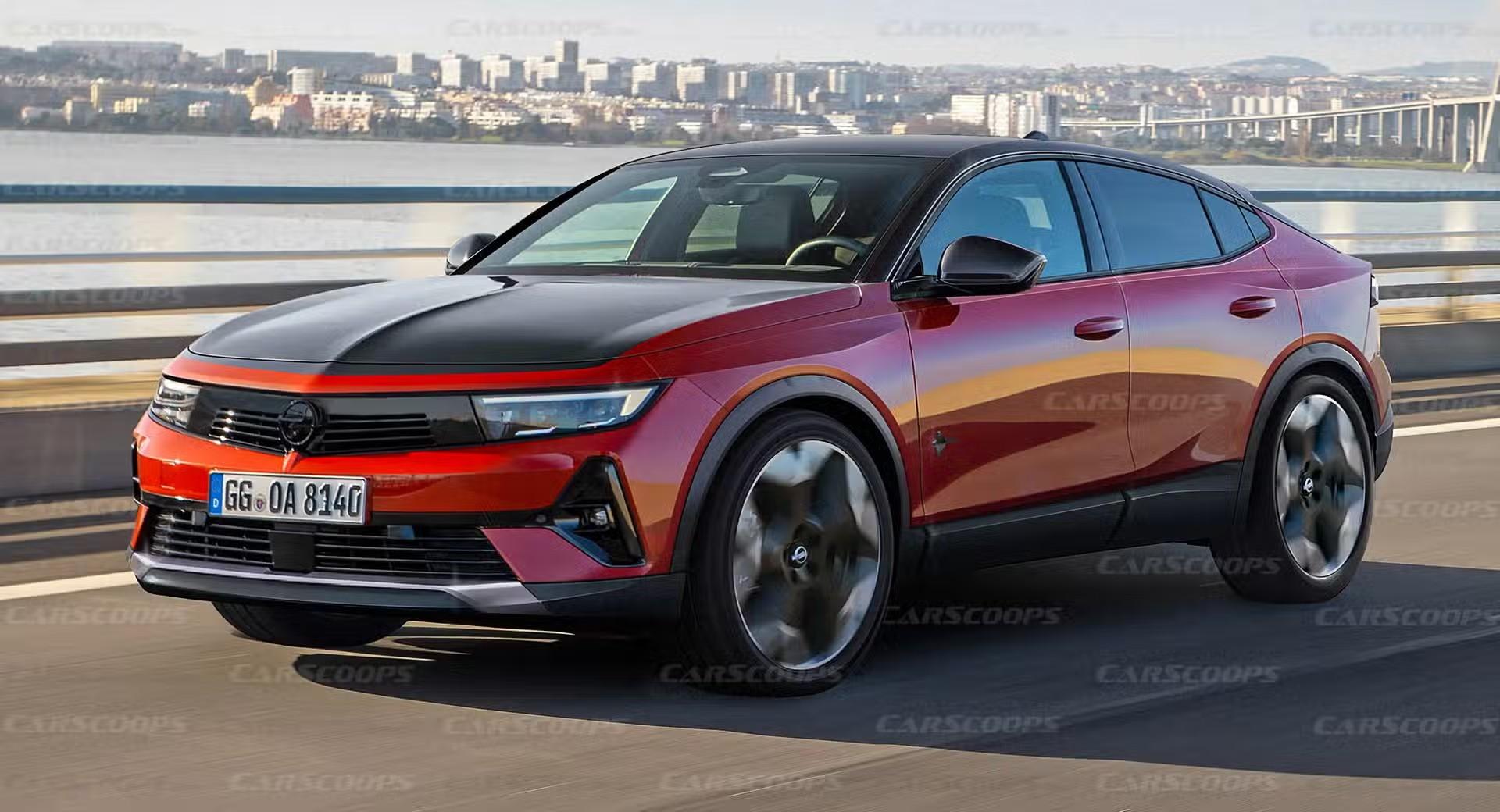
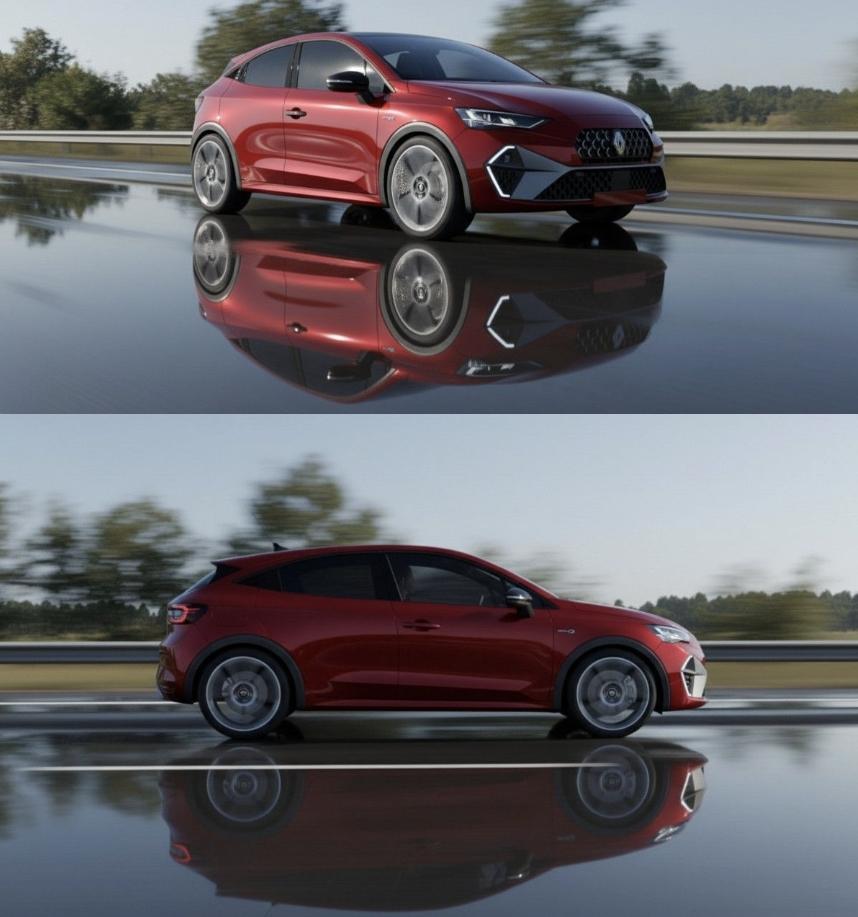
 4 puntiè meglio che arrivi settembre perché scrivere baggianate pur di mantenere in vita un giornale sta diventando too much4 puntiSe fosse vero direi che forse ne hanno finalmente azzeccata una Agevolo rendering di Manta da Alfizzare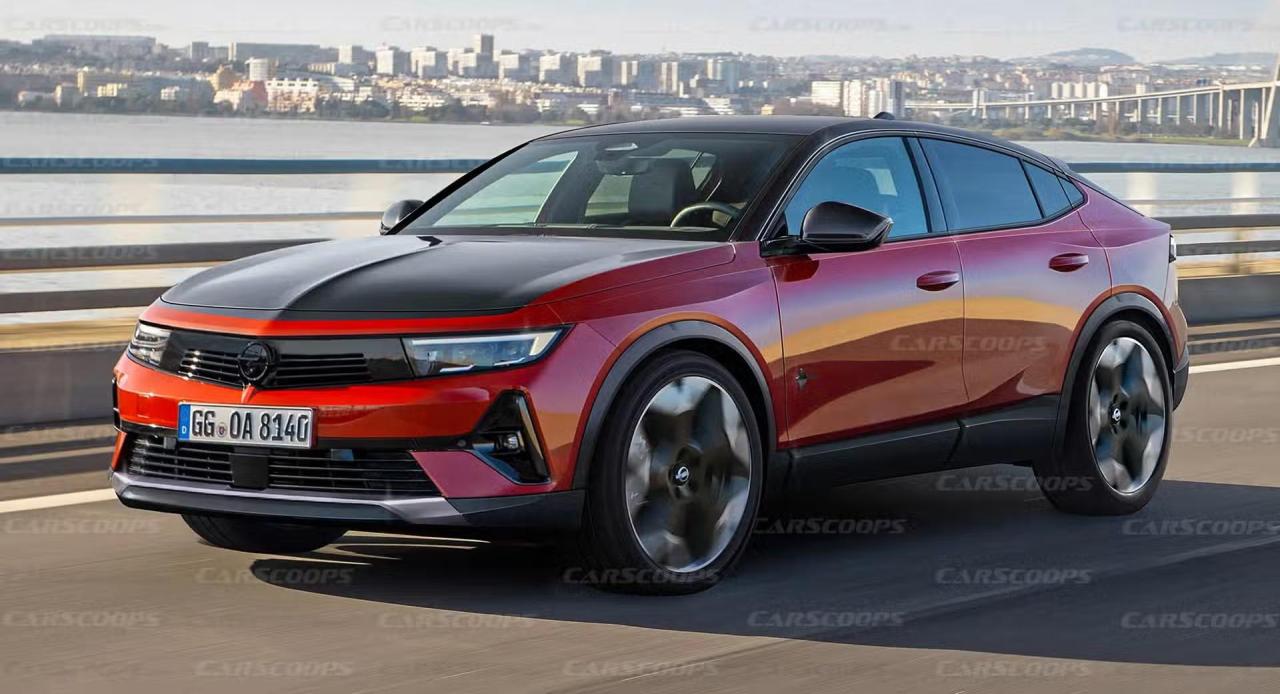
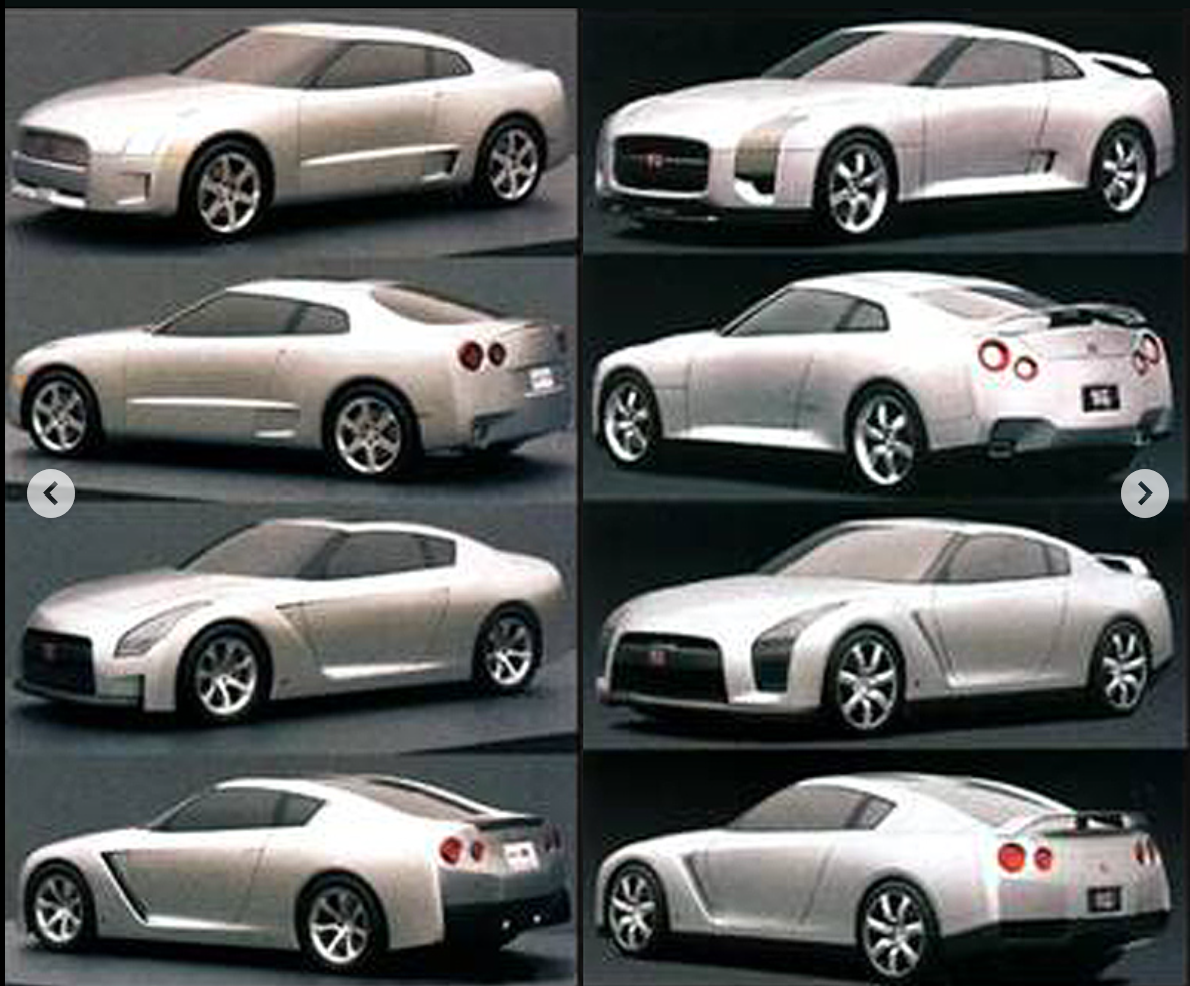
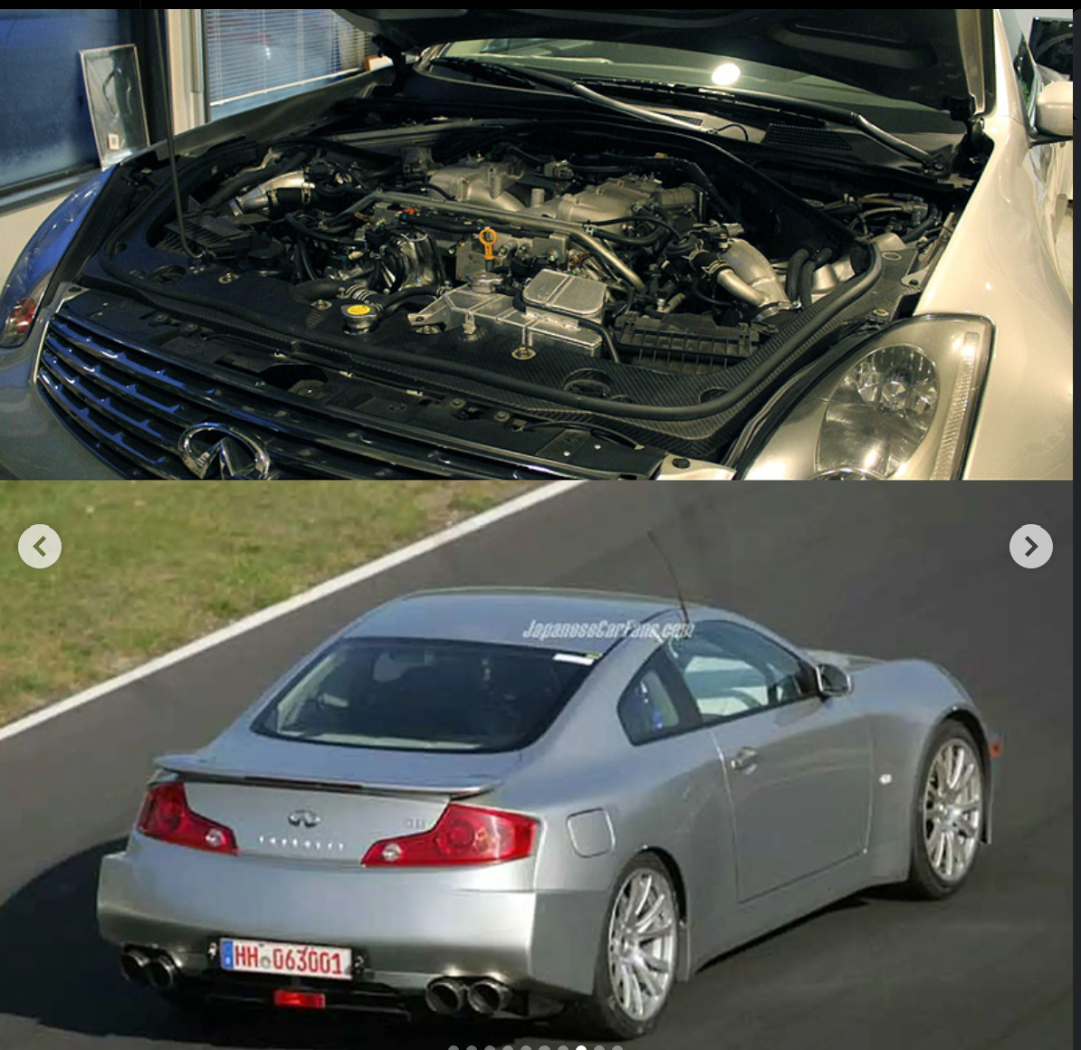
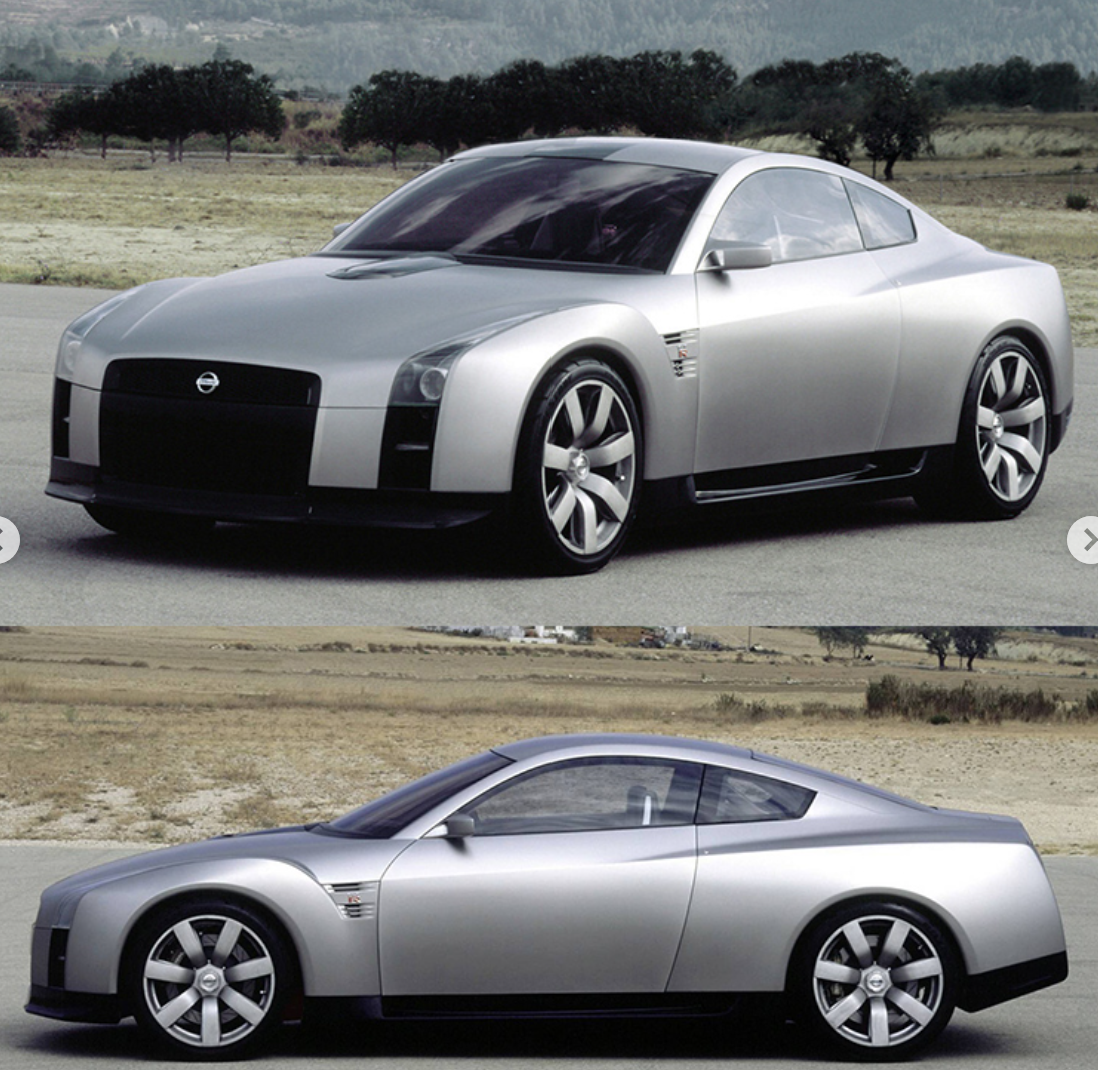
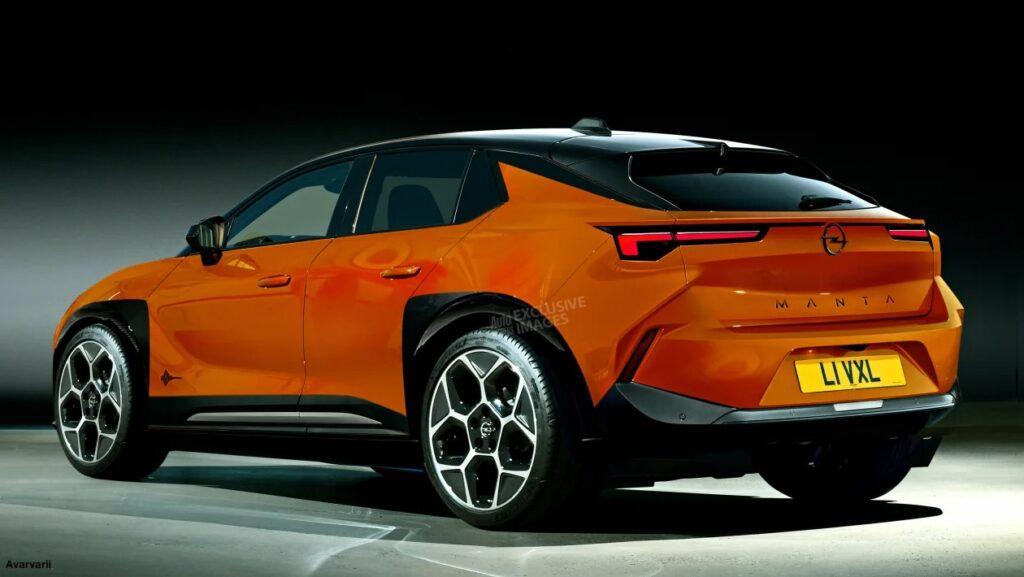 4 punti4 puntiValuterei anche un semplice benzina se il sovrapprezzo e i verosimili km superiori della equivalente gpl fossero troppo. Per 10mila km/annui il Fire benzina non svena di certo.4 puntiPer me non c'è mai stata l'intenzione di mantenere certi volumi produttivi, per tutta una serie di motivi ben noti. Tanto si sapeva che lo slogan politico del "Faremo 1 milione di autovetture in Italia" rimarrà solo uno slogan. Vedremo tra 12/18 mesi come andrà la storia, perchè le produzioni exFCA sono ormai terminate e quelle nuove di STLA vanno a stra rilento(oltre ad essere produzioni a basso volume, es. DS8/DS7/Gamma/Giulia ecc..). Io l'avevo detto già qualche anno fa, in italia(volutamente scritto in piccolo) STLA non andrà oltre i 500k veicoli(inclusi i furgoni quindi) prodotti all'anno. E spero anche che qualche stabilimento salti(Cassino che ha prodotto solo CIG dal 2019 ad oggi in primis), perchè da cittadino che le tasse le paga(oltre al boato di irpef che mi viene trattenuto sul mio stipendio ogni mese), non mi piace vedere abusi degli ammortizzatori sociali in questo modo.4 punti3 punti3 puntiNissan GT-R R35. Dal concept del 2001, passando per il making of, al modello di serie del 2007, fino all'uscita di scena del 2025.
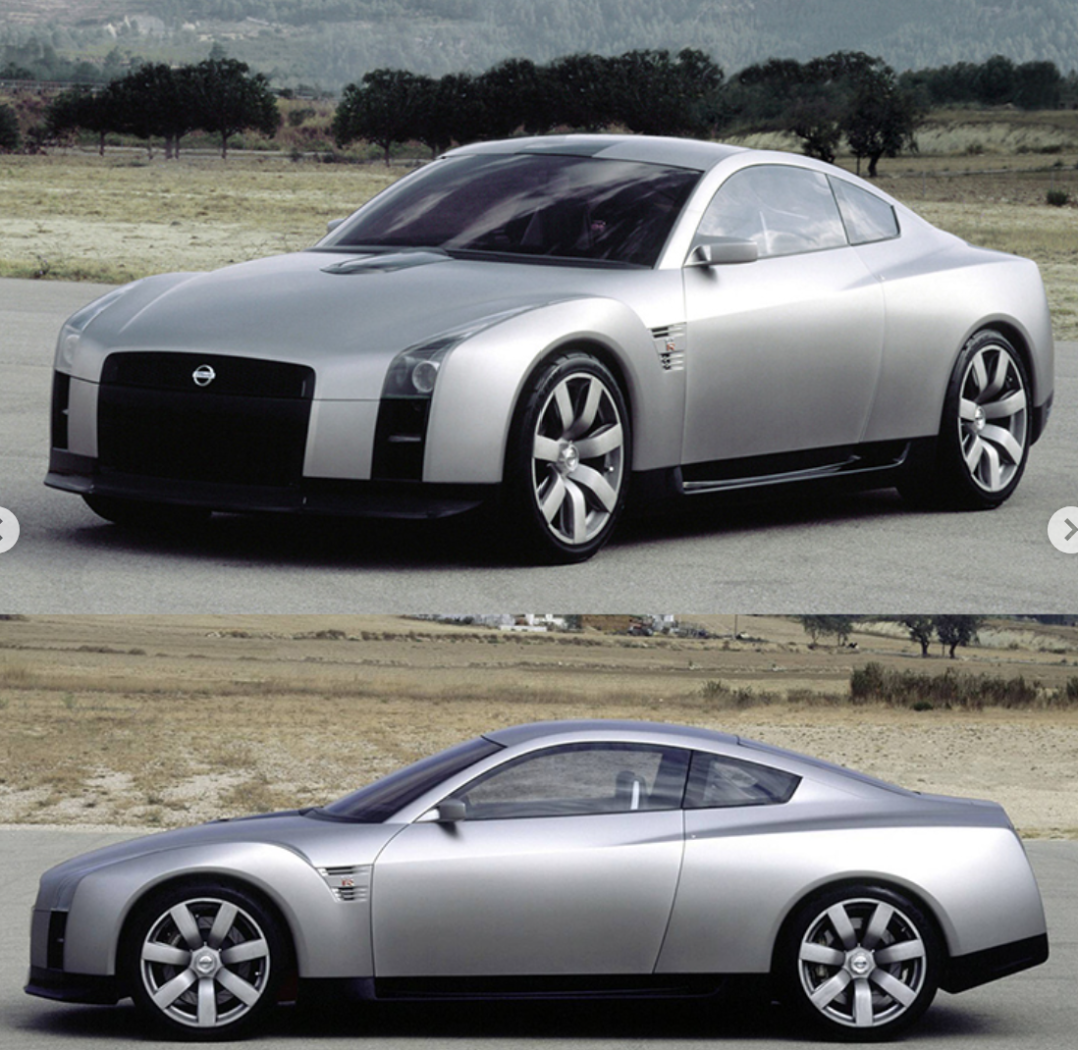


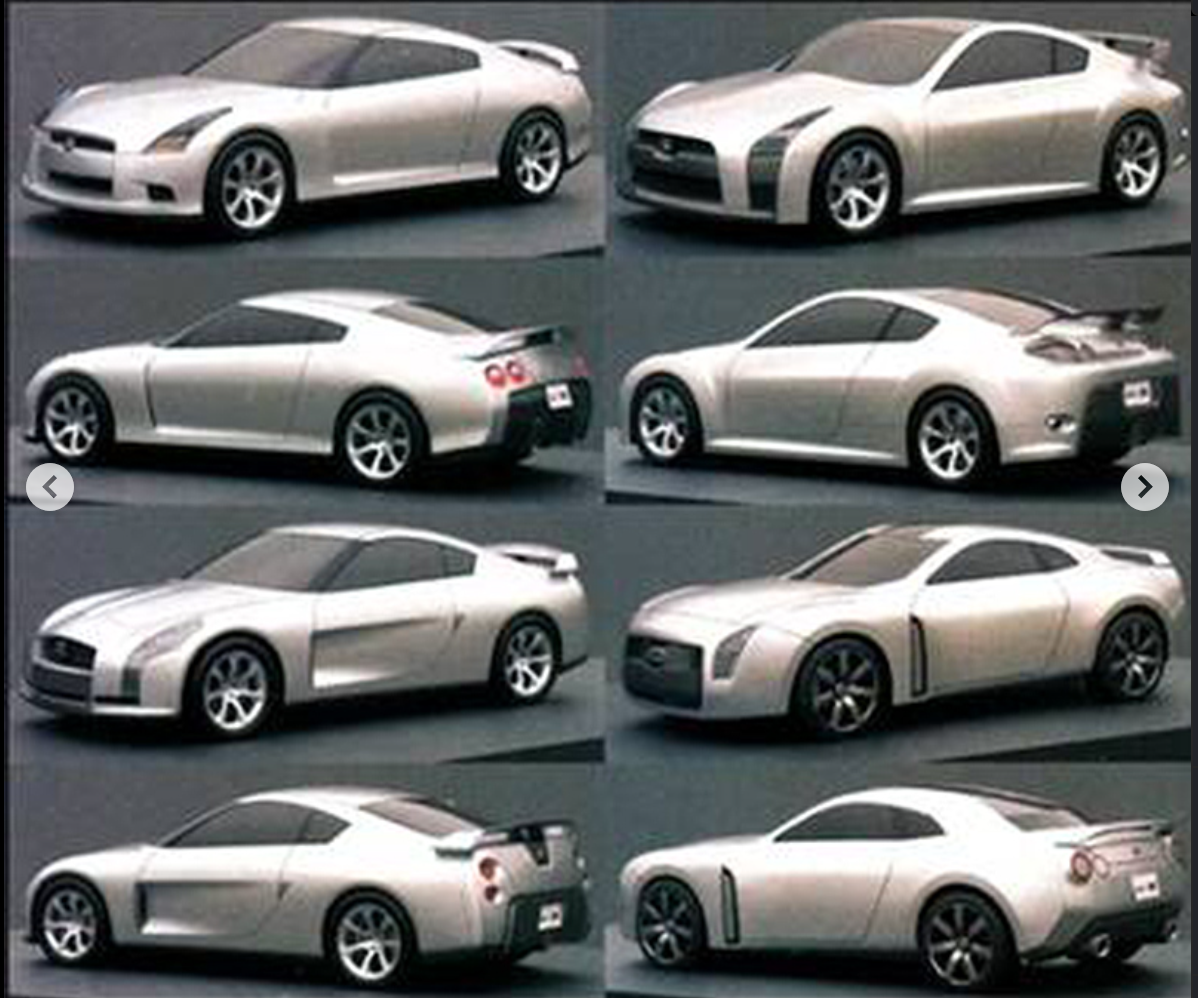


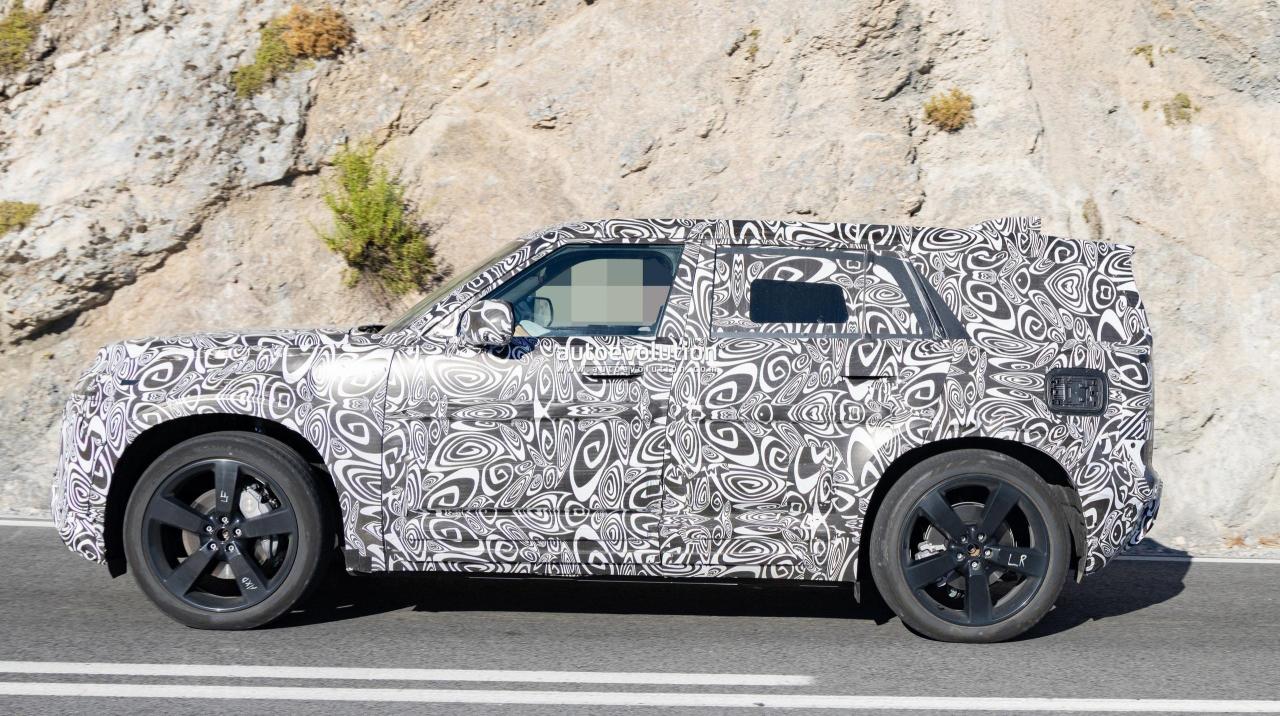
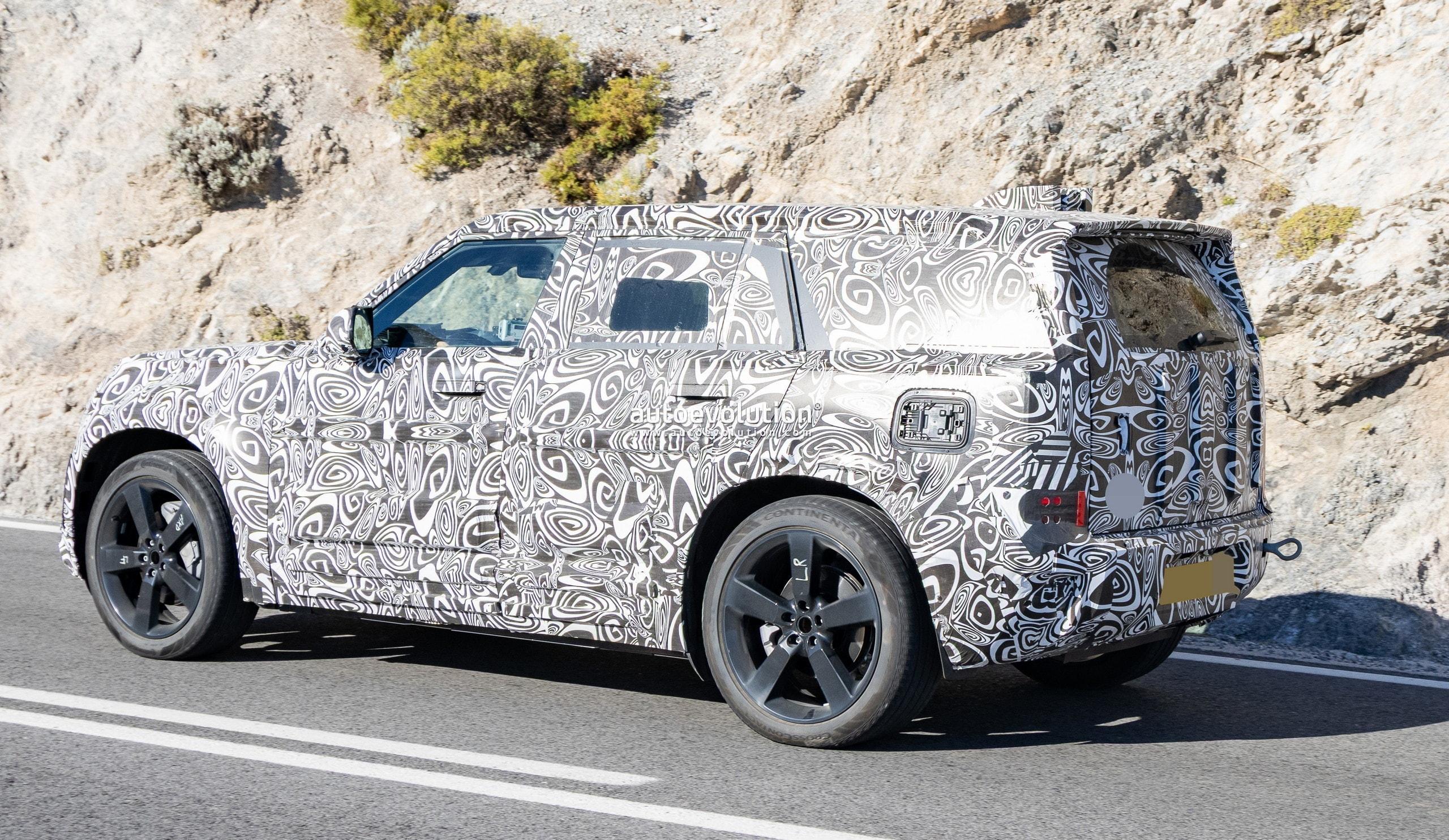
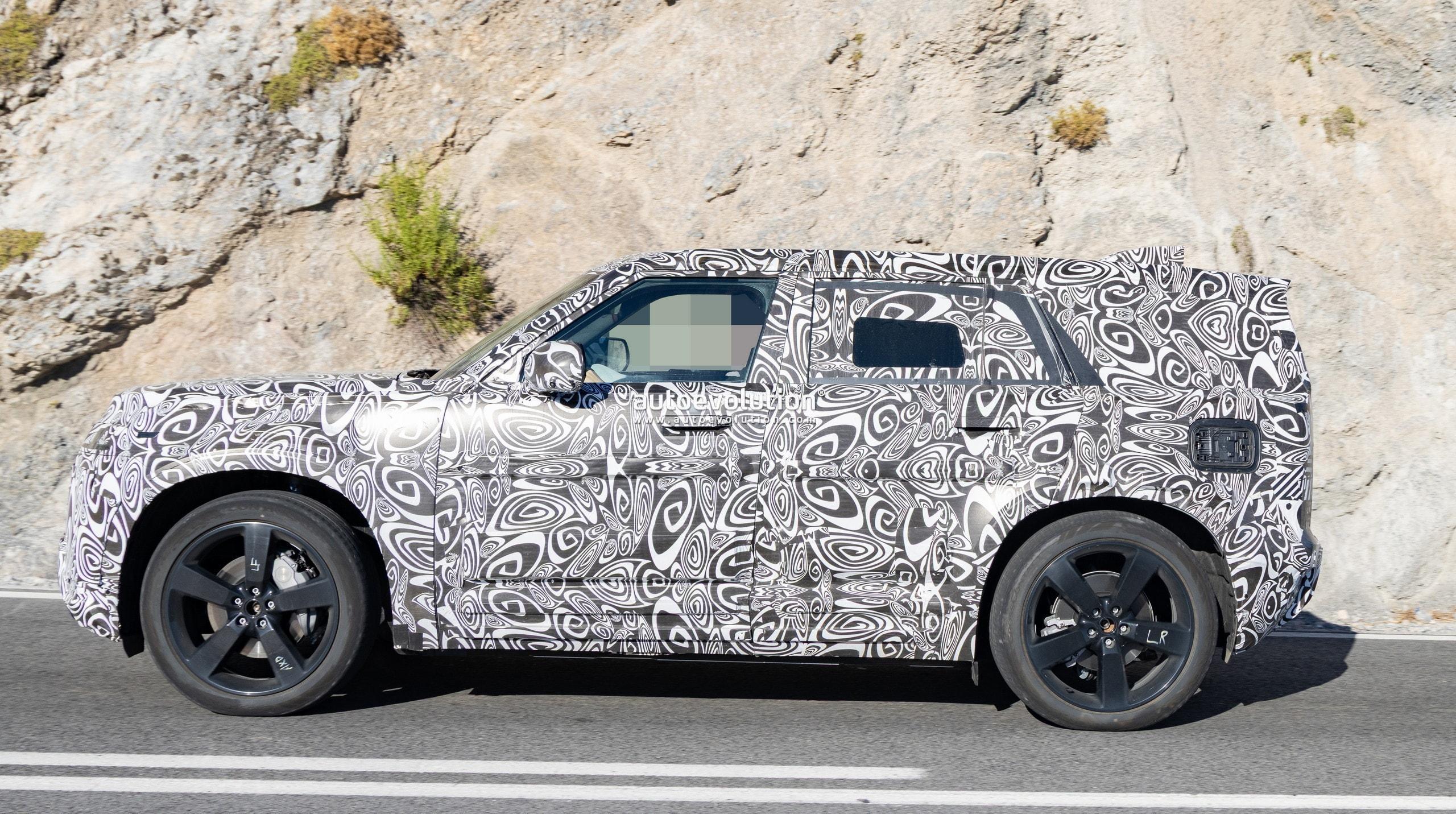
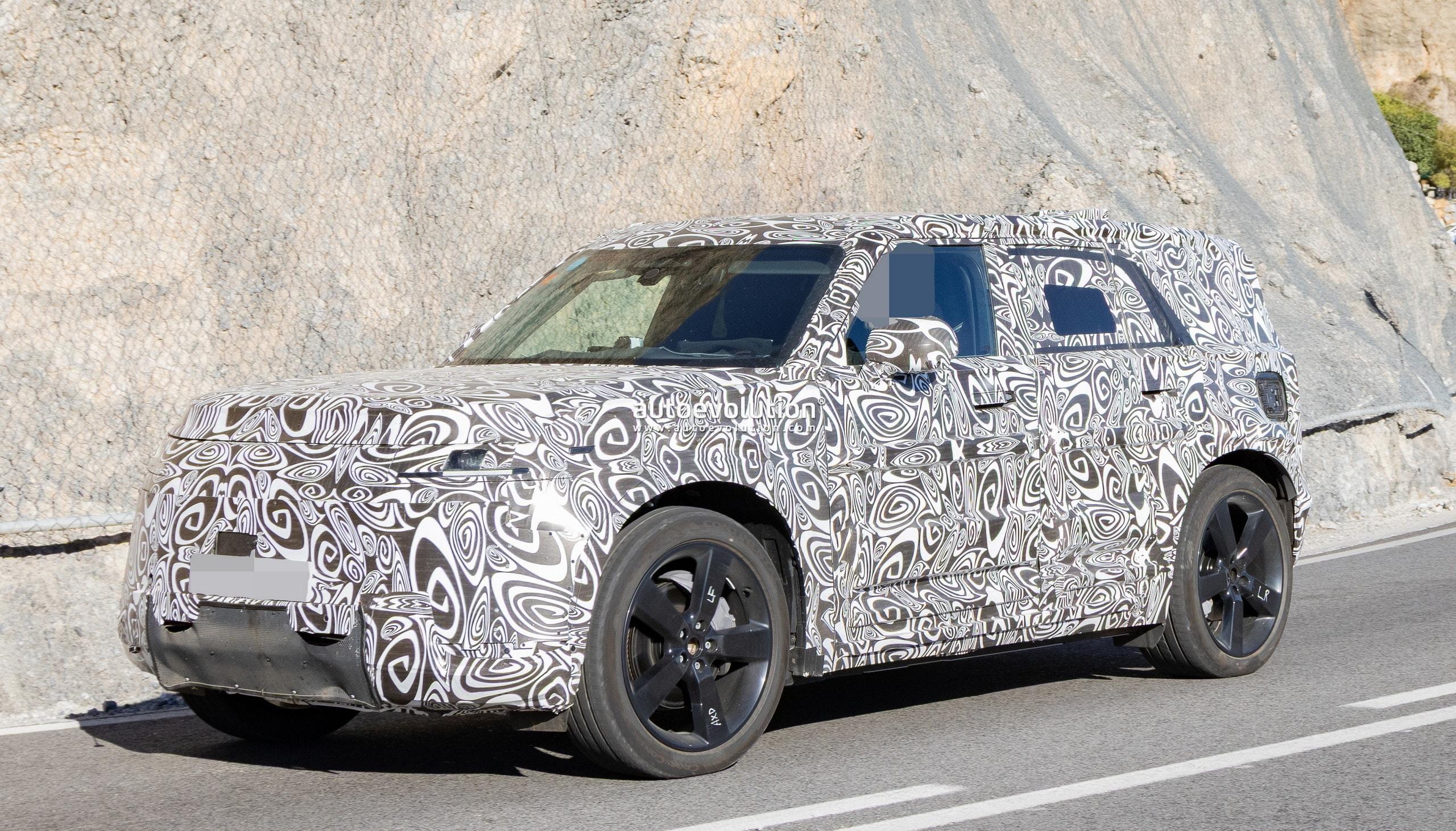
 3 punti3 puntiChe poi non è tanto la lunghezza, ma la larghezza delle auto degli ultimi 10 anni che, personalmente, da "fastidio" nell'utilizzo quotidiano.....3 puntihttps://www.autoevolution.com/news/2028-land-rover-baby-defender-scooped-in-the-open-it-s-a-compact-electric-crossover-256650.html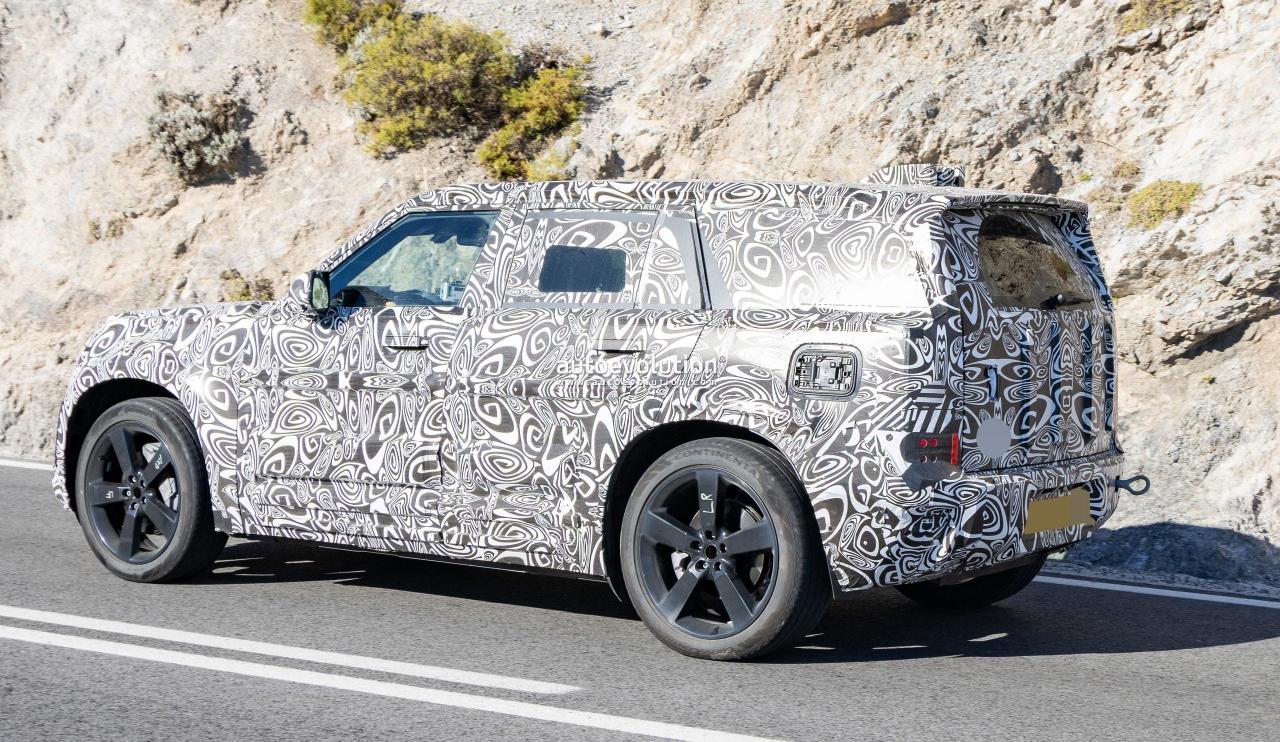
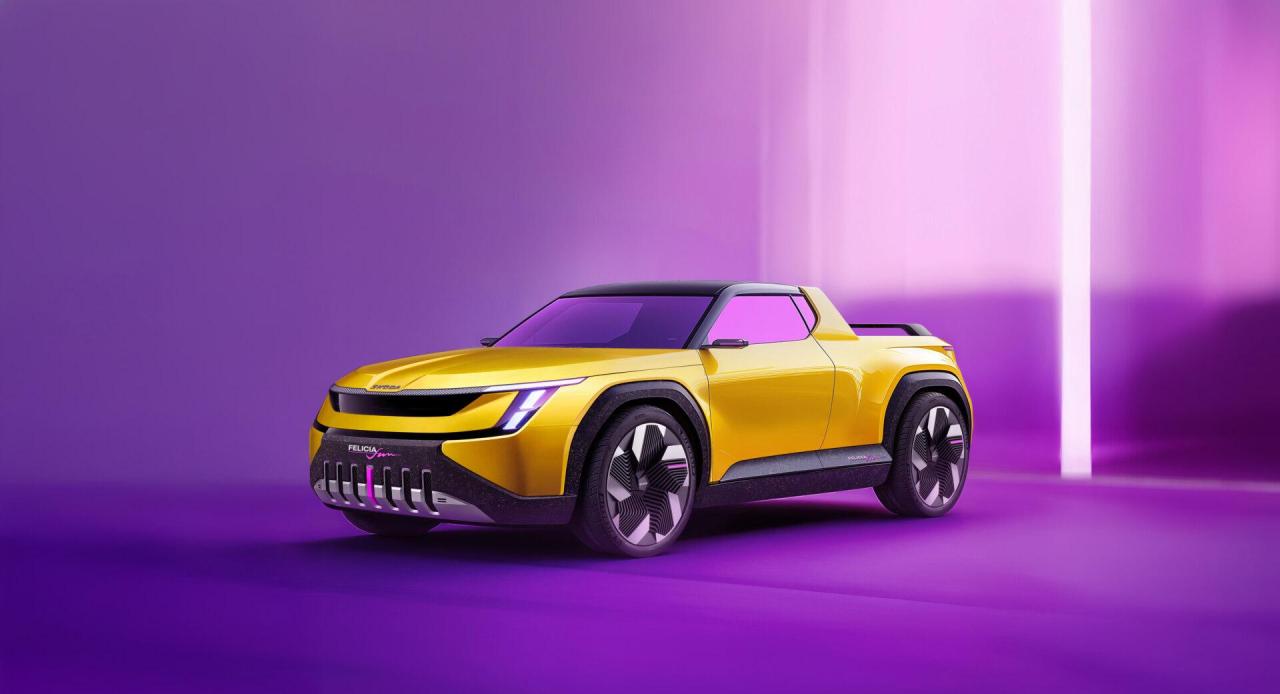
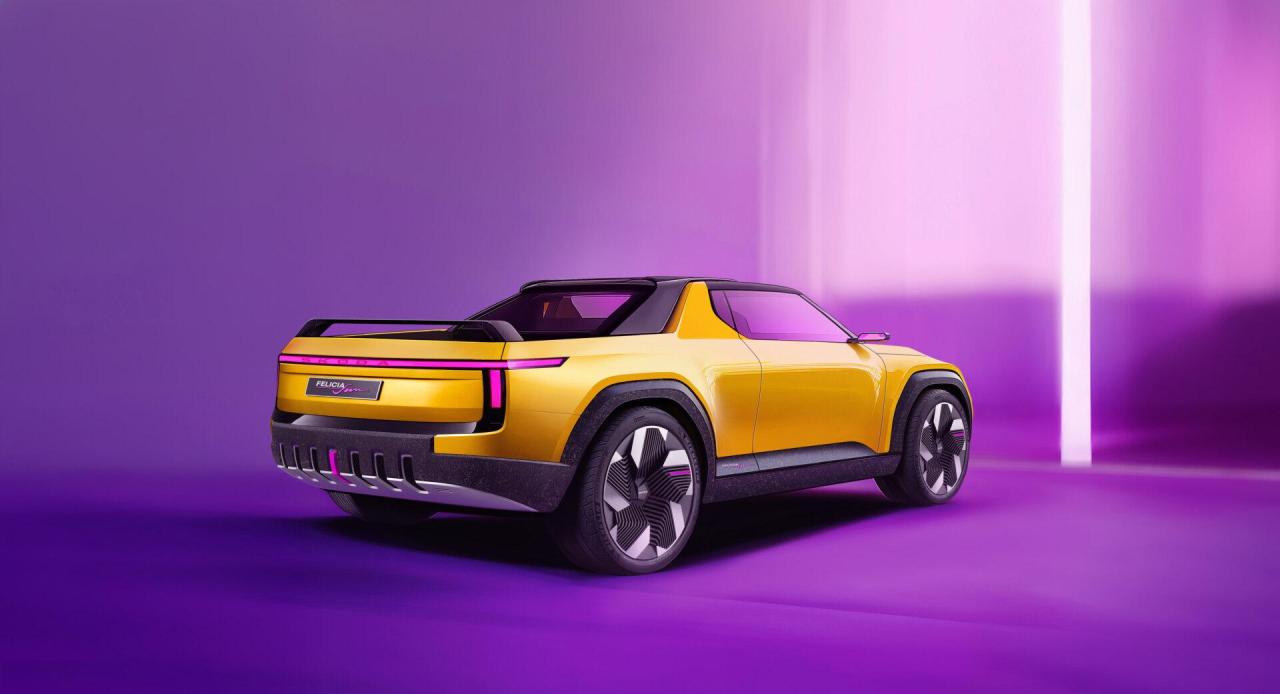
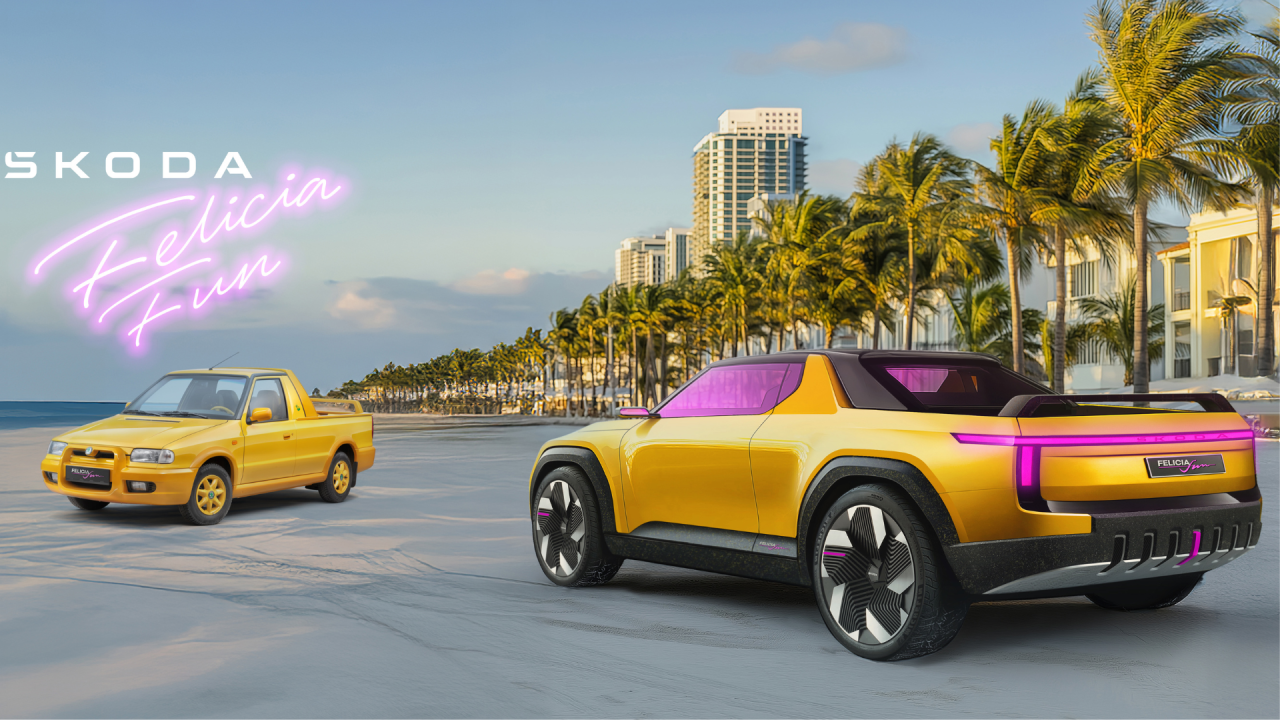
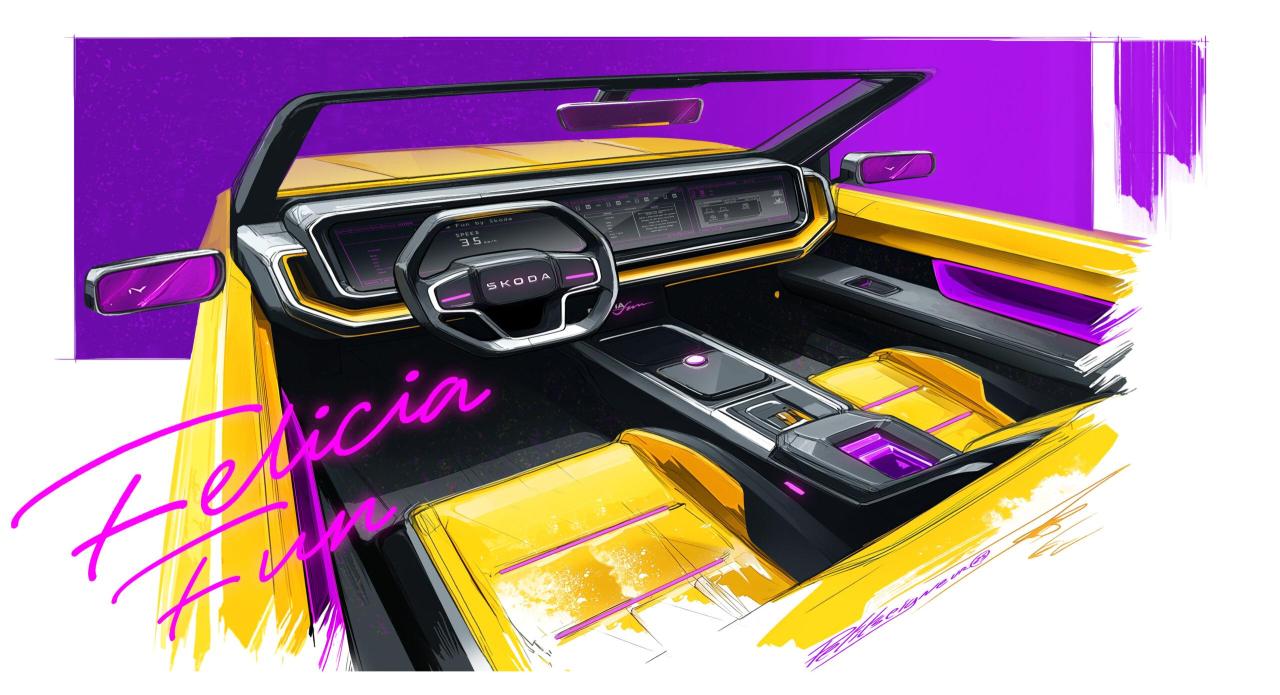
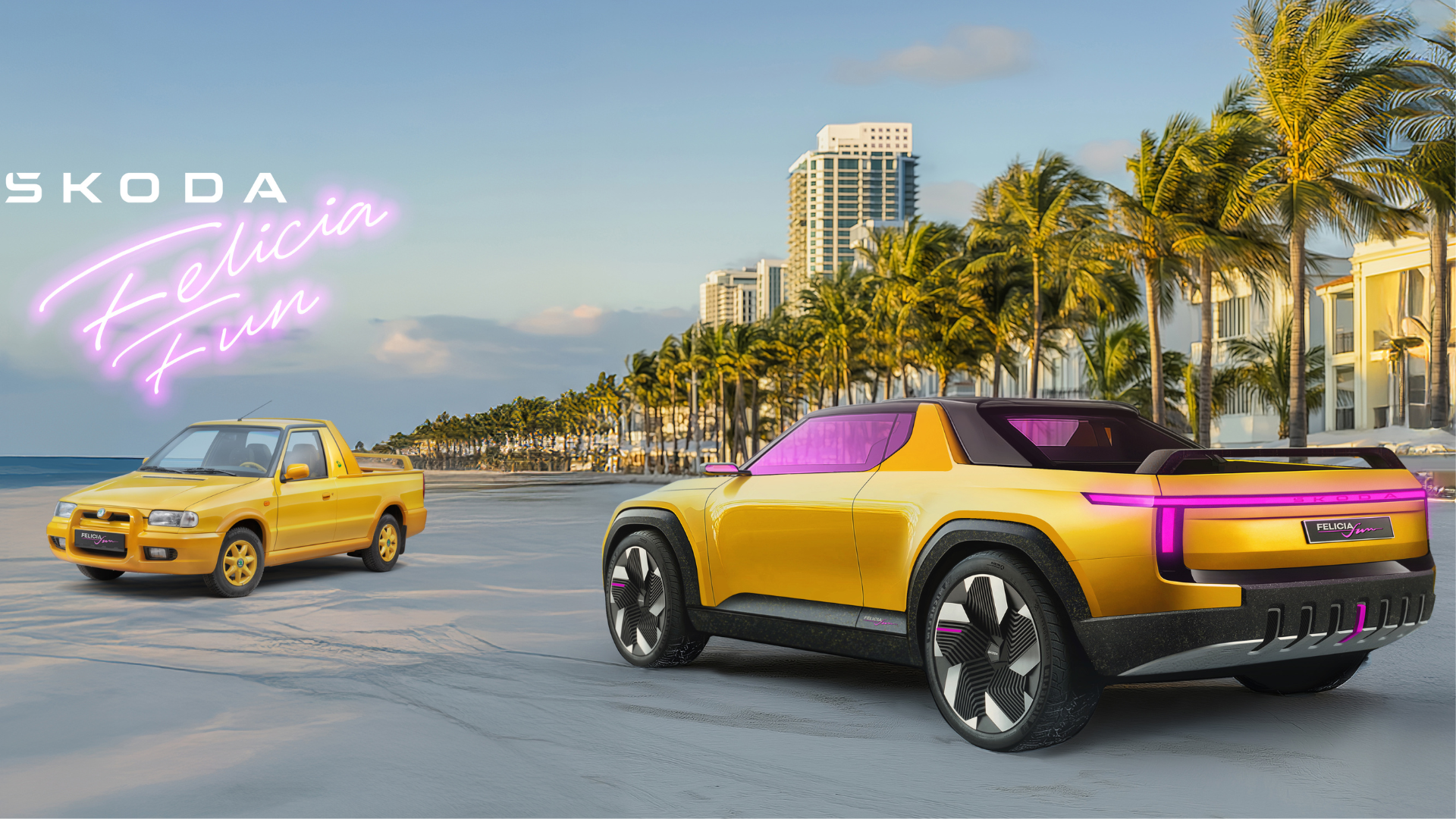
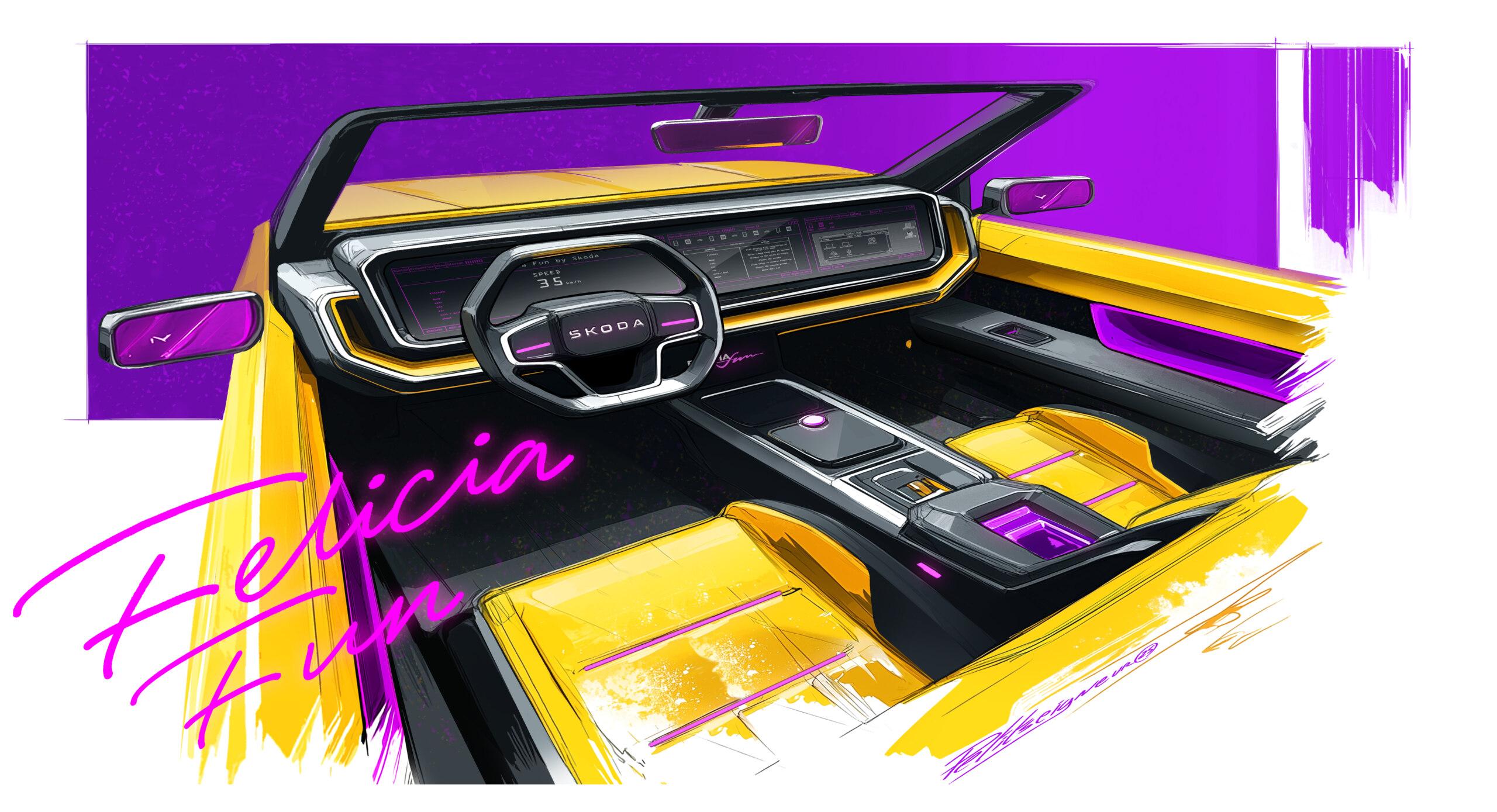
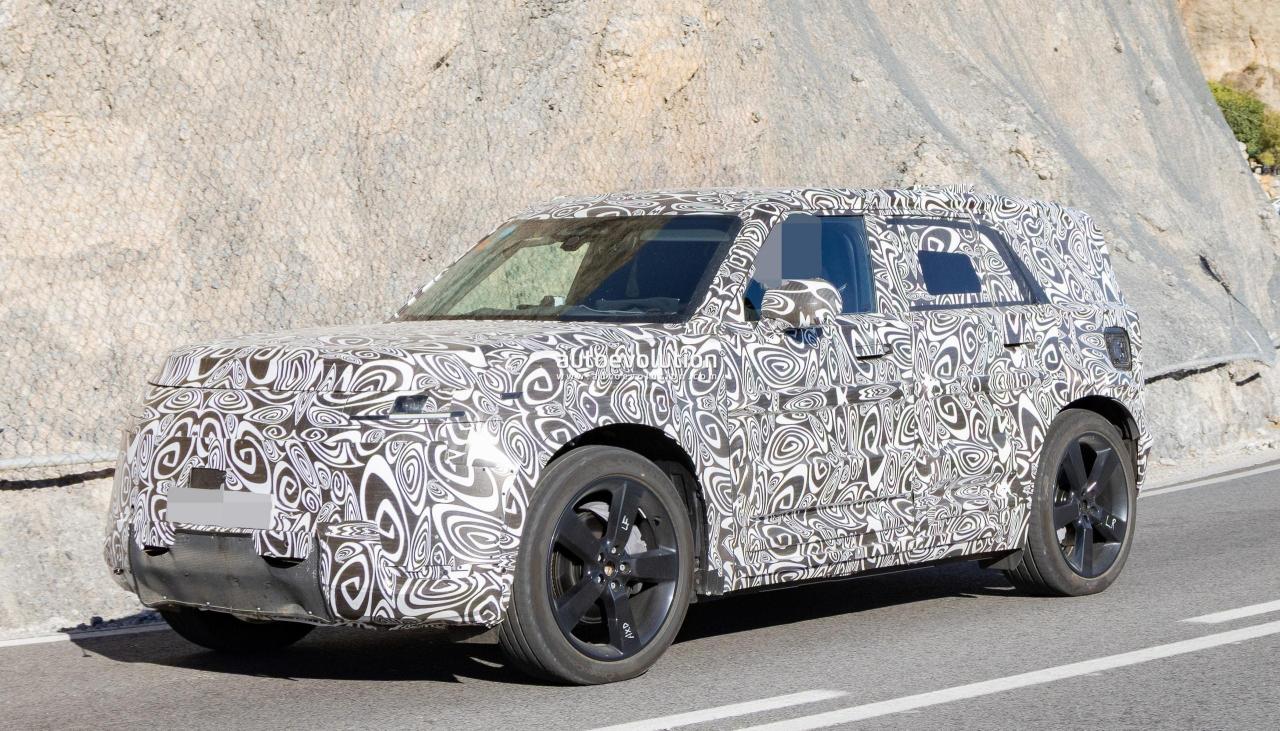 3 puntiE' chiaro che se l'Italia vuole mantenere un ruolo nel settore dell'automobile deve fare in modo che la produzione sia conveniente ai costruttori. Il punto e' che la nostra classe politica riesce a negare anche l'evidenza. Poco temp fa ci fu l'ennesimo allarme sul sito produttivo di Atessa. Una rappresentante della Regione, competente in materia, (non metto nomi e nomi dei partiti per non contravvenire alla regola di autopareri in merito alla politica) nego' in prima battuta che ci fossero problemi per poi dimostrarsi preoccupata dopo qualche giorno. Se questo e' il livello, il risultato non puo' che essere la chiusura delle fabbriche3 punti3 punti3 punti3 punti2 puntiRinasce un’icona: la Škoda Felicia Fun reinventata in chiave “Modern Solid” Škoda dà nuova vita a una delle sue creazioni più spensierate, la Felicia Fun, con una rivisitazione digitale moderna che fonde nostalgia e design contemporaneo. L’originale Felicia Fun era un pick-up compatto e vivace prodotto tra il 1997 e il 2000, di cui ne vennero realizzati solo 4.216 esemplari. Telaio Felicia base, carrozzeria gialla, spoiler posteriore e un “colpo da festa”: una paratia scorrevole dietro i sedili anteriori che, spinta verso il retro, rivelava due sedili aperti coperti da tettuccio in tela. Un mix originale tra divertimento e funzionalità, perfetto per le gite estive o per trasportare amici e carico con stile. Un nuovo concept digitale che rispetta l’anima originale Come parte della serie "Icons Get a Makeover", Škoda ha chiesto al designer francese Julien Petitseigneur di ripensare la Felicia Fun nel linguaggio stilistico “Modern Solid”, immettendo dinamismo pur rimanendo fedele allo spirito degli anni ’90. La reinterpretazione è moderna: Griglia anteriore "Tech-Deck Face", luci T-shaped LED sottili e taillights con accenti rosa neon. Vernice gialla brillante, dettagli contrastanti in nero su paraurti, passaruota e sponde, ruote ampie con cover aerodinamiche. Petitseigneur ha descritto questa versione come un'“atmosfera da spiaggia anni ’90 rivista con proporzioni moderne”: ampio passo, carreggiata larga e dettagli robusti reinterpretati in chiave solida e contemporanea. Interno digital-retro con citazioni al passato All’interno, l’abitacolo è dominato da un display panoramico full-width con grafiche ispirate ai primi videogame e interfaccia retrò alla Windows 95, il tutto racchiuso in una struttura che richiama i monitor CRT dell’epoca. Un richiamo intelligente e affascinante alla memoria visiva degli anni ’90. AI al servizio della creatività Il concept è nato anche grazie all’uso creativo dell’intelligenza artificiale. Julien ha sperimentato prompt visivi per trovare la direzione giusta, poi ha rifinito i dettagli a mano, lavorando su questo progetto “leggero” nelle pause dopo il lavoro, per circa due settimane. Un approccio artistico ma funzionale, fedele all’essenza goliardica del veicolo. Via Skoda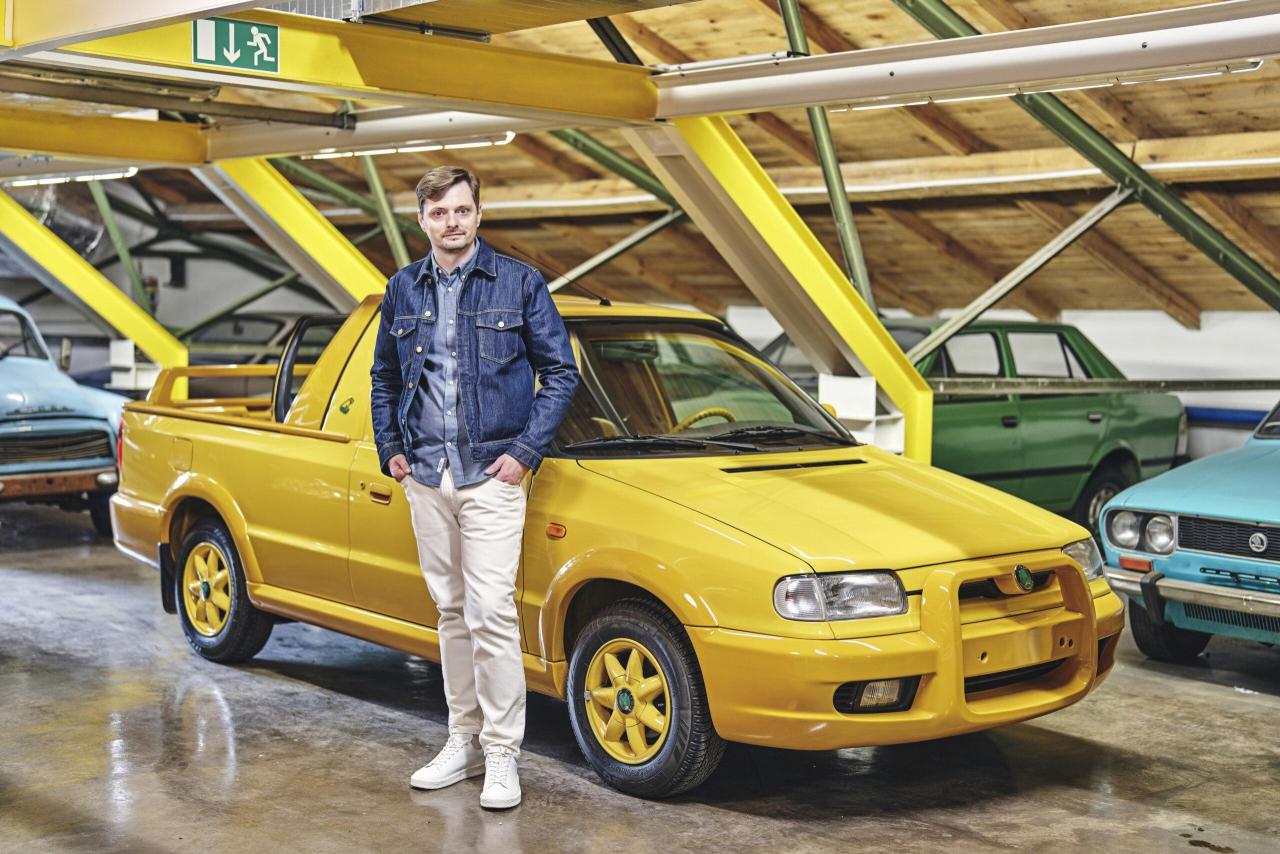
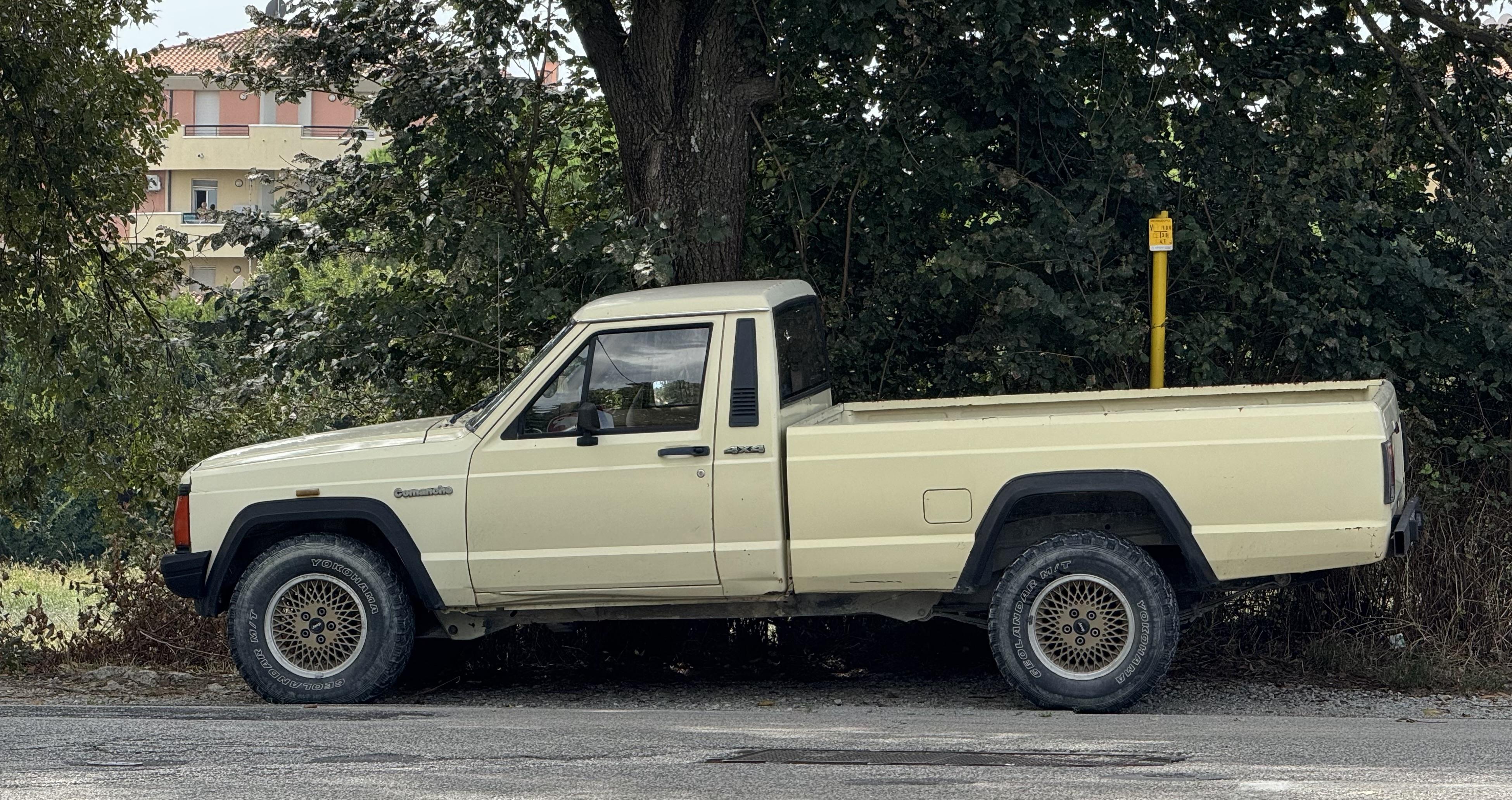
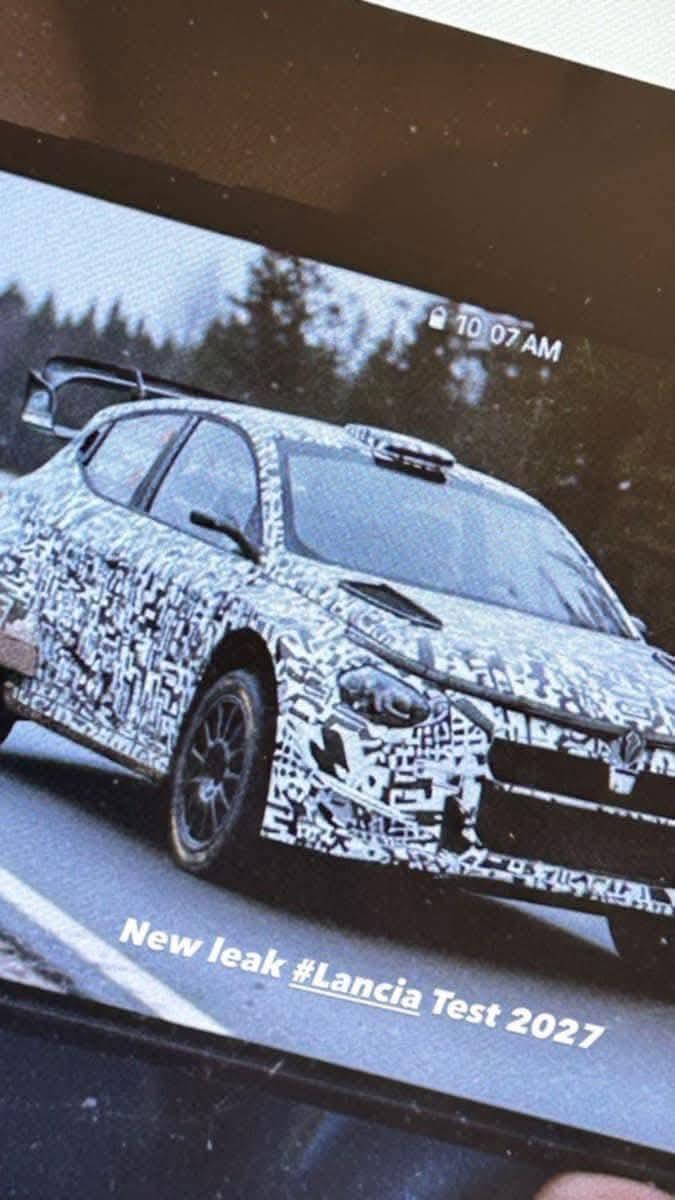
 2 punti2 puntiIl giorno in cui sto bidone di macchina verrà ritirato dal mercato è sempre troppo lontano. Maledetto il giorno che è stata lanciata. Già non era bellissima, con il muso appiccicato così diventa tanto brutta quanto meccanicamente povera e mal riuscita.2 punti2 puntisinceramente non capisco il senso logico di distruggere nel 2025 una VW Golf II di 40 anni fa.2 puntiQuesta generalizzazione dell'italiano medio che vede la Fiat brutta e cattiva va avanti da decenni. Intanto un capitalismo rapace e una classe politica indegna hanno creato una desertificazione economica e sociale. Cosa comune in realtà a molti Paesi del cosiddetto Occidente. Fatto sta che in altri Paese tuttavia in qualche modo si riesce meglio a salvaguardare occupazione.2 puntiImmagino che siano due auto che vadano a competere nel segmento di quel cassonetto giallo presentato questa settimana a Wolfsburg...2 punti2 punti...e meno male che non conviene più fare queste versioni, non le vuole più nessuno, le multe UE, le sportive saranno solo elettriche, ecc..... Intanto VAG le fa.... e magari le vende pure.....2 punti2 puntidomenica mi invento una grigliata così non debbo vedere ennesimo scempio2 puntiSinceramente comprare la 5ooX con il 1.3 Multijet vuol dire non volersi molto bene, eh....2 punti2 puntiFino al 2000 per attrarre le produzioni Fiat si usavano sovvenzioni dirette, vedasi Punto 176 che doveva essere costruita proprio in Spagna e venne spostata a Melfi. Sovvenzioni che andarono a scemare prima con Umberto Agnelli e soprattutto con Marchionne, che si ritrovarono a dover riparare ai danni fatti da queste.2 punti2 puntiho i miei dubbi che il frontale sarà come nel "leak" di Cochespias.net Staremo a vedere, in ogni caso promette bene (anche se lo stile mi ricorda un po' troppo le seat...) ma mi preoccupano gli interni (i mega-tablet in stile MB che ormai usano un po' tutti e costano quanto mezza auto se si guastano, non mi garbano affatto) e soprattutto i motori...il 1.0 gpl è semplice e supercollaudato, del 1.2 a iniezione diretta si sa poco e col gpl men che meno.2 punti2 punti...forse in Pirelli non avevano ben chiaro il concetto di "Gran Premio".... 😅2 puntiPrendono polvere da quando non hanno più il diesel...2 puntiPerò tu come entità statale puoi anche inventarti qualcosa per rendere più appetibile il tuo sito produttivo(cit. Spagna). Il resto della favoletta italiana pizza mandolino pasta sul turismo non mi interessa.2 puntinon lo so, ma so che la Spagna produce 2.500.000 auto all'anno, l'Italia meno di 400.000 se va bene, forse a Roma dovrebbero fare una riflessione su come rendere competitivo con la Spagna (non il marocco o la serbia) l'industria e la filiera automotive italiana.2 punti2 puntivisto lo stato attuale del mercato e del design automobilistico, non lo considererei un insulto. Anzi.2 punti2 punti2 punti2 punti2 punti2 punti2 puntiChi disattendeva le disattese? DISATTENDITORI DI DISATTESE, su Rieducational Channel!
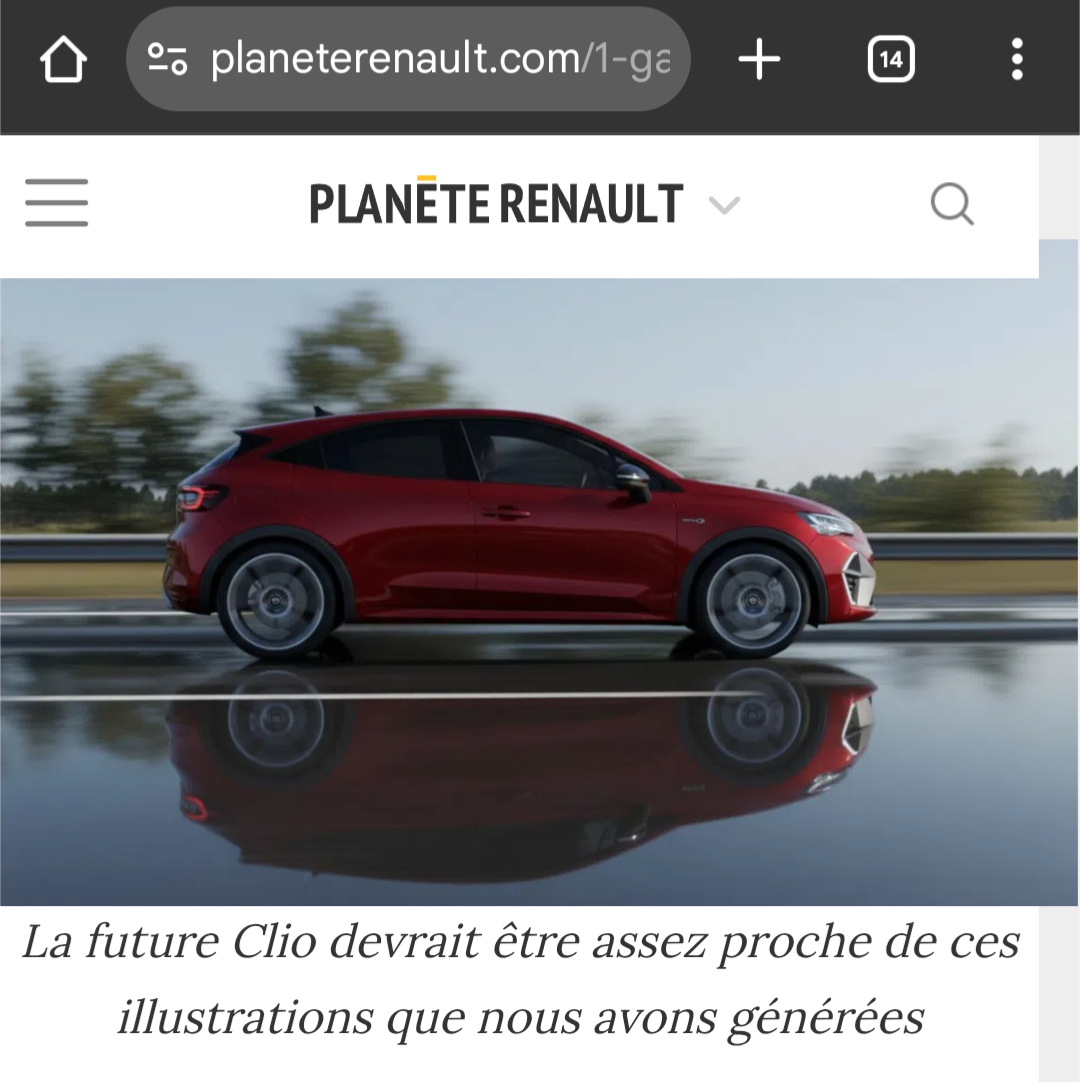
 2 punti1 puntoOvviamente ci saranno delle ripercussioni grosse per quelle regioni, ma vorrei anche dire, chi è causa del suo mal pianga se stesso? Da quanti anni declina la produzione di autovetture in Italia?Io conto almeno 20 anni, e non mi sembra neanche di aver visto gente incatenata ai cancelli. Nessuno in sto paese è mai stato in grado di fare 2+2, e quindi pensare che se tagli un modello oggi, tagli un modello domani, ne tagli un altro dopo domani, per poi ritrovarsi senza più commesse sulla linea di assemblaggio negli stabilimenti, si debba chiudere la fabbrica? Siamo arrivati veramente a sto livello di ritardo mentale in sto paese?Pare di si...1 punto1 puntoSinceramente con l'automatico mi sono dovuto ricredere, anch'io ero del pensiero Manuale è per la guida "seria". Premessa a casa non sono mai esistite macchina con cambio automatico, sempre visto in malo modo fino a quando mio zio non porto una decina di anni fa un Q7 automatico che fu una piacevole scoperta, che ruppe un po' il tabù automatico = incapacità alla guida. Veniamo ad oggi un anno e mezzo fa ho voluto acquistare una seconda macchina da viaggio/sportiva ed innamorato della Giulia ne ho comprata una, ma sono stato fino all'ultimo indeciso sul manuale/automatico poi per un fattore di tecnica visto che le Giulia automatiche hanno semiassi più grandi e meccanica più "solida", fattore prestazioni l'automatico copre lo 0-100 più velocemente della controparte Manuale ed anche di comfort in ottava marcia a 160/170 viaggia quel diesel a malapena sui 2200 giri e con l'esperienza della quadrifoglio in pista sempre con lo ZF AT8 mi sono convinto a prenderla automatica. Sinceramente nonostante abbia la macchina di tutti i giorni che è manuale (Panda 1.2 Fire 60cv del 2007) con la quale nel suo piccolo mi ci diverto un mondo ed anche le altre auto di casa sempre manuali, con senno di poi automatico tutta la vita a patto che sia un automatico serio come lo ZF di Giulia! Cambio che trovo eccezionale sia nella guida da passeggio (morbido, fluido) e specialmente nella guida sportiva con le leve al Volante che rendono la macchina davvero efficace e lo dico da guidatore con il piede pesante dove possibile, tipo sui passi di montagna dove tra la velocità del cambio (ancora più maggiore nella modalità Race che ho sbloccato), le botte dietro la schiena nelle cambiate, il fatto di trovarsi sempre con una marcia che sfrutta a pieno tutta la coppia offerta da quel motore ed il fatto che nelle scalate accompagna bene il motore rendono la guida molto più coinvolgente secondo me rendendo anche la versione diesel "sportiva". Di controparte ho avuto sottomano cambi automatici che non cambierei con un Manuale manco sotto tortura come EDC si Renault Megane proprio stupido nella logica di funzionamento e l'attuale MAGNA che montano BMW/Mini a trazione anteriore, che non riesce a staccare la frizione da fermo in modo dolce, se non gli dai metà gas con il rischio che ti parcheggi su un muro perché altrimenti non si muove di un millimetro.1 punto1 puntoÈ cresciuta a livello dimensioni per colmare il vuoto lasciato da Megane termica.1 puntoSe anche questa la prezzano bene e fanno una campagna leasing/NLT aggressiva, c’è il rischio che si vada a prendere quelli con Octavia/Passar/Superb in scadenza di contratto.1 punto1 puntosi ma più che altro per il firefly che lotta e combatte insieme a noi contro l'avanzata del francesume puretech1 puntoLa Leaderboard è riferita all'orario Roma/GMT+02:00





















Account
Navigation
Cerca
Configure browser push notifications
Chrome (Android)
- Tap the lock icon next to the address bar.
- Tap Permissions → Notifications.
- Adjust your preference.
Chrome (Desktop)
- Click the padlock icon in the address bar.
- Select Site settings.
- Find Notifications and adjust your preference.
Safari (iOS 16.4+)
- Ensure the site is installed via Add to Home Screen.
- Open Settings App → Notifications.
- Find your app name and adjust your preference.
Safari (macOS)
- Go to Safari → Preferences.
- Click the Websites tab.
- Select Notifications in the sidebar.
- Find this website and adjust your preference.
Edge (Android)
- Tap the lock icon next to the address bar.
- Tap Permissions.
- Find Notifications and adjust your preference.
Edge (Desktop)
- Click the padlock icon in the address bar.
- Click Permissions for this site.
- Find Notifications and adjust your preference.
Firefox (Android)
- Go to Settings → Site permissions.
- Tap Notifications.
- Find this site in the list and adjust your preference.
Firefox (Desktop)
- Open Firefox Settings.
- Search for Notifications.
- Find this site in the list and adjust your preference.