




Classifica Utenti
Utenti più Apprezzati
(Scegli il periodo) Utenti più Apprezzati
(Storia giorno per giorno) Classifica dall'Origine
(da Marzo 2003)
(Scegli il periodo) Utenti più Apprezzati
(Storia giorno per giorno) Classifica dall'Origine
(da Marzo 2003)
-
AleMcGir
Moderatore |Staff|9Punti20132Numero contenuti pubblicati -
led zeppelin
Utente Registrato8Punti12011Numero contenuti pubblicati -
Roy De Rome
Utente Registrato6Punti7289Numero contenuti pubblicati -
carrera4
Veterano5Punti7018Numero contenuti pubblicati




Contenuti più Popolari
Stai visualizzando i contenuti con il più alto punteggio, pubblicati in data 04/05/26 e localizzati in Risposte
-
4 punti
-
3 punti
-
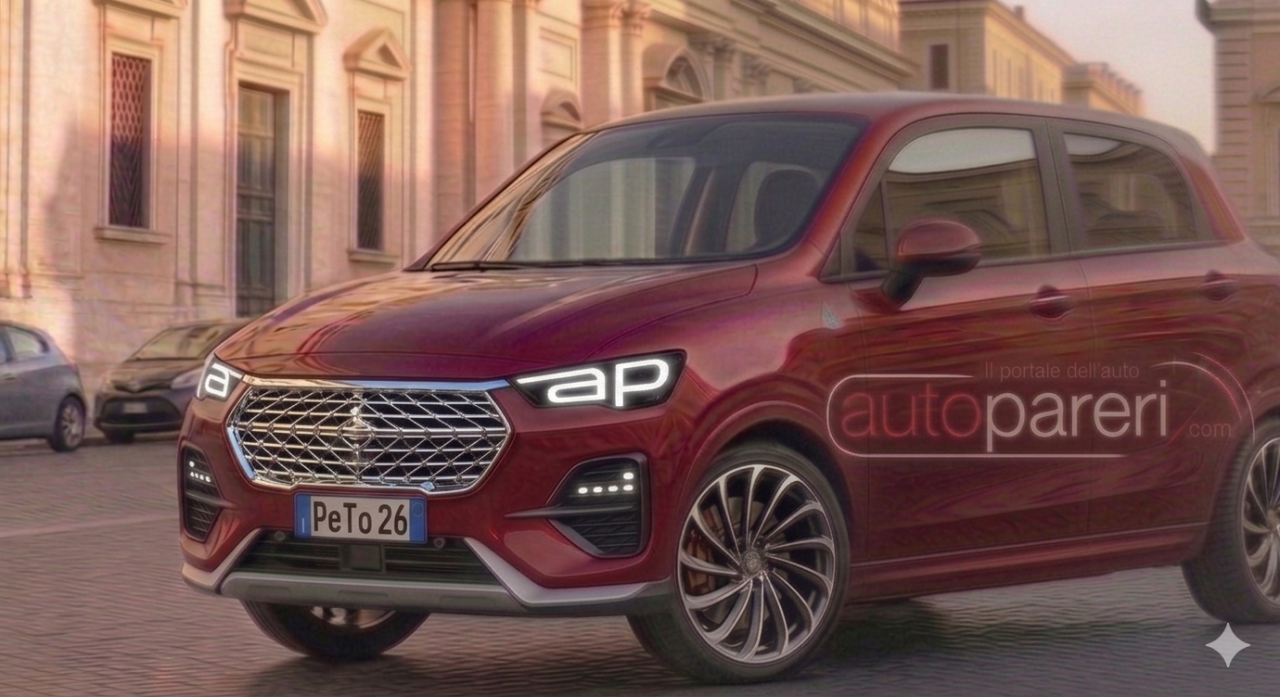
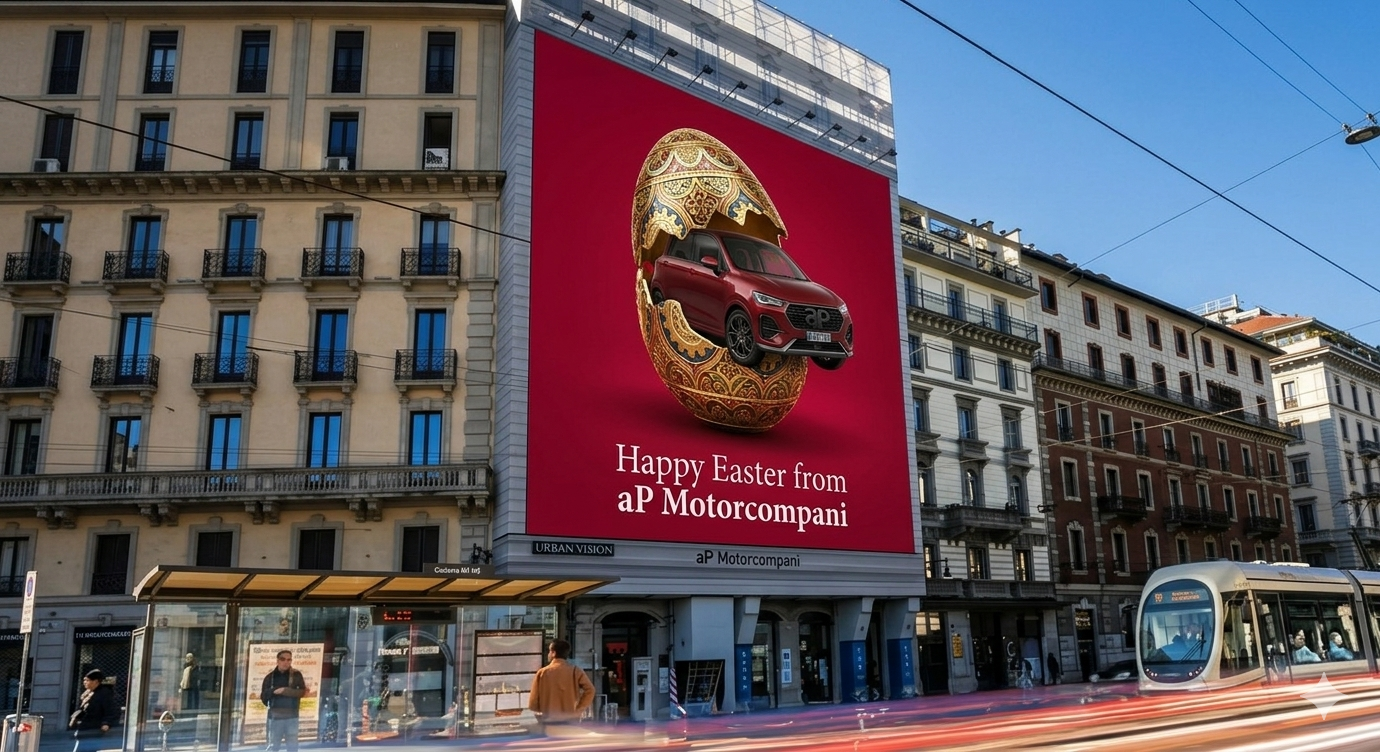
Banksy spostati Svelata l’identità del fantomatico designer di AP motorcompani TONI PeToNi
 3 punti
 -
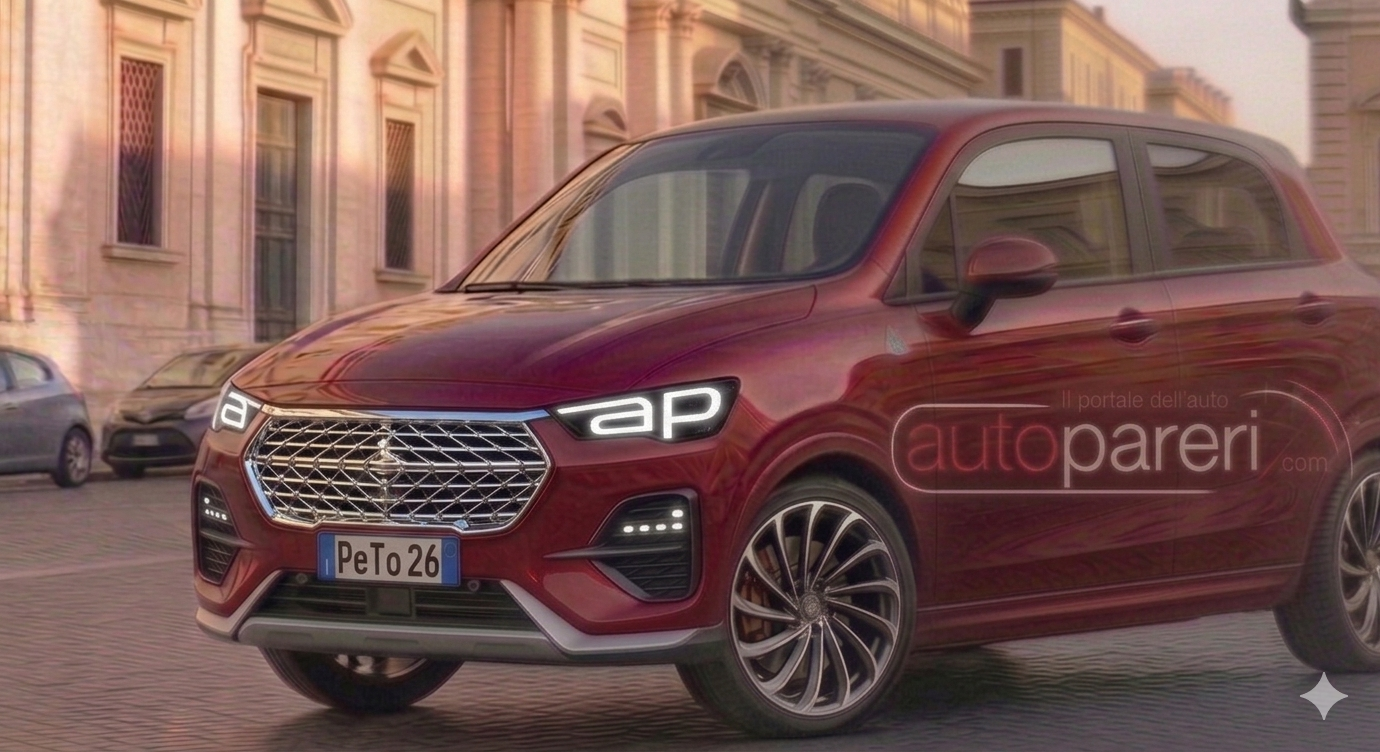
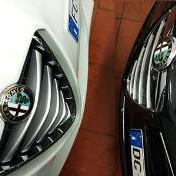
3 punti3 puntiIo spero solo che, oltre che ibride, siano CORTE! Basta con le segmento A obese! Se riuscissero a stare nella norma kei (3,40 x 1,50) con un design pulito sarebbero perfette da manovrare a occhi chiusi! Può sembrare poco ma queste sono le dimensioni limite per una manovrabilità simil giocattolo e chi ha mai guidato una vecchia Panda mi darà ragione!3 punti3 puntiCioè Cupra ha fatto successo con la tascapan la terronar la formenton, skoda con la koq la moq la roq, vag con la tiguan la taican la touran la topan la tairon. E per una volta che Fiat ha una bella idea per dare dei nomi sensati e coerenti a una nuova gamma non van bene. ma va!!3 puntiCOMUNICATO UFFICIALE: ApMotorcompani presenta la "TONI Edition" – L’Automobile si fa Arte Torino/Copenaghen – 2 Aprile 2026 ApMotorcompani è orgogliosa di annunciare il lancio della serie limitata più audace della sua storia: la PeTo "TONI Edition". Questa versione esclusiva nasce dalla collaborazione visionaria con l'artista di fama internazionale TONI, figura di spicco del neo-minimalismo industriale, incaricato di reinterpretare i canoni estetici del nostro Urban-SUV. Il Concept: Oltre il Brand, Verso la Luce L'artista TONI ha lavorato sul concetto di "identità latente", decidendo di rimuovere ogni elemento superfluo dalla calandra per lasciare spazio a una trama di cromo puro. Secondo l'artista: "Il lusso non ha bisogno di gridare il proprio nome al centro, perché l'anima del veicolo è scritta nella sua luce". Dettagli Esclusivi della TONI Edition La PeTo "TONI Edition" si distingue per elementi stilistici unici, mai visti prima su una vettura di serie: * Luce Identitaria: Per la prima volta al mondo, la firma luminosa del brand viene integrata direttamente nel design dei proiettori. I LED dei fari anteriori sono stati modellati da TONI per disegnare la sigla "aP", rendendo la vettura immediatamente riconoscibile anche nel buio più profondo. * Minimalismo Cromato: La calandra centrale abbandona i loghi tradizionali per una finitura interamente in Cromo Liquido, una superficie riflettente che interagisce con l'ambiente circostante, simboleggiando la fusione tra la vettura e il paesaggio urbano. * Cerchi "TONI-Flow": Un nuovo set di cerchi in lega con design a turbina asimmetrica, scelti personalmente dall'artista per enfatizzare il dinamismo della PeTo anche da ferma. * La Targa Celebrazione: Ogni esemplare della serie limitata sarà equipaggiato con la targa ufficiale PeTo 26, a sancire l'anno d'inizio della rivoluzione artistica ApMotorcompani. Le parole di @TONI "Lavorare sulla PeTo è stato come scolpire il vento. Ho voluto che il logo non fosse un oggetto appiccicato, ma che diventasse luce stessa. La TONI Edition è dedicata a chi non ha paura di essere guardato, a chi capisce che la vera eleganza è una firma luminosa in un mondo di ombre." Disponibilità La PeTo TONI Edition sarà disponibile esclusivamente su prenotazione a partire da giugno 2026. Ogni modello sarà accompagnato da un certificato di autenticità numerato e autografato dall'artista. Ufficio Stampa ApMotorcompani “ApMotorcompani: Art in Motion, Driven by TONI” Nota per i collezionisti: A causa dell'estrema complessità nella realizzazione dei fari a LED con firma "aP", la produzione sarà limitata a soli 26 esemplari numerati.
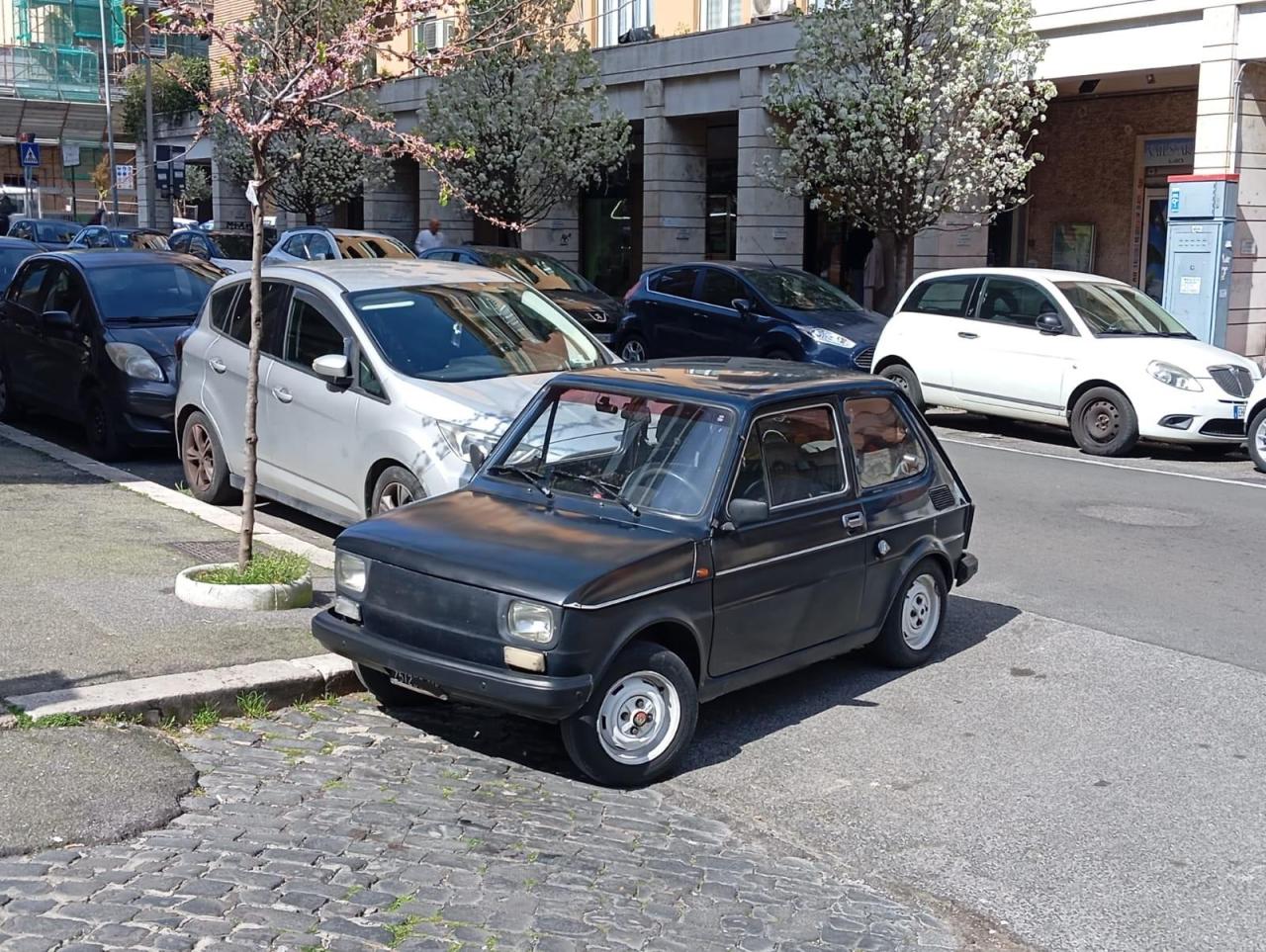
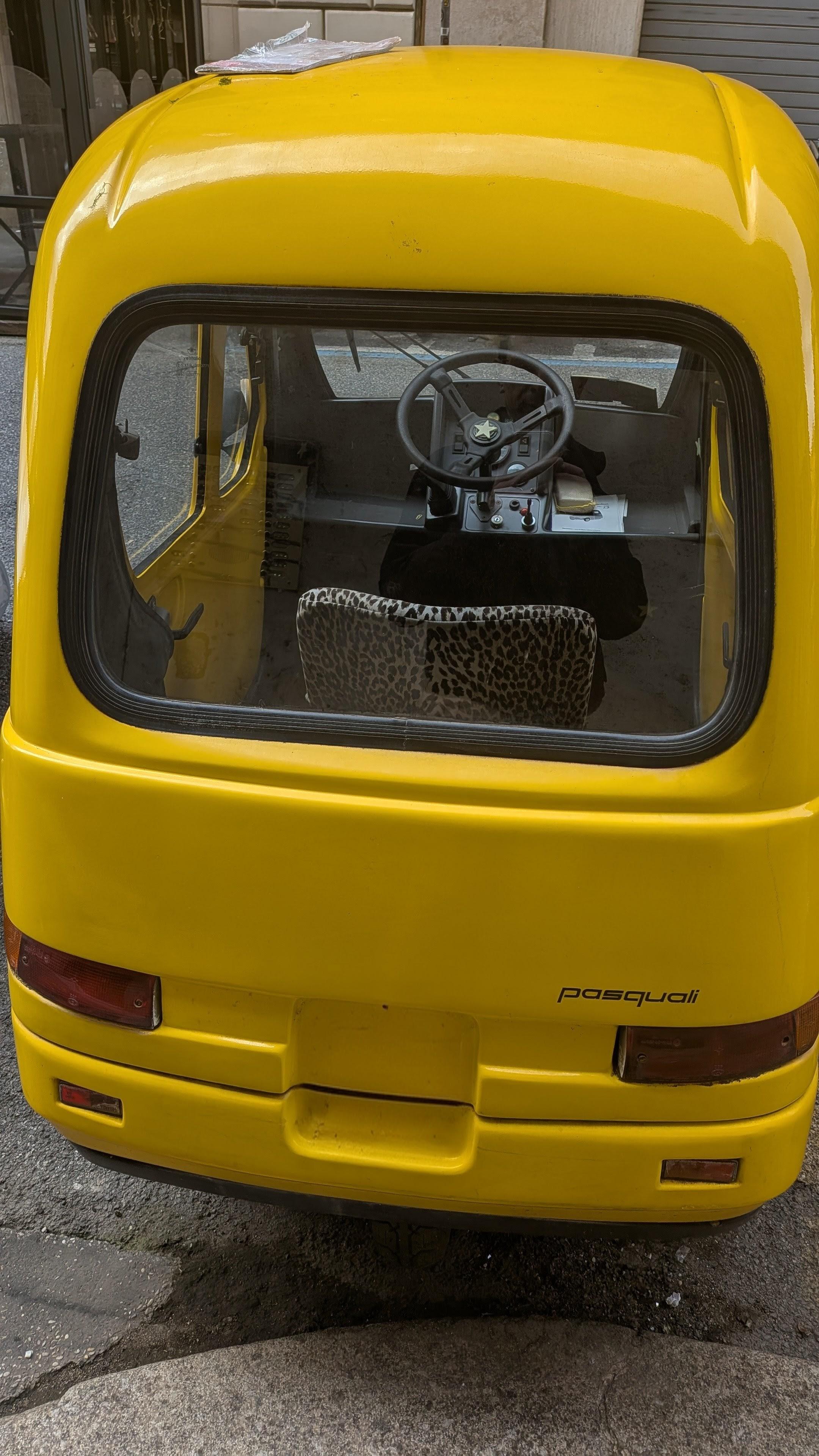
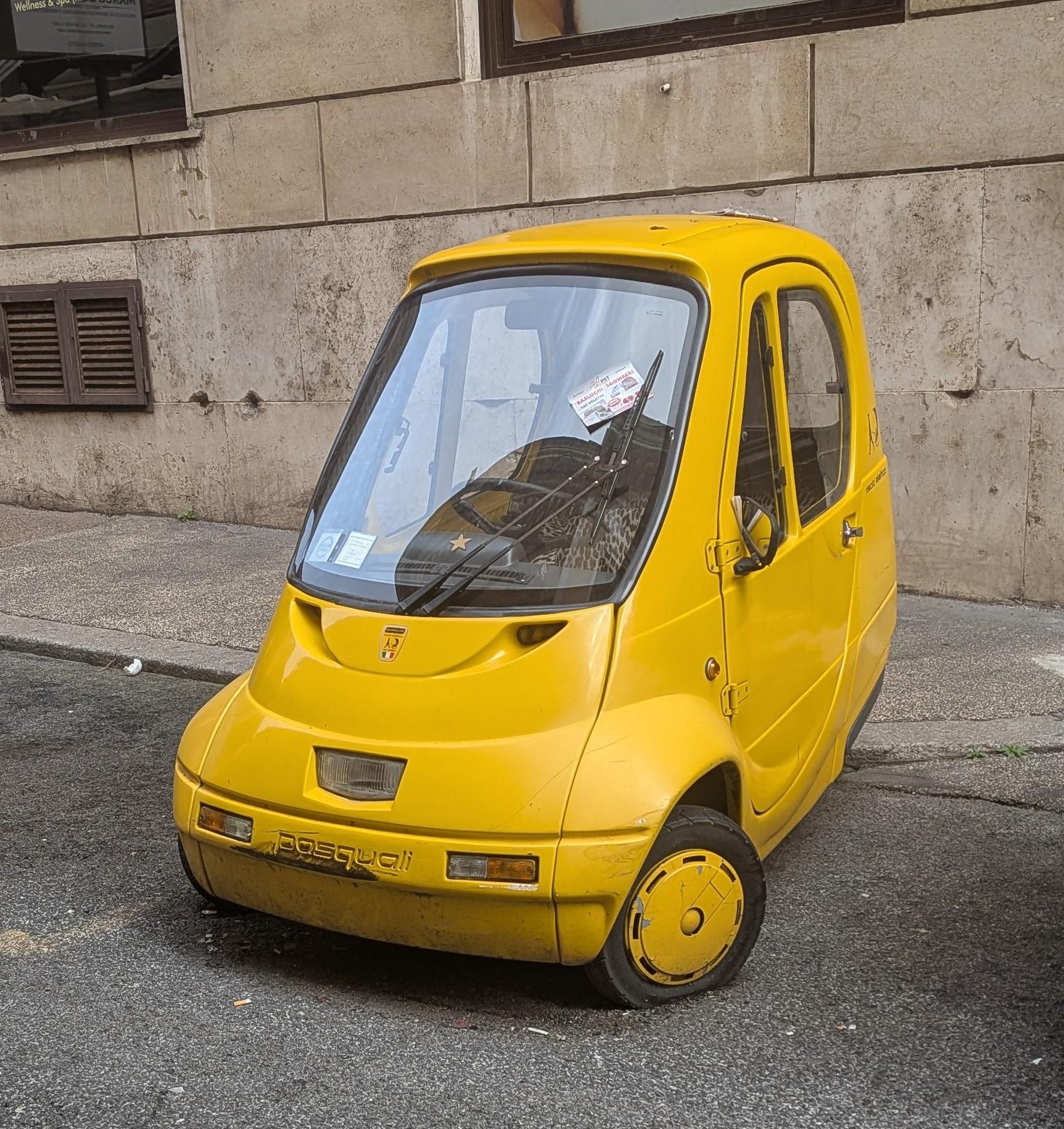
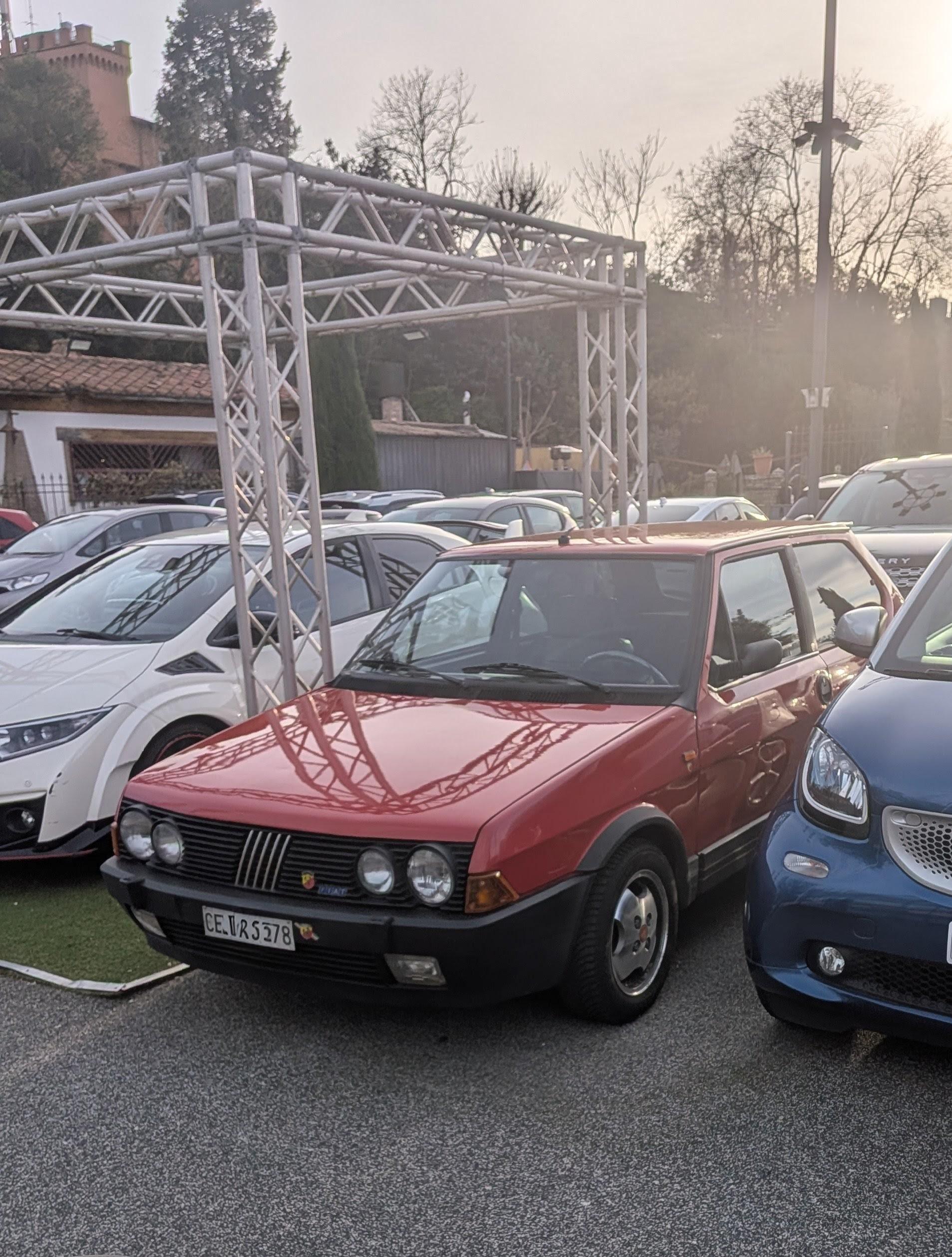
 3 puntiCongratulescions... Tra poco quando andrai al bar, barista e cassiera si scambieranno occhiate di soppiatto e ti faranno sempre gli scontrini! 😂2 puntiMix tra R ed L (difficile dire cosa sia senza l'anno di immatricolazione) in condizioni disperate, sicuramente c'è un sacco di ruggine nascosta oltre quella visibile. Il nero opaco abbinato alle cornici dei fari dello stesso colore modifica l'aspetto del frontale facendolo sembrare più piatto. Mai vista prima! Facendo qualche ricerca, pare si chiami Pasquali Risciò ed è elettrica, credo fosse usata da una società di sharing fiorentina nei primi anni '00. Non male esteticamente, notiamo i copricerchi provenienti dall'Ape Cross.2 puntiNon dimentichiamo che l'EV sta alzando in alto l'asticella delle prestazioni, in generale. Detto questo, la Aygo X svolge una duplice funzione: Avere a listino qualcosa sotto a Yaris (ibrida anche lei) tenendo basse le emissioni. A giudicare dai numeri che sta facendo, non mi sembra che sia fuori target.2 puntiRagazzi, spiegatemi questa se riuscite: sono sul sito motor.es e mi trovo in questa pagina quindi attivo la traduzione automatica del browser e succede questo Com’è possibile??? 🤣🤣🤣
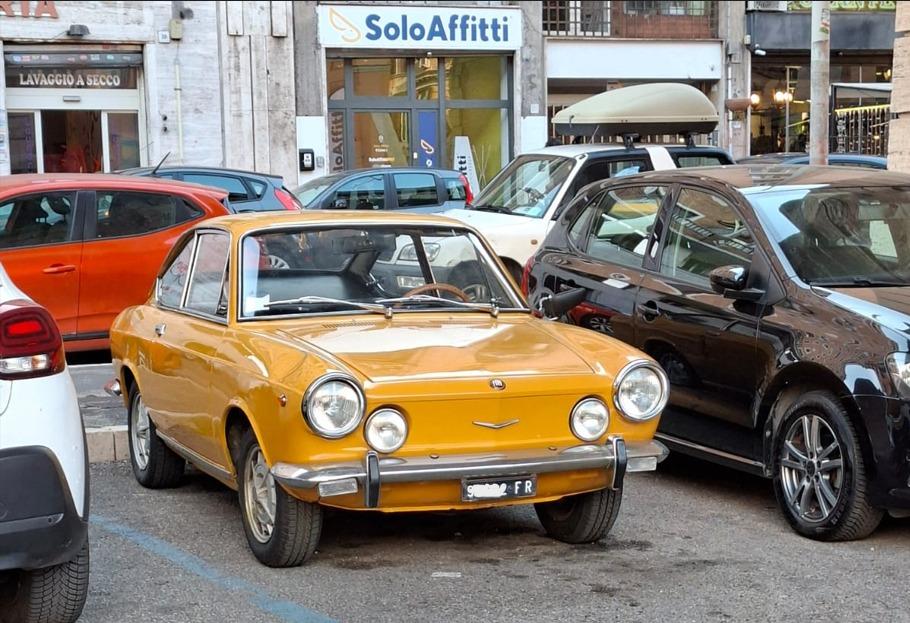
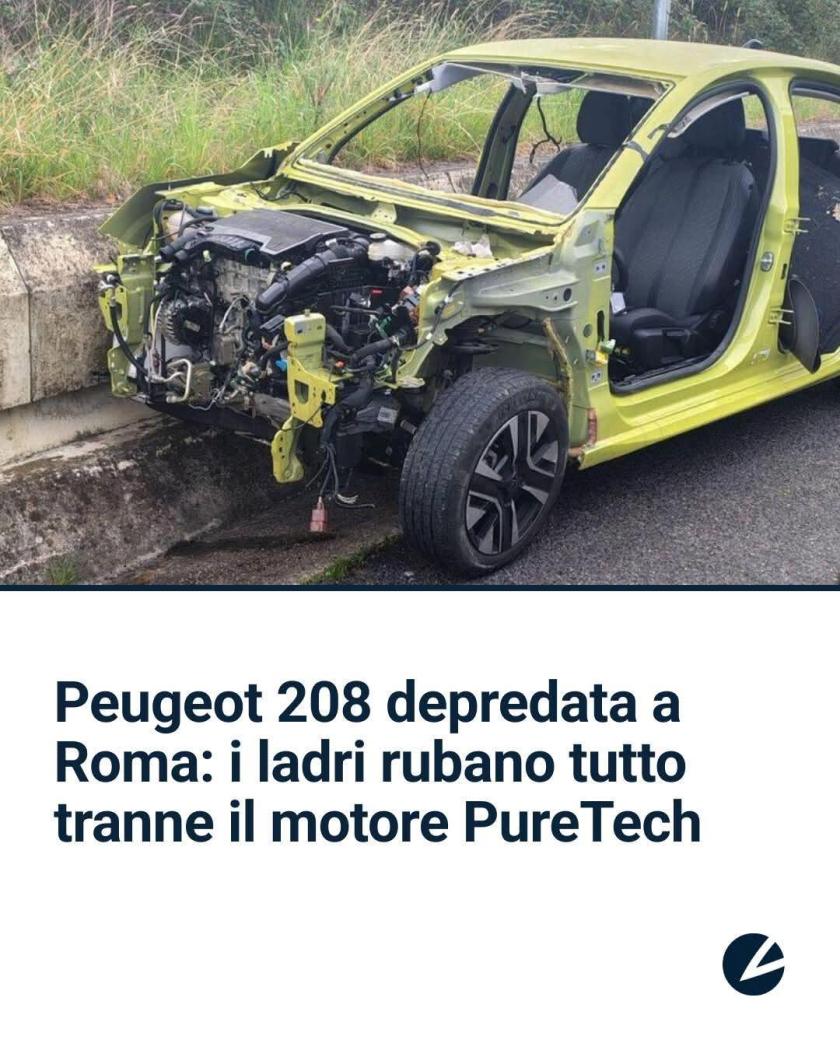
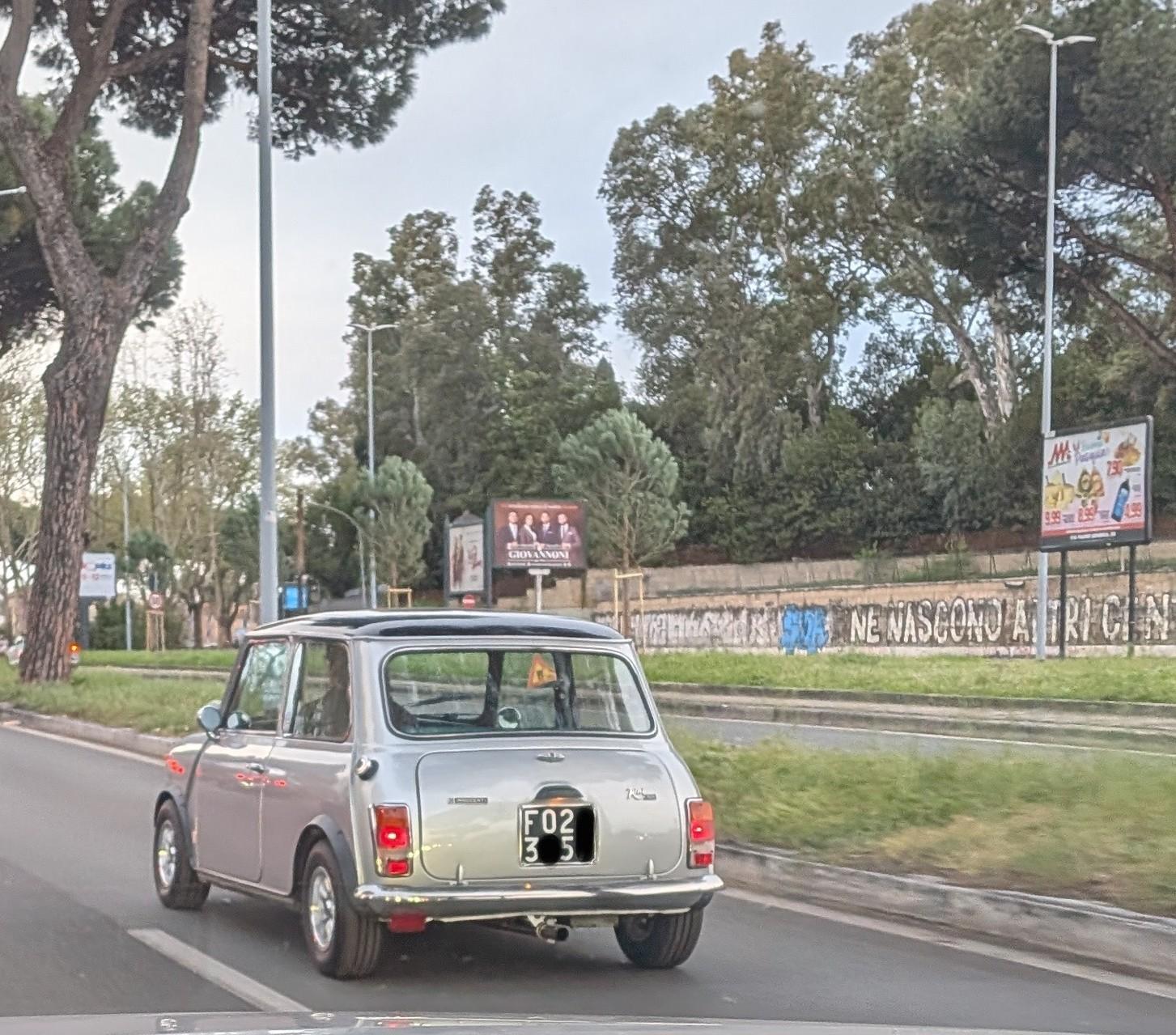
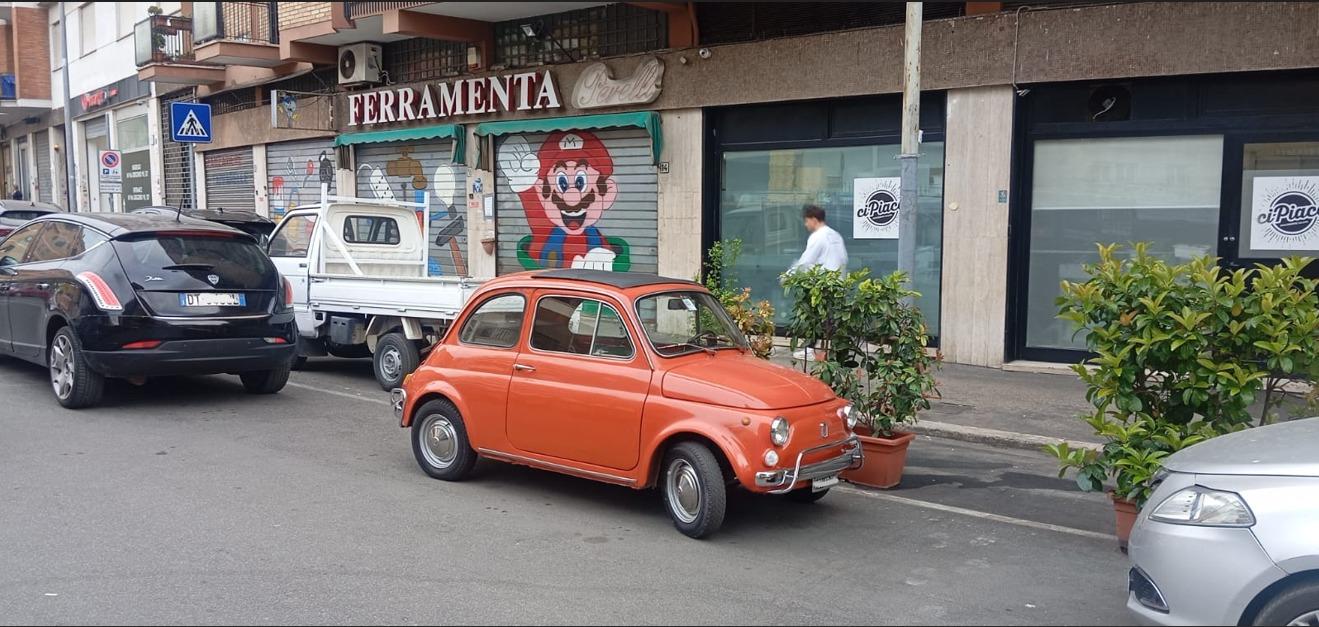
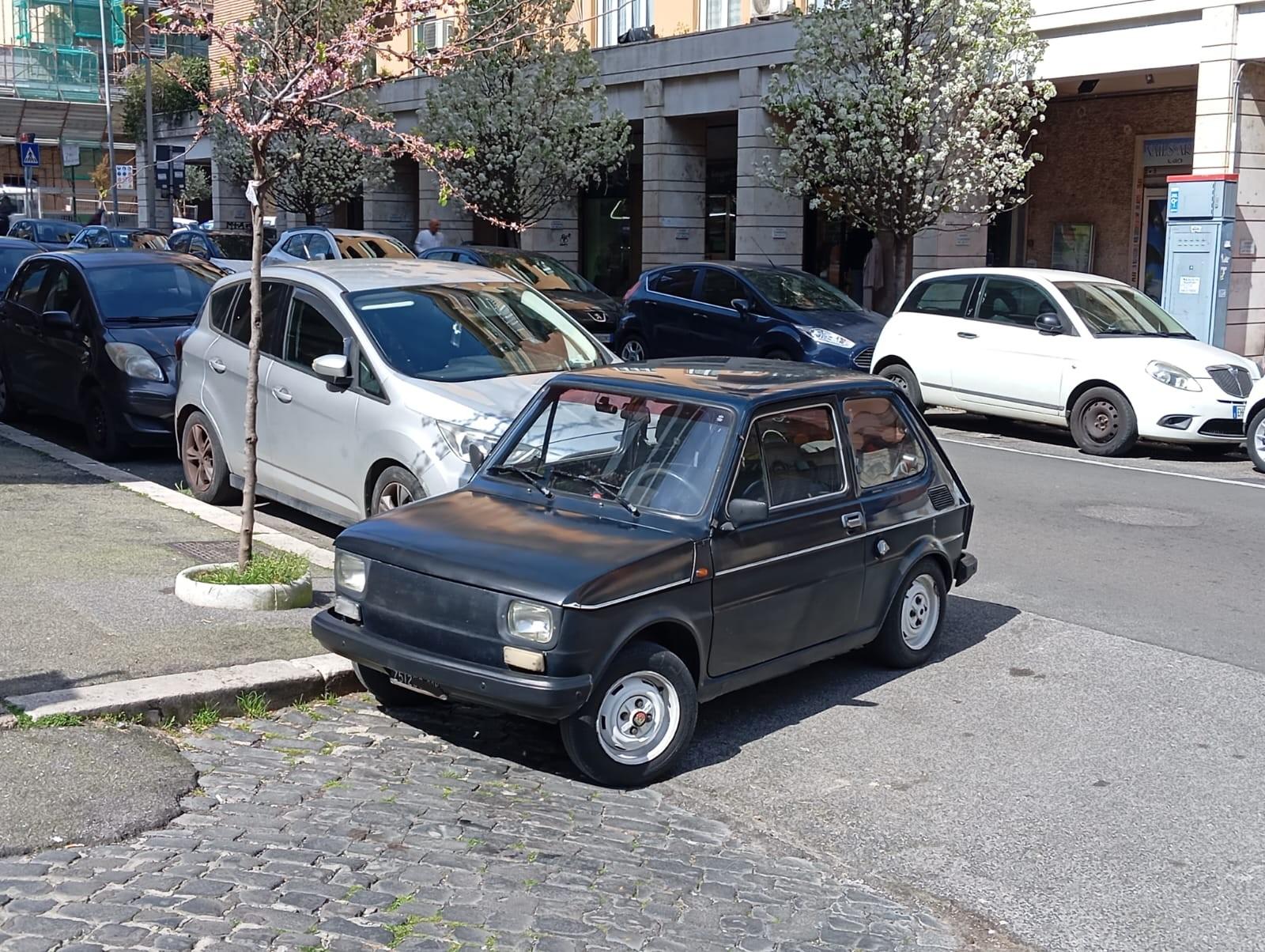
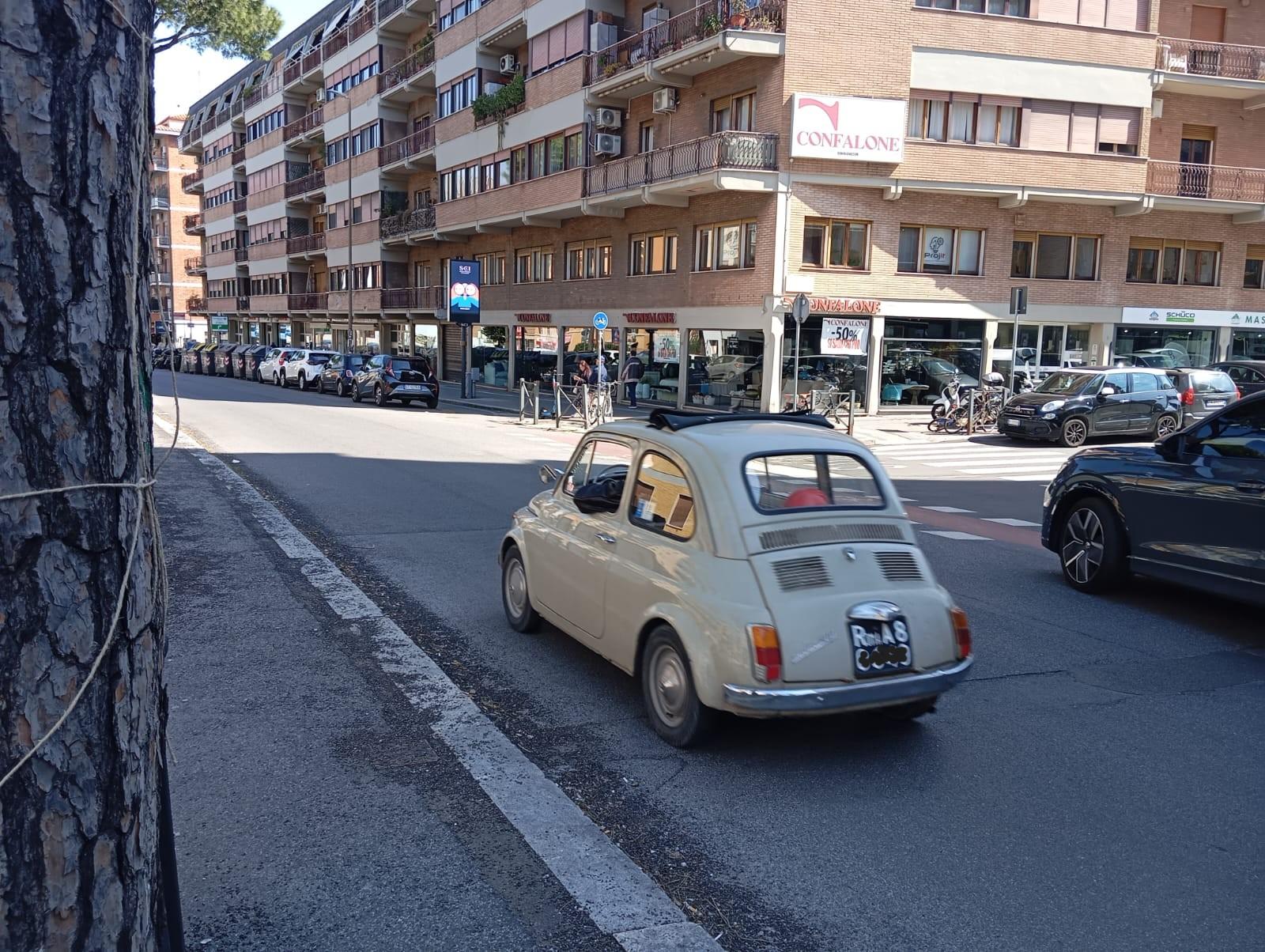
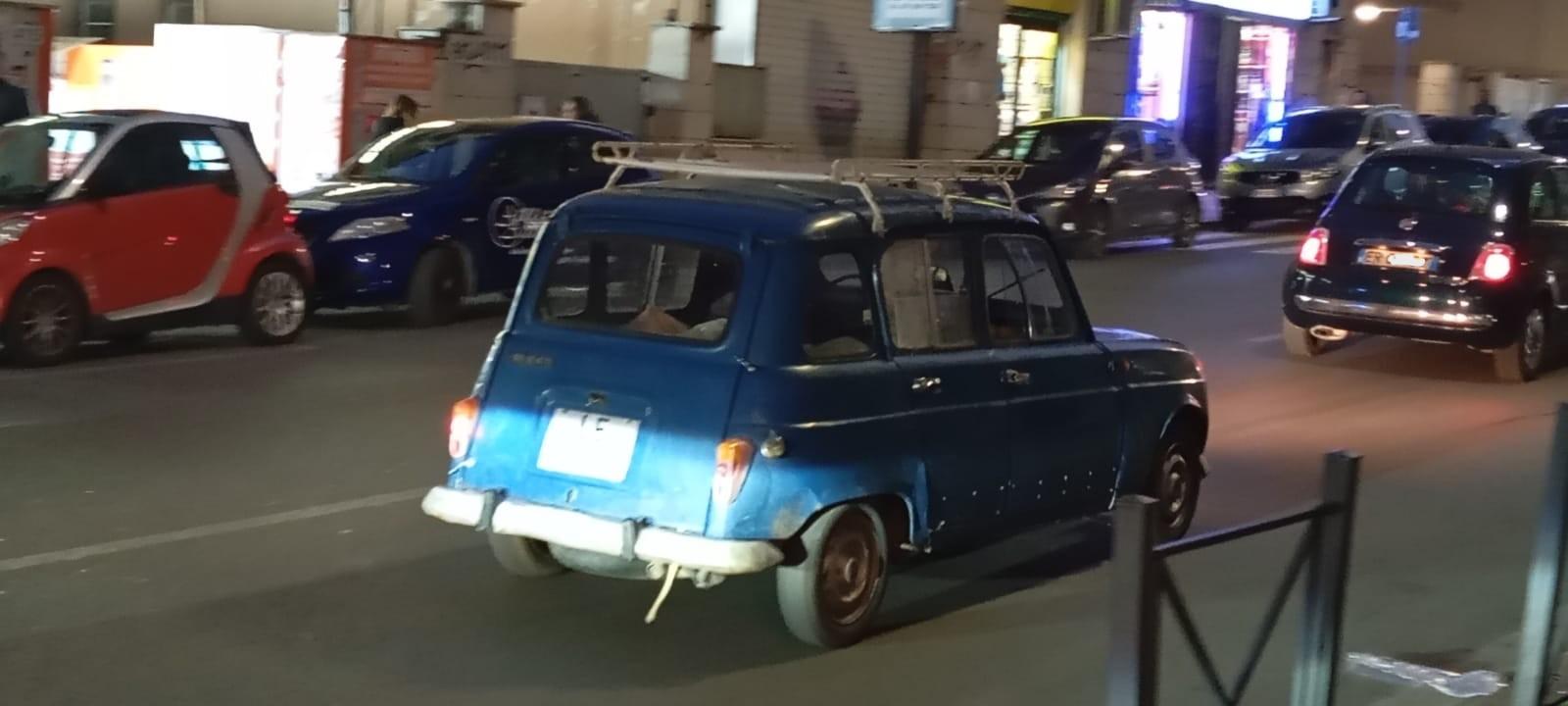
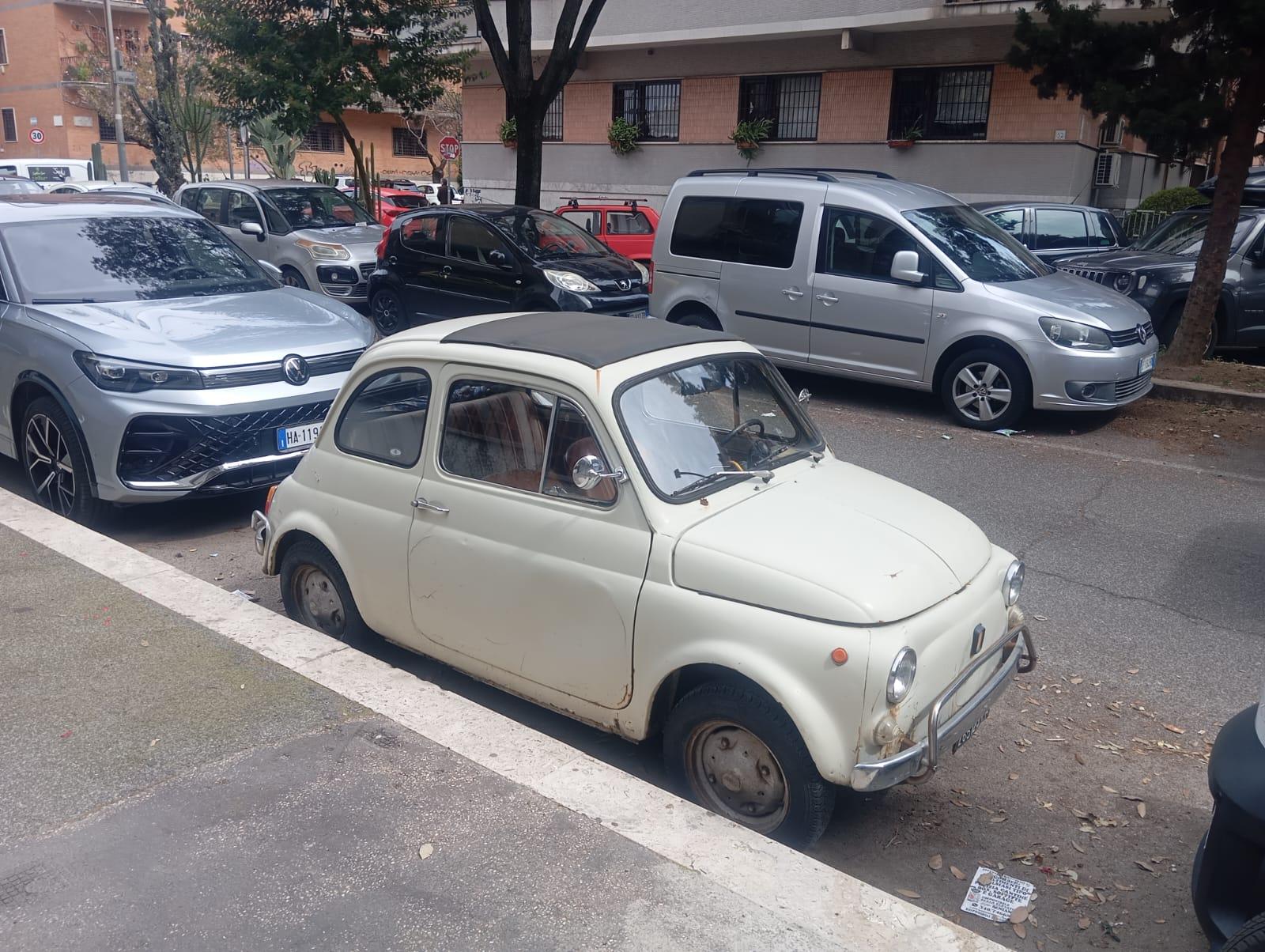
 2 puntiSe si vogliono l'abitabilità posteriore e i 5 posti, c'è pur sempre la Yaris 🙂, che con meno di 4 metri di lunghezza rimane ampiamente tra le B più compatte attualmente sul mercato. Consumi (sensazionali) a parte, il senso di questa Aygo X è prettamente quello di una macchina da città, utilizzabile occasionalmente per viaggi fuori porta e se proprio proprio, anche lunghi.2 puntiUpdate per terzo anniversario con la Polo metanata: Chilometraggio prossimo ai 160000 (159642 se vogliamo essere precisi al 100%), quindi per poco non segna i 65000 km percorsi dal marzo 2023 ad oggi, 21500 di media matematica l'anno. Stando alle statistiche di Fuelio, consumi leggermente peggiorati (24.84 km/kg contro i 25.01 di prima) dovuti probabilmente all' aumento dei km fatti in città in percentuale ai percorsi. Costo del metano rimasto fisso per mesi a 1.3 al chilo, ma pian piano inizia inevitabilmente ad aumentare (messo ieri a 1.5 al solito IP), ma ho visto anche prezzi maggiori. in base al mio excel comunque son pronto a sopportare almeno un pareggio con la benzina 0 euro di manutenzione straordinaria ad ora (se si esclude una foratura, riparata) mentre iniziano a cedere i supporti ammortizzatori. anteriori. stando al meccanico gli ammortizzatori stessi hanno ancora 20k km di vita utile (quindi per me un anno) mentre i posteriori non hanno problemi. probabilmente ne approfitterò per sostituirli visto che tanto lo smontaggio per cambiare i supporti sarà da fare a prescindere. Per ora quindi, nulla da segnalare, il che mi porta a considerare di tenerla ancora per uno-due annetti, ogni tanto la scimmia per una la Jeep Avenger viene, poi mi ricordo che i 15000 euro di differenza da mettere forse è meglio che li tenga per l'anticipo della casa e si allontana Alla prossima!2 puntiBuon pomeriggio a tutti e serene Festività Pasquali. Oggi vado solo di utilitarie, e solo uno degli scatti è mio. Ringrazio il mio solito Amico sonda, che ultimamente ha più tempo di me per andare a paparazzarne un po'. Cinquini più o meno ben tenuti. Lui sta un Quartiere accanto al mio, ma la presenza di queste SuperCityCar è molto più diffusa che da me a quanto vedo. Questa fa il paio con quella total black messa giorni fa, ma è stata taroccata con più gusto, se è concesso il termine. Ecco il mio unico scatto, non meno degno di nota. 😍 E per finire una Francesina in stato più o meno decadente ma con ancora voglia di dire la sua.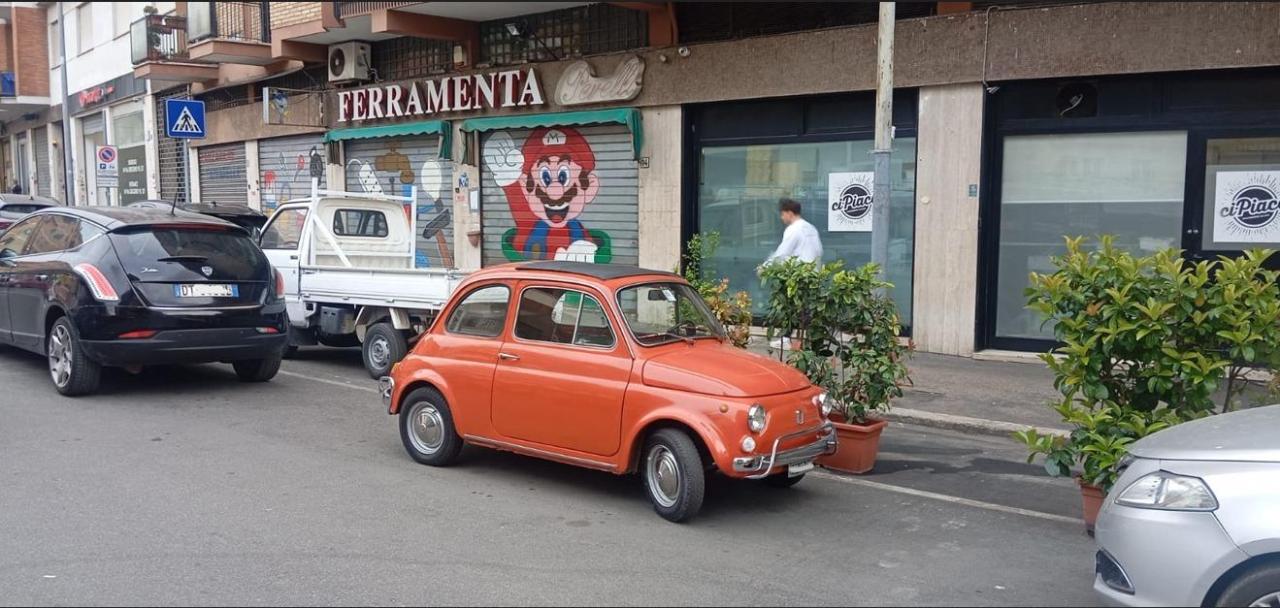
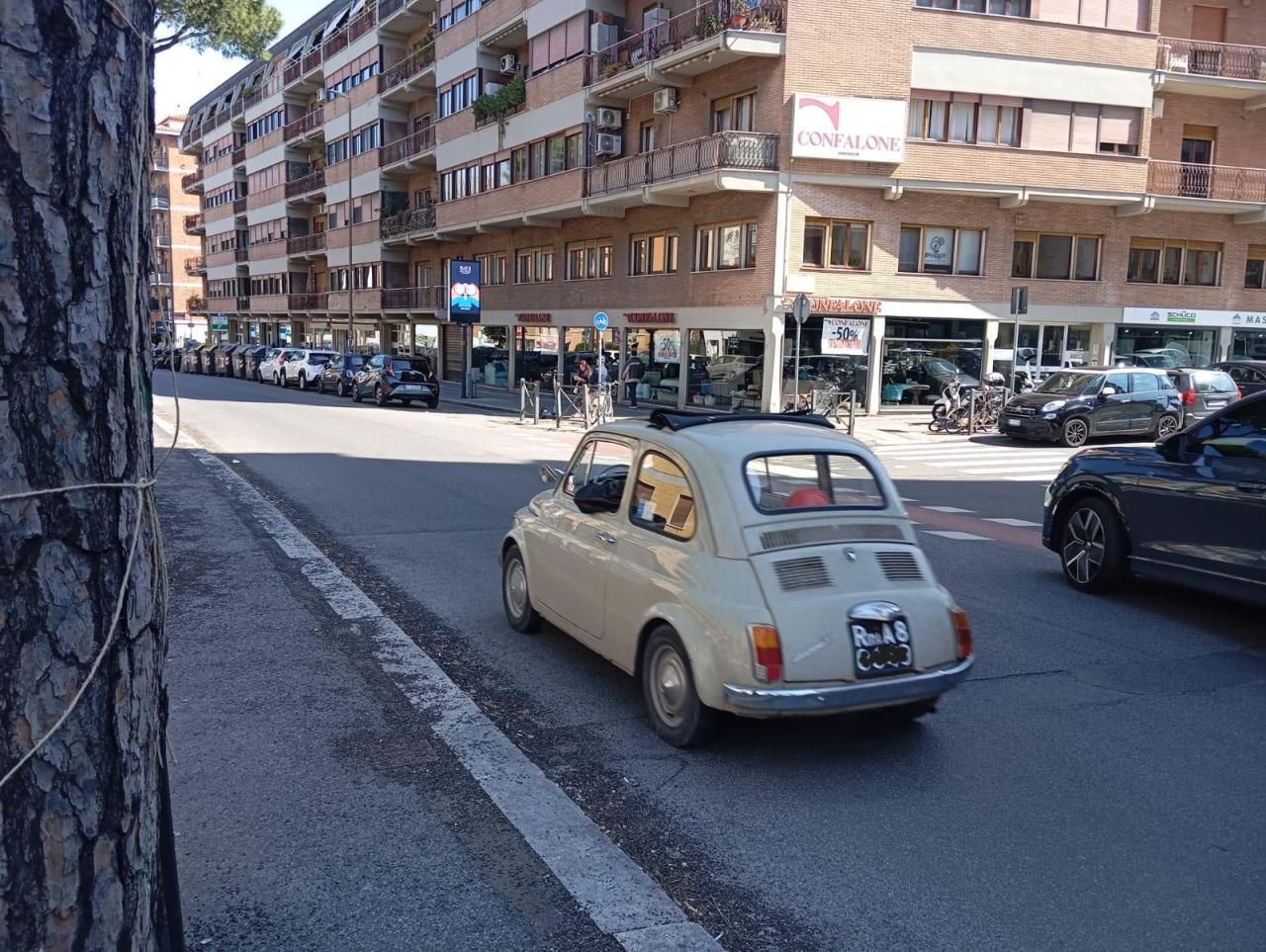

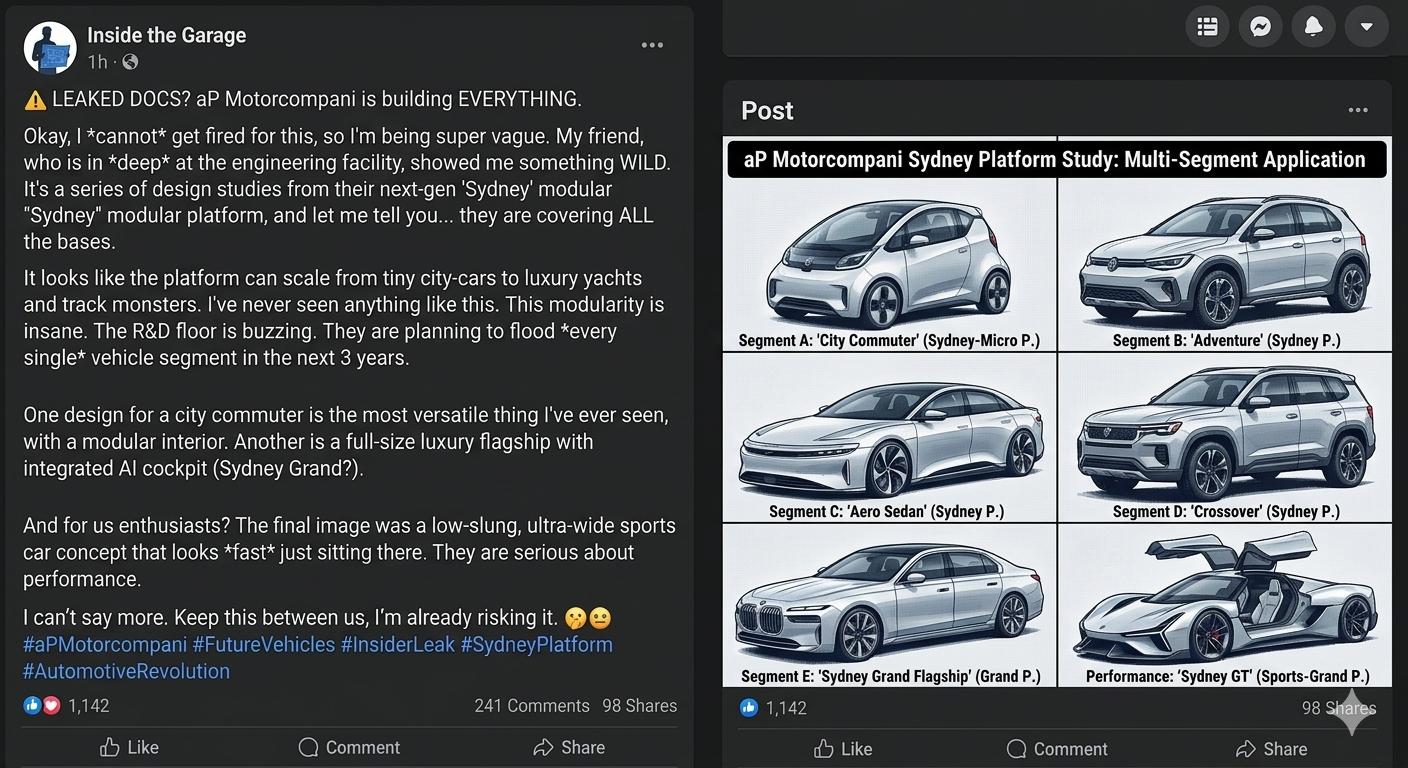
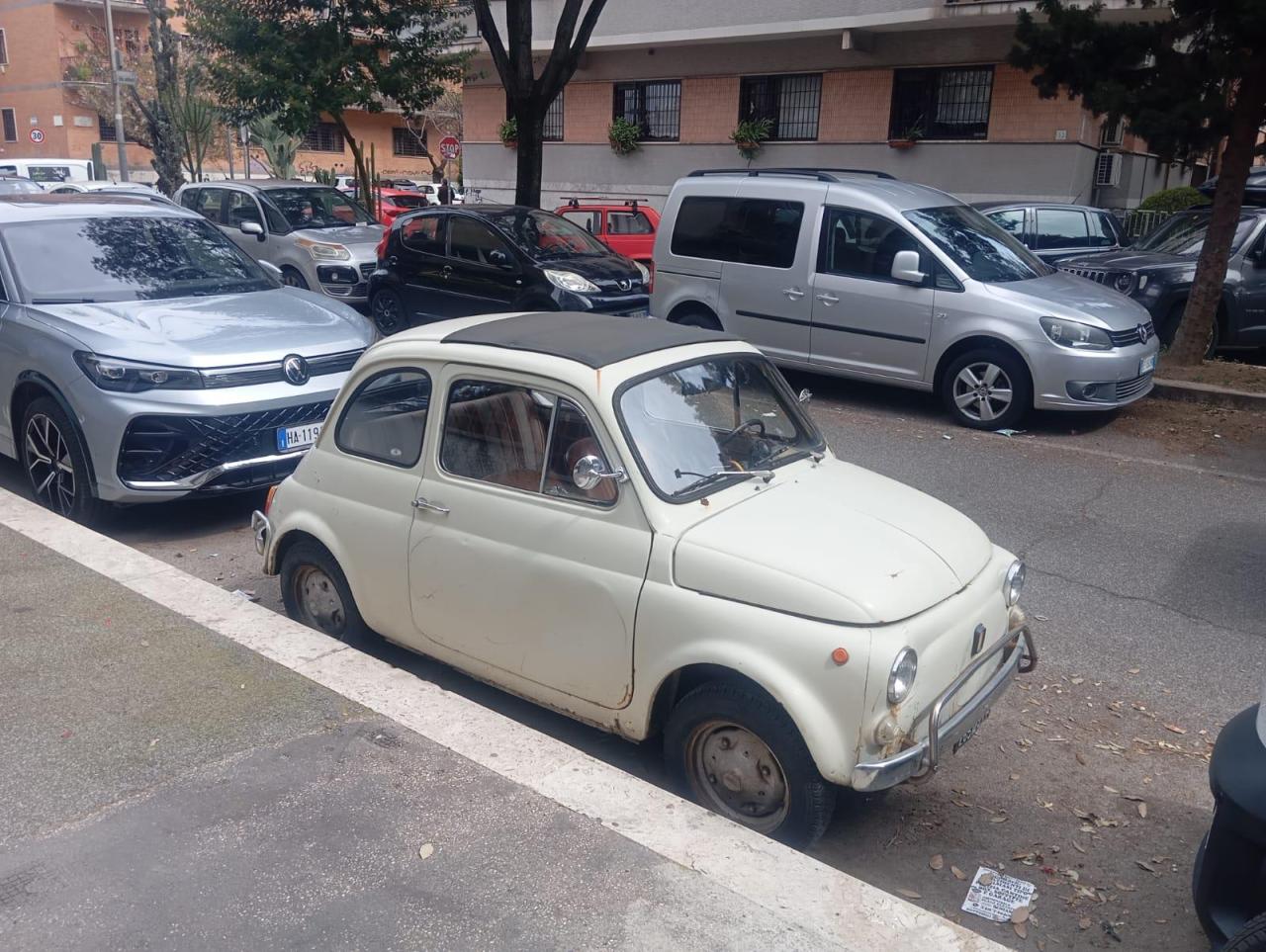 2 puntiAspettiamo il piano industriale di aP Motori il prossimo maggio, prima di sentenziare il de profundis...1 puntoForse ti sei perso questo post di "Inside the Garage"
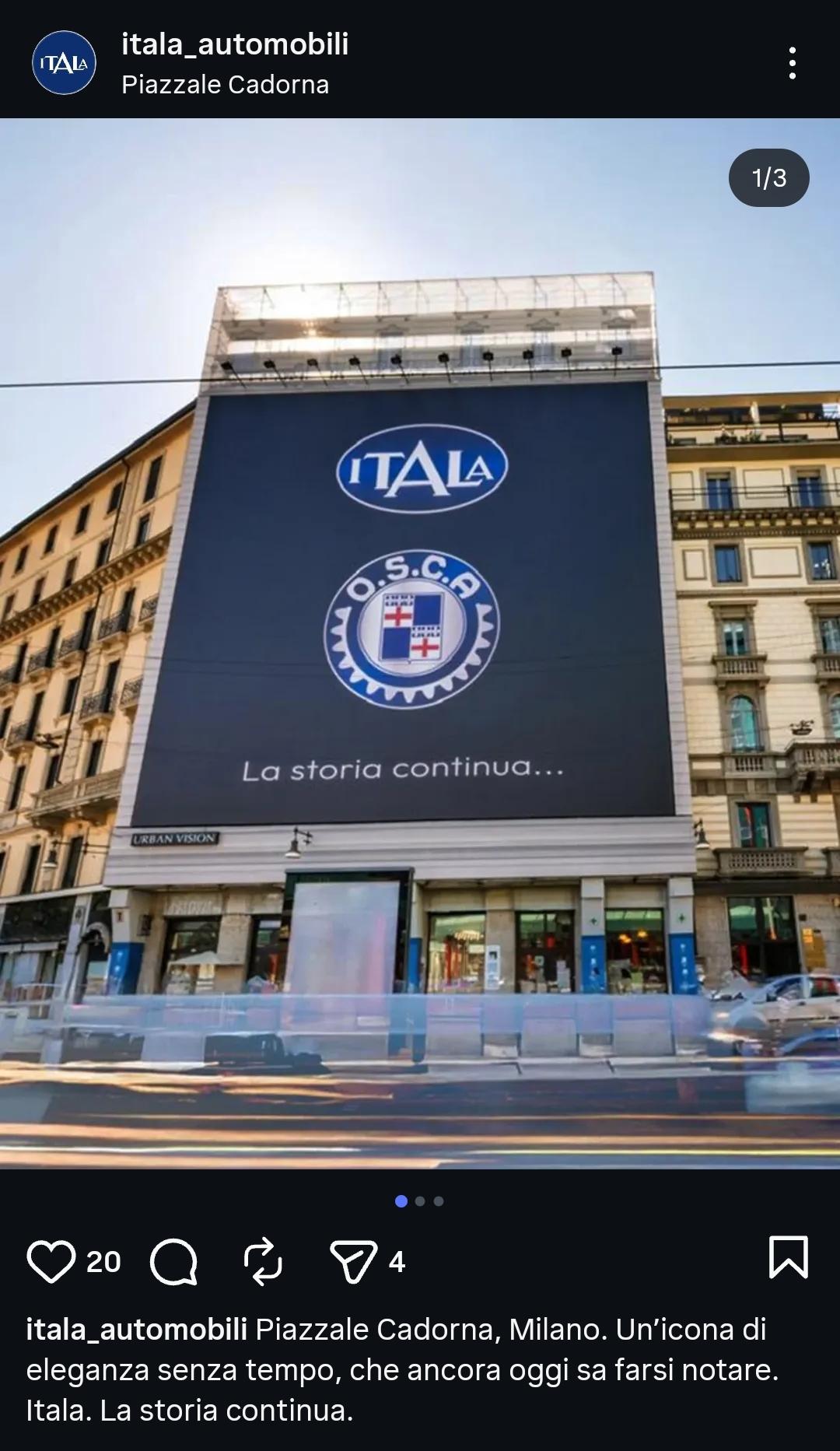
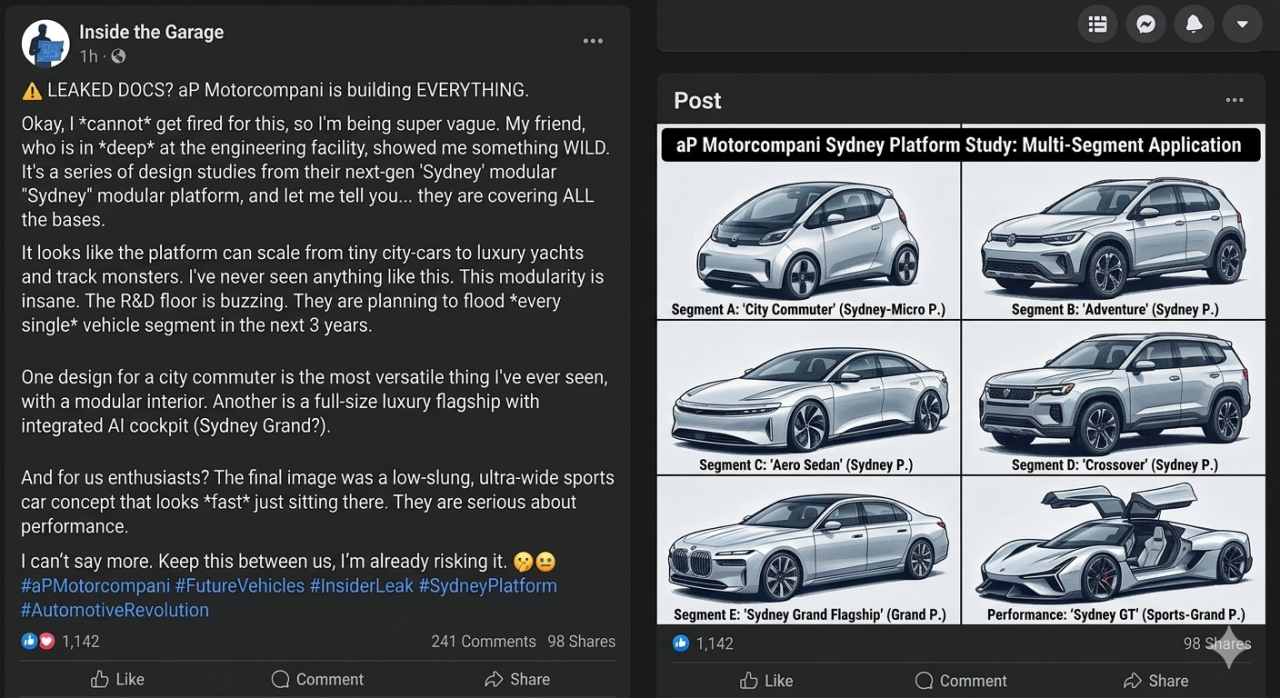 1 punto1 puntoIgnoravo che fosse un'espressione dialettale. Questo è il bello di essere su Devotoolipareri 😄. Comunque oggi fatti circa 100 km tra andata e ritorno, frizione priva di problemi.1 puntoIo sto aspettando con ansia la risposta ai nuovi lanci Stellantis: la Koala, i cambi manuali sui seg.A/B, il ritorno dei M-Jet, ecc. Questo silenzio imbarazzante da parte di APMotorcompani lascia presagire scenari inquietanti… 😈1 puntoMa su quella, il powertrain ibrido ci sarebbe entrato? Sospetto di no...1 punto1 puntoFrancamente dalle STLA Tavaressiane me ne terrei ben alla larga. Sono troppi i risparmi qualitativi ottenuti per far fare dividendo, e col tempo spuntano (e spunteranno) fuori da tutte le parti. Speriamo bene per le Filose.1 punto1 puntoIo avrei tenuto bodykit e assetto pre-restyling, quella venduta fino al 2020, e a quel punto sarebbe stata veramente una Yaris Lite. Invece messa così, da una parte più compatta, dall'altra parte carica di particolari, boh, non è la mia tazza di tè, ma capisco che il mercato premia l'oggetto strambo, altrimenti i listini di oggi sarebbero ben diversi. Più che altro è una di quelle macchine su cui le 5 porte non hanno proprio senso, sono talmente anguste che a momenti l'accesso sarebbe più agevole ribaltando il sedile anteriore.1 punto1 punto1 puntoYeah, but as long as 500 and Pandina share the base, they could easily produce both in Mirafiori. E-Car and compacts on STLA Small in Pomigliano. If STLA City is a reality. If STLA Small goes down to 370 cm as planned, they might even share the line with the compacts.1 puntoPer me è un’offesa alla sua memoria. Cosa c’entra questo “city suv” con le corse?1 punto1 puntohttps://www.autocar.co.uk/car-news/electric-cars/hot-vauxhall-astra-return-280bhp-cupra-born-vz-rival1 punto...nel frattempo il gatto spera di non esagerare con i popcorn.........1 punto1 puntocredo che nessuno a ovest di verona, a sud di rovigo e a est di pordenone abbia idea di cosa voglia dire sburtar, sburto, sburton...1 punto1 puntoEd eccoci con la prima disdetta. Auto di 3 anni, 8 mesi e mezzo. 57mila km scarsi. Mercoledì viaggio Belluno-Bolzano in superstrada + autostrada, tutto ok finchè non esco dall'autostrada, mi innoltro nel traffico urbano bolzanino e...pum. Ad ogni fermata e ripartenza in prima, la macchina inizia ad andare a sburti per poi andare sciolta. Perplessità. Arrivato a destinazione spengo e lascio ferma l'auto per qualche ora. Riparto al pomeriggio per il viaggio di ritorno, tutto ok per i primi 100 km abbondanti. Uscito dalla Valsugana, fuori Feltre, eccoci di nuovo. Nelle ripartenze da fermo, in prima, due tre sburti. Faccio provare anche alla mia compagna, uguale. Giovedì recato in concessionaria, al capofficina basta provarla sul piazzale, verdetto: frizione. Da cambiare. 3 anni, 8 mesi e mezzo, 57mila km scarsi. Può essere che rientri nella garanzia, se smontando il tutto, riscontrano trafilature olio o umidità. Sennò, è considerata "ordinaria usura", devo pagare di tasca mia. Molte, parecchie, anche troppe perplessità. Guido da quasi 23 anni, mai dovuto cambiare la frizione in nessuna auto passata, per la cronaca.1 puntoA me viene da ridere quando leggo il titolo di questo thread. l’importazione di kit cinesi è una scelta strategica si1 punto1 puntoMagari lo facessero anche in stellantis con i ff 1.5 in luogo dei 3 cilindri in uso1 punto1 punto1 puntoNormalmente facciamo il toto-nomi. Stavolta abbiam fatto il toto-marchi! 😁1 punto1 punto1 puntoNota Ufficiale aP motorcompani1 punto1 puntoSarà sicuramente per ragioni anagrafiche, ma non ricordo di avere mai visto una Ami 8 (anche ai tempi in cui capitava di incontrarla un pò più spesso, ovvero 30 anni fa) che non si presentasse in condizioni più o meno da "scassone" 😄.1 punto1 punto1 punto1 puntoFirmato per una Civic Sport grigia GdF in pronta consegna. Mi hanno sopravvalutato la Sportage fino a 20mila € (VFG 16.540 €) e l’ho portata a casa a 31.000 €, finita da listino di 40.050 €. Niente rossa: almeno 120 giorni di attesa. Per me era impossibile attendere tutto questo tempo a causa del rientro della Sportage entro fine giugno.1 punto1 puntoun MY sicuro, ma un restyling in senso stretto lo vedo difficile, anche perché in tutta onestà, non ha bisogno. Servirebbero, semmai, più colori per gli esterni, opzioni per gli interni e cerchi.1 puntoSicuramente entrambi i grigi utilizzati sono stati disponibili negli anni nella gamma del Maggiolo, però dubito in contemporanea sulla stessa auto. In realtà credo non sia mai esistita una versione bicolore di serie, nemmeno tra le versioni speciali, ma non ci metterei la mano sul fuoco. Bellissimo scatto, la Giulia recente sullo sfondo poi arricchisce il tutto.1 puntoQuesta non la commento; pur essendo ateo, vorrei evitare l’inferno, casomai sbagliassi 😄1 puntoSeveri ma giusti
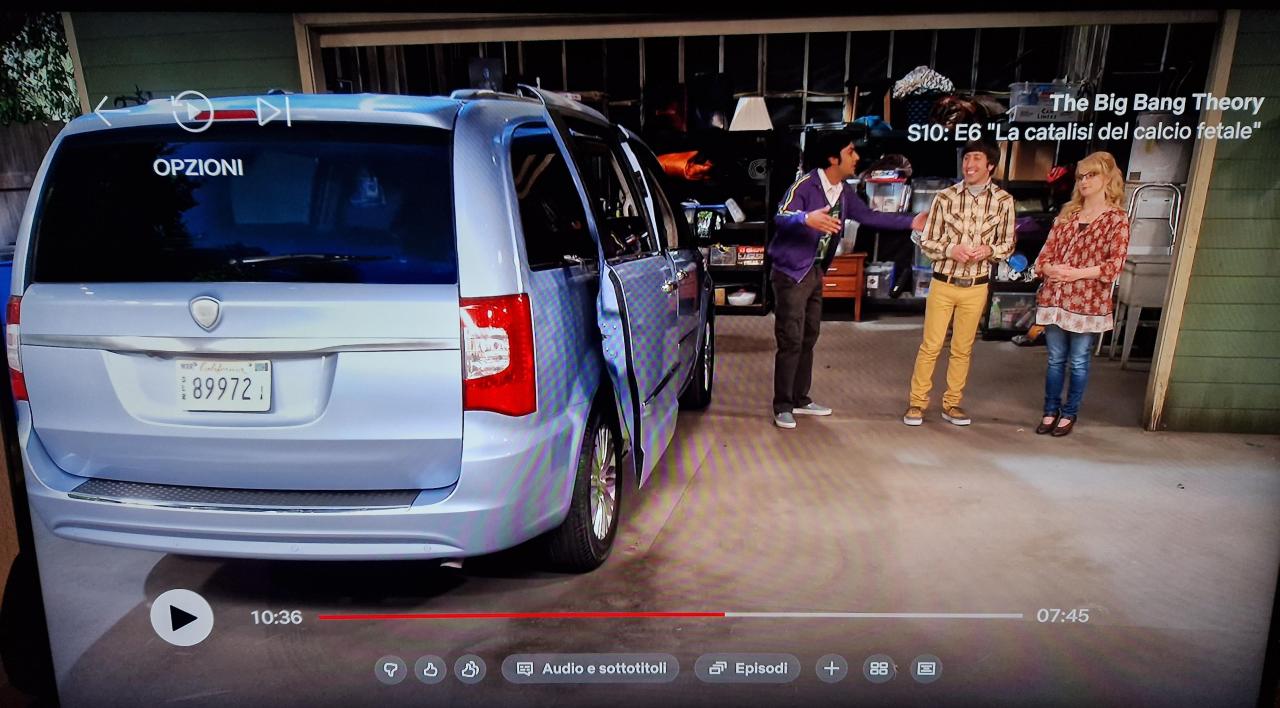
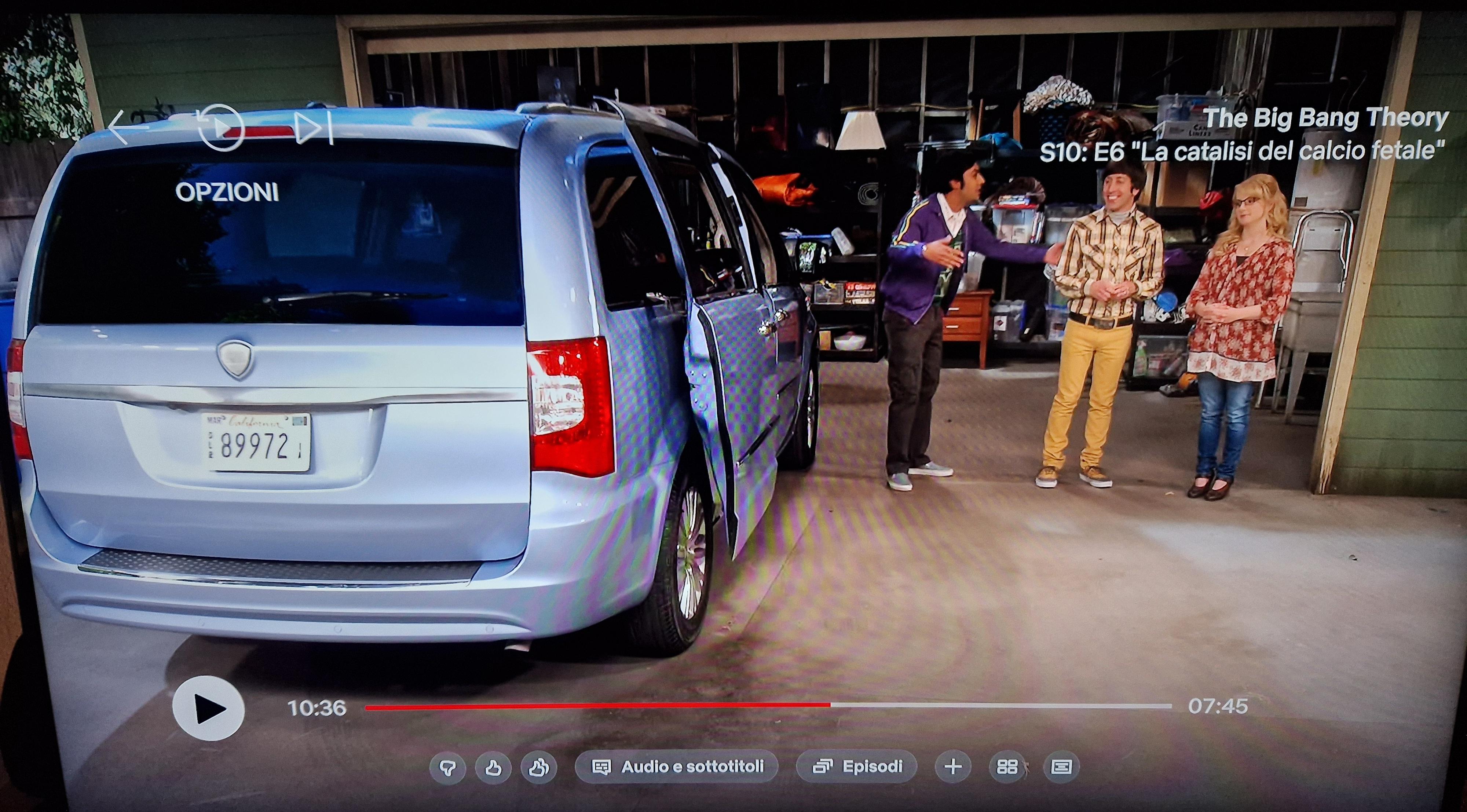
 1 puntoProseguono i test della Ypsilon Rally2. In molti la definiscono una banale Citroën travestita ma io non ci vedo tutta questa somiglianza.1 punto1 puntoParagonando I consumi di P5 e P2 la soglia per cui non conviene andare a corrente è di 0,64€/kWh (mi rincuora che il mio vicino con la Tesla ha calcolato 0,66), con una Yaris si abbassa a 0,46€/kWh (considerando 3,5L/100km che riesce a fare mia moglie concedendosi anche qualche tirata). Con un app austriaca (credo embw) le Enel X sono a 0,39€/kWh... ...boh a prescindere dalle scelte di Toyota, in Italia mi sento un po' preso per il c__o [emoji28] ☏ SM-G991B ☏1 puntoCuriosamente in "The Big Bang Theory" in un episodio viene utilizzata una Lancia Voyager invece di una "locale" Chrysler Voyager.
 0 puntiLa Leaderboard è riferita all'orario Roma/GMT+02:00




























Account
Navigation
Cerca
Configure browser push notifications
Chrome (Android)
- Tap the lock icon next to the address bar.
- Tap Permissions → Notifications.
- Adjust your preference.
Chrome (Desktop)
- Click the padlock icon in the address bar.
- Select Site settings.
- Find Notifications and adjust your preference.
Safari (iOS 16.4+)
- Ensure the site is installed via Add to Home Screen.
- Open Settings App → Notifications.
- Find your app name and adjust your preference.
Safari (macOS)
- Go to Safari → Preferences.
- Click the Websites tab.
- Select Notifications in the sidebar.
- Find this website and adjust your preference.
Edge (Android)
- Tap the lock icon next to the address bar.
- Tap Permissions.
- Find Notifications and adjust your preference.
Edge (Desktop)
- Click the padlock icon in the address bar.
- Click Permissions for this site.
- Find Notifications and adjust your preference.
Firefox (Android)
- Go to Settings → Site permissions.
- Tap Notifications.
- Find this site in the list and adjust your preference.
Firefox (Desktop)
- Open Firefox Settings.
- Search for Notifications.
- Find this site in the list and adjust your preference.