




Classifica Utenti
Utenti più Apprezzati
(Scegli il periodo) Utenti più Apprezzati
(Storia giorno per giorno) Classifica dall'Origine
(da Marzo 2003)
(Scegli il periodo) Utenti più Apprezzati
(Storia giorno per giorno) Classifica dall'Origine
(da Marzo 2003)
-
pennellotref
Utente Registrato20Punti7273Numero contenuti pubblicati -
ptitbill
Utente Registrato18Punti77Numero contenuti pubblicati -
AleMcGir
Moderatore |Staff|14Punti20132Numero contenuti pubblicati -
Wilhem275
Moderatore (Staff)12Punti19664Numero contenuti pubblicati



Contenuti più Popolari
Stai visualizzando i contenuti con il più alto punteggio, pubblicati in data 02/04/17 e localizzati in Risposte
-
18 punti
-
11 punti
-
10 punti
-
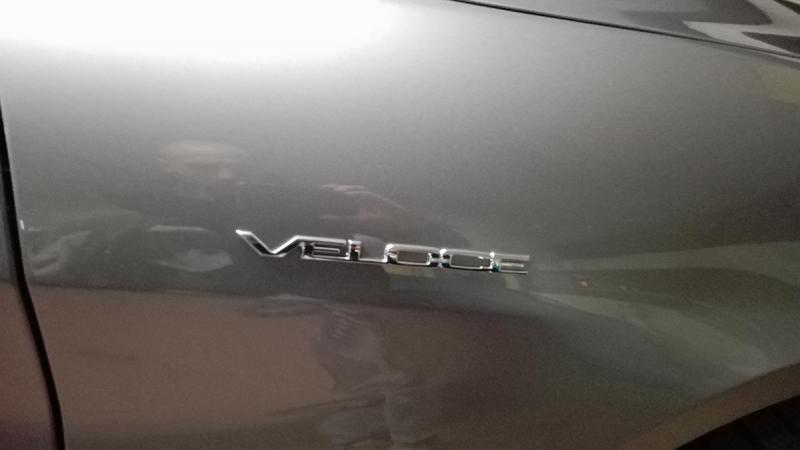
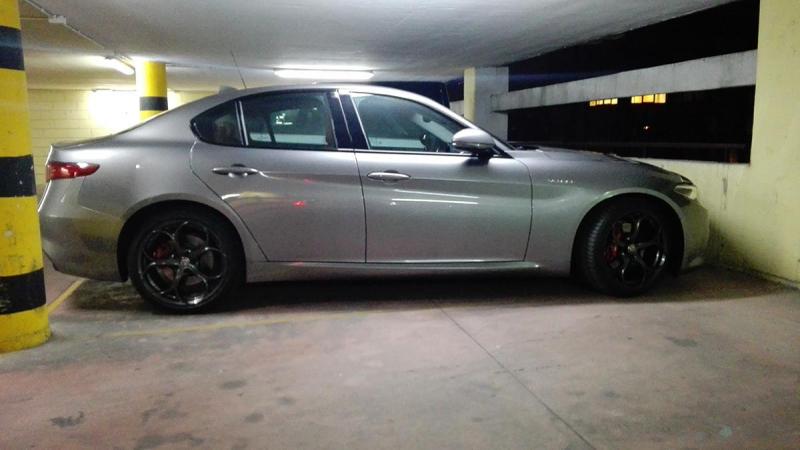
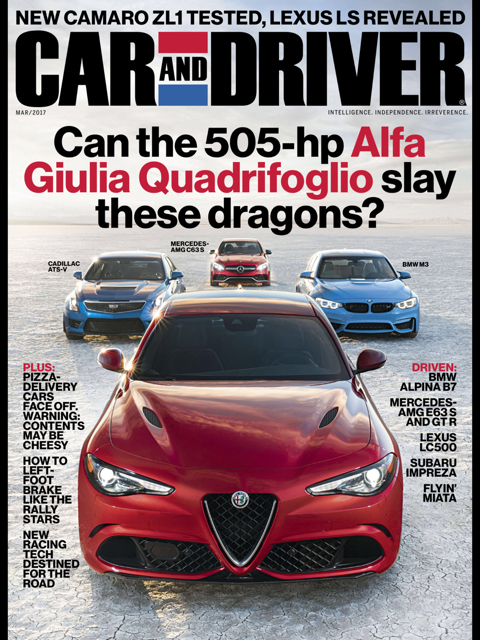
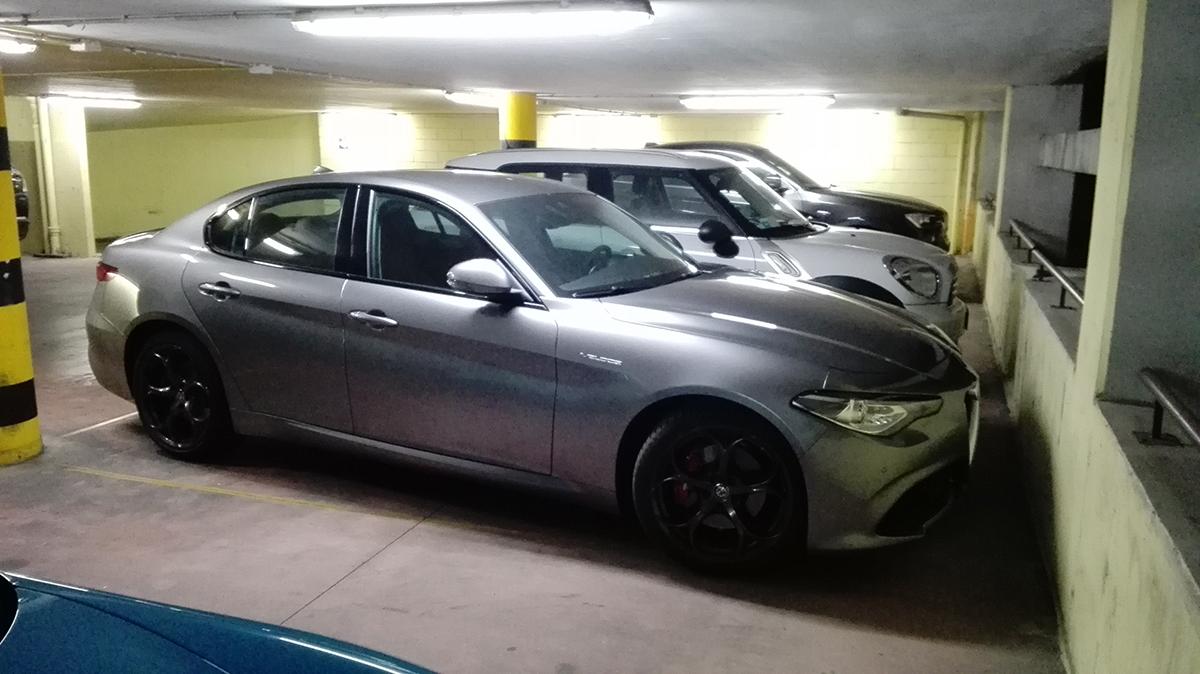
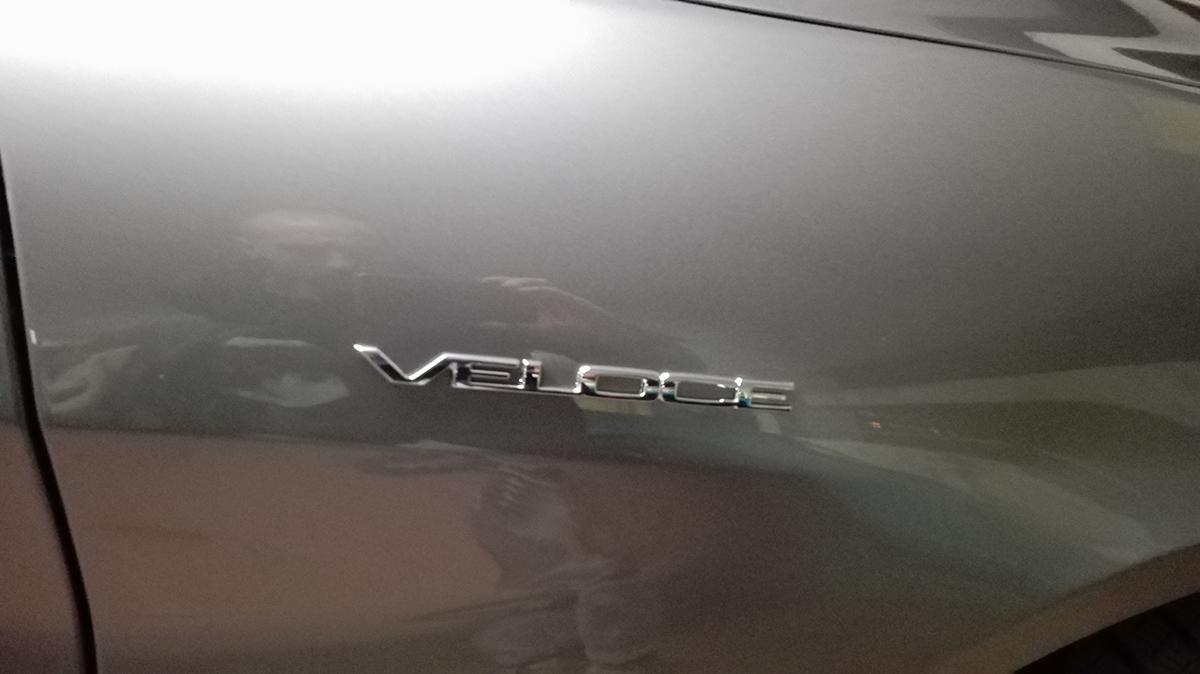
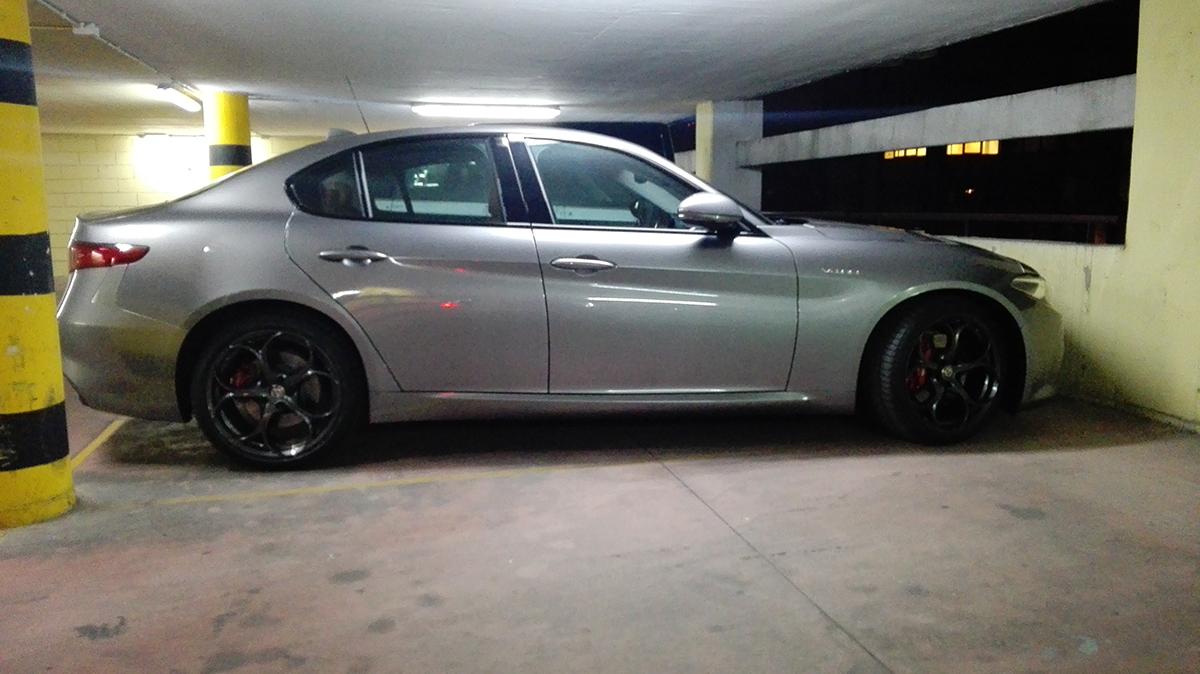
6 puntiSe si vuole far ripartire Lancia credo si debba gettare le basi con qualcosa di speciale e particolare, che faccia percepire un posizionamento ben differente rispetto a Fiat. Una Fulvia Coupè, una 037, una Delta Integrale o S4 per intenderci, non certo un'anonima berlina. E pensare che questa sarebbe stata perfetta...4 punti4 punti4 puntiFinalmente una prova interessante della Q4! Sono veramente contento delle sensazioni e delle performance che trasmette Ps finalmente riesco a caricare le immagini di una Veloce che ho visto in un garage a Mi (scusate per la qualità delle foto ma i miei amici erano di fretta ... non capivano l'importanza dell'incontro)

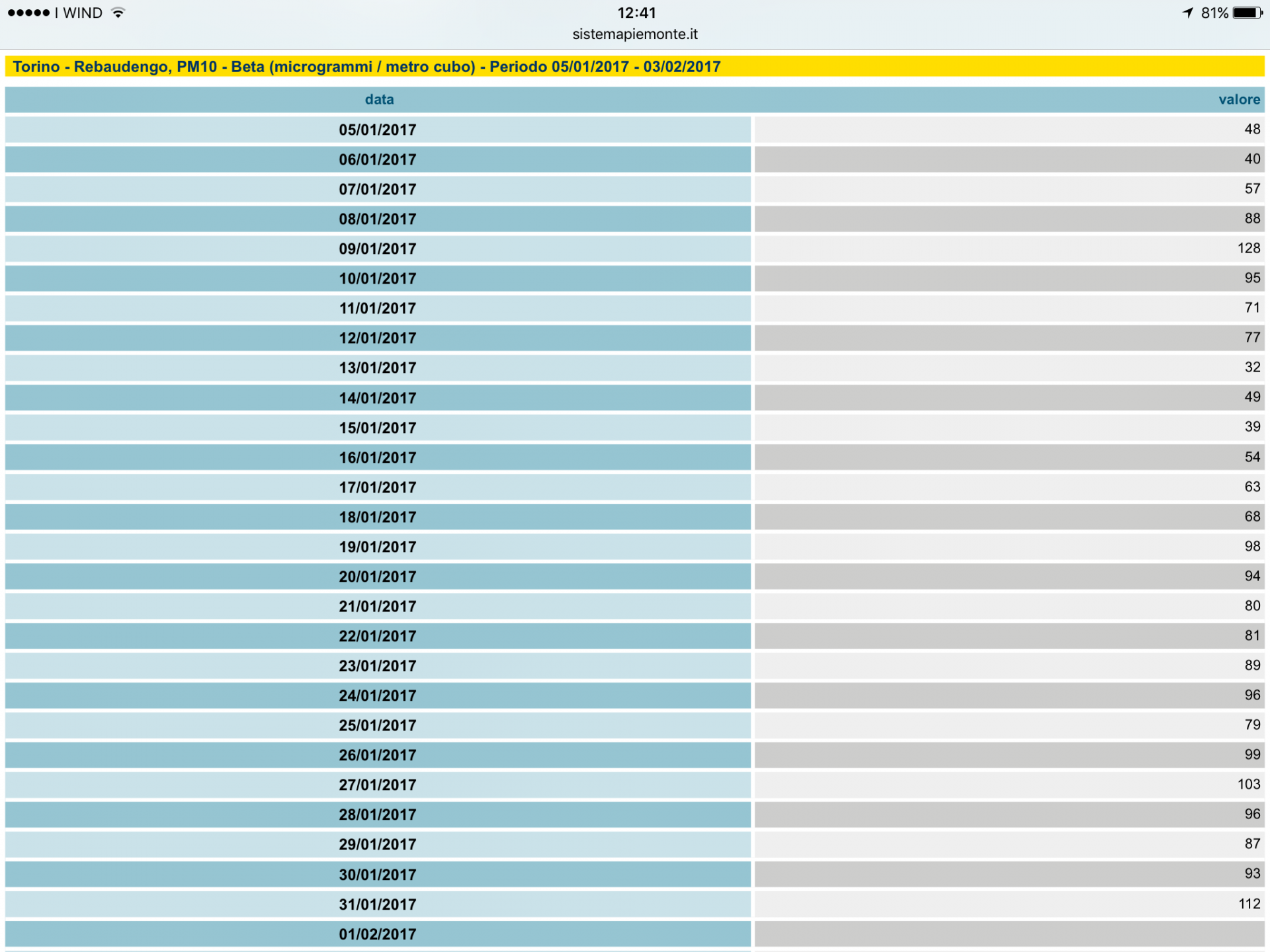
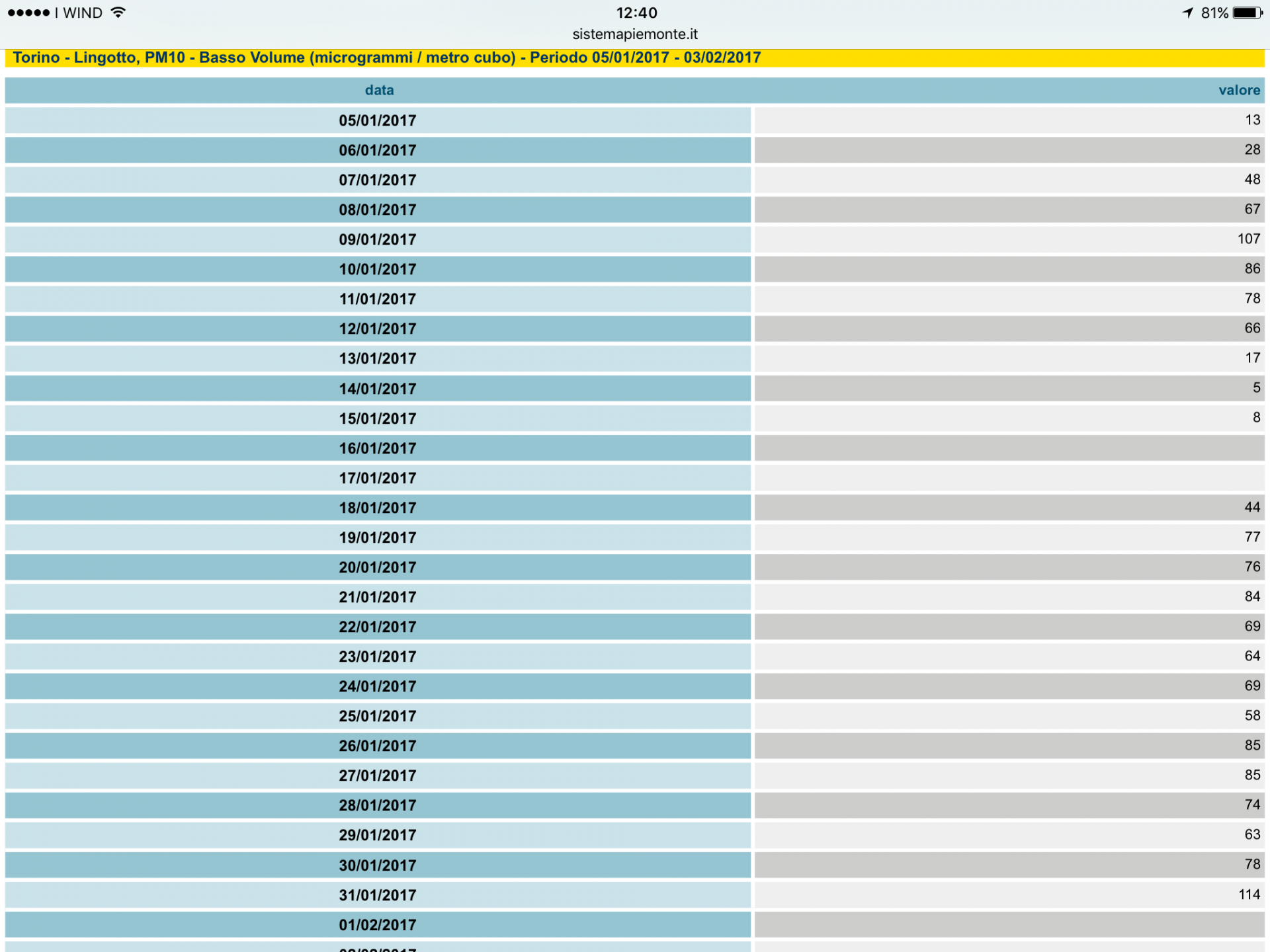
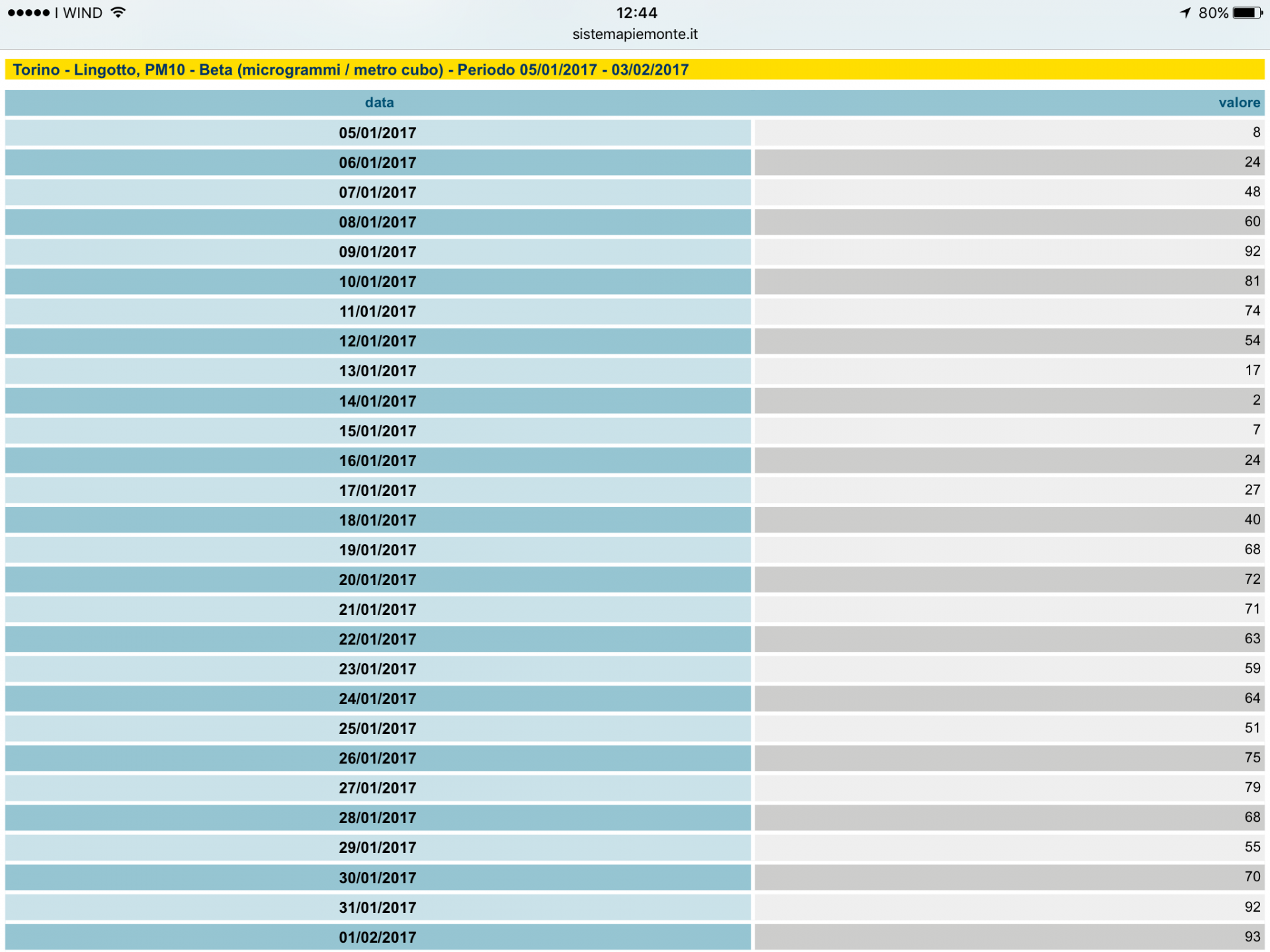
 4 puntiIo ho il solo timore che comincino a limitarmi l'€2 benzina senza un motivo reale. Comunque a me l'intera storia dei limiti ai motori vecchi pare una boiata, perché parliamo di veicoli che ormai vanno per i vent'anni, e quanti mai saranno sul totale del circolante? Se c'è schifo nell'aria mi interessa limitare il 10 o il 90% delle fonti?4 punti3 puntiL'intellighenzia, i media, le celebrities etc... dall'alto della loro "superiorità morale", non comprendono che continuando così sulla via della delegittimazione e del discredito, non faranno altro che consolidare il sostegno popolare a Donald... Se non farà grosse caxxate, la rielezione è assicurata di questo passo.3 punti3 punti3 puntiDopo il 1953/4, tutto quello che rischi al massimo è un trasferimento come direttore di una diga on salkazzistan e poi un pensionamento onorevole ??3 puntiEsatto, ad es. altrove si discuteva della ser7 con la scocca con parti in carbonio, che non ci sono sulla ser5 a parità di pianale. L'articolo dovrebbe essere questo http://www.drive.com.au/motor-news/maseratis-twin-sports-car-future-20160420-goawsr.html quindi per Alfieri e GT un pianale nuovo con motore tutto arretrato dietro l'asse anteriore(come è giusto che sia), cofano basso, maggior utilizzo di alluminio per contenere il peso, ecc... con qualcosa di derivato da quello di 4p/Ghibli/Levante. Giorgio così com'è potrà essere tranquillamente utilizzato sulle prossime Ghibli/4p/Levante.3 puntiNo, è tutto confermato. L'unico cambiamento che è stato fatto riguarda l'anticipazione della GT rispetto ad Alfieri, mentre prima era il contrario. Imho, quest'anno i muli li vediamo di sicuro3 puntiLo so che e' teorico,ma nei calcoli viene indicato cosi3 puntiPotrebbero fare un supplemento o una rivista a parte per gli smanettoni dei tablet e chiamarla Ottopollici, perché Quattropollici è troppo barbon Nel primo numero: Anteprime: Il megatablet da 24 pollici della prossima Tesla Superprove: Il virtual cockpit Audi contro l'Oculus Rift con Streetview sulla Panda Prove di durata: I FULL LED durano tantissimo e fanno godere di più Guida autonoma: Contromano a fari spenti per avere più intimità nel traffico3 punti3 puntiBah... siamo in un forum di persone che cercano di andare oltre cavalli, cavalli e cavalli... si cerca di analizzare quello che è il prodotto venduto, in arrivo o vociferato in tutti i suoi aspetti. Credo che a tutti una gamma Fiat che copra dal seg. A al D con derivate rialzai e sportive piaccia... ma la realtà è ben diversa però! Tipo vende perché è un'ottima auto razionale venduta in "saldo"; siamo sinceri, a quanti potrebbe interessare una Tipo Sport benzina da quanti cavalli? Facciamo 170 per essere credibili? Quando appunto già con Giulietta si fa fatica a venderle, se non con grossi sconti? Fermo restando che comunque il 1.4T da 120 cv è disponibile per chi vuole un pò di brio a benzina. E poi la strategia per Abarth è chiara: allestimenti sportivi della gamma Emotional/Vintage che strizzano l'occhio sia al pistarolo che al fighetto da aperitivo! Ed è questo che fa funzionare il marchio ora! Un pò come Mini. Abarth ha cominciato a funzionare grazie al cinquino e non grazie a GPA... [emoji6] Anche per la X... una Abarth con il 1750 da 240 cv, 4x4, ZF9 e look sportivo sarebbe una figata! Magari accompagnata da una bella versione WRC vincente... Ma in quanto sarebbero disposti a staccare un assegno prossimo ai 40 k€ per un giocattolino del genere??? In un azienda privata i costi di progettazione, sviluppo ed omologazione devono poi essere coperti dalle vendite. Se hanno cassato il progetto, ed imho a malincuore visto che l'hanno valutato e messo in strada un muletto, vuol dire che almeno per ora il gioco non vale la candela, e con buona pace del marketing che probabilmente la chiede a gran voce. Chiederai allora perché gli altri costruttori le fanno... beh hanno un mercato interno che assorbe una buona parte della produzione e poi hanno portato avanti una tradizione per decenni. Ricordami l'ultimo modello veramente sportivo di Fiat del segmento C... [emoji6]3 punti3 punti3 puntiInfatti dove vedi nell'articolo che la G30 ha la tecnologia Carbon Core? Inoltre, il B48 è nato ex novo, con riprogettazione del monoblocco con fluidodinamica ad hoc ottimizzata per la cilindrata unitaria di 500 cc. Con PSA non ha nulla a che spartire checché ne affermi Wikipedia, che giustamente fa riferimento ai vecchi BMW-PSA ed ancora prima ai PRINCE.3 puntiDa http://www.lastampa.it/2017/02/03/cronaca/emergenza-smog-dopo-tre-giorni-consecutivi-sopra-i-limiti-fermi-i-diesel-euro-fino-a-luned-oC1TmsoXYYa4I2kapk3LCL/pagina.html Da http://www.lastampa.it/2017/02/04/cronaca/smog-la-stretta-del-comune-euro-diesel-ferme-sempre-7rUirld9EnLkcv56pqL0AI/pagina.html --- Se penso che agli "albori" dell'€4 c'era chi diceva che i diesel con DPF in opzione (per esempio la mia GPunto 1.3 miltijet €4 con DPF pagato a parte) non sarebbero stati fermati con i blocchi in città....2 puntihttp://gita.piaggiofastforward.com/ http://www.piaggiogroup.com/it/archivio/comunicati/gruppo-piaggio-protagonista-della-mobilita-futuro-con-creazione-gita-e-kilo-prim Non sapevo dove postarlo se non riesumando topic di almeno 3/4 anni...2 puntiEvviva! Ora esco, vado a spargere un po' di aria di montagna col mio ecologico SUV diesel Euro 6 PS: 8,5 km/l in città se va bene, ma la mia tecnologia è green2 puntipremesso che la regata diesel rimane un benchmark insuperato: l'unica auto con la conservazione della qunatità di moto: se era ferma era quasi impossibile portarla a velocità normale, ma una volta partita continuava a muoversi senza consumare: dopo essere arivati a roma, sulla strada del ritorno ci venne il dubbio che l'indicatore non funzionasse e invece era tutto ok quindi sicuramente inquinava di più, ma consumava talmente poco da essere irrilevante adesso "aggiungo il carico da 11" Cit. sono 2 giorni che piove. stamattina ha piovuto abbastanza forte. ieri mattina davanti a me c'era una musa o una idea che emetteva un gran fumo e nemmeno dal tubo di scappamento ma da sotto: ma incularselo fino alle tonsille ? p.s. a morte gli ambulanti cio loro furgoni con "i buchi delle pallottole del 15/18" cit.2 puntiHanno perso un'occasione d'oro al momento in cui hanno creato Delta III. L'avessero fatta rialzata ed aspetto CUV è probabile che oggi parleremmo di un marchio in condizioni ben diverse...2 puntiOk, ma lo fa davvero? Non solo in teoria, ma anche in pratica. Non c'è solo il problema del dato percentuale bassissimo rispetto al totale circolante, ma c'è anche da capire quanto quei mezzi siano effettivamente circolanti in termini di veicoli*km. Mi sembra scontato che la larga maggioranza di chi ha elevate percorrenze usi esemplari più recenti, mentre auto di 15-20+ anni abbiano un uso tendenzialmente più contenuto. Se guardo a casa mia, con un'€6 diesel da 55k km/anno e 10 km/l e un'€2 benzina da 500 e 13, non c'è dubbio su dove sia il problema di inquinamento... Oltre a questo mi ruga parecchio che ci siano in giro parecchi diesel con FAP/EGR eliminati, in svariati ordini di grandezza in più rispetto ai benzina pasticciati...2 puntiCome accennato in altra sede c'è anche un grosso problema di rilevamento. Per la zona metropolitana di Torino (quindi anche molti comuni della prima cintura) per motivi cautelativi si utilizza come buono il dato della centralina peggiore di Torino (sono Lingotto, Grassi, Rubino, Consolata e Rebaudengo). Il sistema andrebbe bene se ci fosse una rotazione di peggiori. Cosa che accade molto di rado....mentre la peggiore è quasi sempre quella di Rebaudengo. Che ha alcune brutte specificità 1- la zona non è interessata da teleriscaldamento 2- non è stata interessata a interventi di viabilità (solo ora, con l'apertura di corso Venezia sopra il passante verrà alleggerita) 3- è vicino ad accampamenti abusivi 4- è una zona che data la vicinanza alle autostrade e ai confini cittadini è esentata dai blocchi alla circolazione in pratica...negli anni abbiamo speso una mostruosità di soldi e disagi per valutare l'aria in un posto fermo da 15 anni esente dai limiti restrittivi oltretutto non facendo granché di concreto per migliorare quella zona che a volte registra inquinamento superiore del 20-30% rispetto alle altre centraline. edit: ad esempio confronto Lingotto-Rebaudengo la zona Lingotto è servita da Teleriscaldamento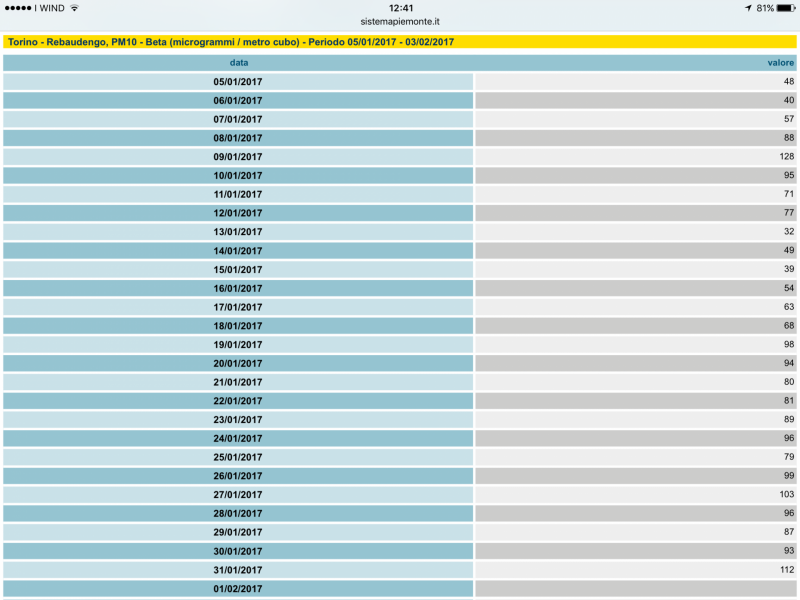
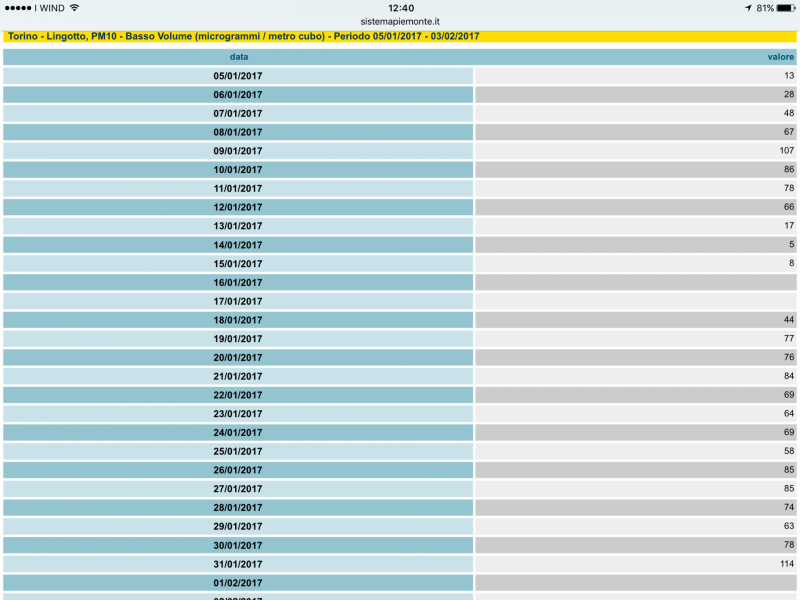
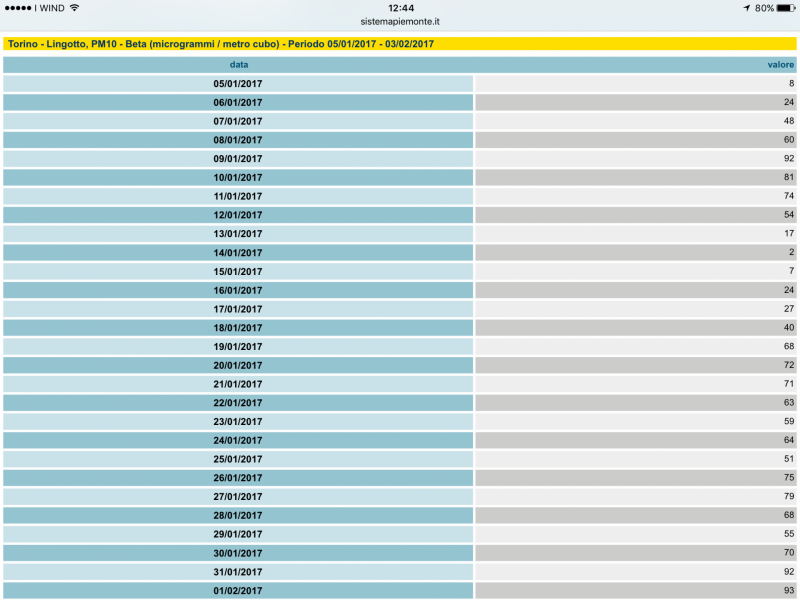 2 puntiGià espresso in altre sedi : è assurdo limitare i diesel privati €4 quando permetti poi a furgoni, autocarri, motorini etc ( ovviamente ben inferiori a €4 ) di circolare impunemente.2 puntiAl Montecarlo usano questi Qui senza chiodi Qui I DMACK 2017 (il 4o da sinistra, il 2o si usa solo in Svezia)2 puntiinfatti è una convenzione, mica sovvertono le leggi della fisica2 puntil'approccio teoricamente è perfetto, ma poi bisogna fare un gran lavoro di trimming. L'esempio che abbiamo sotto gli occhi è l'a5 sb, che qualche problema di messa a punto del telaio l'ha avuta. Per cui, va bene il puzzle, ma poi si deve sempre fare un gran lavoro di messa a punto guidando.2 puntima infatti. Anche perchè si sovrappone spesso il concetto di telaio a quello di piattaforma. Due telai anche piuttosto differenti in molti particolari, possono appartenere alla stessa piattaforma.2 puntiormai è fatta, però ti suggerirei di nonfarti prendere dalla (pur comprensibile) rabbia è distinguere la manutenzione "ordinaria" arrivati a 180k km e più (freni, altenratore, firizione, attuatore) da quella straodinaria della carrozzeria, che osno necessarie ma non c'entrano. tutto sommato la spesa di 800 euro di parti sostituite (ma che poi devono essere grantite) per un auto con 180k km non mi pare eccessiva, ma da mettere anzi in conto.2 punticomunque parlare di piattaforme e telaio del singolo modello oggi è un po' più complicato che ieri. sono talmente flessibili che non è che "sotto sono la stessa macchina" come una volta. Alfieri con la piattaforma di QP/Ghibli non era fattibile per grossi vincoli negli sbalzi e nel parafiamma (non ricordo, credo). lo sapeva bene Aymaro "Giorgio" oggi è uno stilista ultra80enne o una base TP per vetture premium fino al luxury2 punti2 puntiSi, le strutture di carbonio mancano alle serie 5 in contrario alla 7 per diversi motivi. Primo, argomento dei costi, 5 deve essere piu economico come 7, secondo i numeri della produzione molto piu alti per la 5 come la 7. I tempi per produrre pezzi in carbonio sono ancora molto lunghi rispetto stampare in accaio, cosi per avere abastanza pezzi per numeri alti significa un invest enormi per gli impianti. E terzo motivo molto importante, la 5 DEVE essere piu semplice da produrre, perche lo stabilmento cinese dove la 5 e prodotto parallelo e in senso abilita produzione molto meno avanzata come il stabilmento madre in Baviera bassa.2 punti2 puntiE riusciva lo stesso a essere poco affidabile 160 per un restauro mi pare un attimo esoso...con 100k€ restauri da zero una E-type 3.82 puntiA Torino il dato è questo: Il fatto è che per paura delle multe anche le amministrazioni si comportando come le case come per la CO2. Supercazzolano aggiungendo complicazioni per effetti marginali senza mettersi a tavolino a aggredire il problema alla radice. Che per fuori città è il problema sempre maggiore della legna/pellet di scarsa qualità. In città è questo: Che bene non fa. Oltre che a analizzare meglio nel dettaglio il rilevamento dati, onde non finire come Torino...come pretendiamo di misurare l'efficacia dei provvedimenti misurando l'aria in una zona che non ha beneficiato di nessun intervento (nè in positivo nè in negativo)
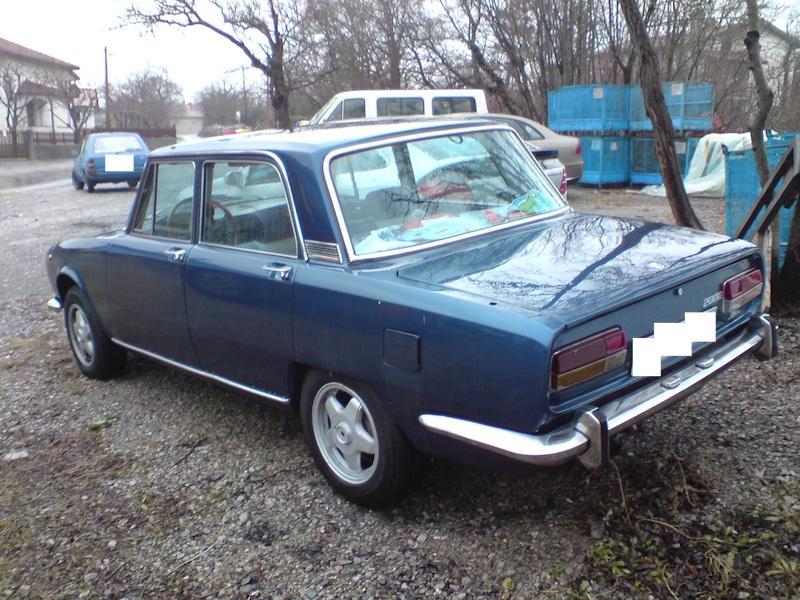
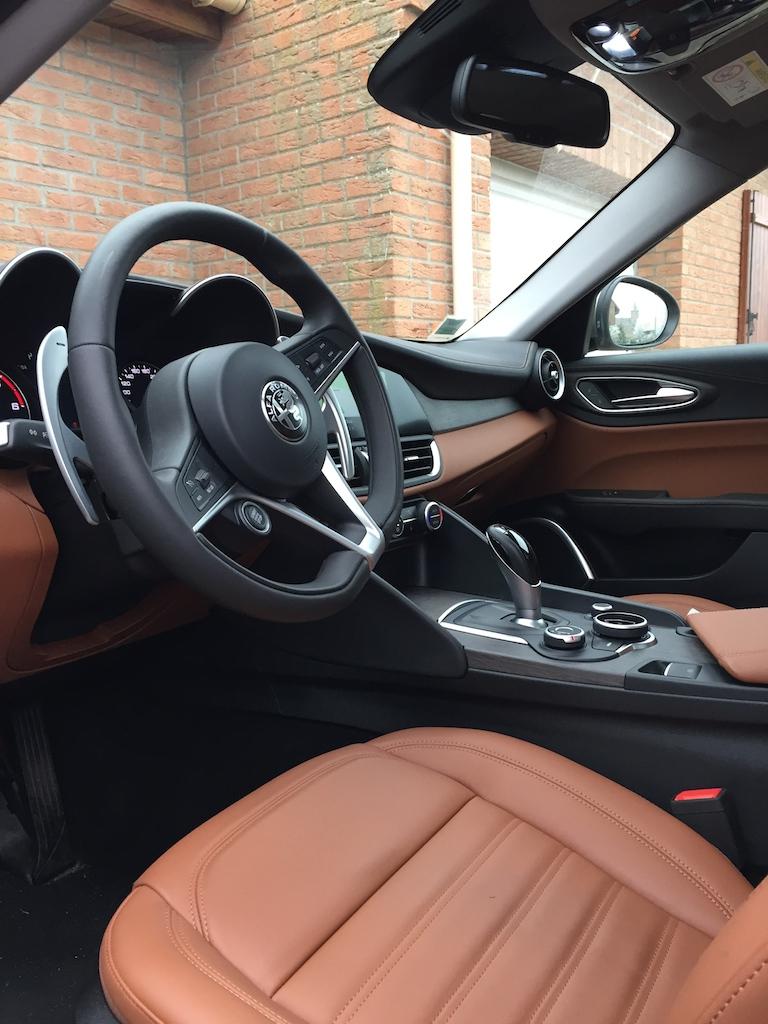
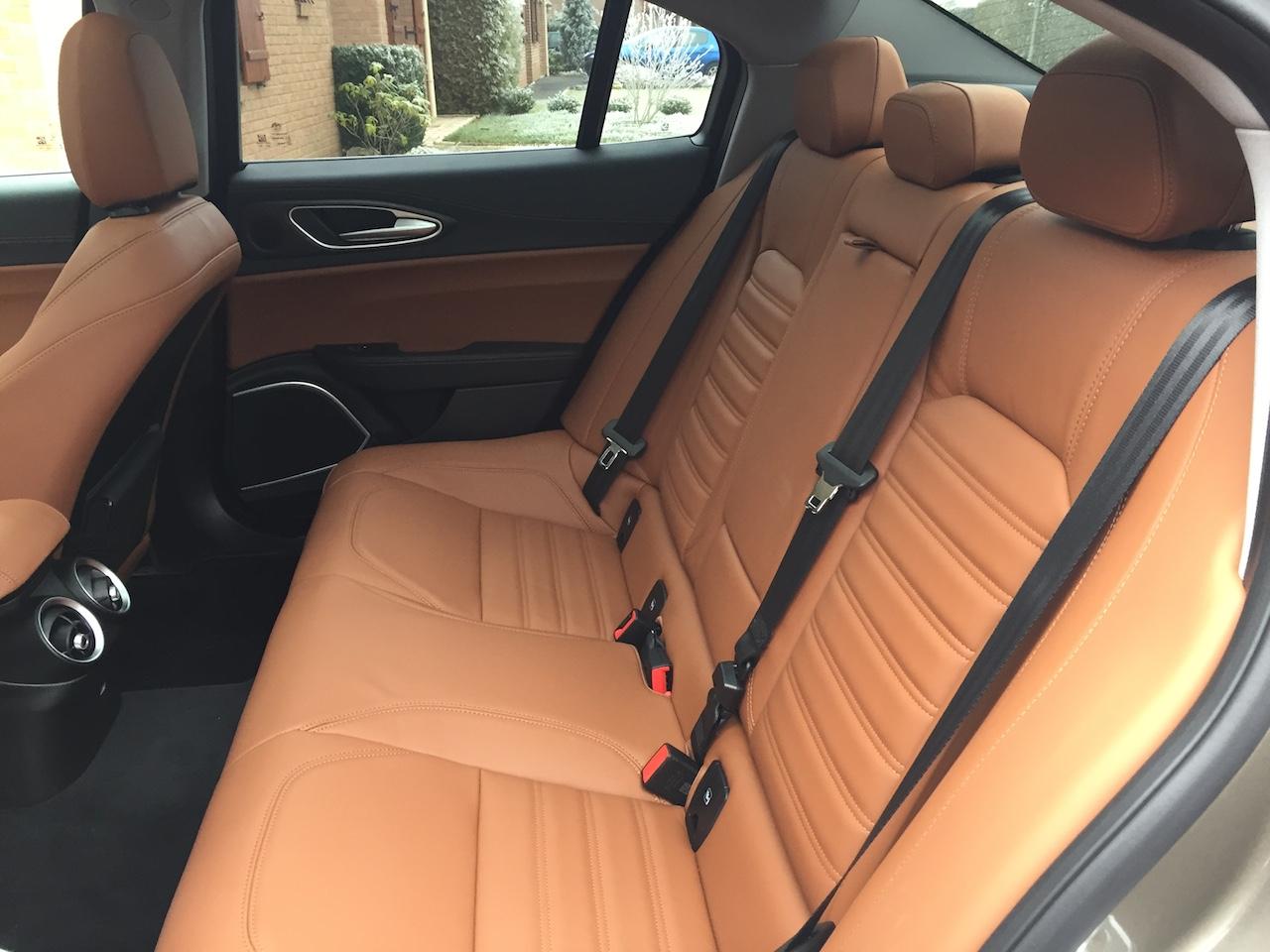
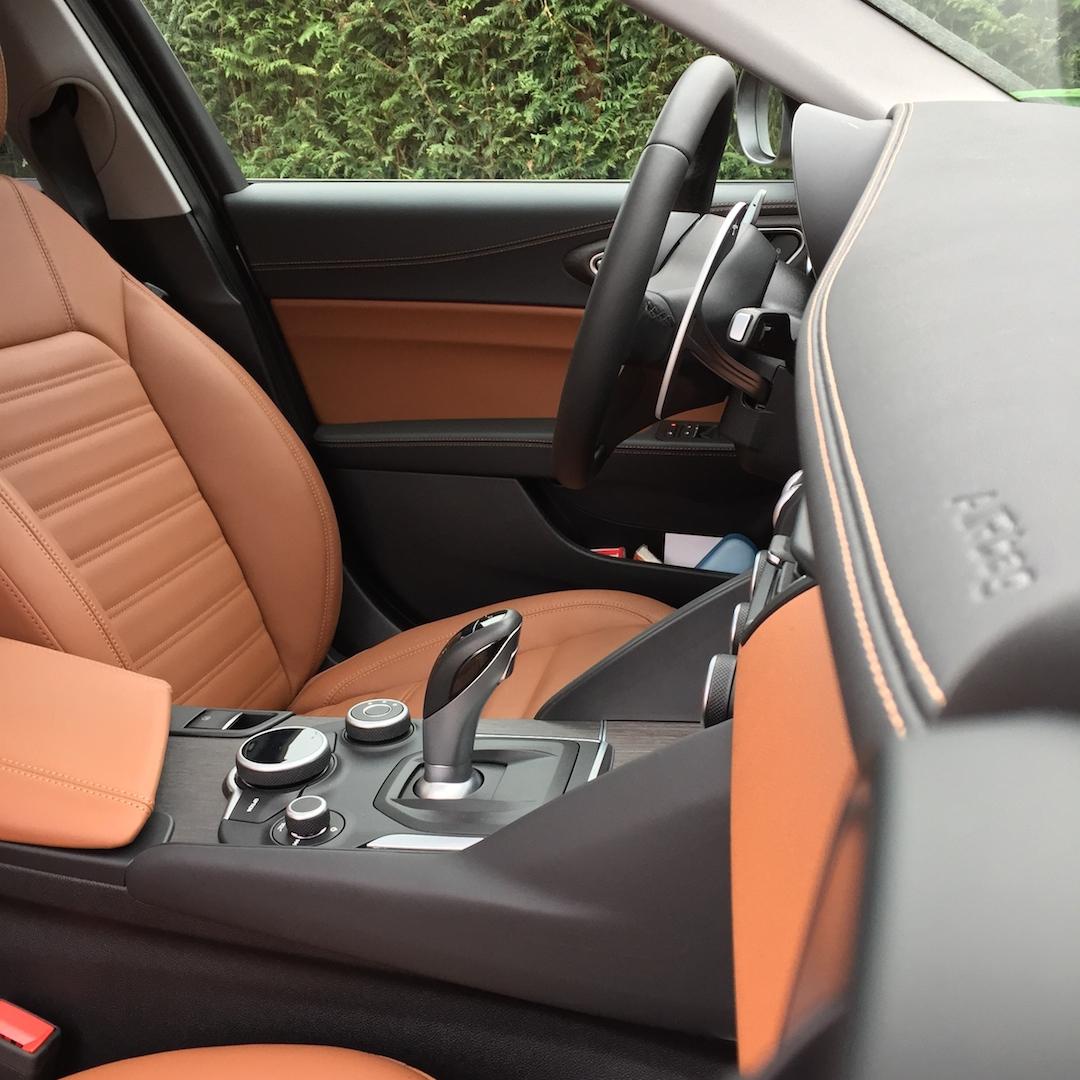
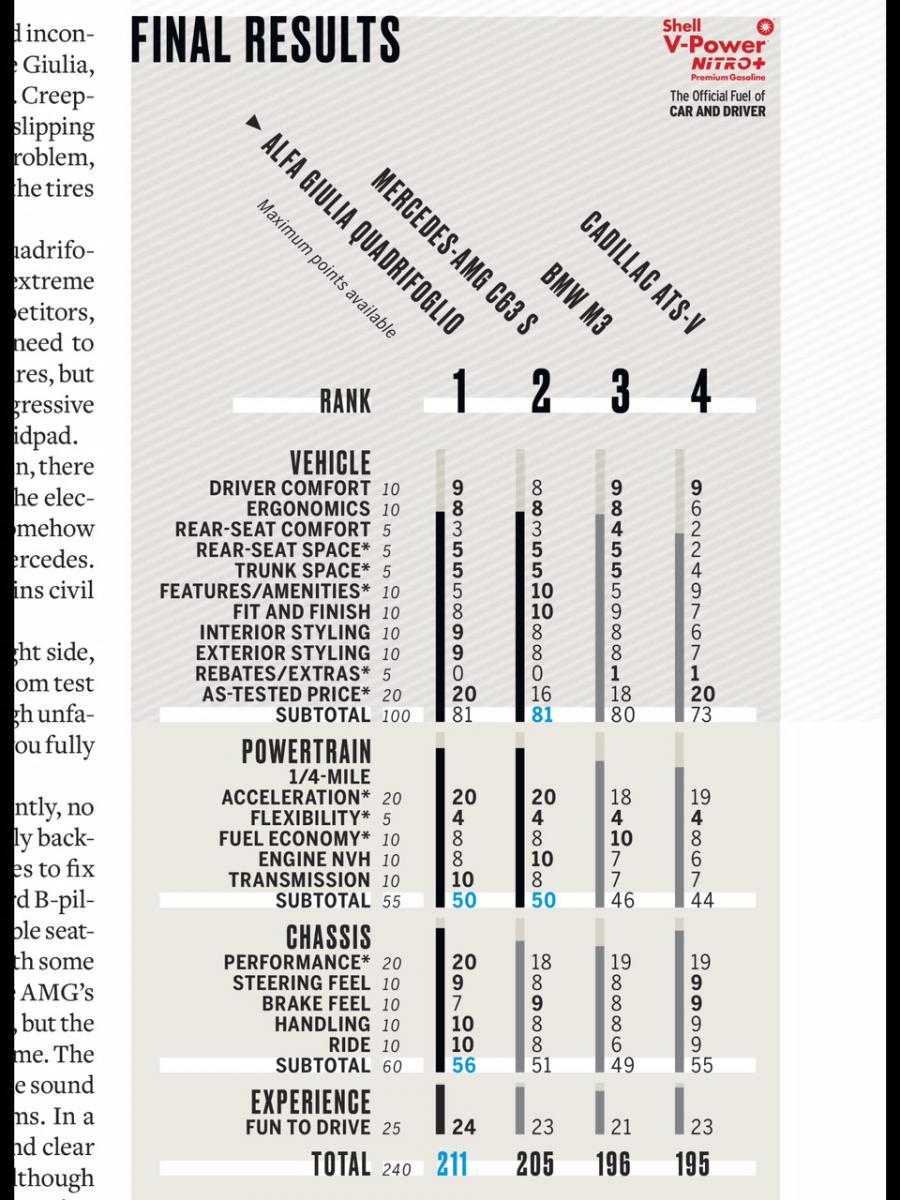
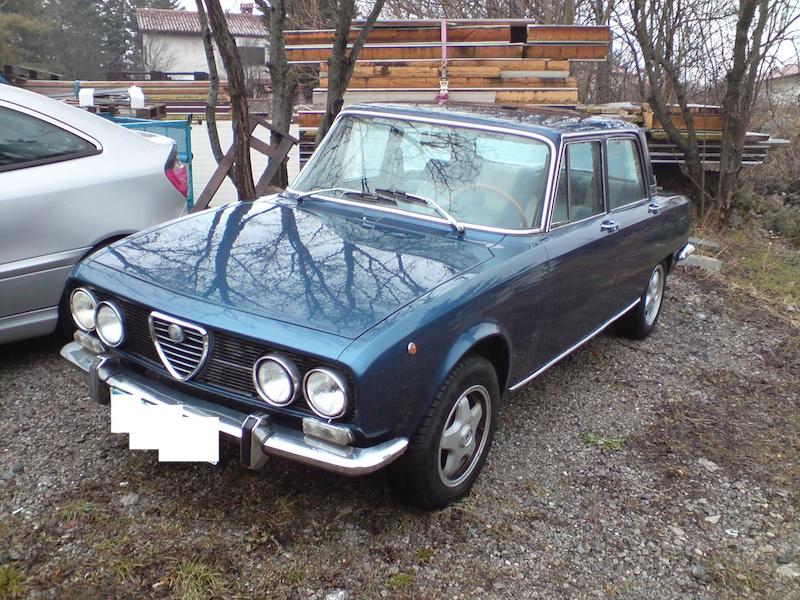
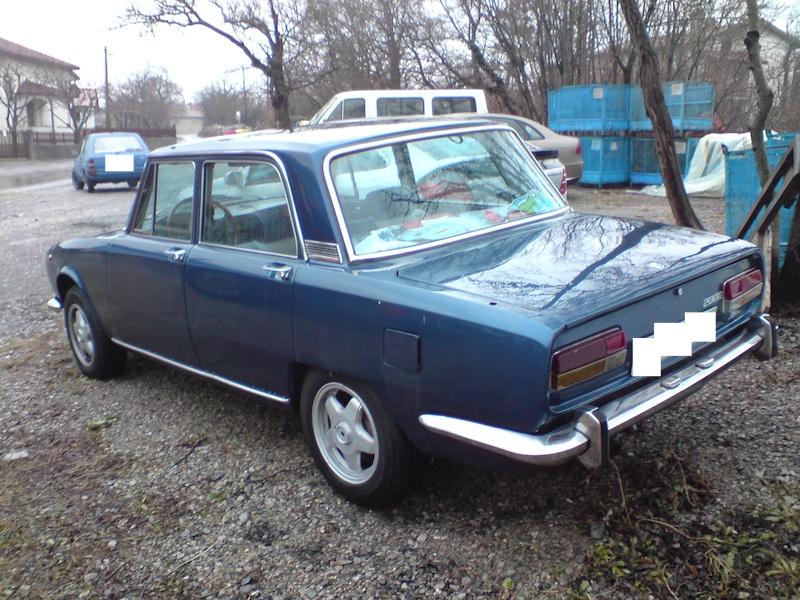
 2 puntiSta storia dei cerchi sta un pò sfuggendo di mano [emoji23] ☏ SM-G920F ☏2 punti2 punti2 punti2 puntiIo sto ancora aspettando che quattroruote si decida a darla a Massai per metterla sul ponte e palpeggiarla sotto la gonna..2 punti2 puntice l'ho pure io sulla Renegade, ma se tolgo le mani dal volante per più di qualche secondo mi dice "rimetti la mani sul volante e non fare il pirla!"2 puntiMa anche il lavaggio strade credo sia importante. A Torino ad esempio non mi risulta che ci sia un lavaggio strade capillare, solo spazzamento. Se non erro il lavaggio delle strade evita che vengano sollevate le polveri, causate anche dai pneumatici e dai freni.2 punti2 puntila Giulia veloce diventa auto della polizia in Romania. http://www.carscoops.com/2017/02/alfa-romeo-giulia-veloce-joins-police.html Dotazione di serie: botilia spaccata di ammazza familia... fero di rigare di BMW e audi A62 puntiAlfa Romeo 2000, con, sullo sfondo della seconda foto, una vecchia Ford Fiesta. Quella non l'ho immortalata meglio, il mio interesse era l'AR.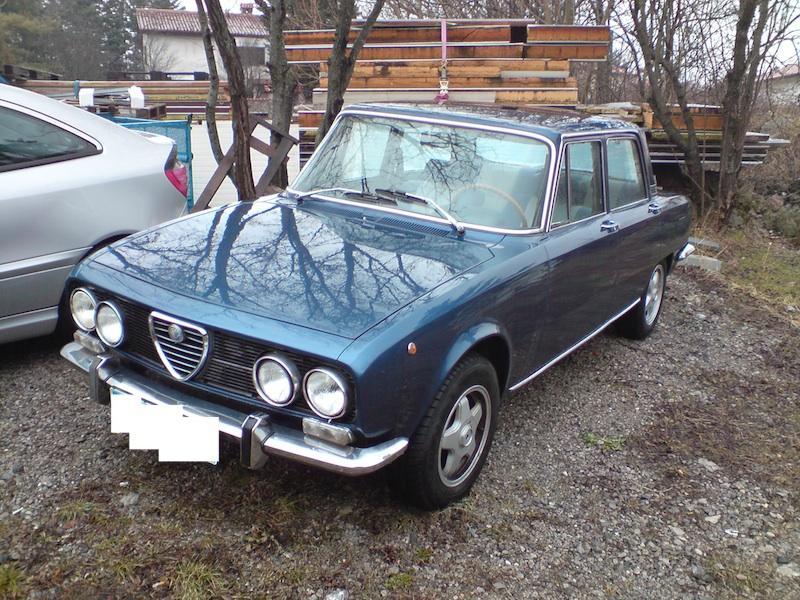
 2 punti2 punti1 puntoAccidenti che occhio di lince che avete ! Si, ne ho già discusso con Nick su Fb che mi ha fatto le vostre stesse osservazioni. Allora posso dire con ( quasi ) certezza che sia una Delta che conoscevo anni fa, al Flaminio, dove lavoravo. Era di una signora che un giorno, distrattamente fece un fragoroso tamponamento con l' auto che aveva davanti. Andarono distrutti muso, cofano ecc ecc.. ed io assistetti al tutto facendo quasi da testimone, anche se poi non ce ne fu bisogno perchè ammise in pieno l' evidente colpa. La povera Delta fu riparata con quello che si trovava ( era intorno al 2005 ) e dopo un po'di mesi non la vidi più, a questo punto credo proprio sia lei e continuavo a vederla in altro quartiere, sebbene dello stesso colore non immaginavo fosse finita qui a godersi una meritata pensione.1 puntomossa che serve solo per far vedere che si fa qualcosa (parlo dell'estensione all'euro4) anche perchè i vigili non fermano le auto per controllare la norma anti inquinamento. Se ti fermano per un altro motivo allora controllano anche quello altrimenti puoi ignorare il divieto. certo se vai in giro con una Regata allora ti fermano ma se hai una Grande Punto puoi circolare tranquillo.1 punto1 puntosolo per chiarire - i motori 4L a 1600ccm insieme con PSA erano in modo codice motori alla BMW N12/N14/N16. B48 e qualcosa completamente diversa. Si, per entrambe 540d e 550d inizia produzione durante 2017.1 puntoQuesta presunta maggioranza prenderebbe una berlina? Ho i miei dubbi, ormai sono auto di nicchia...9 su 10 che vogliono un auto confortevole e non sportiva prendono un SUV.1 punto1 puntoecco un mio render della futura seg. B brasiliana! render basato sugli ultimi sketch1 punto1 puntoQuotone a Sadman, nei limiti del possibile i crucchi di vag sono da boicottare. Io per primo lo scorso anno ho evitato il Q5 proprio per questo motivo1 puntoLa Leaderboard è riferita all'orario Roma/GMT+02:00


























Account
Navigation
Cerca
Configure browser push notifications
Chrome (Android)
- Tap the lock icon next to the address bar.
- Tap Permissions → Notifications.
- Adjust your preference.
Chrome (Desktop)
- Click the padlock icon in the address bar.
- Select Site settings.
- Find Notifications and adjust your preference.
Safari (iOS 16.4+)
- Ensure the site is installed via Add to Home Screen.
- Open Settings App → Notifications.
- Find your app name and adjust your preference.
Safari (macOS)
- Go to Safari → Preferences.
- Click the Websites tab.
- Select Notifications in the sidebar.
- Find this website and adjust your preference.
Edge (Android)
- Tap the lock icon next to the address bar.
- Tap Permissions.
- Find Notifications and adjust your preference.
Edge (Desktop)
- Click the padlock icon in the address bar.
- Click Permissions for this site.
- Find Notifications and adjust your preference.
Firefox (Android)
- Go to Settings → Site permissions.
- Tap Notifications.
- Find this site in the list and adjust your preference.
Firefox (Desktop)
- Open Firefox Settings.
- Search for Notifications.
- Find this site in the list and adjust your preference.