




Classifica Utenti
Utenti più Apprezzati
(Scegli il periodo) Utenti più Apprezzati
(Storia giorno per giorno) Classifica dall'Origine
(da Marzo 2003)
(Scegli il periodo) Utenti più Apprezzati
(Storia giorno per giorno) Classifica dall'Origine
(da Marzo 2003)
-
T a u r u s
Utente Registrato19Punti14098Numero contenuti pubblicati -
Wilhem275
Moderatore (Staff)9Punti19662Numero contenuti pubblicati -
super pax
Utente Registrato8Punti1884Numero contenuti pubblicati -
MarcoGT
Redattore7Punti1891Numero contenuti pubblicati




Contenuti più Popolari
Stai visualizzando i contenuti con il più alto punteggio, pubblicati in data 04/23/17 e localizzati Tutte le aree/sezioni
-
9 puntiGiulia Super 2.2 diesel 180cv vince il confronto di Top Gear UK con BMW 320d M Sport e Jaguar XE 2.0D 180cv R-Sport tg52017a.jpg tg52017a2.jpg tg52017a3.jpg tg52017a4.jpg9 punti
-
6 puntiD'accordissimo. "Le tedesche sono irraggiungibili, avanti anni luce". Una delle tante meenchiate che poi non vengono argomentate in maniera esaustiva. Io ho una Mercedes, ed è così avanti anni luce che la sfrombolerei volentieri giù per un burrone (storia lunga)... E infatti ho comprato lo (e/o la) Stelvio.6 punti
-
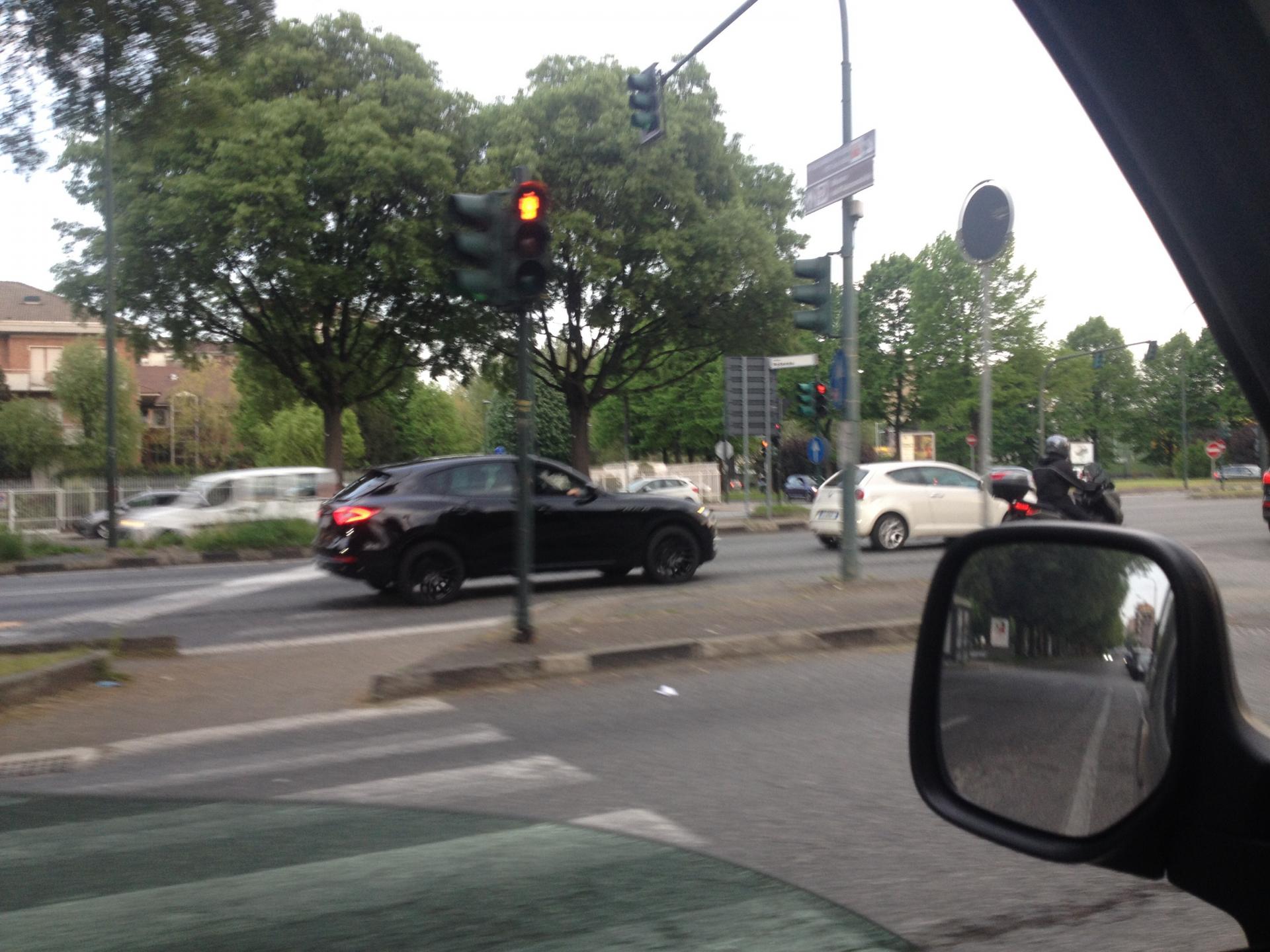
4 punti4 puntiMazda, Ford e Renault auto di sottomarca??? Questa frase vince il premio come battuta più spassosa mai letta su autopareri. Comunque Classe A non è una Megane ricarrozzata. In comune hanno solo il 1,5 dci, tutto il resto è Mercedes. ☏ iPhone ☏4 punti4 puntiSono d'accordo. Tutta questa attenzione riservata a trovatine quasi inutili non è roba da costruttori europei, ma ricorda le automobili americane anni '50-'60. Allora a parte i modelli sportivi e qualche outsider che offriva soluzioni meccaniche particolari (come Cadillac o Chrysler) le automobili full size erano praticamente tutte uguali meccanicamente e si differenziavano per stile, cubatura del motore e quantità di gadget elettrici. Guarda caso, quale Casa ha portato per prima alla ribalta gli indicatori di direzione "dinamici" o "sequenziali" come si chiamavano allora? Ford, tra il 1967 ed il 1971, sulle sue Thunderbird e Mustang e sulle Mercury Cougar: Lampadine ed un delicatissimo interruttore elettromeccanico (poi coi transistor) invece di LED ed elettronica, ma l'idea è quella..4 punti4 puntiI would like to come back to this topic for the clarification. We tried to figure out what engine was used as the base of 155 V6 TI with 90 degrees engine block. I was sure that it was PRV (from Lancia Thema), others were convinced it was V8 from Montreal. It sounds weird but two opinions are right. Both engines were homologated as optional engines. http://historicdb.fia.com/sites/default/files/car_attachment/1486803602/homologation_form_number_3_group_c.pdf P.S. FIA published ALL past homologation sheets, please enjoy http://historicdb.fia.com4 puntici vuole del coraggio per dire che gli interni datati di M3 Competition sono meglio di Giulia Quadrifoglio, poi e' impossibile che una M3 Competition sia più veloce anche di 4 decimi in un qualsiasi circuito se non provata in Dynamic(invece di Race) o volutamente non guidata bene...insomma mi dispiace ma sembra una prova sponsored by BMW France.3 puntiCasa Toyota/Lexus, esempi (dal mio punto di vista) di restyling peggiorativi. Toyota Yaris III, restyling '17 L'ultimo aggiornamento, sopratutto dietro, proprio non l'ho digerito: già col primo, datato 2015 non mi avevano convinto... Lexus IS '17 Già l'originale, nel frontale, appariva parecchio aggressiva e grintosa. Col restyling l'hanno esasperata troppo imho, rendendo la parte anteriore (paraurti e calandra in particolare) eccessivi.3 puntiSe fai 30mila km - 50 mila km annui io me ne fotterei dei rari momenti in cui puoi tirare il collo ad un 4 cilindri diesel, facendogli fare il 5 al litro. Ma considererei tutta una serie di cose per il comfort. 1) Sedili 2) posizione di guida 3) Ausili alla guida sulla lunga distanza 4) Clima Km0 https://www.autoscout24.it/annunci/-a32bb04a-dae7-b772-e053-e250040acc63?asrc=st|as Km0 https://www.autoscout24.it/annunci/-bac82939-5234-ea3f-e053-e350040a0cb8?asrc=st|as Me ne fregherei del valore garantito futuro, dato che in 4 anni avresti comunque un'auto da cambiare se viaggi per 50mila km in tutta Europa.3 puntiPer quanto riguarda Ioniq, La uso per lavoro e sto pensando di acquistarne una personale. Ho fatto diversi preventivi con 104, per una Confort con pacchetto plus siamo sotto i 20000 con promesse di arrotondamenti(19000?) e usato da valutare. L'auto è molto piacevole da guidare e in sport ha una verve notevole, comoda e con bagagliaio molto capiente. Da valutare secondo me.3 punti2 punti2 puntiScusate eh, ma dove lo vedete che la Challenger e la QP sono "molto parenti"? l'attacco del duomo della sospensione posteriore? mah...quel genere di forme sono comunissime piuttosto guardate davanti, c'è un bel pezzo in più nella QP, del resto le sospensioni sono completamente diverse. io tutto 'sto parentado con 300C non ce lo vedo molto eh.... sui motori non c'è parentela. fanno il basamento in Usa come se fossero un fornitore. per il resto è progettato e costruito tutto in Italia. (compreso il basamento, che IMHO è progettato in Italia, l'ho già scritto..non è che portano gli ingegneri italiani in una stanza gli mostrano un basamento e gli dicono "adesso costruiteci un motore intorno"..non è un pressure test di MasterChef ) capisco che per un'americano certe cose come il devioluci e altri particolari sono "troppo Chrysler " (in Europa ci sono meno problemi perché di base pochissimi hanno visto una Chrysler ) i problemi di Maserati sono di qualità (soprattuto nel primo anno di produzione) , il diesel solo mediocre, qualcosina di finiture (ma solo perché son auto COSTOSE, più delle tedesche finite di tutto) e mancanza delle ultimi ritrovati elettronici (risolta al 90% con l'ultimo MY) ah, per quanto mi riguarda il vero e unico problema è il LISTINO2 punti2 puntiGentili amici , oggo l' ho provata.. ...non ho parole per descrivere lo sterzo, posiziona l' anteriore esattamente dovo vuoi che vada a finire , a volte fin troppo velocemente rispetto a quello che si è abituati. Detto questo... ..è prevista una versione solo Q2 del benzina ?2 punti2 puntiÈ che gli "inevitabili compromessi" sono essi stessi spesso più irrazionali dell'irrazionalità dell'auto. E nel caso dello spider (Anzi, della spider, che c'è solo Mx-5 in quella fascia di prezzo ) si riducono nel fatto dei soli due posti. Dove però viene quasi sempre scartata a priori anche da quei profili (single, coppia senza figli o con figli già indipendenti) per cui quel limite non sarebbe un limite. Alla fine oggi le auto non sono più giocattoli per adulti di un tempo...paradossalmente ritengo più il contrario. p.s. Rileggendomi sembro Marzullo. Vabbè, vado a sfondarmi di amaro come Garcia per riconoscere le donne dal profumo della loro passera.2 punti2 puntiG65, il 63 lo ha mia sorella. Ti dico la verita, avevo preso in cosiderazione Stelvio Quadrifoglio ma i soli 500 puledri non mi soddisfano2 puntiOnestamente mi sembra che ti sei già dato una risposta da solo, e che cerchi solo qualche conferma di quello che hai già deciso. Prendi una bmw 318d, a km0 dovresti farcela a non sfondare i 30000. Adesso ti saluto che devo andare a lavare la mia auto Made by sottomarca[emoji768] [emoji41] [emoji16]2 punti2 puntiin alcune zone l'inversione deriva da un retaggio dialettale il problema di quel motore e' che non lo fa la suprema triade. Bisogna che il reparto marketing di Alfa si impegni molto per superare certe deviazioni mentali2 punti2 puntihttp://wardsauto.com/interiors/subaru-bentley-wards-10-best-interiors-honored Giulia e Levante hanno vinto il premio Wards 10 Best Interiors 2017 che premia i 10 migliori interni dell'anno2 punti2 puntiIl fatto che siano "fighi", potrebbe effettivamente diventare un motivo per usarli Sia mai che qualcuno si abitui ad usare la levetta quando serve...2 punti2 puntiA me per strada non sono piaciute. Forse di sera vanno bene, ma in pieno sole l'accensione progressiva si confonde in mezzo agli altri diecimila riflessi cangianti; cosa che non succede se l'intera area si accende in blocco.2 punti2 puntipessima review di Doug De Muro di una Ghibli MY2015 noleggiata in un sito tipo AirBnB per auto, sembra una pubblicità BMW..2 punti2 puntiAllora, succede che: esco dall'ufficio, prendo il mio citroen berlicchio e mi avvio verso casa, arrivo in corso potenza (a torino) e nel viale centrale il mio sguardo viene attirato da un suv nero, nerissimo, penso: fico lo Stelvio nero, ah no quarzo, è il Levante, ed ha pure un lampeggiante sul tetto.. Insomma un'auto blu, nonostante il nero, chissà chi trasporta...si abbassa il vetro passeggero e a bordo c'era Lui, Sergio Marchionne! Porca stronza fammi fare una foto... So che non mi crederete mai...ma è la verità
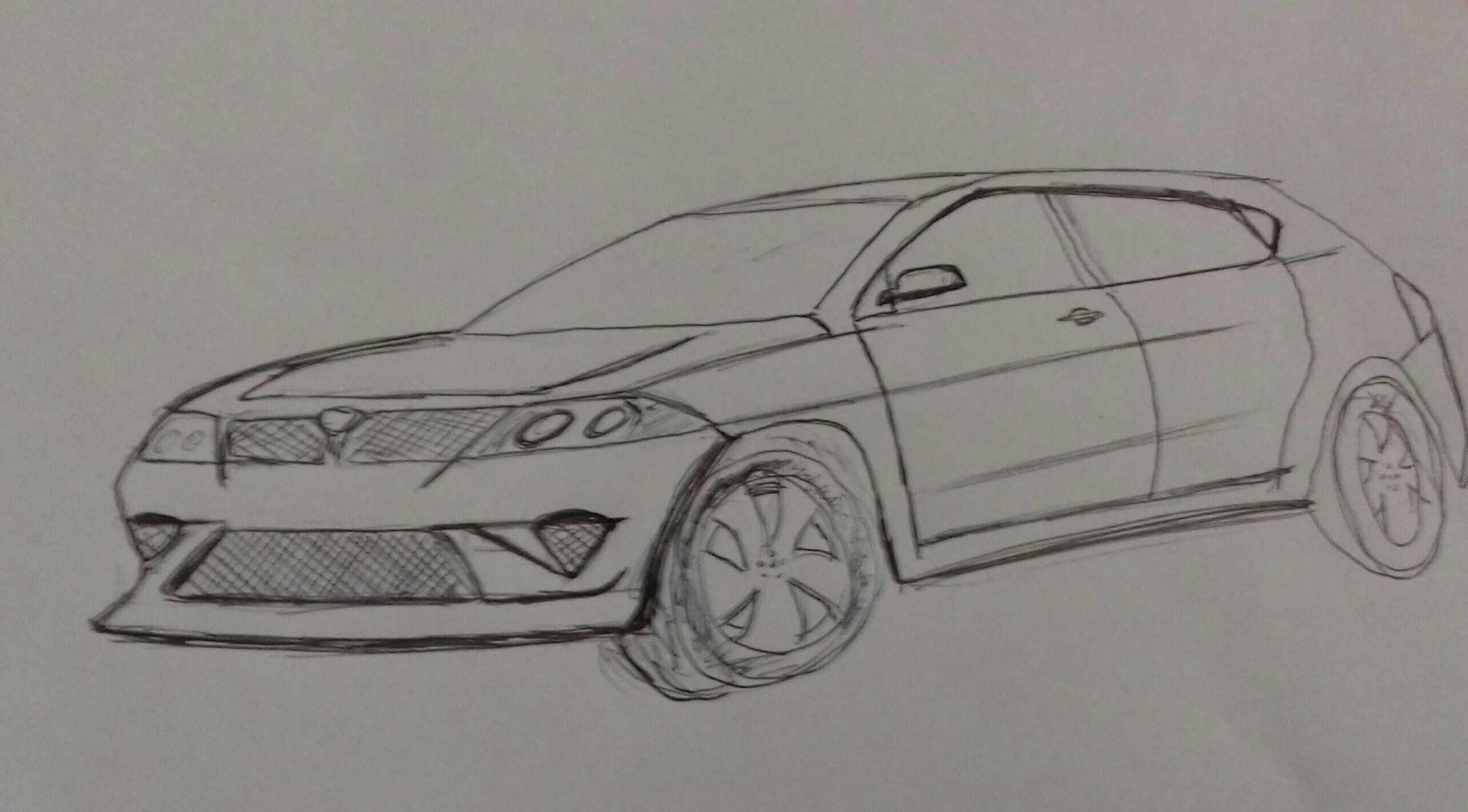
 2 punti1 punto1 puntoGermania e vassalli si comportano in un modo, gli altri esprimo giudizzi disinteressati. Da notare che gli italiani per primi sono vassallizzati, per fortuna esiste ancora un nocciolo duro intorno a Ferrari.1 puntoMazda 6 tutta la vita. Esteticamente la migliore del gruppo, bella da guidare (per sentito dire perché non l'ho mai potuta provare) e tradizionalmente Mazda è molto affidabile. Giulia se sei attento al budget è la scelta sbagliata, è tutt'altro che economica, poco scontata e priva di versioni d'attacco. A meno che tu non prenda in considerazione che la manutenzione ti costerà senza dubbio meno (specie se finita la garanzia ti affiderai al meccanico di fiducia). ☏ Jolla C ☏1 puntoLand Rover Discovery L318 Mi sono sempre piaciuti entrambi, ma il restyling, a mio avviso, ha modernizzato non poco il look della vettura. L'impostazione non era di certo recentissima, ma era valida: a tradire di più l'età progettuale originaria era, ad esempio, la guarnizione (stile, mi si passi il termine, gocciolatoio) tra pannelli laterali e tetto o l'impostazione (così come il design) della plancia. Land Rover Freelander Anche qui un mezzo che mi è sempre piaciuto, sopratutto nella versione 3 porte, per la sua estetica semplice ma originale. L'aggiornamento di metà carriera (quello più corposo, se escludiamo un piccolo ritocco al frontale nel 2002) datato 2004 me lo ha fatto piacere ancora di più.1 punto1 puntoI vecchi fari facevano un pò "Stilo" questi nuovi più tridimensionali più moderni ci stanno bene, ma chissà se li rivedremo evoluti sulla 2.0 oppure torneranno al faro pieno possibilmente senza l'effetto "Stilo".1 puntoConcordo con la tua disanima su Classe S . Il Qashqai lo preferivo prima,più pulito. Il frontale ora lo trovo troppo carico ai limiti del lezioso.1 punto1 puntocome da titolo ecco un render che potrebbe anticipare la prossima 911. Stile mutuato dalle ultime creazioni e prototipi della casa come la Mission E! Fiancata più piatta ma parafanghi più larghi ed estremi (un po come negli anni 80)1 puntoDue recenti restyling: uno, imho, peggiorativo e l'altro migliorativo. Mercedes Classe S 2017 I nuovi paraurti non mi piacciono per nulla: per le versioni non sportive le trovo fuori luogo e per nulla in sintonia con una vettura che, prima di tutto, deve essere lussuosa ed elegante. Altra cosa che non digerisco, in generale ma sopratutto su auto di un certo livello, è il radar a vista nella mascherina frontale: l'aspetto è posticcio e non ben integrato... Nissan QQ 2017 Perde un po' di pulizia nel frontale, ma per me ora ha un aspetto più personale e fresco che in passato: idem dicasi per la coda.1 punto1 puntoPiccolo ignobile contributo Vedendo tutte queste proposte interessanti mi è venuta voglia ,dopo millenni di prendere in mano carta e penna e cercare di disegnare una seg c. Il risultato eccolo qua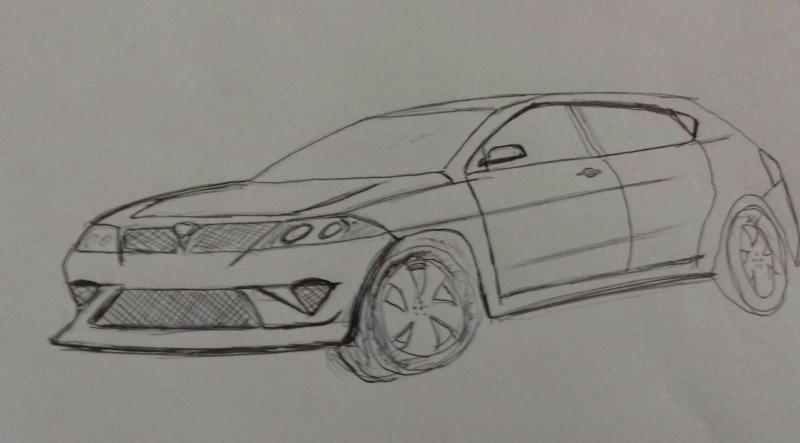
 1 punto1 punto1 puntoil problema è che una volta costruivano auto-giocattolo ( Giulietta spider è un 'ottimo esempio) oggi le auto sono oggetti razionali nel 99% dei casi..(chiamiamoli elettrodomestici di varia foggia), e la "creatività" e il "gioco" è affidato a questi giochini (carini eh..per carità) coi LED e alle possibilità di infotainment. sono d'accordo con chi dice che tra 5 anni saranno su tutte le auto e non se li filerà nessuno.1 punto1 puntoAh, è così facile che c'è una sola scuderia che si fa ancora telaio, motore e cambio in casa da 70 anni...1 punto1 puntoTanto anche nel caso di motori termici (escludendo quelli molto spinti) la calandra superiore non ha alcuna funzione visto che i radiatori sono posti nella parte inferiore
 1 punto1 puntoIl Vitara devo valutarlo, che poi non mi dispiace affatto. Mi servirebbe una prova, non vorrei un'auto troppo turistica. Idem con patate per la Jazz.1 punto1 puntoDissento. Dove lavoro io, per fare il secondo scatto di livello, se hai la laurea è tutto molto molto, molto più facile. Anche con un titolo non relativo alla materia di lavoro.1 punto1 punto1 punto1 puntoIl vantaggio delle telematiche è che non ti trovi davanti professori punitivi con i non frequentanti. Ho provato a fare quella tradizionale ma mi hanno spinto a mollare perché ero frustrato dal non poter fare gli esoneri e dai programmi aggiuntivi per chi non può andar a mettere la firma a lezione. Su 8 esami che ho dato (tutti prima che mi dovessi assentare per lavoro) solo due non facevano distinzioni tra chi frequentava e chi no. Per quanto riguarda i corsi di laurea fuffa, ho aperto questo topic proprio per evitarne ma per rispondere alla tua domanda servono per fare i concorsi e gli scatti di carriera. Ho visto i video della Sapienza (UNitelma) e sono allucinanti, ti propinano corsi del 2006!!1 punto1 puntoSe la fanno V8 Hemi diventa l auto giusta per rapper e troioni (come me), il solo e piccolo V6 la rende troppo pogo figa1 punto1 puntoagevolo filmato notare al minuto 1:29 .. ed anche 1:43 ... confronto diretto.. toccando con mano.. così si fa.. Azzo!!!! Minuto 2:08 .. Montereal verde1 punto1 puntoCerto che oh: Solo SUV Solo boccone e faretti sottili Son tutte uguali1 punto1 punto1 puntome lo sono sempre chiesto, hanno tutte il lampeggiante. non solo sul tetto ma anche avanti integrati nelle griglie1 punto1 puntoLe auto di Marchionne sono come i suoi maglioni, tutte nere. So che aveva/ha una Challenger SRT, un GC SRT, una 500 Abarth, un'Alfa 8C e una Ferrari Enzo con cui ogni tanto fa le sgumme a Balocco.1 punto1 puntoIo ho lavorato in gestione sportiva in ferrari ai tempi dei primi v8 e dei mono non ne ho mai visti al banco..però si va indietro eh ora non so se sia prassi..in quanto a honda beh: problemi di lubrificazione e vibrazioni, alla faccia fai prima a dire che hai cannato di brutto il motore...a voler fare il passo più lungo della gamba non sempre ci si prende, avevano una base accettabile potevano svilupparla invece di fare un nuovo salto nel buio..1 punto1 puntoHa un "sapore" di Gamma e la cosa non mi dispiace. Rinnovo i complimenti per l'impegno e la realizzazione di questi render :mano:1 punto1 puntoCome dice @Vadocomeundiavolo, lo scarico nascosto è più protetto (e se viene colpito può fare danni anche al motore), e mi sta bene che venga imboscato su auto "non particolari". Quello che mi disturba è che si senta la necessità di applicare caratteristiche estetiche da sporive su auto che di sportivo non hanno NIENTE, solo perché il marketing è alla frutta e qualche sfigato ha bisogno di sentirsi speciale anche se ha un SUV 1.5 a nafta uguale a milioni di altri scaldabagno bianchi L'altro giorno ho visto non ricordo quale suvvino con dietro un estrattore che manco su una F1... Ma datevi all'ippica e lasciateci in pace...1 puntoLa Leaderboard è riferita all'orario Roma/GMT+02:00
































Account
Navigation
Cerca
Configure browser push notifications
Chrome (Android)
- Tap the lock icon next to the address bar.
- Tap Permissions → Notifications.
- Adjust your preference.
Chrome (Desktop)
- Click the padlock icon in the address bar.
- Select Site settings.
- Find Notifications and adjust your preference.
Safari (iOS 16.4+)
- Ensure the site is installed via Add to Home Screen.
- Open Settings App → Notifications.
- Find your app name and adjust your preference.
Safari (macOS)
- Go to Safari → Preferences.
- Click the Websites tab.
- Select Notifications in the sidebar.
- Find this website and adjust your preference.
Edge (Android)
- Tap the lock icon next to the address bar.
- Tap Permissions.
- Find Notifications and adjust your preference.
Edge (Desktop)
- Click the padlock icon in the address bar.
- Click Permissions for this site.
- Find Notifications and adjust your preference.
Firefox (Android)
- Go to Settings → Site permissions.
- Tap Notifications.
- Find this site in the list and adjust your preference.
Firefox (Desktop)
- Open Firefox Settings.
- Search for Notifications.
- Find this site in the list and adjust your preference.