Classifica Utenti
Utenti più Apprezzati
(Scegli il periodo) Utenti più Apprezzati
(Storia giorno per giorno) Classifica dall'Origine
(da Marzo 2003)
(Scegli il periodo) Utenti più Apprezzati
(Storia giorno per giorno) Classifica dall'Origine
(da Marzo 2003)
-
RiRino
Utente Registrato17Punti14594Numero contenuti pubblicati -
xtom
Redattore14Punti9455Numero contenuti pubblicati -
Alex 1974-03
Utente Registrato10Punti278Numero contenuti pubblicati -
TonyH
Utente Registrato8Punti57233Numero contenuti pubblicati



Contenuti più Popolari
Stai visualizzando i contenuti con il più alto punteggio, pubblicati in data 06/09/18 e localizzati in Risposte
-
11 punti
-
6 puntiMa che diamine significa near premium? È quando parcheggio di fianco a una Ferrari?6 punti
-
E‘ proprio così, la Giulia e lo Stelvio sono il frutto di duro lavoro e sacrificio fatto da un gruppo di giovani ingeneri italiani, che sino alle 10 di sera erano rinchiusi in un cosiddetto stabilimento fantasma a Modena, ma che a tutti gli effetti era un pollaio...hanno sacrificato la loro vita per un marchio e creato due gioielli in 18 mesi che i tedeschi non avrebbero messo su nemmeno in 5 anni. E noi stessi italiani siamo in grado di disprezzare tutto questo...4 punti
-
Permette anche di montare turbocompressori più grandi e quindi di aumentare la potenza massima, senza avere turbo-lag o poca coppia ai bassi/medi grazie all'eturbo.4 punti
-
4 punti
-
Il problema con il quale marchionne si è dovuto confrontare sono i seguenti (informazioni ricevute da un insider): 1. della giulia se ne parlava già dal 2010, ma son partiti solo nel 2014, con un target di produzione in serie di 18 mesi. Troppo poco per far rinascere un marchio come alfa Romeo. 2. Marchionne si e' affidato al miglior ingegnere al mondo per mettere su una macchina dalle prestazioni tecniche eccellenti (Krief della Ferrari), che ha avuto un gadget sufficiente a fare il suo lavoro bene (e ci e' riuscito con il pianale Giorgio), ma non tenendo in considerazione che una macchina Premium, non è' solo prestazioni, ma anche qualità dell'interior, elettronica ed soprattutto affidabilità (dove Alfa ha sempre un po' peccato in passato). 3. Nel 2015 Krief ha fatto un giro sul prototipo a Fiorano, e dopo aver provato la macchina ha promesso a Marchionne che la macchina era perfetta e vendibile in 6 mesi. Purtroppo marchionne ci ha creduto e confermato la presentazione dal museo di Arese per i 105 anni alfa. 4. Nessuno si è' purtroppo reso conto che fare un interior e mettere su una macchina affidabile ci vuole un po' più di tempo, e sono inoltre necessari non meno soldi rispetto a mettere su una macchina prestazionale. 5. Quando Krief e Wester si sono resi conto di avere un problema, il primo se ne' e' tornato in Ferrari, il secondo è stato costretto a raccontare come stanno le cose al maglioncino e a dove chiedere altri soldi... Conclusione della storia, Wester e' stato messo da parte, malgrado sia a mio avviso uno dei migliori in FCA, e marchionne ha dovuto presentare la Giulia al Balocco, con porte chiuse (alcuni componenti in interior erano ancora prototipi). quindi slittamento del progetto, ma alla fine sono riusciti a riprenderlo per i capelli...con qualche soldino in più del previsto. son convinto che in FCA molti hanno imparato tanto, e non faranno gli stessi errori in futuro, ma vi fa piacere che Marchionne se ne sia reso conto e continua ad insistere sul marchio. Complimenti Sergio, a volte non fa piacere confrontarsi con brutte notizie, ma bisogna insistere e rimboccarsi le maniche per far meglio. In bocca a lupo io tifo per voi.3 punti
-
E-turbo, o meglio Compressore elettrico, in aggiunta al turbocompressore/i classico. [emoji6]3 punti
-
3 puntiLeggerissimo mica tanto. Quel problema di verniciatura del trasparente, nel giro di 2 o 3 anni, col sole e i lavaggi, avrebbe finito per mettere a nudo la tinta opaca come si vedono tante auto con le parti orizzontali con macchie di vernice sfogliata. Detto questo, è molto strano che un'auto del genere sia stata deliberata in fabbrica. Una persona con un occhio esperto, certi difetti li vede anche al buio. Sulle risposte dell'assistenza... Ordinaria amministrazione Fiat. Si sperava che con i nuovi modelli, cambiassero tante cose, ma almeno per le realtà che frequento io nulla è cambiato. Vendono e assistono auto da 50.000€ nella stessa modalità della Panda. E francamente spesso il trattamento è inaccettabile anche per quella. Soprattutto la risposta della ceratura. E'sufficiente una passata di polish, se non torna perfetta, è la vernice rovinata, altro che cera. Basta un minuto per sincerarsene in officina. Ti consiglio di tenere da parte tutta la documentazione di questo intervento. Se rivenderai l'auto, e qualcuno si accorgerà che è riverniciata, potrai dare spiegazioni documentate, altrimenti un acquirente potrebbe pensare sia incidentata.3 punti
-
Mal comune, mezzo gaudio...3 punti
-
Motor1.com - Autoblog.com Speedster. Derivata dalla 911 R, ossia porta tutta la base tecnica della GT3 ivi compreso il Flat-Six 4.0 litri aspirato da 500 CV e 9000 rpm. D'impatto i cerchi da 21" che si riallacciano allo stile "Fuchs" di un tempo. Lo scarico è in Titanio, realizzato dal reparto GT di Porsche in Weissach DEFINITIVA ?2 punti
-
Il problema con il quale marchionne si è dovuto confrontare sono i seguenti (informazioni ricevute da un insider): 1. della giulia se ne parlava già dal 2010, ma son partiti solo nel 2014, con un target di produzione in serie di 18 mesi. Troppo poco per far rinascere un marchio come alfa Romeo. 2. Marchionne si e' affidato al miglior ingegnere al mondo per mettere su una macchina dalle prestazioni tecniche eccellenti (Krief della Ferrari), che ha avuto un gadget sufficiente a fare il suo lavoro bene (e ci e' riuscito con il pianale Giorgio), ma non tenendo in considerazione che una macchina Premium, non è' solo prestazioni, ma anche qualità dell'interior, elettronica ed soprattutto affidabilità (dove Alfa ha sempre un po' peccato in passato). 3. Nel 2015 Krief ha fatto un giro sul prototipo a Fiorano, e dopo aver provato la macchina ha promesso a Marchionne che la macchina era perfetta e vendibile in 6 mesi. Purtroppo marchionne ci ha creduto e confermato la presentazione dal museo di Arese per i 105 anni alfa. 4. Nessuno si è' purtroppo reso conto che fare un interior e mettere su una macchina affidabile ci vuole un po' più di tempo, e sono inoltre necessari non meno soldi rispetto a mettere su una macchina prestazionale. 5. Quando Krief e Wester si sono resi conto di avere un problema, il primo se ne' e' tornato in Ferrari, il secondo è stato costretto a raccontare come stanno le cose al maglioncino e a dove chiedere altri soldi... Conclusione della storia, Wester e' stato messo da parte, malgrado sia a mio avviso uno dei migliori in FCA, e marchionne ha dovuto presentare la Giulia al Balocco, con porte chiuse (alcuni componenti in interior erano ancora prototipi). quindi slittamento del progetto, ma alla fine sono riusciti a riprenderlo per i capelli...con qualche soldino in più del previsto. son convinto che in FCA molti hanno imparato tanto, e non faranno gli stessi errori in futuro, ma vi fa piacere che Marchionne se ne sia reso conto e continua ad insistere sul marchio. Complimenti Sergio, a volte non fa piacere confrontarsi con brutte notizie, ma bisogna insistere e rimboccarsi le maniche per far meglio. In bocca a lupo io tifo per voi. Questa ricostruzione è assolutamente verosimile, perché è quello che tipicamente succede nelle aziende. Si perdono 4 anni a pensare una cosa e poi si pretende che diventi realtà in un anno e mezzo. Nel mio piccolo ho dovuto realizzare cose partendo dalla fine, un cartonato per fare formazione al personale, mentre veniva fatta la formazione si trasformava il cartonato in cose reali. Il problema è che manager e tecnici hanno una percezione dei tempi completamente diversa. I tecnici considerano una cosa fatta quando funziona, i manager quando incassano soldi. La Giulia e la Stelvio sono due miracoli d'ingegneria e notti insonni, che solo per questo meritano quello che costano.2 punti
-
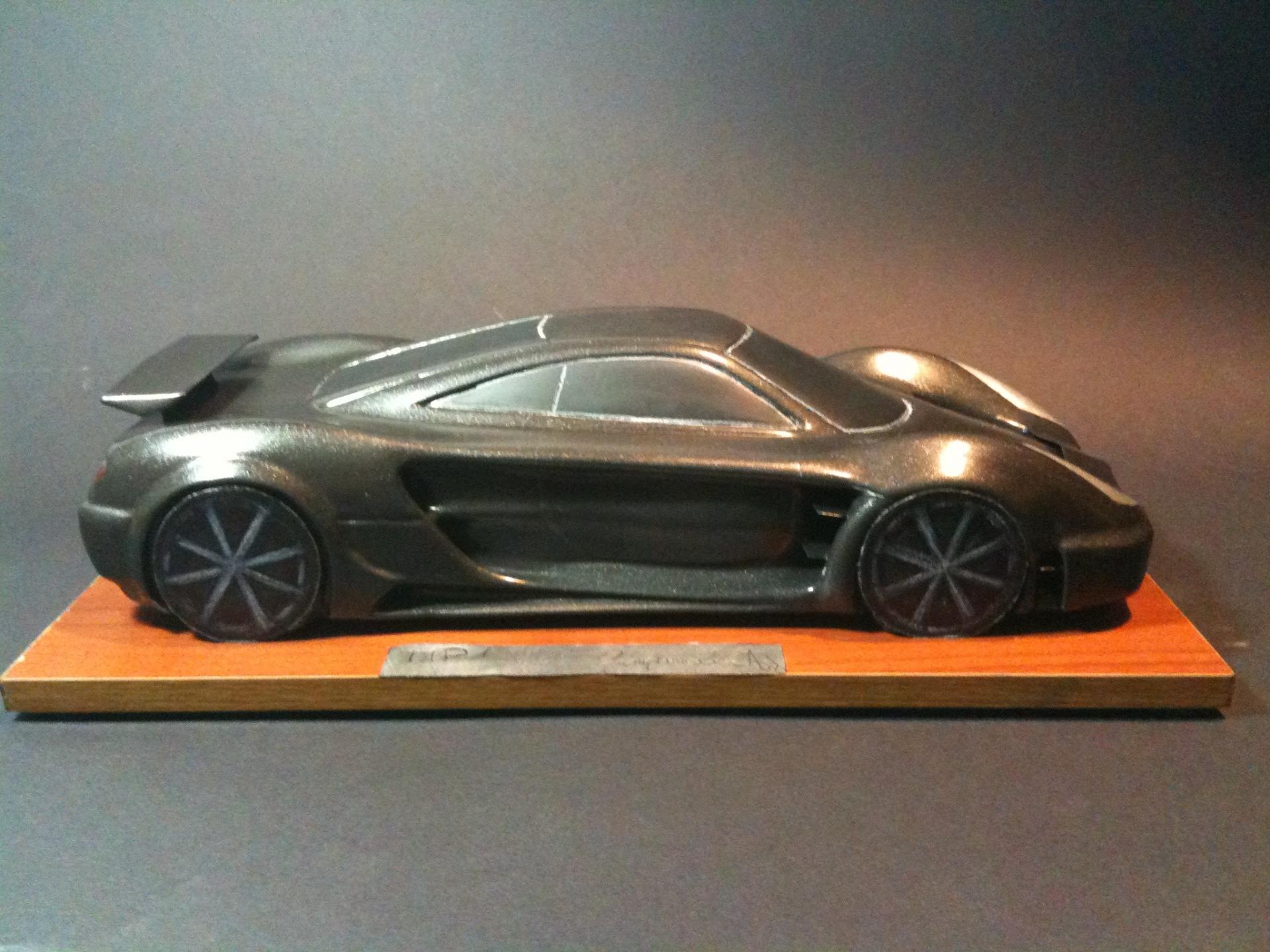
2 punti2 punti2 puntiIo la penso diversamente, con tutta la stima che ho di Rossi; Nonstante non mi piacia come comportamento, Marquez, al momento, è il migliore, il mondiale vinto nel 2016 quando nella prima parte della stagione la Honda era inferiore alle concorrenti lo dimostra, gli altri piloti della "top five" sono qualche passo indietro e gli emergenti non hanno ancora raggiunto il suo livello.2 punti2 puntiIl raffronto con la 124 spider mancava, dopo averla messa a paragone con 4C ? IMHO l'unica cosa paragonabile a questa alpine è la Cayman.2 punti2 punti2 punti2 puntiYamaha aveva qualche problema già nel 2016(e forse qualche avvisaglia c'era stata anche nel 2015 per quanto riguarda il consumo della gomma posteriore, al netto della centralina con software proprietario e delle Bridgestone ), ce li siamo dimenticati i clamorosi alti e bassi di Lorenzo? La moto a livello di ciclistica è valida, vedi la pole di Rossi al Mugello o quelle di Zarco(che anche se usa il telaio 2016 a quanto pare non è molto diverso dal 2018), il problema è che la moto va bene con la gomma nuova per qualche giro e in modalità random a seconda dell'asfalto e delle temperature per via dell'elettronica(lo hanno detto chiaramente loro che sono indietro, non solo rossi e vinales) che non riesce a gestire la ruota posteriore e causa del consumo/degrado della ruota posteriore e probabilmente per riuscire a mettere una pezza a questo problema stanno pasticciando e facendo casino con il setup, con il risultato di raccogliere meno di quello che in teoria potrebbero fare in qualche occasione forse... Nel 2017 è andata bene nelle prime gare(c'è da dire che quel telaio non è mai piaciuto a Rossi a livello di guidabilità, lo disse già la prima volta che la provò), un pò perchè hanno trovato condizioni di asfalto/temperature favorevoli, un pò perchè la concorrenza non era appostissimo, a jerez e barcellona arrivò la doccia fredda, e allo stesso tempo dai test di barcellona Ducati e Honda fecero un salto in avanti importante.2 puntiQuesto è un discorso che puoi fare per il restante della scocca(montanti e altre stutture) che su ogni specifico modello(a parità di ''famiglia'' di pianale) è specifica, non per il pianale in se e per se visto che andare a cambiare materiali nel pianale significa riprogettarlo da zero.2 puntise non lo sai tu... Sei o non sei Ammio Cuggino??2 punti2 puntiPeccato che a noi non ci pagavano per giocare a f1 97 fino alle 2 di notte ahahah2 punti2 puntiGuarda che il perito ha già verificato che c’era poca vernice in quei punti sotto il trasparente. Quindi il problema è avvenuto in fabbrica ed il controllo qualità non l’ha rilevato, lasciando passare la vettura come pronta per la messa in commercio. Per favore, se quanto successo è chiaro, non cerchiamo scuse per giustificare un comportamento errato sia in fase di produzione, ma soprattutto come gestione del reclamo.2 puntihttp://www.turbos.bwauto.com/products/eBooster.aspx2 punti2 puntiio credo che ci si debba preoccupare del fatto che con questo piano non c'è nessuna certezza... nel precedente piano almeno le date dei primi due modelli furono rispettate... nessuno sa con certezza quale sarà il primo modello ad uscire del nuovo piano muli non se ne vedono neanche a crearli noi... insomma nebbia all'orizzonte... e la cosa mi preoccupa assai... ho appena portato a casa la Stelvio gran macchina... vorrei cambiare anche la seconda auto e ritornare alla Giulietta (non mi importa se è vecchietta) magari potrei aspettare Giulietta MCA ma quando la fanno uscire? fra 2 anni? Serve iniezione di denaro nel prodotto altro che...2 punti...oppure aspettare l' acquazzone giornaliero che puntualmente arriva2 puntiIl biglietto per il salone è gratuito e consente l’ingresso anche ad alcune aree particolari, come i vari eventi nel cortile del castello. Io ci sono stato ieri in giornata: treno da Milano centrale a Torino porta nuova, da lì poi sono 15 minuti a piedi: noi con 9.90€ all’andata e altrettanti al ritorno abbiamo viaggiato con Italo. Consiglio, se si arriva in mattinata (il salone apre alle 10.00) di recarsi subito nell’area test drive (qualora interessati) per prenotarli con anticipo: dopo una certa ora, e sopratutto per alcuni modelli, c’è il pienone e si rischia di non trovare più disponibilità. ☏ iPhone ☏2 punti2 puntiAllucinante il comportamento dell'assistenza. Se la macchina è in garanzia che cavolo c'entra il fatto che il cliente doveva segnalarlo subito? Il concessionario doveva aprire il ticket??? Che risposta è? Il primo obiettivo del product Plan dovrebbe essere sistemare la rete vendita e assistenza, cosi non si va da nessuna parte!2 punti2 puntiPagani è una persona fantastica, due ore di colloquio volarono velocemente. Arrivo in azienda, mi accoglie un ragazzo (era sabato 29/11/2009 ) e attendo nell'atrio dove era esposta una Zonda, e già in quel momento ero al settimo cielo, dalle mie parti di supercar non ne girano. Subito dopo arriva Horacio e mi fa accomodare nella sala riunioni, mi fa il caffè, ebbene si è successo, e comincia a chiedermi da dove venivo cosa facevo nella vita e cosa avrei voluto fare nel futuro. Sparo subito " costruttore di supercar", sorride e mi dice "si, è un settore difficile, c'è posto per tutti a patto di fare un buon prodotto e unico". In quella occasione portai alcuni bozzetti ed un modellino in scala. Visionò il materiale con attenzione e questo già mi ripagava degli sforzi e poi disse "perché non sei venuto cinque anni fa?" A quel punto mi sono bloccato, non riuscii a dire quasi più niente, mi emozionai a tal punto che le mani mi tremavano. Continuammo a parlare di scelte tecniche e opportunità da sfruttare, il mio lavoro era incentrato sull'utilizzo di una ala mobile all'anteriore che lavorava in simbiosi con l'alettone posteriore . Poi mi portò in officina, tour completo con la sua guida ad illustrarmi i particolari della Zonda, dal carbonio sugli stampi all'assemblaggio della vettura. In quel momento stavano assemblando la seconda Zonda R e la numero 1 della Zonda tricolore, poi uscendo dall'officina prende un disegno della Zonda e ci scrive una dedica " a Gianpiero bisogna credere ai propri sogni". Io ringraziandolo gli ho risposto che sarei andato avanti senza esitazioni. Horacio Pagani, è una delle migliori persone che io abbia mai incontrato, sia dal punto di vista professionale che dal punto di vista umano. E' speciale! IL modellino che portai è quello in foto, è un lavoro vecchio del 2006/2007 l'idea dell'ala mobile mi venne in mente dopo aver visto un servizio sul Concorde PS https://www.youtube.com/watch?v=53cD5idCL5M&t=170s qui al minuto 2.20
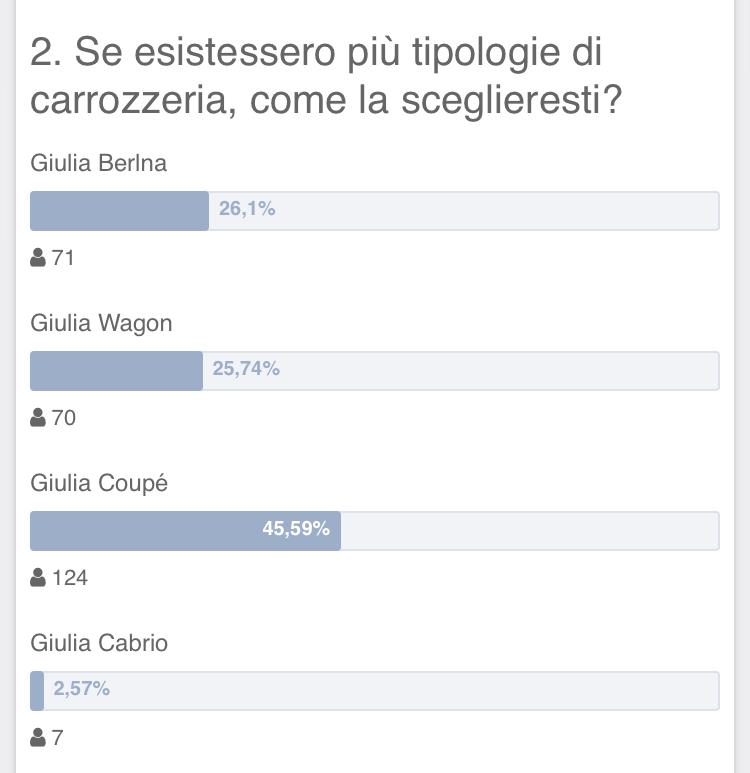
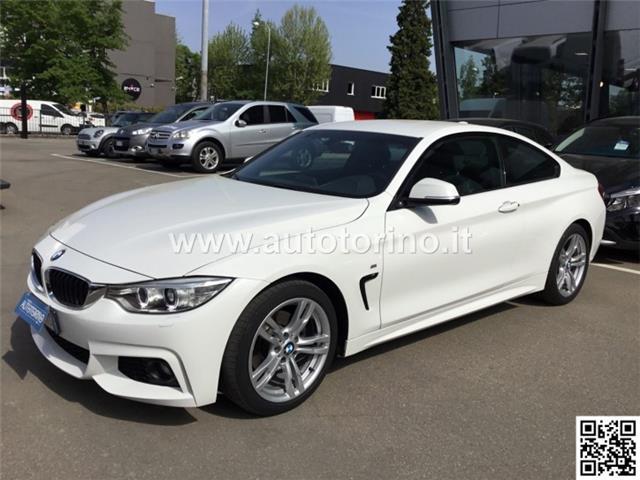
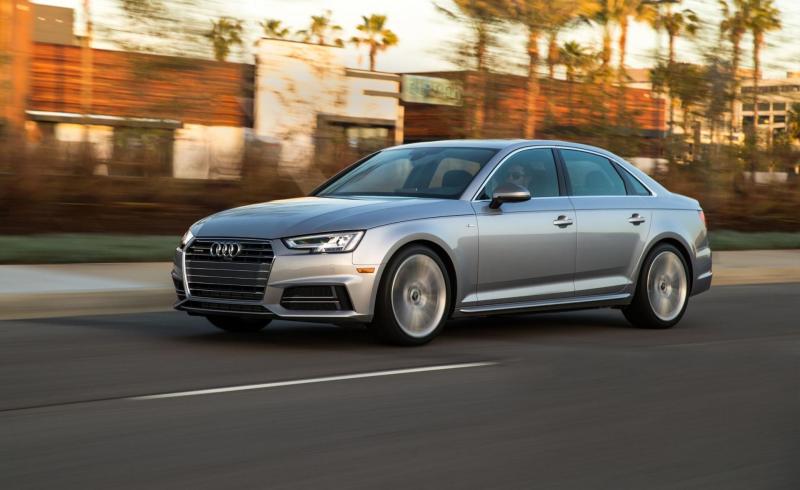
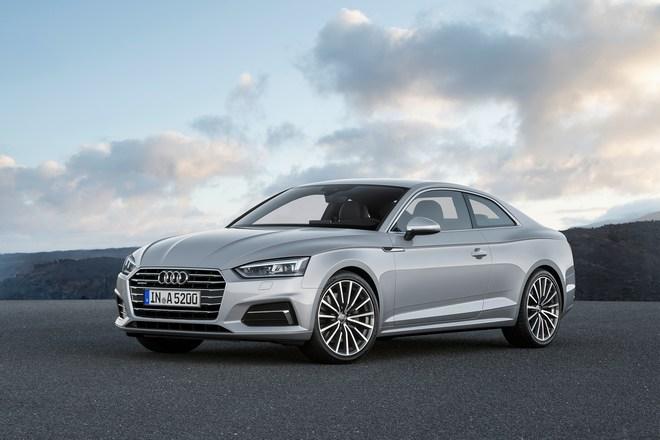
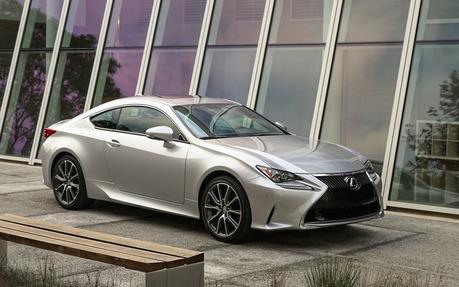
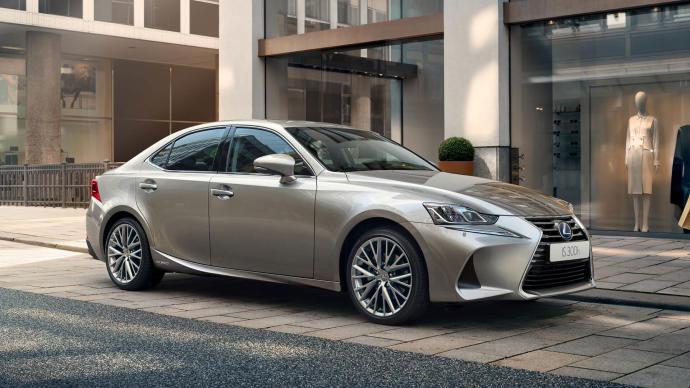
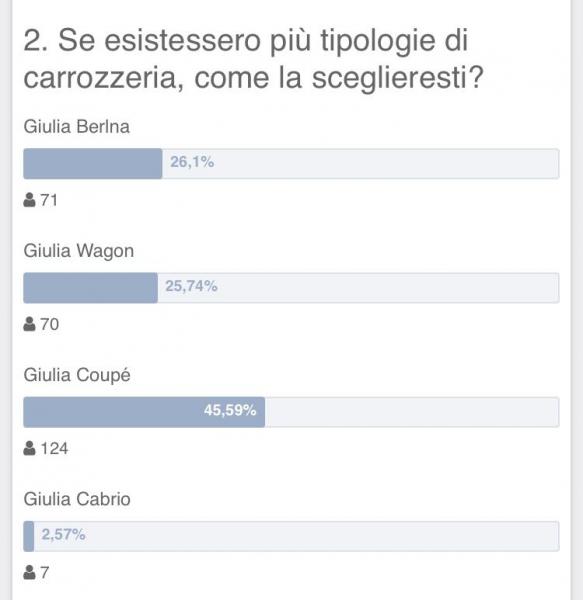
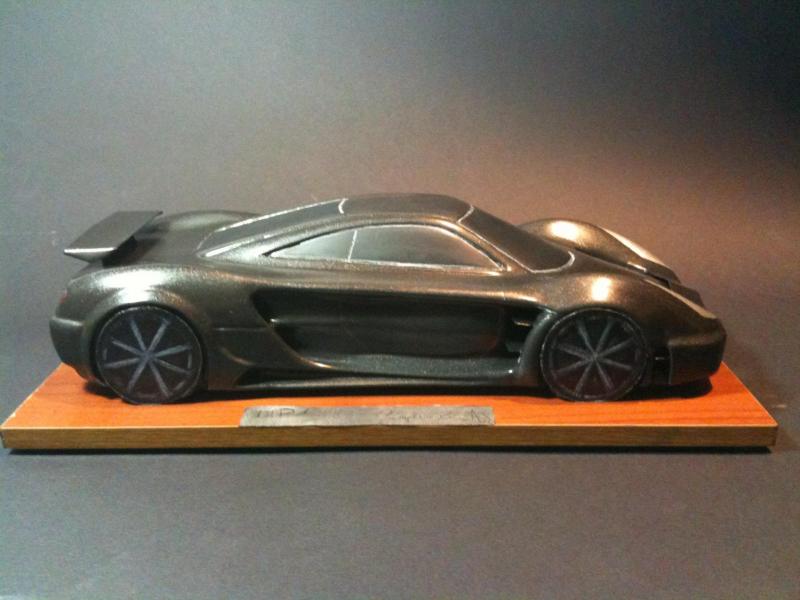 2 punti2 puntise resta così son d'accordo con te, se salgono verso una paciosa iso serie6 ci resto un po' male la giulia 200cv q2 mena briscole non indifferenti, non penso serva andare su cavallerie esagerate per divertirsi, se sulla gtv riescono a toglierle altri 50/70kg, son azzi per tutti... poi la Quadrifoglio da 650 chissà potrebbe pure tornare indietro nel tempo. Basta che sia più piccola e pesi ancora meno di giulia2 puntiI don't see these comparision, because BMW plans a positioning of 8er as competitor for S-Class Coupe, so GTV then would also be a competitor for the S-Coupe and an Alfa like that no Alfa fan will realy I think. These are cars for rich pensioners.2 punti2 puntisolo un commento sul gioiellino elettronico e l'infotainment. Fai un esperimento: sali su un'ammiraglia di 10 anni fa di una marca qualunque. Anzi, facciamo 5. Guarda l'infotainment e confrontalo con il tuo cellulare. Poi chiediti se vale la pena spendere soldi per infotainment su un'utilitaria che vuoi tenere (giustamente) a lungo. Per quel che riguarda l'affidabilità globale, la mia esperienza con prodotti giapponesi è che appunto sono piuttosto ben progettati in tutto. Poi magari hanno un design discutibile o una plastica non eccelsa. Ma certa semplicità poi ripaga sul lungo termine. Sto comunque generalizzando, ogni prodotto va poi studiato a parte.2 punti2 puntiNon capisco tutte queste pippe. GTV sarà qualcosa di simile a questa Ed è anche ovvio che sia così. Sarebbe bello se la sua versione top fosse ispirata a questa nel nome e nella filosofia.2 punti2 puntiCiao, ti racconto il mio percorso brevemente per quanto possibile. Il mio primo ostacolo è stato che non ho titoli, non sono un ingegnere ne tantomeno un designer professionale e ho uno stipendio normalissimo, quindi non avevo il budget . Disegno auto sin da bambino e invece di andare a giocare a pallone frequentavo una carrozzeria, poi documentandomi con riviste e in seguito con internet, ho sopperito in parte a quelle lacune acquisendo un discreto bagaglio che mi permette di affrontare le questioni tecniche ( sul mio profilo Facebook trovi qualche modellino in scala che ho realizzato ) . Ad un certo punto ho avuto la necessità di sostenere un benchmarck per capire se le mie idee erano campate in aria o alla base ci stava qualcosa di concreto su cui lavorare. Beh in quella occasione ho preso il telefono e ho chiamato ( e richiamato decine di volte ) la Pagani Automobili chiedendo un colloquio con Horacio Pagani. Dopo un anno fui ricevuto ( ne parla Lui stesso in una intervista ) e il responso fu positivo. A quel punto, gasato a 1000, su suggerimento di Pagani cercai persone interessate al progetto per formare un team, ma non trovai nessuno disposto a lavorare al progetto per passione, i soldi non c'erano. Dato che non ero riuscito nell'impresa di formare un team tecnico, contattai la Dallara per capire dal punto di vista ingegneristico se le soluzioni erano buone. Fui ricevuto e dopo una breve analisi dei disegni e del modellino in scala che avevo portato si parlò del budget necessario alla realizzazione. Qui feci i conti con la dura realtà, i soldi. Solito giro tra enti pubblici e privati per trovare soldi, ma niente, nessuno ti considera. Ho scritto qualcosa come un centinaio di email a persone vicine al settore automobilistico, risposte pochissime e quelle poche furono negative. Cominciai a contattare fondi di investimento, e ho proceduto alla stesura di un business plan ben strutturato da sottoporre a costoro. Alla fine nel settembre 2017 ho firmato un accordo di investimento. Per rispondere direttamente alla tua domanda per mettere su una cosa del genere ci vuole follia, tenacia e le persone giuste che ti supportano. Personalmente porto avanti questo progetto dal 2006/2007 e le battute d'arresto sono state frequenti e a volte "dolorose" e tutt'ora anche se sembra filare tutto liscio, ogni giorno viene fuori una problematica nuova da affrontare. Penso che con una dote patrimoniale consistente le cose sarebbero state più facili, ma il budget necessario è altissimo e bisogna trovare sicuramente soci e finanziatori. Riguardo la proprietà intellettuale, beh se non hai la possibilità di depositare il tuo materiale ( come nel mio caso ), sei alla mercee di tutte le persone che incontri. Devi capire se le persone con cui ti relazioni sono affidabili o meno. Comunque negli incontri che ho avuto, la maggior parte delle volte ho dovuto giocare a carte scoperte, nessuno ti considera basandosi solo sulle parole. Devi essere sempre avanti pensando allo step successivo per tutelarti. Sei hai altro da chiedermi ti rispondo volentieri, ovviamente se sono cose che posso rivelare.2 punti2 punti1 puntoIo tifo Rossi e la Ducati, ma non ci sono problemi se qualcuno ha gusti diversi, a me Rossi faceva provare emozioni incredibili, parlo al passato perchè adesso è, effettivamante, calato, ma mi fa piacere se fa una buona gara. Quello che mi infastidisce non è chi tifa un altro pilota, ci mancherebbe, ma per chi tifa CONTRO un pilota, che sia Rossi o qualsiasi altro, è una cosa che mi da fastidio. I veri motociclisto si comportano come il pubblico della SBK di imola, che tifano Ducati ma a fine gara applaudono un avversario che ha vinto le gare. La Yamaha, che era partita bene, visto che Vinales è partito a cannone, ha sottovalutato l'aspetto dello sviluppo elettronico, infatti il loro problema principale è l'elettronica, e non credo che quest'anno riescano a raggiungere il livello di Honda e Yamaha. Il discorso di Lorenzo, se il cambiamento lo ha fatto per denaro era meglio se rimaneva in Yamaha, visto che quest'anno prende molto meno, e rimanendo in Yamaha prendeva poco di meno, se l'ha fatto per altri motivi allora il discorso cambia. Lo scorso anno io davo per scontato che avesse delle difficoltà, solitamente Lorenzo decide l'assetto nei test invernali e lo mantiene, con pochi aggiustamenti, per tutte le gare, con una moto ancora da "sgrezzare" come la Ducati dello scorso anno, quest'anno va meglio ma la differenza netta con Dovizioso non si vede. Vedremo l'anno prossimo in Honda, la mia senzazione è che venga "asfaltato" da Marquez, ma potrei sbagliarmi.1 punto1 puntoComunque i nuovi FireFly credo sfruttino molto dell'esperienza fatta con il TwinAir, ad esempio hanno la distribuzione a catena, invece della cinghia, per aumentare proprio l'affidabilità e ridurre la manutenzione. Hanno anche un rapporto di compressione maggiore, per sfruttare al meglio i carburanti gassosi, grazie al Multiair che può variare in modo dinamico l'apertura delle valvole ed emulare vari tipi di ciclo, più magri e più ricchi a seconda delle esigenze.1 punto1 punto1 puntoEra ovviamente ironico ? Comunque sia, il problema non era il trasparente: quello era ok, era proprio la mancanza di vernice sotto.1 puntomettiamo un attimo da parte la M8 e la GTV Q perchè quelle auto si confrontano anche se sono di categorie diverse, come 911gts contro M4. E' sicuramente un segno di ritrovata stima, su questo concordo Dico solo che una serie 8, fatta da Alfa, per me non avrebbe alcun appeal, vorrei una cosa sanguigna e più aggressiva, soprattutto leggera e più piccola, altrimenti poi la V perde di senso Sì ma per rispolverare il blasone, permettimi, bisogna farle correre e vincere nelle competizioni, lasciamo stare il discorso marketing (patetico per me) della F1, se non vincono e se non c'è una squadra corse non è il blasone Alfa, ma quello di un marchio che si è imborghesito. Poi per carità, si può anche puntare su eleganza e cura dei dettagli, ma il blasone alfa è lo spirito vincente nelle corse1 puntovoglio vedere tutti quelli col furgoncino da lavoro, che mediamente sono dei Fiat Professional targati con la D davanti quando va bene, che non possono più lavorare a Milano. rimarranno senza idraulici, elettricisti e similari? i controlli ci sono (lavoro nel settore), non mi risultano impianti di riscaldamento a kerosene, ma in Milano città c'è una quantità esagerata di impianti di riscaldamento antidiluviani a gasolio che semplicemente vengono "fatti venire" in fase di prova di combustione per quello che una volta si chiamava "bollino verde". che tra poco più di un anno non si possa accedere a Milano con un diesel Euro4 (la mia Delta immatricolata gennaio 2009 era Euro4) mi sembra fin esagerato, mentre di bloccare i vecchi motori a benzina non se ne parla giusto? il discrimine è il diesel. mi sembra una mossa molto politica.1 puntoEsempi di Coupé derivate da sedan di segmento D Boh... Io tutta sta sensazione di sedan con 2 porte in meno non ce l’ho! Sinceramente non vedo cosa ci sia di così scandaloso nel proporre una classica Coupé a 3 volumi, un pò com’era la GT degli anni 2000... ? Tanto più che, se uno va nel thread di Giulia, sul sondaggio vede questo risultato... ?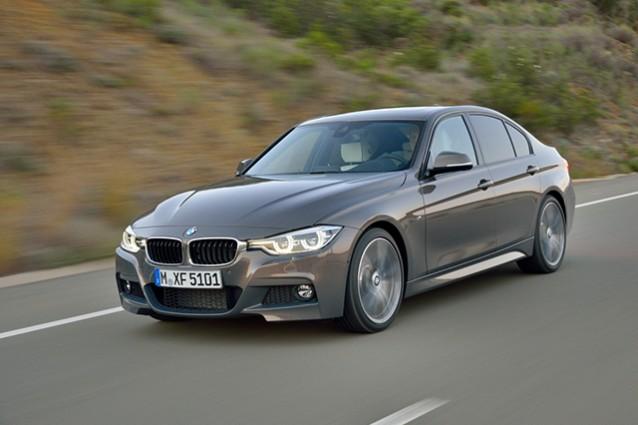
 1 punto1 puntoMi pare di aver letto four seater nella presentazione dell'alfieri, in pratica questo sarà l'unico coupè maserati ed è ok così, un modello basta se si fa anche la versione aperta l'importante è che facciano un upgrade serio del livello tecnico e stilistico complessivo del brand maserati, hanno in portafoglio un "identificativo" storico come quattroporte da cui come ho sempre detto si deve ricavare un'auto moooolto superiore all'attuale, si dee fare una vera bomba sotto tutti gli aspetti, non una semplice serie 7 italiana ma un'auto di lusso senza compromessi e stilisticamente più esagerata, più creativa, deve osare di più spingersi oltre esplorare nuovi concetti e nuove idee, c'è tutta a possibilità di farlo e si deve farlo, deve essere una rivoluzione rispetto all'attuale anche levante può essere moolto di più dell'attuale, solo ghibli è già riuscita e definita com'è oggi, basta evolverla nei modelli successivi senza grandi cambiamenti come si fa nelle versioni successive di serie 5 o serie 7, ghibli è stata azzeccata al primo colpo ma levante e quattroporte devono essere completamente nuove e appunto molto più in alto1 punto1 punto1 puntoin foto sembra interessante.... almeno questi propongono e fanno qualcosa di interessante.... ah già ma si vendono solo suv... brava Peugeot che sta rifacendo tutta la gamma con vetture decisamente interessanti1 punto1 puntoHeritage Al pari della berlina questa 508 mi piace molto, bassa, aggressiva, molto Peugeot. Dopo anni passati a rimpiangere il connubio tra Peugeot e Pininfarina al momento trovo che sia una delle più belle D in commercio.1 puntoVolete che muoro??? Bene, morite con me?1 punto1 puntoLa Leaderboard è riferita all'orario Roma/GMT+02:00