




Classifica Utenti
Utenti più Apprezzati
(Scegli il periodo) Utenti più Apprezzati
(Storia giorno per giorno) Classifica dall'Origine
(da Marzo 2003)
(Scegli il periodo) Utenti più Apprezzati
(Storia giorno per giorno) Classifica dall'Origine
(da Marzo 2003)
-

Cosimo
Utente Registrato69Punti41298Numero contenuti pubblicati -
AleMcGir
Moderatore |Staff|31Punti20132Numero contenuti pubblicati -
Tony ramirez
Redattore30Punti4629Numero contenuti pubblicati -
Indav
Utente Registrato29Punti1118Numero contenuti pubblicati



Contenuti più Popolari
Stai visualizzando i contenuti con il più alto punteggio, pubblicati in data 11/15/16 e localizzati Tutte le aree/sezioni
-
22 punti
-
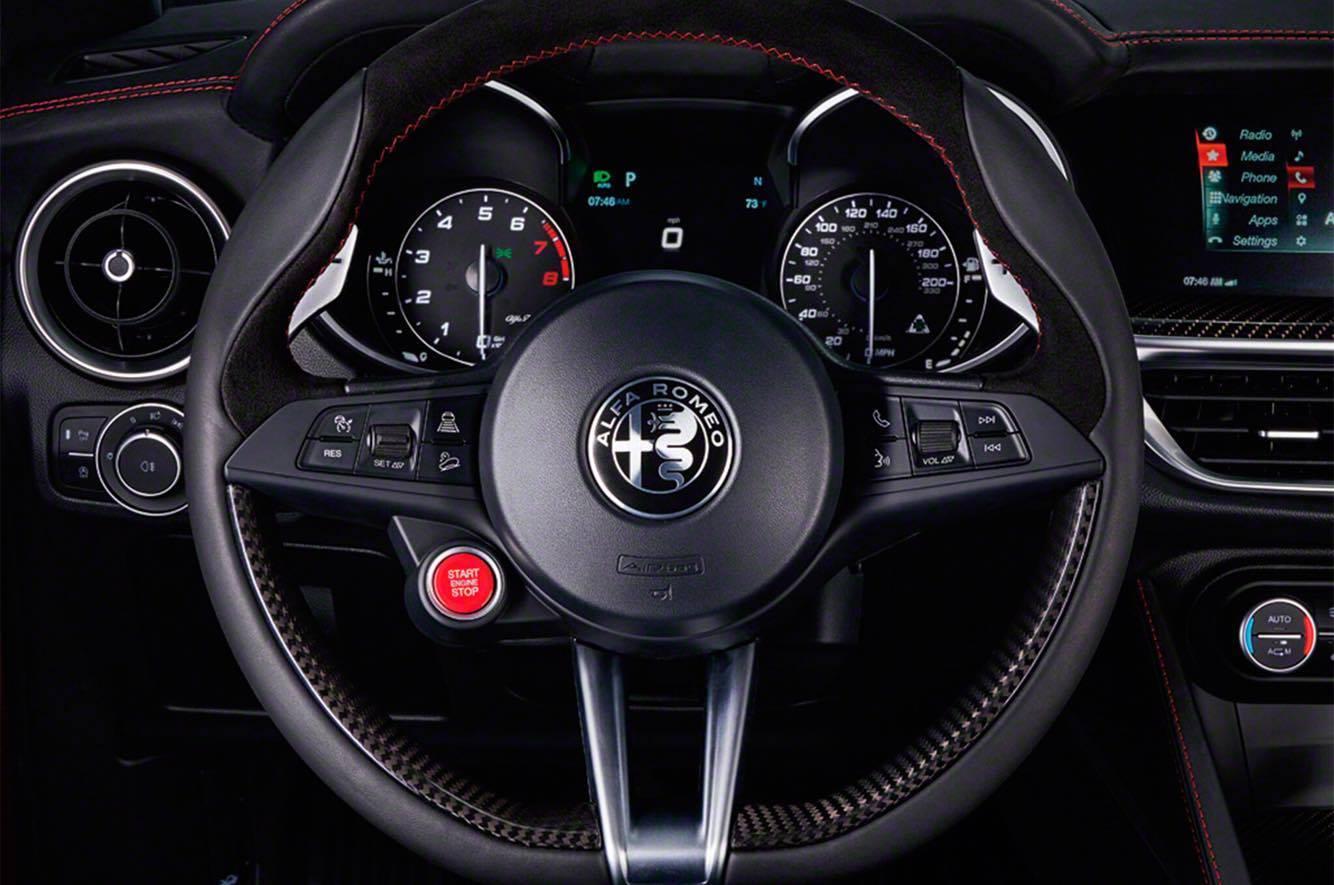
Io domattina sto a scuola 6 ore senza internet Vale a dire che da quando esco di casa alle 7 finchè non torno alle 3 non avrò notizia di Stelvio. Non so se ce la farò Interni:16 punti
-
14 puntiE se fosse l'attesa dello Stelvio essa stessa lo Stelvio?12 puntiricordate che l'andamento generale delle linee però è sempre derivato da questo:12 puntila qualità di questa è migliore, il fondoscala non è 270
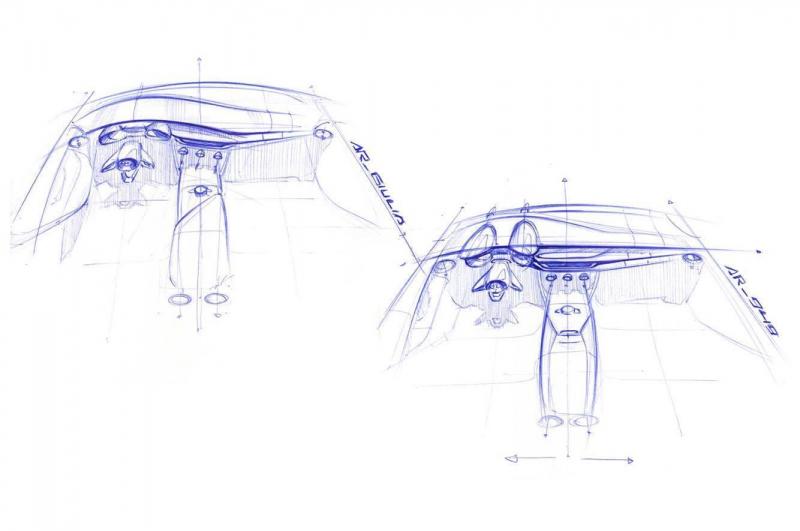
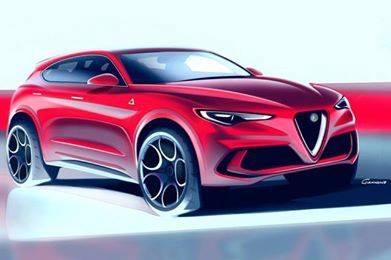
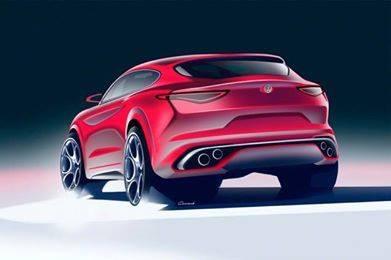
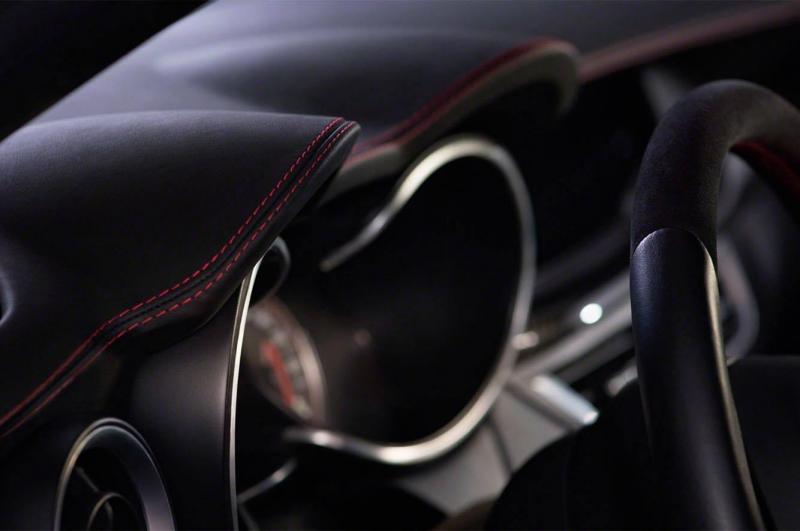 10 puntiio ve lo dico anche se so che non mi ascolterete : non innamoratevi dei bozzetti perchè per quanto sia bella l' auto reale sarà sempre più alta e tozza10 punti10 punti10 punti9 punti9 puntiè questa? No perche ha la ruota di scorta sul cofano.
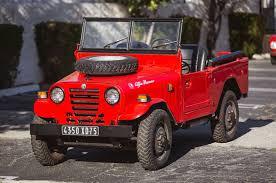 8 punti7 puntiio prima voglio vedere se i problemi di ruggine su 1,5 milioni di suv per cui toyota è stata condannata a pagare 3,5 milardi di euro avranno qualche effetto sulla classifica JD power e consumer o se invece continueranno a preoccuaparsi dell' infotaiment come fanno ora poi deciderò se quelle statistiche hanno un qualche valore. " a morto de fame, fatte riasfaltà er vialetto"7 punti7 puntiFatemi capire. Il coglione ha lasciato la macchina accesa, è sceso e ha girato il video? Con marcia innestata e le ruote in movimento? p.s.: in questi casi basta dare un colpetto d'acceleratore e parte anche l'altra ruota. Che cazzo di notizia è?7 puntiPer oggi mi sa nulla... Mi sento come un futuro padre nei corridoi d una sala parto per dio!7 puntiSappiamo che voleva solo creare ansia e godersela Ora noi lo banniamo fino a giovedì6 puntiDomani rischierò di essere interrogato in tre diverse materie di cui non so nulla perché ho speso metà del pomeriggio a seguire il forum e l'altra metà a farmi pippe mentali su Stelvio, e, fatemelo dire, miglior pomeriggio di sempre. Che tensione...vado nella discussione "Donne più belle del pianeta" a sfogarmi un po'6 punti6 puntiTutto può essere, ma dopo giulia Q presentata come anteprima non vedo perchè dovrebbero cambiare andazzo.6 puntineanche io! ed infatti mi stupisco - positivamente - come in un'era come la nostra in cui tutto è fotografabilissimo e gli scoop sono sempre pagati bene e, in generale, come sia difficile mantenere nascoste notizie, dicevo... come riescano a tenere tutto assolutamente nascosto e senza che siano state scattate (anche solo di sfuggita, al volo, di nascosto) delle foto magari proprio degli esemplari del salone o, che ne so, dello spot (di cui certo avranno già girato qualcosa da qualche parte). BRAVI, che dire!6 puntiVorrei solo un attimo fermare la frenesia del momento e fare un'attimo di riflessione prima che Stelvio venga rivelata e tutti noi presi dal ossessivo.... Siamo partiti da questo 1000 anni fa! E ancora oggi quanto è figo.6 punti6 punti6 puntima perchè devi mentire così spudoratamente ? la ruota dietro è... è.... geniale si... vabbè... lo so che non ci sta nel portellone....però...... era una bella idea ps: ah dimenticavo @J-Gian sono le 23:22 e non mi ha sbattuto fuori forse avrebbe dovuto5 punti285 all’ora per un cassone del genere mi paiono un controsenso comunque. Relativamente alle immagini, parlavo di queste. Non sono teaser veri e propri, ma semplicemente roba che doveva uscire domani5 puntiOvviamente i bozzetti sono sempre un'estremizzazione di proporzioni etc...però si intuiscono alcuni dettagli che potrebbero davvero risultare notevoli... 1) ma il lunotto sarà così rastremato e con vago andamento trapezoidale? 2) c'è proprio quel gioco di superfici positivo/negative che si era pensato...dopo la parte svasata c'è la parte col portatarga che è inclinata in negativo e la parte degli scarichi che torna in positivo....questa movimentazione potrebbe risultare davvero seducente imho. Sempre più curioso di vedere l'auto definitiva! Aggiungo un'altra cosa a cui pensavo.... Speriamo ripropongano un po' di tinte "boschive" come sulla cara vecchia CrossWagon...Quel verde/grigio , quel color sabbia, quei marronni intensi e scurissimi... Sarebbero la morte sua5 puntibellissima sta traduzione!! molto interessante la forma dei fari di 4C...5 puntiBoia, datevi una calmata...sembrate bambini la sera prima di Santa Lucia5 puntiThis Giulia has a torque-vectoring diff but its owner has no brain. I see a problem with the second5 puntiAnche io sono di questo avviso, ma aspetterei fino al completamento gamma e vedrei il primo rilancio su Giulia per capire se ci stanno dentro .....quell'atteggiamento odioso di grano d'inverno che sembra Mengele che fa il suo giro in sala è il risultato di 20 anni di dominio, che ora sappiamo essere stato costruito anche con la truffa, ma ciò non toglie che il dominio c'è, nei fatti tecnici e anche intellettuale psicologico. Oggi ci hanno dato un vantaggio dimostrando la loro pochezza, nel mentre si decideva di fare bene, FCA non può sprecare. Spero che Stelvio sia un altro passo ben saldo nella giusta direzione, togliendo così consistenza e arroganza a certi figuri. Ogni modello, ogni aggiornamento rappresenta un tassello per riprendere la posizione nel automotive che per tradizione abbiamo, senza fare i nostalgici... scusate il pistolotto5 puntihttps://twitter.com/LAAutoShow @Aymaro ti hanno pagato i diritti sull'uso della faccina ""5 puntiti posso assicurare al 1000% che lo Stelvio non ha la ruota di scorta...quindi.. Che cos'hai visto?4 puntitutte le volte che mi accingo a leggere un tuo commento su di un’auto italiana, inconsciamente comincio a toccarmi le palle a mo’ di gesto apotropaico4 puntiLui dice che ha provato anche a dare poco gas e non si è mossa. Dava solo colpi la pompa del freno. Io, da uno che va a passeggio con la marcia innestata*, non prendo per buono più niente che non sia accompagnato da una prova video... Alcuni commenti sensati su Jalopnik sottolineano che e-diff e torque vectoring e compagnia restano correzioni elettroniche di un differenziale aperto. Se una ruota è libera, puoi premere quanto vuoi che se ne starà lì. L'unica è applicare un po' di freno, o freno a mano, per serrare la ruota libera e dare coppia all'altra. Gli stessi commenti sottolineano che succede a tutte le auto, su Q magari è più facile incapparci causa scarsa escursione della sospensione; suggeriscono di lagnarsi meno e guidare meglio... *e che ha fatto pure il risentito verso chi gliel'ha fatto notare4 punti4 puntiAvrebbe battuto sul tempo QQ in primis e poi Evoque... Juke&co son più piccole!4 punti4 puntiniente più piccola Manor, niente più casa della nonna di barrichello, niente più nomi sbagliati, niente più statistiche snocciolate con sicumera http://www.formulapassion.it/2016/11/dal-2018-formula-1-esclusiva-sky/4 punti4 puntiSembra che l'abbiano disegnata troppo corta in altezza e poi ne abbiano aggiunto un pezzo sotto4 punti4 puntiSe non altro, abbiamo finalmente la conferma che il telaio non si piega...4 puntima infatti è una considerazione tutt'altro che peregrina: il 90% dei miei conoscenti che hanno preso un suv, l'hanno fatto senza conoscerne le prestazioni se non il consumo e la velocità max a grandi linee. il 100% l'ha comprato senza averlo mai provato4 puntiBasta non reggo, mi ritiro in un monastero e ne usciró solo quando compariranno le prime business turbodiesel 120 cv su autoscout con 160.000 km color grigio steel!3 puntinon avete capito un cazzo: questa è la nuova fetaure di sicurezza inserita da FCA ! dopo la faccenda di jeep: anche se uno è così coglione da scendere dall'auto con il motore acceso e la marcia inserita, l'auto non si muove3 puntiSì sta comportando come un normale differenziale aperto, in teoria però, mettendola in modalità "A" dovrebbe bloccare anche in queste situazioni.3 punti3 puntieh niente, i cerchi sono da 23".... come il 72 barrato dell'Irisbus!3 puntipropongo il momentaneo declassamento del nickname da infallibile a mannajalamiseriasefalliscecertevolte3 puntiCome abbiamo ben visto in questi giorni non è certo l'eleganza che interessa gli americani.. gli unici americani eleganti sono quelli che conoscono bene l'europa e la frequentano3 puntiqui il collaudatore l'ha fatta grossa per cui ha dovuto arieggiare ancora di piu'.....3 puntiUrca...... se esce troppo basso non è un vero SUV!!!!!!!!!!!!!!!! Marchionne dimettiti, ecc. ecc. ecc.....3 puntiSperiamo che abbiano tenuto conto dei principali criteri di scelta di un SUV di questa caratura, o almeno non li abbiano sacrificati troppo, aggiungendo le caratteristiche tipiche di un'Alfa. Con Giulia mi pare che nel complesso siano riusciti a tutto tondo.3 puntiLa Leaderboard è riferita all'orario Roma/GMT+02:00




















Account
Navigation
Cerca
Configure browser push notifications
Chrome (Android)
- Tap the lock icon next to the address bar.
- Tap Permissions → Notifications.
- Adjust your preference.
Chrome (Desktop)
- Click the padlock icon in the address bar.
- Select Site settings.
- Find Notifications and adjust your preference.
Safari (iOS 16.4+)
- Ensure the site is installed via Add to Home Screen.
- Open Settings App → Notifications.
- Find your app name and adjust your preference.
Safari (macOS)
- Go to Safari → Preferences.
- Click the Websites tab.
- Select Notifications in the sidebar.
- Find this website and adjust your preference.
Edge (Android)
- Tap the lock icon next to the address bar.
- Tap Permissions.
- Find Notifications and adjust your preference.
Edge (Desktop)
- Click the padlock icon in the address bar.
- Click Permissions for this site.
- Find Notifications and adjust your preference.
Firefox (Android)
- Go to Settings → Site permissions.
- Tap Notifications.
- Find this site in the list and adjust your preference.
Firefox (Desktop)
- Open Firefox Settings.
- Search for Notifications.
- Find this site in the list and adjust your preference.