




Classifica Utenti
Utenti più Apprezzati
(Scegli il periodo) Utenti più Apprezzati
(Storia giorno per giorno) Classifica dall'Origine
(da Marzo 2003)
(Scegli il periodo) Utenti più Apprezzati
(Storia giorno per giorno) Classifica dall'Origine
(da Marzo 2003)
-
guidomaluccio
Utente Registrato11Punti764Numero contenuti pubblicati -
Matteo B.
Utente Registrato10Punti38977Numero contenuti pubblicati -
pixhell
Utente Registrato9Punti3715Numero contenuti pubblicati -

__P
Capo Moderatore (Staff)7Punti29344Numero contenuti pubblicati




Contenuti più Popolari
Stai visualizzando i contenuti con il più alto punteggio, pubblicati in data 06/10/17 e localizzati in Risposte
-
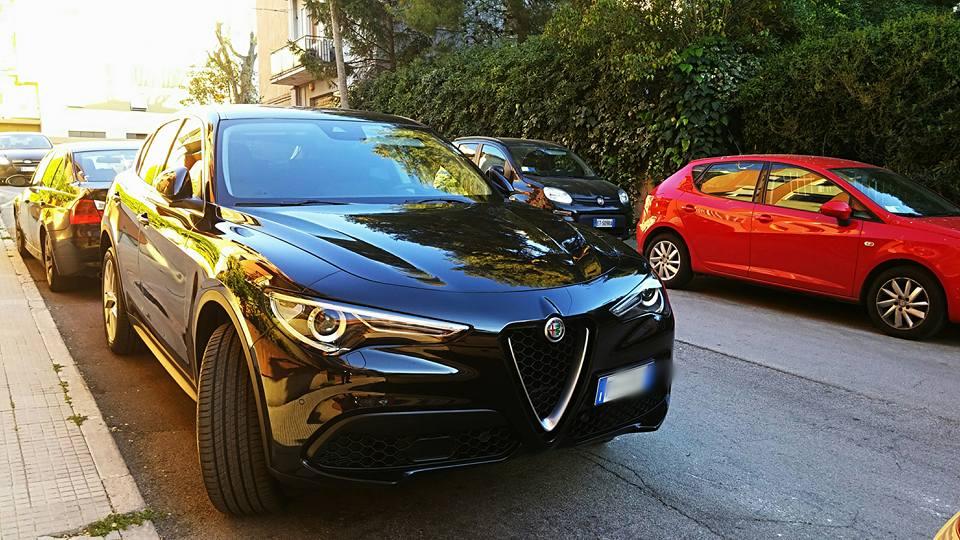
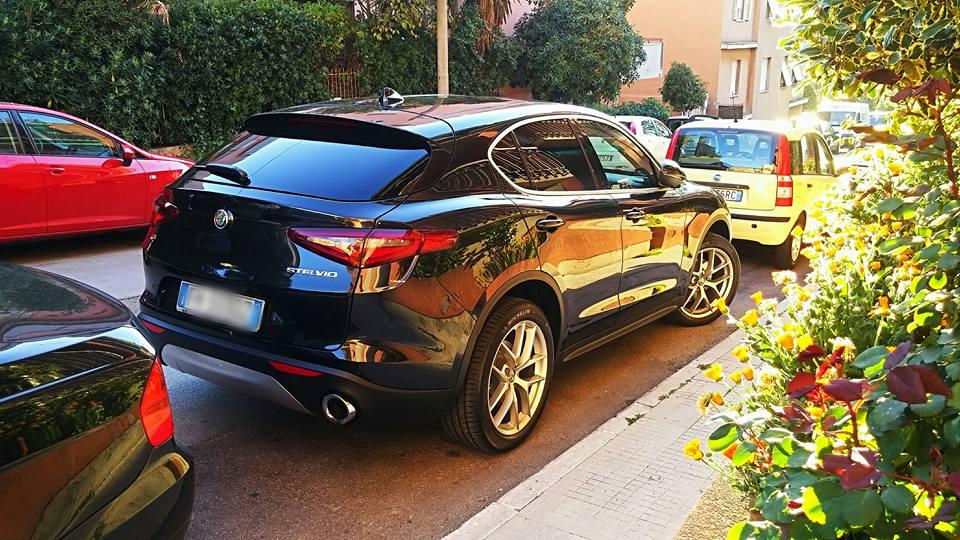
10 puntiDopo bene 2 mesi (!),finalmente il mio futuro testimone di nozze,mi ha presentato la sua Giulia Q....2 mesi e gia' 8000km (!)....senza problema alcuno...
.thumb.jpg.d39818a3e86f55ae03361c84f6cc51b4.jpg)
.thumb.jpg.4547cc44898de9f4694edc195b45fb8f.jpg)
.thumb.jpg.7a68cbaea88cde3299e8146ff1159713.jpg)
.thumb.jpg.aa27cbea9ae67e5f39e4fa3ff65f9ee5.jpg)
.thumb.jpg.f1d84b6e7adc4f4596f2d515db13a898.jpg)
.thumb.jpg.5c1ad3516aa1460ec0884436c0e1f027.jpg)
.thumb.jpg.9b09e9154535dc197cdb3967e1eb3202.jpg) 10 punti
10 punti -
ricordi male http://www.autopareri.com/forums/topic/62580-alfa-giulia-veloce-tb-e-td-q4-quattroruote/ media 11,4 contro 14,4 e con prestazioni nettamente a vantaggio della benzina, facendo un "retune" a pari potenza (più o meno un benzina da 240 cv) probabilmente sarebbe ancora meno. è nella media omologata (falsissima, lo si è stabilito nei mesi scorsi con indagini europee a tappeto) che è 15 vs 21 con un litro....palle. certo che i luoghi comuni sono duri a morire....i benzina che sono idrovore e i diesel che vanno a spiccioli.5 punti
-
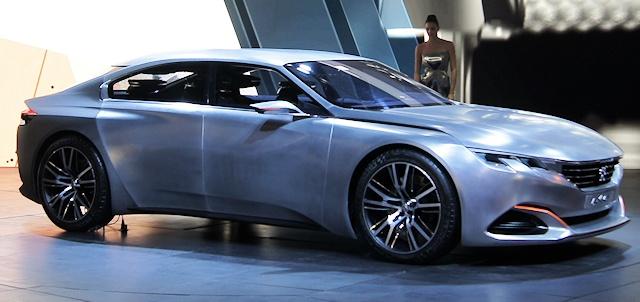
Come già postato, lo stile dovrebbe rifarsi molto a questa
 4 punti
 -
4 punti
-
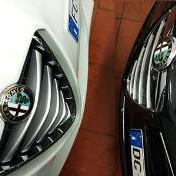
IMHO il primo blu è il meno apprezzabile perché ha (quello che io ritengo) lo stesso difetto della Compass: le feritoie troppo poco sviluppate in altezza che trasformano quello che negli altri modelli è un evocativo frontale, in una comune calandra, ma simile a un ghigno con i dentini in mostra, tipo così: ?3 punti
-
3 punti
-
3 puntiSalici e provala... altro che complesso di inferiorità! Rispetto a cosa poi? ? La GPL invece è disponibile già da qualche mese. Quello che manca si è la Abarth, ma se già così lo consideri un giocattolo da 30k €, un'Abarth che sfiora i 40k cosa sarebbe? È un'allestimento tanto quanto Lounge o Pop e non una versione speciale... ?3 punti
-
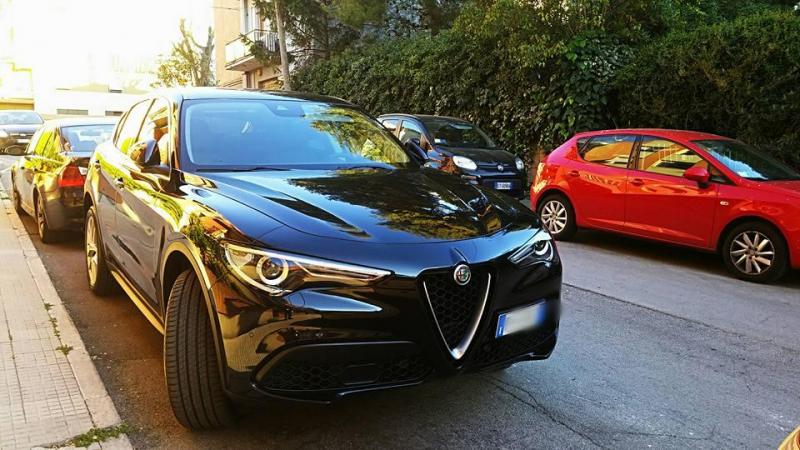
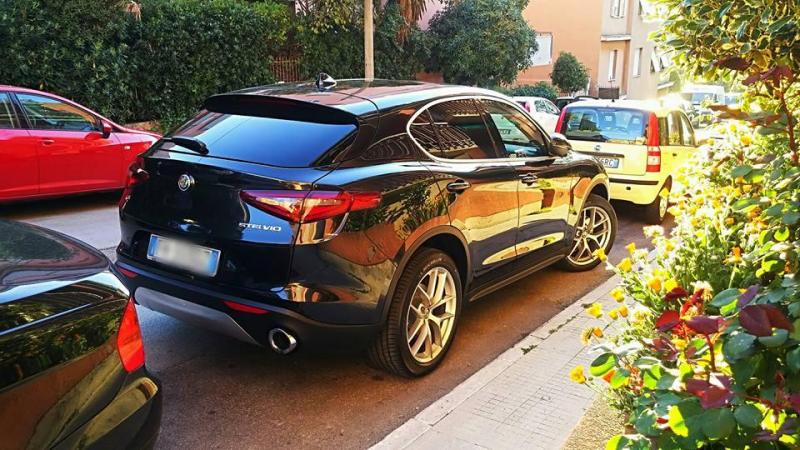
3 puntiLa guido da quasi 5000 km, vettura stupenda. Non c'è storia con nessun altro SUV....piacere di guida al top!
 3 punti
 -
Oh, i pubblicitari avrebbero dovuto assumere te al posto di Tonino Guerra per gli spot di Unieuro...2 punti
-
2 puntiè più piantata ad alte velocità, su questo (pur non avendola provata) ci credo eccome. Non è parziale, è un tedesco, con la visione della macchina da tedesco (rispondo a Taurus e Carbreathing). il problema è quando questo modo di vedere diventa LO STANDARD a cui gli altri si devono conformare. è li che lo contesto . non è in malafede di default, è che non capisce che non c'è solo un modo per andare in macchina.2 punti
-
2 puntiSuperb che va meglio su strada di Mazda 6 non ci credo neanche se lo dice il papa. ☏ T8-PLUS ☏2 punti
-
Chissà quanto staranno maledicendo il giorno in cui hanno deciso di cercare di portare il "clean diesel" da chi palesemente non lo voleva e francamente non ne ha nemmeno bisogno.2 punti
-
Penso che la cosa sia molto piu in grande. Alla fine balzelli e superbolli erano solo in italia, ma lo sviluppo dei diesel è una cosa portata avanti congiuntamente da tutti i produttori, che certamente non basavano le proprie strategie sul mercato italiano. Semplicemente il Turbodiesel, ha portato potenza, coppia e una guida piacevole con cosumi ridotti e costo del carburante piu basso. In un mondo di motori benzina che consumavano a secchiate e non andavano avanti, questi erano un altro mondo. Ricordo la golf 4 1.6 benzina vs golf 1.9TDI. Pari potenza. Scendevi dal TDI salivi sul benzina e tiravi i cristoni. E'palese che il mercato ci si sia riversato a fiumi. Sarebbe stato strano non lo avesse fatto. Anche oggi sali su una punto 1.2 fire e poi sul multijet 75, se non fosse per il costo il benzina farebbe la polvere. Poi sono arrivati i limiti di emissioni e le cose stanno cambiando. Fortunatamente ora ci sono alternative altrettanto valide, ma ci vorrà tempo anche perchè come scrivevo nei post precedenti, se vuoi qualcosa che si muove, la differenza economica se c'è, non è cosi marcata come lo era allora.2 punti
-
2 puntiOpinabile. Fino a che la guidava vinales,la suzuki era una moto quasi da podio.Adesso il podio lo vedono col binocolo. Sarà stato anche più veloce(il campionato di hotlapping ancora non esiste) ma un beleno cosi poteva solo nuocere a ducati visto che con ste gommacce di merda uno con le idee poco chiare su cosa fare, poteva solo aggiungere confusione. E il vero valore di dovizioso non è la gara del mugello,ma quello che ha fatto da quando è arrivato in ducati nel 2013 trovando quel disastro. E quello che sta facendo da quando è arrivata michelin.2 punti
-
1 puntoCapisco quello che dici, ma un giornalista professionista divrebbe avere anche una certa elasticità di vedute...1 punto
-
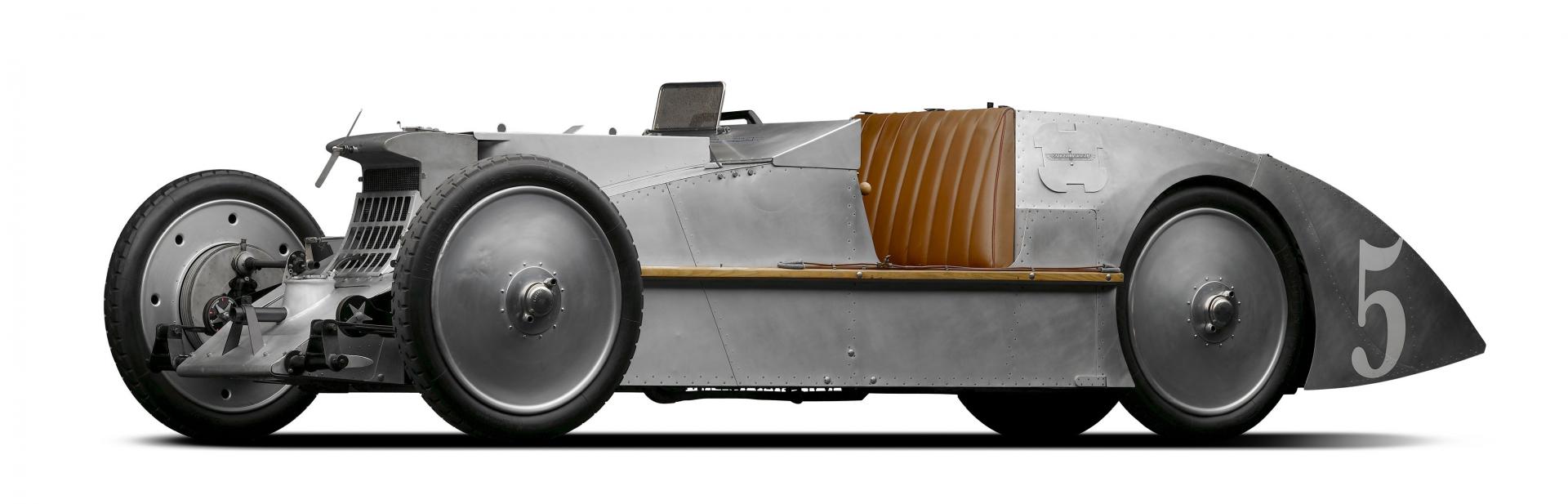
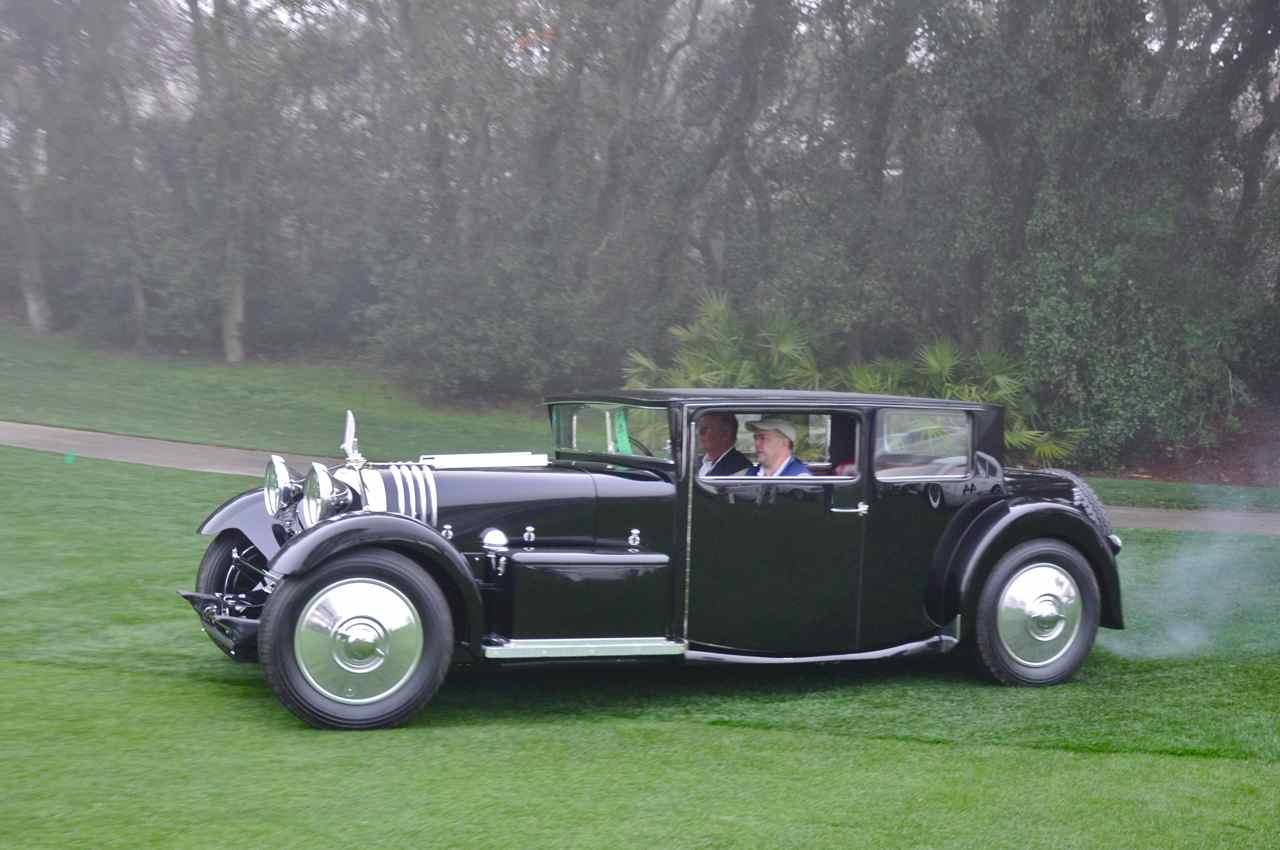
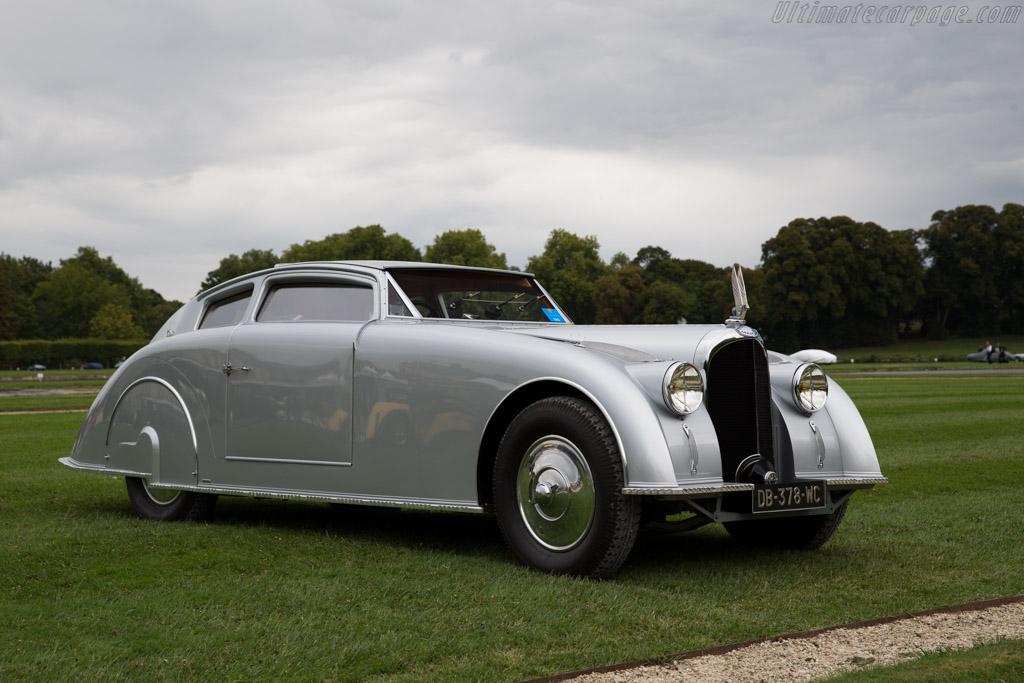
1 punto1 puntoBhe...se in Russia ti presenti con una 500, quando vogliono Range Rover, Bentley, Classe G e BMW X5 e futuro X7...non vedo perchè dovresti "fare numeri"1 puntoClean diesel, un ossimoro....(lascio alla fantasia i paralleli possibili), con la fissazione che hanno per la propaganda se la sono cucinati per bene. Con altrettanta propaganda ne usciranno a testa alta grazie all'avanguardia della tecnica e al supporto finanziario della bundesrepublik.1 puntoErano le automobili particolari Gabriel Voisin era famoso nel campo dell'aviazione poi nel 1918 si lancio' nelle costruzioni delle automobili interamente carrozzate... 1938 Avion Voisin C28 Saliot Cabriolet 1935 - 1936 Voisin C28 Aerosport 1931 Voisin C20 Demi-Berline https://myntransportblog.com/tag/avions-voisin/
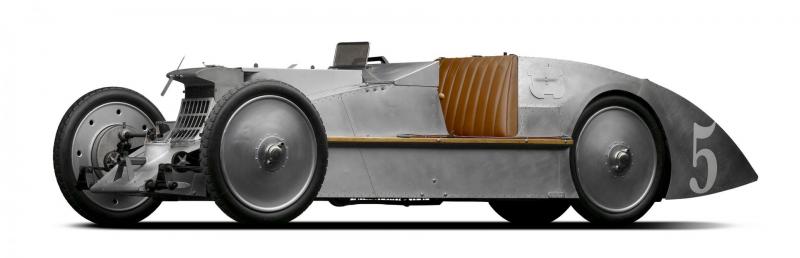
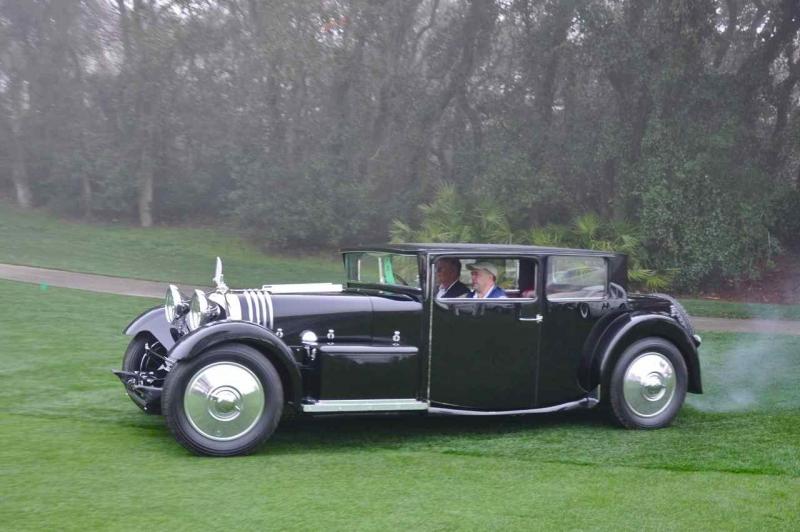
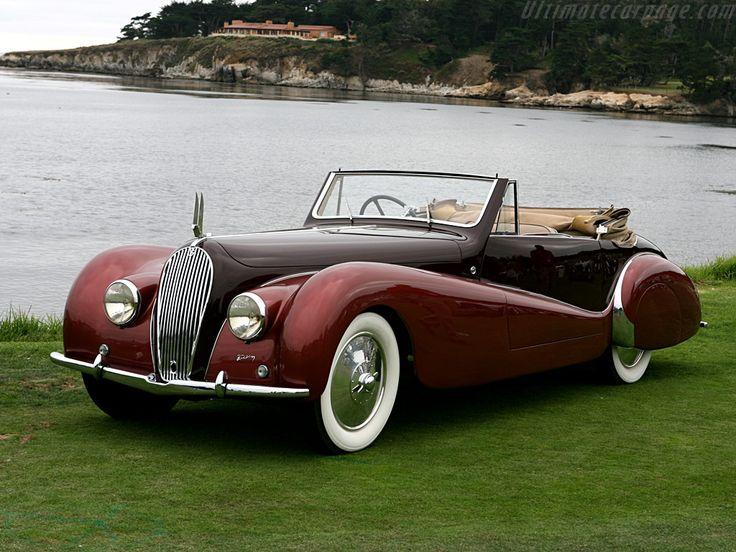
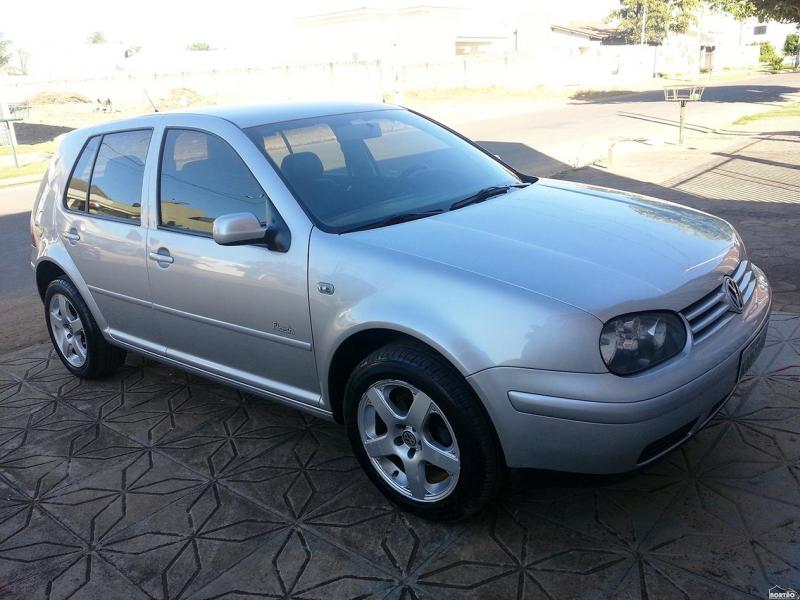
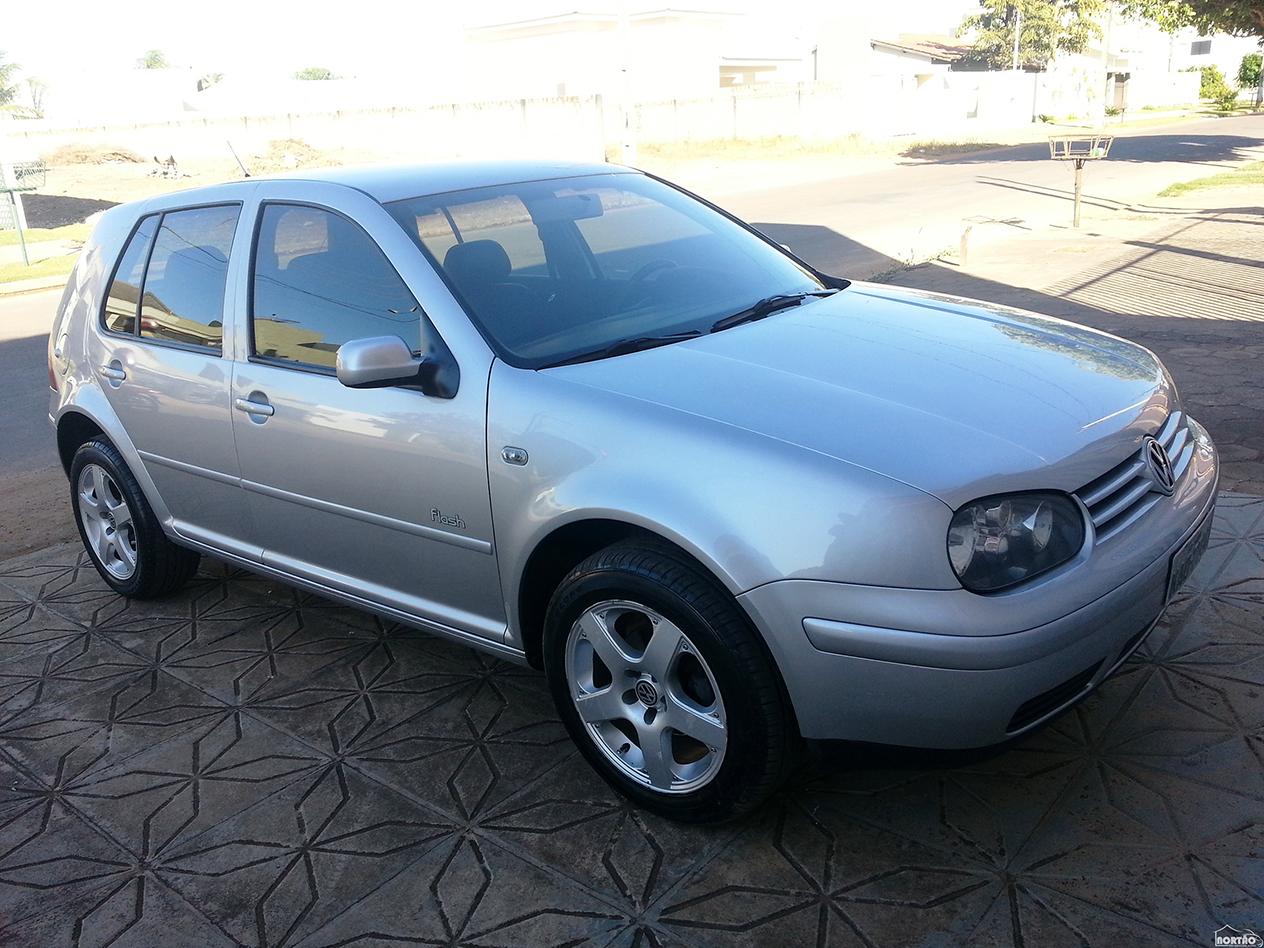
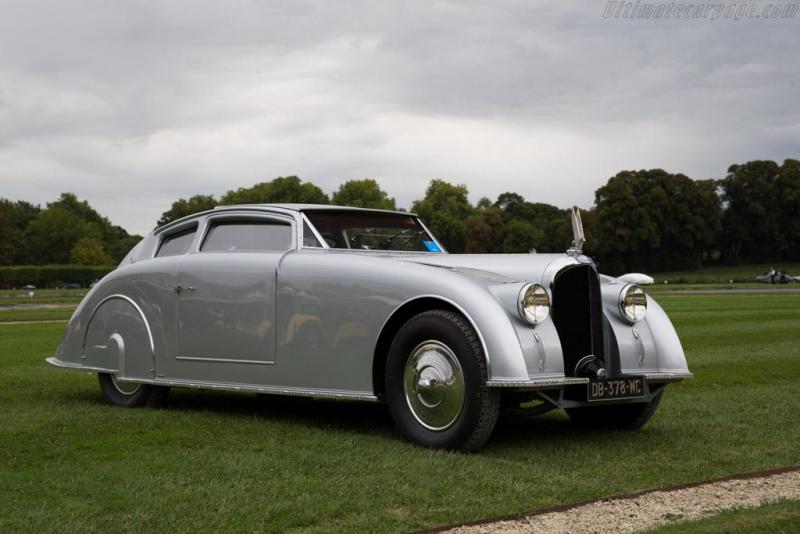 1 puntoL4 vw di tutte le fogge, poi il v6 vw, ora il v8, poi quelli di audi come se fossero motori diversi, ma quelle sono ragioni di reverse marketing, ora per lo stesso motivo arrivano i diesel di Porsche, che sono sempre quelli...beh insomma! Chiaro no, si salveranno i v10 perché all'epoca le restrizioni non era così serie e sopratutto non avevano l'abbondanza di ingegneri sftw di origine Bosch che hanno ora.1 puntoMa il multijet non muore mai. ☏ T8-PLUS ☏1 punto1 punto1 puntoMi fa un pò impressione questo assetto... Sono abituato a vedere ben altre altezze, e tra l'altro qui in Brasile quei cerchi esistono solo in versione da 16" heheh Fine OT
 1 punto1 puntoNon divagare. Tu hai scritto è un problema geografico che si riferisce sopratutto al sud. Ti ho detto guarda che se fosse vero i calabresi mandati al nord in soggiorno obbligato non avrebbero fatto strada,trovando una comunità refrattaria a certe pratiche. E mi rispondi ci sono anche in germania e in svezia. Tutto quello che vuoi,ma cosa centra col discorso che stavamo facendo? Se diamo valore al fatto geografico,allora hanno ragione gli inglesi a dire "siete itaGliani statevi a casa vostra che qua siamo assai". Allo stesso tempo,io non punterei il dito sempre contro la piccolasfigataimpresaitaliana e non inneggerei alla megacorporazione. La vicenda vw dovrebbe esserci di insegnamento che se il fine è il profitto(e lo è) a certi livelli le porcate non sono da meno. E potevo scrivere google,deutsche bank,evergreen ecc. ecc...1 punto1 punto1 punto1 puntoGTI, Blue Jazz, cerchi Santa Monica e xeno. La Golf definitiva Ancora bellissima dopo 20 anni.1 punto1 puntoesatto... mi ricordo ancora la prova di 4ruote, 41 milioni di lire per la TDI, e lo considerarono un prezzo altissimo per una C, risultato: CODE dai concessionari, sconti ZERO, 6/9 mesi di attesa, ed importatori paralleli che te la davano a tempi brevi ma con un SOVRAPREZZO di listino. i bei tempi... oggi le auto te le tirano dietro appena entri in un concessionario, sconti da sbrago, forti deprezzamenti dell'usato che valgono una pacca sulla spalla, e concessionari in perdita che campano sui premi delle case madri, con le case che spingono le immatricolazioni farlocche a fine mese per fare i budget intasando il mercato di km0.1 puntoSe io facessi 35k km/anno nelle modalità da te elencate avrei un diesel pure io. te lo do per certo. io ne faccio la metà all'anno e con una buona quota di urbano dentro. ovviamente guido una D a benzina il problema non è Leon82 ma la quota di Matteo B,. che si ostinano a comprare auto a gasolio quando non gli servono. ma non è solo colpa loro, è che non c'è quasi più offerta.1 punto1 puntoma quando cacchio è stato che d'un tratto s'è deciso che la prima cosa da testare in un'auto è la "morbidità" delle plastiche? possibile che ormai tutta la stampa specializzata sia focalizzata su quanti mm affonda il dito nella plancia e sui dm2 di plastica soft-touch nei pannelli porta? ho avuto una Volvo rivestita con materiali ficherrimi che scricchiolavano e si rigavano solo a guardarli, mentre la mia attuale Renegade - che ha i pannelli porta di plasticaccia dura come il marmo - non scricchiola e non si riga. allora parliamone: dov'è la qualità?1 puntosono nati quasi in contemporanea, perché appunto dividevano lo stesso pianale e la stessa impostazione tecnica, tra cui lo sdoppiamento dei proiettori1 punto1 puntoInsomma, l'ennesima Opel con tanto arrosto e che non si filerà nessuno?1 puntoDevono piantarla di fare delle prove del genere...oltretutto, rispetto ad altri "truffaldini" sono stati anche molto meno furbi...Dalla foto si vede benissimo che hanno fatto il giro di pista in NORMAL... non in Dynamic, figuriamoci in Race Mode...NORMAL. -.-' Ridicoli davvero
 1 punto1 punto@LucioFire la Cherokee in america a qui tempi era l 'equivalente oggi di una Renegade, modello d'accesso, il prezzo era basso, ottime doti in fuoristrada e interni piu che sufficienti. Non é che le altre auto del gruppo Chrysler erano tutta questa qualita anzi, facevano piuttosto schifo oltre ad essere una cozzata di rebadge, vedi le varie Stratus Sebring, 300M Intrepid Voyager Caravan Neon ecc1 punto1 puntoNon è così stupida come cosa, io sfanculo spesso i passeggeri posteriori dopo aver ripetuto per la 3a volta un discorso Con questo sistema potrei farlo una volta sola e bene In realtà come idea mi piace perché sfrutta sistemi già presenti nell'auto, quali microfono ed impianto audio1 punto1 puntoNoi vogliamo testimonianze concrete Comunque, a parte gli scherzi, ora che Lancia è morta sarebbe ora da parte di mamma Fiat di tirare fuori tutti quei progetti che per anni sono stati proposti e accantonati il giorno dopo, dato che ormai non hanno nulla da perdere...1 punto1 punto115 giri per il polacco https://it.motorsport.com/f1/news/kubica-ben-115-giri-a-valencia-nel-suo-ritorno-sulla-renault-f-1-914987/1 punto1 punto1 puntoUn po' ironica come cosa ma sta accadendo... Il nuovo compass è più simile come concezione a ciò che dovrebbe essere un Cherokee ad il Cherooke è un cross over compatto che è ciò per cui era stato pensato il compass ☏ E5803 ☏1 puntoSecondo me l'attuale Cherokee è molto bello! Finalmente un suv che si distingue dagli altri e voi che fate, lo criticate? Capisco che Jeep sia un marchio tradizionalista ma questo non vuol dire che non possa essere originale. Poi non lamentiamoci se escono modelli con linee già vecchie...1 punto1 puntoquest'anno avrebbe dovuto correre sull'unica vettura LMP1 non ibrida, ma poi dopo i test ha rinunciato (il che è sembrato strano) ma viste le prestazione della vettura (va meno delle P2..) e magari una possibilità in monoposto (in f1 la vedo difficile però) si capisce meglio il perché della rinuncia1 punto1 puntoSe dobbiamo mandarla in Cina elettrizziamo la Thesis allora Comunque la 9-3 invecchia da dio, resta sempre una gran bella auto. Che peccato.1 punto1 punto1 punto1 punto1 puntoColore a parte, è anche "sobria" rispetto allo standard di Mansory! Andate a guardare cosa combinano con Ferrari o Lambo o Rolls... ??♂️1 punto1 puntoMi sa che è un pò difficile in quanto è nata per essere una 500ona. Inoltre il frontale è la parte più riuscita insieme alla plancia IMHO. Criticabili i pannelli porta in stile Ritmo '78 e l'assenza di Abarth e Turbo GPL per il resto va bene così pur non amando il genere.1 puntoNo ha batutto la concorrenza su tutte le prove tranne quelle di giornali tedeschi, o appartenenti a case editrici tedesche come nel caso della spagnola Automovil. Tra l'altro ricordo benissimo che sulla prova di Top Gear a Red Bull Ring...Chris Harris ha detto che Giulia Quadrifoglio AT8 ha girato addirittura più veloce di M4 GTS nell'autodromo austriaco. Infine appare i rilevamenti di Quattroruote e Motor Trend, anche su quelli pubblicati da Car and Driver e Road and Track e' decisamente più veloce rispetto alla concorrenza...1 puntoprestazioni e tempo su giro che sembra essere rilevato in modalità Dynamic e non Race....per Giulia Guardacaso la rivista "Automovil" appartiene a MotorPress Iberica la filiale spagnola della tedesca Motor Presse Stuttgart...1 puntoRendimento. Mentre il turbocompressore utilizza energia che altrimenti sarebbe sprecata (quella dei gas di scarico), il compressore volumetrico preleva energia dall'albero motore. Arriva ad assorbire anche decine di cavalli, con impatto negativo forte sui consumi.1 puntoLa Leaderboard è riferita all'orario Roma/GMT+02:00
.jpg.431c83a047f474ef121fc636270010c3.jpg)
.jpg.78b23ba72067c51d0f67be2bdf575e12.jpg)
.jpg.efb0b81648d0f65439b8b355d9e0f25a.jpg)
.jpg.e3d903849d75f61fcf3425720fdd71fc.jpg)
.jpg.990669632c853b3a8de49aea51c44fb6.jpg)
.jpg.5e90bf7074c51e9d44b12476e1038a03.jpg)
.jpg.49405f655fce7e0144af2bd56ac5189c.jpg)





















Account
Navigation
Cerca
Configure browser push notifications
Chrome (Android)
- Tap the lock icon next to the address bar.
- Tap Permissions → Notifications.
- Adjust your preference.
Chrome (Desktop)
- Click the padlock icon in the address bar.
- Select Site settings.
- Find Notifications and adjust your preference.
Safari (iOS 16.4+)
- Ensure the site is installed via Add to Home Screen.
- Open Settings App → Notifications.
- Find your app name and adjust your preference.
Safari (macOS)
- Go to Safari → Preferences.
- Click the Websites tab.
- Select Notifications in the sidebar.
- Find this website and adjust your preference.
Edge (Android)
- Tap the lock icon next to the address bar.
- Tap Permissions.
- Find Notifications and adjust your preference.
Edge (Desktop)
- Click the padlock icon in the address bar.
- Click Permissions for this site.
- Find Notifications and adjust your preference.
Firefox (Android)
- Go to Settings → Site permissions.
- Tap Notifications.
- Find this site in the list and adjust your preference.
Firefox (Desktop)
- Open Firefox Settings.
- Search for Notifications.
- Find this site in the list and adjust your preference.