




Classifica Utenti
Utenti più Apprezzati
(Scegli il periodo) Utenti più Apprezzati
(Storia giorno per giorno) Classifica dall'Origine
(da Marzo 2003)
(Scegli il periodo) Utenti più Apprezzati
(Storia giorno per giorno) Classifica dall'Origine
(da Marzo 2003)
(1)(1).thumb.png.635c059adfaa3a2ca27f86ab608b04ba.png)


Contenuti più Popolari
Stai visualizzando i contenuti con il più alto punteggio pubblicati dal 05/18/26 e localizzati Tutte le aree/sezioni
-
31 punti
-
26 punti
-
24 puntiEra difficile peggiorarla ma con pochi e sapienti tocchi ci sono riusciti anche questa volta.24 punti
-
19 puntiincredibile, stesso logo davanti, dietro, sui cerchi.... pazzesco!!!!19 punti
-
Sempre pensato che adottare gli spettacolari stilemi di MC20 sul resto della gamma fosse un'idea di merda. Ora lo rifanno con gli stilemi di MCPura, e continua ad essere un'idea di merda.17 punti
-
16 puntiImbarazzante Alla Junior hanno fatto cambiare il nome, e questa può chiamarsi Itala? Due pesi due misure.16 punti
-
15 punti" ...spolverata di citazionismo contestualizzato..." Se non sapessi di essere su AP chiamerei la mia analista. 🤣15 punti
-
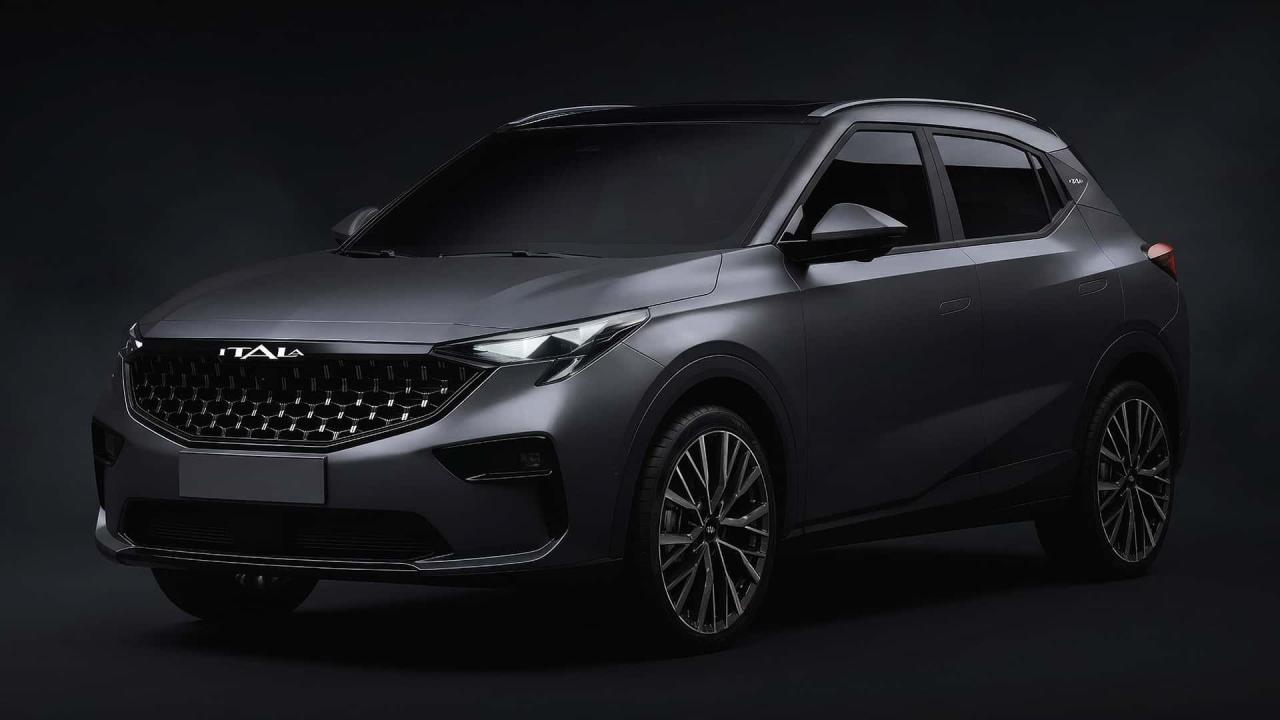
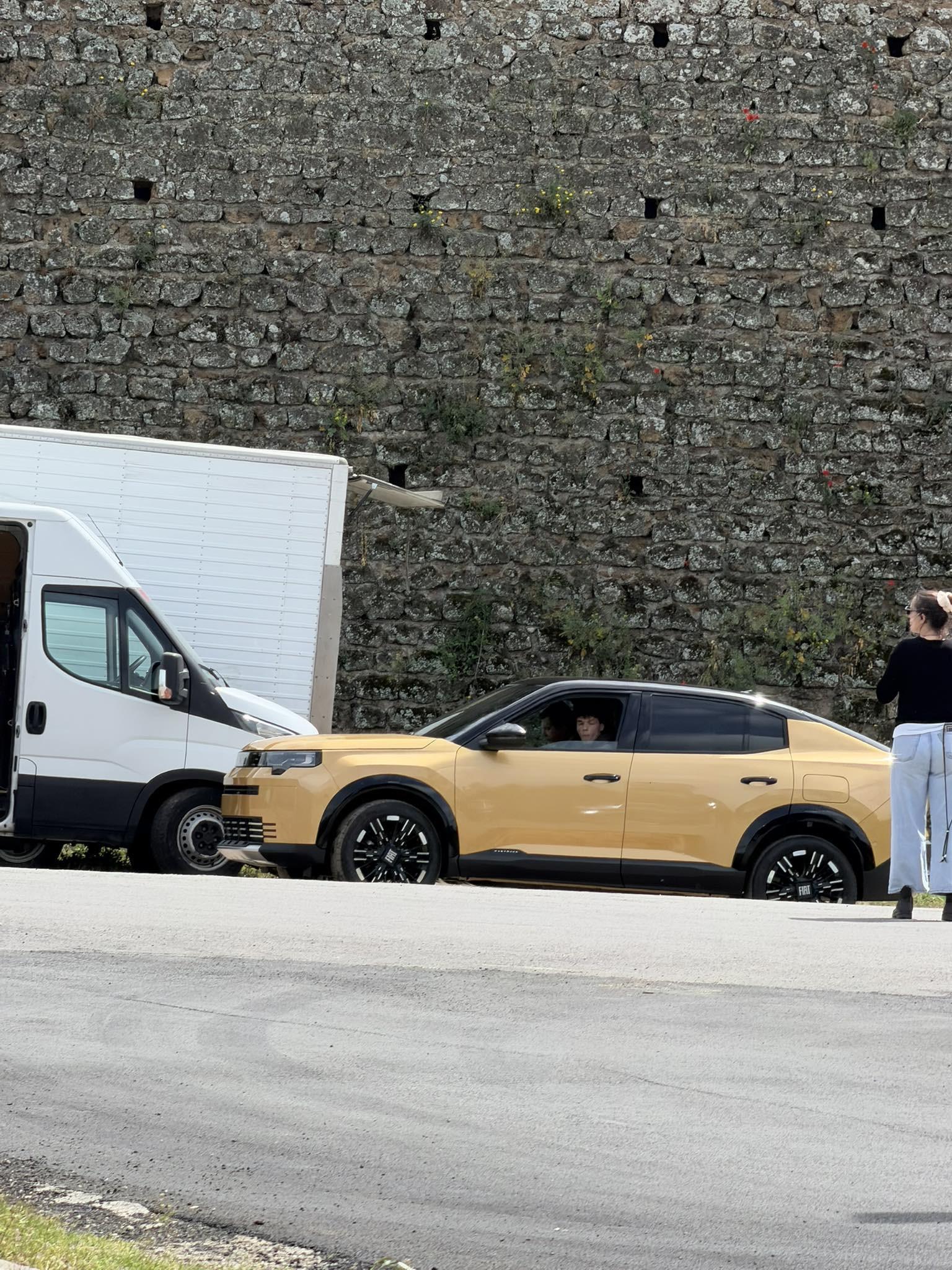
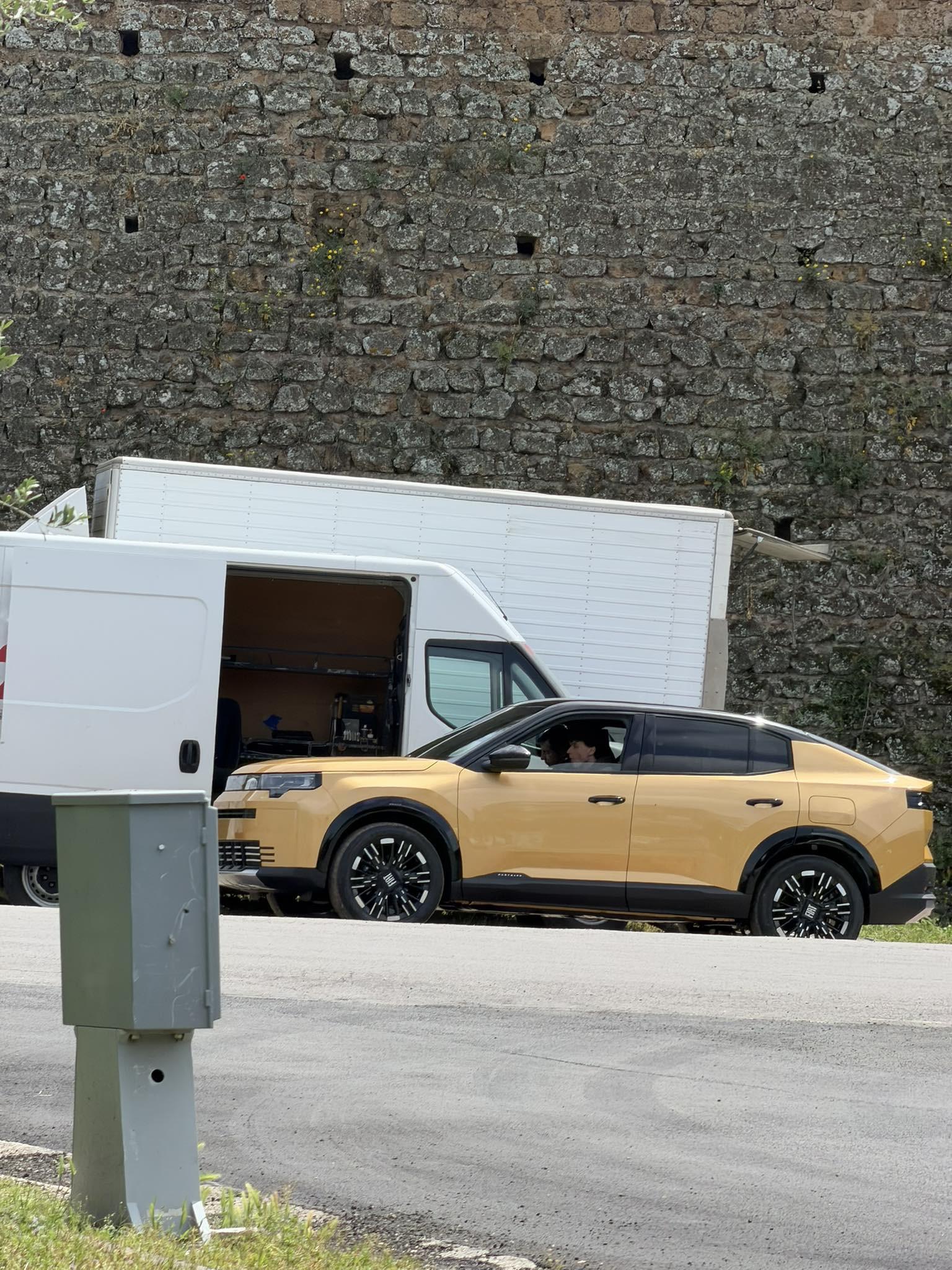
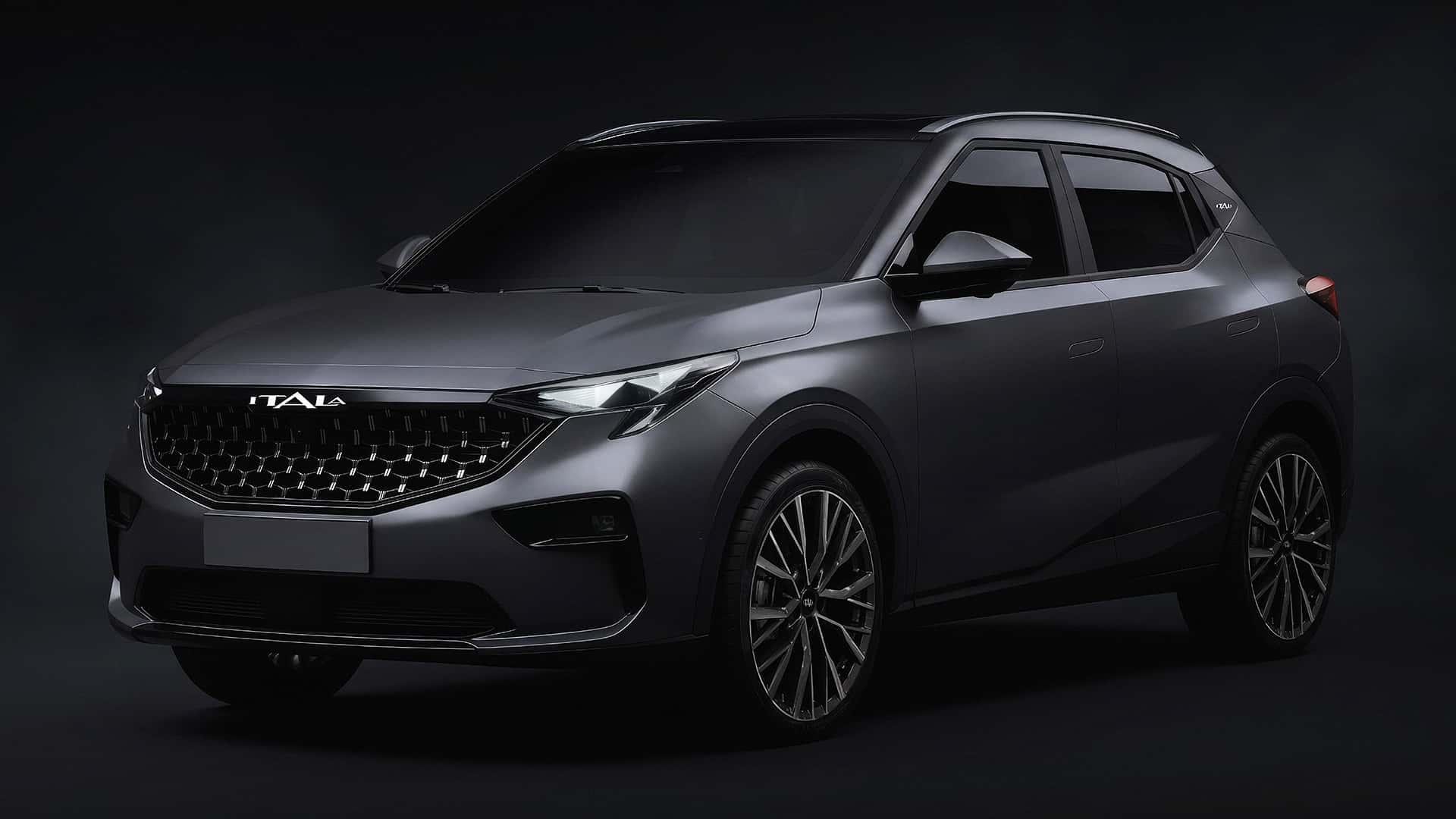
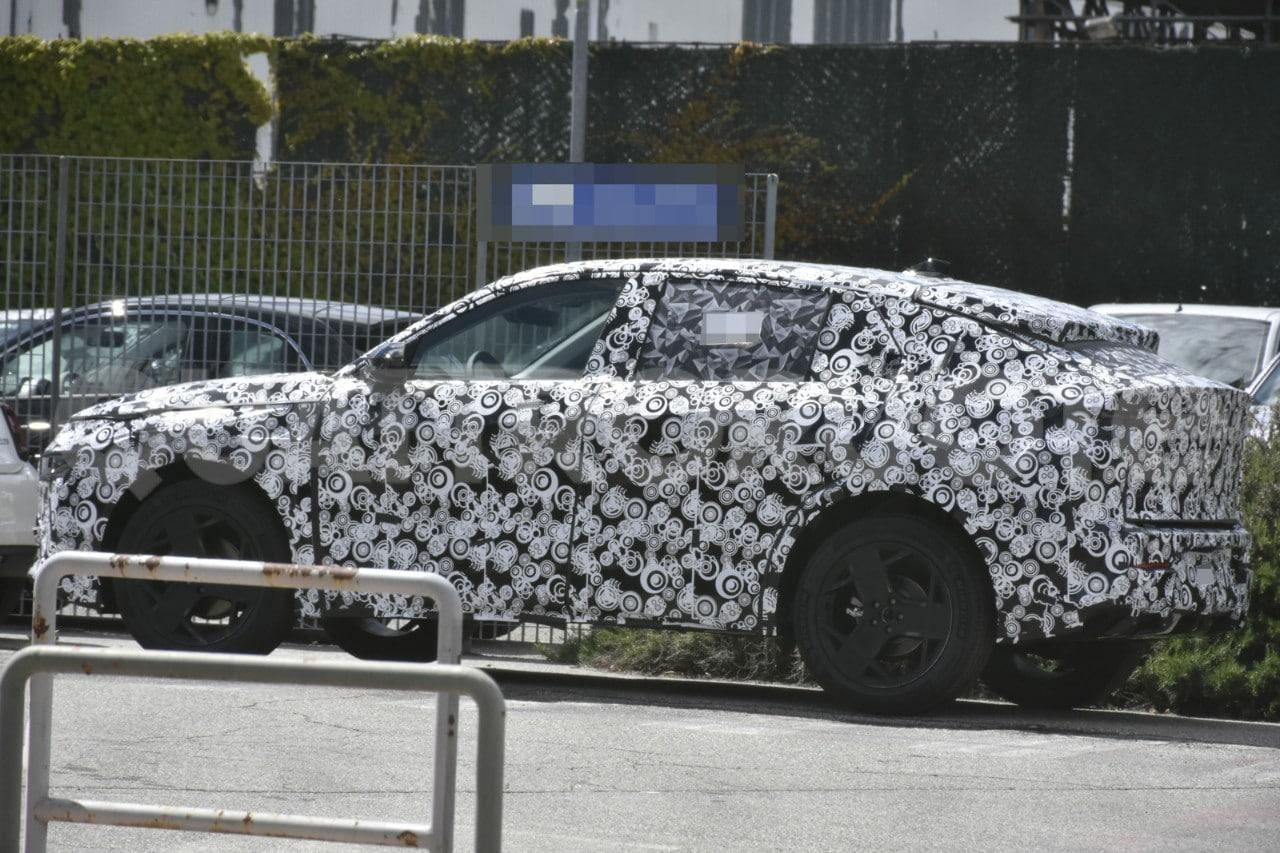
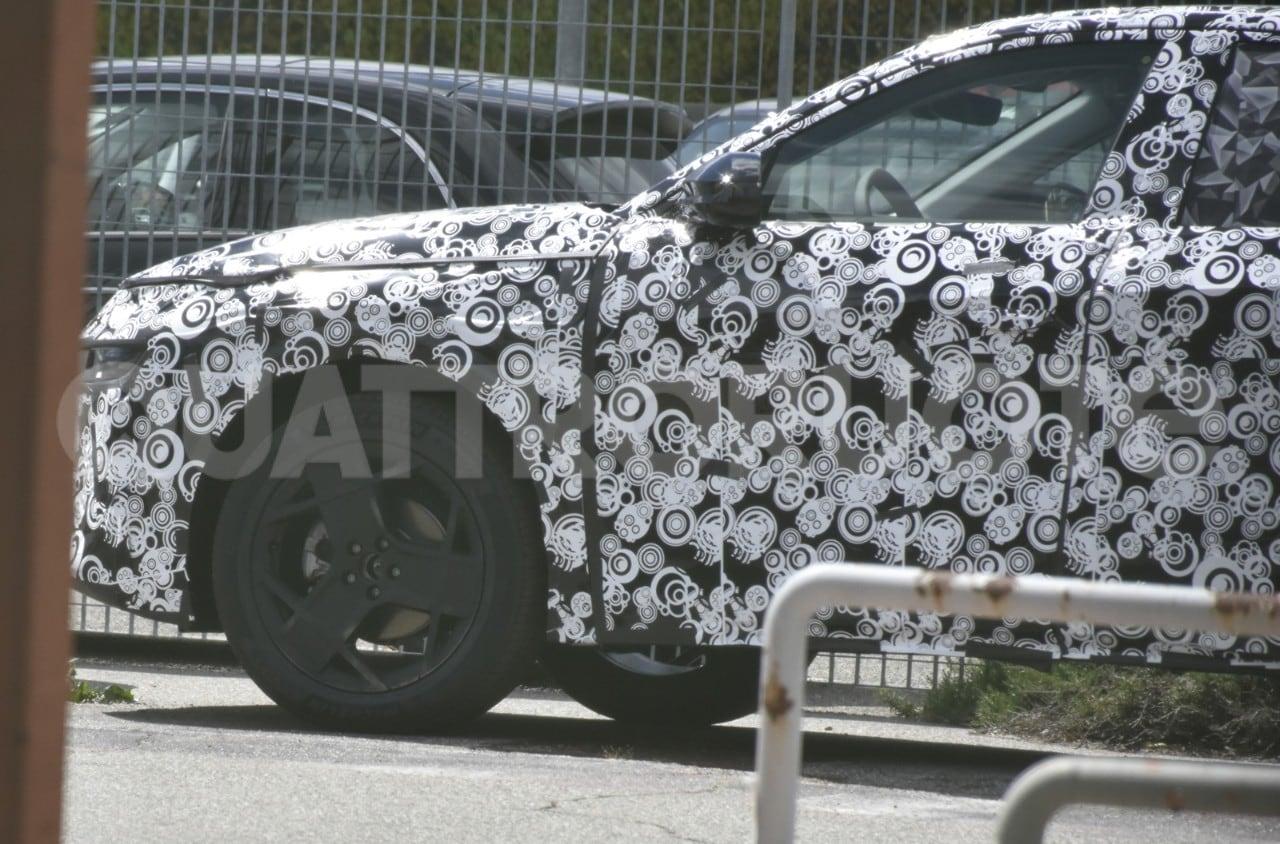
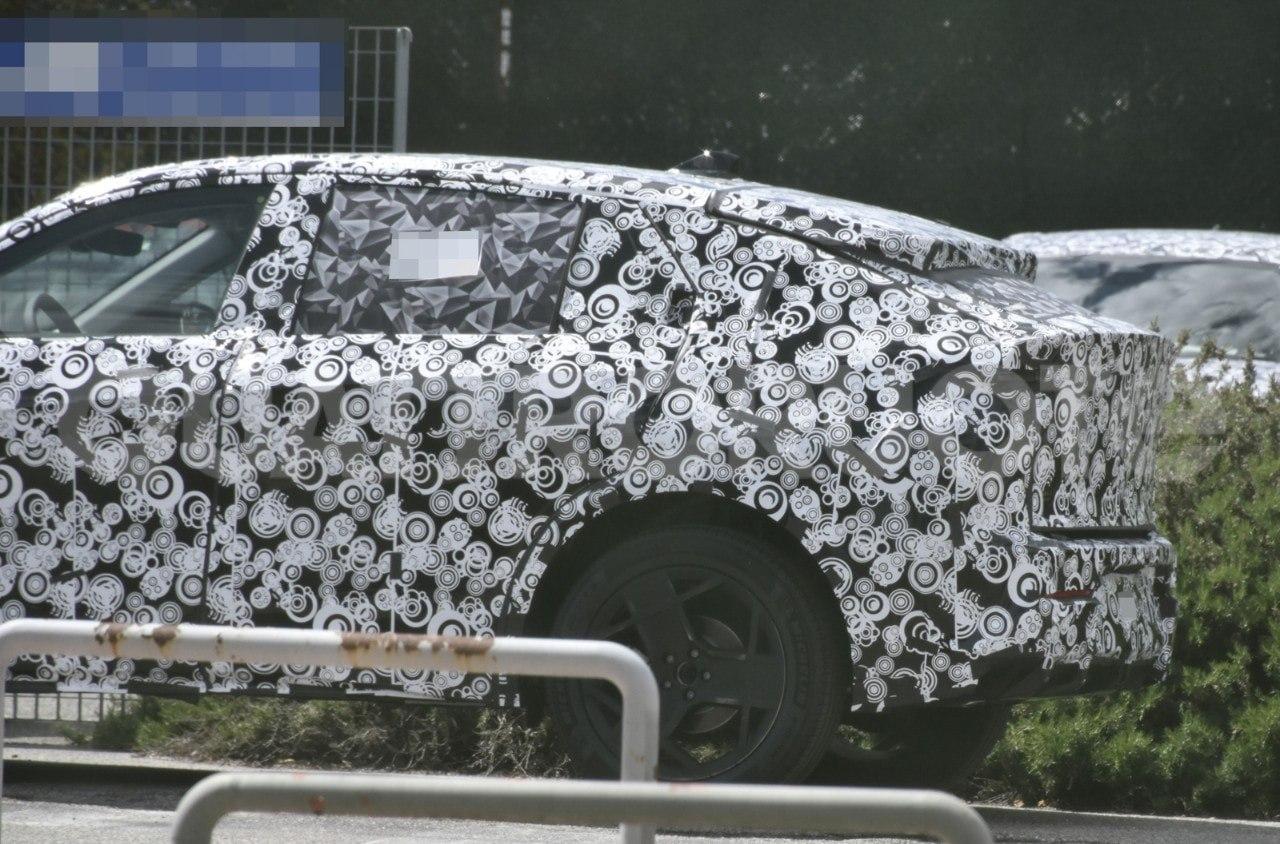
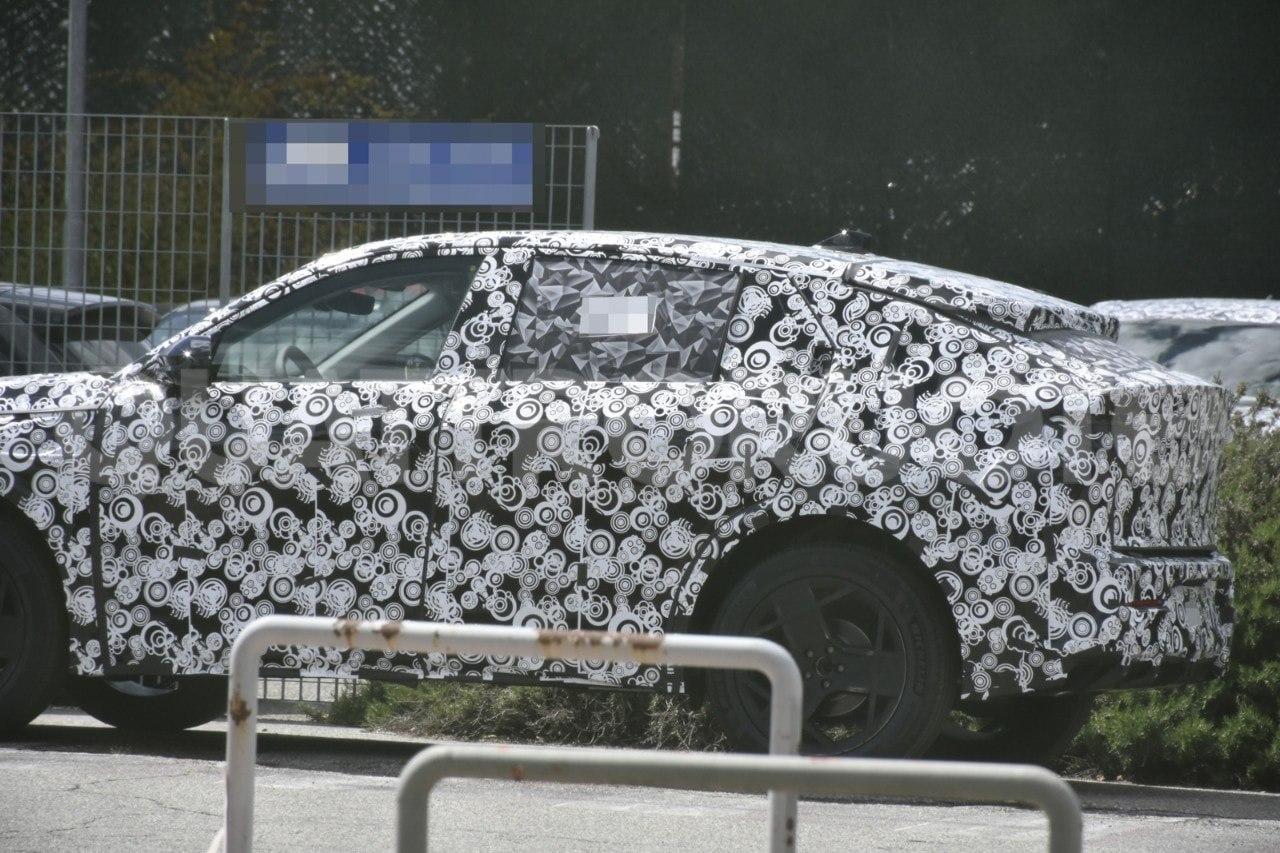
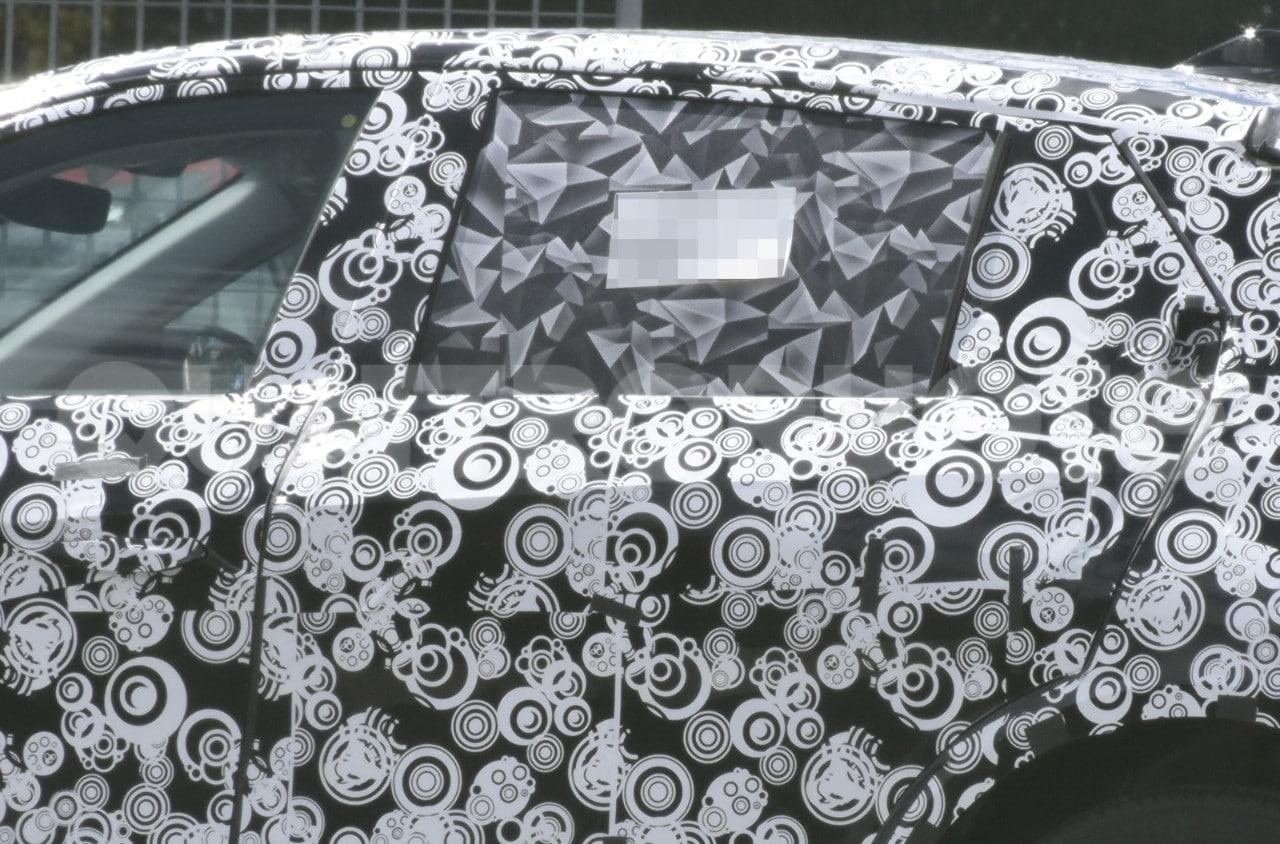
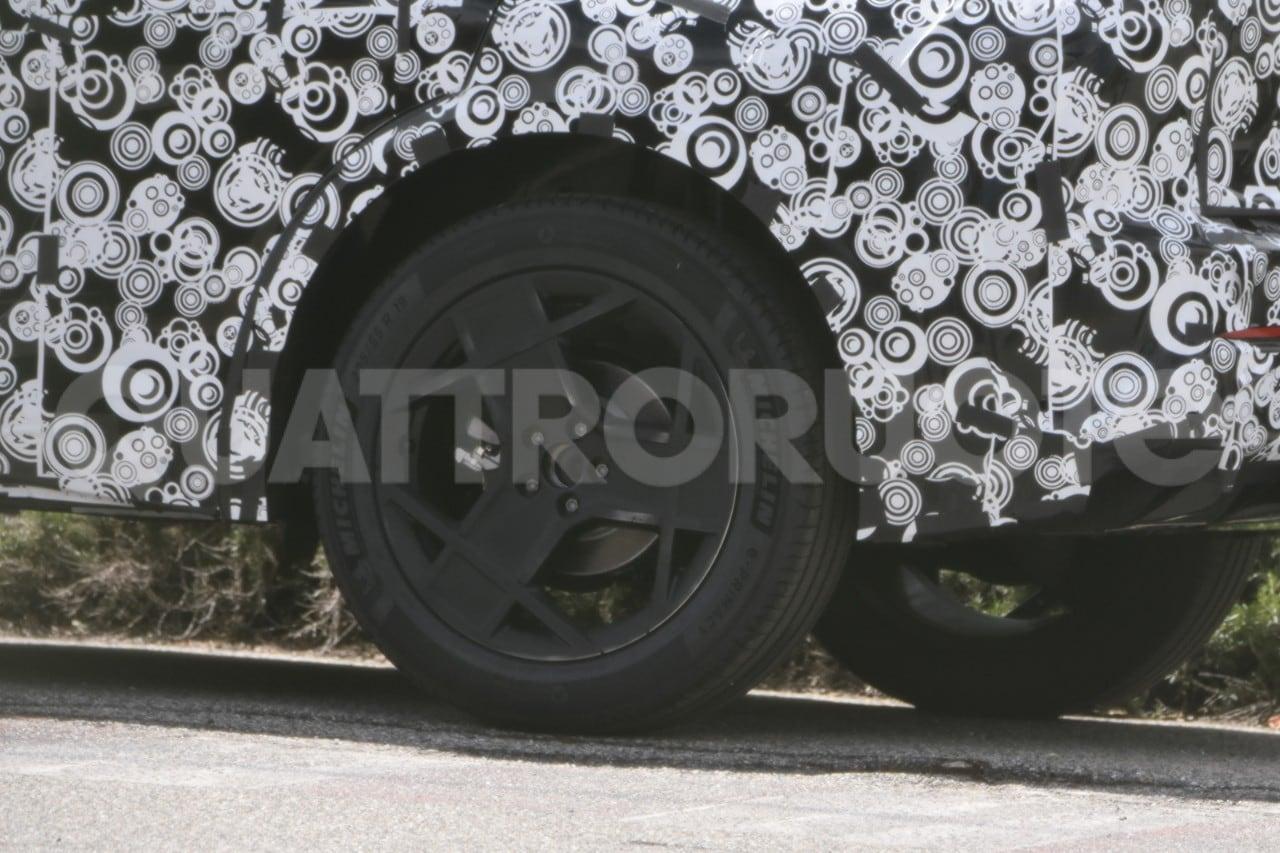
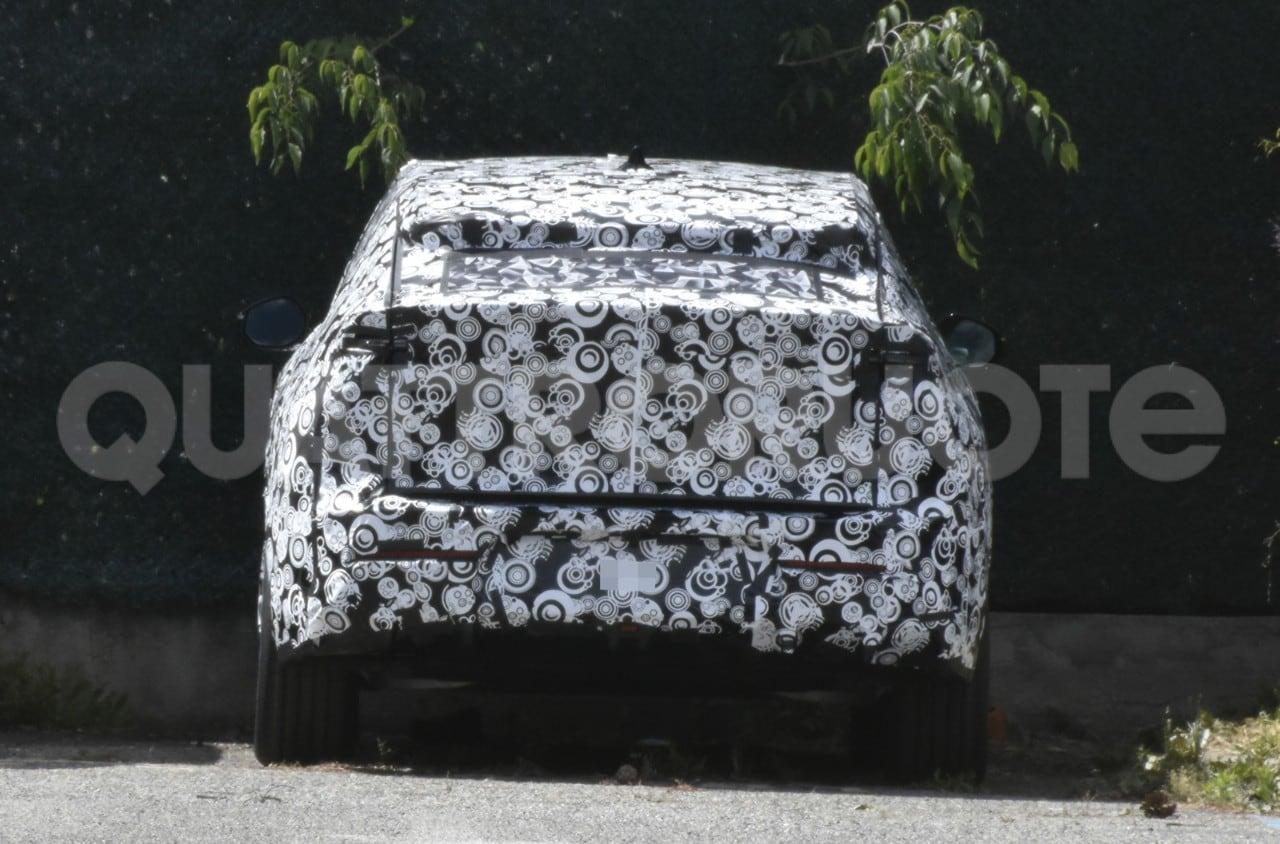
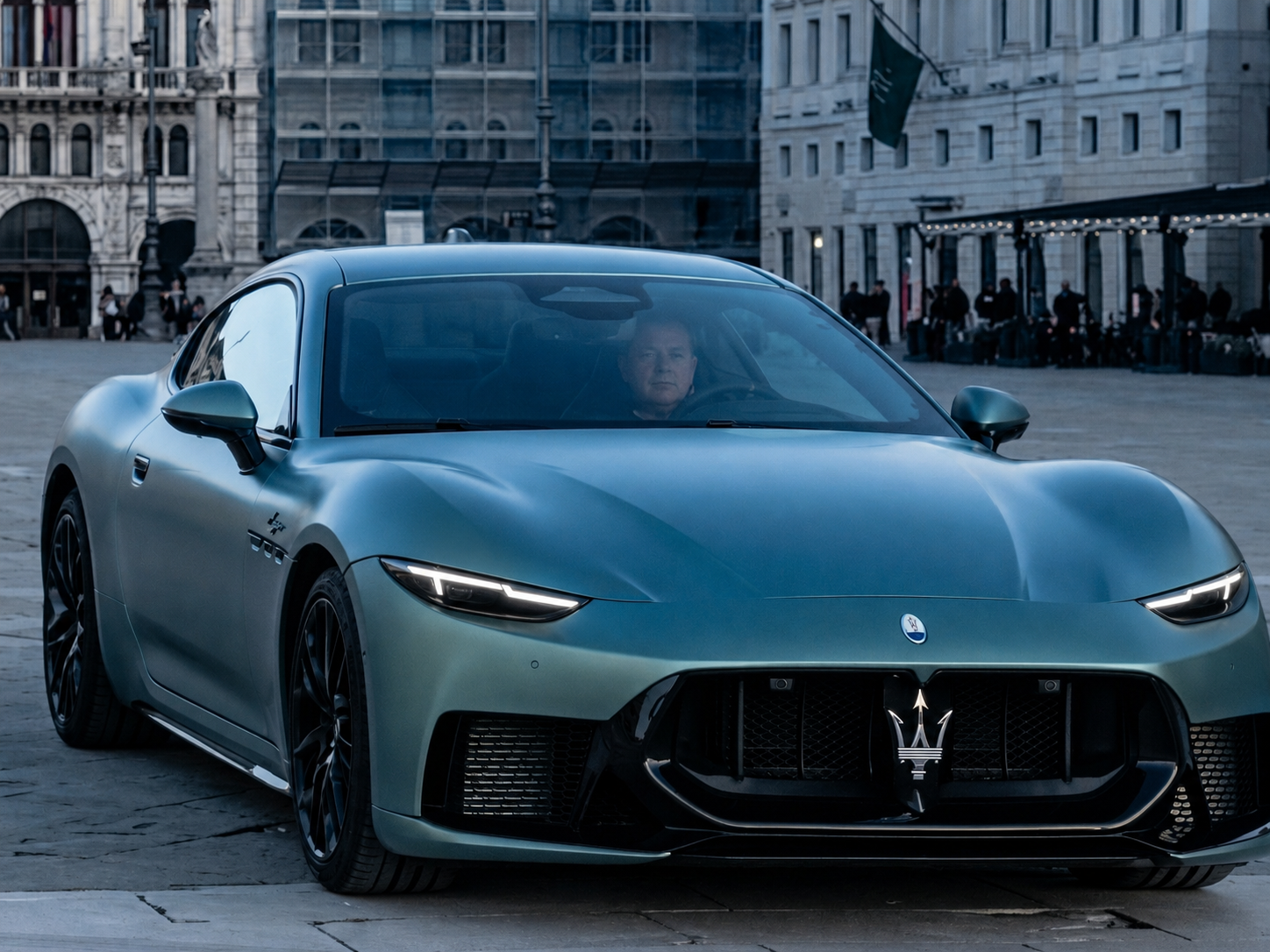
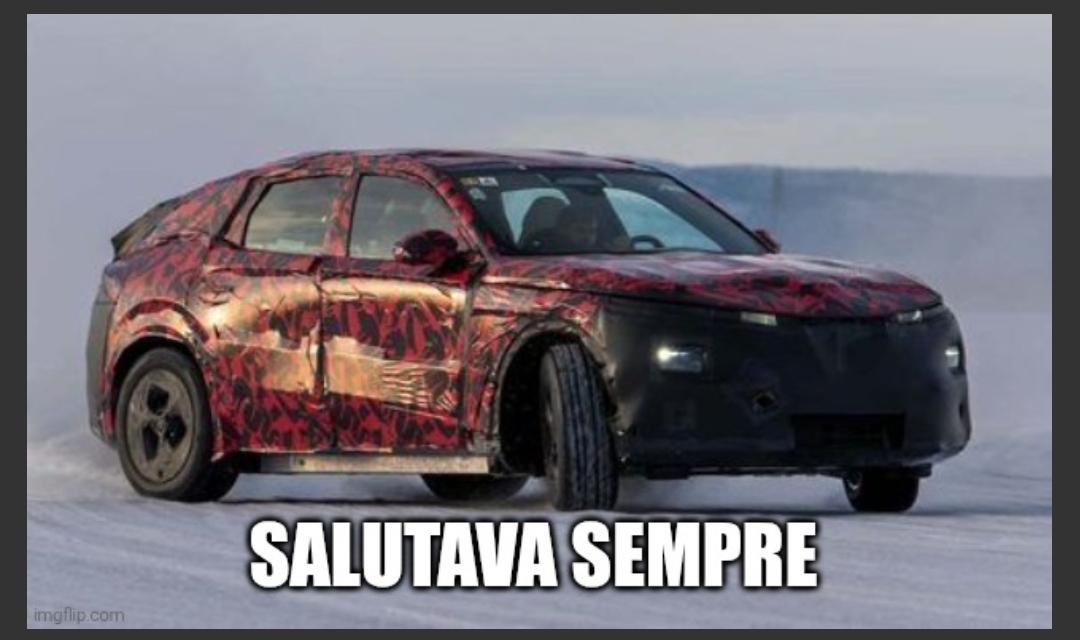
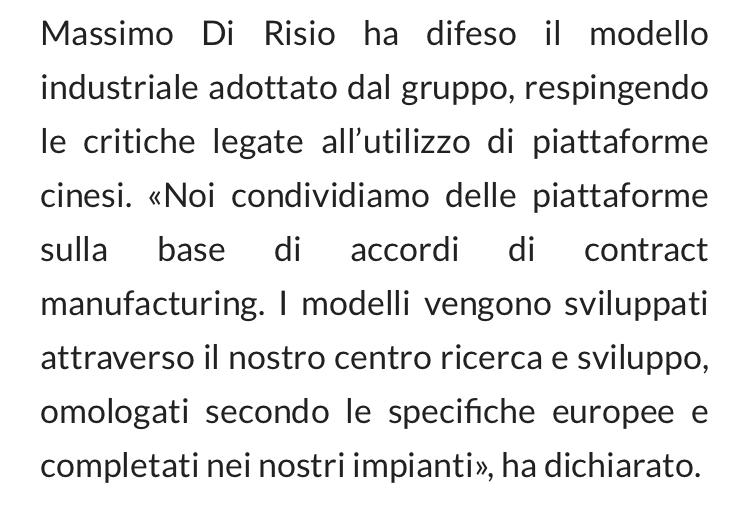
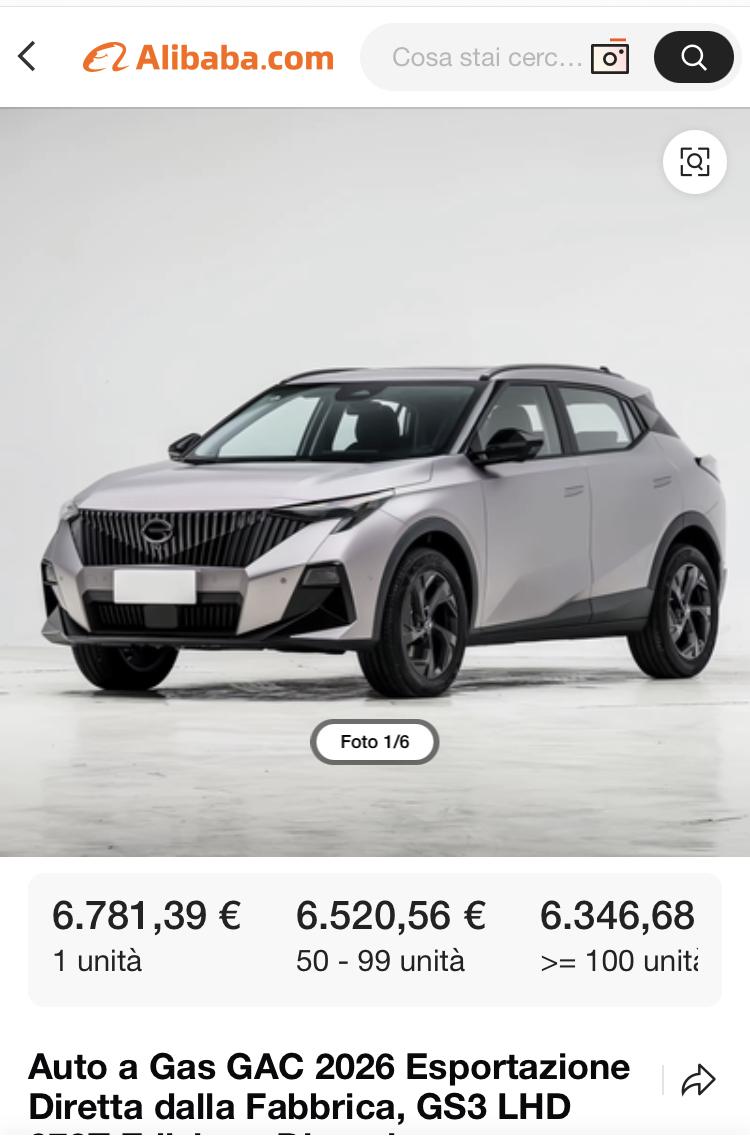
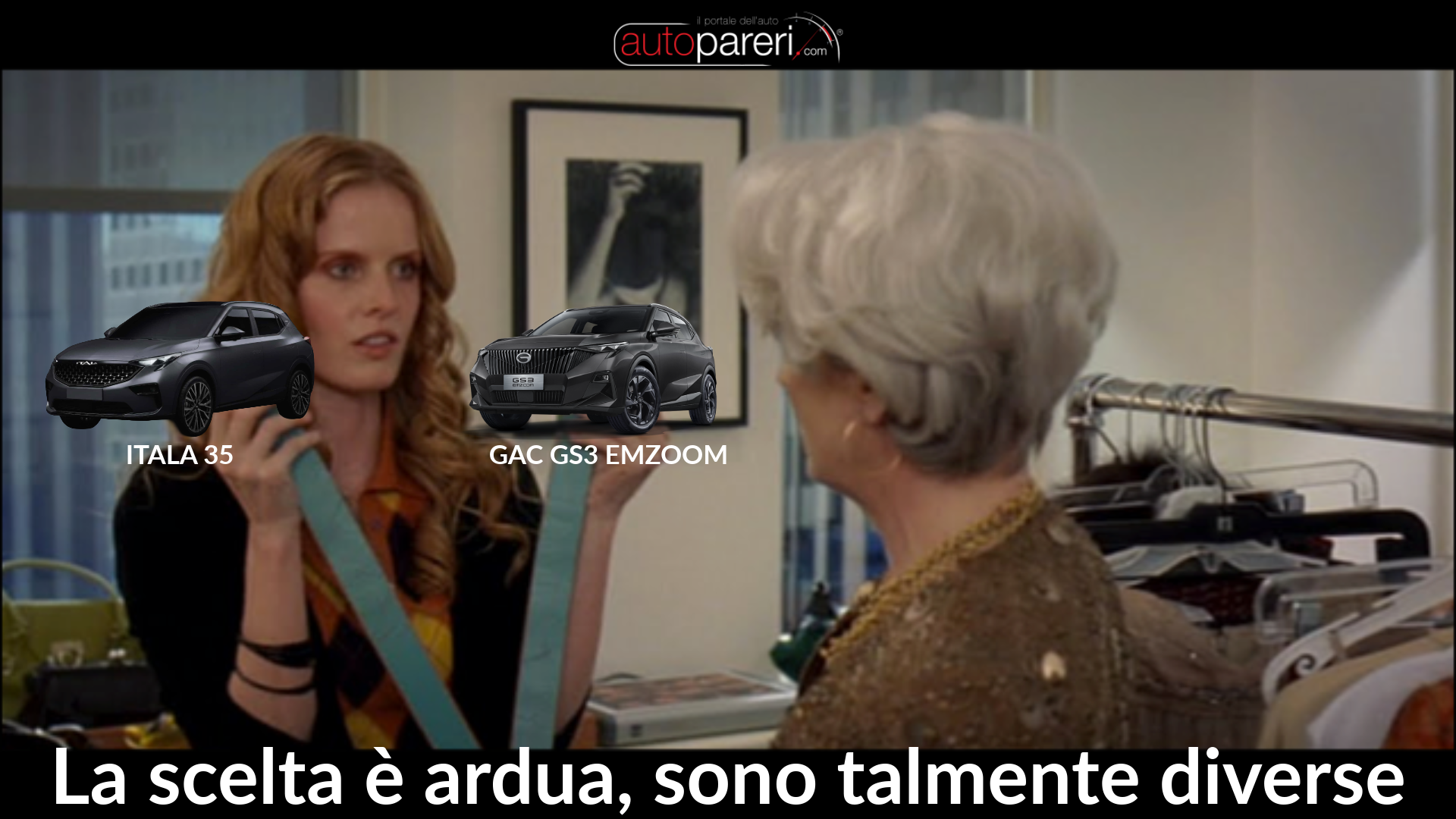
15 punti15 punti14 punti14 punti13 puntiOrimo modello del programma Historic Italian Brands, iniziativa guidata da Massimo Di Risio, fondatore di DR Automobiles Groupe, che si basa su una strategia industriale che combina piattaforme internazionali e sviluppo tecnico italiano e riguarderà anche il marchio OSCA. Le prime consegne partiranno da settembre 2026 e la vettura sarà assemblata nei nuovi impianti Fabbrica Italia in Molise. Il SUV lungo 4,41 metri e presenta anche dettagli in fibra di carbonio. Sotto il cofano della Itala 35 trova spazio un motore 1.5 TGDI turbo benzina sviluppato sulla base della piattaforma tecnica del costruttore cinese GAC, partner industriale scelto per il progetto. La potenza è di 170 CV, con 270 Nm di coppia massima, e le prestazioni parlano di una velocità massima superiore a 190 km/h e di uno scatto da 0 a 100 km/h in 7,5 secondi. Telaio e powertrain derivano dalla piattaforma condivisa, ma gran parte della messa a punto è stata sviluppata internamente dal team italiano guidato dall’ingegner Roberto Fedeli, manager che in passato ha lavorato con Ferrari, Maserati, Alfa Romeo e Aston Martin. Gli interventi hanno riguardato elettronica, infotainment, sospensioni e impianto frenante, con l’obiettivo di differenziare il comportamento dinamico della vettura rispetto al modello di derivazione. Prezzo di partenza fissato a 35.000 full optional
.thumb.jpg.c215ecafa75e4038cb628a5c0d68a6d9.jpg)
.thumb.jpg.4ec2a34397aebad1981da9c9a12933d5.jpg)
.thumb.jpg.4660857ced3dcb9af41c108c3422b21a.jpg)
.thumb.jpg.2b60ea3ab2e29b228312ae16ce9f08ee.jpg)
.thumb.jpg.a9c1881f57ddd8a122561bb9e39929d7.jpg)
.thumb.jpg.30e80101c989d32549955ce2a3b6ba51.jpg)
.thumb.jpg.1e8463404e9f85514c4d6f9bfa7e6ab3.jpg)
.thumb.jpg.bcf234ba0078d89a95cda5b28891a91e.jpg)
.thumb.jpg.185bdebf6d88ef7bf0cd8287e9e2f463.jpg)
.thumb.jpg.5f8eb8a821cfba2b278cee1ce1334245.jpg)
.thumb.jpg.045141b566b5a2da4e3038ef90e4a54d.jpg)
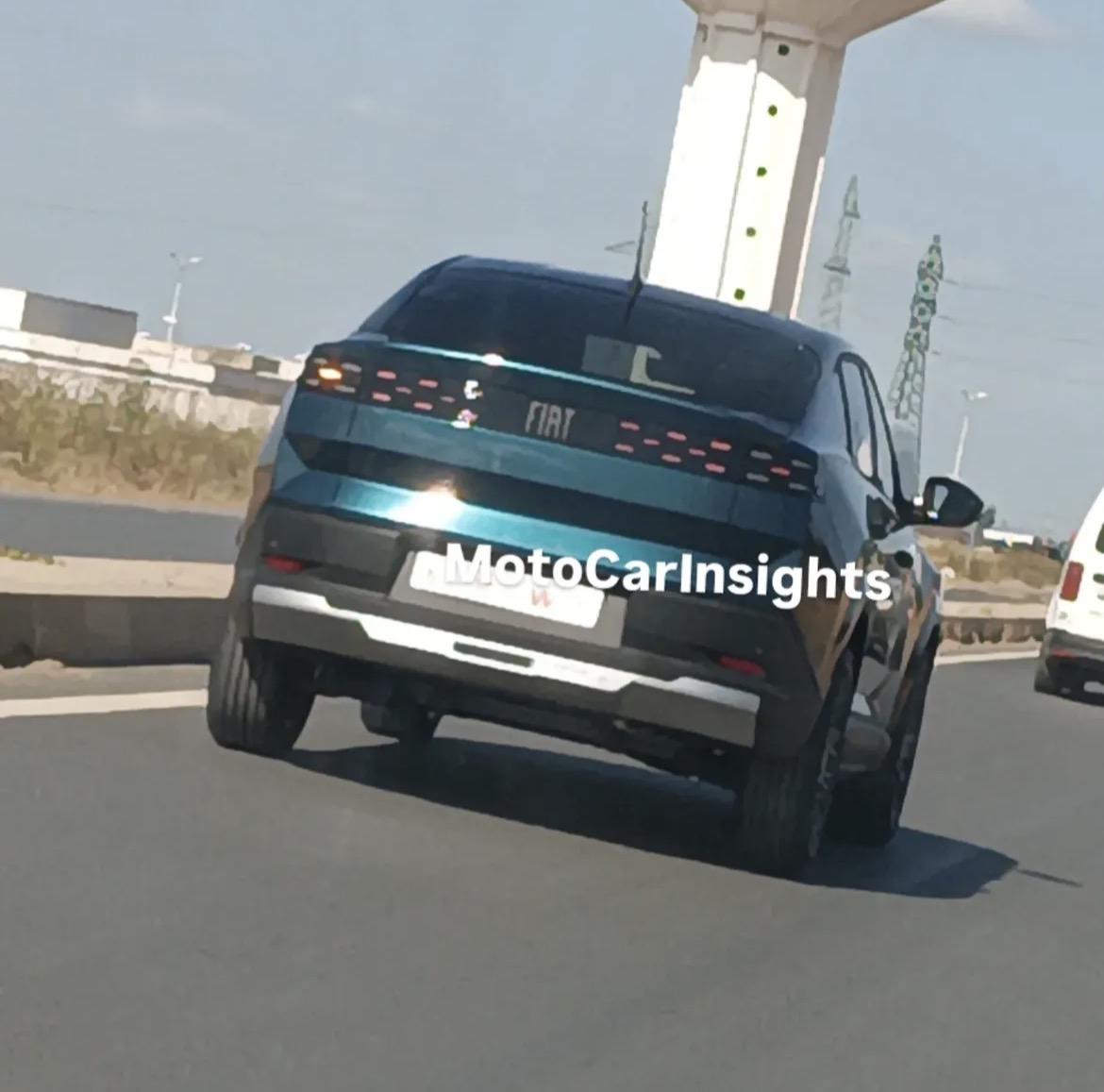
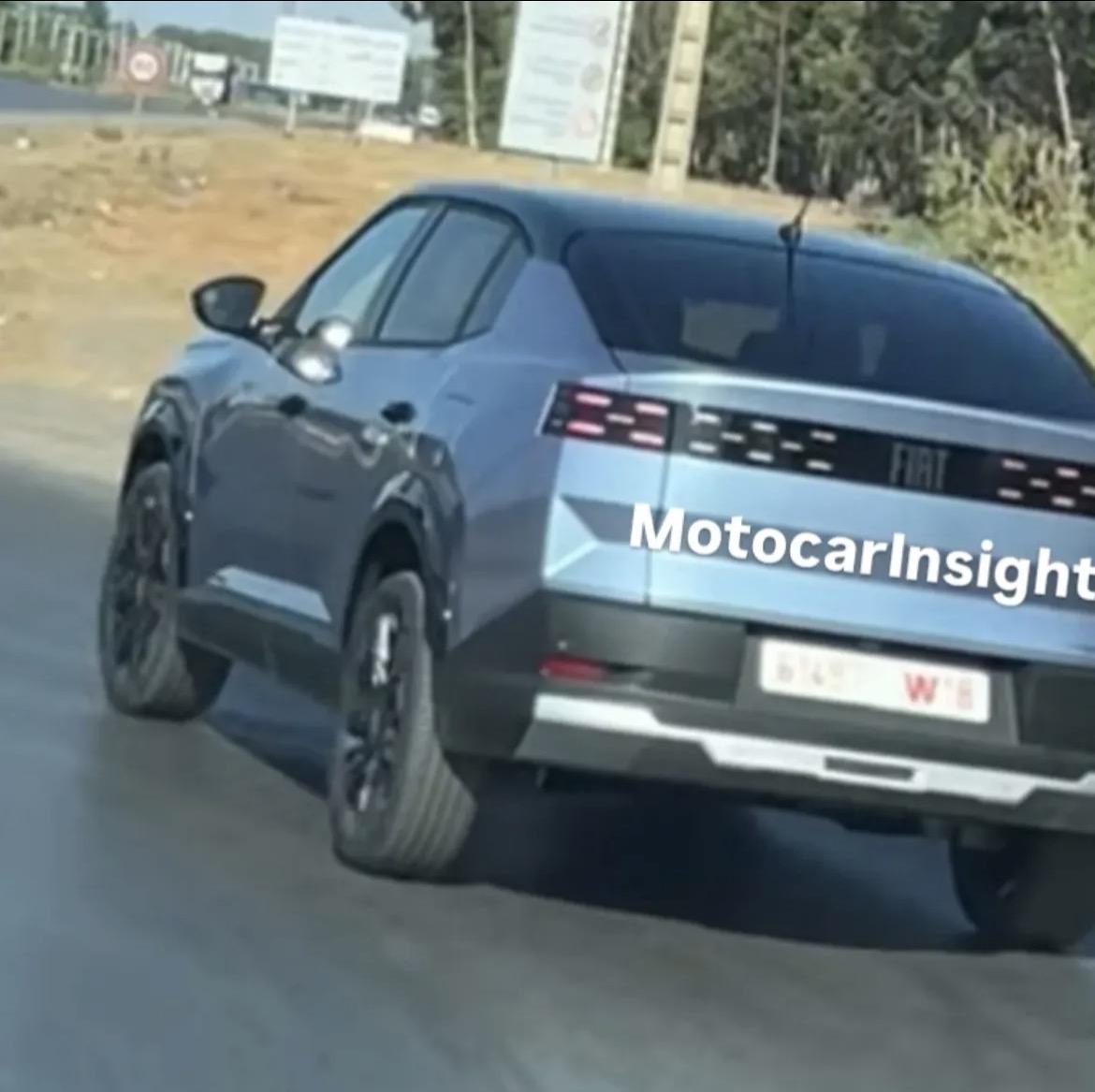
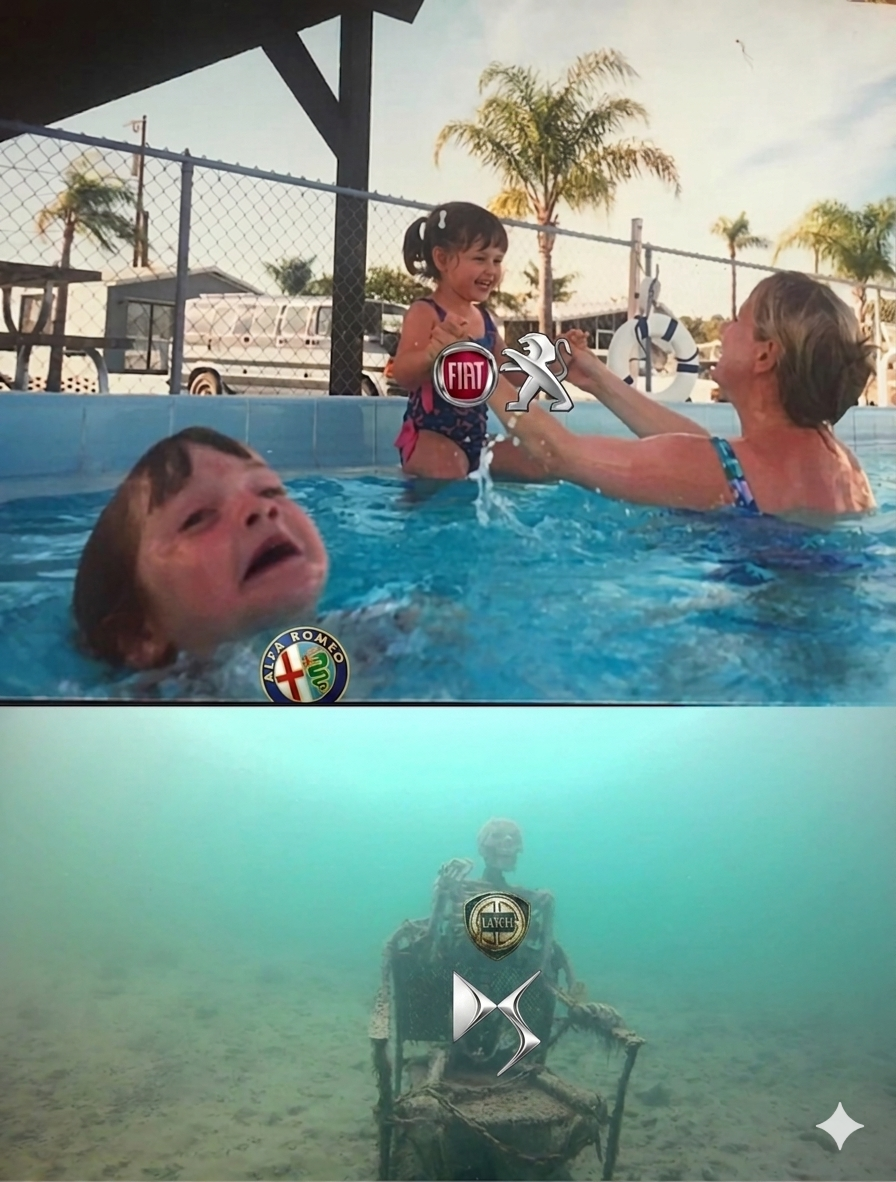
.thumb.jpg.5bf9a6752ce3b37a386085dba80134bc.jpg) 13 punti13 punti13 puntiDov'è chi pensava che avrebbero fatto una gran turismo artigianale? È imbarazzante13 punti12 punti12 puntiIHMO... il problema è che non stiamo capendo che l'evento di ieri non era una presentazione del prodotto, bensì un modo per spiegare agli investitori come intendono rendere redditizia l'attività. Uno dei punti era che intendono espandere la loro presenza sul mercato con nuovi lanci, più modelli e gamme più ampie; ci sono molte diapositive su questo argomento, fa parte della strategia. In quest'ottica, parlare di restyling o di ritocchi estetici avrebbe senso? Apporterebbe qualcosa agli investitori? Quello che è certo è che, sapendo il clamore mediatico che provocherebbero... dovrebbero prevedere di chiarire la situazione il prima possibile.12 punti12 puntiRiscontro positivo da parte degli utenti di AutoPareri: flop commerciale più totale!12 punti12 puntiÈ con oggi possiamo dire che ci siamo giocati Alfa Romeo. E gli sta bene. Hanno un gioiellino in mano e l'unico loro pensiero e puegotizzare tutto con quelle porcherie di Junior e nuova Tonale e il suo stramaledetto puretech. Scusate lo sfogo, ma mentre alla 24H del Nurburgring correvano M3 Touring (su base m4), Mercedes 190, la Dacia Logan, questi pensano a fare i render con l'IA di ammiocuggino. Ma vergogna!12 punti12 puntiDev'essere il nuovo modello Lancia ora che è stata messa sotto Fiat12 punti12 punti12 punti11 puntiOttimo, quindi mi sembra chiaro che Giulia e Stelvio avranno una nuova generazione, suppongo sempre su Giorgio Evo in quanto la STLA One viene indicata solo per modelli di seg. B e C per Alfa Romeo. Il resto è già noto, con la conferma che Tonale e C-Cross saranno due modelli distinti. Molto bene, un chiarimento necessario e dovuto dopo il disastro di ieri.11 punti11 puntiGente, questo non è il piano industriale. Questa è una presentazione agli azionisti. È pure fatta un po' a cappero....11 punti11 puntiUn bagno di sangue sono state Thesis, Stilo, pure 159. Non Giulia11 punti11 puntimy two cents New Tonale dovrebbe essere certa (girano già le RFQ ai fornitori) e non è riportata nella slide. Quindi (mode ottimista ON) nel piano si parla solo delle aggiunte rispetto alla line-up odierna, nulla si dice di restyling o rifacimento di modelli esistenti. secondo me ieri il messaggio principale che volevano lanciare era la ridefinizione delle priorità e l'allocazione (a grana grossa) del budget, non entrare nel dettaglio dei modelli per ogni marca. E credo anche che sia stato ampiamente voluto per non compromettersi con date che poi non vengono mai rispettate. Spero, ma appunto è solo una speranza, che anche per Alfa come per Maserati facciano un evento dedicato per spiegare cosa vogliono farci.11 punti11 punti11 punti11 puntiEscludo in maniera assoluta un rimarchiamemto di questo tipo, i modelli Itala saranno inediti, costruiti da cinesi ma inediti, non saranno repliche di modelli cinesi.11 punti10 puntiMa tu, da giornalista, come fai a dire "ingegnerizzato in Italia"? Ma cosa hanno ingegnerizzato? La griglia? Ormai l'automotive mainstream è veramente una latrina10 puntiBasta paragonare queste Gaz alle Lexus vi prego, o Akio Toyoda se gli prendono i 5 minuti butta giù tutto il forum a sfregio…10 punti10 punti9 punti9 puntima scusate la slide Alfa non era uguale alle altre in cui si menzionava la gamma attuale, i modelli extra in arrivo e nessuna specifica sui rinnovi degli esistenti? Non ho capito perché il panico è scoppiato su Alfa ma non sugli altri marchi sinceramente.9 punti9 puntiragazzi l'italiano ehm l'inglese parla chiaro: planned to add a che cosa? alla current line up, niente altro. quindi ci saranno, FORSE e non ci scommetterei, un c suv e una bottega fuoriserie, che sarà un qualche pastrocchiamento della 33. non mettetevi le fette di salame sugli occhi da soli.9 punti9 puntiSono slide fatte malissimo, volevano intendere che Lancia sarà comandata da Fiat e Ds da Citroen, non che siano globali. Tutt'altro.9 puntiPraticamente ciò che sono MQB e TNGA, ma se lo fa STLA sono dei coglioni9 puntiTaurus l'avranno arrestato per insider trading per quello non scrive più. 😆9 punti9 puntilo sbiancamento del didietro (inteso come togliere il rosso dai fanali) è una roba che sa talmente di povero come intervento che forse mi infastidisce più del frontale non riuscito (gli do' ancora il beneficio del dubbio di vederla in foto migliori...)9 punti9 punti9 punti9 puntinon capisco perché il consumatore dovrebbe comprare una auto cinese rimarchiata, quando i produttori cinesi iniziano ad avere concessionaire, rete commerciale, magazzini ricambi ecc ecc (esempio OmodaJaecoo / MG) e sono anche più belline e tecnologiche. boh9 punti9 puntiOra, un momento... Bella, non si può proprio leggere. Passabile, visto quello che c'è in giro... va bene8 punti8 puntiThey have not. That's just your interpretation. In reality they have just shown a presentation slide of the planned range expansion. Same for Maserati. I don't know why some think it shows all upcoming launches. "More to come". Do you think the industry info about new Tonale in Melfi, insider info about new Giulia/Stelvio and recent official interviews were fake news? This was not a brand presentation for car enthusiasts, it was a company presentation for investors. I hope we'll get an Alfa Romeo presentation or deep interview with Santo Ficili soon.8 punti8 puntiChe indegna fine!! Sono sempre più convinto che l'ultima speranza di rinascita di questo marchio sia morta insieme a Marchionne! L'unico che ci è davvero in parte riuscito, quanto è maledetto il fato.... Fatto sta che se nel 2022 avessero messo in commercio le Giulia e Stelvio MildHybrid 48v visto che sono esistite ed andavano benone e con un investimento esiguo, visto l'utilizzo della Giorgo EVO e del MildHybrid di Grecale e non avessero spogliato questi due modelli di ogni personalizzazione manco la Marbella, magari qualche bel numero in più la avrebbero fatto invece no sono andati avanti con i rimasugli, le unità prodotte MildHybrid le hanno pressante con la scusa che "snaturavano" il comportamento dinamico delle vetture( perché i 15 LT di serbatoio Adblue sulla mia MY19 non presente sulle prime prodotte non è peso in più vero ? E le Grecale con MildHybrid sì ribaltano no?) hanno tirato fuori quel tombino di Junior e stavano tirando fuori anche quel cassonetto di nuovo Stelvio, che ringraziando il signore c'è lo siamo evitato visto che faceva "v*mitare" Visto gli investimenti zero, l assoluta mancanza di cura dei prodotti premium e validissimi che hai in gamma (GIULIA/STELVIO), che anzi cerchi di affossare, con un prodotto (TONALE) con buone qualità che però è motorizzato a metà e cerchi anche lui di affossare perché te lo sei ritrovato in mezzo alle balle e non è il solito pegettume con cui fare economia, il tombino di Junior e la malsana idea di NEW STELVIO dove hai speso fior di soldi per progettarlo e per l' industrializzazione dove chiunque ti gridava che era una gran c*gata di macchina (Ergo gente che conosco intorno a Cassino ha visto i primi esemplari prodotti di New Stelvio, affianco all'attuale Stelvio la risposta unanime dagli operai in primis è stata "ma che è sto c*sso? " Fatto sta che da li a poco hanno smantellato le linee prese le varie scocche preproduzione/ esemplari prodotti caricati con i ragni e fatti sparire) però invece di ascoltare il mondo intero perché poi quando uscirono i brevetti di design si scatenò il putiferio hanno voluto buttare una marea di soldi che magari potevano portare ad un profondo restyling di Giulia e Stelvio come faranno in BMW con G20. Al netto di tutto cioè che si aspettavano? Un guadagno da questa strategia terrificante? In fondo mi viene da dire che negli sta bene se lo meritano, mi dispiace per la indotto (che tanto già non esiste più grazie alla piaga bubbonica di PSA) e per gli operai!8 punti8 punti8 punti8 puntiè sempre stato così.. le macchine si disegnano su una base tecnica (più o meno "buona") e le linee non sono solo l'idea iniziale di stile, ma il giusto bilanciamento dei volumi, anche attraverso questi "trucchetti"8 puntiMi hanno buttato in mezzo ai Cavallini e ne sono uscito tecnico delle Luci…8 puntiLa Leaderboard è riferita all'orario Roma/GMT+02:00
13 punti13 punti13 puntiDov'è chi pensava che avrebbero fatto una gran turismo artigianale? È imbarazzante13 punti12 punti12 puntiIHMO... il problema è che non stiamo capendo che l'evento di ieri non era una presentazione del prodotto, bensì un modo per spiegare agli investitori come intendono rendere redditizia l'attività. Uno dei punti era che intendono espandere la loro presenza sul mercato con nuovi lanci, più modelli e gamme più ampie; ci sono molte diapositive su questo argomento, fa parte della strategia. In quest'ottica, parlare di restyling o di ritocchi estetici avrebbe senso? Apporterebbe qualcosa agli investitori? Quello che è certo è che, sapendo il clamore mediatico che provocherebbero... dovrebbero prevedere di chiarire la situazione il prima possibile.12 punti12 puntiRiscontro positivo da parte degli utenti di AutoPareri: flop commerciale più totale!12 punti12 puntiÈ con oggi possiamo dire che ci siamo giocati Alfa Romeo. E gli sta bene. Hanno un gioiellino in mano e l'unico loro pensiero e puegotizzare tutto con quelle porcherie di Junior e nuova Tonale e il suo stramaledetto puretech. Scusate lo sfogo, ma mentre alla 24H del Nurburgring correvano M3 Touring (su base m4), Mercedes 190, la Dacia Logan, questi pensano a fare i render con l'IA di ammiocuggino. Ma vergogna!12 punti12 puntiDev'essere il nuovo modello Lancia ora che è stata messa sotto Fiat12 punti12 punti12 punti11 puntiOttimo, quindi mi sembra chiaro che Giulia e Stelvio avranno una nuova generazione, suppongo sempre su Giorgio Evo in quanto la STLA One viene indicata solo per modelli di seg. B e C per Alfa Romeo. Il resto è già noto, con la conferma che Tonale e C-Cross saranno due modelli distinti. Molto bene, un chiarimento necessario e dovuto dopo il disastro di ieri.11 punti11 puntiGente, questo non è il piano industriale. Questa è una presentazione agli azionisti. È pure fatta un po' a cappero....11 punti11 puntiUn bagno di sangue sono state Thesis, Stilo, pure 159. Non Giulia11 punti11 puntimy two cents New Tonale dovrebbe essere certa (girano già le RFQ ai fornitori) e non è riportata nella slide. Quindi (mode ottimista ON) nel piano si parla solo delle aggiunte rispetto alla line-up odierna, nulla si dice di restyling o rifacimento di modelli esistenti. secondo me ieri il messaggio principale che volevano lanciare era la ridefinizione delle priorità e l'allocazione (a grana grossa) del budget, non entrare nel dettaglio dei modelli per ogni marca. E credo anche che sia stato ampiamente voluto per non compromettersi con date che poi non vengono mai rispettate. Spero, ma appunto è solo una speranza, che anche per Alfa come per Maserati facciano un evento dedicato per spiegare cosa vogliono farci.11 punti11 punti11 punti11 puntiEscludo in maniera assoluta un rimarchiamemto di questo tipo, i modelli Itala saranno inediti, costruiti da cinesi ma inediti, non saranno repliche di modelli cinesi.11 punti10 puntiMa tu, da giornalista, come fai a dire "ingegnerizzato in Italia"? Ma cosa hanno ingegnerizzato? La griglia? Ormai l'automotive mainstream è veramente una latrina10 puntiBasta paragonare queste Gaz alle Lexus vi prego, o Akio Toyoda se gli prendono i 5 minuti butta giù tutto il forum a sfregio…10 punti10 punti9 punti9 puntima scusate la slide Alfa non era uguale alle altre in cui si menzionava la gamma attuale, i modelli extra in arrivo e nessuna specifica sui rinnovi degli esistenti? Non ho capito perché il panico è scoppiato su Alfa ma non sugli altri marchi sinceramente.9 punti9 puntiragazzi l'italiano ehm l'inglese parla chiaro: planned to add a che cosa? alla current line up, niente altro. quindi ci saranno, FORSE e non ci scommetterei, un c suv e una bottega fuoriserie, che sarà un qualche pastrocchiamento della 33. non mettetevi le fette di salame sugli occhi da soli.9 punti9 puntiSono slide fatte malissimo, volevano intendere che Lancia sarà comandata da Fiat e Ds da Citroen, non che siano globali. Tutt'altro.9 puntiPraticamente ciò che sono MQB e TNGA, ma se lo fa STLA sono dei coglioni9 puntiTaurus l'avranno arrestato per insider trading per quello non scrive più. 😆9 punti9 puntilo sbiancamento del didietro (inteso come togliere il rosso dai fanali) è una roba che sa talmente di povero come intervento che forse mi infastidisce più del frontale non riuscito (gli do' ancora il beneficio del dubbio di vederla in foto migliori...)9 punti9 punti9 punti9 puntinon capisco perché il consumatore dovrebbe comprare una auto cinese rimarchiata, quando i produttori cinesi iniziano ad avere concessionaire, rete commerciale, magazzini ricambi ecc ecc (esempio OmodaJaecoo / MG) e sono anche più belline e tecnologiche. boh9 punti9 puntiOra, un momento... Bella, non si può proprio leggere. Passabile, visto quello che c'è in giro... va bene8 punti8 puntiThey have not. That's just your interpretation. In reality they have just shown a presentation slide of the planned range expansion. Same for Maserati. I don't know why some think it shows all upcoming launches. "More to come". Do you think the industry info about new Tonale in Melfi, insider info about new Giulia/Stelvio and recent official interviews were fake news? This was not a brand presentation for car enthusiasts, it was a company presentation for investors. I hope we'll get an Alfa Romeo presentation or deep interview with Santo Ficili soon.8 punti8 puntiChe indegna fine!! Sono sempre più convinto che l'ultima speranza di rinascita di questo marchio sia morta insieme a Marchionne! L'unico che ci è davvero in parte riuscito, quanto è maledetto il fato.... Fatto sta che se nel 2022 avessero messo in commercio le Giulia e Stelvio MildHybrid 48v visto che sono esistite ed andavano benone e con un investimento esiguo, visto l'utilizzo della Giorgo EVO e del MildHybrid di Grecale e non avessero spogliato questi due modelli di ogni personalizzazione manco la Marbella, magari qualche bel numero in più la avrebbero fatto invece no sono andati avanti con i rimasugli, le unità prodotte MildHybrid le hanno pressante con la scusa che "snaturavano" il comportamento dinamico delle vetture( perché i 15 LT di serbatoio Adblue sulla mia MY19 non presente sulle prime prodotte non è peso in più vero ? E le Grecale con MildHybrid sì ribaltano no?) hanno tirato fuori quel tombino di Junior e stavano tirando fuori anche quel cassonetto di nuovo Stelvio, che ringraziando il signore c'è lo siamo evitato visto che faceva "v*mitare" Visto gli investimenti zero, l assoluta mancanza di cura dei prodotti premium e validissimi che hai in gamma (GIULIA/STELVIO), che anzi cerchi di affossare, con un prodotto (TONALE) con buone qualità che però è motorizzato a metà e cerchi anche lui di affossare perché te lo sei ritrovato in mezzo alle balle e non è il solito pegettume con cui fare economia, il tombino di Junior e la malsana idea di NEW STELVIO dove hai speso fior di soldi per progettarlo e per l' industrializzazione dove chiunque ti gridava che era una gran c*gata di macchina (Ergo gente che conosco intorno a Cassino ha visto i primi esemplari prodotti di New Stelvio, affianco all'attuale Stelvio la risposta unanime dagli operai in primis è stata "ma che è sto c*sso? " Fatto sta che da li a poco hanno smantellato le linee prese le varie scocche preproduzione/ esemplari prodotti caricati con i ragni e fatti sparire) però invece di ascoltare il mondo intero perché poi quando uscirono i brevetti di design si scatenò il putiferio hanno voluto buttare una marea di soldi che magari potevano portare ad un profondo restyling di Giulia e Stelvio come faranno in BMW con G20. Al netto di tutto cioè che si aspettavano? Un guadagno da questa strategia terrificante? In fondo mi viene da dire che negli sta bene se lo meritano, mi dispiace per la indotto (che tanto già non esiste più grazie alla piaga bubbonica di PSA) e per gli operai!8 punti8 punti8 punti8 puntiè sempre stato così.. le macchine si disegnano su una base tecnica (più o meno "buona") e le linee non sono solo l'idea iniziale di stile, ma il giusto bilanciamento dei volumi, anche attraverso questi "trucchetti"8 puntiMi hanno buttato in mezzo ai Cavallini e ne sono uscito tecnico delle Luci…8 puntiLa Leaderboard è riferita all'orario Roma/GMT+02:00

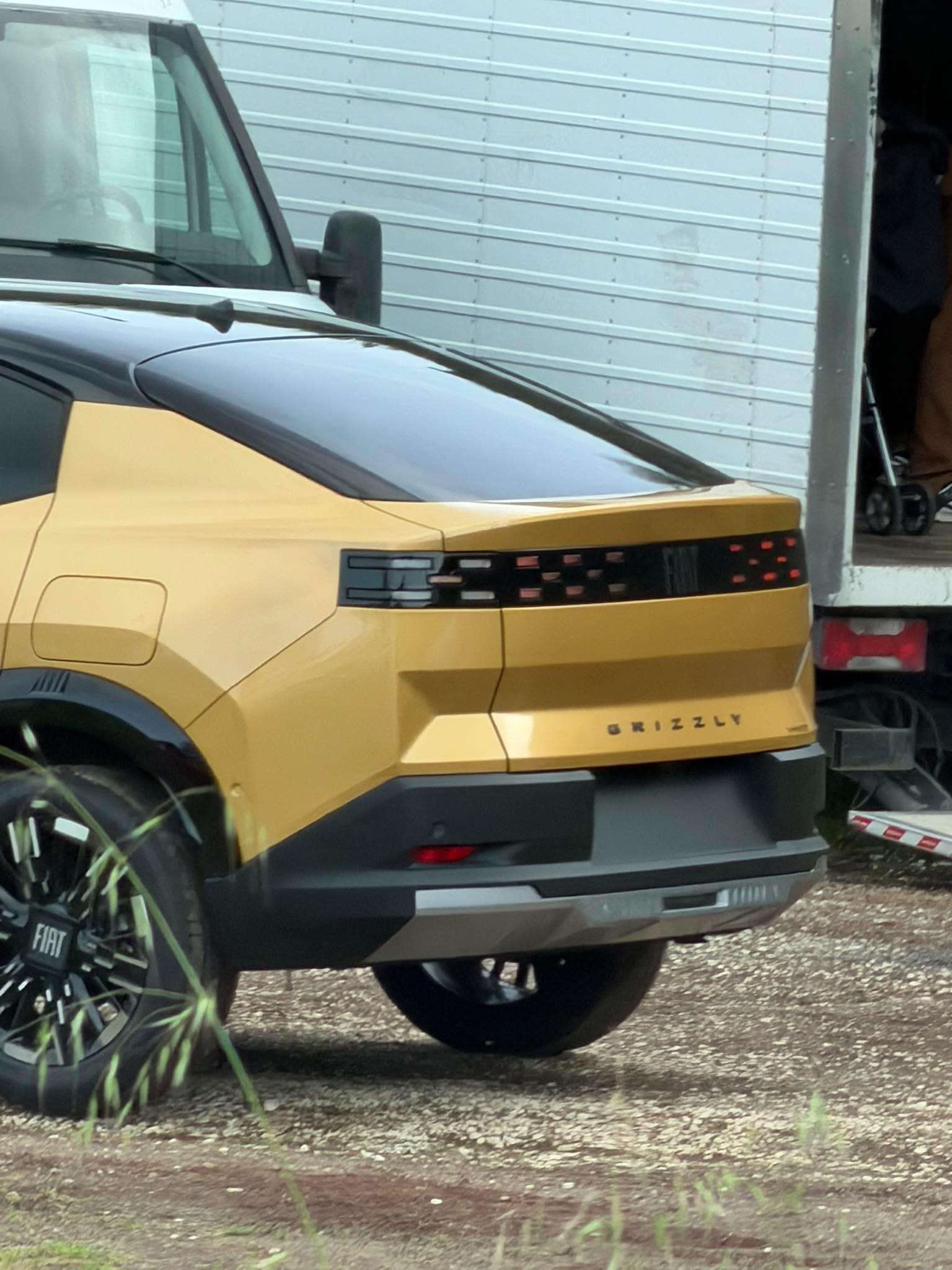
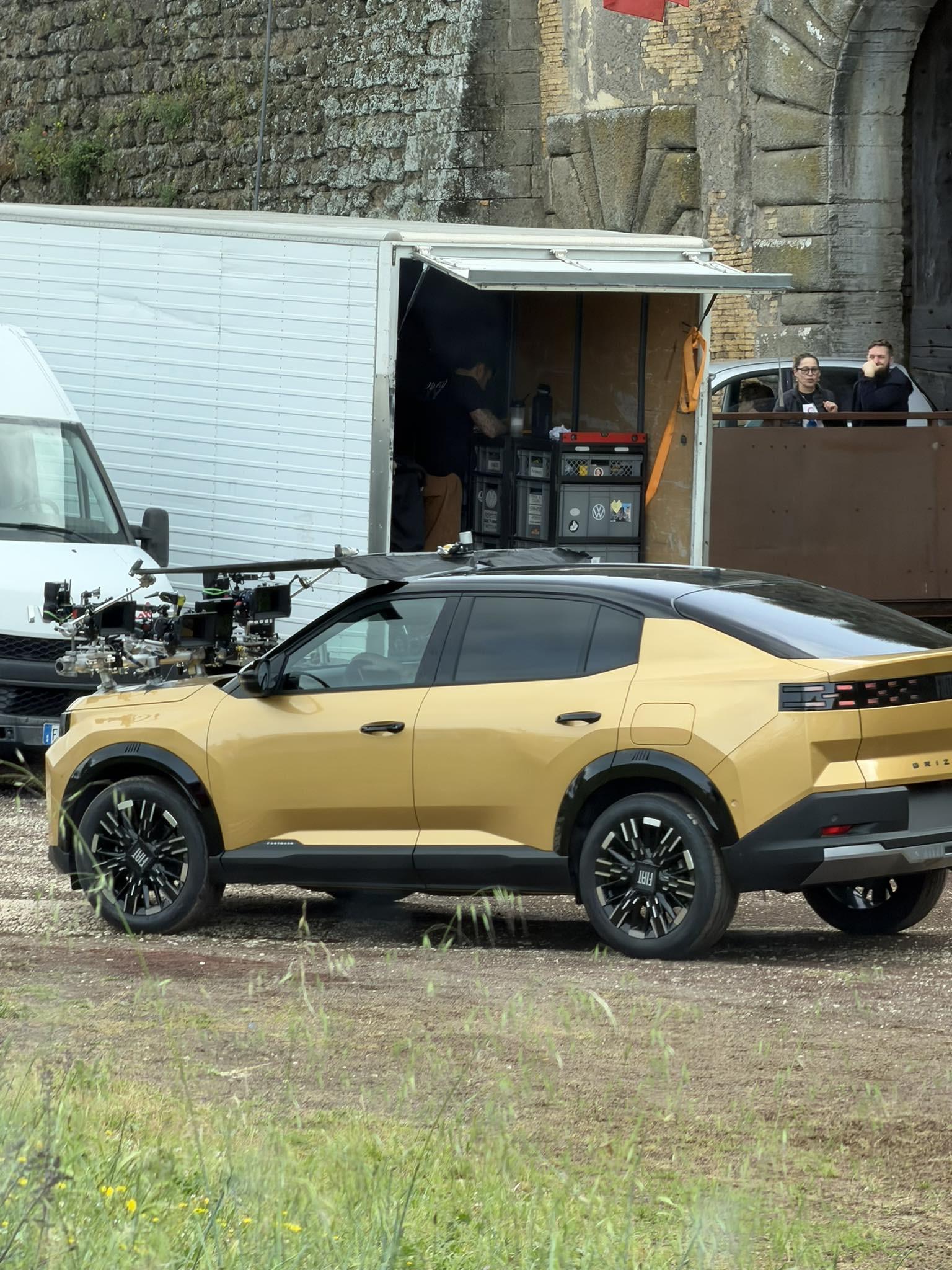
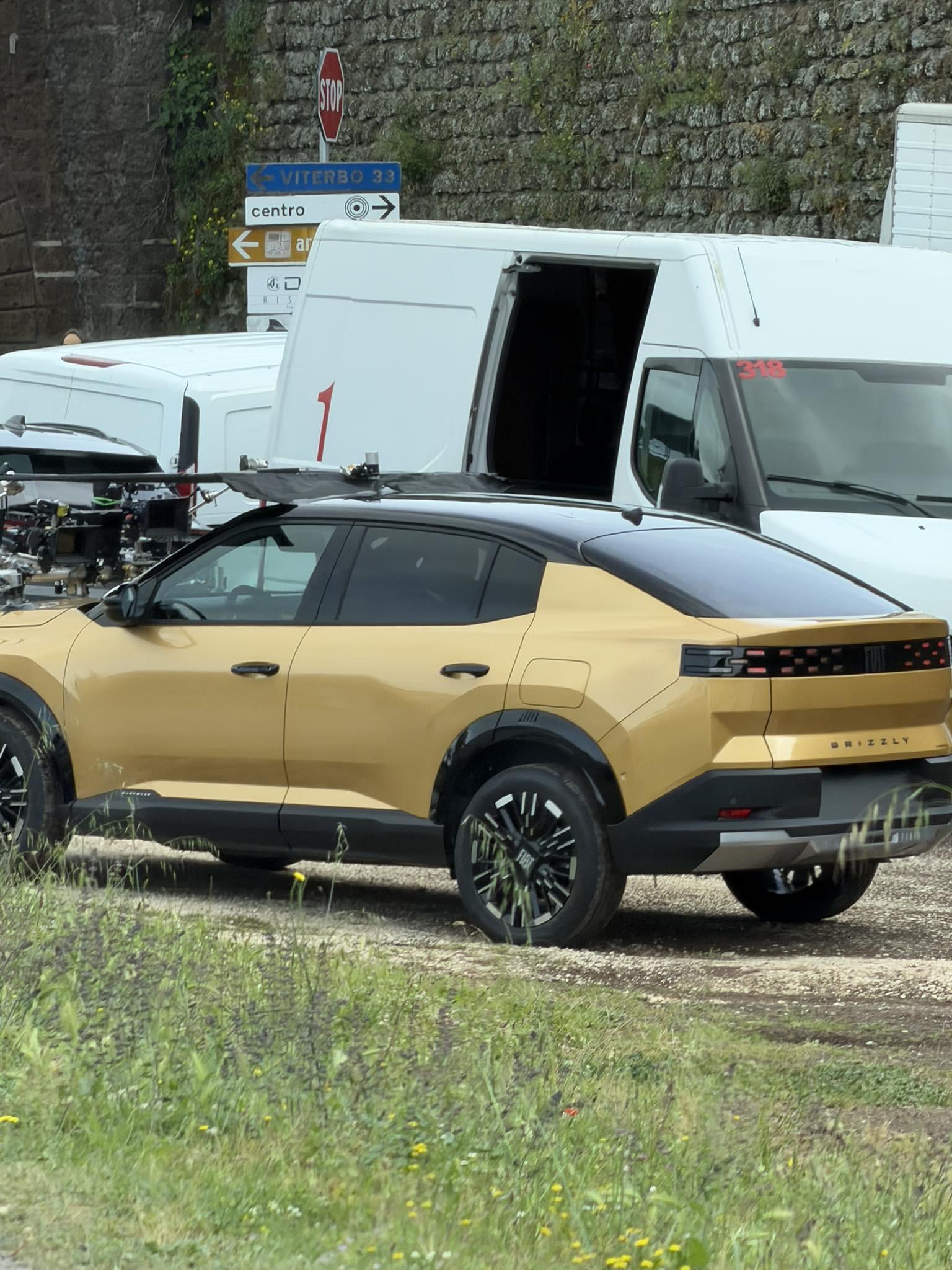
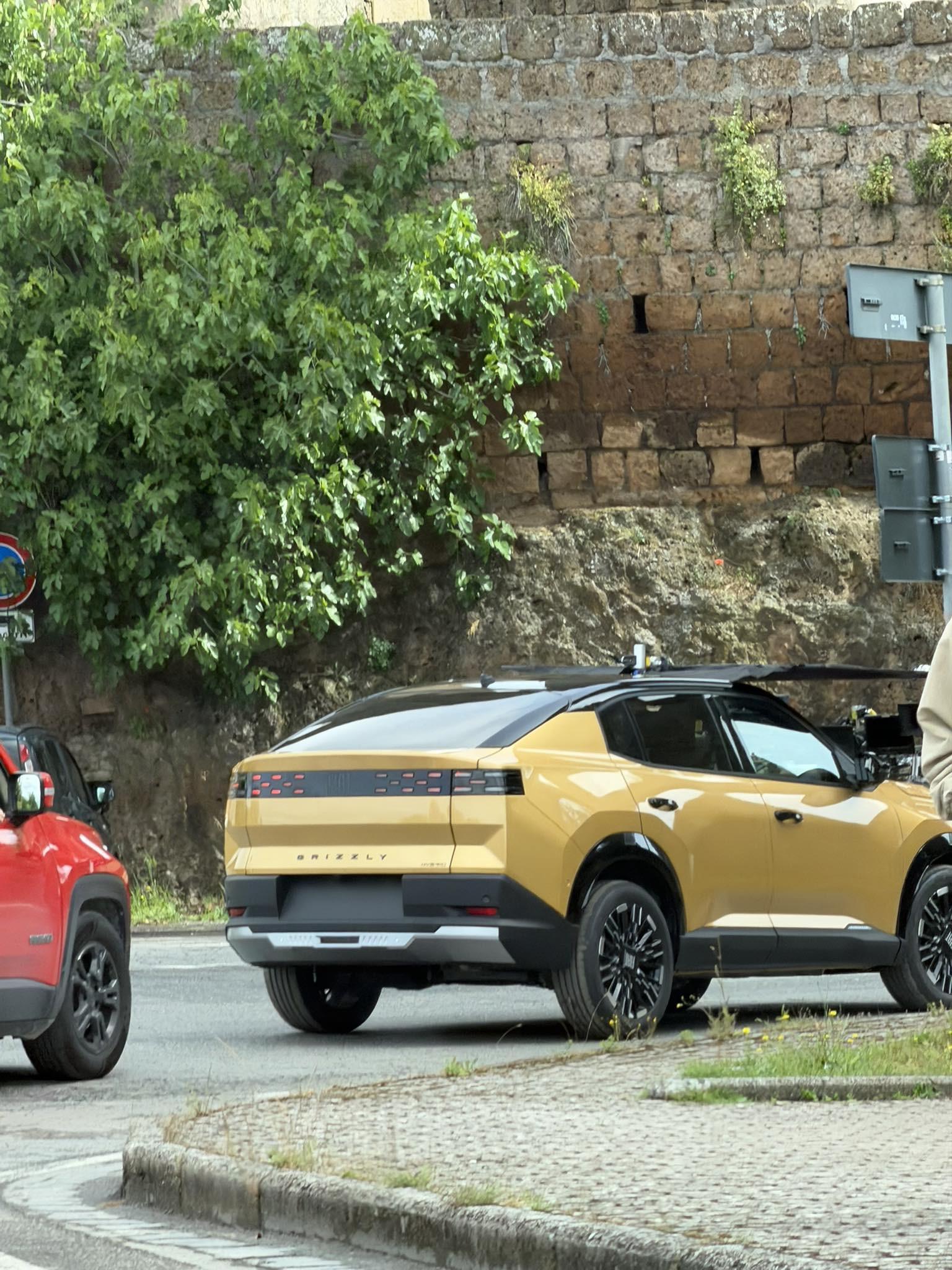
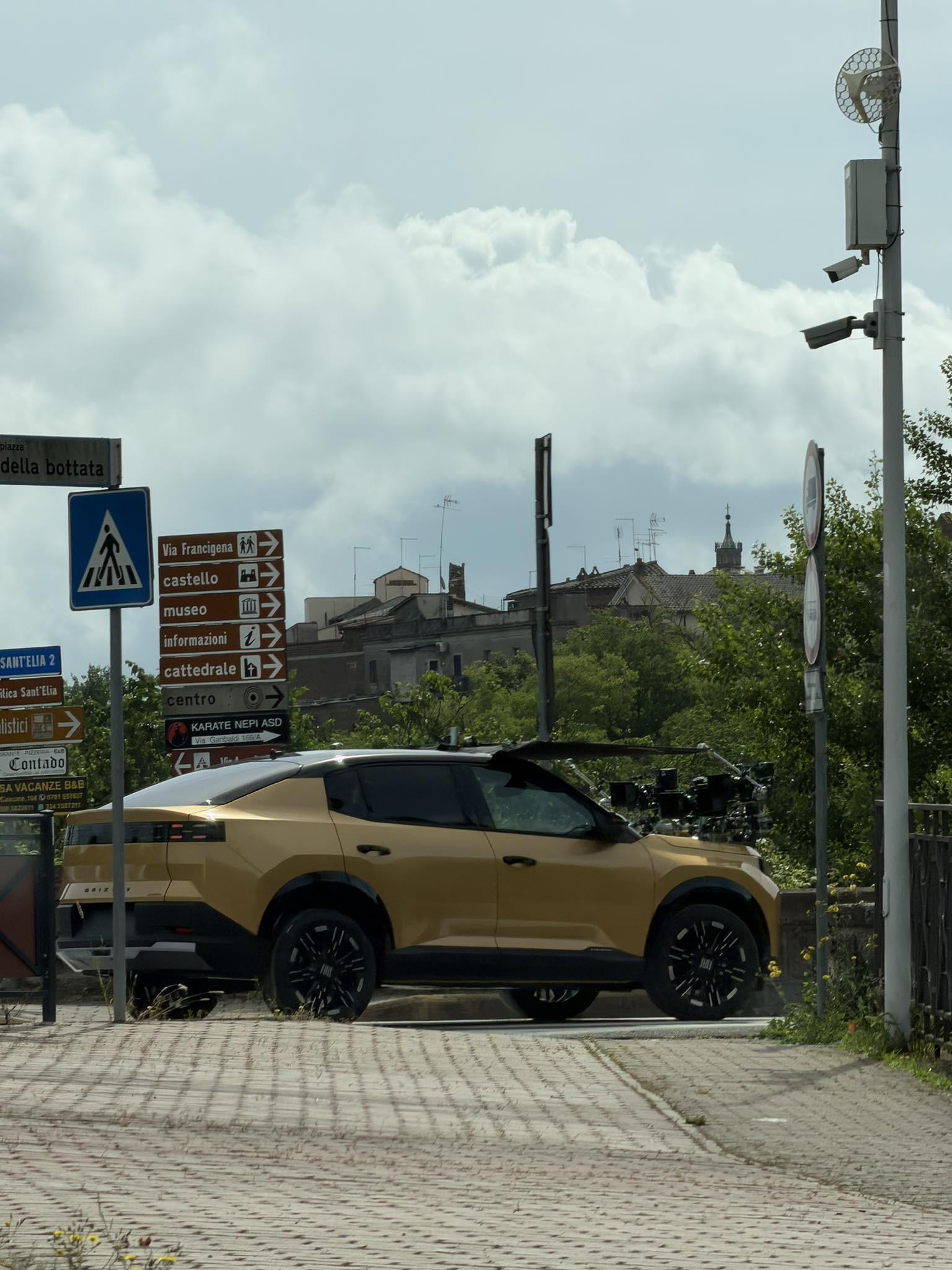
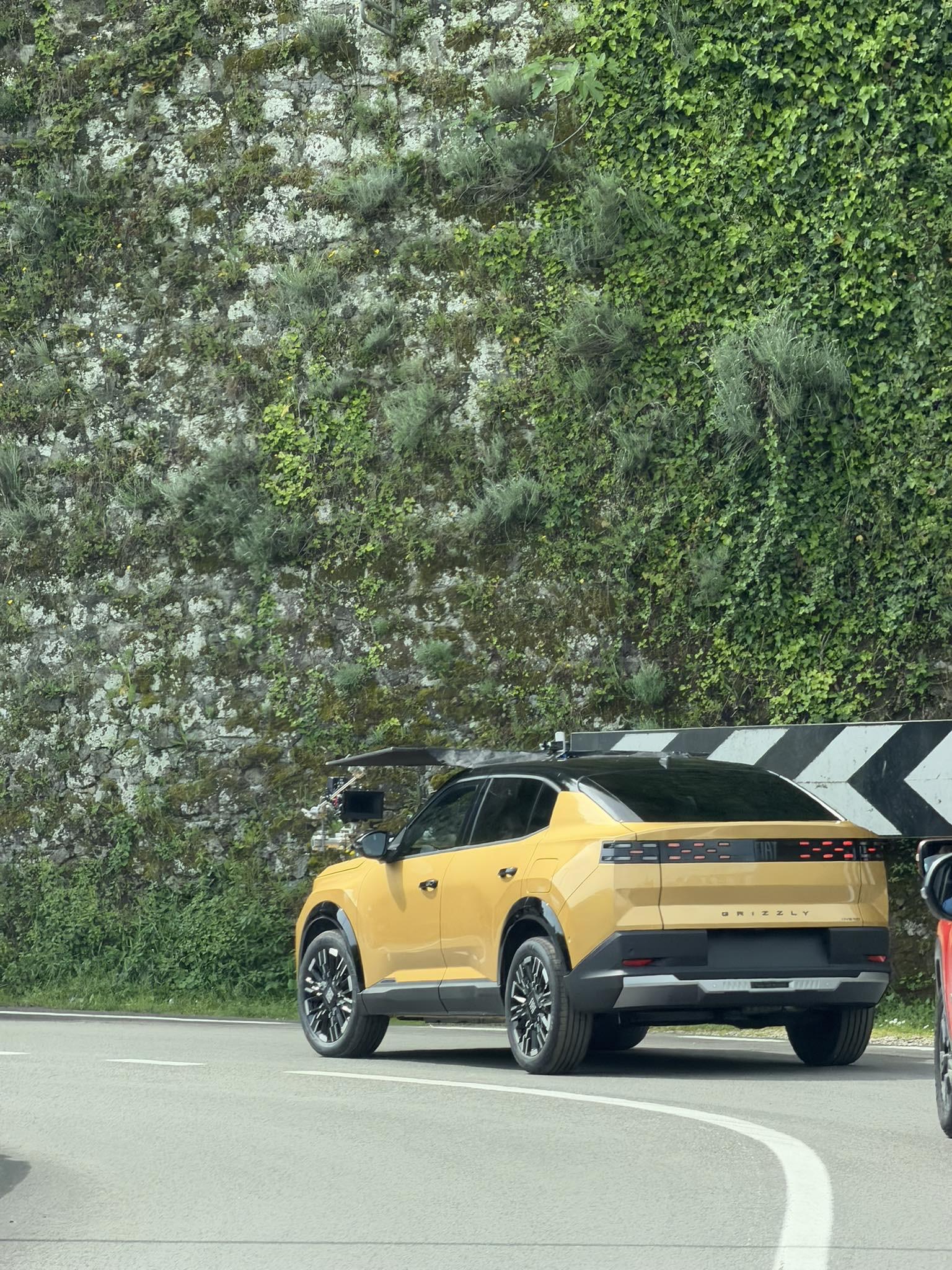
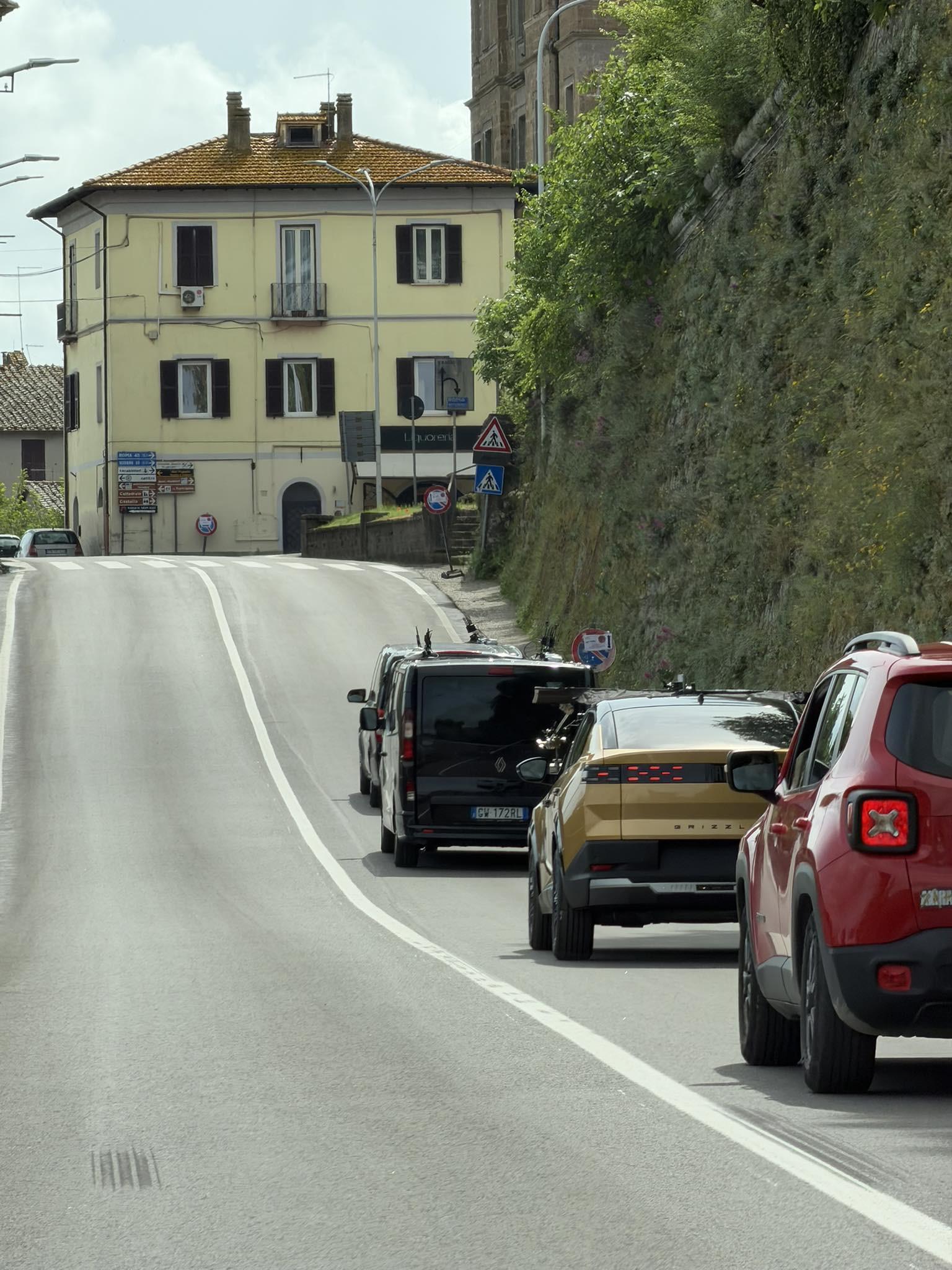
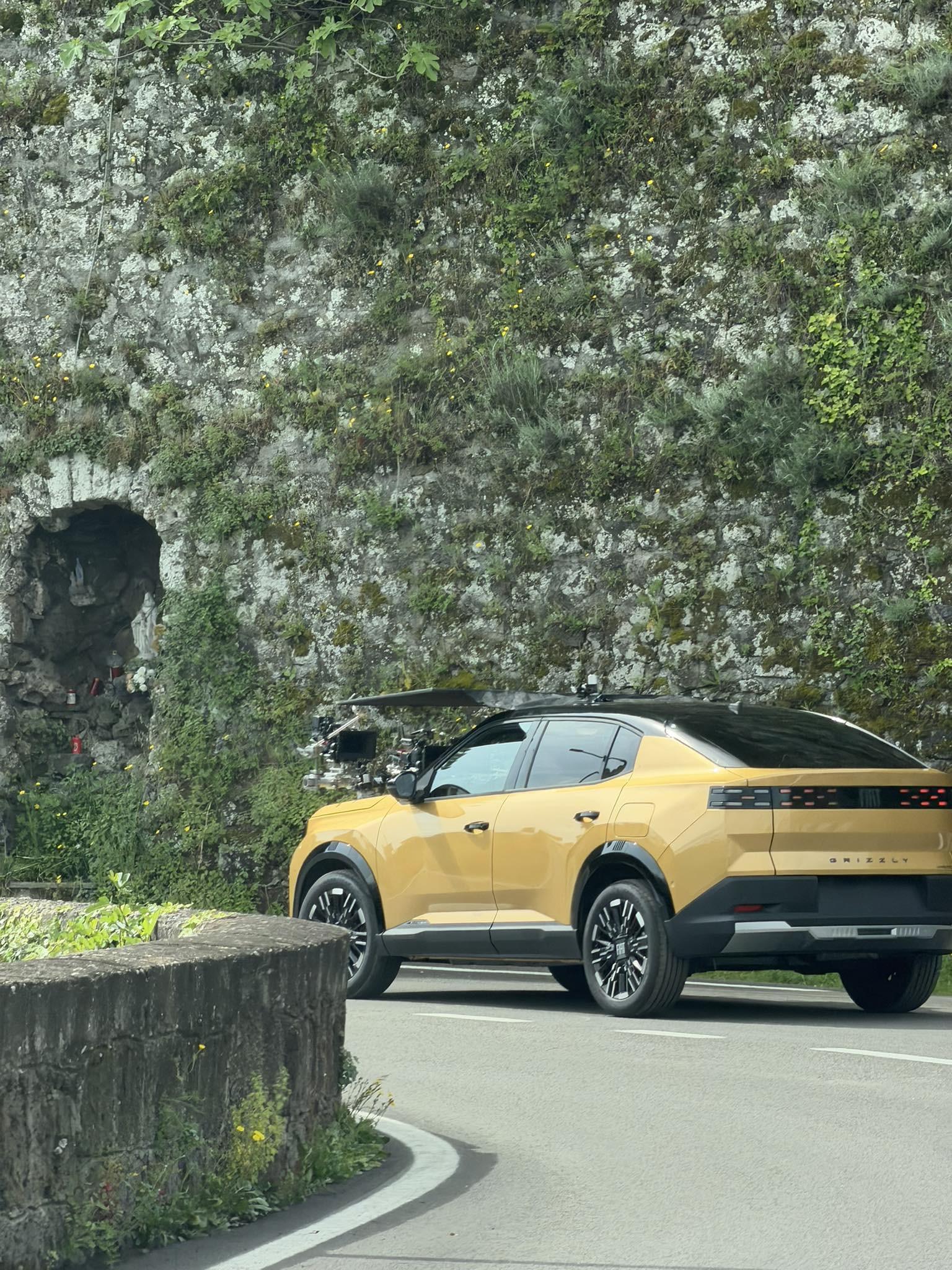
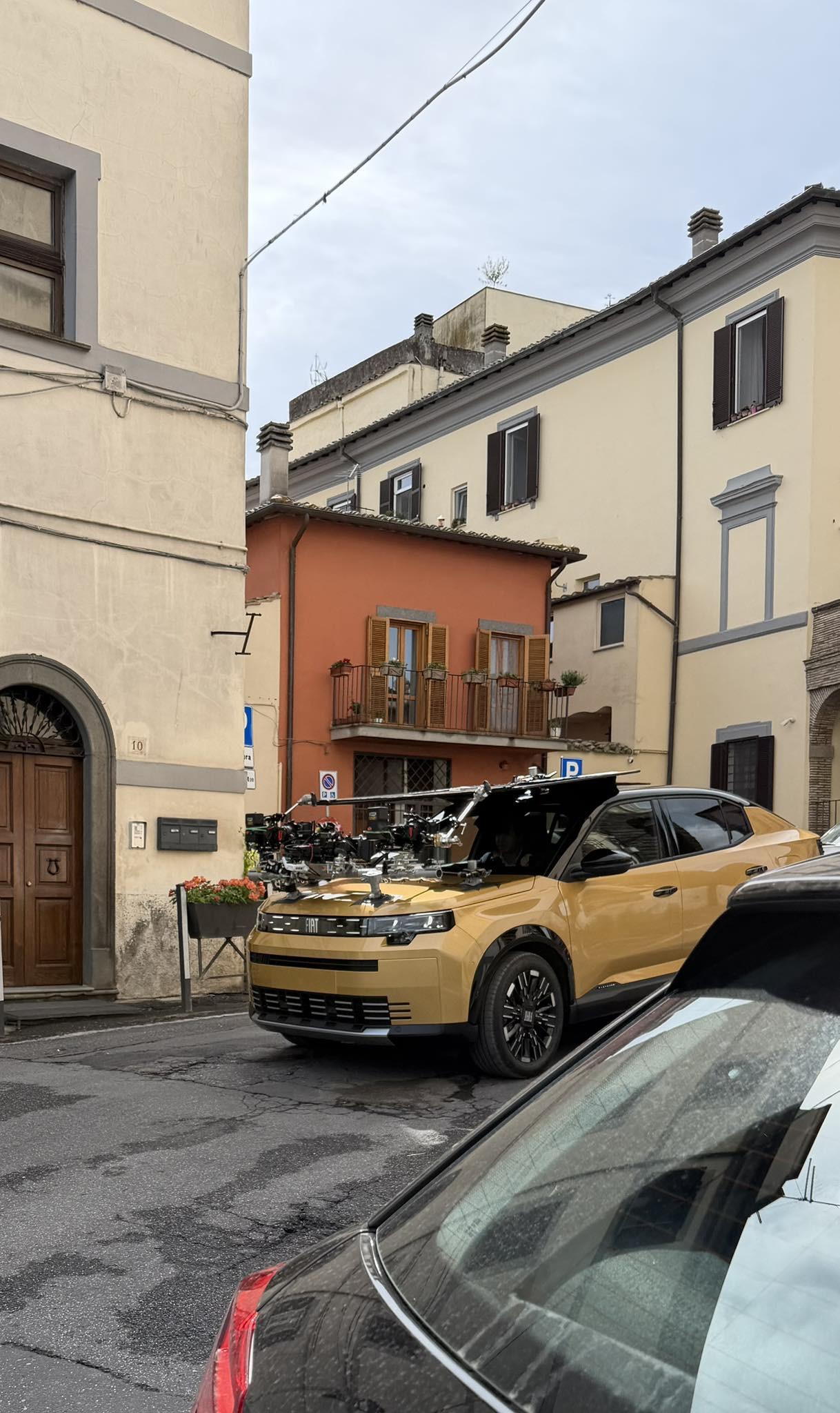
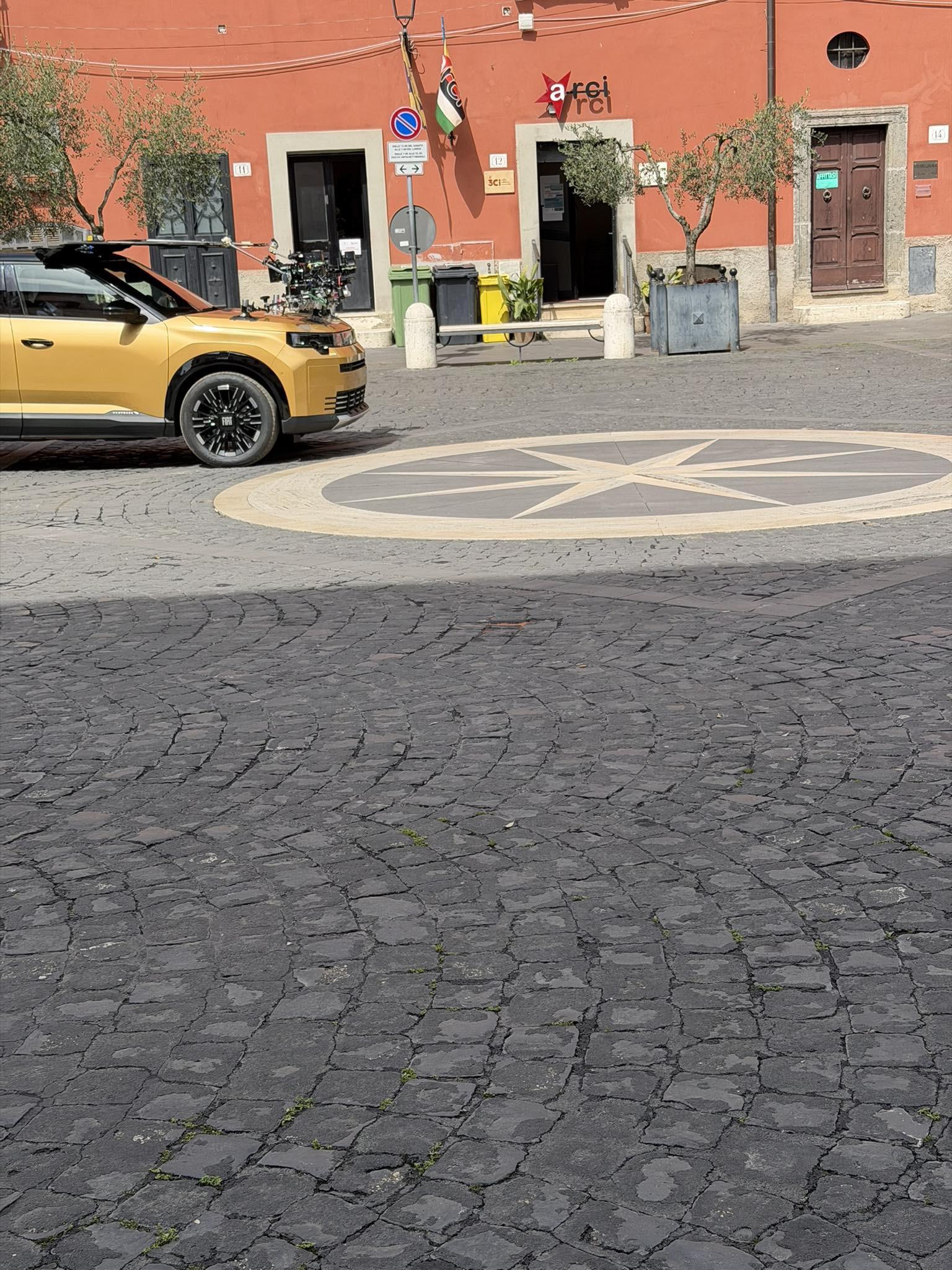
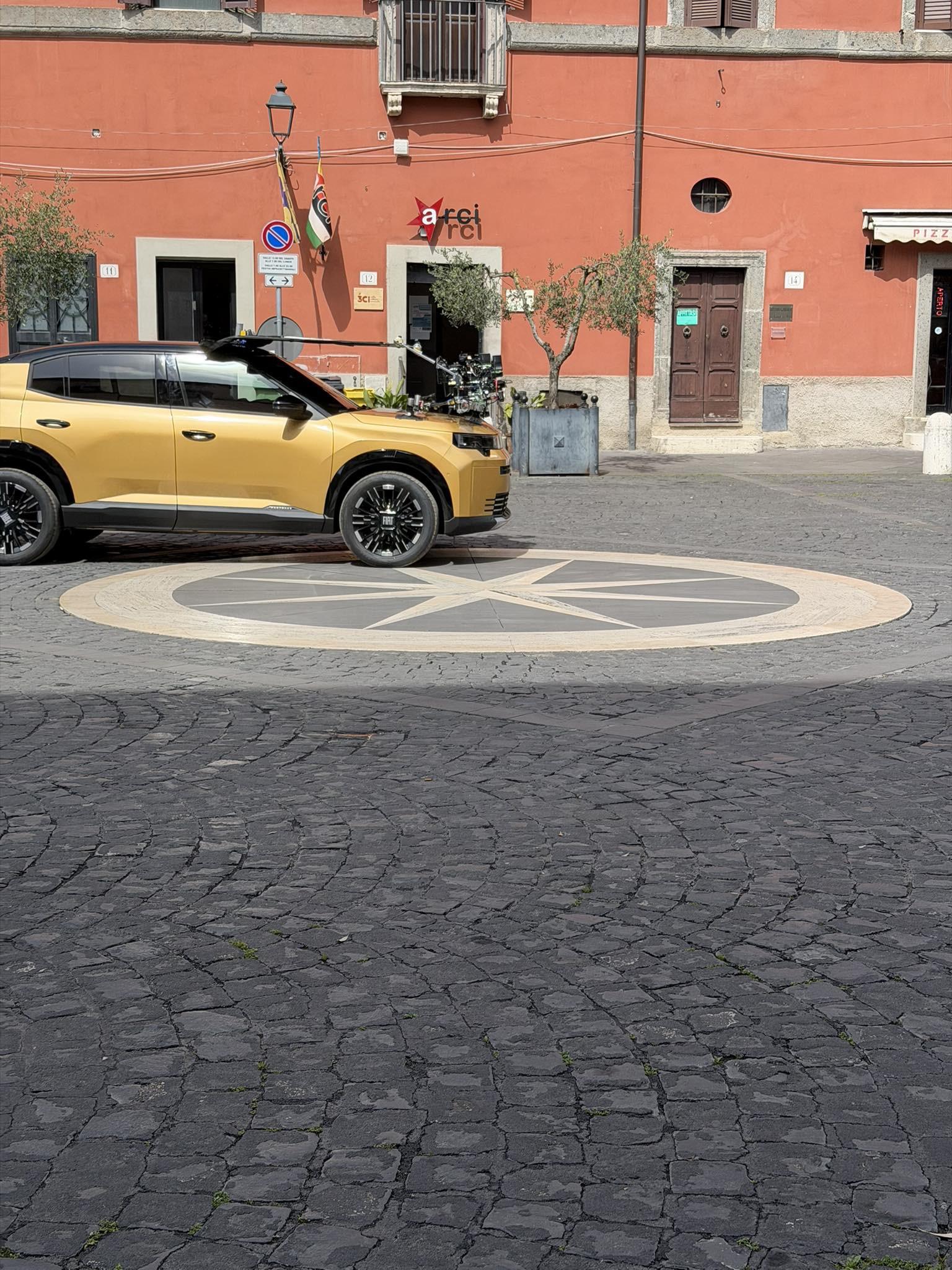
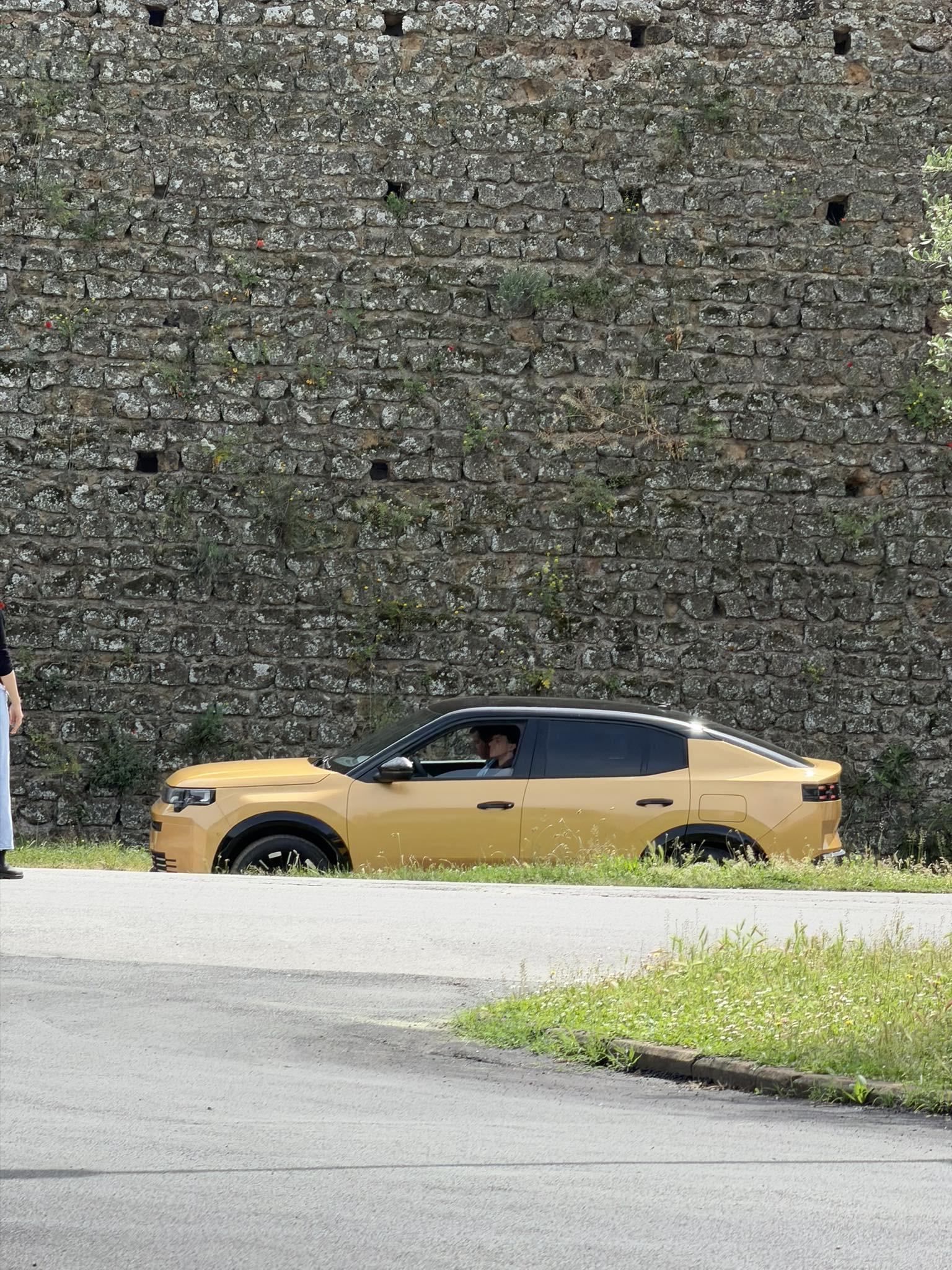





.jpg.760099ed92e488d4c5ecd1066a85cceb.jpg)
.jpg.1c75e4b390e1cb81ceaa355b775ab44f.jpg)
.jpg.796dce6d609db99673eb559506508ce9.jpg)
.jpg.500387aca080e49a374026333b01f5c1.jpg)
.jpg.0aa9bda087a5ab69e682639ae64cbf19.jpg)
.jpg.1ceb99c47ae58c0088b1fa9c1e891b02.jpg)
.jpg.d1f9d8aa0c12c99161c7bafb0d31fa88.jpg)
.jpg.c997dc61cf96446e192fb68460713fe8.jpg)
.jpg.6ba10aa8fe54494cdb0dd3d7792c7f41.jpg)
.jpg.786167758ddb42a27117bdd7fe1b7439.jpg)
.jpg.c4f7670f012758f3bd82e04b33fb801c.jpg)
.jpg.0402fa7de8268b3b572386bc51463f5c.jpg)
















Account
Navigation
Cerca
Configure browser push notifications
Chrome (Android)
- Tap the lock icon next to the address bar.
- Tap Permissions → Notifications.
- Adjust your preference.
Chrome (Desktop)
- Click the padlock icon in the address bar.
- Select Site settings.
- Find Notifications and adjust your preference.
Safari (iOS 16.4+)
- Ensure the site is installed via Add to Home Screen.
- Open Settings App → Notifications.
- Find your app name and adjust your preference.
Safari (macOS)
- Go to Safari → Preferences.
- Click the Websites tab.
- Select Notifications in the sidebar.
- Find this website and adjust your preference.
Edge (Android)
- Tap the lock icon next to the address bar.
- Tap Permissions.
- Find Notifications and adjust your preference.
Edge (Desktop)
- Click the padlock icon in the address bar.
- Click Permissions for this site.
- Find Notifications and adjust your preference.
Firefox (Android)
- Go to Settings → Site permissions.
- Tap Notifications.
- Find this site in the list and adjust your preference.
Firefox (Desktop)
- Open Firefox Settings.
- Search for Notifications.
- Find this site in the list and adjust your preference.