




Classifica Utenti
Utenti più Apprezzati
(Scegli il periodo) Utenti più Apprezzati
(Storia giorno per giorno) Classifica dall'Origine
(da Marzo 2003)
(Scegli il periodo) Utenti più Apprezzati
(Storia giorno per giorno) Classifica dall'Origine
(da Marzo 2003)
-
AleMcGir
Moderatore |Staff|13Punti20132Numero contenuti pubblicati -

stefano1234
Utente Registrato8Punti535Numero contenuti pubblicati -
X82
Utente Registrato7Punti6655Numero contenuti pubblicati -
savio.79
Utente Registrato7Punti8855Numero contenuti pubblicati


Contenuti più Popolari
Stai visualizzando i contenuti con il più alto punteggio, pubblicati in data 10/23/16 e localizzati Tutte le aree/sezioni
-
Più lo guardo e più mi convinco che questa sia una VERA Alfa Romeo (ho corso il rischio ban ?). Per come ho visto io le Alfa, sono sempre state macchine che entravano in settori assolutamente comuni ma portando proporzioni nuove, proporzioni Alfa per l'appunto. Già solo nel recente passato la berlina che sembra un coupè, la station sportiva, la segmento C che ha completamente riscritto il settore, la sfortunata ma stupenda Brera, che nulla ha a che fare con tutte le altre coupè in commercio. E adesso un Suv, slanciato, senza il terzo finestrino, che sembrava fondamentale per disegnare una vettura di questa stazza! Aspetto impazientemente insomma.?8 punti
-
1 siete OT e avete stufato 2 ancora con la storia di "cannibalizzare"? Ma chi continua a ripetere 'sta frase (mi rivolgo a loro) non si rende conto che la gente non ragiona "mi compro una gruppo Fca o una gruppo Vw o una gruppo Renault-Nissan o una Psa o una Hyundai-Kia"?6 punti
-
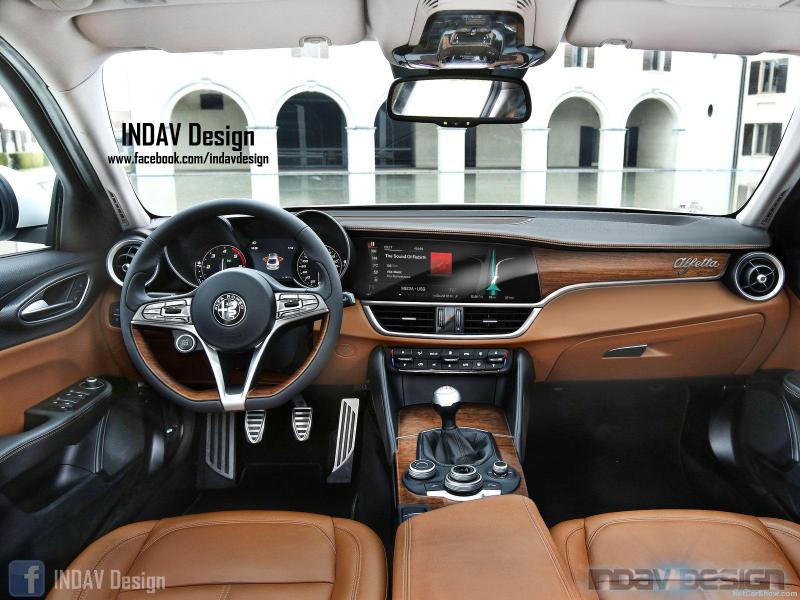
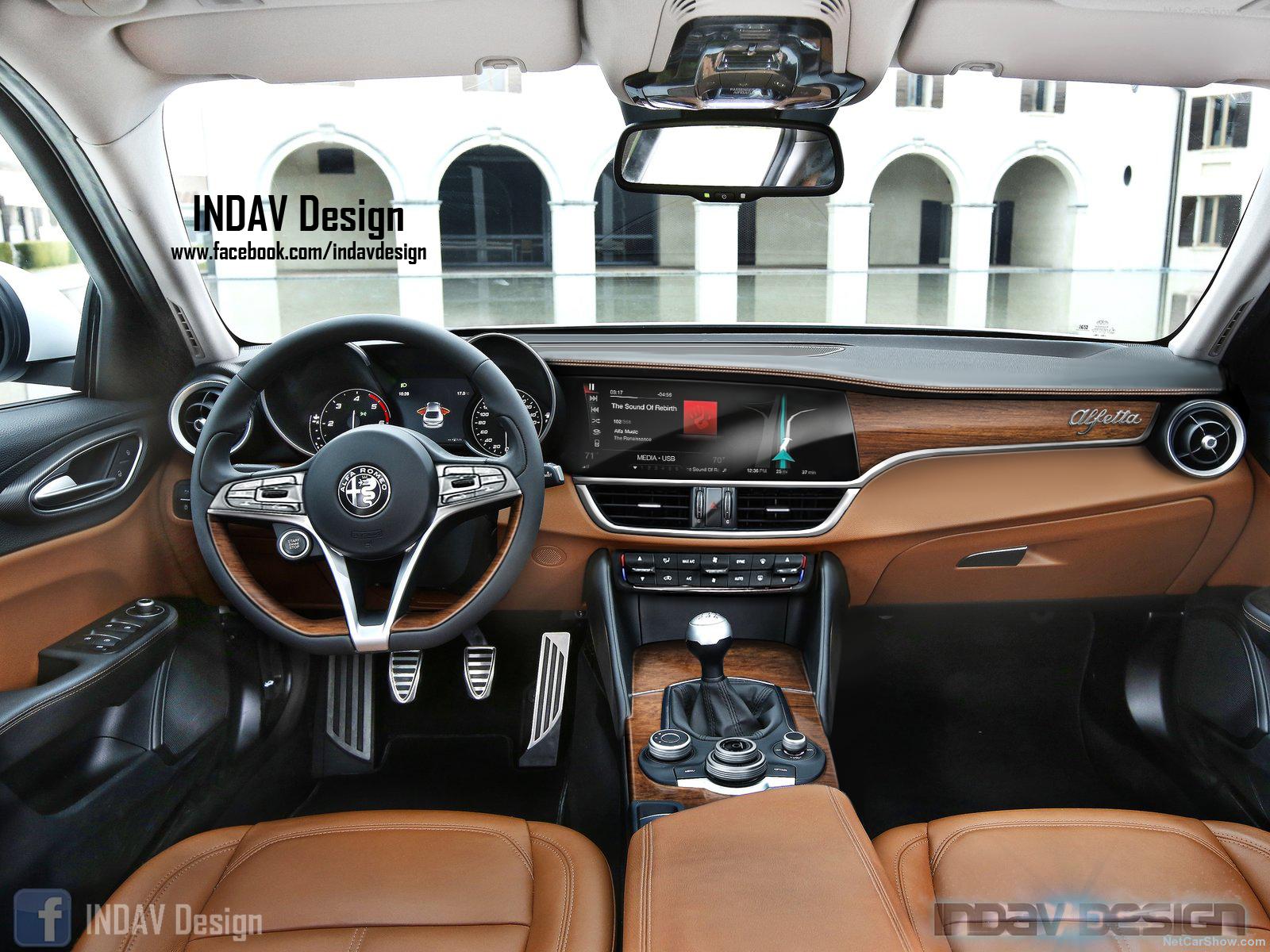
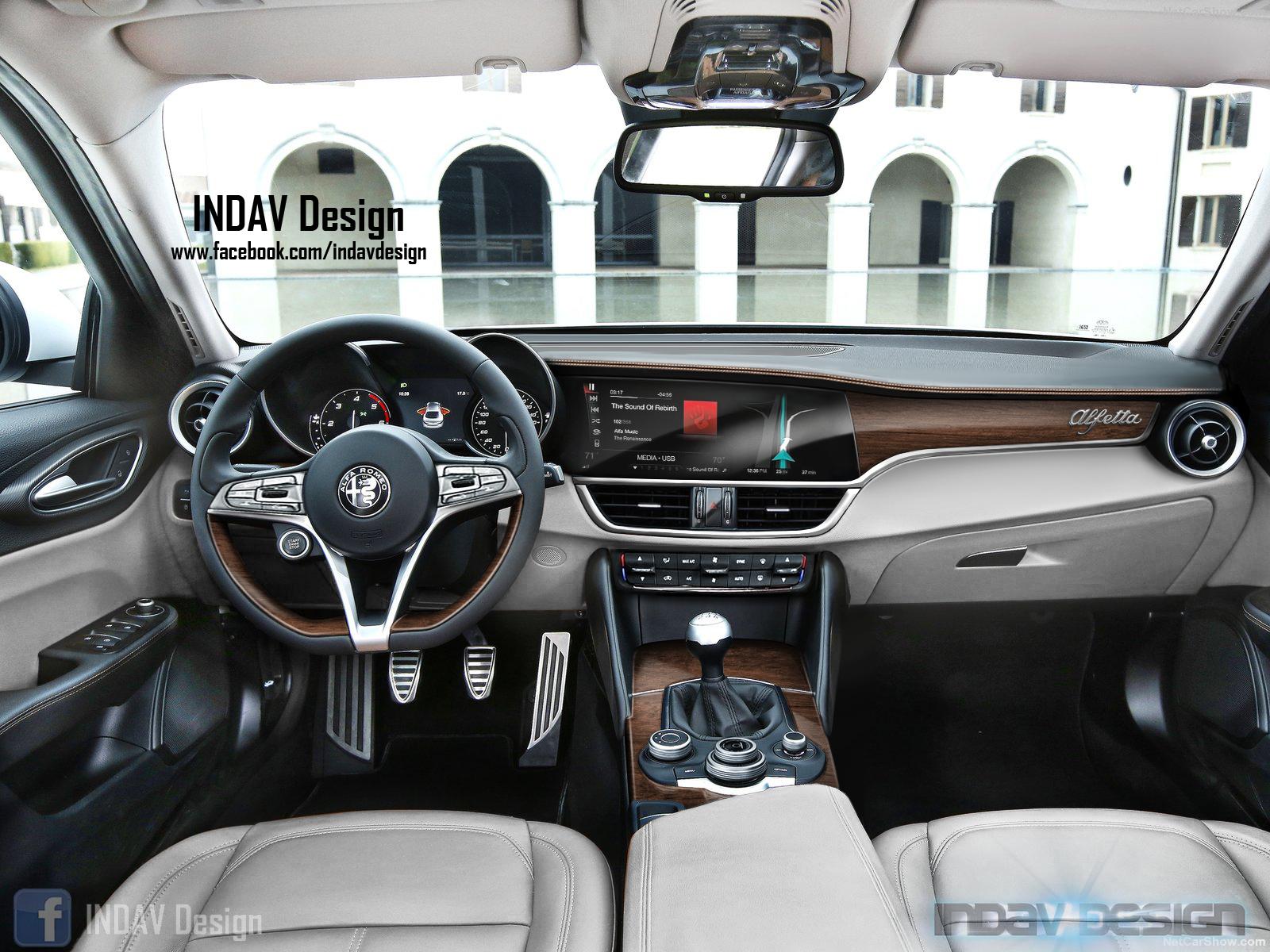
6 puntiE siccome l'avevo promesso, ecco a voi la mia Alfetta. Ci ho messo un po' di richiami al passato e ho cercato di modificare lo stile Giulia pur non allontanandomici. Per gradire, in due colorazioni diverse.
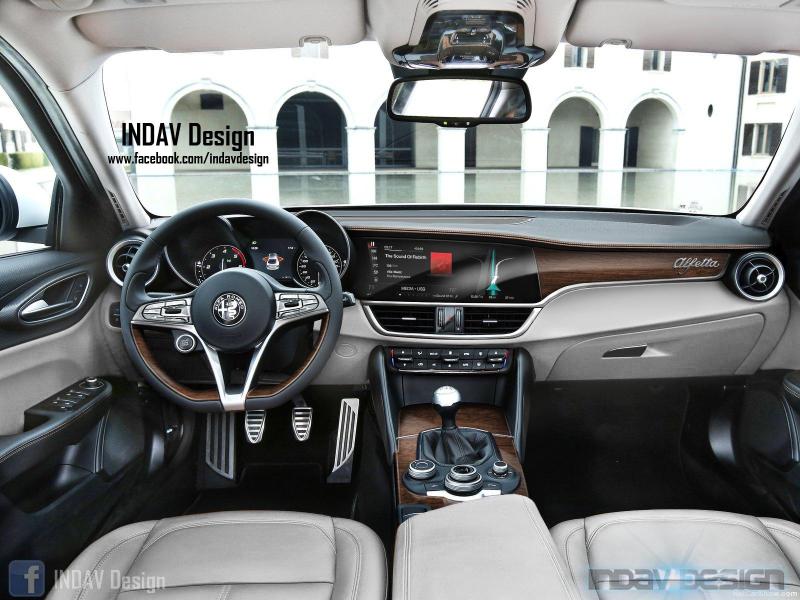 6 punti
 -
continuo a pensare che la Stelvio sarà una Levantina5 punti
-
5 punti
-
Non mi pare che la cosiddetta triade si sia mai posto il problema "cannibalîzzazione". Salta fuori solo e sempre quando si parla dei modelli FCA4 punti
-
Splendido! Ha delle proporzioni veramente azzeccate. L'aspettativa, pur alta si alza ancora: temo in un nuovo capolavoro. In un mare di banalità nel settore, c'è bisogno come l'acqua di Alfa Romeo.4 punti
-
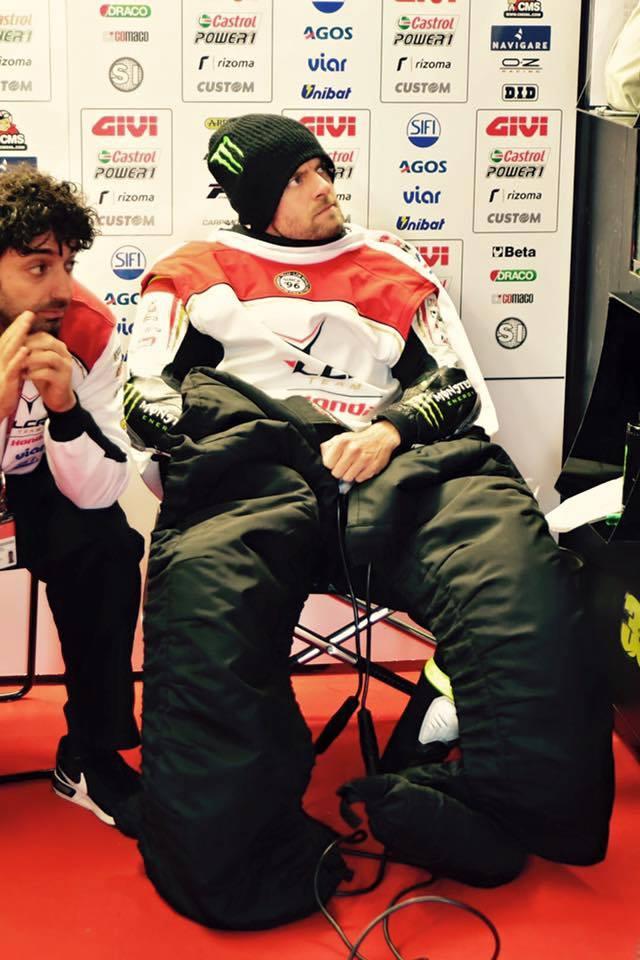
4 puntiMa è la mia foto!!!! mi stavo chiedendo il motivo di tutti quei cuoricini su instagram3 punti3 puntiE io che ho detto che è finito?? La mia non è una critica a Rossi, sono un suo sostenitore, ma sperare/pretendere che faccia i risultati dei tempi d'oro mi pare fuori da ogni logica. Questo non vuol dire che non possa fare bene ed essere competitivo, come di fatto stà dimostrando di essere mediamente in queste ultime stagioni. E cosa vuol dire meno errori di testa? Se sei costretto a rincorrere in gara e in campionato e di conseguenza arrivare a limite ed oltre, soprattutto con queste gomme anteriori* l'errore viene facile , ancora di più se le moto avversarie sono cresciute e la tua no, anzi...se poi preferite uno che non cade ma che si accontenta di arrivare dietro, degustibus, io no, credo non sia neanche nella mentalità di Rossi e in generale del campione/vincente. *cosa che compromette anche i ''duelli'', o ne hai nettamente di più del tuo avversario o queste gomme non ti permettono di forzare troppo in ingresso, punto forte di Rossi. Passando ad oggi, gran gara di Rossi, sinceramente tra temperature fredde di questo we che mandano in crisi la yamaha, poco tempo di mettere a punto la moto e rossi è uno che ha bisogno di una messa a punto fine, non ci avrei scommesso. E' stato bravo a spingere all' inizio e a sfruttare subito la soft anteriore nei primi giri e a gestire la posizione, anche perchè dopo un pò le temperature si sono abbassate e le gomme le aveva già un pò sfruttate, andare a prendere Crutchlow era troppo rischioso, ormai il campionato è finito e la posizione non era male. MM ha mantenuto la promessa, aveva detto che ormai a campionato vinto non avrebbe più fatto il ragioniere, è tornato ''ignorante'' e si è steso. Crutchlow fenomeno, in tutti i sensi
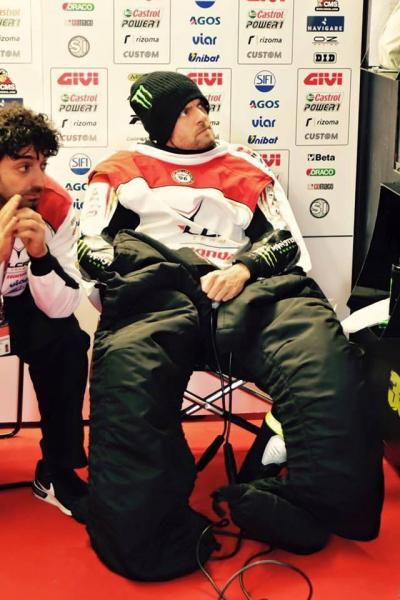 3 punti3 punti3 puntiLa differenza di costi di gestione tra il 1.4 tsi 122cv e il 2.0 tsi è marcata. 11km/l vs 14km/l , 500€ di bollo vs 230€ e altri 100€ di rca.. ☏ SM-G925F ☏3 punti3 puntiIo una Multipla vecchia la comprerei soprattutto per il design L'hanno esposta persino al MOMA, eh3 punti3 puntiGiulia ha vinto l'EuroCarBody Award 2016: P.S. E' diventato ordinabile l'Adaptive Cruise Control, al prezzo di 1.000 Euro.3 punti2 puntiProva approfondita REALE Mazda 6 SW AWD http://www.quattroruote.it/news/diario_di_bordo/2015/10/19/mazda_6_wagon_una_settimana_con_la_2_2l_skyactiv_d_175_cv_.html2 punti2 puntiPraticamente vuole una Giulia SW Q4 280 Se di benzina si tratta la scelta è facile, c'è solo A4 2.0 TFSI 252 Quattro. Con trazione integrale, e magari sospensioni e sterzo regolabili, secondo me potrebbe non essere così malvagia anche alla guida. 340i xDrive credo sia fuori budget... Altrimenti ci sarebbe 430i GC, ha una bella linea e il portellone c'è (da verificare lo spazio interno). Però non c'è integrale. V60 la conosco bene e purtroppo non credo sia a livello delle altre, anche perchè AWD c'è solo con il vecchio 5 cilindri e l'ancor più obsoleto Geartronic 6.2 punti2 puntiTarget sarebbe quello della Giulia&XE Ma SW deve ripiegare sulla Volvo/Audi Mi permetto di segnalare la Mazda 6 ! Anche se AWD e' solo diesel...MA CHE AUTO !!! ps intermedia fra Skoda e Mazda, ;la Levorg2 puntiLa 500X è un B suv, infatti rispetto alle varie Kadjar, Qashqai e company è più piccolo2 puntiSegmento C c è il nuiovo Compass in FCA e non mi.pare male.. Su Stelvio i motori ricalcherammo quelli di Giulia ma mi domando se ci sarà l opzione TP oltreché TI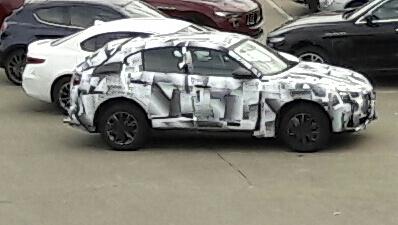
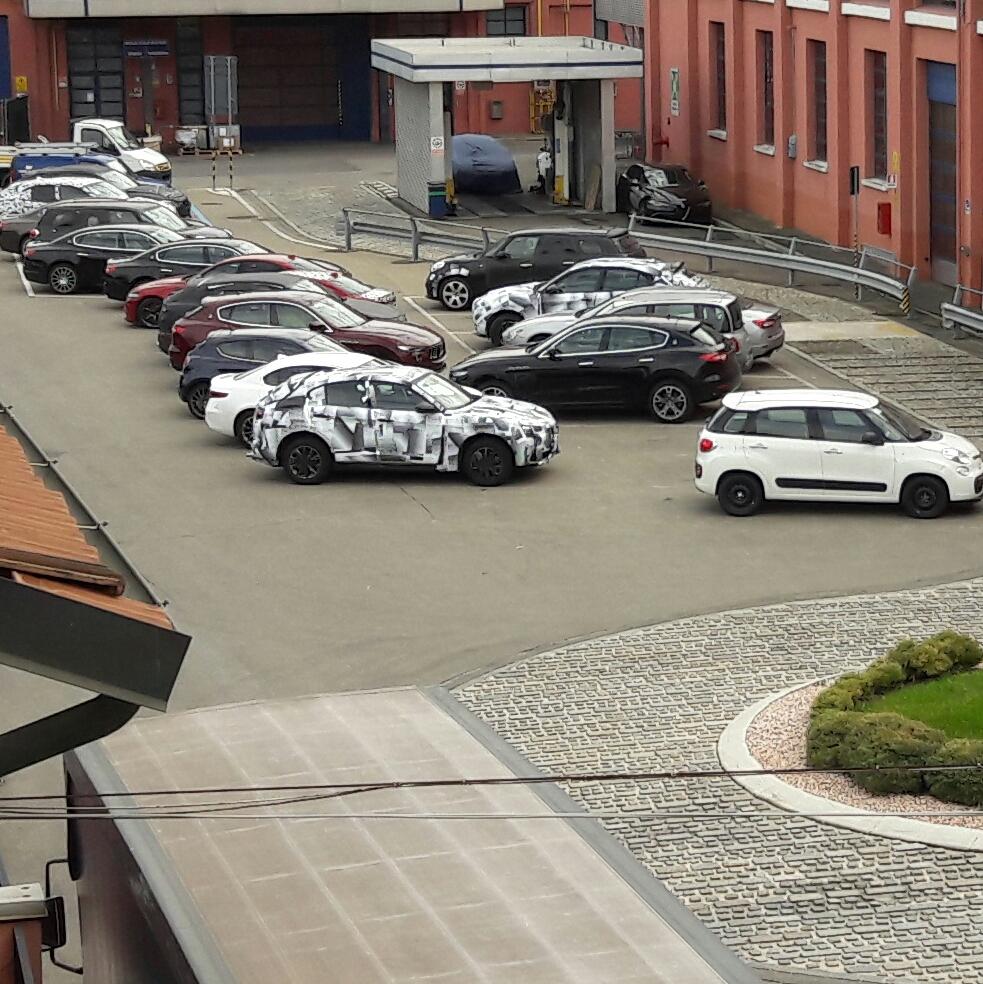
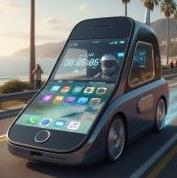
 2 punti2 puntiMultipla aveva un limite nelle motorizzazioni limitate e nella struttura space frame , che rendeva antieconomica la produzione in numeri maggiori.2 puntiSi, ma anche ti dovessi incolonnare dietro a una bici....realisticamente? Quanto tempo perdi? Che: 1- i centri storici non durano 500km di fila 2- se la strada è stretta si dovrebbe andare piano....riducendo di molto il Delta velocità tra mezzo a motore e mezzo a pedalata. A fare 500m (che è una distanza bella lunga) dietro una bici che viaggia a 20km/h anzichè i 50km/h canonici ci perdi ben......52s Che cosa avranno tutti di così tremendamente urgente da fare per non poter perdere quel tempo, per dover fare sorpassi di prepotenza con rischi per il ciclista.2 punti2 puntiil 1.4 ed il 2.0 non sono paragonabili., hanno due curve di coppia differente, due modi di erogazione, insomma trasformano l'animo dell'auto. I consumi son quelli riportati da spritmonitor.de e ti do anche conferma grazie a due utenti che hanno avuto ed hanno quel motore sul forum BMW (Audi A3, Golf, Leon, TT) Discorso Peugeot, quel 1.6 THP da 156 lo hai da controllare per bene. Dato che ha sofferto di problematiche alla turbina ed al tendicatena della distribuzione. Si "salvano" solo le varianti da 200 CV, montate su RCZ e sulla MINI JCW2 punti2 puntiÈ quello che ho scritto qualche post fa. Compri 200cv e poi che fai? Li guidi guardando al consumo. Se valuti quel motore i consumi non sono il tuo principale problema. Questo intendevo. Ed aggiungo che si dichiara 10/11 al litro ma veramente è sensibile all'ago del contagiri. A sto punto il 1,4 è più regolare, non invita a spingere più di tanto e a velocità regolare consuma meno. ☏ GT-I9195 ☏2 punti2 puntiFinalmente ho visto la prima giulia per strada in mano a un cliente. Era parcheggiata e me la sono guardata per bene. HO notato un paio di cose sulla linea. Primo: lo sbalzo posteriore molto pronunciato, forse per la necessità di avere un bagagliaio decente, o per favorire l'abitabilità per i posti dietro, comunque lo sbazlo è molto pronunciato e ora capisco il senso del faro posteriore che si prolunga molto sulle fiancata, serve per "accorciare" visivamente lo sbalzo. La seconda cosa che notavo in positivo, sempre riguardo la zono della fiancata posteriore, è la linea di cintura piuttosto bassa e di conseguenza una certa ariosità e luminosità della finestratura per i posti dietro. Oggi le auto nella zona della ifancata posteriore a cuasa della linea di cintura sempre più alta, dei montanti supermassicci, del tetto spiovente, del lunotto striminzito, hanno dei finistrini ridicoli, microscopici che sembrano più degli oblò, che dei finestrini veri e proprio. Io lo chiamo effetto panzer, cioè sono talmente massicce, che sembrano appunto dei carrarmati. Nella maggior parte della auto c'è un'evidente sproporzione nel rapporto lamiera-vetro, nella zona posteriore. Questa sproporzione rende la coda della auto pesante e massiccia. Mentri guardi la fiancata che magari davanti è filante e slanciata, poi l'occhio arriva dietro e si trova di fornte ad un muro di lamiera che rovina tutto. La giulia, per fortuna, non è così! LA linea di cintura bassa, il montante posteriore sottile, il lunotto generoso, rendono la Giulia molto luminosa e ariosa e con una linea molto alleggerita nella parte posteriore.2 puntidai si percepisce nonostante la prospettiva diversa e il fatto che quello e' un mulo di Stelvio Quadrifoglio, mentre quello sopra di una Stelvio 4 cilindri.2 puntiIo non so come funzionano i muli ma quello o è un mulo di una versione Quadrifoglio o è qualcos'altro. Troppo assetato anteriormente. ☏ GT-I9195 ☏2 punti2 puntiMah, proviamo, il filone è sempre lo stesso dell'esterno ovvero sul teutonico. però come sulla Ferrari GTC ho inserito un monitor informazioni anche per il passeggero e la fascia Lcd continua a tutta larghezza2 punti1 punto1 puntoIo un giro a vedere la Mazda 6 SW AWD Full lo farei.... Interni bicolor, cambio auto e motore fantastici, estetica moderna ma sobria. E costa ben meno di una V601 punto1 puntoSi, dal punto di vista della percezione sicuramente la X viene posizionata un po' più in alto rispetto alla 500L, ma secondo me è comunque più giusto considerarla come B suv premium che come segmento C1 punto1 puntoCon mia grande sorpresa ho scoperto che l'abitabilità posteriore di Giulia è leggermente inferiore a quella della Giulietta. Per darvi un'idea vi dico che sono alto 177 cm, cosa che forse dice poco perché l'altezza del busto e del collo varia a parità di altezza da persona a persona. La tecnica di seduta che ho utilizzato per un confronto abbastanza oggettivo e facilmente replicabile è stata quella di appoggiare il fondo schiena allo schienale e la testa al poggiatesta esteso al massimo. Posizione molto composta, ma poco svaccata e comoda. Nella Giulietta sento i capelli che toccano il padiglione, nella Giulia, complici i diversi poggiatesta, più piccoli ed arretrati, la testa tocca il padiglione. Il padiglione discendente penalizza l'abitabilità posteriore della Giulia, nonostante la maggior lunghezza complessiva e di passo rispetto alla Giulietta.1 punto1 puntoComplimenti per la recensione. Ti dirò che in realtà nel grigio così non mi pare male, certo non è il suo colore ma pensavo peggio. Ad ogni modo hai avuto modo di verificare se il famoso buco di coppia tra i 4mila ed i 4,5mila giri c'è ancora? ☏ ALE-L21 ☏1 punto1 puntoF1 Anticipazioni 2018 http://it.motorsport.com/f1/news/sauber-honda-dal-2018-per-allevare-giovani-piloti-giapponesi-842028/1 punto1 puntoRossi ha detto abbastanza esplicitamente che dopo le rotture al Mugello i motori sono stati un pò depotenziati, avranno messo il limitatore un pò più in basso. Se consideriamo che la Yamaha già non è al top come potenze massime per via del frazionamento e caratteristiche del motore, questo è una pecca non da poco. Per il resto a livello di telaio ed elettronica(ad inizio anno erano quelli messi meglio) più che calate non sono cresciute a sentire i piloti, cosa che hanno fatto gli avversari soprattutto Honda.1 punto1 puntoLa Peugeot è un prodotto innovativo e lontano dai canoni standard delle coupè sportive. Uno dei prodotti più intelligenti e coraggiosi degli ultimi anni. Solo per questo andrebbe comprata. ☏ GT-I9195 ☏1 punto1 puntoa me sembra un pò strana perchè il fanale a destra è più grande di quello a sinistra ; non sarà mica il ritocco di qualche buontempone ?1 punto1 puntoCapolavoro tattico della yamaha e di lin jarvis. Come infilare una stagione nel cesso e tirare lo sciacquone.E' la sua la testa che deve rotolare.1 puntoSembra un più grande F-Series di settima generazione1 punto1 puntoE' dal mondiale perso contro Hayden che ogni anno sento la solita solfa del pilota bollito... Tranquilli che a furia di ripeterlo ogni anno, prima o poi l'anno in cui sarà DAVVERO BOLLITO (e arriverà, è ovvio), la imbroccherete.. Cheers.1 punto1 puntoCerto che....se a 20 anni è' già nell'ottica delle puttane è' già pronto per la bara imho [emoji23] ☏ iPhone ☏1 punto1 puntoSuper TurboGimmo!!! [emoji106][emoji106][emoji106][emoji106] Il fatto è che condivido appieno. I consigli che ti posso dare sono di non buttare via i soldi per un'auto che poi si svaluterá ulteriormente facendoti poi venire voglia di cambiarla nuovamente. E non lo dico per il periodo e della mancanza di futuro. Se sei un appassionsto allora potresti trovare un piacere ulteriore rivolgendoti al mercato dell'auto che hanno una decina di anni. Le auto consigliate da TurboGimmo, ad es., rimangono dei classici sempre verdi trovando ancora tanti estimatori. Se invece te ne freghi allora spendi un terzo della cifra ed investi il resto in divertimenti e ragazze. ☏ GT-I9195 ☏1 puntoPer la hatch ci sono vari rendering nelle pagine precedenti. In rete ne ho trovato un'altro1 punto1 puntoNon so consigliarti sulla scelta ma so darti un consiglio sul lato consumi: se ti poni il problema di quanto beve una macchina prima di comprarla, probabilmente non puoi permettertela. [emoji6] ☏ iPhone ☏1 punto1 puntoIo lo trovo molto bello quell'arancio,è particolare e trasmette un po' di allegria in mezzo a tutte le auto bianche e nere1 punto1 puntoMeh si, di farla si fa, i tempi pero' potrebbero essere un po' lunghi. Quando sono stato in conce qualche settimana fa per chiedere informazioni sulla Q gli ordini erano appena stati aperti, sono stati in grado di darmi un po' di numeri per un finanziamento (e.g. zero sconti per la Q ma interessi abbastanza bassi). Tuttavia per le date di consegna il tipo e' stato piuttosto evasivo, palando di Marzo 2017...a grandi linee. Per le versioni normali non mi sono interessato, pero' mi e' stato accennato che qualche sconto ufficiale ovviamente e' previsto.1 punto1 puntouna volta per tutte. I numeri di Giulia Worldwide sono stati già scritti molte vlete, ma ripetiamoli per completezza. Il target ( più volte annunciato dalla dirigenza ) è 60.000/100.000, il BEP la metà moltiplicato 6 anni ( vita media del modello ) Per capirci se Giulia venderà nel mondo in 6 anni 600.000 unità sarà un successo epocale . Se venderà 180.000 unità recupererà le spese e basta In mezzo, caccia libera ( cit. )1 punto1 punto1 punto1 puntoQuesti vecchi Cine Fiat sono proprio una vera goduria. Bei tempi andati.1 puntoLa Leaderboard è riferita all'orario Roma/GMT+02:00


























Account
Navigation
Cerca
Configure browser push notifications
Chrome (Android)
- Tap the lock icon next to the address bar.
- Tap Permissions → Notifications.
- Adjust your preference.
Chrome (Desktop)
- Click the padlock icon in the address bar.
- Select Site settings.
- Find Notifications and adjust your preference.
Safari (iOS 16.4+)
- Ensure the site is installed via Add to Home Screen.
- Open Settings App → Notifications.
- Find your app name and adjust your preference.
Safari (macOS)
- Go to Safari → Preferences.
- Click the Websites tab.
- Select Notifications in the sidebar.
- Find this website and adjust your preference.
Edge (Android)
- Tap the lock icon next to the address bar.
- Tap Permissions.
- Find Notifications and adjust your preference.
Edge (Desktop)
- Click the padlock icon in the address bar.
- Click Permissions for this site.
- Find Notifications and adjust your preference.
Firefox (Android)
- Go to Settings → Site permissions.
- Tap Notifications.
- Find this site in the list and adjust your preference.
Firefox (Desktop)
- Open Firefox Settings.
- Search for Notifications.
- Find this site in the list and adjust your preference.