




Classifica Utenti
Utenti più Apprezzati
(Scegli il periodo) Utenti più Apprezzati
(Storia giorno per giorno) Classifica dall'Origine
(da Marzo 2003)
(Scegli il periodo) Utenti più Apprezzati
(Storia giorno per giorno) Classifica dall'Origine
(da Marzo 2003)
-
chicco26
Utente Registrato10Punti106Numero contenuti pubblicati -
MacGeek
Utente Registrato6Punti4868Numero contenuti pubblicati -
Roy De Rome
Utente Registrato6Punti7289Numero contenuti pubblicati -

Aymaro
Utente Registrato6Punti22045Numero contenuti pubblicati


Contenuti più Popolari
Stai visualizzando i contenuti con il più alto punteggio, pubblicati in data 10/08/17 e localizzati Tutte le aree/sezioni
-
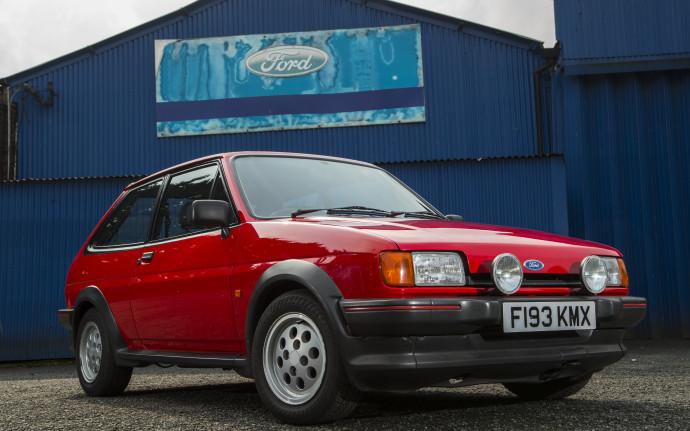
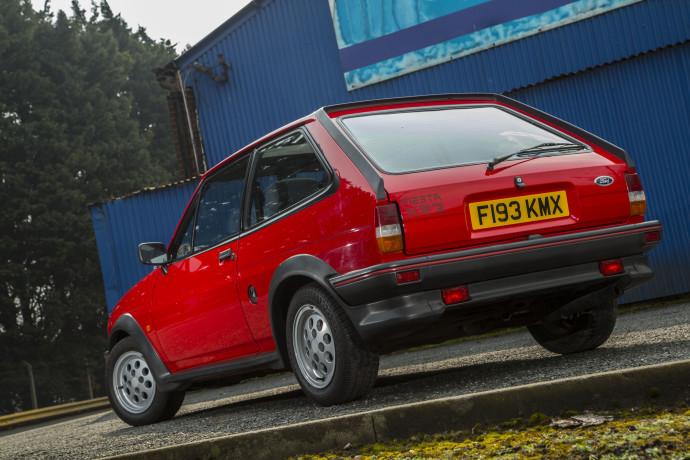
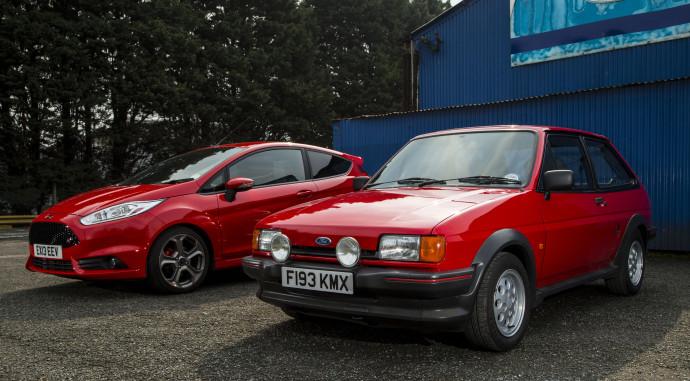
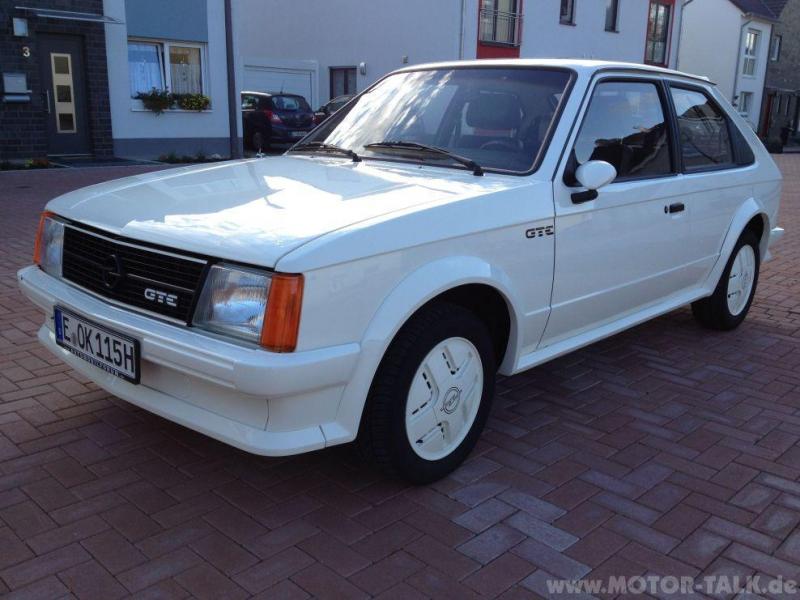
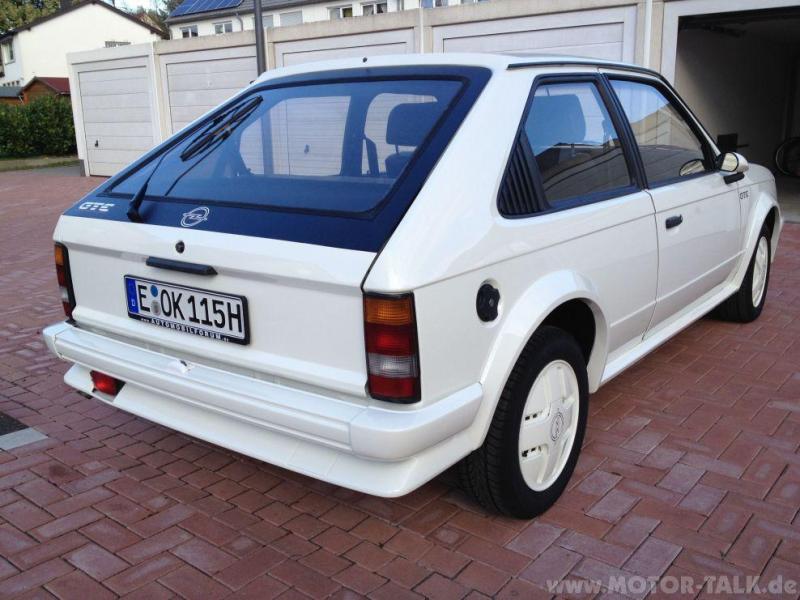
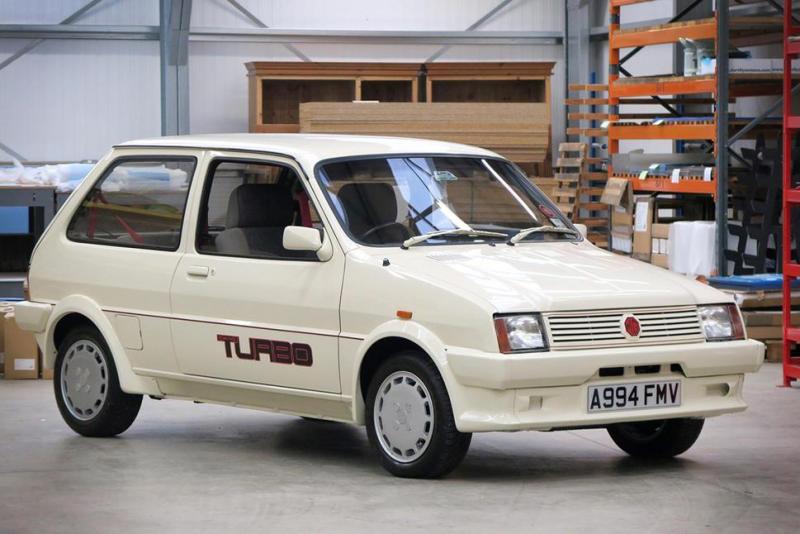
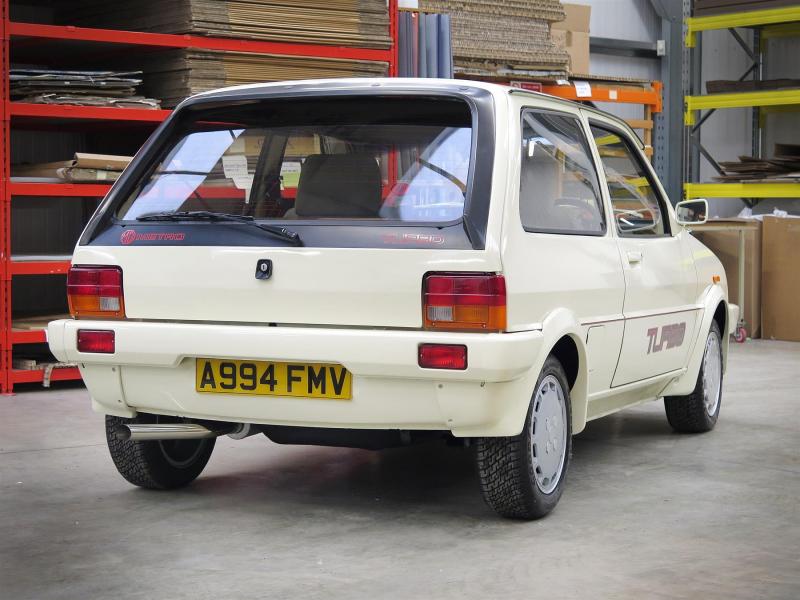
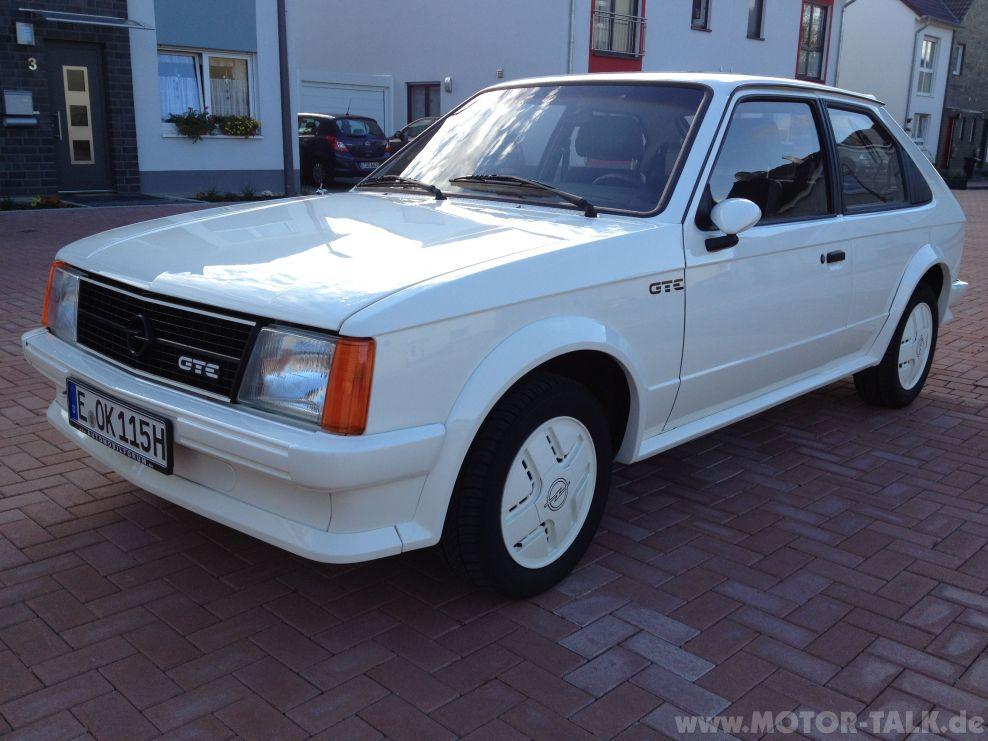
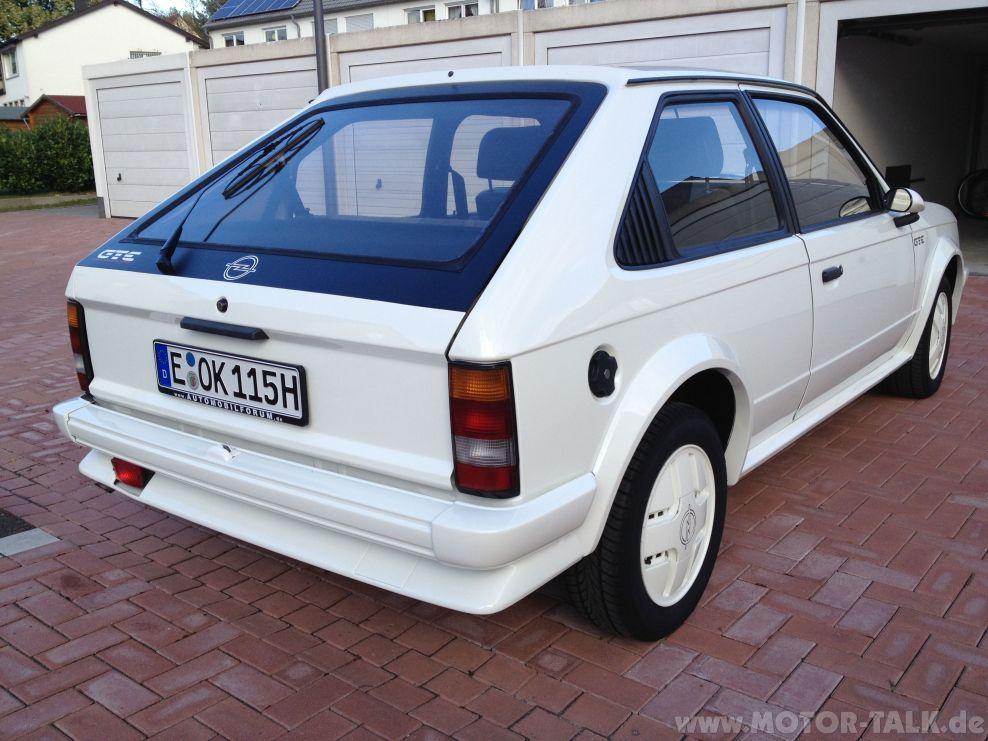
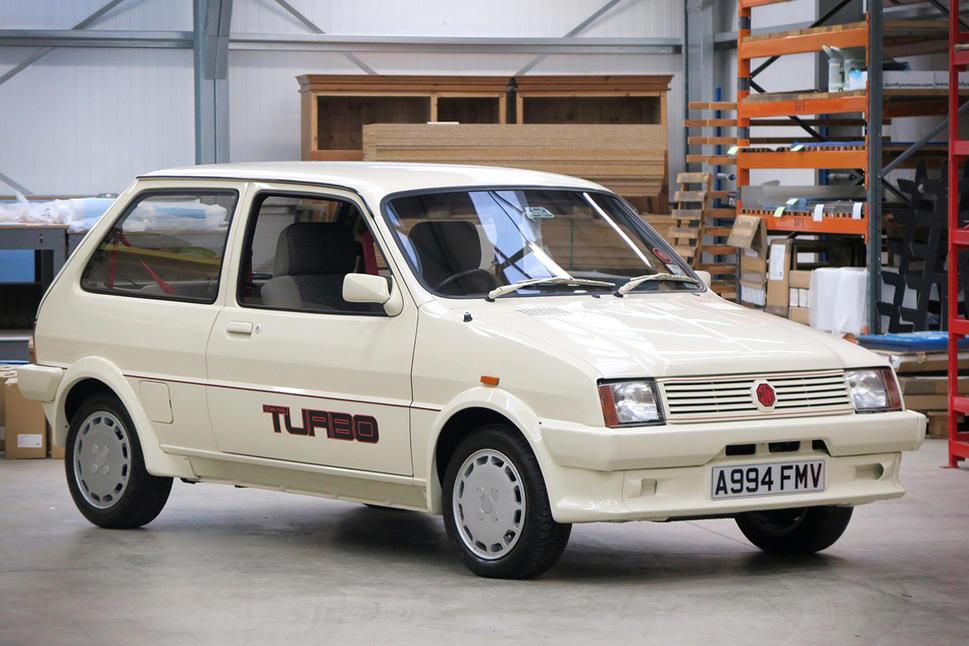
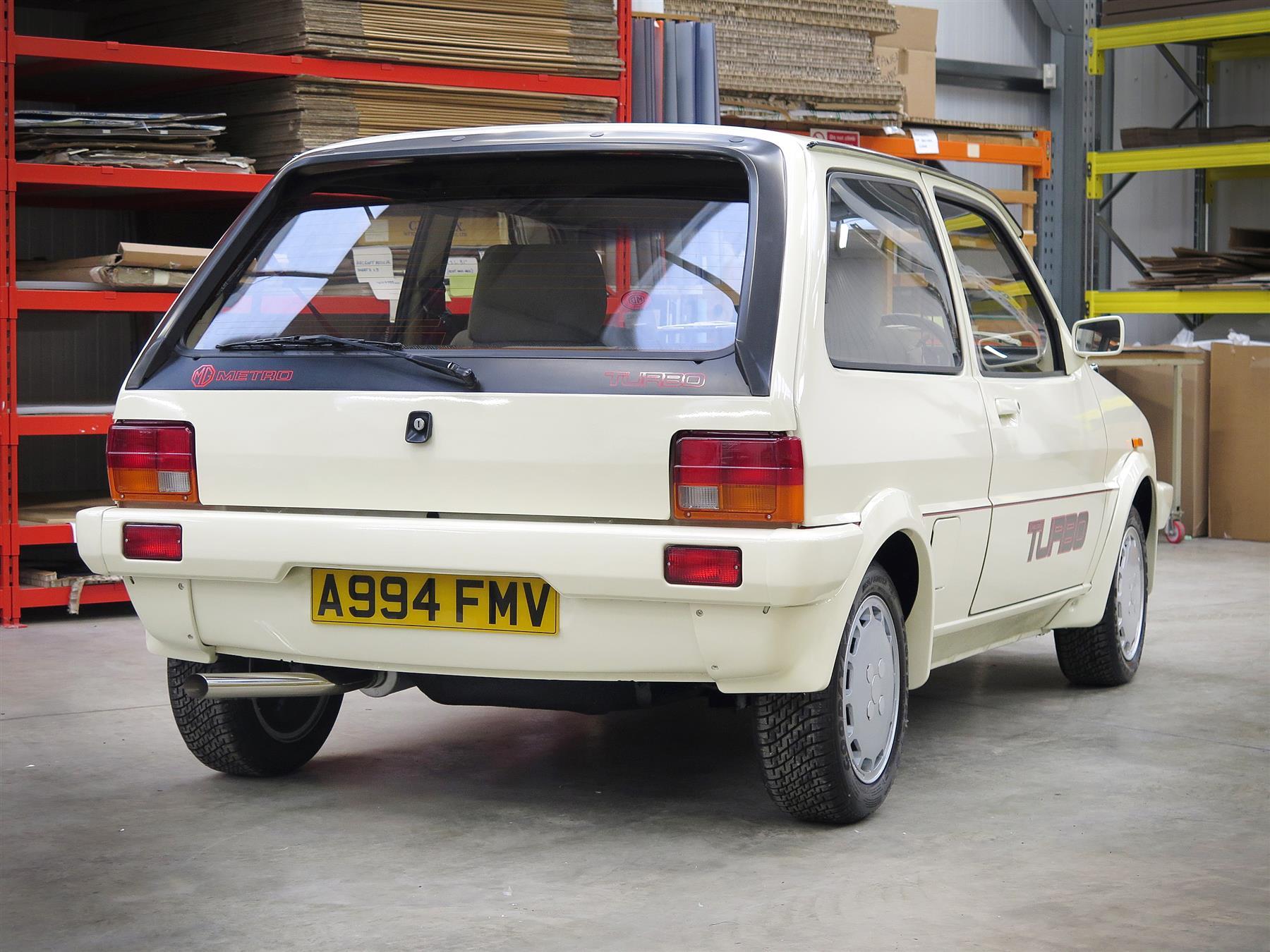
4 punti4 puntiProva COCHE ACTUAL (SPAIN) Stelvio 2.2d Q4 210 cv GLC Coupe 250d 204 cv 0-100 km/h: 6,9 - 7,5 s 0-1000 m: 28,1 - 28,8 s 80-120: 5,3 - 5,8 s Frenos 120-0: 54,6 - 54,9 m Consumo carretera/ciudad: 5,9/7,8 - 6,2/7,8 Peso: 1795 - 1956 kg APARTADO DINAMICO: STELVIO 9,2. GLC COUPE 8 Le dan 10 al Stelvio en ACELERACIÓN Y CAMBIO NOTA FINAL: STELVIO 8. GLC COUPE 74 punti3 puntiColgo la palla al balzo, alcuni tipo te, il sorriso l'hanno già perso dopo il GP di Spagna PS: Nulla di personale 12cil, anche perché nelle tue analisi c'è sempre un fondo di verità pur magari non trovandomi d'accordo, ma ammetto che negli ultimi due mesi ogni volta che ti leggevo una toccatina ai gioielli non mancava mai purtroppo paiono non essere servite a nulla! Resta a mio modo una grande stagione della Rossa soprattutto considerando il disastro dell'anno scorso. Come si diceva qualche giorno fa forse non se lo aspettavano nemmeno loro e ha ceduto la testa della Scuderia oltre che una bella dose di rogne...l'unico veramente pessimo ritengo sia proprio Maglionne le dichiarazioni post Monza furono cazzate dette al vento giusto per, assolutamente parole da non uomo squadra...diciamo parole da capo ma non da leader (per quel che riguarda il motorsport sia chiaro) Salvo miracoli ci si vede nel 2018...e complimenti vivissimi a Hamilton che questo mondiale se lo è veramente meritato!3 punti3 punti3 puntiCredo Marchionne dovrebbe chiedere scusa ad un pò di Persone. La sua arrogante strafottenza ha rotto i Maroni , bravissimo a togliere le poltrone sotto il culo degli altri ,la sua non si discute. Facile Dare la colpa a piloti meccanici e fornitori. Le Persone le ha scelte lui in modo dittatoriale e i risultati sono ridicoli Al limite dell'incompetenza. Anche Vettel Mi sembra arrivato Al capolinea.3 punti3 puntiCi sono hot hatch che han lasciato il segno e altre che per vari motivi sono state considerate (a torto o a ragione) "sfigatelle"...io per esempio ho sempre avuto un debole per queste... Fiesta XR2 MK2 ...ha pagato lo scotto dell'aspirato quando tutti passavano al turbo, e il confronto con la 205 GTI che a parità di 1.6 oltre ai 10 cv in più era parecchio più reattiva...però quei fari supplementari tipo rally e i codolini fanno letteralmente sparire la ST accanto a lei... Kadett D GT/E ...con la trazione anteriore e il 1.8 da soli 115 cv il confronto con la gloriosa GT/E C era imbarazzante...meno male che poi arrivò la E GSi a rimettere le cose a posto... Metro Turbo MG ...turbizzare l'arcaico motore della Mini Cooper S inserendolo in un telaio solido come il polistirolo e con il cambio a quattro marce fu un vero esempio di humor inglese...per aspiranti suicidi...
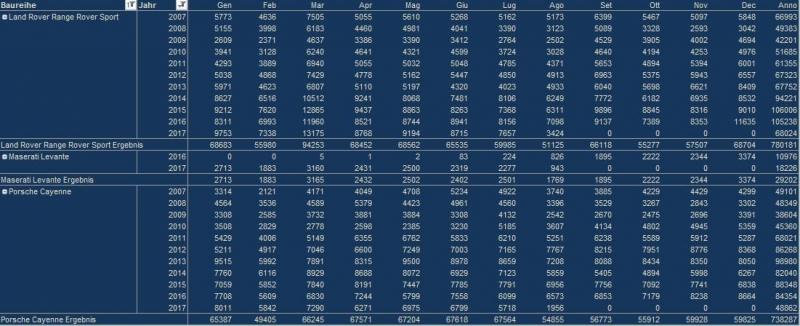
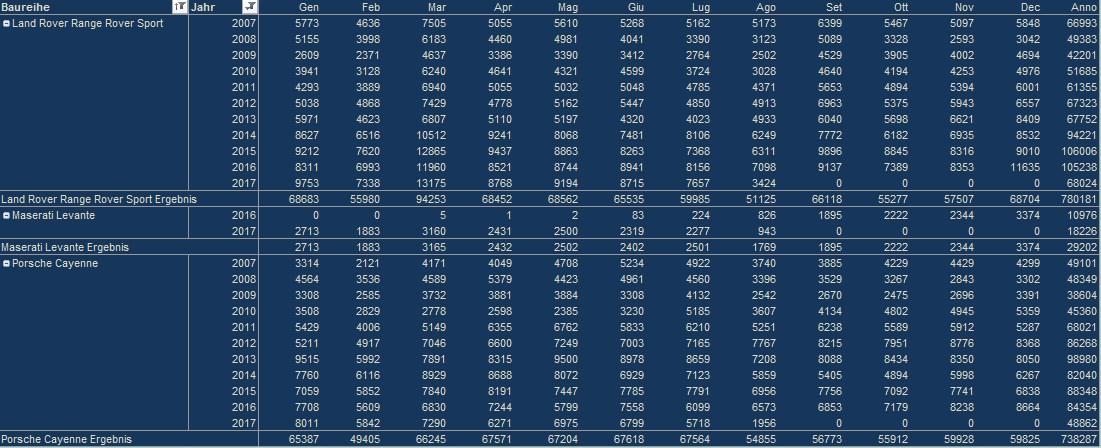
 2 punti2 puntiE poi dicono che la f1 moderna concilia il sonno... [emoji9] ☏ Nexus 5 ☏2 punti2 puntiSe ho capito bene, il tuo dilemma è sostituire la 156 con qualcosa di più pratico (più spazio) ma non meno gratificante tecnicamente e da guidare. Quadratura difficile, perché gran parte dei suv/crossover si sognano la guidabilità di una 156. Oltretutto, sono prezzati all'inverosimile rispetto a quello che realmente offrono. Fossi in te considererei una seg. D station wagon come la Subaru Levorg o la Mazda 6, tecnicamente raffinate e con abbondante spazio a bordo.2 punti2 punti2 puntiMarchionne sara' bravo a fare i giochi finanziari, ma e' per ora di gran lunga inferiore al suo predecessore. Non ha competenza specifica, e' decisionista e accentratore e si circonda di yes men pur di avere lui il controllo. Purtroppo non bastano le sue sparate per vincere. Per vincere la Ferrari dovrebbe tramite lui riprendere un posto di potere a livello FIA. Invece il team che ha piu' storia di tutti conta meno di una MB o una RB, tutti team che vengono e poi vanno. Comunque a posteriori decisione tragica quella di cacciare il capo dei motoristi a stagione in corso.2 punti2 puntiMa non si era detto di non usare mulettini e ruspe varie per spostare le vetture uscite di pista???????2 punti2 punti2 puntiIn pratica questi di Auto, si sono drogati pesantemente e hanno avuto un trip dove MB compra FCA e la Ferrari dove non solo completano la gamma Alfa Romeo ma rilanciano Lancia con una gamma quasi speculare ad Alfa e alla stessa Mercedes.2 punti2 puntimah, per me no, anzi, di certo non torna a correre per una stagione ed a cercare di lottare per il titolo, quello si che sarebbe ridicolo, si fa un regalo (e penso che paghi, non che venga pagato) su una vettura di classe inferiore (non una WRC plus) per divertirsi un po' tutto qui, io la vedo come una bella cosa* *se ti riferivi a Biasion, se invece ti riferivi a Loeb, è stata la Citroen a chiedergli una mano per lo sviluppo di una macchina che non riesce ad andare, ed imho la sua la può ancora dire, soprattutto al Monte la sfida dei 2 Sebastian sul Turini..2 punti2 puntiSempre belli i concept Subaru. Li producessero tali e quali una volta...2 puntihttps://it.motorsport.com/f1/news/la-honda-fa-marcia-indietro-ora-vuole-che-gasly-corra-ad-austin-963371/ Honda però non è che abbia le idee molto chiare1 punto...non si può certo pretendere che al primo colpo si riesca a presidiare stabilmente dei settori dove le altre case, non solo europee, sono già alla terza o quarta evoluzione del modello. Come primo inserimento non ci si può lamentare ma serve umiltà, costanza, professionalità, qualità. Questo discorso vale sia per Alfa che per Maserati e ancor di più per i modelli Giulia e Stelvio nonché per Ghibli e Levante!1 puntoa me sembra una riduzione delle cifre molto presto alla Levante, i rivali sembrano piu costanti ... (agosto '17 senza ancora Cina)
 1 punto1 puntoComandi finestrini touch da taglio delle mani a chi li ha pensati1 puntole motivazioni ufficiali parlano di un calo sensibile del mercato Cina ; se non ricordo male lo avevo segnalato in uno dei topic maserati1 punto1 puntoCi sono un paio di scene porno d'antan. Carinissima quella di Pornhub! Quella pro-vegan mi ha fatto cascare le balle.... E' un mondo meraviglioso! E pure la Japponia!1 punto1 punto1 puntohttps://it.motorsport.com/tcr/news/spettacolare-vittoria-tarquini-hyundai-in-gara-1-a-zhejiang-963034/ la Hyundai parte alla grande nel TCR, vittoria in gara1 al debutto con un giovanotto di nome Tarquini 8^ l'Alfa di Kajaia, ritirata l'altra...1 punto1 punto1 puntoBeh Ferrari il suo V6 lo avrebbe già pronto per la Dino... ?1 punto1 puntoOk perfetto, sono io che non stavo capendo la situazione. Titolo davvero meritato.1 puntoC'è anche da dire che a furia di allargare le auto nei parcheggi oramai non c'è manco più spazio per aprire le portiere al primo scatto senza urtare quella accanto...1 punto1 puntoSe sono attrezzati, lo fanno da sotto con un apposito macchinario che manda in pressione l'impianto Tieni conto inoltre che - su un'auto moderna - anche in caso di sostituzione manuale, lo spurgo lo fai comandando la pompa dell'ABS/ESP con lo strumento di diagnosi. Diversamente rimarrebbero bolle d'aria nel circuito frenante, che è molto più complesso che nelle auto del passato.1 punto1 puntosemi-OT è il mancato prototipo Toyota per il Gruppo S, la MR-2 222D fixed concordo1 puntoAbbasso le nervature! Viva i paracolpi laterali! Viva Viva! P.s. Ok, non li mettete perchè volete la fiancata bella? Ma almeno optional proponeteli, no? Cioè... neanche optional, spesso!1 punto1 punto1 punto1 punto"La pelle è per lo chauffeur. Scivoli in curva, gela le chiappe d'inverno e le cuoce di estate." G.A.1 punto1 puntoÈ pure targa, per la felicità mia e di @jeby. L'elettrico sopperisce alla coppia. Normalizzata di fari viene un bel giocattolo.1 puntoKisaki Urumi (cosplayer giapponese) https://www.facebook.com/kisakiurumi/ https://twitter.com/shiinakira https://www.instagram.com/explore/tags/kisakiurumi https://www.facebook.com/397038910351542/photos/?tab=album&album_id=4370857896801871 punto1 puntoHo letto che l'illuminazione dei bixeno della Giulia nei test americani hanno performato meglio dei tanto decantati full led del trio tedesco ( giodicati tra lo scarso e il mediocre). Sinceraente tutte le storie che son state fatte sulla mancanza dei full led per me a maggior ragione ( gia me ne fregava poco) hanno ancor meno senso se fosse vero. Il problema di Giulia e Stelvio lo ripeterò fino alla noia e' il software e forse hardware dell apparato multimedia, quello si non all altezza e non solo per la mancanza di appl e google auto1 punto1 punto1 punto1 punto1 punto1 puntoBuongiorno a tutti, ho scritto una recensione che racconta i miei primi 7000 km con la Stelvio. Se può essere utile cliccate qui recensione Alfa Romeo Stelvio La mia è una 2.2 Turbodiesel Q4 Super. Se avrò tempo la terrò aggiornata. Ciao1 punto1 puntoCerto le Giulia così poco sicure che al 2016 EuroNCAP ha ottenuto un 98% nella sicurezza passiva. Chi te lo dice quali sarebbero stati o quali fossero i risultati pre-modifiche? Le auto sono modificate spesso, giustamente IIHS indica che la sua valutazione copre i modelli costruiti allo stesso modo a partire dalla data in cui le modifiche sono state introdotte. E rimanendo sempre in ambito IIHS, se uno va a vedere i loro Top Safety e Top Safety+, si può vedere che vi sono diversi veicoli in cui è indicata una data a partire della quale i veicoli di quel particolare "model year" sono "coperti" dal quella specifica valutazione IIHS. Ad esempio: 2017 BMW 3 series, 2017 Subaru Forester, 2017 Chrysler Pacifica, 2017 Hyundai Santa, 2018 Kia Sorento, 2017 Mazda CX-9, ... http://www.iihs.org/iihs/ratings/TSP-List1 punto1 puntoIl problema di Alfa Romeo è che non deve abbandonare il prodotto come hanno sempre fatto, ma aggiornarlo continuamente. Però non migliorarlo, altrimenti chi l'ha comprato prima si arrabbia. E poi ci si stupisce che il prodotto italiano non guadagna fiducia. E comunque io con quei soldi mi compro una tedesca!!1!!! ☏ Nexus 5 ☏1 punto1 puntoConcordo. La mia ha passato 14 anni parcheggiata ogni giorno su un piazzale asfaltato, il parcheggio di interscambio della stazione, sotto il solleone d'estate e al gelo d'inverno. A volte la sera quando tornavo dal lavoro il termometro che avevo applicato sul cruscotto segnava 60°C. Nonostante questo gli interni erano ancora perfetti, al punto che nonostante a me abbiano fatto lo sconto rottamazione, il concessionario se l'è rivenduta. Le magagne di quella macchina erano altrove. Più che il peso, è aumentata la sezione frontale, è quasi 10 cm più larga. La vecchia la conosco molto bene, solo a Gran Canaria ci ho fatto 1500 km in dieci giorni, su tutti i tipi di strade e se sommo tutte quelle che ho guidato negli ultimi anni, supero i 5000 km. Fra qualche mese, quando la nuova prenderà piede nei noleggi, sarò in grado di valutare la differenza su strada. I dati dichiarati sono più o meno uguali.1 puntoClaudia de Falchi ---------------------------------------------------------------------------- Ed ORA passiamo asd altro!!!!!!!! Signori , carissimi amici,ho trovato, dopo un lungo peregrinare la mia musa ispiratrice. Miriam Leone è la perfezione!1 punto1 punto1 puntoIl prodotto è valido ma a mio avviso andava maggiormente incentivato l'early adopter. Che non significa riempire i piazzali di km0 a 25000€, ma nemmeno tirare fuori listini dove base e Super escono con le alogene, sedile posteriore non ribaltabile e senza bocchette dell'aria posteriori (e potrei continuare). Insomma si parla pur sempre di un mercato dove con 25000 scarsi ti prendi un bmw 318 con 1 anno di vita neanche versione base, e si parla di un'auto che fino all'anno scorso era il benchmark indiscusso del segmento, non di una Skoda Octavia. Questo l'hanno capito fin troppo bene con Stelvio, dove il 90% di ciò che conta è di serie, e probabilmente si allineeranno al primo MY di Giulia. Dall'altra parte si paga una struttura concessionari/officine diverse spanne sotto la triade, nel mio conce BMW di zona c'è una M4 messa vicino a una 114D, ti siedi per il preventivo sulla poltrona e c'è una TV che replica la schermata del PC del commerciale, conce Mercedes adiacente ci sono GLE e Classe E cabrio nello showroom pure se magari stai lì per una smart, eccetera. Qui abbiamo una Giulia validissima, ma che da una parte ti fa pagare ogni singolo bullone come la triade (anzi peggio a mio avviso), dall'altra parte te la consegnano nel salone con 500 e Panda... due approcci validissimi.. ma che non possono coesistere, o l'uno o l'altro. Fortunatamente se il prodotto c'è, l'appetibilità si può far arrivare tranquillamente con un Model Year. Just my 2 cents1 punto1 punto1 puntoQuando si pensa che abbiano toccato il fondo a livello di design....... ecco che iniziano a scavare... scavare... scavare...1 puntoLa Leaderboard è riferita all'orario Roma/GMT+02:00

























Account
Navigation
Cerca
Configure browser push notifications
Chrome (Android)
- Tap the lock icon next to the address bar.
- Tap Permissions → Notifications.
- Adjust your preference.
Chrome (Desktop)
- Click the padlock icon in the address bar.
- Select Site settings.
- Find Notifications and adjust your preference.
Safari (iOS 16.4+)
- Ensure the site is installed via Add to Home Screen.
- Open Settings App → Notifications.
- Find your app name and adjust your preference.
Safari (macOS)
- Go to Safari → Preferences.
- Click the Websites tab.
- Select Notifications in the sidebar.
- Find this website and adjust your preference.
Edge (Android)
- Tap the lock icon next to the address bar.
- Tap Permissions.
- Find Notifications and adjust your preference.
Edge (Desktop)
- Click the padlock icon in the address bar.
- Click Permissions for this site.
- Find Notifications and adjust your preference.
Firefox (Android)
- Go to Settings → Site permissions.
- Tap Notifications.
- Find this site in the list and adjust your preference.
Firefox (Desktop)
- Open Firefox Settings.
- Search for Notifications.
- Find this site in the list and adjust your preference.