




Classifica Utenti
Utenti più Apprezzati
(Scegli il periodo) Utenti più Apprezzati
(Storia giorno per giorno) Classifica dall'Origine
(da Marzo 2003)
(Scegli il periodo) Utenti più Apprezzati
(Storia giorno per giorno) Classifica dall'Origine
(da Marzo 2003)
-
Pandino
Reporter (Staff)11Punti21430Numero contenuti pubblicati -

KimKardashian
Utente Registrato9Punti14552Numero contenuti pubblicati -
Giacomo 96
Utente Registrato9Punti1478Numero contenuti pubblicati -
RightKnider
Utente Registrato7Punti269Numero contenuti pubblicati



Contenuti più Popolari
Stai visualizzando i contenuti con il più alto punteggio, pubblicati in data 03/23/24 e localizzati in Risposte
-
10 punti
-
6 punti
-
Su now hanno messo una nuova sezione per rivedere gare e qualifiche di f1 e motogp ondemand. Così non tocca inseguire le varie repliche. Non male. Io le qualifiche le ho riviste li ora. Sarebbe stato meglio non farlo5 punti
-
4 puntiCiao a tutti, dopo qualche anno di assenza dal forum causa studio/lavoro torno a pubblicare i miei avvistamenti 😄 A gennaio sono stato nella terra del Sol Levante per vedere il Tokyo Auto Salon e vari eventi di contorno per cui ho potuto raccogliere molto materiale interessante. Mi scuso in anticipo per la qualità di certe foto dovuta a una scarsa illuminazione, inoltre sto provando un nuovo sito di hosting per cui spero che si veda tutto. Iniziamo subito con un'auto giapponese ma anche un po' italiana, la Nissan GT-R 50 by Italdesign. Ne è stata realizzata solo una ventina di esemplari, prodotti appunto dalla Casa italiana a partire da delle R35 Nismo. Non è un'auto stradale ma volevo condividere questa Nissan Hyper Force, un concept molto spigoloso che immagina una possibile GT-R del futuro: Passiamo ora al famoso parcheggio di Daikoku dove ogni giorno si radunano appassionati con le auto più disparate. Ne sono degli esempi queste auto da corsa street legal, rispettivamente la Ultima GTR e la Radical RXC: Sicuramente più adatte alla guida su strada queste Lexus LC 500 e McLaren 720S: Per chi preferisce le auto con il portellone ecco una Renault Clio V6 e due familiari d'eccezione, la Mitsubishi Lancer Evolution IX e la Cadillac CTS-V: In vista di una seconda parte dedicata alle auto italiane ecco un confronto diretto tra la nostra Fiat Panda e la Toyota Sienta a lei ispirata 😁4 punti
-
4 puntiMarquez campione cristallino, con moto vecchia se la gioca..... avesse una gp24.... Aggiungo seconda gara in ducati....4 punti
-
si sa a che ora è disponibile la replica su Now? Evito accuratamente di mettere la sveglia alle 5 e me la guardo con calma... ps, per fortuna non ho cambiato il sondaggione 😅4 punti
-
io invece farei MOLTISSIMI complimenti a Sainz che sarà uscente , sarà calimero , avrà alle spalle una padre ingombrante ma alla fine fa sempre il suo onestissimo lavoro ed oggi si è messo in prima fila il prossimo pilota ferrari lo vedo parecchio demotivato ... mi sa che verrà a svernare , ampiamente retribuito , in pianura padana3 punti
-
3 punti
-
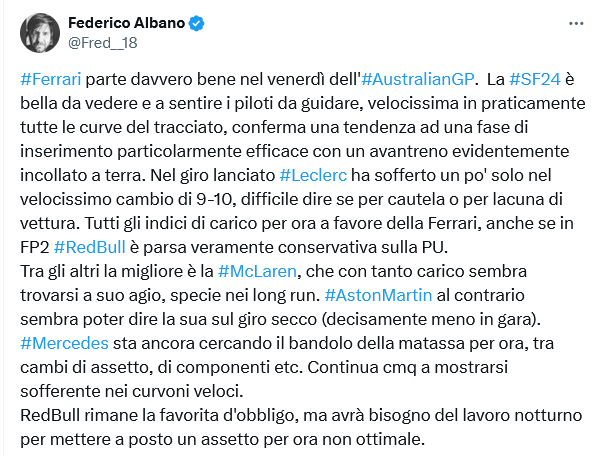
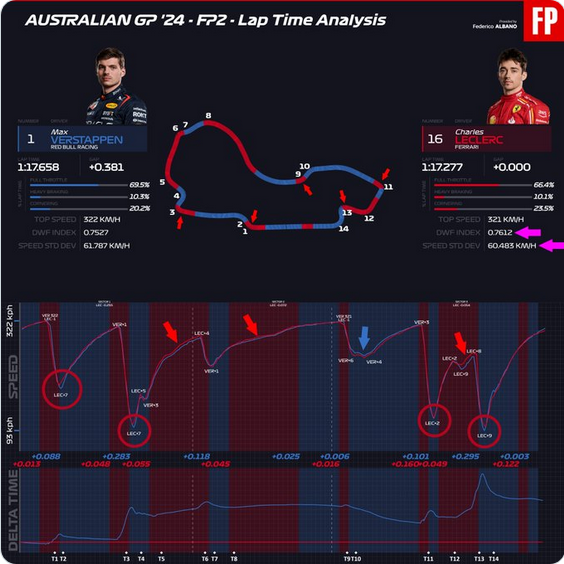
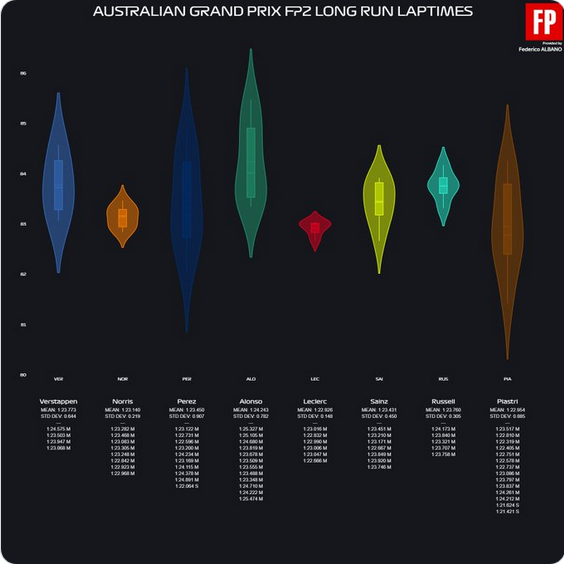
Oggi la RB era vulnerabile, solo che loro hanno Verstappen, noi un convalescente e uno che nel Q3 sta ancora a trafficare con l’incidenza dell’ala anteriore. Rinnovo i miei dubbi sulle capacità di Leclerc di trovare assetti decenti. Sainz mi sembra nettamente superiore a lui in quest’aspetto. Aveva in mano una macchina da pole e parte quinto, posizione da cui domani vedrà l’olandese solo dopo il traguardo. Sono molto molto deluso.3 punti
-
3 punti
-
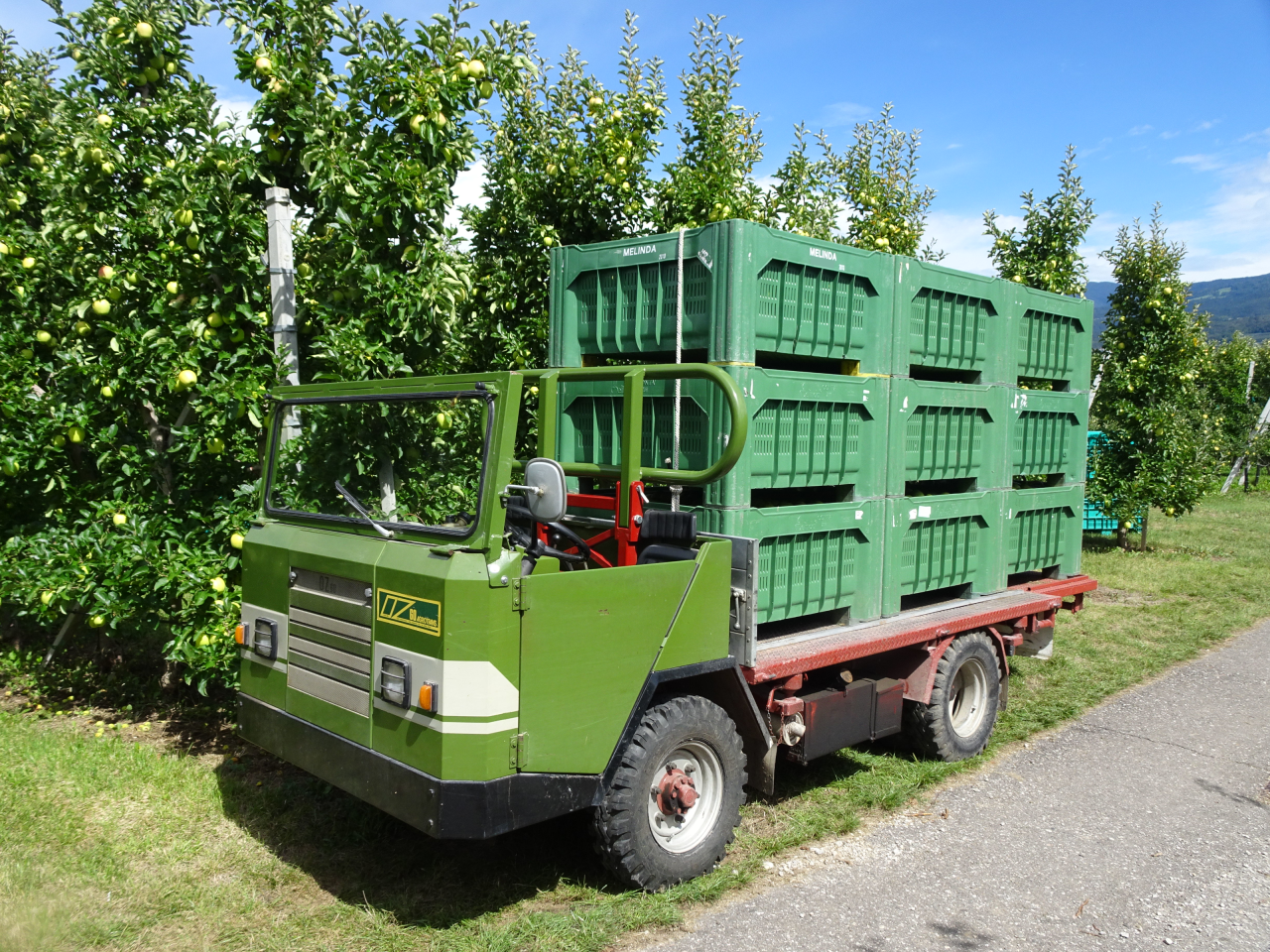
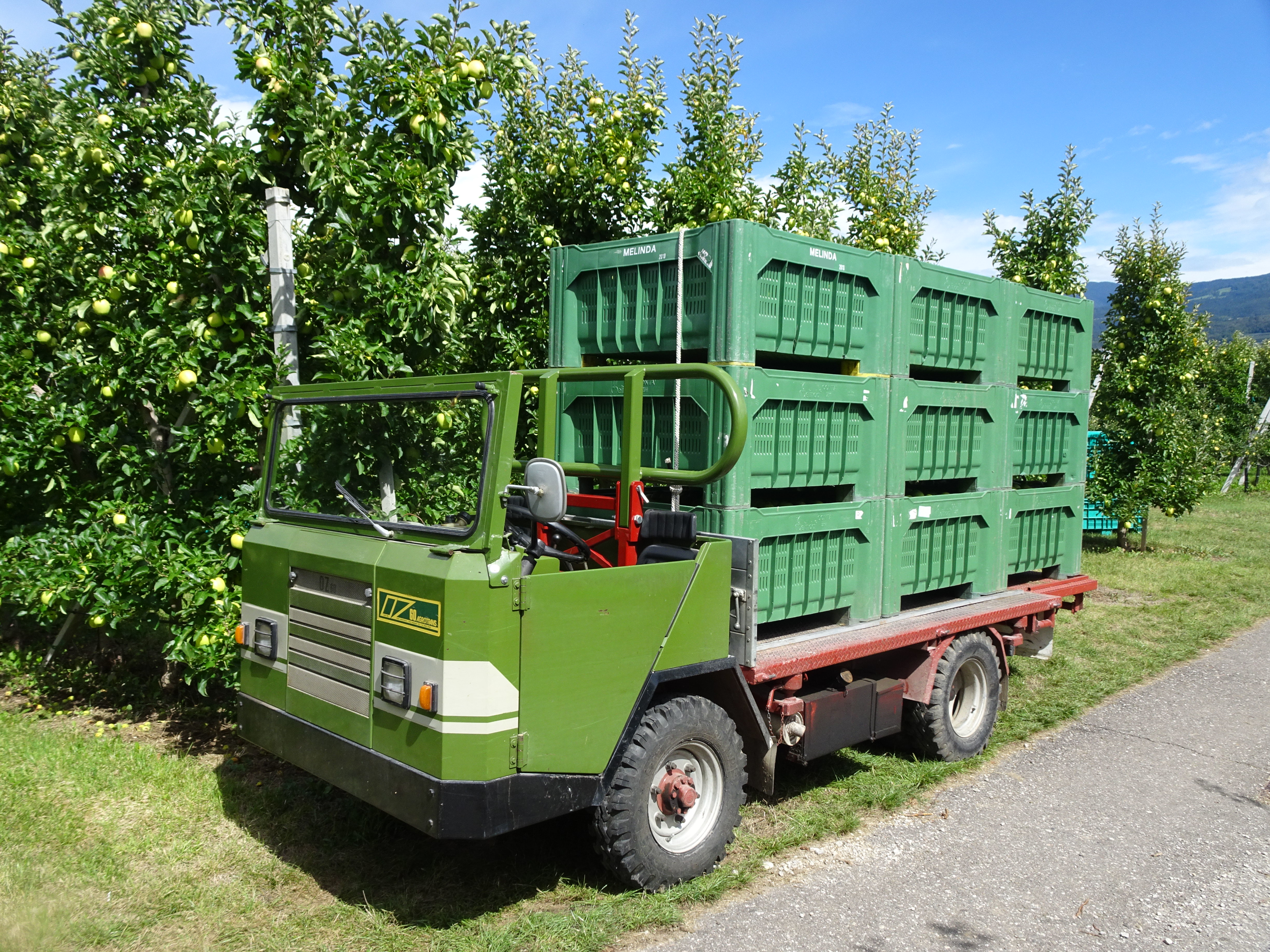
3 puntiComplimenti per l'avvistamento! O.Zeta sarebbe un piccolo costruttore di autocarri e mezzi agricoli di Cles (TN), vicino a casa mia. Oltre ai camioncini come questo sono conosciuti in zona per i trattori con pianale, ormai soppiantati dai classici rimorchi a traino ma che vengono ancora impiegati da qualche agricoltore. Lo so bene perché in famiglia abbiamo uno di questi trattori ormai sulla soglia della quarantina, lo utilizziamo principalmente in autunno per il conferimento delle mele raccolte ma anche nel resto dell'anno si rivela utile in diverse occasioni 🙂
 3 punti
 -
3 punti
-
Ciao a tutti! Come dicevo nel topic delle auto moderne rare sono stato a Tokyo, dove ho visto tantissime auto di tutti i tipi e provenienze. Direi quindi di iniziare con qualche vecchia conoscenza: un'Alfa Romeo Spider terza serie ed un'Autobianchi A112 quinta serie. Tra le specialità locali abbiamo una Nissan Laurel Coupé (C130) e una Skyline 2000 RS-X Turbo (R30) a quattro porte. Vediamo quindi un paio di Mitsubishi Lancer, rispettivamente una EX 1800 GSR Turbo e una più recente Evolution III. Non mancano poi le auto americane come queste Chevrolet Impala lowrider del 1961 e Ford Mustang GT cabrio di terza generazione. Chiudo la prima parte con queste Mercedes-Benz W126 davvero particolari: una monta il kit estetico della Koenig mentre l'altra è una station wagon realizzata da un'officina locale, devo dire che il risultato è ottimo. A presto 🙂2 punti
-
2 punti
-
Il rumore di rotolamento e' la cosa piu' fastidiosa delle auto moderne.2 punti
-
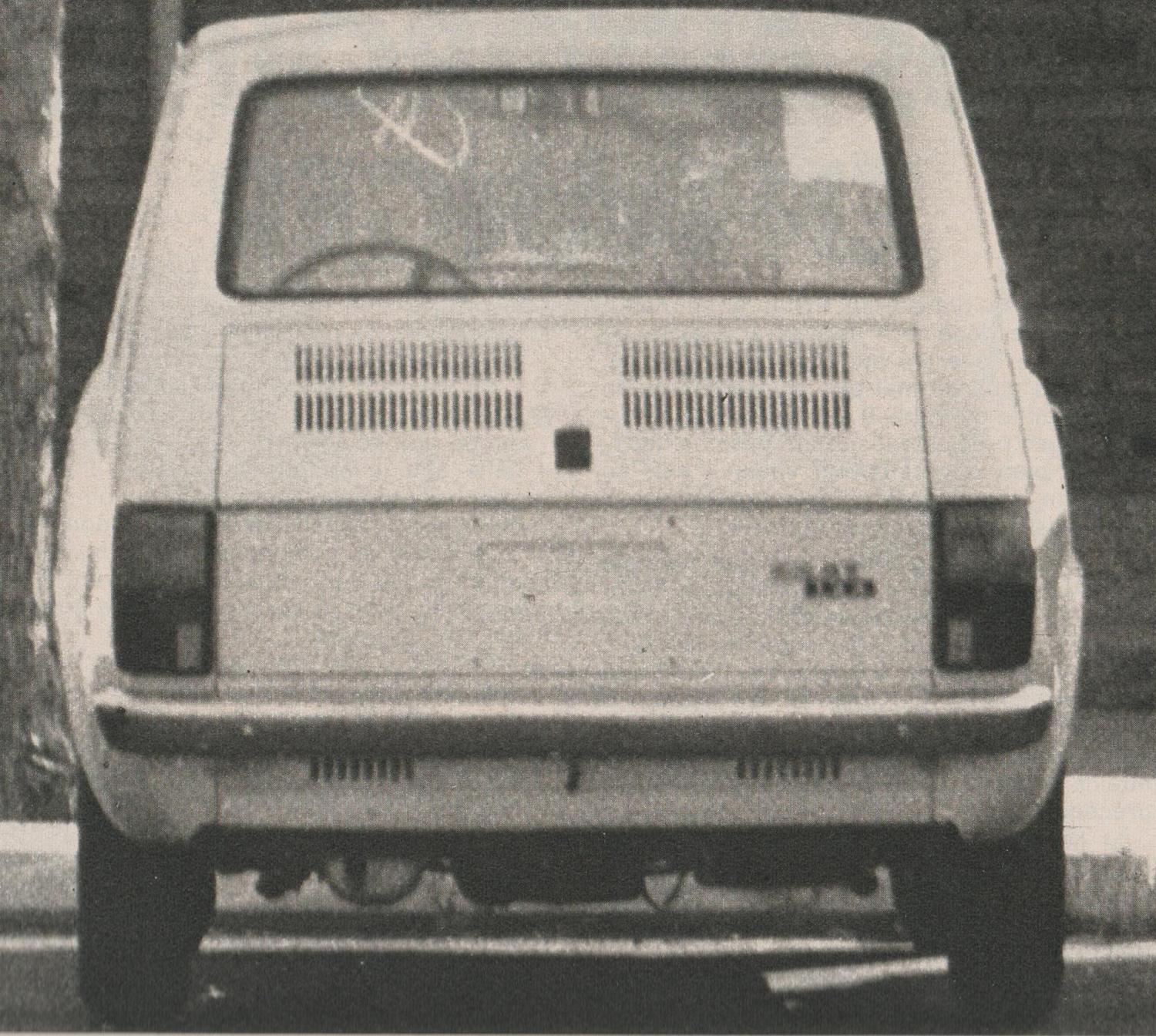
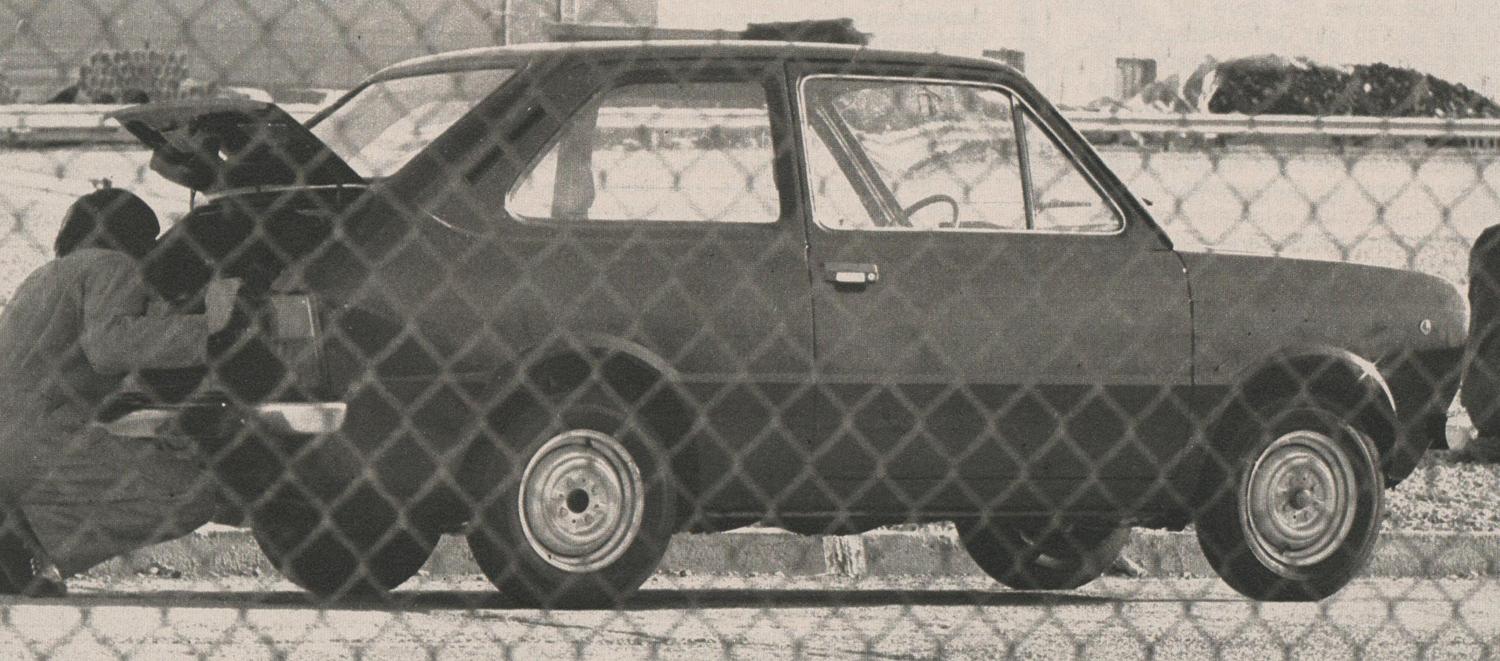
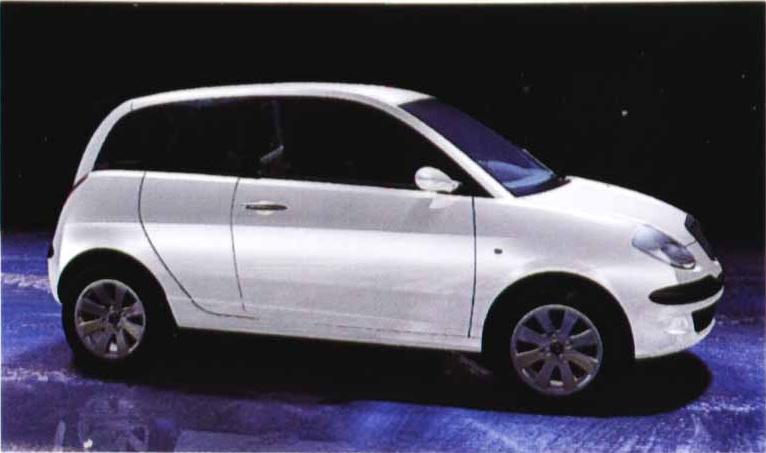
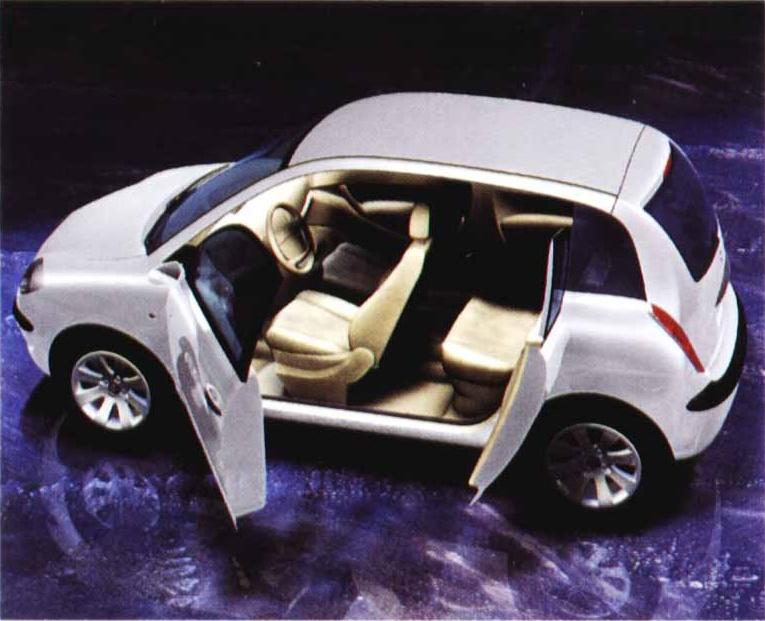
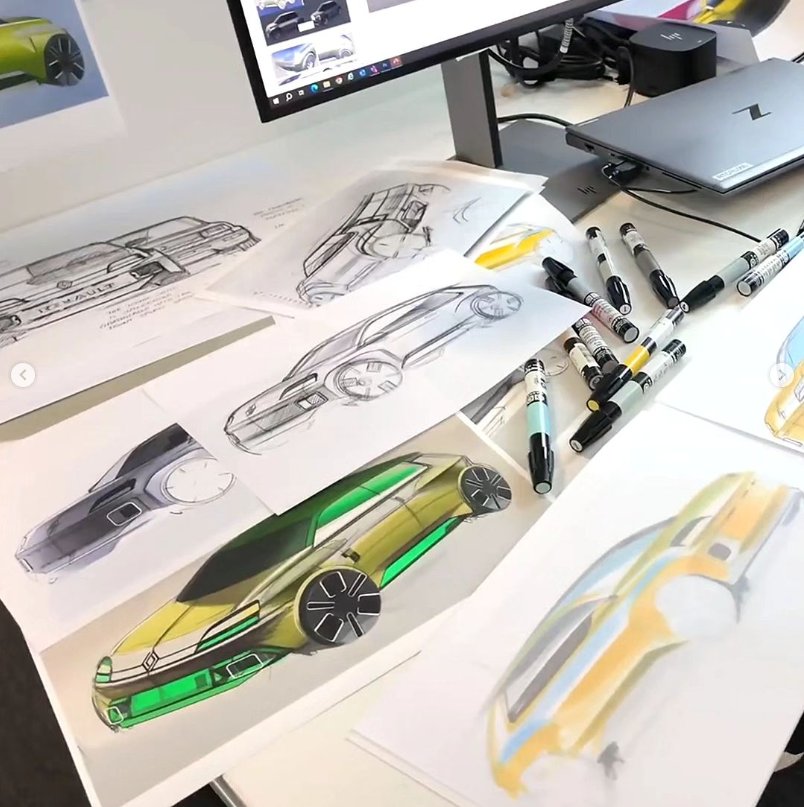
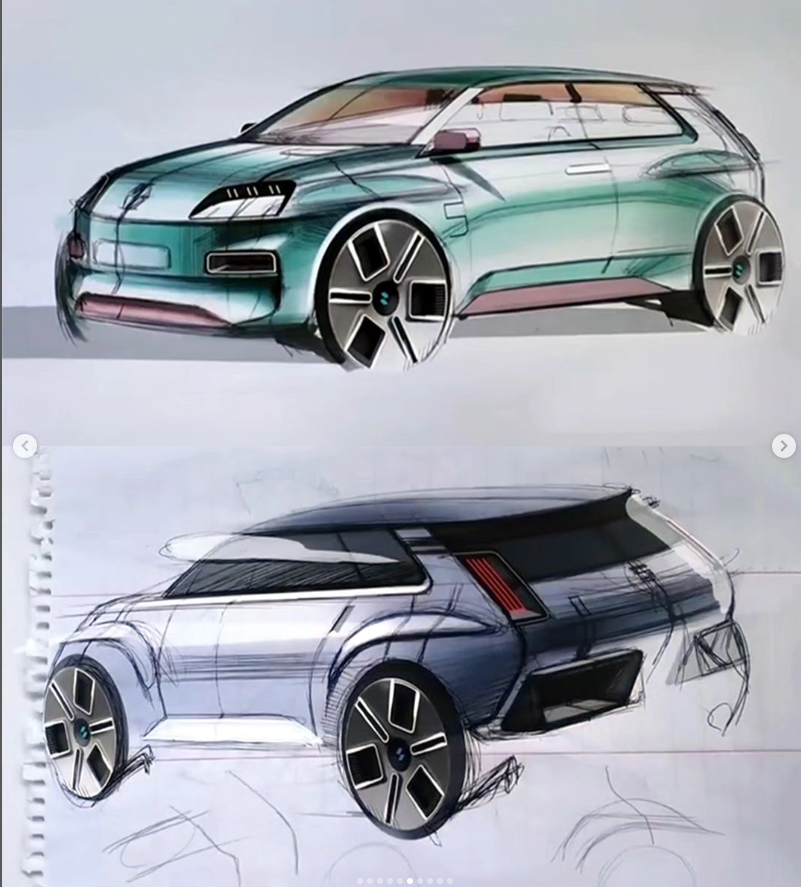
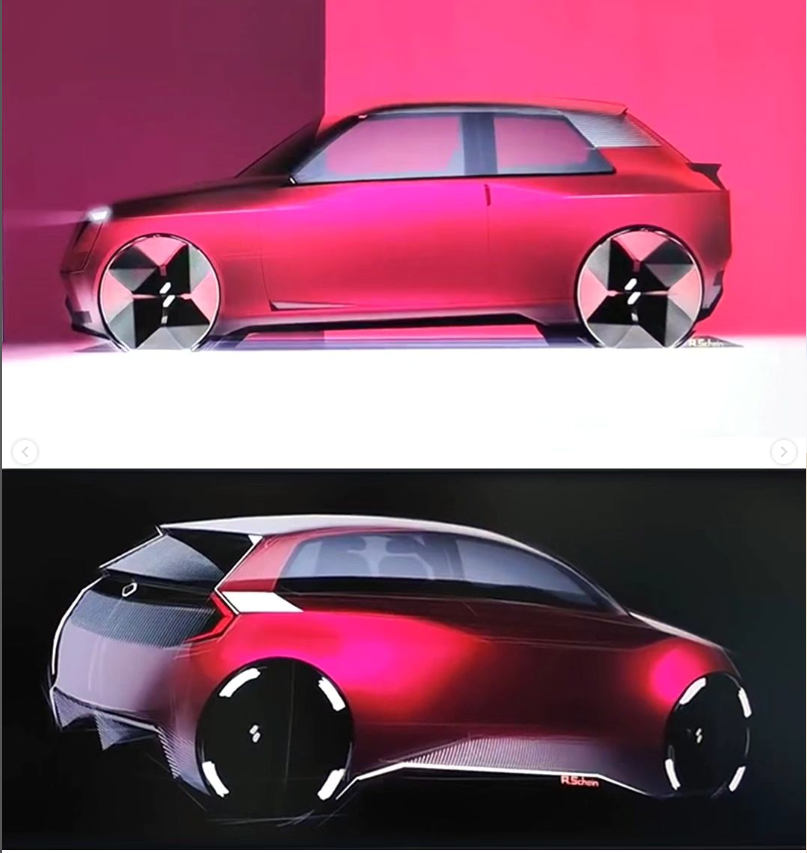
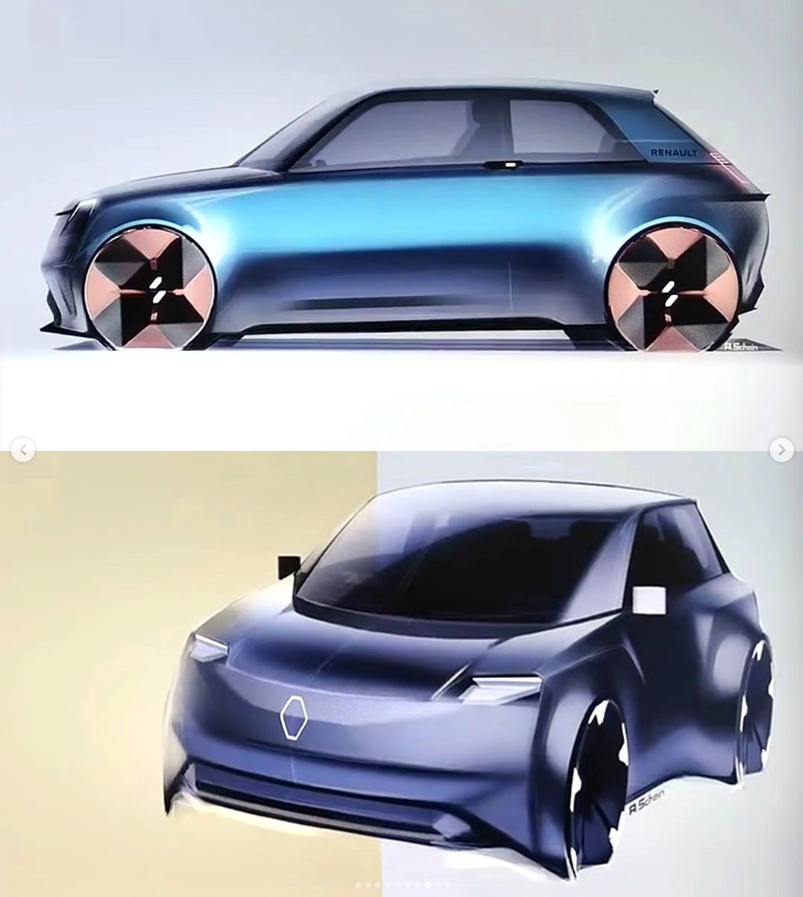
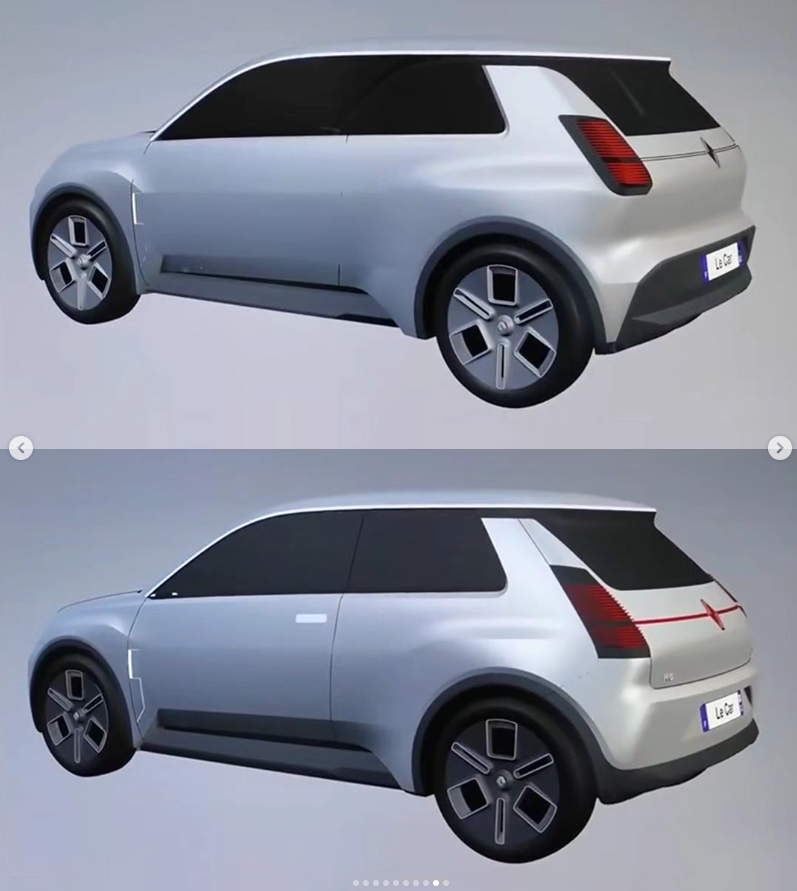
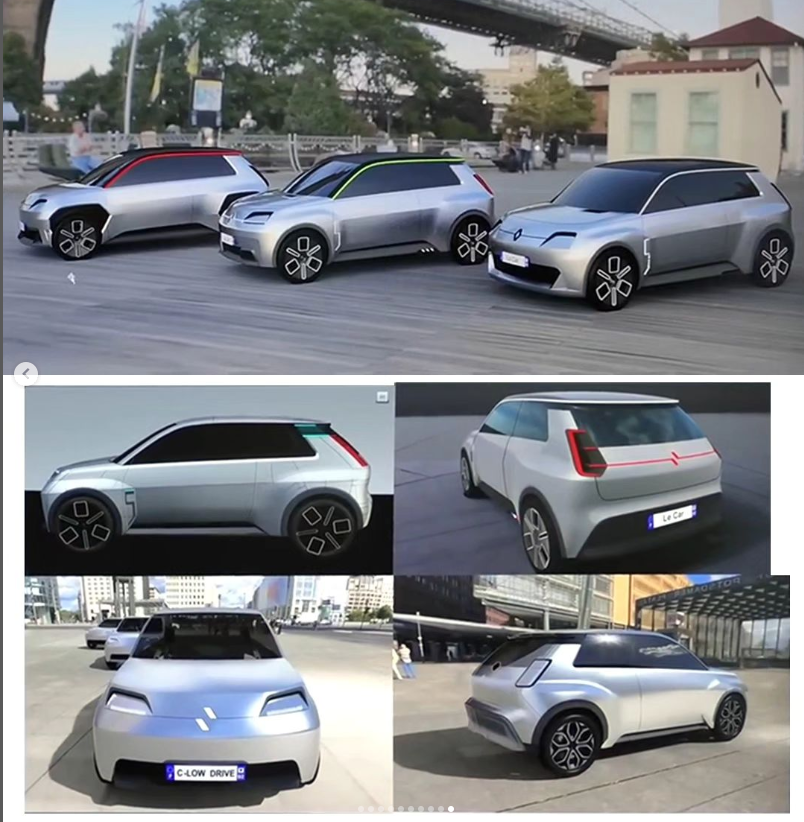
2 puntiCiao,io ho queste foto di prototipi, però non ricordo se sono già state pubblicate qui e quindi le hai già viste, le pubblico ancora... Le prime arrivano dal web quindi le hai sicuramente, le altre da riviste italiane, ma come dicevo forse le avevo già pubblicate. Spero possano servire!
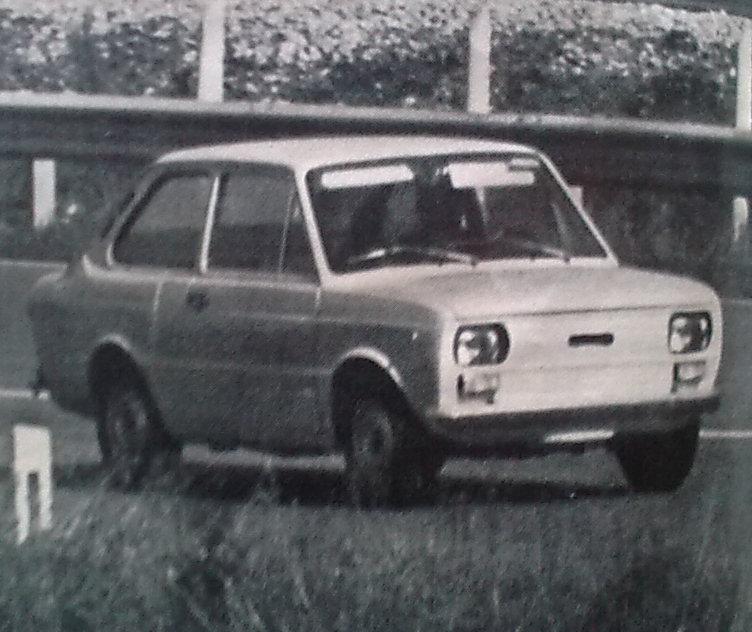
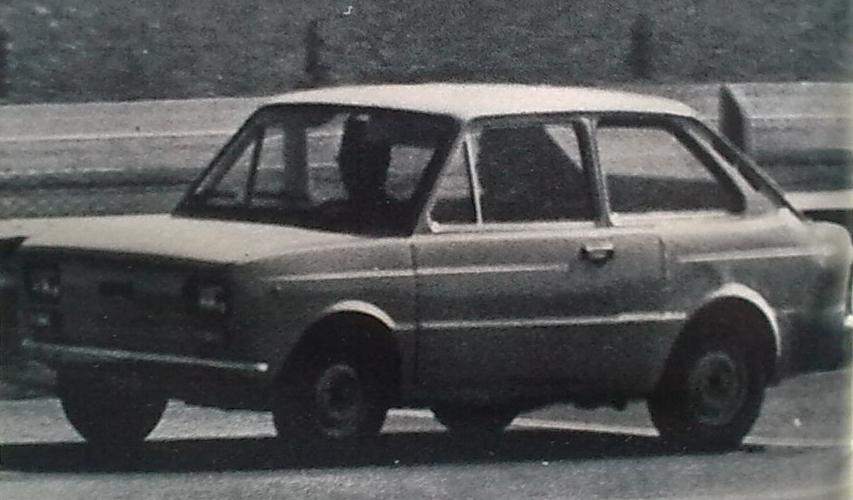
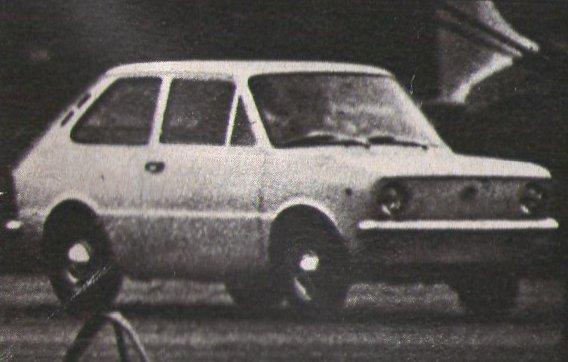
.thumb.jpg.ec8d123fbe516c107eca4cb1881734d7.jpg)
.thumb.jpg.4ec66552605973942abd4210bf69b3d3.jpg)
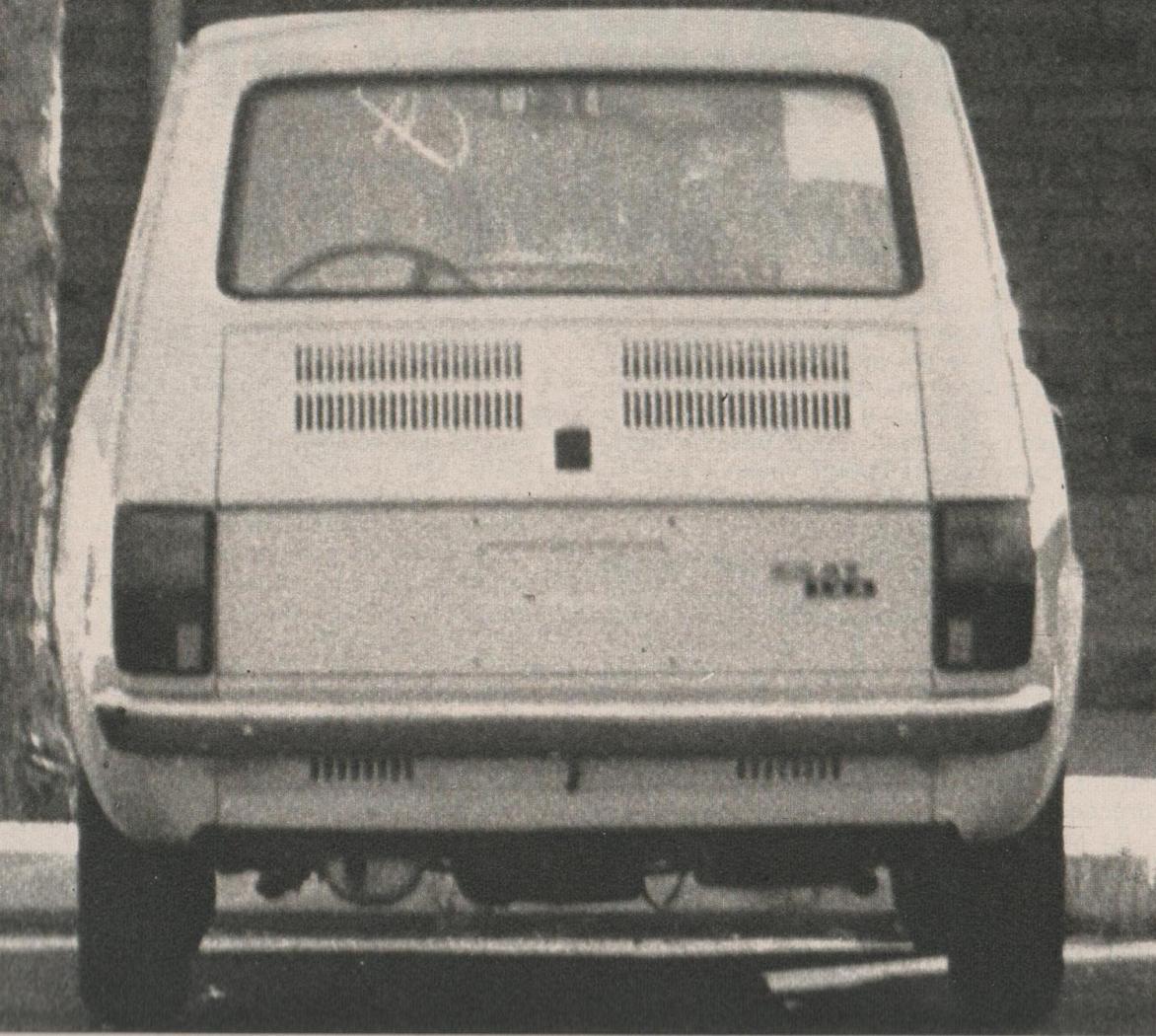
.thumb.jpg.2948af55a97a99fa00ee530154209b94.jpg)
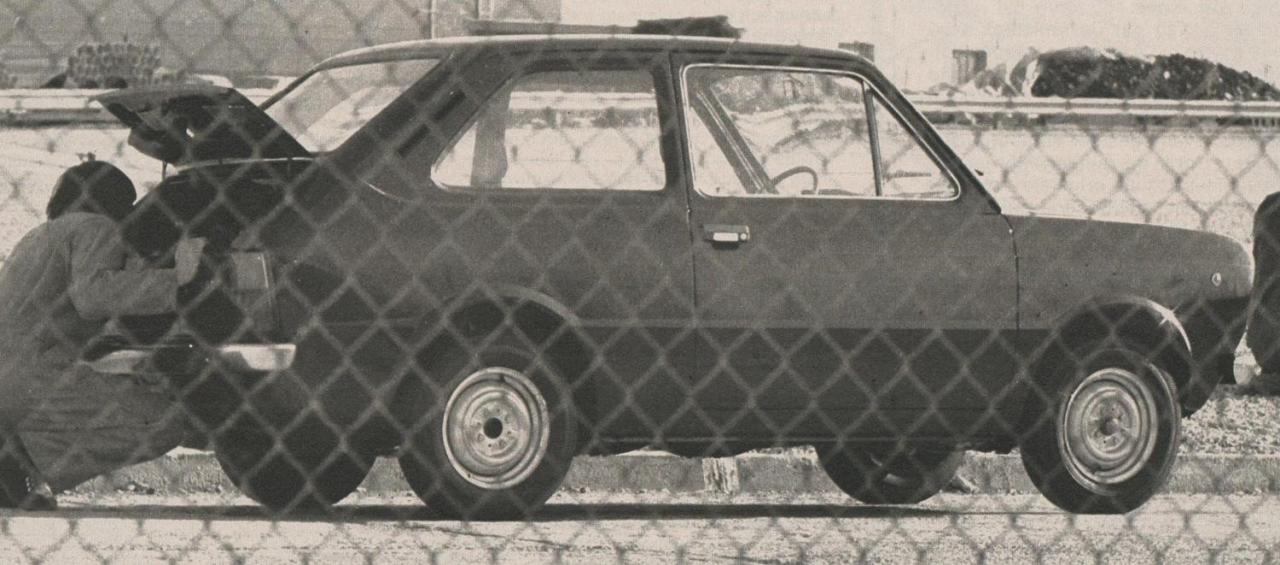 2 punti
 -
Beh a discapito delle scelte di Toyota devo dire che la differenza in insonorizzazione fra la Active e la Prius 2 che avevo prima è notevole, in tutte e due il rumore che si sente di più è il rotolamento per quel che percepisco. In ogni caso per me la lounge+ non era abbordabile, la lounge era al limite ma ho preferito la Active per gli pneumatici e i consumi. Mi piace molto il tettuccio solare ma le recensioni che avevo letto dicevano che ricaricava solo da ferma e, a parte il poterselo permettere, non so se la differenza di prezzo sia ammortizzabile. Ma in primis l'auto dev'essere scelta in base a necessità e gusto personale, sicuramente la Active mi attrae di più, per i consumi, per il peso, per il prezzo; anche se magari più trasparenza da parte di Toyota nel marketing sarebbe gradita (neanche il concessionario credo sapesse dei doppi vetri e trovo assurdo che non sia informato nonostante i corsi che devono fare). Poi c'è il discorso dei modelli e della loro disponibilità in base alla nazione di vendita, in Francia (credo) c'è un modello ancora più base con l'autoradio da 8" ma plugin, probabilmente quel modello l'avrei glissato. ☏ SM-G991B ☏2 punti
-
2 puntimagari domani qualcuno, tra Sainz, Norris o Leclerc, riesce a non fargli fare 1-2 ai bibitari. Già questo sarebbe un risultato eccezionale.2 puntiMarcel Massini confirms that both the GTB and the GTS version will be unveiled at Miami, on May 2nd
 2 punti2 puntiNo era questo render fatto con l'AI Che però si avvicina molto di più di quanto fatto dalle riviste di settore 💀
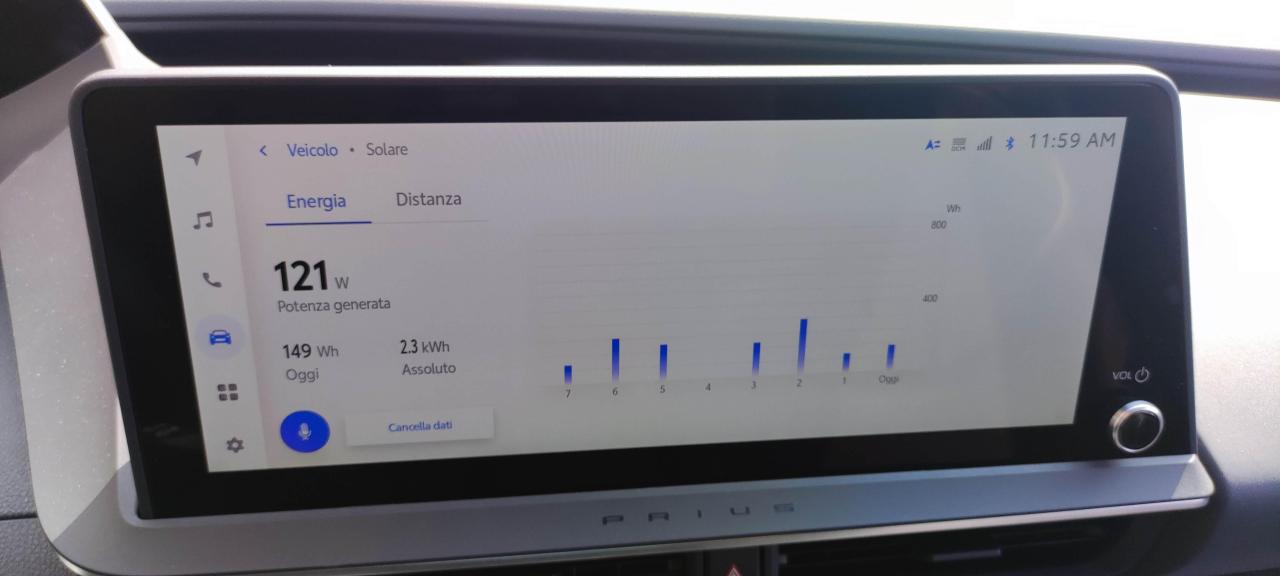
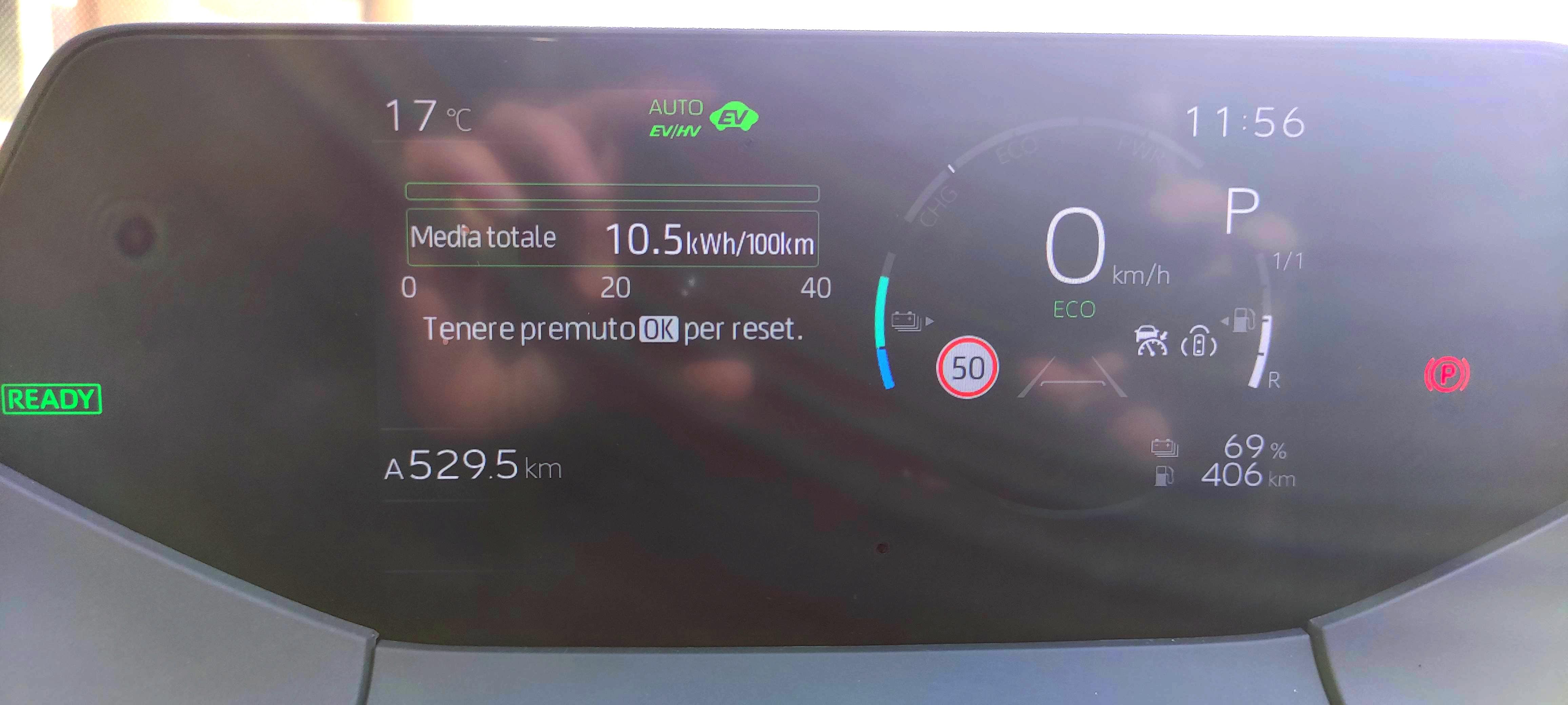
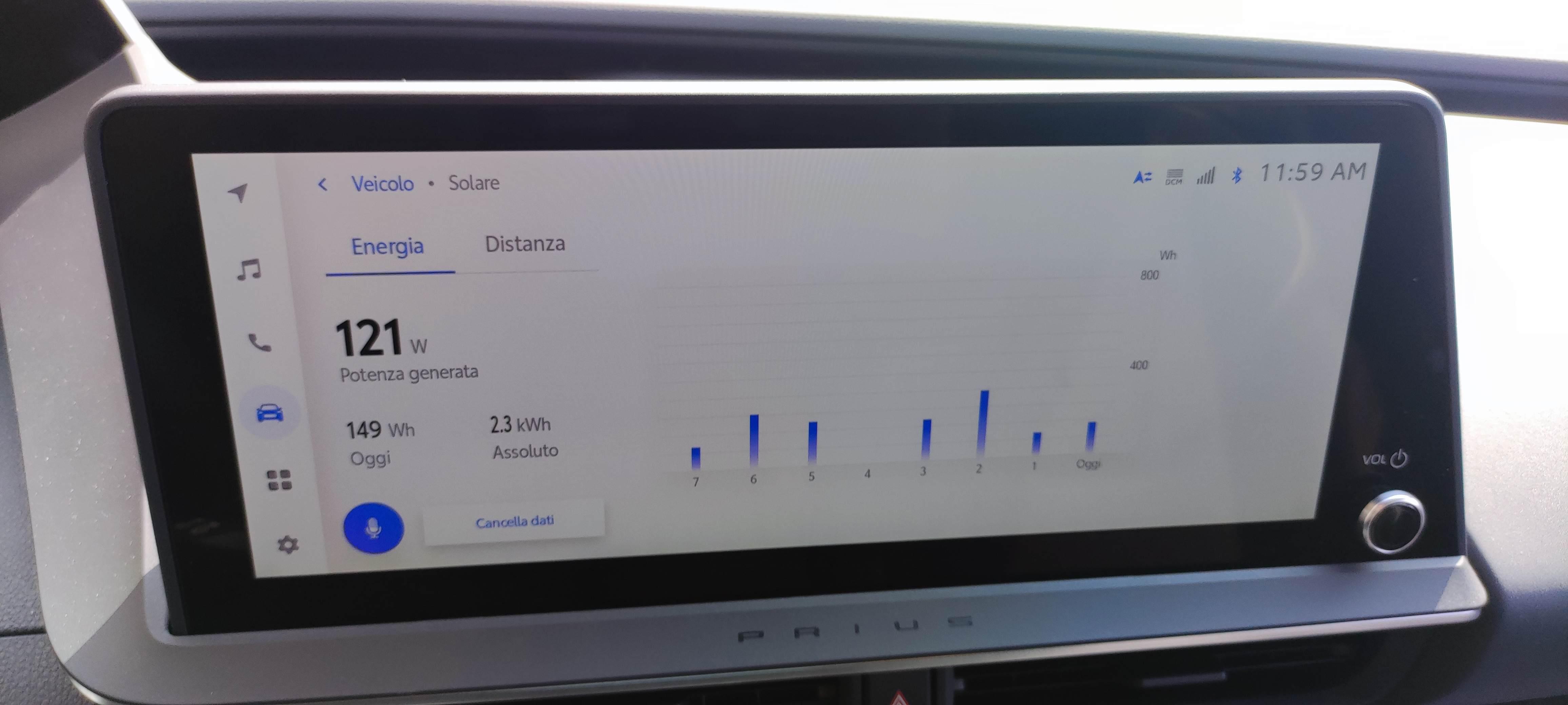
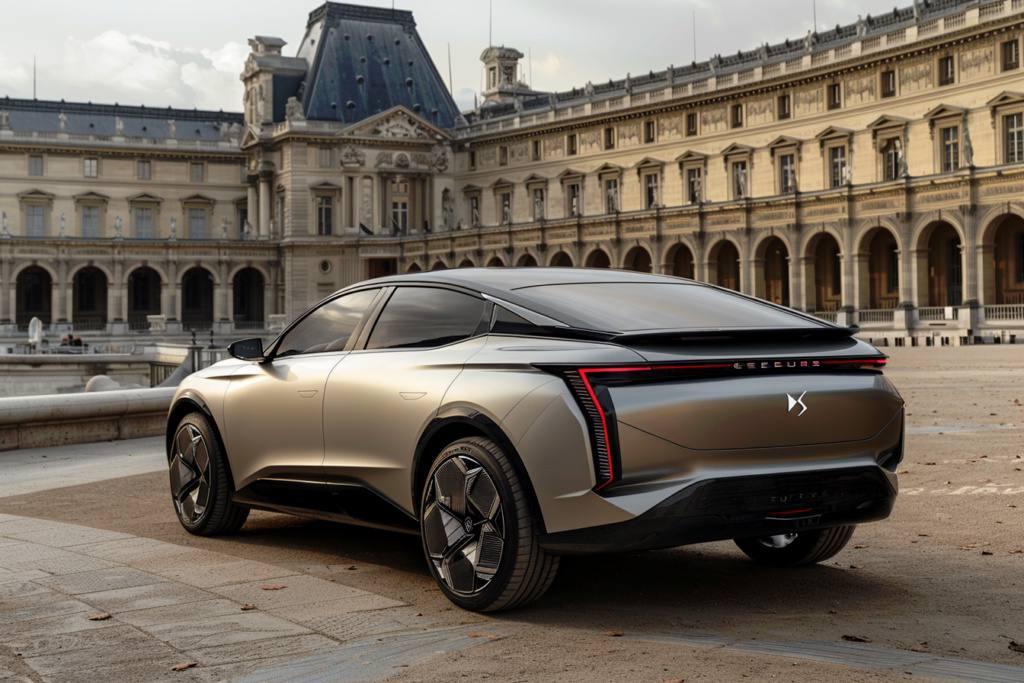 2 punti2 puntiMa vogliamo parlare della Stelvio nero nerissimo totale che sembra una macchina di batman?datemela immediatamente 😍😍😍2 punti2 puntiPerdonami, è un ragionamento contorto abbestia. Io vedo Corsa Ultimate mhev 27450€ Ypsilon Cassina mhev 28000€ (che però ha già il metallizzato) 208 GT mhev 27670€ Costano letteralmente la stessa cifra. Pure la 208 era dichiaratamente mirata a un pubblico premium, ma sono chiacchiere da cartella stampa. Di fatto sono 3 utilitarie di fascia media che differiscono solo per estetica e nazionalità del marchio. Con la stessa cifra ci puoi prendere anche lo stesso clone ma rialzetto (600 o Avenger) ma con allestimento medio anziché alto, giusto per completare il discorso. Se arriverà o non arriverà il motore entry level manuale non lo so, ma se non arriverà su Ypsilon forse sparirà pure sulle altre sorelle. Per giocarmi i miei 2 cents, secondo me si arriverà ad una cifra di 20k per allestimento elefantino blu e mhev 100cv, con pensione definitiva del manuale 75cv dalla distribuzione cagionevole.2 punti2 punti1 punto1 puntoLeggi bene la scheda. Viene esplicitato se è ufficiale italiana o di importazione, vengono riportate le imperfezioni (graffi, c'era un bmw m135i a ottimo prezzo ma con un sacco di imperfezioni), viene riportato se l'auto è stata incidentata o riparata, cronologia tagliandi, se iva esposta o meno (se non è iva esposta è sicuramente di un privato). Secondo me può essere interessante, non fai un acquisto al buio (salvo per auto troppi datate) ☏ SM-S918B ☏1 punto1 puntoPecco è ancora l'unico VINCENTE su Ducati. Marc ha umiliato tutti gli altri ducatisti1 puntoCi va del tempo purtroppo. Quanto a Charles, è vero che in F1 si tende a valutare solo in base all'ultima gara dimenticandosi tutto il resto (gli inglesi dicono "you're as good as your last race"), ma sino allo scorso GP era quel pilota che partiva in prima file da sette GP consecutivi (non certo con l'auto migliore), la giornata storta capita a tutti. Se poi nella giornata storta si parte dalla seconda fila, beh, direi che non è un dramma.1 punto1 puntoEnea torna in pole ! Grave errore di Marc/Brad Riguardo a Maverick e Aprilia.... Non si sa più cosa pensare1 puntoBeh, Tesla negli USA ha insegnato anche in questo, roba vecchia comunque https://abcnews.go.com/US/tesla-police-vehicle-ran-power-car-chase-california/story?id=658783121 puntoChe doccia fredda. Pessimo Charles. Lo sapevo che non dovevo illudermi, lo sapevo che non dovevo mettere la sveglia.1 punto1 punto1 puntoC'è da dire però che questa è full optional. E Autocar le ha dato un bel punteggio nella prova, pare si guidi molto bene.1 punto1 puntoEra l'edizione "Collezione Centenario" che veniva proposta in bicolore mi sembra con varie tonalità1 puntoImmagino di si, come in tutti i powetrain 2023 e TSS3.0. E oggi, su percorso adatto in EV, ho trovato la definizione: Rigenerazione Adattiva Una o due marce in più del One Pedal. Infatti se davanti è libero, sollevare il piede lascia scorrere l'auto in glide senza troppo "freno motore" , che sappiamo essere la miglior scelta. Con one pedal devi dosare il piede pure in decelerazione, che non è rilassante. Se invece sei nel traffico ravvicinato, fa decelerazioni degne dell'one pedal, potentissime, ma lasciandoti fare le ultime frazioni di secondo col freno, per non dover fare l'apprendistato con one pedal. One pedal invece non si adatta, frena e basta e con potenza di rallentamento costante. Quindi a volte è troppo brusco e devi dosare l'alzata del piede (bassa velocità) a volte troppo poco efficace e devi frenare col pedale (alta velocità), almeno cosi era sulla Tesla. Test extaurbano-statale Il test che aspettavo, Statale Adriatica bordo mare, dritta come un fuso, yraffico medio, continuo attraversamento paesi, qualche semaforo, per lo più 50 km/h limite con brevi tratti 70 km/h. Percorso tutto in EV 32 km. Ecco i mitici 10,5 kWh/100 km della batteria da 10,6 kWh netti. Ovvero, autonomia EV = 100 km ----------- Siamo a marzo ancora ma col sole siamo già a +120W di potenza istantanea erogati dal tetto fotovoltaico in marcia. A proposito, toglimi una curiosità, tocca il bordo del finestrino guidatore della Active, e senti col dito se c'è il doppio vetro, in mezzo c'è un profondo canale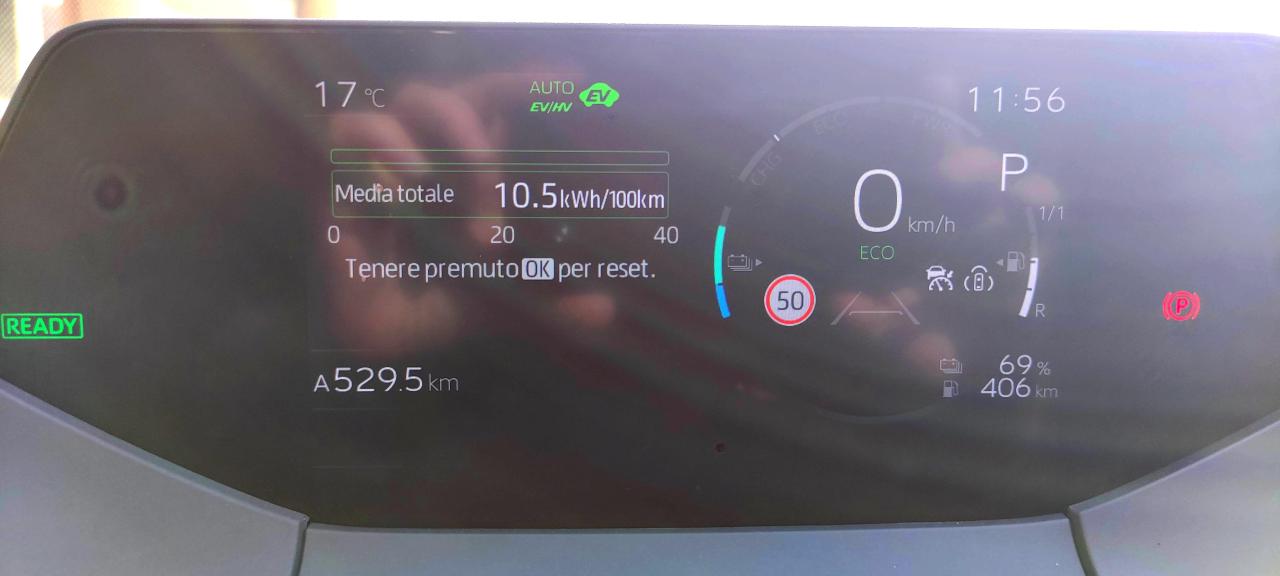
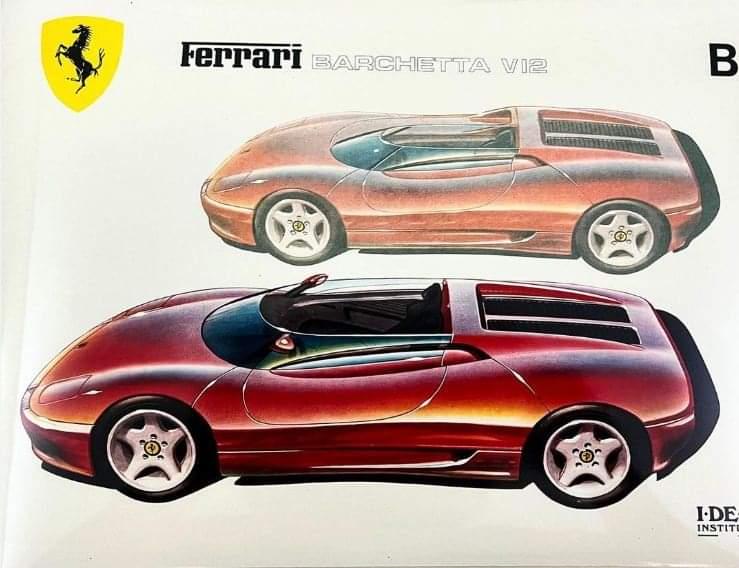
 1 punto1 puntoMa è la stessa storia dal 1985 😂 Non c'è riuscito Ghidella, dovrebbe riuscirci Tavares? Sarà una onestissima B di fascia media, non allineata a Sandero ma più a Yaris, che ha la sua barbon ma comunque non te la tirano dietro.1 punto1 puntoQuindi oltre Italdesign anche I.DE.A ha presentato qlk per Ferrari... Ma anche in questo caso, Pininfarina poteva continuare a dormire sonni tranquilli..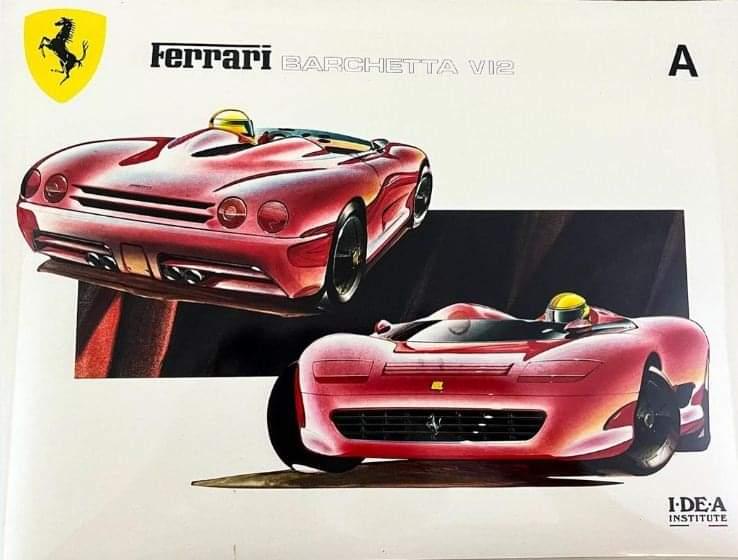
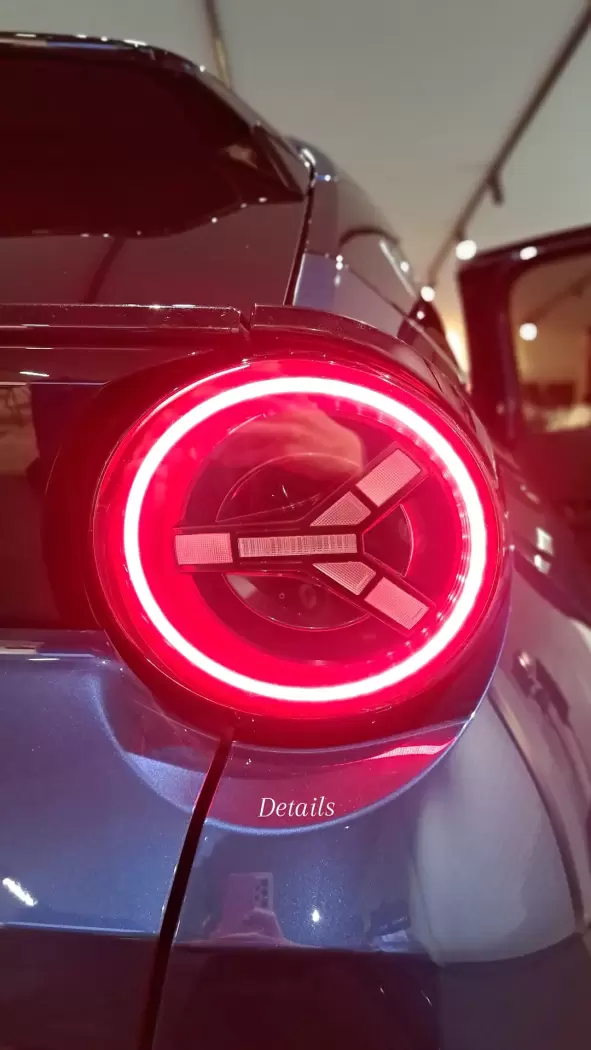
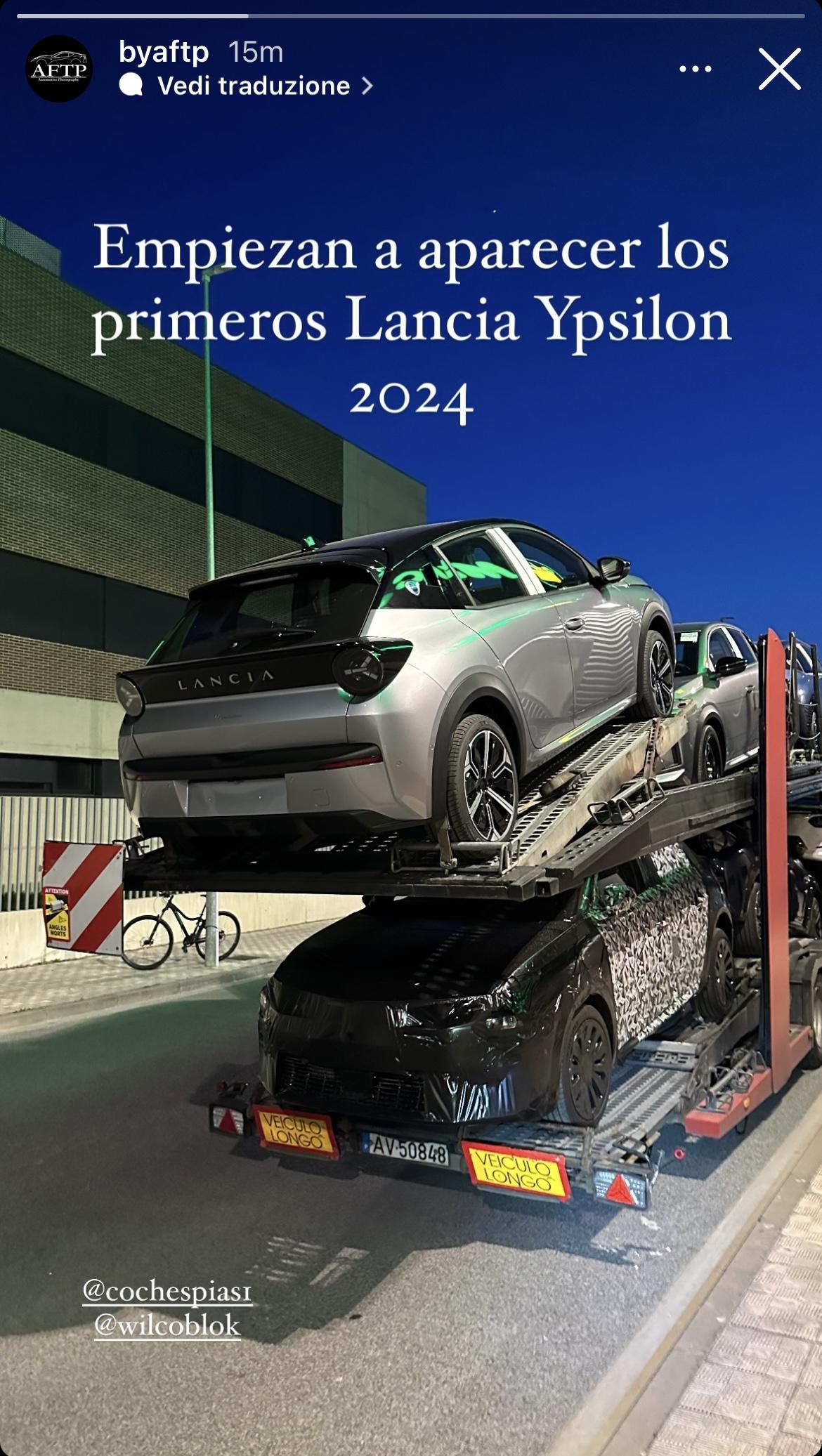
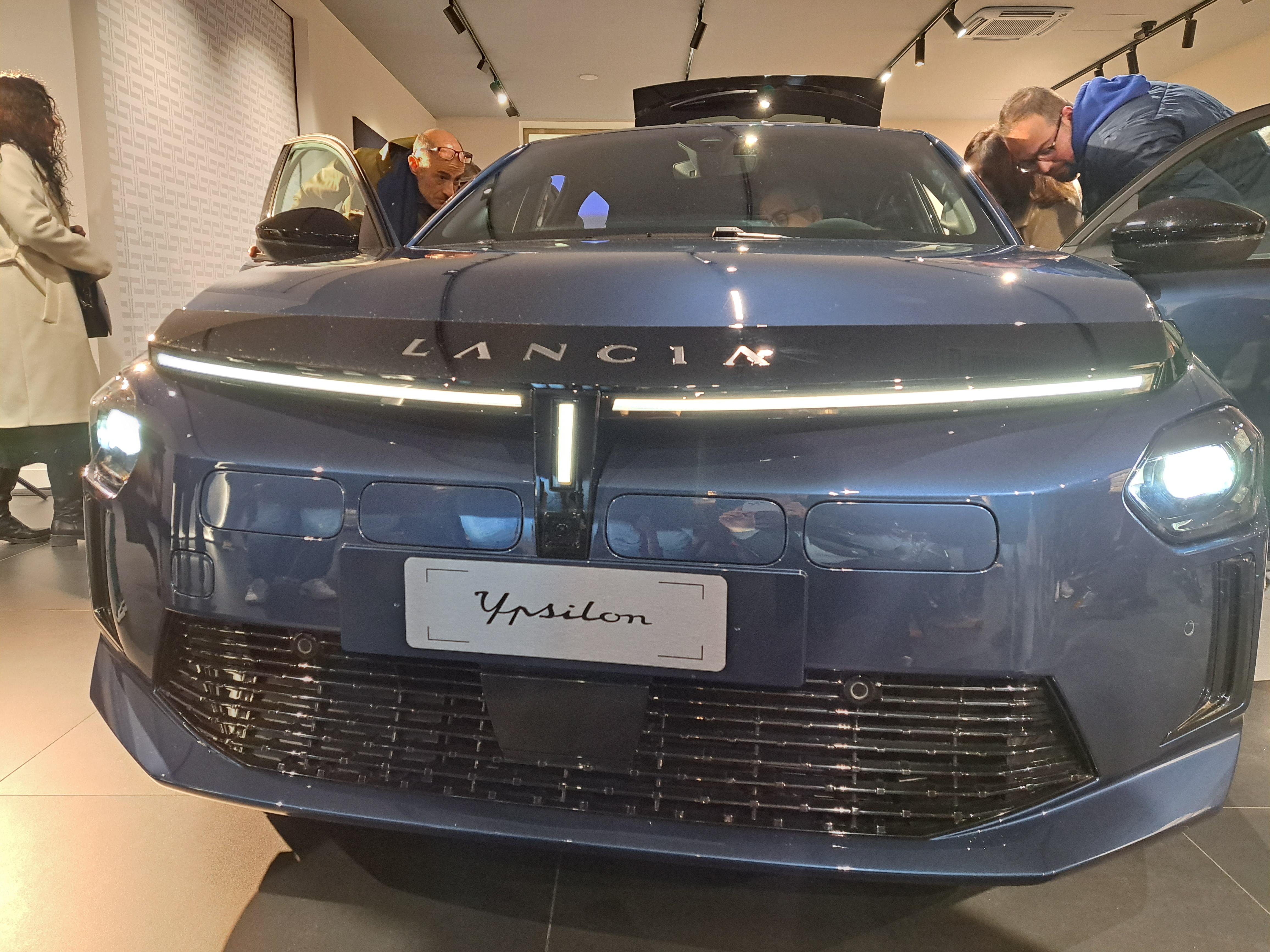
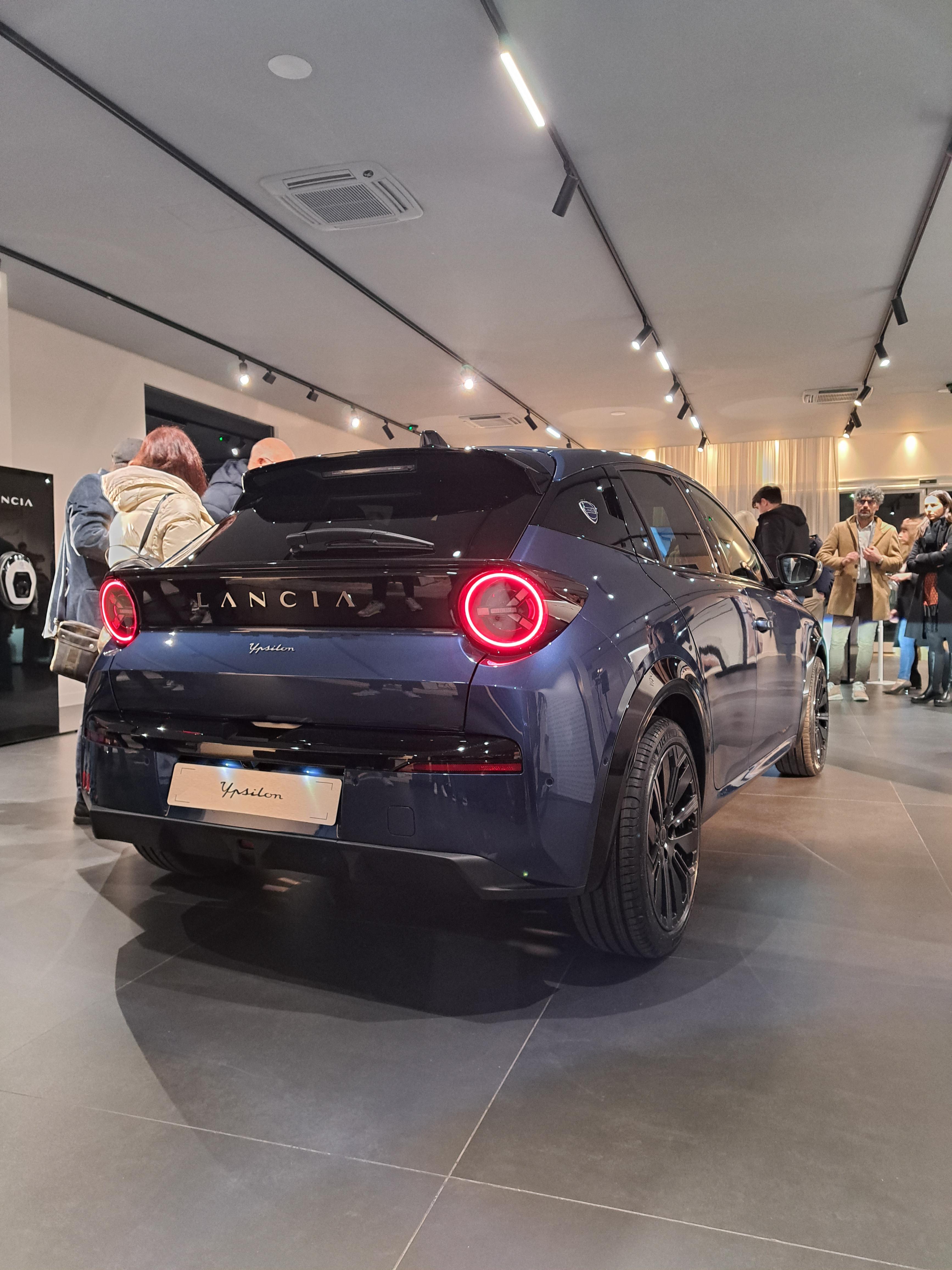
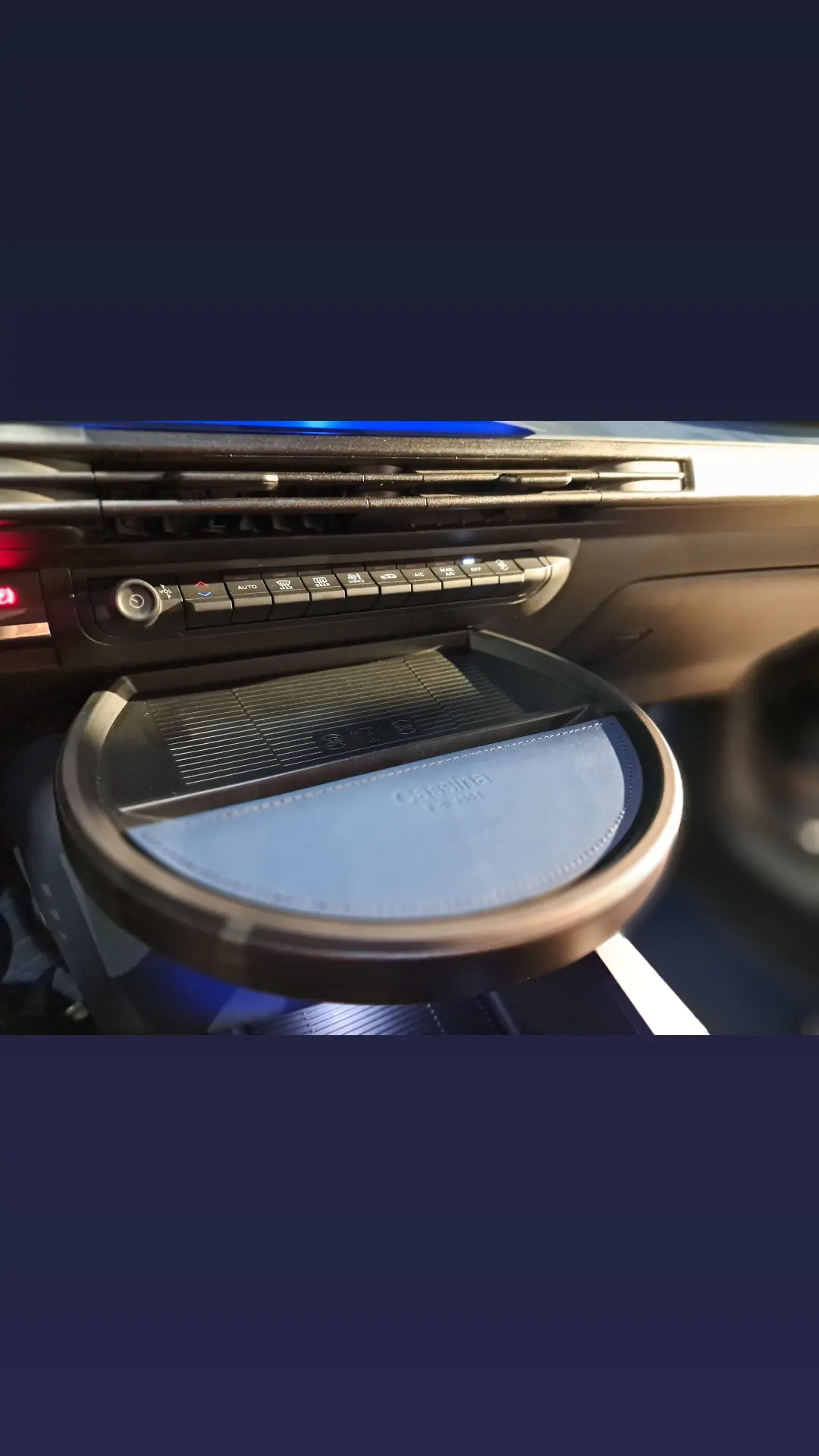
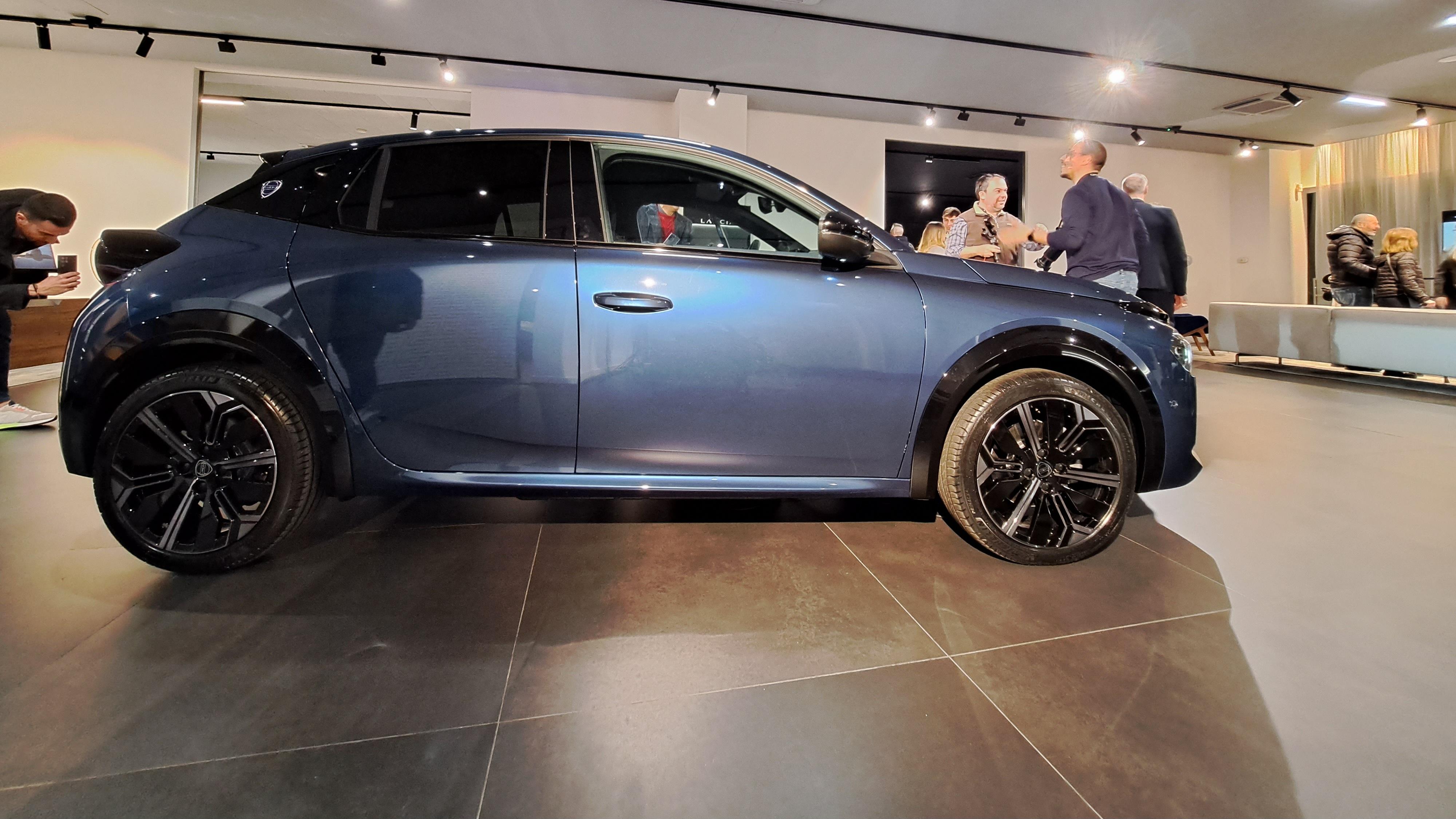
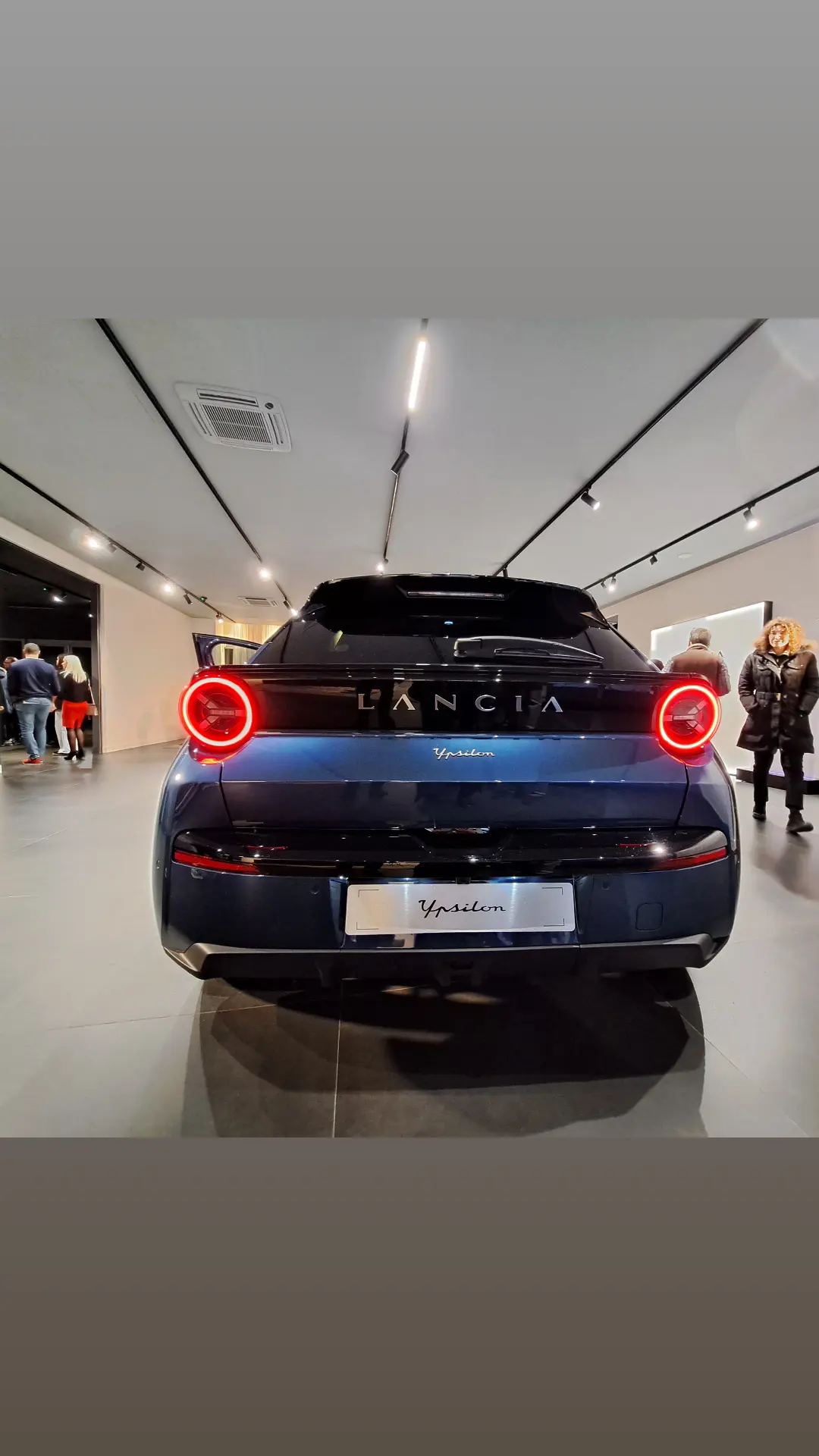
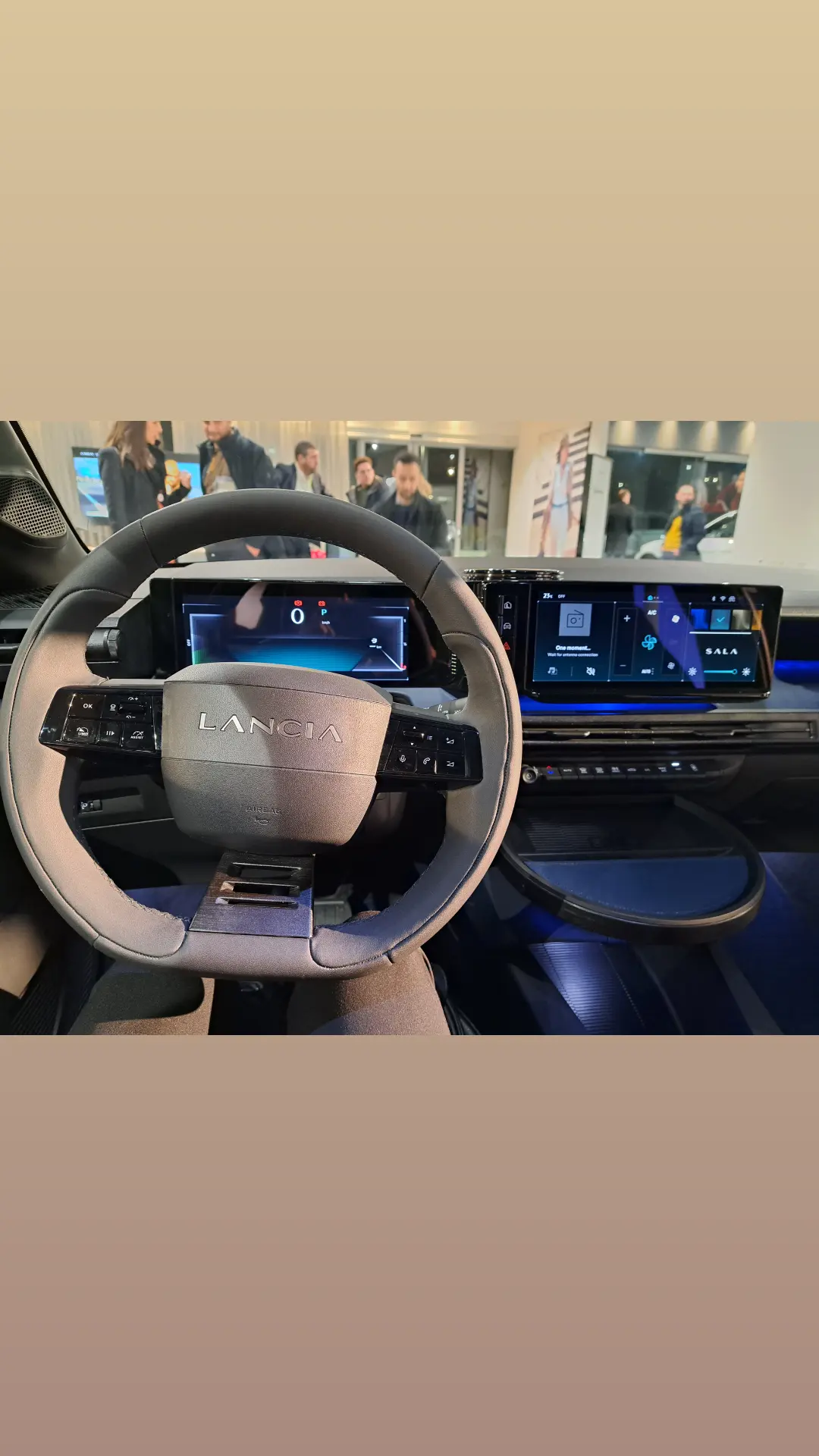
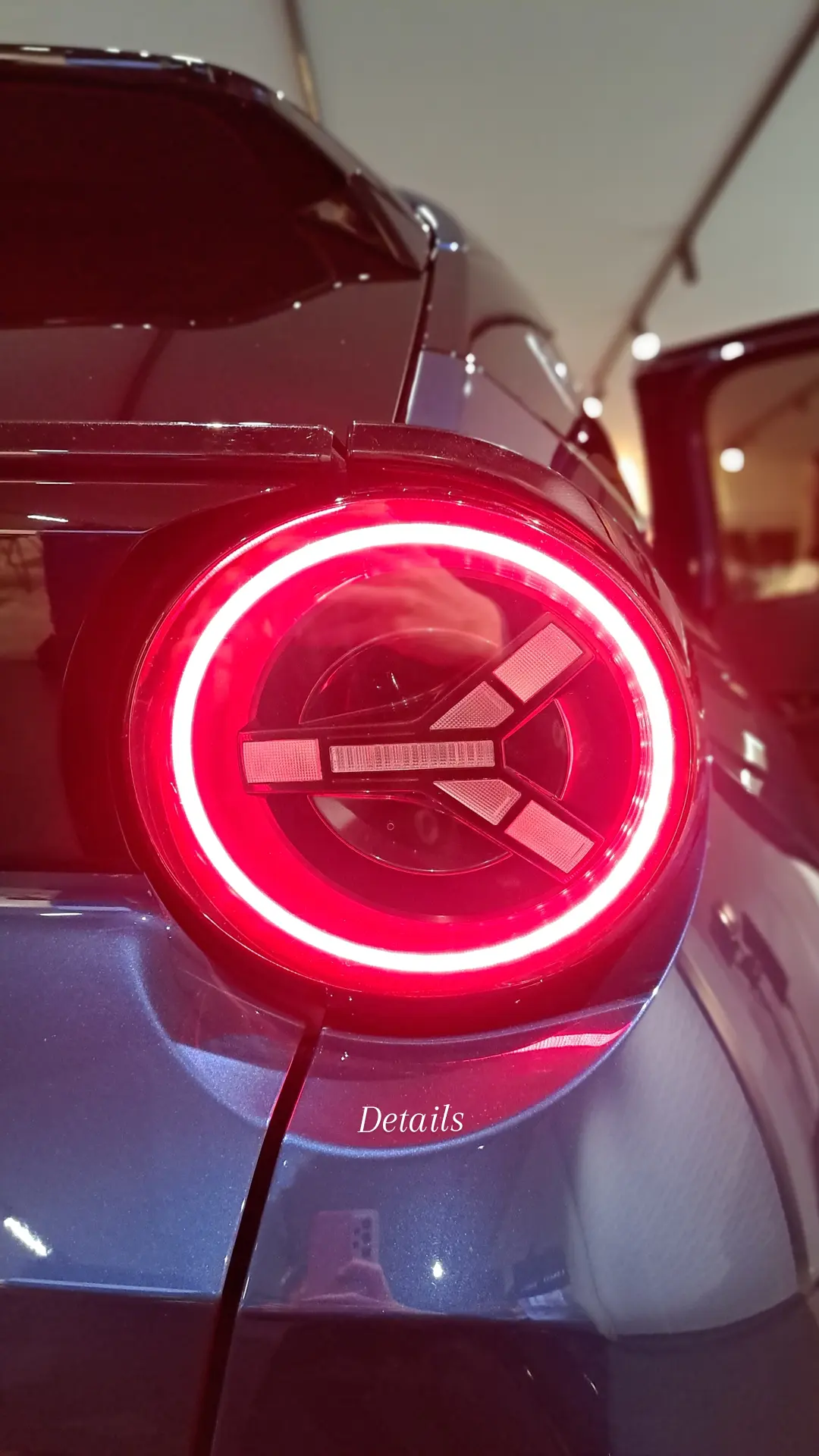
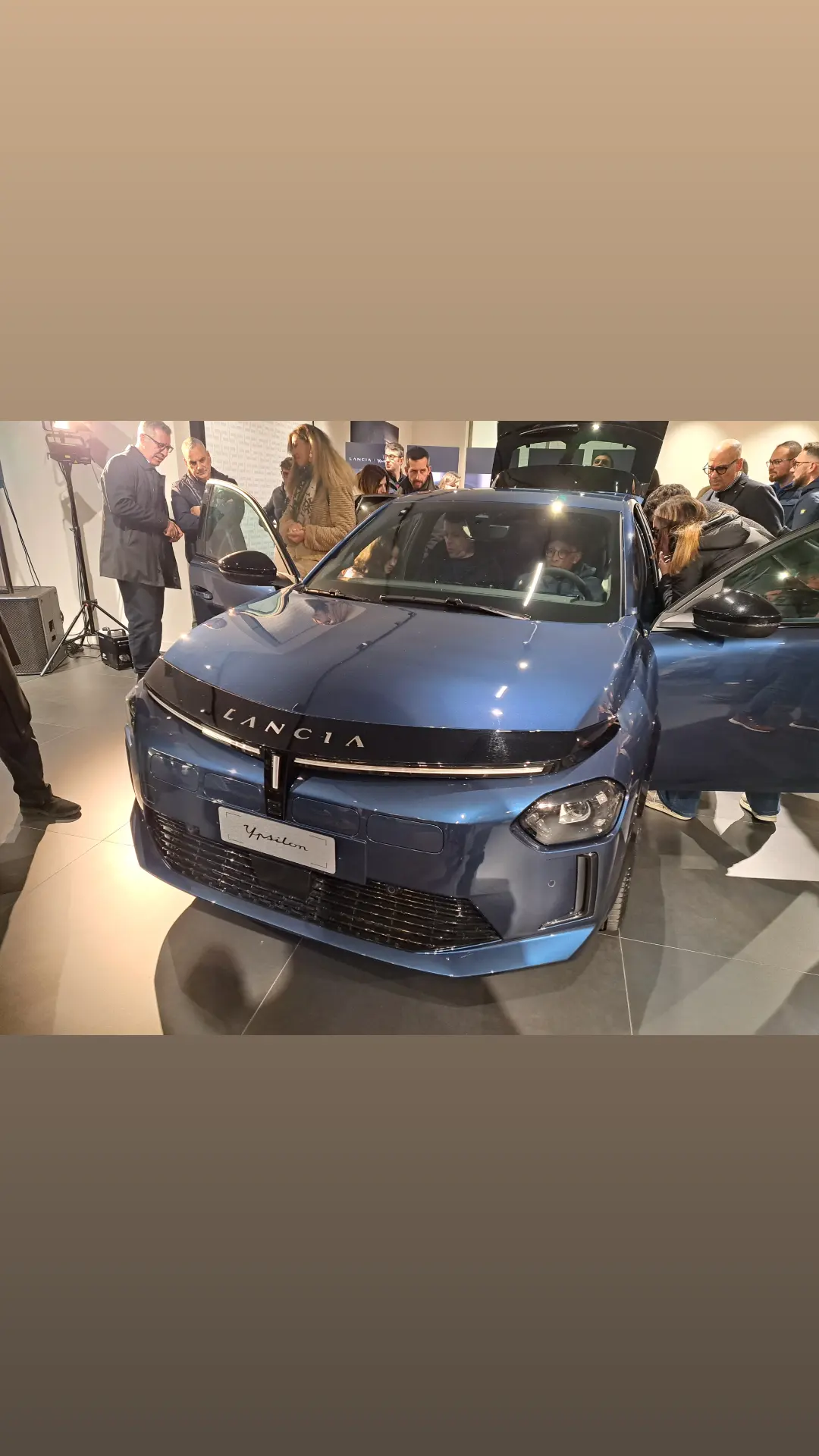
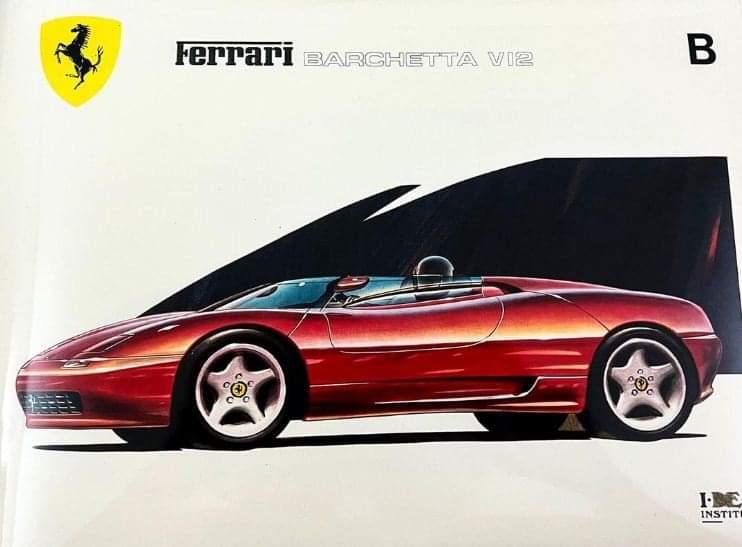 1 punto1 punto1 puntoconsiglio anche io quelli con base+ovetto staccabile. Molto comodo. Potrebbe essere problematica l'entrata e uscita dai posti posteriori della Giulia. Con la Giulietta che avevo passavo a pelo a causa del giro porta discendente. Non so Giulia come sia.1 punto1 punto1 punto1 punto1 puntoIeri sera ho partecipato all'evento di presentazione della Nuova Lancia Ypsilon Edizione Limitata Cassina presso la concessionaria SCAR Ragusa e devo dire che la prima impressione è stata molto buona, spazzando via preconcetti e pregiudizi. L'auto è davvero bella: le linee esterne della vettura sono un connubio di eleganza e modernità. La silhouette sinuosa e i dettagli ricercati la rendono davvero originale. Il calice Lancia, che non rende in foto come dal vivo, esalta il frontale e si integra perfettamente con il resto della carrozzeria, conferendole un'allure raffinata. Salendo a bordo, si resta piacevolmente colpiti: gli interni sono nel complesso curati e con materiali di qualità, a parte la plastica dura nella parte inferiore delle portiere. L'impressione generale mi è sembrata molto buona, ai livelli di Mini e Audi A1. Gli accostamenti cromatici creano un ambiente elegante e accogliente. Ogni dettaglio è curato, dai sedili morbidissimi rivestiti in velluto che ricorda l'iconico panno Lancia fino al design del cruscotto, a partire dal tavolino foderato di cuoio firmato Cassina. Allego foto dell'evento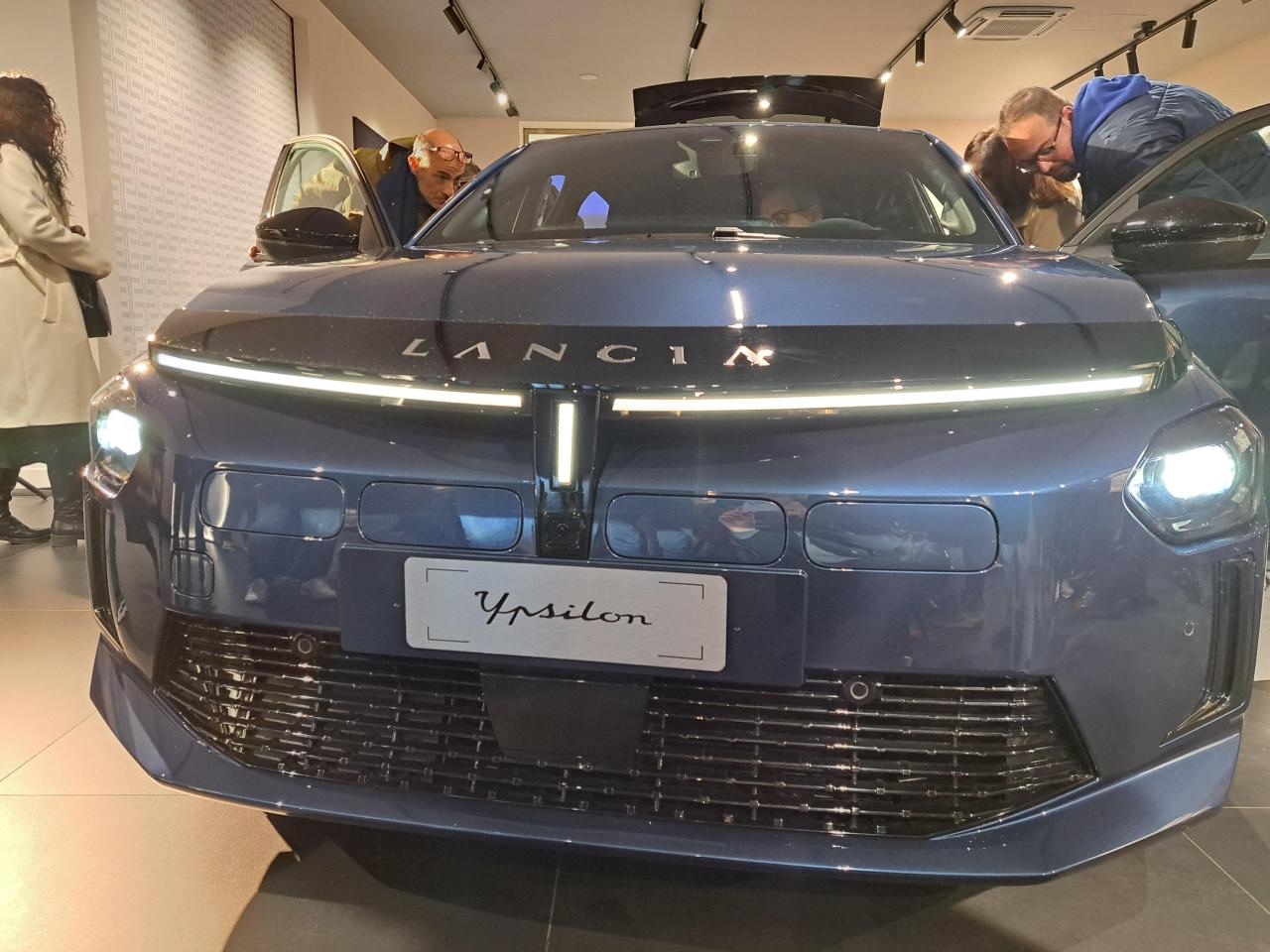
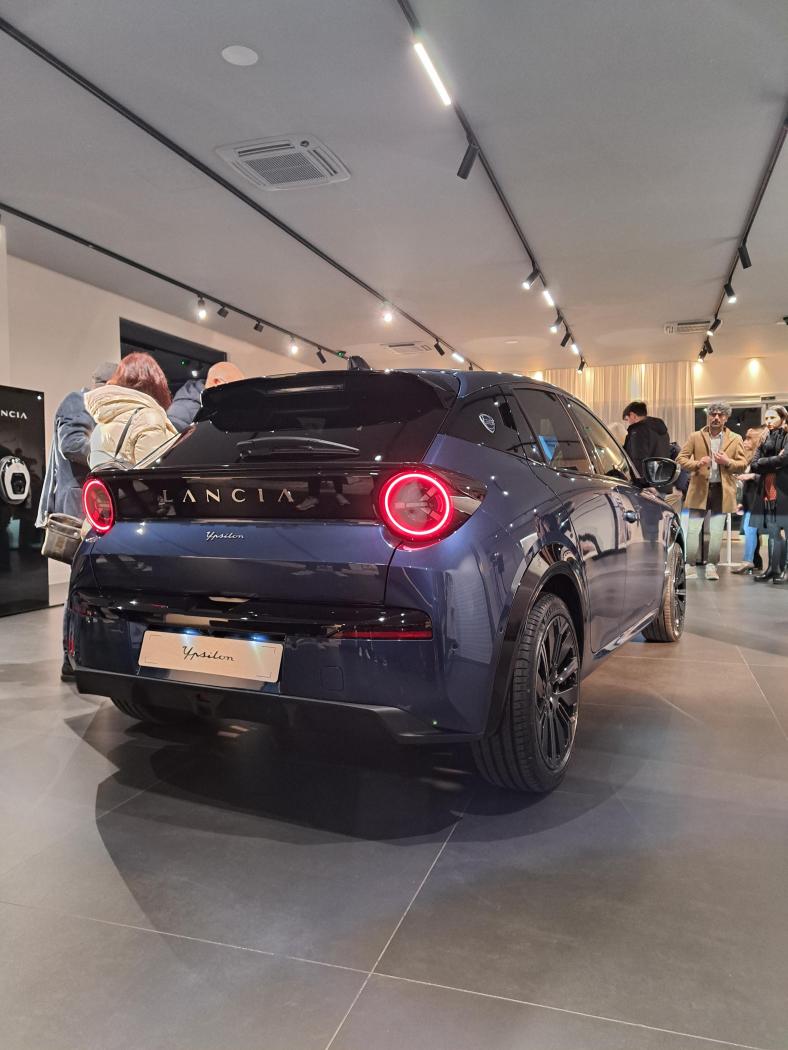
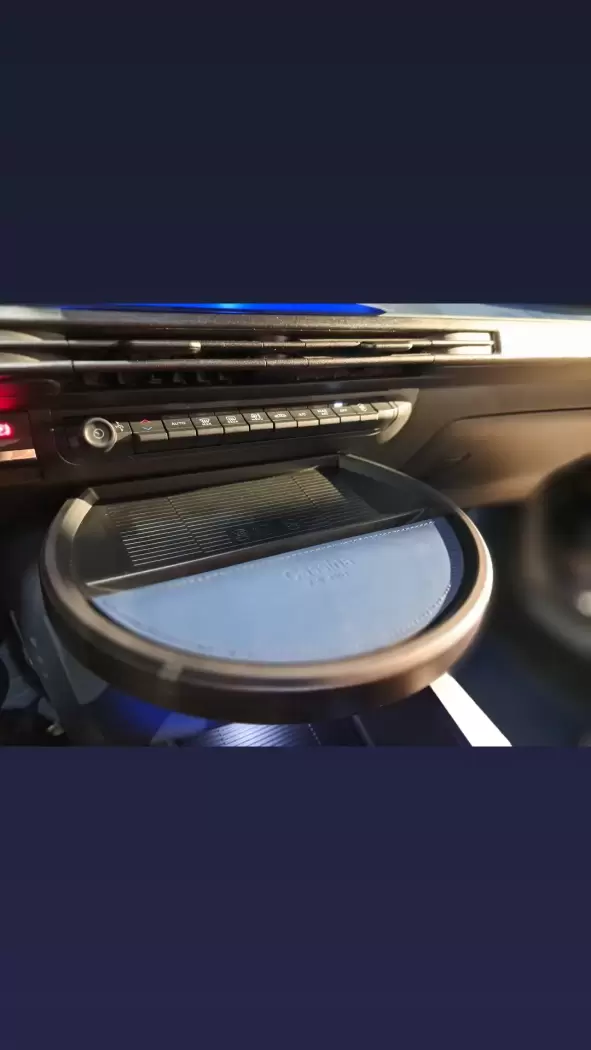
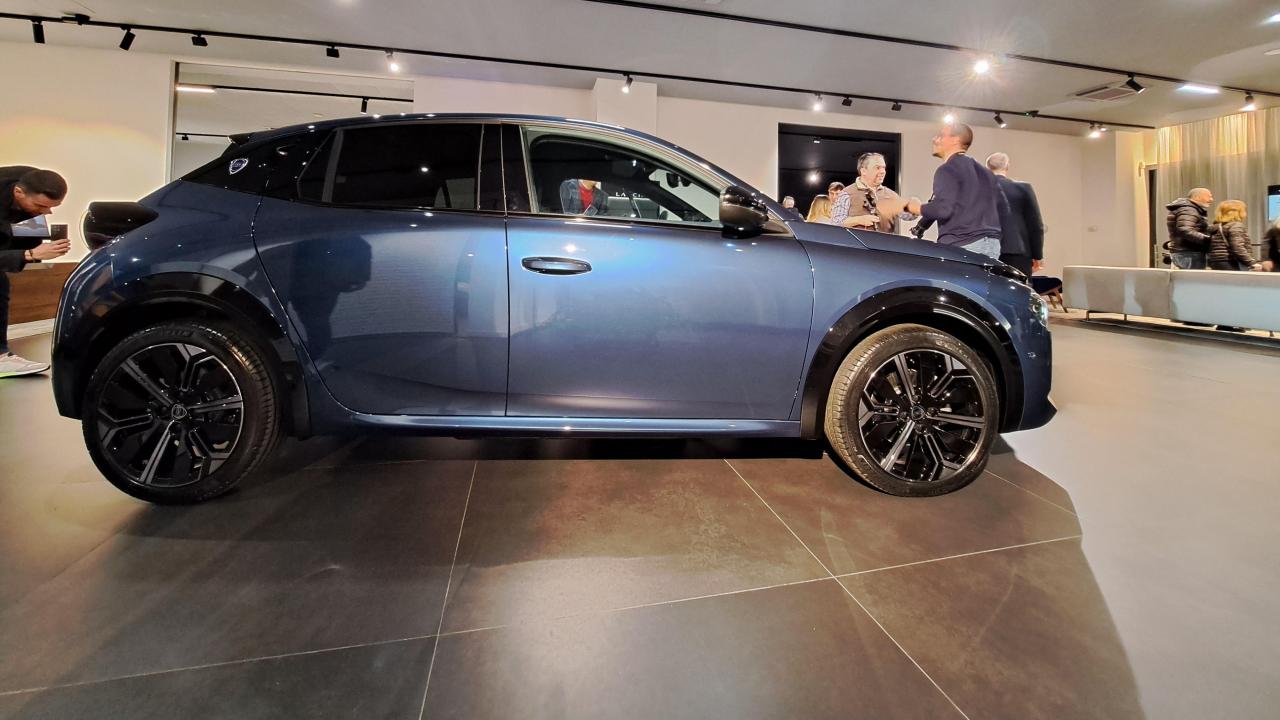
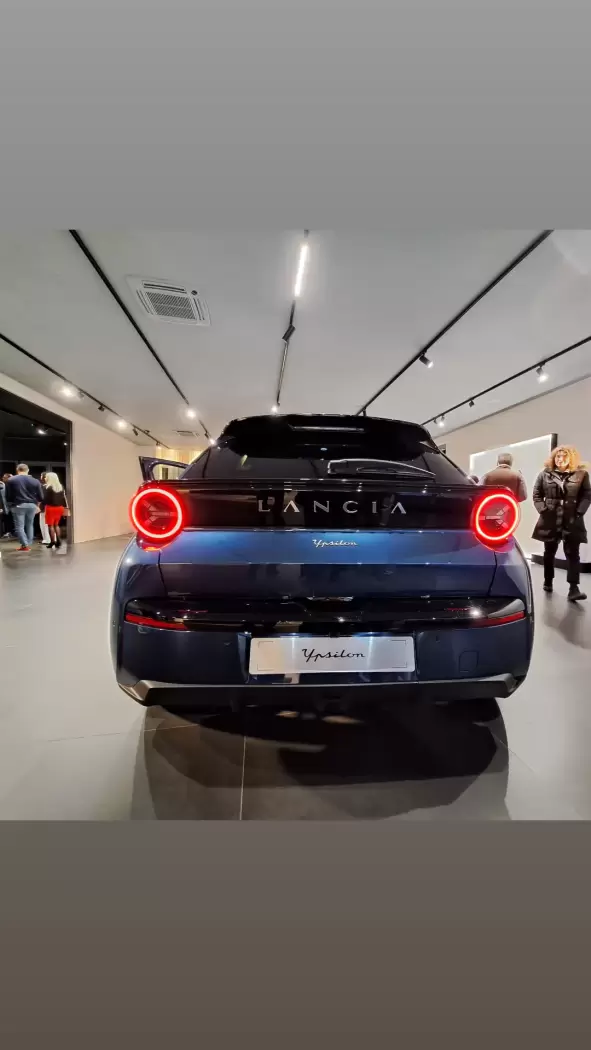
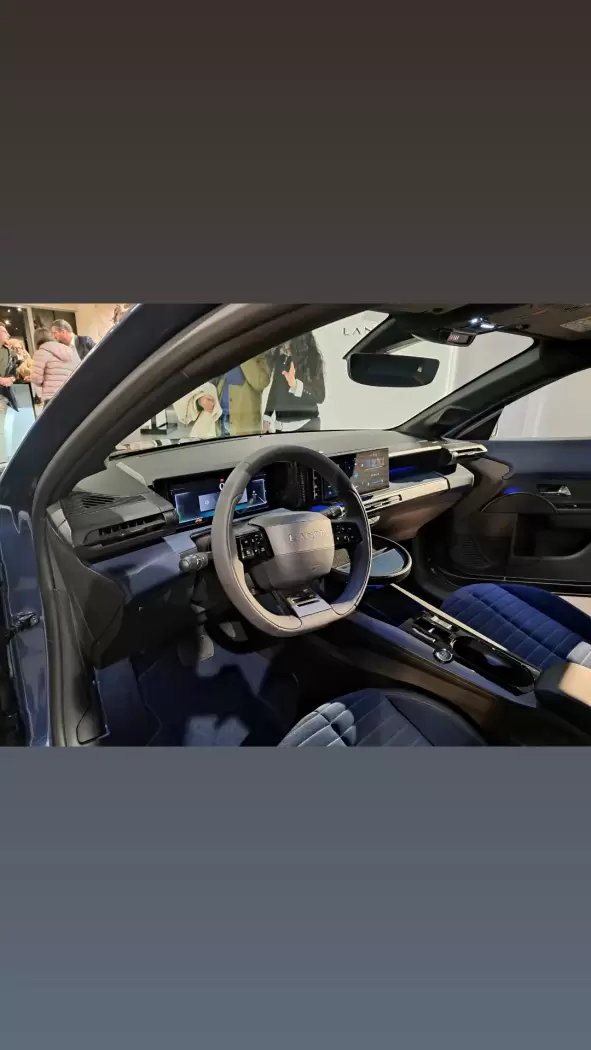
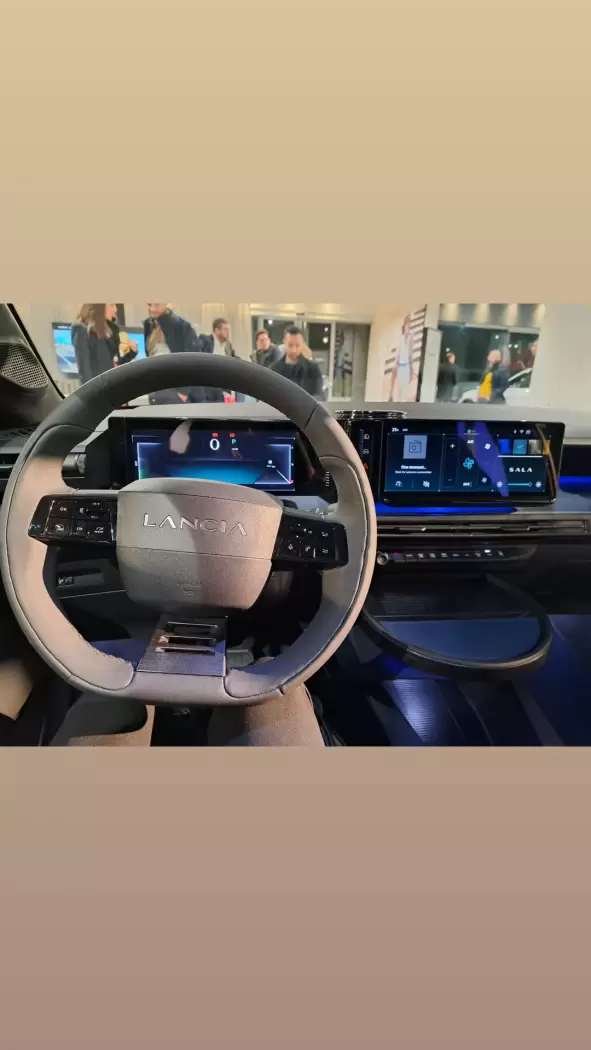
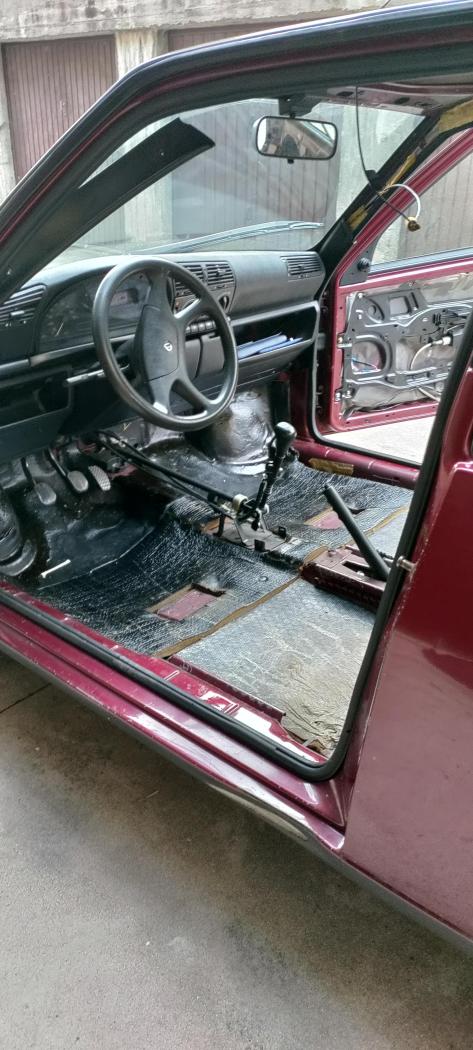
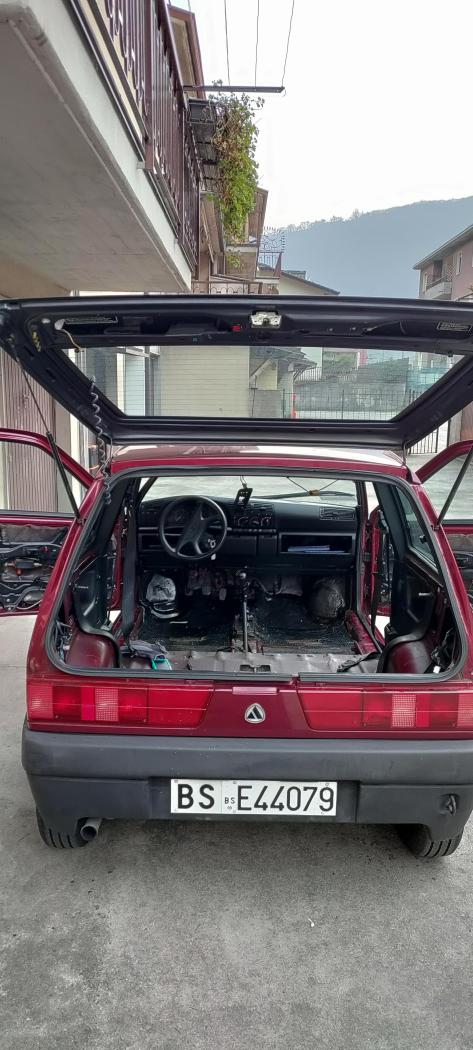
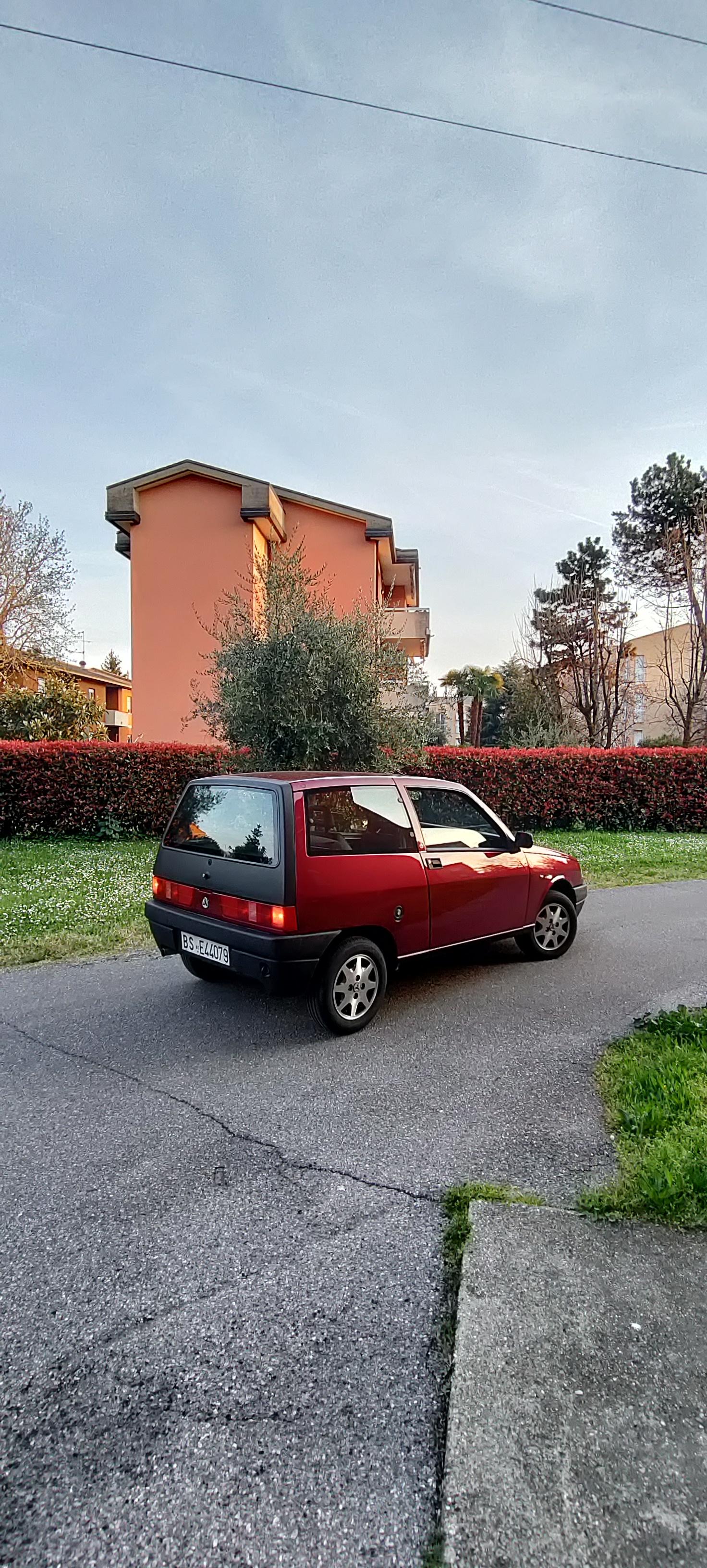
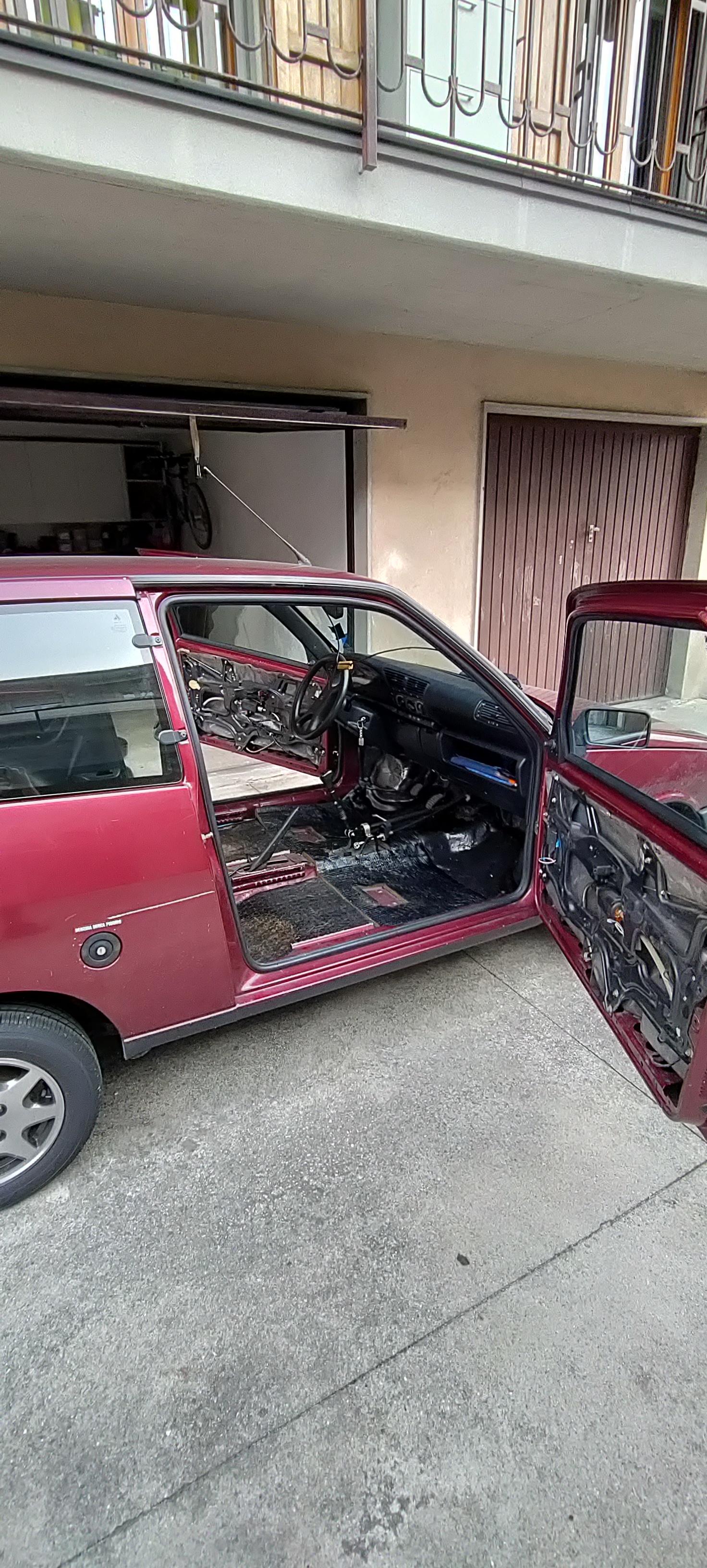
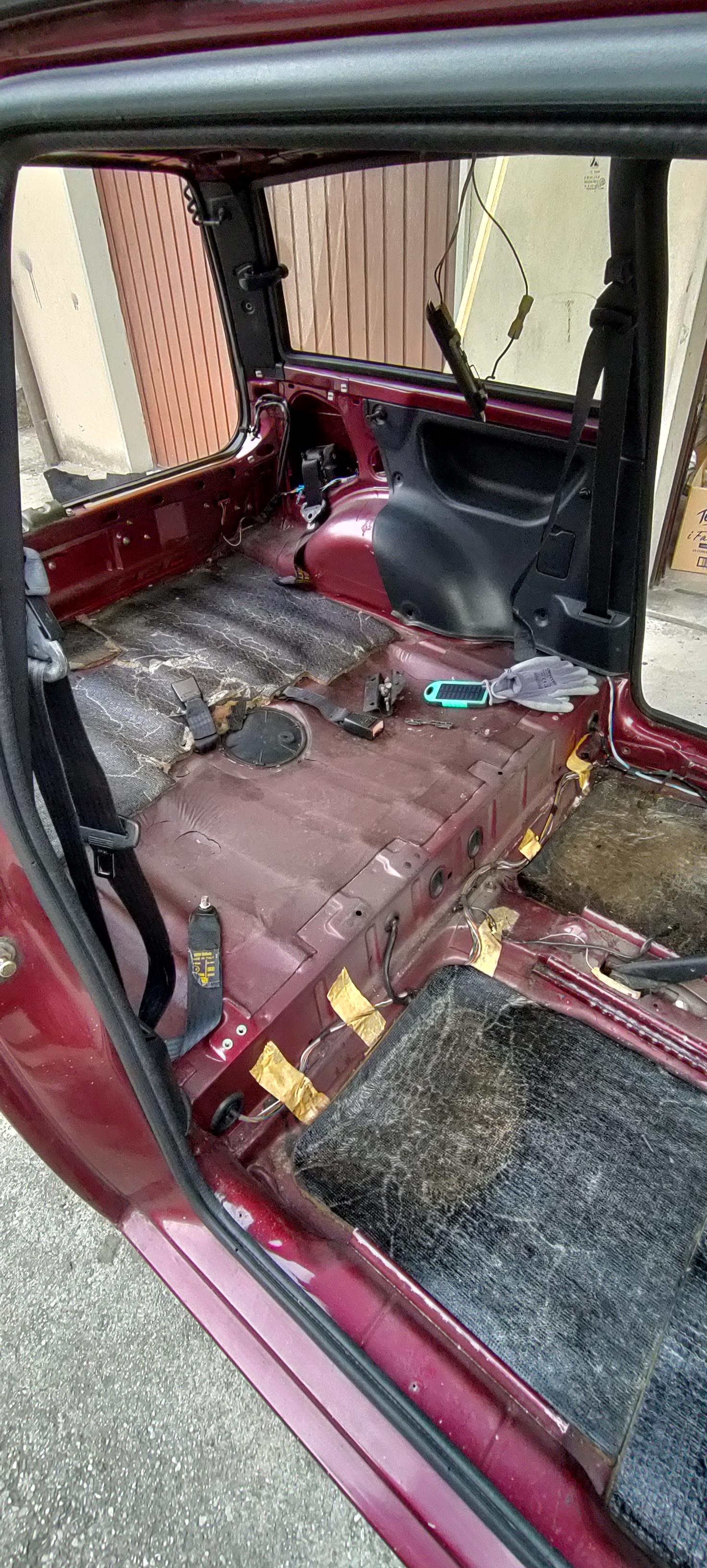
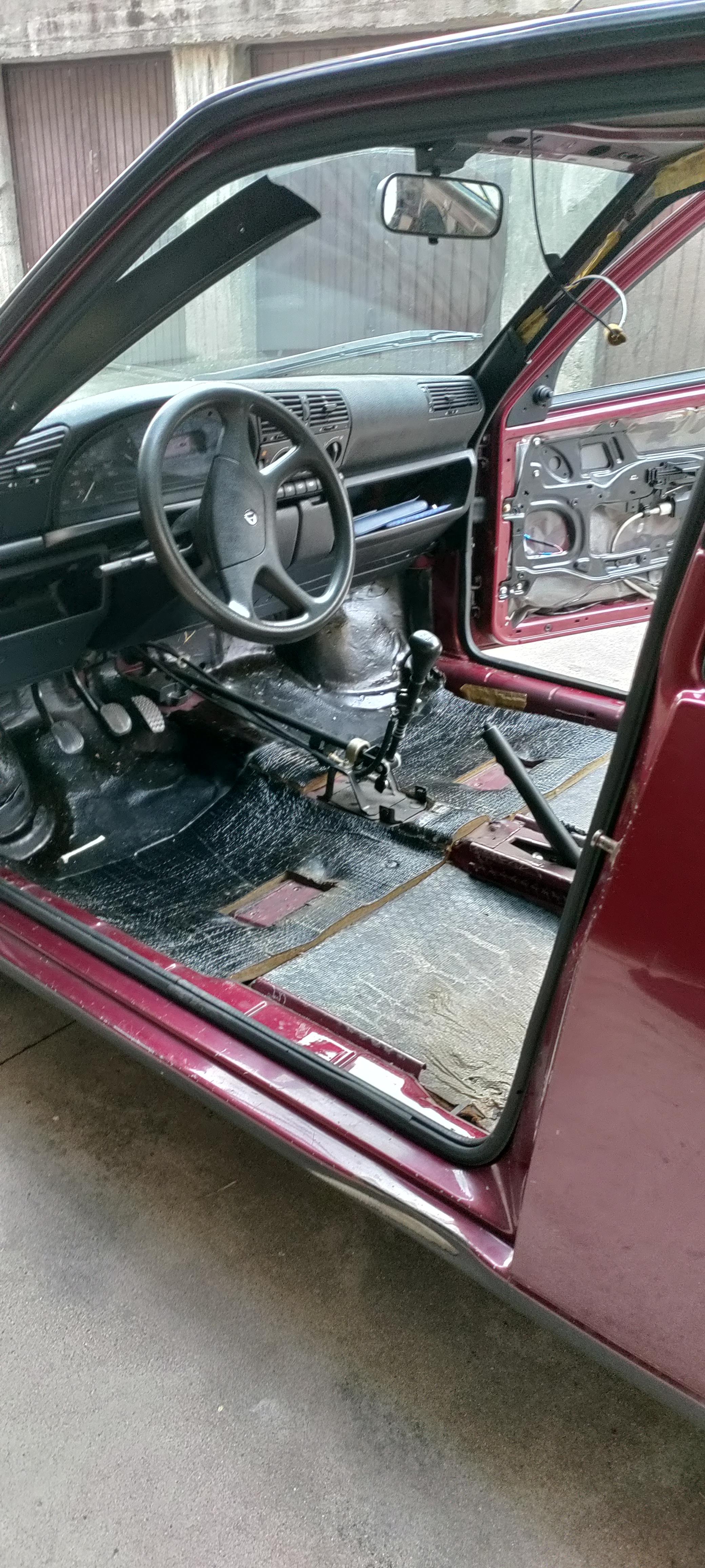
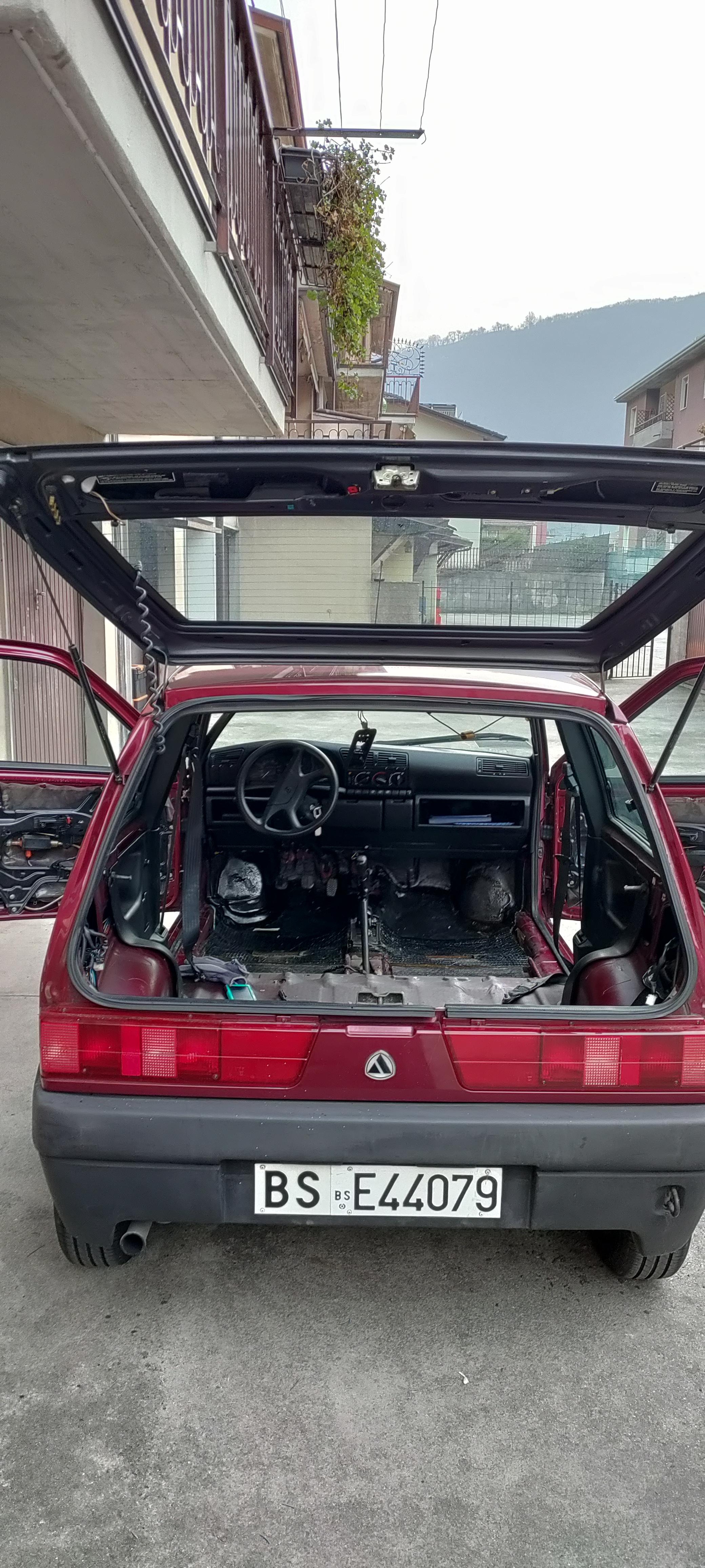
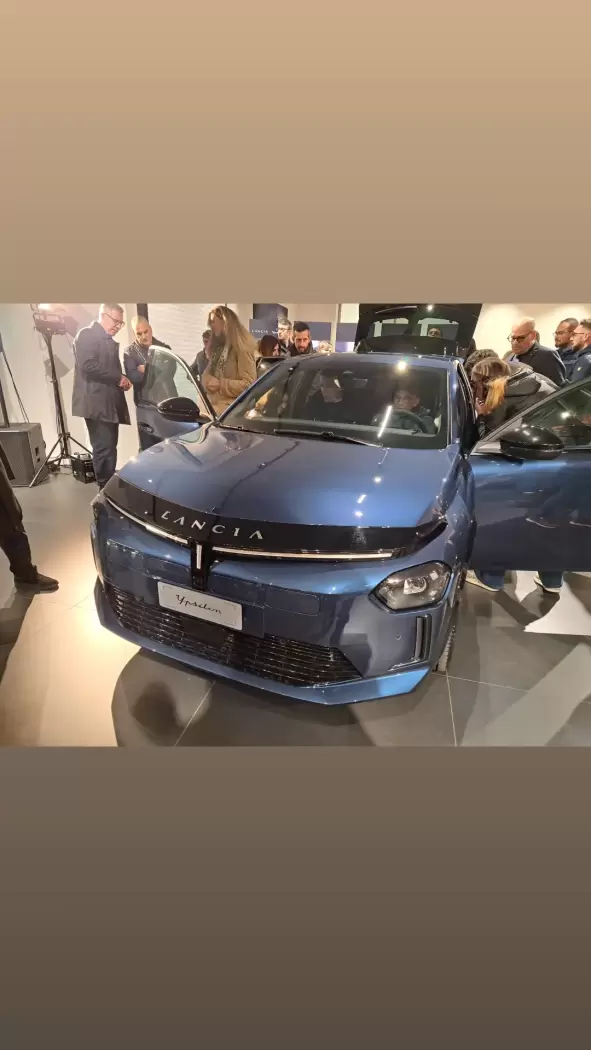 1 punto1 punto1 puntoDa qualche tempo Škoda progetta dischi aerodinamici con inserti in modo che siano belli nel design anche senza inserti.1 puntoSistemate le ultime rogne meccaniche, venerdì finalmente andrà in carrozzeria a rifarsi bella. Ho smontato il più possibile gli interni perché andrà verniciata anche dentro (anni e anni di colpi della cintura sulle lamiere a vista hanno danneggiato la vernice). Sarà inoltre un'occasione per pulire approfonditamente plastiche e moquette. Devo trovare un modo per rimpiazzare tutto il materiale fonoassorbente, ormai distrutto 😔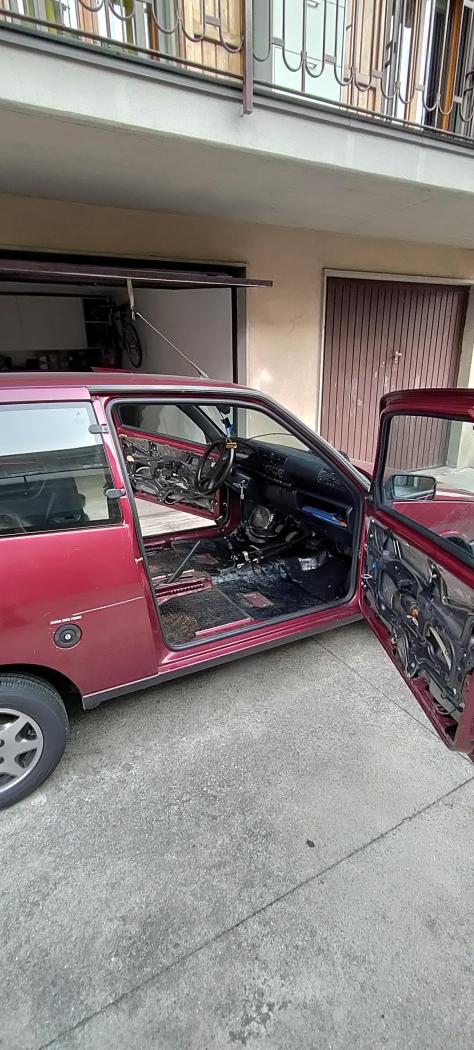
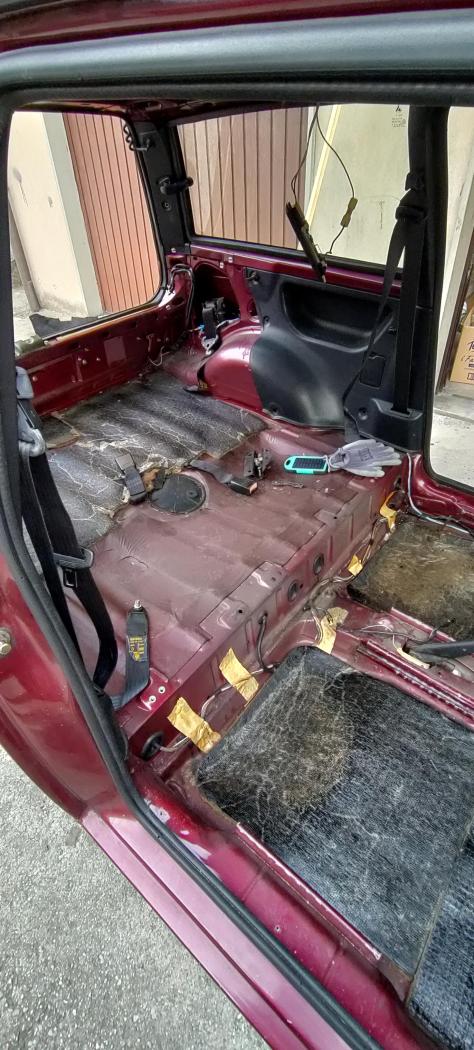
 1 puntoNon sono molto Ferrato sulla 208 GTI,pero'non ho mai sentito di problemi,anche perche la rcz montava sempre una variante del thp simile alla 208 che non credo abbia dato molte grane visto che e' stata in commercio parecchio.1 punto1 punto1 puntoLa Leaderboard è riferita all'orario Roma/GMT+02:00





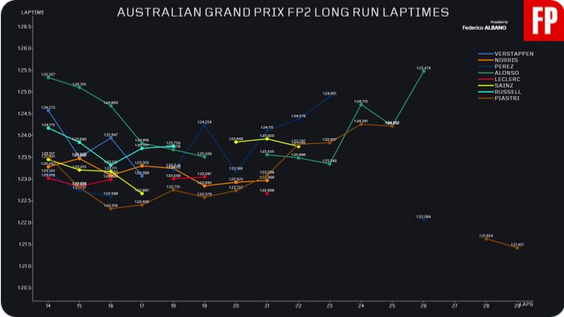
(1)(1).thumb.png.635c059adfaa3a2ca27f86ab608b04ba.png)

.jpg.0a9ff73d7a7ad09550fc411cda37bc7c.thumb.jpg.095392f5d8b6dc45c10ccf463694d027.jpg)
.thumb.jpg.46228d717c405acd43b45b79fddce6a4.jpg)
.jpg.c7ee98090dbf5ef8a476f4059e2373f8.jpg)
.jpg.68d37985b87d197b6b190eba246eceee.jpg)
.jpg.a47485df99cd36157b0932fb55e5c89a.jpg)


























Account
Navigation
Cerca
Configure browser push notifications
Chrome (Android)
- Tap the lock icon next to the address bar.
- Tap Permissions → Notifications.
- Adjust your preference.
Chrome (Desktop)
- Click the padlock icon in the address bar.
- Select Site settings.
- Find Notifications and adjust your preference.
Safari (iOS 16.4+)
- Ensure the site is installed via Add to Home Screen.
- Open Settings App → Notifications.
- Find your app name and adjust your preference.
Safari (macOS)
- Go to Safari → Preferences.
- Click the Websites tab.
- Select Notifications in the sidebar.
- Find this website and adjust your preference.
Edge (Android)
- Tap the lock icon next to the address bar.
- Tap Permissions.
- Find Notifications and adjust your preference.
Edge (Desktop)
- Click the padlock icon in the address bar.
- Click Permissions for this site.
- Find Notifications and adjust your preference.
Firefox (Android)
- Go to Settings → Site permissions.
- Tap Notifications.
- Find this site in the list and adjust your preference.
Firefox (Desktop)
- Open Firefox Settings.
- Search for Notifications.
- Find this site in the list and adjust your preference.