




Classifica Utenti
Utenti più Apprezzati
(Scegli il periodo) Utenti più Apprezzati
(Storia giorno per giorno) Classifica dall'Origine
(da Marzo 2003)
(Scegli il periodo) Utenti più Apprezzati
(Storia giorno per giorno) Classifica dall'Origine
(da Marzo 2003)
-

Cosimo
Utente Registrato19Punti41298Numero contenuti pubblicati -
reckoner00
Utente Registrato18Punti801Numero contenuti pubblicati -
TurboGimmo
Utente Registrato16Punti19729Numero contenuti pubblicati -
passionealfaromeo
Utente Registrato13Punti309Numero contenuti pubblicati


Contenuti più Popolari
Stai visualizzando i contenuti con il più alto punteggio, pubblicati in data 12/13/16 e localizzati Tutte le aree/sezioni
-
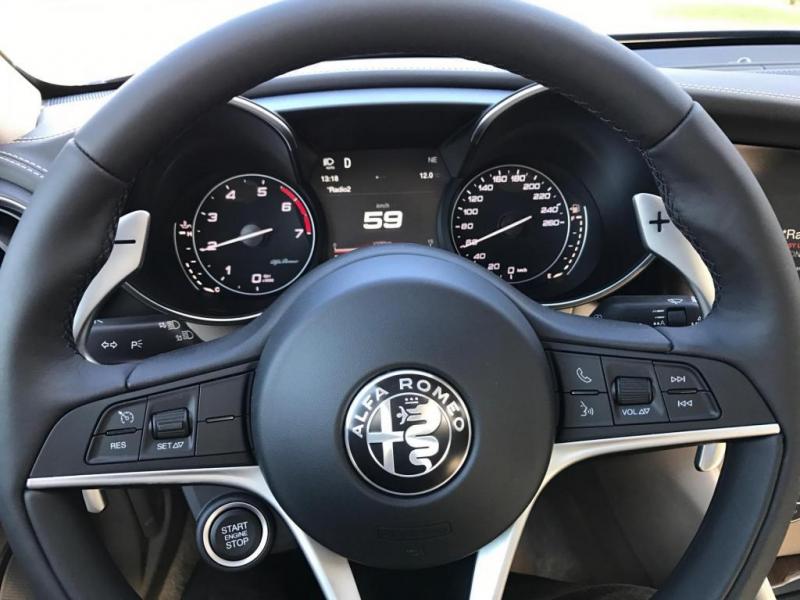
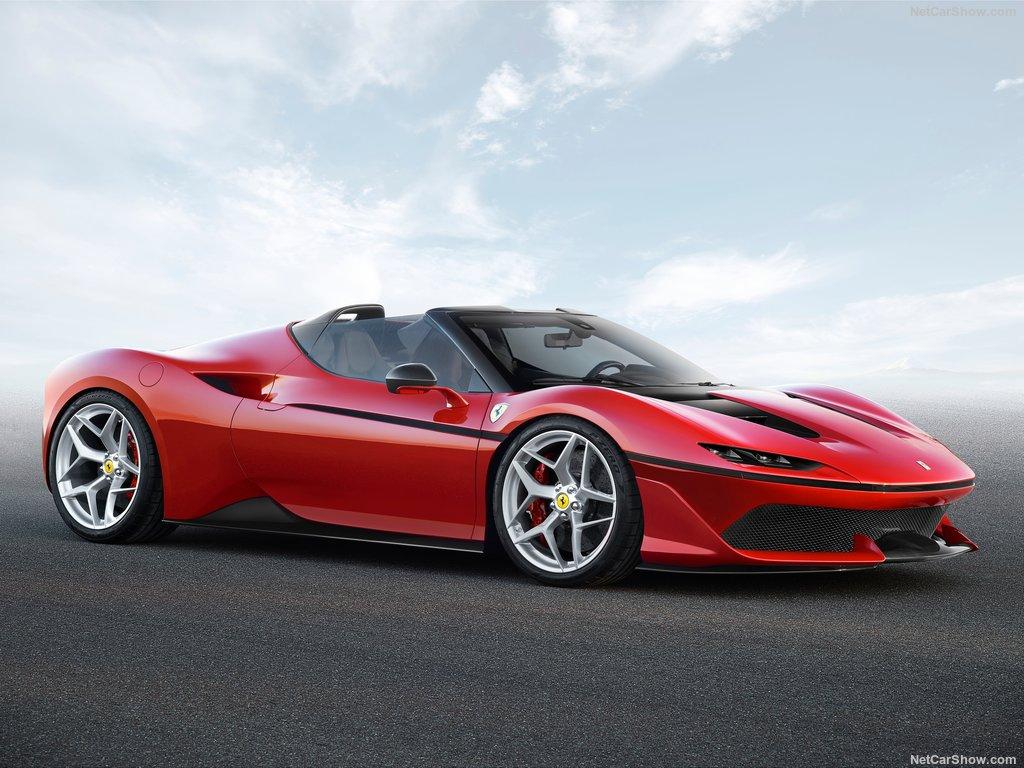
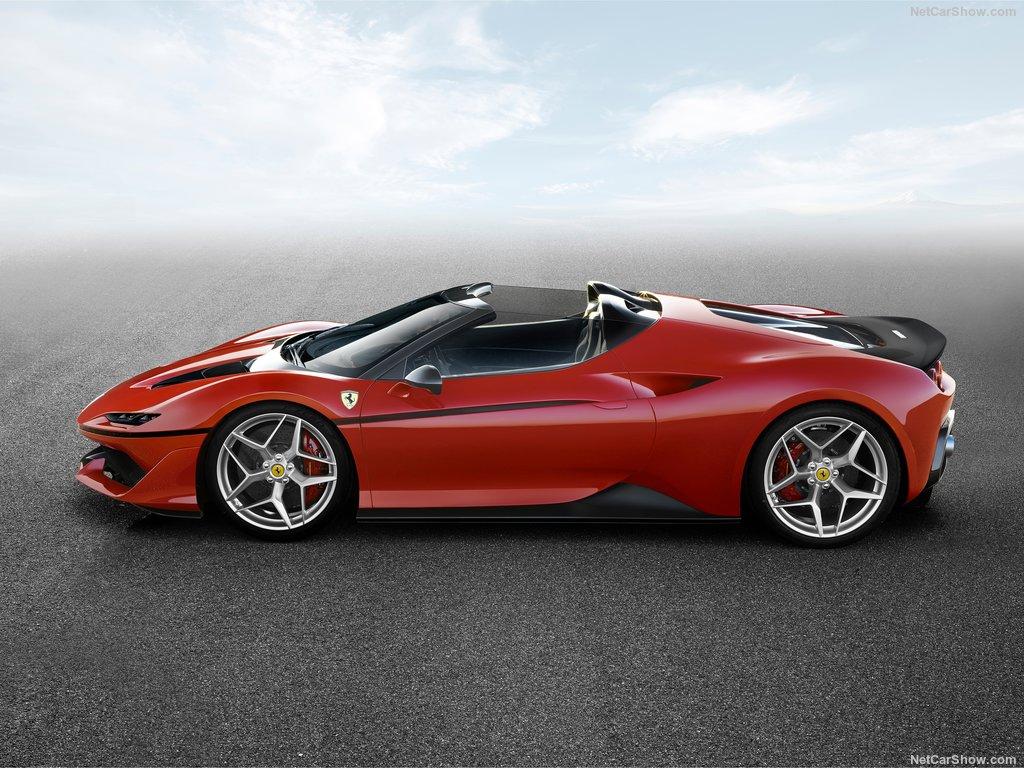
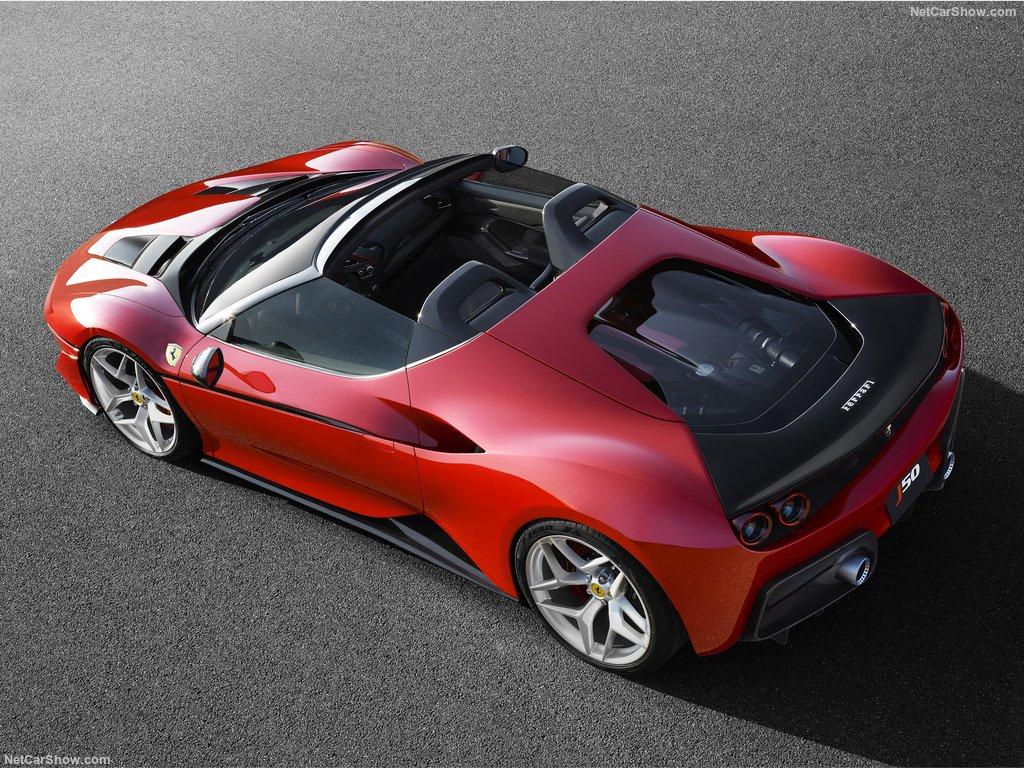
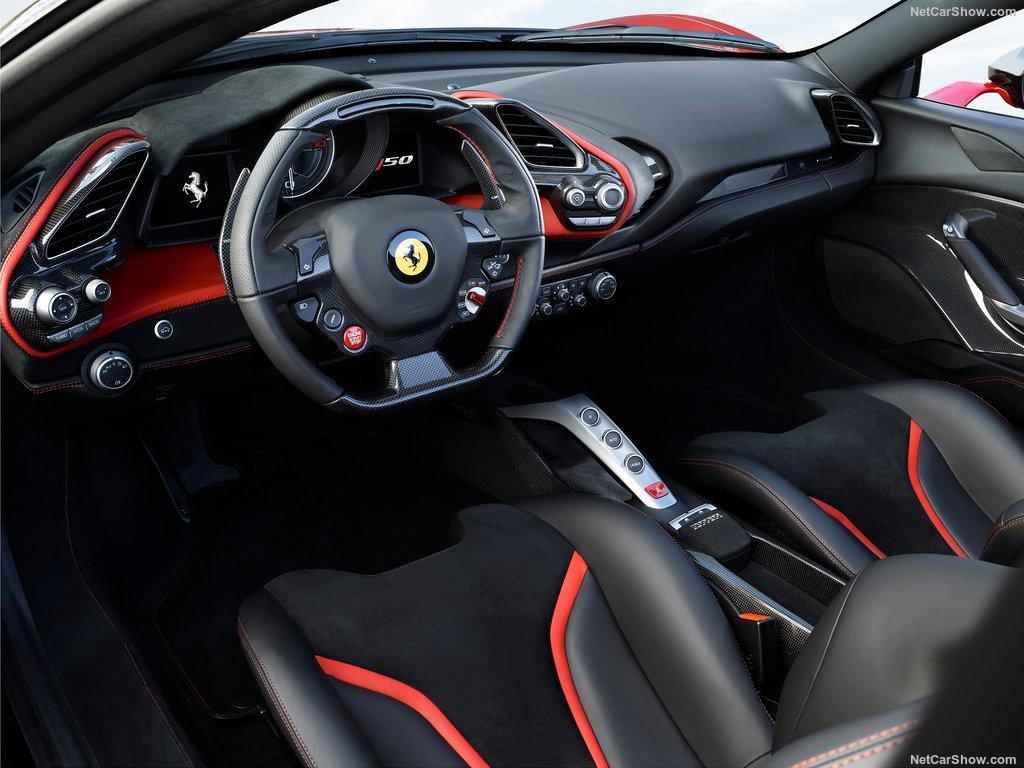
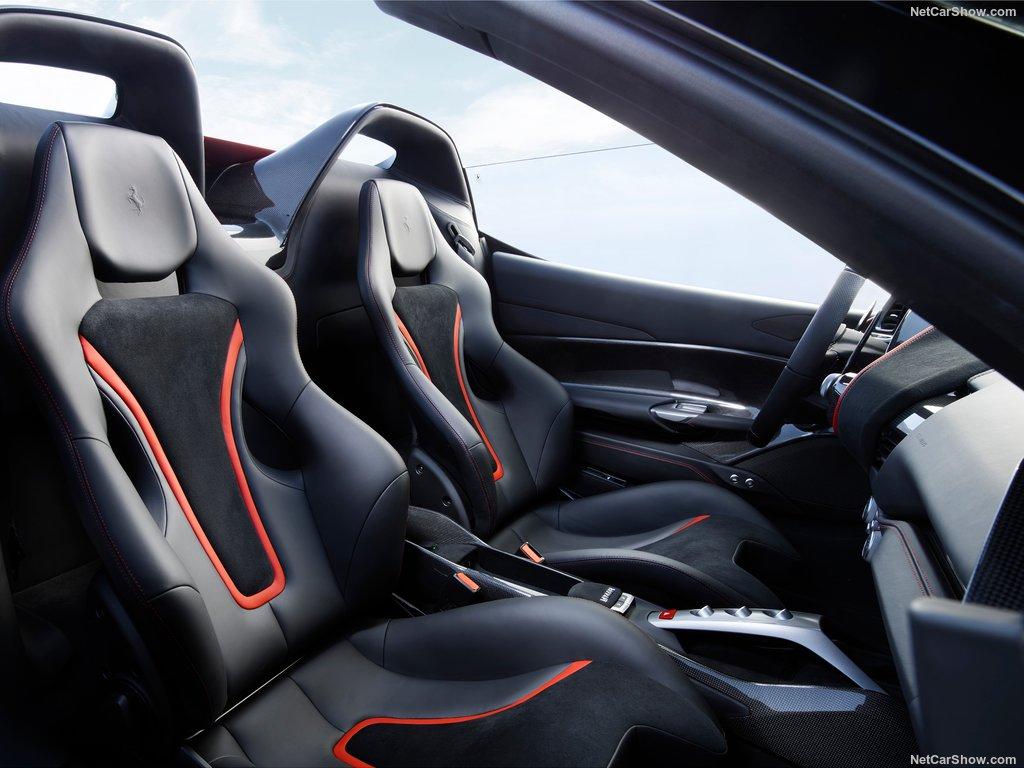
18 punti18 punti10 puntiForse siete troppo giovani o non vi ricordate ma le 75 (o le Alfetta o Giulietta 116) a carburatori avevano la potenza massima a 5300 giri ( la 1.8 ad esempio ) con una grande elasticità ai bassi che permettevano di uscire dal traffico in ogni condizione e tirare oltre i 5500 giri non serviva granchè. Successivamente arrivò l'iniezione elettronica e la potenza massimo passò a 5800 giri con il limitatore posto a circa 6300 giri, pure per le V6. La cosa era ancora più evidente sul bialbero 1.8 sovralimentato che da originale oltrepassati i 5800 giri aveva un evidente calo della spinta. Questo per dire che in Alfa non si è quasi mai cercato le prestazioni nella zona alta del contagiri, piuttosto si è preferito avere una buona coppia ai bassi. Un caso a parte è il mitico V6 di Arese a 24 valvole che spingeva sempre dai bassi fino a 7000 giri. Preferisco quindi questi ultimi turbo con zona rossa a 6000 giri che spingono subito da 1500 giri circa piuttosto dei plurivalvole 4 cilindri aspirati di 10 anni fa che iniziavano a spingere dai 4000 giri in su con consumi da Ferrari ed avevano spinto quasi tutti a passare ai turbodiesel.10 punti10 puntiBuongiorno a tutti .... ma cosa serve cercare allungo se il motore ti da tutto subito e con una regolarità incredibile e un cambio zf 8 marce impeccabile ???? ricordo i vecchi motori alfa / Fiat che arrivavano a 7000 giri ma non andavano... qui ci troviamo a Guidare una macchina che basta accelerare e ti fa sorpassare anche in 6... io sono propio contento dei motori di nuova generazione ?10 punti9 punti8 puntiche vuoi che siano quei meravigliosi vuoti di potenza fino a 3/4mila giri quando ti ritrovi in un vialone cittadino o nel traffico della tangenziale, quando poi alle 3 di notte puoi liberare i cavalli fino alla zona rossa8 punti8 puntiQuotissimo. Peraltro rimango sempre basito di come si osannino a priori gli hi-rev come se non avessero controindicazioni nell'uso daily... Provati solo alla PlayStation immagino. ☏ iPhone ☏8 punti7 punti6 puntigli interni sono gli stessi della 488 a me questa pare molto più pulita e meno "asaitica" della altre, tanto da farmi pensare che l'abbiano fata a cambiano e non a Maranello mi piace, soprattutto il richiamo alla "divisione anni 80"6 puntiSi, fieri di non essere Alfisti/Fiattari ma poi pubblicando quel post si scoprono rosiconi per il record della Giulia5 punti4 punti4 punti4 puntiLamborghini? Lotus? A me sembra una Corvette. Anzi no, una Bugatti. Anzi no, una Stratos. Anzi, aspetta, una Fisker. Anzi no, una StreetKa. Eccheppalle... Ragazzi, non per polemizzare, ma non è che ogni minimo dettaglio che (opinabilmente) potrebbe ricordare qualcos'altro, rende tutta una macchina uguale a qualcos'altro... Lo so che è il solito giochino che si fa davanti a una foto.... però.... IMHO4 puntiPS su base Jaguar (purtroppo)
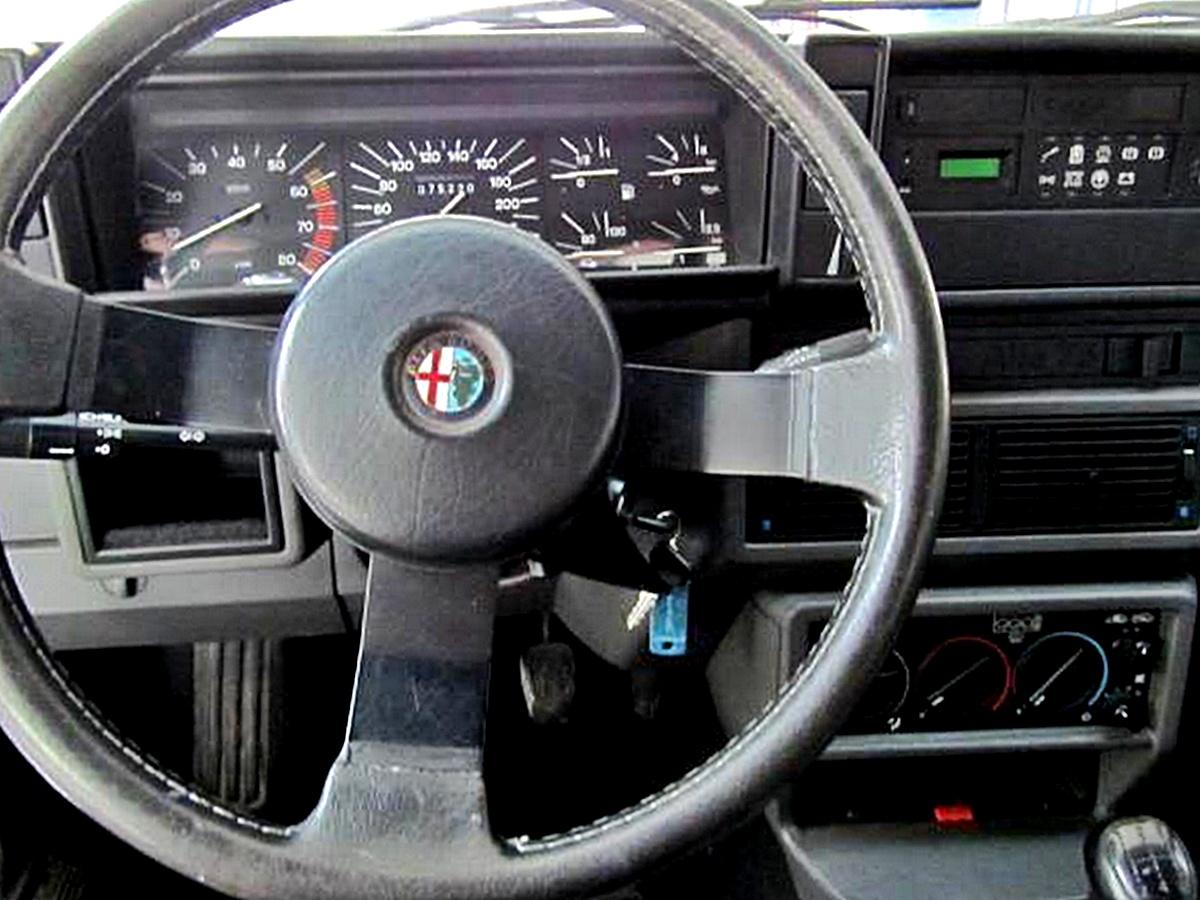
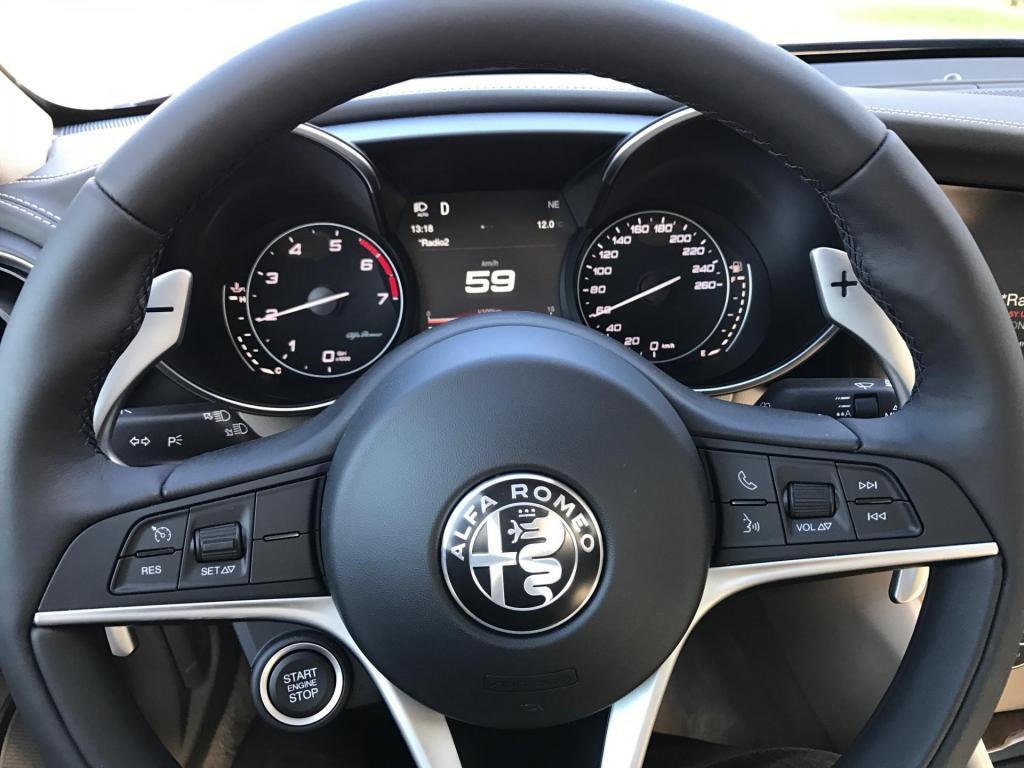
.thumb.jpg.26dc007c4af429a93c667e040fb1d79e.jpg) 4 punti4 puntiNé l'una né l'altra, si tratta di un modello a tiratura limitata, ne verranno prodotte 104 punti4 puntiRicorda la Sergio Concept nel frontale. Ed è bellissima. Sarebbe bello avere questa al posto della 488. Non che sia brutta, eh, ma questa è assai meglio.4 puntiResta il fatto, ed e' evidente, che per mettere in difficolta' la Giulia Q servono auto con qualche centinaio di cavalli in piu' o che nulla hanno a che vedere con una berlina a quattro porte. Si stanno letteralmente arrampicando sugli specchi4 puntiDa https://it.wikipedia.org/wiki/Citroën_2CV4 punti4 puntiperò ferrari e altri marchi hanno avvallato la cosa, quindi ci sta benissimo. Nemmeno a me piace, anche in considerazione di quello che hanno fatto per arrivare super competitivi nell'unica gara che per loro contava, ma formalmente nessuno l'han contestata, per cui hanno giustamente approfittato della situazione. in ogni caso dubito che uno dei tre marchi che ho citato farà mai un'auto del genere: sarebbe equivalente a sconfessare la bontà dei propri prodotti. Porsche lo sta facendo in parte, infatti sto alla finestra. Bisogna sempre tener conto che ford fa questa e poi può tranquillamente tornare a vendere focus e mustang come niente fosse, ferrari cosa tornerebbe a produrre? esatto: troppi pasticci, troppe deroghe e troppi squilibri. Si perde in chiarezza e divertimento.4 punti4 puntiil problema è che la Ford LM-GTE per correre ha avuto bisogno del benestare delle altre case coinvolte (Ferrari Porsche Aston e Chevy Vette)...Ottenuto quello c'è poco da discutere. Accadrà la stessa cosa colla prossima Porca RSR. Ho dei grossi dubbi sul futuro della categoria.4 punti4 punti4 puntiMi mancano ancora svariate pagine da leggere. Qualcosa ho già recuperato, ora conto di andare avanti, ma in tutto questo, a mia modestissima opinione, c'è un grosso(lano) errore di fondo che mi fa parecchio girare le scatole, ed è fondamentalmente questo: non è contemplata la possibilità di essere un "medio" dove per medio non si intende nè lo stakanovista nè quello che non ha voglia di fare nulla. Tony una volta ha scritto che se non ti metti a produrre e non vai al 120% arriverà un altro, magari più giovane e con pari o superiore qualifica, e ti farà fuori. O verrai fatto fuori dai vertici aziendali per metterci il suddetto. Leggendovi trovo che, comprensibilmente, molti vogliano farsi una posizione per orgoglio personale o per la propria famiglia. Trovo molto meno comprensibile che questo possa essere fatto pestando per bene sopra la propria sfera personale ed extralavorativa. Parlando di me, io credo di avere le capacità per, eventualmente, scalare delle posizioni. Avendo visto, tuttavia, il sacrificio che questo è costato ad alcuni miei colleghi che, per fare le maratone a lavoro, vedono poco e male i loro cari e hanno pochi e malcurati interessi fuori dall'ufficio, me ne tengo ben lontano. Non è la vita che vorrei per me. E non mi vergogno a dire,ad esempio, che non vorrei lavorare il sabato, se questa cosa diventasse una regola inizierei a guardarmi intorno. Questo perchè la mia filosofia prevede il farsi il culo nei tempi consoni ma tenersi rigidamente degli spazi personali. Per cui, ribadisco, se lo straordinario o il lavoro nel weekend diventa sistematico o vengono fatte pressioni per renderlo tale, me ne andrei. Secondo molti di voi qui dentro, sarei un choosy o un pigro che MERITA di essere trombato dall'arrivista di turno. E' questo che trovo pazzesco, ben più di tante altre cose.4 puntiEcco i miei ultimi avvistamenti: BMW 316i del 18 gennaio 1989. BMW 320i cabrio Baur del 28 giugno 1990. Mercedes-Benz 190E con targa del 1985. Peccato per la foto scattata al volo, da passeggero. Citroen 2CV del 1° gennaio 1984. Chiedo agli esperti numi sulla livrea: si tratta di una serie speciale o di una libera interpretazione? Fiat 600 del 1° marzo 1969. Fiat 126 Bis del 18 gennaio 1990. Alla guida, il vs affezionatissimo.4 punti3 puntipotrebbe essere sul serio il nuovo corso stilistico per le Ferrari (un po più difficile da portare sulle "GT") imho bene3 punti3 puntiquoto aymaro per me c'è aria di cambiano e tanta altra roba a partire da 328, guardatate la zona in cui parte il montante a ma l'aria generale imho è molto sergio. Niente male comunque3 punti3 puntiEsatto. Come si può vedere la zona gialla/rossa è simile; presumo infatti che sulla Giulia 2.0 tbi, nonostante la zona rossa inizi a 5500 giri, il limitatore sia poco oltre i 6000 giri. p.s. @Ale4c ho preso in prestito la tua foto.
4 punti4 puntiNé l'una né l'altra, si tratta di un modello a tiratura limitata, ne verranno prodotte 104 punti4 puntiRicorda la Sergio Concept nel frontale. Ed è bellissima. Sarebbe bello avere questa al posto della 488. Non che sia brutta, eh, ma questa è assai meglio.4 puntiResta il fatto, ed e' evidente, che per mettere in difficolta' la Giulia Q servono auto con qualche centinaio di cavalli in piu' o che nulla hanno a che vedere con una berlina a quattro porte. Si stanno letteralmente arrampicando sugli specchi4 puntiDa https://it.wikipedia.org/wiki/Citroën_2CV4 punti4 puntiperò ferrari e altri marchi hanno avvallato la cosa, quindi ci sta benissimo. Nemmeno a me piace, anche in considerazione di quello che hanno fatto per arrivare super competitivi nell'unica gara che per loro contava, ma formalmente nessuno l'han contestata, per cui hanno giustamente approfittato della situazione. in ogni caso dubito che uno dei tre marchi che ho citato farà mai un'auto del genere: sarebbe equivalente a sconfessare la bontà dei propri prodotti. Porsche lo sta facendo in parte, infatti sto alla finestra. Bisogna sempre tener conto che ford fa questa e poi può tranquillamente tornare a vendere focus e mustang come niente fosse, ferrari cosa tornerebbe a produrre? esatto: troppi pasticci, troppe deroghe e troppi squilibri. Si perde in chiarezza e divertimento.4 punti4 puntiil problema è che la Ford LM-GTE per correre ha avuto bisogno del benestare delle altre case coinvolte (Ferrari Porsche Aston e Chevy Vette)...Ottenuto quello c'è poco da discutere. Accadrà la stessa cosa colla prossima Porca RSR. Ho dei grossi dubbi sul futuro della categoria.4 punti4 punti4 puntiMi mancano ancora svariate pagine da leggere. Qualcosa ho già recuperato, ora conto di andare avanti, ma in tutto questo, a mia modestissima opinione, c'è un grosso(lano) errore di fondo che mi fa parecchio girare le scatole, ed è fondamentalmente questo: non è contemplata la possibilità di essere un "medio" dove per medio non si intende nè lo stakanovista nè quello che non ha voglia di fare nulla. Tony una volta ha scritto che se non ti metti a produrre e non vai al 120% arriverà un altro, magari più giovane e con pari o superiore qualifica, e ti farà fuori. O verrai fatto fuori dai vertici aziendali per metterci il suddetto. Leggendovi trovo che, comprensibilmente, molti vogliano farsi una posizione per orgoglio personale o per la propria famiglia. Trovo molto meno comprensibile che questo possa essere fatto pestando per bene sopra la propria sfera personale ed extralavorativa. Parlando di me, io credo di avere le capacità per, eventualmente, scalare delle posizioni. Avendo visto, tuttavia, il sacrificio che questo è costato ad alcuni miei colleghi che, per fare le maratone a lavoro, vedono poco e male i loro cari e hanno pochi e malcurati interessi fuori dall'ufficio, me ne tengo ben lontano. Non è la vita che vorrei per me. E non mi vergogno a dire,ad esempio, che non vorrei lavorare il sabato, se questa cosa diventasse una regola inizierei a guardarmi intorno. Questo perchè la mia filosofia prevede il farsi il culo nei tempi consoni ma tenersi rigidamente degli spazi personali. Per cui, ribadisco, se lo straordinario o il lavoro nel weekend diventa sistematico o vengono fatte pressioni per renderlo tale, me ne andrei. Secondo molti di voi qui dentro, sarei un choosy o un pigro che MERITA di essere trombato dall'arrivista di turno. E' questo che trovo pazzesco, ben più di tante altre cose.4 puntiEcco i miei ultimi avvistamenti: BMW 316i del 18 gennaio 1989. BMW 320i cabrio Baur del 28 giugno 1990. Mercedes-Benz 190E con targa del 1985. Peccato per la foto scattata al volo, da passeggero. Citroen 2CV del 1° gennaio 1984. Chiedo agli esperti numi sulla livrea: si tratta di una serie speciale o di una libera interpretazione? Fiat 600 del 1° marzo 1969. Fiat 126 Bis del 18 gennaio 1990. Alla guida, il vs affezionatissimo.4 punti3 puntipotrebbe essere sul serio il nuovo corso stilistico per le Ferrari (un po più difficile da portare sulle "GT") imho bene3 punti3 puntiquoto aymaro per me c'è aria di cambiano e tanta altra roba a partire da 328, guardatate la zona in cui parte il montante a ma l'aria generale imho è molto sergio. Niente male comunque3 punti3 puntiEsatto. Come si può vedere la zona gialla/rossa è simile; presumo infatti che sulla Giulia 2.0 tbi, nonostante la zona rossa inizi a 5500 giri, il limitatore sia poco oltre i 6000 giri. p.s. @Ale4c ho preso in prestito la tua foto.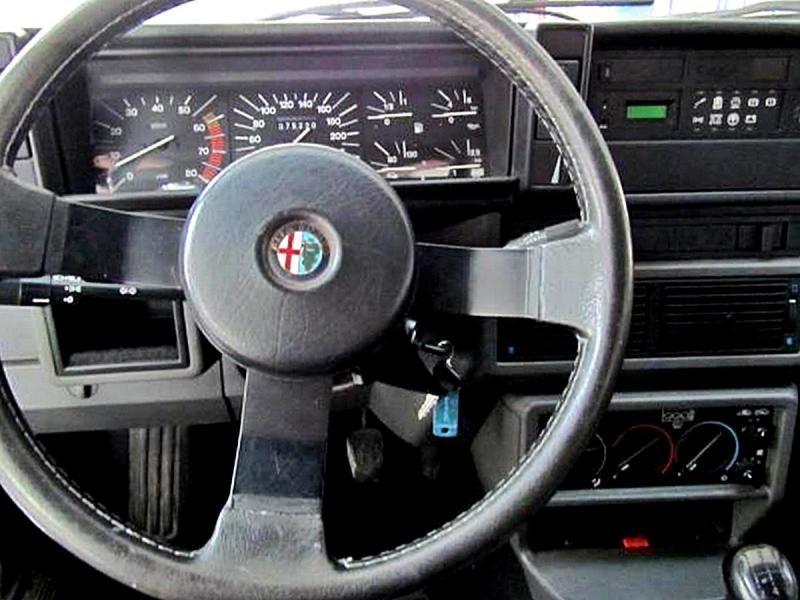
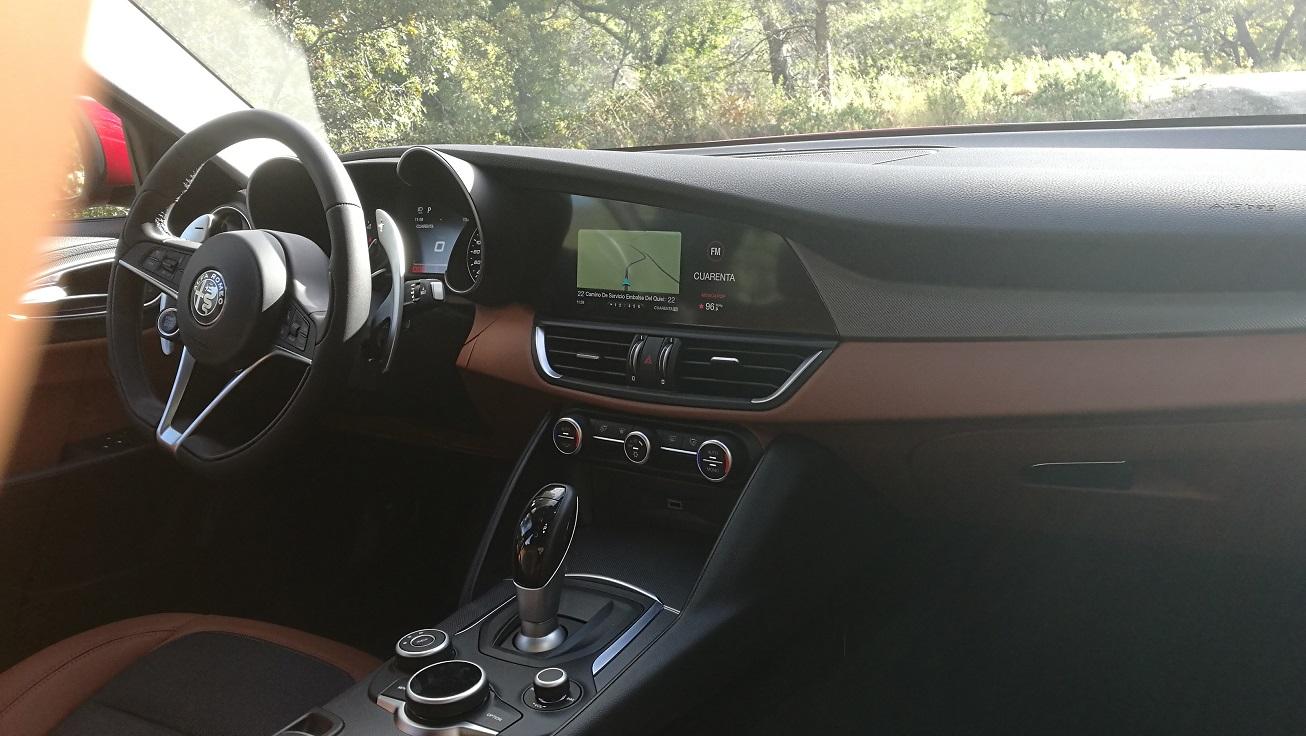
 3 punti3 punti3 puntiQuello di autobianchi lo vedrei per dei scarponi da montagna3 punti3 punti3 puntiAlcuni hanno chiesto di pubblicare le mie impressioni sia pure in spagnolo. Ho copiato quello che ho messo in qualche forum spagnolo. Se qualcuno ha qualche dubbio cercherò di rispondere nel mio italiano-by-google
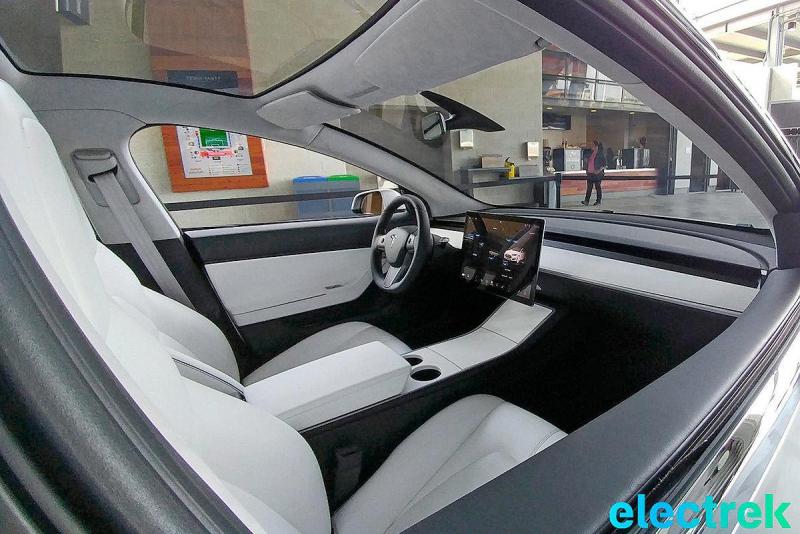
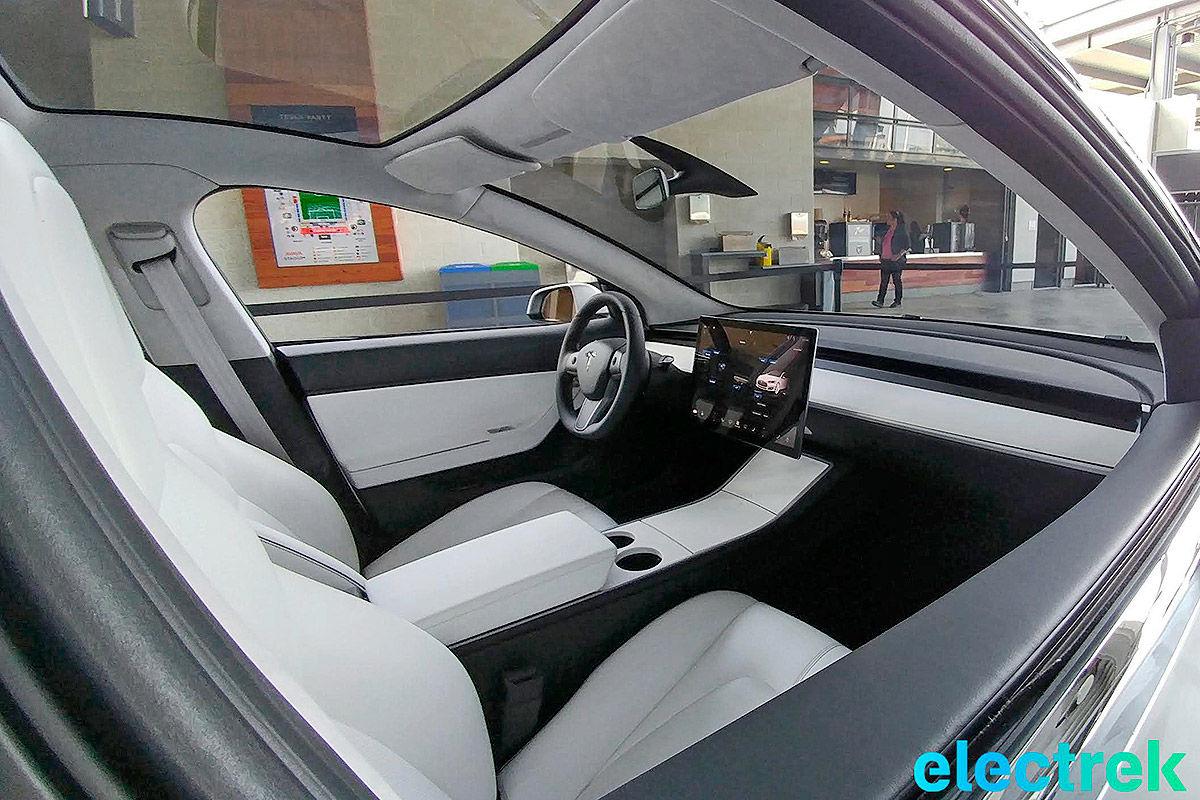
 3 punti2 puntiOrdinata!!!!! Dopo attente e ponderate valutazioni tra tutte le concorrenti (mica vero, sempre avuto solo lei in testa) in famiglia arriverà una Giulia Veloce Rosso Alfa che promette faville E finalmente avremo un garage di sole Alfa rosse!!! È stata in lotta fino all'ultimo la 200cv benzina ma il pacchetto Veloce era davvero troppo allettante.. Consegna prevista per febbraio! Sarà una lunga attesa.... ☏ SM-G920F ☏2 puntiPrendere 3 decimi su un minuto e 37 secondi in pista è un "nulla" totale.. Lo sfiato di un petomane dura di più e sappiamo che si tratta spesso di un lampo... Quindi a mio parere sapendo bene che non esista M4 o M3 testata da rivista tedesca che abbia avuto solo 431 hp direi che per Giulia si tratti comunque di un ottimo risultato per una serie di motivi: *su alcune piste è risultata più veloce di M4 (vedasi Quattroruote) pur pesando di più *in questo specifico articolo distanzia in maniera importante la M3 come punteggio finale, ponendosi a livello della M4 GTS, in un giudizio più globale e consuntivo *pesa purtroppo molto di più della M3 e troppo rispetto al dichiarato *è la prima versione di Q Vs la "millemillesima" di Emme... *arrivare alla pari al primo colpo contro un mostro sacro, è un enorme risultato già di per se. AMG ci ha provato per anni se non decenni, e con ben altri fondi e mercato gia fatto a disposizione, arrivando solo con l'ultima versione a togliersi qualche sfizio contro la Emmona *Emme conta di esperienza colossale specifica su questo tipo di dimensioni-telaio-potenze-dinamica-realtà commerciale , diamo tempo a Q di crescere *440/445 hp veri circa come risulta da test fatti da riviste tedesche per le M testate e minor peso avvicinano il rapporto ai 510 hp purtroppo di una ben più pesante Giulia *il DKG è certamente migliore e più veloce dell'automatico di Giulia e potrei continuare con altri esempi... Insomma per me, si tratta di un pari e talvolta di una vittoria, più che dignitosa contro il riconosciuto benchmark del settore, anche se Emme ha certamente perso peso e smalto nelle sue due ultime versioni Ripeto 3 decimi sono meno di un nulla per determinare quale sia la migliore in questa specifica pista ed in tutte le altre..Mi premono molto di più l'essere partito con il piede giusto con la prima versione di Q, ed aver lanciato un chiarissimo avvertimento alla concorrenza..A tutto vantaggio di tutti noi consumatori...maggior concorrenza= migliori prodotti= più scelta.. Non dimenticando che la rivista stessa ammette che la prova è forse stata influenzata dalle condizioni della pista e meteo a tutto svantaggio della trazione. Ma che si vuole di più? sul dritto poi va come una 997 Gt3 MkII...Parliamone...con il bimbo dietro che urla di gioia...2 puntiLimitatamente alla mia esperienza è impossibile fare tutto nei tempi standard, opinione personale, siamo sotto organico in tutti i vari reparti. Alcuni giorni mi è capitato di fermarmi per chiudere alcuni sospesi, però quando non lo faccio è sempre una discussione. Qualche volta (avevo altri impegni) ho bucato alcune scadenze ed è venuto fuori un putiferio anche perchè, siccome ogni santo giorno c'è una scadenza o un'urgenza, ho ribadito che se non posso, non mi fermo. E come giustamente hai detto te, in questo caso il baco è nel sistema e non nell'operatore. Per quanto riguarda la seconda parte la spinta a migliorarsi deve venire da te stesso, non dalla paura che qualcun altro ti freghi il posto. Il principio è giusto ma la "molla" è la più sbagliata possibile. E poi, come già detto, esistono anche persone che non hanno l'obiettivo di diventare top manager. Magari c'è quello che si cura la collezione di francobolli finito l'ufficio e non gliene frega un tubo di stare lì ad evadere pratiche. Io cerco sempre di migliorarmi, ma non trovo giusto stare sempre lì a puntare il dito contro chi si accontenta di stare un passo indietro. E al mondo ce ne sono tanti così. Tornando all'esempio di prima, io non ho il minimo dubbio di avere i mezzi per eccellere nel mio settore. Ma a che pro? Per avere 1800/2000 netti (non lo so, immagino) al mese devo dedicare ai miei cari i ritagli del tempo, non averne per coltivare i miei hobby, ed essere sempre in giro per il mondo a stringere mani e a fare il finto cortese con persone di cui non mi interessa nulla e portare avanti gli affari di un'azienda il cui aspetto che mi interessa di più è che mi versi lo stipendio il 30 del mese? Sia chiaro, io cerco sempre di essere corretto, efficiente e professionale visto che mi pagano per esserlo. E' mio dovere. Ma considerato quanto sopra e una miriade di altri aspetti minori, tra cui il "riconoscimento zero" già menzionato, il mio coinvolgimento è zero. Fintantochè io faccio il massimo e limito al minimo gli errori (così sono a posto con la coscienza) che si vada bene o male o quant'altro fotte zero. Malissimo che vada ripartirò con un'esperienza e delle skills in più.2 punti2 puntiTerribili i fianchetti delle porte posteriori neri e gli anteriori chiari. 1) Spero sia un errore. 2) Spero dietro i fianchetti non siano in plastica per le versioni meno ricche.2 punti2 punti2 puntiA dire il vero i Giapponesi veramente appassionati le pretendono con la guida a sinistra le italiane perchè così sono nate e così le vogliono.2 punti2 puntiMuy giappa... Certo che per un modello per commemorare i 50 anni sul mercato giapponese potevano almeno presentarla con guida a destra2 punti2 puntiE' ordinabile la Fiat 500X 2017 che porta degli aggiornamenti per quanto riguarda la gamma e i pack. La versione Cross ha nuove protezioni con tonalità metallica più chiara. Per tutte le luci DRL hanno una luce più fredda, che rendono l'aspetto del frontale ancora più accattivante. La City ha nuovi cerchi da 17 e sono disponibili tre nuovi colori di carrozzeria: il blu metallizzato Jeans, il bronzo Donatello e il pastello beige Cappuccino. L'interno sfoggia una nuova finitura sul tunnel centrale, nuovi sedili in tessuto antracite con bordi neri in un materiale tecnico per le versioni Pop e Popstar, e antracite e avorio per la Popstar. E' stata aggiornata anche la pelle sia tabacco che nera. Foto e testo: https://passioneautoitaliane.blogspot.it/2016/12/ordinabile-la-fiat-500x-2017.html?m=1 http://www.hdmotori.it/fiat-500x-leggeri-ritocchi-per-il-my2017/ http://www.mostreliablecarbrands.com/it/the-fiat-500x-2017-lands-in-spain-and-premiered-version-trekking/2 punti2 puntiMolto carina ed equilibrata fino al montante B, dopo diventa un B-mpv coreano. Peccato. Interni più che carini ma molto poco ford, poco originali.2 punti2 puntidirei che con la notizia che in due anni i russi avranno anche la loro base proprio da quelle parti, per me non se la sono giocati male. Recuperano soldi dell'investimento, trovano un socio (minoritario) che ti fa da guardaspalle e si mettono sulla scia dell'egitto. Il mediterraneo sarà sempre più un casino, agli americani pare non importare più, dei francesi e inglesi dio ce ne scampi, i russi per lo meno contro l'isis ci mettono i soldati e non le parole. Lo scenario internazionale, soprattutto quello vicino a noi, sta cambiando in maniera spaventosa negli ultimi tempi. P.s. In gambia l'ex presidente pare si sia rimangiato la parola data. Speriamo bene2 punti2 punticonverrete però che se lo dice il presidente degli stati uniti, nonchè maggior contributore della nato, la cosa ha un peso leggermente superiore a quella di un politico italiano qualsiasi2 puntiSe raggiungi l'obiettivo, mediamente l'azienda gliene frega poco se lavori 2 ore al giorno o 14. Al massimo si può ragionare sulla bontà dell'obiettivo richiesto (troppo basso o troppo alto). Sulla questione straordinari, bisogna evitare di ragionare in logica binaria come si fa spesso (e in troppi ambiti). Essendo per definizione straordinari (oltre l'ordinario) non c'è niente di male a farli. Sono soldi in più busta paga, e sono per periodi limitati. Il problema è lo straordinario diventa ordinario. Evidenziando così una scarsa capacità di gestione del carico di lavoro da parte del dipendente o dell'azienda. Riguardo a dare sempre il massimo...si tratta semplicemente di...sopravvivenza. Perchè o ti metti a lavorare in un mercato chiuso e con barriere alte all'ingresso (che in Italia siamo bravissimi a creare), oppure i tuoi concorrenti mica stanno lì belli seduti a lasciarti seduto sugli allori. Migliorarsi sempre è una necessità.2 puntiSi ma se cominci ora a far straordinari per farti bello a - i colleghi che vanno via alle 17:30 cominciano a guardarti male b - il capo ti chiama in ufficio alle 17:35 quando in teoria tu dovresti poter essere in piscina/supermercato/zoccole/famiglia etc c - dopo il primo anno a far straordinari cosa fai, all'improvviso dici "da oggi esco alle 17?" Imho no, e finisci col fare la fine di quello che fa 40 ore di straordinari al mese. Tanto lui poi arriva a casa che la moglie gli ha preparato la cena, mangia e si butta sul divano. Bella vita oh, figata. Basterebbe che la gente facesse a gara a chi lavora meglio, non a chi lavora di piu. Che senso ha che se per fare 12 documenti di calcolo lo stakanovista fa 12 fogli excel, e stampa a mano, restando dentro due ore di piu, quando io faccio lo stesso con una macro in 8 ore invece di 10? Alla fine io avrò reso di più ma mi troverò 20 euro in meno in tasca. Poi questo e' il mio vissuto (e ho anche visto gente cazzeggiare fino alle 16.55 e lavorare dalle 17 alle 19, mandando mail alle 18:50 per far vedere che lavora). Auguri.2 punti2 puntiInterni svelati. Praticamente una tavola con un monitor. E magari i soliti invasati avranno il coraggio di dire che sono belli!! Ritorno un secondo su Attivissimo. L'ho conosciuto, credo come tanti, per la battaglia che ha fatto contro i negazionisti dell'11 settembre. Ora, leggendo il suo blog credo che di quel periodo non sia rimasto nulla, irriconoscibile. Venduto a dir poco e non lo dico perchè una volta avevamo lo stesso pensiero ma perchè su certe cose è superficiale e sembra uno spot.
 2 punti2 puntila laguna non se l'è considerata nessuno perché è brutta. L'hai mai vista dal vivo? E' più alta che larga, proprio mal riuscita.. Tozza, goffa, non slanciata, alta, stretta..2 punti2 puntiPeccato che il litio non sia tutta questa panacea dal punto di vista ambientale. http://www.terranuova.it/News/Ambiente/Le-miniere-di-litio-minacciano-le-Ande-boliviane Oltre ad avere qualche problemino operativo (vedasi Boeing e Samsung) Mentre i processi che ho descritto (che non sono deliri, Anzi, ci sono progetti avanzati in merito) NON sprecano nuove risorse ma anzi ne utilizzano di già esistenti (luce, terreni improduttivi, scarti alimentari)...diminuiscono la CO2 perché il ciclo prevede un passaggio di fotosintesi (che cattura la CO2 dall'atmosfera).... e soprattutto possono creare posti di lavoro nuovi in loco e usano prodotti già economicamente accessibili. Tra l'altro una moderna vettura deve essere riciclabile al 99% per legge....e una delle cose che si fatica al momento a riciclare sono appunto...le batterie. Però comprendo che sono risultati troppo proletari, in contrasto con i Musk di turno che sognano di salire sul Galaxy Express 9992 punti2 puntiGià me la vedo una nave container a batterie Che porta in peso più batterie che merci2 punti2 puntiA parte che dopo 15 anni non ho ancora capito come mai sia venuto giù il WT 7, non mi ritengo complottista. Non credo alle scie chimiche (anche il mio motorino al freddo emette "scie chimiche" ma nessuno sembra farci caso), e non so cosa siano le matite di cui tutti parlano. Ciò non toglie che citare un numero senza dirne la fonte, la quale a sua volta dovrebbe essere autorevole e sottoposta a "peer review", non è fare informazione. Non si tratta di complottismo o meno, sono le regole base dell'informazione, regole che uno che gestisce un blog che si è autoeletto ad "anti bufala" dovrebbe conoscere meglio di me.2 punti2 puntiQuesto Fiestino mi ha portato oggi ad una riflessione post-cantuccini col vinsanto. (si, sono io) Riflettevo su quanto si stia fermando il design. Mica solo in Ford, per carità. Vedo girare anche la Corsetta incerottata e facendo la tara al camuffo Opel (che son più abituato a decifrare) già mi chiedo cosa ci sarà da vedere. Al di là del fatto che questa Fiesta sia diversa da quella che ha la mia vicina di casa (cioè l'attuale) perchè il fanale invece che così fa cosà, perchè la bocca anteriore è un po' più qui e un po' meno là, mi domando cosa ci sia di NUOVO, che mi parli di un'automobile più moderna, che stanno lanciando ora e che per qualche anno sarà "il nuovo modello". Se arrivassi da un altro pianeta e mi trovassi davanti la Fiesta della mia vicina insieme a questa, avrei dei dubbi nel dire quale delle due sia quella più recente. Fra le due sono passati quanti anni? Meglio ancora, mi chiedo a questo punto cosa ci sia di tremendamente obsoleto nella mia Punto Street che di primavere, stilisticamente parlando, ne ha? Quante? Ho perso il conto. Non voglio dire "che palle", però che palle. (p.s. bboni, state bboni, non partite in quarta dopo questo post: passavo di qua )2 punti2 puntiMah, mi lasciano un po perplesso certe operazioni. Su 500x i pannelli posteriori non rivestiti, anche se solo al centro, sono un impoverimento mica da ridere su una macchina "chic", per il cupolino rivestito non me ne frega niente, chi è che va ad accarezzarlo mentre guida io non lo so, ma soprattutto mi delude ancora il navi da 6,5 anzichè il 7 pollici. Ma perchè ci vuole sempre un secolo per equiparare le dotazioni dei modelli? Il navi nuovo è disponibile su 500 e Tipo, più economiche, ma non qui. Non capisco. Su 500L mi pare abbiano impoverito solo le versioni base e quello magari dipende anche dal restyling imminente, aspetto quello per giudicare2 punti2 puntiMi ricorda tanto lei: Anche se molto diverse, alcuni sviluppi la ricordano.2 puntiLa Leaderboard è riferita all'orario Roma/GMT+02:00







.jpg.9c0bf7ce5de89656bd324fe43a52653e.jpg)
















.jpg.0a9ff73d7a7ad09550fc411cda37bc7c.thumb.jpg.095392f5d8b6dc45c10ccf463694d027.jpg)
.thumb.jpg.46228d717c405acd43b45b79fddce6a4.jpg)

Account
Navigation
Cerca
Configure browser push notifications
Chrome (Android)
- Tap the lock icon next to the address bar.
- Tap Permissions → Notifications.
- Adjust your preference.
Chrome (Desktop)
- Click the padlock icon in the address bar.
- Select Site settings.
- Find Notifications and adjust your preference.
Safari (iOS 16.4+)
- Ensure the site is installed via Add to Home Screen.
- Open Settings App → Notifications.
- Find your app name and adjust your preference.
Safari (macOS)
- Go to Safari → Preferences.
- Click the Websites tab.
- Select Notifications in the sidebar.
- Find this website and adjust your preference.
Edge (Android)
- Tap the lock icon next to the address bar.
- Tap Permissions.
- Find Notifications and adjust your preference.
Edge (Desktop)
- Click the padlock icon in the address bar.
- Click Permissions for this site.
- Find Notifications and adjust your preference.
Firefox (Android)
- Go to Settings → Site permissions.
- Tap Notifications.
- Find this site in the list and adjust your preference.
Firefox (Desktop)
- Open Firefox Settings.
- Search for Notifications.
- Find this site in the list and adjust your preference.