




Classifica Utenti
Utenti più Apprezzati
(Scegli il periodo) Utenti più Apprezzati
(Storia giorno per giorno) Classifica dall'Origine
(da Marzo 2003)
(Scegli il periodo) Utenti più Apprezzati
(Storia giorno per giorno) Classifica dall'Origine
(da Marzo 2003)
-
Dmc-12
Utente Registrato8Punti246Numero contenuti pubblicati -
Sepp0
Utente Registrato8Punti1334Numero contenuti pubblicati -
Unperdedor
Utente Registrato7Punti5132Numero contenuti pubblicati -
TurboGimmo
Utente Registrato6Punti19731Numero contenuti pubblicati



Contenuti più Popolari
Stai visualizzando i contenuti con il più alto punteggio, pubblicati in data 07/18/25 e localizzati in Risposte
-
8 puntiCon la ciclicità dei rilanci Maserati potrebbero chiamarlo anche Mestruale8 punti
-
Nera secondo me mitiga un po' l'effetto che cercavo di spiegare4 punti
-
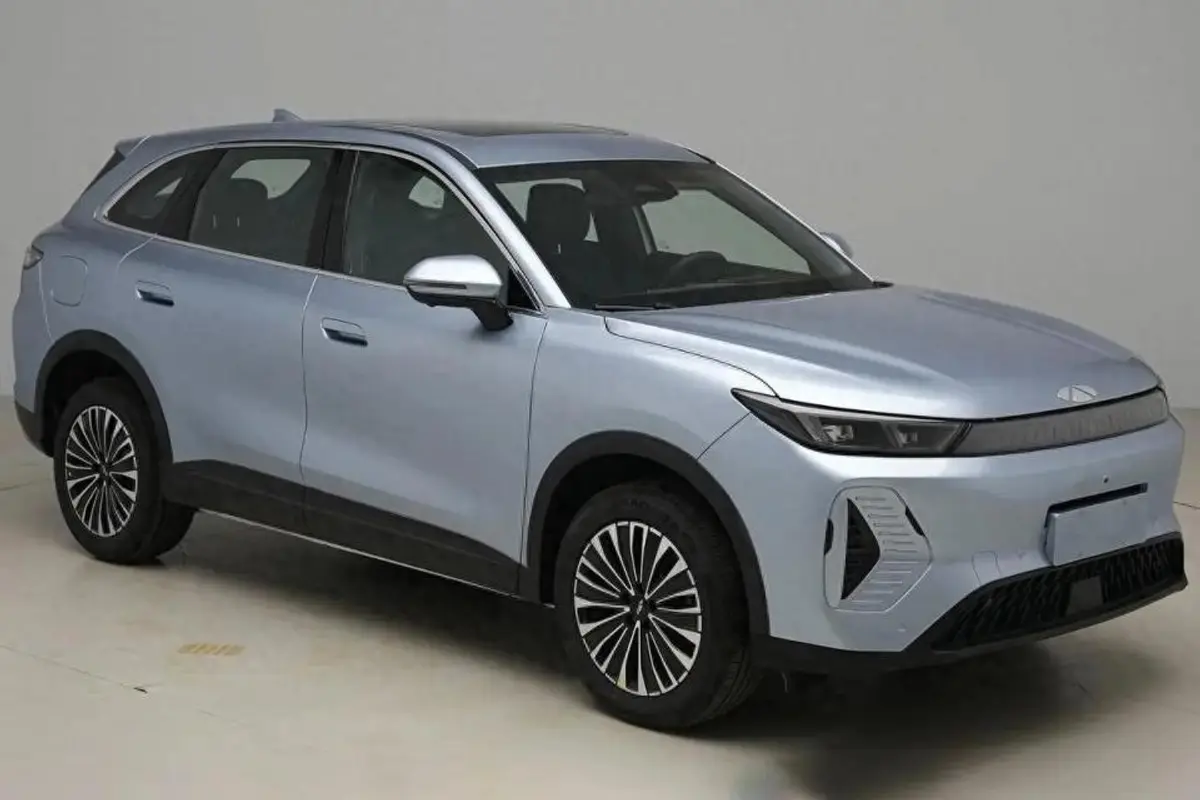
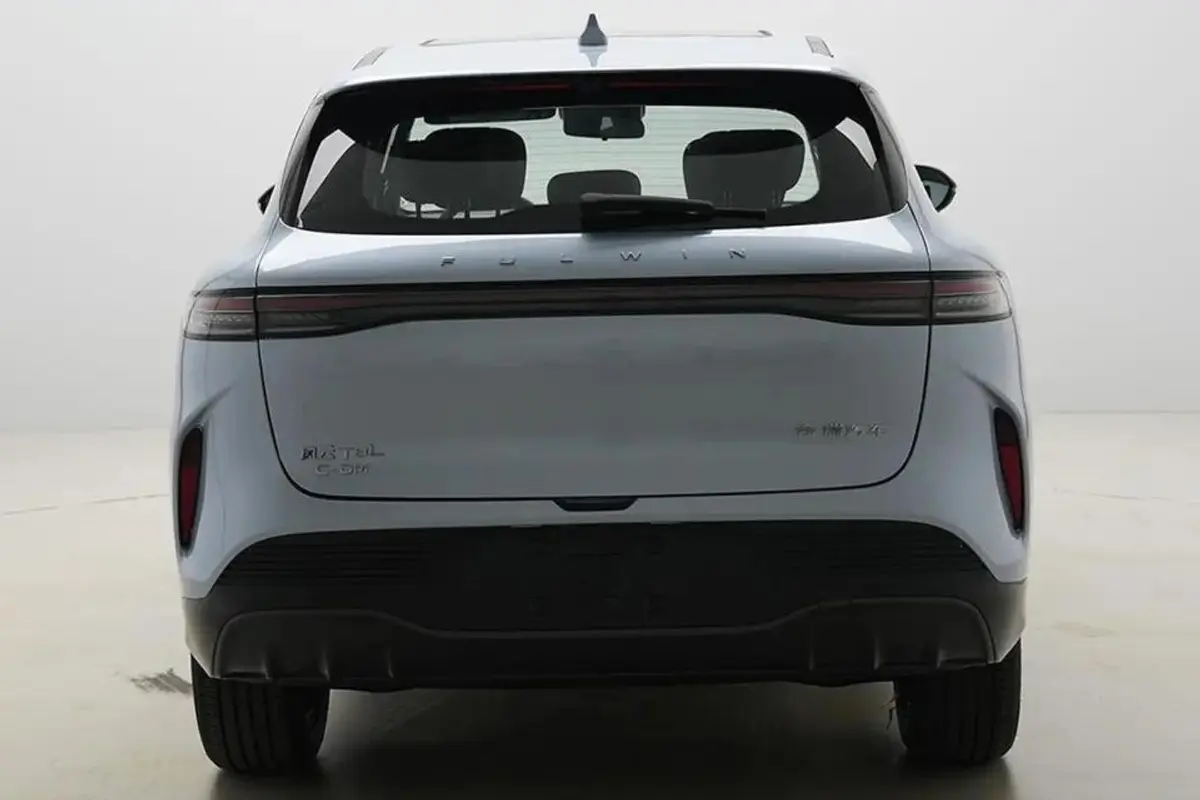
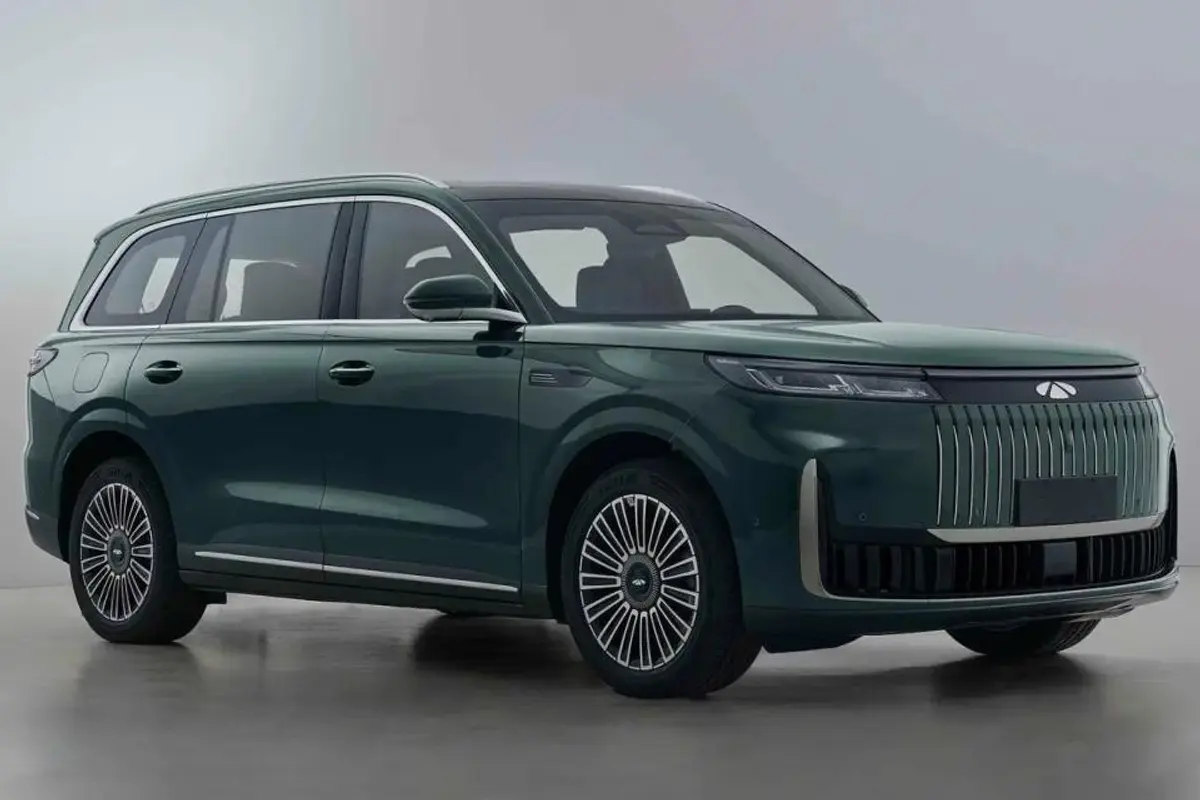
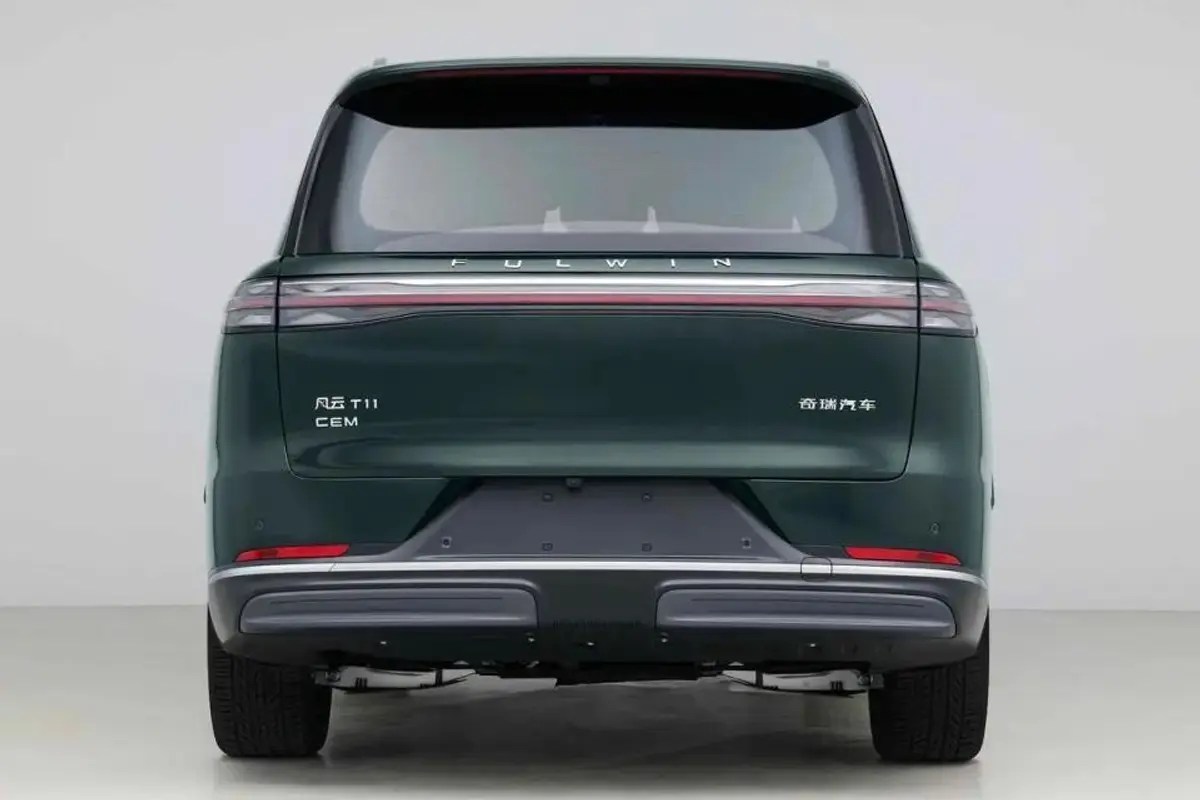
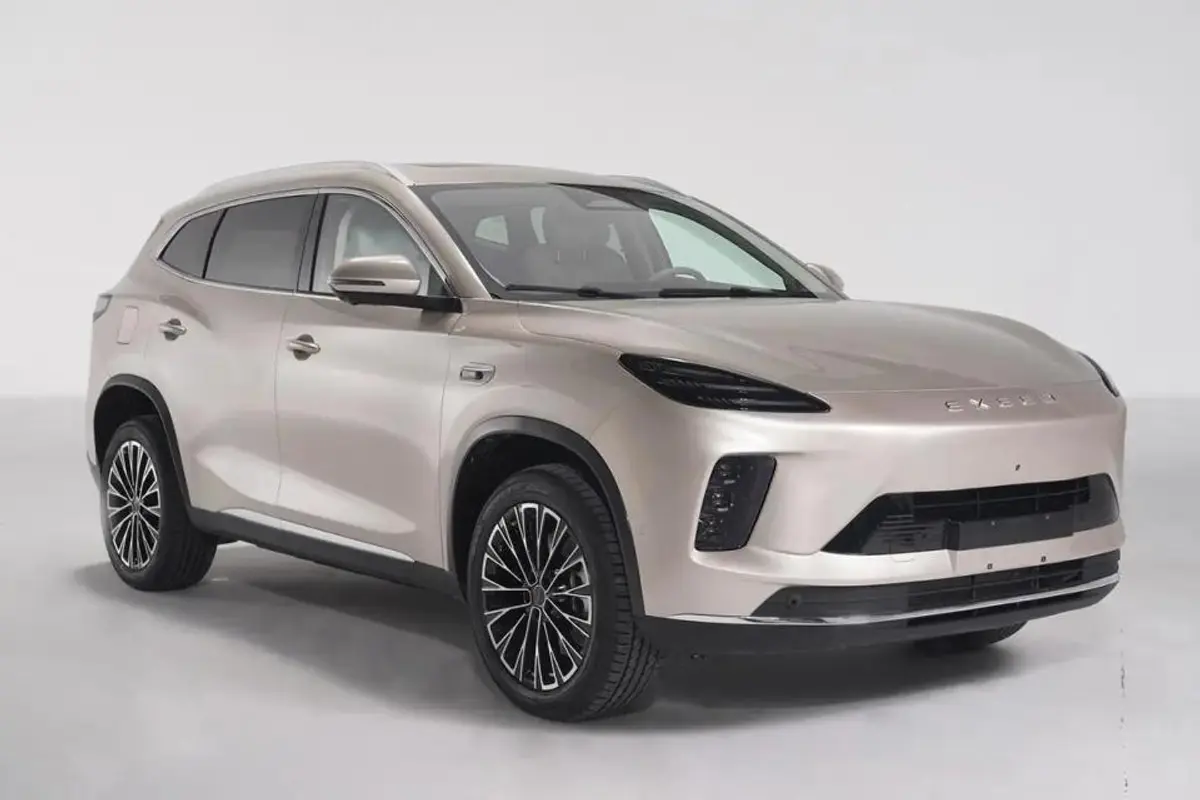
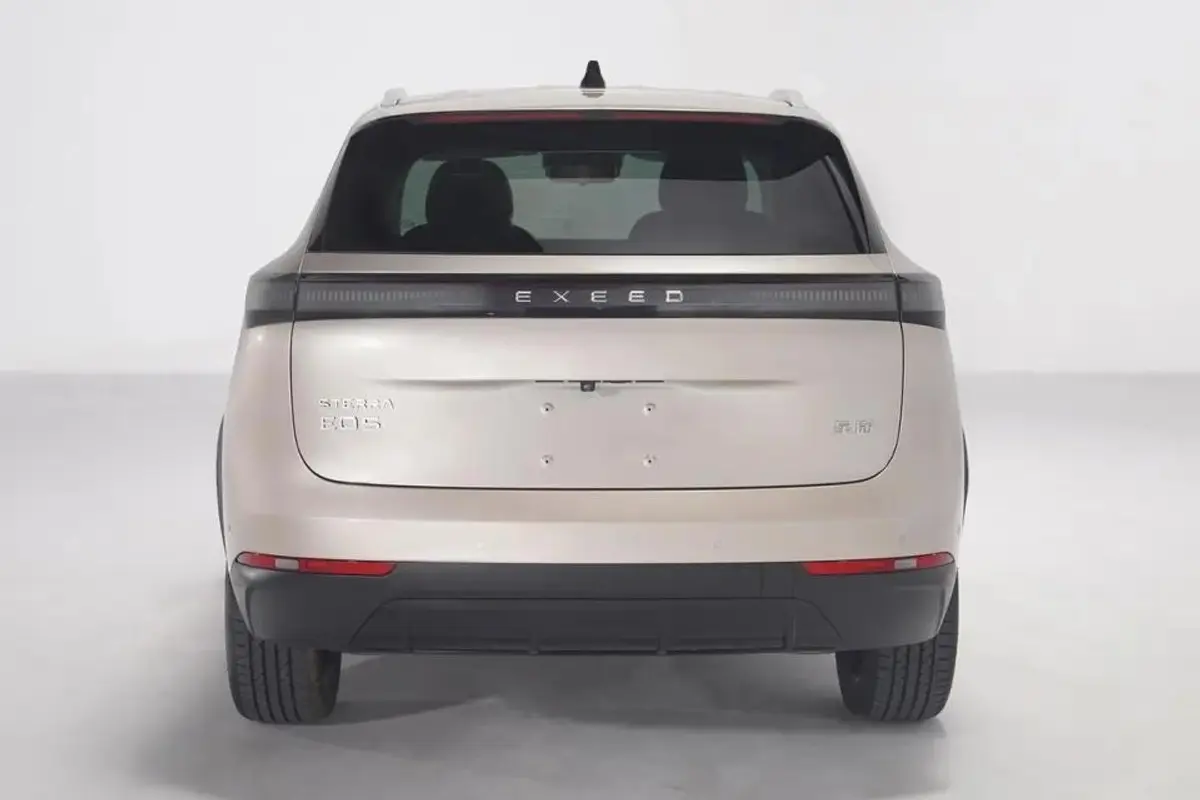
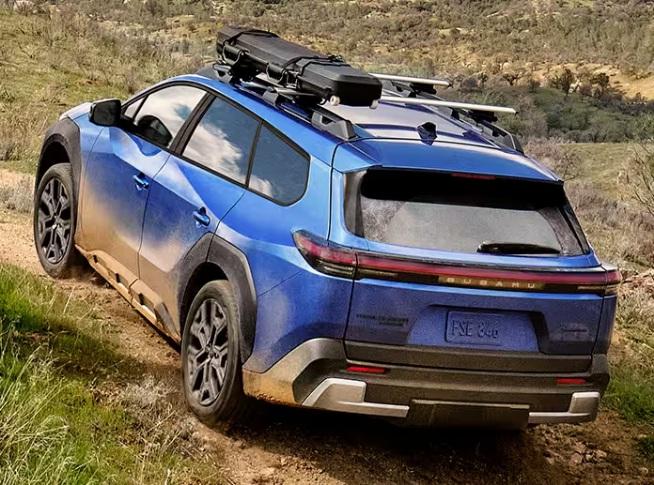
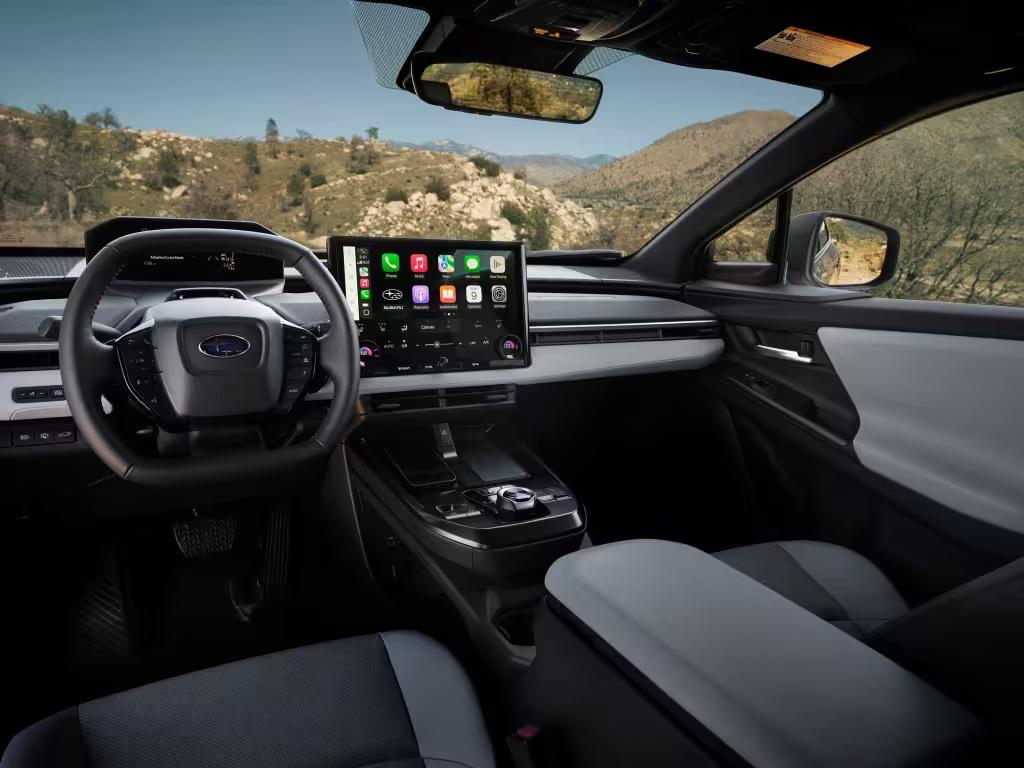
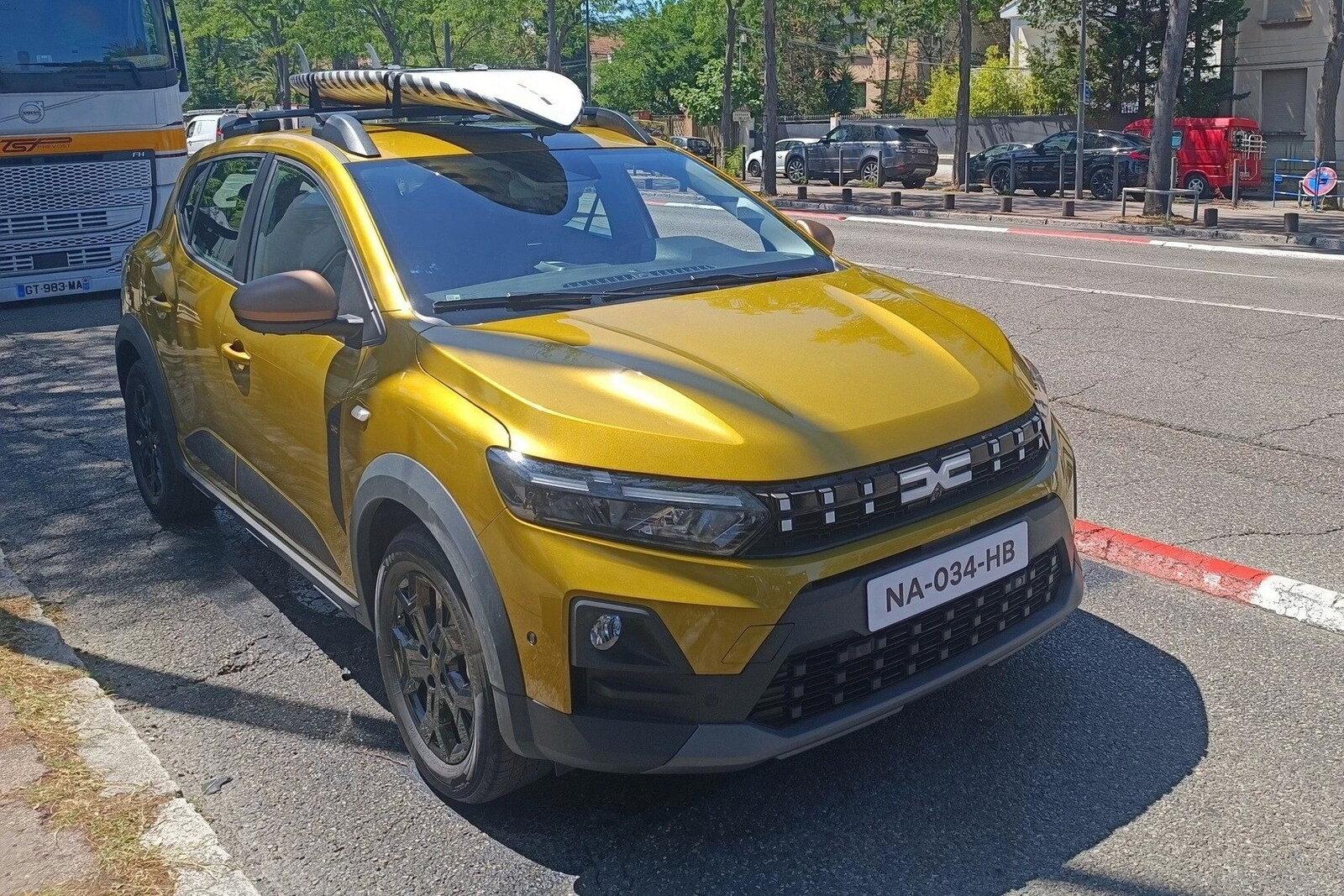
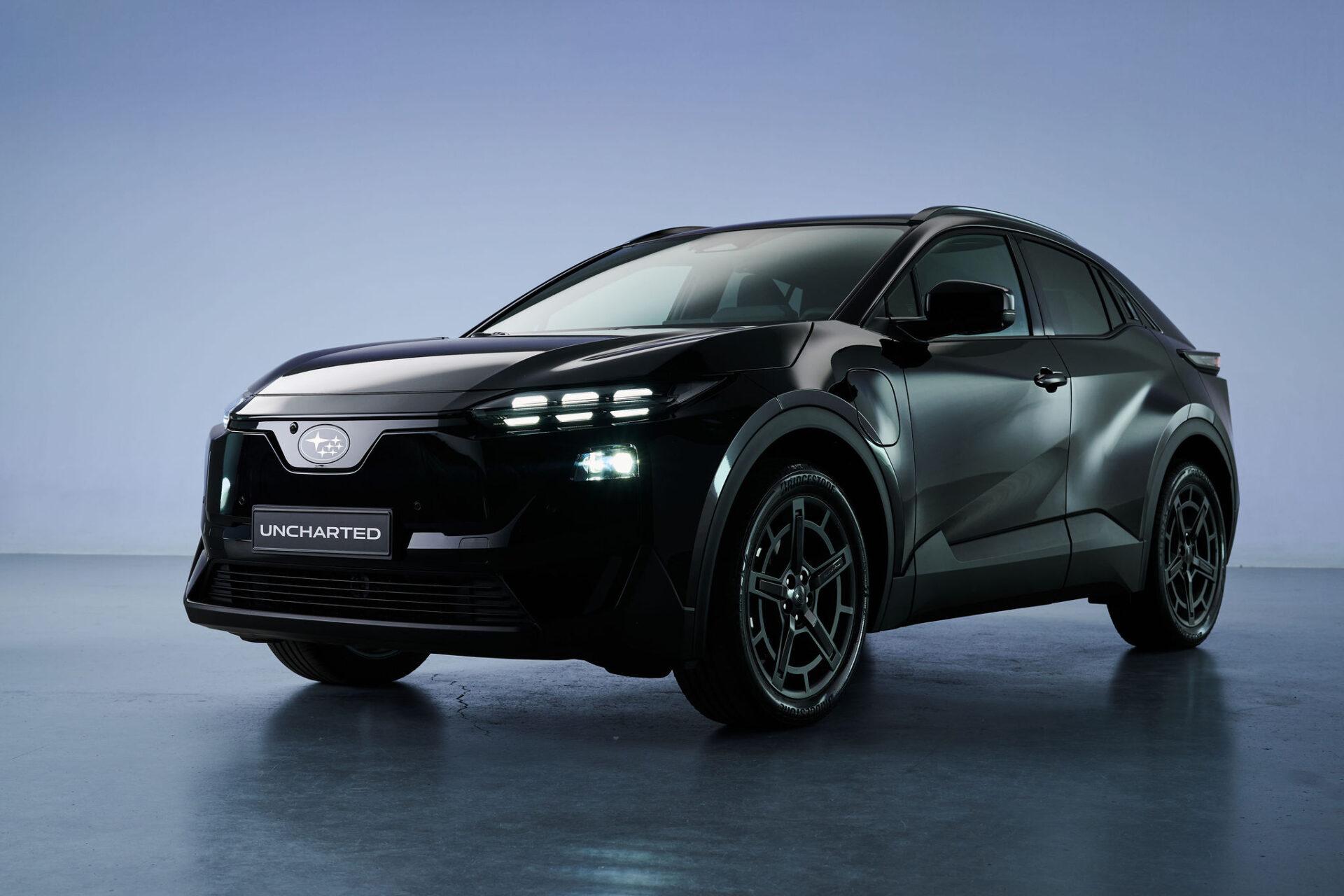
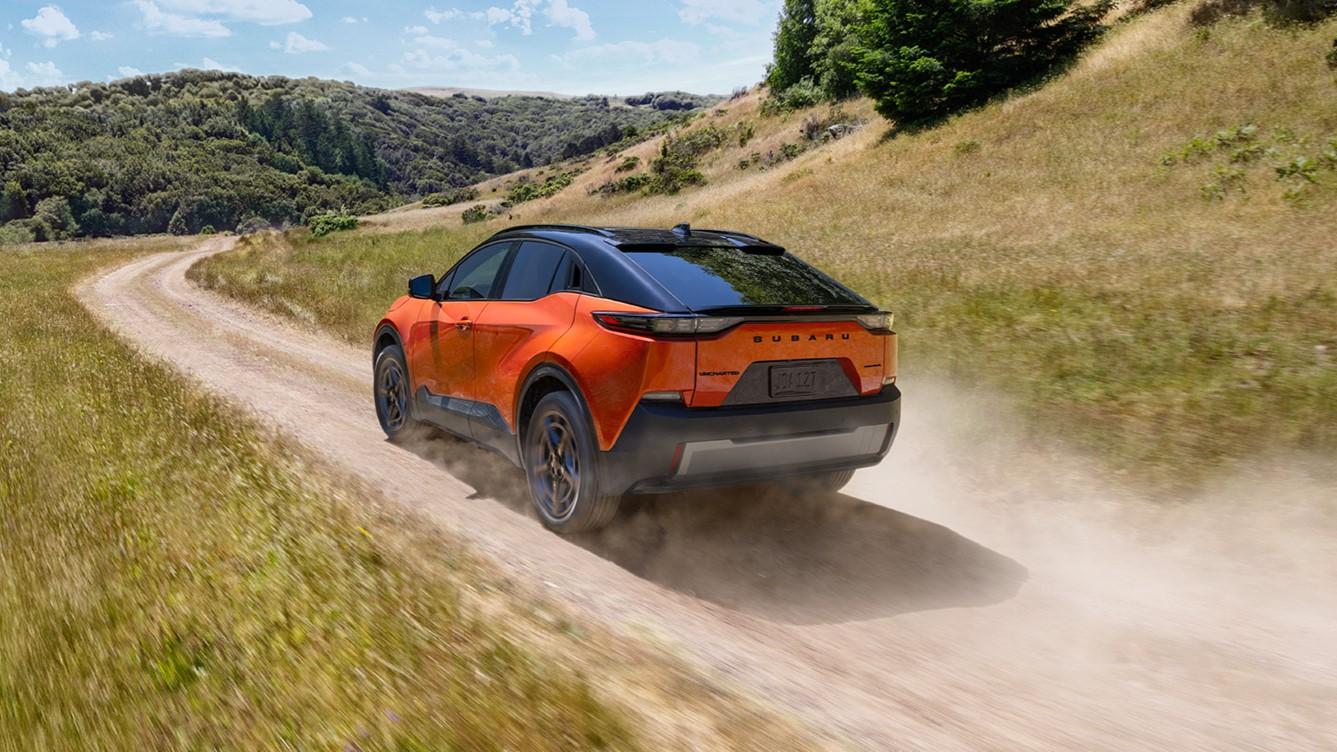
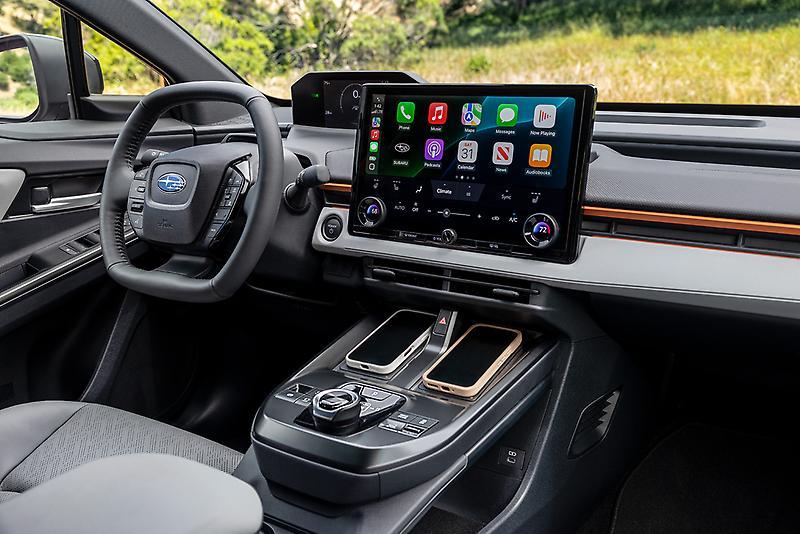
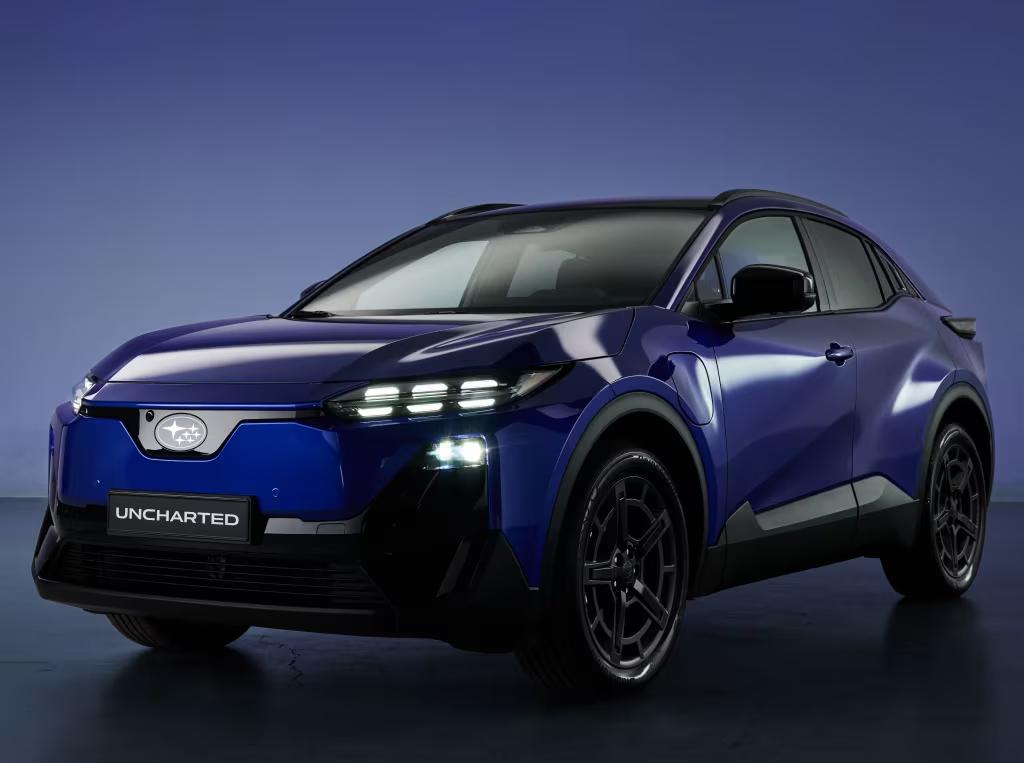
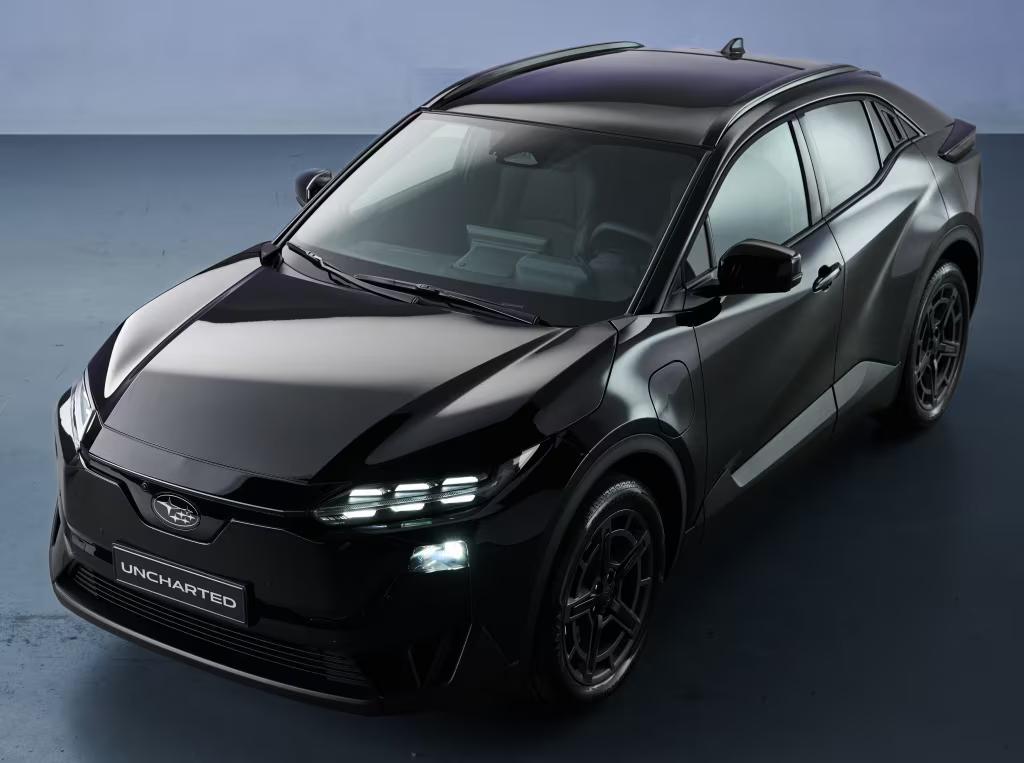
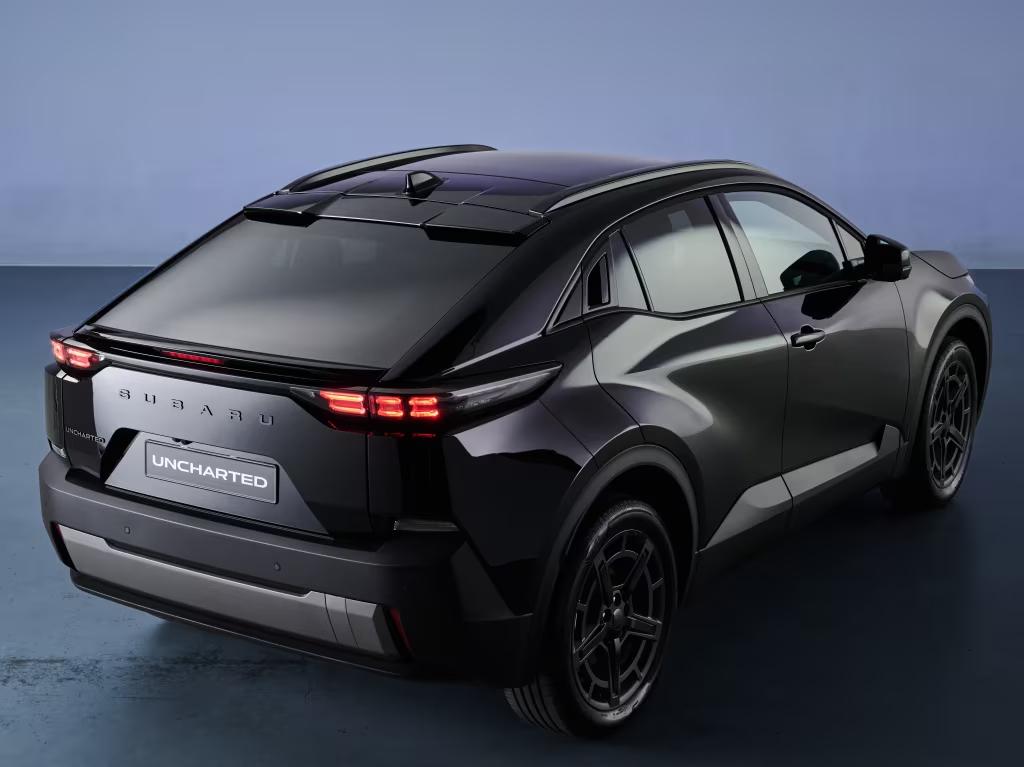
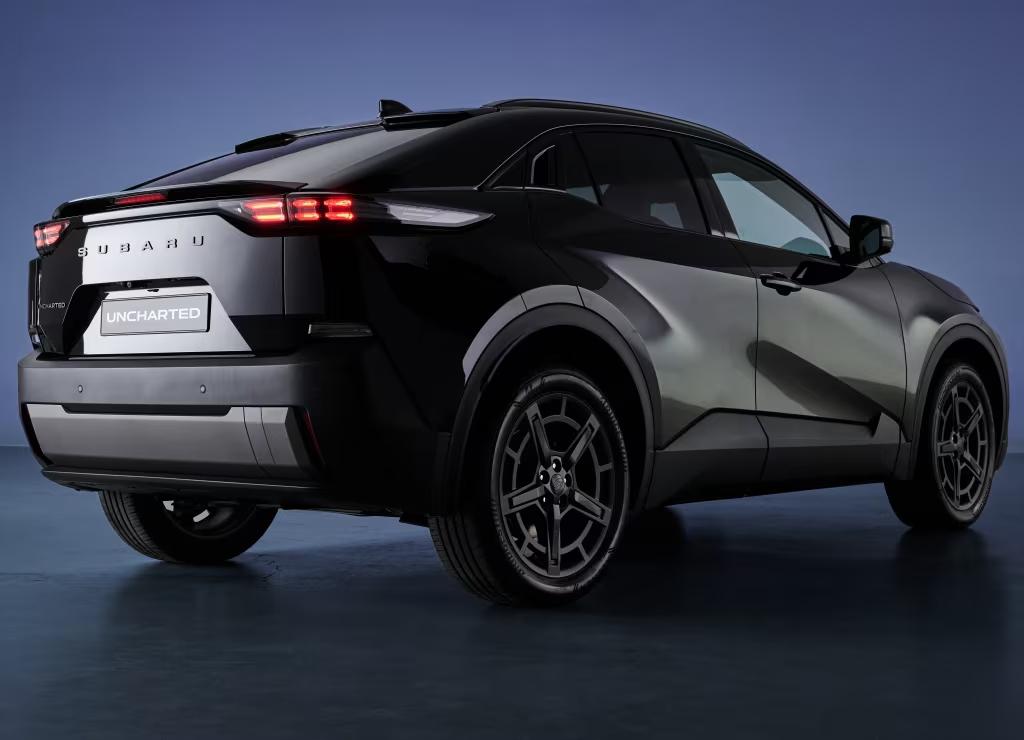
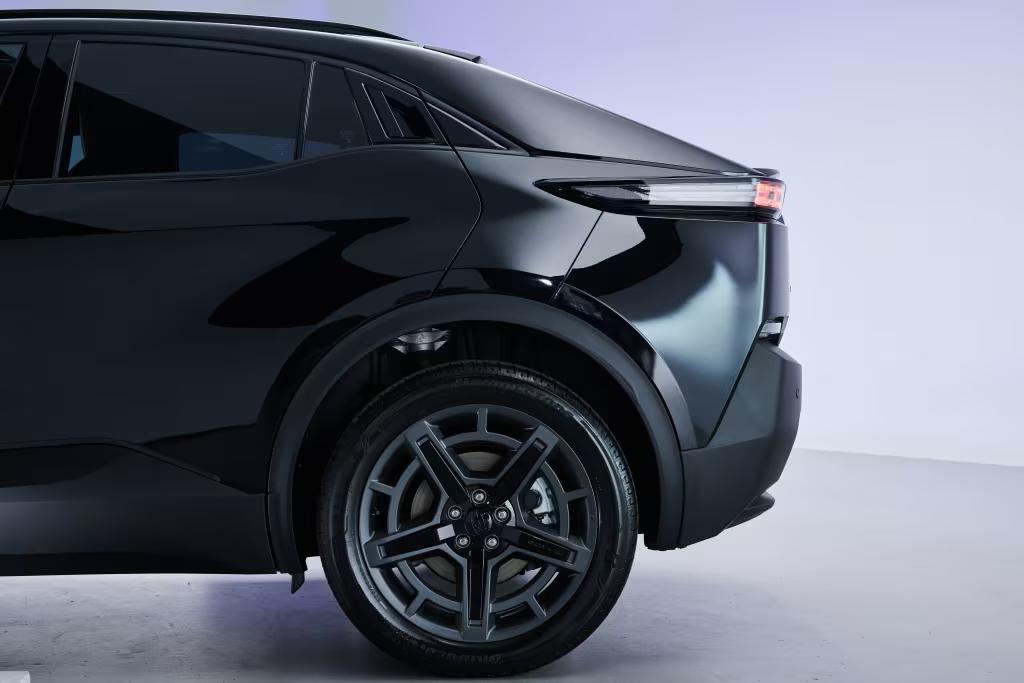
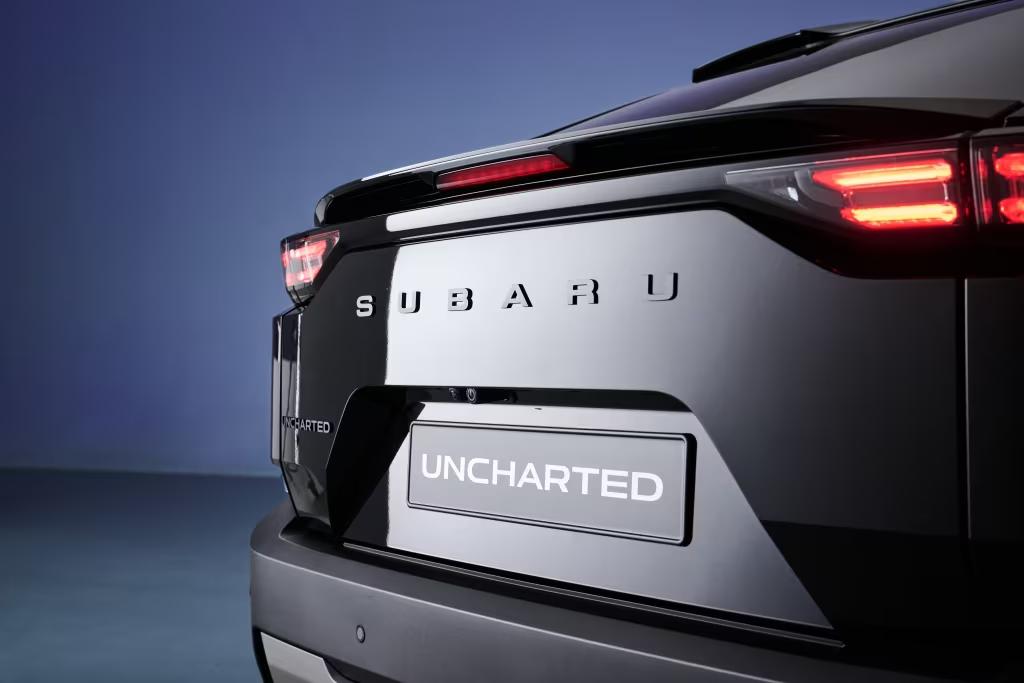
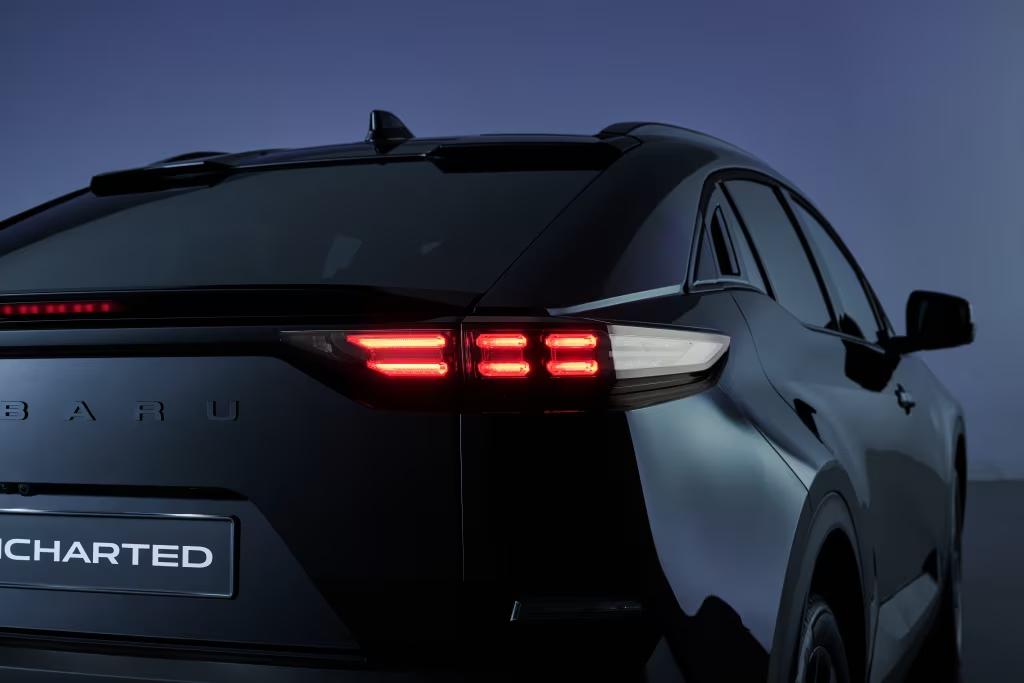
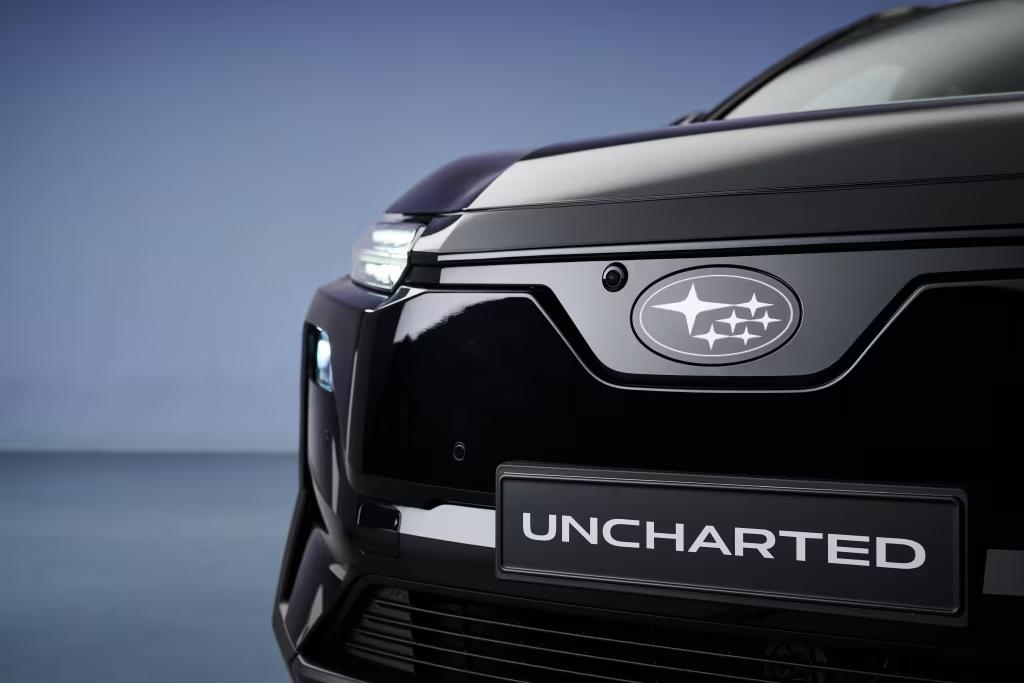
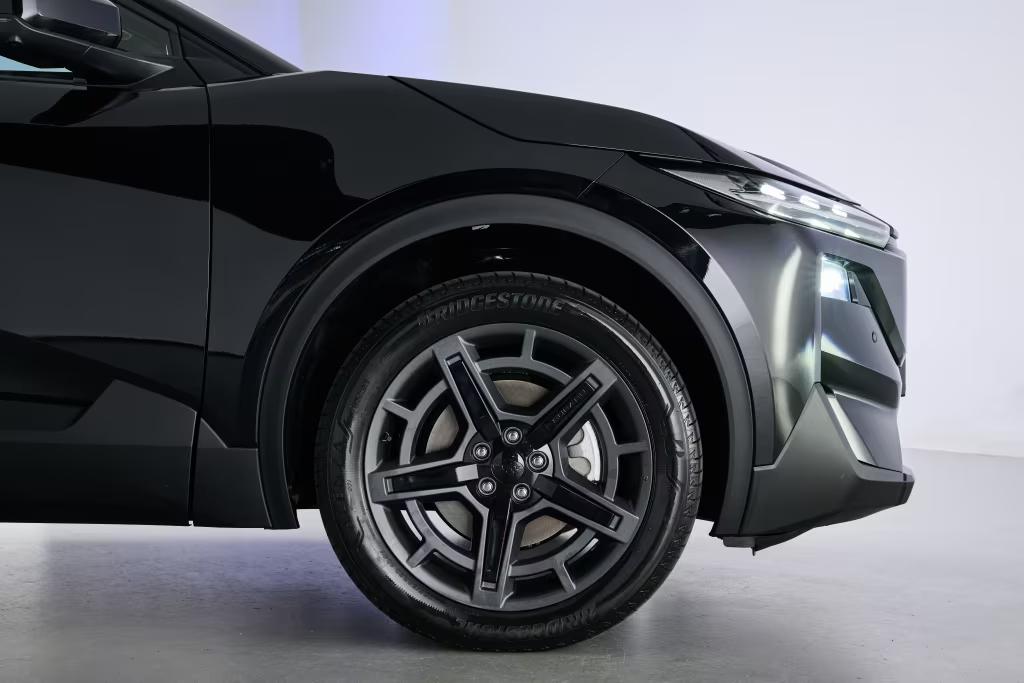
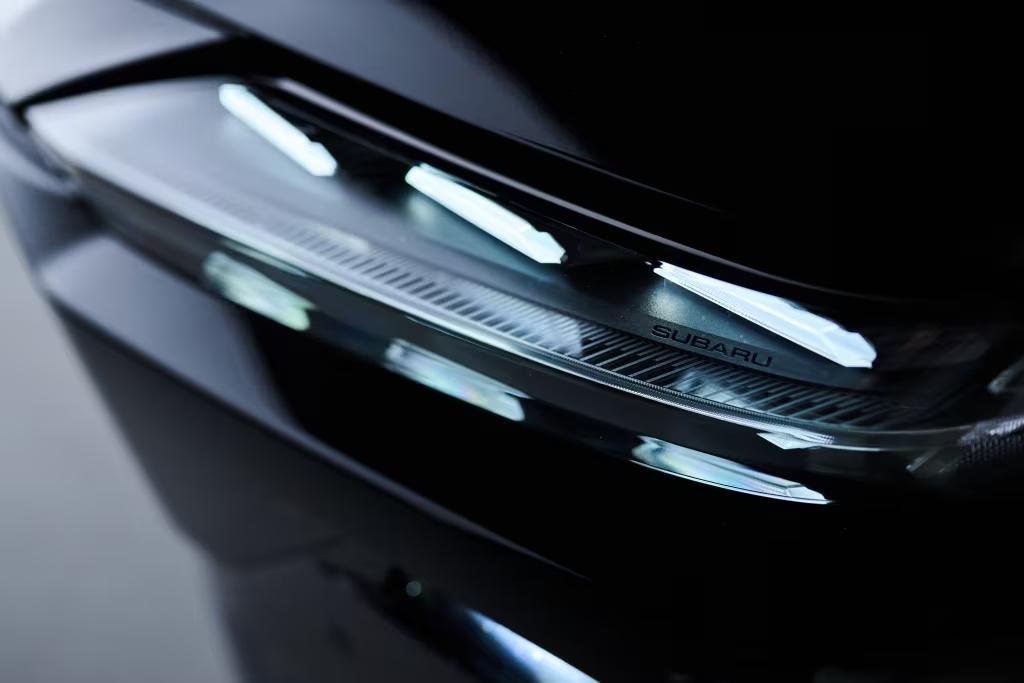
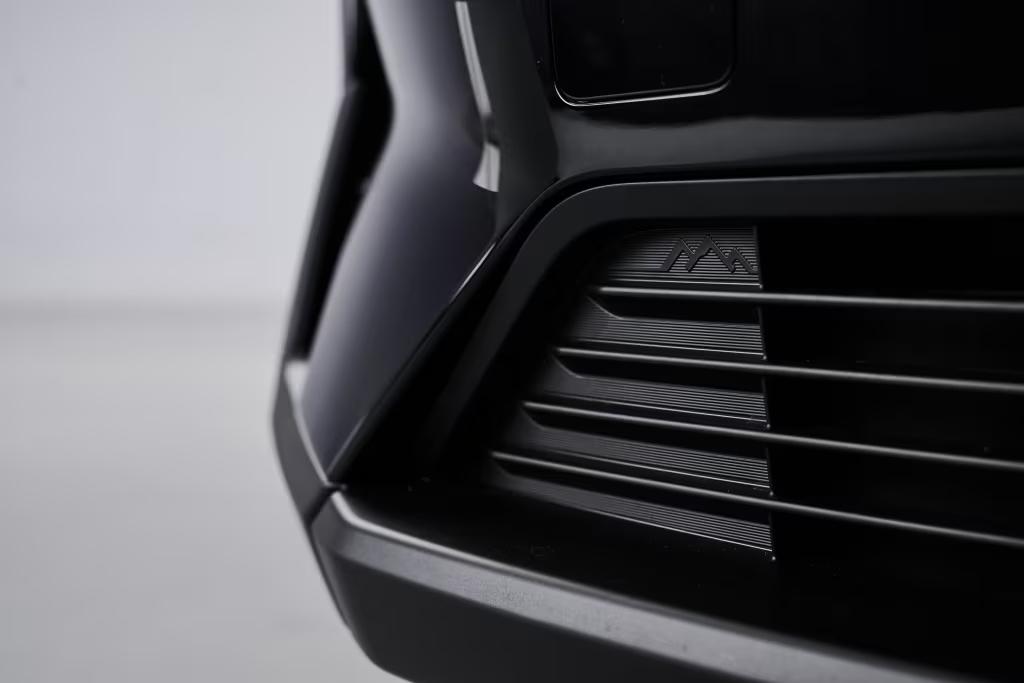
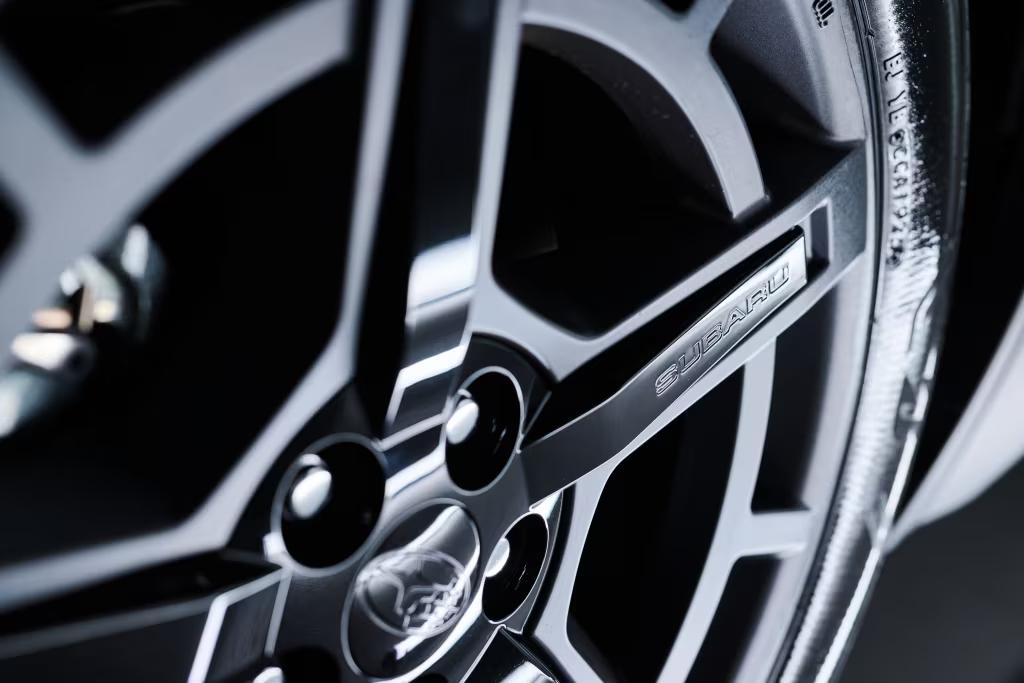
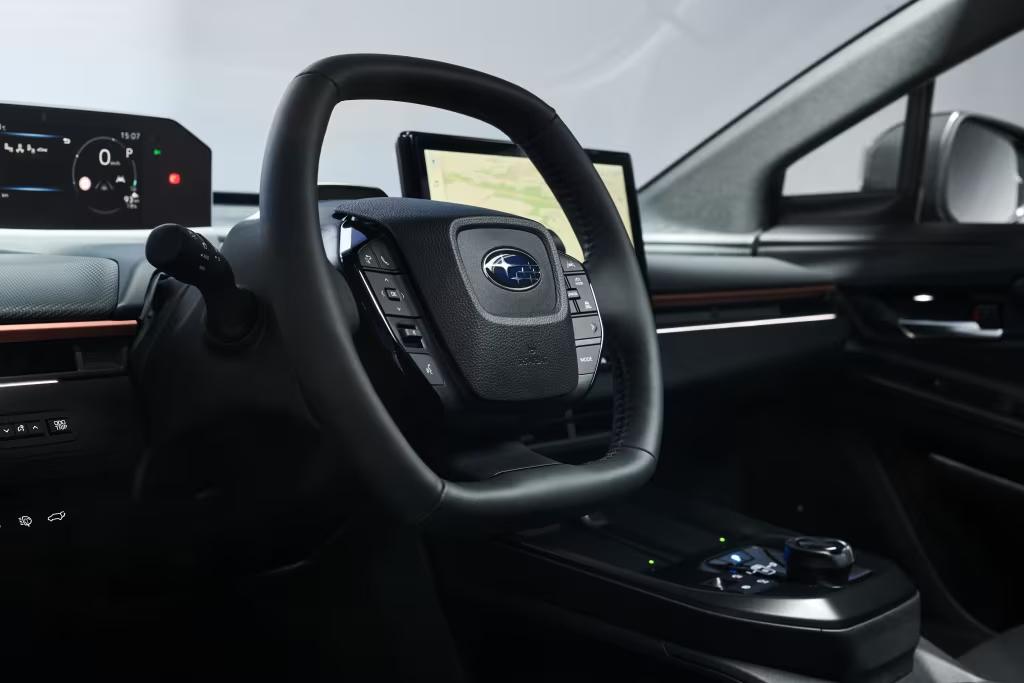
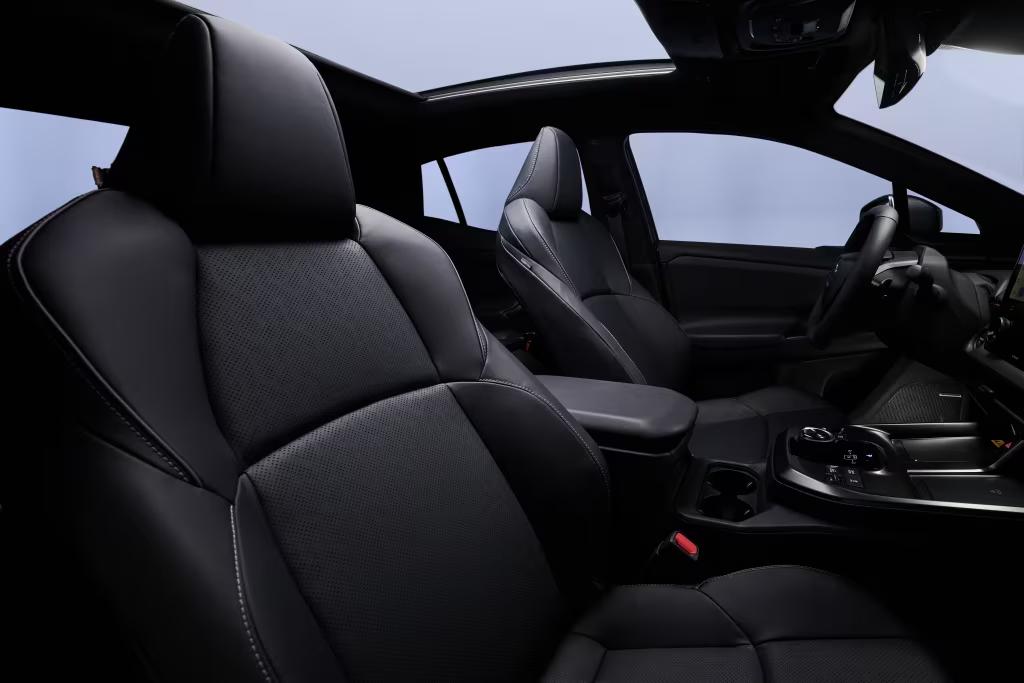
3 punti3 punti3 punti3 punti...ho come la sensazione che sia (l'ennesimo) inzio della fine.....3 punti3 punti3 punti2 punti2 punti2 punti1 punto1 punto1 punto1 punto1 puntoGranTurismo e MC20 sono state tanto apprezzate in questo forum quanto poco premiate dal mercato. Maserati per me deve tornare a fare auto da utilizzo quotidiano e da turismo sportivo che "profumino" di unicità come tutte le auto che nascono dalla terra modenese. Il claim "everyday estraordinary" della Grecale era perfetto, però Grecale è sempre stata poco extrodrinary, ma solo every day, mentre MC20 non era per nulla "every day" e non così extraordianary come le rivali del segmento (anche se io l'adoro). GranTurismo è invece il frutto di un'idea di "turismo veloce" che ormai è coperto volenti o nolenti dai SUV e crossover, quindi è un auto tanto bella quanto anti storica. Credo che mentre l'incarnazione dell'identità del brand Maserati in passato fosse Ghibli e GranTurismo oggi si debba ripartire da un prodotto con alcune caratteristiche che sono irrinunciabili come le cinque porte, il portellone ed un altezza da terra più elevata anche se non tanto quanto i SUV. Starà poi all'abilità dei designer con le proporzioni, inclinazione del lunotto e muso di dare l'impressione di aver fatto una sportiva polivalente più che una Maserati "normalizzata" come Grecale. Io vedo quindi bene questo tipo di prodotto perché credo siano l'unica strada percorribile, anche se sono perfettamente conscio che il rischio di fare un troiaio sia elevatissimo. Io però preferisco provare a vendere accettando la sfida di essere criticato che avere la sicurezza di non vendere ma svolgere bene un lavoro conservativo che raccoglierà tanti complimenti sui forum quanti pochi ordini dal concessionario1 puntosperiamo non si imbarocchiscano anche la Dacia secondo me oggi molto equilibrate1 punto1 punto1 puntoMa un erede della giulietta è chiedere troppo, corretto ? É uno dei segmenti più presenti in giro. Piuttosto che fare 3000 mini suv inutili.1 punto1 punto1 puntoA mio avviso è molto carina per gli standard subaru... ma è elettrica.1 punto1 puntoMa non è il nome di un videogioco? È credo anche di un film annesso. Legale? 😂1 puntoDavvero? Eppure è un'auto dalle prestazioni incredibili, se confrontata con la concorrenza, quando uscì era anni avanti.1 punto1 puntoContinua la carica di SUV del gruppo Chery ecco la Chery Fulwin T8L (PHEV) basata sulla Lepas L8 Fulwin T11 REEV lunga 5,20 metri E la Exeed Exlantix E05, versione elettrica della Exeed TXL
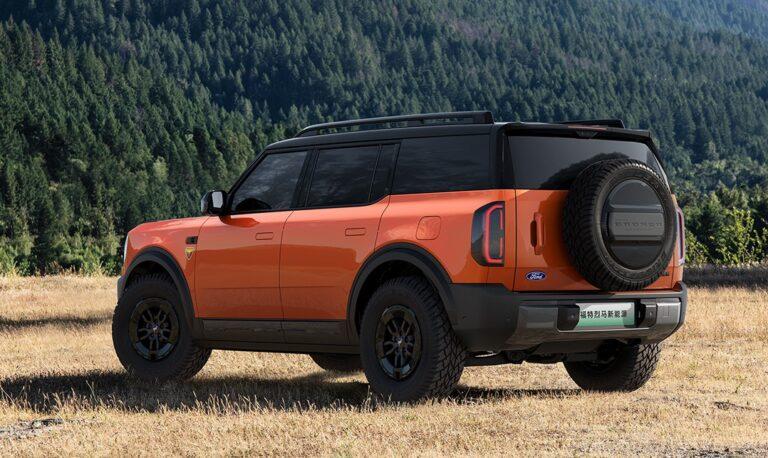
 1 punto1 punto1 puntoBronco NEV (New Energy), prodotta in JV con Jiangling, è il terzo modello della famiglia Bronco. Questo è specifico per la Cina ed è disponibile BEV o REEV. La BEV ha un motore anteriore 130 kW e posteriore da 232 kW abbinata a batterie BYD da 105 kWh (autonomia 650 km nel ciclo cinese) La REEV ha motore anteriore da 180 kW, posteriore da 110 kW, un 1.5 T4 da 110 kW e batteria da 44 kWh (autonomia 220 km ciclo cinese) Non è chiaro se sia a telaio a longheroni o monoscocca, ma credo la seconda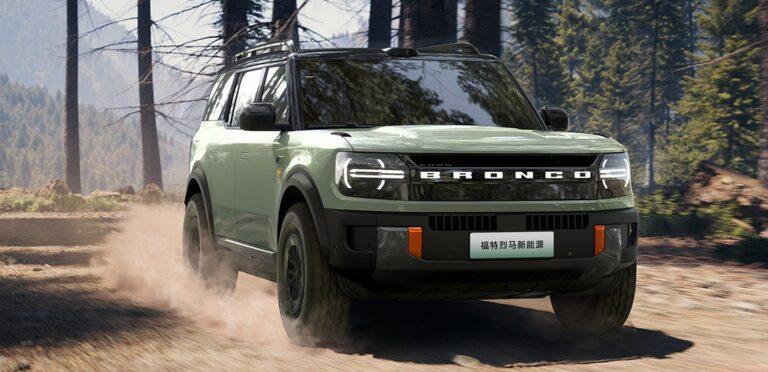
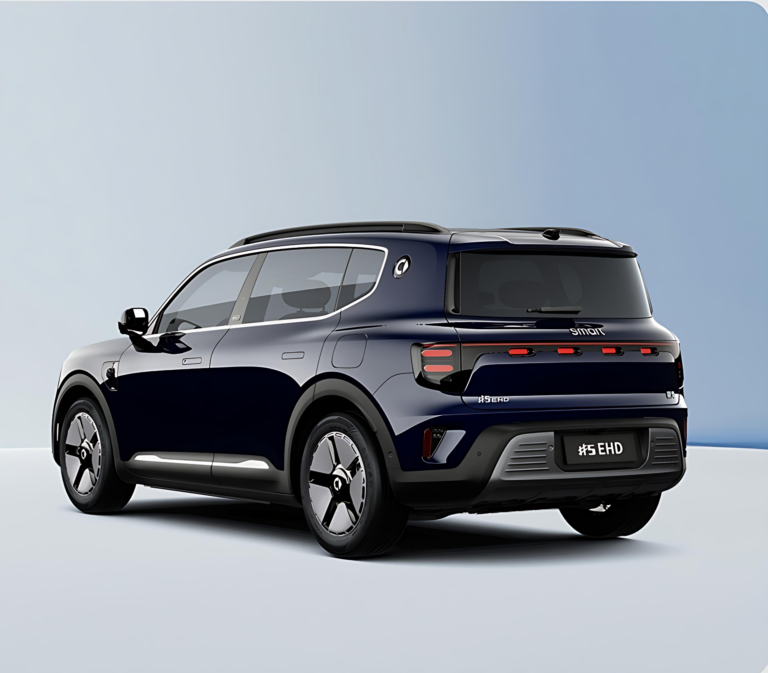
 1 punto1 puntoCausa grosso flop di tutta la gamma Smart sia in Cina che in Europa ecco che arriveranno anche le PHEV, si inizia con la #5 EHD con il 1.5 Turbo Volvo-Geely da 120 kW e batteria CATL da 40 kWh. https://carnewschina.com/2025/07/18/smart-5-ehd-plug-in-hybrid-suv-official-images-revealed-in-china/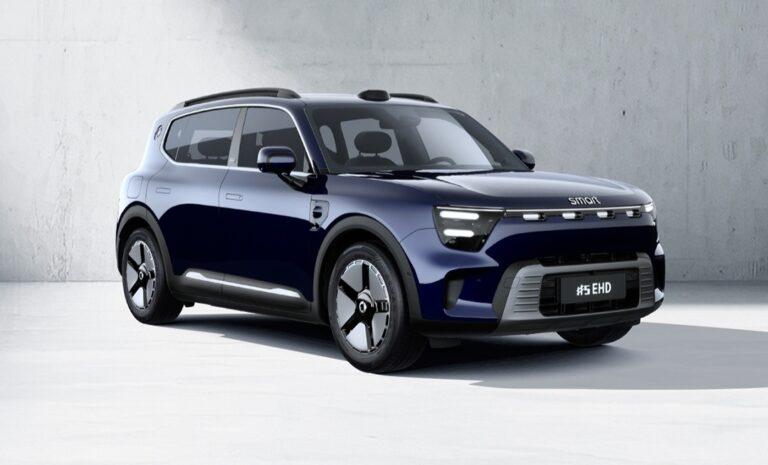
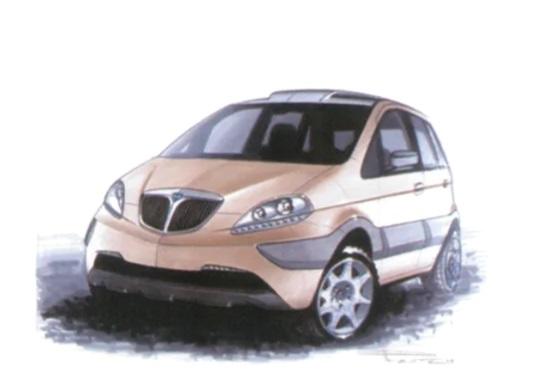
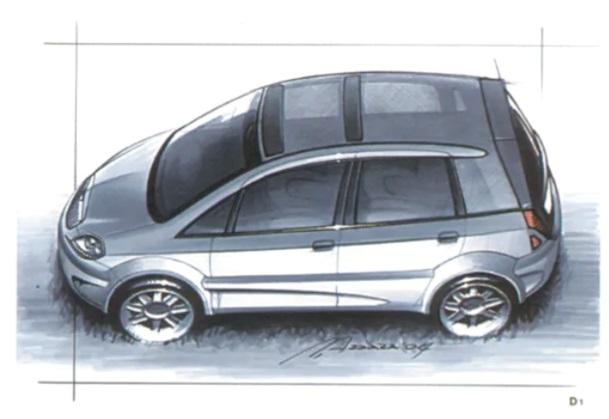
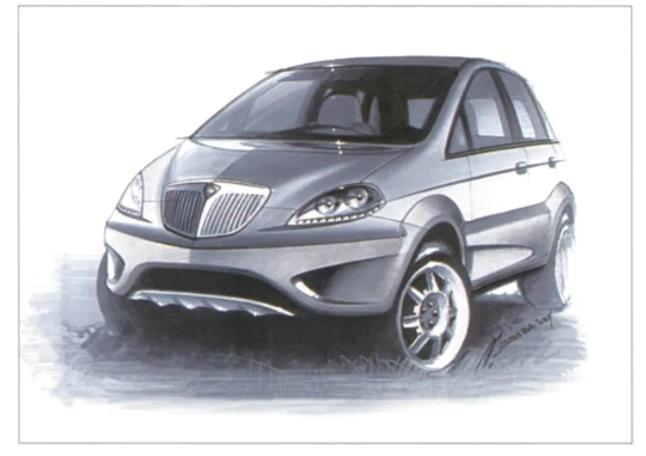
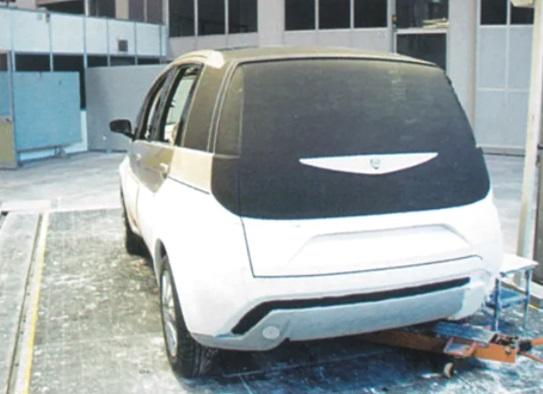
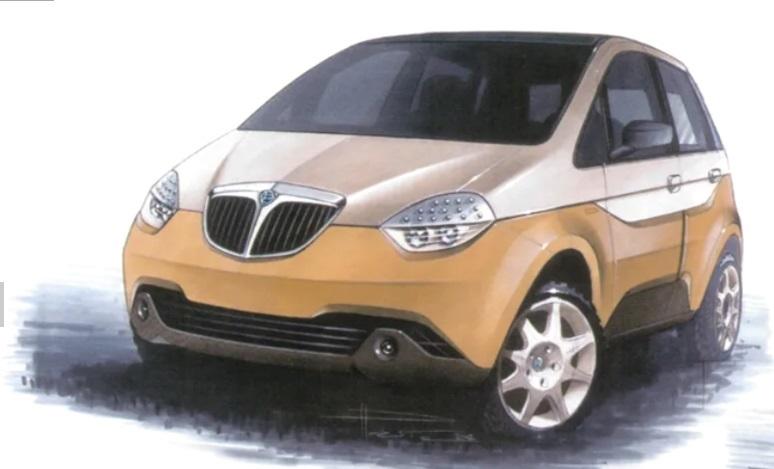
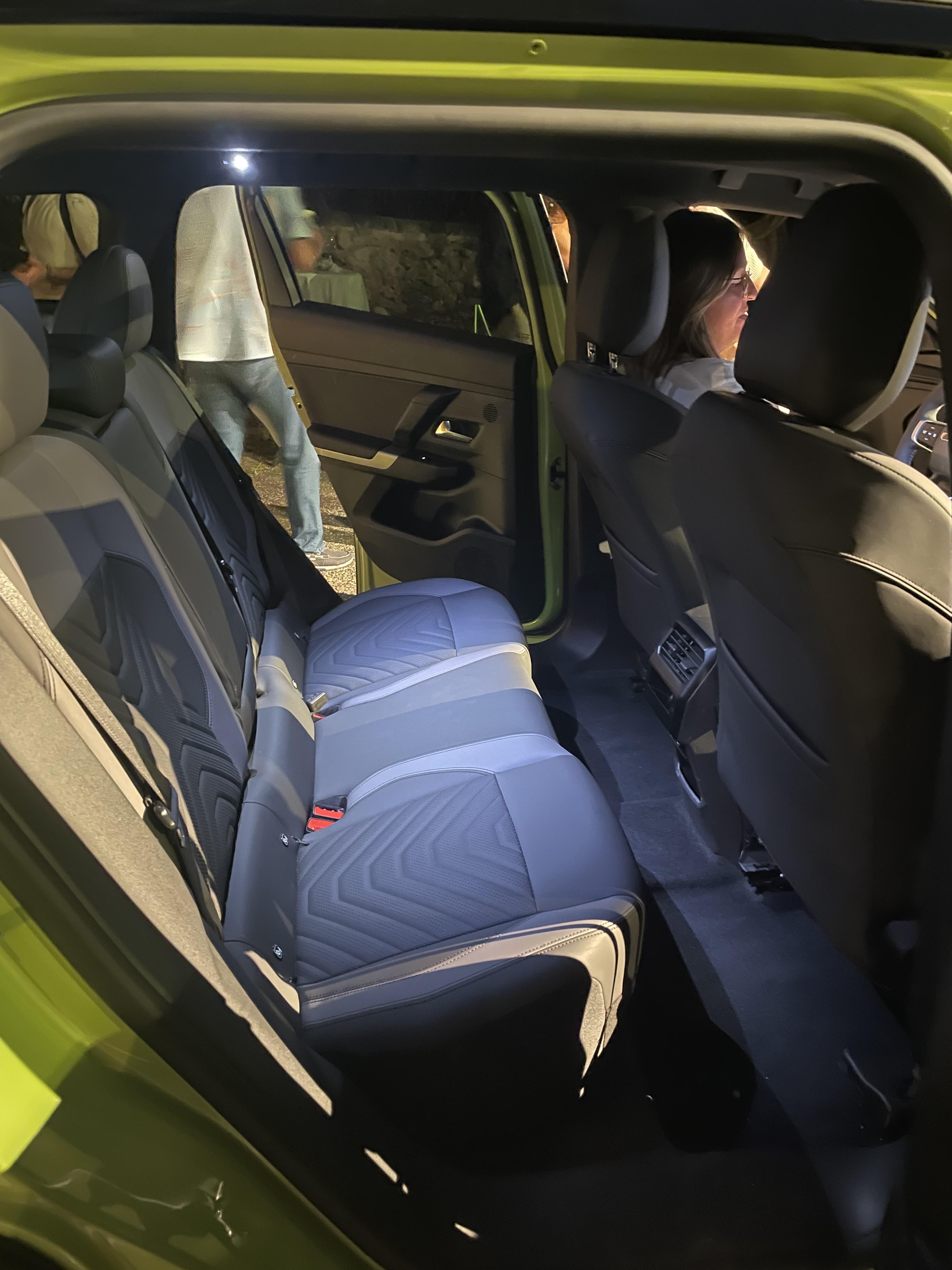
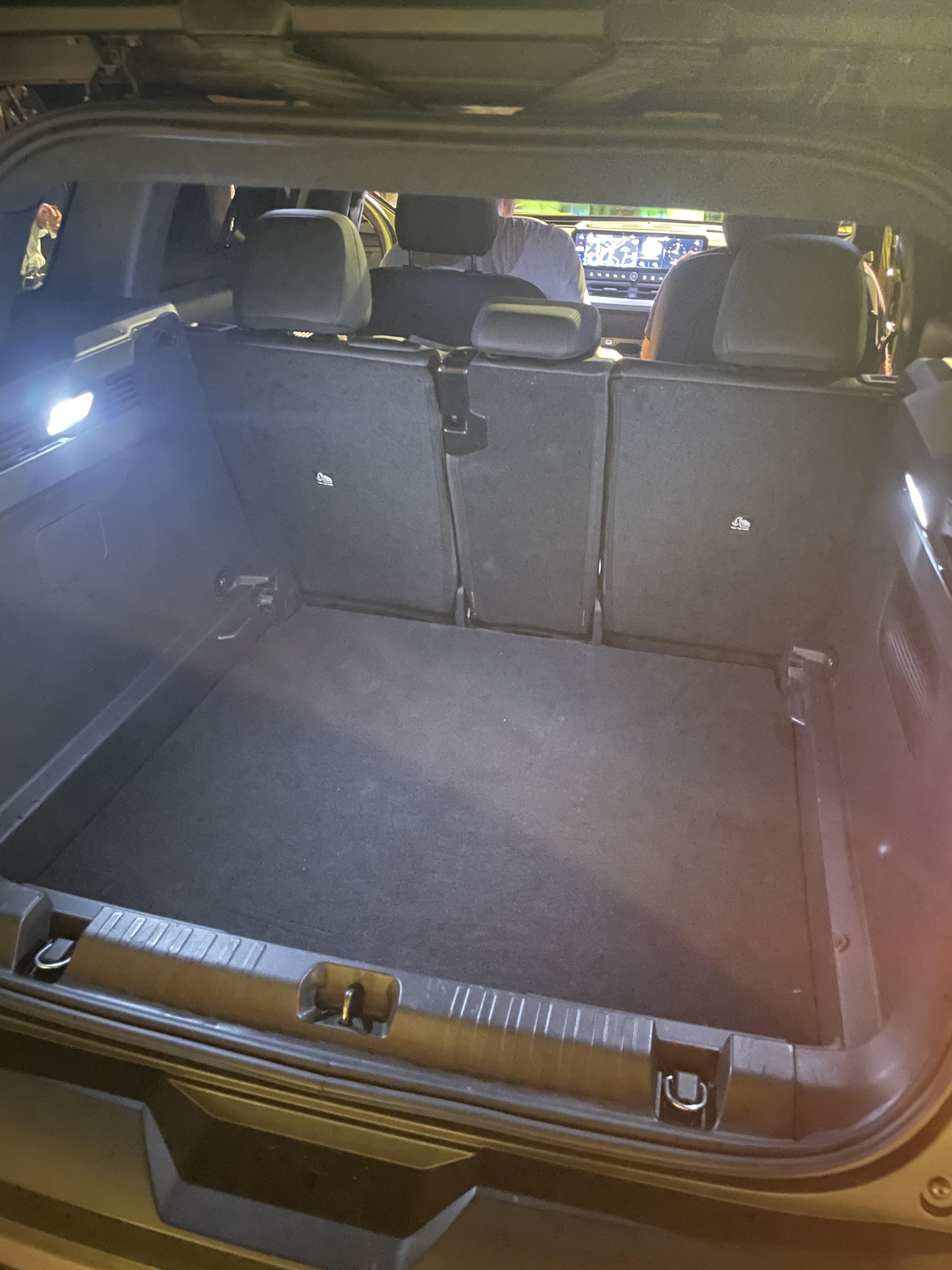
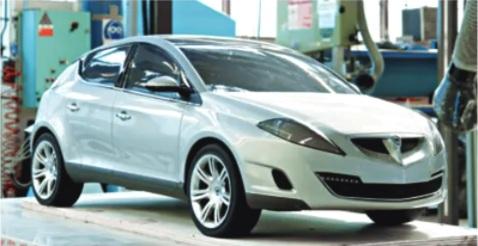
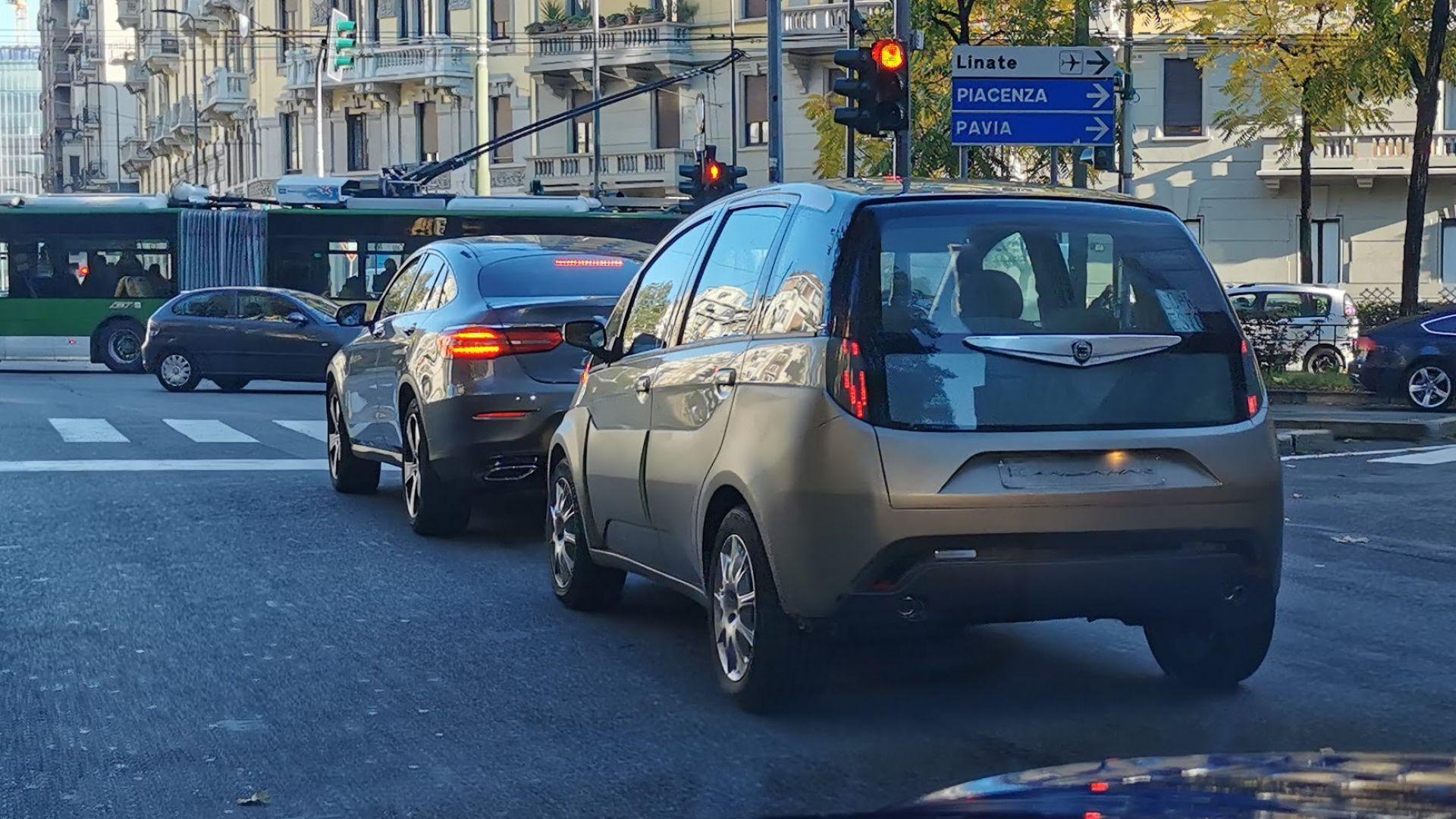
 1 punto1 punto1 punto1 puntoPiù potenza, coppia ed emissioni minori. Perché preferire il 1.2 al 1.5 ?1 puntoIl delta di prezzo fra questa con il 145 e-DCT mHEV e Bigster hybrid 155 è di 200euro. Con quei €200 in più ti porti però un vero SUV di seg. C a casa, non una Logan stirata. L'unico punto a favore della seconda è che è full hybrid.1 puntoIl prezzo è abbastanza aggressivo per un'auto basata su Medium, probabilmente c'è voglia di portare via numeri alla Bigster di Dacia...1 punto1 puntoHo appena realizzato che non so che tipo di lampadina c'è nel mio bagagliaio, e nemmeno che in tutte le auto che ho guidato negli ultimi 22 anni. Lo ammetto, ho una crisi esistenziale.1 puntosperiamo, la sf 90 non riesco a farmela piacere. Proporzioni sballate per me1 punto1 puntofaccio outing, a me questa macchina piace moltissimo. Se prendendo in prestito almeno una parte dell'estteica della Abarth 600e facessero una versione Sport della Fiat 600 hybrid non farebbero un soldo di danno anzi secondo me migliorerebbero nettamente le vendite1 puntosempre più curioso di vedere come sarà anche la 296M a questo punto. Di sicuro la SF90M sarà splendida, io non l'ho vista...ma chi ci ha dato un'occhiata ha detto che è un capolavoro.1 puntoA me sembra un banalissimo richiamo (se ho capito devono serrare dei tubi), che la stampa sta cavalcando per spalare m*rda sugli Ovini nella migliore tradizione tafazzista italiota.1 puntoOrrore, ci siamo scampati Kubang GT con la trazione quattro dell'A8, questo sarebbe anche peggio1 punto1 punto1 puntoQuello poco ma sicuro, direi che rispetto ad un 2.0 aspirato ha sicuramente più coppia in basso Ma infatti non penso che sia spompo, semmai che sia adeguato come motore entry level e nulla di più, e adatto a chi fa poca strada all'anno, considerato che è un benzina di fatto.1 puntoIl problema dei pochi pezzi milionari è che impiegano poca forza lavoro. e sul “metterci decenni”. ragazzi, capisco il passato, ma stiamo dando fiducia a marchi cinesi nati stamattina, perché per un marchio storico dobbiamo andare a rivangare sempre il passato come una ex fidanzata rancorosa?1 puntoIn USA la usano per andare dalla camera da letto alla cucina.1 puntoIl vero punto è capire quanto costa veramente ad un imprenditore/società un auto da dare in fringe. Io farei questo conto nel caso in esame (sempre spannometrico e potrebbe essere sbagliato) 436 euro imponibile (iva 100% detratta) , detraggo il 70% sono 305 euro , ipotizzando che la società/imprenditore sia tassato al 50% ,e quindi avrò 152,5 sono utili tassati che farò in meno, ovviamente il discorso fila se faccio utile a fine anno..... Aggiungiamo il 30% indetraibile che è un costo puro e sono 131 euro , risultano costi "veri" per 283,5 . Quindi la domanda è : spende di meno un privato a prendersi e usare e cambiare ogni 3 anni e 60k km una skoda in esame con meno di di 283,5 + 159 di ritenuta personale (370 euro al mese di ral tassati al 43%) = 442€uro al mese? Come ben detto da @parish Al di là di ciò, il valore dell'auto aziendale come benefit per il dipendente è veramente enorme, io la abbandonerei solo per un aumento di RAL non inferiore ai 10-15k€ , le cifre sono quelle più o meno.1 punto1 puntoFra la Palio WE e il mostro postato qui sopra, era uno scontro fra titani 😁1 puntoNon le comprerà comunque più nessuno perchè costano una follia e perchè nessuno vuole l'elettrico. Le leggi, se sono malfatte, si cambiano e si adattano al tempo. Sempre detto che imporre l'elettrico a tutti i costi era una pazzia.1 punto1 puntoStudi Fioravanti per la sua Kandahar. Credo che Fioravanti volesse suvvizzare un modello di successo come la Musa proprio per andare ad intercettare il nuovo segmento Suv compatto che sarebbe esploso da li a poco e che chiaramente era assente nella gamma ai quei tempi, e sperando in un eventuale interesse della Fiat e di Marchionne, e che invece lo snobbarono del tutto. Il risultato finale non era neanche male, anzi se proprio devo dirla tutta....potrebbe essere anche il piu bel lavoro di Fioravanti.



 1 punto0 punti0 punti0 puntiIveco, Exor tratta la vendita: Tata possibile acquirente. https://www.ilsole24ore.com/art/iveco-exor-tratta-vendita-tata-i-potenziali-acquirenti-AHNWqCnB perdonate se non è la sezione giusta dove postare ciò... Exor pian piano vende tutto... 😪0 punti0 puntiThat's the weirdest yet coolest convertible I've ever seen! #vw #volkswagen #polo #pologti #gti #vwpolo.mp40 puntiLa Leaderboard è riferita all'orario Roma/GMT+02:00


(1)(1).thumb.png.635c059adfaa3a2ca27f86ab608b04ba.png)
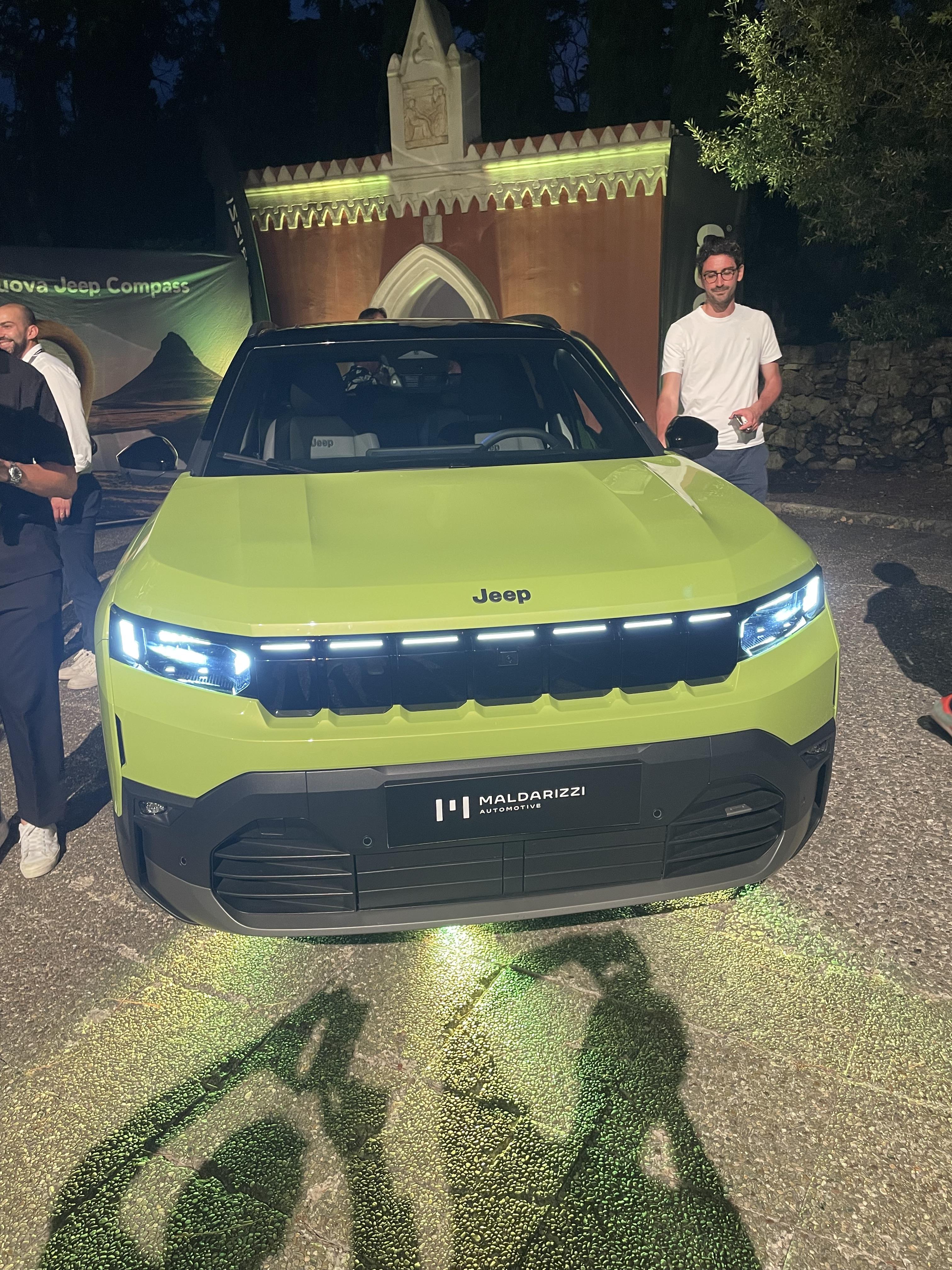
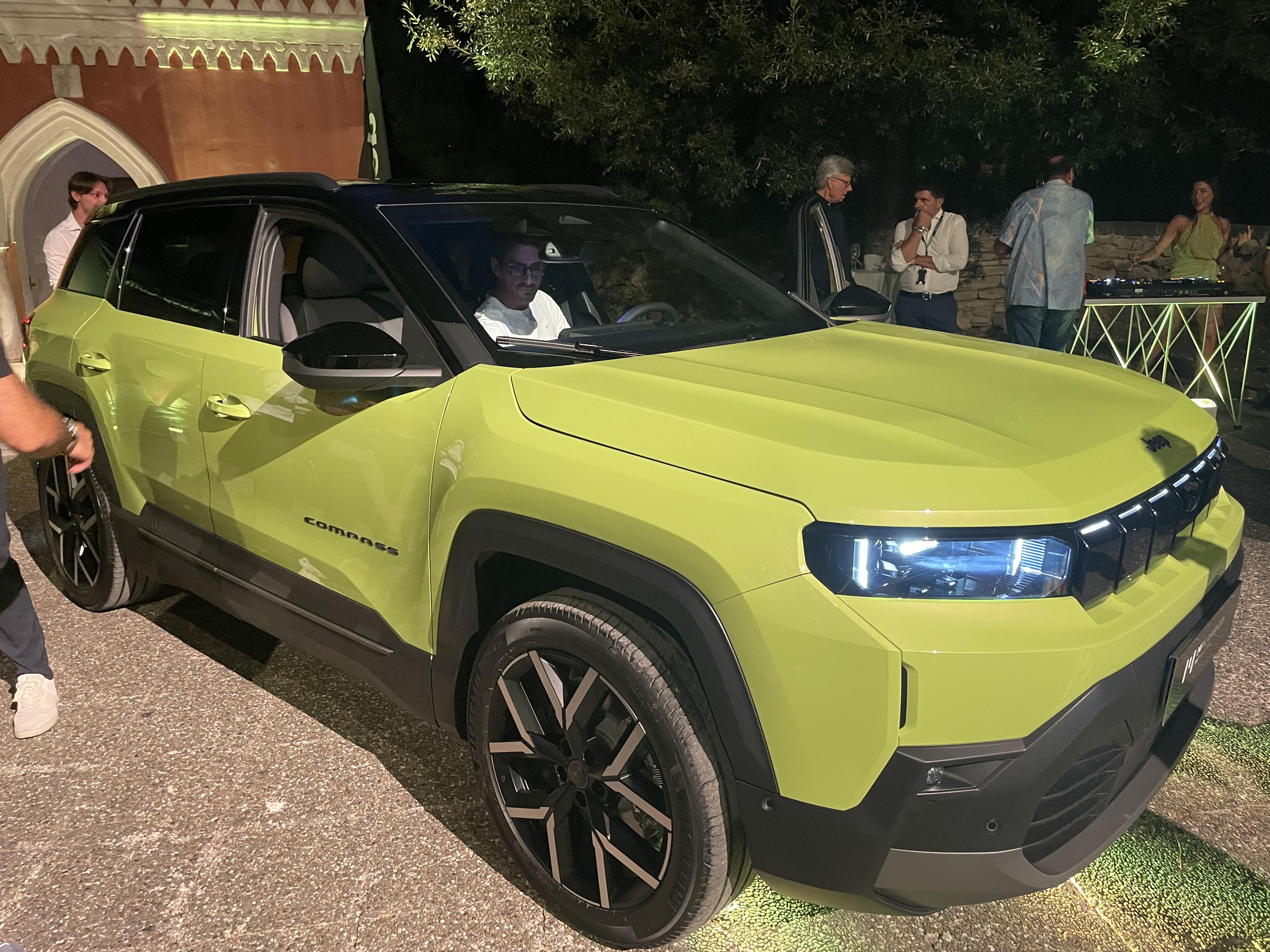
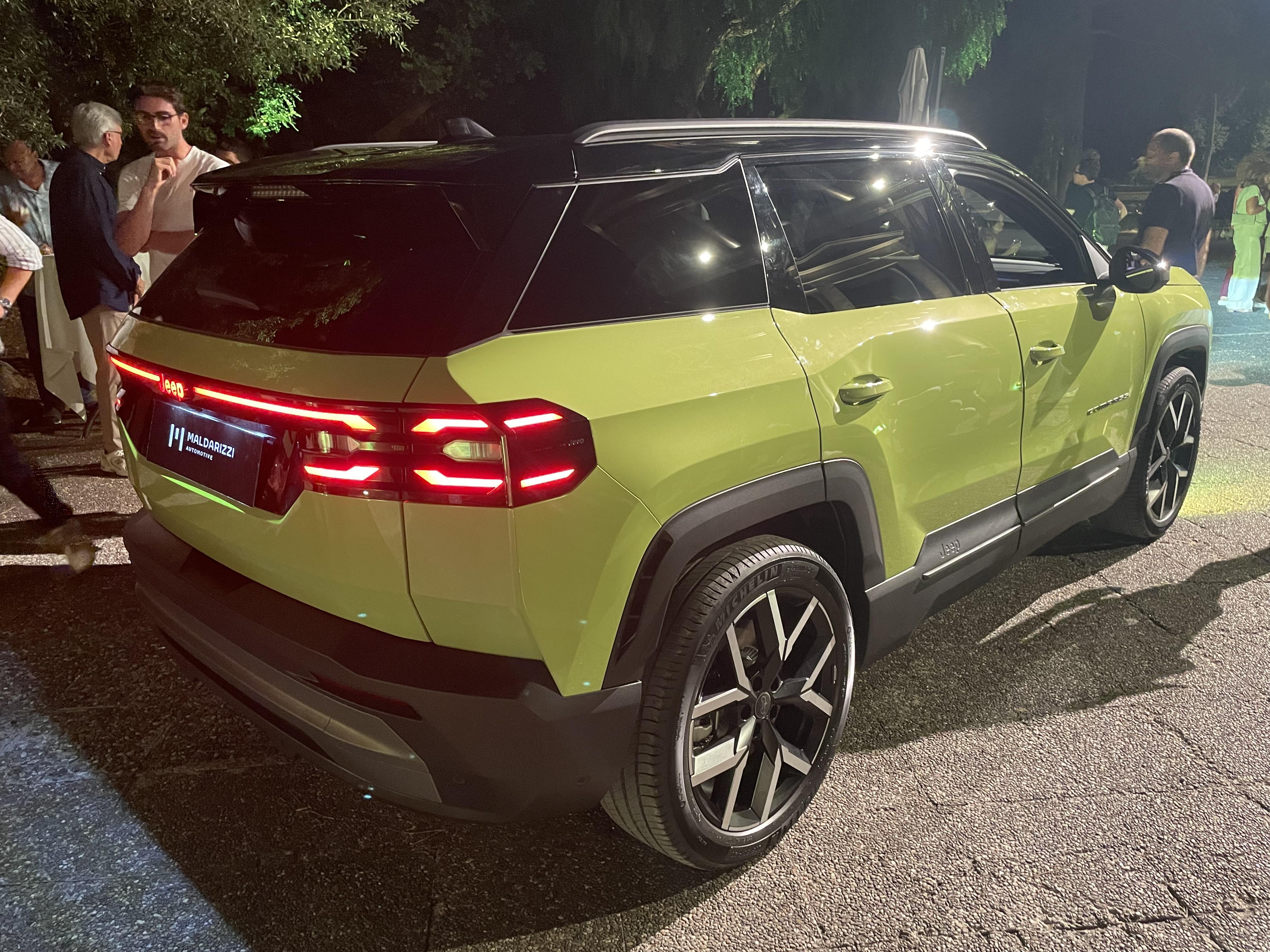
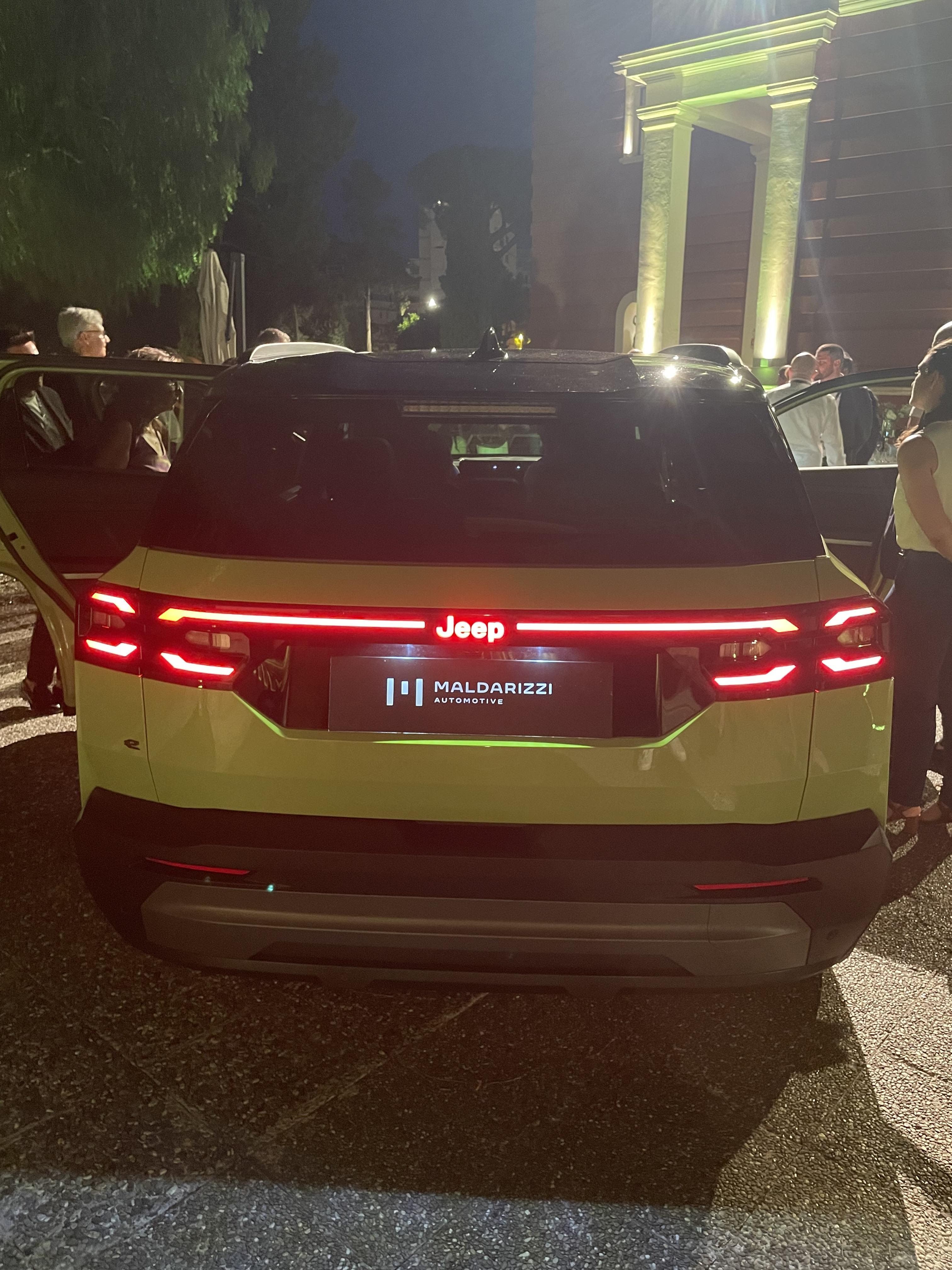






















Account
Navigation
Cerca
Configure browser push notifications
Chrome (Android)
- Tap the lock icon next to the address bar.
- Tap Permissions → Notifications.
- Adjust your preference.
Chrome (Desktop)
- Click the padlock icon in the address bar.
- Select Site settings.
- Find Notifications and adjust your preference.
Safari (iOS 16.4+)
- Ensure the site is installed via Add to Home Screen.
- Open Settings App → Notifications.
- Find your app name and adjust your preference.
Safari (macOS)
- Go to Safari → Preferences.
- Click the Websites tab.
- Select Notifications in the sidebar.
- Find this website and adjust your preference.
Edge (Android)
- Tap the lock icon next to the address bar.
- Tap Permissions.
- Find Notifications and adjust your preference.
Edge (Desktop)
- Click the padlock icon in the address bar.
- Click Permissions for this site.
- Find Notifications and adjust your preference.
Firefox (Android)
- Go to Settings → Site permissions.
- Tap Notifications.
- Find this site in the list and adjust your preference.
Firefox (Desktop)
- Open Firefox Settings.
- Search for Notifications.
- Find this site in the list and adjust your preference.