




Classifica Utenti
Utenti più Apprezzati
(Scegli il periodo) Utenti più Apprezzati
(Storia giorno per giorno) Classifica dall'Origine
(da Marzo 2003)
(Scegli il periodo) Utenti più Apprezzati
(Storia giorno per giorno) Classifica dall'Origine
(da Marzo 2003)
The search index is currently processing. Leaderboard results may not be complete.
-
Kay195
Utente Registrato29Punti3329Numero contenuti pubblicati -
DonViToCorleone
Utente Registrato16Punti713Numero contenuti pubblicati -
4200blu
Utente Registrato15Punti15584Numero contenuti pubblicati -
Osv
Reporter (Staff)8Punti5257Numero contenuti pubblicati


(1)(1).thumb.png.635c059adfaa3a2ca27f86ab608b04ba.png)
Contenuti più Popolari
Stai visualizzando i contenuti con il più alto punteggio, pubblicati in data 10/27/25 e localizzati Tutte le aree/sezioni
-
Non vuoi scontri da "tifoserie" ma comunque butti delle zeppate ridicole. Suoni un po troppo come i soliti commenti TikTok e Instagram, ricordati che il livello qui e' molto piu alto, "tifoserie" qui non esistono, quindi cerchiamo di ragionare come si deve. Punto uno. Iniziamo dal fatto, che il confronto giusto non e' con l'E34, ma con l'E30. In questo caso, come design, puoi stare tranquillo che vincera' la 75 e se incontri a chi se ne intende di auto (gente senza quella "tifoseria") e' anche probabile che sceglie la 75. Ma la Germania la sai solo dalla mappa? Mai sentito di parlare di Bring Mich Werkstatt? Credi che i tedeschi fanno i "tifosi" come li fate voi per le VAG? Io che sono nato qui posso dirti che la maggior parte dei commenti negativi contro Alfa sono italiani......ed infatti...... Comunque in Germania Giulia e Stelvio (e mi sembra anche Tonale) non so quante volte consecutive i lettori le hanno scelte come l'auto dell'anno. Saranno stati quei "10000 tedeschi"? Ce anche da dire, che i tedeschi tendono molto di meno a sputare nel loro stesso piatto e in caso di incertezza o mancanza di conoscenza scelgono il loro prodotto. Invece gli italiani ci piace proprio a sputare nel piatto, e' diventato quasi un fetish peggio dello smalto bianco. Per questo chi oggi grida alla 75 all'epoca ha scelto l'Audi 80 o oggi l'A3 TDI 150CV base senza navigatore ma poi "ehhh ma le Alfa non hanno tecnologia". A quei "tanti che conoscevi" me li posso gia immaginare. Comprate il marchio, volete fare i fighi al bar e finisce tutto gia li. E la cosa brutta e' che credete che i tedeschi fanno anche cosi, ma invece sono molto migliori di voi. Perche stai tranquillo che all'epoca il tedesco non ha comprato straniero quando le BMW si guidavano da vasca da bagno o quando bevevano olio peggio di come il nonno beve il vino. O quando le Mercedes arrugginivano di continuo o quando le VAG rompevano le catene in continuazione.9 punti
-
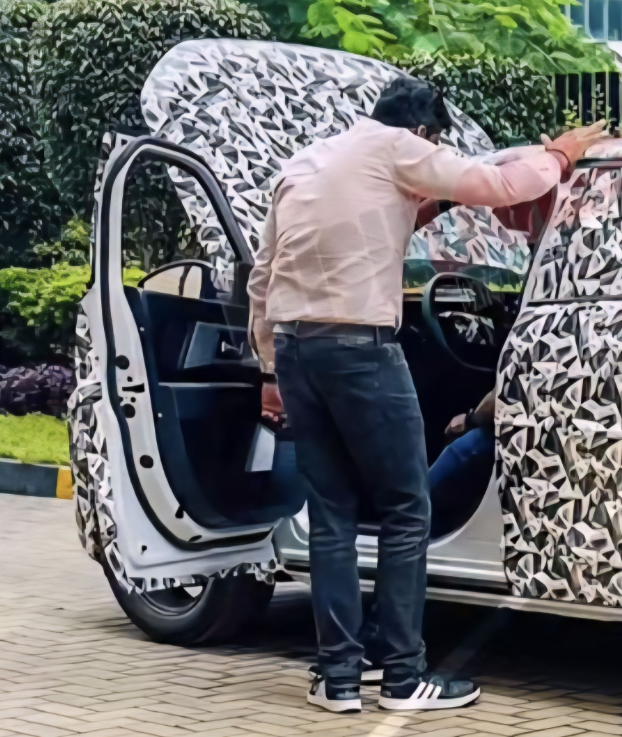
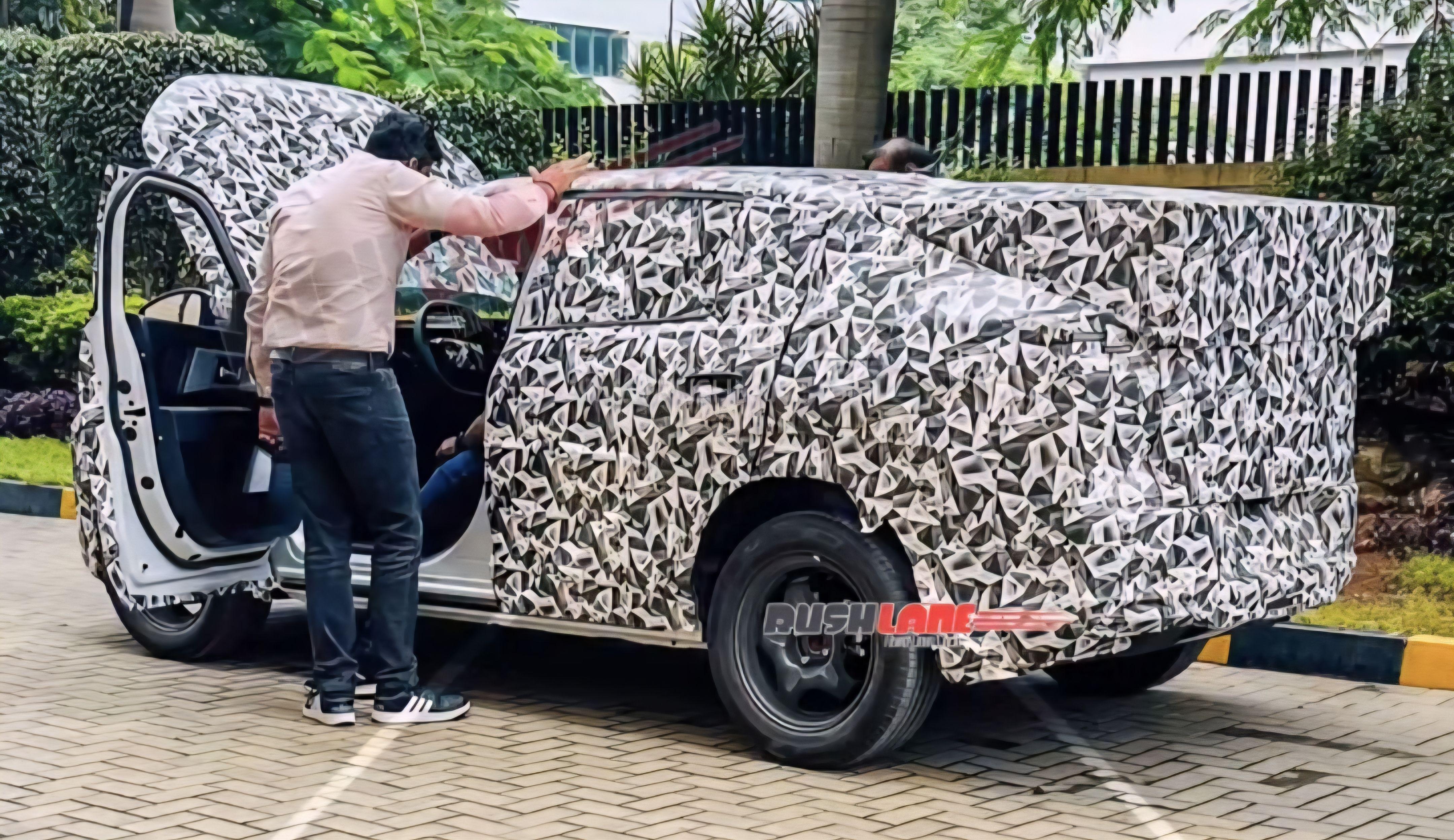
In realtà hanno tagliato sulla colla e quella era la guarnizione interna che aprendo è rimasta incastrata sulla portiera 😁7 punti
-
Ma non avrebbe una certa logica che, per finanziare i 13 miliardi di investimenti aggiuntivi annunciati negli Stati Uniti, fosse necessario risparmiare altrove? E come è possibile risparmiare somme così enormi se non riducendo la gamma di modelli da sviluppare in altre regioni, ad esempio in Europa?7 punti
-
Come immagino la situazione fra Xavier Peugeot, Filosa e Elkann:
 6 punti
 -
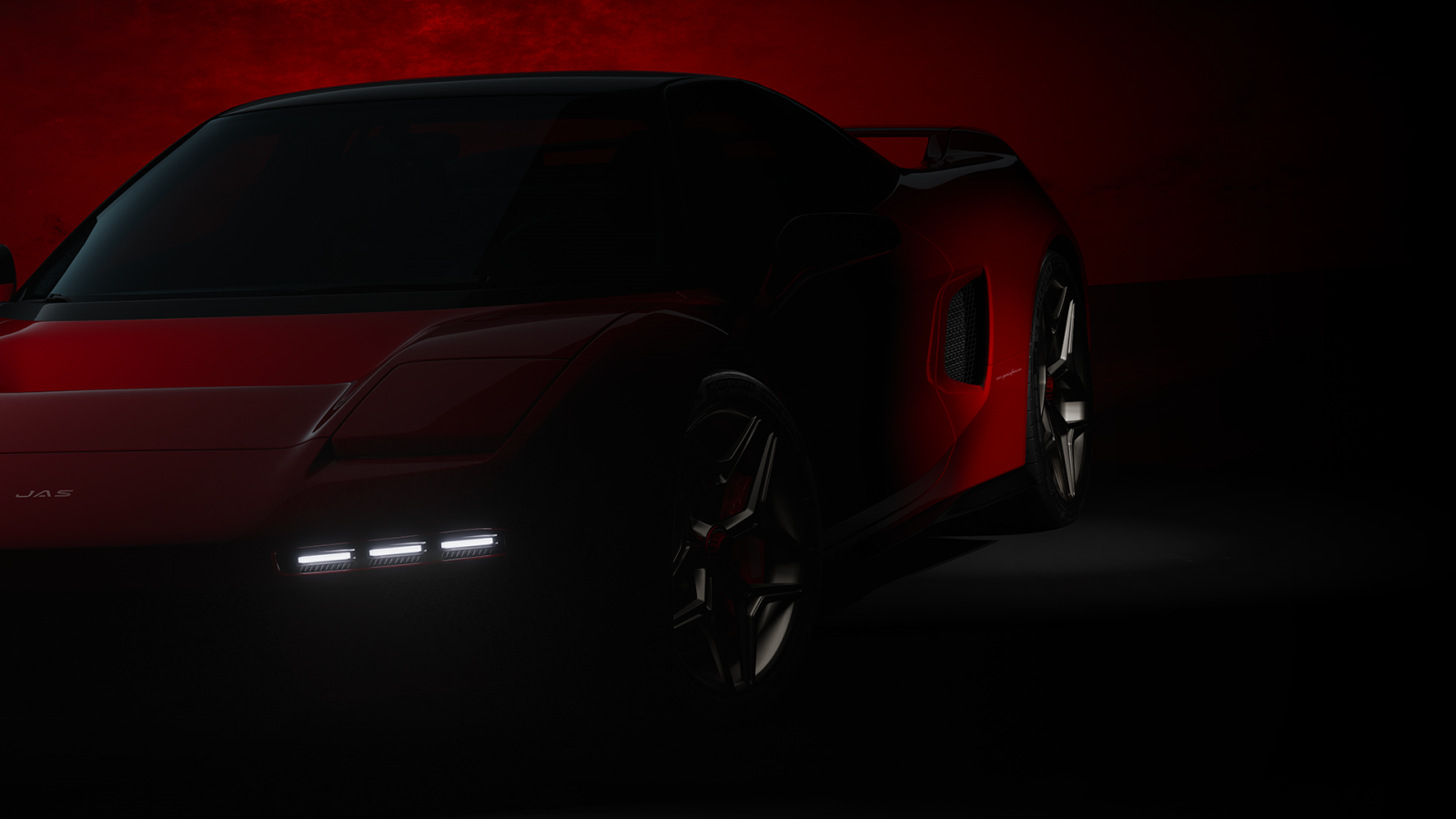
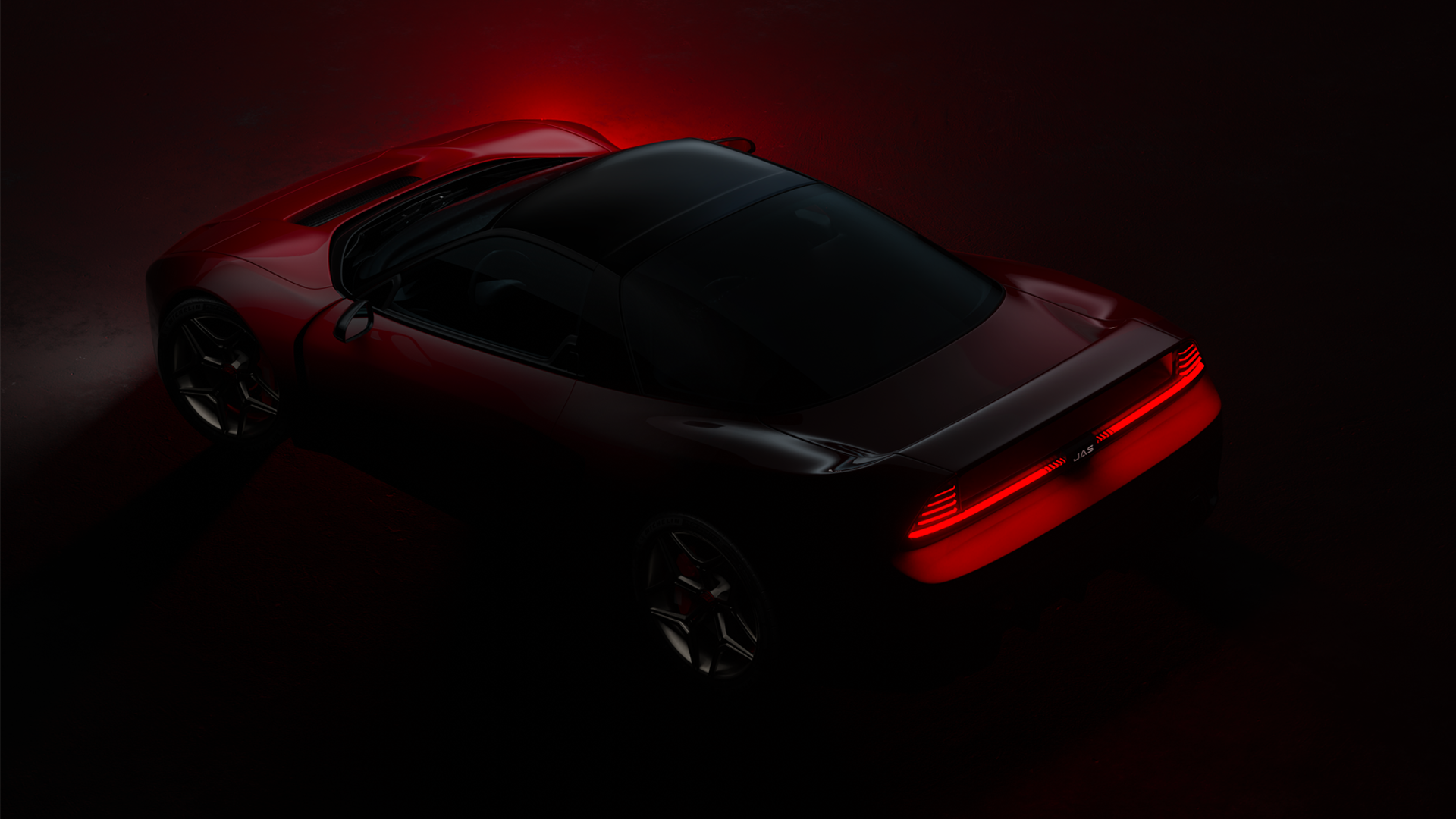
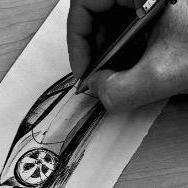
J.A.S. Motorsport, storico preparatore WTCC/TCR di Honda, e Pininfarina starebbero sviluppando un restomod su base NSX. Ecco foto e comunicato tradotto rilasciati da JAS:
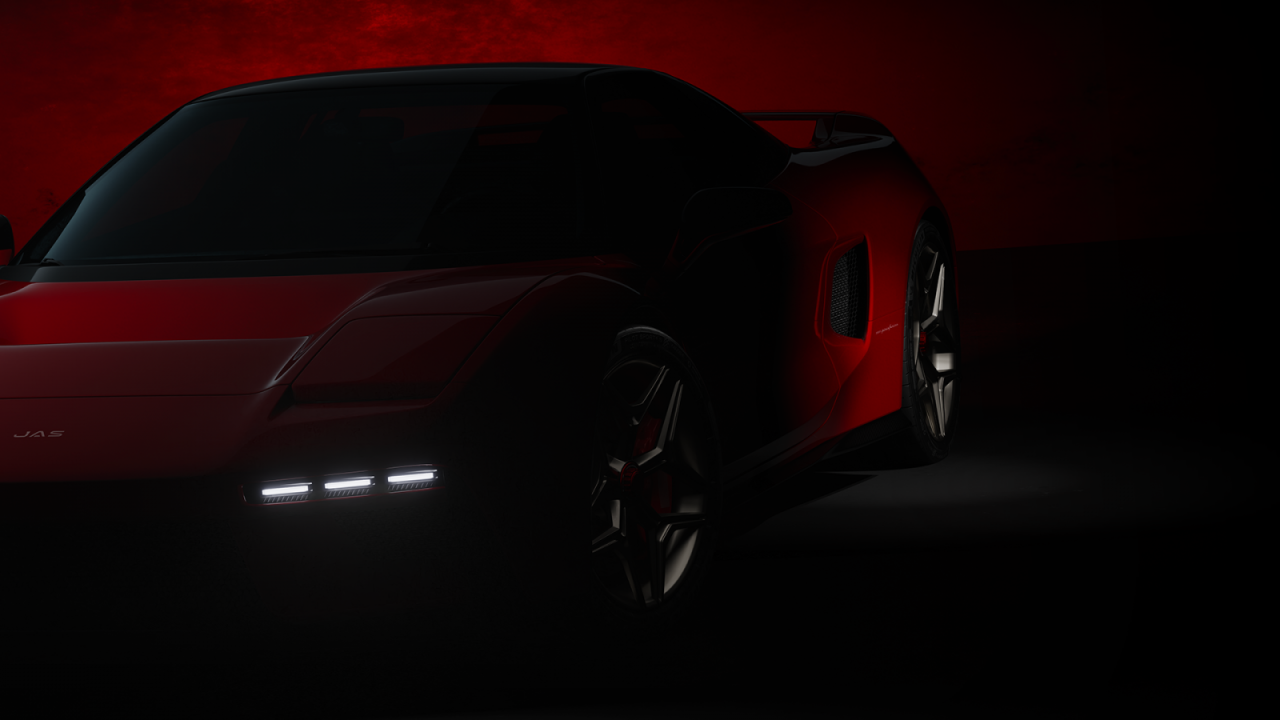
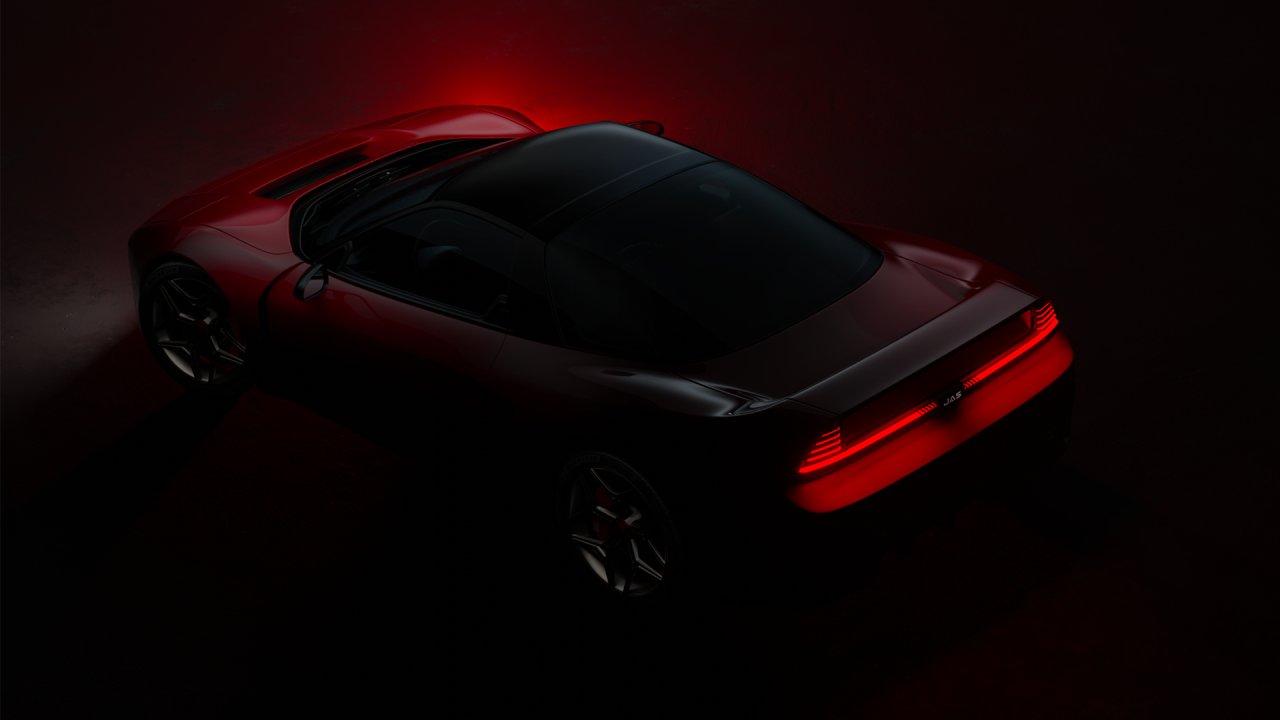 5 punti
 -
Mah..... Credo che Citroen abbia già una Storia sufficiente per sostenere una gamma DS. In questi anni gli hanno fatto fare la parte della Cenerentola ma l'ho sempre percepita come qualcosa di superiore alla Peugeot. DS non l'ho mai capito come brand. Già l'avevano in casa.....Poi questa idea balzana. Nel frattempo passano i lustri e non si sa nemmeno cosa saranno le auto fra dieci anni......5 punti
-
4 punti4 puntiSe per questo gia con Audi all'epoca hanno fatto la RS2 insieme a Porsche per dargli piu credibilita' sulla sportivita' e per salvare Porsche che stava crollando. Si di lavoro ne hanno fatto e hanno fatto anche piu cose giuste che sbagliate. Pero la differenza di Alfa e Skoda e' che Alfa gia ha l'immagine, o almeno il passato, di auto sportiva. La Giulia e' letteralmente l'Alfa a cui stavano aspettando in tanti da decenni. Gli zii della mia ex (tedeschi) mi dissero': "finalmente Alfa e' tornata a fare un'auto sua come si deve". L'immagine e' stata sporcata, anche se modelli come 156 ecc hanno fatto il suo ma Alfa a mio parere doveva essere trattata come Audi, anzi meglio, con piattaforme sue come hanno iniziato a fare con Giorgio. Nessuno ha detto "facciamo due auto e in 3 anni siamo pari a BMW". Il piano era chiaro e deciso, gli investimenti sono stati fatti e non di poco, erano previsti 7-8 modelli nuovi. Poi si sa come e' andata e la morte del caro Marchionne era la botta finale. E pure con quei due modelli ha fatto l'impatto suo, anche se breve ma l'ha fatto, il problema se mai adesso sta piu in cosa continuano a fare con le prossime generazioni.4 puntiEh la peppa, quante guarnizioni... roba di lusso eh!
 4 puntiIn EU mi aspetto che spariscano i cloni inutili a basso volume, dopo N.3/N.4 ci sono 408 e C5X, come anche la N.8 che ha tutte le carte in tavola per fare la fine della DS9, una volta entrata a Melfi la nuova Alfa. Invece in LATAM non penso vadano a tagliare, essendo comunque tutti i nuovi modelli derivati dalle FIAT/Jeep europee.3 puntiCon tutto l'amore del mondo, la 166 era inferiore praticamente in tutto alla E39, hai paragonato una delle migliori BMW di sempre a una buona berlina, limitata dalla TA. Si, una 166 2.0/2.5/3.0 andava sul dritto più o meno come la rivale bavarese, la 2.0 magari anche in mezzo alle curve, ma il paragone iniziava e finiva lì.3 puntiFosse vero sarebbe veramente tremendo per Lancia, come può innalzarsi l'immagine senza nuovi modelli? Oltretutto voglio credere non stiano cassando la Gamma il cui debutto è imminente. Inoltre cassare Delta che se fatta con tutti i crismi del caso sarebbe una gallina dalle uova d'oro per il marchio e il prodotto più centrato lo vedo come autolesionismo puro3 puntiComunque Filosa che solleva quel telo mi ha ricordato qualcosa, o meglio qualcuno...
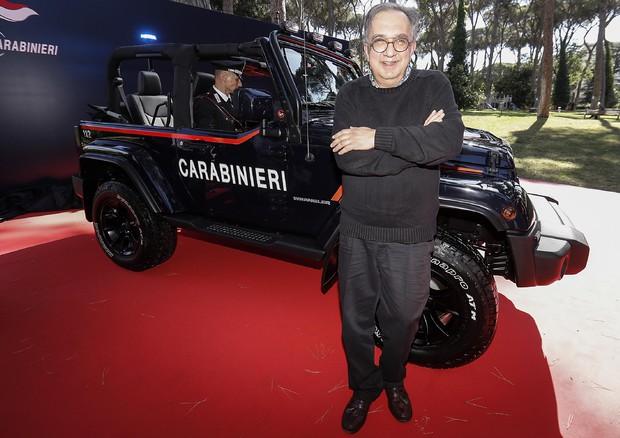 3 puntiEccola, insieme anche ad una nuova Giulia QV. Ovviamente con ruolo trasporto organi.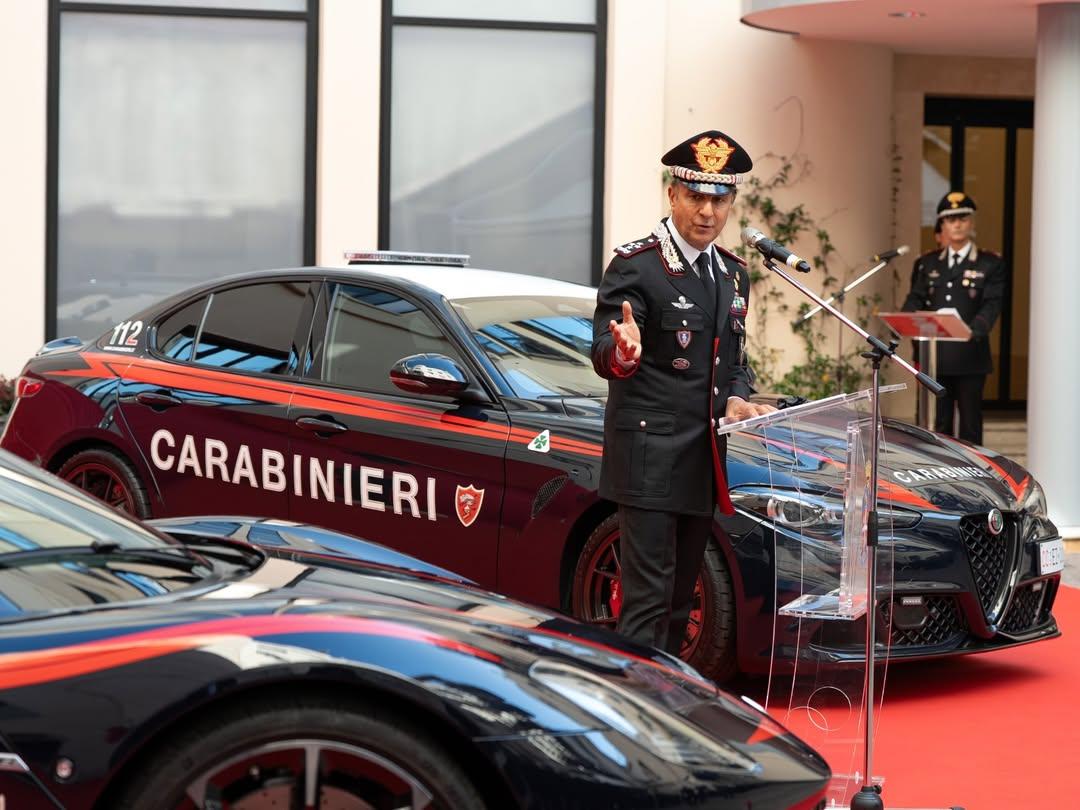
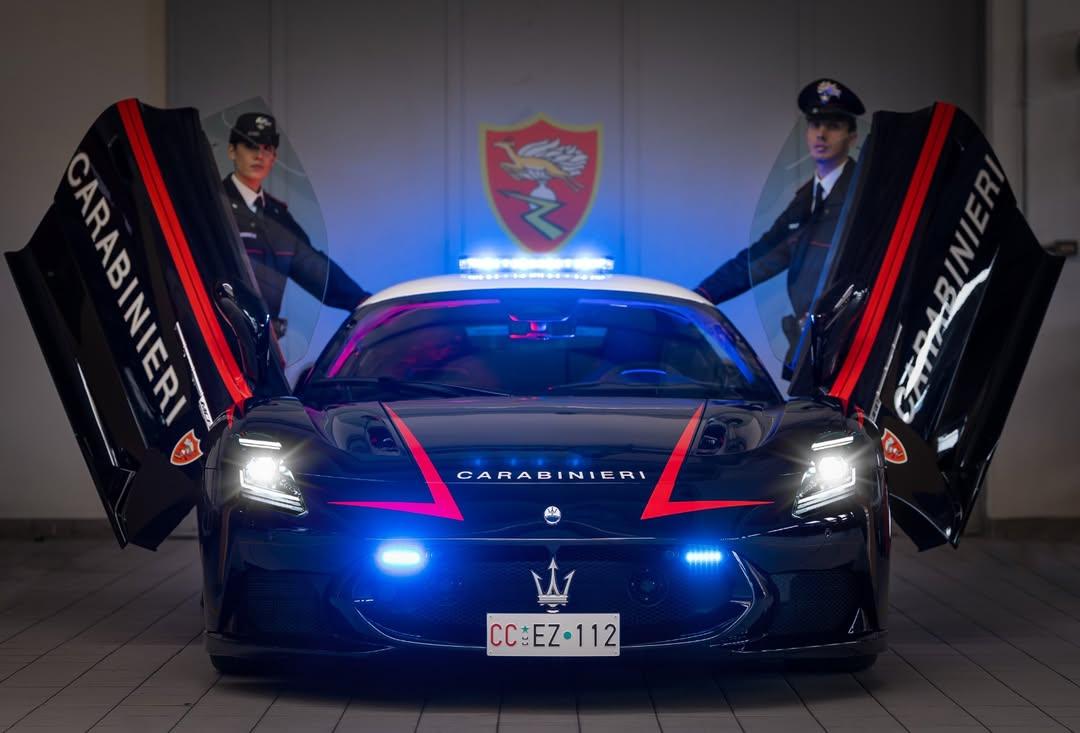
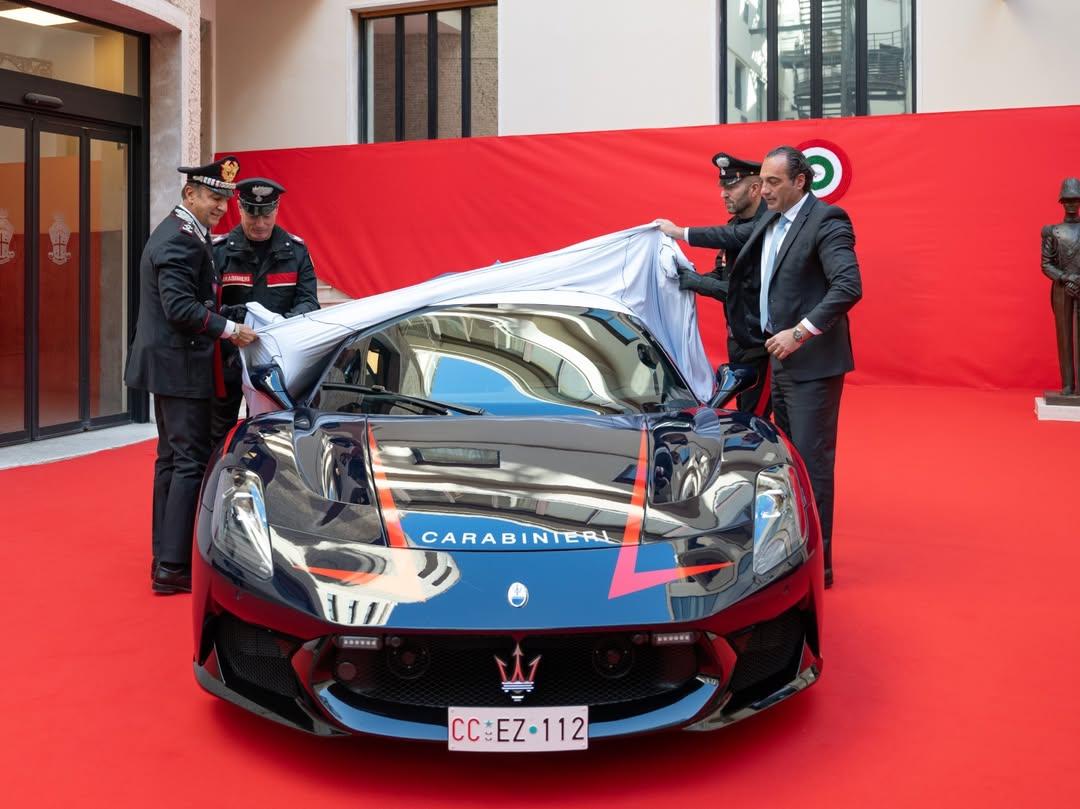
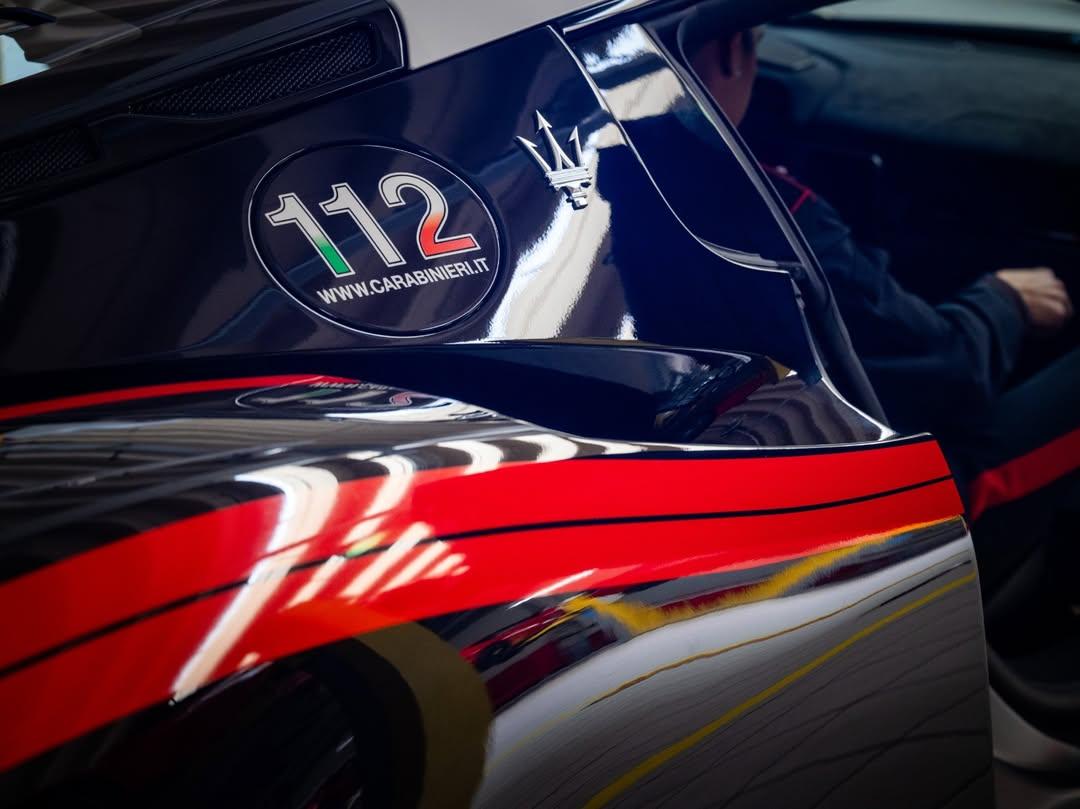 3 punti3 puntiDai, finche si scherza va bene ma vuoi tenere su un marchio con B, C e D senza uno straccio di cabrio, coupé, di E?3 punti..alta in vista di chi? Una ragazza che compra una Junior perche a lei piace di piu rispetto una Mokka e perche esiste in rosso molto carina?- pensi davvero che e interessata in una hypercar prodotto in 30 esemplari? Nemmeno sa che questa esiste. Azioni come queste sono completamente senza senso.3 punti3 puntiPure io, su questo siamo d'accordo 😂 Oh, a certi livelli si perde proprio il senso del limite. Qualcuno lo fermi e gli impedisca di fare altre interviste, anche per il suo bene. Avevo qualche dubbio anch'io, dopo questa dichiarazione mi sa che gli azionisti Tesla possono stare più tranquilli 😂3 punti3 punti2 puntiStellantis, il CEO Filosa cala il poker di richieste all’Unione Europea https://www.raiplay.it/video/2025/10/Cinque-Minuti---Puntata-del-27102025-d3b4fbc5-4fe8-4fbf-8e7d-5a93a7bc9f8e.html Intervista di vespa ad Antonio Filosa.2 punti2 puntiQuel segmento era tutto 3.0 diesel automatico, non averlo era come sostenere di poter vendere senza il sedile passeggero perché tanto hai il sedile guidatore.2 punti2 puntiFuffa su fuffa, niente di nuovo da parte dei soliti siti di pseudo-notizie.2 punti2 punti2 puntiI think those projects are scrapped. I think they'll just kill it, within 6-10 years from now. That could be good actually, because it would give more breathing space to Lancia2 puntiPrima impara a collocare le auto nei loro rispettivi segmenti, poi puoi parlare di auto2 puntiDove starebbe la confusione? Segmento B e C presidiato con modelli con posizionamento prezzo tra Peugeot e la triade, magari con piattaforme customizzate (vedi differenze tra Yaris Cross e Lexus LBX), componentistica dedicata (come per DS), ampia scelta di personalizzazioni, il motore più cavallato in esclusiva, Q4, ecc... la prima auto da fare con questa filosofia sarebbe una iso Formentor Segmento dal D in su pensato per il Nord America Operazioni tipo 33 Stradale per tenere alta la percezione del marchio2 puntiEh infatti prendiamo 10000 Tedeschi e chiediamogli di scegliere fra queste due, poi ne riparliamo Non voglio cominciare uno scontro fra tifoserie, del quale non ho proprio voglia. Ribadisco che nella testa della geste c'è sta roba qua... io mi ricordo perfettamemte che addirittura negli anni 90 tanti che conoscevo non avrebbero mai comprato un Alfa, si sarebbero vergognati, e non si peritavano a dirlo (io ovviamente non sono mai stato d'accordo), ed è ovvio che ancora sta roba qua, sotto sotto nella percezione della gente c'è e ci vorranno decenni per farla sparire. La BMW dagli anni 80 in poi ha investito per far entrare nell'immaginario della gente che le sue auto erano per i giovani rampanti in carriera mentre Alfa non ha fatto niente per togliersi di dosso questo cliché
_sedan_(2015-11-13)_01.jpg.e1d5b2921818699892b10c7228143c73.jpg)
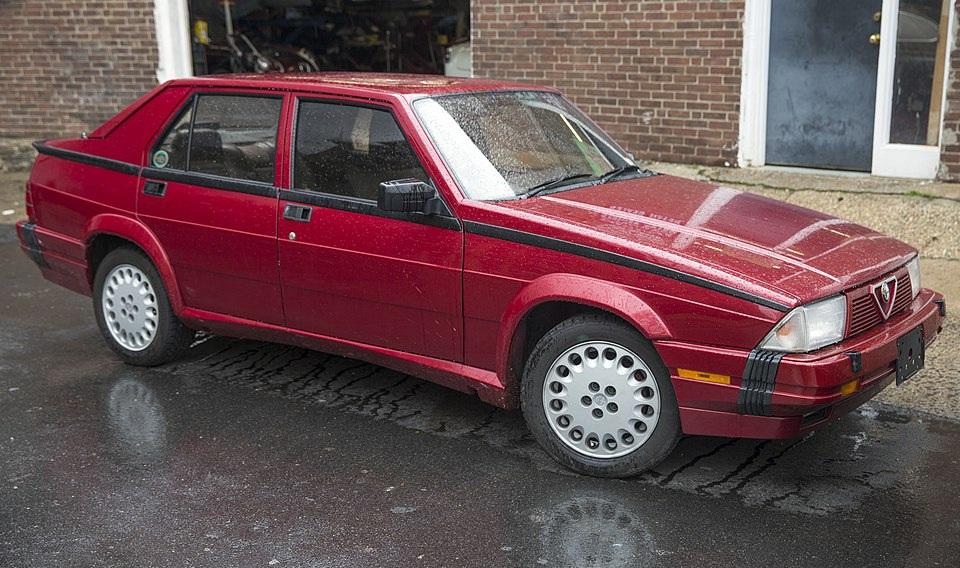
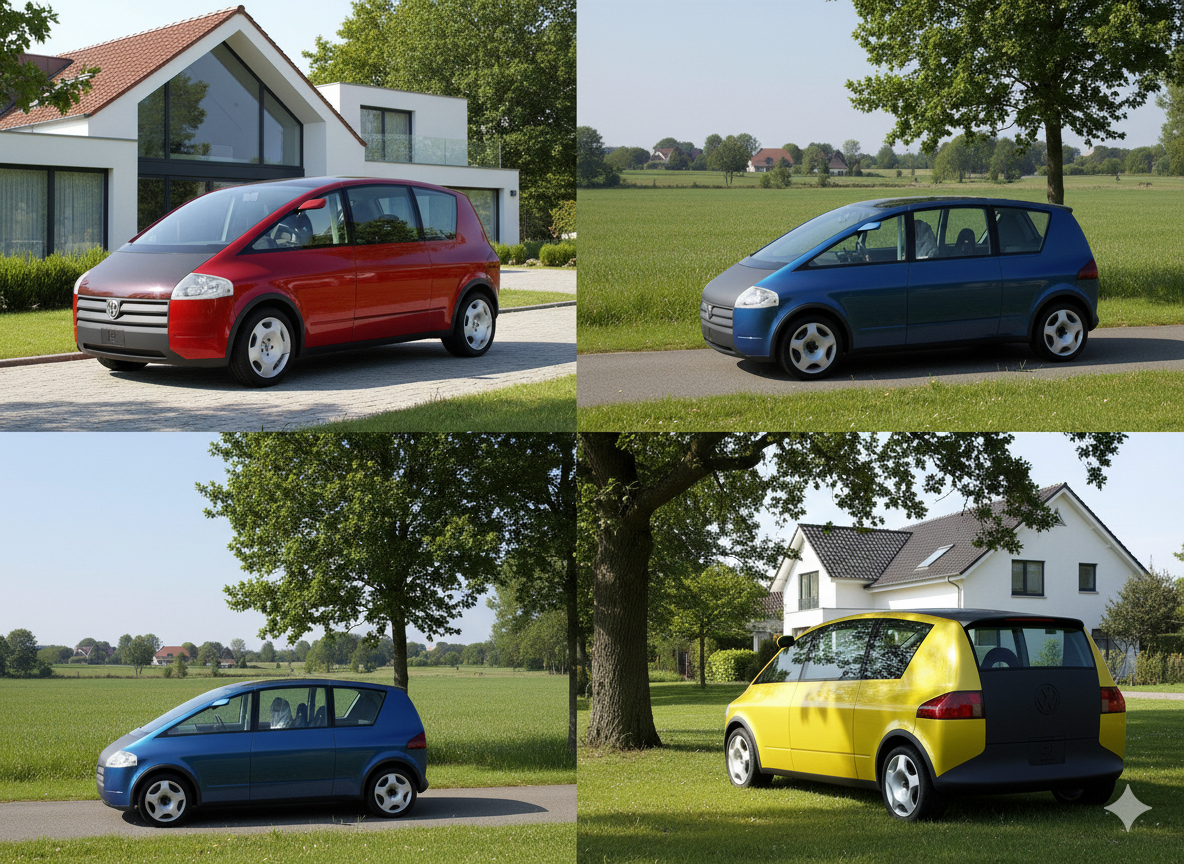
 2 puntiQuando chiuderanno sto marchio non sarà mai troppo presto....2 punti….Ecco - ora abbiamo trovato la vera e unica ragione del declino della FIAT/FGA: i malvagi tedeschi!!! 🤣🤣2 puntiQui in germania si sente di tutto ma non che le Alfa sono o erano brutte. Ma da dove esce sta roba?2 punti1 punto1 punto1 puntoWhat does Project Launch Manager mean? Starting the MCA project or launching the MCA result? As the sister cars were launched roughly every 9 months I wonder if the others will benefit early: New (and exclusive) door cards for all, enhanced middle tunnel also for 600. Maybe more individual switches (gears, drive modes) for all. When new 2008 and Mokka start, the Tychy trio can't be left behind appearing old. We know a 210 hp EV might appear and a 1.6 HEV would be great. Do you think there's power reserve in the 1.2?1 puntoNella norma. Non particolarmente contenuti, ma con il tuo chilometraggio annuale sarebbe un fattore secondario. Facendo pochi chilometri ti conviene puntare più su un prezzo d'acquisto basso, perché poi diventerebbe lunga ammortizzare il maggior costo iniziale di un ibrido. Considera che ogni anno quando prenoto il tagliando il concessionario mi chiede se voglio dargliela in permuta, perché pare che siano molto appetibili sull'usato. Ti ho pensato perché io stesso, dopo anni di berline medie compatte e divertenti (Golf, BMW Serie 1, Alfa Giulietta) sono contentissimo di ritrovarmi ora con un mare di spazio interno per caricare qualsiasi cosa.1 punto"Qui tifoseria non se ne fa" e poi tutto il messaggio a tifare (contro) 😅😅 e a offendere me che (mi sa che ti sei perso il trafiletto in cui scrivo che non ero d'accordo) semplicemente questo è quello che vedo come percezione vivendo in Italia e non in Germania. comunque c'hai ragione tu, mi sa che ti sei sentito colpito sul personale 🤣1 punto1 puntoPubblico anche io un paio di moderne. La prima che vediamo è questa Toyota Sienna LE II Serie MY06, grossa monovolume nippo-americana qui nell'aggiornamento del 2006 che cambiò le ottiche dei fari posteriori e il paraurti anteriore. Appartiene ad un militare NATO ed è in condizioni disastrose, come le auto dei peggiori sobborghi americani. Questa Hyundai Santa Fe 2.2 CRDI II Serie MY09 '12 potrebbe essere rara soltanto a macchia d'olio, ma da me del restyling di questa serie se ne vedono pochissime, prima di questa, che tra l'altro proviene dall'Ucraina, non ne vedevo da tempo! Essendo del 2012 è anche una delle ultime prima dell'arrivo della terza serie. Una versione rara di una vettura comune questa Kia Venga 1.4 CRDI Crossover '14, versione rialzetta con protezioni molto estese della Venga che fu prodotta per appena un anno e che pare da noi sia stata venduta in soli 200 pezzi contingentati dal costruttore! Era disponibile soltanto nera, io ne ho viste circa tre, non poche per esserne soltanto 200. Concludo questa brevissima tornata di moderne con questa Honda CR-Z 1.5 Hybrid '10, coupé ibrida che da noi ha riscosso un successo praticamente nullo, ne ho viste pochissime e tutte dei primi mesi di vendita. A me non dispiace nella sua stranezza.1 punto1 puntoSe Carletto avesse avuto le ruote sarebbe stato un'Alfa Romeo! L'Arna?😄 Ni, ad esempio Auto Plus https://www.autoplus.fr/actualite/stellantis-pourrait-etre-demantele-les-craintes-de-son-ancien-patron-carlos-tavares-1404172.html, senza far capire se le affermazioni vengano dal libro in presentazione, dall'intervista di "Les Echos" o da dove, scrive: Sous la direction d'Antonio Filosa, Stellantis tente de conserver sa cohésion tout en adaptant sa stratégie. Mais la question demeure : le groupe saura-t-il maintenir son unité face aux intérêts divergents de ses trois grands pôles historiques ? Carlos Tavares, lui, n’y croit qu’à moitié visiblement : "Je ne suis pas certain que les intérêts français que j’ai toujours défendus soient encore protégés au sein de Stellantis", confie-t-il. tradotto: Sotto la guida di Antonio Filosa, Stellantis sta cercando di mantenere la sua coesione mentre adatta la sua strategia. Ma la domanda rimane: il gruppo sarà in grado di mantenere la sua unità di fronte agli interessi divergenti dei suoi tre principali poli storici? Carlos Tavares crede in esso solo la metà ovviamente: "Non sono sicuro che gli interessi francesi che ho sempre difeso siano ancora protetti all'interno di Stellantis", dice. Il che può essere anche inteso che, visto che i Peugeot hanno dichiarato il loro disinteresse e proggressivo disinvestimento nel settore automobilistico https://www.auto-moto.com/business/peugeot-stellantis-auto-57497, la fusione paritaria si trasformerebbe forse in una acquisizione di Psa da parte di Fca. Bah! Ricordandomi del carattere mostrato ai tempi delle audizioni delle commissioni parlamentari italiane, Carlos mi pare intento ad alzare un po' di polverone, un po'spinto dal risentimento di essere passato dal miglior Ceo automotive a "quello che stato dimesso", e un po' dalla promozione del suo libro, con cui spera di farci spendere 21,90 euro a Natale! Dirò che non ha proprio quella discrezione signorile che usò Carlo De Benedetti ai suoi tempi, che fece scorrere il fiume per un bel po' di anni prima di sparare le sue cartucce!😄 Sebbene non conosca la levatura della testata, concordo con questo articolo https://www.auto-infos.fr/article/carlos-tavares-mauvais-joueur-avec-stellantis.2892151 puntoio ribalterei la frase. Diciamo che è la mazda che prende spunto da cosa ERA Alfa Romeo1 punto1 puntoCompie 30 anni la concept VW noah Una specie di A2 in salsa VW in pieno stile Bauhaus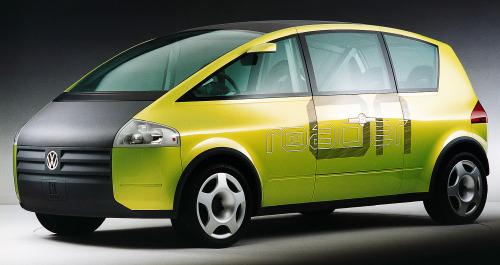
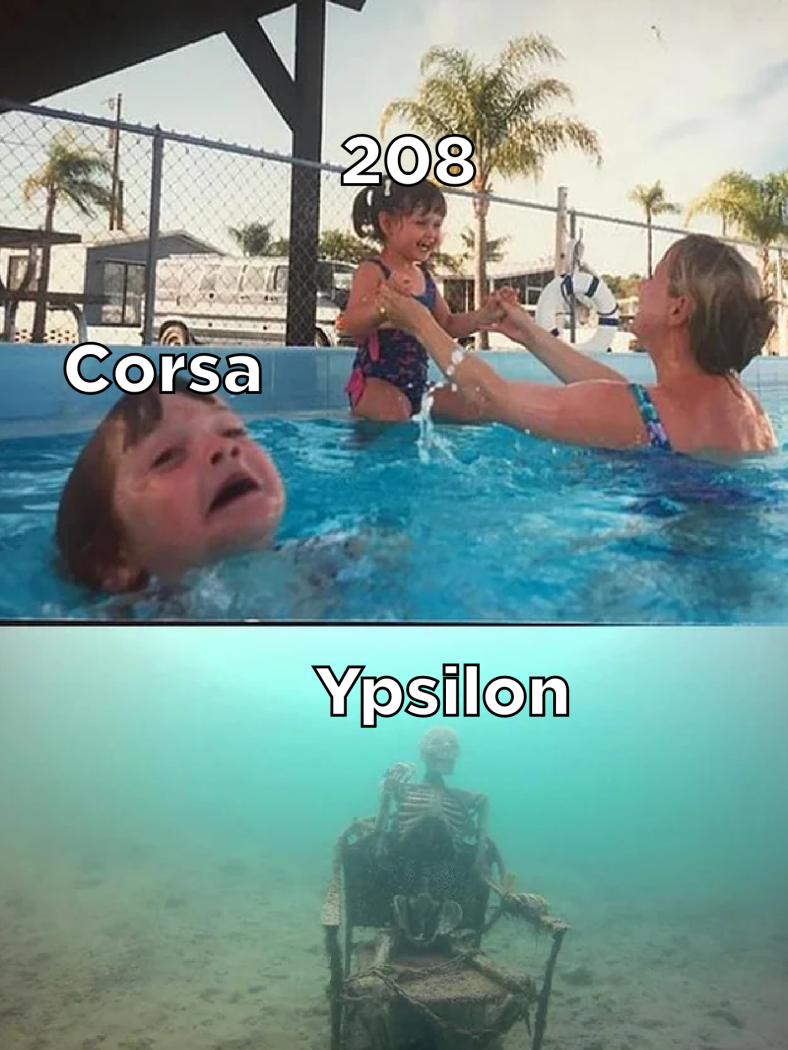
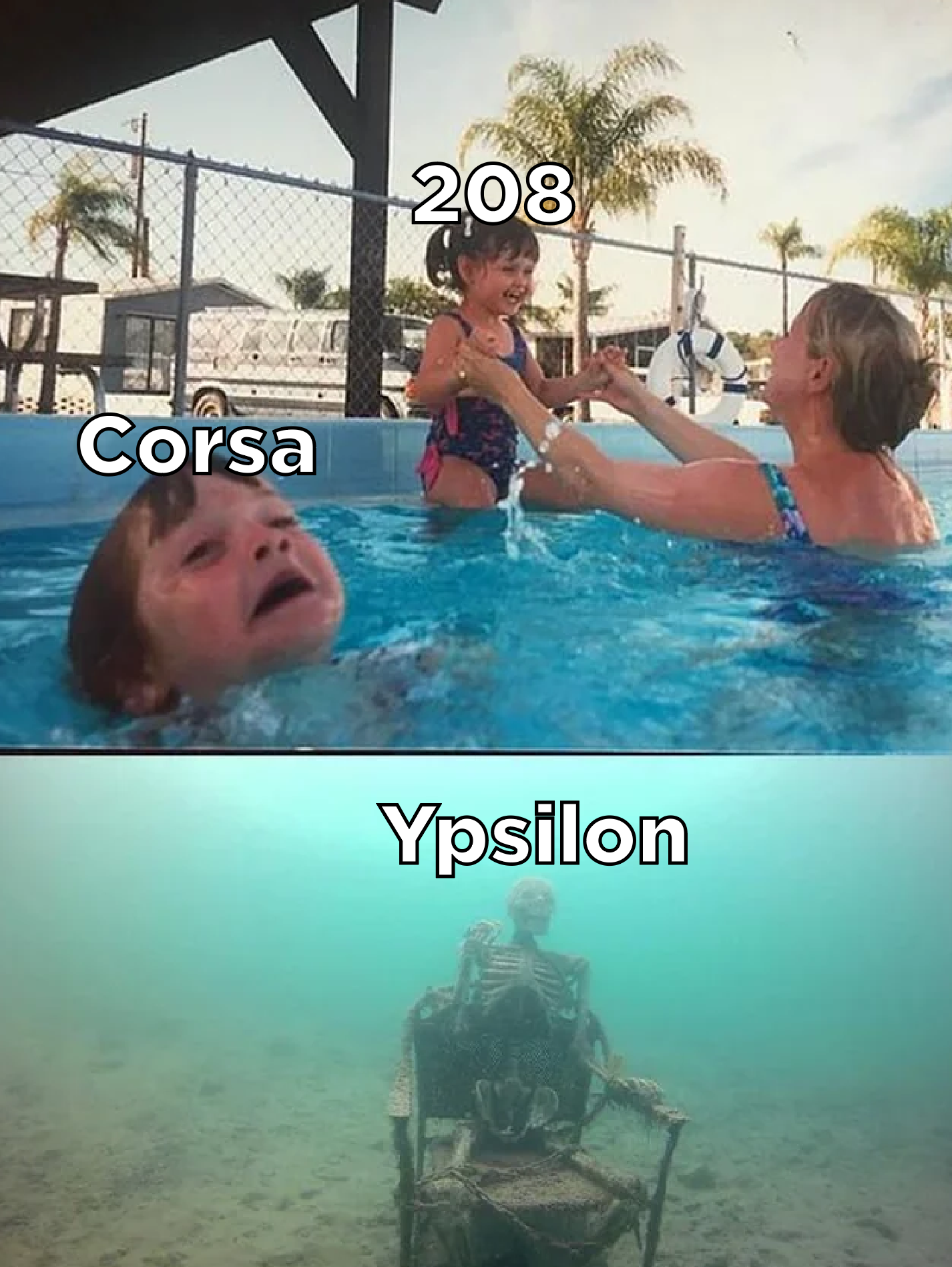
 1 puntoIo non so proprio come ci si possa stracciare le vesti per aver cassato un bombolone di 5-6 metri e alto quasi 2 a marchio Alfa Romeo. Ma di grazia che non lo fanno!!!1 puntoCuriosità: ma in cosa consisterebbe esattamente il "ribasso con Tonale"? E tolta la Mx-5, in cosa esattamente Alfa non reggerebbe il confronto con Mazda ?1 puntoCon questa penso che siamo arrivati davvero al punto di non ritorno... forse sarebbe meglio chiudere il thread Comunque il simbolo Alfa Romeo da 40 anni (più di 60, a dire il vero) è il seg.D sportivo. In cui ha sempre avuto continuità con i vari alti e bassi. Risposta accettabile? Prima hai proposto Mazda come marchio a cui Alfa dovrebbe ispirarsi, ora esce fuori che produce cancelli ma si redime con un'unica auto sportiva (MX-5) e questo la renderebbe più sportiva di Alfa che ha sempre ricercato sportività in tutta la sua gamma come "mission" del marchio... 🫠1 punto1 puntose ci pensi il successo di Maserati è iniziato nel periodo 2013-2014 che coincide con l'arrivo di Ghibli / Levante e le concept Kubang e Alfieri, tutte belle sportive e accattivanti salvo poi contrarsi sempre più con l'uscita di queste... Tencone ci vedeva lungo1 punto1 puntoAlla fine faranno come VW con le attuali termiche restilizzate e le elettriche su piattaforma nuova. Evidentemente adattare small all'ibrido costava troppo/ rendeva l'elettrica poco competitiva. Va bene come strategia, a patto che le termiche di 208 e Corsa ricevano un buon restyling corposo. Comunque immagino la situazione sarà un po' questa:
 1 puntoComunque il titolo dell'articolo (sia di quello originale di Autocar che della traduzione fatta da Motor1) è un po' fuorviante, se leggete le dichiarazioni di Metroz secondo me dice una cosa abbastanza diversa, ovvero che si ispirano a Bentley e Rolls Royce, come approccio e caratteristiche che vogliono dare ai loro prodotti. Da nessuna parte dicono che vogliono fare una rivale di Rolls Royce o Bentley in senso stretto (anche perché altrimenti veramente dovevamo chiamare la neuro).1 puntoLa Leaderboard è riferita all'orario Roma/GMT+02:00










.jpeg.0b15fc59cdd385e10ff3cc41e743cf00.jpeg)
.jpg.55e27147da234ce9f9419e2d65bd1f84.jpg)
.jpg.ef5c7833e6a07f31a339670a1012259b.jpg)
.jpg.5f9a2c69c3326a47a7313d118fdbd62f.jpg)
.jpg.ee9b104e5eda9335f39e0a6cccee5f72.jpg)
.jpg.bd5e1a82401d445471081c10c80a7cbd.jpg)
.jpg.a4fc9ad3e9225e2e38034a7644d95416.jpg)
.jpg.f8020809a651d0a17eb748317b691886.jpg)
.jpg.1789036c3c66212b0ae2ad77404a08e5.jpg)
.jpg.4e1488e98f99cce05b67909bd1314a53.jpg)
.jpg.f4460438c8c6ff103be02c317956db12.jpg)
.jpg.0b8f842f025050b2256a752147595ed2.jpg)
.jpg.4fa1ef216e022a8bb11ed63e65469eb3.jpg)
.jpg.237312f9020e1b28f7c2da99e395a5bb.jpg)
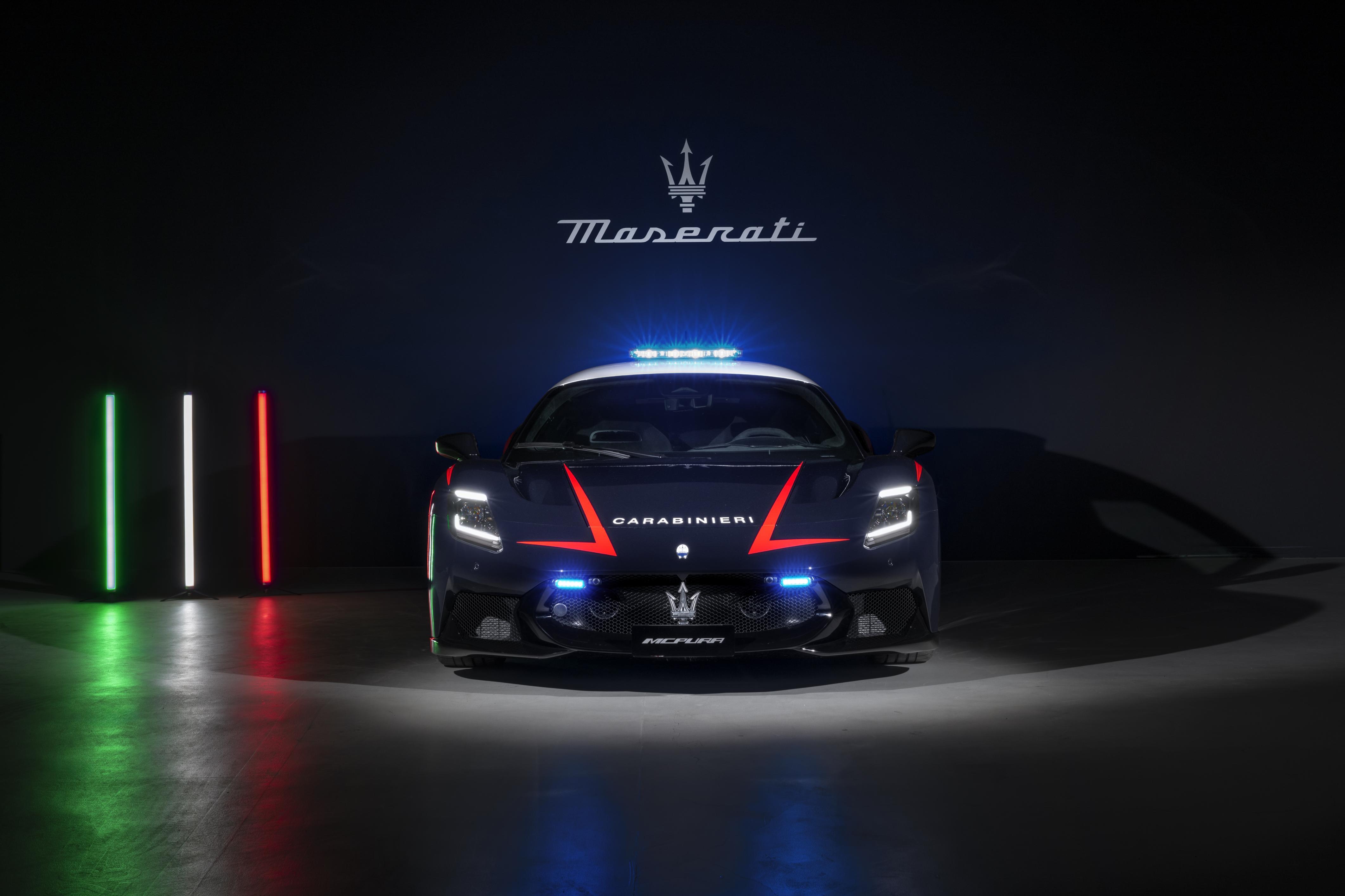
.jpg.01c53a323e361c08a748d64d3ea38d35.jpg)
.jpg.b61500055762af33d86c0845998d2ef0.jpg)
.jpg.2ca7f14006d710402d09cc4f00818eb9.jpg)
.jpg.e1f2e0de0450a476ca94fa667ae2a210.jpg)
.jpg.8791094c47dd974396f1a2ef01f1f605.jpg)
.jpg.f798723281adb4305a851db751d56f26.jpg)
.jpg.e36df08abfff44bb7c351f9336aeac7a.jpg)
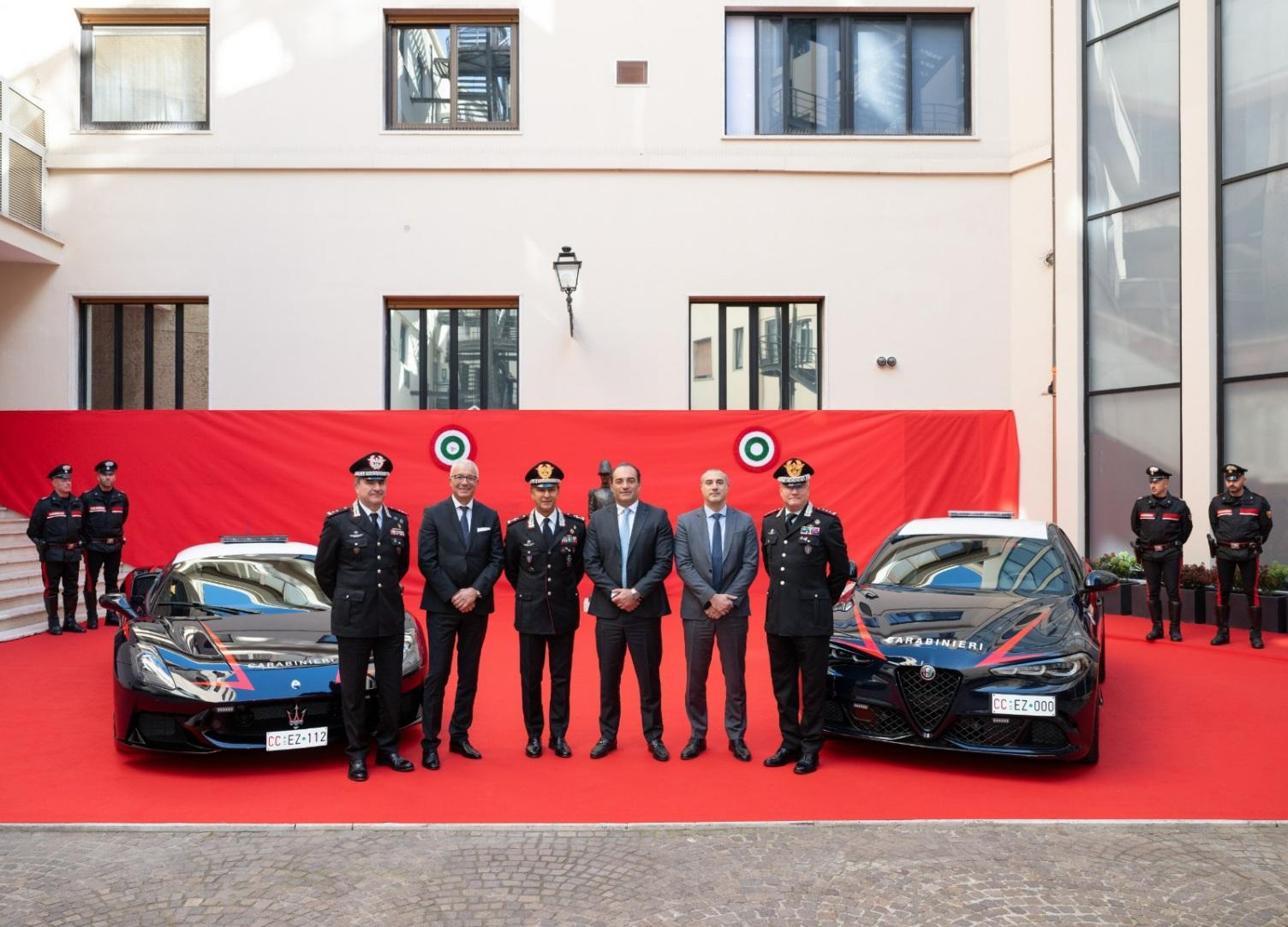















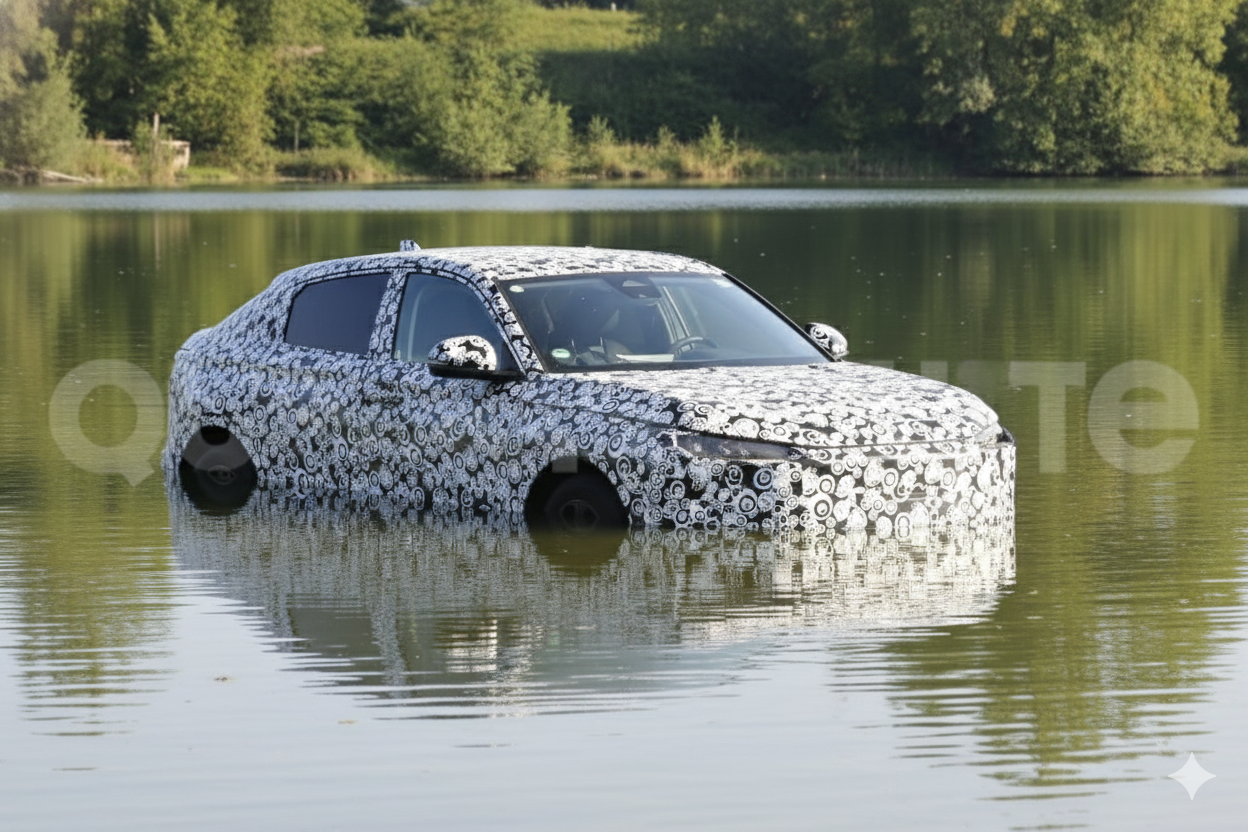


Account
Navigation
Cerca
Configure browser push notifications
Chrome (Android)
- Tap the lock icon next to the address bar.
- Tap Permissions → Notifications.
- Adjust your preference.
Chrome (Desktop)
- Click the padlock icon in the address bar.
- Select Site settings.
- Find Notifications and adjust your preference.
Safari (iOS 16.4+)
- Ensure the site is installed via Add to Home Screen.
- Open Settings App → Notifications.
- Find your app name and adjust your preference.
Safari (macOS)
- Go to Safari → Preferences.
- Click the Websites tab.
- Select Notifications in the sidebar.
- Find this website and adjust your preference.
Edge (Android)
- Tap the lock icon next to the address bar.
- Tap Permissions.
- Find Notifications and adjust your preference.
Edge (Desktop)
- Click the padlock icon in the address bar.
- Click Permissions for this site.
- Find Notifications and adjust your preference.
Firefox (Android)
- Go to Settings → Site permissions.
- Tap Notifications.
- Find this site in the list and adjust your preference.
Firefox (Desktop)
- Open Firefox Settings.
- Search for Notifications.
- Find this site in the list and adjust your preference.