Classifica Utenti
Utenti più Apprezzati
(Scegli il periodo) Utenti più Apprezzati
(Storia giorno per giorno) Classifica dall'Origine
(da Marzo 2003)
(Scegli il periodo) Utenti più Apprezzati
(Storia giorno per giorno) Classifica dall'Origine
(da Marzo 2003)
-

Cosimo
Utente Registrato14Punti41298Numero contenuti pubblicati -

__P
Capo Moderatore (Staff)10Punti29333Numero contenuti pubblicati -
johnpollame
Utente Registrato9Punti3037Numero contenuti pubblicati -
ISO-8707
Utente Registrato8Punti9828Numero contenuti pubblicati




Contenuti più Popolari
Stai visualizzando i contenuti con il più alto punteggio, pubblicati in data 11/26/17 e localizzati Tutte le aree/sezioni
-
4 puntiIn base alla pioggia di commenti negativi degli autopareristi (me compreso) sono abbastanza sicuro che le vendite globali andranno oltre le aspettative della casa.4 punti
-
4 puntiper un certo periodo del campionato se l’è giocata ad armi pari. In fondo ha vinto 5 gare e buttate nel cesso almeno due. Dopo singapore sono andati decisamente in confusione. Mercedes nella seconda metà è stata obiettivamente davanti, la storia dell’olio è stata comunque da non sottovalutare . Bisogna anche dire che questa doveva essere un’annata di transizione, senza una macchina progettata da superstar. Nel bilancio finale non la vedo male come annata.4 punti
-
si, certo.. dal mulo per i crash test alla macchina definitiva mi cambiano l’avantreno, la disposizione meccanica e i lamierati.. relativamente al powertrain io ho detto niente. Aspetto di vedere senza preconcetti. Il diesel è potenzialmente un buon motore, ma sinceramente non mi esalta un granché : sempre auto da lavoro rimane. Io ho un 2 litri diesel che tecnicamente si pone nella fascia alta del segmento, ma dire che è un motore esaltante ce ne passa. Fa il suo lavoro da macina km. Nulla di più nulla di meno. La versione plug in invece la guardo con interesse, nonostante le premesse da parte di MB siano tutt’altro che esaltanti sia come consumi reali che come dinamica di guida, invero abbastanza imbarazzante nelle versioni attuali, qui basta vedere le prove postate nemmeno troppo tempo fa. Relativamente al prezzo, sono andato due mesi fa un classe a 2 litri diesel ben accessoriato (bel colore tra l’altro, un rosso notevole) che avevano in concessionario della mia città. Prezzo scontato 36k euro, quindi dubito che un esemplare con quegli interni venga a costare molto di meno. Altra cosa saranno le versioni km0/pronta consegna iso business tutte millessei bianche-grigio-nero che fanno i numeri EDIT: dimenticavo il capitolo abitabilità. Sinceramente difficile fare peggio, l’attuale se la gioca con certi segmenti b capienti. In più si ritrova un baule con vano di accesso indegno per un coupé.. Che ci siano grossi miglioramenti mi pare il minimo sindacale4 punti
-
4 puntiD'altra parte ci sono state auto iconiche che usavano pezzi di utilitarie e nessuno ha mai avuto da ridire, perché lo stile e la ciccia erano personali.4 punti
-
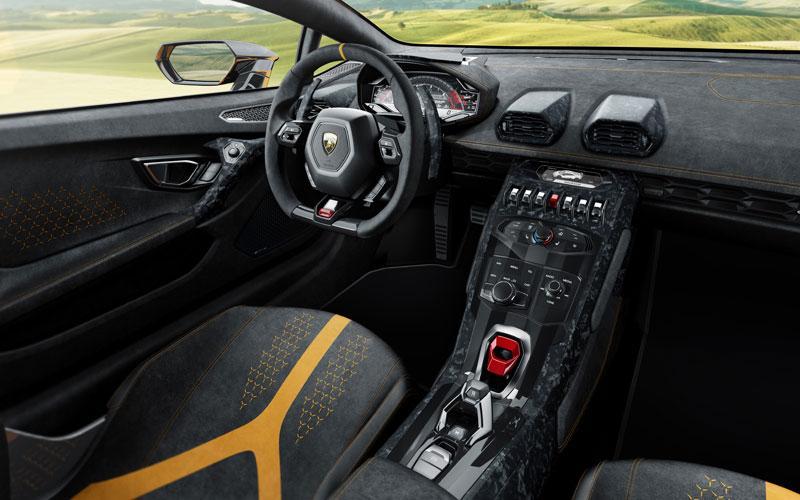
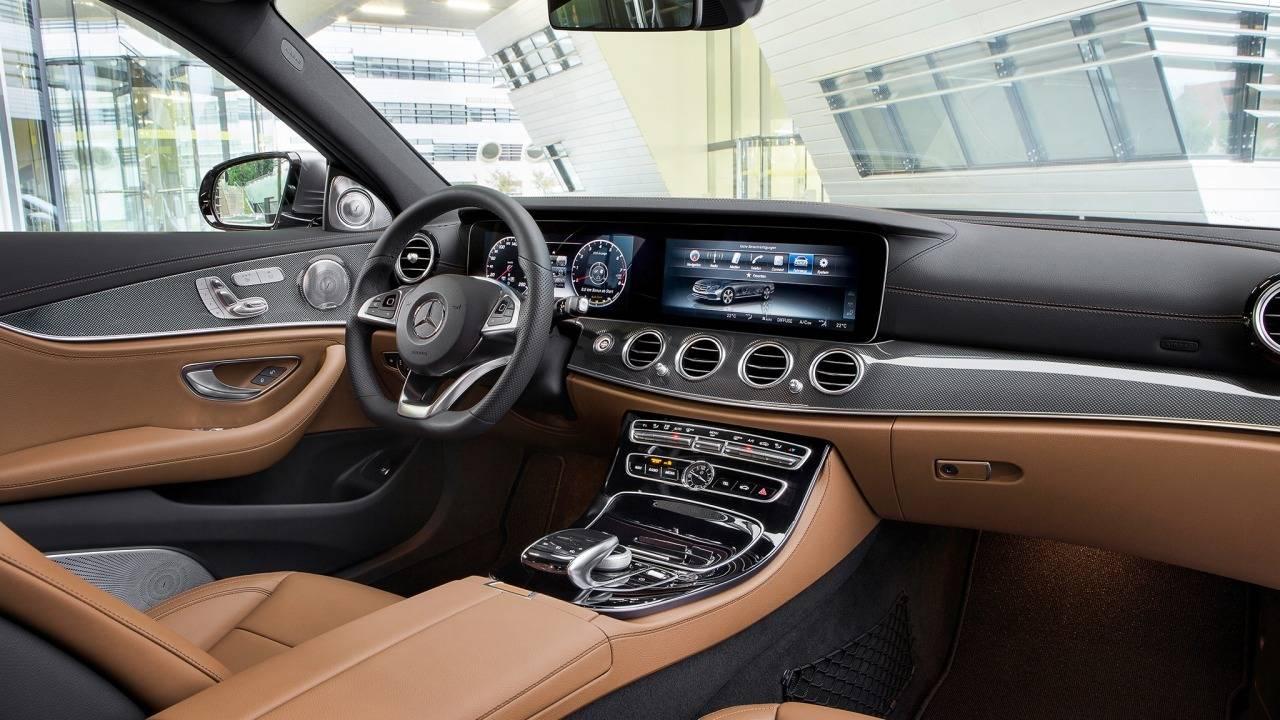
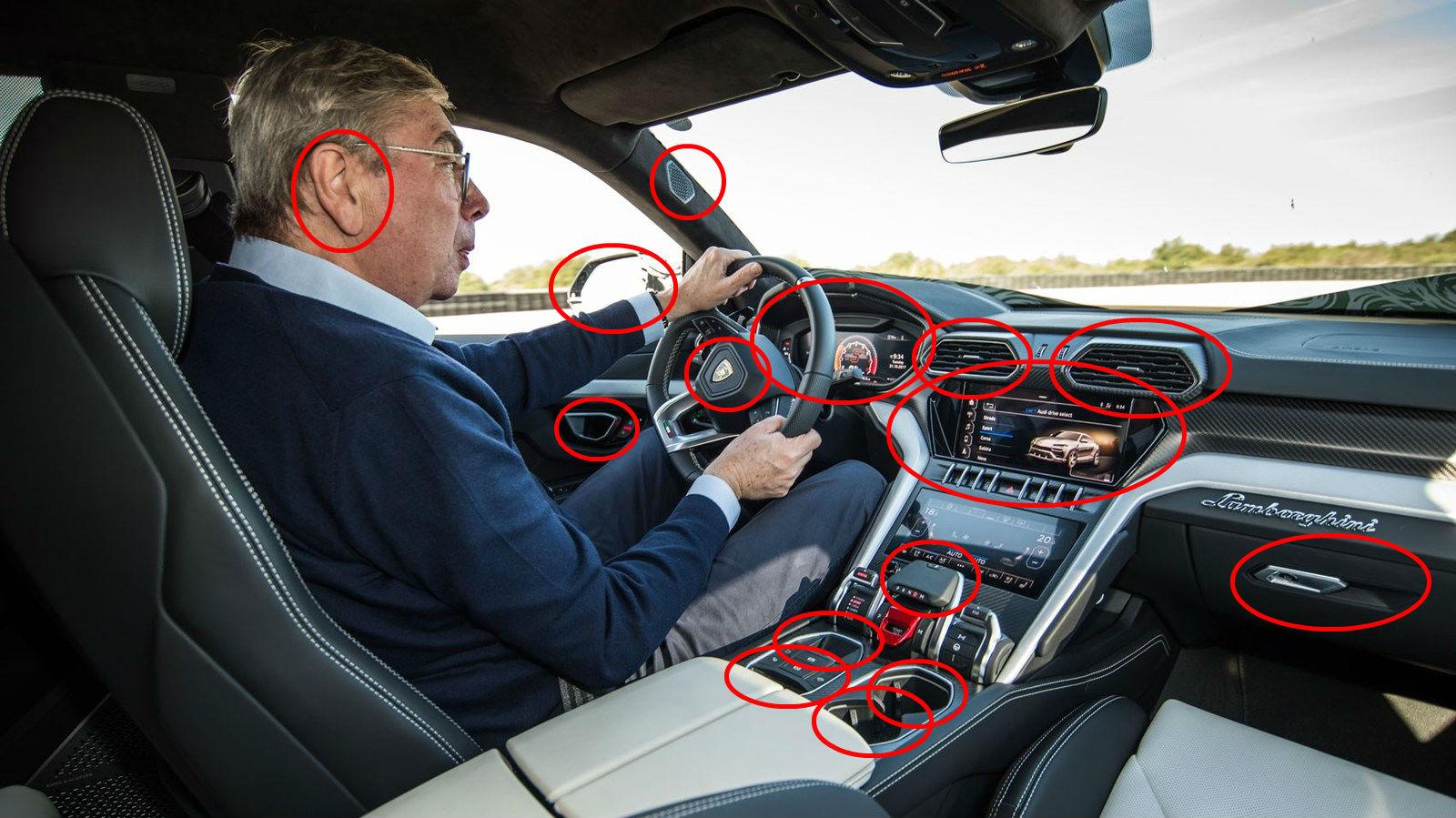
4 puntiNo... ma magari fare uno sforzo per metterci questo paddle compresi si! Quello che stride in quest’auto, hai ragione non sono gli interni od il loro carry-over, imho ben dissimulato alla fine, volante a parte che c’è pure sulla Bentayga, ma la condivisione veramente spinta della meccanica: han preso tutto quello c’era di meglio in magazzino e l’hanno utilizzato: il risultato non è tanto dissimile da una Cayenne Turbo però: stessa trazione integrale, stesso asse sterzante, stesso cambio, stesso V8 TT anche in variante ibrida. Capisco che al giorno d’oggi certe economie di scala sono imprenscindibili, ma almeno lo sforzo di differenziare sistemi sospensivi e motore. Dopo magari il volante Audi e la versione ibrida derivata dal Turbo S e-hybrid potenziato può essere anche digerito in altro modo.
 4 punti
 -
4 punti
-
3 puntiSuv/Sav/Cuv ipermotorizzate- roba completamente senza senso per sceicchi, mafiosi e protettori3 punti
-
3 punticoncordo, speriamo solo che "i problemi" sul motore step 4 Ferrari (che doveva essere un anticipazione del motore 2018) in inverno li risolvano in modo da pareggiare il gap motoristico, che alla fine ha fatto ancora la differenza3 punti
-
3 puntigara noiosa, sembrava di essere tornati alle scorse stagioni, mercedes dominante (qualcuno ancora dice che la Ferrari era la miglior macchina...) Raikkonen che deve ringraziare la poca affidabilità della Renault se riesce a raggiungere il 4° posto in campionato, Renault che sabotando la Toro Rosso (tra piloti tolti e pezzi di scarto) raggiunge il 6 posto, il resto è noia ora 2 giorni di test e poi ci si vede nel 20183 punti
-
3 puntiL'unica cosa buona che riesco a vedere in questa Seat Supersport sono i posti di lavoro salvaguardati a Sant'Agata: serio era il rischio che, come smacco finale, la assemblassero in un qualche anonimo stabilimento del Maggiolino in Est Europa... Per il resto è vettura antipodale al mio personale concetto di Lamborghini, e da appassionato la vitupero con tutto il mio essere.3 punti
-
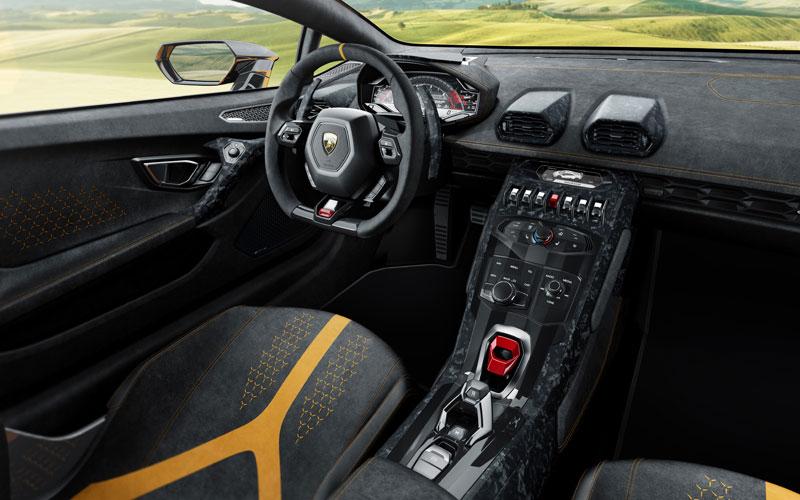
3 puntiNon vedo problemi sinceramente, considerando che quella Audi è "la pulsanteria voluta da Dio !" (semi-cit.)3 punti
-
3 puntitra i 4 suvvoni di lusso di VAG questa potrebbe essere la mia ultima scelta. alla fine forse gli preferisco la pulizia estrema quasi impersonale di un Q7 o l'arroganza nel lusso della Bentley. credo proprio che potendo scegliere tra le 4 prenderei il Cayenne. non credo proprio che questa abbia prestazioni molto migliori di un Cayenne Turbo (a che pro poi?) aspetto per un giudizio definitivo, ma da quello che si vede è veramente una brutta macchina. poco senso, linee incasinate, uso smodato del brand power e necessità di colori da Lambo per fare un po' di effetto.3 punti
-
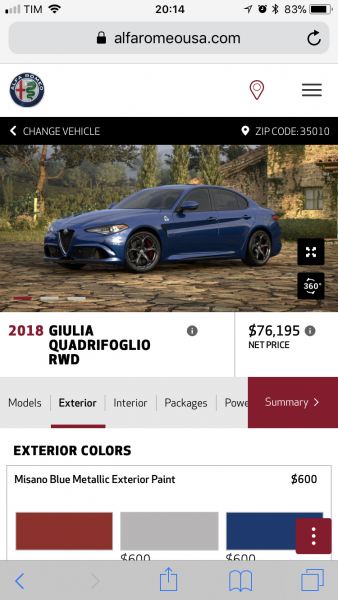
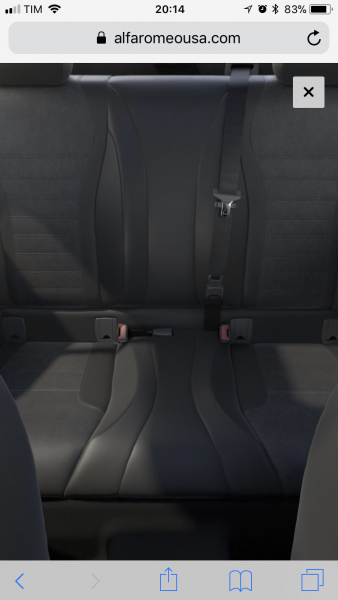
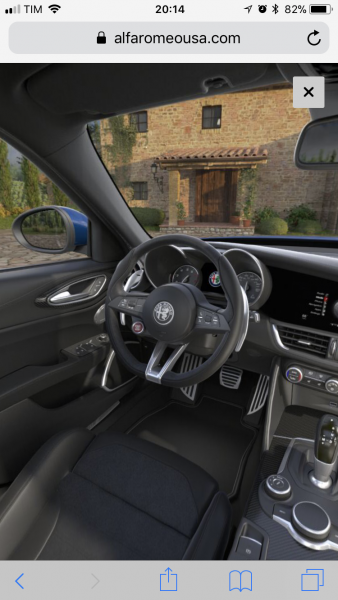
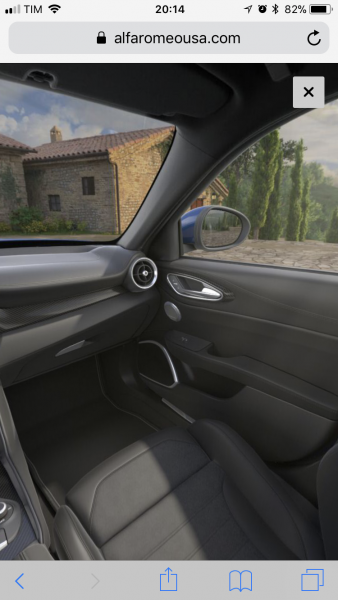
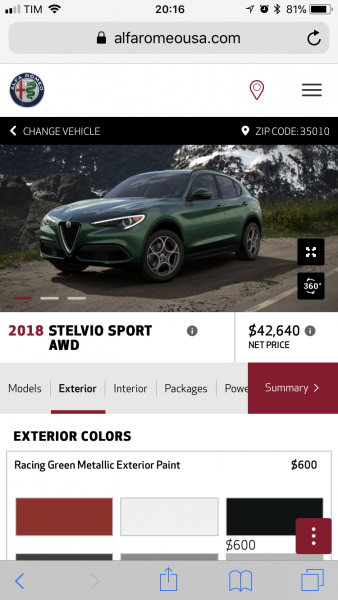
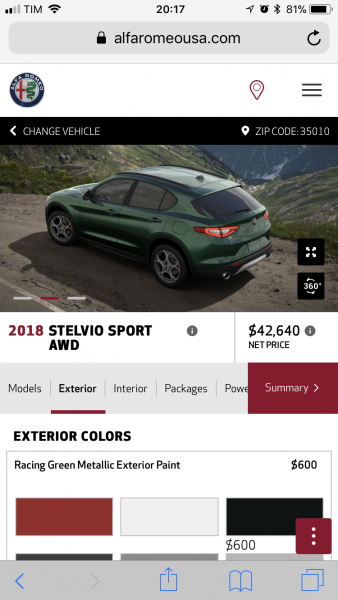
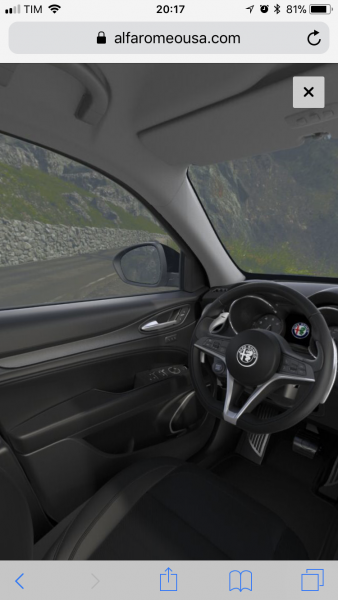
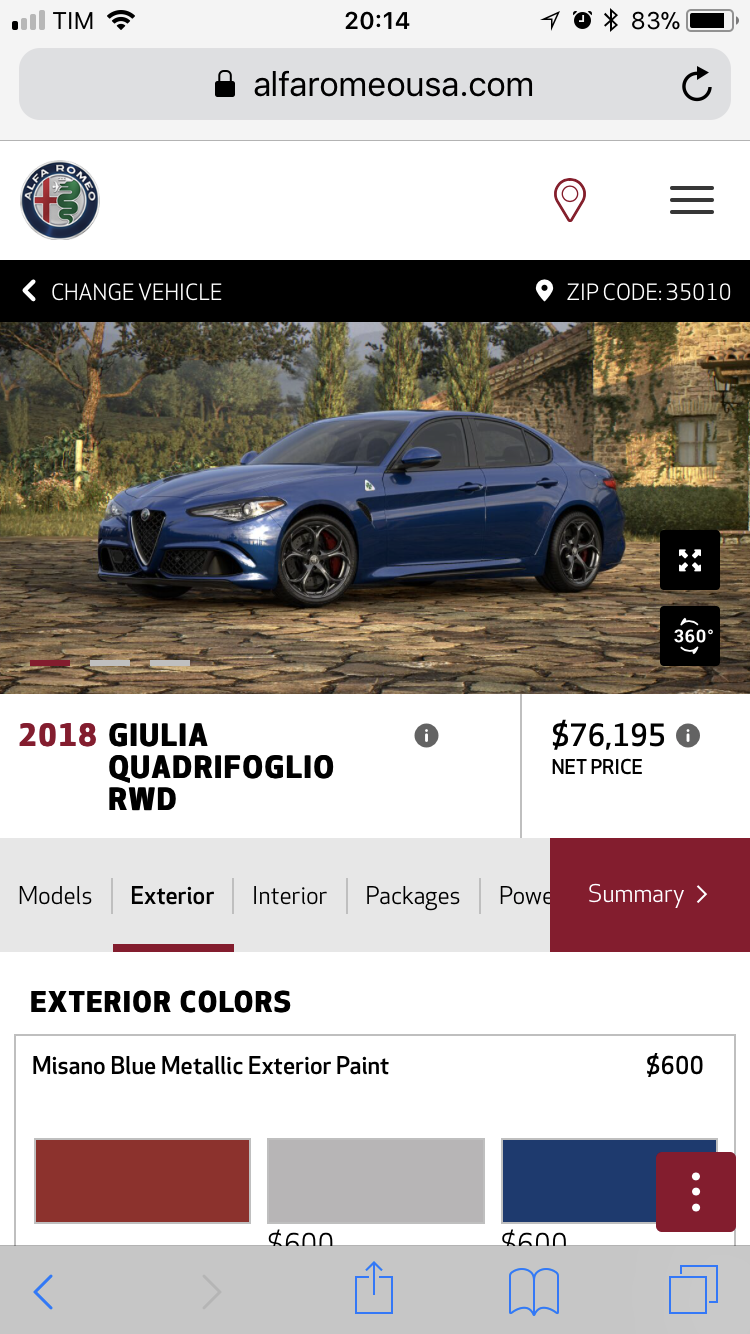
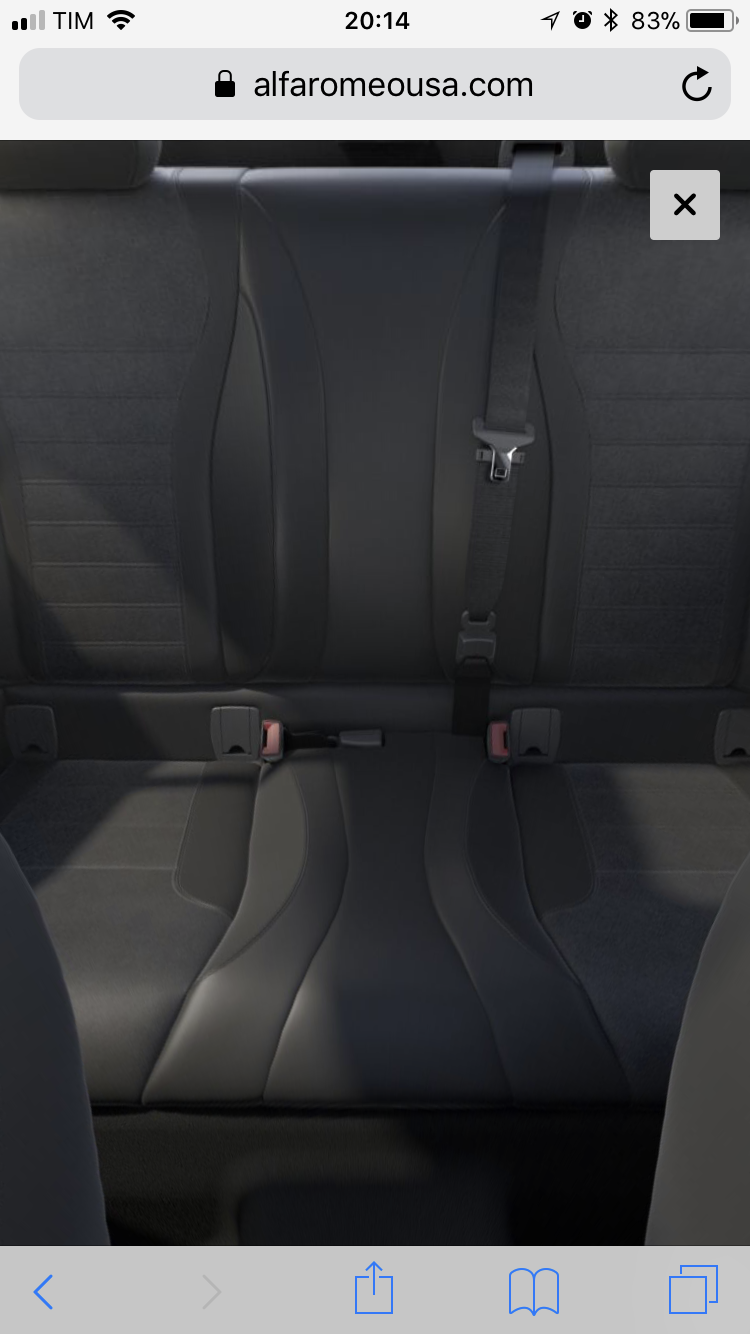
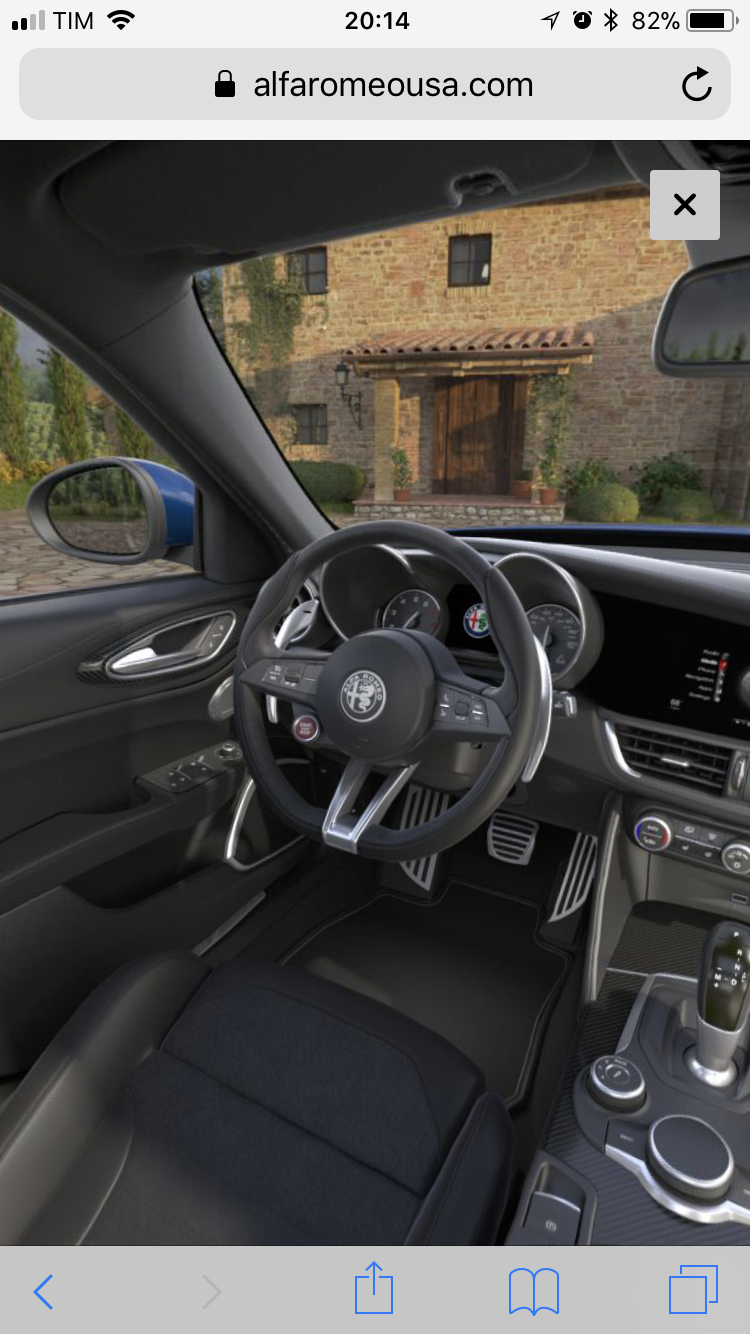
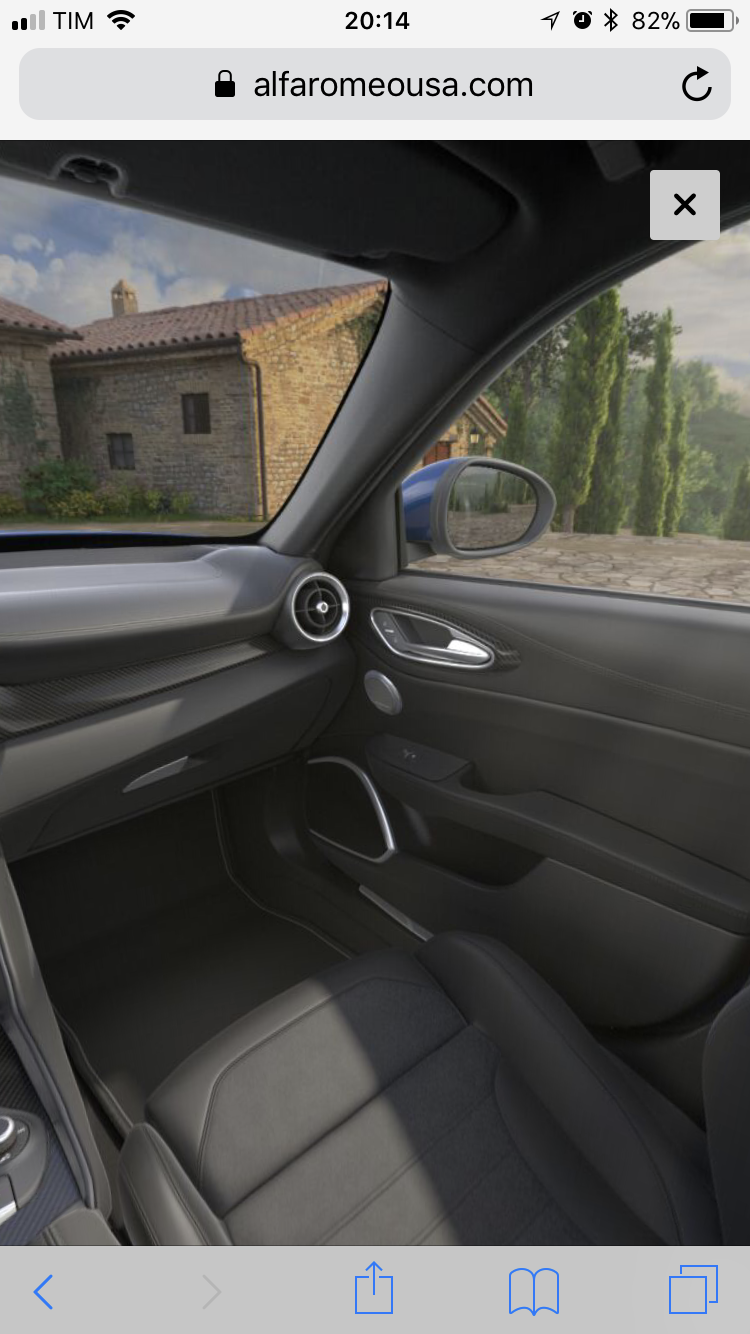
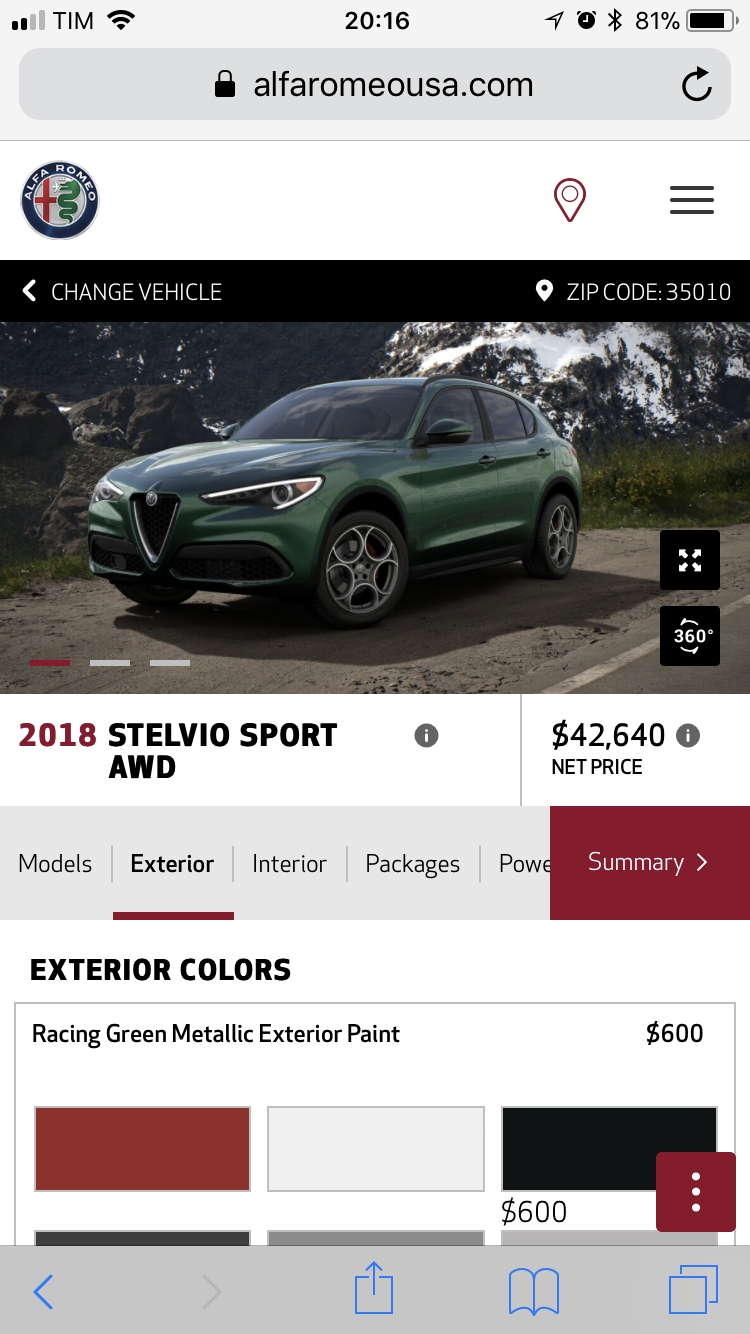
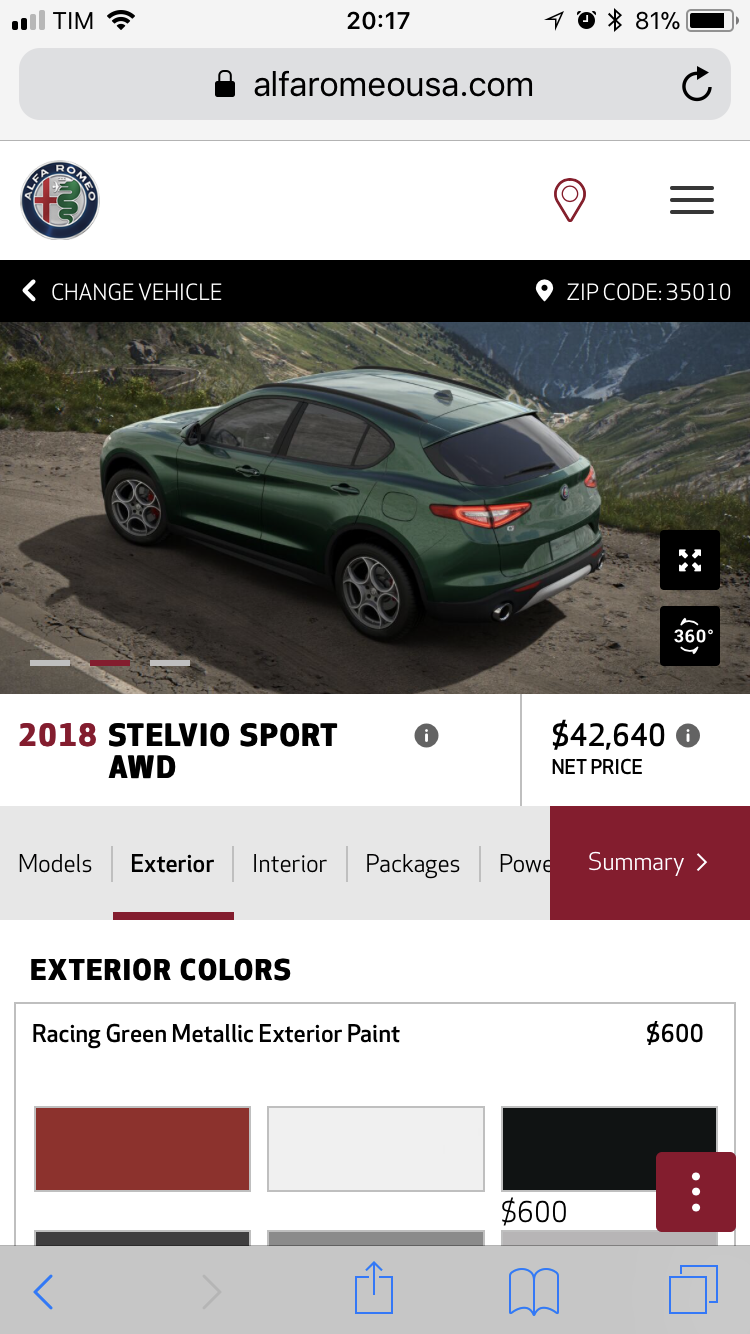
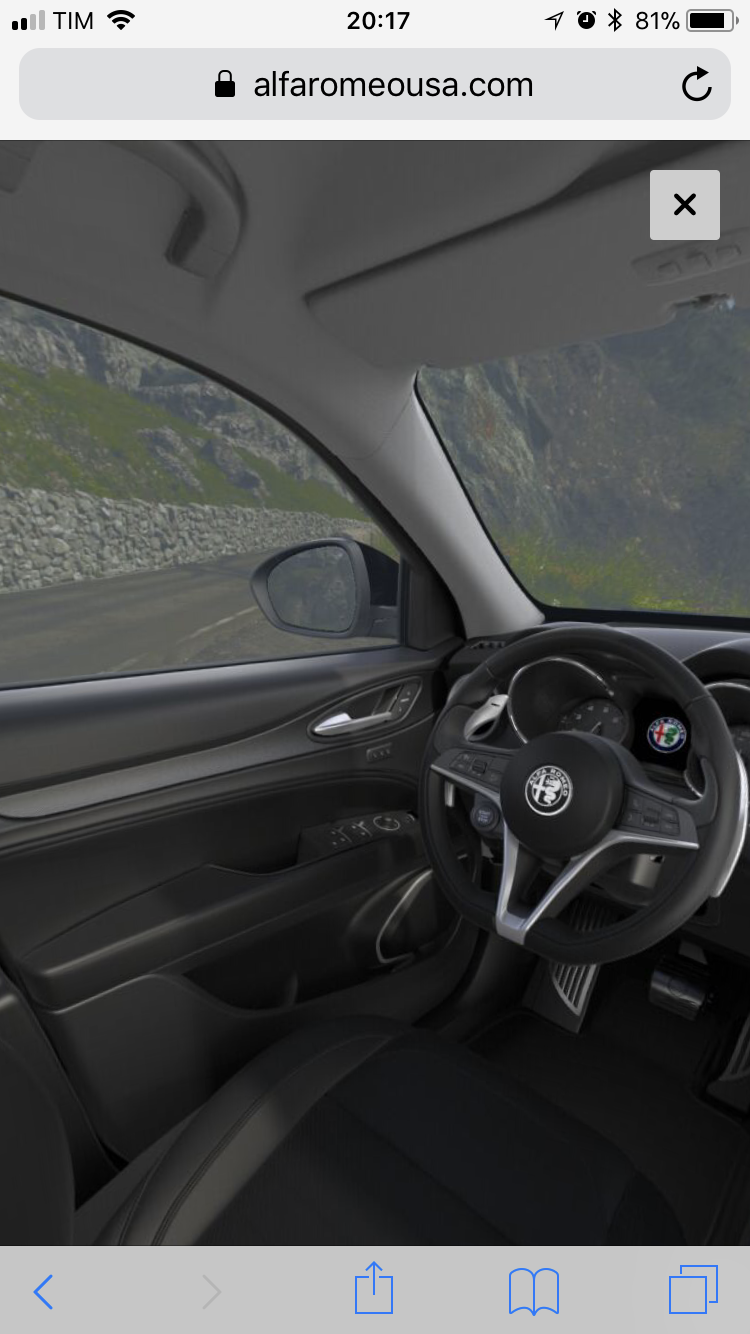
3 puntiPerché il configuratore presente sul sito ARusa è nettamente migliore è più figo del “nostro”, con tanto di visualizzazione a 360 degli interni??? ?????? Villa toscana(?) per Giulia e passo dello Stelvio per la Stelvio come sfondo... Lo dicevo io che il mkt in NA si sta muovendo bene! Oh saranno magari anche cazzate che agli appassionati di auto dovrebbero fotteresega, però è indubbio che ai giorni nostri il sito ed il car configurator sono dei biglietti da visita importanti tanto quanto i saloni espositivi, anzi forse ancor di più visto che molte volte il primo approccio informativo avviene proprio tramite internet. Adesso, ma perché usare due caspita di software differenti per far la stessa cosa? ?
 3 punti
 -
2 punti@lukka1982 Da quello che so ci sono una berlina 4 porte e due SUV in arrivo. I SUV sono DBX a marchio AM ed un altro, il cui nome è C...., a marchio Lagonda. Il primo molto aggressivo, oltraggioso, innovativo, il secondo più tradizionale. Che io sappia sono su pianale AM ma magari ricordo male. Il plant dove li faranno è St Athan in Galles, che per ora consiste semplicemente in due hangar vuoti...tanto è vero che alcune parti dei SUV le stanno gia approntando a Gaydon.2 punti
-
2 punti
-
Maronn ma ho letto giusto? Esistono Serie1 1500cc? Ma vero? Bannatemi2 punti
-
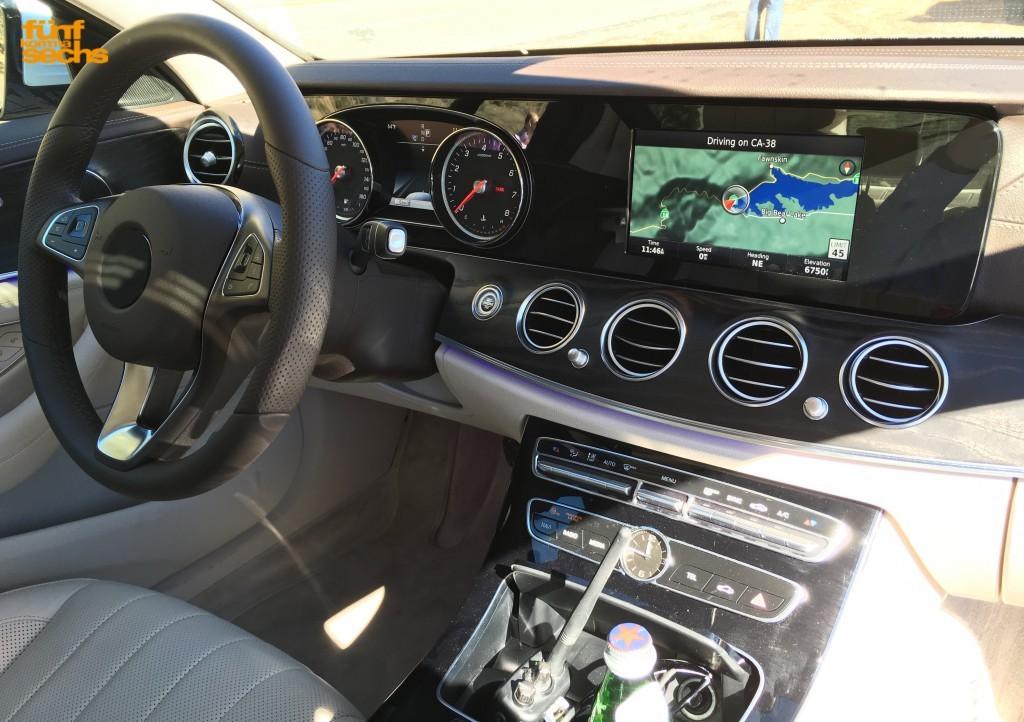
2 punti2 puntisecondo te un segmento c con uno sbalzo anteriore del genere denota accurata ricerca meccanica? la più vecchia a3 che hai appena citato fa decisamente di meglio pur essendo anche lei una Ta. Oppure parliamo delle ruote che sono drammaticamente perse in grossi passaruota. non capisco perché di colpo queste cose sono diventate prive di importanza, conta solo poter cercare il meteo e le mail sullo schermo. Cazzo, io odio le mail. Mi da fastidio pure leggerle sul tablet seduto sul divano, perché devo essere inseguito pure in auto con ste stronzate2 puntitroppo appariscenti per me, ma questo non è il punto. Stiamo parlando di un segmento c che in 9 casi su dieci sarà preso net o roba simile. Il rischio è che capiti qualcosa di simile a quanto capita con la e, ovvero: ti aspetti questo ma di base ti danno questo : quindi sei in pratica obbligato a prendere gli interni telefunken, pagandoli pure cari

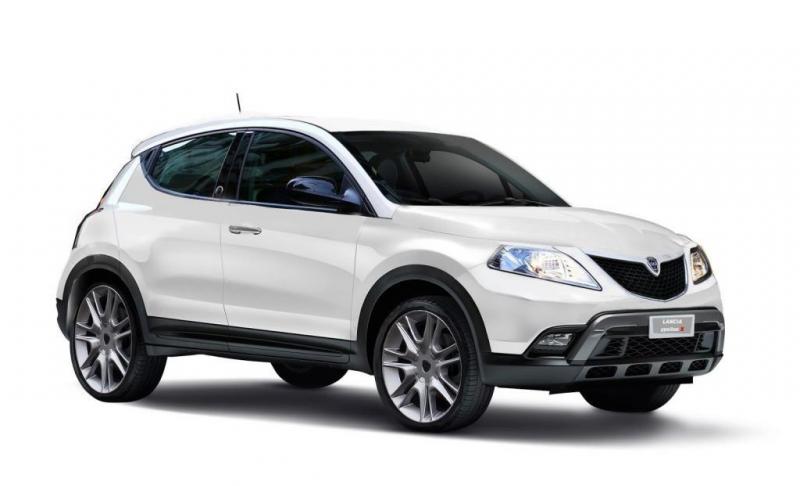
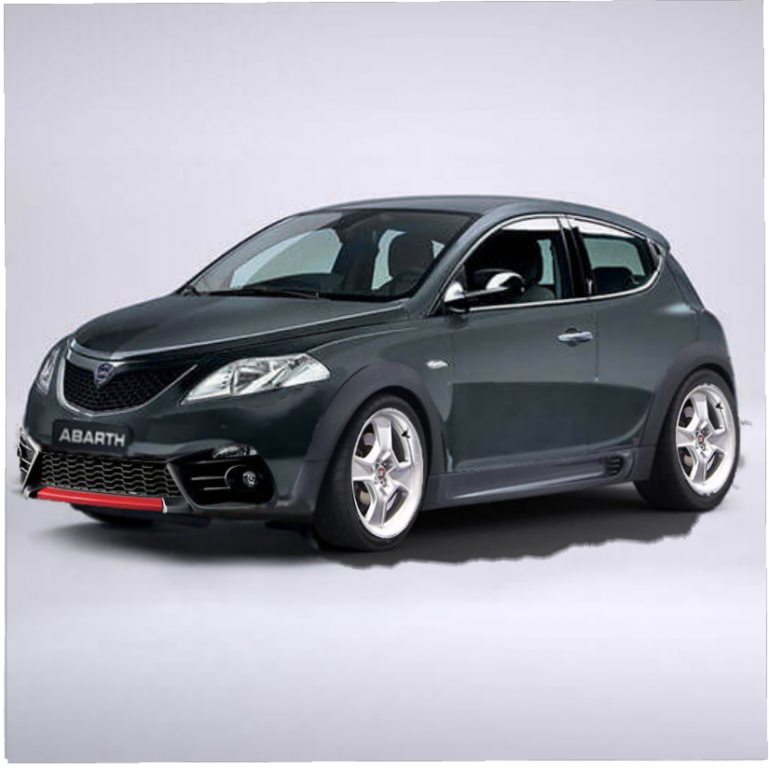
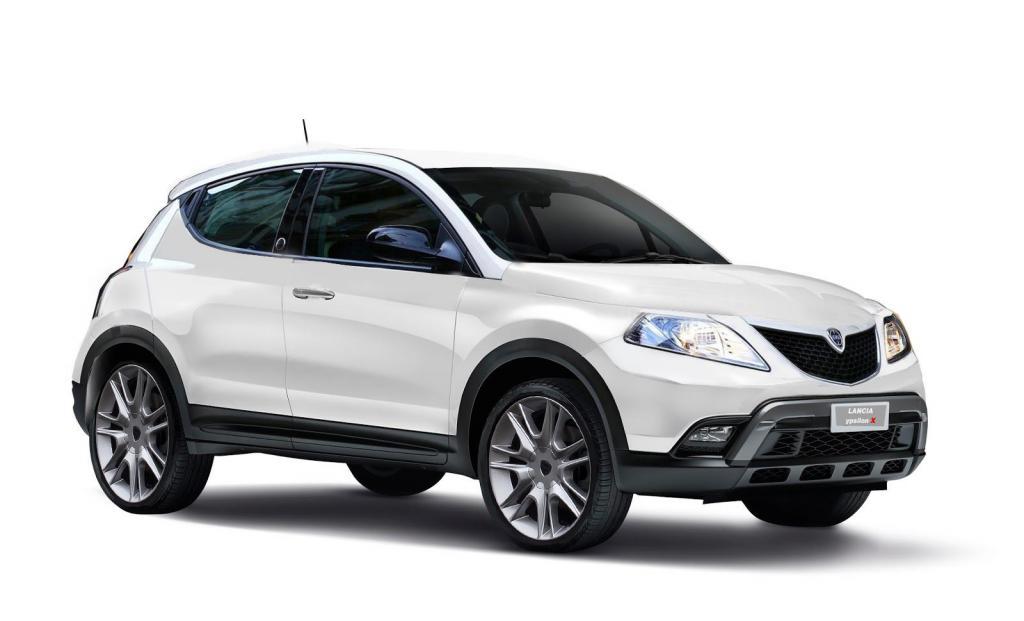
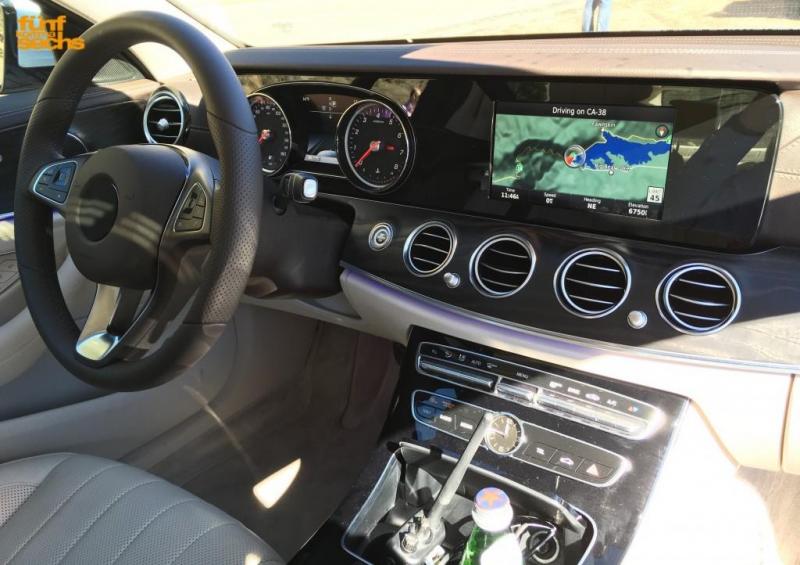 2 punti2 puntiIo andrei su di un assemblato. Alla fine è l'unico modo per avere un PC esattamente come vuoi tu, e di solito è anche la soluzione più economica.2 punti2 puntiE quindi meglio passare il tempo a palpare plastiche? A ogniuno il suo feticismo...ehm passatempo2 punti...di questo passo la prossima novità sarà disegnare le bocchette della climatizzazione nello schermo!2 puntiBenché si tratti di una recensione video, è l’esempio di come mi piacerebbe leggere le prove delle auto. Anche per una vettura semplice ed ordinaria, come la Tipo, Massai riesce sempre a spiegare in modo chiaro e comprensibile molto del background tecnico, costruttivo e dinamico di un’auto. Vista l’impostazione attuale delle prove cartacee mi piacerebbe, ad esempio, che venisse riservata tutti i mesi una prova a Massai in cui descrive un’auto come in questo video: sarebbe un piccolo zenith per un appassionato.2 punti1 puntoStavo cercando un'auto che mi permettesse una certa comodità e usabilità, anche se per un uso abbastanza saltuario essendo la quarta auto in casa. Ma soprattutto cercavo una macchina che mi appagasse. Dunque mi sono trovato a bordo di un mattone scandinavo verde bottiglia. Eccola, presa ad inizio Settembre con 216.000 km. 940 Polar 06/94 motorizzata B200F Alla faccia di chi sostiene che con l'auto "d'epoca" si risparmi, per il momento il costo in pezzi per il ripristino in piena efficienza di un'auto che già di per sé male non stava ha superato il migliaio d'euro, con la manodopera non conteggiata perché quasi completamente personale.1 punto1 puntoMinima spesa massima resa.. “io mi chiedo quanto bravi e avanti sono in Ferrari per avere un’azienda che con 8k auto l’anno è profittevole, spende in ricerca, butta fuori modelli a tutta forza, corre in F1....” mi chiedo, ma Lamborghini fa profitti? O un pozzo senza fondo come Bugatti...se si la prima, fare una vera Urus invece di quella Q7 rat rod nooo? Punto, è la filosofia VW che mal si applica a Lamborghini, idem per Bentley. Porsche è strutturale a VW quindi va bene.1 puntoCosi quando distruggono un auto non piangono ma pensano “ vabbè era veramente un rutto di auto”1 puntoIl nuovo 2.0 diesel Mercedes è sicuramente ottimo e all'avanguardia, mo però non è che stiamo parlando di un motore di un prototipo da corsa, eh? Ha alcune caratteristiche pregevoli ma se la gioca con i vari b47 BMW(montati anche su Mini e Ser2 furgonato), Jaguar-Land Rover Ingenium, e 2.2 Alfa. Per quanto riguarda gli interni di questa Classe A, direi scenografici tendenti al barocco/sfarzoso(perlomeno in queste versioni strafull), sicuramente si faranno apprezzare dalla clientela tipo(non la Fiat), a me che piace la pulizia stilistica non fanno impazzire, tralasciando il solito tragico megaschermo buttato lì.1 punto1 puntoAcceleratore più basso non è un difetto....è una chicca da sportiva Agevola, e di molto, il punta tacco. Se a riposo fossero sullo stesso piano, quando freni non riesci a usare l'acceleratore, viene una posizione innaturale del piede.1 punto1 puntoTelaio a longheroni e sola trazione posteriore?? Hanno leccato rospi a colazione??1 punto1 puntomah.. una macchina piacevole da guidare la senti proprio con strade non particolarmente ben messe1 puntoDicci allora quale è così tanto meglio considerando: 1- il segmento 2- il prezzo Che se mi si tira fuori robe tipo la M2 o la Mx-5, ero bravo pure io.1 punto1 puntoLa risposta sta già nella domanda. Mx-5. Le capote in tela con la giusta manutenzione reggono benissimo. Alternativa, 124 spider. Se proprio la tela è un problema insormontabile, aspetterei la nuova Swift Sport. Non ossessionarti su da che parte è la trazione. Perché per la sportività e il divertimento sono ancora più basilari la compattezza e il peso. Meglio una TA leggera e ben motorizzata, che una TP più pesante senza motore.1 punto1 puntoSì ma qui stiamo parlando di un mulo di Ypsilon che magari come già detto ha forse dei tessuti nuovi interni... Grasso che cola se per caso un nuovo u-connect e incredibile dictu se avesse sotto il firefly (ne dubito...) Per fanta modelli fanta Lancia ecc. ci sono gli appositi thread. Sappiamo tutti benissimo che un eventuale rinascita di Lancia passerebbe attraverso la completa suvvizzazione della gamma. Io resto dell'idea che non era completamente sbagliato l'accostamento Lancia /Chrysler. Da che mondo è mondo i marchi nazionali in casa vendono meglio, un modello che ha due home country è di molto avantaggiato. 500x vende meglio di renegade in Italia, il contrario in USA. Prendi la 500x, ne cambi il 50% e la rendi Lancia(Europa)/Chrysler(Usa, Nord America, Cina). IMHO forse non un successo globale (nel mondo FCA, ovvio) tipo Renny e Cherokee però si ritaglierebbe un suo bello spazio, magari riuscendo a rientrare dalle spese... Per dire, shakerando 500x e Ypsilon.... e si può fare di molto meglio di quello che vi sto propinando io...
 1 punto1 puntoEh, ho capito, però tra la supercar rasoterra e la camionetta col ribaltabile c'erano delle opzioni comunque pratiche ma meno sputtanate... penso a quello che è stato fatto con FF o Rapide, che infatti hanno fatto storcere il naso solo ai più integralisti ma in generale sono state abbastanza bene accolte. In particolare ho apprezzato che in Ferrari non abbiano cercato proporzioni completamente fuori dal loro ordinario, mentre al tempo stesso sotto pelle hanno ricercato uno stile per loro innovativo ma interpretato in maniera coerente con la tradizione. Non ho problemi ad accettare il compromesso di far la macchina più lunga/larga per farci stare più spazio, ma per me un marchio sportivo che si "evolve" verso l'alto è un deal breaker assoluto. Già nelle macchine normali non esiste un singolo vantaggio operativo della forma simil-fuoristrada, poi su auto sportive diventa veramente un raccontarsi palle a viso aperto... Se Ferrari tirasse fuori una GTC4 a 4 porte mi disturberebbe meno.1 puntoCerto, a forza di alzare la linea di cintura non ci sono praticamente più i finestrini nelle auto di oggi XD ☏ Redmi 4 ☏1 puntoBeh al momento possiamo parlare solo di percepito e su di un allestimento full optional, che si vedrà nelle imho poche auto vendute a prezzi astronomici per una seg. C. Facile fare le cose fighe quando arrivi a chiedere 50000 € eh... Ovvio che poi le riviste proveranno queste, la gente dirà eh guarda che figata, come sono tecnologici e ultramoderni... poi però si prenderà l’ex rent con il 1.6 in comune con Renault e gli interni tristezza ?1 punto1 puntoGia questa generazione ha rubato tantissimi clienti ad audi, vw e bmw, sopratutto tra I giovani tra i 20 e i 30 anni1 puntoMa il quadro strumenti ...messo cosi in verticale come si trattasse di un furgone o altro non mi convince..., sembra quasi rimovibile.........1 punto1 puntoSenza la Punto che l'ha parzialmente risollevata, Fiat non sarebbe neanche arrivata a prendere Chrysler.1 puntoIo la vedo quasi come una barzelletta, lui si deve essere fatto un’idea molto personale che ricorda un po’ la fantascienza, ma è una visione di chi non ha nessun rispetto per la realtà è per le opinioni o desideri altrui. Campo di applicazione estremamente limitato, un conto è la guida autonoma in certe condizioni ambientali come autostrade americane ma anche europee nel momento che tutto è già autonomo ...quindi un bel forse. Poi si rifiuta di vedere le persone non come individui indipendenti e dotati di gusti o desideri, ma semplici numeri che devono ordinatamente sedersi nei moduli per andare a compiere un servizio utile alla grande macchina. Visione massimalista degna di un racconto di Orwell, ma poi n condizioni ambientali diverse, fuori dalle autostrade “elettroniche”, ma dove vai. L’edonismo dové? nella società massimalista che immagina se possiedi una vintage ti mandano in Alaska in punizione?1 punto1 puntoNo, in quel caso con la modalita' Anima parte direttamente la raccomandazione di questa all'Altissimo....1 punto1 puntoMa oltre alla levetta Anima c'è il tasto Culo da premere in caso di perdita completa di controllo del mezzo?1 puntoAmmeso che la facciamo, la prossima 300 deve piacere agli americani. Quello è il suo mercato. Secondo me..1 punto1 punto10cm piu larga, il resto quasi invariata, i clienti G non amano cambiamenti!1 puntoFastidiosi? Ma no, dai! E' praticamente come avere in TV 5 canali su 10 in cui ci sono Ferrara e Santoro che litigano in 5 modi diversi sullo stesso argomento. Ormai, se uno sbagliasse a scrivere e aprisse un topic dal titolo "Alfamila ci sono le arance sotto-costo", nel giro di 2 giorni si finirebbe a parlare delle solite cose pure in quello.1 puntoLa Leaderboard è riferita all'orario Roma/GMT+02:00


























.thumb.jpg.d20c5008a881490f9c7f843d442a34f8.jpg)