




Classifica Utenti
Utenti più Apprezzati
(Scegli il periodo) Utenti più Apprezzati
(Storia giorno per giorno) Classifica dall'Origine
(da Marzo 2003)
(Scegli il periodo) Utenti più Apprezzati
(Storia giorno per giorno) Classifica dall'Origine
(da Marzo 2003)
-
AndreaB
Utente Registrato17Punti17044Numero contenuti pubblicati -
Mazinga76
Utente Registrato16Punti11500Numero contenuti pubblicati -
Pandino
Reporter (Staff)14Punti21430Numero contenuti pubblicati -
Roy De Rome
Utente Registrato11Punti7289Numero contenuti pubblicati




Contenuti più Popolari
Stai visualizzando i contenuti con il più alto punteggio, pubblicati in data 08/08/23 e localizzati in Risposte
-
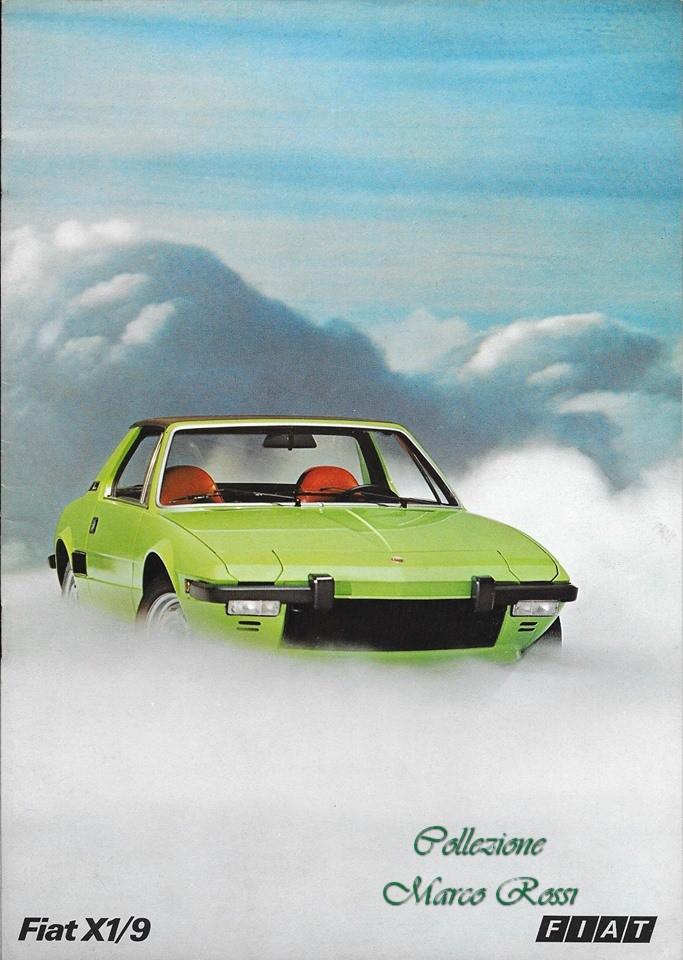
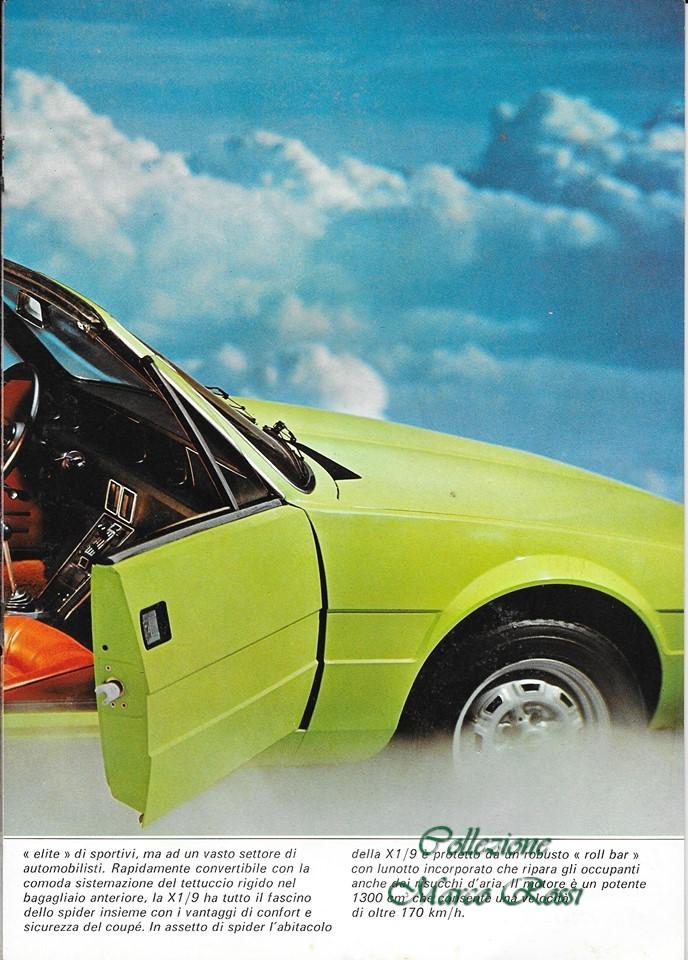
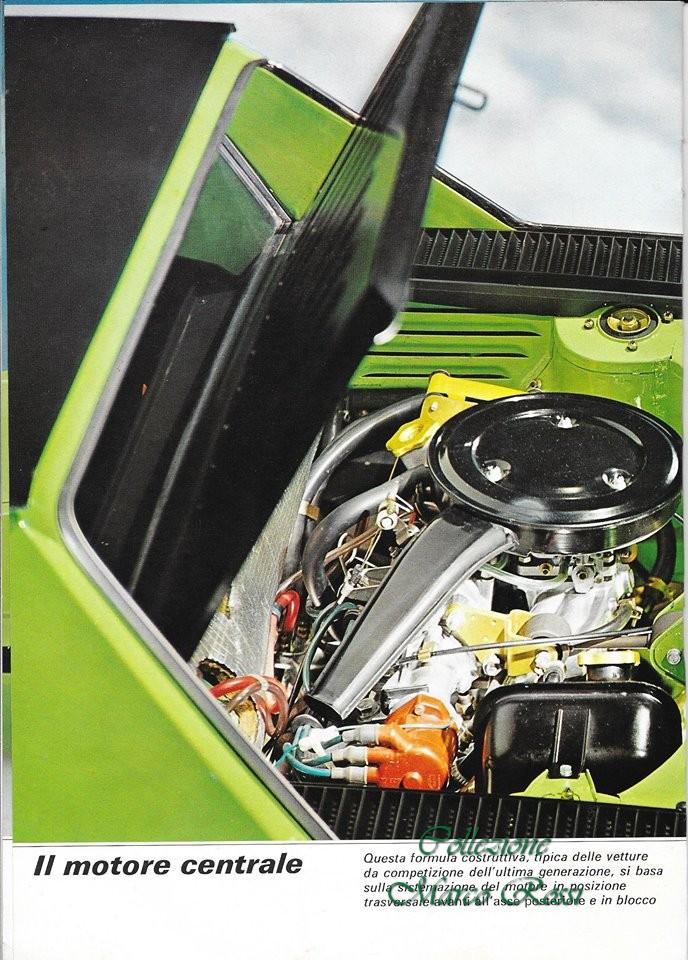
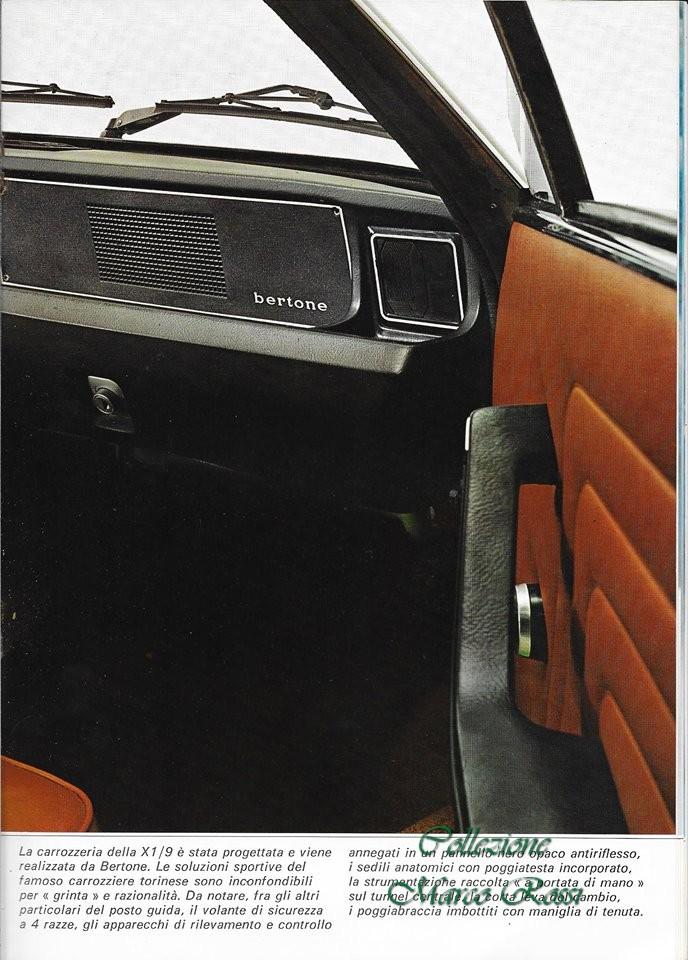
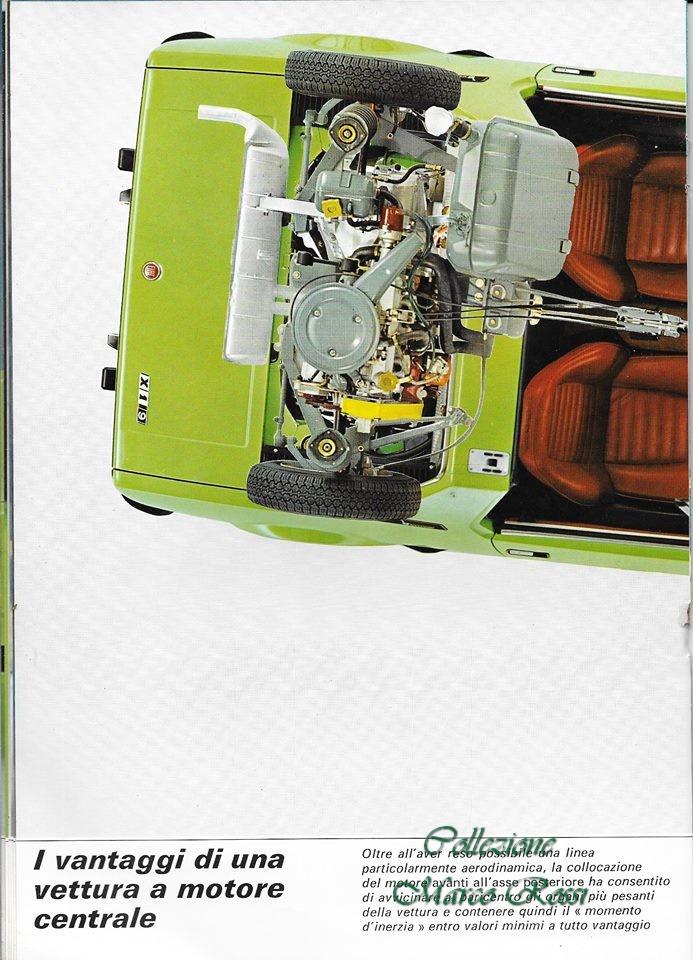
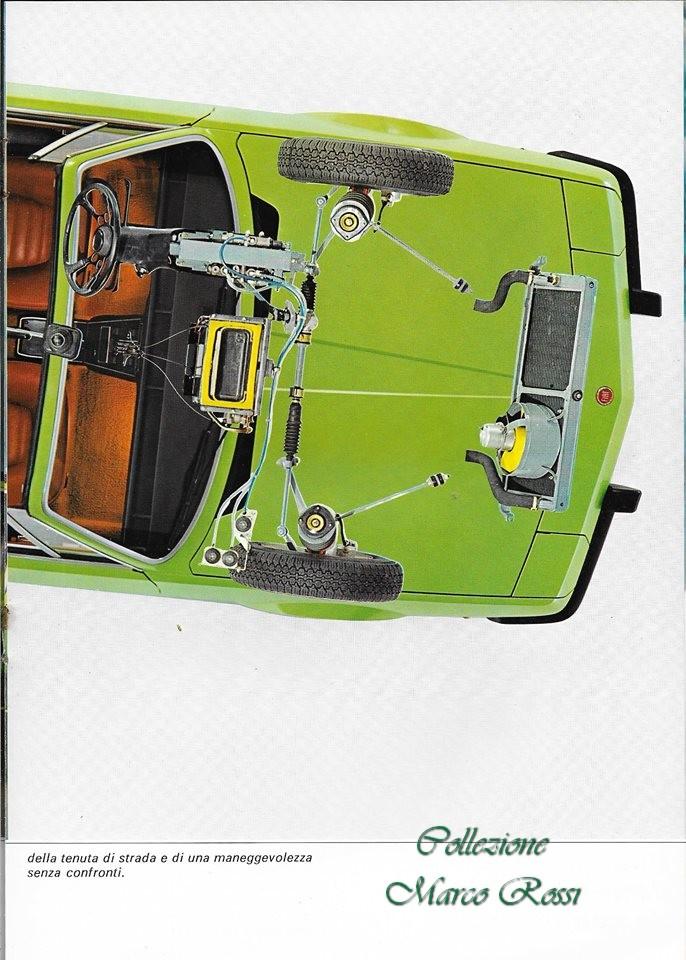
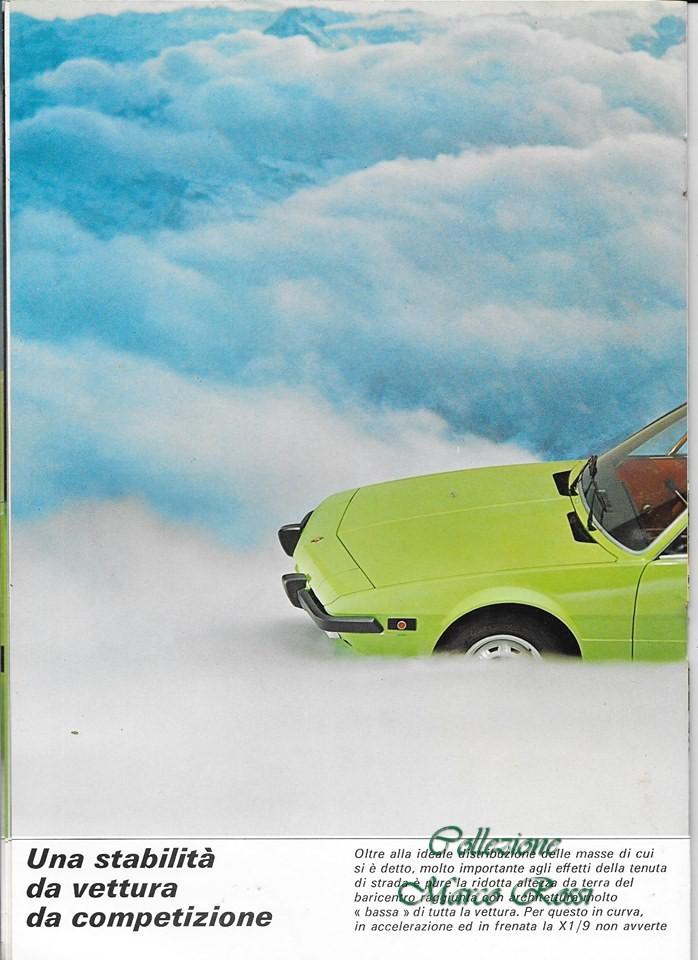
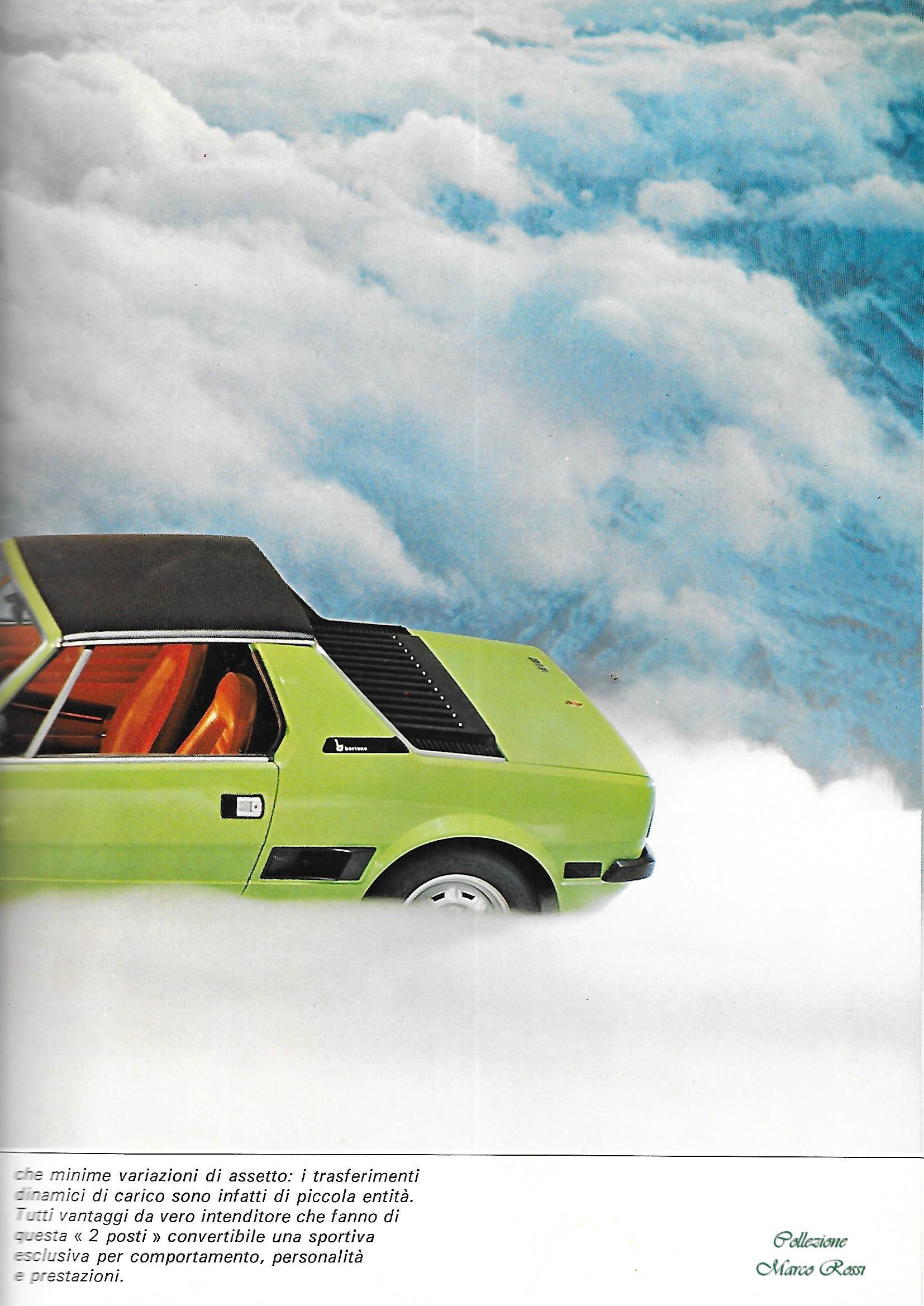
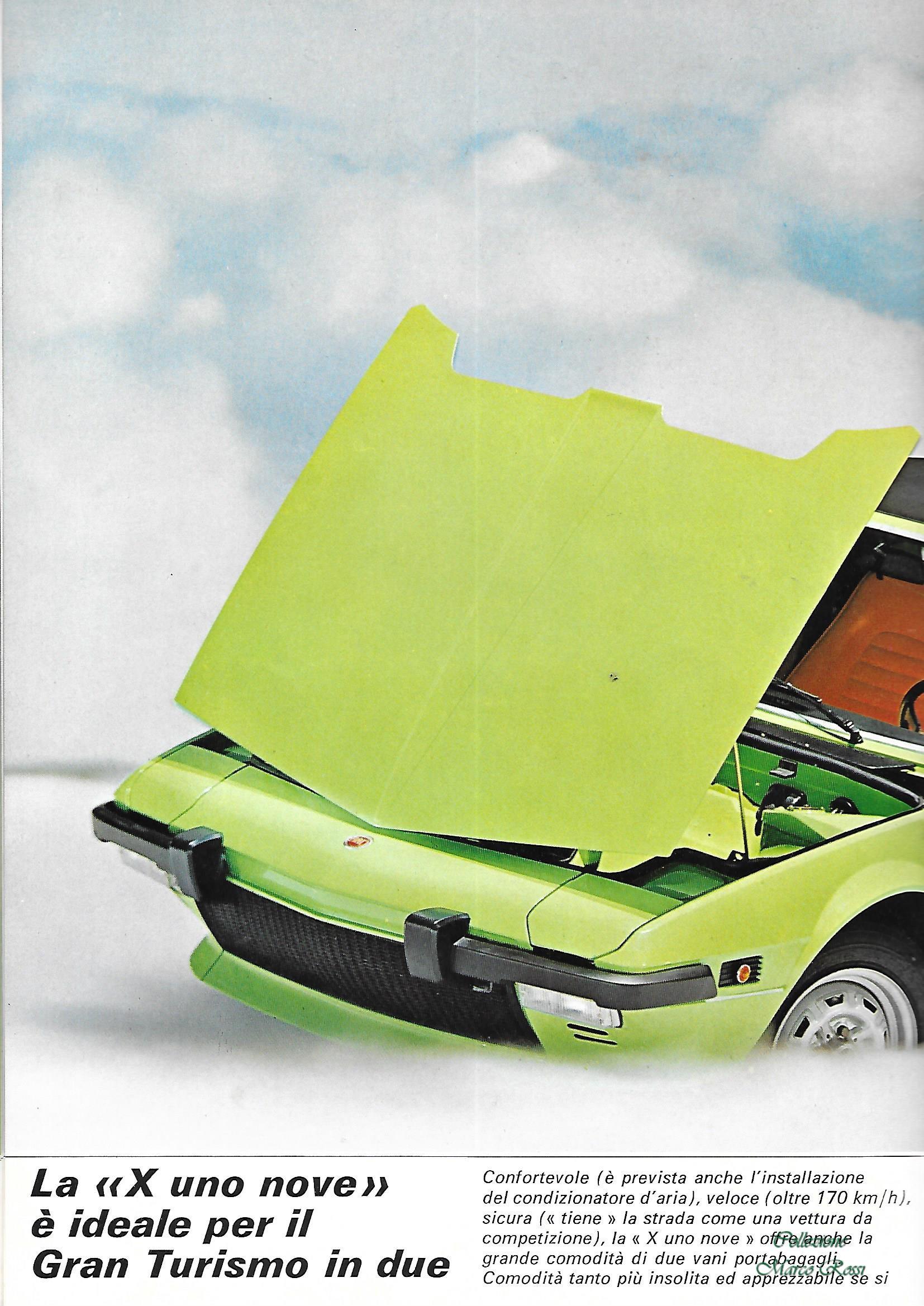
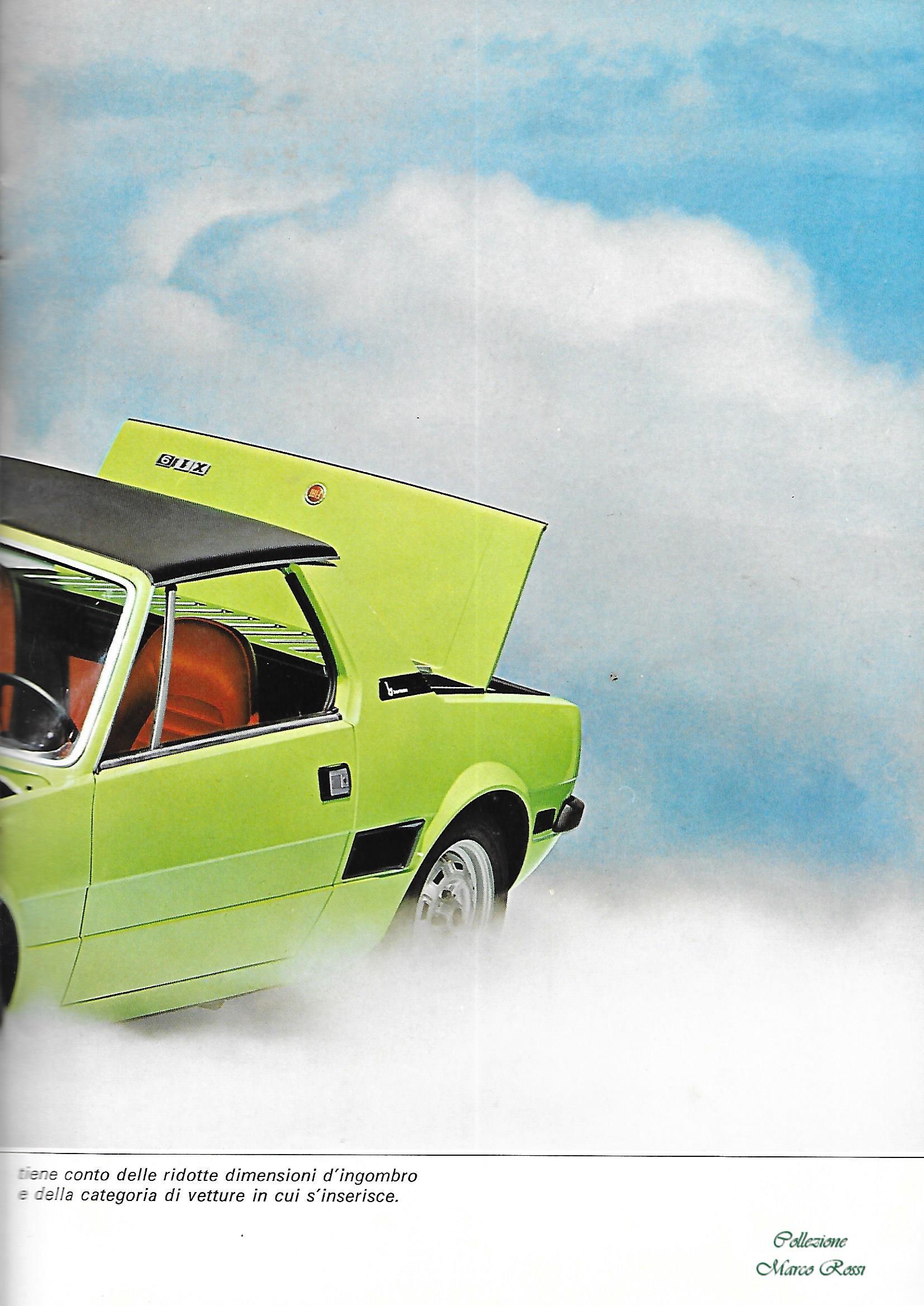
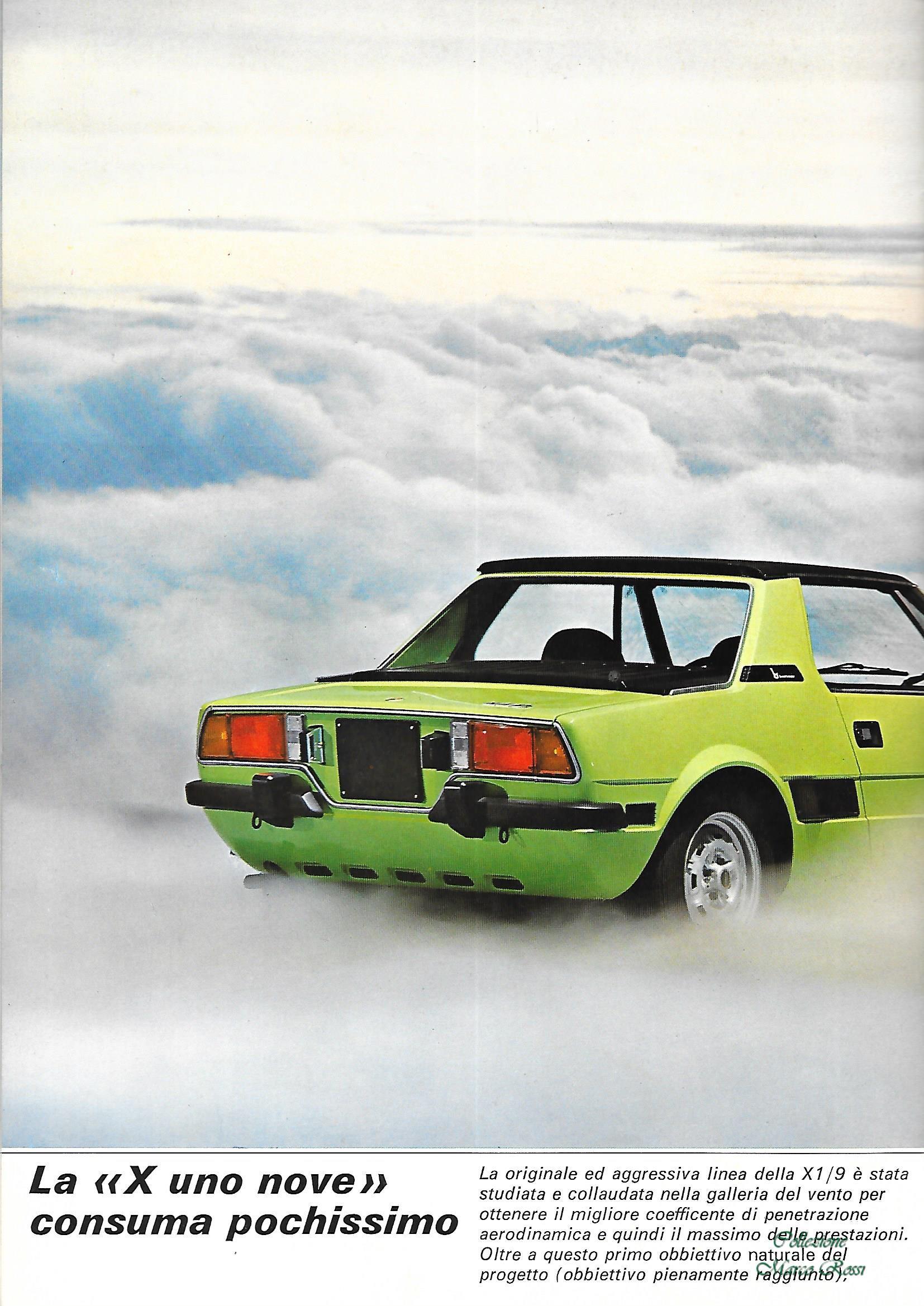
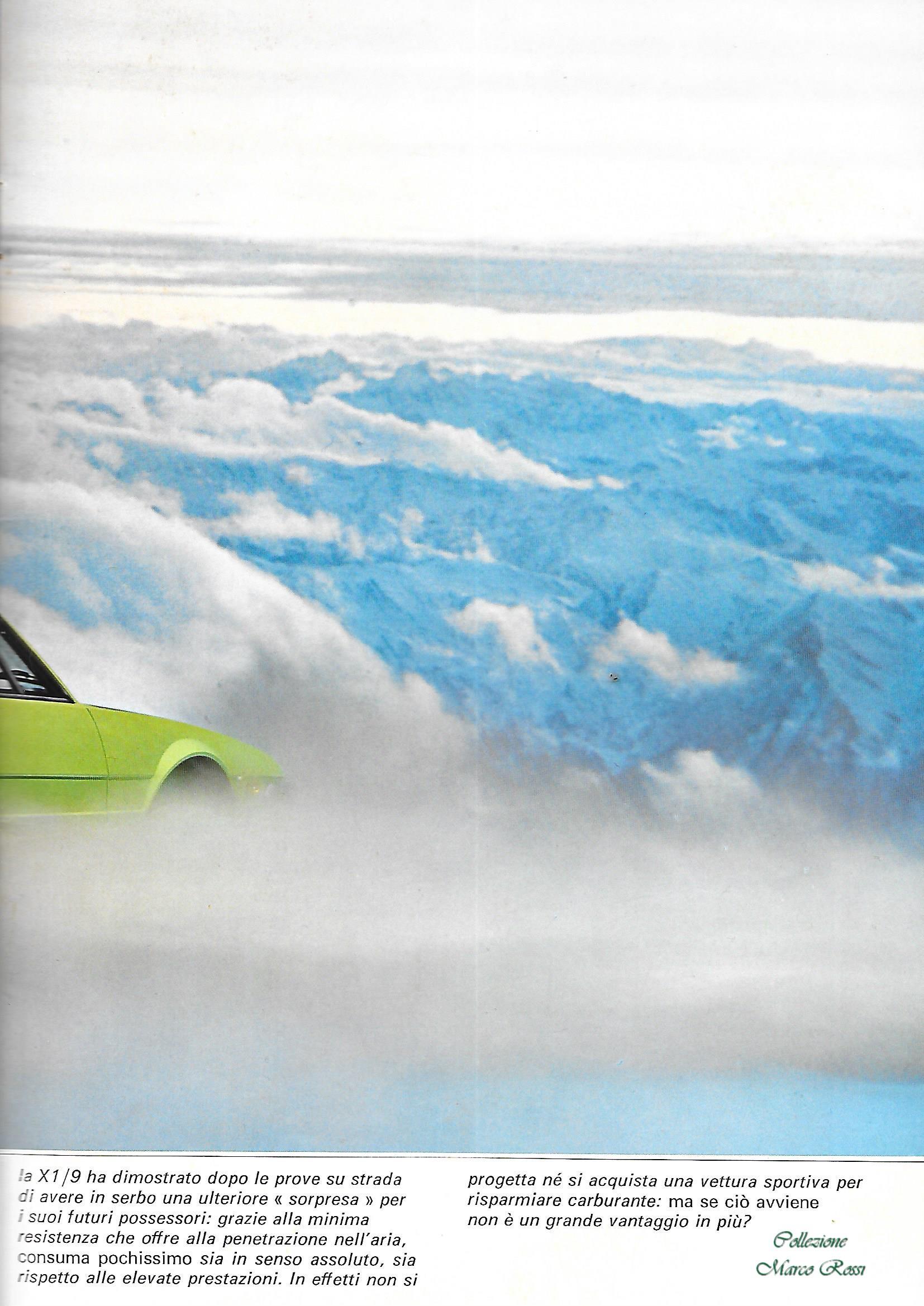
Fiat! Tanto biasimata e trascurata oggi, quanto all'avanguardia con tempi e soluzioni prima. Una gamma completa che comprendeva anche spider a motore centrale come la FIAT X1/9

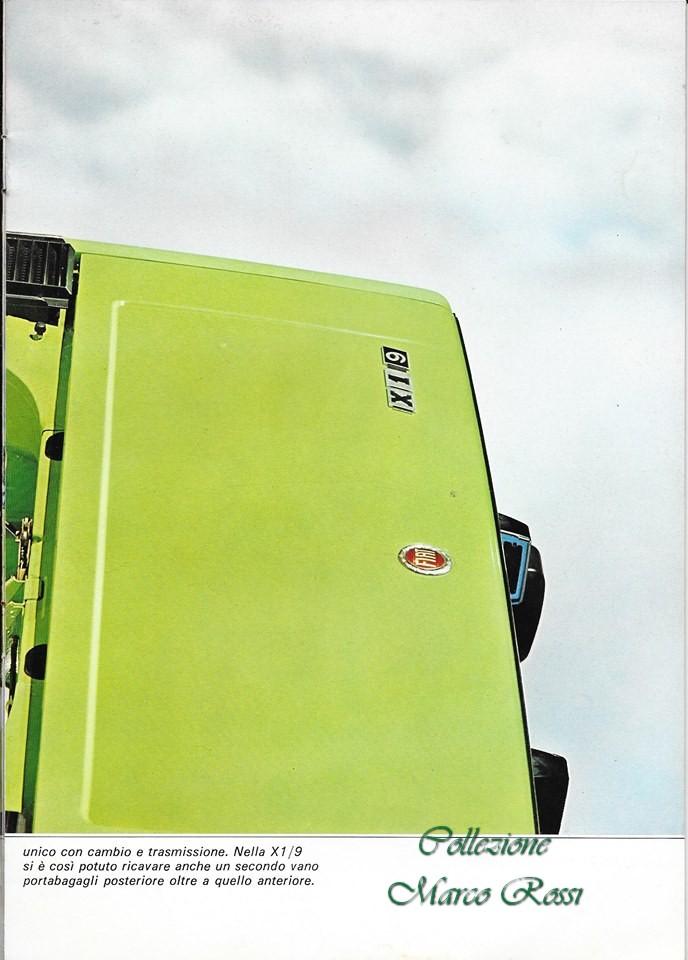


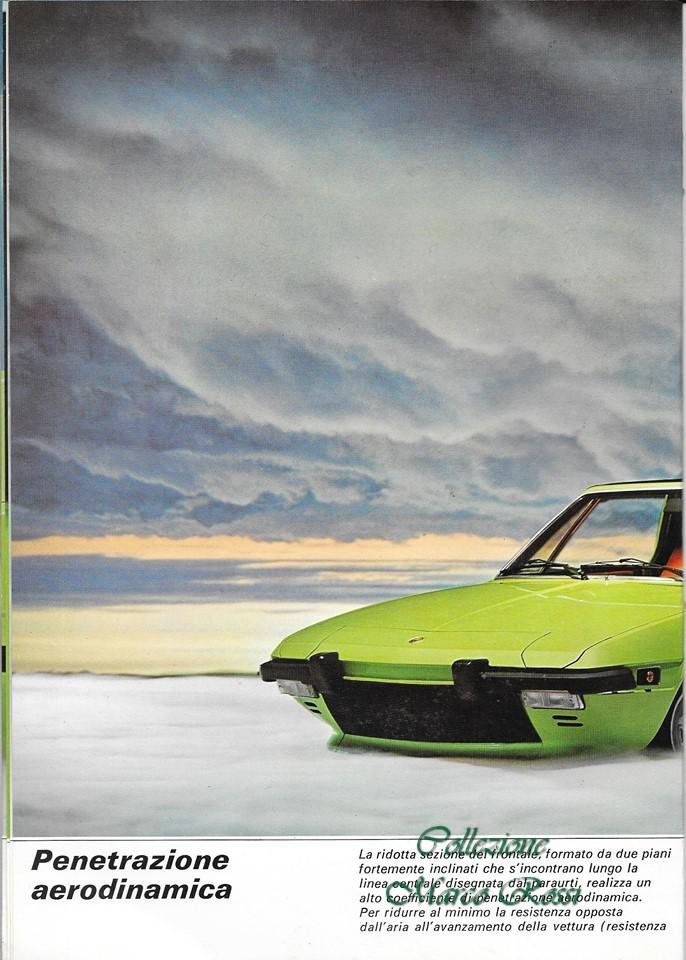
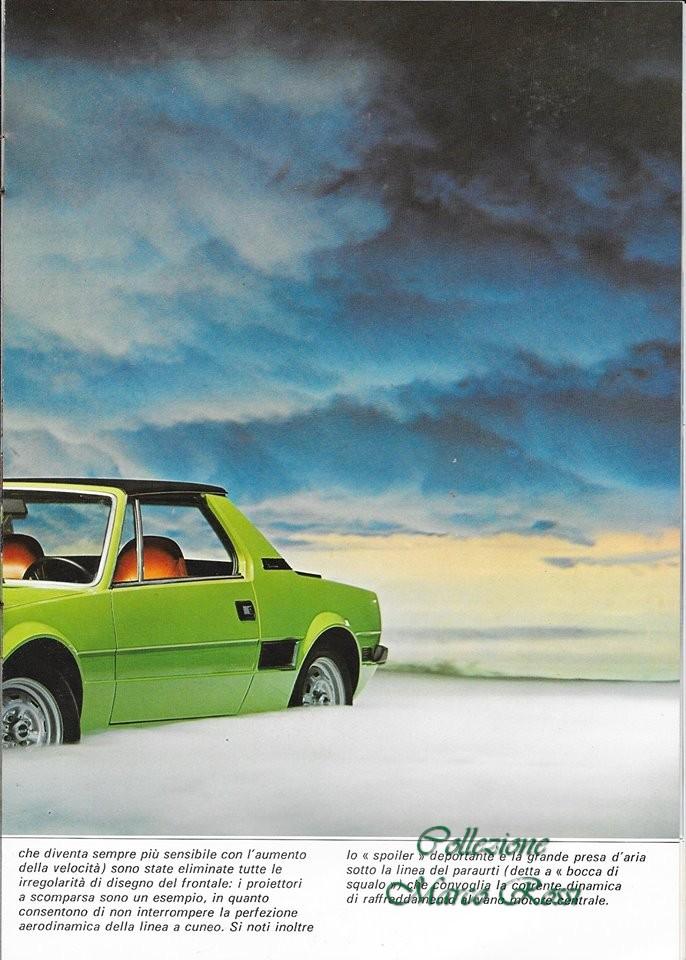


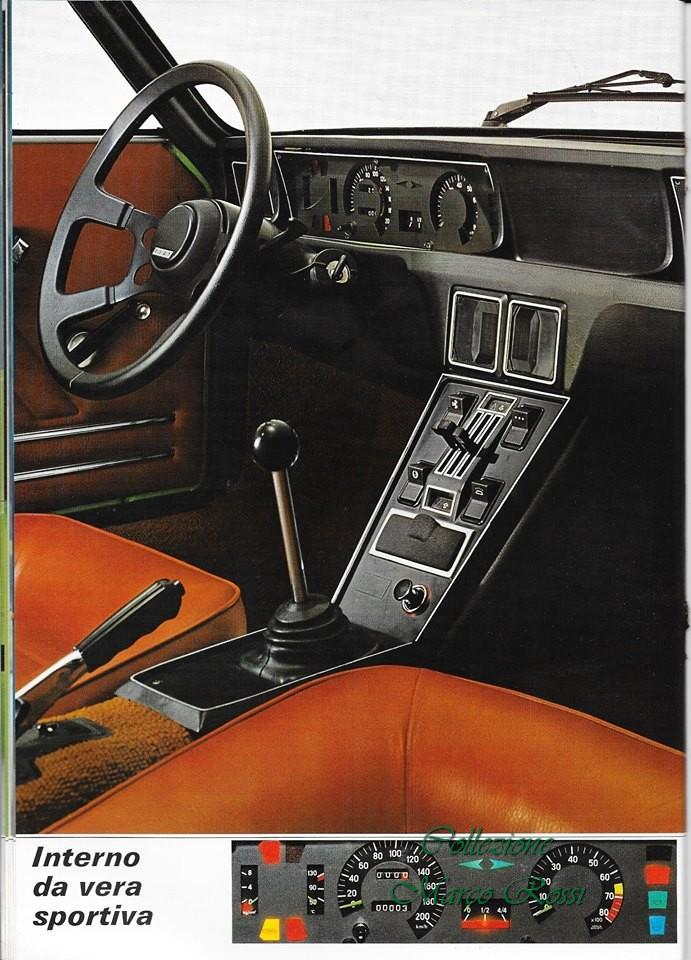
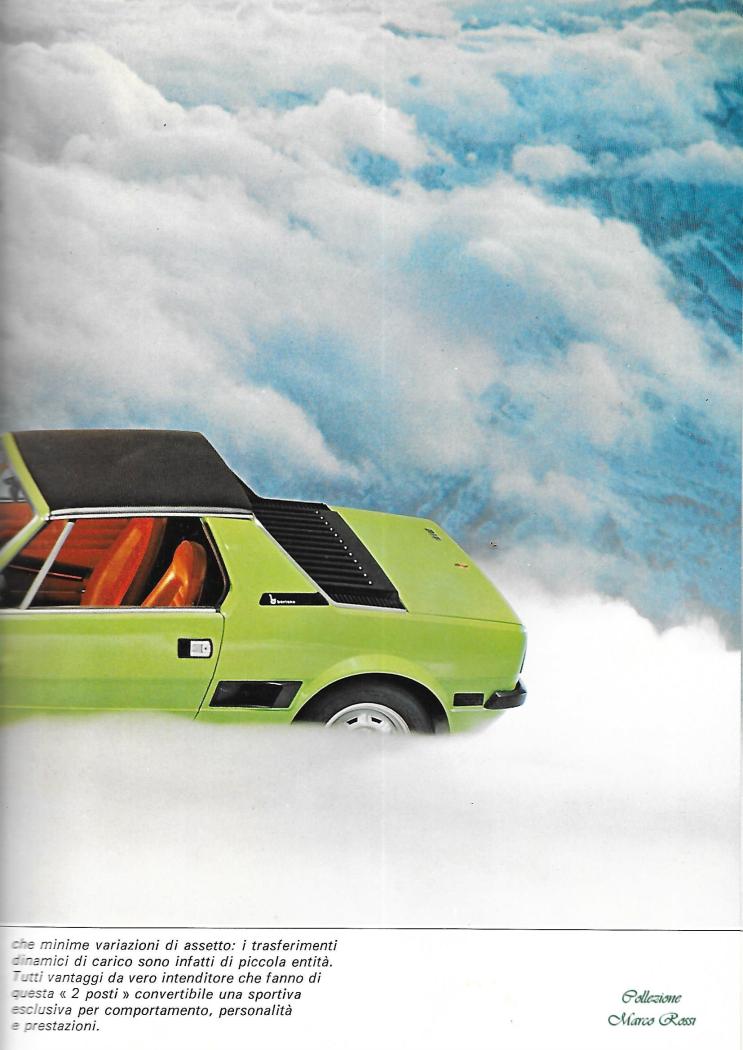
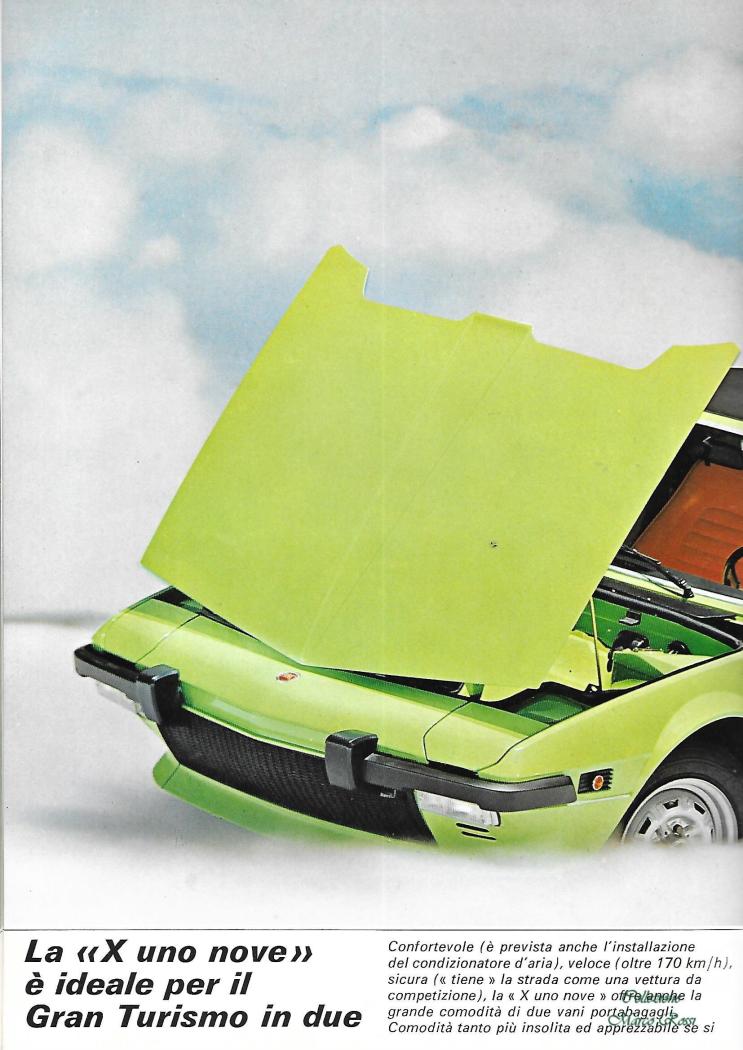
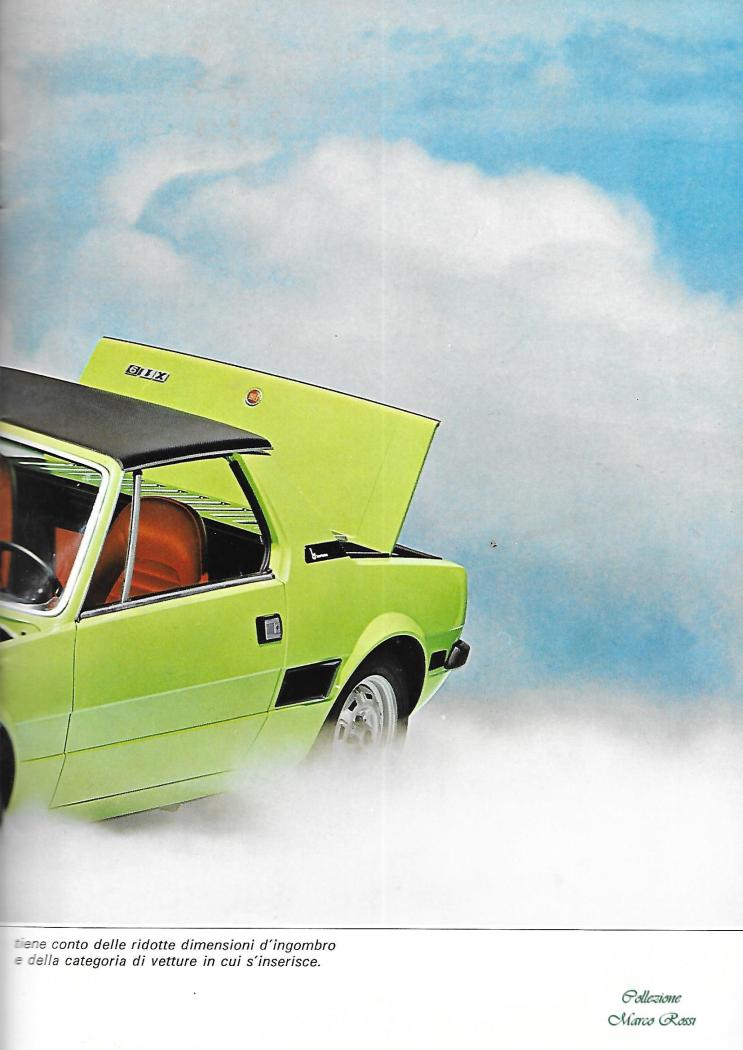
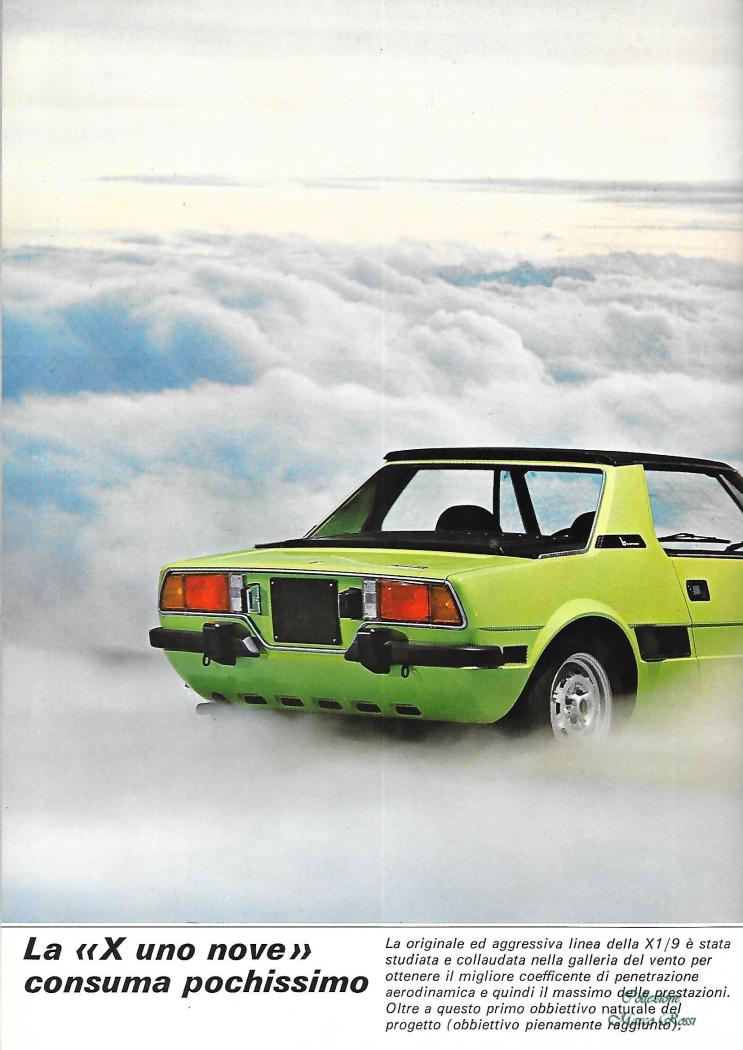
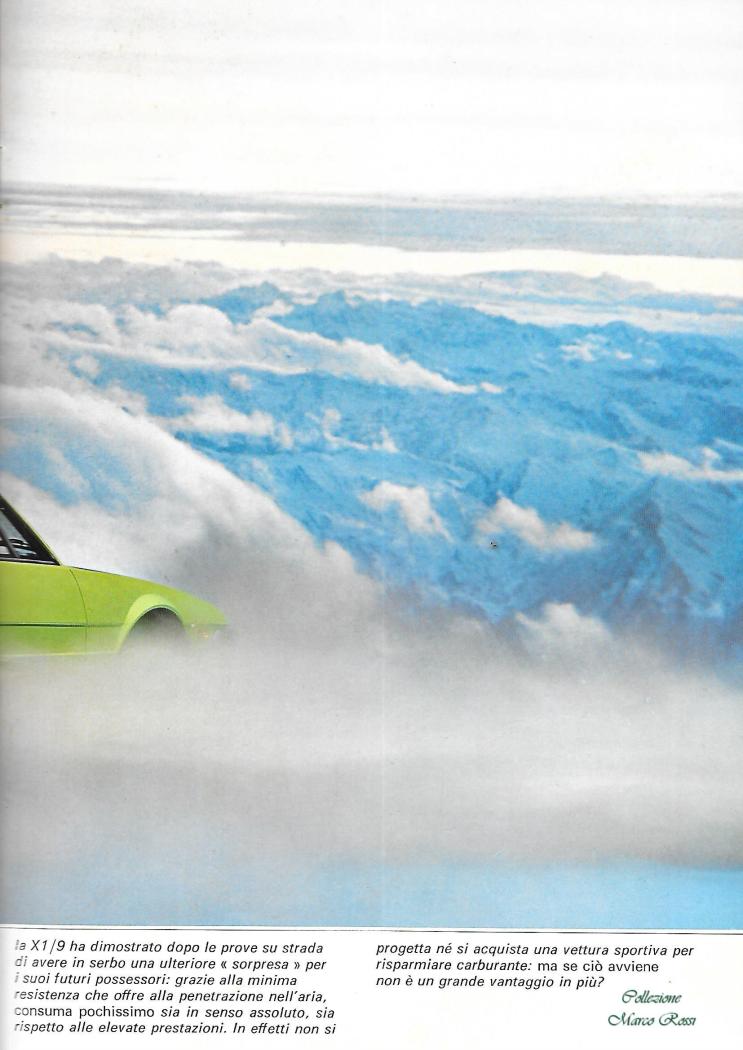
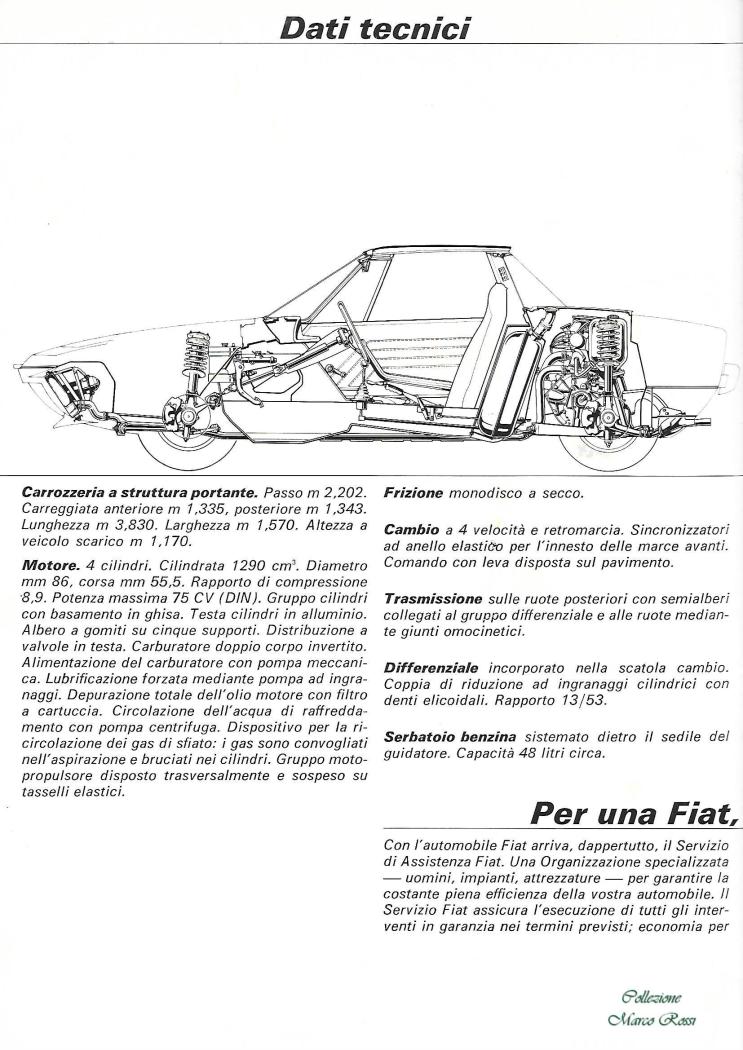
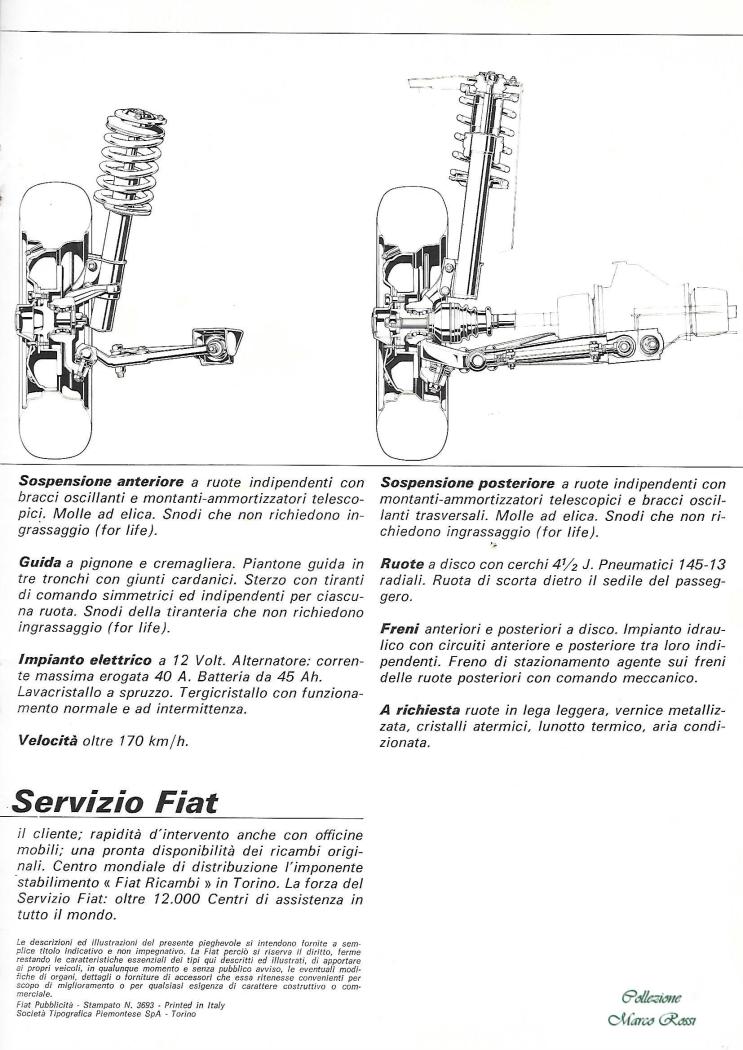
 4 punti
 -
4 puntiBuongiorno andreadb, riporto le impressioni personali sui tre modelli: i20N: una berlinetta che emoziona, dalla linea ben caratterizzata con minigonne, spoiler anteriore ed alettone posteriore in "odore" WRC. Il differenziale meccanico aiuta a trasmettere a terra la potenza e le traiettorie si gestiscono con l'ottimo sterzo e, soprattutto, con l'acceleratore, ma bisogna saperci fare! Ottimo impianto frenante. Motore: il 1.6 turbo a fasatura variabile risponde sempre con vivacità e riprese rapide a tutti i regimi ed il rombo dello scarico di serie aperto è, a dir poco, coinvolgente. Cambio morbido che nella guida impegnata va accompagnato. i30N: un'auto versatile, anche elegante, fruibile in ogni situazione di guida. Avantreno granitico con ottimi differenziale e sospensioni a controllo elettronico che "accompagnano" la vettura nell'inserimento in curva. Le Pirelli PZero, una volta in temperatura, garantiscono ottima trazione, freni potenti, sterzo adeguato. Motore: un 2.0 turbo poderoso con una ottima erogazione di potenza distribuita su una curva di coppia omogenea abbinato ad un buon cambio "manuale"con 6 rapporti ben definiti. Anche in questo caso, il doppio scarico di serie le conferisce un tono davvero.racing. GR: che dire, fuori classifica! Un'auto concreta e capace in ogni condizione di marcia. Rispetto alle altre due vetture telaio, motore, cambio, sospensioni, differenziali, freni, eccezionali, concepiti in maniera diversa. Assecondano l'incredibile tre cilindri turbo a scaricare la sua potenza con angoli di assetto e trazione ideali ad assicurare una guida esaltante su ogni percorso con il suo peso piuma, un altro "must" non indifferente! E con le giuste personalizzazioni tre automobili "vecchia scuola" da ben conservare nel proprio garage! Un caro saluto4 punti
-
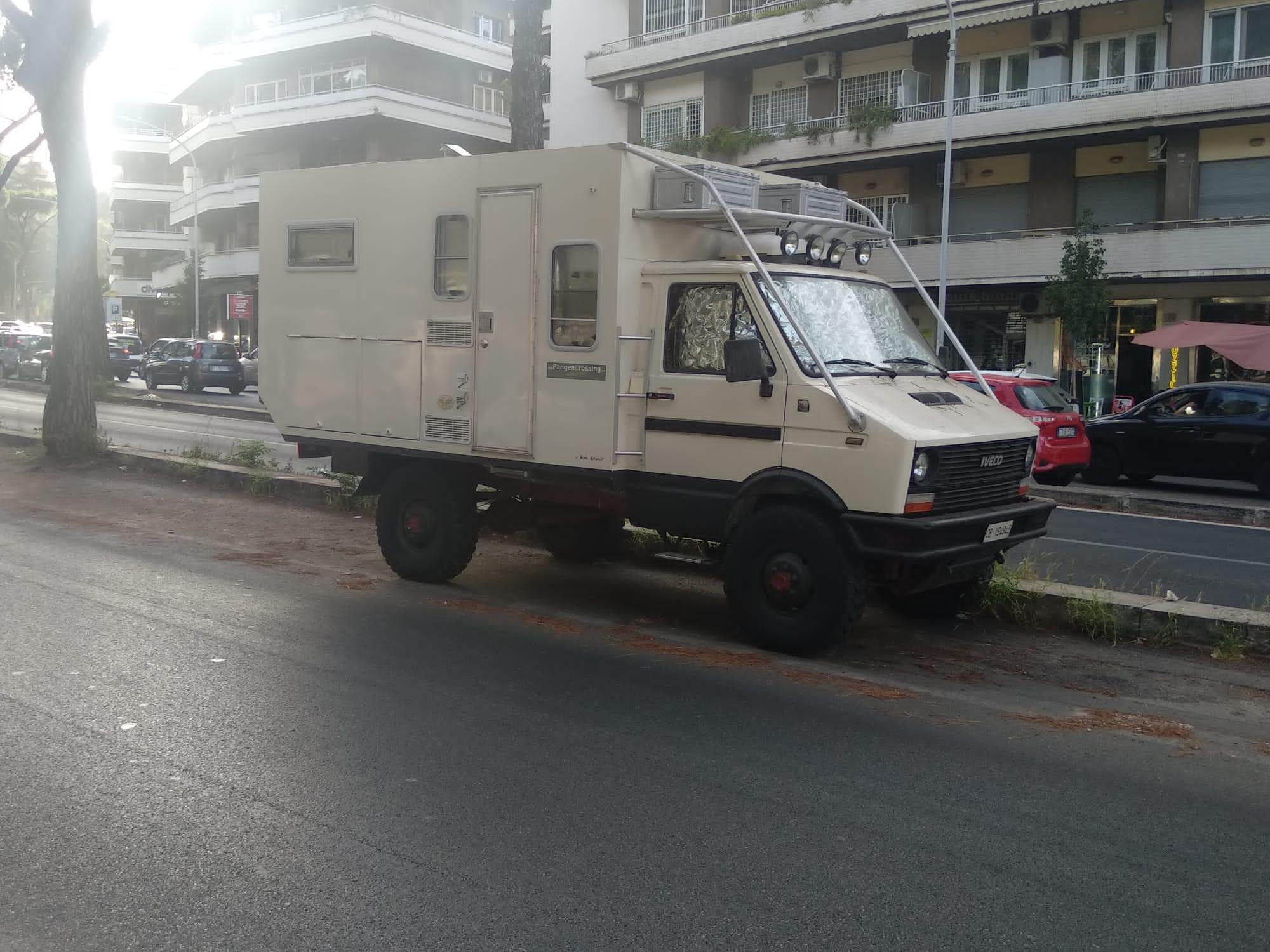
Questo è nientepopodimeno che un Daily 4x4 I serie... Già più che raro 40 anni fa, non so quanti possano esserne rimasti circolanti oggi. Comunque non ha le gemellate al posteriore perchè il 4x4 non le prevedeva. Ad ogni modo, anche il Daily normale, nelle versioni meno potenti e con portata più bassa, non aveva le gemellate. Quando ero militare in A.M. lo guidai diverse volte: La mia caserma ne aveva in dotazione due, erano dei 30-8 in versione pulmino 9 posti a passo corto.3 punti
-
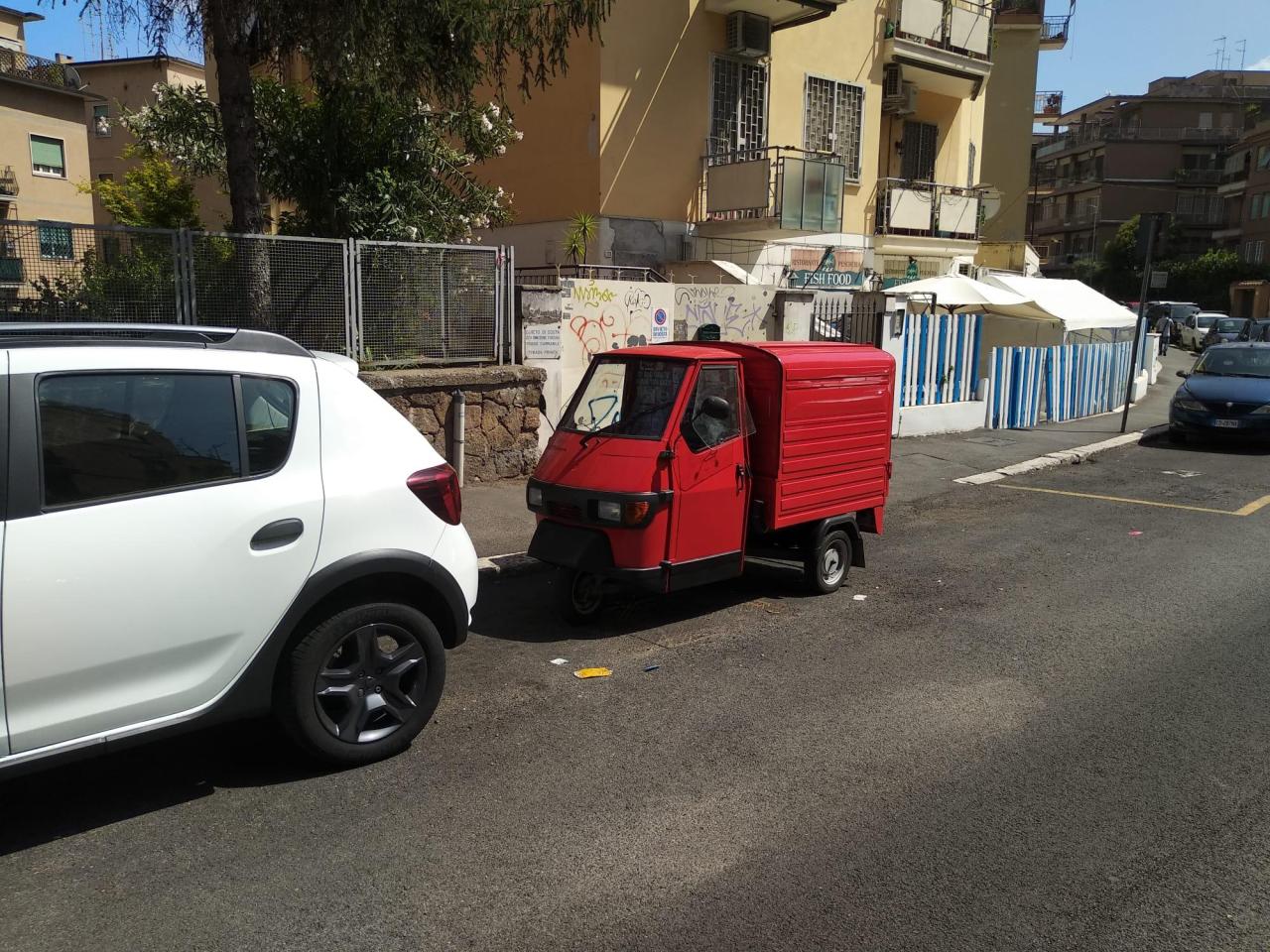
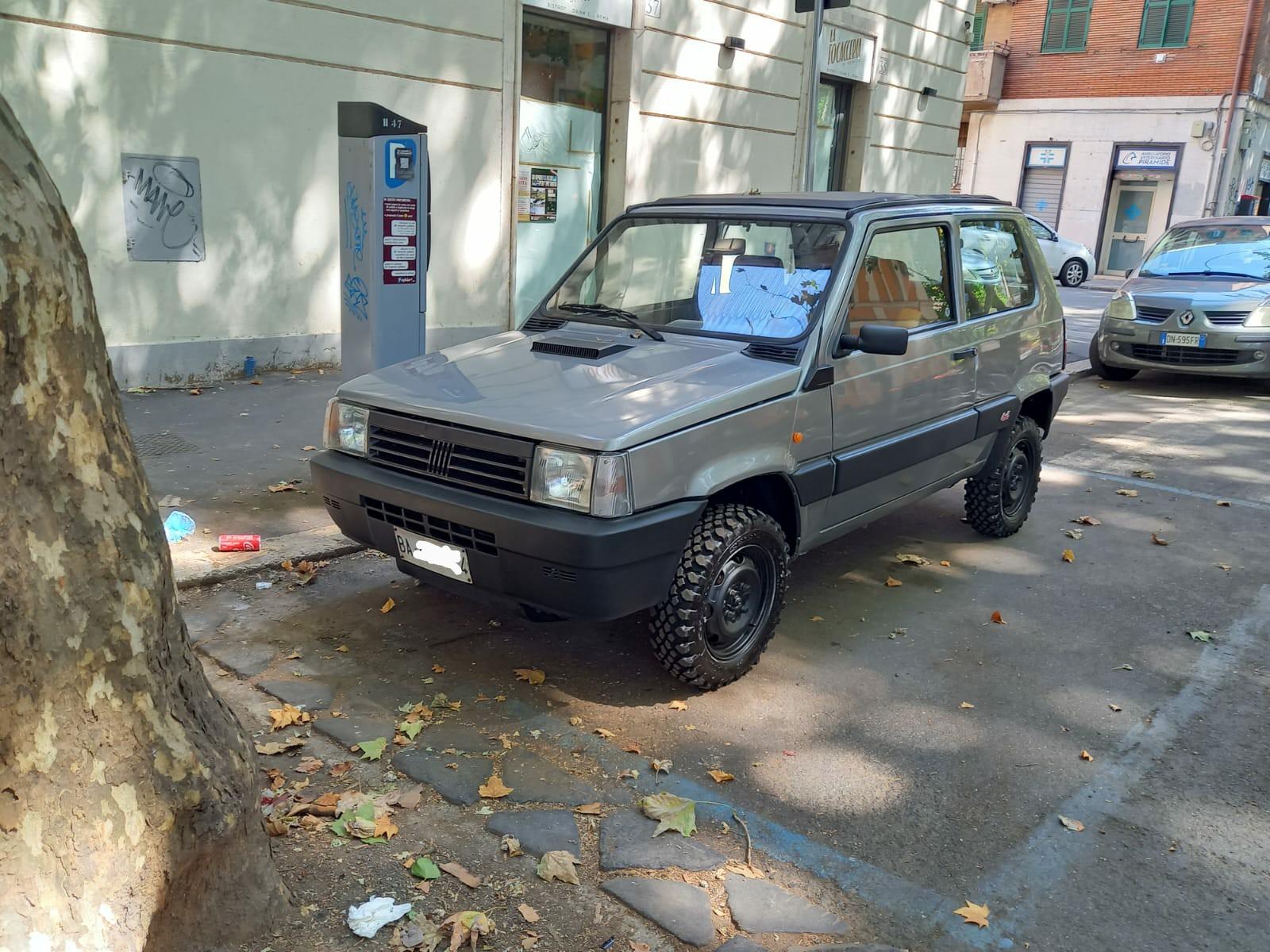
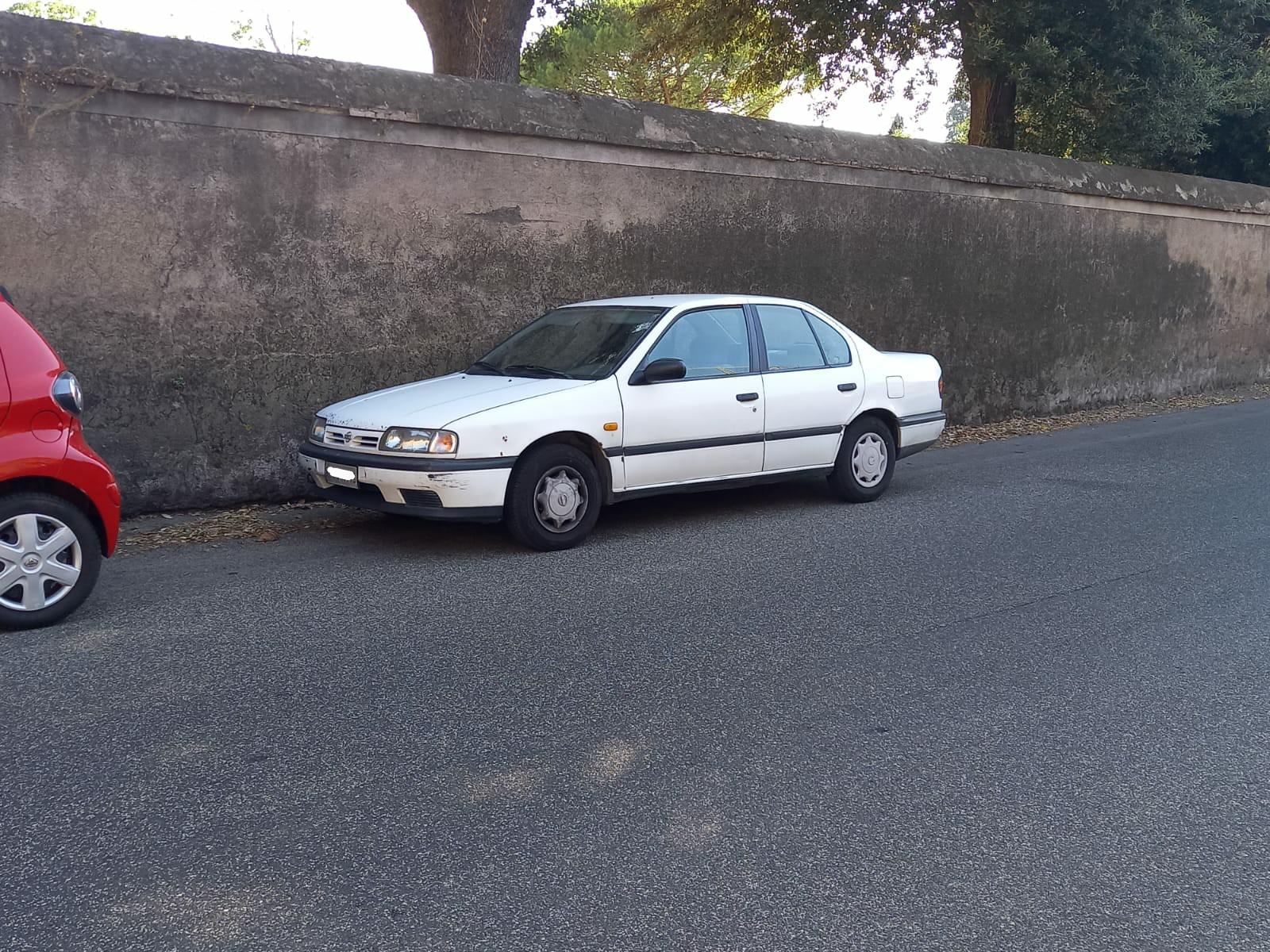
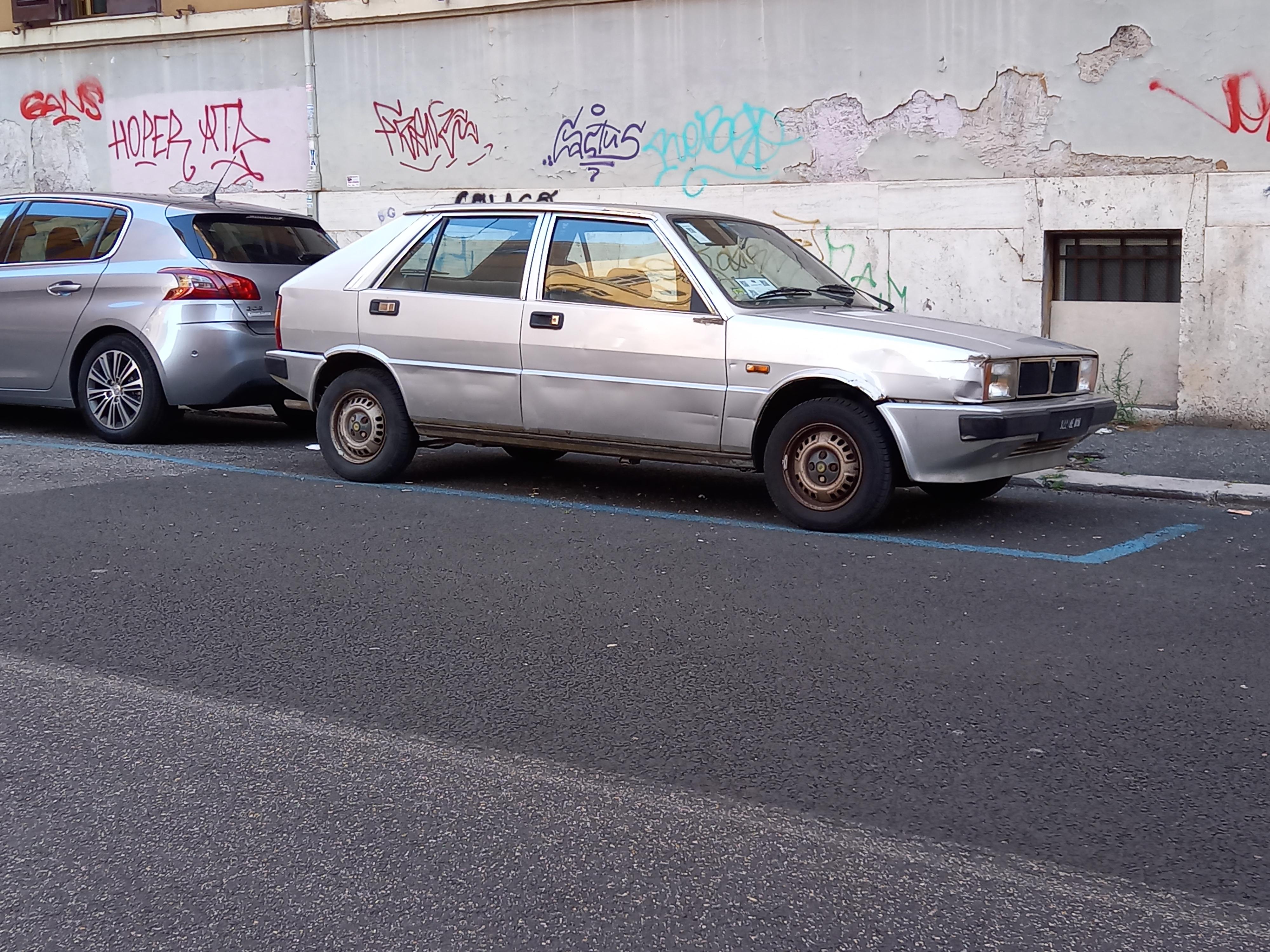
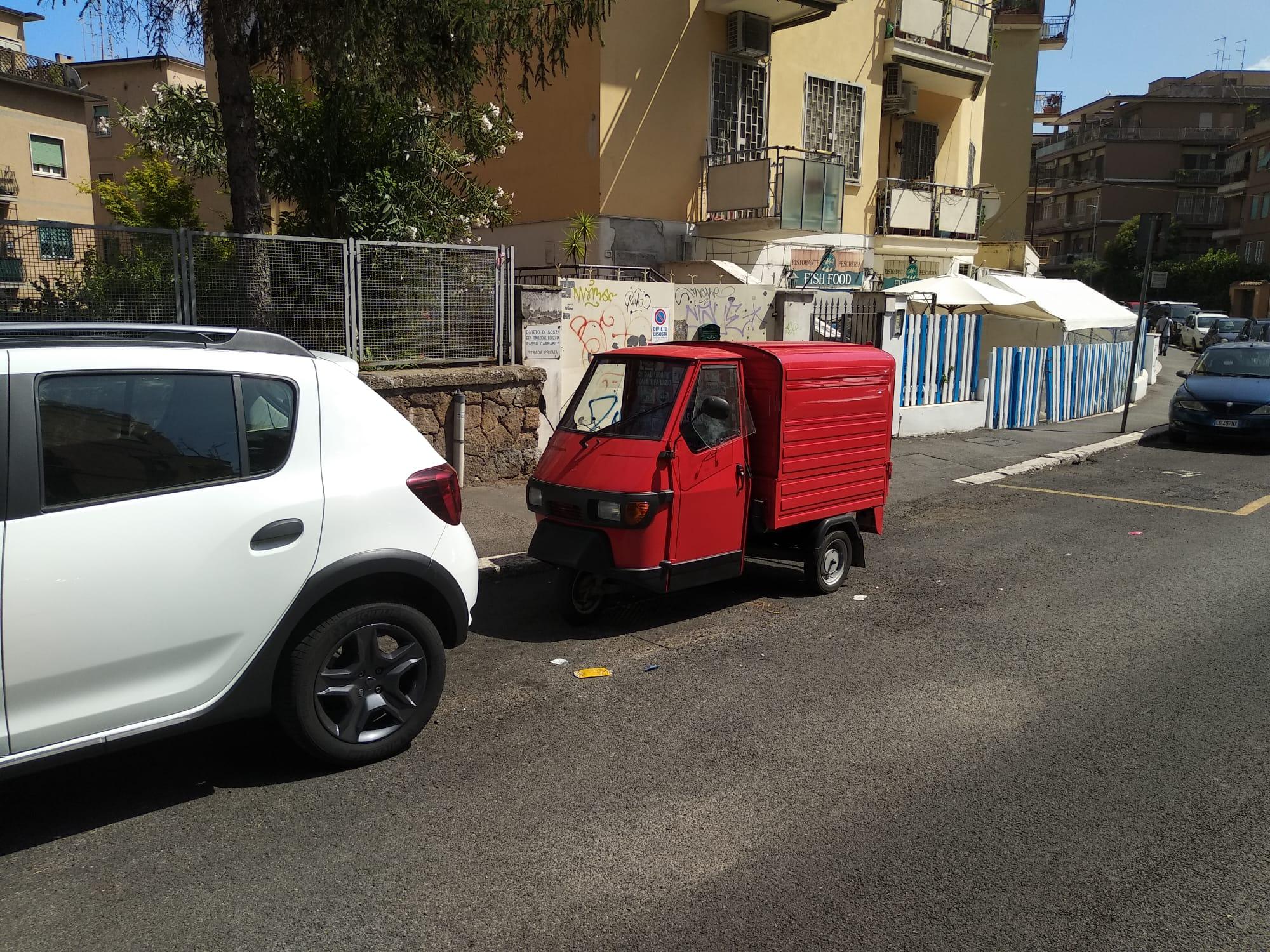
@Renault di Focus in quel verdino metallizzato non ne ho mai viste, però comprai il modellino 1/43 di HongWell solo per quel bellissimo ( per me ) colore. 😆 Ma veniamo agli ultimi avvistamenti. Qui dovete perdonarmi, perché con la testa persa in ben altre cose ultimamente, non ricordo se già postai questo vagabondo, che di tanto in tanto riappare. Ha proprio l' aria di chi "non lo ferma nessuno" ! La cosa che trovo strana è che non abbia le doppie ruote al posteriore... Una 4x4 in uno stato di grazia invidiabile, bellissime le gomme. 1990-1991 questa fu un vero successo, ma mi sembra che sparirono altrettanto presto. Una sempre bella a vedersi Delta, ma con tutte le offese del tempo. E per finire, un amico mi manda questo, apparso dalle sue parti ultimamente. In centro qui a Roma se ne vedevano ancora, ma credo che le ultime restrizioni in fatto di inquinamento gli abbiano dato la botta di grazia.
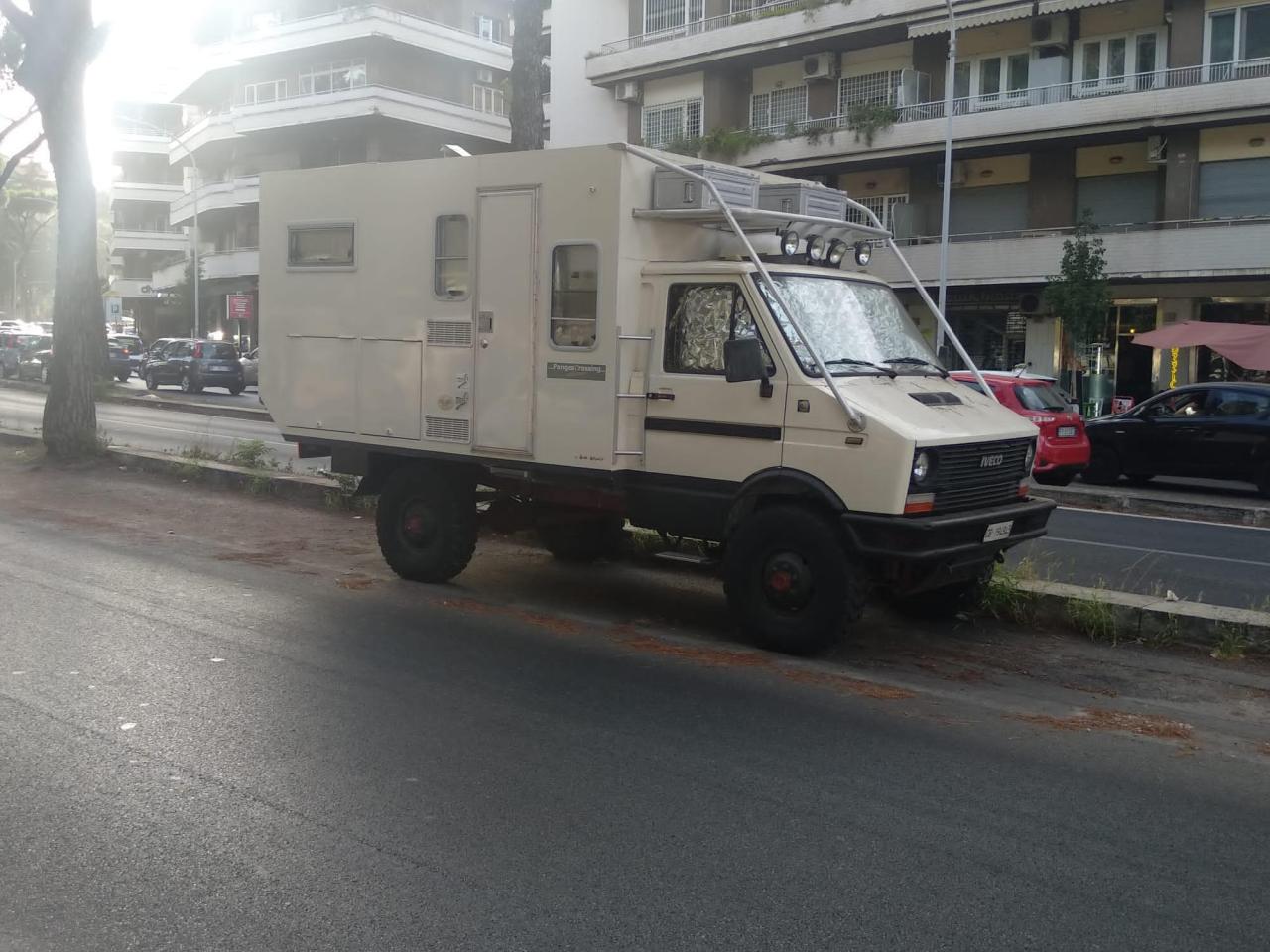
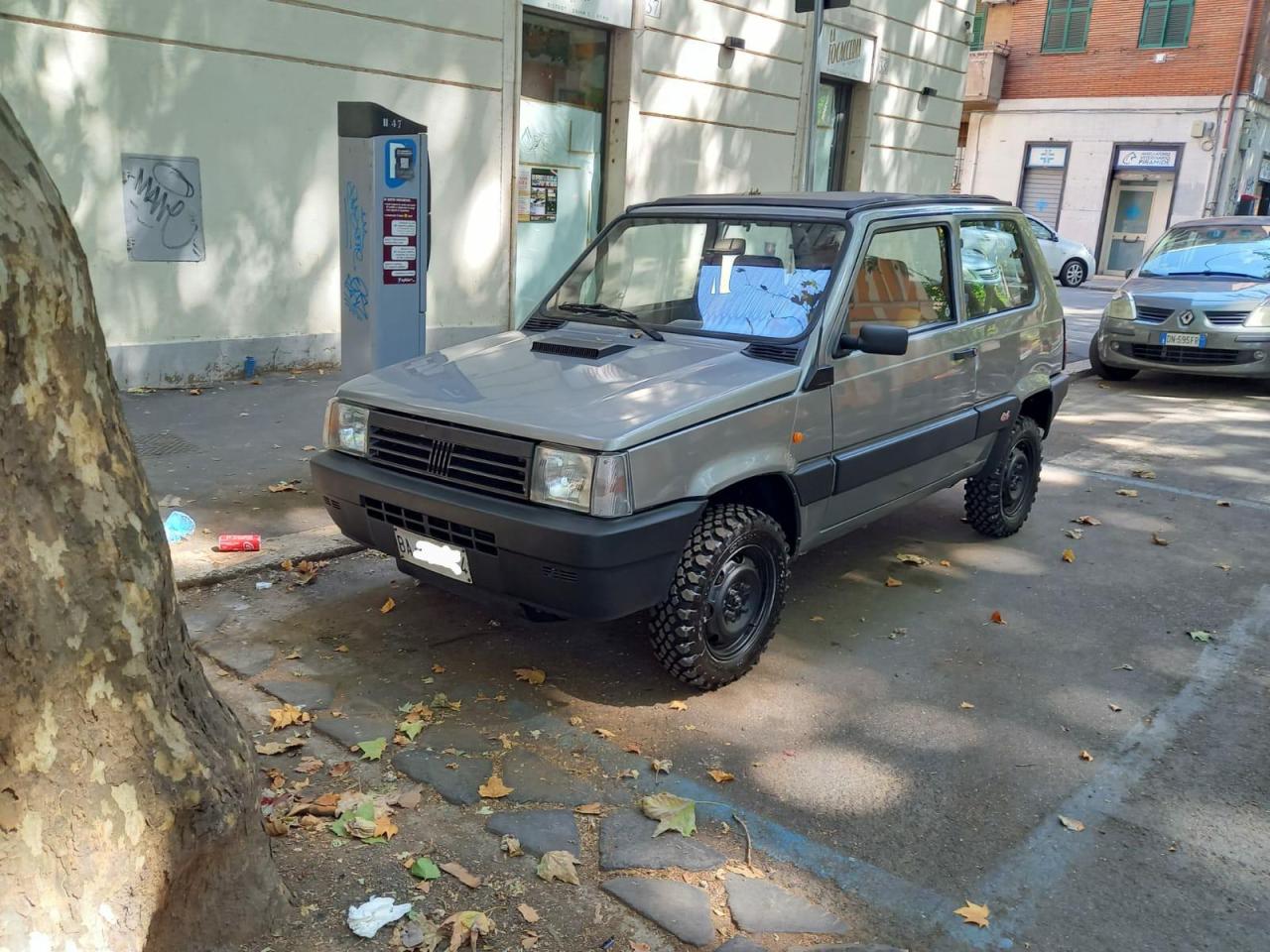
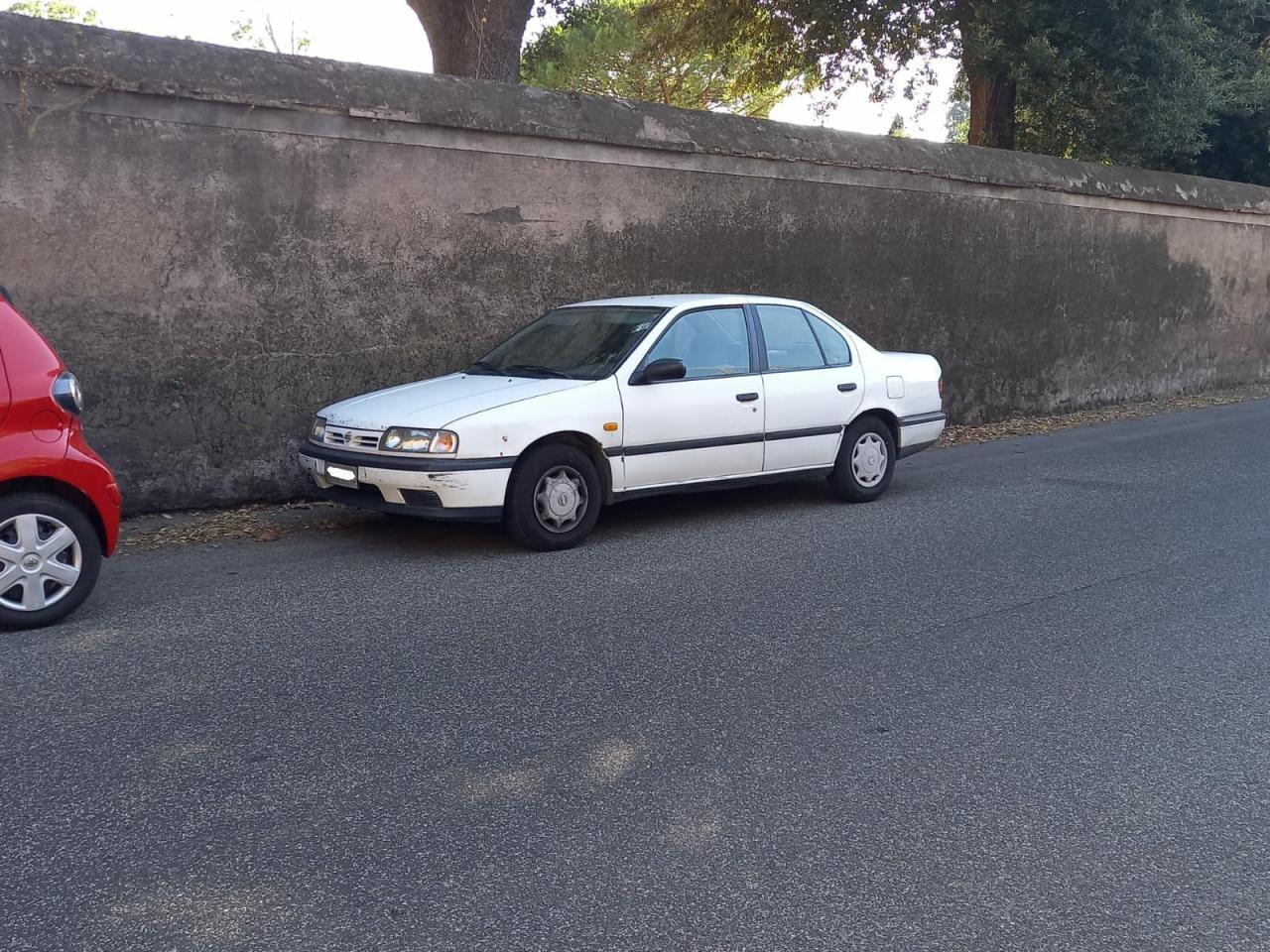
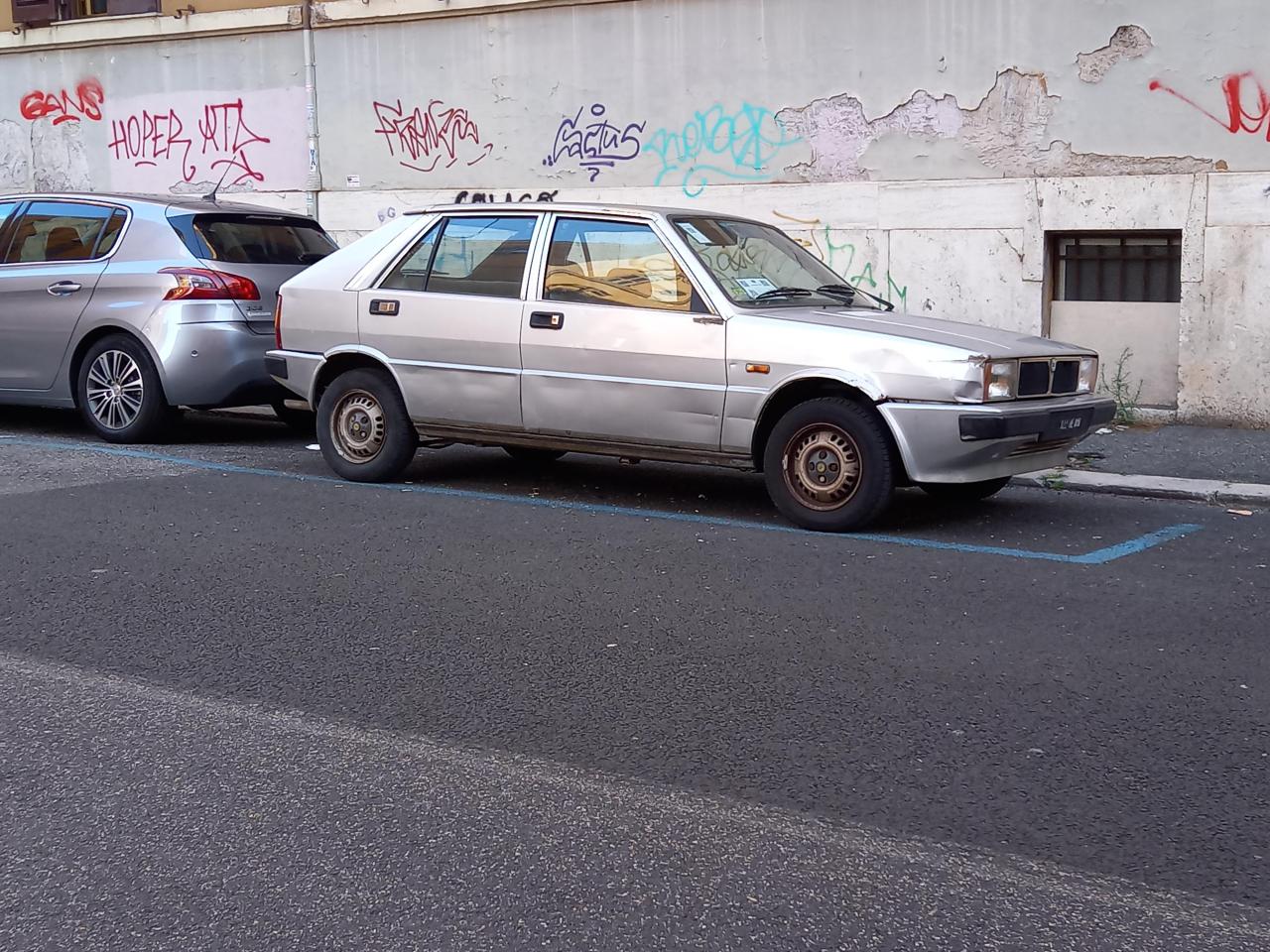
 3 punti
 -
3 punti
-
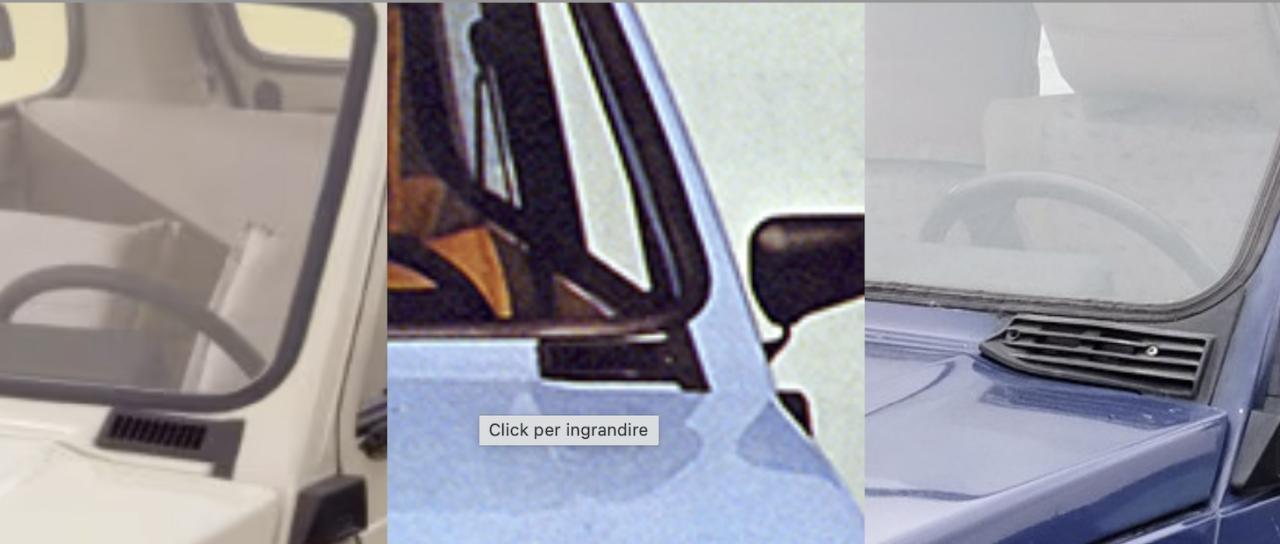
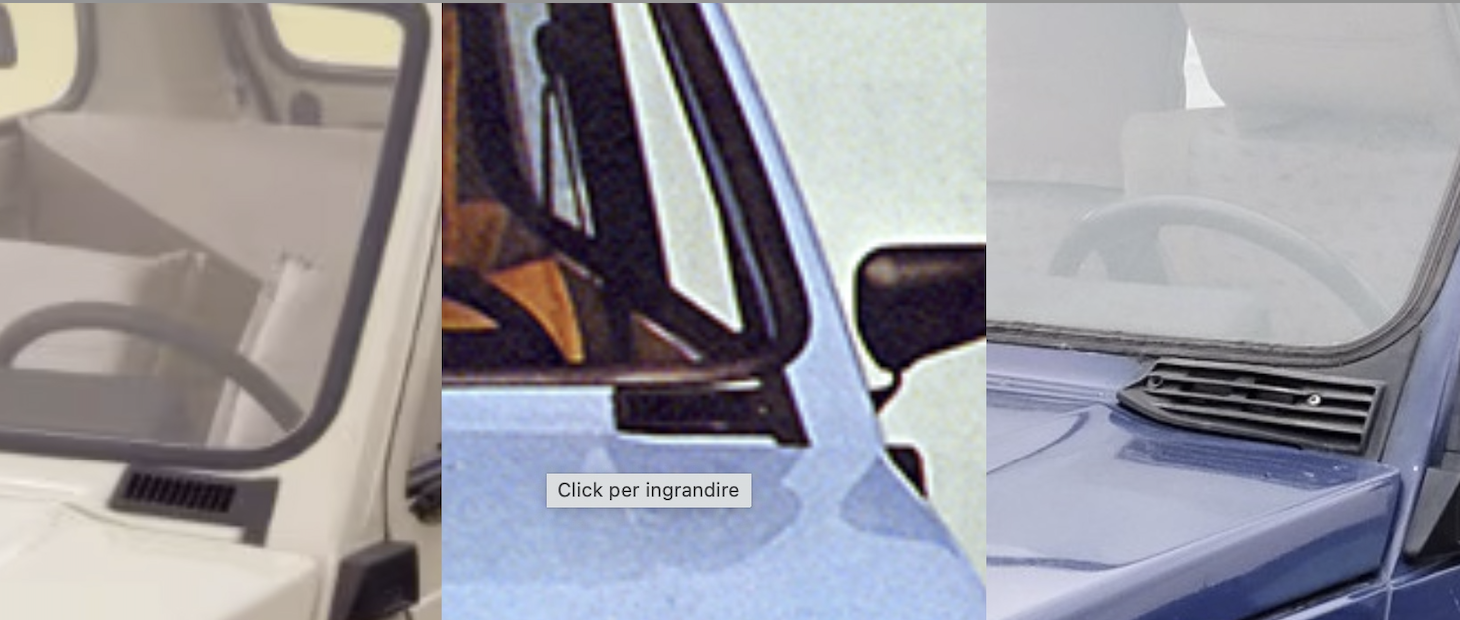
3 puntiForse mi sono spiegato male, intendevo quelle piccole per far entrare l'aria nell'abitacolo. Agevolo foto per il confronto: la prima (con una sola stanghetta dal basso) compare solo nelle foto ufficiali, la seconda (con una stanghetta sia dall'alto che dal basso) nei primi x esemplari (non so quanti), la terza è quella che siamo abituati a vedere.
 3 punti
 -
Che bella la vita di Francois. Forse ha deliberato 2 auto in 10 anni di Fca / Stl ma ha organizzato tante feste 🍾3 punti
-
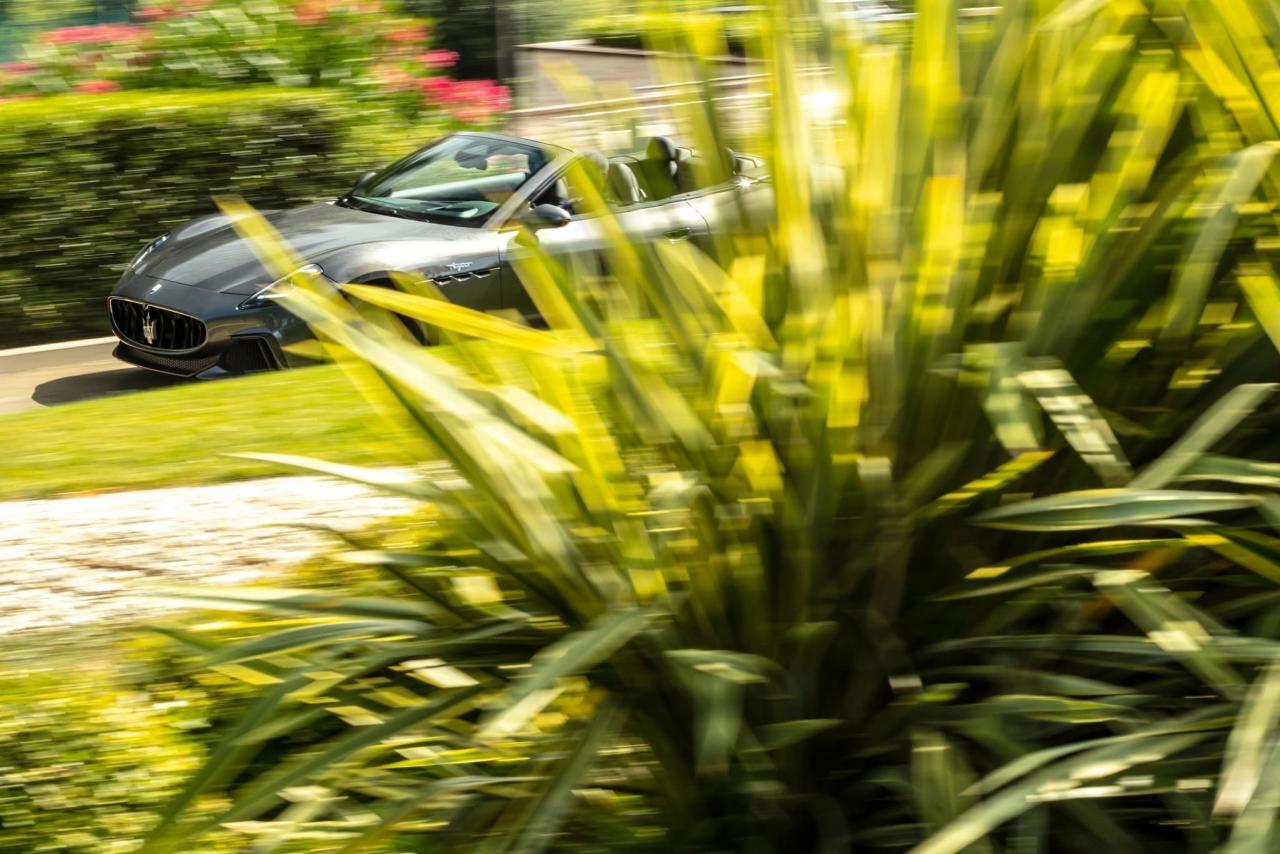
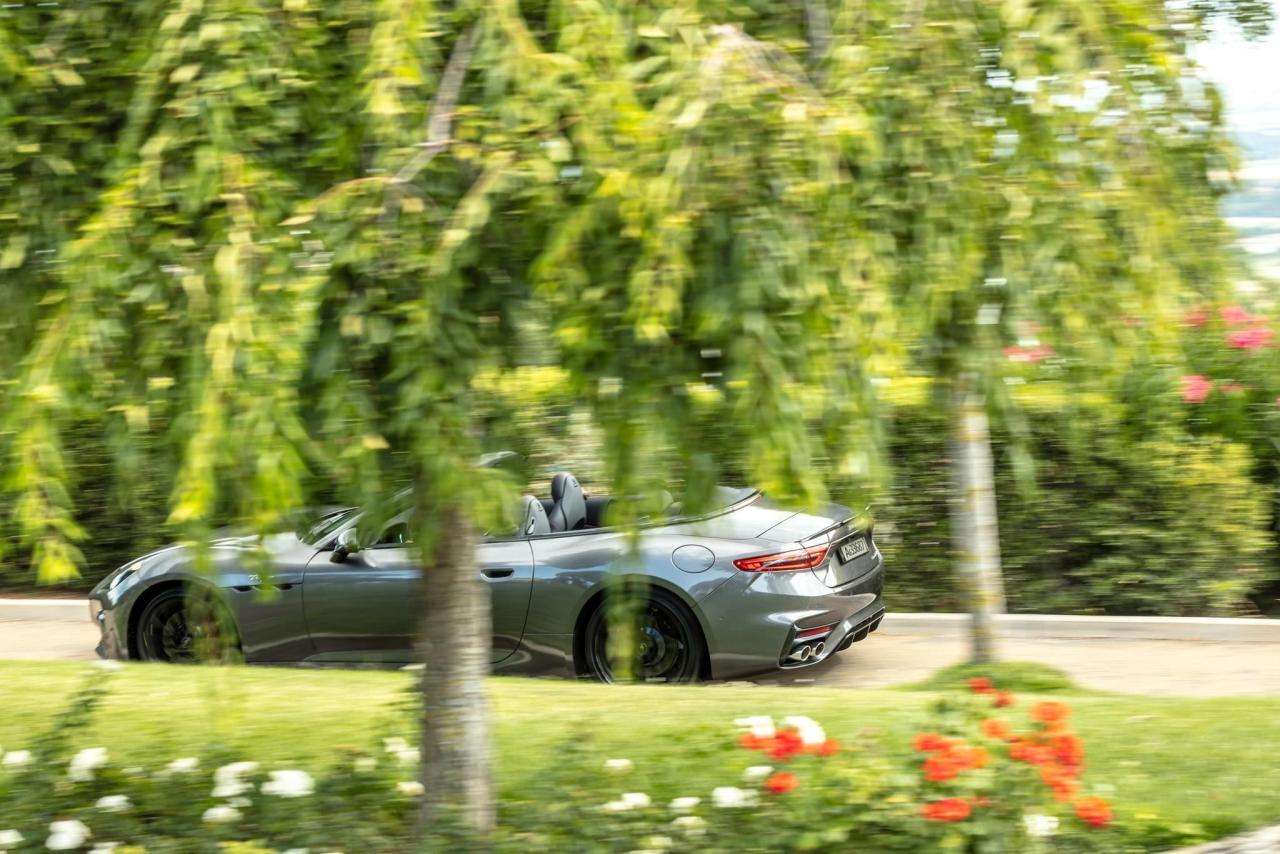
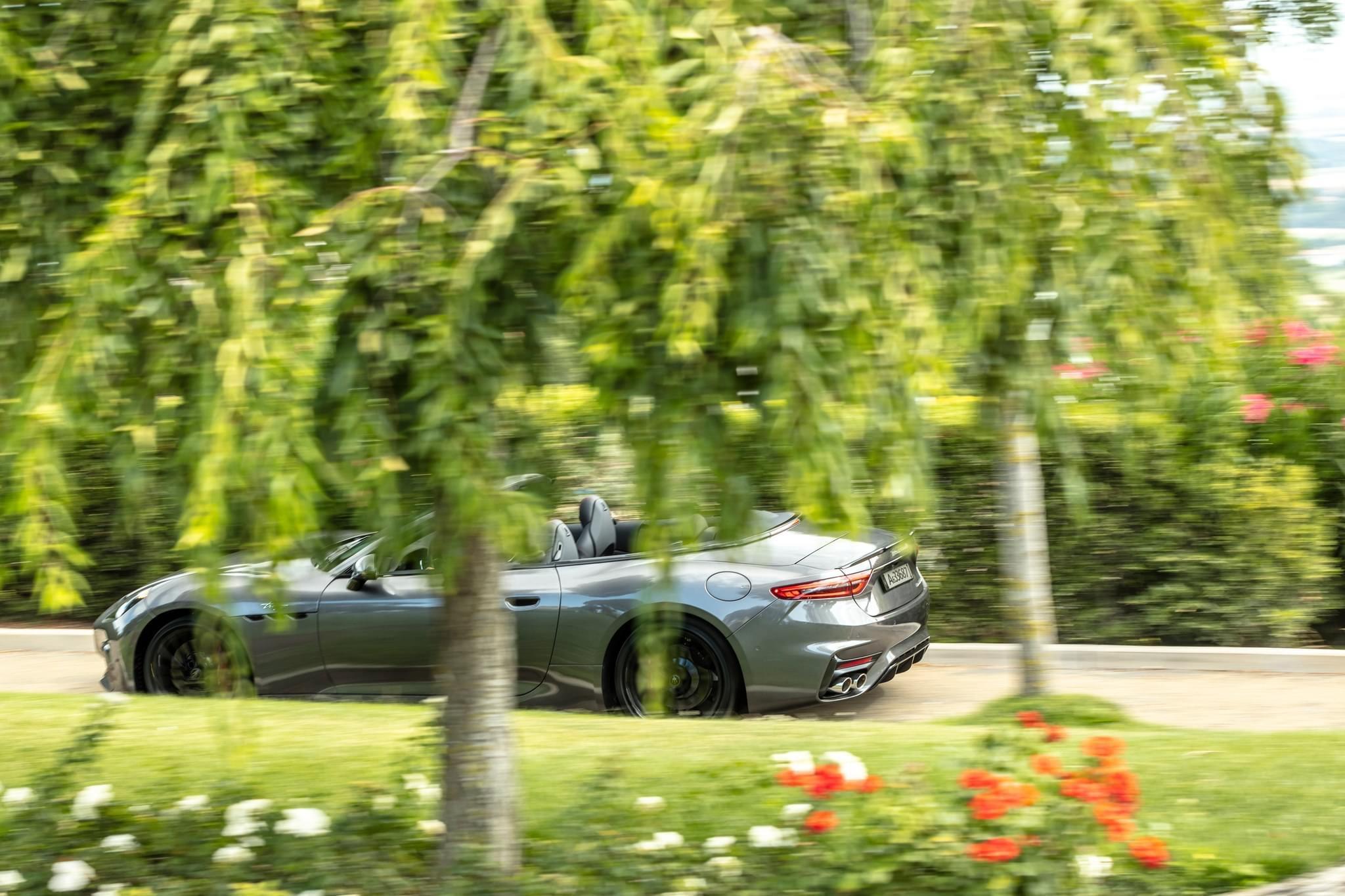
FB: Avvistamenti di supercar e non. Avvistata in collina, nei pressi di Bologna.
 3 punti
 -
2 puntiScappano qualche foto del my a pochi giorni dalla presentazione ufficiale che sarà il 10 Agosto
.thumb.jpg.6712eb62dbc01facdfaed9e52eba5894.jpg)
.thumb.jpg.45c1573602e6f5f184d2917c97778fb0.jpg)
.thumb.jpg.7a21eb4a07db81f34516f4b0de6011d4.jpg)
.thumb.jpg.1c7c9137e12a2609301e0ca93a12d47b.jpg)
.thumb.jpg.313f67aca26c7fc9051fc80823f462e9.jpg)
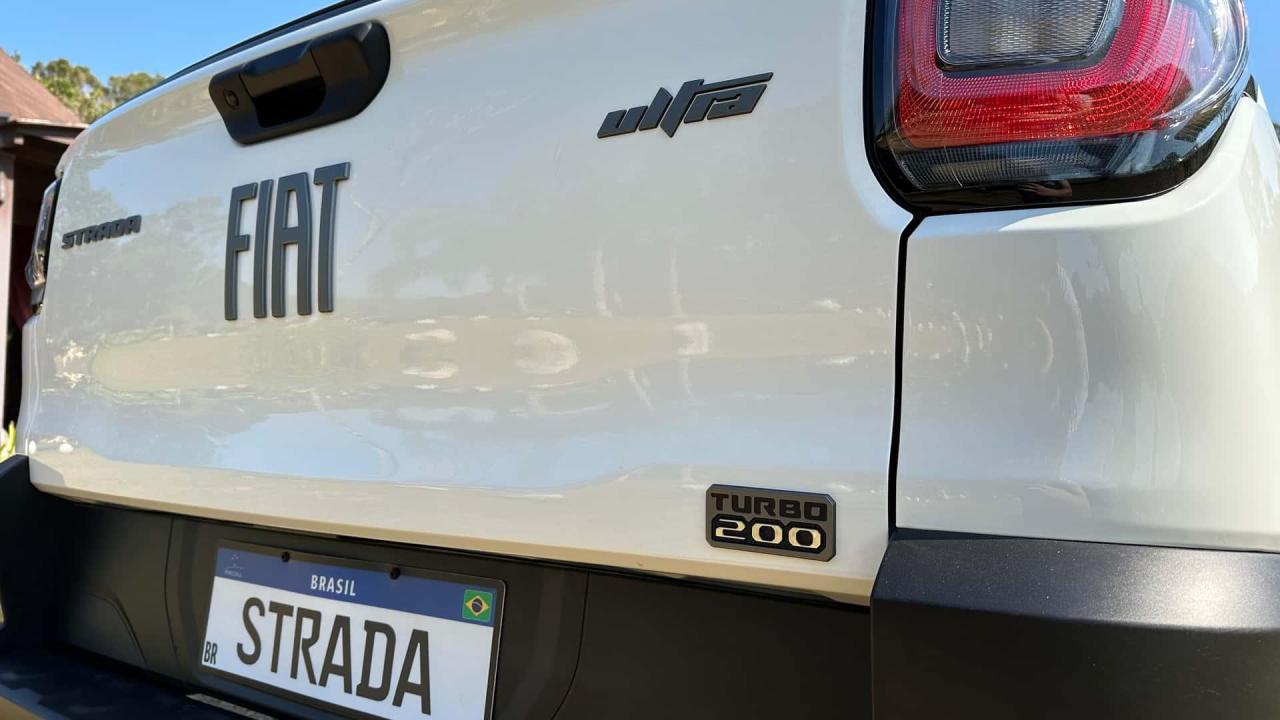
.thumb.jpg.4c421b8c0e1b06dccdc87b8bc9417766.jpg) 2 punti
2 punti -
2 punti
-
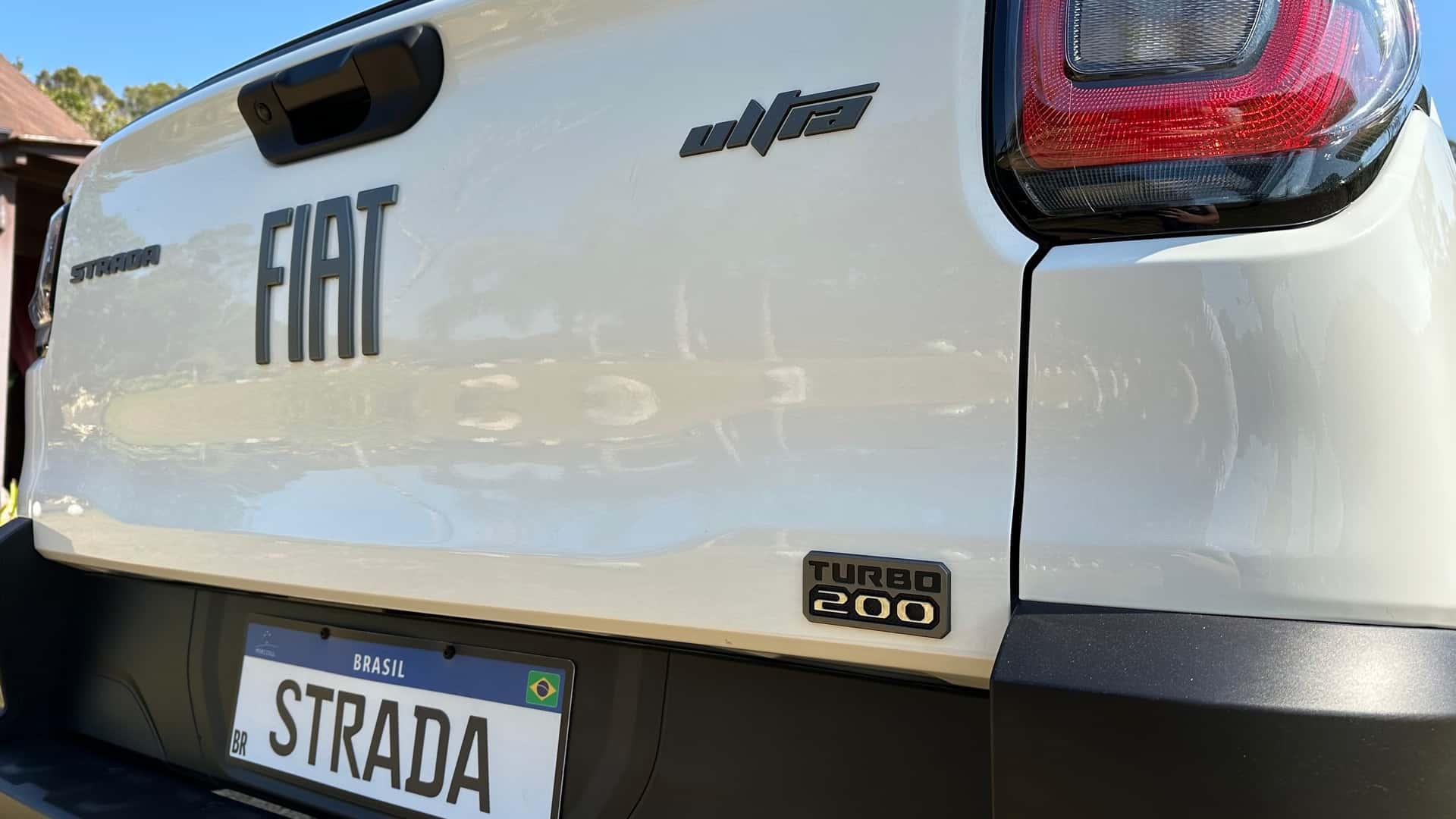
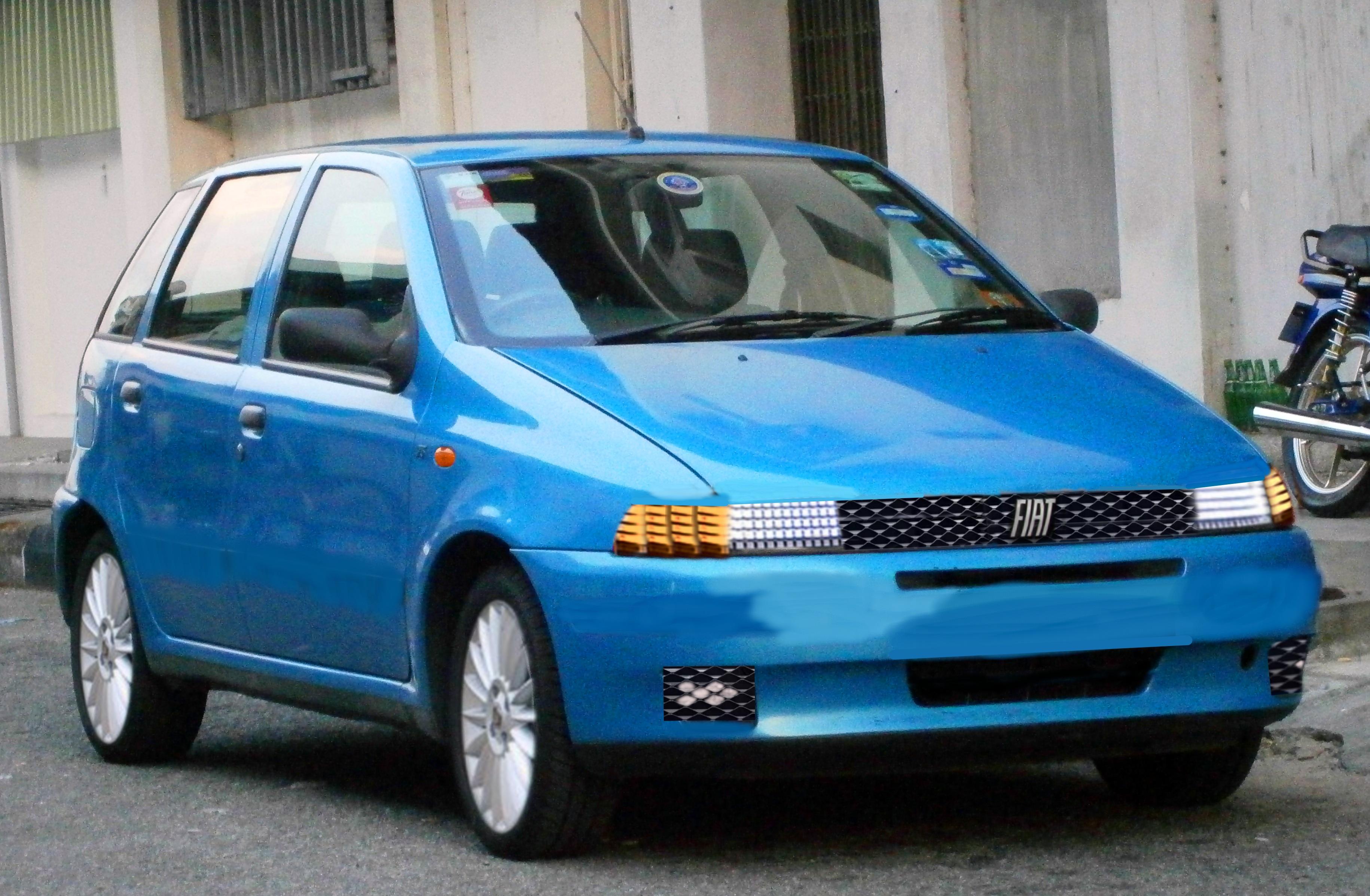
2 puntiGiustamente le modanature cromate erano troppo banali; meglio un tocco di gold...2 punti
-
2 puntiComunque, a parte il cazzeggio, è effettivamente una roba incomprensibile, quello che a fine 2022 era il TP Ferrari, l'uomo che ha supervisionato l'attuale monoposto, dopo 9 mesi sarà sul muretto Alpine (se come si ipotizza dovesse essere operativo già a settembre); il numero 2 del team, fino ad un mese fa, fra 6 mesi sarà team principal di un'altra scuderia e uomo di punta del principale concorrente. Ok, il progetto fa ca*are e c'è solo da sperare che i due svelino qualcosa, magari ci avviciniamo, però. . . A questo punto le ipotesi sono due: o le regole sono fatte a ca**o di cane, o i contratti Ferrari sono scritti a ca**o di cane. Comunque un membro di segugio c'entra.2 punti
-
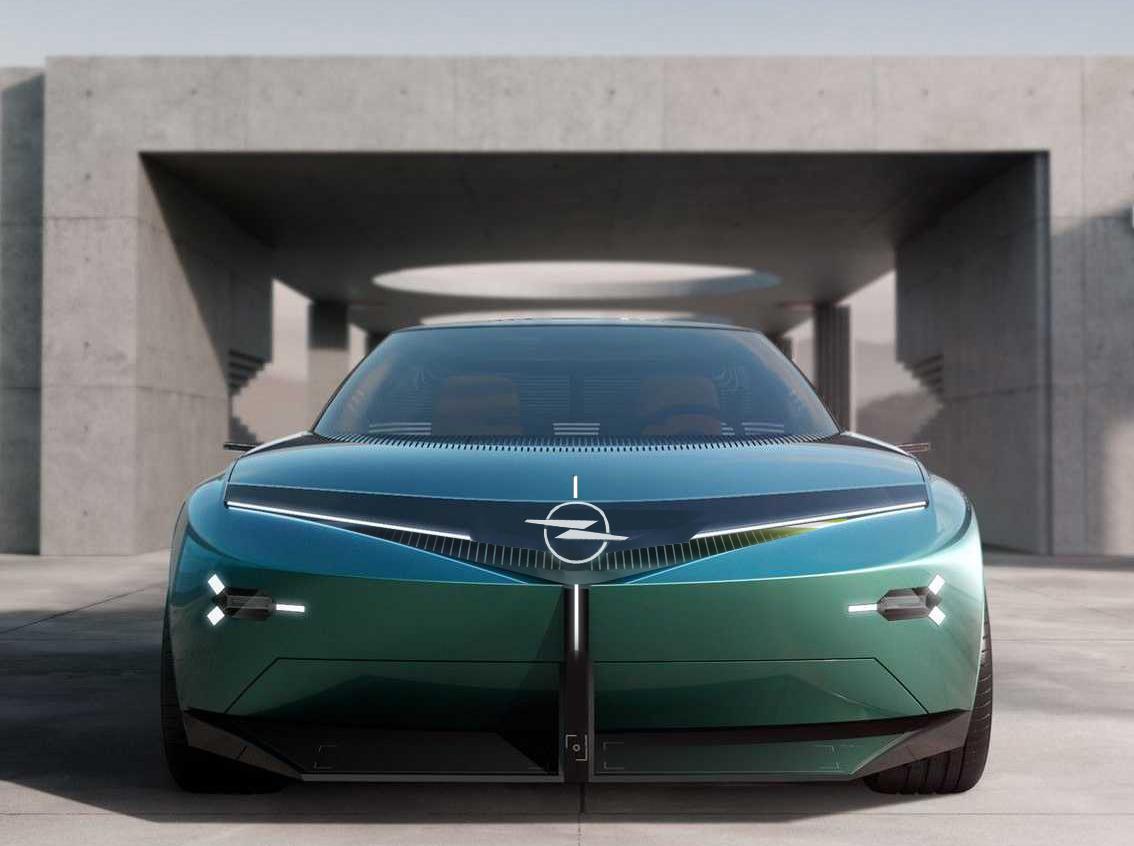
2 puntiDopo Lancia...prosegue la Peugetizzazione del design dei brand Stellantis.. !! .
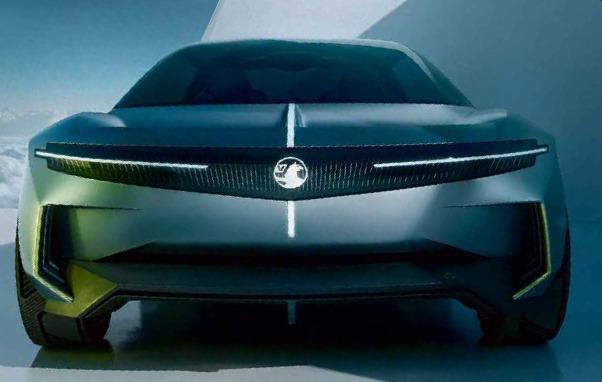
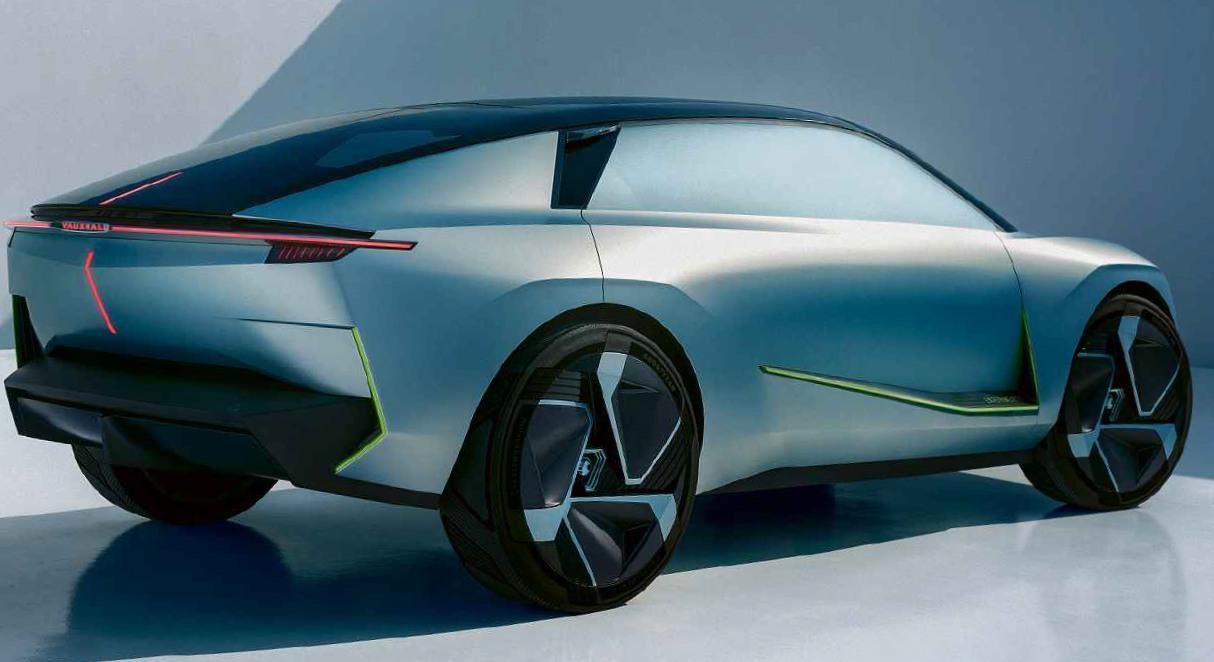
.thumb.jpg.16f418ea069a8ec2e817d2b182035452.jpg) 2 punti
2 punti -
2 puntiVendere un usato che conosci (per altro una Mazda) con 100k km per comprarne un altro che non conosci con 40-50k km? Non mi pare un'operazione molto razionale. Per quel vale un conoscente ha cambiato la 308 diesel auto aziendale (modello precedente) con una Golf sempre diesel auto e dice che il cambio della Peugeot gli piaceva di più. Ho provato a spiegargli che il VW è un doppia frizione e l'altro un automatico classico con convertitore di coppia, ma l'ho perso...2 punti
-
2 punti
-
2 punti
-
2 punti
-
2 puntiIo trovavo più "fastidioso" per la linea quello della Super/4x4...2 punti
-
2 puntiBYD’s production will pass 5 million car mark on August 9th, company revealed on its social media. Shenzhen EV maker passed the 1 million mark in May 2021 and it took it a year to reach 2 million units. Six months later, it reached 3 million. Now, that record has been literally demolished as BYD built 2 million units within 9 months at an average rate of 7,407 cars per day. The auto manufacturer has nine manufacturing bases in the country with Xi’an factory and its 900K unit capacity being the largest. BYD’s total current annual capacity is over 1.95 million. Last year, the company started building a factory in Thailand with a 150,000 annual capacity and has announced plants of building one or two plants in Europe. Car News China earlier reported on rumors of factory in France. Recently, it got snubbed by the Indian government in its efforts to build a plant in the country. This year, BYD’s sales are witnessing another record year. In April, it passed Volkswagen as the best selling brand in China and became the first local brand to overtake the famous German manufacturer. January-July sales recorded 1,517,798 passenger vehicles, 88.81% more compared to the same period last year. Exports also saw record levels at 92,458 units sold overseas. The company’s 2023 sales target is 3 million units, while it aims at 3.6 million units as a big target. In 2022, BYD sold 1.86 million units. Earlier estimates by the media and the experts see BYD’s local sales at 3.5 million and exports at 200,000 units this year. (CNC)
 2 punti
 -
Che spettacolo di auto. Granturismo nel vero senso della parola.2 punti
-
2 punti2 punti2 puntiA memoria ricordavo la copertina di 4R di febbraio ed invece era marzo 19802 puntiOra che ci penso, l'ho beccata anch'io per puro caso il 9 luglio sul Garda
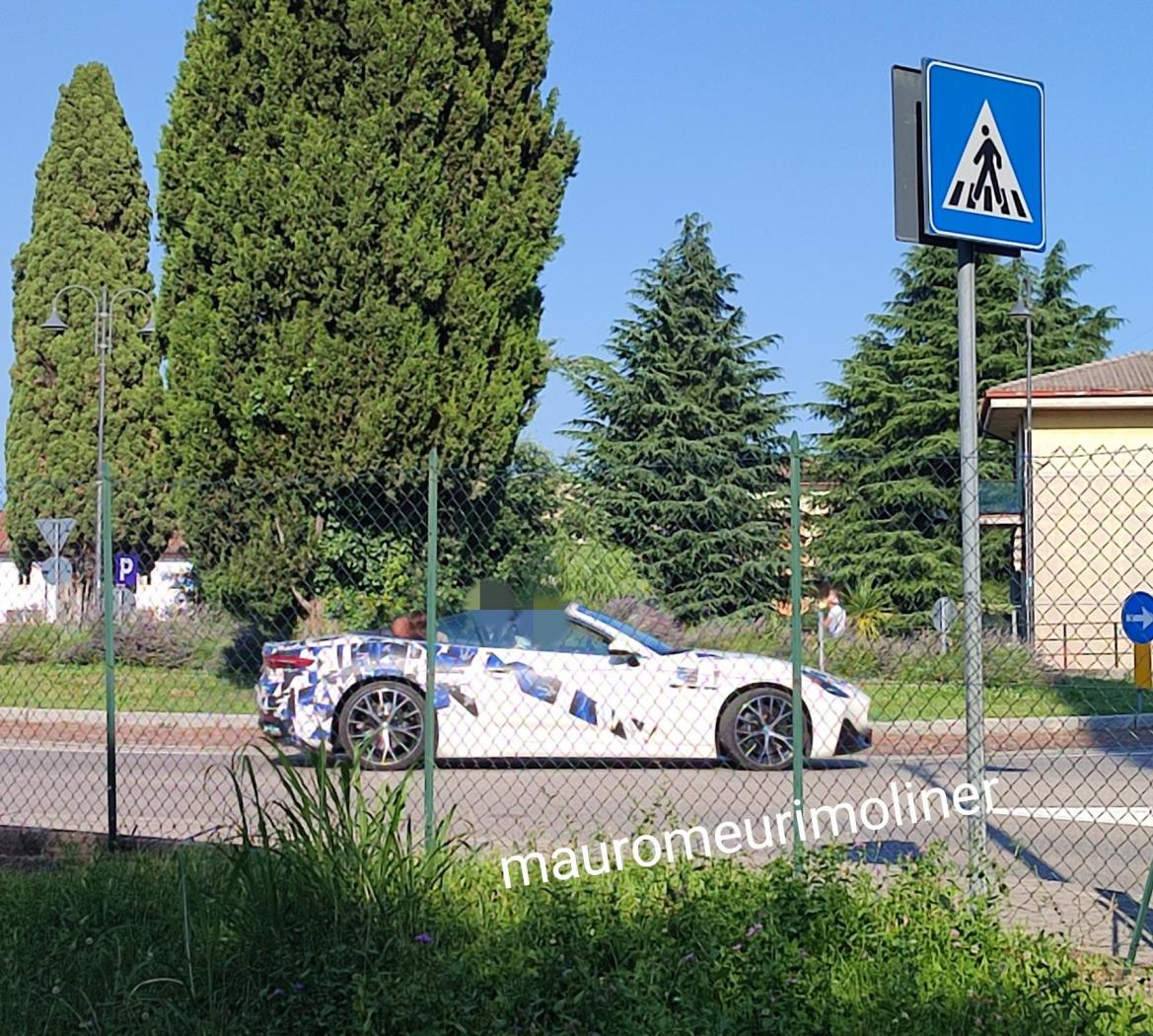 2 punti2 puntip.s. odio il tetto panorama su qualsiasi auto, uno degli optional più inutili (a mio avviso) che uno possa montare, soprattutto in Italia con le estati (e le grandinate) che fa ormai....2 punti2 puntiDue commenti rapidi: 1. Al posto tuo terrei la Giulia riscattandola perché probabile che la rata finale sia ben più bassa del valore di mercato. Non la rifinanzierei perché difficilmente ti converrebbe 2. come alternativa bella da guidare c’e’ la Jaguar XE ma vista l’affidabilita’ media lascerei perdere 🥶1 punto1 puntoRagà secondo me non è manco una questione interna di Stellantis, c'è proprio un appiattimento generale a livello di design, i costruttori non rischiano e vanno sul sicuro, proponendo forme che i clienti hanno apprezzato su altri modelli, il risultato finale è che diventa difficile distinguere le linee dei vari marchi.1 punto1 puntoLe bocchette dell'aria sotto il parabrezza più piccole debuttano sulla Panda a marzo 1980; a settembre 1981, in contemporanea con la presentazione della versione 45 col tetto apribile, vengono modificate e ingrandite, anche per ridurre l'ingresso dell'acqua...entrava anche con quelle modificate, ma le alette orizzontali erano più protettive, e comunque in entrambi i casi erano presenti i tubi plastici di scolo. el Nino1 punto1 puntoSettimana scorsa in autostrada avevo dietro un Unimog camperizzato in quel modo. Io ero con l'MX-5 non ho mai avuto così tanta paura che mi passasse sopra se avessimo dovuto fare una frenata di emergenza, praticamente il suo paraurti era all'altezza della mia capotte... Dove trovino strade sterrate e impervie così larghe in Italia non ne ho idea.1 punto1 puntoIn un intervista due settimane fa tra AM+S e Schiebe per me non sembra cosi (in una domanda per il fatto, che il 4cil Phev sul C non sembra davvero convincente): Schiebe dice, che puo capire i tifosi della V8, ma per loro ci sono altri prodotti/modelli. A me non sembra che vogliono cambiare direzione.
 1 punto1 puntoRicordo tra l'altro di aver letto che le mascherine per l'aria sotto al parabrezza così sottili erano tipiche solo dei primissimi esemplari. Successivamente la maschera nera occupava tutto lo spazio tra il vetro e il cofano1 punto1 puntoBoh, vengono omologate ormai auto da tutti i mercati (penso alle Mahindra, alle "invasioni" cinesi, alla Dacia Spring, le Tata di qualche anno fa), non credo che il problema sia omologare una Strada. Tra l'altro un conto sono i test Euroncap e simili, un conto sono le normative nazionali dove bastano gli airbags frontali e le cinture (oltre ad un minimo di tenuta del telaio ovviamente).1 punto7000 euro al mese? cioè 84000 all'anno? Mi sembra fuori dal mondo, anche perché la 458, com'è stato scritto da altri, svaluta poco, anzi... 🙂 Sicuramente intedevi 7000 all'anno, che sarebbe in linea con le altre cifre avanzate dai forumisti. Comunque abito in Svizzera, dunque niente superbollo, ma ogni cantone ha la sua politica per tassare le auto (peso, potenza, CO2, ecc..) Ma anche senza superbollo, siamo comunque su cifre alte, altissime. Ora valuterò con calma... ma non troppo, non vorrei aspettare troppo e che il prezzo d'acquisto diventa (ancora di più) irraggiungibile. GRAZIE a tutti, di cuore!1 puntoPurtroppo ha senso. E a questo punto mi sentirei di dire una cosa: noi italiani ci ostiniamo a vanificare le nostre potenzialità con scelte scellerate, al solito. Hai voglia a criticare i francesi perché fanno um banale e brutto radar a pataccone, almeno loro non sceglierebbero mai di eliminarlo per motivi di sola estetica (perché a me sembra proprio che di questo stiamo parlando, poi felice di sbagliarmi). Che poi, era tanto brutta una Abarth con il logo 500 davanti? E invece qui sembra proprio che qualcuno si sia svegliato e abbia detto "ma sì, facciamo un muso pieno con la scritta Abarth e al diavolo il radar". Io davvero non ho parole.1 puntoBuona domenica! SaveInsta.App - 3163222615539535299.mp4 https://www.instagram.com/shana.koehlerr/

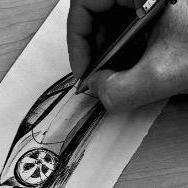
 1 punto1 punto1 punto1 punto1 punto1 puntoIo invece dico che se la portano fa una strage qui che non si è mai vista prima1 puntoPer Giulia avevo realizzato ⬇️ Per la 33 Stradale ⬇️
 1 punto1 punto1 puntoLa Barchetta più passano gli anni più diventa bella1 puntoQualche storica. Iniziamo da questa interessante, seppur ancora comune in generale, Fiat Punto 75 ELX 5p I Serie '94 (di Gennaio, quindi parecchio anziana) con le targhe provinciali beneventane, non sono mai riuscito a seguire "mentalmente" la numerazione di questa provincia a me vicina e l'ho fotografata pensando fosse un esemplare del '95 o '96 (Benevento continuò le provinciali sino a fine '97!), si è però invece rivelata una "provinciale regolare" e non tarda. Le condizioni sono parecchio sfruttate, viene utilizzata per lavoro e la vedo spesso nei parcheggi di fornitori di materiale edile, elettrico e co. Un simpatico mezzo da lavoro questo Nissan Vanette Cargo 2.3D III Serie '99 nella serie derivata dal Serena, se non fosse per lo scolorimento dei paraurti e per le colature di ruggine del portapacchi potremmo quasi definirlo un esemplare decentemente conservato. Vettura che io trovo interessantissima questa Opel Corsa B 1.7D SW '99, versione sviluppata dalla divisone argentina di GM e importata da Opel Italia esclusivamente nel nostro paese (non arrivava in nessun altro Stato europeo!). Nonostante le condizioni molto buone, questo esemplare ha alle spalle la bellezza di 450k km, segno di robustezza incredibile del diesel Opel e in generale della vettura sviluppata per paesi dove "tenere bene l'auto" non è tra le opzioni considerate da chi le acquista. Curiosa questa Renault Clio 1.2 RT 5p I Serie Ph.1 '93 in colorazione Rosso Vivo 719 ma con portellone riverniciato* di nero, probabilmente il proprietario voleva una Y10 ma aveva bisogno delle cinque porte. Condizioni nel complesso molto sfruttate. *Credo sia riverniciato e non di un altro esemplare a causa della fascia con i loghi nella stessa tinta del portellone che potrebbe indicare una riverniciatura totale fatta senza smontare i pezzi. Auto ormai quasi del tutto scomparsa questa Renault Megane 1.4 RL 5p I Serie Ph.1 '96, qui anche nel rarissimo allestimento base con i paraurti neri, condizioni di uso intenso lavorativo. Fantastica Fiat Barchetta 1.8 I Serie MY99' 00, una vera Youngtimer coi fiocchi, mi è sempre piaciuto non poco il terzo stop integrato con il cofano posteriore riservato al piccolo restyling del '99. Condizioni eccezionali da vero amatore. Ancora oggi parecchio visibile nonostante l'età media molto avanzata degli esemplari quest'Audi 80 B3 1.8 S '91 nella sua tipica tinta verde/grigia, esemplare tenuto bene seppur afflitto da un cronico scolorimento che colpisce moltissime vetture. Una diretta rivale dell'80 questa Mercedes 190 D W201 MY89 '92 in eccellenti condizioni, non a caso ha appena 250k km fatti in 31 anni, un numero incredibilmente basso per una Mercedes diesel d'epoca. Estremamente rara quest'Autobianchi Y10 Mia III Serie '94, versione dotata del particolarissimo portellone multicolore che veniva verniciato a mano con una particolare tecnica che dava ad ogni singolo portellone una combinazione diversa di colori rendendolo di fatto unico, oggi è veramente rara come versione e il portellone è un ricambio ricercatissimo dagli appassionati. Questa appartiene ad un signore anziano e non è propriamente in ottime condizioni, se ne avessi la possibilità la salverei molto volentieri. Notiamo che ha avuto almeno tre proprietari avendo "richiami" di almeno tre concessionari diversi sul posteriore (due adesivi e il portatarga). Concludo con questa sempre maestosa Lancia Thema 2.0 III Serie '92 che potrebbe essere tenuta meglio, trovo incredibile che un'auto del genere possa essere utilizzata come "auto di tutti i giorni" in modo non accorto dopo tutti questi anni, spero solo che non faccia una brutta fine, sarebbe un vero peccato anche considerando che ormai le Thema sono auto discretamente rare e ricercate dagli appassionati.1 puntomolto molto simile, adesso è uno degli standard di instagram1 puntoNon che con le attuali sia molto diverso a giudicare dal possessore medio.1 punto1 puntoFa parte della selezione naturale, io aspetto il TMax elettrico così un buon 80% dei tamarri non rompe più le palle con sti finti rombi1 puntoIdee tipo queste? 🤪 L'unico progetto degno di merito che io ricordi dove forse ha messo mano era questa:1 punto1 punto1 puntoSinceramente la convenienza di estrarre idrocarburi vicino alla costa del nord Adriatico, facendo guadagnare i privati e spendendo soldi pubblici per ripristinare le spiagge che si abbassano, non la vedo, se non per chi è interessato all'estrazione.1 puntoLa Leaderboard è riferita all'orario Roma/GMT+02:00
.thumb.jpg.726bf5d0d4b007b828d2604dadfbc750.jpg)





(1)(1).thumb.png.635c059adfaa3a2ca27f86ab608b04ba.png)


.jpg.3a10d4d69b84af10ebe3ba3818f4dbd9.jpg)
.jpg.0f3e787f59dff27ee97f8ee27b7a73c7.jpg)
.jpg.9687fe011f55e0c624871d798227a335.jpg)
.jpg.2b3cee5264842816afe745655ad88750.jpg)
.jpg.74a238d6b948e1abe22125dc6bac96b5.jpg)
.jpg.fca0ae0d131418dad6ef14cbe21f1fce.jpg)




.jpg.271a5af2e48f8d0f9f3e1fe0c66e7d06.jpg)




























Account
Navigation
Cerca
Configure browser push notifications
Chrome (Android)
- Tap the lock icon next to the address bar.
- Tap Permissions → Notifications.
- Adjust your preference.
Chrome (Desktop)
- Click the padlock icon in the address bar.
- Select Site settings.
- Find Notifications and adjust your preference.
Safari (iOS 16.4+)
- Ensure the site is installed via Add to Home Screen.
- Open Settings App → Notifications.
- Find your app name and adjust your preference.
Safari (macOS)
- Go to Safari → Preferences.
- Click the Websites tab.
- Select Notifications in the sidebar.
- Find this website and adjust your preference.
Edge (Android)
- Tap the lock icon next to the address bar.
- Tap Permissions.
- Find Notifications and adjust your preference.
Edge (Desktop)
- Click the padlock icon in the address bar.
- Click Permissions for this site.
- Find Notifications and adjust your preference.
Firefox (Android)
- Go to Settings → Site permissions.
- Tap Notifications.
- Find this site in the list and adjust your preference.
Firefox (Desktop)
- Open Firefox Settings.
- Search for Notifications.
- Find this site in the list and adjust your preference.