




Classifica Utenti
Utenti più Apprezzati
(Scegli il periodo) Utenti più Apprezzati
(Storia giorno per giorno) Classifica dall'Origine
(da Marzo 2003)
(Scegli il periodo) Utenti più Apprezzati
(Storia giorno per giorno) Classifica dall'Origine
(da Marzo 2003)
-
DOssi
Utente Registrato28Punti1197Numero contenuti pubblicati -

MotorPassion
Reporter (Staff)17Punti13450Numero contenuti pubblicati -
Alain
Utente Registrato10Punti5319Numero contenuti pubblicati -
Beckervdo
Reporter (Staff)8Punti24062Numero contenuti pubblicati




Contenuti più Popolari
Stai visualizzando i contenuti con il più alto punteggio, pubblicati in data 01/22/26 e localizzati in Risposte
-
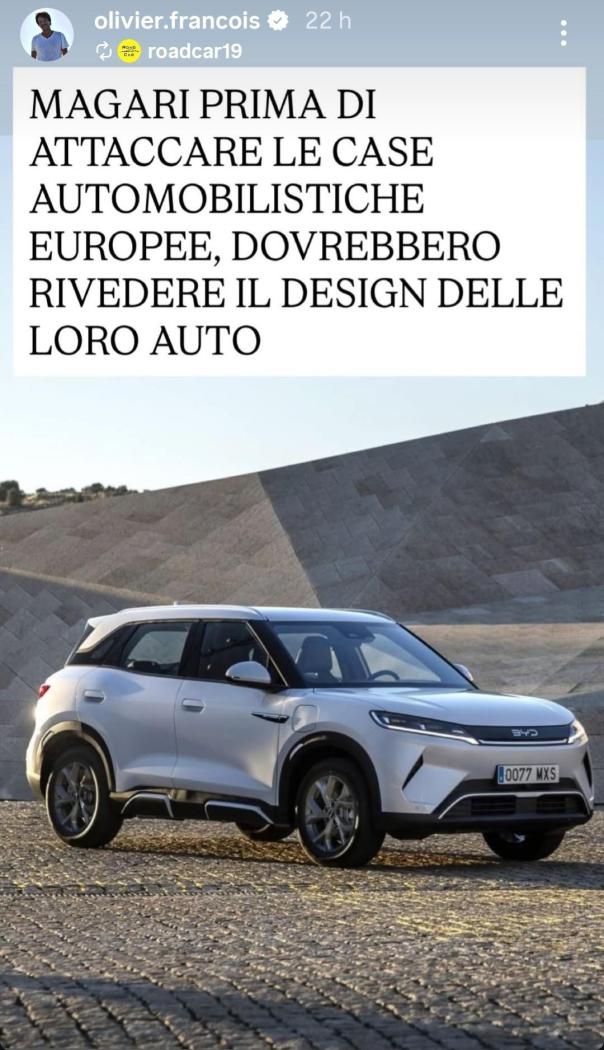
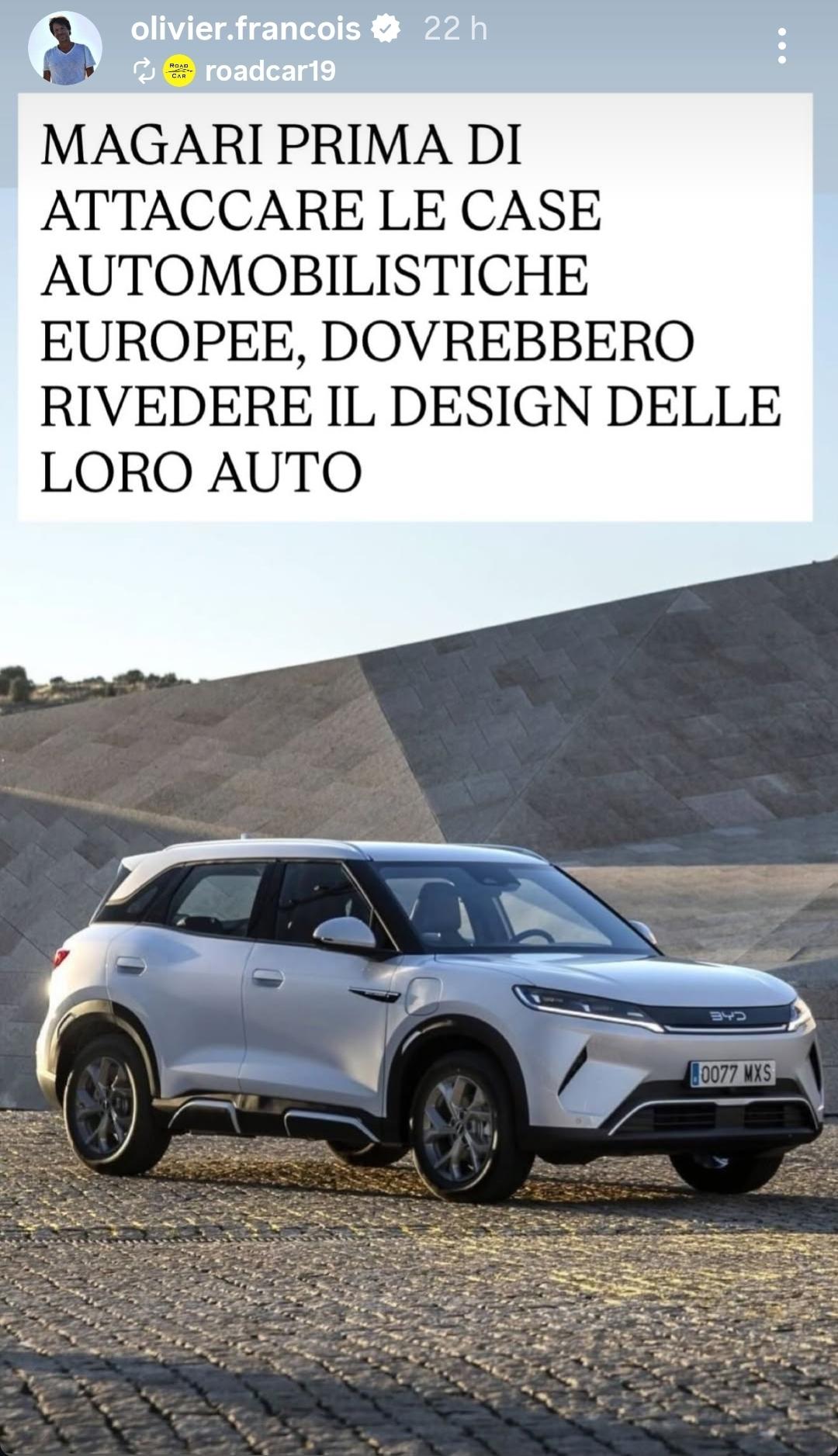
11 puntiQuesta mattina sfogliando le storie IG mi è comparsa questa di Olivier François. Ma quando è che lo lasciano a casa? Un CEO e CMO che fa il repost infantile di una pagina IG nemmeno degna di nota, siamo ai livelli dell'asilo. BYD fa una campagna mkt pungente che prende di mira un problema reale dei Puretech, quindi fa critica oggettiva, e lui risponde dicendo "ma voi siete brutti", facendo una critica soggettiva, peggiorando la sua immagine!? Come se al lavoro ti facessero notare che si sei bravo ma hai delle lacune professionali e tu rispondi "Io però sono bello e voi brutti".
 11 punti
 -
11 punti
-
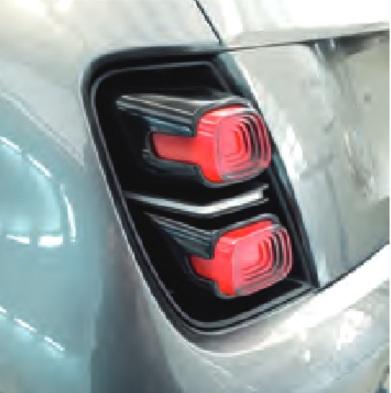
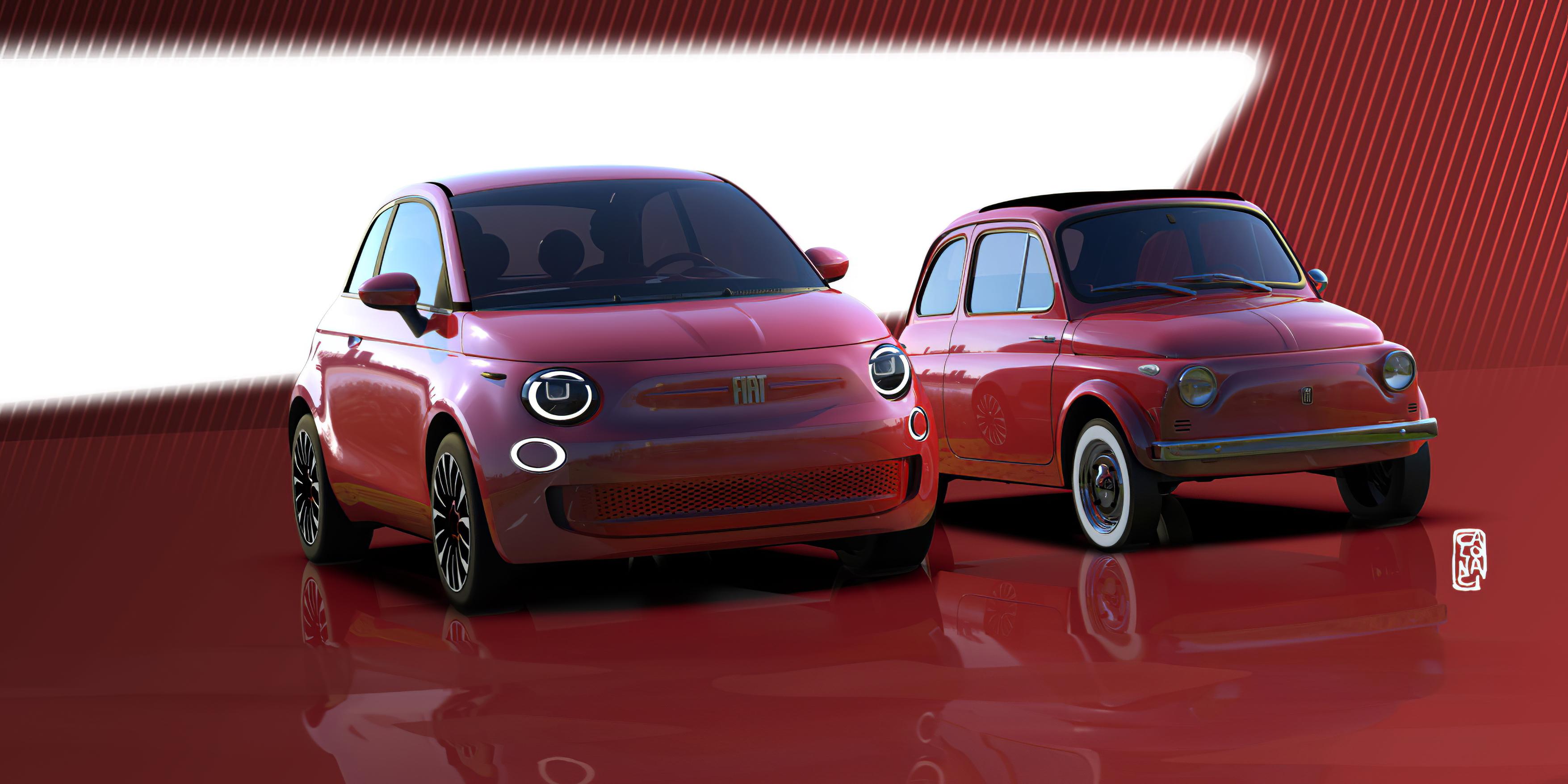
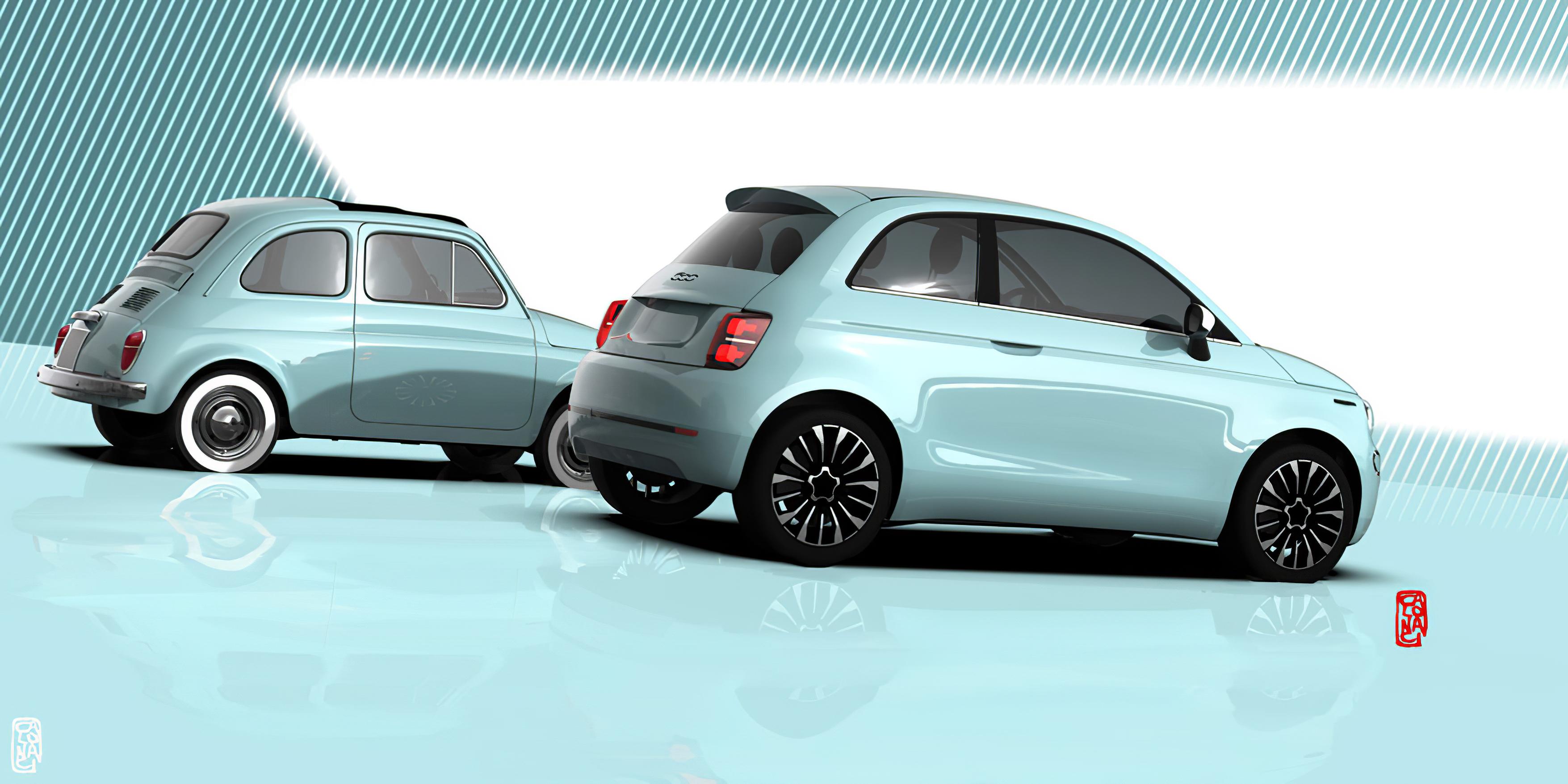
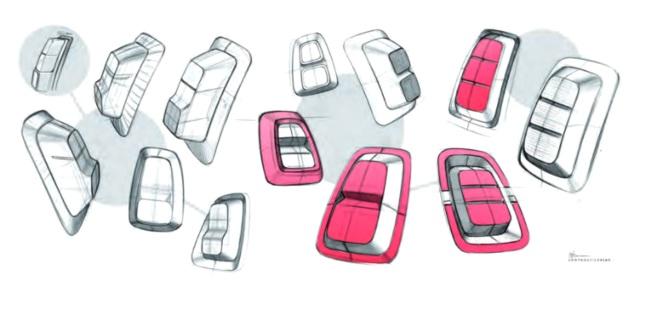
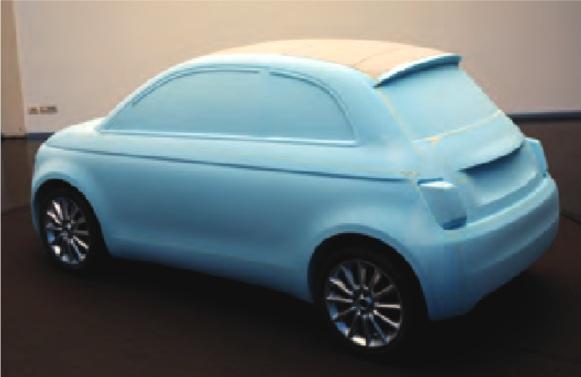
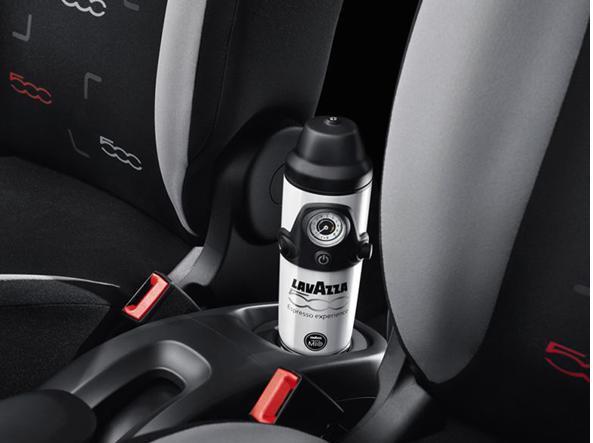
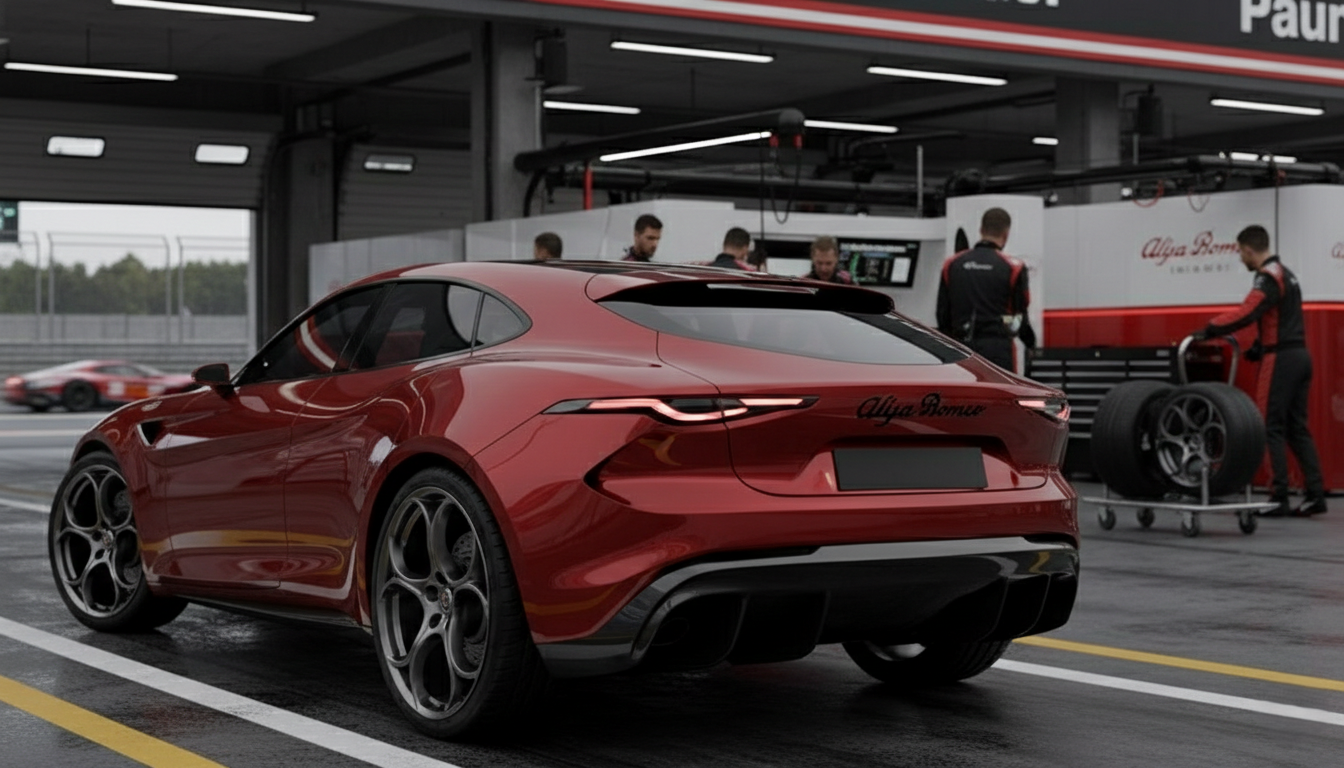
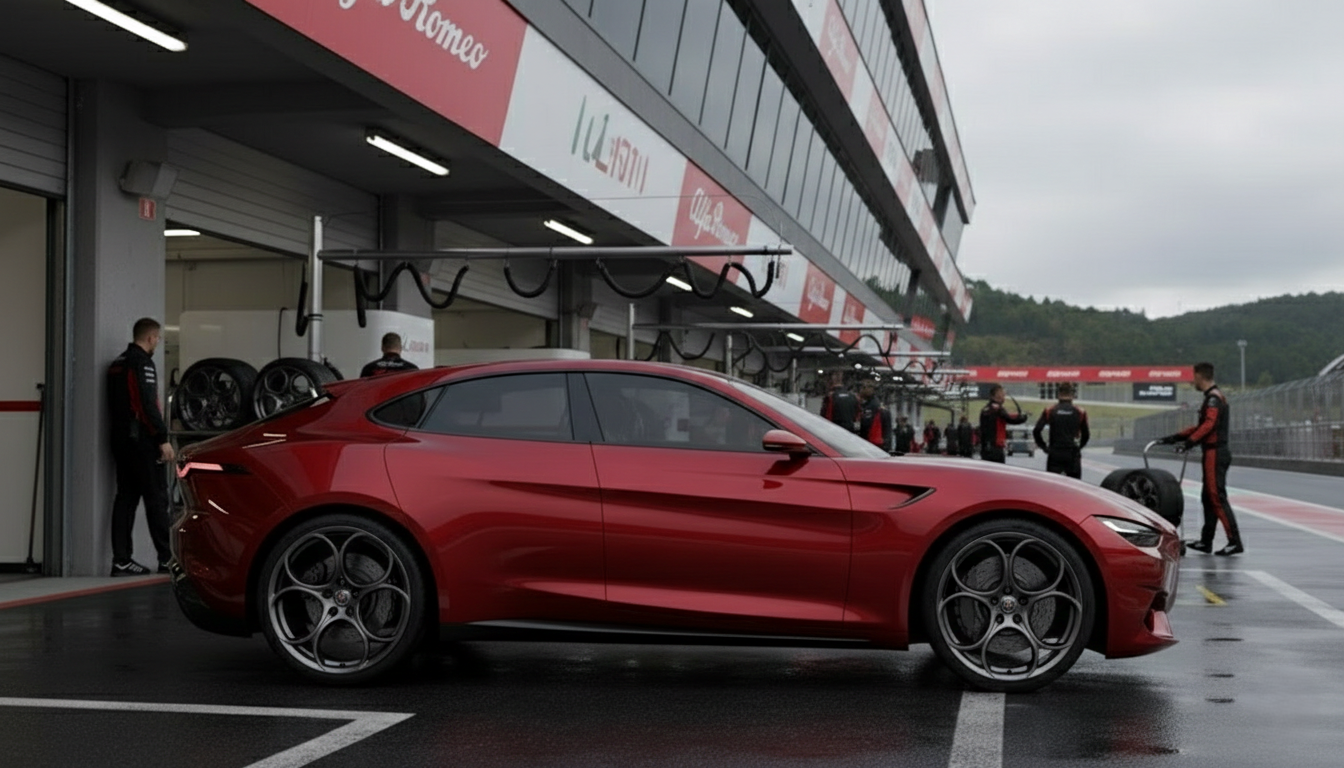
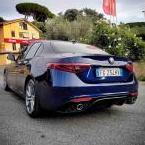
6 puntiQuei fari posteriori dovrebbero essere questi ... Sarebbero stati belli anche cosi' naked ...ma probabile che era prevista una calotta trasparente come la 500 qua sopra...
 6 punti
 -
5 punti
-
5 punti
-
5 puntiAllucinante davvero Il capo del marketing che esce con questa storia su Instagram Forse dovrebbe ripassare le basi 3P Prodotto Prezzo Promozione Che sotto la sua gestione di Fiat sono stati per un decennio e sono tuttora inesistenti, in particolare prodotto e prezzo. Una decina di anni a campare su due prodotti la Pandina e la 500 ice5 punti
-
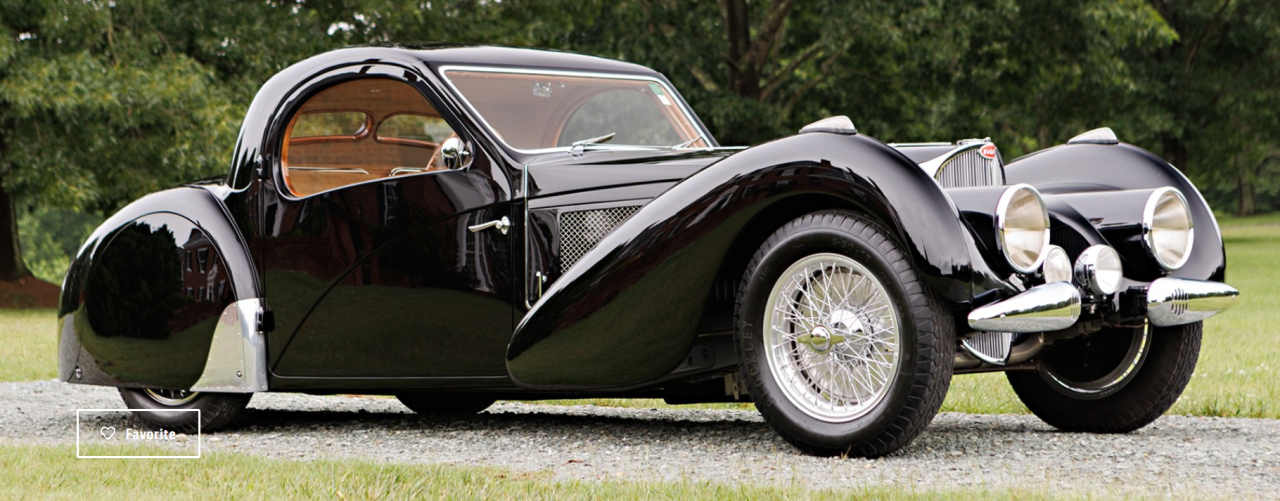
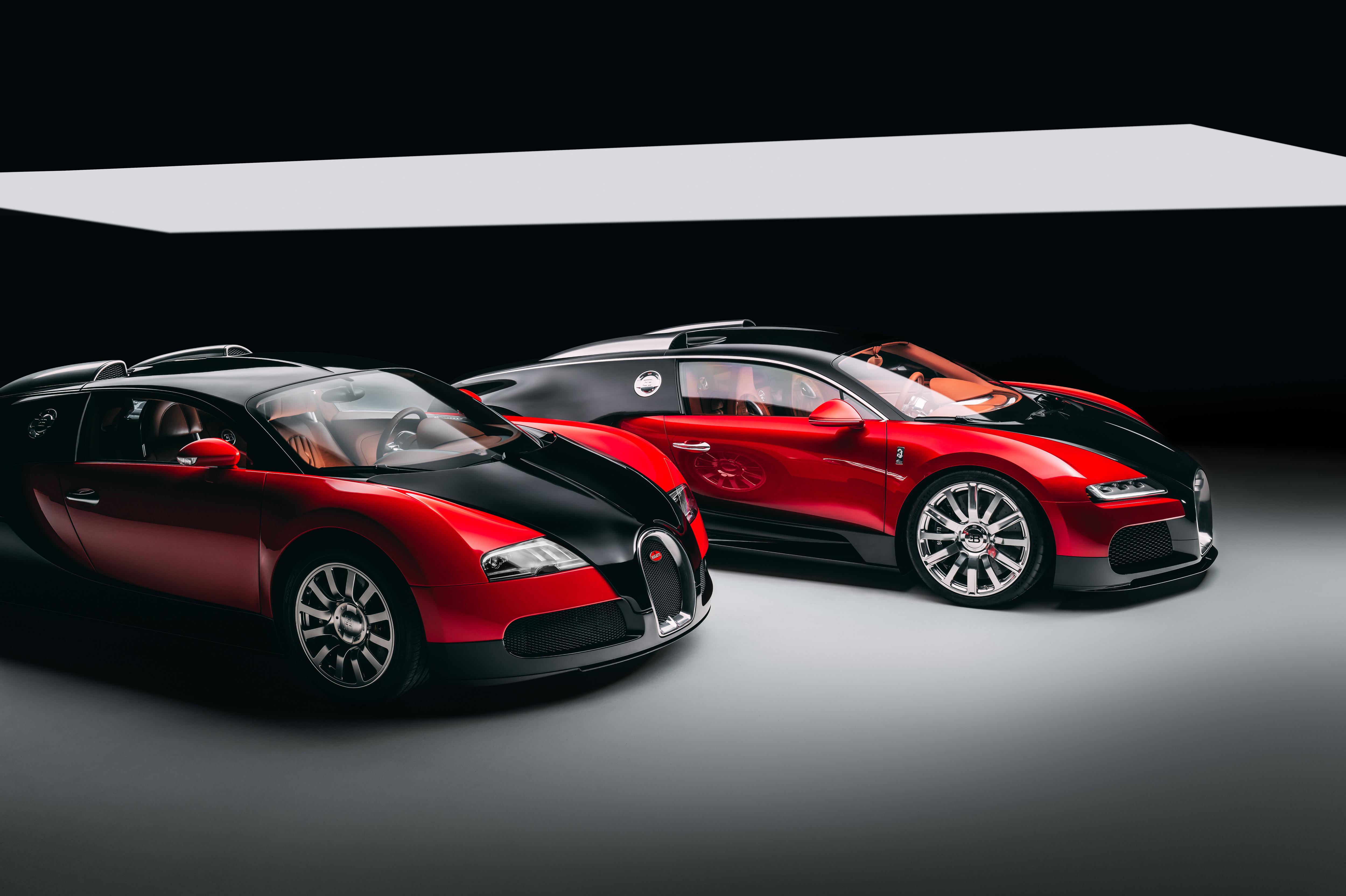
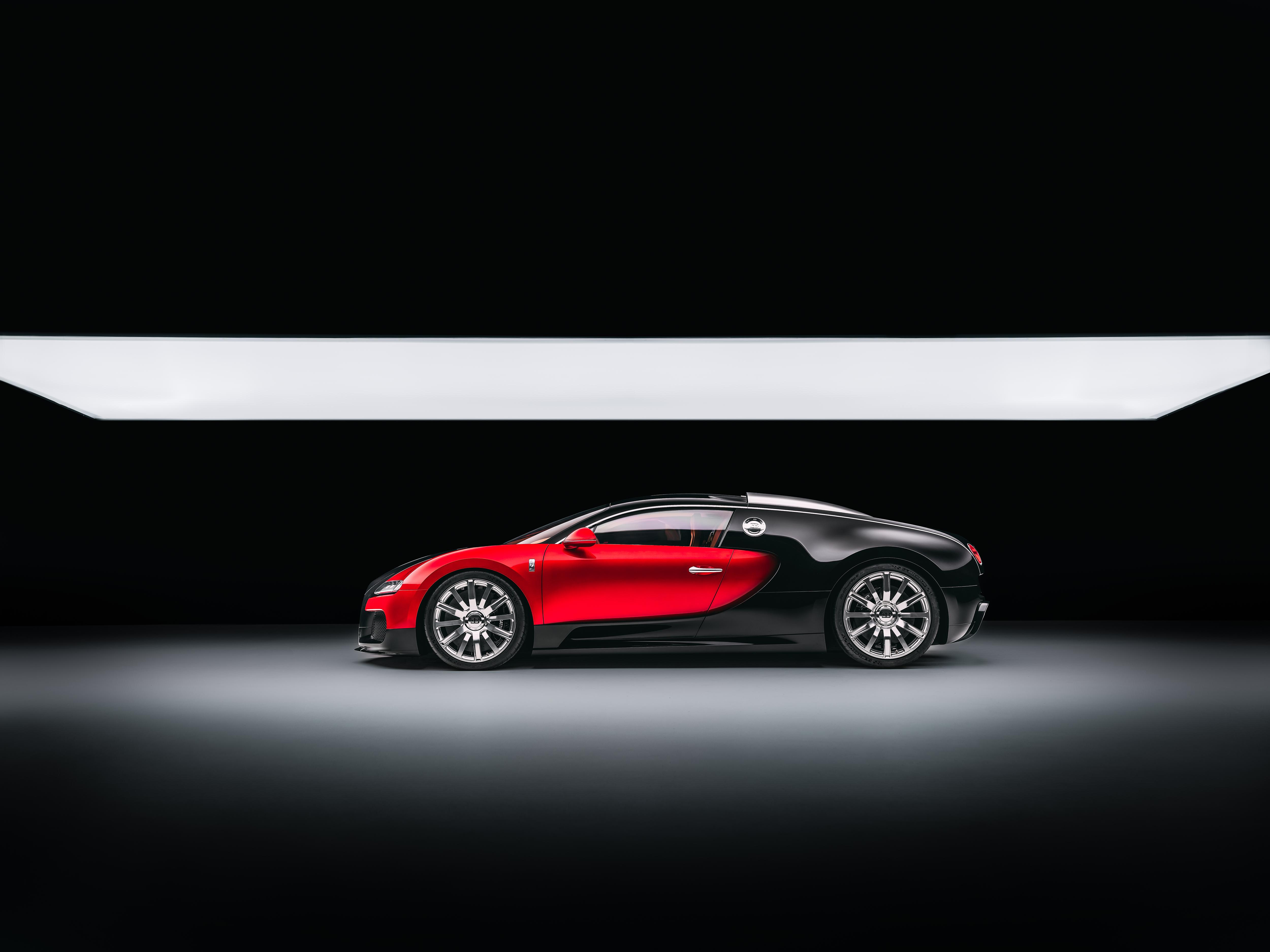
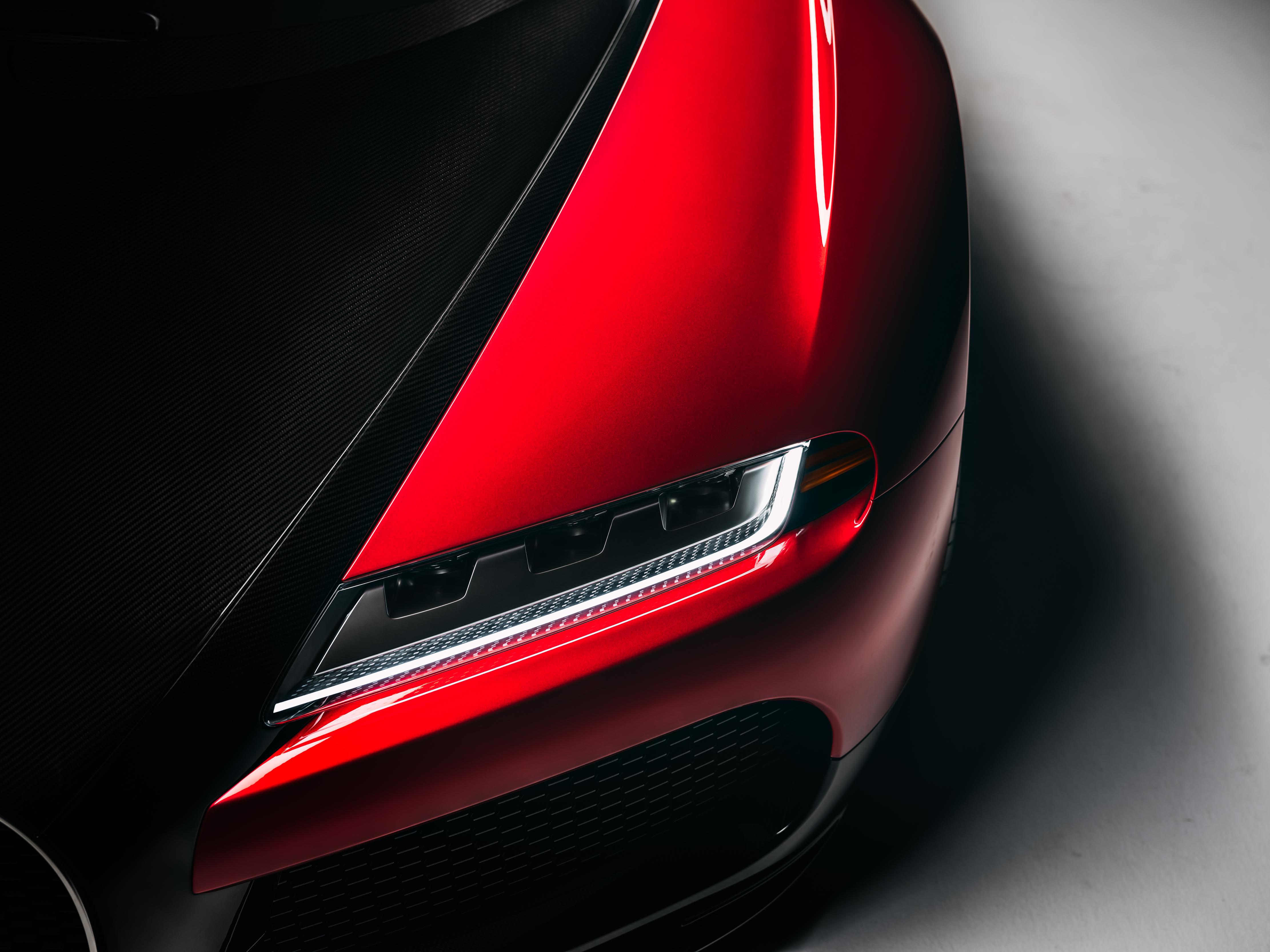
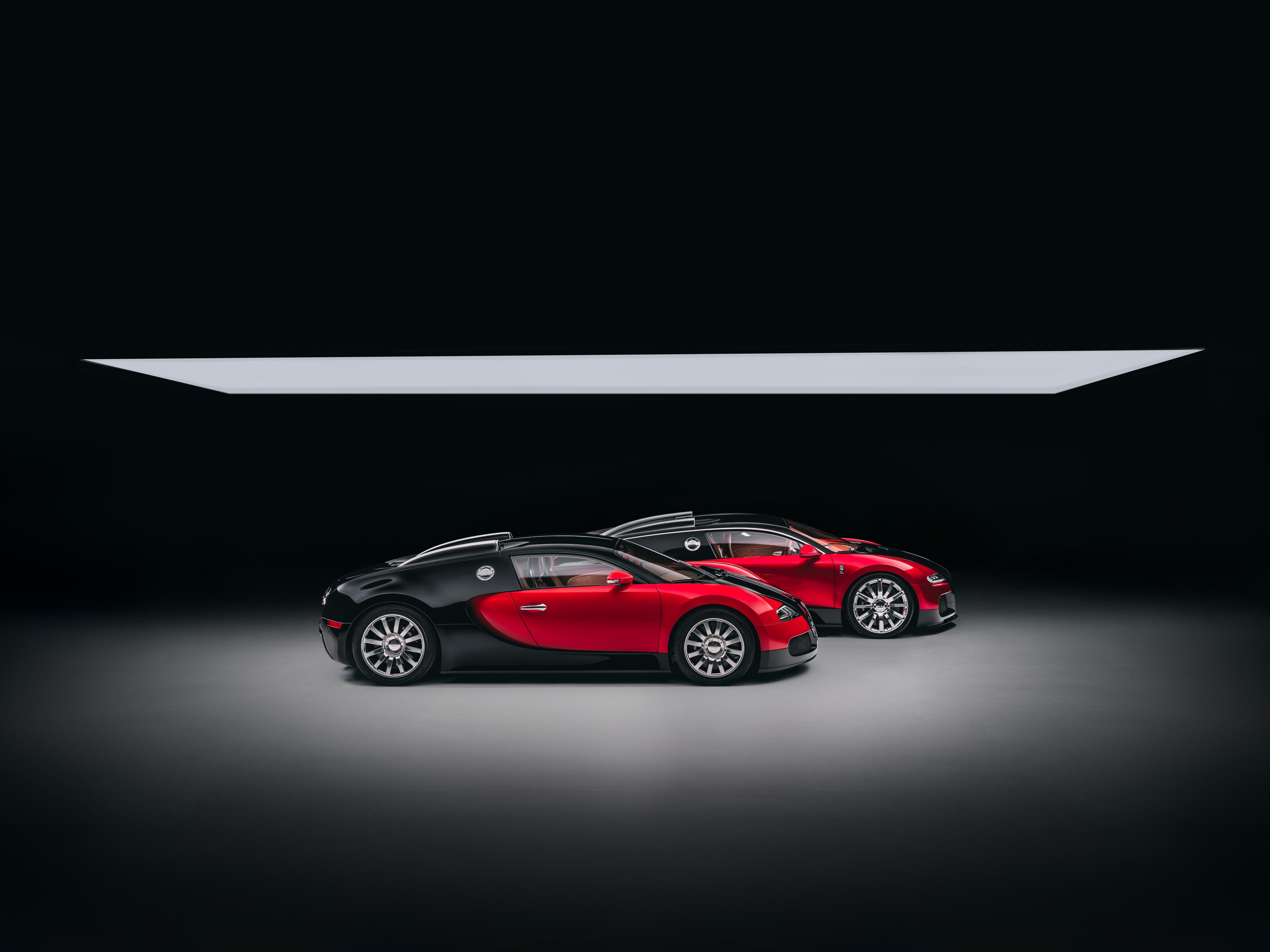
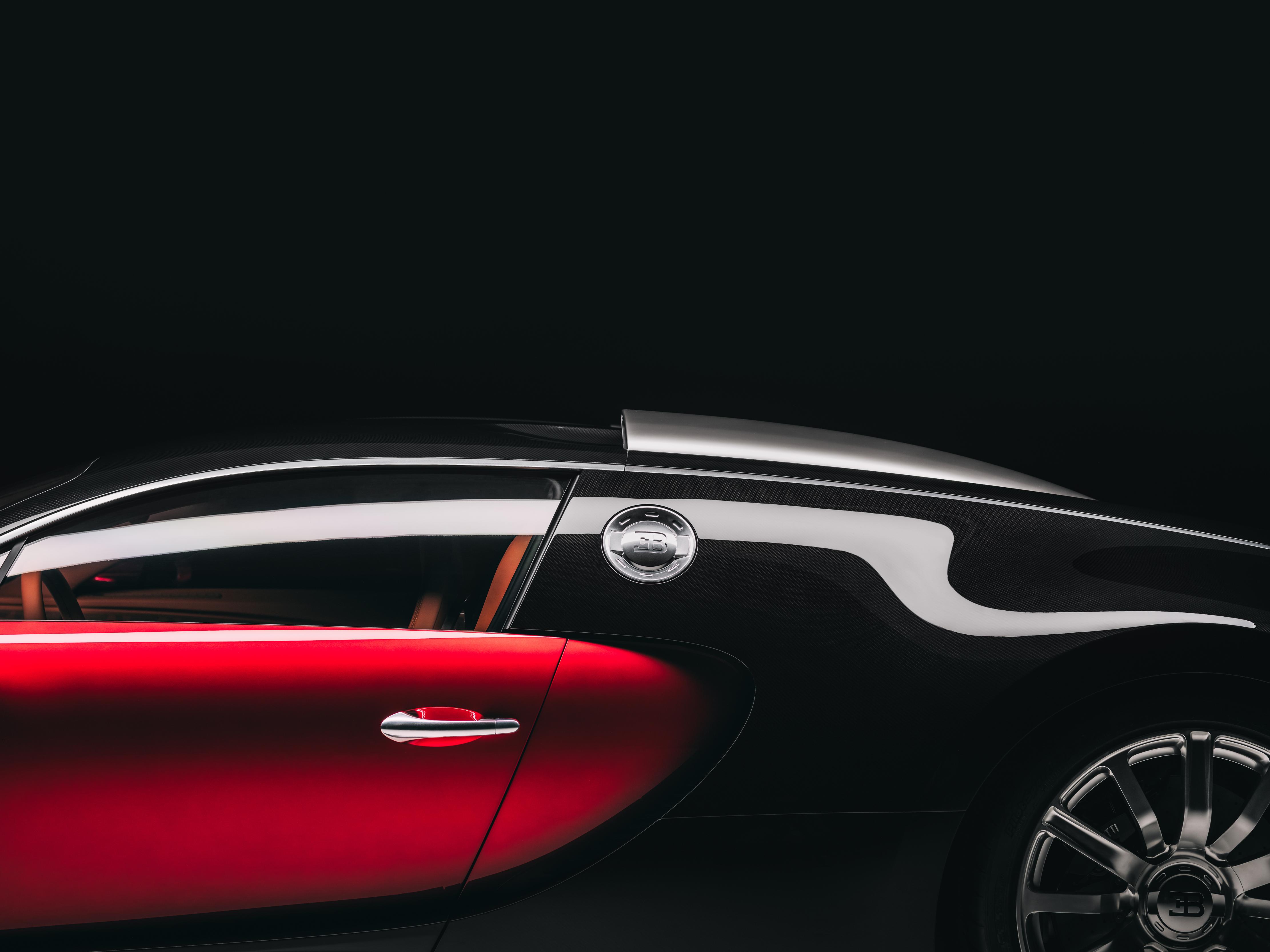
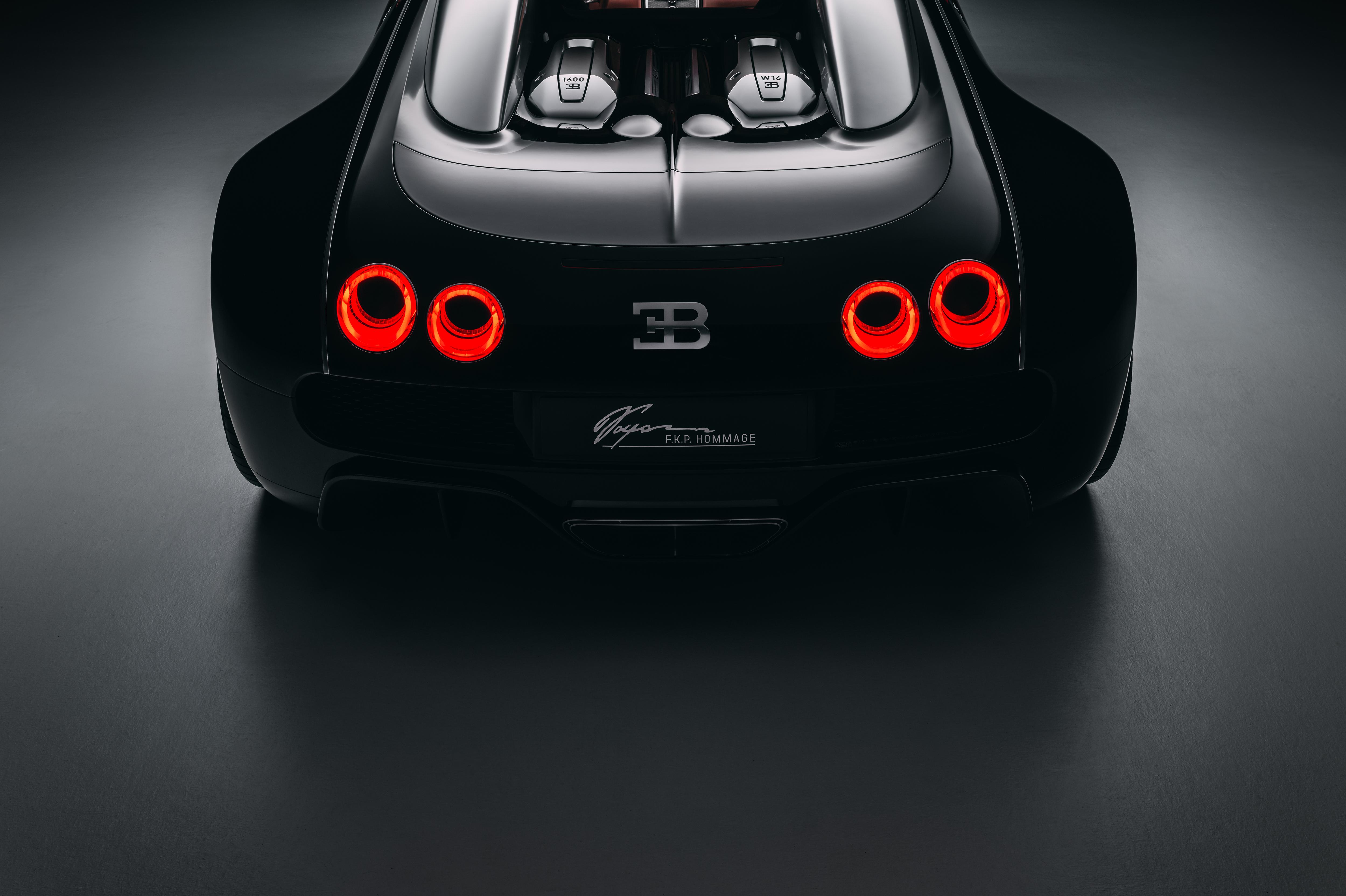
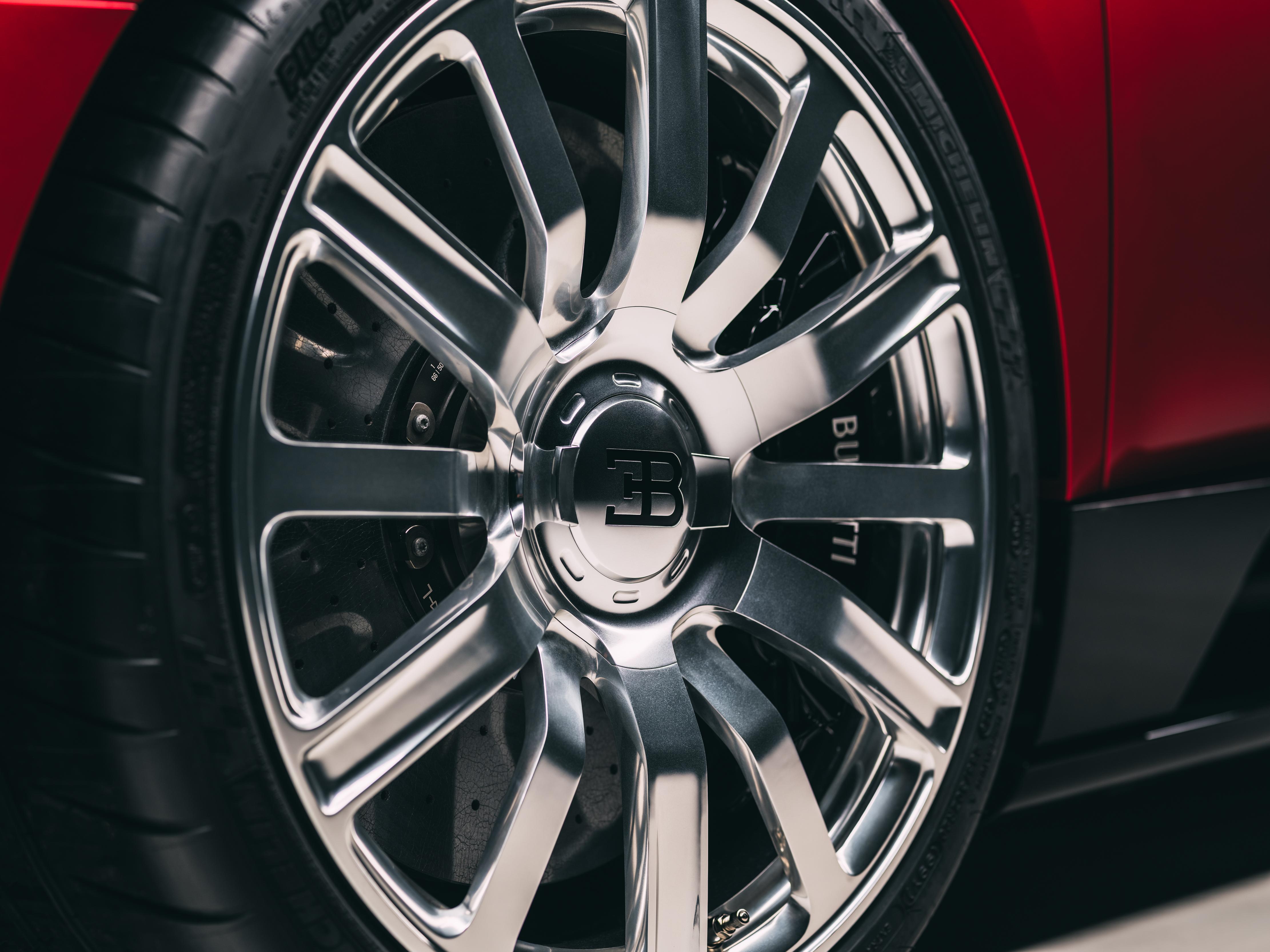
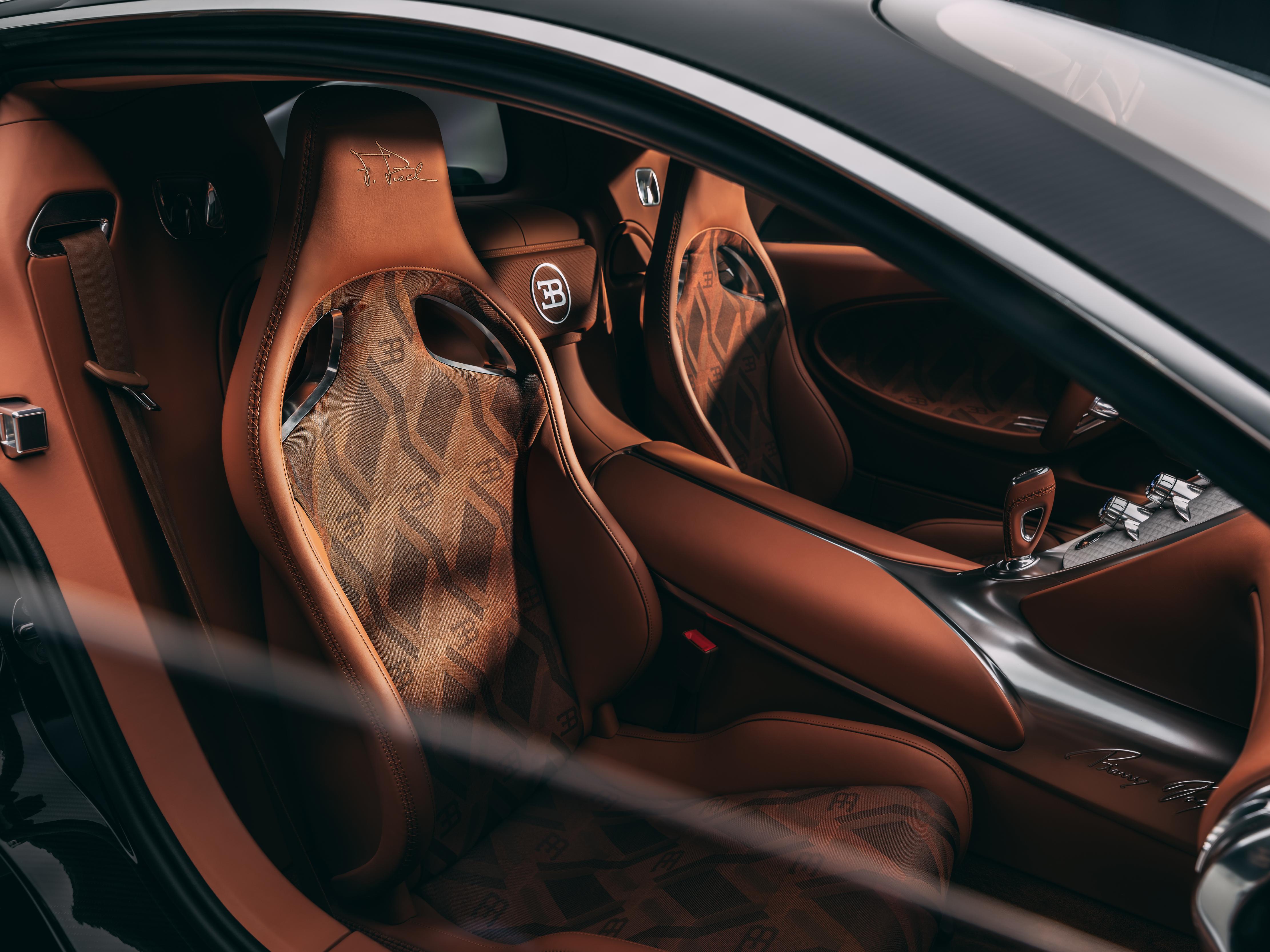
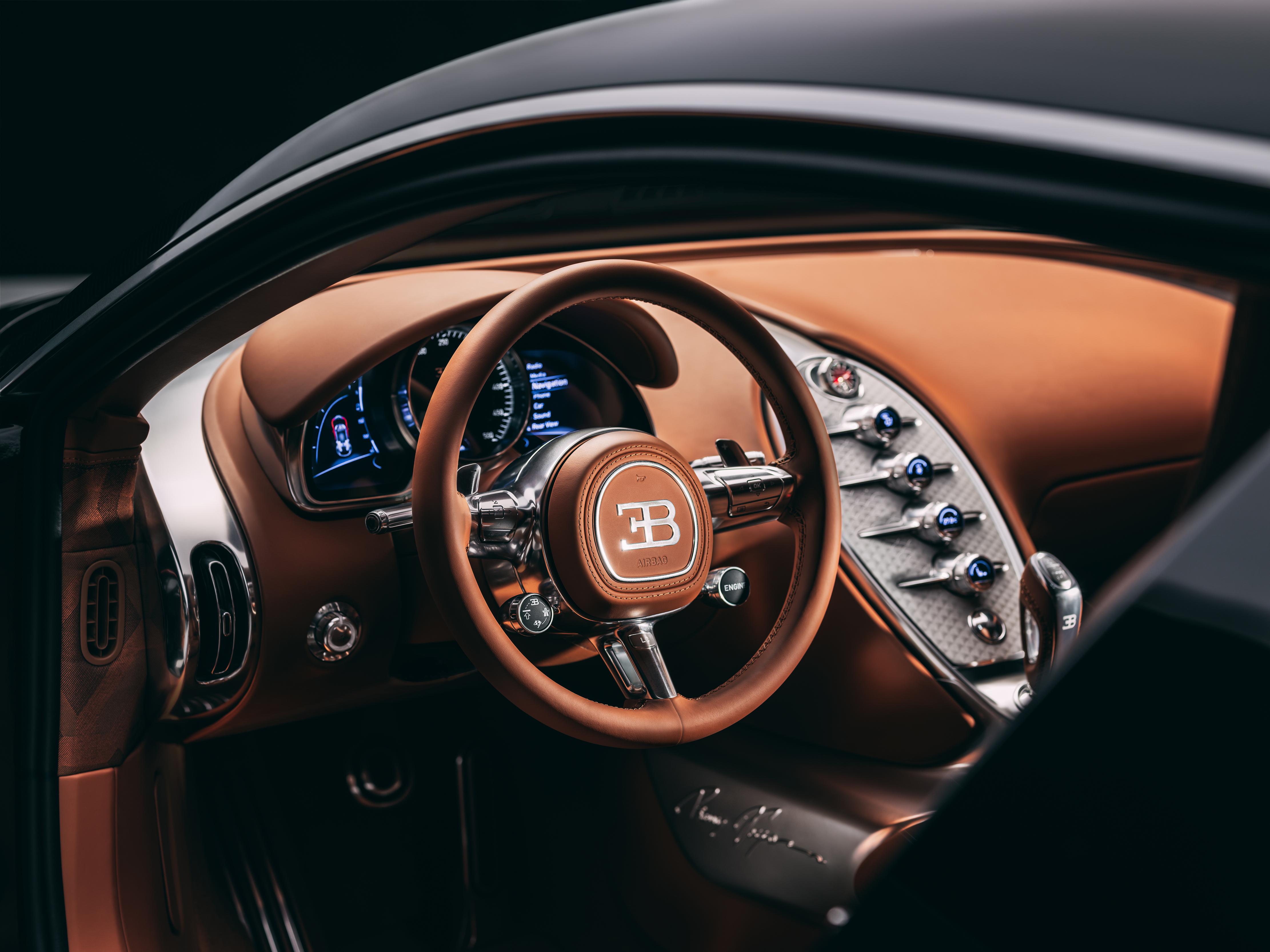
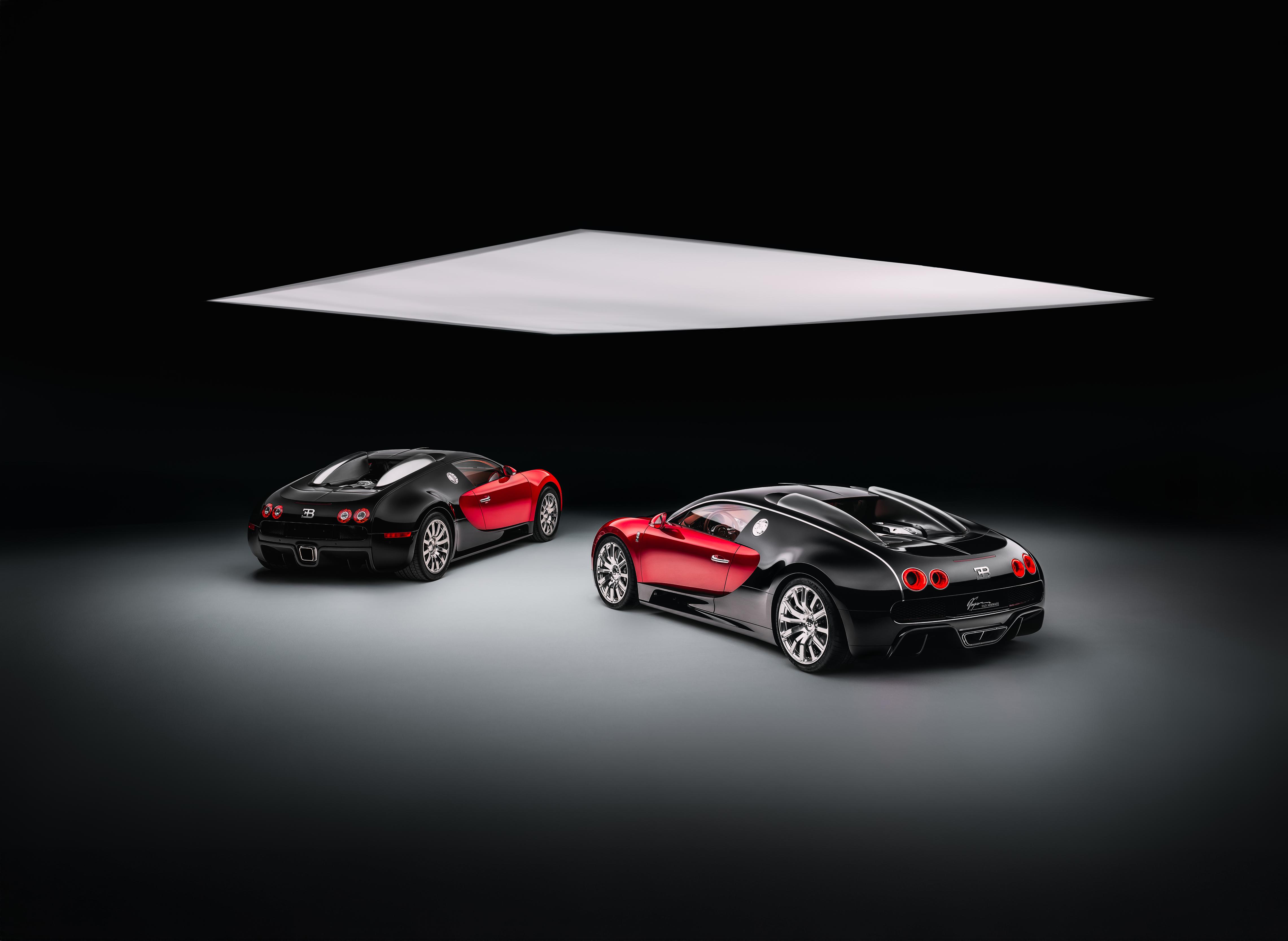
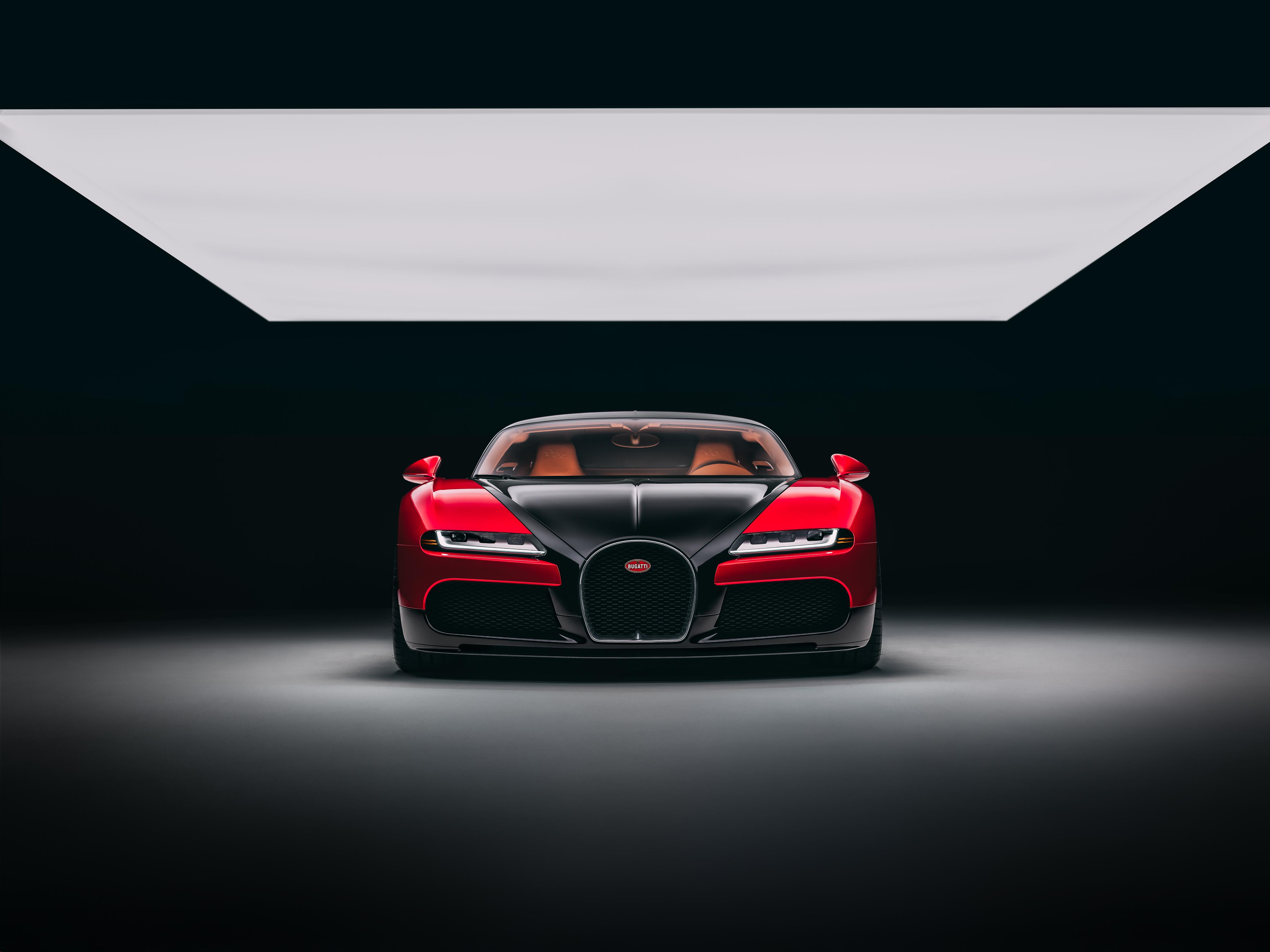
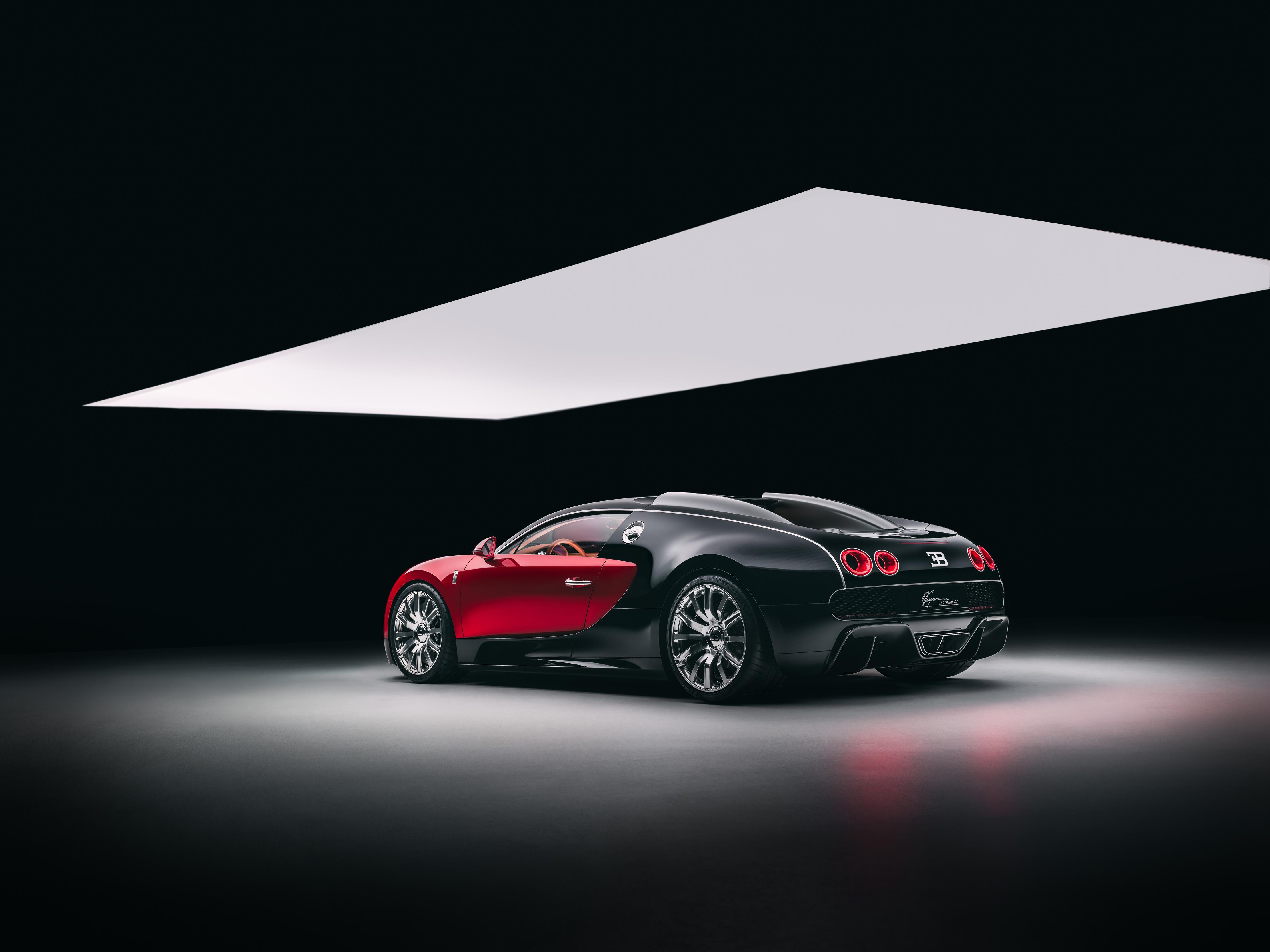
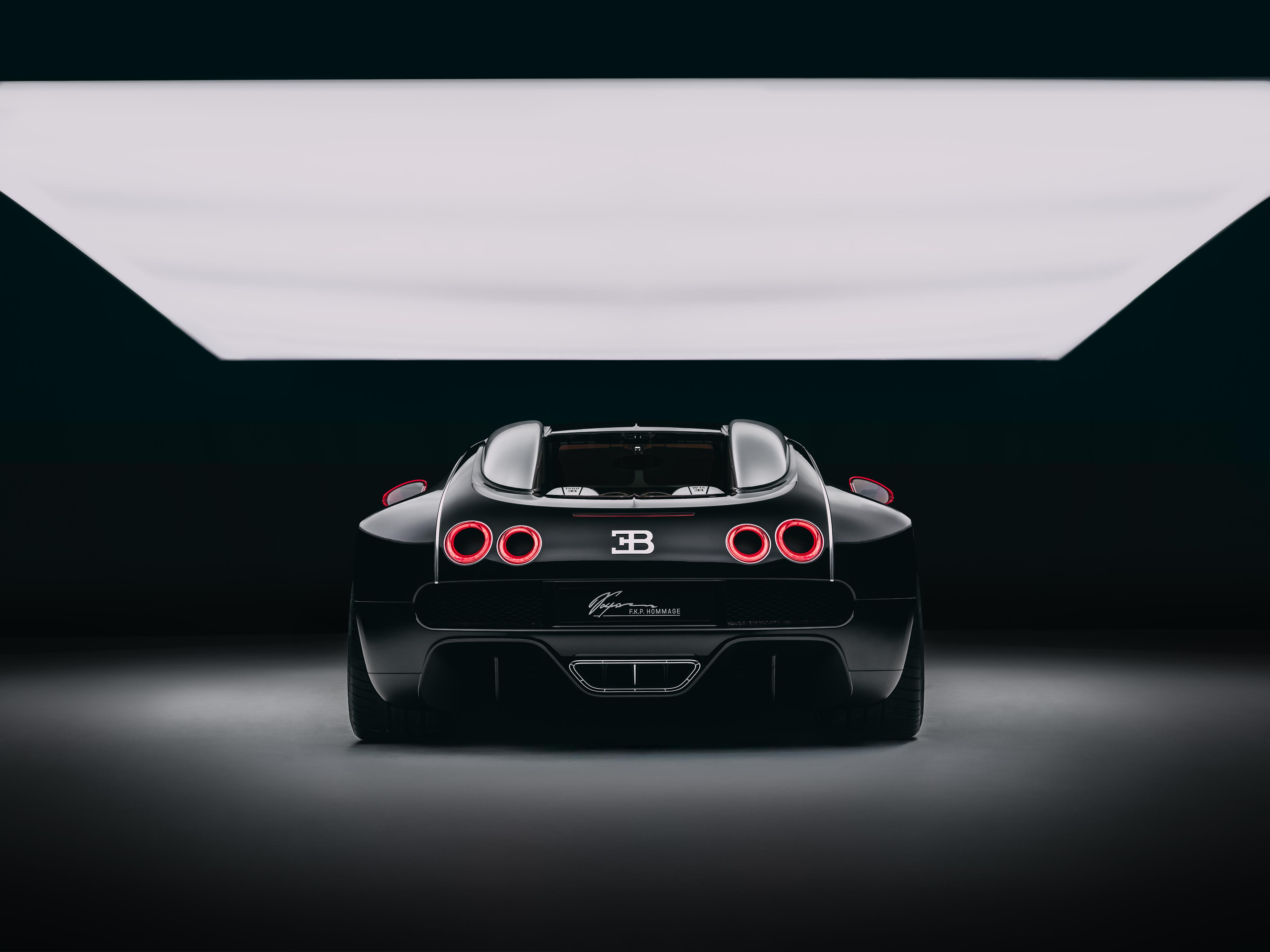
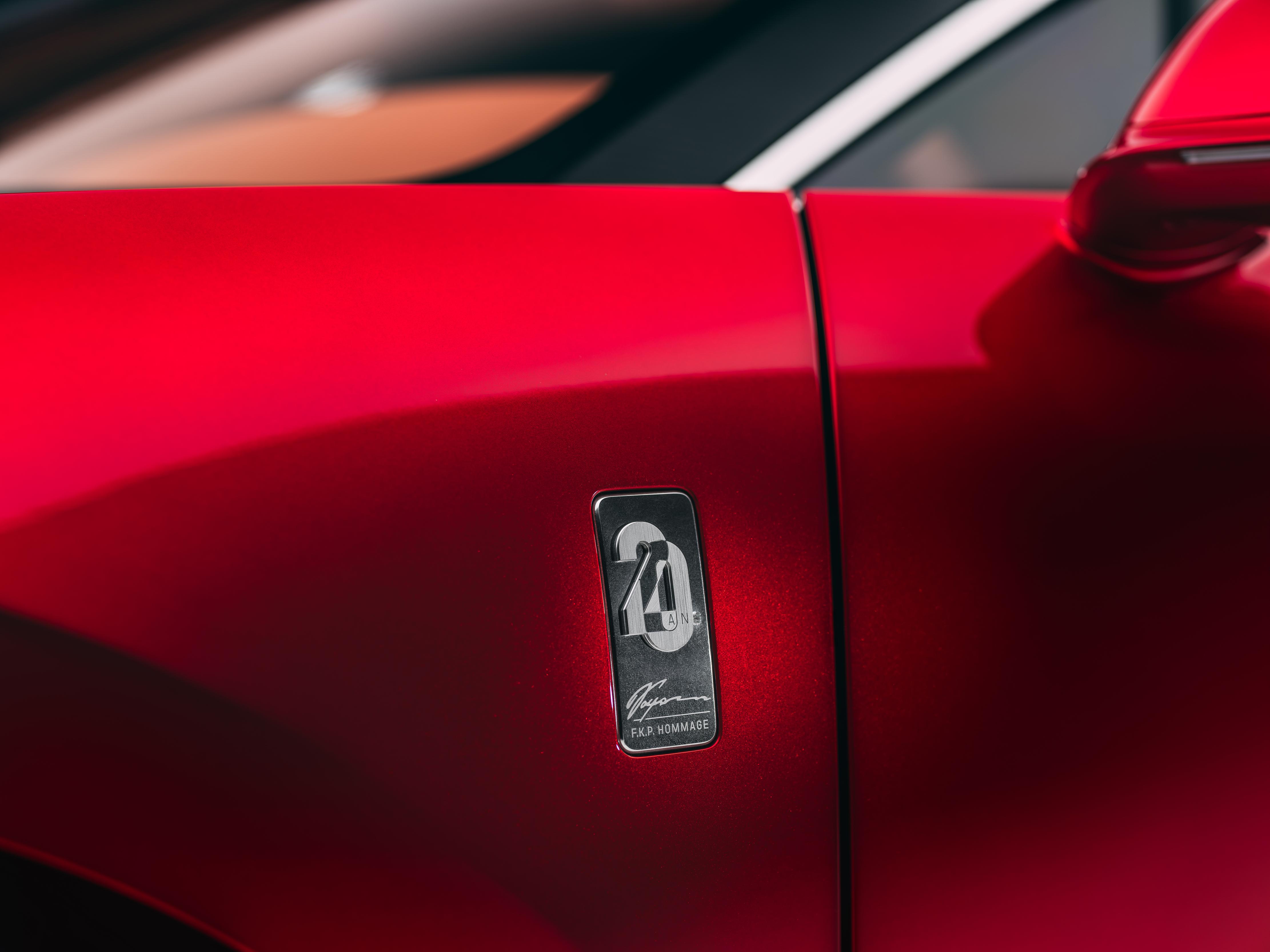
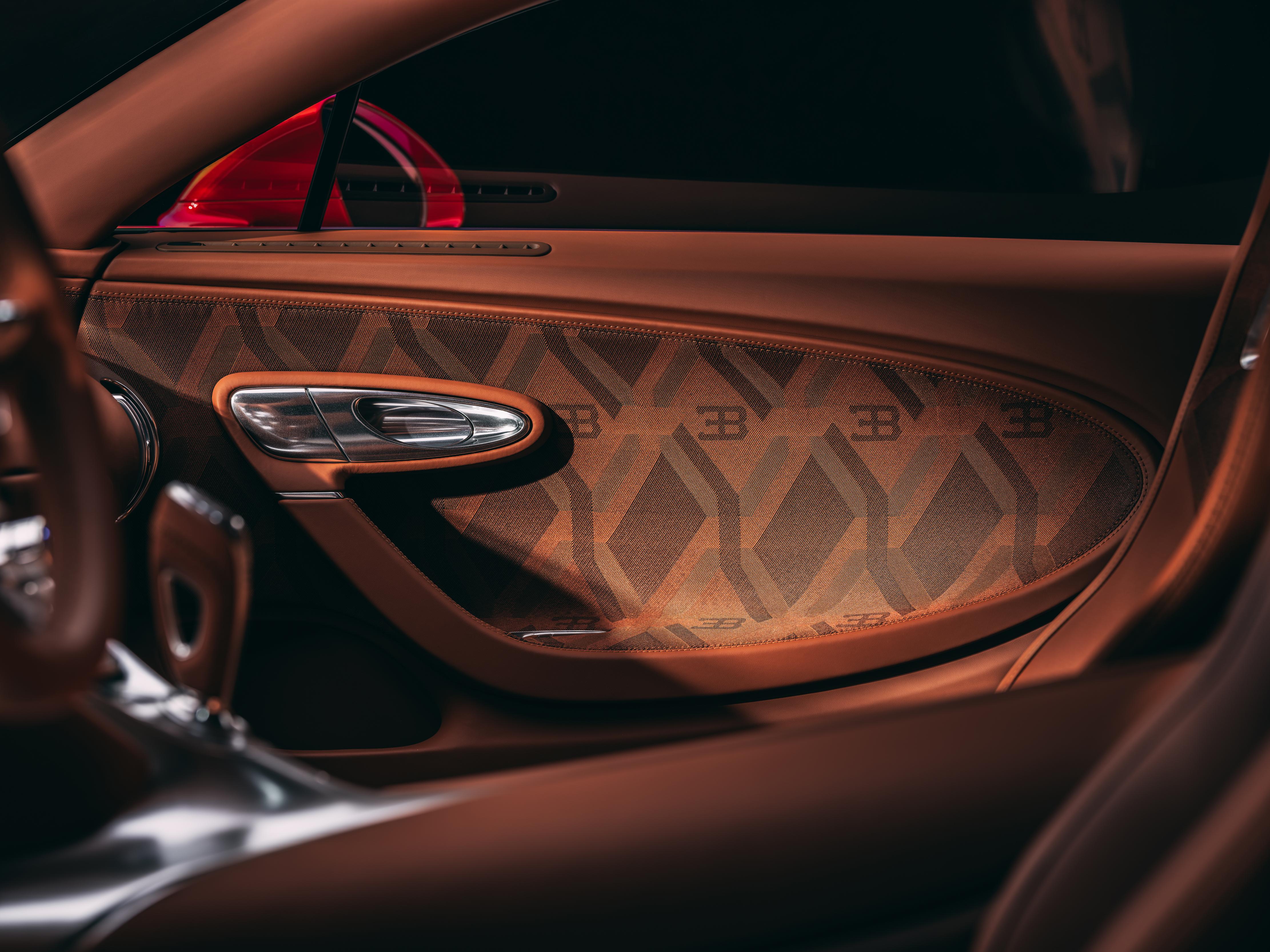
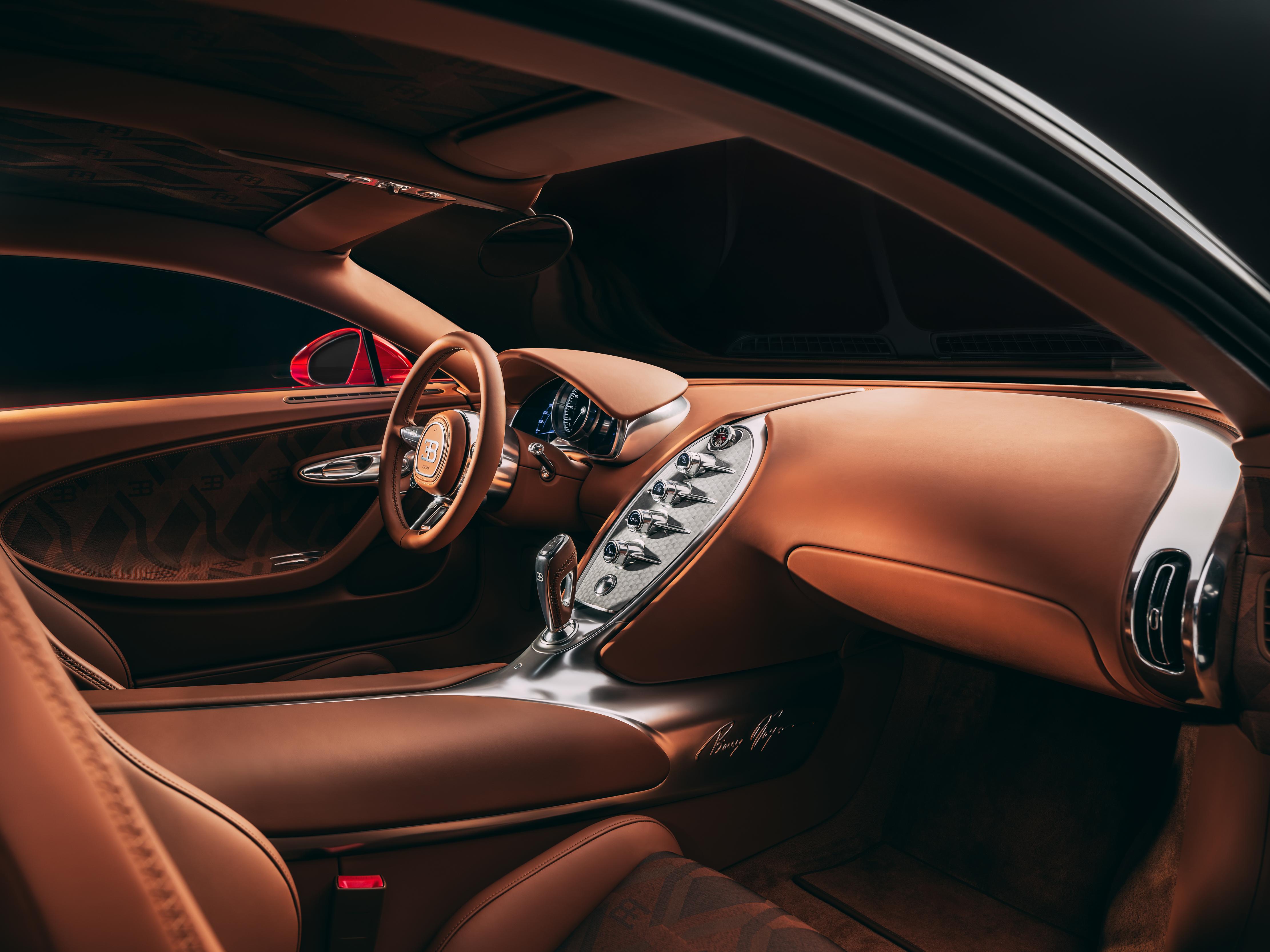
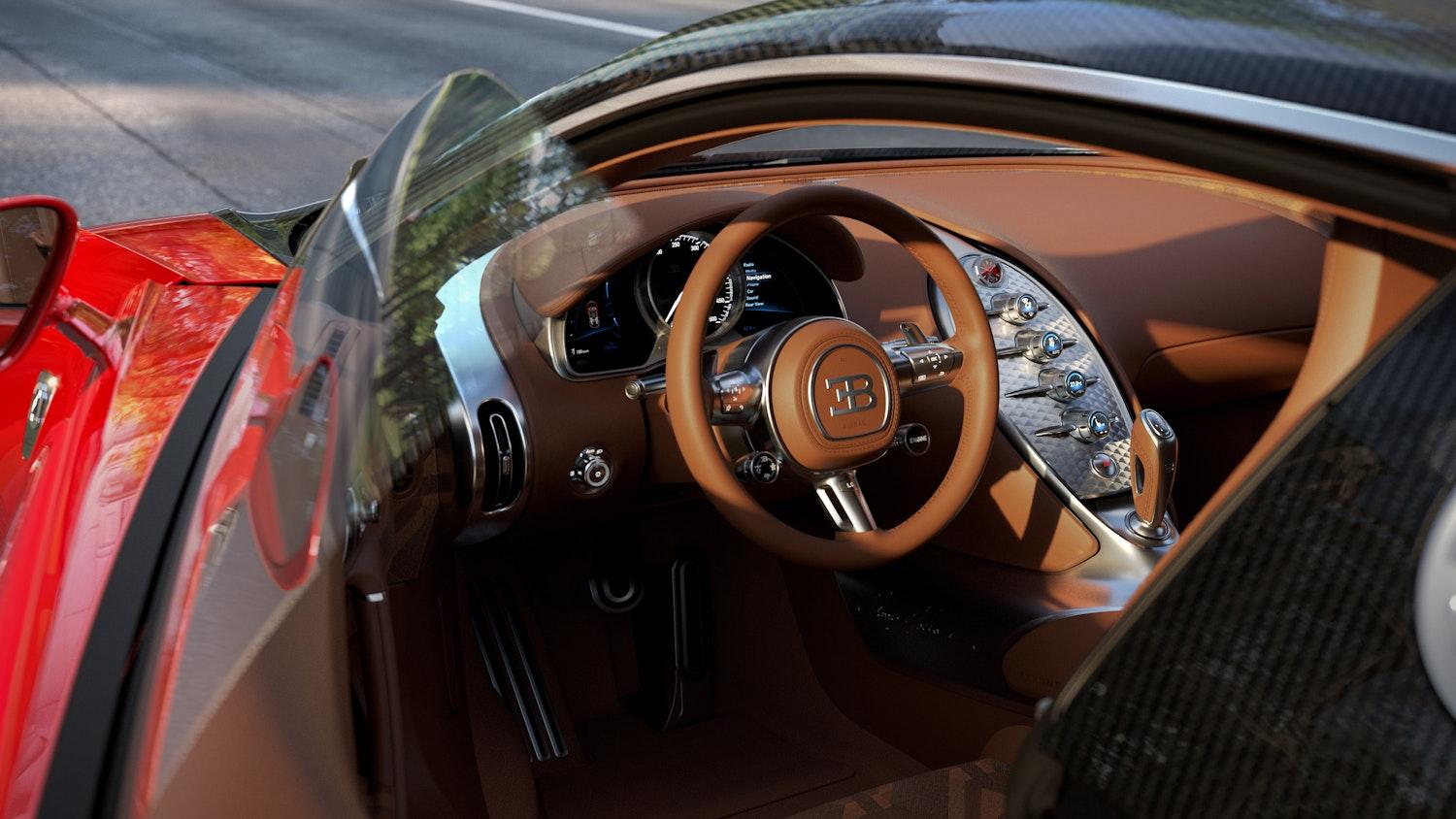
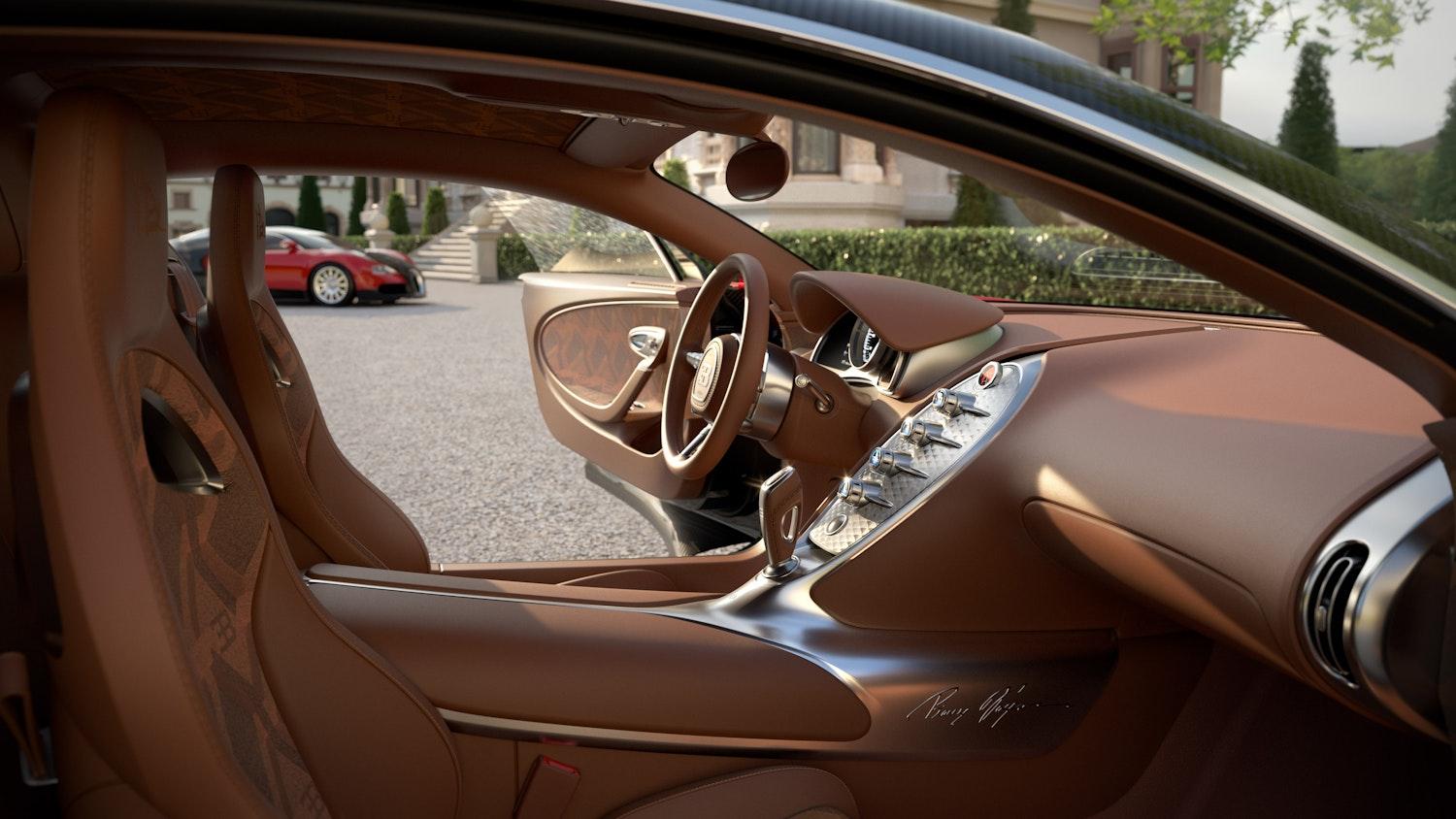
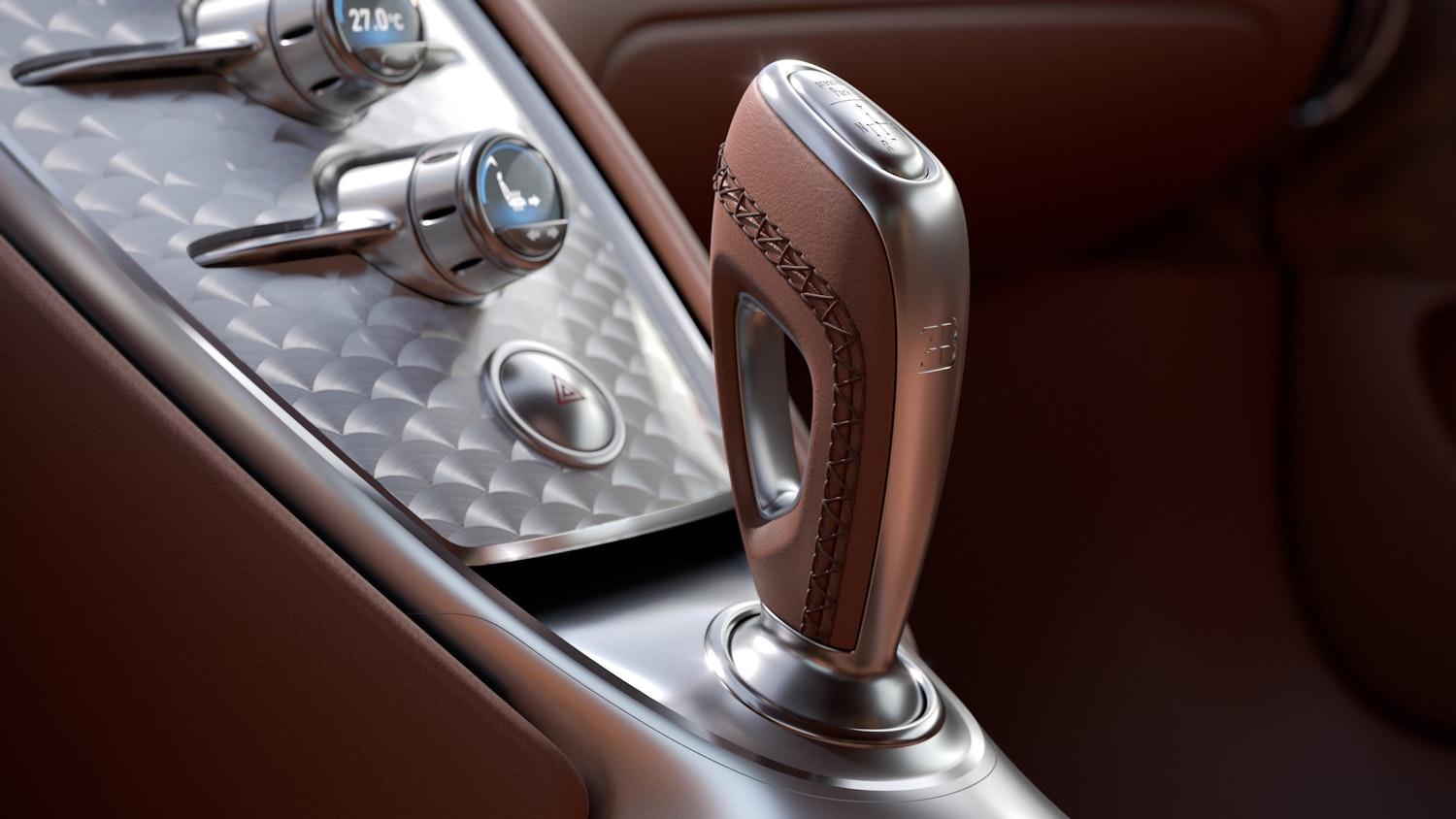
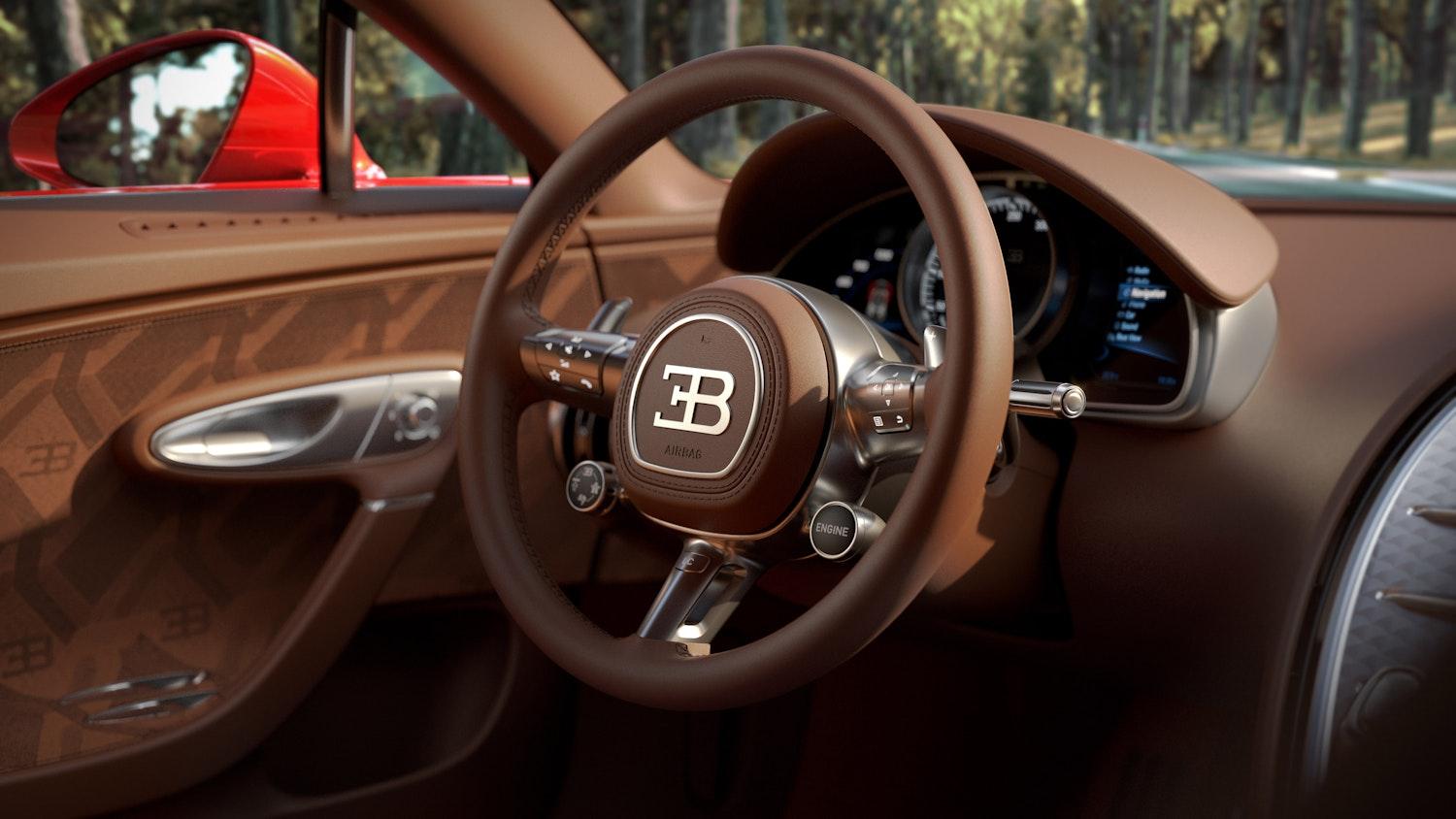
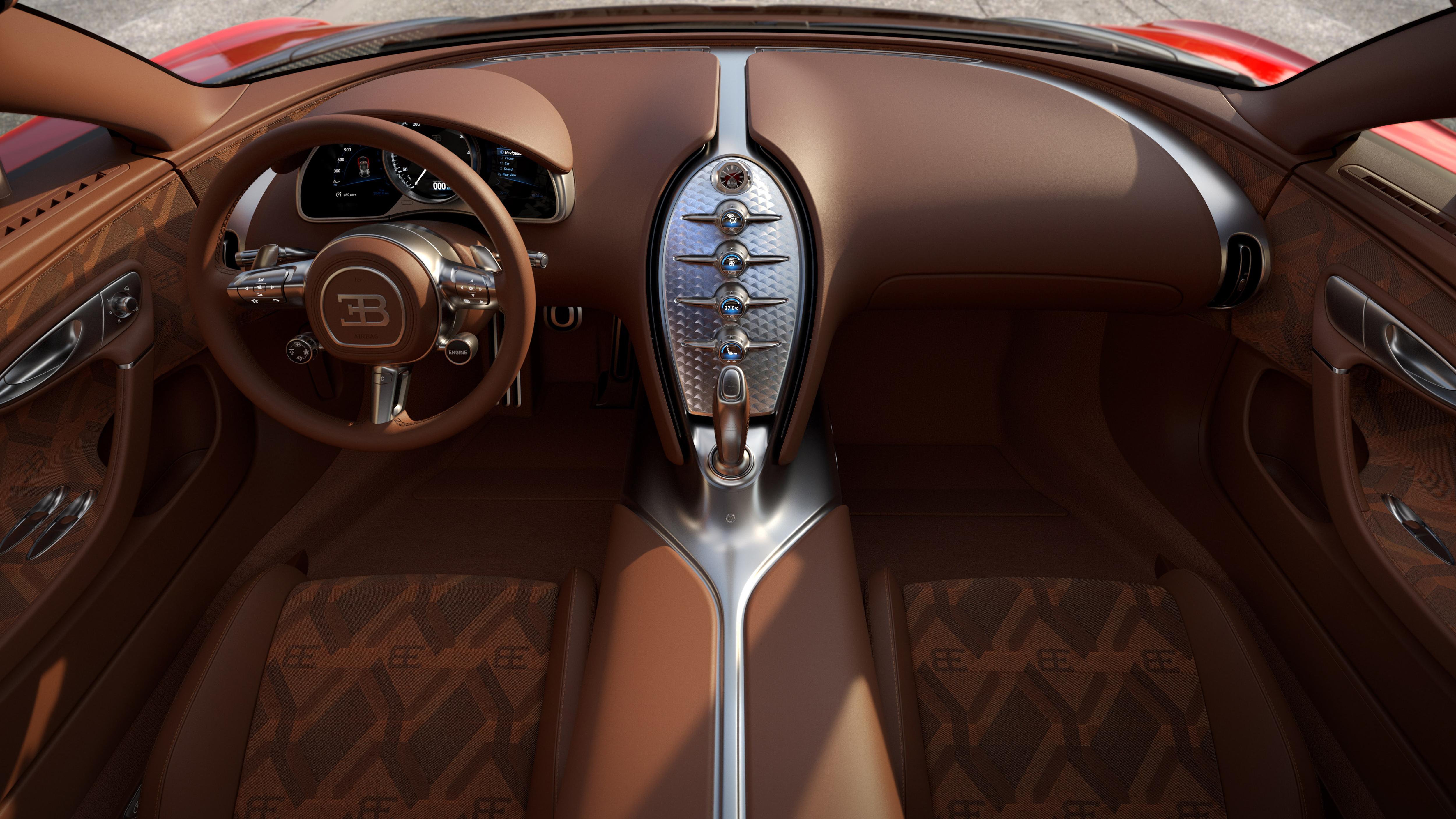
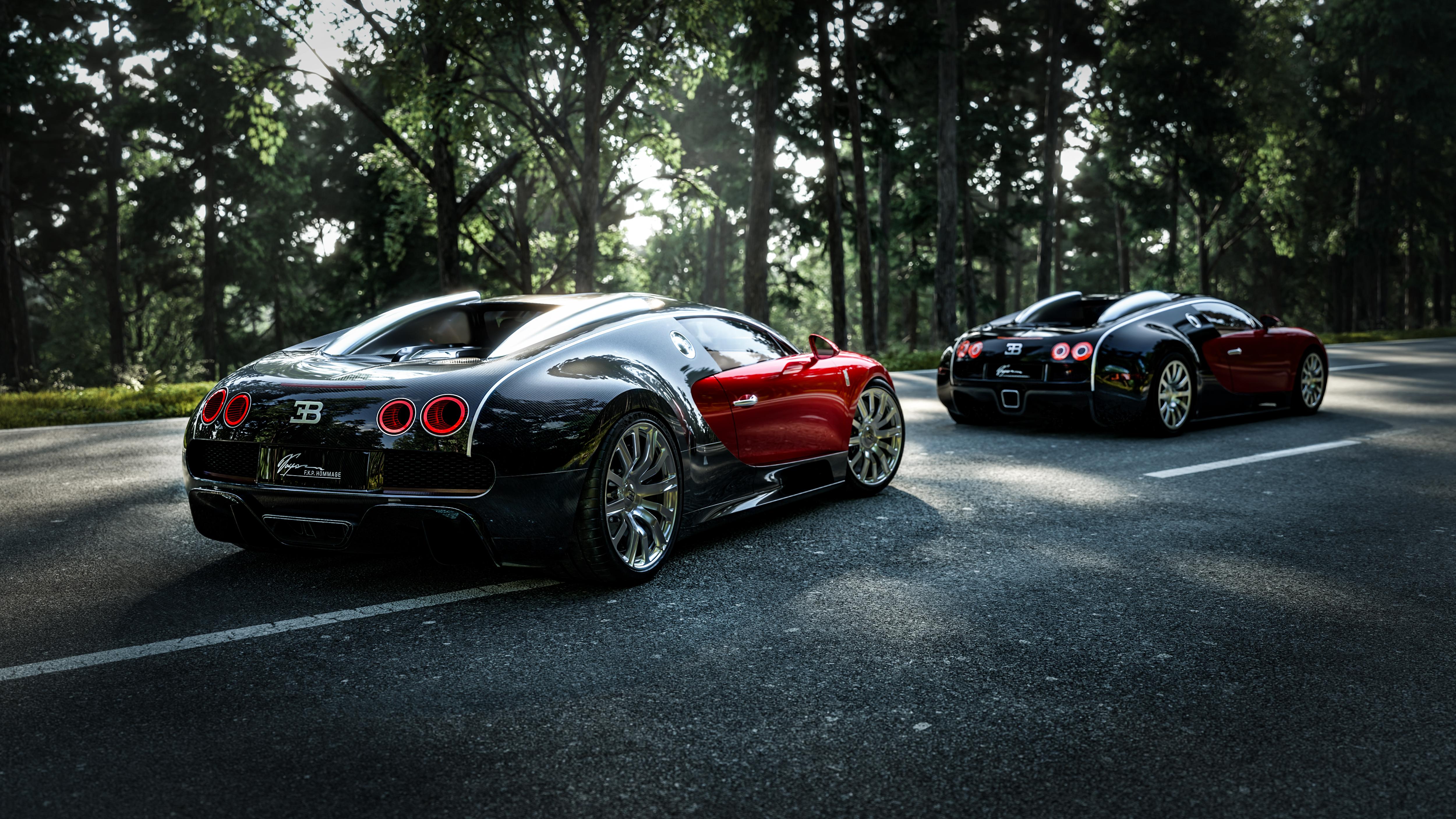
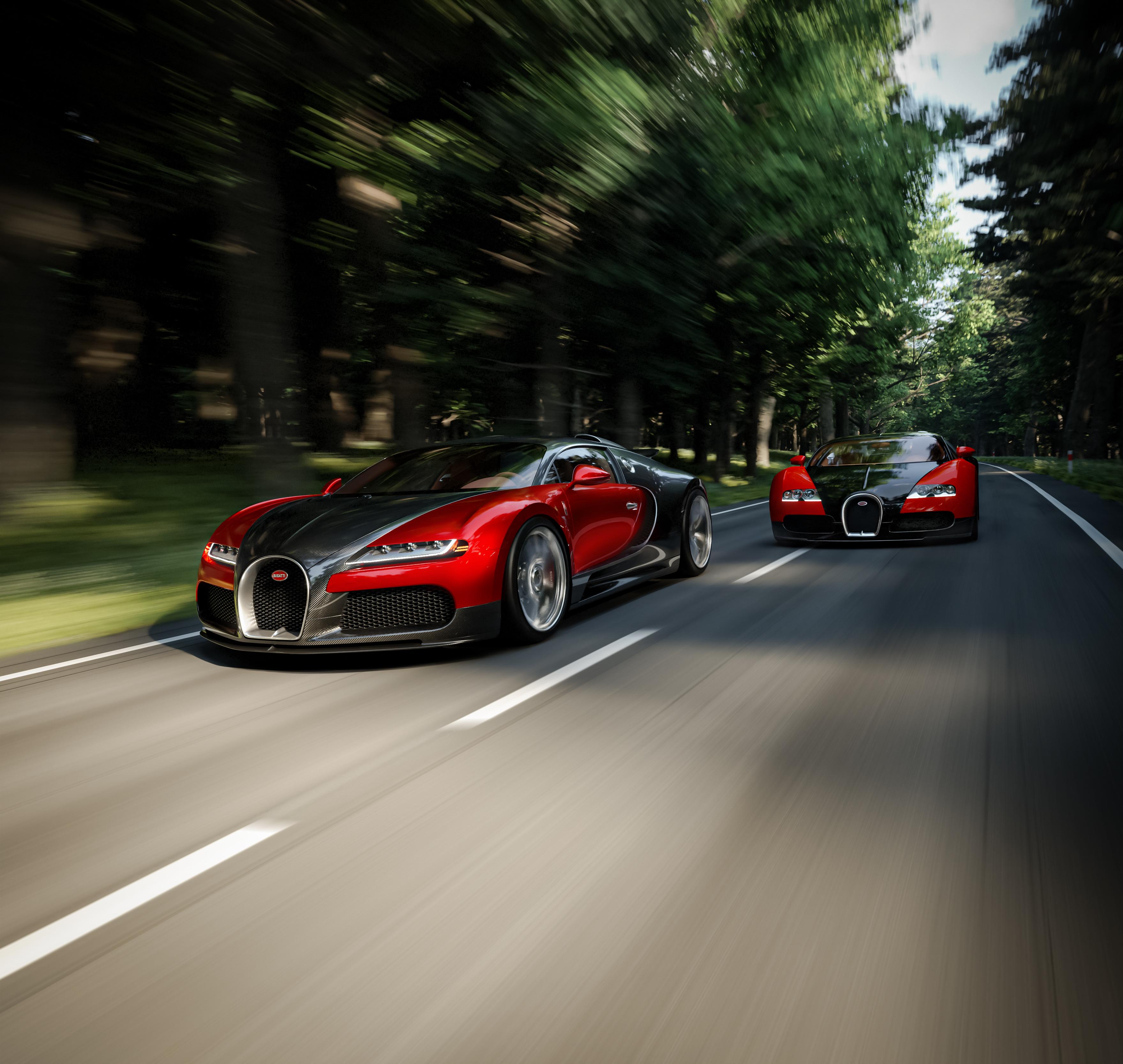
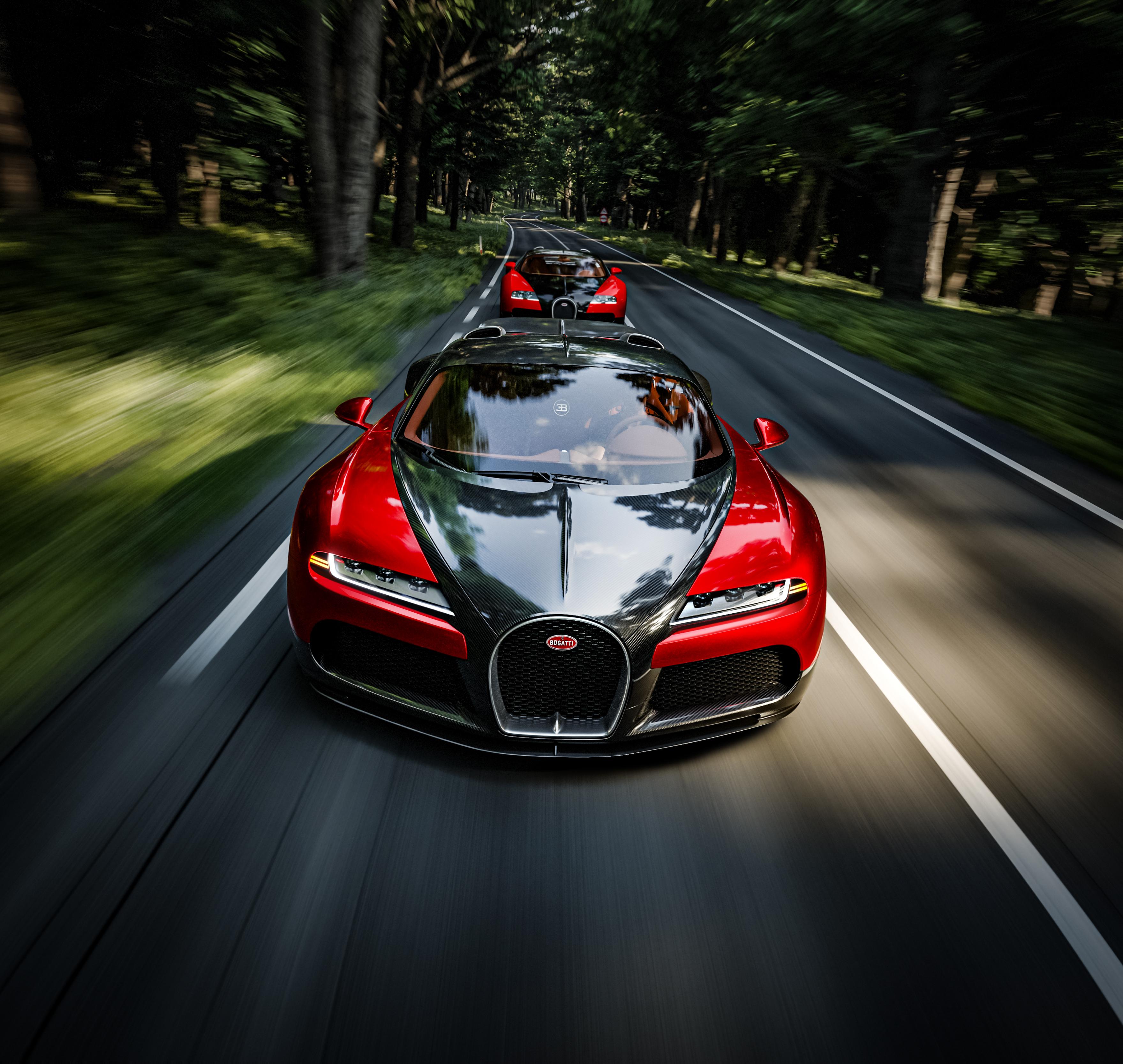
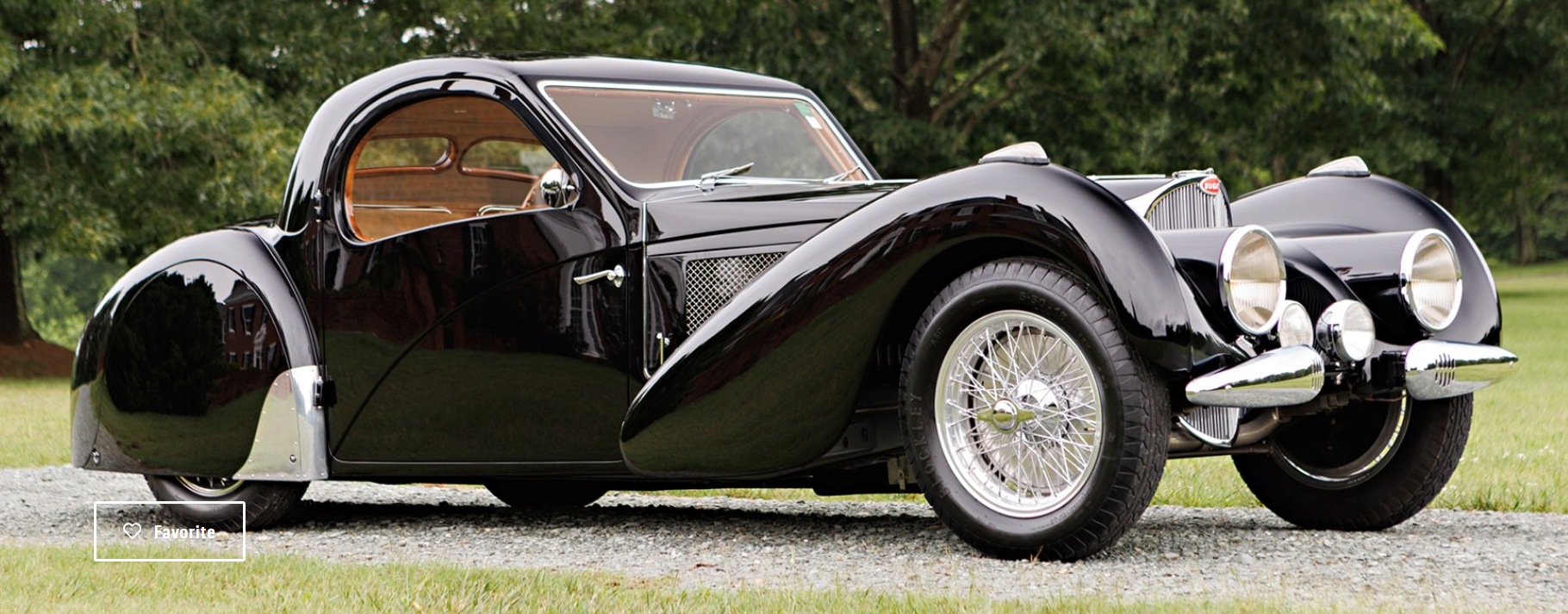
Non è una Veyron. Base Chiron, 1600cv, realizzata completamente su misura per il cliente. Aggiunte le foto ufficiali al primo messaggio4 punti
-
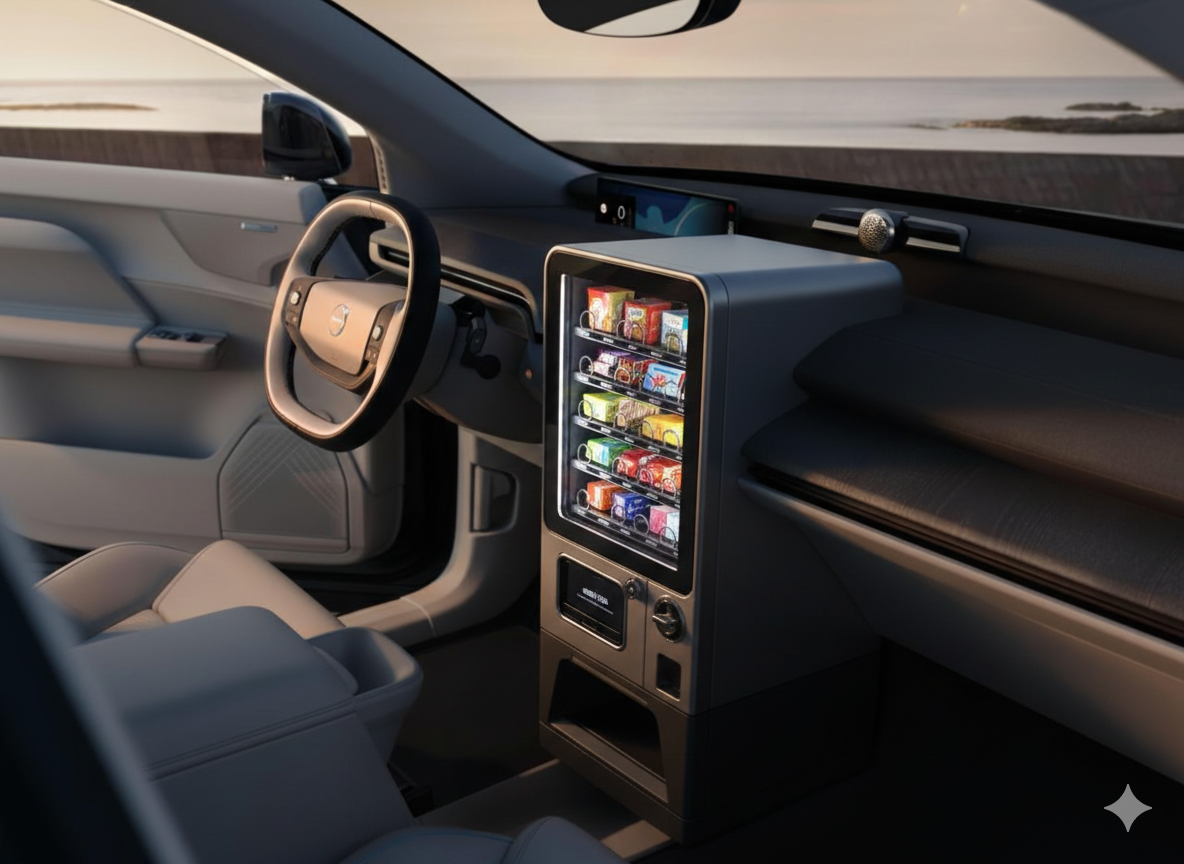
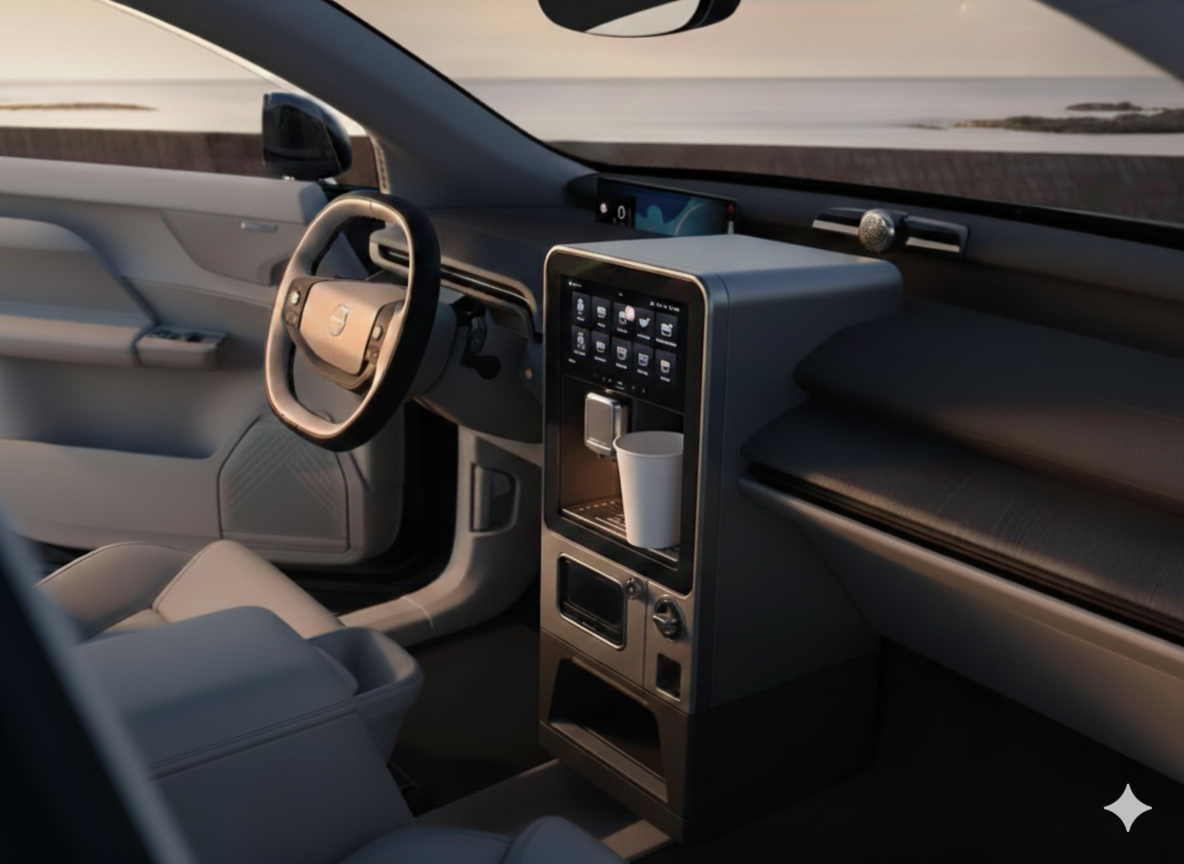
Parlo da Volvista: esteticamente ne apprezzo la pulizia, l'equilibrio e la razionalità. La discrezione secondo me dev'essere alla base di ogni Volvo. Va anche detto che il rischio di cadere nel noioso è dietro l'angolo, e questa EX60 ci è andata molto, forse troppo vicino. Almeno qua in Italia si propende a valorizzare maggiormente prodotti dall'immagine premium più ostentata. Forse perché per molti è sinonimo direttamente proporzionale di lusso e status. Fortunatamente non è cosi per tutti, e vedere una Volvo per strada (sempre parlando di Italia) spesso racconta molto di chi la guida.4 punti
-
4 puntii social media manager di grandi aziende ci hanno abituato almeno da dieci anni a prendersi in giro fra marche. può piacere o no (a me no), ma ci sono mille modi per farlo bene. questo non è uno di quelli. account personale argomento deboluccio vagamente sentimentale / piccato verboso lettering ridicolo Accettabile solo perché "io so' io e voi...." Se lo faceva uno stagista in tirocinio, il giorno dopo era a spasso.4 punti
-
4 punti
-
4 punti
-
3 punti
-
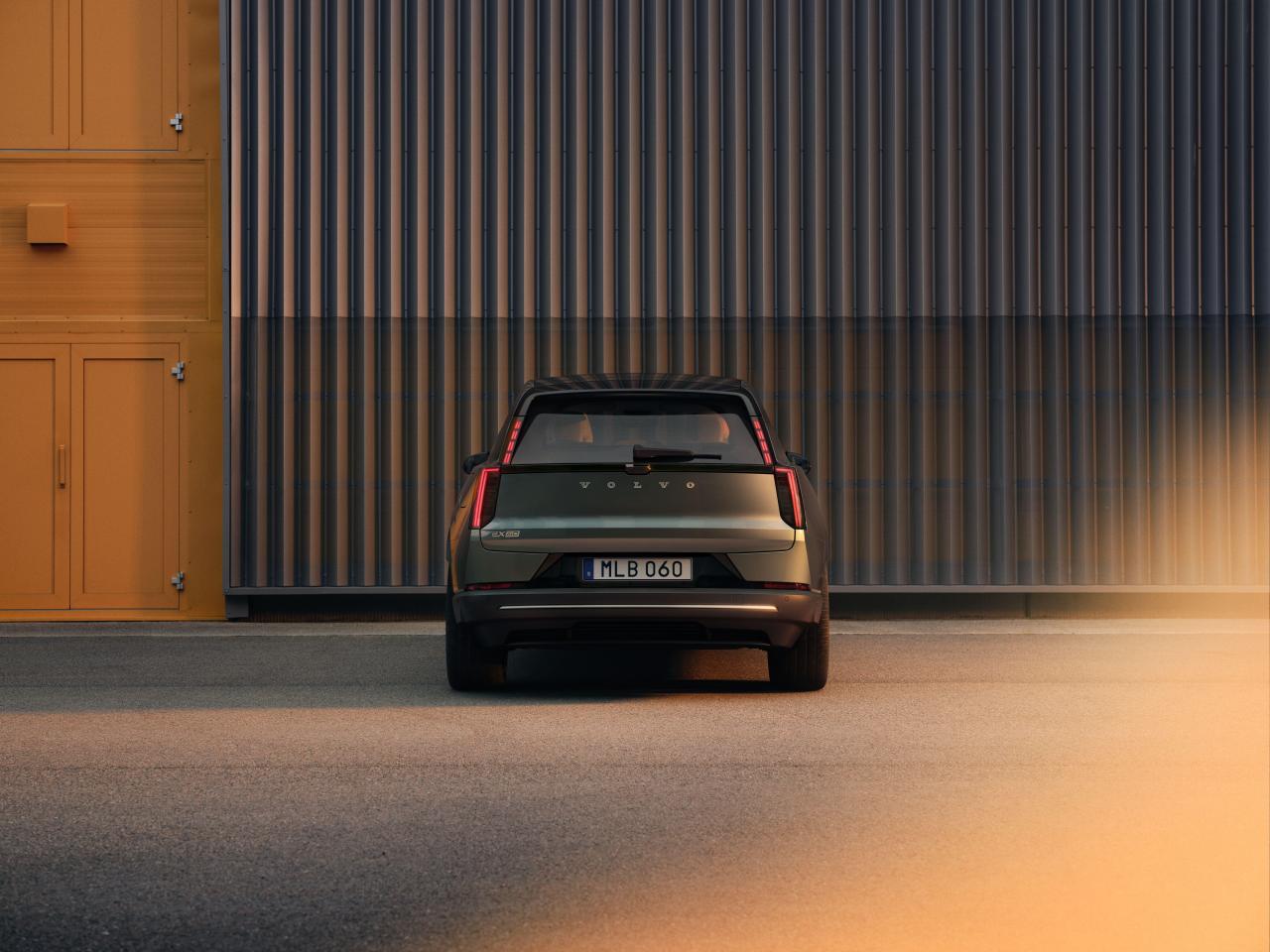
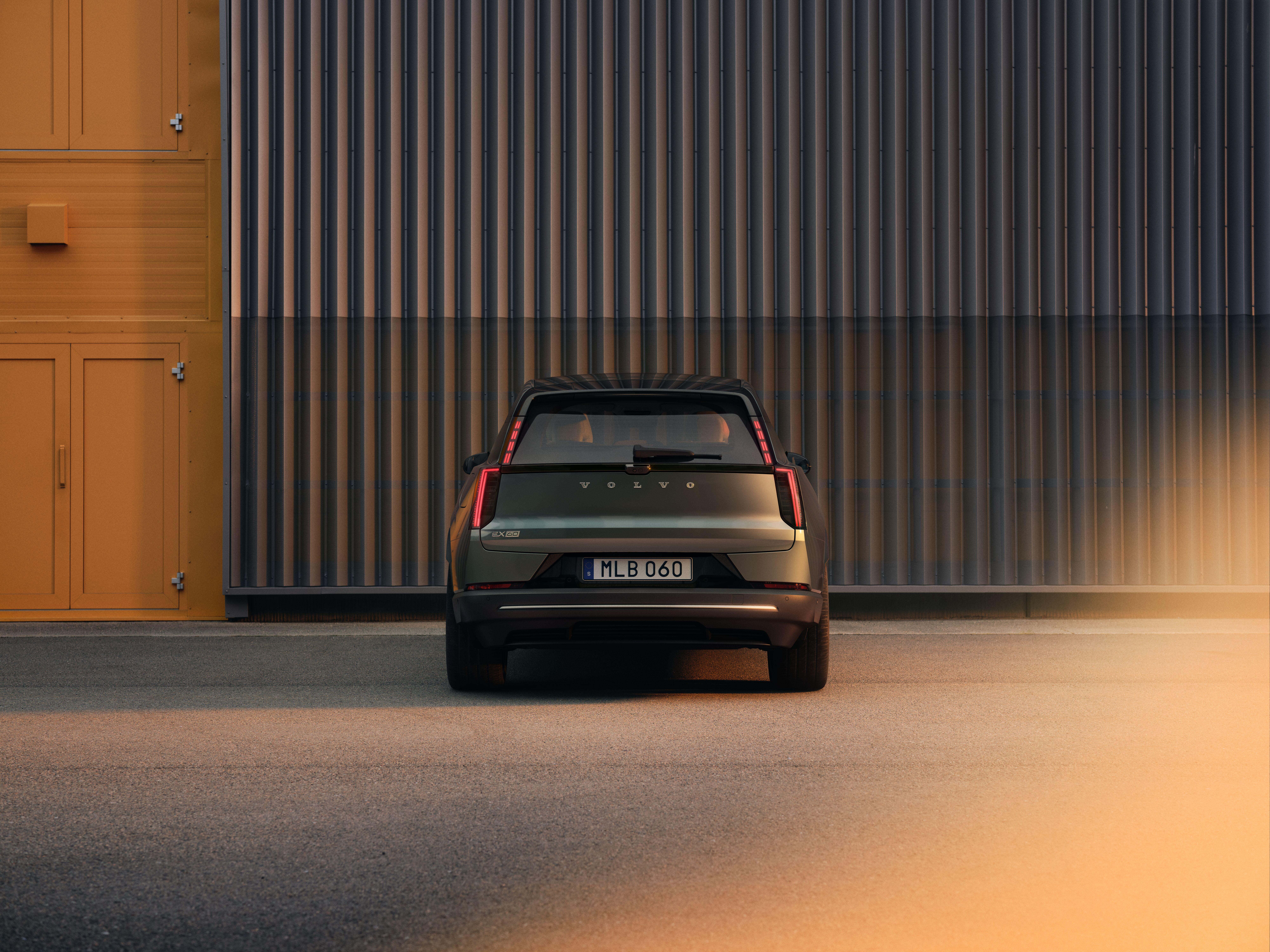
3 punti3 puntiNon per ammazzare gli entusiasmi... ma ho chiesto al mio capo in Cina se ne avesse sentito parlare e secondo lui sono un'azienda minuscola che difficilmente andrà in produzione ed è poco convinto del progetto ( tenete conto che lui conosce praticamente chiunque nell'automotive Cinese visto che siamo fornitori di tutti) .3 punti3 puntiio mi chiedo come mai questo soggetto sia ancora ai vertici dell'azienda...al di là di questa cazzat* madornale, quello che la sua mente ha partorito per Fiat negli ultimi 7/10 anni è veramente insufficiente ed imbarazzante. Eppure sta lì, intoccabile...nonostante i cambi al vertice lui rimane bello incollato alla sua poltrona...ma mi spiegate come sia possibile?3 puntiIn Algeria producono auto per il mercato locale perché dovrebbero pagare dazi per jmportarle in Europa. In Marocco c’è un accordo con UE firmato nel 2000 di interscambio commerciale dove posso importare i prodotti in UE senza dazi doganali. Per questo le Stellantis / Fiat marocchine saranno importate. Oltre la manodopera che costa poco, il governo che da terreni e incentivi statali per agevolare la produzione delle auto e del loro indotto. A questo si aggiunge la vicinanza geografica con la Spagna per le importazioni tramite il porto di Tangeri vicinissimo allo stretto di Gibilterra. Stiamo parlando di una nazione che nel 2024 ha prodotto 500 mila auto e nel 2025 stime dicono sia intorno al milione di auto(veicoli leggeri) prodotte. In Italia nel 2025 la produzione di auto tolti i veicoli industriali è stata di 213k di cui la metà la Pandina di Pomigliano. Questi numeri dicono tutto sul futuro della produzione delle auto in Italia (e in Francia)3 punti3 puntiBellina! Suppongo comunque che, dopo una dormita, mi dimenticherò della sua esistenza. Buonanotte.3 punti2 punti2 punti2 punti2 puntiè stato fatto un po' un troiaio tra Volvo e Polestar. Teoricamente il marchio full BEV sarebbe dovuto esser Polestar con prodotti molti di nicchia, e Volvo a lavorare con i PHEV e MHEV. Poi, Geely ha un po' introiato tutto. Il board di Volvo che è cambiato moltissimo in questi 5 anni ed ecco il risultato.2 punti2 puntiCioe' una Veyron. Se ne trovano usate a molto meno di 15mio. Ma queste operazioni che senso hanno? ma sopratutto chi finanzia? cioe' a sto punto gli diano i soldi direttamente senza perdere tempo a mettere insieme pezzi di metallo.2 punti2 punti2 punti2 punti2 puntiNon potrebbero comprare il marchio Lancia e ribattezzarla Stratos? Ci aggiungono un restomod del Deltone e hanno fatto una piccola gamma Lancia che ha una dignità.2 puntiEsternamente la trovo molto "volvo", nel senso che finalmente inizio a vedere un'evoluzione del classico stilema posteriore introdotto dalla 850 SW in modo decisamente bello. La vista migliore, dal mio punto di vista, è quella qui sotto. Dietro; trovo che sia la parte meglio riuscita di tutta l'auto, fermo restando che esternamente è tutta piacevole e coerente. Quindi mi piace parecchio. Brava Volvo! Dentro, discorso a parte.....tutta la "magia" Volvo che leggo fuori, non la ritrovo negli interni; certo sono da vedere dal vivo per apprezzarne i materiali (al netto delle linee fin troppo minimaliste e troppo "model 3 oriented......" però....è un grosso meh. Peccato. La prenderei? Ci fosse Ibrida (anche plug in) probabilmente entrerebbe in lizza.....come auto per mia moglie. Ma in generale devo dire che mi piace. Peccato, come detto, che gli interni siano davvero troppo, troppo spogli e dall'aspetto plasticoso. Vediamo se giocando con il configuratore può migliorare. ma ad oggi.....la iX3 resta un mondo a parte (in meglio) in questa categoria.
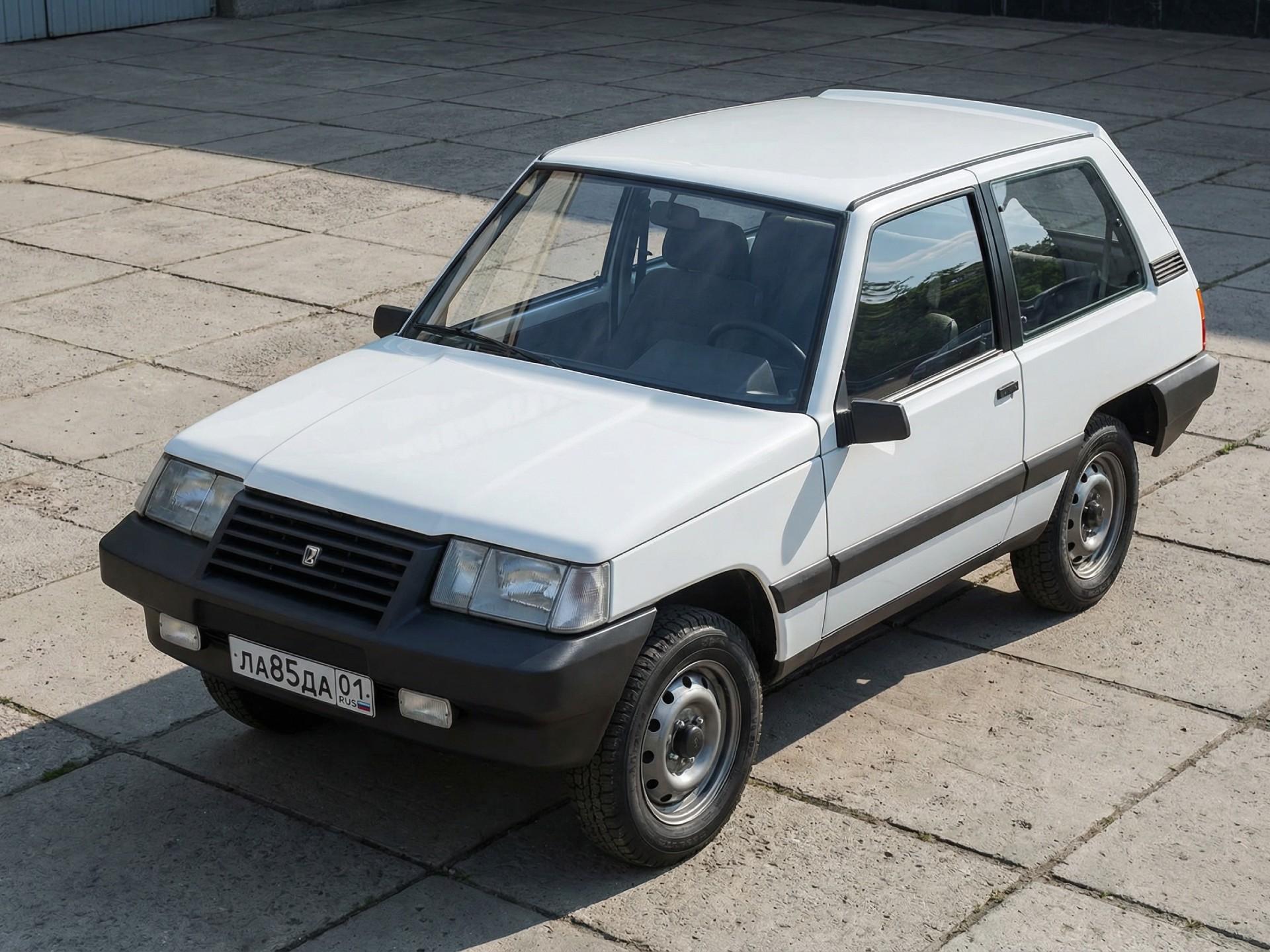
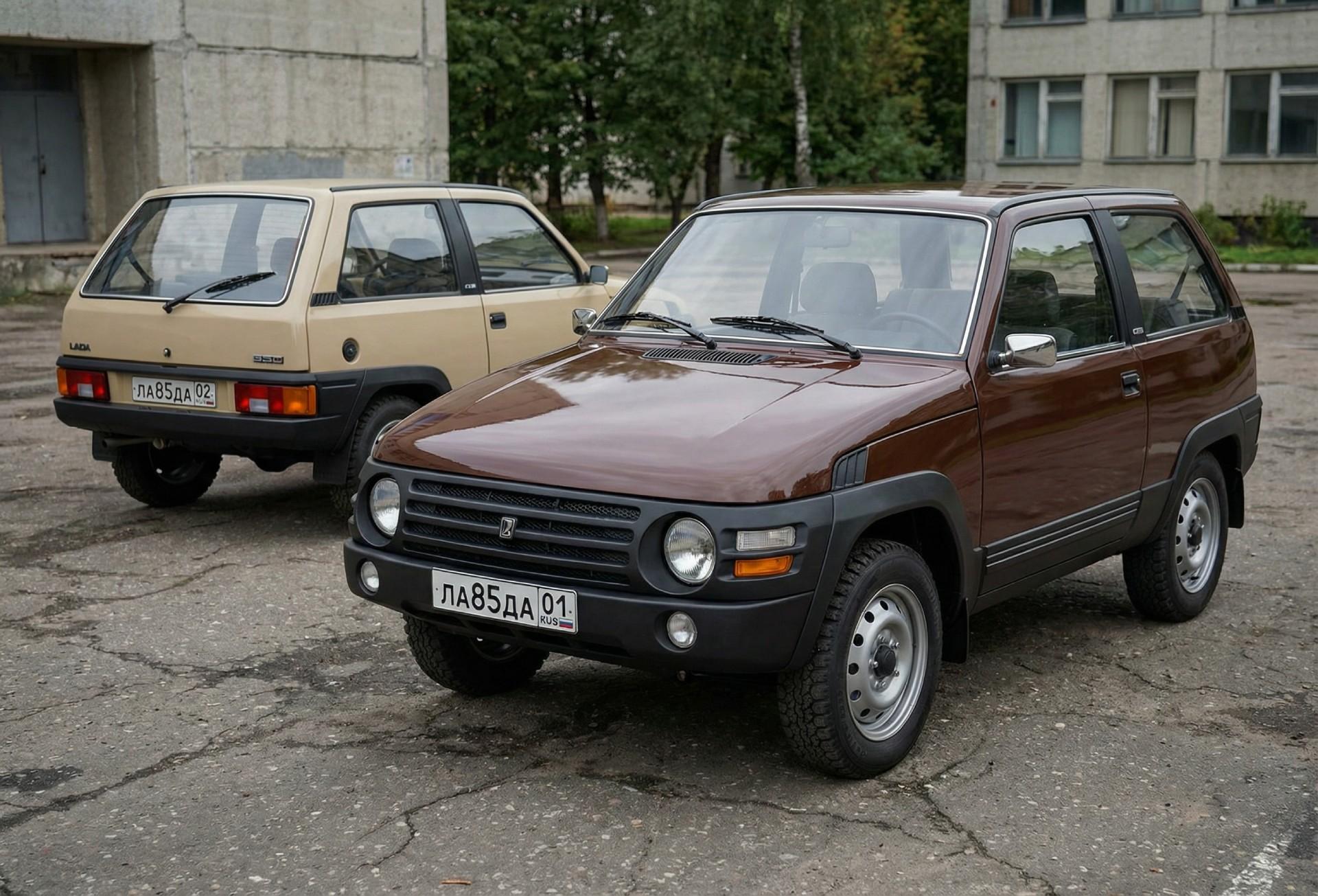
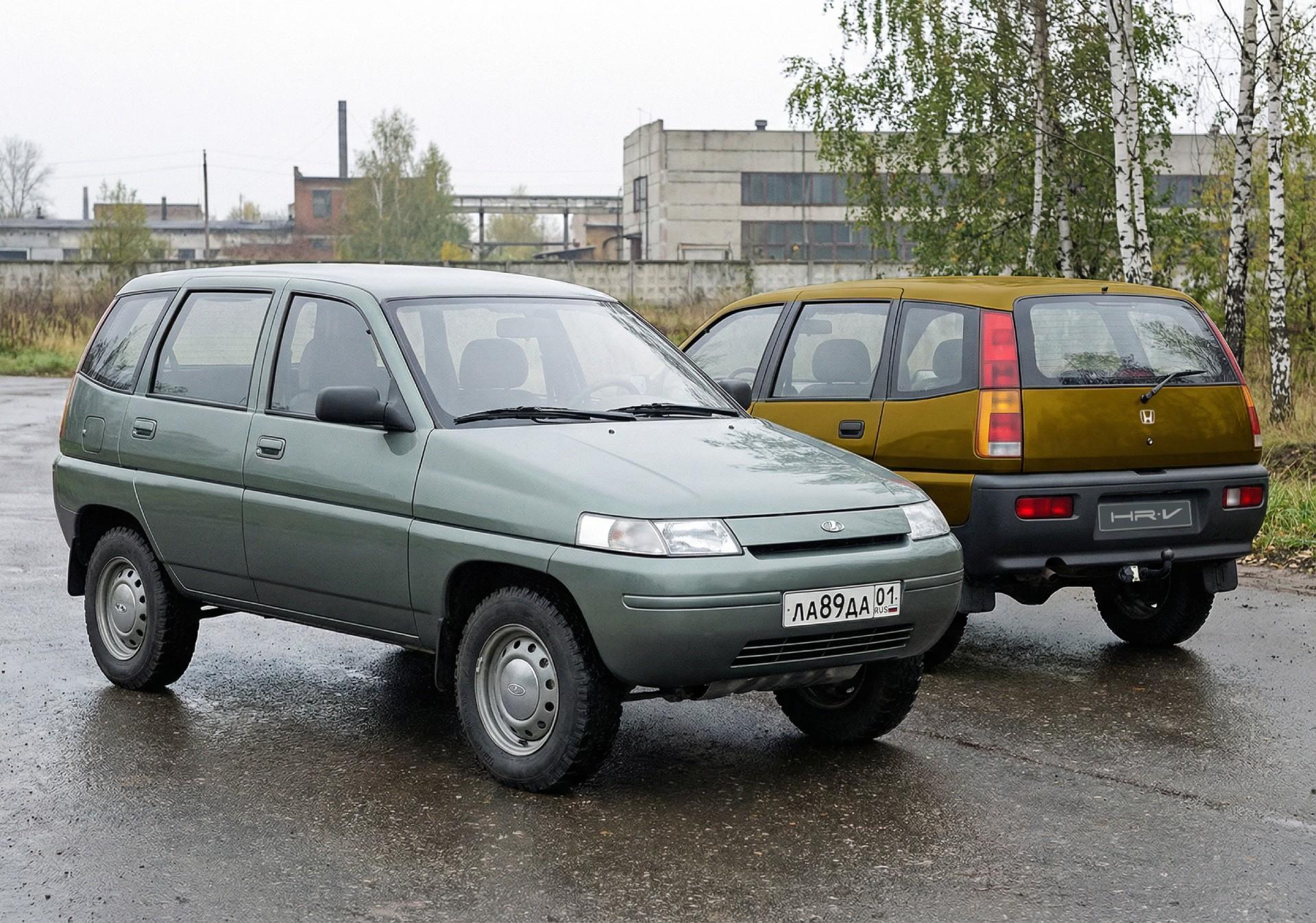
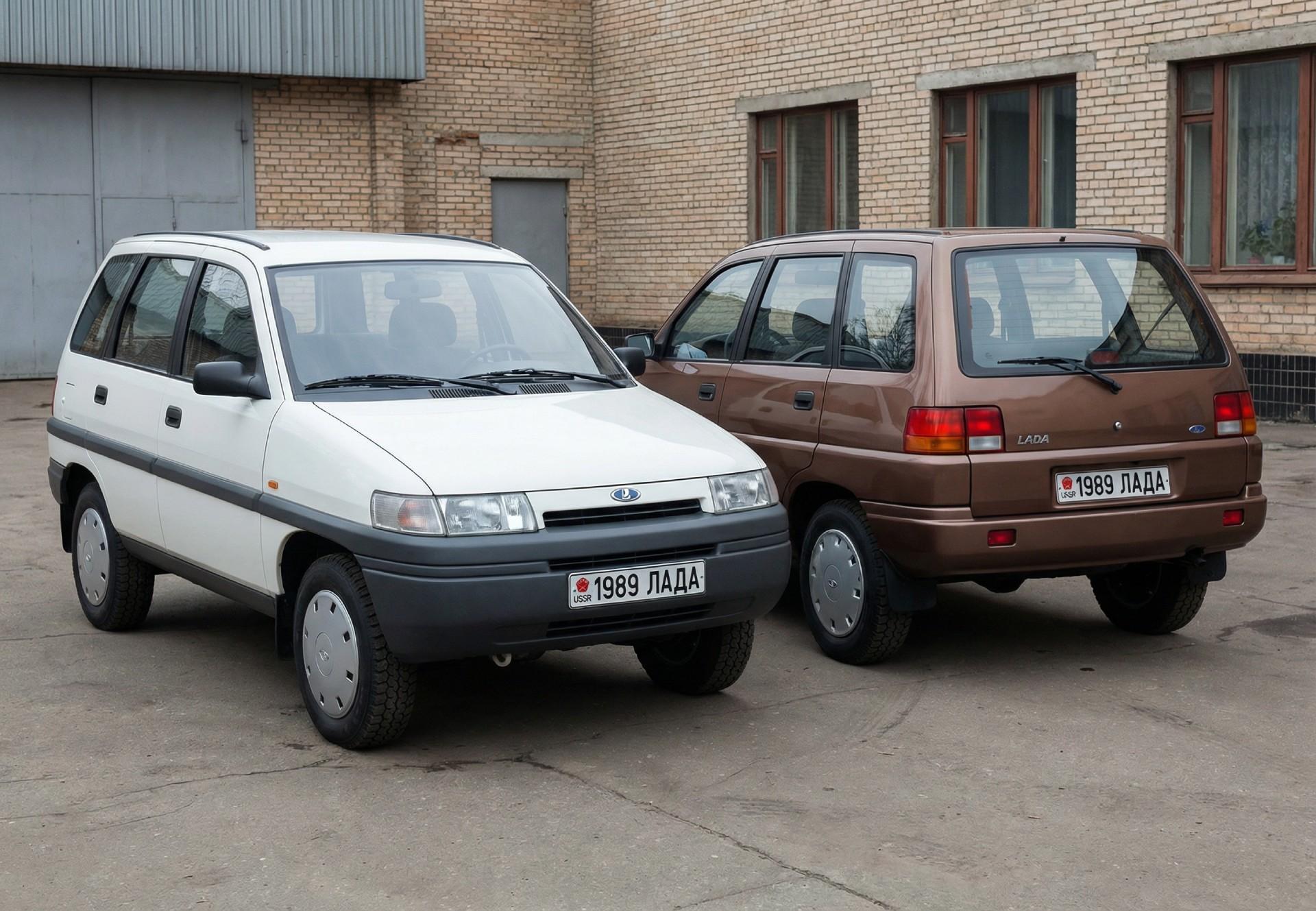
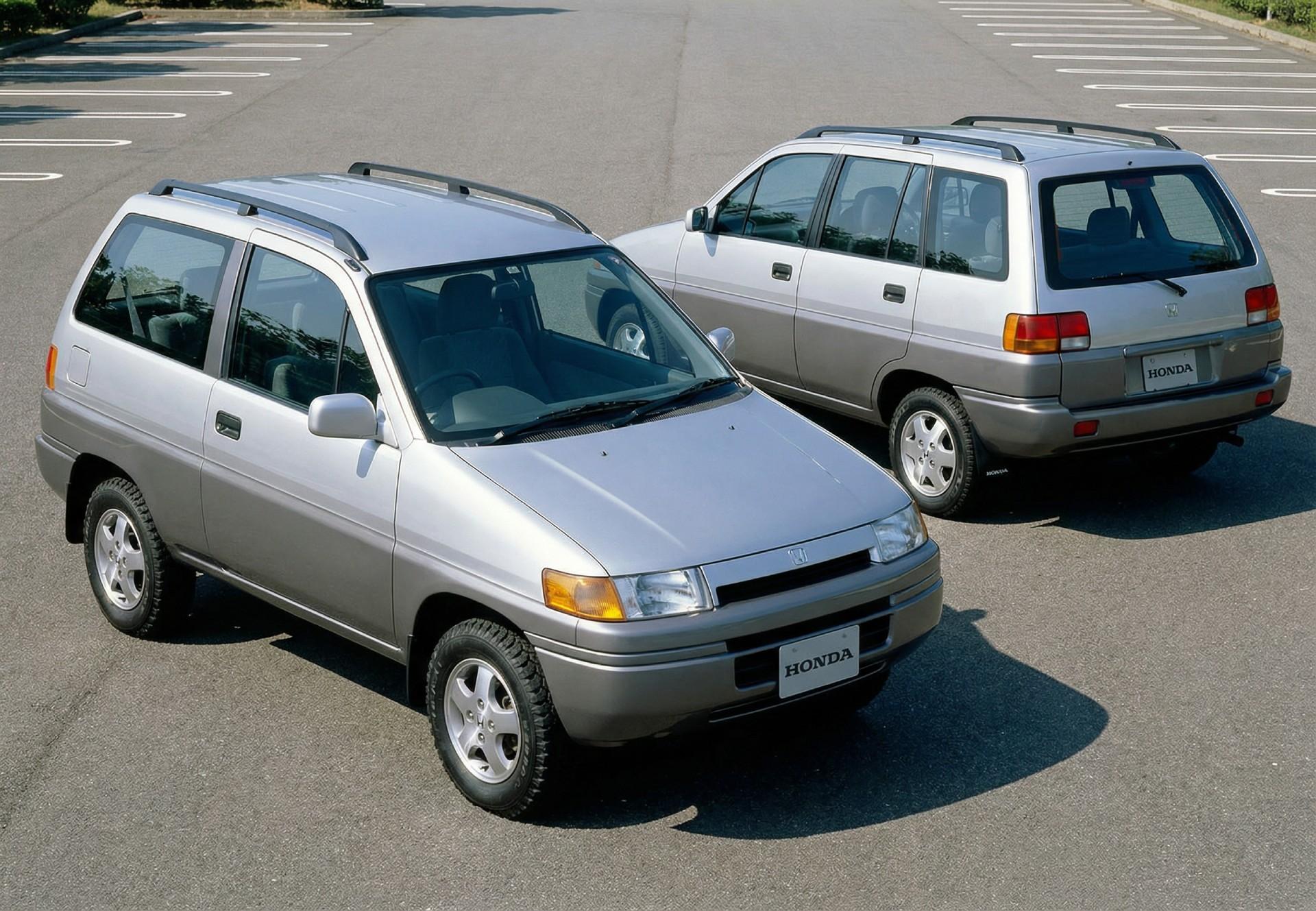
 2 puntiAssolutamente non brutta, ma mi sembra troppo una EX30 cicciona, la vedo anonima e dietro non mi piace proprio come é stata risolta (la fascia nera, i fari spezzati, il portellone vuoto…). Dentro men che meno, quel totale vuoto agli occhi me la rende troppo cinese e addirittura un po’ cheap. Tecnicamente nulla da dire. Le preferirei comunque iX3, al momento la migliore2 punti2 punti1985 Niva first concept 1985 Niva second concept 1986 Niva Concept (does it look similar to the first HR-V?) 1989 Niva Concept (+BONUS Honda version)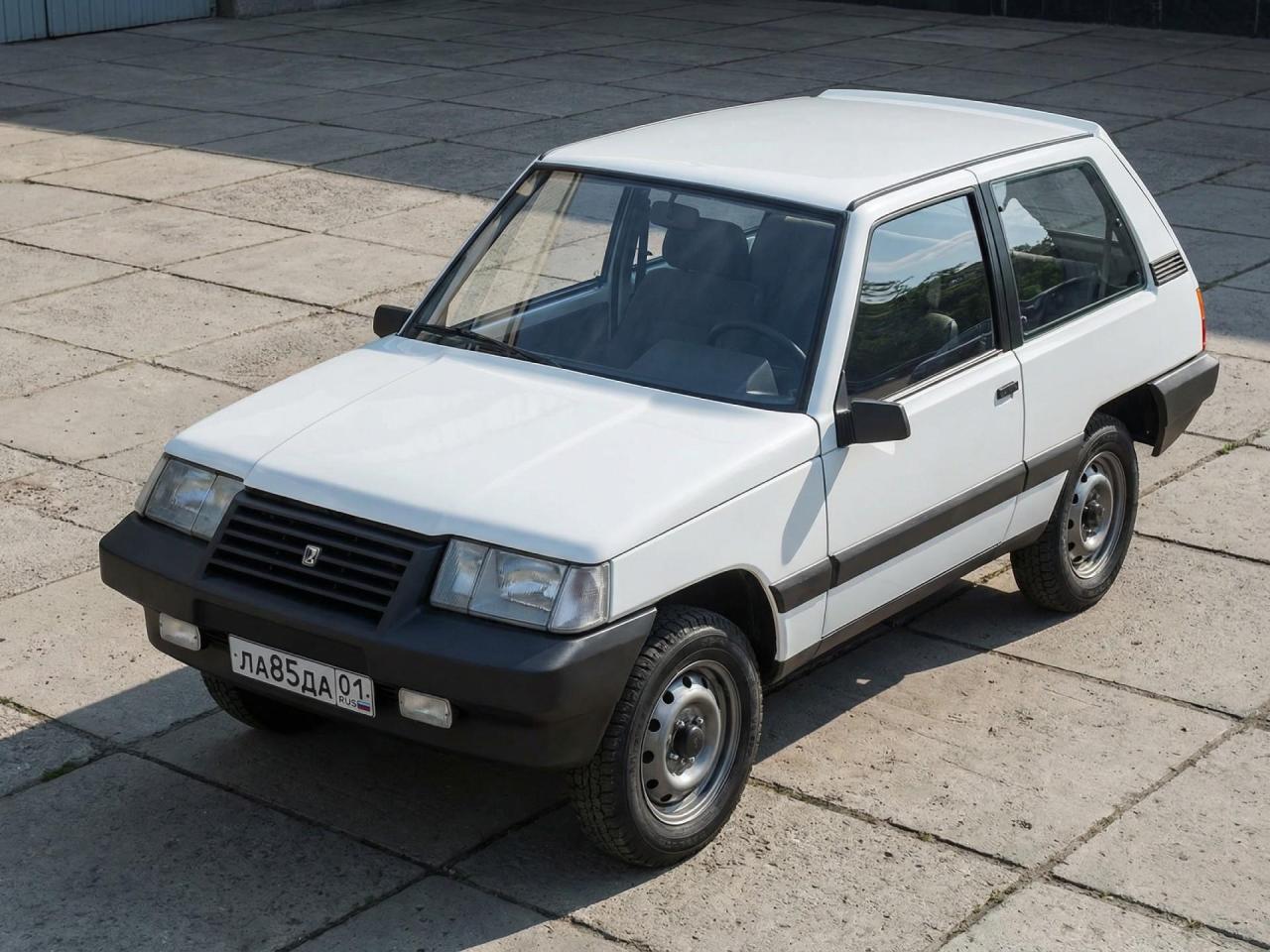
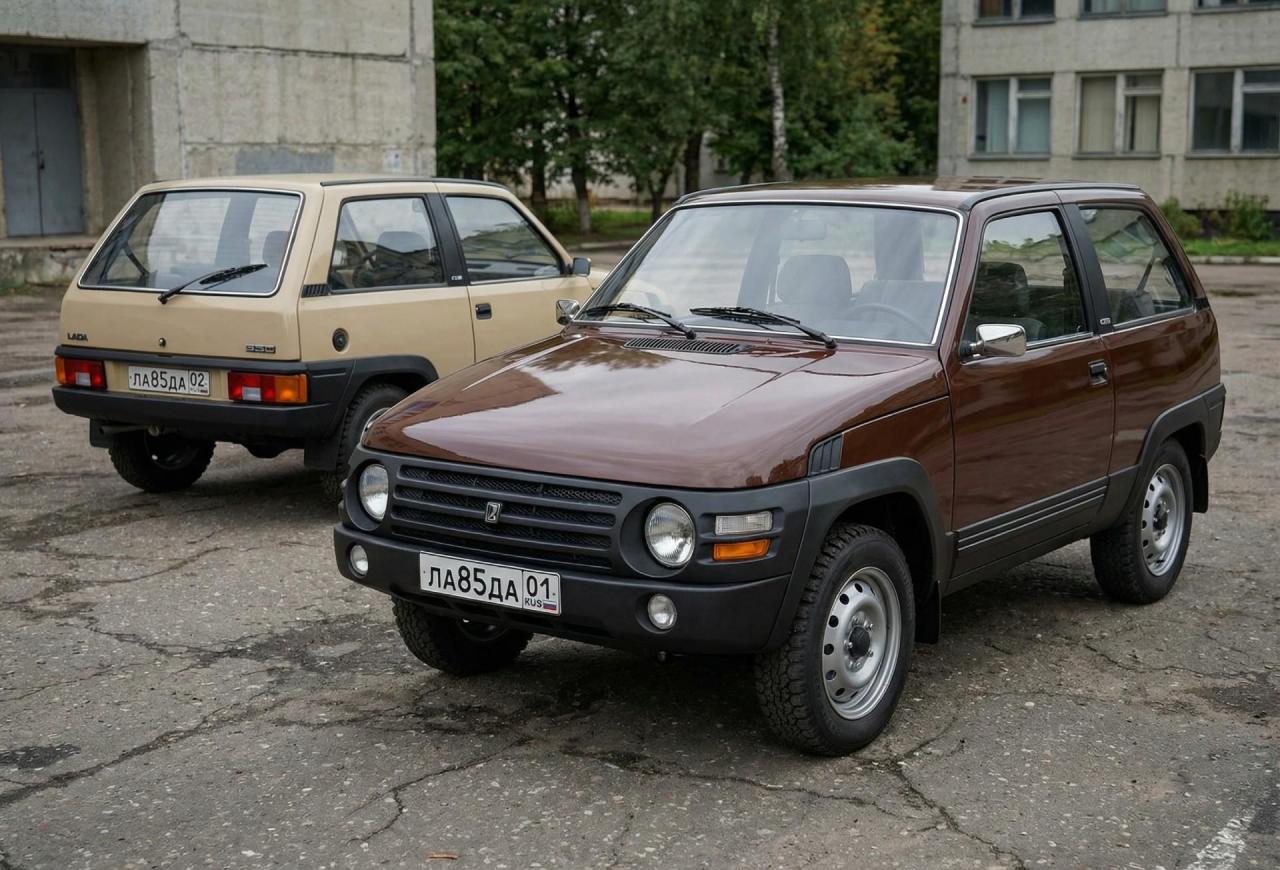
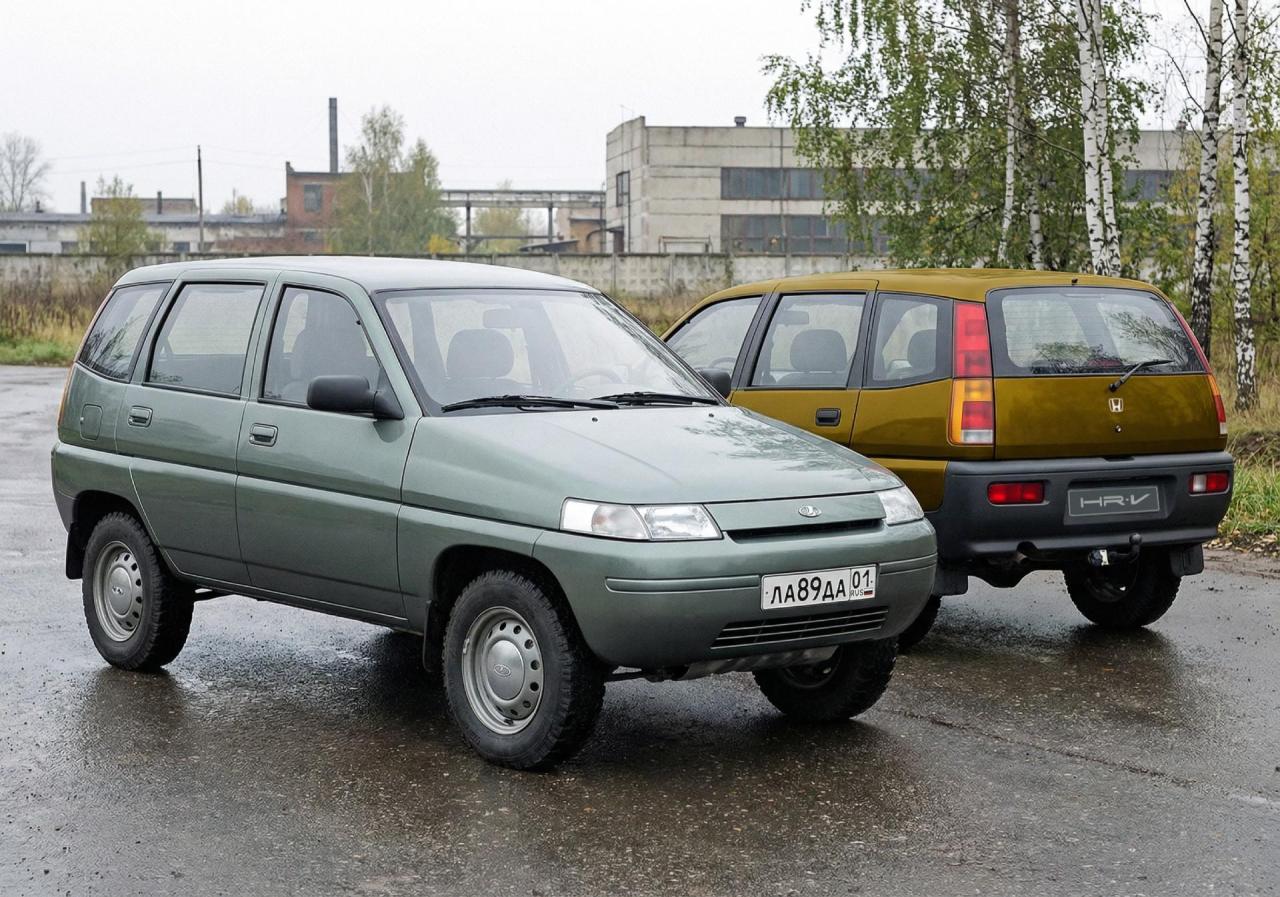
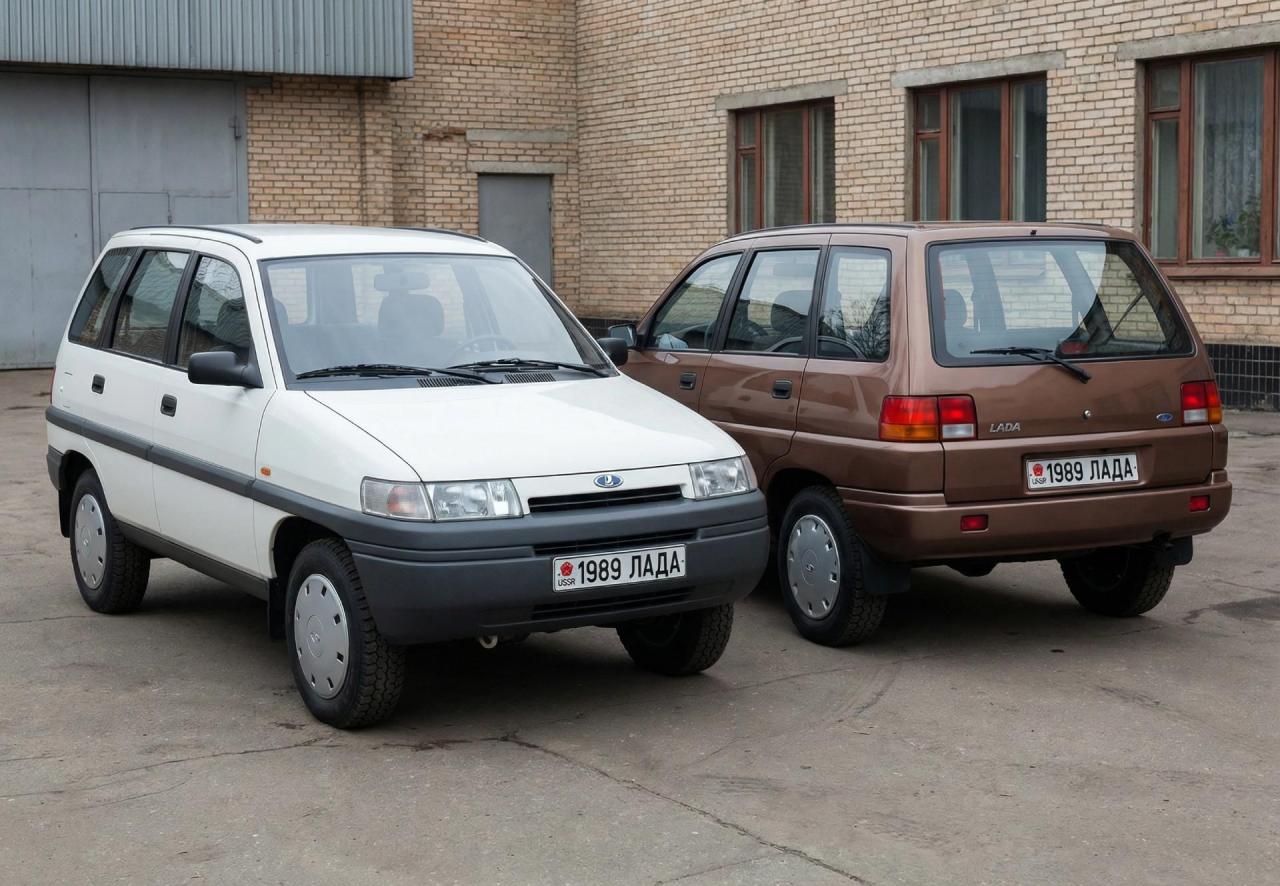
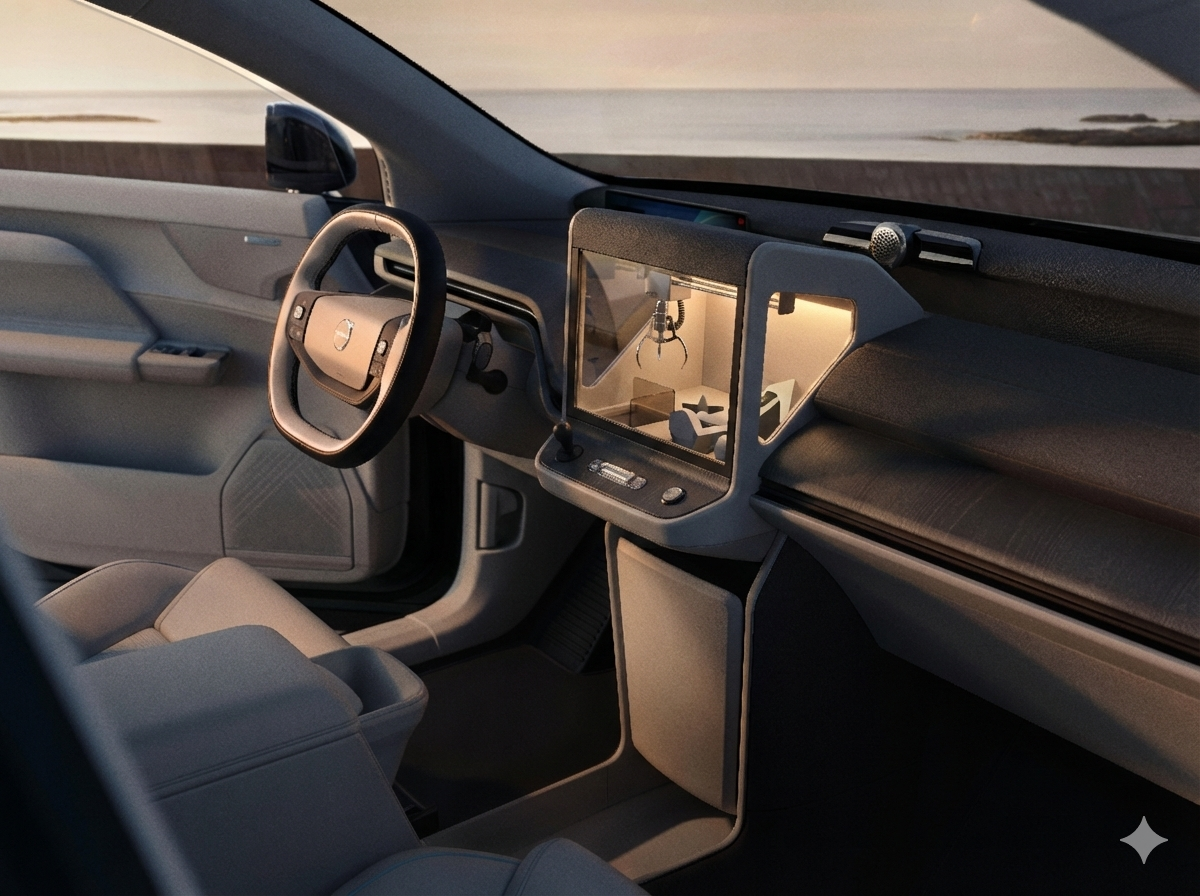
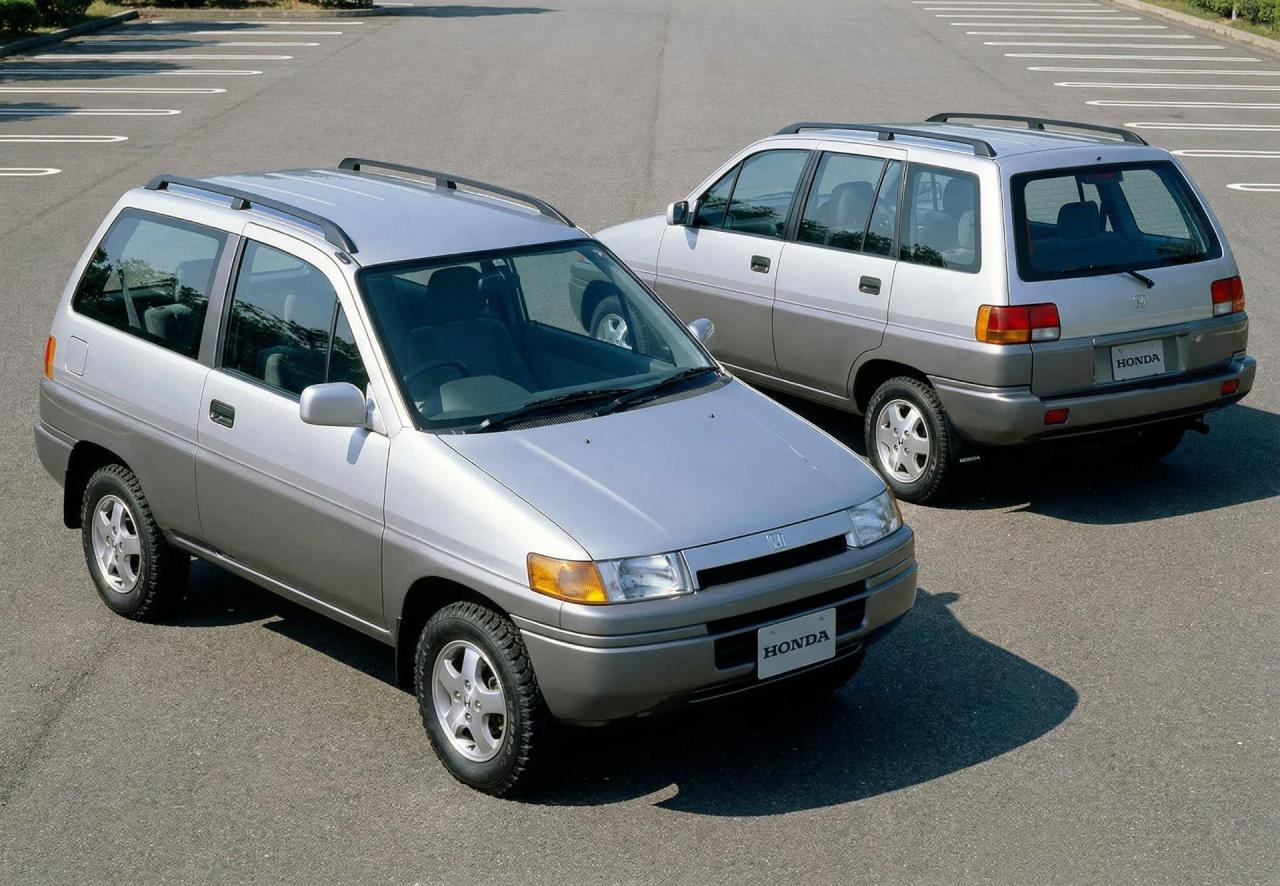 2 punti2 puntiHo guardato il video di Motor1 e confermo che la plancia proprio non mi piace e certe soluzioni le trovo "finto premium" ma fatte per risparmiare. Abbastanza imbarazzante l'assenza del vano porta oggetti sotto la plancia davanti al passeggero, ok che hanno piazzato un pozzetto sulla colonna centrale ma non sarà mai utile e sfruttabile come l'altro vano. L'assenza di un tunnel centrale la posso capire dal lato ingegneristico perché il pianale è nativo elettrico ma non mi convince perché lato ergonomico: manca un appoggio laterale per le gambe soprattutto per il guidatore, la vasca ricavata al posto del tunnel potrebbe essere pericolosa se ci si appoggiano borse o altri oggetti che in alcune manovre potrebbero essere sbalzati fuori dalla vasca e finire nel vano piedi. Nel complesso la trovo una plancia/abitacolo non disegnati o comunque adatte ad un veicolo commerciale; l'eBerlingo che abbiamo in azienda ha la stessa struttura, colonna centrale e grande vasca in basso tra i sedili.1 punto1 puntoOrmai direi di aspettare la presentazione UE del 24 che abbiamo tutto e aggiorniamo1 punto1 puntoIo un tributo me lo farei fare a questa, non a ste carcasse per magnaccia russi
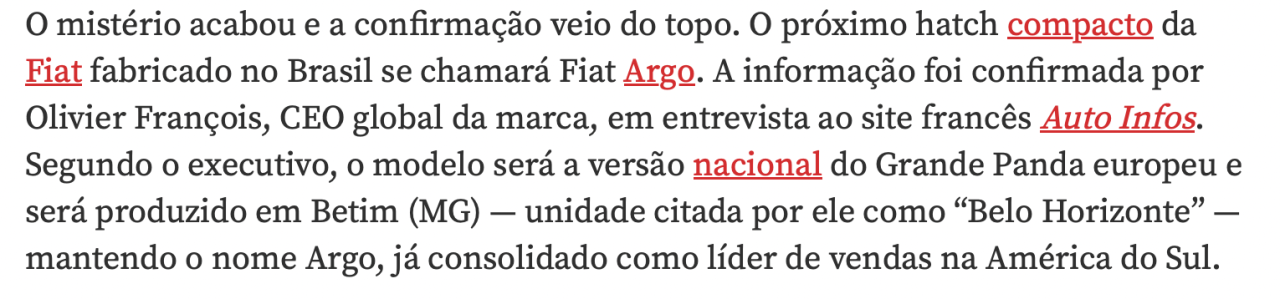
 1 punto1 puntoAh quindi il regolamento 2026 l'ha capito, erano i problemi delle Ferrari F1 che rimanevano sempre da capire... Ma va detto anche che quelli che sono venuti dopo non e' che abbiano capito molto dei problemi delle Ferrari F11 punto1 puntoDi preciso non ricordo, anche perché l’uso di mio nonno erano tragitti molto brevi. Le volte che l’ho usata io su tragitti un po’ più lunghi stava sui 16/17 km/l e questo nonostante il cambio cortissimo.1 puntoOcchio anche ai costi di manutenzione/ricambi. Una Mercedes, anche se Classe A, non è a buon mercato. Comunque, fino al 2010/11 sono state commercializzate Renault Clio Storia (che era una Clio mkII ristilizzata) e Peugeot 206+ (idem con la vecchia 206). Come dimensioni, erano sui 3,8 metri abbondanti di lunghezza, a mio avviso un'ottima via di mezzo tra le segmento A e le segmento B vere e proprie (che all'epoca avevano già sforato i 4 metri). Entrambe anche a 5 porte. Ci darei un'occhiata.1 punto1 puntoPanda diventa Argo in Brasile https://quatrorodas.abril.com.br/noticias/novo-fiat-argo-2026-nome/
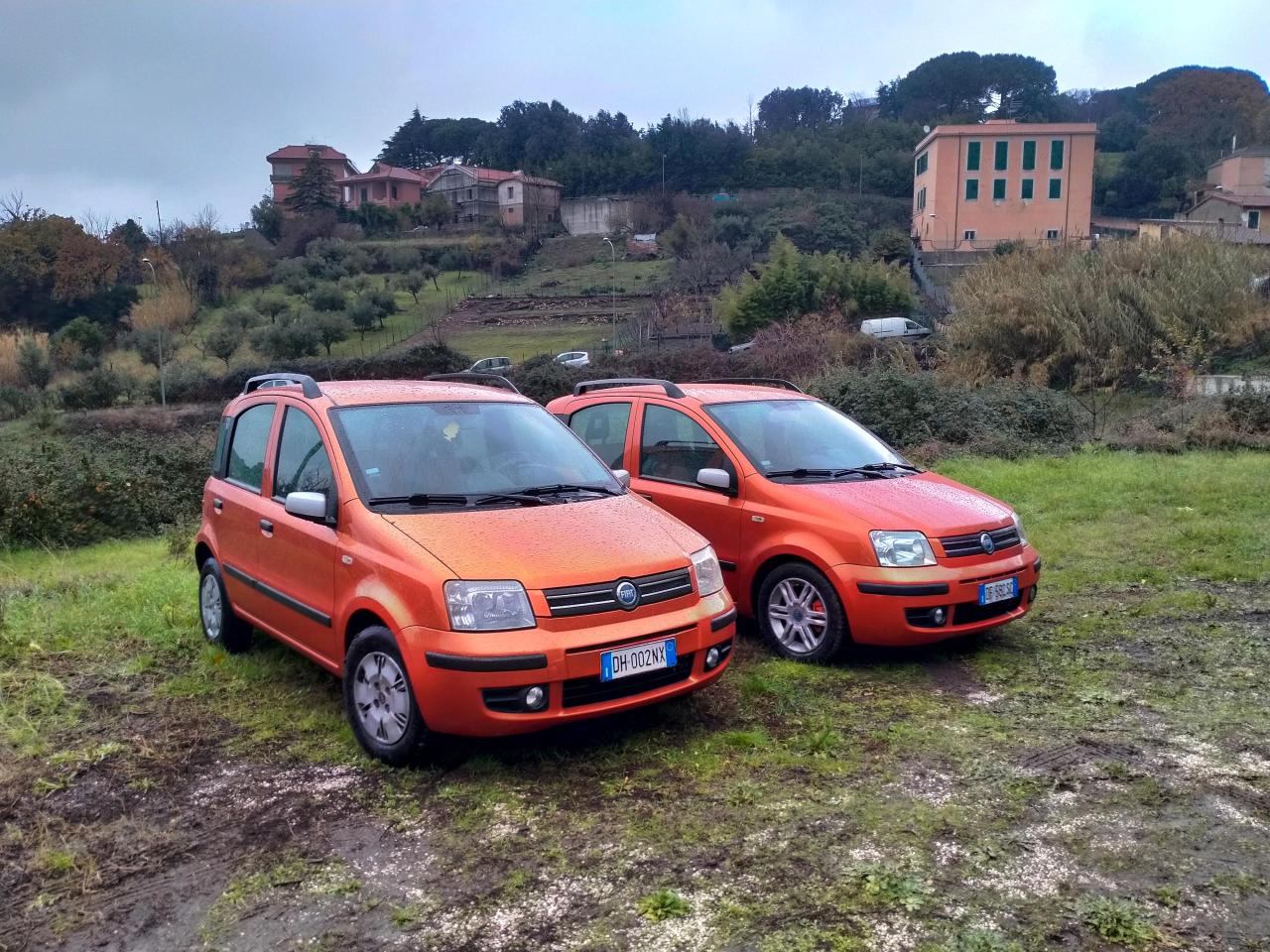
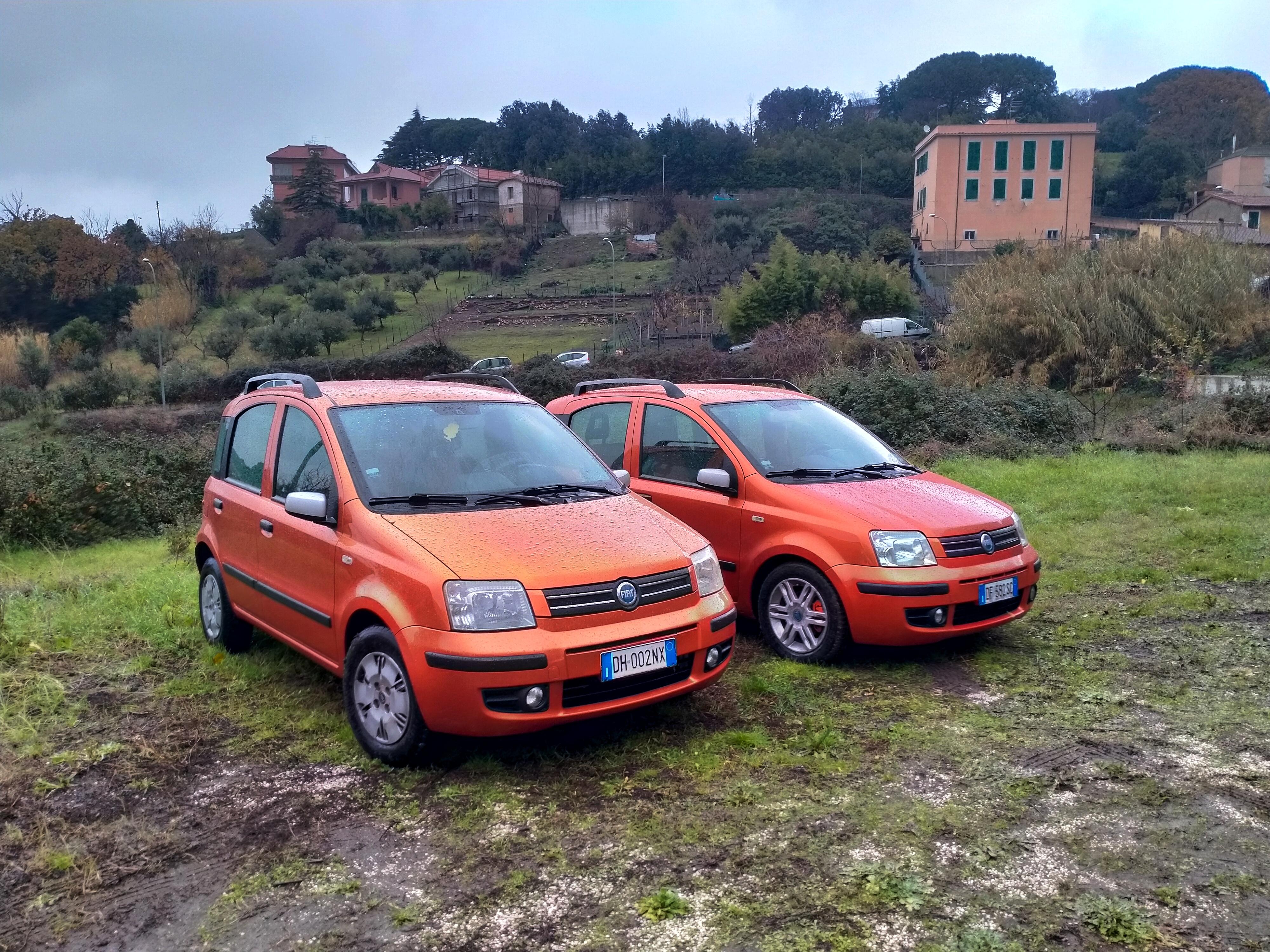
 1 puntoCondivido quando detto da Leon, è un'ottima auto ed in generale ha costi di manutenzione molto esigui. Non ti so dare informazioni sui consumi perché le uniche due persone che conosco che hanno una Clio 3 hanno entrambi la 1.5 DCi, immortale, posso dirti che a livello qualitativo sono discrete anche se peccano un po' nelle solite parti elettroniche, ma ho l'impressione che l'esemplare che ti hanno proposto sia molto basico quindi non dovresti avere troppi problemi in questo senso. Il prezzo è ottimo, quasi troppo basso, controlla bene la meccanica e se hai l'opportunità analizza bene le parti saldate e la carrozzeria per capire se possa essere stata incidentata in passato.1 puntoBella, ma parte da 65 K, con la metà si prende una Leapmotor1 punto1 punto...sta cosa dei loghi illuminati che ha preso piede la trovo di un volgare....1 puntoCome auto di tutti giorni ho una Panda 169 1.2 Fire 60cv ( in realtà due del marzo 2007 prese nuove) oltre ad essere un auto affidabilissima, l'unica vera noia grande che hanno avuto fu il cuscinetto del albero primario del cambio sui 100.000km, difetto di tutte le vetture con tali motorizzazione, risolto con una revisione del cambio e nelle successive produzioi. Per il resto sono andate sempre in modo strepitoso, con principalmente tagliandi e sostituzione di componenti di usura i ricambi sono economici e li trovi sia originali che di concorrenza praticamente anche dal fruttivendolo è una macchina costruita bene che non ti si smonta in mano e che non disdegna viaggi autostradali! come consumi in ciclo urbano con traffico stai sui 14km/la con strada extraurbane scorrevoli mantenendo comunque velocità i 90/110kmh ho fatto tranquillamente anche i 20/22Km/l in autostrada a 130 a seconda del percorso stai tra i 12/16km/l. Per me come vettura di tutti i giorni è imbattibile su ogni aspetto, idem le stesse con la medesima meccanica cioè 500/Panda 3/ Y/ KA Le altre sono auto meno diffuse coreane in primis, hanno costi dei ricambi molto più impegnativi e ne trovi poche agli sfasci per componenti di seconda mano! Il trittico Aygo/C1/107 erano vetture qualitativamente scadenti già da nuove fatte molto più in economia e quel 1.0 se non trattato davvero con i guanti a 100.000km vanno praticamente tutti ad olio il 1.2 Fire lo puoi anche fare saltare in aria con una mina antiuomo va sempre. Attualmente hanno 222.000km ed 218.000km e vanno da Dio e da quando ho la Giulia per i weekend, già apprezzavo prima la Panda ora ancora di più! In casa ne abbiamo anche un altra del 2006 sempre 1.2, una del 2005 sempre 1.2 anche quelle tutt'ora presenti e funzionanti al 100%
 1 puntoSi certo, con le xdr40 e M60 sono finite tutte le 4 gomme molto uniforme 😁😝1 punto1 puntoNuova 2025 Fiat Grande Panda Pop 110 CV Due volumi – 5005...Prezzo: 16.950 € (Super prezzo) • Valutazione di prezzo: 20.700 € • Risparmi: 3.800 € • 18 giorni di vendita • Visualizza tutte le 2025 Fiat Grande Panda usate in vendita e trova le più economicheFinalmente immagini live di una base! secondo me i gruppi ottici tradizionali sono molto più gradevoli e hanno quel non so che di primo Dobló che trovo più coerente con la vettura e con il marchio. I Pixel "lingotto" e la evidente ripetizione sulla calandra delle altre versioni fanno sì molta scena ma rischiano di stancare prestissimo...1 puntoLa Leaderboard è riferita all'orario Roma/GMT+01:00

.thumb.jpg.d20c5008a881490f9c7f843d442a34f8.jpg)


.png.a02a1e6f722d5ae39673d4f5d9468508.png)
.jpg.840e0c305ce4b55bd66f7091d65e436f.jpg)
.jpg.5542d2125d74bcf9f73c0d3c9a33f586.jpg)
















.thumb.jpg.902d2a4f20a129e92b6f6920407b81bd.jpg)









Account
Cerca
Configure browser push notifications
Chrome (Android)
- Tap the lock icon next to the address bar.
- Tap Permissions → Notifications.
- Adjust your preference.
Chrome (Desktop)
- Click the padlock icon in the address bar.
- Select Site settings.
- Find Notifications and adjust your preference.
Safari (iOS 16.4+)
- Ensure the site is installed via Add to Home Screen.
- Open Settings App → Notifications.
- Find your app name and adjust your preference.
Safari (macOS)
- Go to Safari → Preferences.
- Click the Websites tab.
- Select Notifications in the sidebar.
- Find this website and adjust your preference.
Edge (Android)
- Tap the lock icon next to the address bar.
- Tap Permissions.
- Find Notifications and adjust your preference.
Edge (Desktop)
- Click the padlock icon in the address bar.
- Click Permissions for this site.
- Find Notifications and adjust your preference.
Firefox (Android)
- Go to Settings → Site permissions.
- Tap Notifications.
- Find this site in the list and adjust your preference.
Firefox (Desktop)
- Open Firefox Settings.
- Search for Notifications.
- Find this site in the list and adjust your preference.