Classifica Utenti
Utenti più Apprezzati
(Scegli il periodo) Utenti più Apprezzati
(Storia giorno per giorno) Classifica dall'Origine
(da Marzo 2003)
(Scegli il periodo) Utenti più Apprezzati
(Storia giorno per giorno) Classifica dall'Origine
(da Marzo 2003)





Contenuti più Popolari
Stai visualizzando i contenuti con il più alto punteggio, pubblicati in data 08/25/20 e localizzati Tutte le aree/sezioni
-
Ho apportato alcune modifiche per renderlo più verace... 🦅🦅🦅
 7 punti
 -
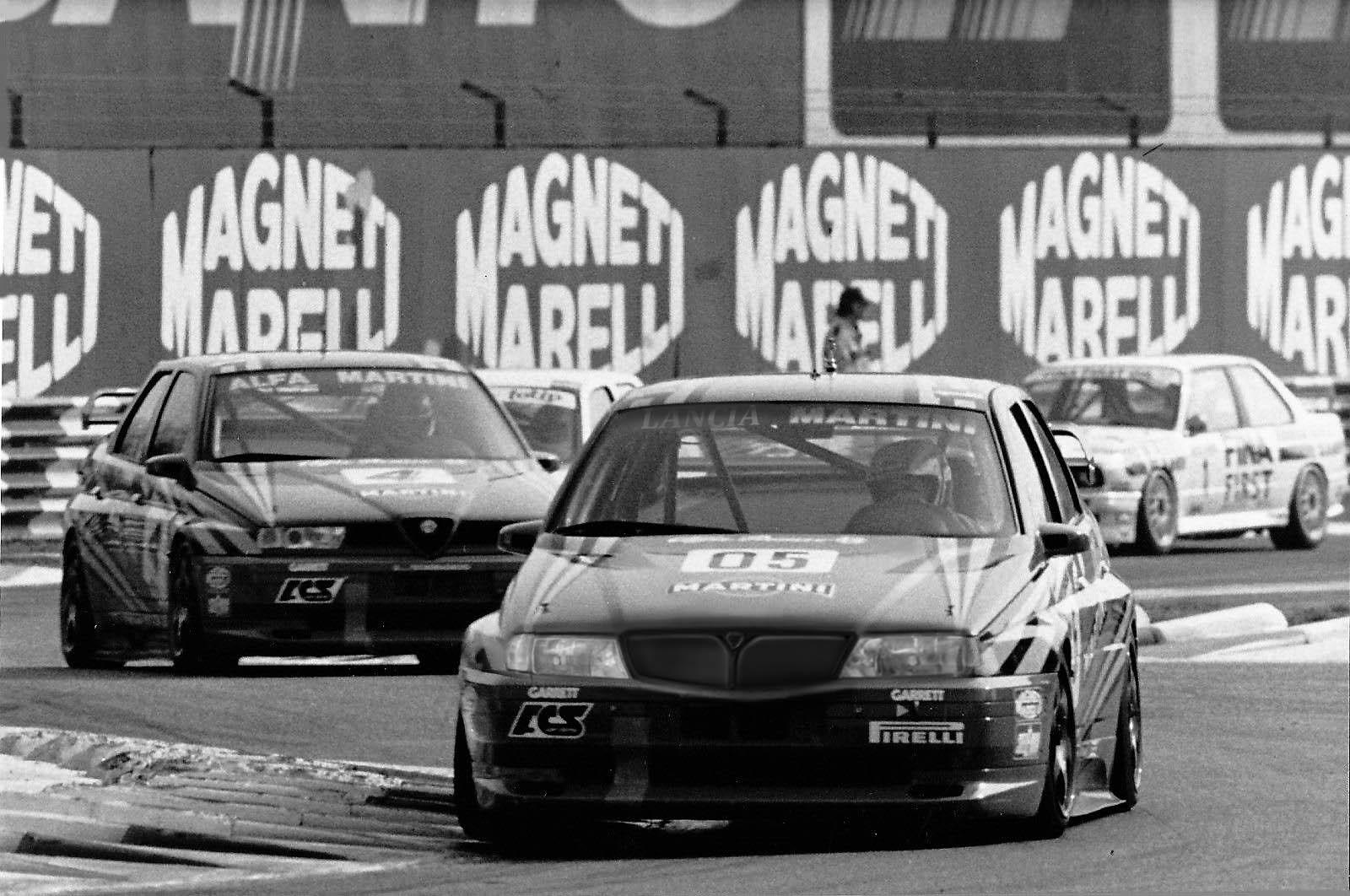
6 punti5 puntiDalla regia dicono che a metà settembre ci sarà la presentazione... 😌4 puntiL'unità di misura km di range / ora per valutare globalmente il processo di ricarica è sacrosanta. Attenzione solo al fatto che è un indicatore aggregato e può rendere poco comprensibili le sue parti componenti. Ad esempio tra esse c'è anche lo "indovinometro", cioè la previsione di come una certa quantità di energia si trasformerà in km data la storia recente dei consumi. La validità della misura km/h è quindi correlata anche alla qualità delle stime del range chilometrico che l'auto fa. Tra i componenti che i km/h di ricarica contengono, io sono molto interessato all'efficienza di carica propriamente detta, cioè al rapporto tra i kWh guadagnati dalla batteria e i kWh assorbiti dalla colonnina. Diciamo Plug2Battery. Perché mi interessa? Perché c'è tutto un modo che va da perdite ragionevolissime del 5% fino ad altre che possono superare il 30%. E, a parte l'influenza sul tempo di ricarica, ciò pare non interessare a nessuno: finché l'energia elettrica non è salita a bordo dell'auto è considerata disponibile in quantità illimitate a costo, ambientale ed economico, trascurabile. Io non credo affatto che sia così e trovo scandaloso che la perdita% nel processo di "aggiustamento" dell'energia e di carica della batteria possa essere più del doppio di quella per trasformare l'energia EV della batteria in quella meccanica all'albero del motore.4 punti4 punticiao a tutti, breve aggiornamento/recensione : l'ho ritirata sabato e ...... è un mostro! All'accensione in garage fa tremare le porte (per la felicita' dei miei vicini), un sound molto cupo a regimi bassi, che figata!!!! sono contento della scelta Qui in Svizzera credo non superero' mai i 2000 rpm con i limiti esistenti, comunque mi sto attenendo al manuale per il rodaggio, finora ho fatto 250 KM tra sabato e domenica senza sgasare. Consumi stellari ma me l'aspettavo, col piede leggero credo di arrivare a 500km con un pieno, vedremo dopo il rodaggio. La app SRT che visualizza i dati realtime per uno come me che lavora nell'IT è molto ben fatta. Ho notato che il motore scalda da paura, capisco le prese d'aria sul cofano!!!! Gli interni sono be rifiniti e l'impianto audio è molto potente, ho perso qualche litro nel bagagliaio rispetto al Freemont ma chissenefrega. ciao! Michele4 punti3 puntiVedo molte X4 nuove, sinceramente la trovo goffa e ridicola, dal vivo è proprio uno schifo3 punti3 puntiI miei due cents ... Capitali e potere ( o potere e capitali ), sia per se stessi che - ovviamente - per la famiglia che li aveva prescelti. Questo era ed è il fine della famiglia e di personaggi come Romiti, Cantarella, Gabetto, Stevens e tanti altri managers che si sono avvicendati alla guida del gruppo. Fare auto è solo un mezzo per raggiungere il fine. A nessuno di loro, da un certo punto in su frega un cazzo del prodotto. Altri, magari leggermente più interessati anche al prodotto ( Ghidella ) sono stati centrifugati dal gruppo. Mio padre ( dipendente in Fiat a buoni livelli fino al 1995 ) mi diceva che Romiti era forse il più FDP tra quelli che ha conosciuto nella sua quarantennale carriera.3 punti3 puntiperò "gli altri" chi sono? a me pare semplicemente che tolto Marquez non ci siano altri piloti che possano fare la differenza. Dovizioso è il solito Dovizioso (alla media di una gara buona e due meeeh), Vinales è sempre Godot, Rossi checché ne dicano i fans più di così non può fare, Quartararo è una bella promessa, Rins ha i suoi consueti alti e bassi, Petrucci è uno che azzecca una gara a stagione... gli altri sono tutti lì, chi più chi meno. e con moto che spesso hanno rendimenti simili c'è spazio per tutti. che è pure bello da un certo punto di vista, data l'incertezza a ogni gara, ma è meno bello se si considera la sostanza delle cose: se questo è il livello Marquez può prendersela comoda e lasciarli sfogare quest'anno, tanto quando torna riasfalta tutti.3 punti3 puntiha fatto questa fine praticamente venne riversato tutto sulla 155 e adattato all'uso in pista, se fosse rimasta nei rally credo che ora sarebbe ricordata al pari di Impreza e Lancer. Ma dopo tutto anche la scelta di lanciarsi nel turismo ha portato a casa i suoi frutti (sotto altro marchio), 155 prima e 156 dopo sono diventate un po' delle icone nel turismo.3 puntiNon mi sento granché bene...3 puntiBuon Lunedì! Bonus "Numero 16"










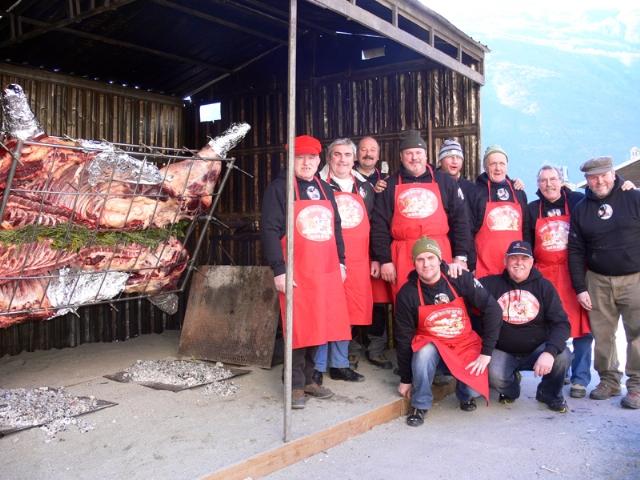
 3 puntiVedi te... Questo è il team di sviluppo in posa accanto alla calandra in versione definitiva.
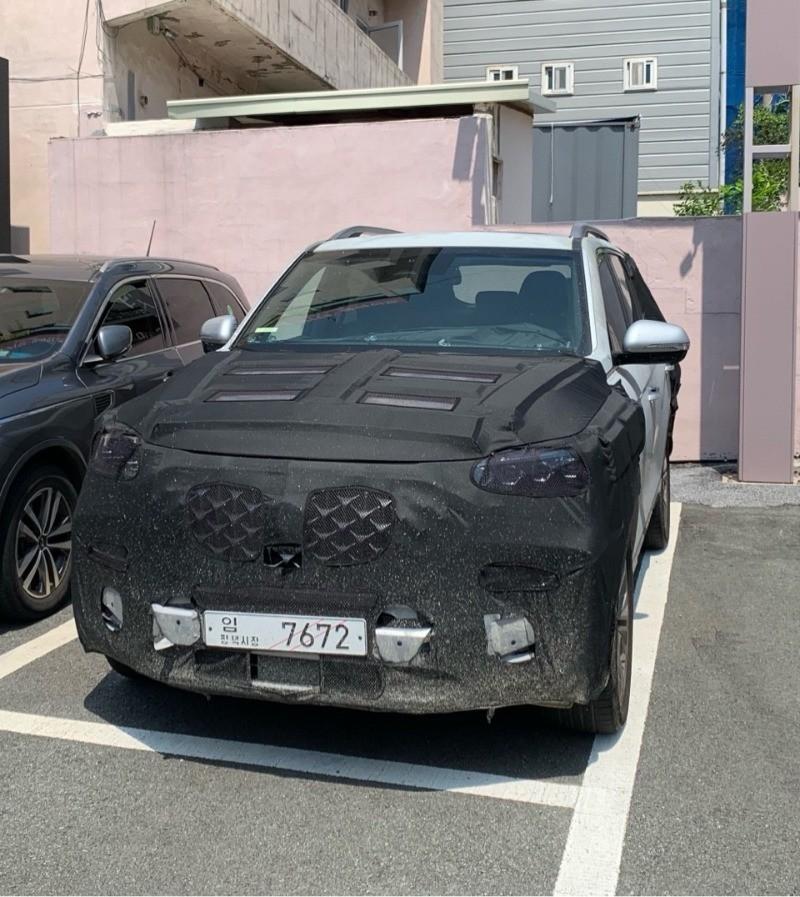
 3 punti3 punti2 punti2 puntiCredo che a livello di prezzi saranno compresi tra quelli della GMC Yukon Denali e quelli della Cadillac Escalade.2 punti2 puntiQuando il corpo vettura non è pensato per varianti di questo genere, questo è il risultato. Ne sono un esempio la prima X4 (anche se a mio gusto fa assolutamente ribrezzo anche l'attuale) e la prima GLE Coupé (benché anche in questo caso, la seconda sia venuta fuori come una i30 Fastback rialzata).2 punti2 punticapitolo Vignales. ha avuto due palle di ghisa a buttarsi giù dalla moto a 220 orari, ma possibile che non gli sia venuto in mente di fermarsi prima? a suo dire era già da 10 giri che aveva problemi ai freni e già aveva rischiato grosso... Marquez ha detto di aver visto nei giri precedenti "pezzi di roba nera" volare dalla moto di Vinales, che probabilmente erano pezzi dei freni... boh, fortunatamente quando ha fatto il tuffo era da solo, ma se avesse avuto un altro pilota davanti che faceva? mollava la moto col rischio di lanciare addosso a qualcuno?2 puntiSi ma resta comunque più piccola della calandra della BMW Serie 4!2 puntiSe due reni giganti non vi bastano, ve ne mettiamo 7. ☏ Redmi Note 8 Pro ☏2 puntiQuesta si che è una signora godronatura2 punti2 puntiPace all'anima sua, ma insieme a Cantarella ha portato un gruppo al vertice del mercato europeo, con prodotti innovativi e lanciata verso un florido futuro al quasi fallimento, lasciando il corebusiness dell'auto ad astruse imprese finanziarie. Fortuna che è arrivato dopo San Sergio da Montreal. La cosa che poi mi ha dato particolare fastidio erano anche i sermoni che dopo ha fatto nelle varie interviste fatte sui giornali di regime. Comunque riposi in pace e si faccia dare delle lezioni di economia dal figlio del maresciallo lassù in paradiso.2 punti2 puntiI fari citano esplicitamente la piattaforma su cui è basata la Tipo 4P Comunque mi unisco nel chiedere se arriverà la 4p resty anche da noi.2 puntiNonostante il brand navighi in acque reflue, continuano i test in strada per il facelift del Rexton. Le modifiche parrebbero anche ben corpose, con un frontale più imponente e verticale. WS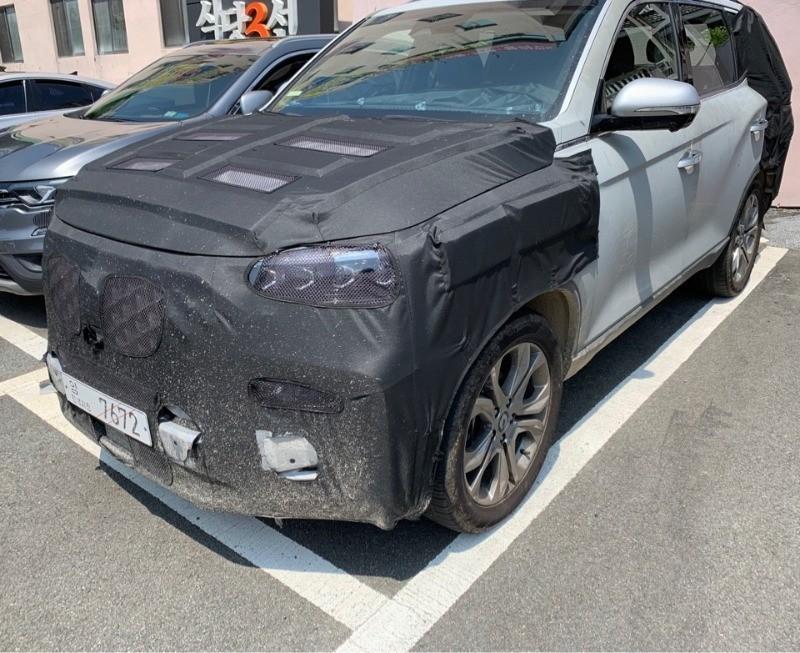
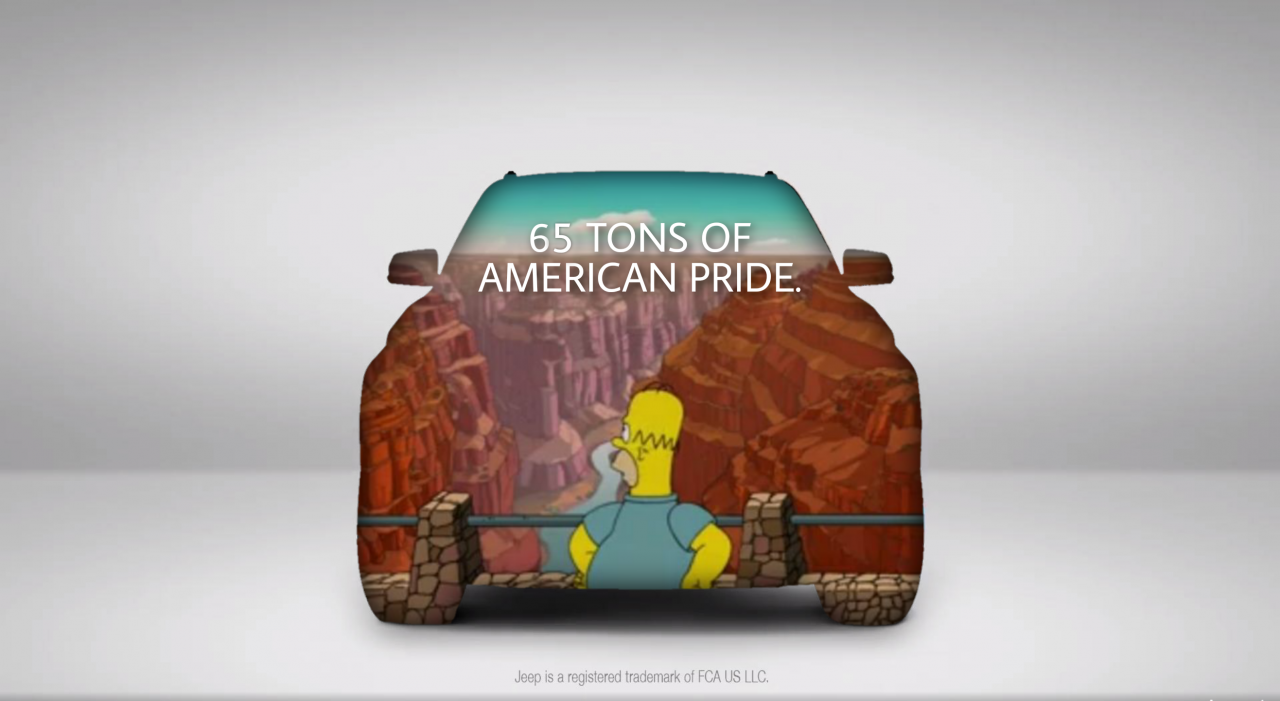
 1 punto1 puntoHo chiesto giorni scorsi al servizio clienti e mi hanno detto che sono già ordinabili (mi avevano inviato anche il listino), però non so i tempi di consegna ma che dovrebbero arrivare e concessionarie nei prossimi giorni.1 puntoMi sa che questa Jeep si potrà utilizzare come box per parcheggiarci dentro una Range; basterà farsi fare una rampa su misura.1 puntoQuindi potrebbe essere una sorta di wagoneer = range sport, grand wagoneer = range rover? E’ da vedere anche questo super luxury come viene interpretato dagli americani, lusso europeo e lusso statunitense si differenziano non poco. Peccato che questi modelli usciranno sotto stellantis, mi aspetto gia chi dira’ sia per questi che per maserati “ oh finalmente con i francesi si vedono prodotti interessanti “, anche se poi non ho capito se e quale W arriverà in europa1 punto1 punto1 puntoPare che al momento il problema sia sopratutto su Fiesta. Magari prova ad informarmi meglio.1 punto1 puntoPare che le prime 1.5 TDCI mangiassero molto olio, ora non so se hanno risolto.1 punto1 puntoconcetti anche condivisibili ma spiegati con esempi che c'entrano poco: - la "rover" è come minimo un'auto di 15-20 anni fa, ha relativamente poco a che fare con problemi di auto odierne o per lo meno con il fatto che adesso si spende di più in cazzabubboli elettrici/elettronici - la Fiesta "sempre tagliandata" l'hai messa a metano, che ha una combustione diversa rispetto alla benzina e, se le valvole non sono specifiche, provoca problemi. - la tua Corsa ha un motore che ha dato problemi proprio alla catena di distribuzione (non ha la cinghia e infatti in teoria non si cambia), il fatto che non abbia cambiato i freni (le pastiglie, immagino) non dipende certo dalla progettazione giusto per mettere i puntini sulle "i"1 puntodichiarazioni fatte da Manley negli ultimi due anni circa: We’ve been working on it for several years," said Manley. "It has a long gestation period, and will be clearly positioned significantly above Grand Cherokee." Speaking with TopGear, Manley said that the arrival of the new Jeep Grand Wagoneer will happen in just a few years, and promised that it "will be super premium." The new Grand Wagoneer will come with two different wheelbase options capable of holding three rows of seats, a unique design with signature Jeep styling cues, and most significantly, a price tag as high as $140,000. That would put it directly in competition with more premium offerings from Land Rover, Bentley, and others. qui sotto due articoli riguardo al Wagoneer e al Grand Wagoner che ricordo essere due veicoli completamente diversi come architettura, il primo basato su quella del nuovo Grand Cherokee e il secondo su quella del nuovo RAM 1500. Il nuovo Wagoner sara' posizionato sopra al nuovo Grand Cherokee e il Grand Wagoneer sara' ancora piu' luxury del Wagoneer https://www.roadandtrack.com/new-cars/future-cars/a26256507/2021jeep-wagoneer-grand-wagoneer-rumors-specs-release-date/ https://www.roadandtrack.com/new-cars/future-cars/news/a29865/2019-jeep-grand-wagoneer-grand-cherokee/1 punto1 puntoQuasi 30k per un auto che ha componenti interne che puzzano di Dacia, personalmente non li spenderei. Piuttosto con quella cifra guarderei a qualche X1 km zero.1 punto@Cole_90già lo sapevo da maggio, fonte concessionaria... A me piacciono anche le sedan, ma la Passat Variant ha un posteriore molto meglio disegnato...1 punto1 puntoL’unijet Non sarebbero mai riusciti a svilupparli e industrializzarli da soli, senza Bosch. L’idea risale alla prima metà degli anni novanta,quando era ancora in vigore il superbollo è la quota diesel da noi era una cifra.1 punto1 punto1 punto1 punto1 puntoProbabilmente se una gomma con tanti giri alle spalle si raffredda la butti, non riprende più grip.1 puntoSecondo le informazione della stampa tedesca lo sviluppo della prossima Passat e sotto la gestione di Skoda insieme con la nuova Superb e a causa dei risparmi e della riduzione dell segmento con motori ICE non e obbligatorio che entrambi modelli hanno le stesse variante come oggi. Potrebbe essere anche che Superb e Passat hanno ciascuno solo una variante della carrozzeria (almeno in Europa)1 puntoA mio modo di vedere le cose quello che chiami "giro a vuoto" è fondamentale. L'auto non si acquista a scatola chiusa nè a cuor leggero. Vedi, verifica poi nel caso compri. E meglio un giro in più che non uno in meno.1 punto1 puntoDovizioso poteva fare l'affondo e invece fa 2 gare di merda. Consideriamo poi che ha detto che le qualifiche le ha cannate perché aveva preparato la gara. Gara gomma fallata a quanto sembra. Gara 2... Boh Intanto Miller col braccio tronco ha rischiato di vincere1 punto1 puntoIn effetti le auto a metano si limitano a risolvere lo stesso problema delle auto elettriche, ma senza la necessità di stravolgere abitudini, vita e infrastrutture del mondo. Non possono coesistere1 punto1 puntoFerrari partecipa per vincere? Oggi dico? Loro sanno che con Marquez in pista e dovizioso ai box non vincono manco con la moto migliore. Non hanno vinto manco con Lorenzo. Perché continuare a spendere un botto di soldi (nei tempi del covid) quando possono fare secondi/terzi spendendo molto meno? Valentino ndo va?1 puntoLa calandra sembra una sorta di Vizor, con una copertura in plexiglas (forse addirittura illuminata); non capisco se le feritoie siano aperte o chiuse. Resta il fatto che muoio di curiosità!1 punto1 puntohai un link? perché io su Repubblica (online) vedo un'intervista a Campinoti (Pramac), non a Dovizioso.1 puntoe sopratutto non importa da che lato lo infili per il resto oltre a quanto è già stato detto l'usb C è il nuovo standard e credo che presto rimarrà solo questa tipologia, visto che anche molti pc iniziano a non avere più le porte usb "classiche"1 puntoIl Type-C garantisce il passaggio di tensioni maggiori, quindi migliora la velocità di ricarica rispetto alla micro USB, ed inoltre è sempre più diffuso sui nuovi smartphone (Apple a parte ovviamente) di fascia medio alta.1 puntogirando per i concessionari, e vedendo le varie auto della gamma schierate assieme ho constatato che sia Peugeot che Citroen hanno fatto davvero un buon lavoro dal punto di vista dello stile. Bravi1 puntoLa signorina con la canna dell'acqua dovrebbe gentilmente lasciar stare quella Ferrari e rivolgersi alla collega nella prima immagine (e con la speranza che l'acqua sia ben gelida ).1 puntoLa Leaderboard è riferita all'orario Roma/GMT+02:00