Classifica Utenti
Utenti più Apprezzati
(Scegli il periodo) Utenti più Apprezzati
(Storia giorno per giorno) Classifica dall'Origine
(da Marzo 2003)
(Scegli il periodo) Utenti più Apprezzati
(Storia giorno per giorno) Classifica dall'Origine
(da Marzo 2003)
-
Tony ramirez
Redattore26Punti4567Numero contenuti pubblicati -
AleMcGir
Moderatore |Staff|17Punti19917Numero contenuti pubblicati -

KimKardashian
Utente Registrato14Punti14269Numero contenuti pubblicati -
Osv
Reporter (Staff)13Punti4970Numero contenuti pubblicati



(1)(1).thumb.png.635c059adfaa3a2ca27f86ab608b04ba.png)
Contenuti più Popolari
Stai visualizzando i contenuti con il più alto punteggio, pubblicati in data 02/06/25 e localizzati Tutte le aree/sezioni
-
24 puntiCiao amici, come da titolo ne ho creata un'altra. mi sono immaginato negli anni 80 mentre sfreccio sulla corniche della Cote d'Azur e dalle casse escono i Modeon Talking, per poi approdare su una spiaggia. Ve la ricordate la vecchia R4 Frog? vista la presentazione della nuova R4 ho pensato fosse giusto convertirla in Buggy24 punti
-
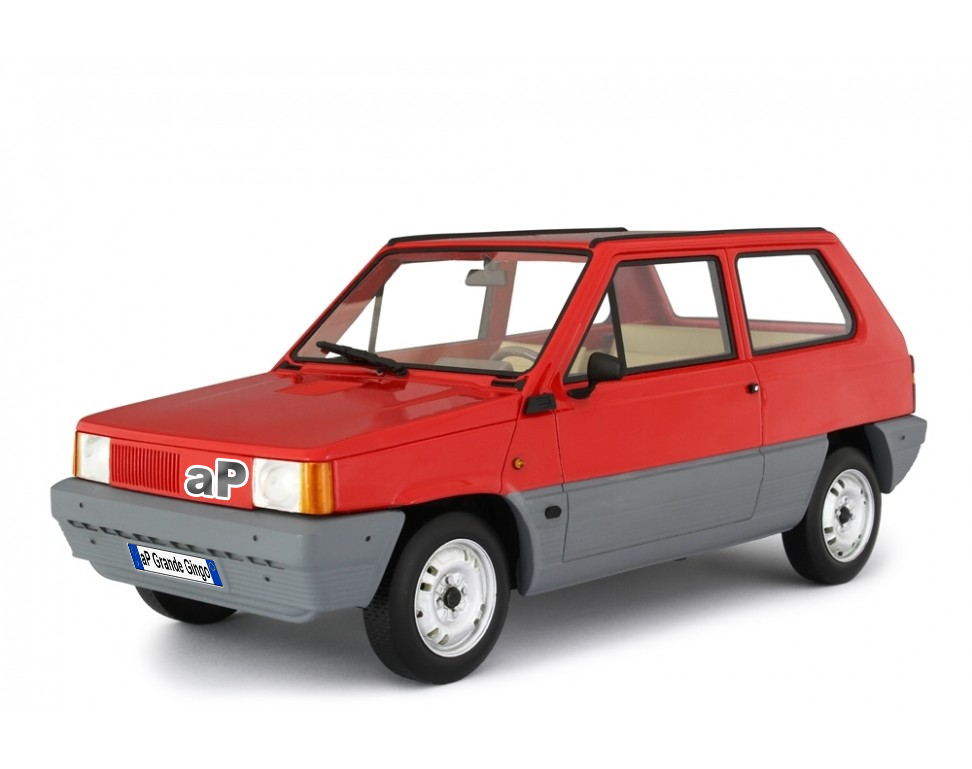
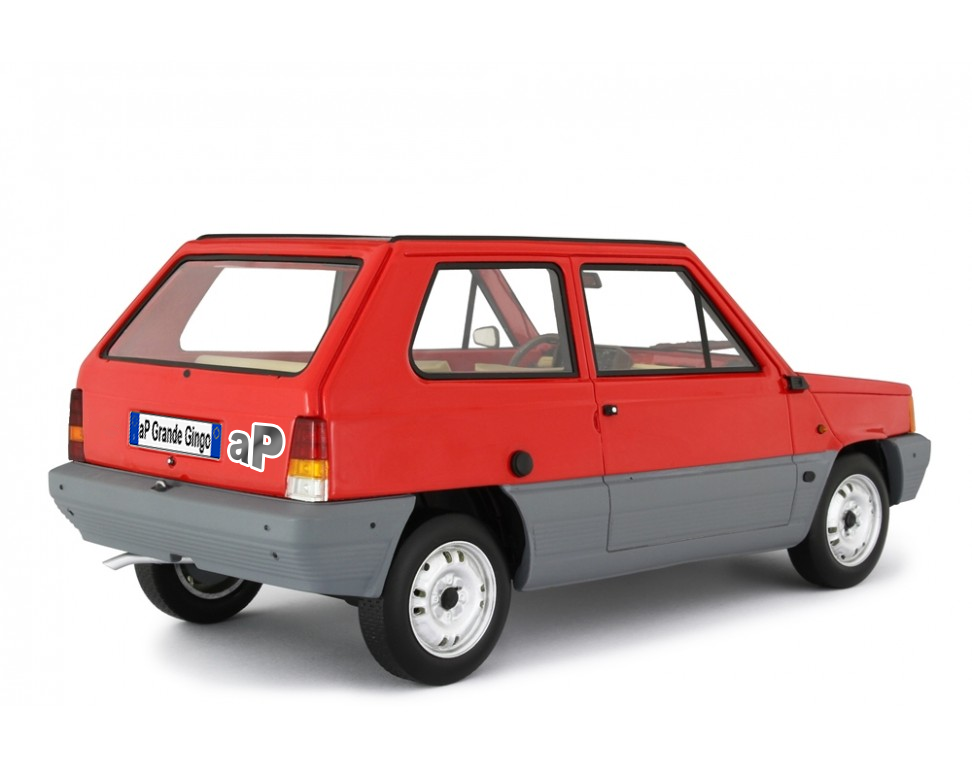
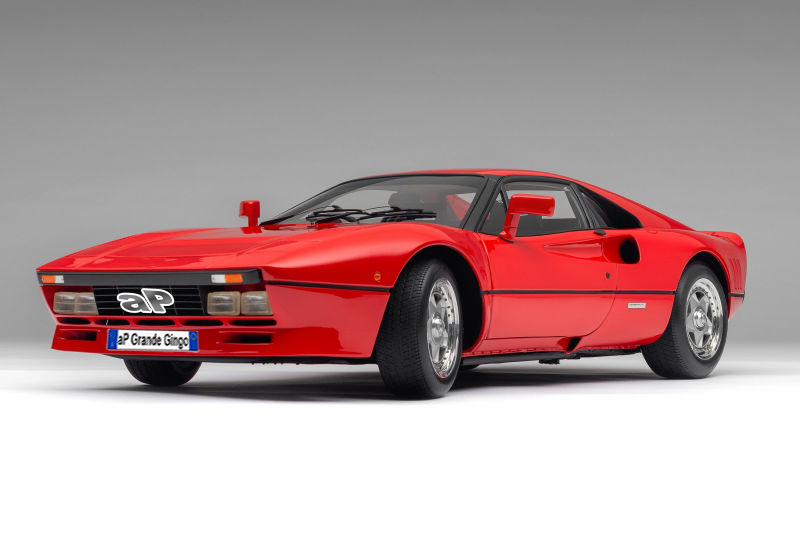
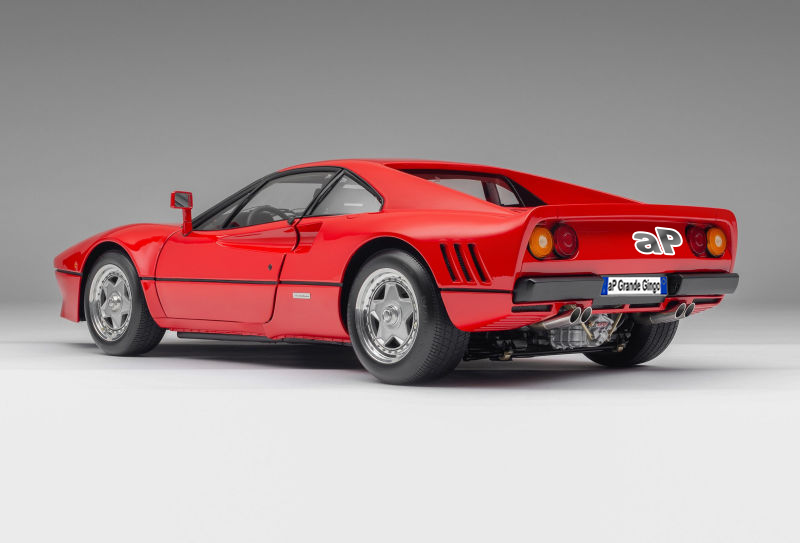
aP Grande Gingo - ALLESTIMENTO SOLO ITALIA aP Grande Gingo - ALLESTIMENTO SOLO ITALIA aP Grande Gingo inizia il suo tran tran alla conquista del segmento B in Italia La nuova aP Grande Gingo, primo modello della nuova famiglia globale, incarna perfettamente l’essenza del brand grazie al suo design raffinato, alla compattezza, all’inclusività e alla sostenibilità. Oggi la aP Grande Gingo fa il suo debutto con motorizzazioni termiche, ibride ed elettriche, affrontando l’intero segmento B, in cui aP vanta una leadership consolidata da decenni. Questo nuovo modello, fedele allo stile distintivo del brand, è pensato per adattarsi sia alla vita familiare che a quella urbana, in ogni parte dell'Italia. Progettata presso il Centro Stile della aP motorcompani, la aP Grande Gingo si distingue per le sue dimensioni compatte, le linee essenziali e un abitacolo organizzato con cura, caratteristiche che la rendono ideale per la mobilità familiare e cittadina. L’aspetto solido e ben strutturato, combinato con un design dinamico e slanciato, comunica forza e unicità. La aP Grande Gingo è la prima aP sviluppata sulla piattaforma “Paracarro" di aP motorcompani. Questo innovativo “family mover” assume un’importanza sociale significativa grazie alla sua piattaforma multi-energia flessibile e versatile, in grado di soddisfare le esigenze dei clienti italiani. Con la aP Grande Gingo, si inaugura una nuova famiglia di modelli che saranno lanciati nei prossimi anni. aP Grande Gingo: motorizzazione termica, Ibrida e elettrica La aP Grande Gingo presenta due motorizzazioni termiche la versione base è spinta da un motore raffreddato ad aria, con 30 CV, di soli 652 cc per due cilindri; la versione di punta invece monta il motore 4 cilindri di 903 cc e 45 cv, trasmissione manuale a scelta di 3, 4, 5, 6 ,7, 8 marce più retromarcia, per entrambe le motorizzazioni. La motorizzazione ibrida, vede la combinazione dei due motori termici abbinati ad una batteria di 9 Volt, abbinati a trasmissioni manuali, cvt, automatici, doppia frizione e a innesti frontali di derivazione motociclistica. La motorizzazione elettrica è garantita da 4 motori elettrici singoli indipendenti per ogni ruota, e da una prolunga di 10 Km da collegare alle prese elettriche da trovarsi lungo il viaggio o alle colonnine di ricarica. Accessori aP motorcompani autentici La versione "UNO" offre gratis la luce per il baule, lo specchietto esterno dx e il tergicristallo posteriore, offerta valida solo per i primi 1000 acquirenti. La versione "UNO" parte da un prezzo di 9.999 € per la versione aP Grande Gingo 30, cambio 3 marce. ---- aP Grande Gingo - ALLESTIMENTO SOLO MERCATO EUROPA aP Grande Gingo - ALLESTIMENTO SOLO MERCATO EUROPA aP Grande Gingo inizia il suo tran tran alla conquista dell'Europa Il mercato europeo chiede un allestimento diverso della Grande Gingo, e la aP motorcompani, sempre attenta alle richieste del mercato ha deciso di offrire un allestimento focalizzato al mercato estero, montando dei paraurti in tinta carozzeria alla Grande Gingo, le motorizzazioni, gli allestimenti restano uguali. La versione "UNO" parte da un prezzo di 9.998 €.
 9 punti
 -
6 punti
-
https://www.noticiasautomotivas.com.br/flagra-seriam-estes-os-novos-fiat-pulse-e-fastback-imagens-de-baixa-qualidade-sugerem-formas-distintas-dos-modelos-atuais/
 5 punti
 -
5 punti
-
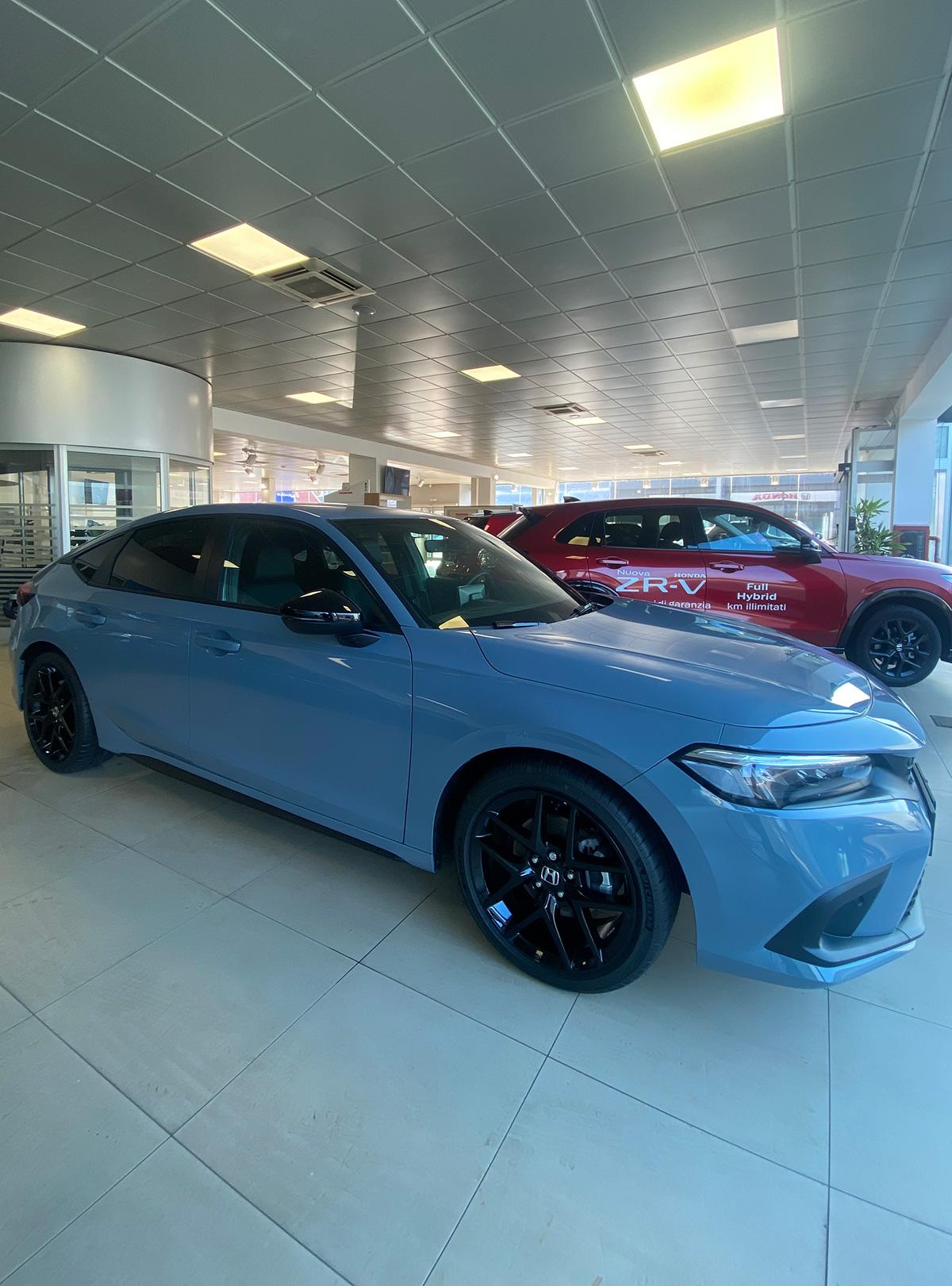
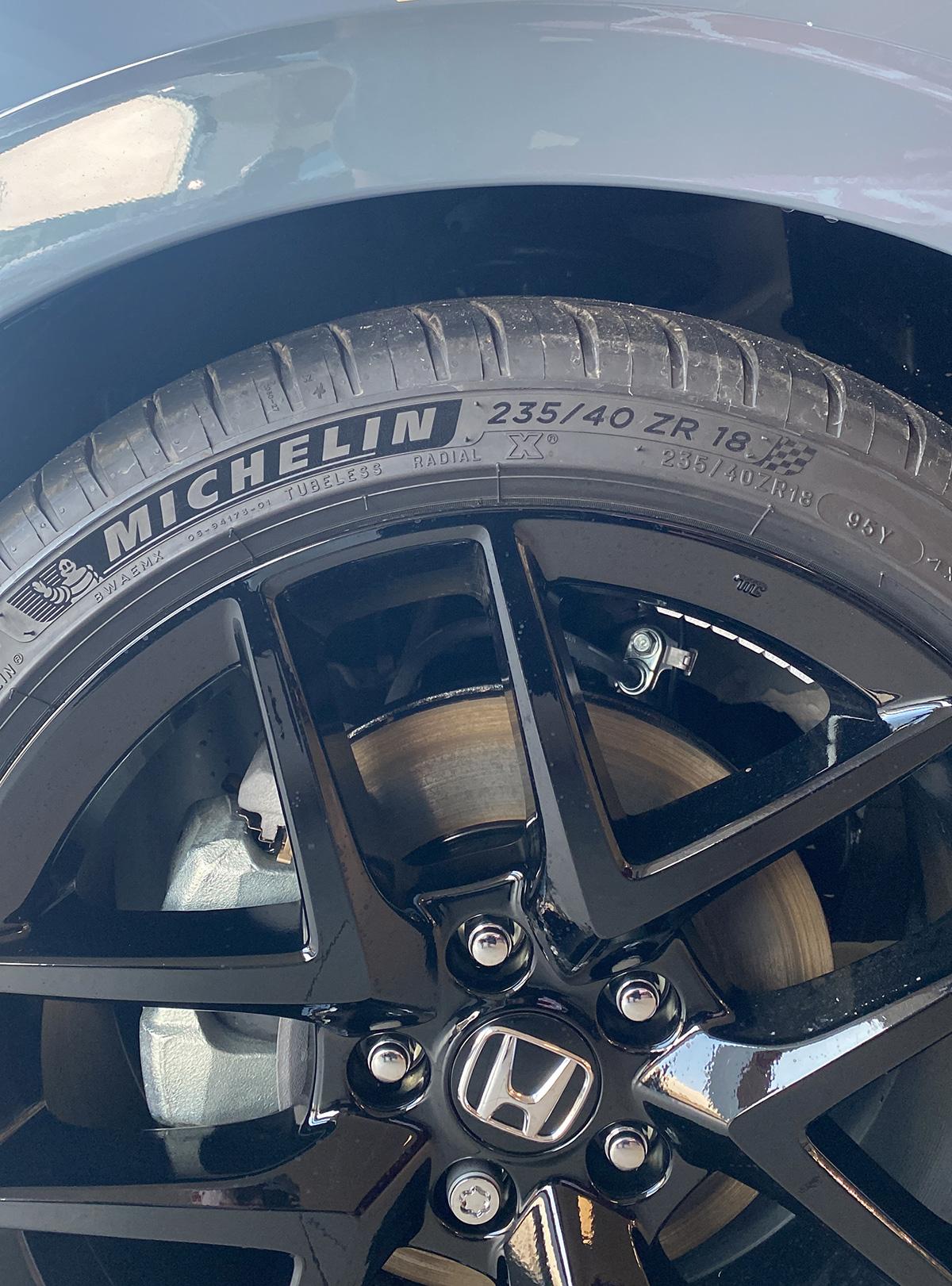
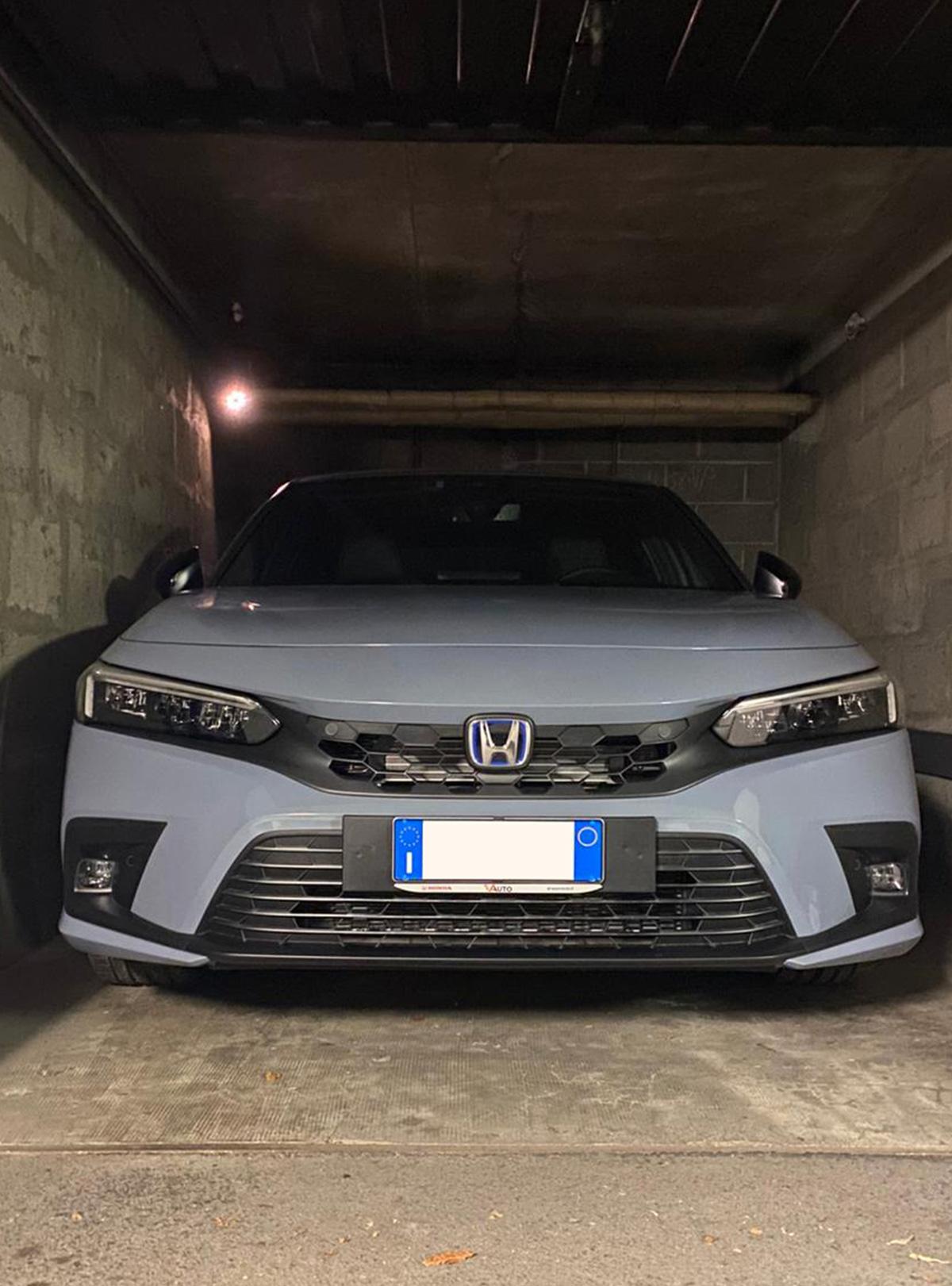
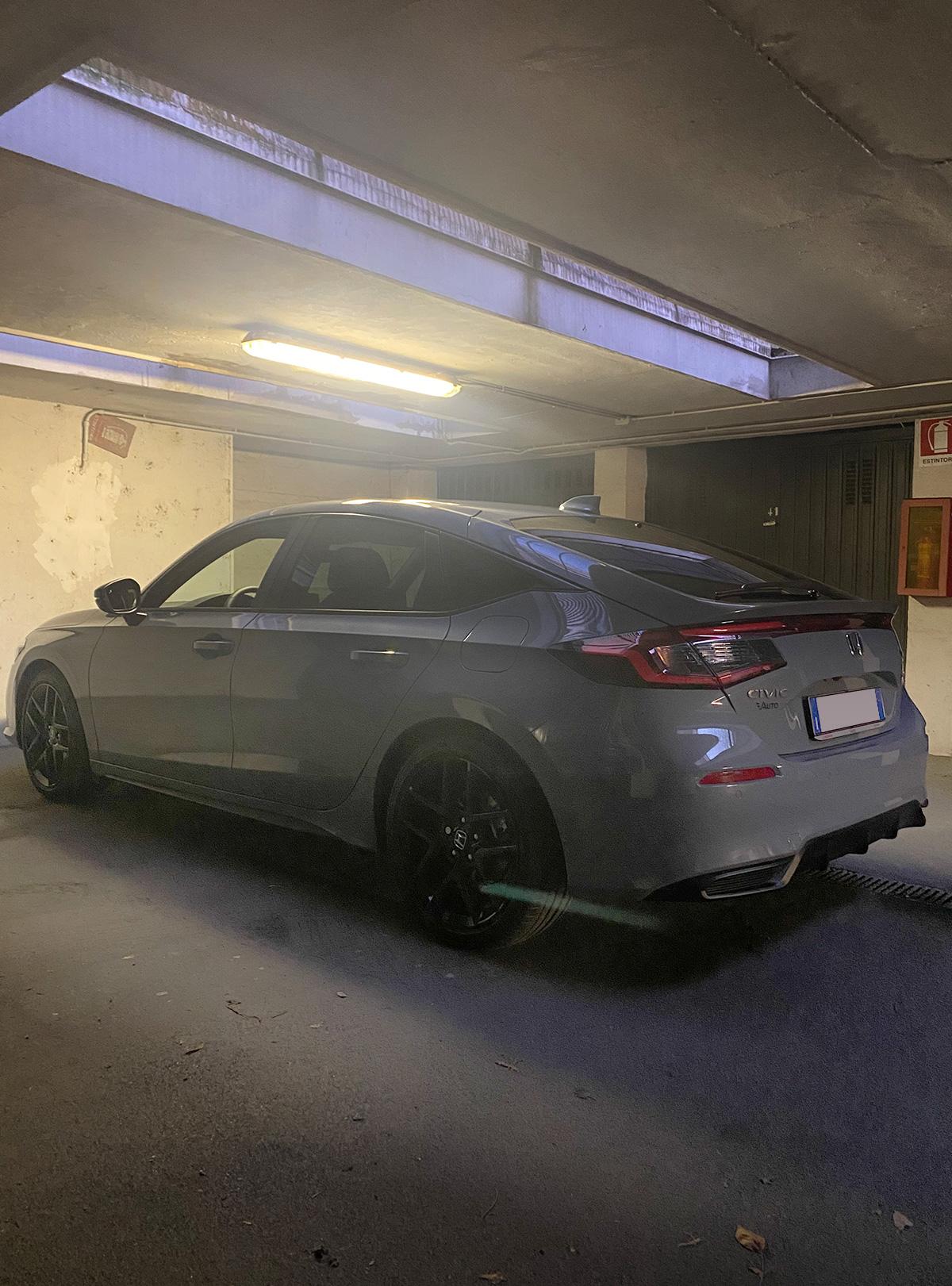
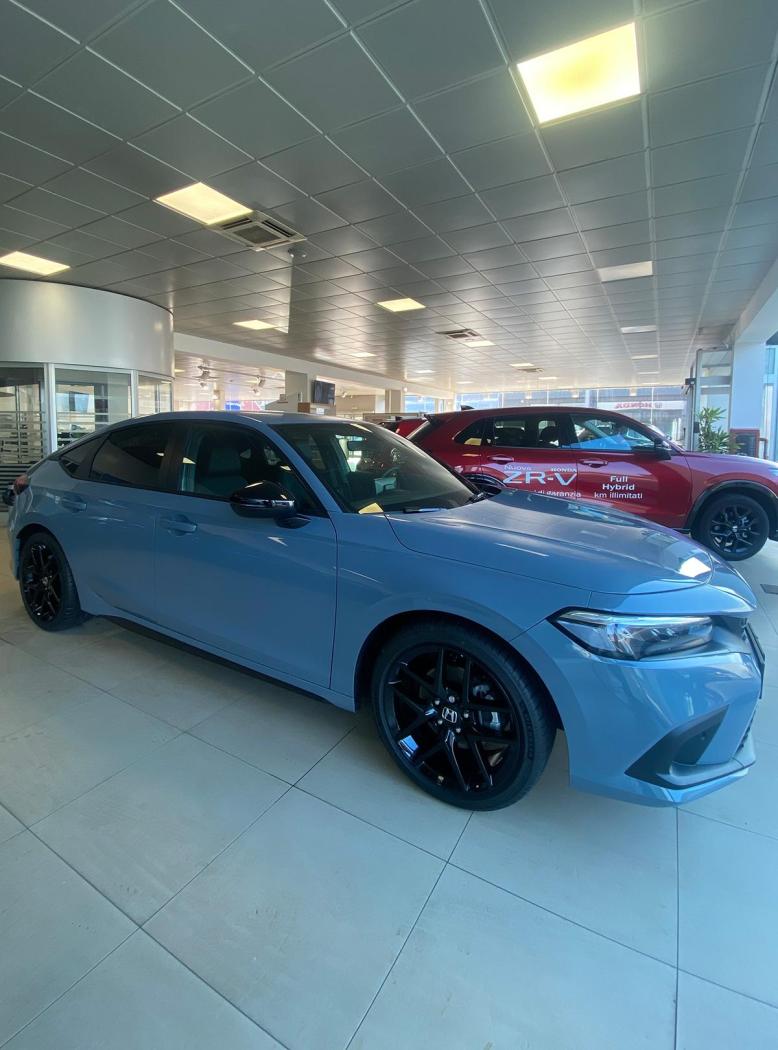
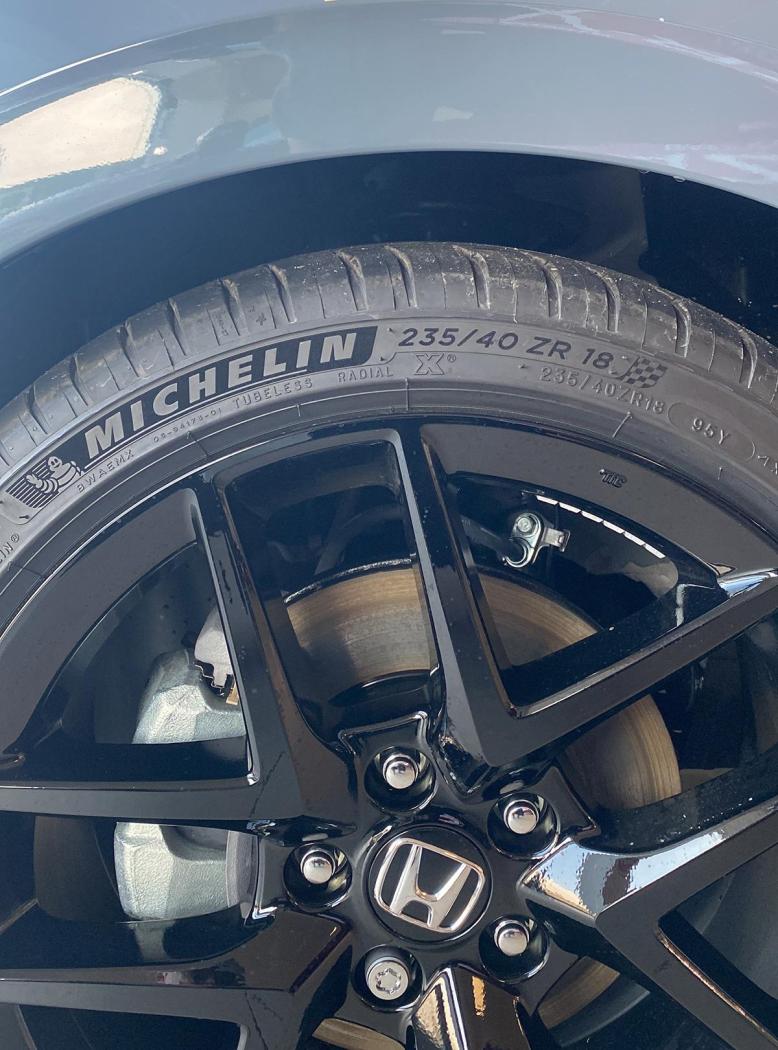
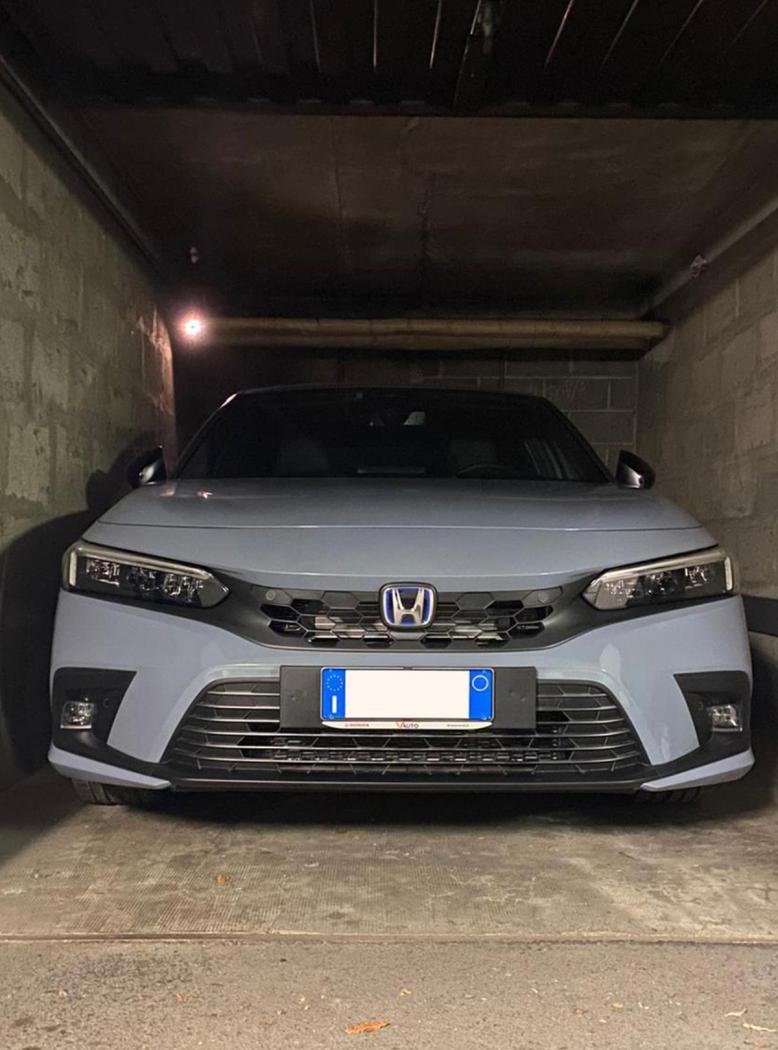
5 puntiPresa, ho fatto 100 km in autostrada, ho cominciato a prendere confidenza con lo sterzo, il cambio e tutta l'assistenza alla guida (di fatto molto ben tarata, ma devo ancora approfondire - stasera ho portato a casa le 500 pagine del libretto di istruzioni 😅). In Sport schiacciando l'acceleratore hai subito coppia in abbondanza per scivolare via in un battibaleno, quindi per ora super soddisfatto. Sempre in sport il volante ha il giusto peso e direzionalità, non a livelli di Giuly ma questo è normale. Seduta di guida comoda semidistesa, volante praticamente verticale e bella visione grazie agli specchietti incernierati alle portiere. Questo weekend vado a Genova, quindi affronterò un po' di curve hehe e lì sì che saggerò il telaio della Civic. Ho visto che la mia monta Michelin Sport Pilot- credevo avesse qualche modello e-saving, menomale - non vedo l'ora di metterle alla prova. In generale mi piace, son proprio contento e ho veramente la scimmia di guidarla tutti i giorni (come accadeva con la Giulia). Adesso sta dormendo in garage 🥰 agevolo qualche foto random scattata al volo. PS: colore pazzesco! Tutti mi fanno i complimenti - oltre alla macchina vabbè hehe
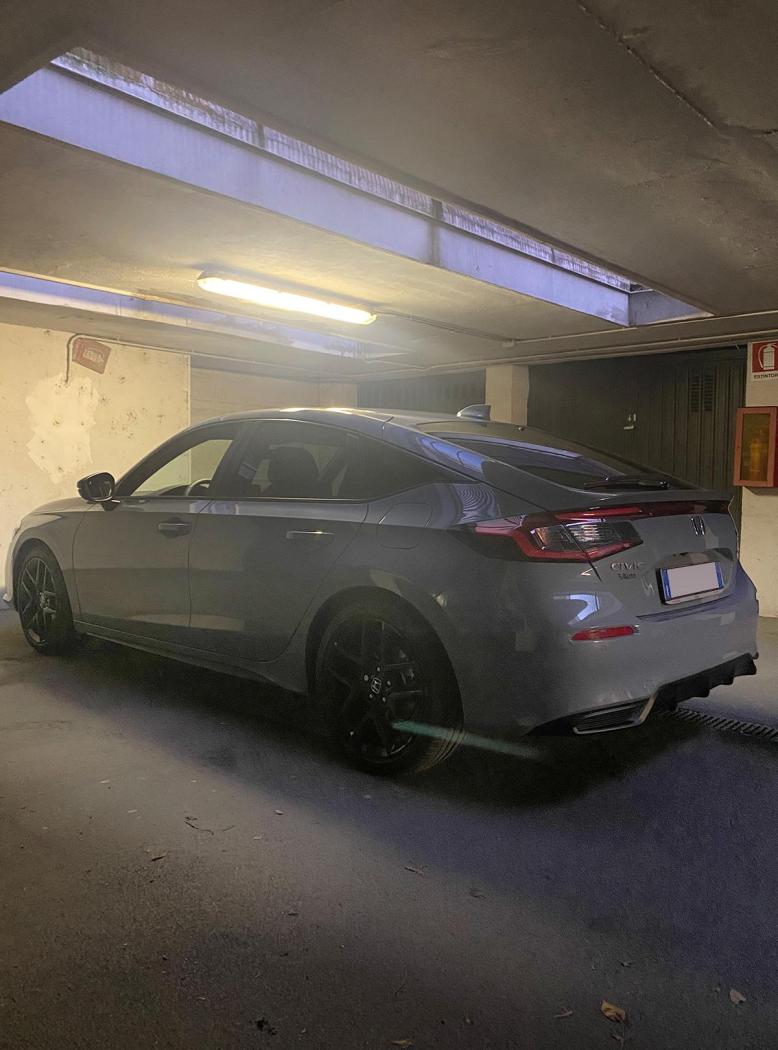 5 punti
 -
Aprono SOLO alla Phev Auto molto costose , complesse e pesanti. Che comunque necessitano di Ricarica casa/lavoro4 punti
-
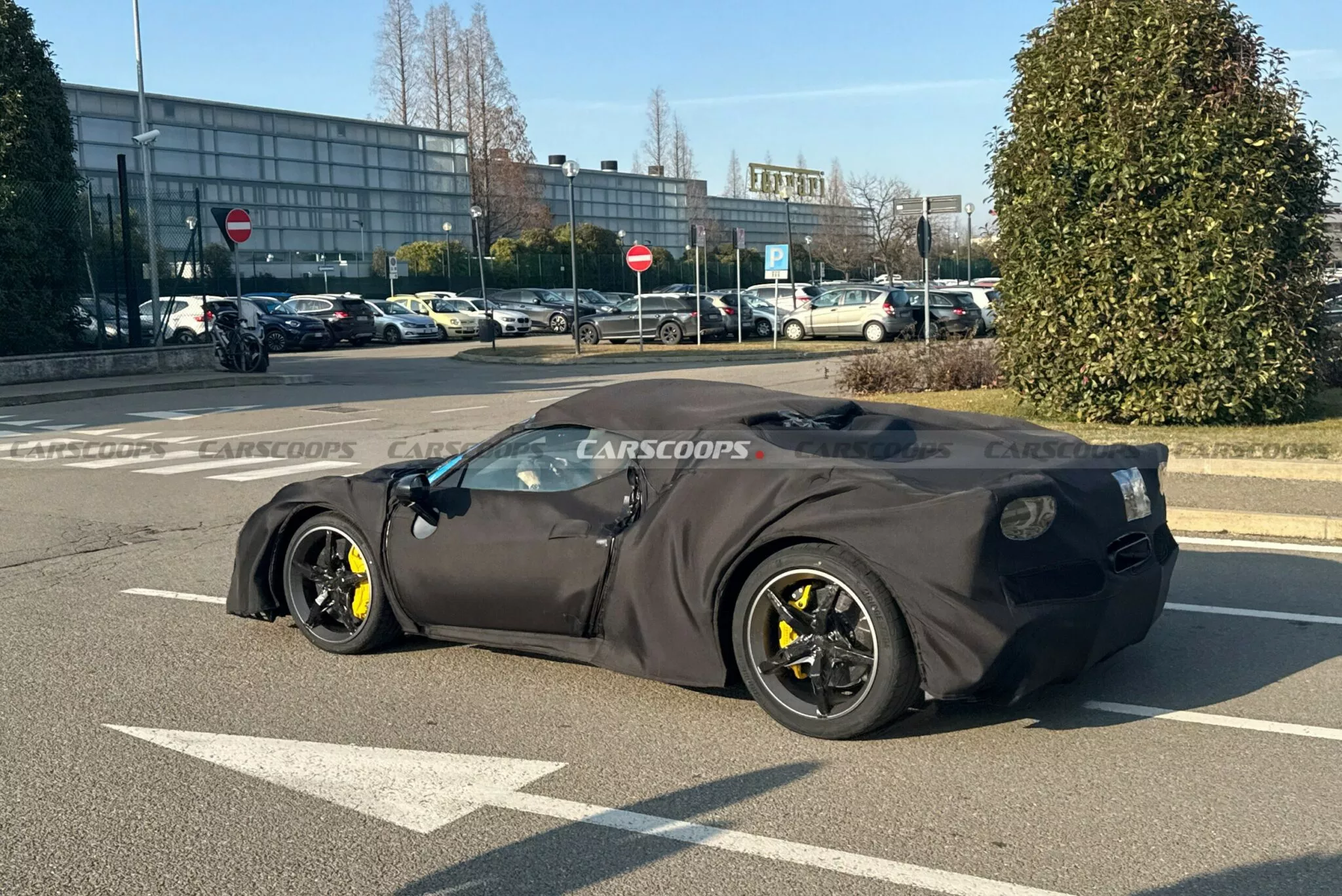
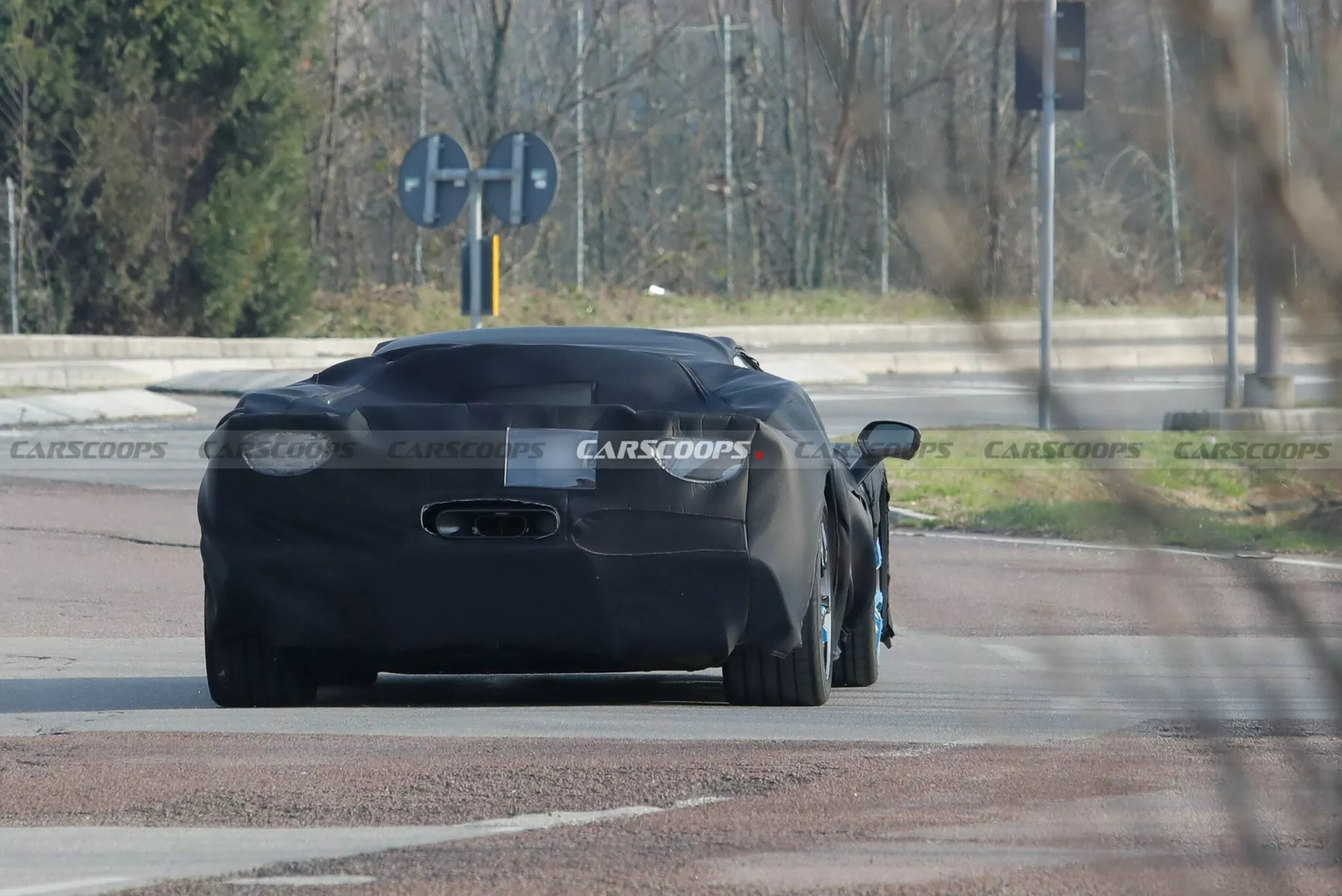
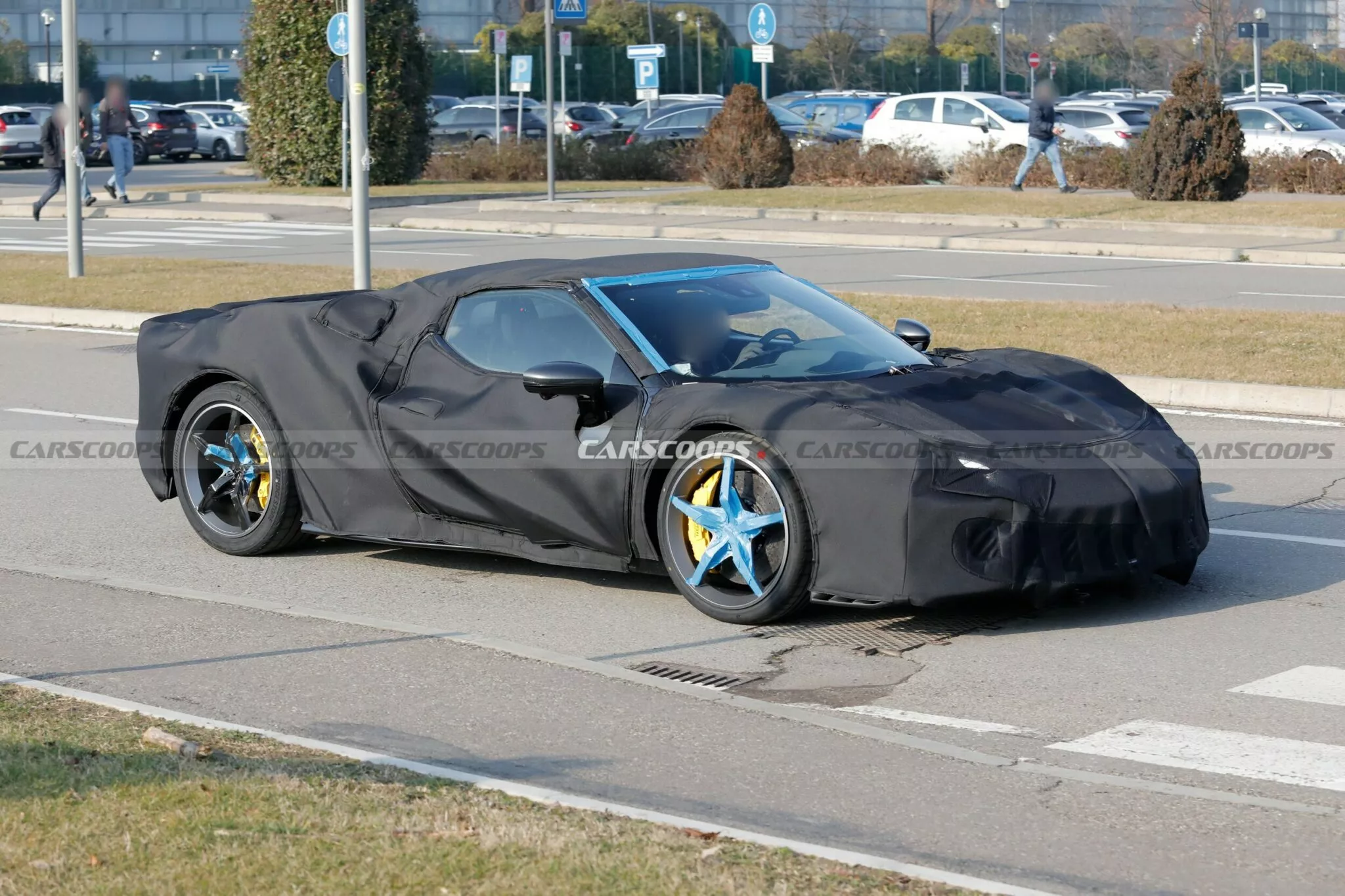
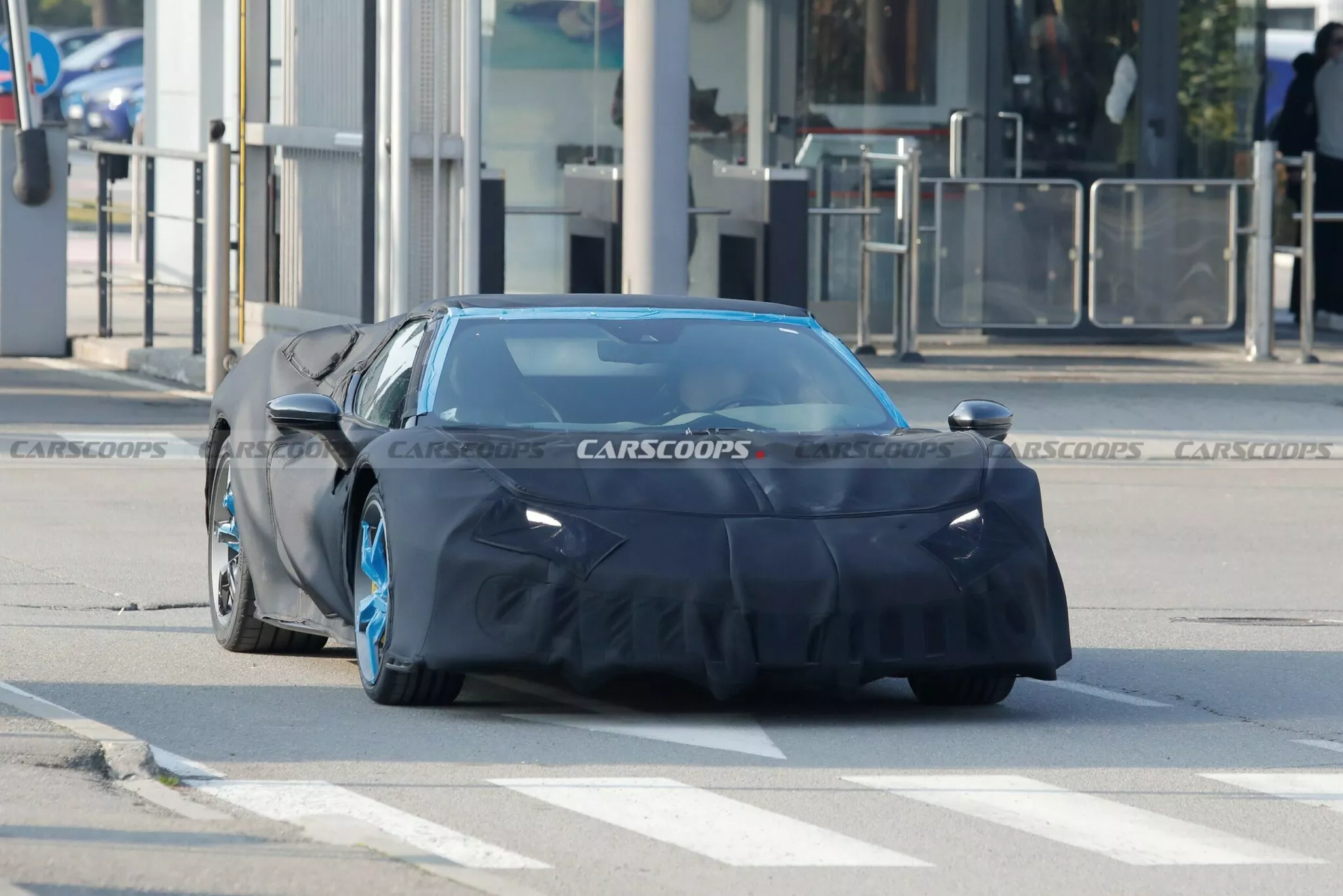
4 puntiQuante informazioni sbagliate... I modelli previsti per quest'anno sono: -296 VS GTB/GTS (29 Aprile); -296 VS Piloti (unveiling durante la settimana della 24H di Le Mans); -SF90m Coupé/Spider (manterrà il V8); -Roma M Coupé/Spider (che dovrebbe solamente essere un refresh estetico); -BEV. In coda per il 2026 (non so precisamente quando) ci sono SP4 e 296 GT3 Evo. Per i nomi: Mugello, 499 GTB/GTS ed Amalfi sono stati solo registrati da Ferrari.4 punti
-
Veramente nel segmento C-SUV vendono bene coreane, giapponesi e tedeschi, quelli non pervenuti sono i marchi Stellantis4 punti
-
4 puntiDa Facebook, versione Rusty. Che è assolutamente no-sense visto che AMI è tutta di plastica.

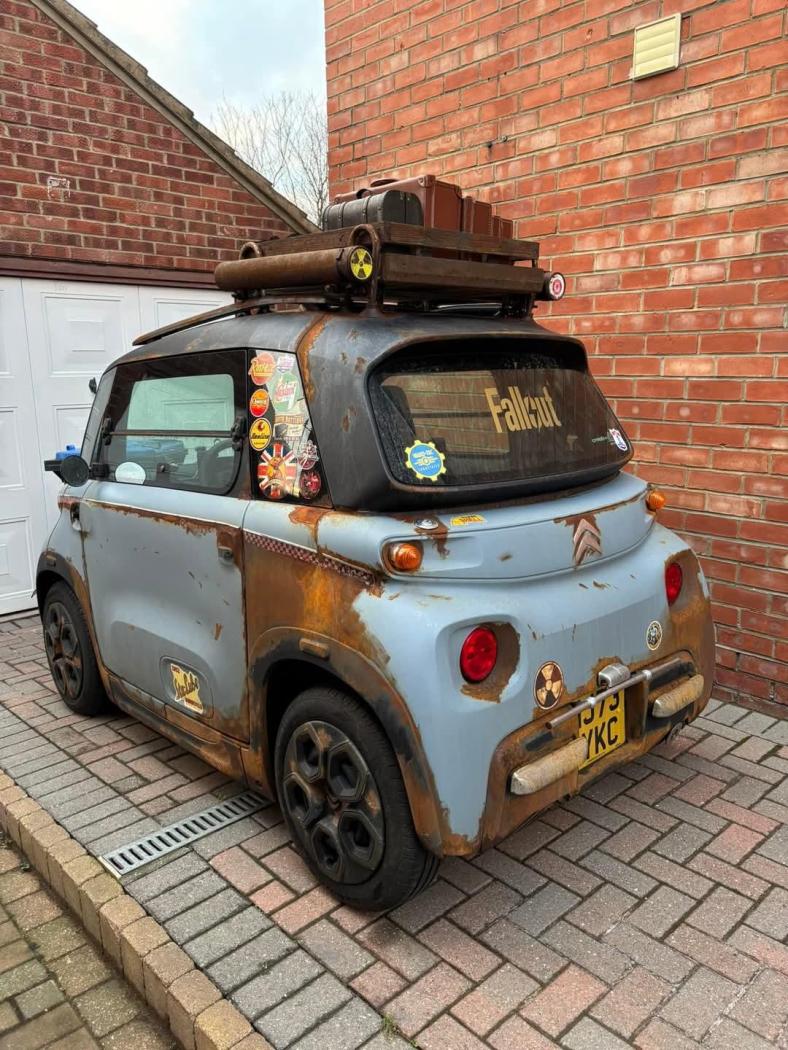
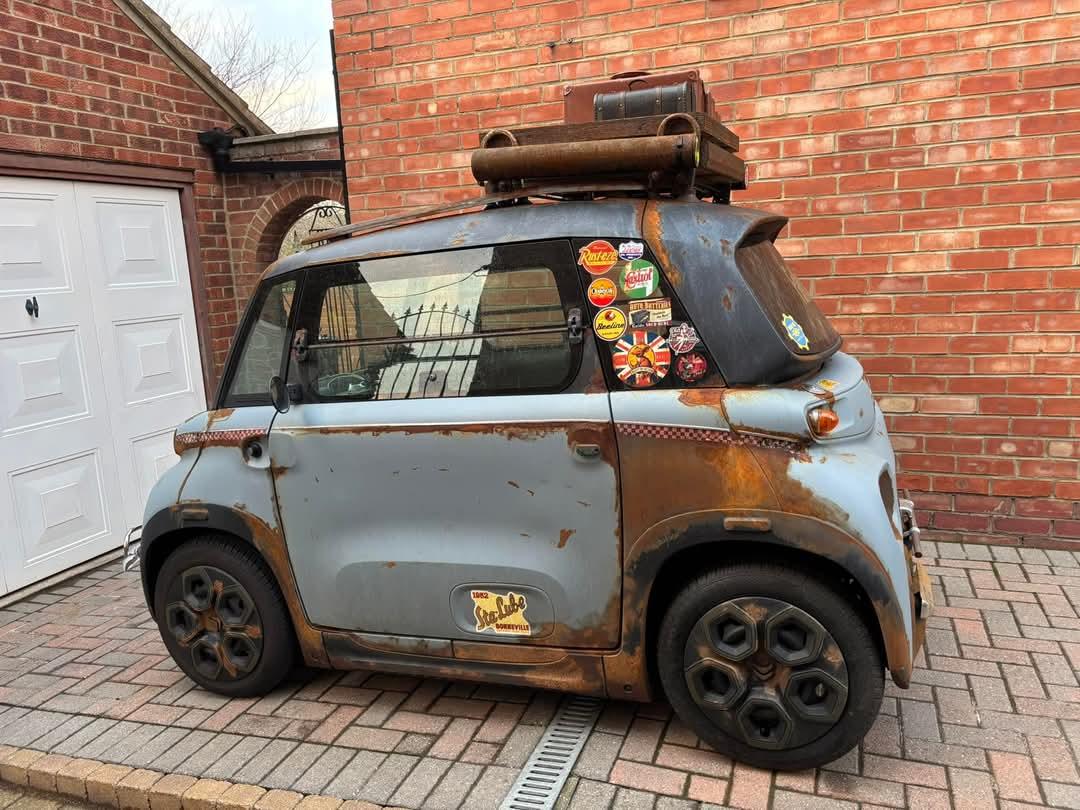 4 punti
 -
hmmmm...parli della attuale G20 oppure della futura G50? G20 ha 318i, 320i, 330i, 340i, 318d, 320d, 330d, 340d e 330e, mi sembra un po' piu scelta rispetto Giulia con 280bz e 210ds. Naturalmente altra discussione se intendi il futuro con la G50.4 punti
-
EU considers new plug-in hybrid regulation after 2035 After the EU Commission launched the strategic dialogue on the future of the automotive industry at the end of January, there are initial signs that lobbyists from the automotive industry could be successful in their fight against EU CO2 penalties and even overturn the 2035 ban on combustion engines. For the first time, EU representatives have not ruled out the sale of plug-in hybrids after 2035, writes the German publication Der Spiegel, citing negotiating circles. The Commission indirectly confirms this in a recently published EU strategy paper. It wants to “examine possible flexibilities to ensure that our industry remains competitive without lowering the overall ambition of the 2025 targets.” In addition, “achieving the climate neutrality target for cars by 2035 will require a technology-neutral approach, in which e-fuels will play a role through a targeted amendment to the regulation as part of the planned review.” At the EU strategy dialogue on the future of the European car industry, Commission President Ursula von der Leyen announced after a meeting with representatives of car manufacturers and suppliers that she would act swiftly – Transport Commissioner Apostolos Tzitzikostas was tasked with drawing up an action plan for the sector and presenting it on 5 March. Mercedes lobbies in favour of PHEVs and range extenders Behind the scenes, of course, negotiations are continuing to influence this action plan. For its article, Der Spiegel spoke to Eckart von Klaeden, chief lobbyist at Mercedes-Benz, among others, who is in favour of the path being determined “by the market” in future, “not by penalties.” Mercedes is committed to decarbonisation and does not want to “go back to the past.” “Regulation must be permanently open to technology in such a way that it continues to enable the authorisation of climate-friendly products such as plug-in hybrids and range extenders,” the Mercedes lobbyist is quoted as saying. This may already have been achieved at an informal level. Der Spiegel makes this clear with a sentence from the strategy paper in question: “As part of the dialogue, we will find immediate solutions to ensure the industry’s ability to invest by examining possible flexibilities.” So far, only a review of possible flexibilities has been promised – but given the strict procedures of EU policy, it is clear what potential this sentence offers. After all, anything is possible during a review – from no change to the decision to slight adjustments to the abandonment of some targets. After all, it would be nothing less than a new authorisation of plug-in hybrids and range extenders after 2035. One of the key points of Ursula von der Leyen’s ‘Green Deal’ was that, from this year onwards, only new cars that do not emit any CO2 locally may be registered so that the transport sector can play its part in making the EU climate-neutral by 2050. And the industry had a clear date with which it could plan for its products and plants. It was foreseeable that there would be resistance to this, not only from some politicians but also from industry. The tightening of CO2 fleet limits from 2025 alone, which has been in place for years, has faced strong headwinds and is often seen as a hindrance. The money that would have to be paid as penalties to the EU would then be lacking for important investments in the future, so the argument goes. Plant closures, job cuts and loss of prosperity would be the result. Possible scenarios being discussed in Brussels range from deferring the CO2 penalties to offsetting them against a future undercutting of the limit values or even softening the planned combustion engine ban with the new registration of plug-in hybrids after 2035. It is clear that it will only be possible to achieve even stricter CO2 limit values in the long term if affordable electric cars are also offered. This is precisely what Der Spiegel criticises in its conclusion: “This deal would be bad news for consumers, especially if they are considering buying an electric car. If the pressure of the penalties is removed, manufacturers can continue to charge high prices. This is precisely the main reason for the sluggish sales.” And that the pressure is having an effect can be seen in the VW ID.3 – which, as reported, is currently being offered significantly cheaper than a Golf as part of a leasing promotion. (electrive)4 punti
-
Due spider decisamente rare: Chrysler Crossfire e Pontiac Solatice
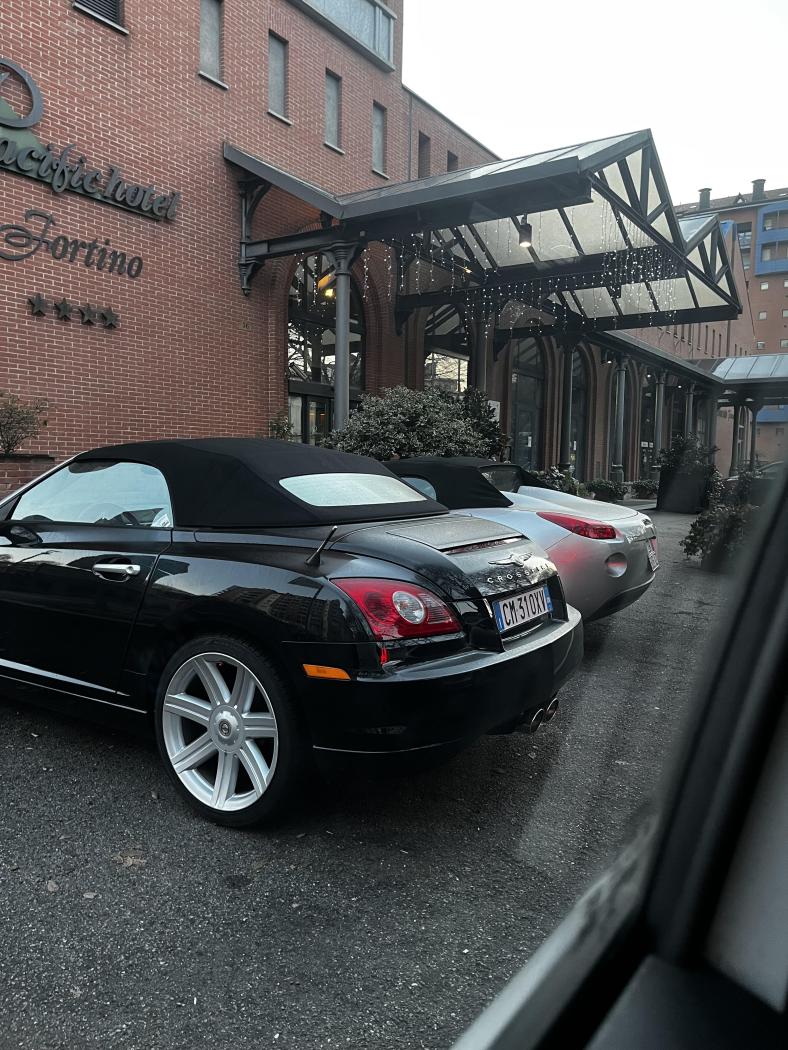 3 punti
 -
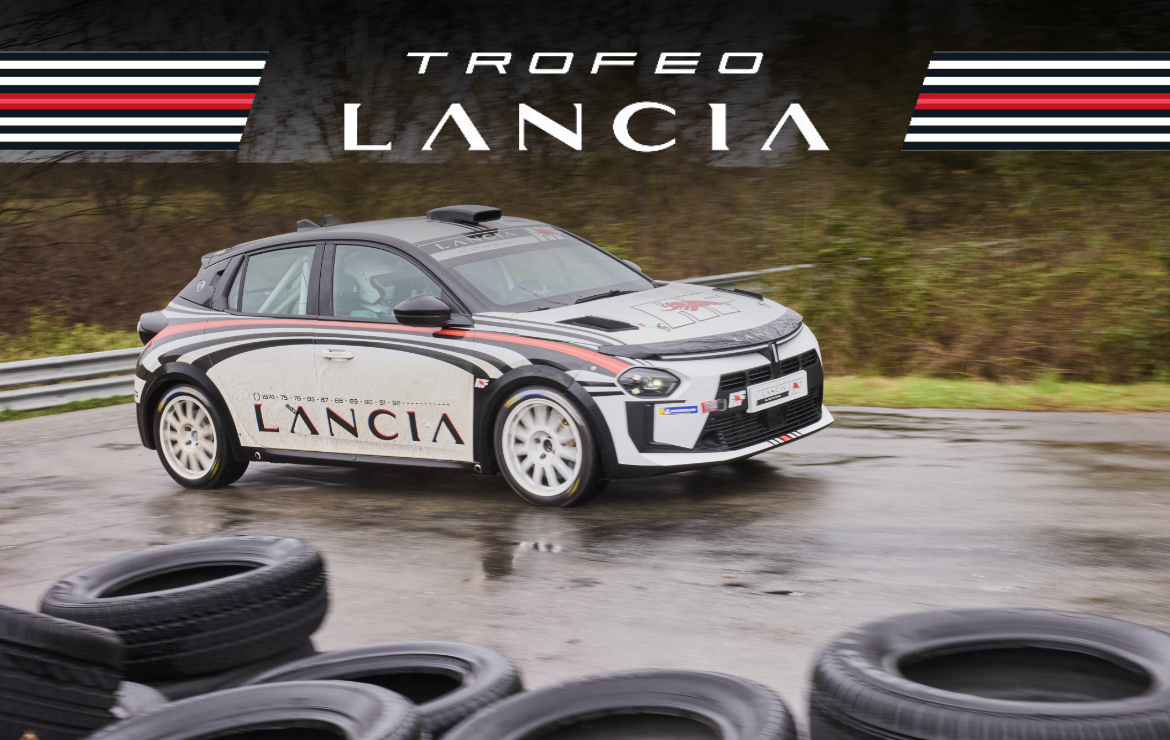
3 puntiComunicato stampa Via Lancia. Regolamento sportivo: Clicca qui! Modulo di iscrizione: Clicca qui!
 3 punti
 -
Letto e letto anche il paper EU, aprono a soluzioni alternative purché a basso impatto. La follia del ban termico pare essere scongiurata.3 punti
-
I'll repeat myself. They had 1.5 turbo MHEV in house and ready... Cost cutting measures are taking their tool.3 punti
-
3 punti
-
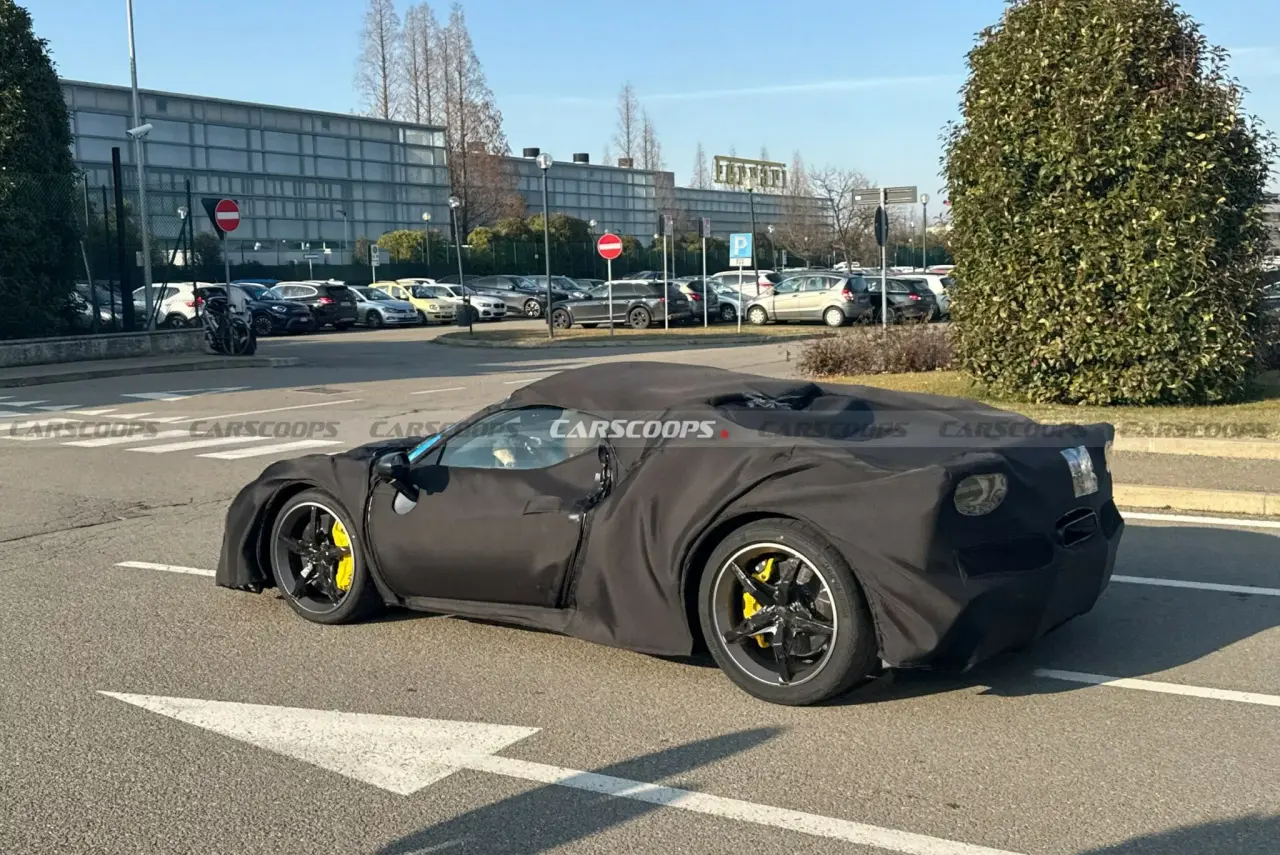
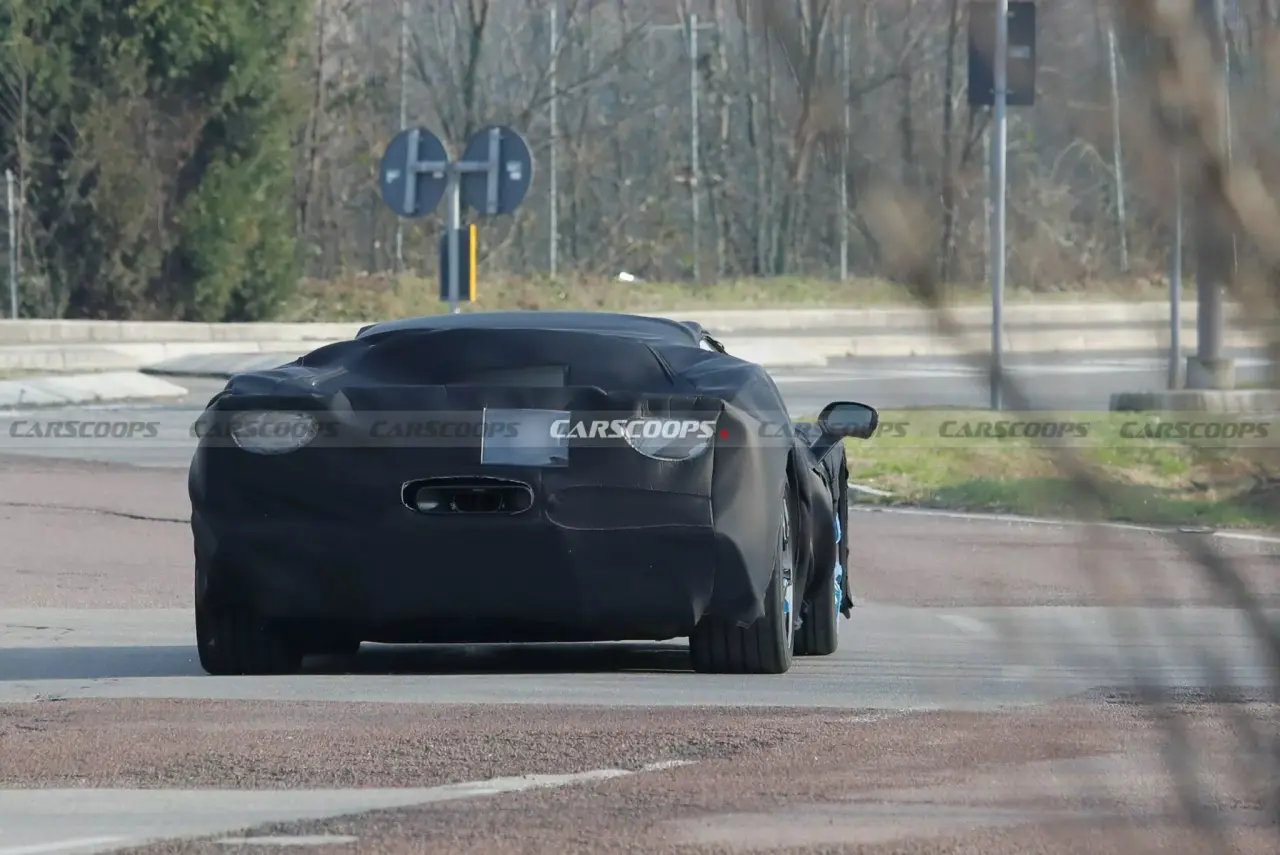
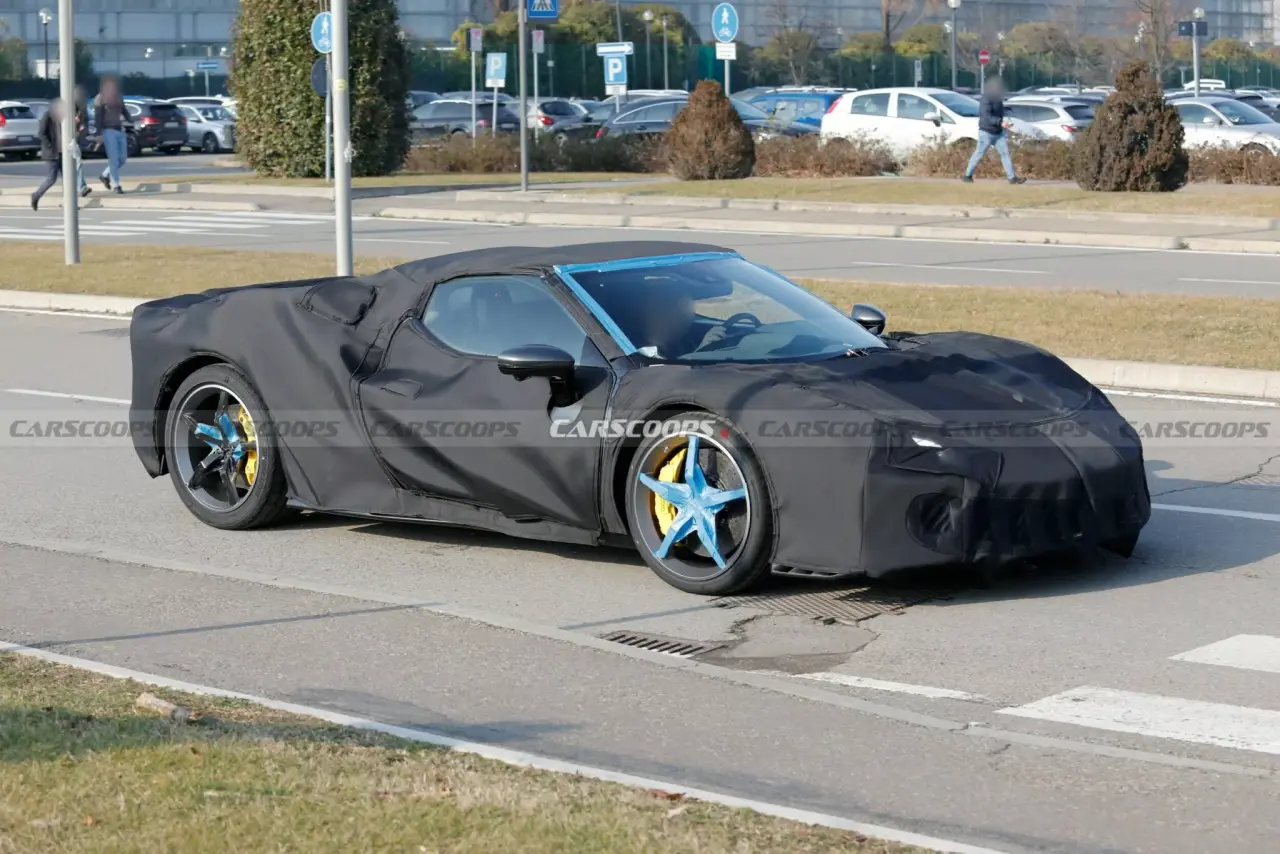
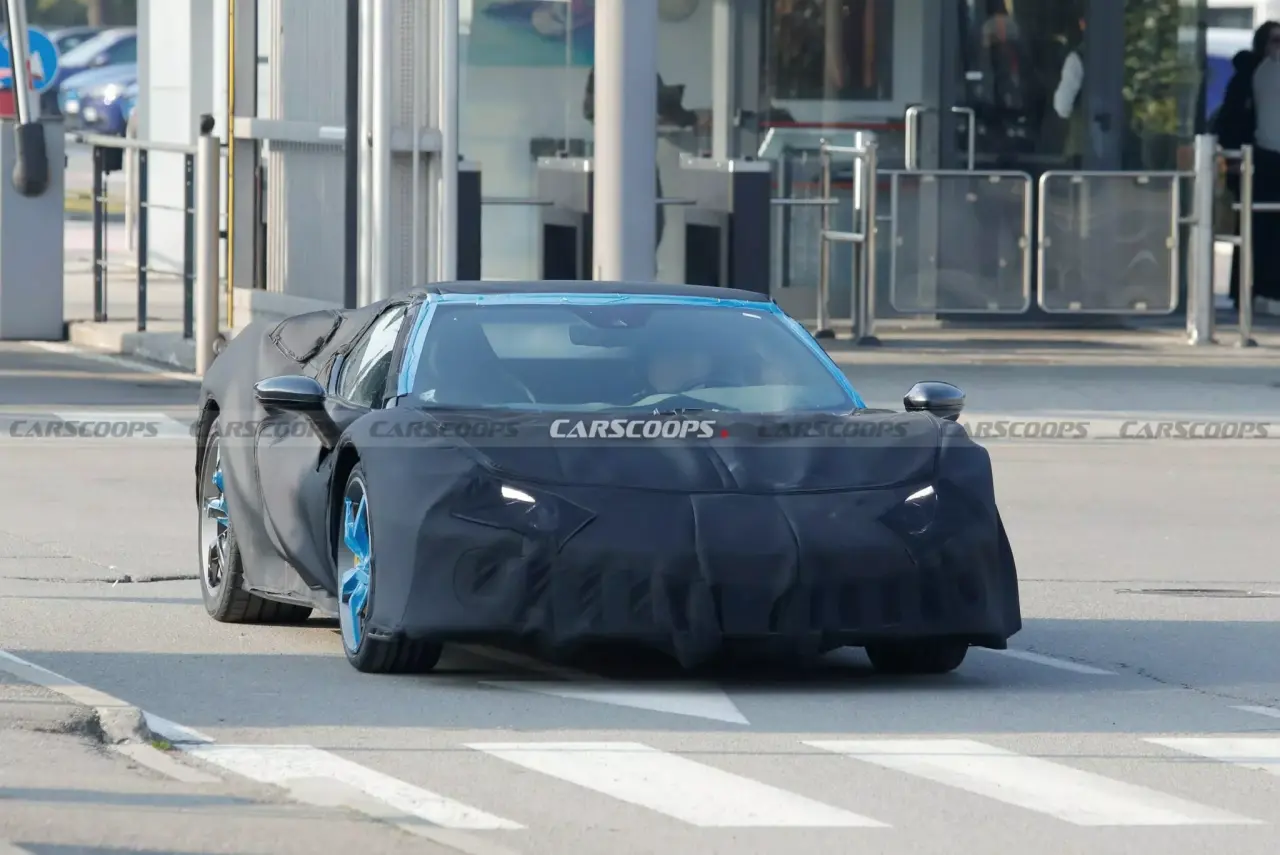
In queste foto si notano le alette al posteriore, i cerchi della F80 ed un diffusore bello grande:
 3 punti
 -
Snapinst.app_video_AQN6D9_rZ5qfPzH_mfSWF565HkQ1XX7JsvskEEnGt2ZRy9iIj9wQOC-JjwmpffWhwmUBwGlFZeoilx11i4n9eJWwseLEK55HmahjkZA.mp4 [MODE TROLL IN] La volevo, ma dopo che ho scoperto che non aveva le plastiche morbide e la luce nel baule (compresa nel prezzo), se la potevano tenere!!!!! [MODE TROLL OUT]3 punti
-
In pratica se Parigi avesse il mare, sarebbe una piccola Bari..3 punti
-
2 punti
-
Quest’anno verranno presentate 500e e hybrid. Il prossimo le sorellone di G.Panda.2 punti
-
Per quei pochi che hanno intuito che finché usiamo fossili in EU siamo ostaggi in mano ai peggiori regimi politici del mondo, una lettura europea interessante sulla necessità dell'elettrificazione: https://www.google.com/url?sa=t&source=web&rct=j&opi=89978449&url=https://www.europarl.europa.eu/RegData/etudes/ATAG/2023/753182/EPRS_ATA(2023)753182_EN.pdf&ved=2ahUKEwjC57G35a-LAxXDxgIHHUvlM7EQFnoECCIQAQ&usg=AOvVaw1LT4WfzSVHd8K9UT-iBm_a Della CO2, onestamente per il momento me ne frego.2 punti
-
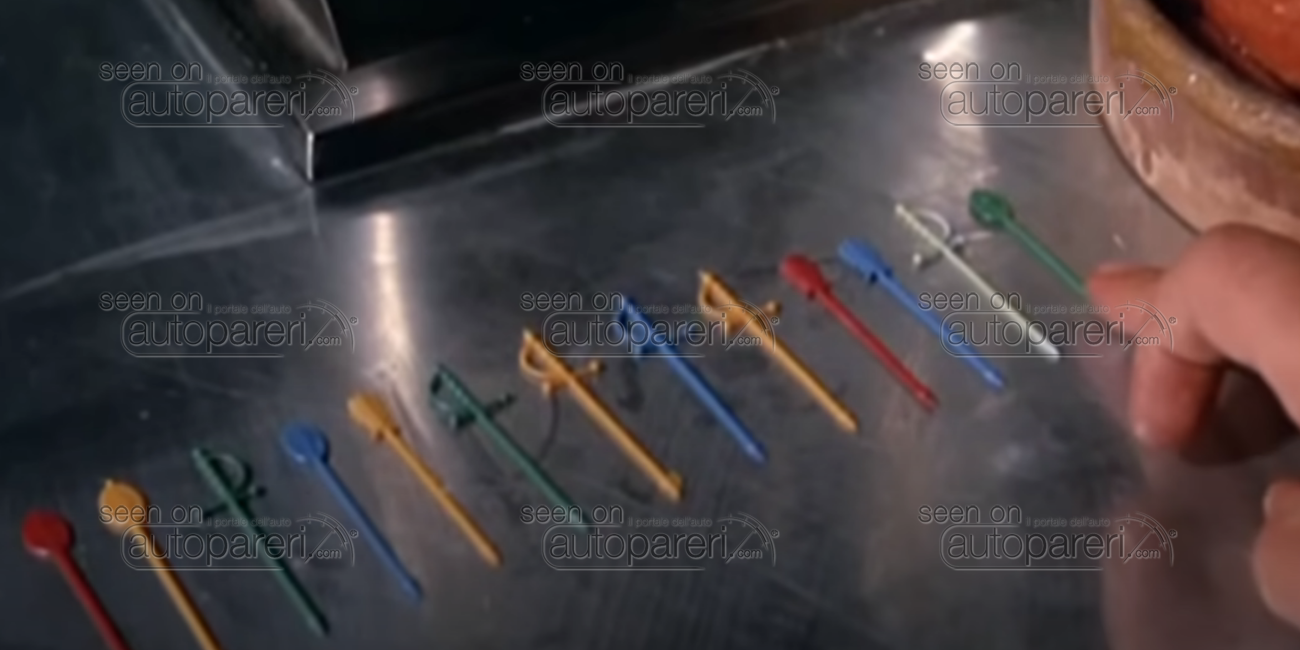
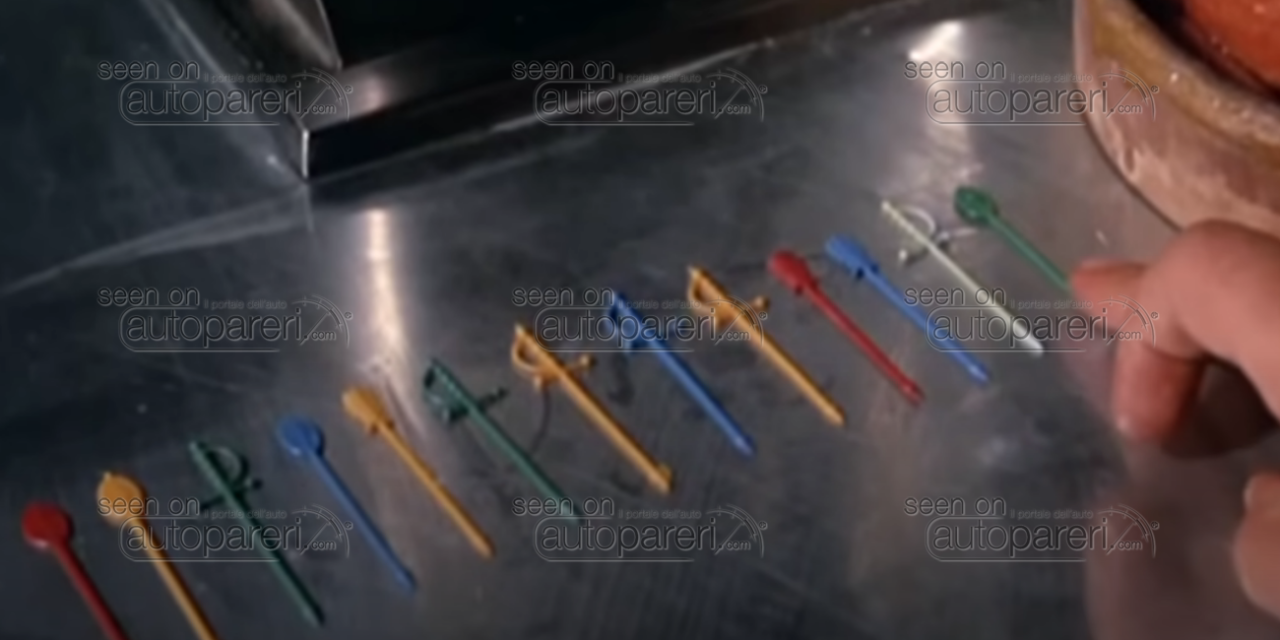
2 punti2 punti2 punti2 punti2 punti2 puntiDando per buona la fonte (il sesto modello immaginavo fosse la 296 VS, per una "Purosangue M" mi pare un po' presto ma mai dire mai), una Icona ispirata alla F40 deve essere per forza basata su SF90, è l'unica V8 motore centrale in gamma. Più che altro sono curioso di capire se, nel caso, l'ispirazione sarà solo estetica e manterranno la meccanica invariata, oppure se magari opteranno per il V8 senza parte ibrida, per avere un'auto più leggera e TP.2 punti2 punti2 punti2 puntiRelativamente alla scelta "insulsa" di collocare un 1.2 in bestioni di 1600 chili, arrivano i primi resoconto degli acquirenti della 3008 nuova: consumi sui 14,15 km/l e prestazioni fiacche con scarsa potenza in fase di sorpasso. Che senso ha realizzare auto tutto sommato gradevoli esteticamente, con buoni contenuti di qualità e poi piazzarci sotto un polmone?2 punti2 puntiAttualmente è in corso un'accesa discussione tra il reparto ingeneristico che vorrebbe lanciare la quadrifuel sul mercato il prima possibile per far vedere alla concorrenza il livello di ingegnerizzazione che ha raggiunto la aP motorcompani, e la sezione "contafagioli" che sostiene la tesi "Non dire Grande Gingo se non ce l'hai nel sacco", è uno scontro duro. In esclusiva per Autopareri, un'immagine della presente riunione, che stabilirà le sorti della quadrifuel.
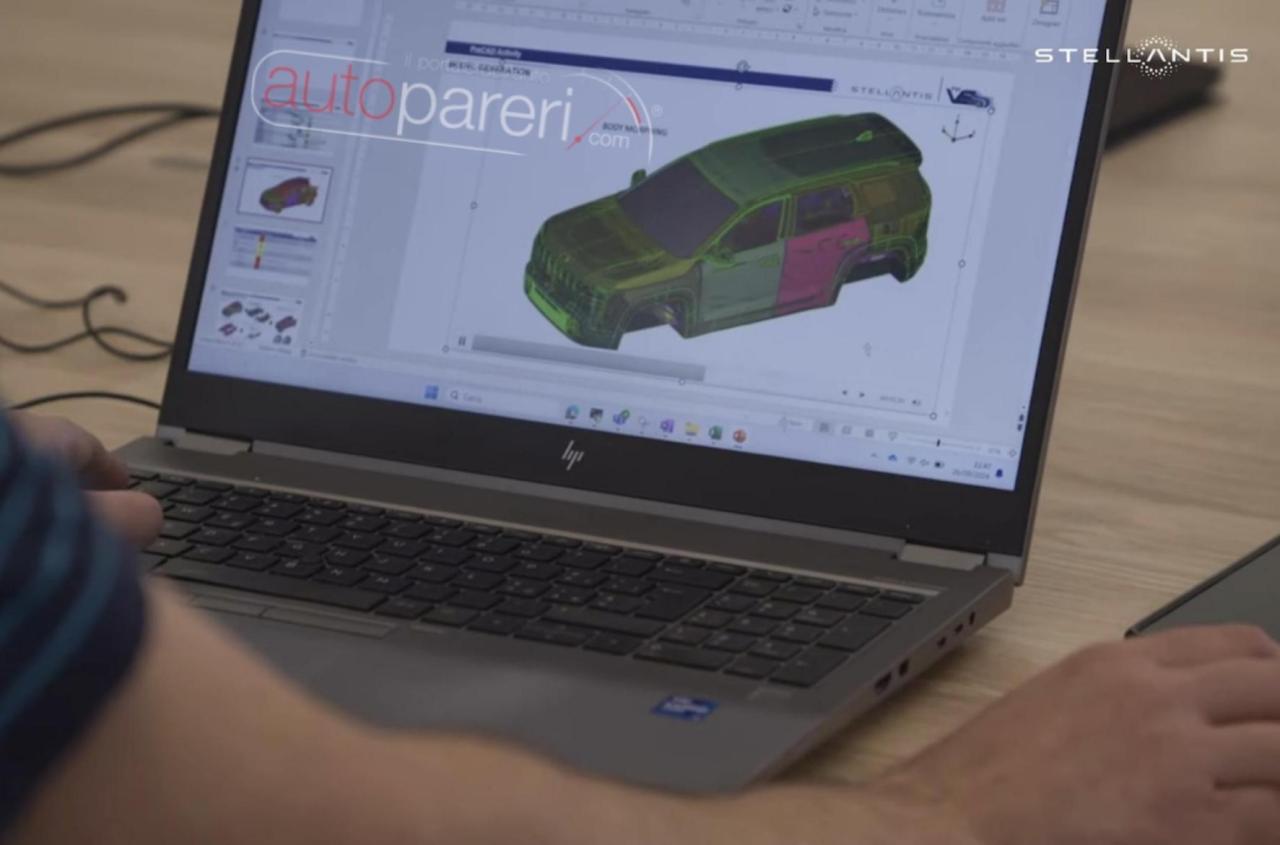
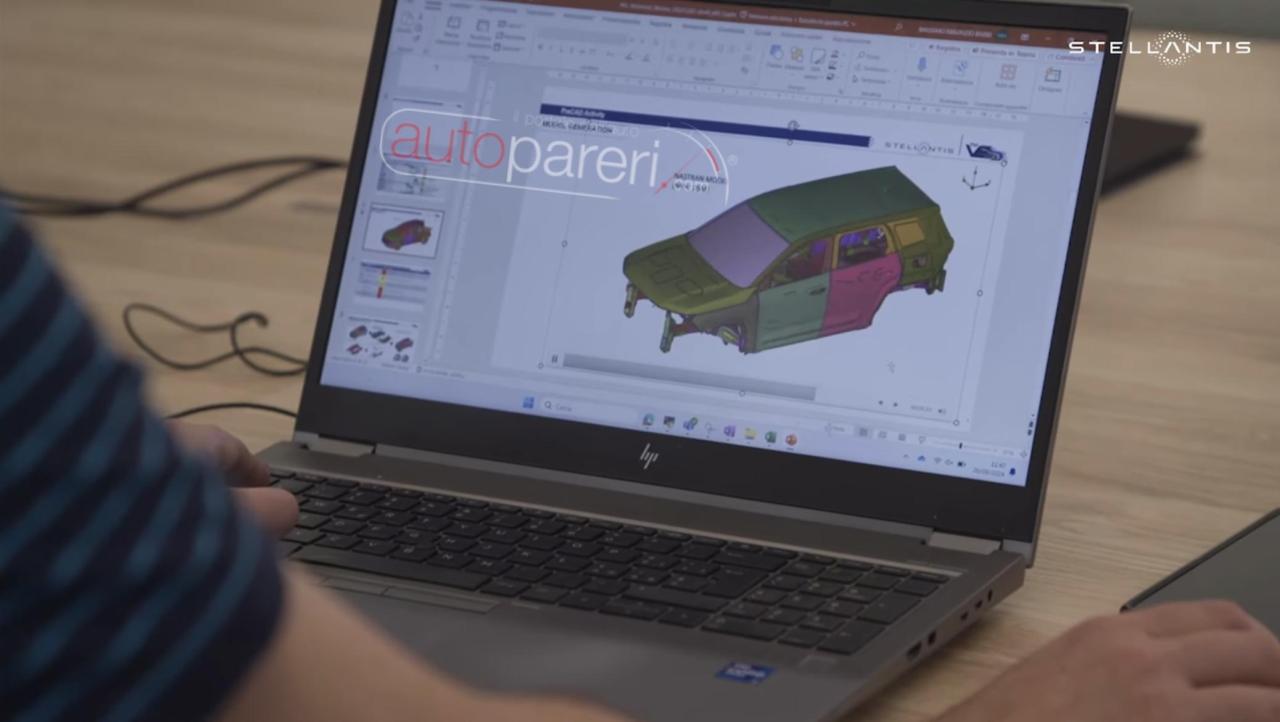
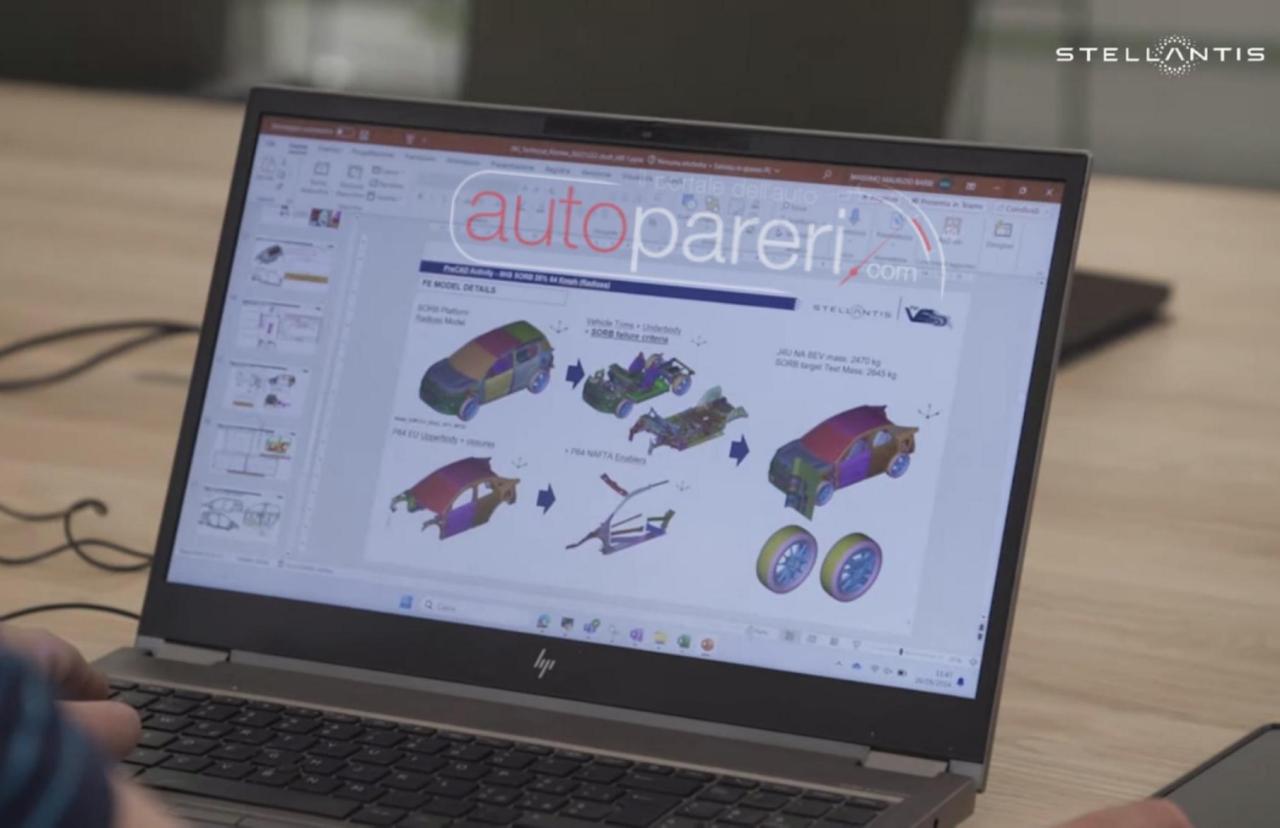
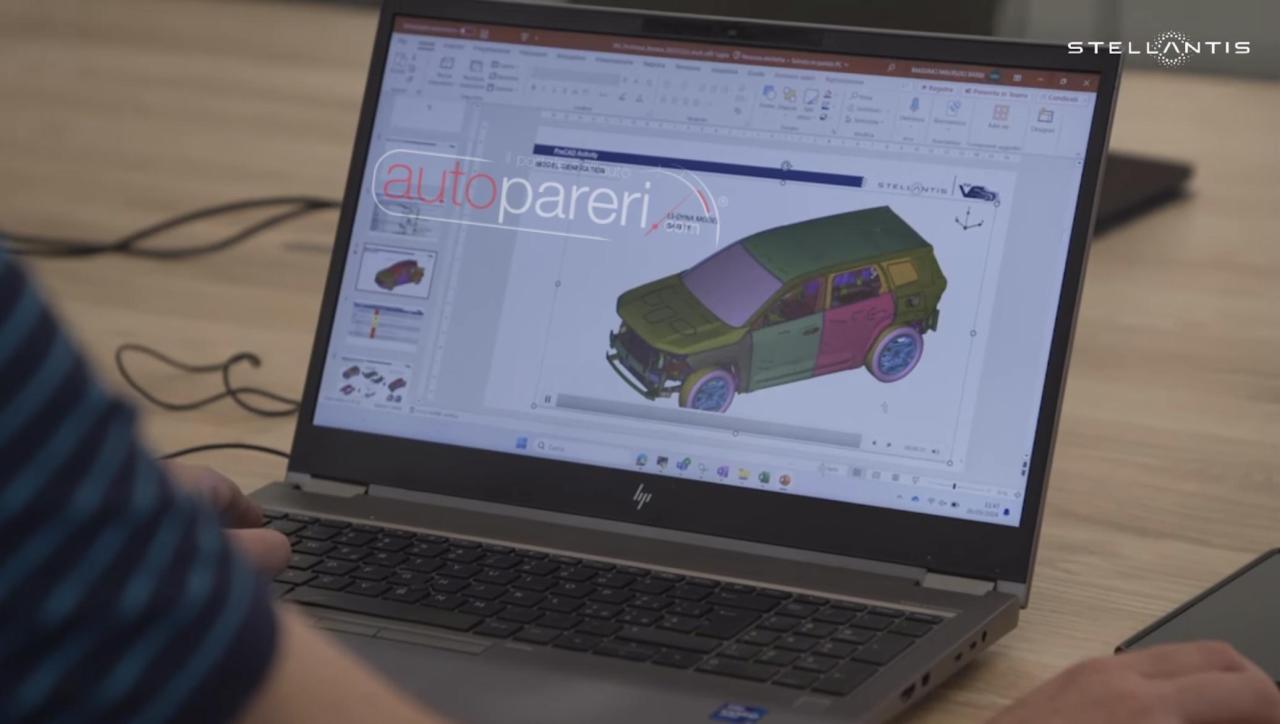
 2 puntiSì, hanno visto le mie sovrapposizioni, ma soprattutto i miei commenti su Autopareri su come si ricicla un pianale con una nuova carrozzeria, e mi hanno assunto per fare powerpoint per il grande capo 😂🤣2 puntiGuardate un pò cosa compare in un TechTalk con Ned Curic postato da Stellantis su YouTube a Novembre: Questa è una sovrapposizione con la scocca di 3008: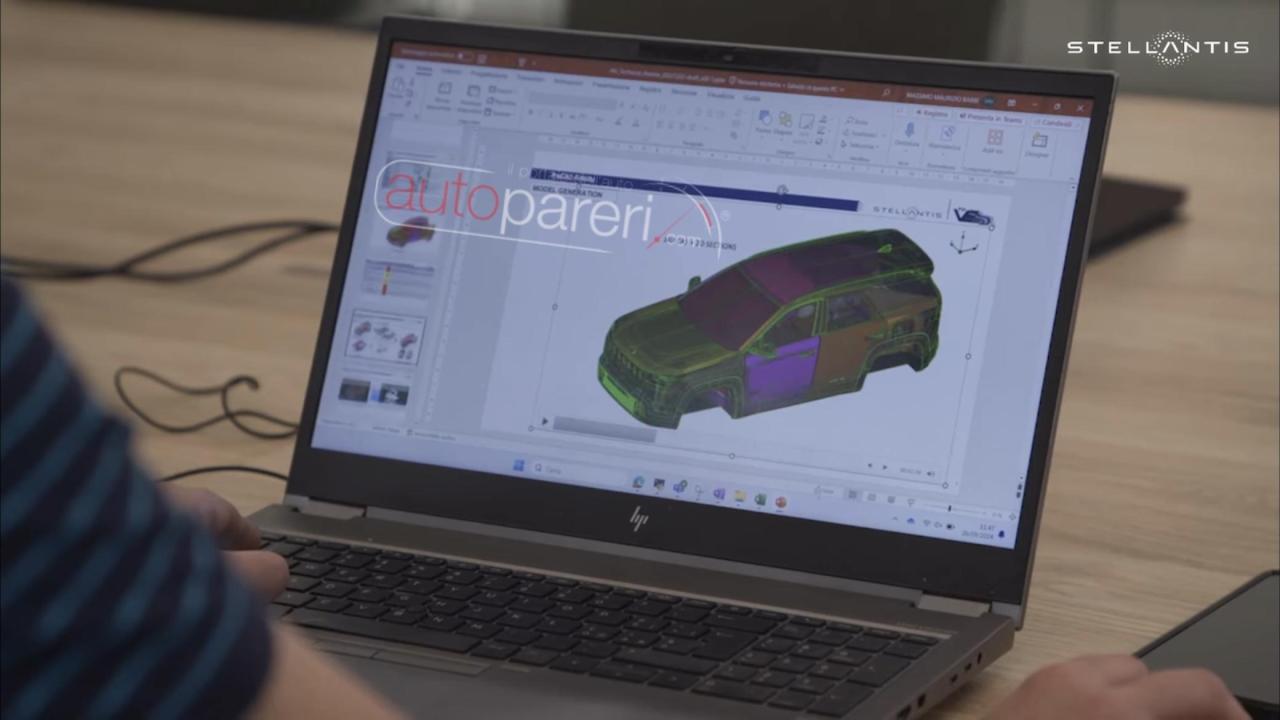
 2 punti2 punti@Graziano68dt Cars on Medium are also tall and very wide with around 1.9meters in width. Do I need to repeat myself? They had perfectly fine 1.5 turbo on the shelves. They also had 2.0 turbo. French engines are IMO surplus. Not to mention reliability issues but above all image they have in many customers eyes.2 punti...poi non hai mai guidato una Fiat Coupe oppure una Ferrari un po' piu vecchia - contro loro la Giulia Awd e un meraviglia del angolo... 😁1 puntoSecondo voi avrà la stessa plancia di Grande Panda come in casa Citroen con C3/C3 Aircross?1 puntoMopar render Giulia2
 1 puntoPenso che il fatto che il 1.2 a 3 cil sia rimasto l'unico motore per certi modelli sia dovuto all'idea di fare la transizione verso le BEV in tempi rapidi.1 punto1 puntosembra uno di quei mezzi usati nei film post apocalittici Visivamente è una figata1 punto1 punto1 puntoNon vedevo l’ora che aprissi la discussione, l’avevo già vista ieri su altri siti 👍🏻👍🏻👍🏻 Ottimo lavoro, come sempre! Belli tutti i dettagli!1 puntoDa quando la cilindrata è indice delle prestazioni? Pensavo fossero potenza e coppia al relativo numero di giri ad indicarlo.1 punto1 puntoCvd. Non sarebbe stata una fusione, ma un'acquisizione da parte del partner più forte sotto tutti i punti di vista, ovvero Honda. A questo punto però rimane da capire cosa ne sarà di Nissan (e Mitsubishi). Perché la situazione attuale non mi sembra esattamente rosea.1 puntoBut don't forget, it's a show car for a car that will be shown in 2027. 😉1 punto1 puntoIeri Franzetti in diretta YT ha confermato che sono state vendute in 3 mesi 85 vetture, 5 delle quali a dei collezionisti che le hanno comprate, in livrea, non per correre ma per metterla in garage accanto alle altre Lancia Rally. Solitamente in un anno quando se ne vendono 100 è già tanto.1 punto1 punto35 anni fa, quando noi andavamo alle elementari (io ne ho 42) era molto diverso. Tante cose che facevano i miei con me le facessi io con i miei figli mi beccherei una denuncia. Per dire, allora era più facile riuscire ad abitare più vicino al posto di lavoro. Oggi per tantissimi è diventato un lusso. Solo che gli orari sono rimasti quelli di allora. Tassativamente ore 8:30 a scuola, tassativamente ore 9 ufficio. Per uscire da questi paletti devi pagare. E pure caro. Pre-scuola, scuola privata, permessi a lavoro (se puoi) E non puoi nemmeno dire "oh, ti lascio alle 8:20 con gli amichetti". Perchè le insegnanti pretendono tassativamente che sia TU GENITORE o UN DELEGATO che lo faccia entrare FISICAMENTE dentro la scuola. A questo si aggiunge, almeno a Torino, una drastica riduzione dell'offerta di TPL. In 25 anni hanno segato con la motosega linee, fermate, corse..... Probabilmente a Milano si riesce meglio. Ma solo Milano comune, che già le connessioni con la prima cintura sono un dramma. Tutto questa pippa per dire che si, c'è una componente di pigrizia che potrebbe essere evitata. Ma c'è anche una componente dove cerchi un attimo di renderti la vita meno incasinata di quello che è. Più pre-scuola, orari di ingresso al lavoro più flessibili e un TPL realmente efficiente renderebbero molto più semplice utilizzare meno la macchina.1 puntoLa Leaderboard è riferita all'orario Roma/GMT+02:00