




Classifica Utenti
Utenti più Apprezzati
(Scegli il periodo) Utenti più Apprezzati
(Storia giorno per giorno) Classifica dall'Origine
(da Marzo 2003)
(Scegli il periodo) Utenti più Apprezzati
(Storia giorno per giorno) Classifica dall'Origine
(da Marzo 2003)



Contenuti più Popolari
Stai visualizzando i contenuti con il più alto punteggio, pubblicati in data 01/07/26 e localizzati Tutte le aree/sezioni
-
volevo commentare poi mi è passata la voglia...6 punti
-
3 punti
-
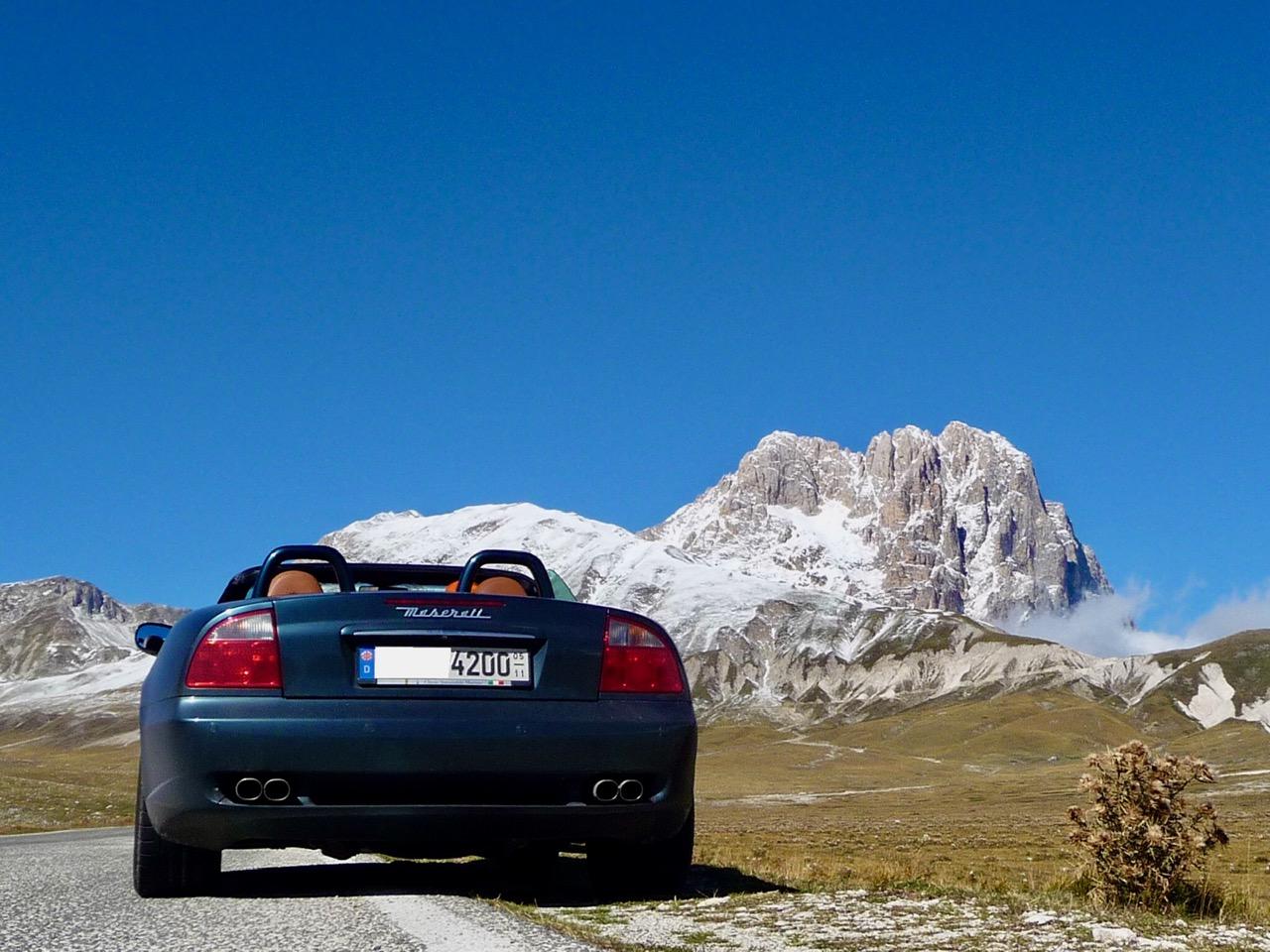
3 puntiSinceramente non credo che prima del 28/29 vedremo nuove Alfa e Maserati eh…3 punti
-
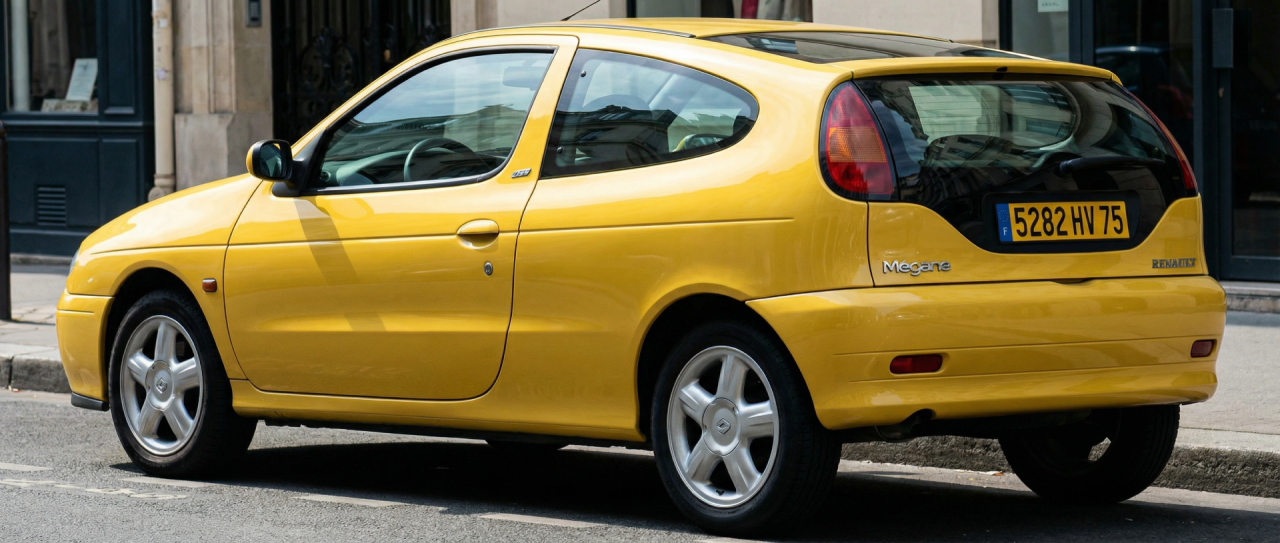
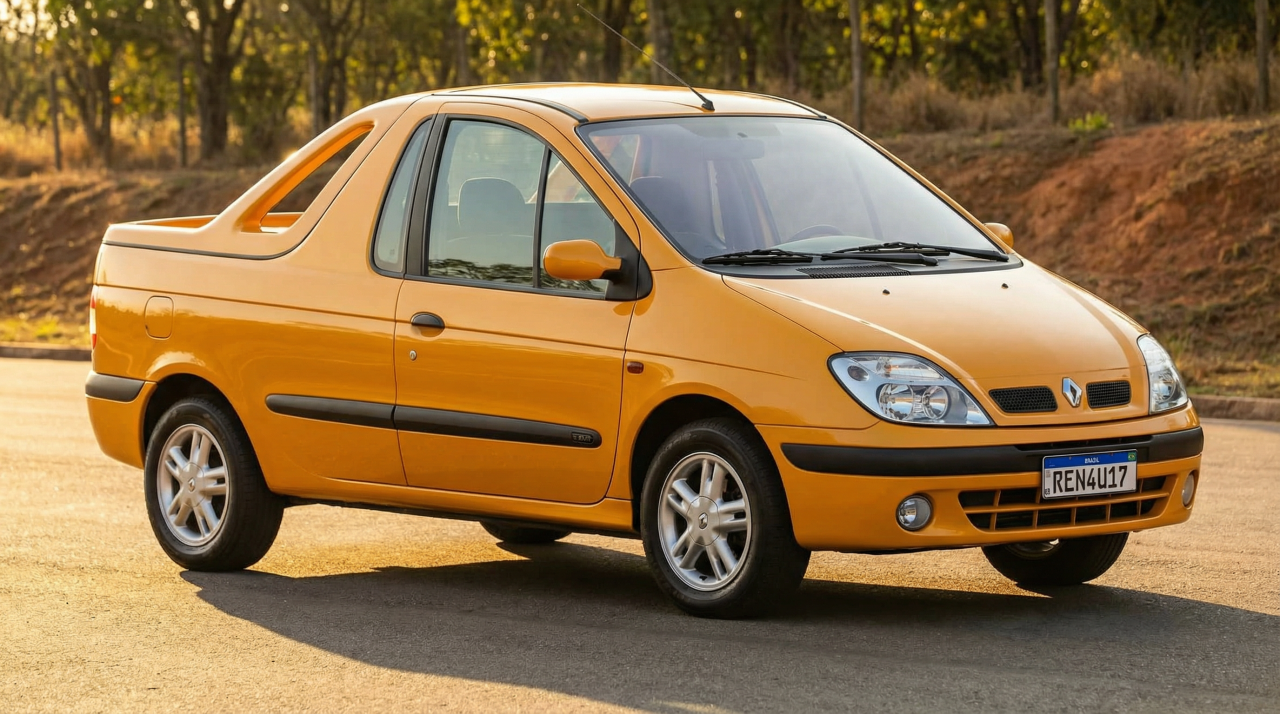
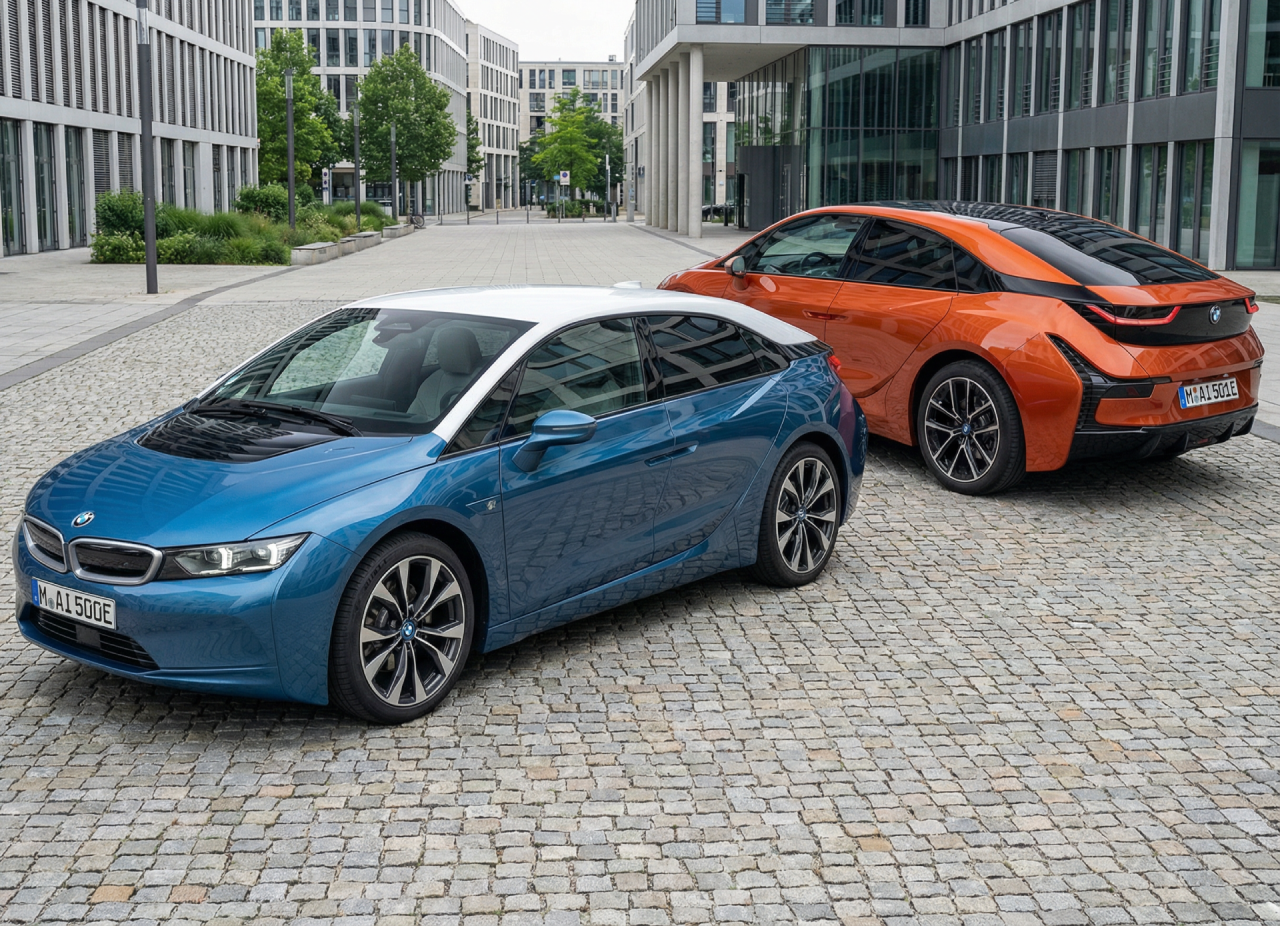
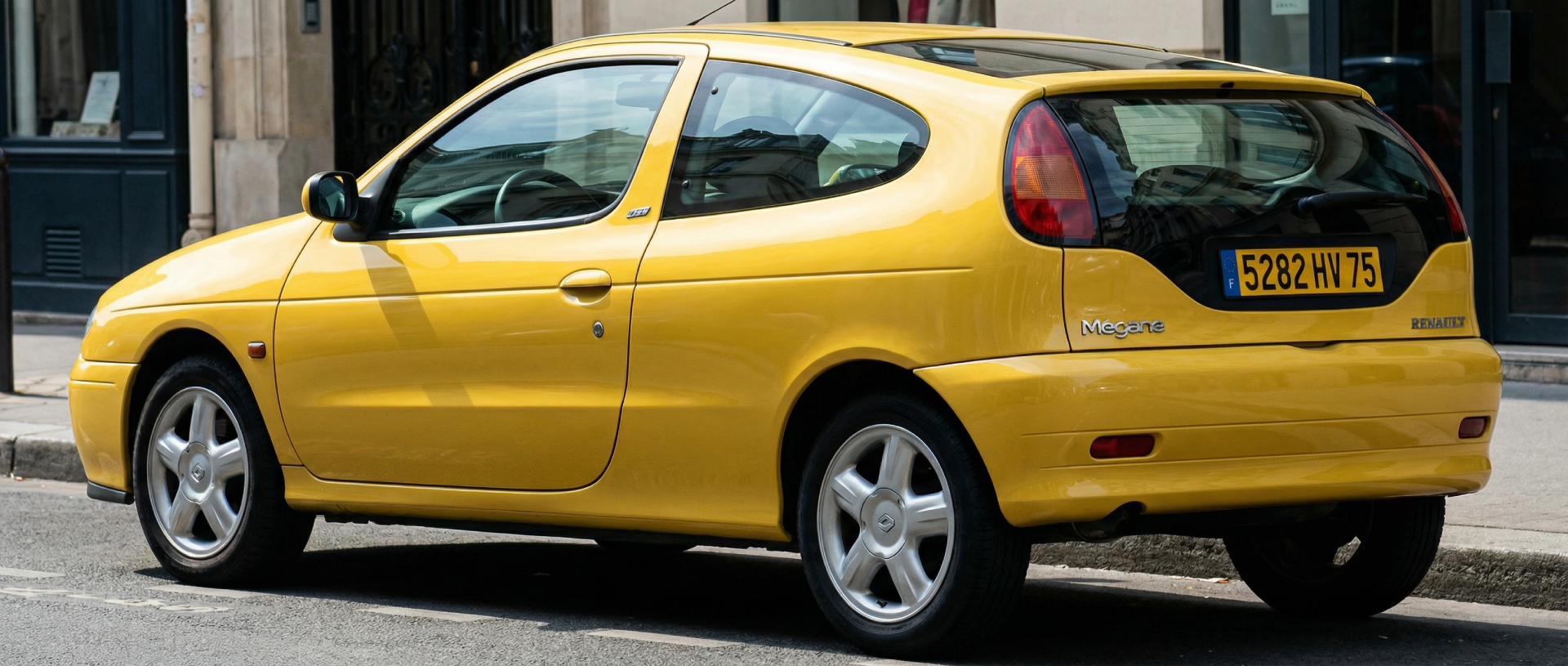
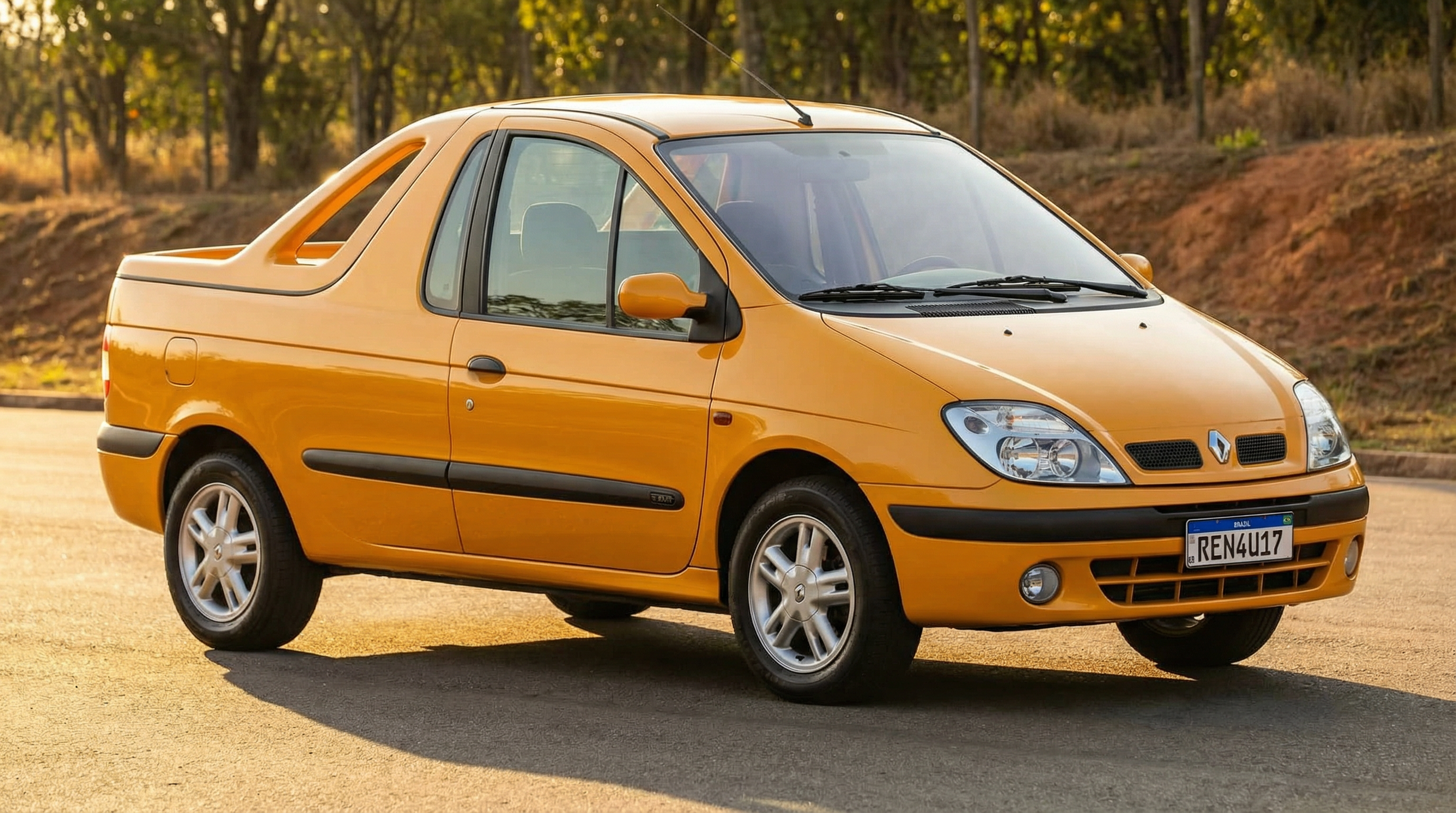
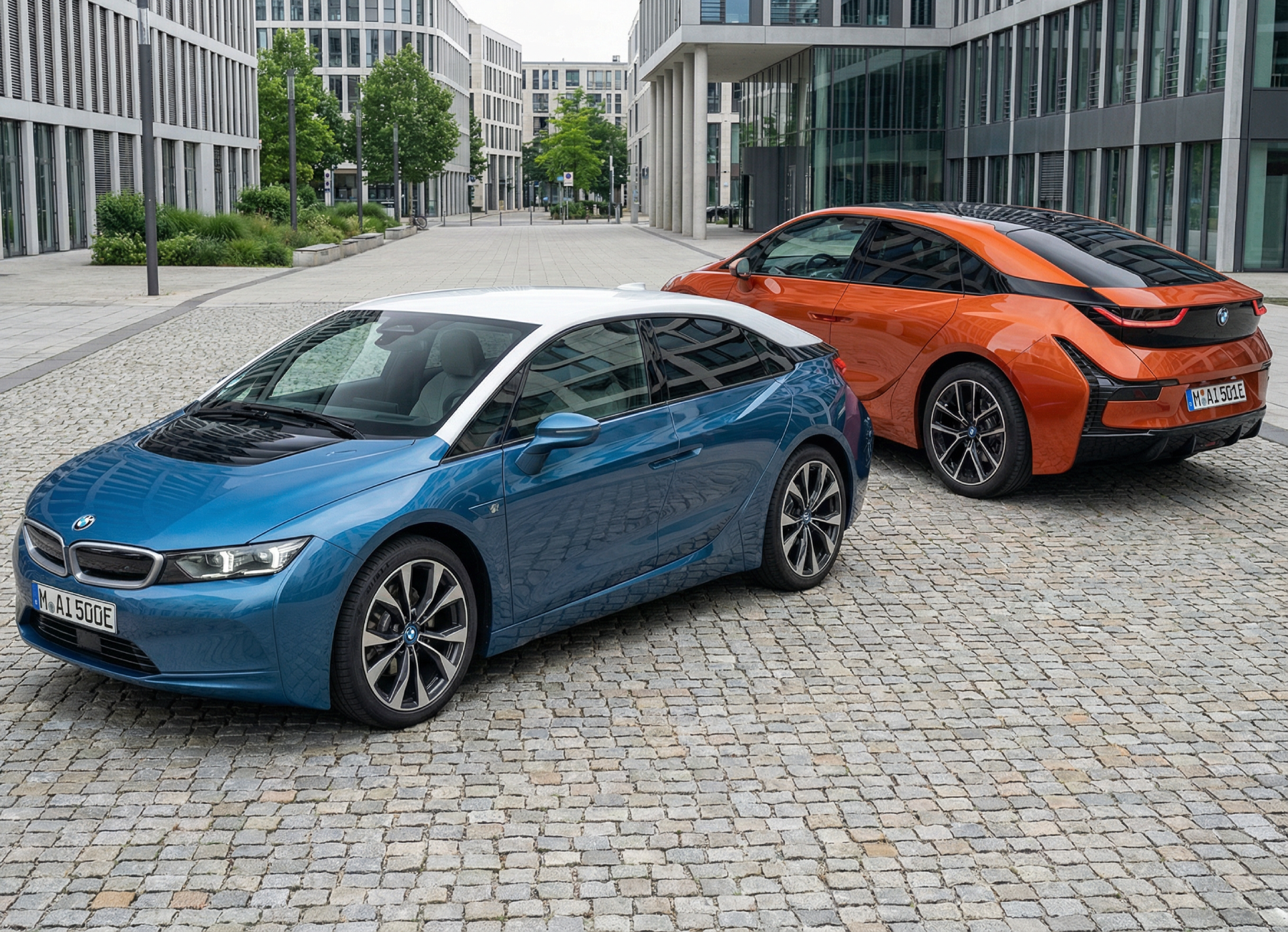
3 puntiRenault Megane Coupe I with alternative design: I only made the version A, which was my favourite one: Renault Scenic I Pickup (it was planned for Latin America): BMW i5:
 3 punti
 -
Annuntio vobis gaudio magno: habemus macchinam 😃 La Fiesta sta mostrando segni di cedimento: arrivano rumori sinistri dalle sospensioni (credo sia uno dei braccetti, uno è già stato sostituito), il bluetooth non funziona più regolarmente e soprattutto il liquido del radiatore tende ad andare in ebollizione... Vista questa situazione, abbiamo accelerato le visite ai concessionari. Honda ha deciso che non vuole venderci nulla, visto che le due sedi contattate a me più vicine (100km di distanza) sono state chiuse da fine dicembre fino a oggi. I conce Suzuki e Dacia invece erano regolarmente aperti. Dopo aver guidato la Duster a GPL prima e la S-Cross boosterjet poi, la scelta è ricaduta sulla Suzuki :) La Duster è molto ben equipaggiata, ma dai preventivi raccolti non è poi così economica e i conce Dacia contattati non gestiscono la rottamazione 🤔 La S-Cross fa molta meno scena rispetto alla Duster, ma una volta guidata la mia ragazza ci si è sentita molto più in sintonia per sterzo, risposta al pedale e in generale sensazioni alla guida. La Duster l'ha trovata comoda, ma dell'erogazione così così (era una 1.0 GPL) e con uno sterzo poco reattivo ai comandi rispetto alla Fiesta e alla Suzuki. Anche lo stacco della frizione della Duster l'ha messa un po' in difficoltà. Siamo quindi in attesa di ritirare a brevissimo una S-Cross Top+ AllGrip (4x4) a cui faremo poi installare l'impianto GPL dal conce, così da mantenere intatta la garanzia. Siamo riusciti a trovare una delle ultime S-Cross con il 1.4 da 129cv anziché con 110cv Euro 6E-bis. Non dovrebbero esserci differenze tra i due motori sotto ai 4500rpm, ma nel dubbio meglio avere 19cv in più che in meno :)2 punti
-
Giustamente Ficili evidenzia le potenzialità della gamma attuale (sti ......ti dò ragione. Ma secondo me stanno grattando quello che hanno in attesa del nuovo Piano del 2026. E' evidente (immagino anche a lui) che con le edizioni speciali (come in Alfa anche se al Portello la situazione è decisamente drammatica) hai il fiato corto destinato a sparire........2 punti
-
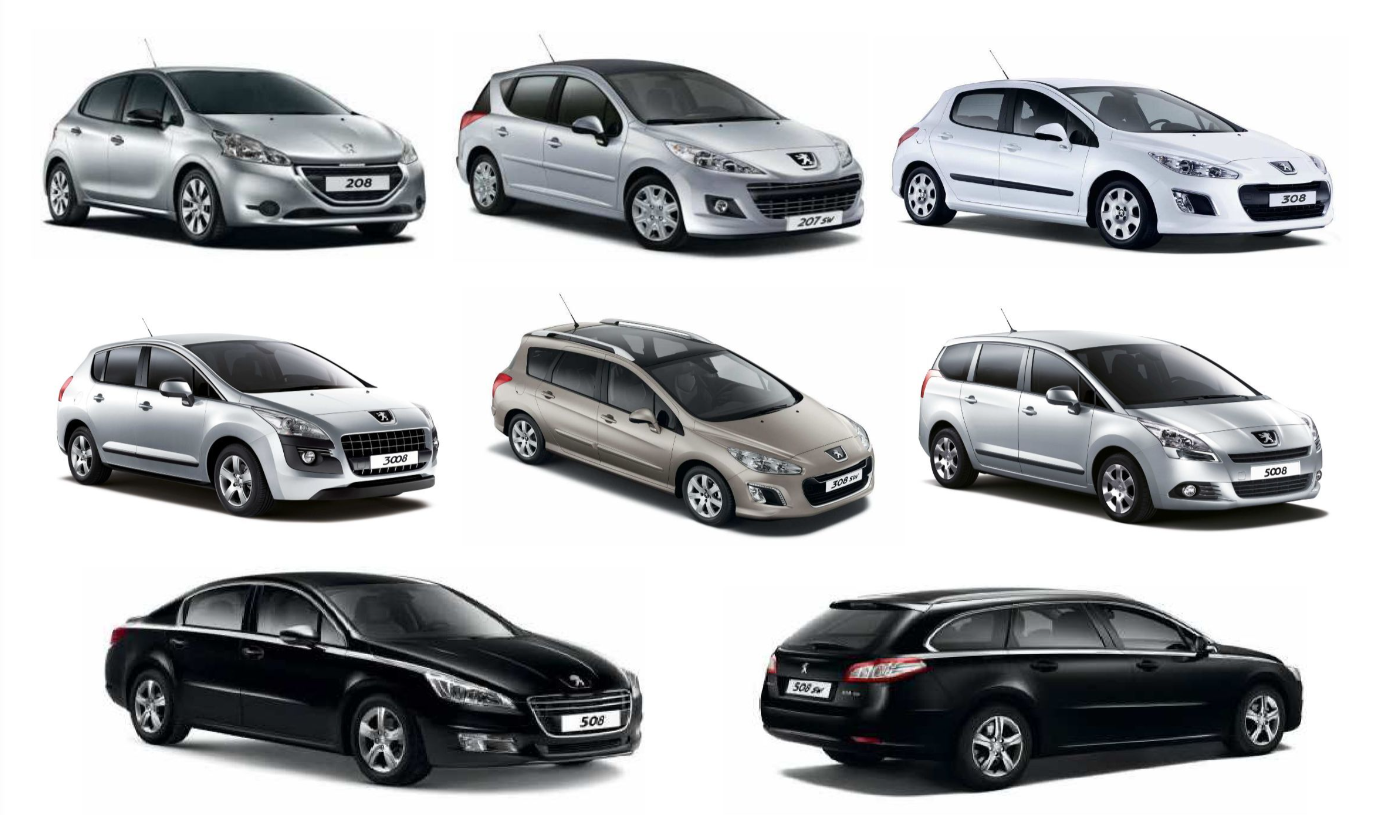
Questa cosa non è mica tanto vero fuori... nessuno spenderebbe 1 centesimo piu per Peugeot rispetto ad una VW (anzi a parità vanno sulla tedesca), così come per Cupra. Peugeot vale ne piu ne meno di Renault, Nissan e compagnia. Anzi.. con i puretech si sono dati una bella mazzata.2 punti
-
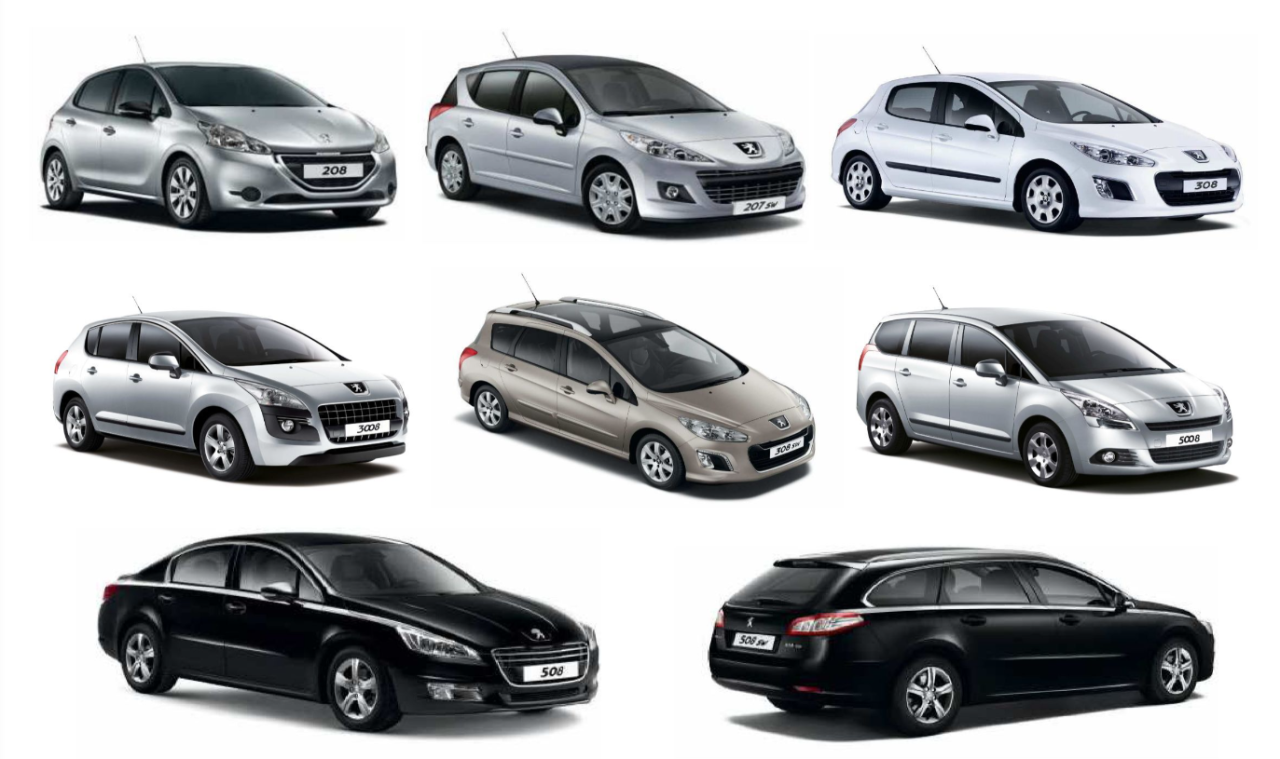
So che sembrerà assurdo e mi aspetto un po' di faccine che ridono come reaction 😂, ma io in retrospettiva, a JPI tutte queste colpe non gliele do. Anche se in passato gliene ho dette molte. Certo è innegabile che il suo stile di comunicazione, molto fuffoso e improntanto alla supercazzola, dà sui nervi. Con Peugeot ha fatto un mezzo miracolo, è passata ad essere questa robaccia qui... ... ad essere un brand considerato sportivo e alla moda dal consumatore normie. Per Alfa pesa molto il ritardo a causa del full BEV, ma quando quella è la strategia imposta dall'alto non puoi farci nulla. Secondo me è qualcosa tipo un pre-pensionamento, giusto perchè farlo fuori sembrava brutto.
 2 punti
 -
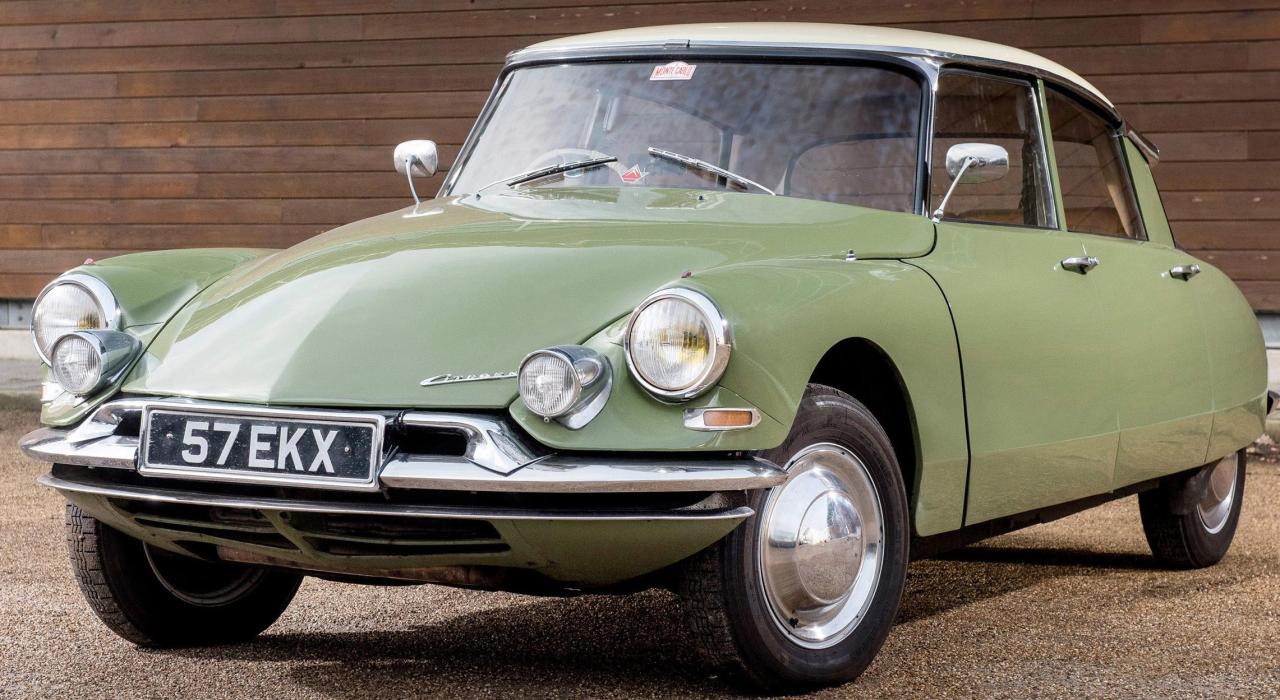
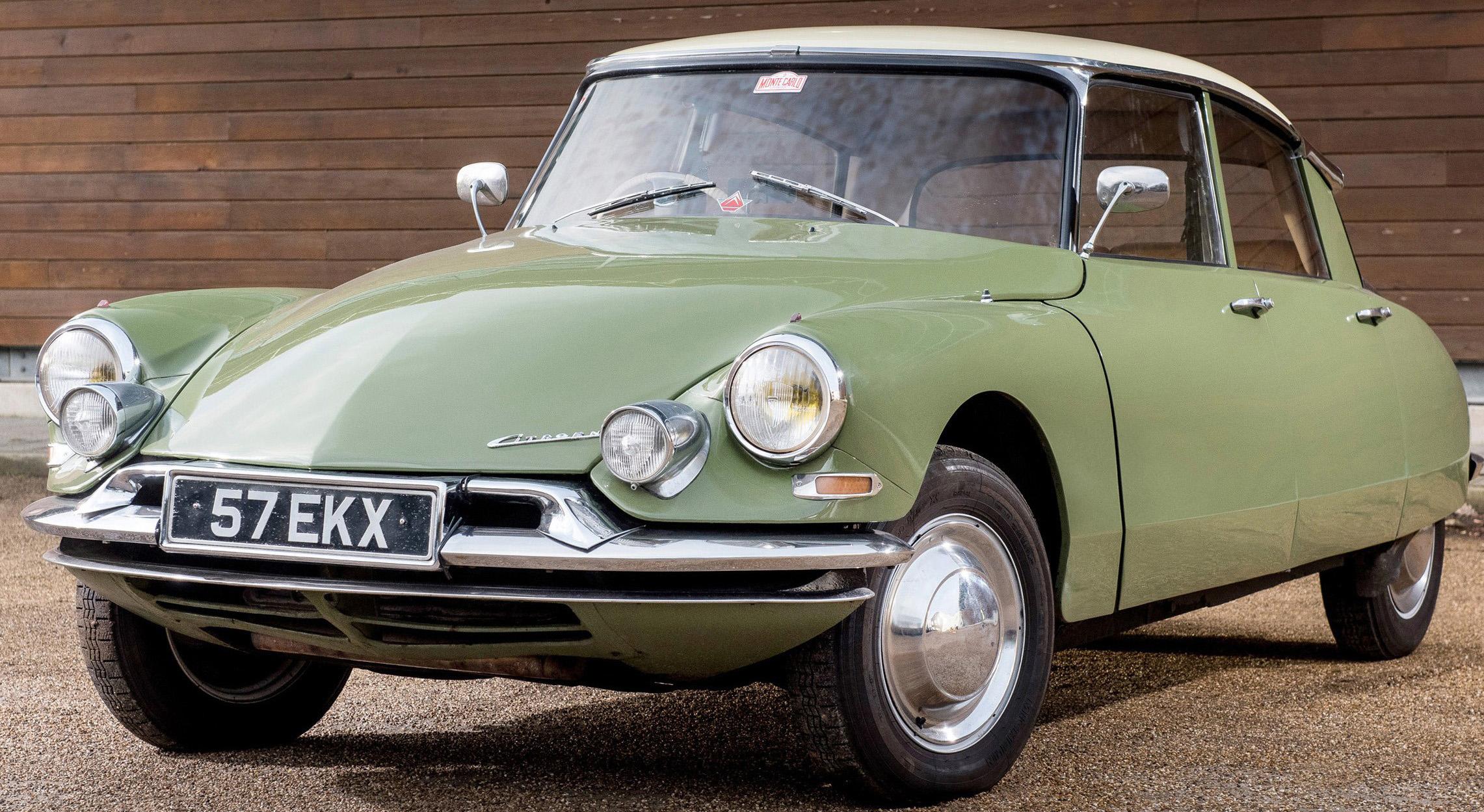
Finalmente hanno iniziato a capire che devono ispirarsi alla DS per i dettagli dei vari modelli
 2 punti
 -
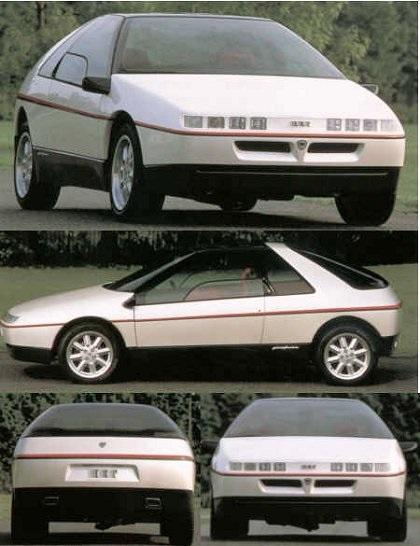
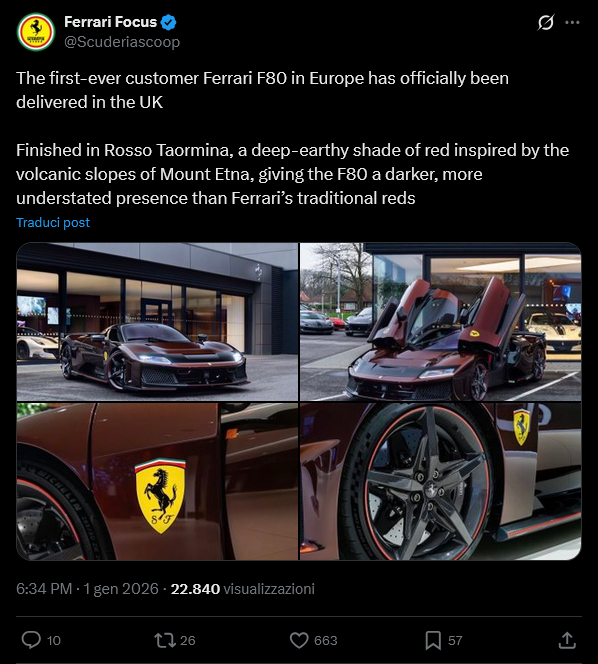
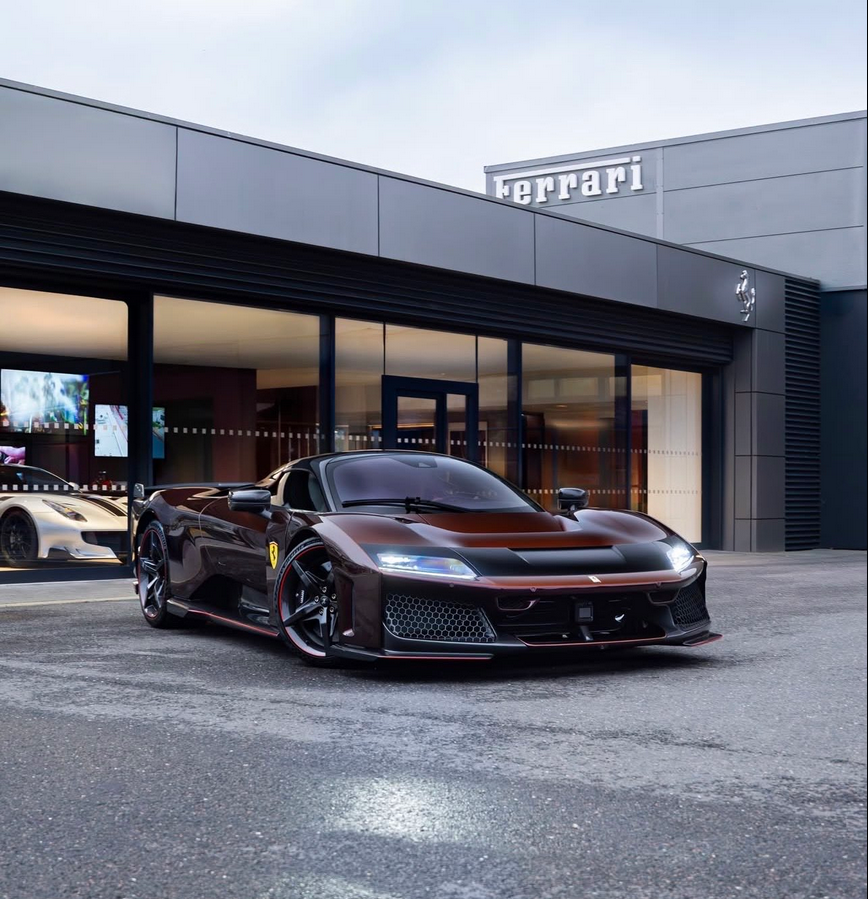
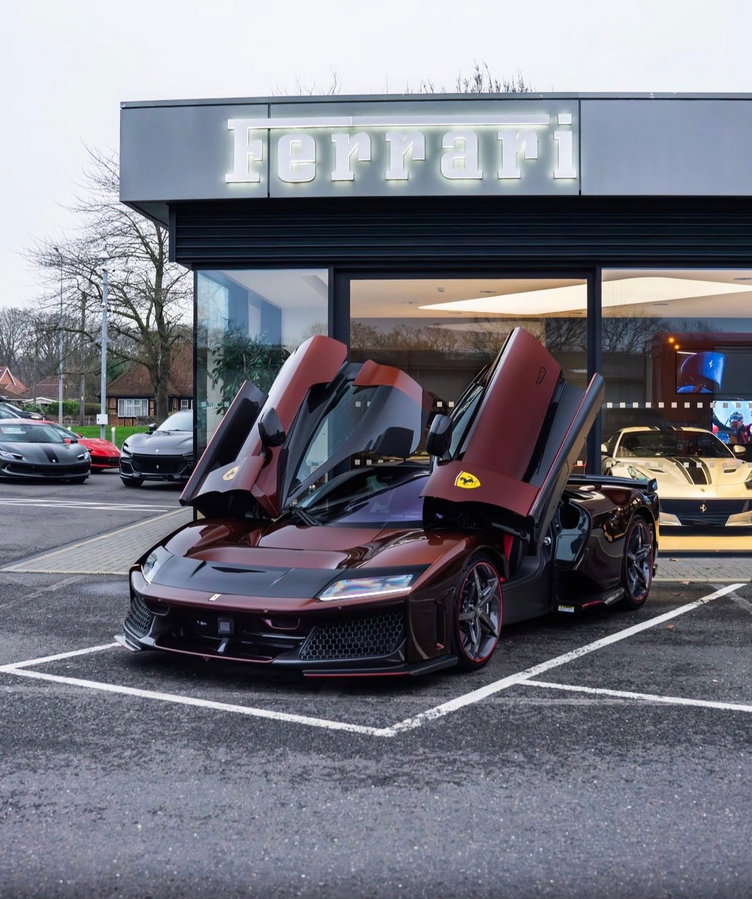
2 punti2 puntipensare di aumentare e vendite con e stesse auto piu' vecchie , la dice lunga su quanto vivano nel loro magico mondo questi manager2 punti2 punti2 puntiNegli ultimi giorni "Filante" spunta fuori da ogni angolo.... comincio a sospettare che sia la parola destinata a cestinare nel 2026 "resiliente" e "iconico" 😄. P.s., e anche nelle foto qui sopra vedo di tutto, eccetto che qualcosa di "filante" (e non parlo dell'omonima Renault) 😜.2 punti2 puntiMa questo poveretto non è stato avvertito che la F80 è stata bocciata da gran parte degli utenti dí Autopareri? Davvero poraccio …2 punti2 puntiMagari un po' tirata per i capelli, ma ci ho visto anche un po' di Lancia Hit nei fari anteriori ma anche in alcune linee. Opera NON di Fumia, nonostante uscisse comunque dalla Pininfarina e con alcune somiglianze con la Quartz
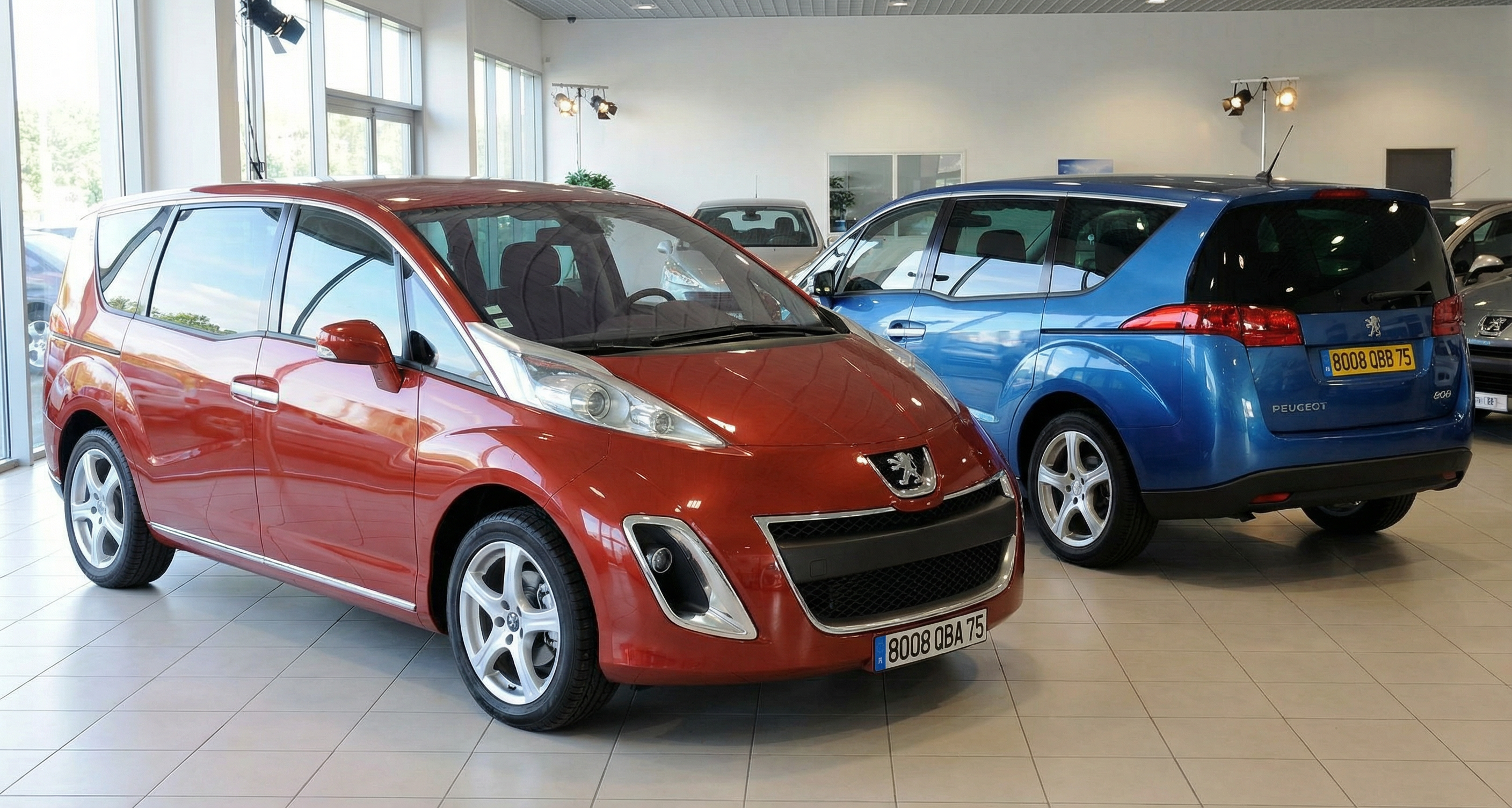
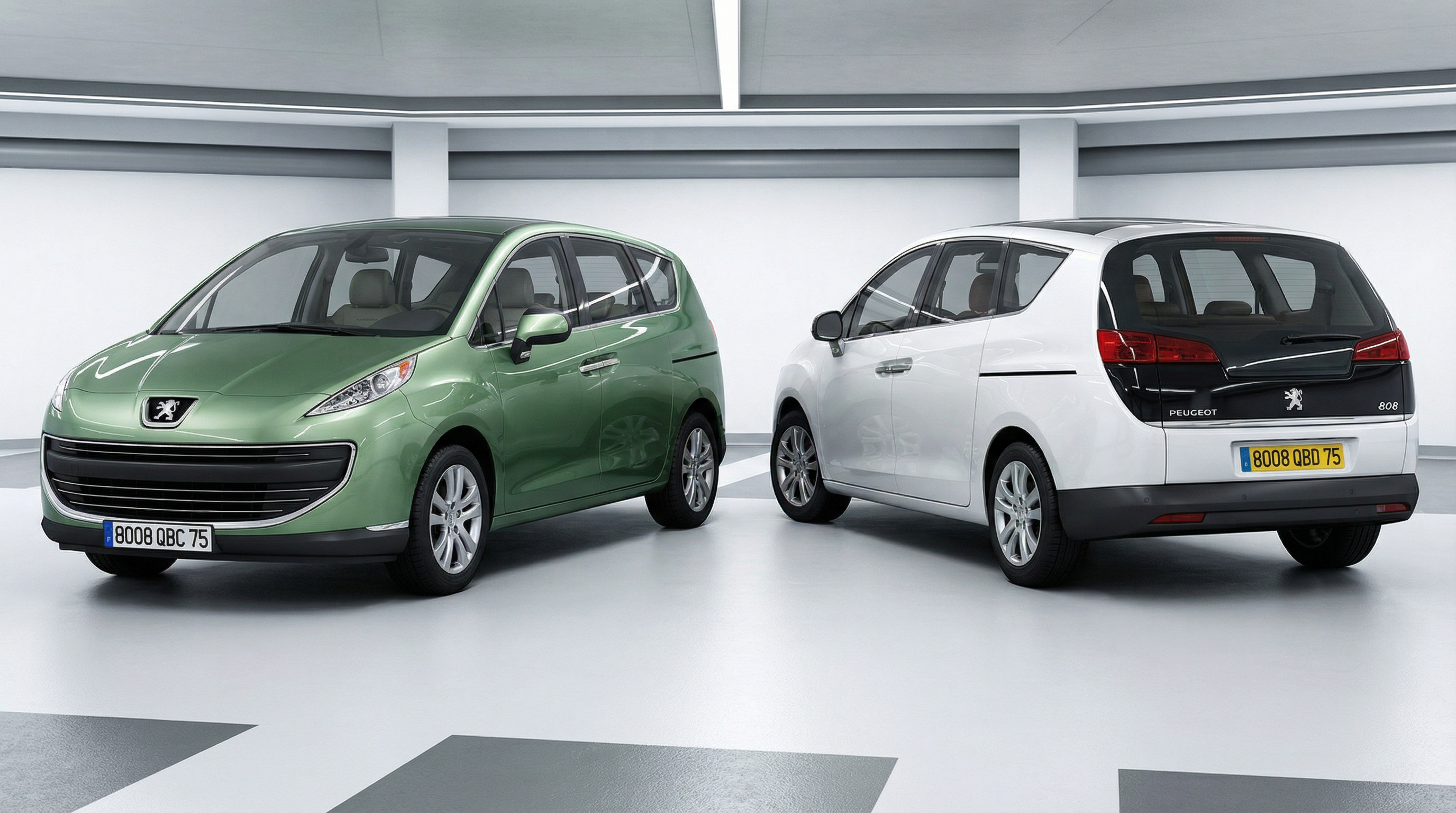
 2 punti2 puntiPeugeot 808 (2 different designs): First version: Second version: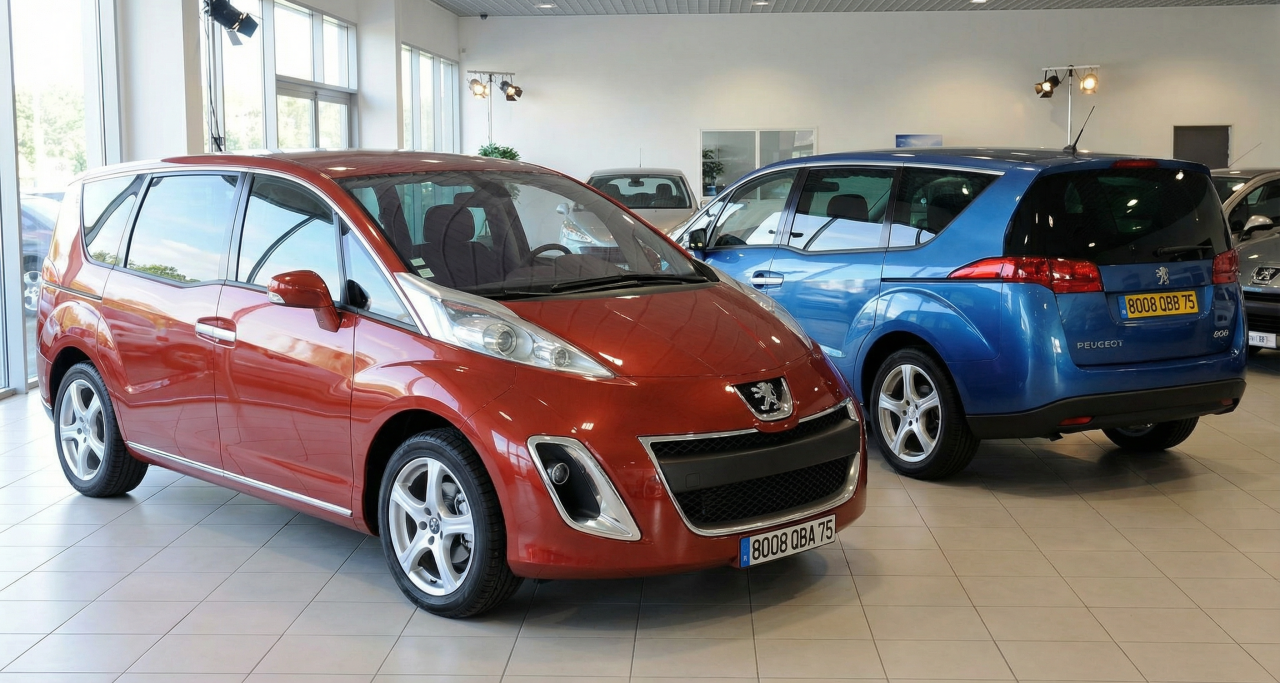
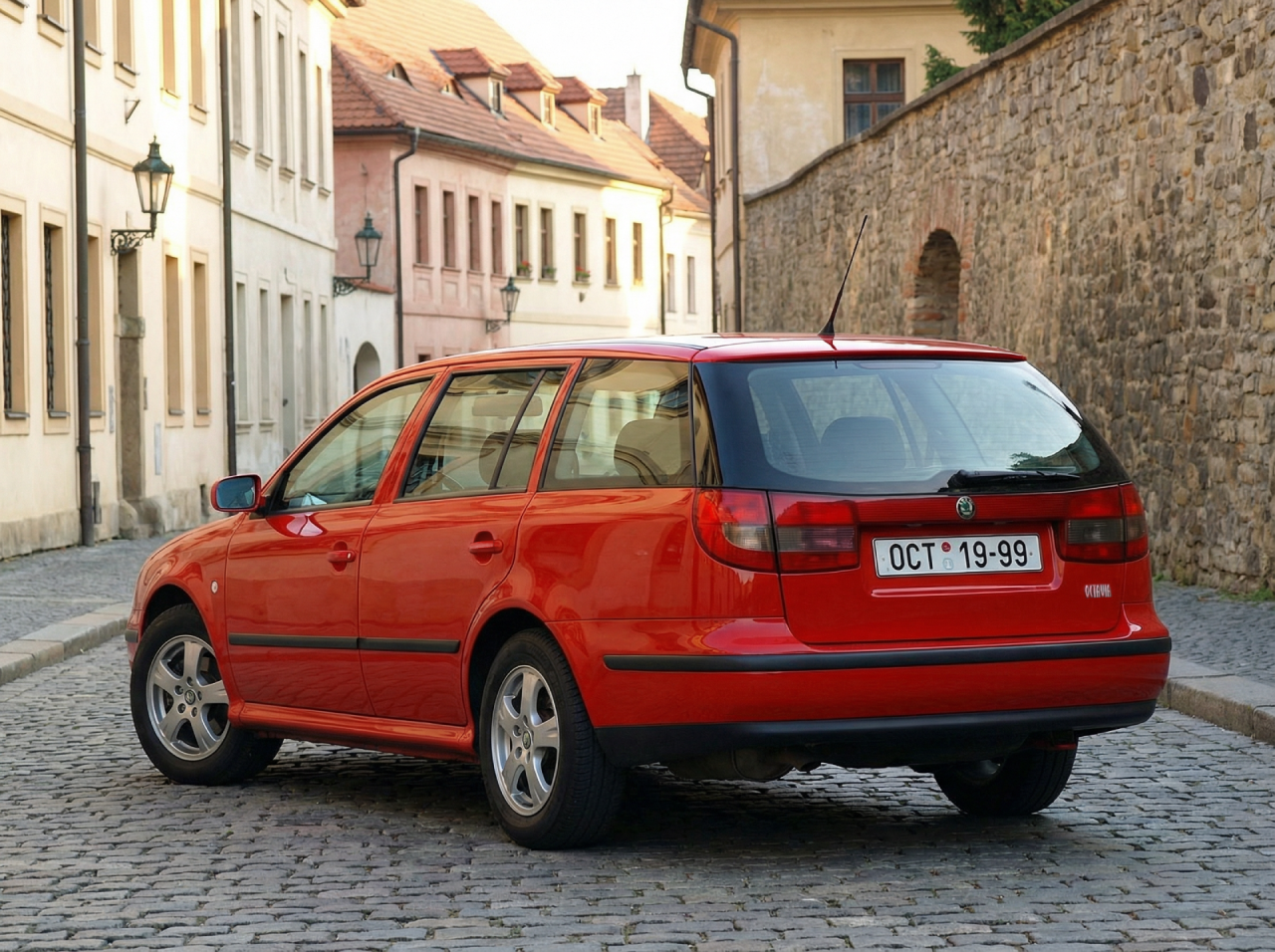
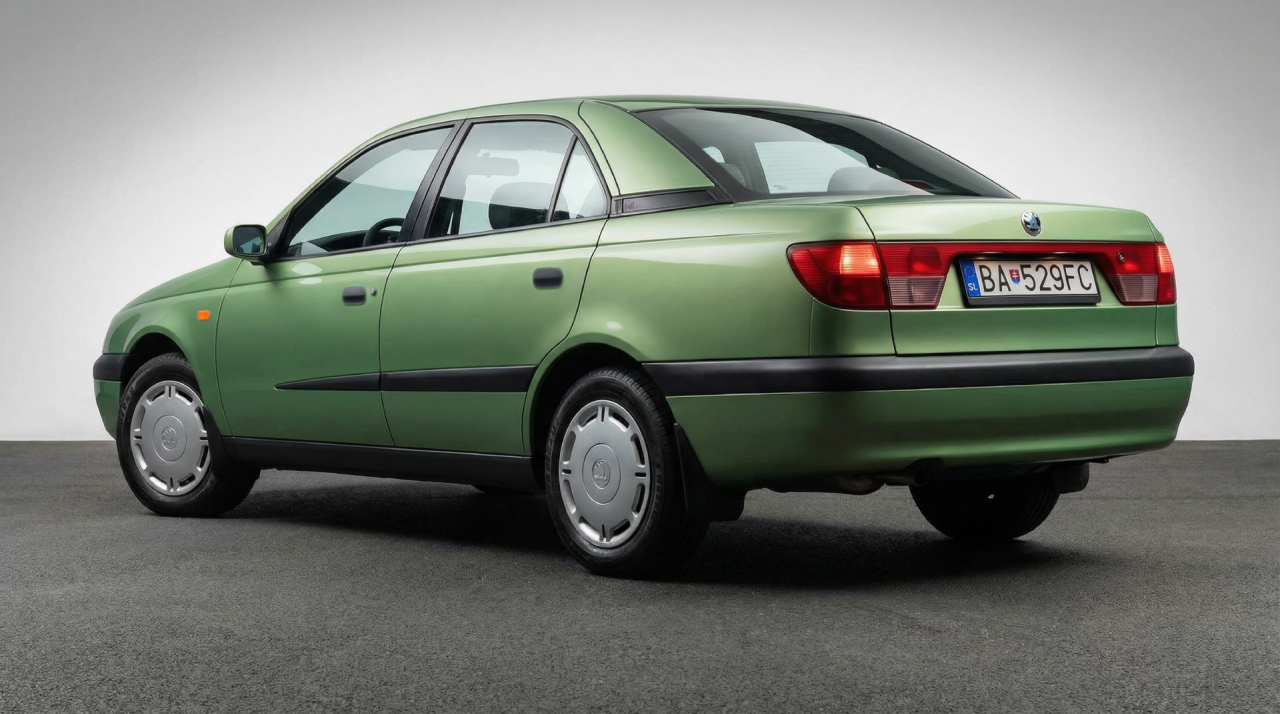
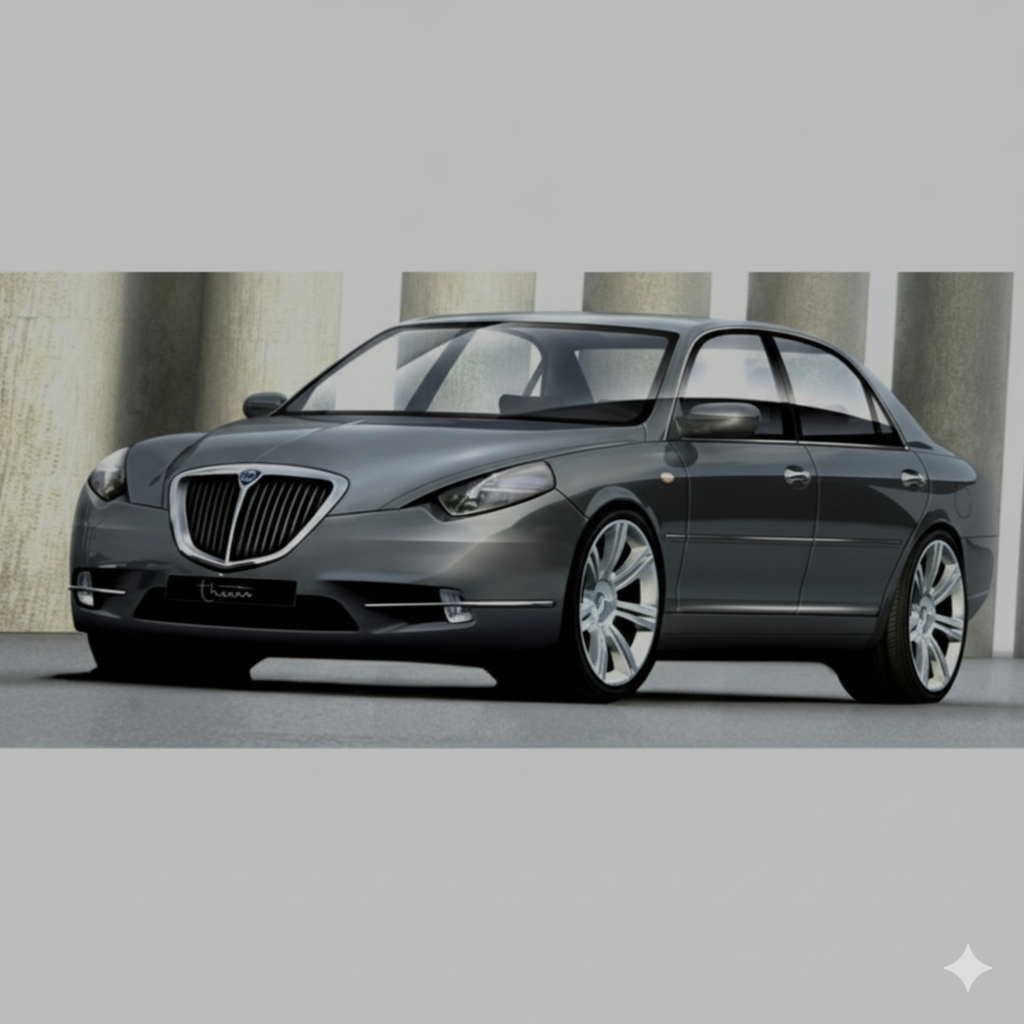
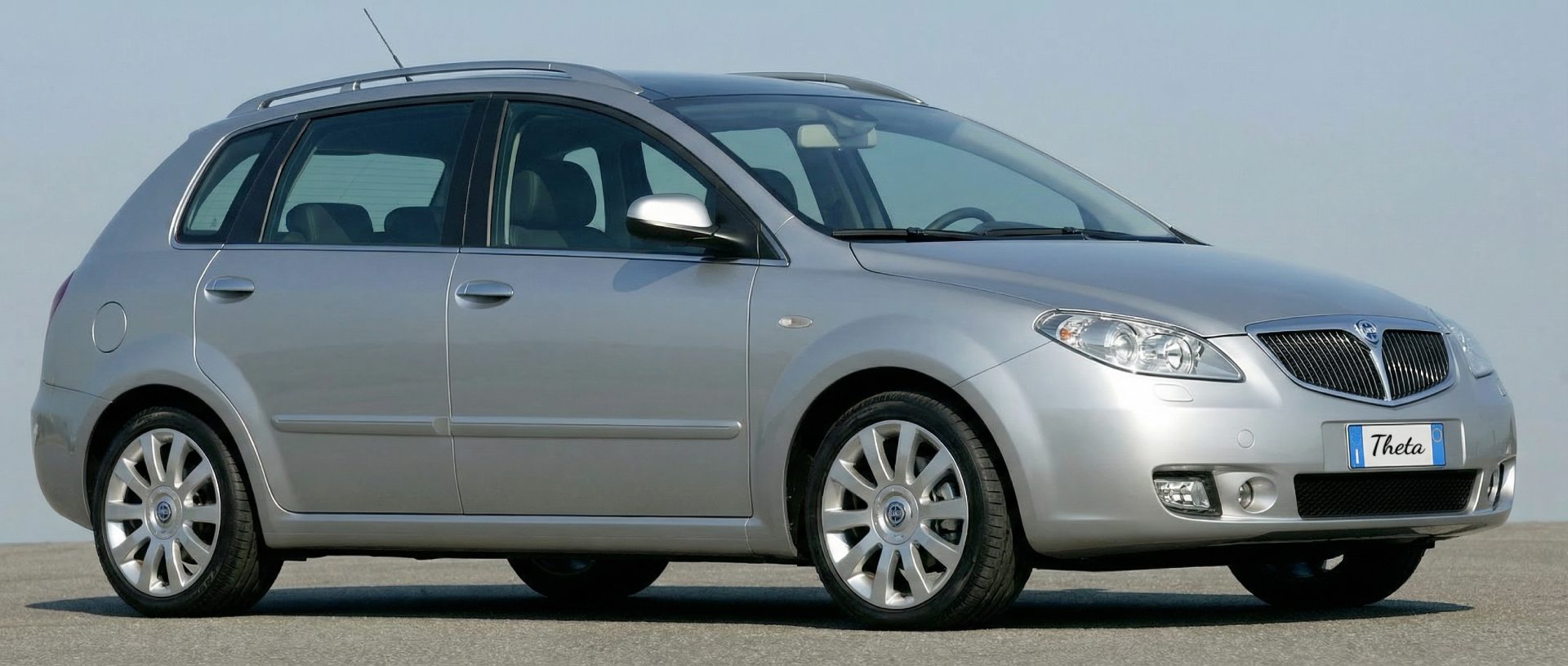
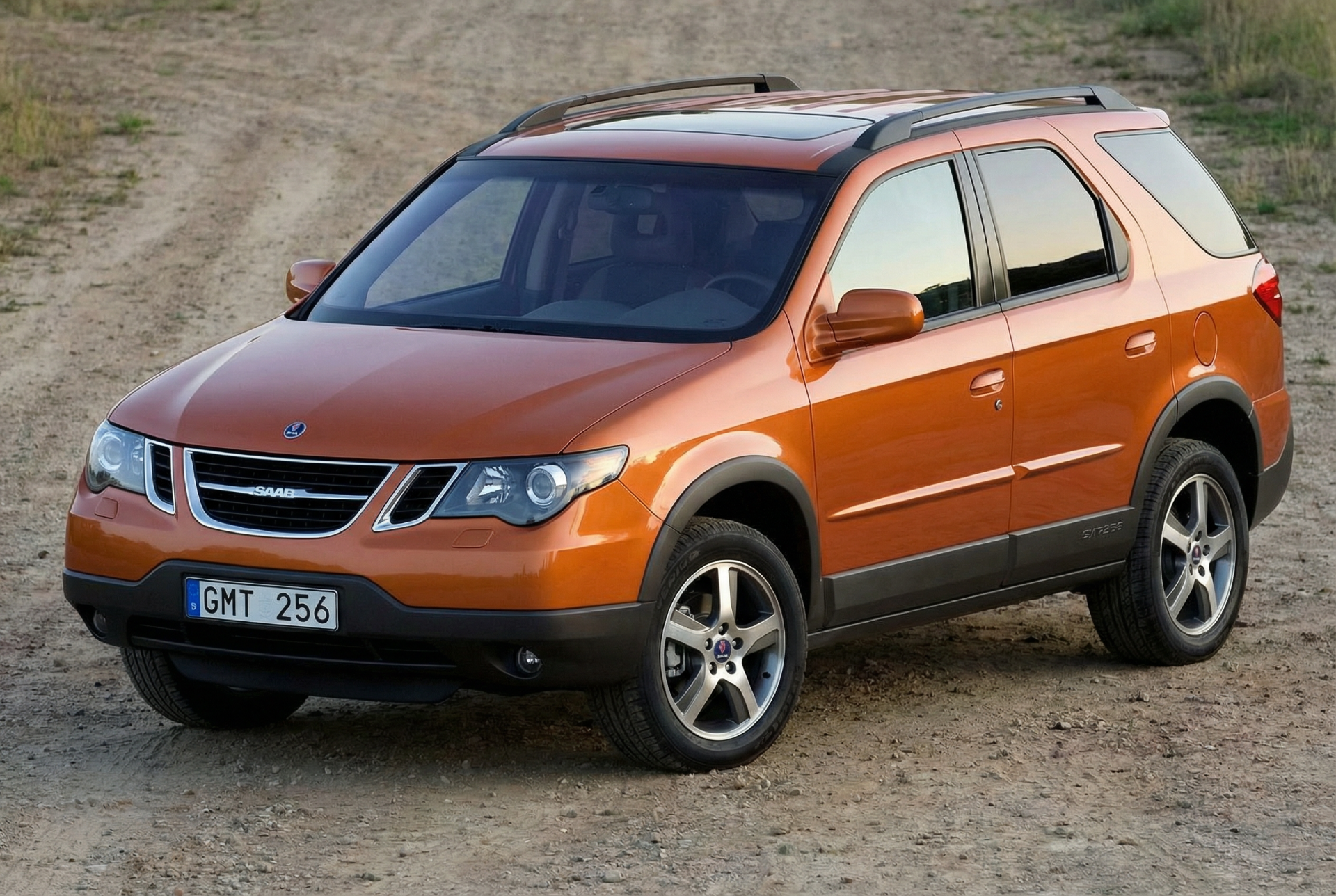
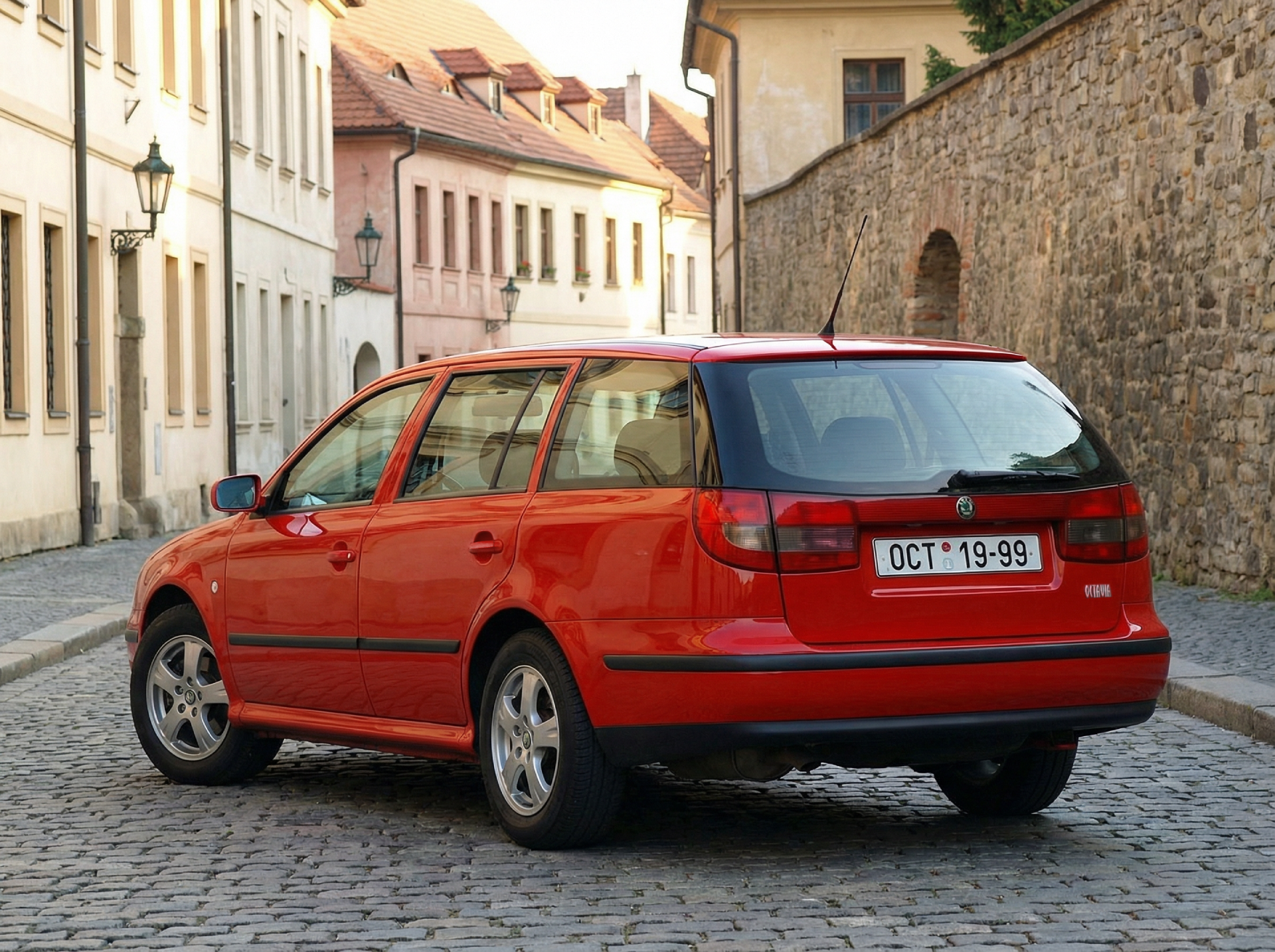
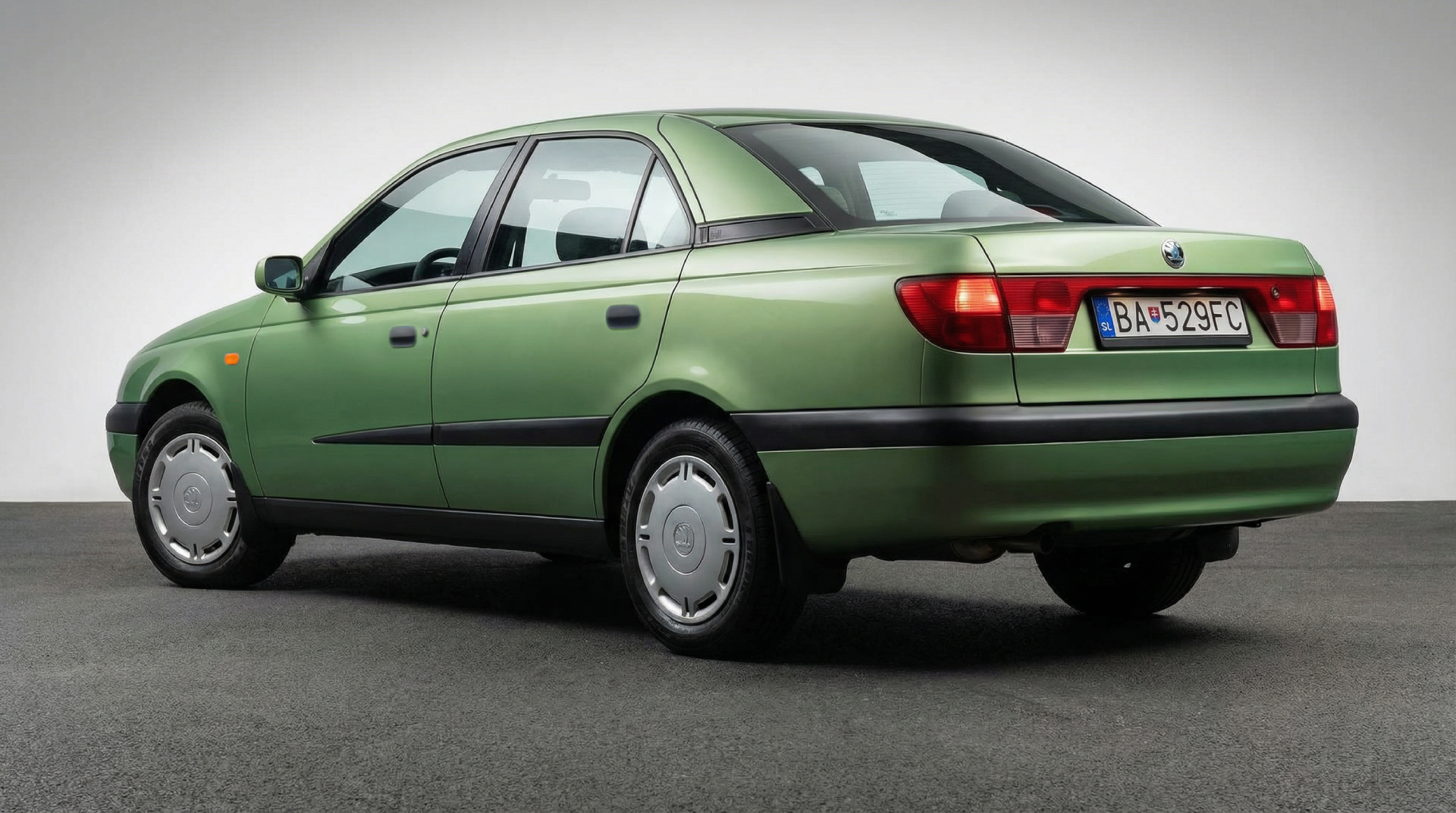
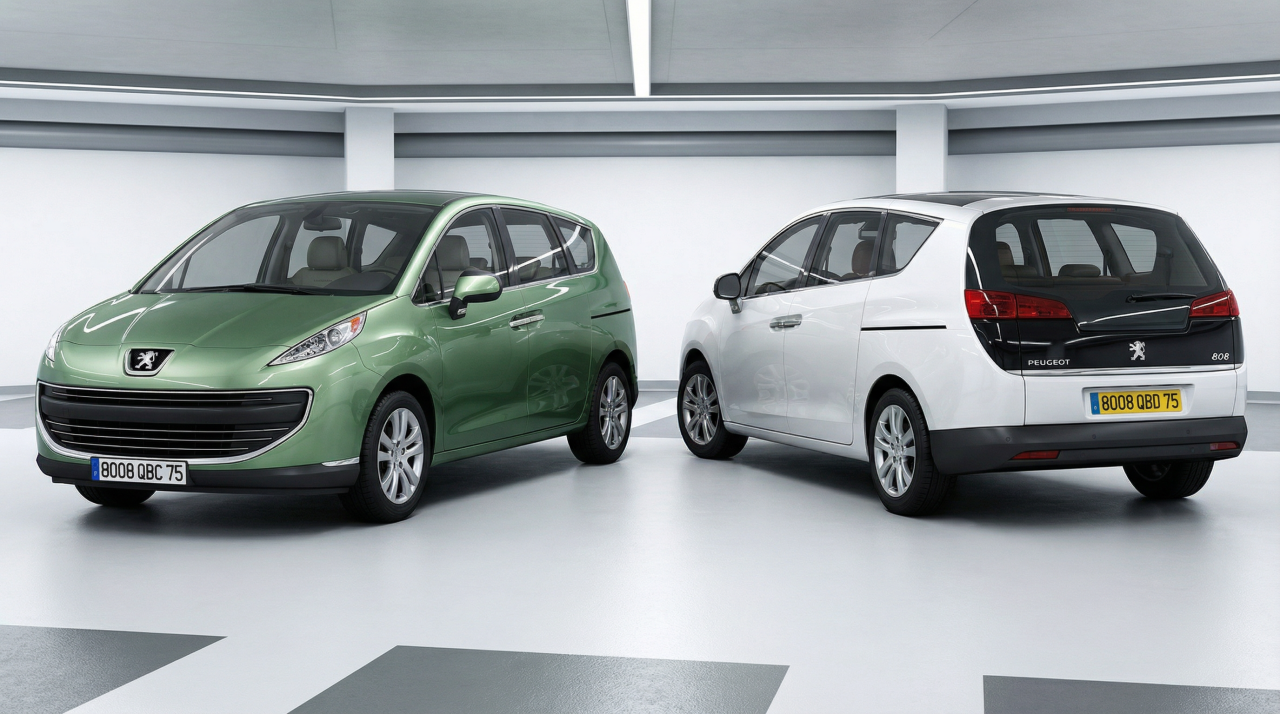 2 punti2 puntiHello everyone, first I want to wish you all a happy new year! Sorry for writing in English, but I'm from Greece and I don't know the Italian language. I'm interested with car design and I've seen lots of cool renderings in this forum, no matter if they're made with Photoshop or AI. I was searching for Greek or European forums in which users are showing their photoshopped & AI-made cars, but it seems that this one is the best. And now it's time to show you some prototypes and concept cars that were never had a production version: Lancia Theta (Croma with Lancia badges): Saab GMT256 (based on Pontiac Aztek): Skoda Octavia Combi Mk1 with different rear design: Skoda 90's sedan by Bertone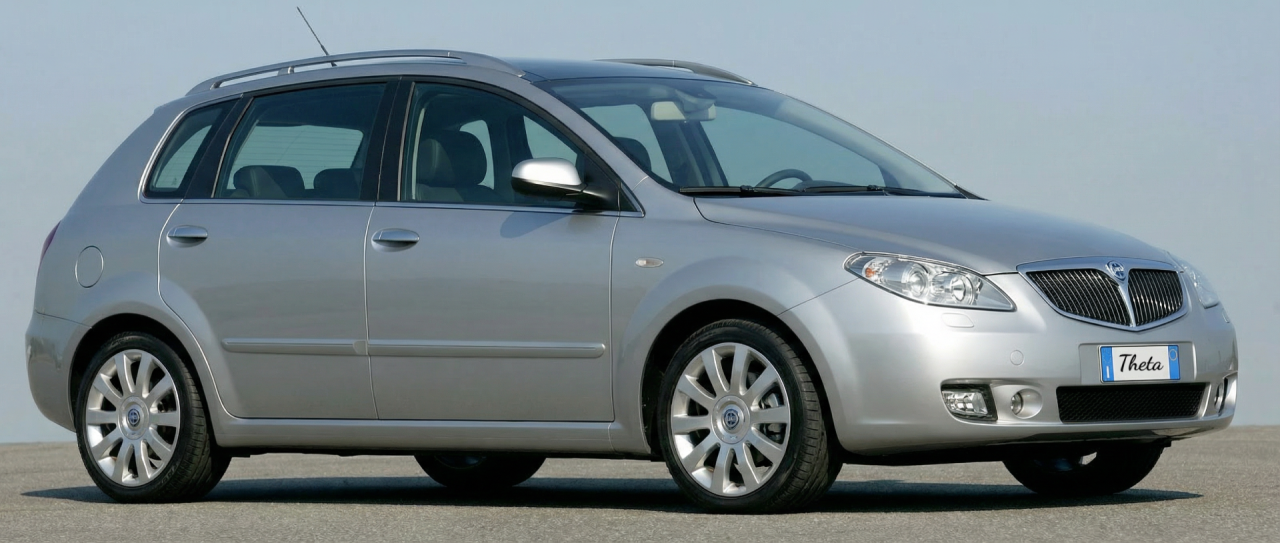
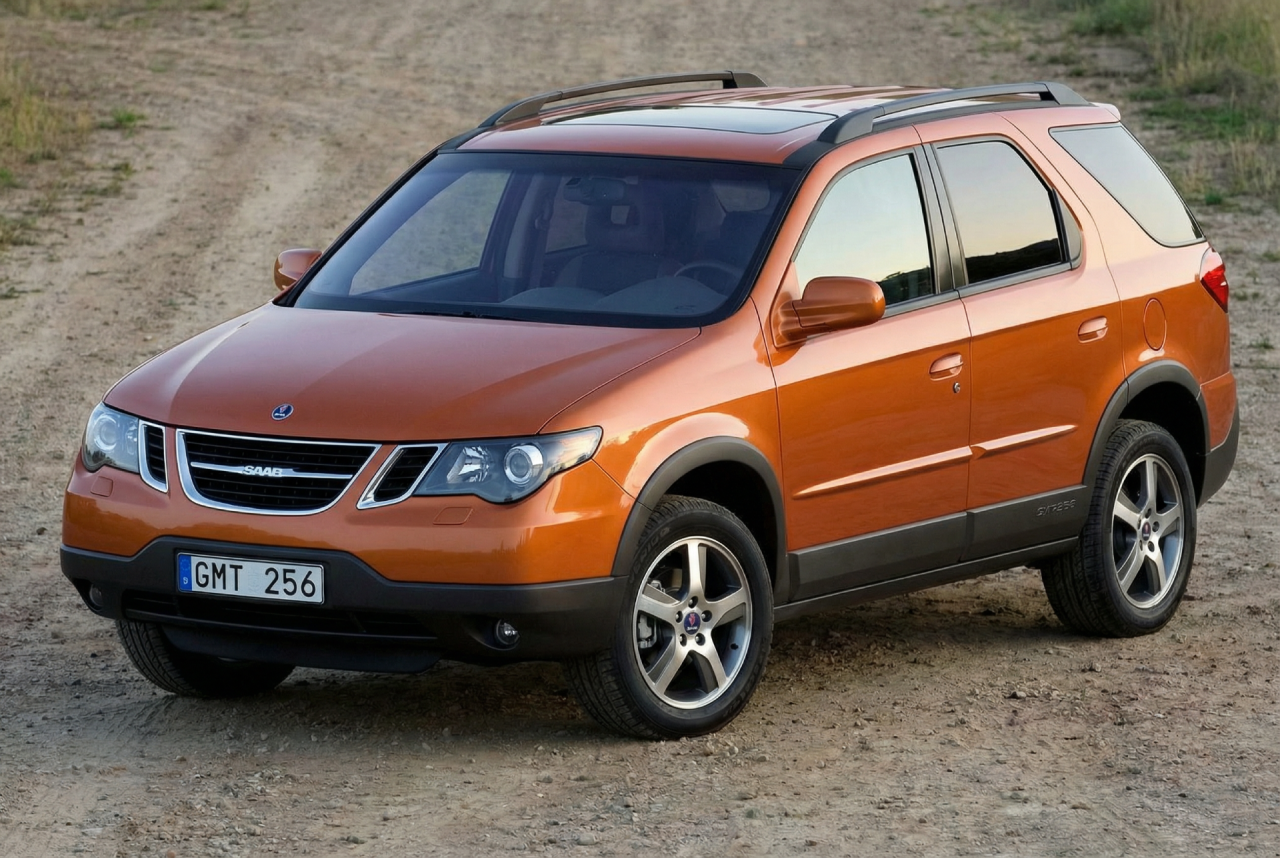
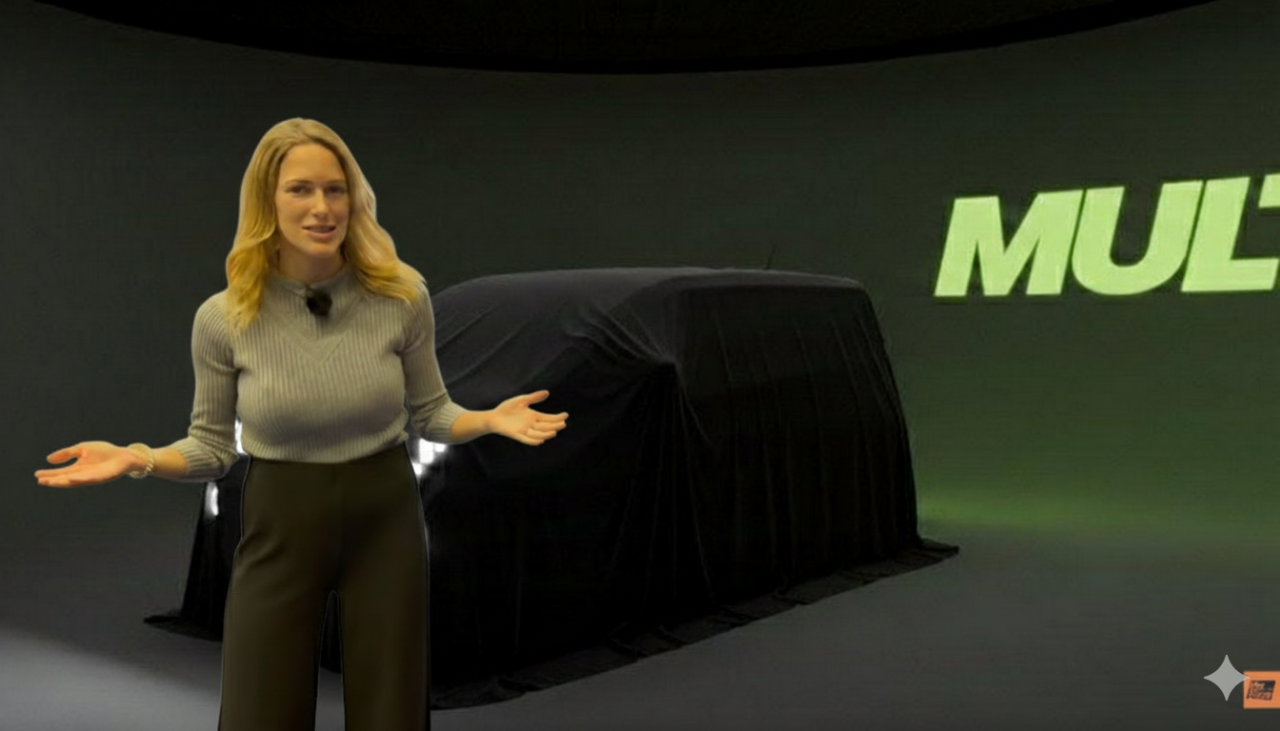
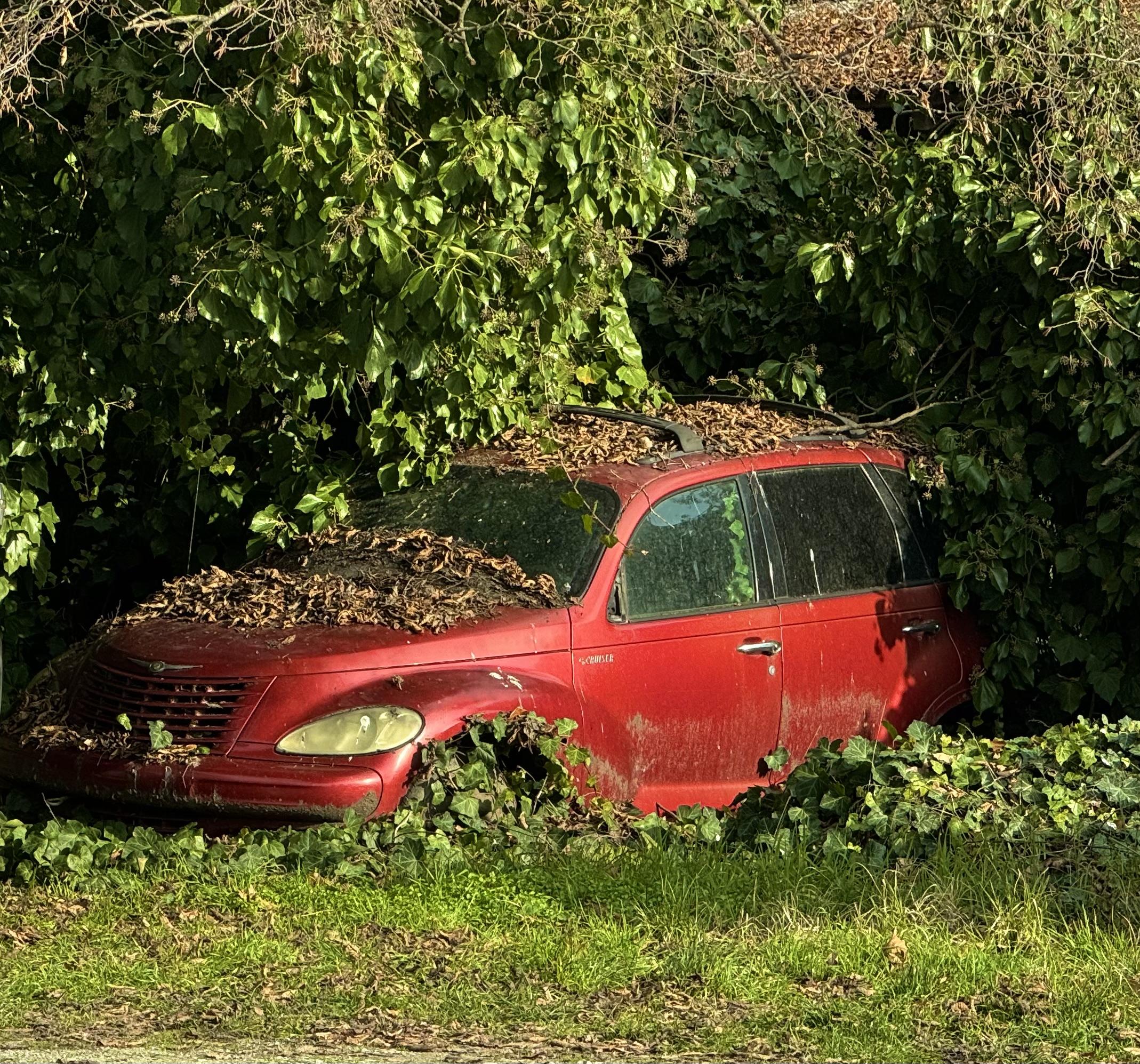
 2 punti2 puntiPrimo reportage di questo nuovo anno ma ovviamente con foto non recenti. Per prima vediamo questa particolare Opel Astra G 2.0 CDX Caravan '99 in livrea "ammiraglia", ovvero assistenza per le corse ciclistiche, data l'età del mezzo e le condizioni sicuramente si tratta di corse di bassissima categoria, forse su scala regionale o provinciale; Inoltre, quel logo Bosch mi fa pensare possa trattarsi di competizioni per bici elettriche o qualcosa del genere. Foto un po' scarsa per questo Suzuki Vitara 1.6 JLX 3p I Serie '89, molto anziano quindi (ormai alla soglia dei 37 anni!). Peccato per la verniciatura in verde militare che ha comportato anche la perdita dei loghi originali. Poco più che trentenne invece questa bella Ford Fiesta 1.1 Windsor 5p III Serie '95, una delle ultime terza serie, era guidata da un anziano ed era in ottime condizioni. Come spesso accade non ho certezze sull'allestimento, mi sono basato su quello suggerito dall'applicazione delle targhe. Mi piace parecchio questo Fiat Ducato 2.5TD Camper I Serie MY90 '91 che sembra essere molto più moderno di quello che è, ed anche con una certa aria americaneggiante. La foto è molto scarsa, infatti ho dovuto prendere a mano la targa che è LT-48. Tutte scomparse dalle nostre strade le Seat Cordoba 1.4 SXE 4p I Serie '97, questa è nel classico colore verde molto diffuso su questo modello e in condizioni più che accettabili. Commerciale inossidabile nel tempo questo Fiat Fiorino 1.3D II Serie MY91 '92 con targhe capitoline, probabilmente di proprietà di una catena di negozi dato che l'ho fotografato nel parcheggio riservato ai negozi di un centro commerciale in cui sono presenti quasi soltanto catene. Personalizzazione di dubbio gusto quella di questa Fiat Barchetta 1.8 I Serie '96 ormai prossima al trentesimo compleanno, non credo di aver mai visto prima un altro esemplare dotato di questo particolare spoiler dedicato di piccole dimensioni. Concludo questo breve reportage con questa stupenda Lancia Y 1.2 LS '96 nella configurazione estetica in cui fu presentata a fine '95, corrisponde sia il colore sia la presenza dei cerchi in lega diamantati, ormai rarissimi da trovare. Eccellenti le condizioni dell'esemplare fotografato, potrebbe essere un'ottima Youngtimer a basso prezzo, utilizzabile anche come auto quotidiana.2 punti2 puntiDomani è il grande giorno, ma come da tradizione le varie testate hanno avuto modo di vederla in anteprima, sono riuscito a salvare un paio di screen dei video prima dell'intervento della censura.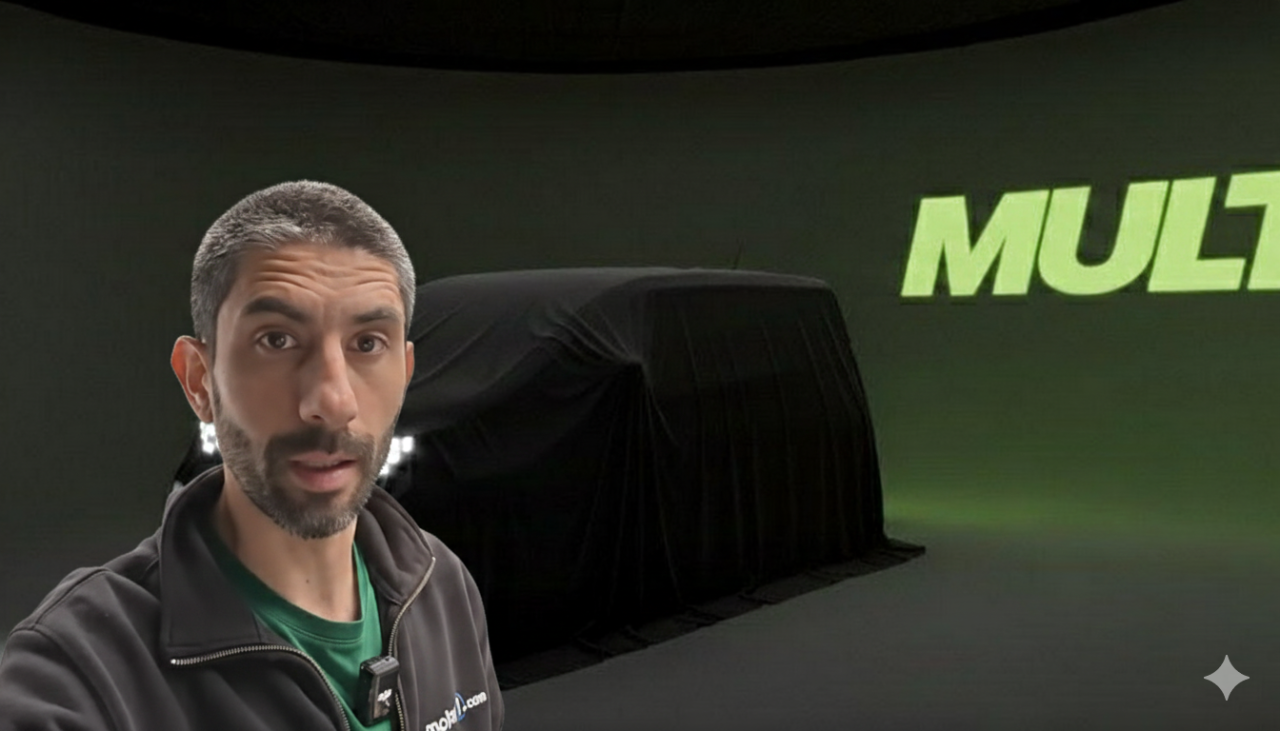
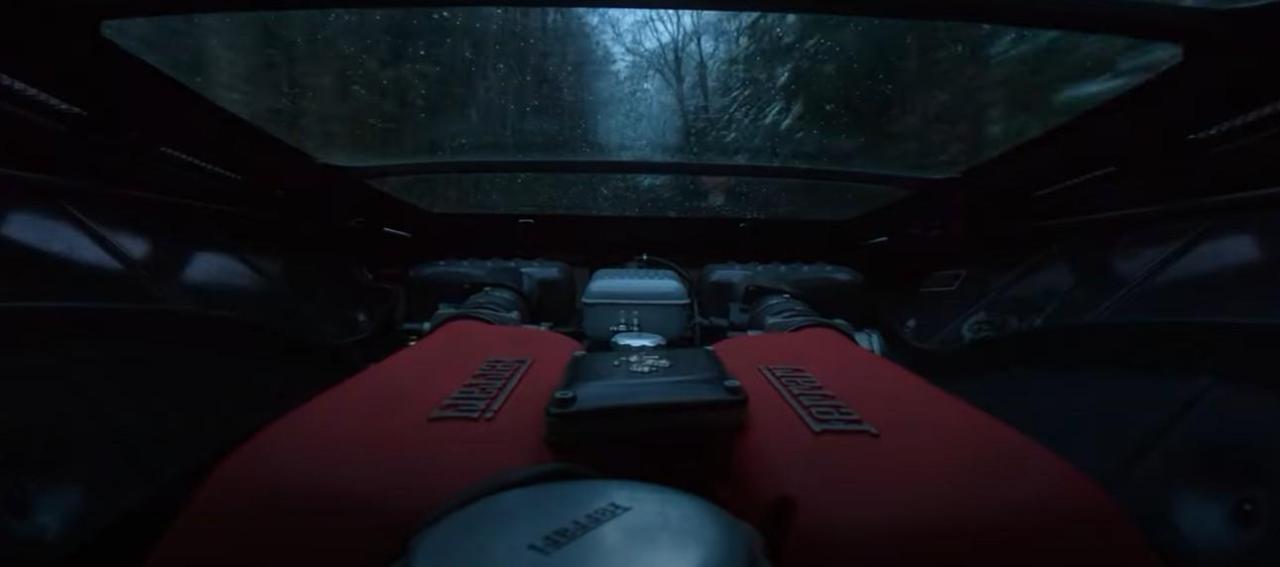
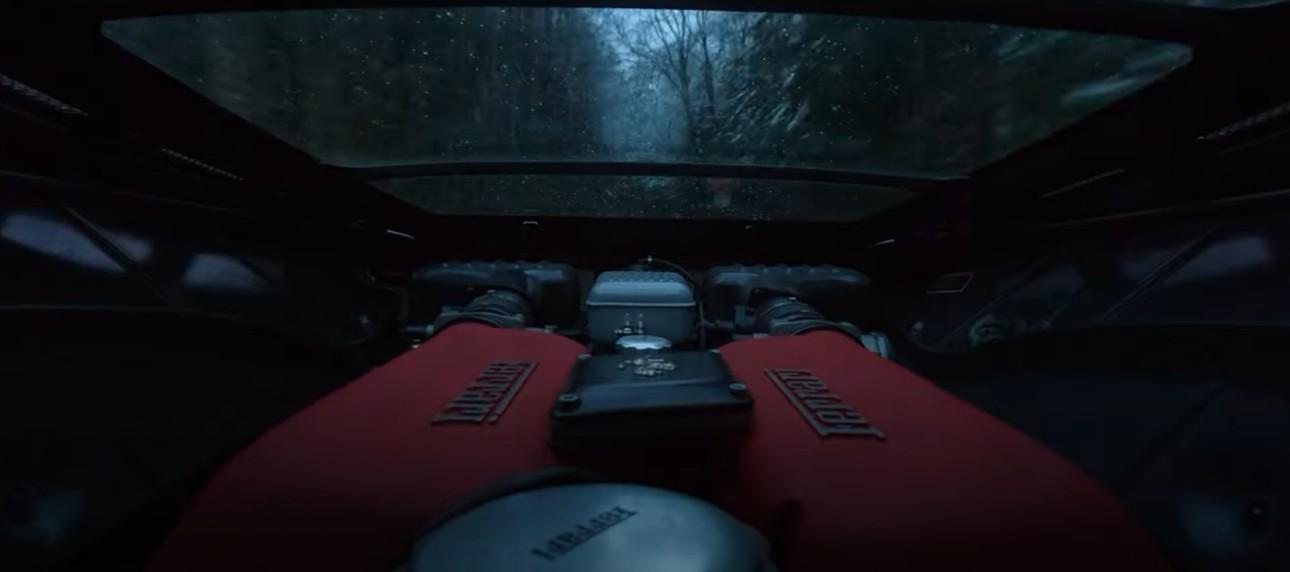
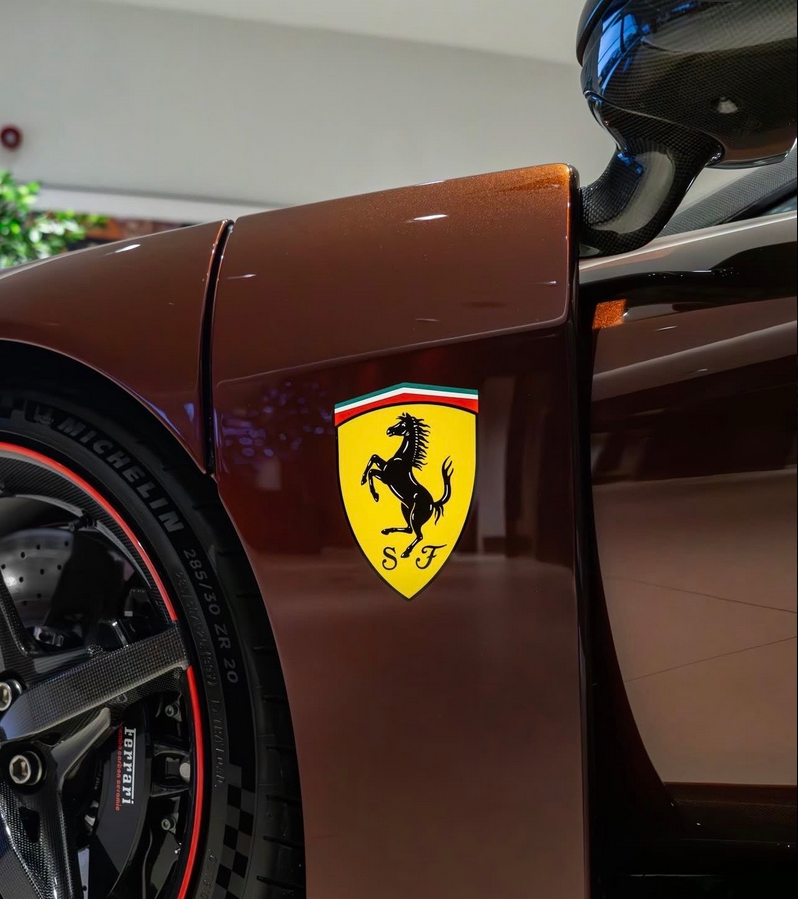
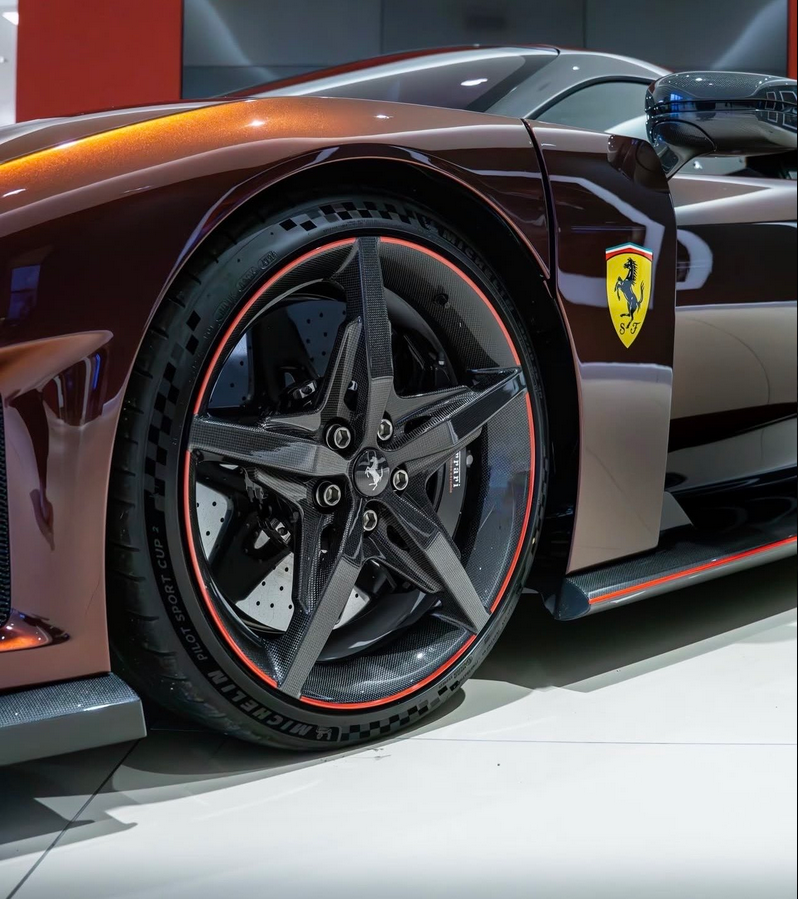
 2 punti2 punti2 puntiScusate l'OT, ma questo è il vero motivo per cui montano lo specchietto retrovisore interno nelle Ferrari a motore centrale..... ...quando ho avuto la fortuna di fare un giro su una F430 la "goduria" che mi procurava il movimento trasversale del motore ogni volta che cambiavo marcia in accelerazione...... Scusate la "divagazione"....
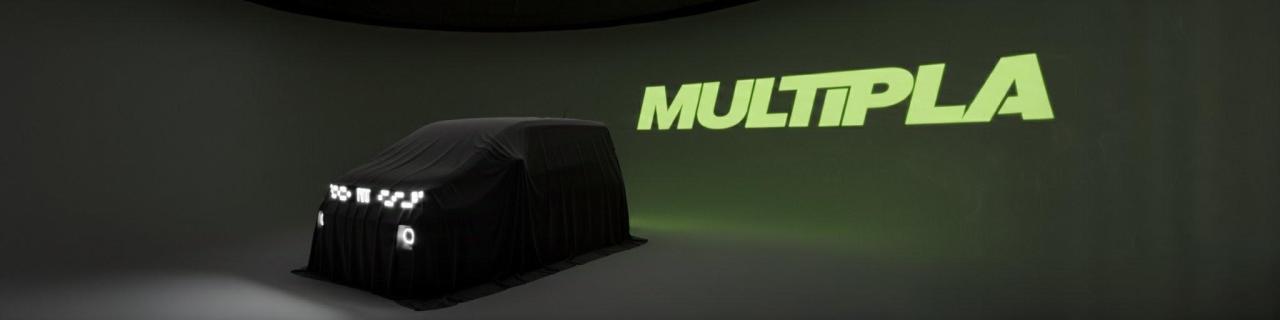
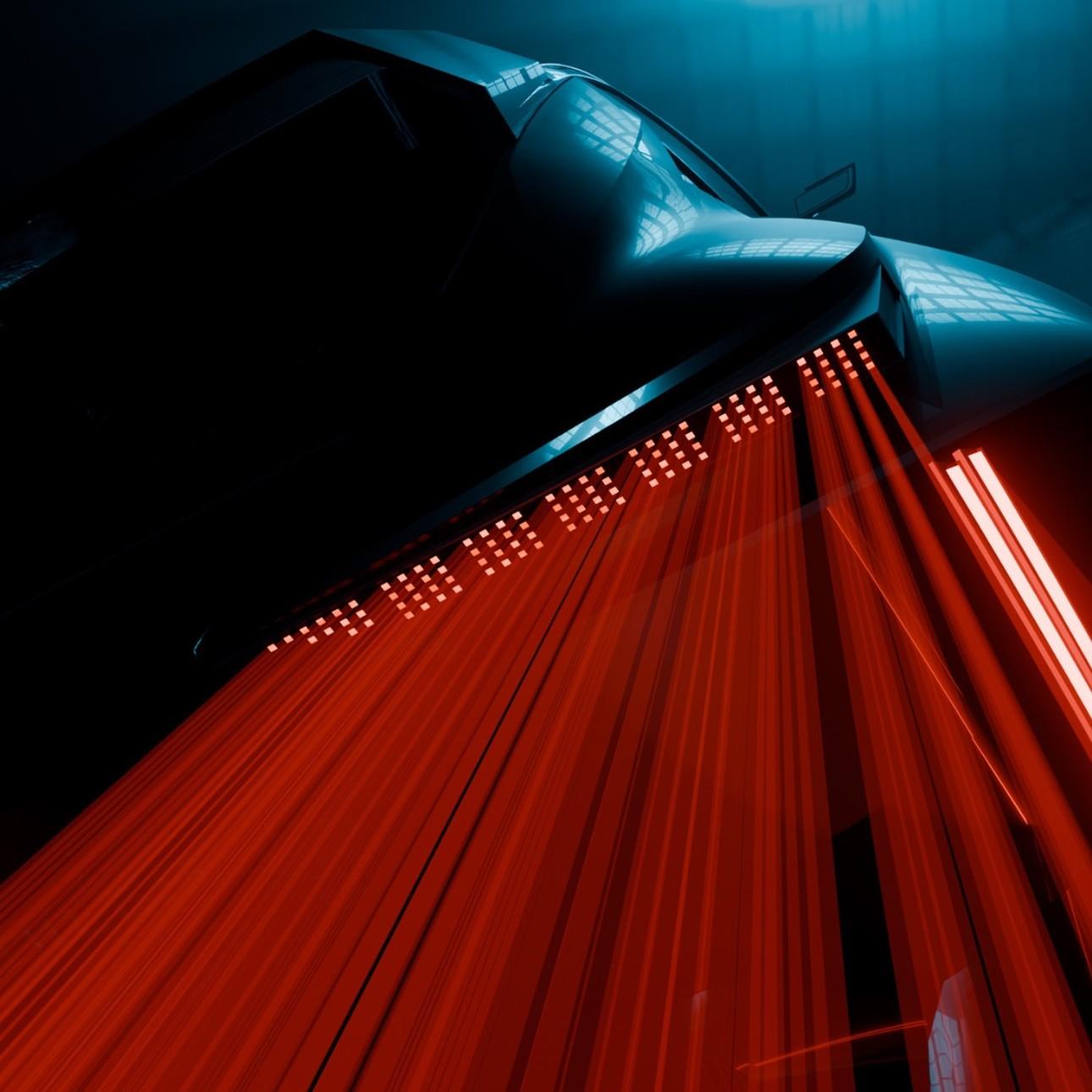
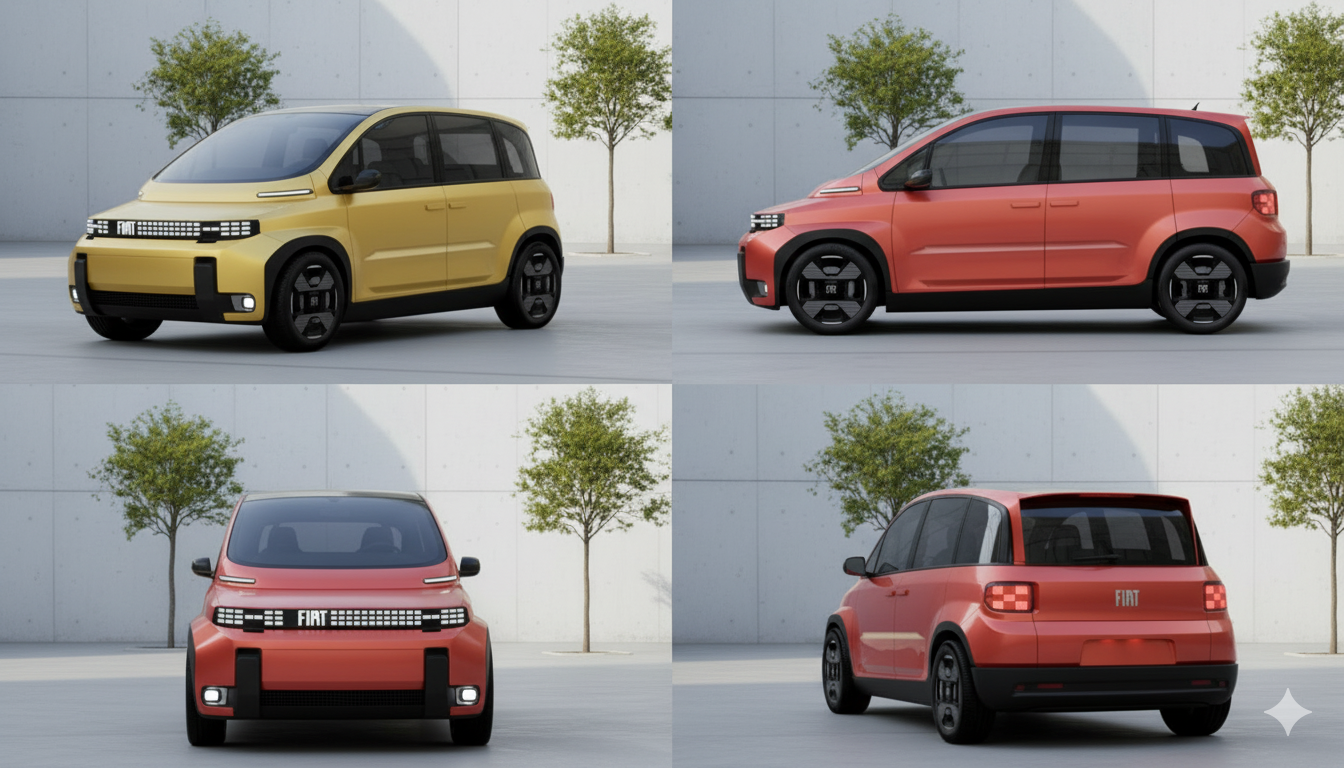
 2 punti1 puntoDato che la Fiat non ci pensa, ci ho pensato io. Presentazione il 02/01/2026.
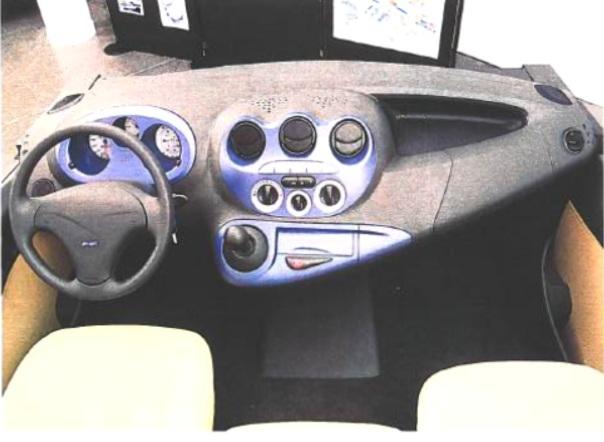
 1 puntoQuella y e' veramente bella,i cerchi danno un grande valore aggiunto.1 puntoI nuovi modelli purtroppo saranno quasi tutti di un certo livello quindi a bassa tiratura. Quasi la metà della produzione Stellantis in Italia è fatta dalla sola Pandina1 puntoQuattroruote.itStellantis - La produzione di auto in Italia torna ai liv...Solo nel 1954 si è prodotto di meno. Il sindacato chiede più investimenti e modelli per carità...tutto previsto in attesa del lancio di nuovi modelli ma i numeri sono davvero impietosi1 puntoIn verità i PIXEL LED non li ha introdotti Stellantis eh. Ma Hyundai, prima di loro, su larga scala.1 punto1 puntoormai il danno è ri-fatto. Per rilanciare il marchio serve una strategia di lungo periodo seria e affidabile.....e dato che stiamo parlando di Stellantis......io ho seri dubbi abbiano le capacità.1 punto1 puntoYeah, it would be true! The design of the rear lights made me believe that it would be a Toledo SW, but I saw that the original author thought that was a Skoda, so I generated a picture with that model as a Skoda1 puntoC'è una leggera differenza nella dimensione dei cerchi...ma leggera è....1 puntoPerché un'auto per essere bella deve essere per forza filante? Ci sono un sacco di carrozzerie boxy riuscitissime, basti pensare alla concept, che è bella, tra l'altro, perché è piena di tagli e non di smussi.1 punto1 puntoLa NA0 ha la stessa potenza di ricarica massima della NA5, ovvero 400 kW, a condizione che la colonnina di ricarica sia in grado di erogare tale potenza.1 puntoAttenzione anche agli pneumatici: quelli di Aygo X sono di una dimensione particolare e possono costare molto più cari di quelli per Panda.1 puntoattenzione ai tagliandi in toyota ogni 15.000 km che hanno un costo considerevole. Il vantaggio di farli in concessionaria è avere la garanzia estesa a 10 anni / km illimitati su componenti meccaniche principali e sistema ibrido.1 punto1 puntoCruscotto Multipla fin troppo tradizionale. Questa proposta sarebbe stata sicuramente piu' "elegante", ma perdeva tutta la originalità e la funzionalità della versione presentata.
 1 puntoA mio modesto parere, a meno che non abiti in una baita remota, senza vicini (marmotte, caprioli e cinghiali a parte, men che meno gommisti o autoriparatori di professione) nelle Alpi o negli Appennini a non meno di 50 km di distanza da un centro abitato, e/o non agogni al desiderio di avere più o meno un terzo del tuo bagagliaio occupato da un ruotino di scorta che, nel migliore dei casi, non utilizzerai mai, mi procurerei il kit gonfia e ripara (eventualmente corredato da una propiziatoria corona di aglio), e lo terrei in macchina. I soldi risparmiati, li puoi usare per il carro attrezzi, nel caso la potenziale foratura fosse troppo grave da poter essere riparata con un semplice kit, oppure per un weekend al mare (voto per la seconda. Ma mi raccomando, accertati prima che nel parcheggio del b&b non ci siano chiodi sparsi, eh!). 😁1 punto1 puntoFicili: “Maserati multienergia per il rilancio. Rimarremo l’unico brand di lusso di Stellantis”Il direttore operativo: “Abbiamo ricostruito una squadra appassionata. Ora novità mirate e personalizzazioni che rispettano la nostra identità” [...]«Ampliare le versioni, la palette dei colori, le personalizzazioni e dare sempre maggiore disponibilità ai clienti. Rendere viva la gamma con novità mirate, serie e allestimenti che rispettano l’identità Maserati. Si è innestata la correzione rispetto al percorso solo elettrico con un ritorno al multienergia, sostenibile, emozionante e orientato alle scelte dei clienti. Oggi l’offerta è completa, dalle Bev, con la linea Folgore autenticamente Maserati, e siamo gli unici a poterla vantare nel settore del lusso, fino all’ibrido». [...] Il piano di sviluppo è pronto, ma sarà svelato solo nel 2026 al Capital Market Day di Stellantis. Ci sarà un riposizionamento di Maserati? «No, Maserati è e rimarrà l’unico marchio di lusso di Stellantis. Il nostro Dna è rappresentato dalla GranTurismo, una filosofia di vita ancor prima che un’auto. Abbiamo previsto investimenti per una ridefinizione del passaggio dal “solo elettrico” a una strategia più articolata su motori, piattaforme e architetture digitali». la RepubblicaFicili: “Maserati multienergia per il rilancio. Rimarremo...Il direttore operativo: “Abbiamo ricostruito una squadra appassionata. Ora novità mirate e personalizzazioni che rispettano la nostra identità”1 puntoUn doppio lunotto posteriore? Mhhh
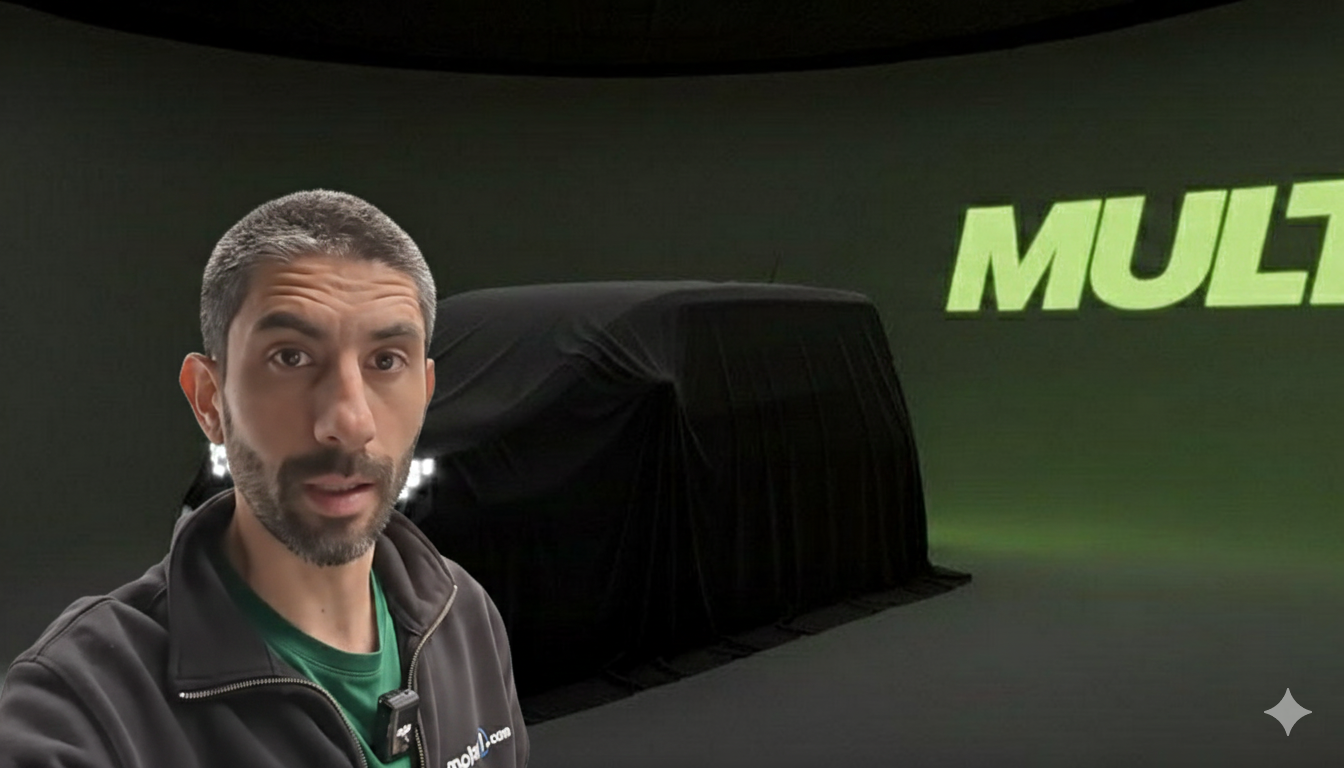
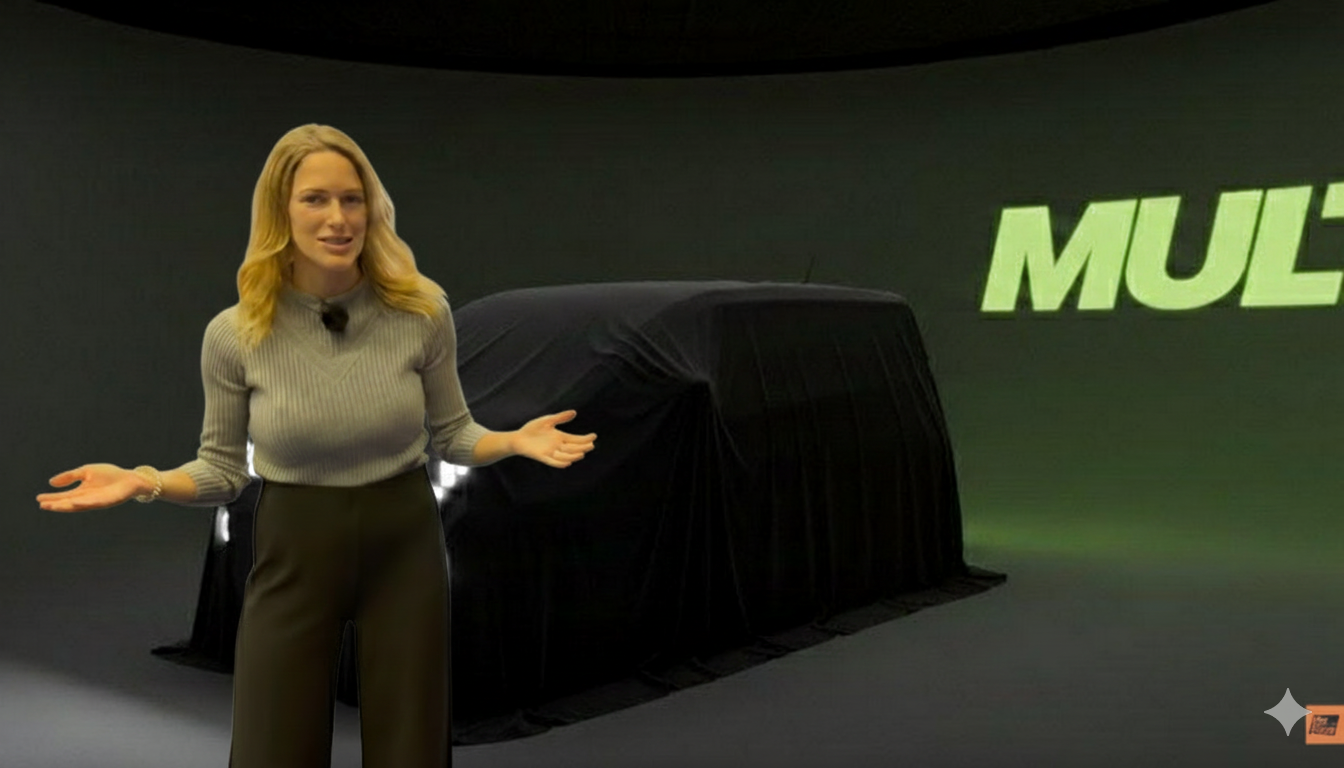
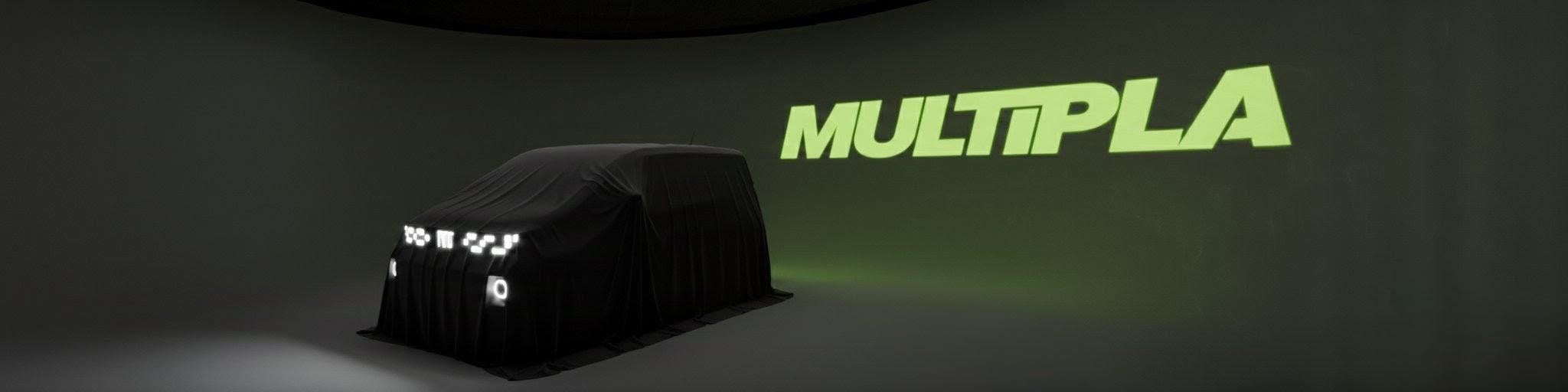
 1 punto1 punto1 punto1 punto1 punto1 punto1 puntoGli autoparetisti che attendono la Fiat Multipla concept: La Fiat Multipla concept che finalmente viene svelata:
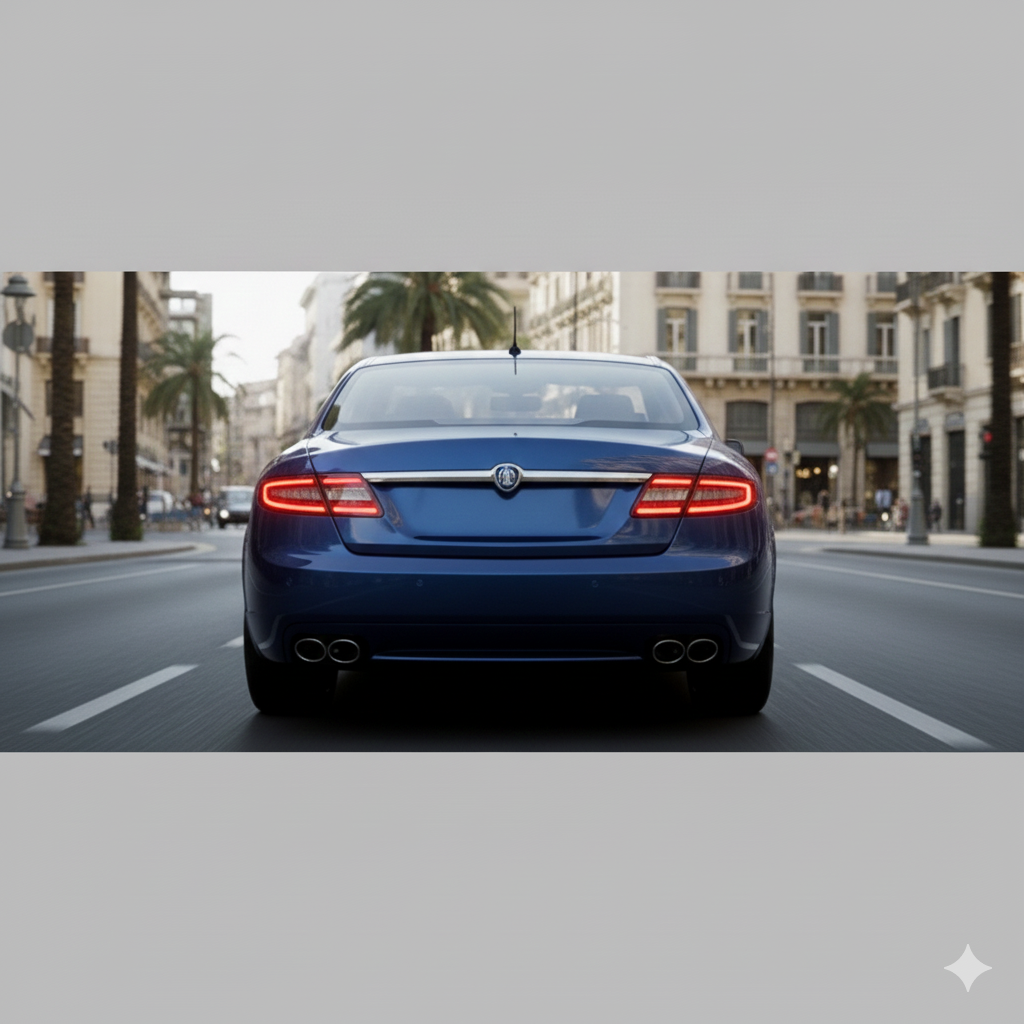
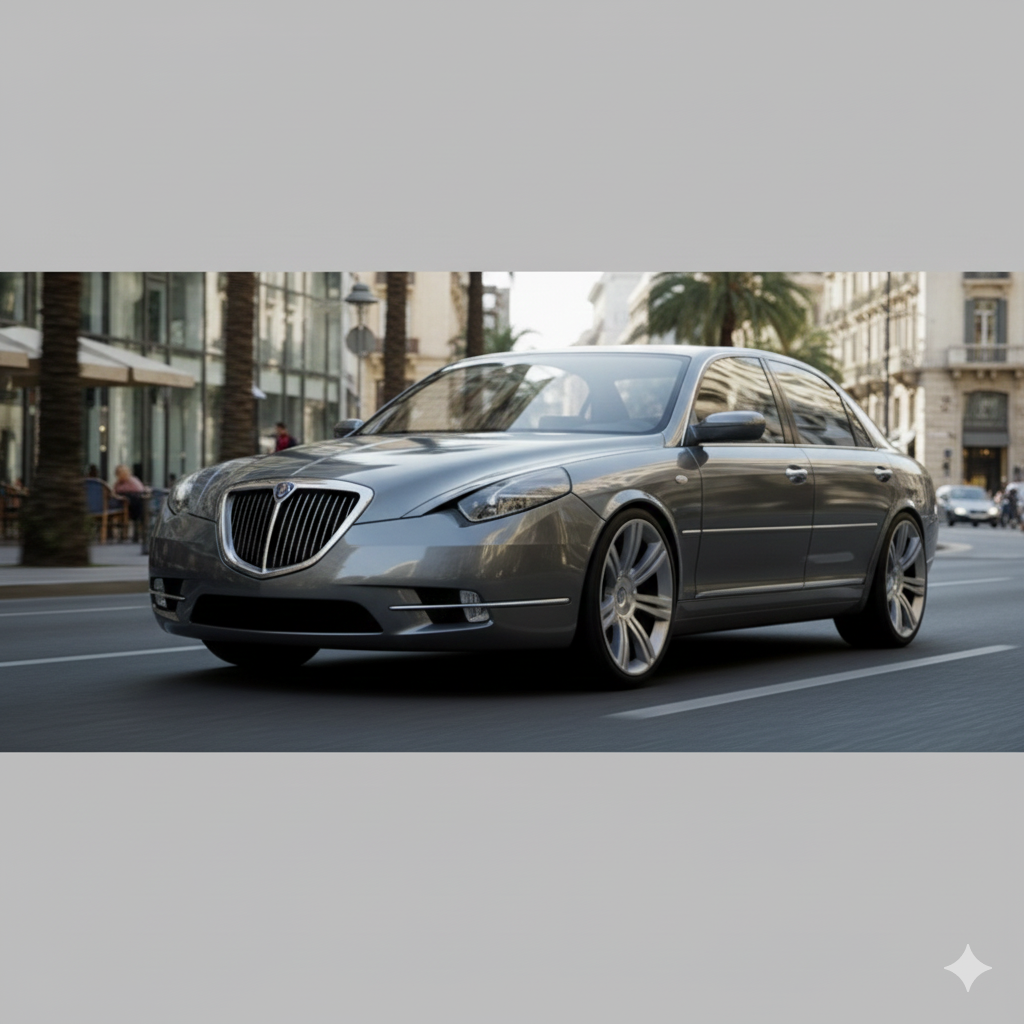
 1 punto1 punto1 puntoFra gioielli Pandora e Pandori al Pistacchio mi accodo anch' io agli Auguri di Buone feste a tutti Voi, anche se seguo con meno assiduità di un tempo.... P.S. = Ma in quei Troll di sfondo c'è qualcuno di Voi ?1 puntoAuguri a tutti e speriamo che babbo natale ci porti un forum finalmente funzionante al 100%! Oggi, infatti, giorno di Natale e di lauti pasti in famiglia, non so se sia meno digeribile il pranzo preparato dalla suocera o il fatto di trovare ben 13 volte il titolo della discussione “Tiguan o DS7?” nella pagina personale delle discussioni non lette 😂😂😂 (con tutto il rispetto per la suocera e per l’utente che ha iniziato quella discussione) 😂1 punto1 puntoThesis Sulla base di questo schizzo di restyling Immagino che la parte posteriore sarebbe cambiata poco (forse con i fanali rossi invece che trasparenti), ma Gemini ha invece creato una nuova generazione di Kappa 👀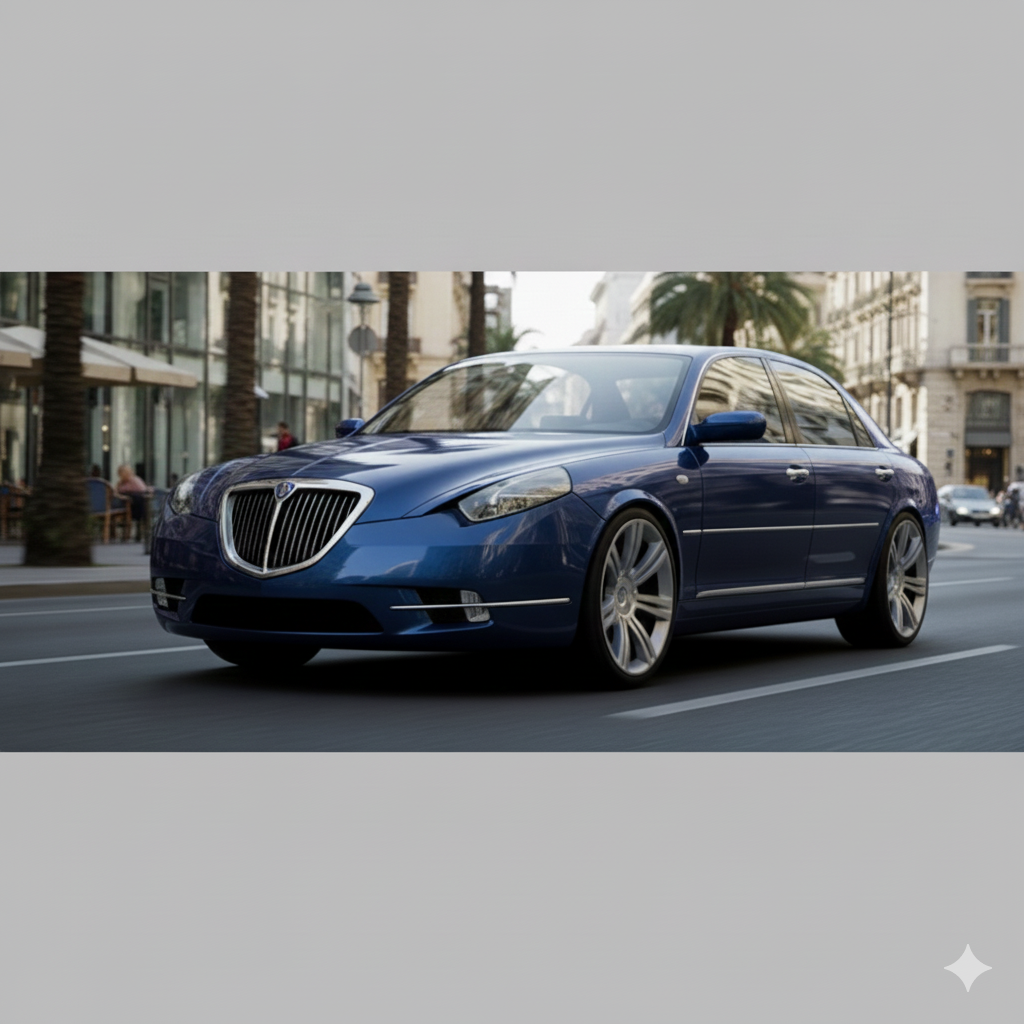
 1 puntoI danni che ha fatto DeMuro con quel video di una ghibli stra base sono incalcolabili. Io l’ho avuta dal 2017 per 4 anni (il My 2018 gran sport) ed è stata un’auto eccezionale in tutti gli aspetti nessuno escluso. L’errore di Maserati ihmo era stato esportare i modelli base con la finta pelle, plancia in plastica e cerchi da 17 se mi ricordo bene; in usa avrebbero dovuto mandare solo le gransport o le granlusso. Poi se metti i tasti degli alza cristalli della chrysler è uno scandalo quando invece Porsche ha creato la cayenne pantofrafando la VW di origine tenendo addirittura le 4 portiere senza modificarle era un’allocazione intelligente delle risorse. As usual due pesi e due misure nel giudizio tra i prodotti crucchi e quelli della ex fga/fca1 puntoLa Leaderboard è riferita all'orario Roma/GMT+02:00






.jpg.a8f3cd1e71aeba8dc6b02382f41b64a9.thumb.jpg.1e62c9a6f01b1f28066ea5fa41f0e695.jpg)





.jpg.0a9ff73d7a7ad09550fc411cda37bc7c.thumb.jpg.095392f5d8b6dc45c10ccf463694d027.jpg)



(1)(1).thumb.png.635c059adfaa3a2ca27f86ab608b04ba.png)

.jpg.12d2bd15db461e13c19057bdf135a58a.jpg)
.jpg.2cdea1767b0559de615f1fb95a48a0b0.jpg)











Account
Navigation
Cerca
Configure browser push notifications
Chrome (Android)
- Tap the lock icon next to the address bar.
- Tap Permissions → Notifications.
- Adjust your preference.
Chrome (Desktop)
- Click the padlock icon in the address bar.
- Select Site settings.
- Find Notifications and adjust your preference.
Safari (iOS 16.4+)
- Ensure the site is installed via Add to Home Screen.
- Open Settings App → Notifications.
- Find your app name and adjust your preference.
Safari (macOS)
- Go to Safari → Preferences.
- Click the Websites tab.
- Select Notifications in the sidebar.
- Find this website and adjust your preference.
Edge (Android)
- Tap the lock icon next to the address bar.
- Tap Permissions.
- Find Notifications and adjust your preference.
Edge (Desktop)
- Click the padlock icon in the address bar.
- Click Permissions for this site.
- Find Notifications and adjust your preference.
Firefox (Android)
- Go to Settings → Site permissions.
- Tap Notifications.
- Find this site in the list and adjust your preference.
Firefox (Desktop)
- Open Firefox Settings.
- Search for Notifications.
- Find this site in the list and adjust your preference.