




Classifica Utenti
Utenti più Apprezzati
(Scegli il periodo) Utenti più Apprezzati
(Storia giorno per giorno) Classifica dall'Origine
(da Marzo 2003)
(Scegli il periodo) Utenti più Apprezzati
(Storia giorno per giorno) Classifica dall'Origine
(da Marzo 2003)
-
4200blu
Utente Registrato19Punti15584Numero contenuti pubblicati -
j
Reporter (Staff)16Punti24977Numero contenuti pubblicati -

Marco1975
Utente Registrato16Punti2821Numero contenuti pubblicati -
led zeppelin
Utente Registrato14Punti12011Numero contenuti pubblicati




Contenuti più Popolari
Stai visualizzando i contenuti con il più alto punteggio, pubblicati in data 06/19/24 e localizzati Tutte le aree/sezioni
-
8 puntiComunque pare che vogliate trovare difetti a tutti i costi. Poi mi piacerebbe vedere i garage di molti presenti 😂 Ragazzi è una panda. Taratevi di conseguenza.8 punti
-
8 puntiComunque, scherzi a parte, attenderei a intonare il de profundis di questa 600.... Non sarà originale/sbarazzina quanto la Grande Panda, ma non è che per questo sia da cestinare. Alla fine, è in linea con gli altri modelli del filone 500esco, retrò e un po' chic ma non troppo. A modo suo, è alternativa sia alla Avenger che alla Junior, ha la sua buona dose di praticità. Diamo tempo anche al 1.2 di ingranare nelle forniture....8 punti
-
8 punti
-
6 punti
-
6 puntiIo sono davvero stranito dai commenti, BMW ha fatto auto mostruose ultimamente ma questa non lo è... linea rassicurante, particolari rassicuranti, motorizzazioni rassicuranti, non è bella, non è brutta, praticamente è una VW che ci crede un po' di più. Il numero 3 comunque è il più "salvabile" della loro gamma (x3, serie 3 nelle varie carrozzerie).6 punti
-
L'importante è che gli sportelli apribili si possano poi chiudere 😆6 punti
-
5 puntiIn Italia è stato comunicato che il prezzo di partenza della You sarà di 18.790 Euro5 punti
-
5 puntiSono due auto diverse. Grande Panda è anche meccanicamente (pianale) una segmento B "semplificata". 600 è una segmento B piena se non "plus", immagino anche a livello di insonorizzazione e comfort, la vedo meglio anche per lunghi viaggi, all'occorrenza. Che poi proprio per questo alcune mancanze di 600 (ad esempio il bracciolo anteriore) sono ancora più macroscopiche e spero che arrivino presto a colmarle.5 punti
-
Il marchio Peugeot è l’unico marchio francese con una gamma decente, ma doveva sbarcare in USA e Asia e hanno rinunciato. Non avrà veicoli su STLA Large. Hanno ritirato piani per versioni di punta PSE (Peugeot sport engineering) e sulle Small non hanno le potenze bev delle cugine italiane ne’ il 4xe. L’ipotesi di un entry level sotto la 208 è stata cassata. Visto il flop madornale della 408, avranno 5 modelli 208/2008/308/3008/5008 e basta. Non li vedo messi meglio di altri …5 punti
-
5 puntiAnni fa, quando i SUV erano solo di grandi dimensioni, i loro detrattori sostenevano che le dimensioni eccessive fossero un'inconscia compensazione della scarsa dotazione virile del proprietario. Osservando questo dettaglio mi pare che ora la compensazione non sia più così inconscia:5 punti
-
4 puntiX3 20 xDrive X3 30e xDrive X3 M50 xDrive Powertrains Infografiche Comunicato stampa Via BMW. Topic Spy: BMW X3 & X3 M 2024 - Prj. G45/G97 (Leak)
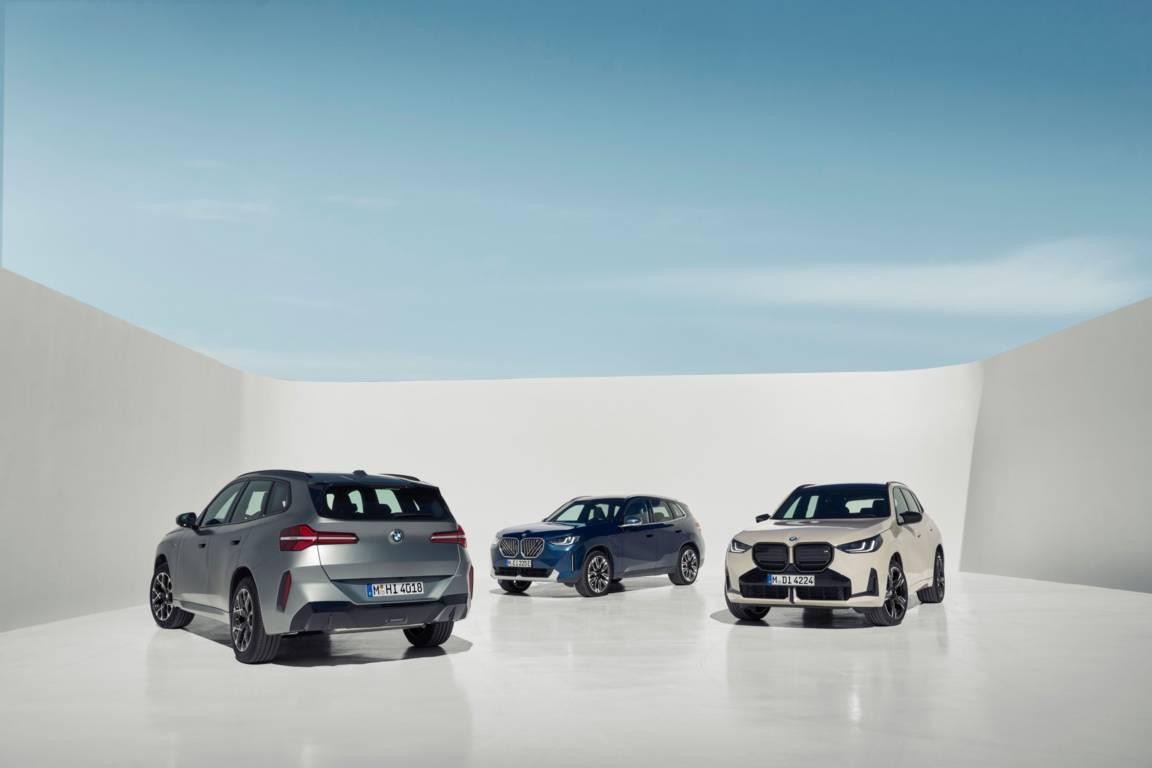

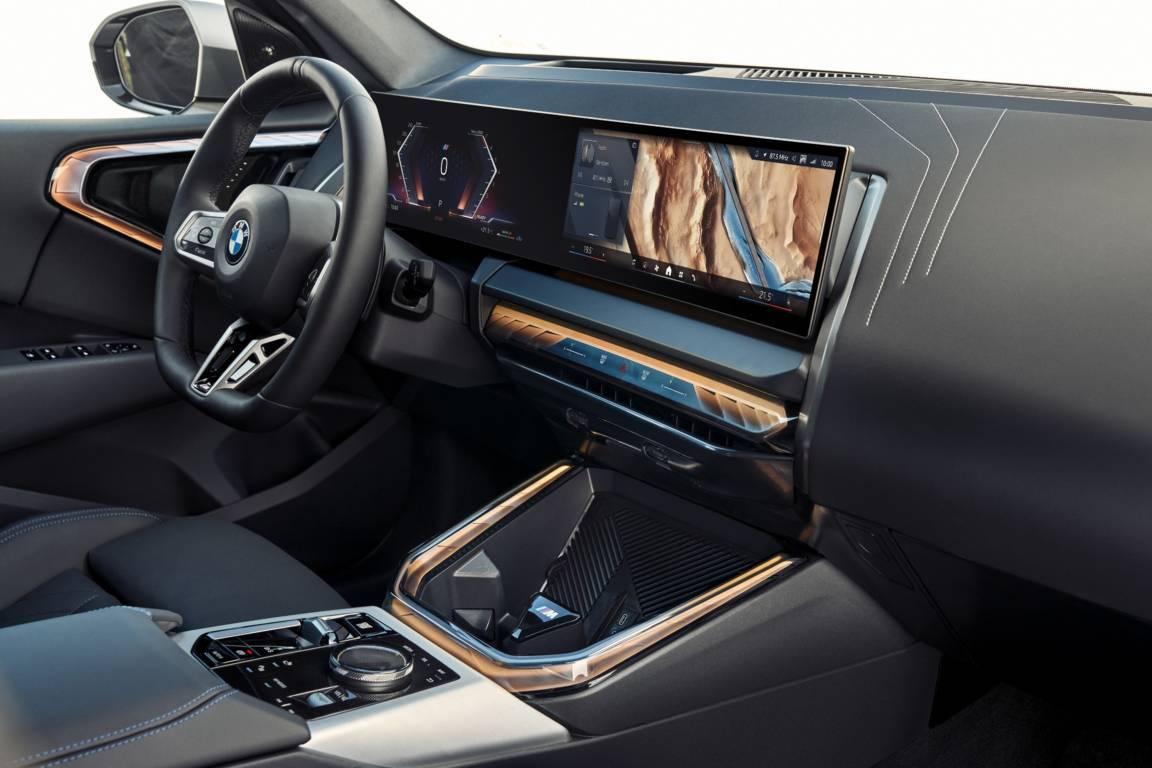
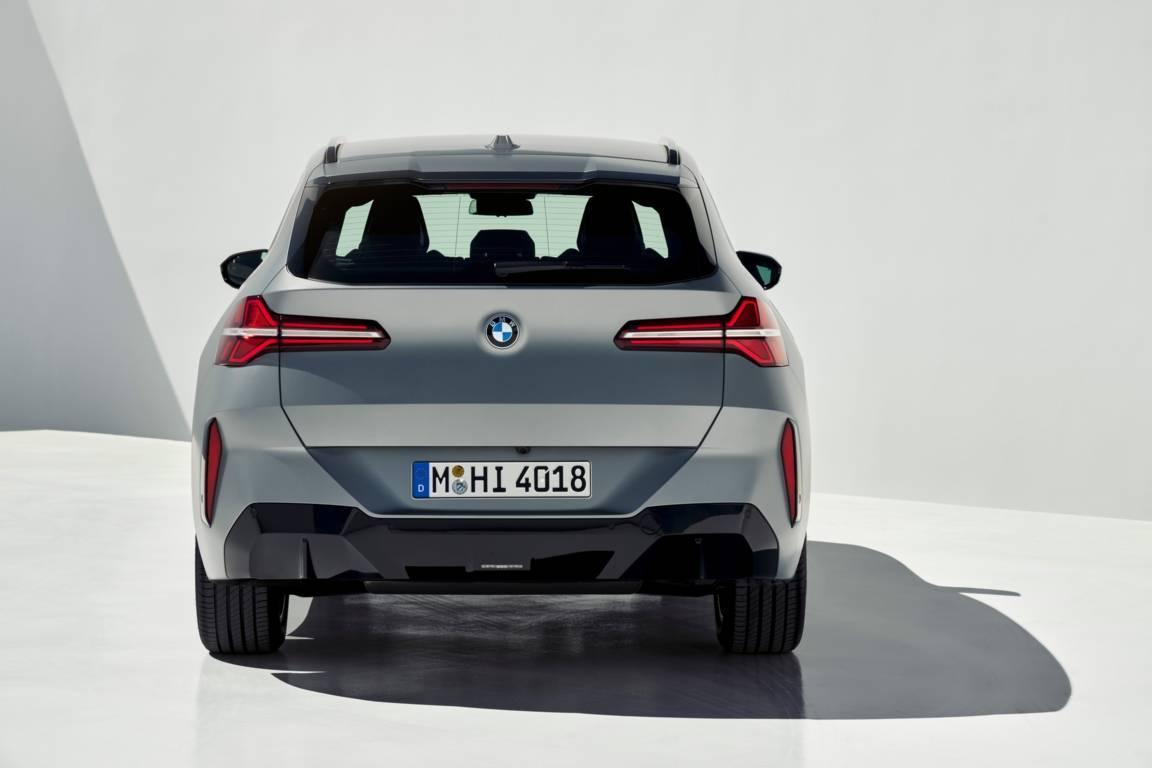

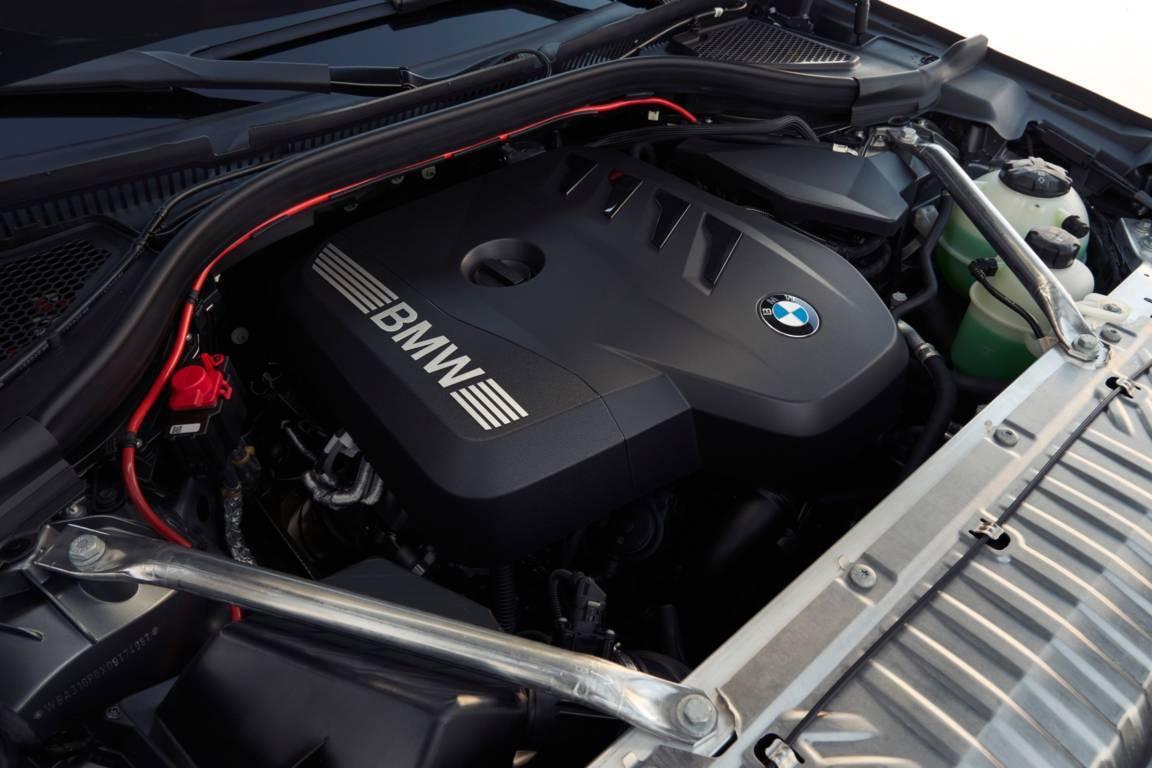
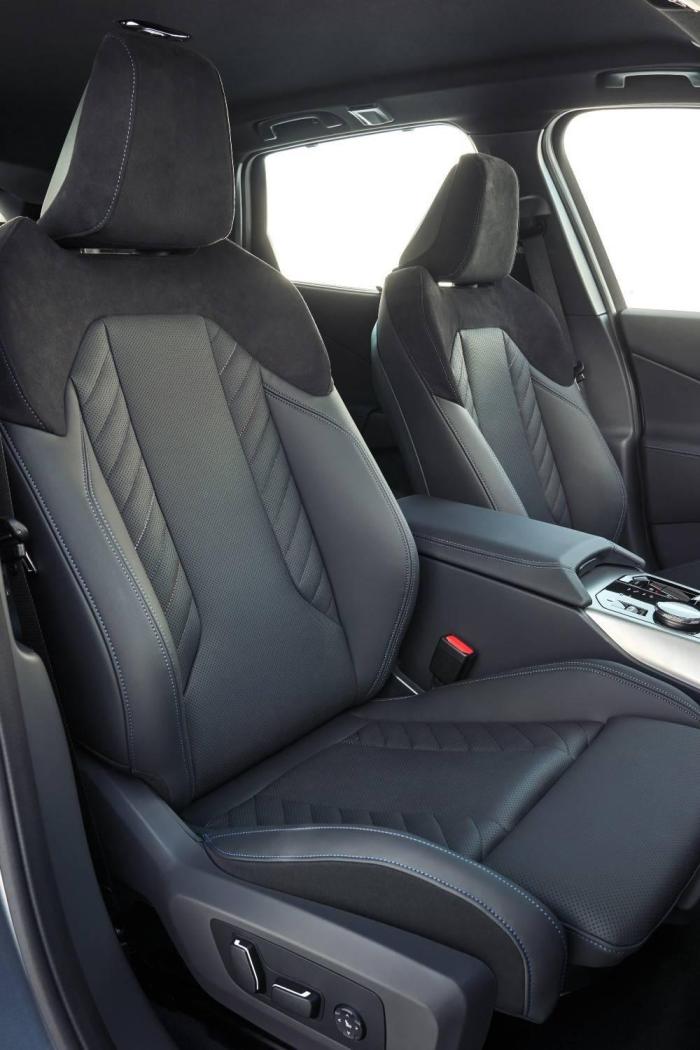

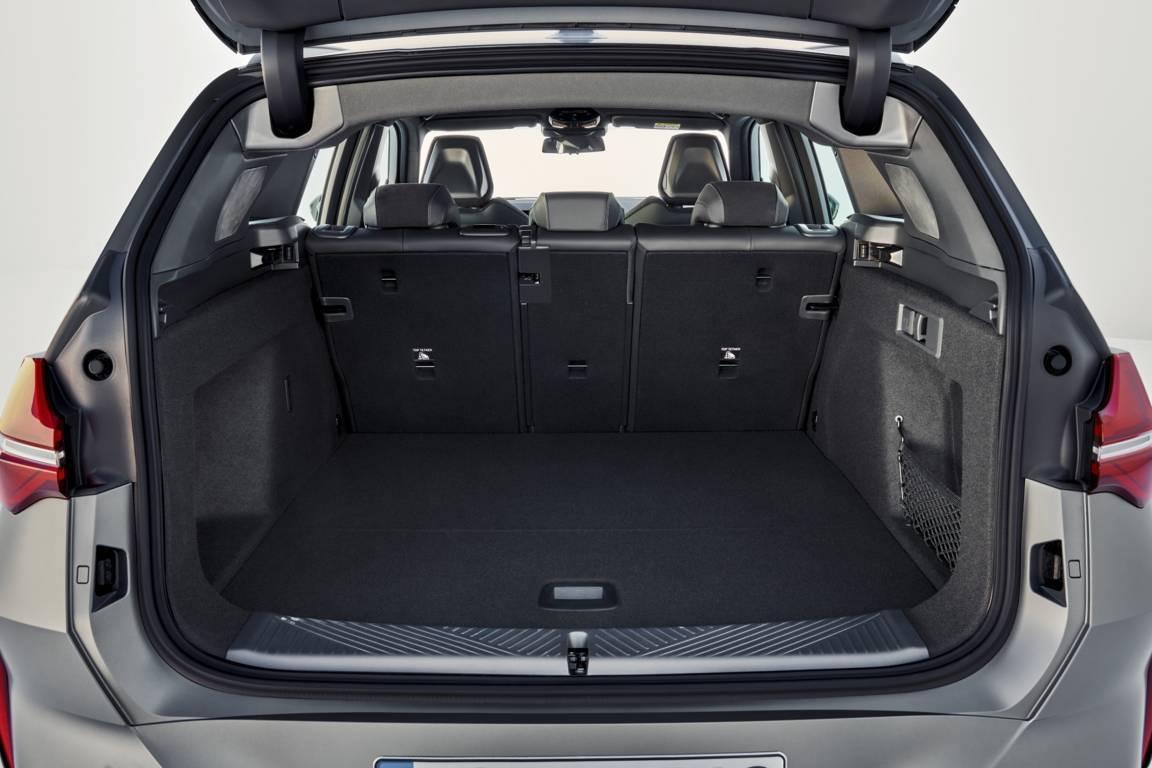
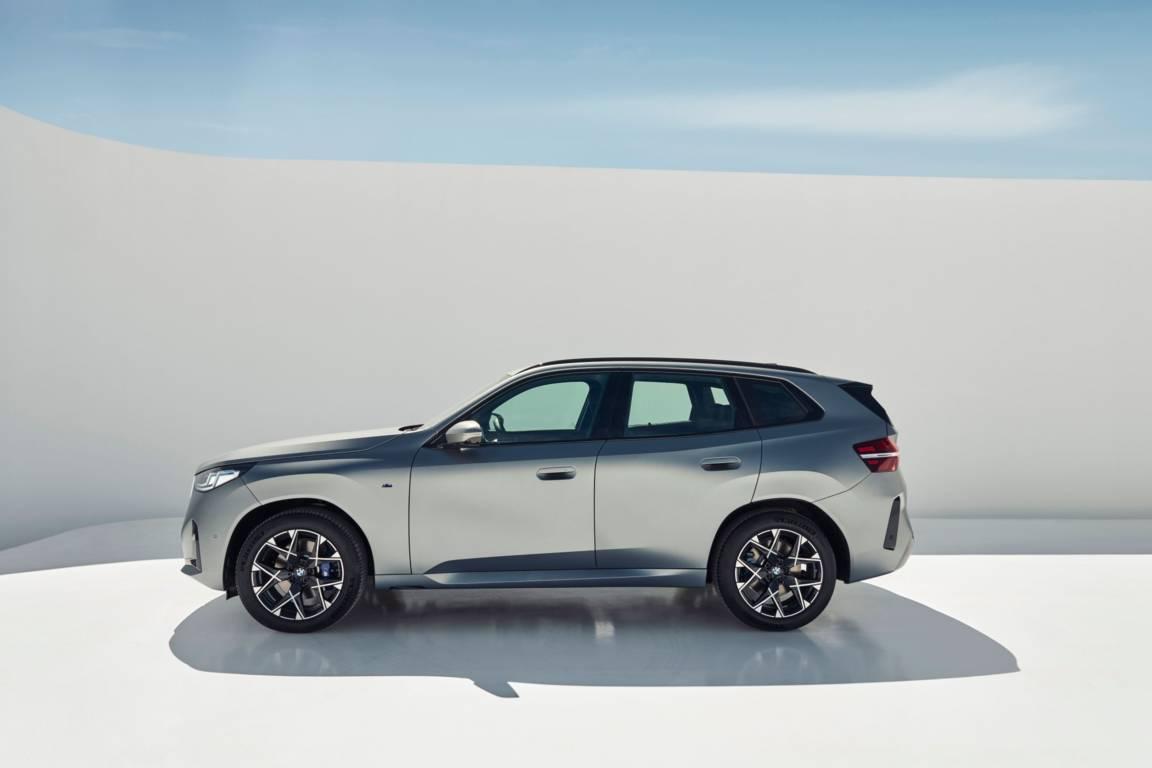
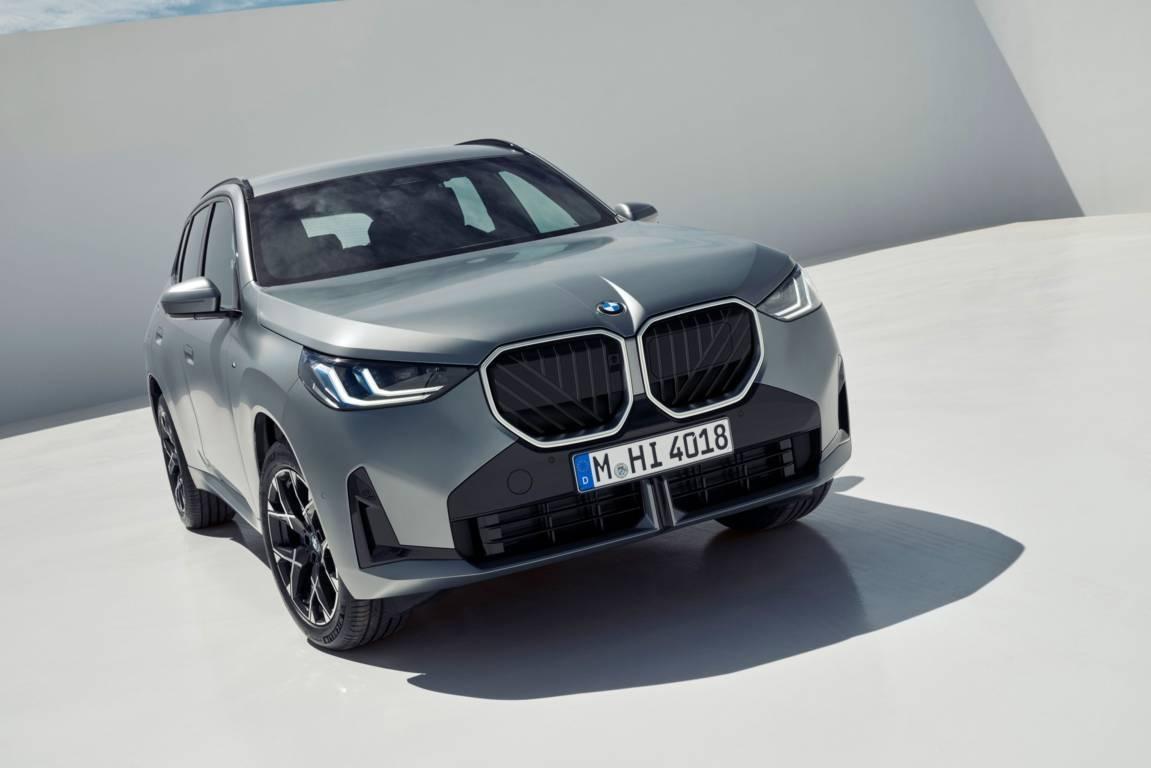


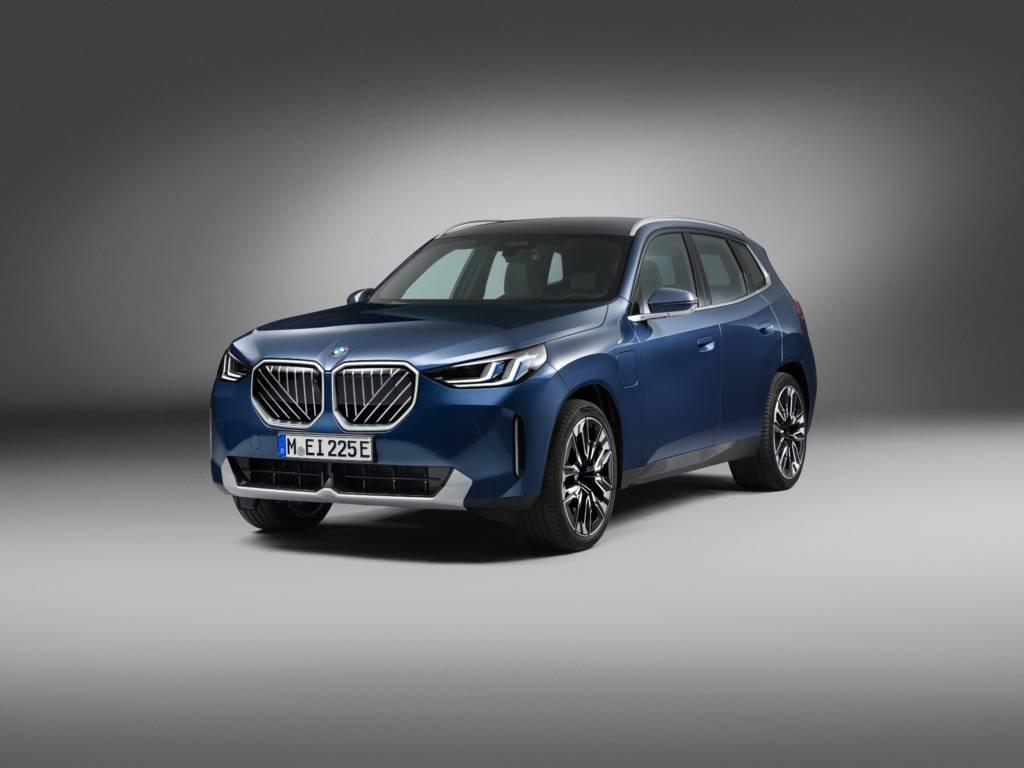
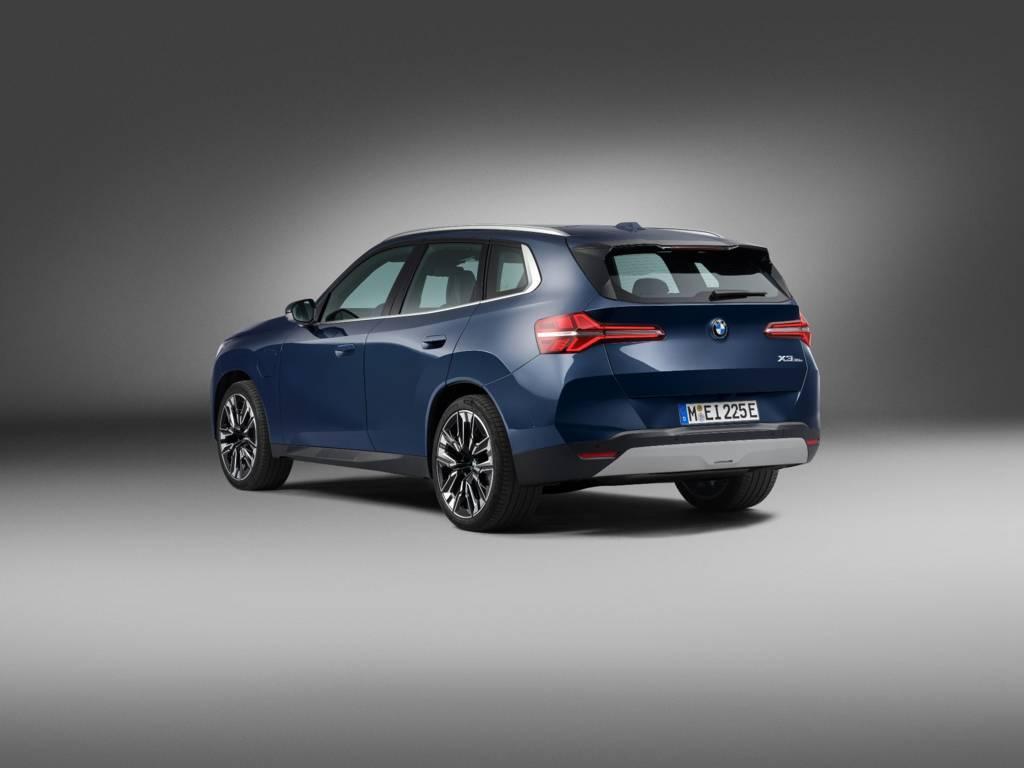
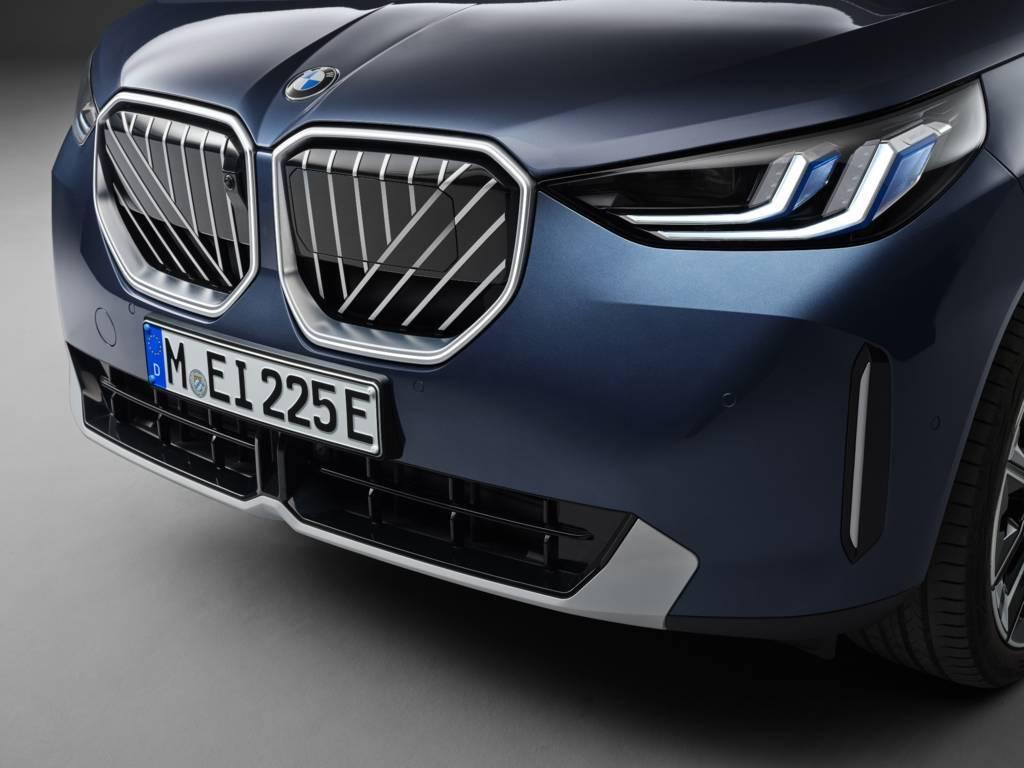
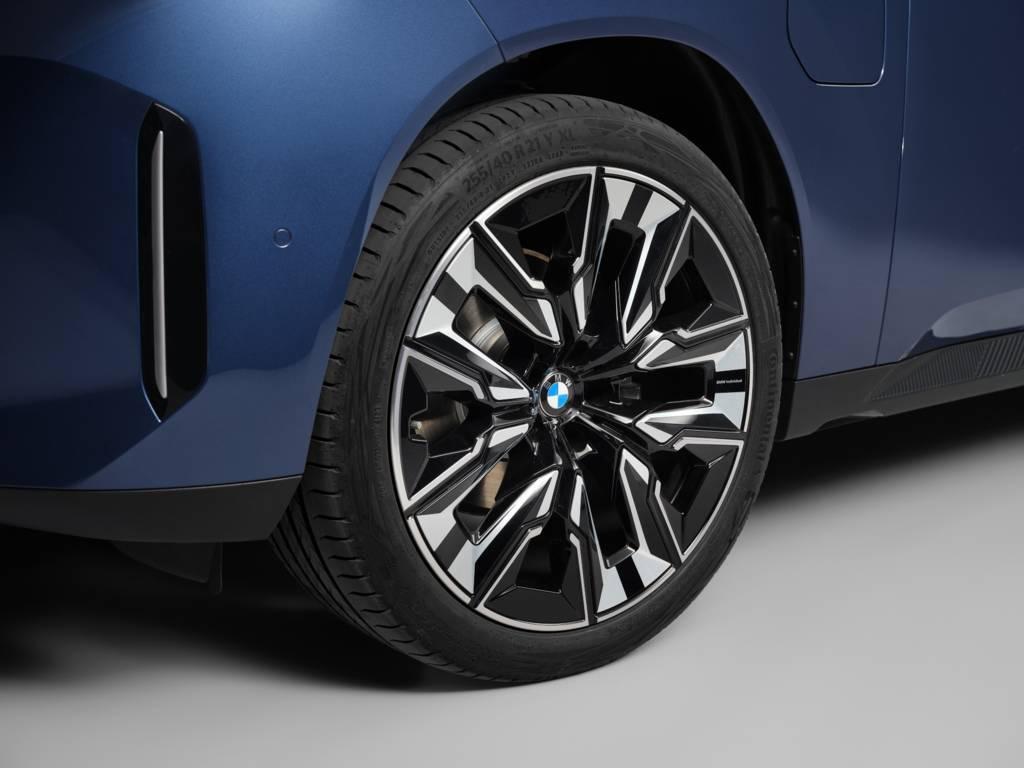


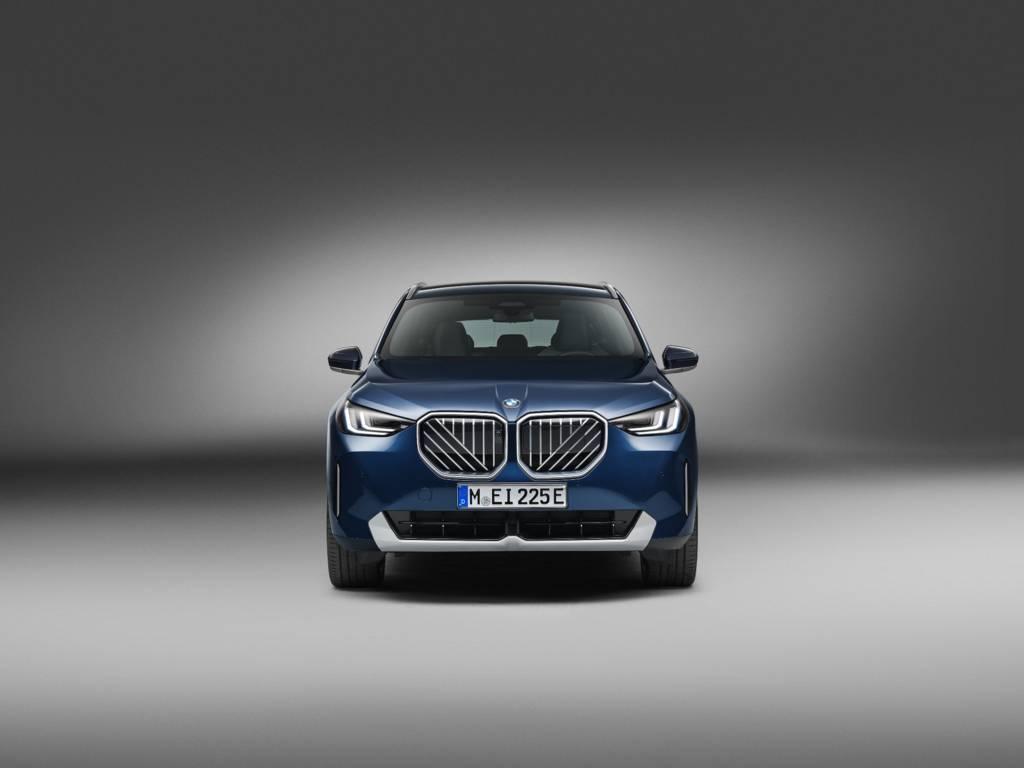


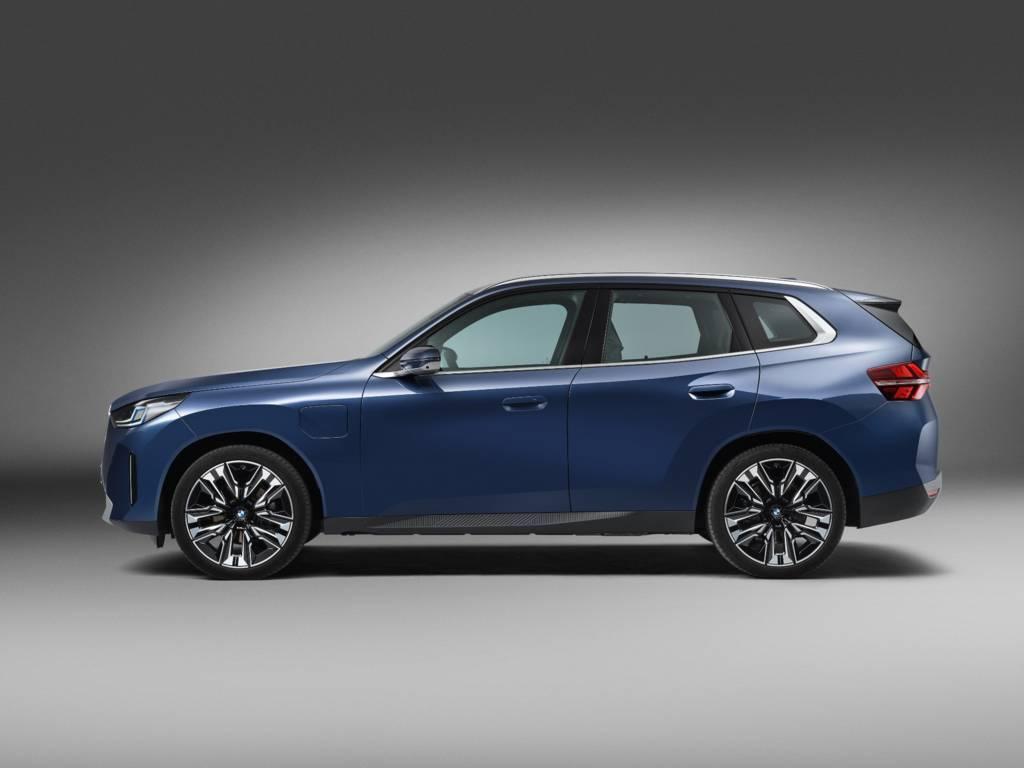
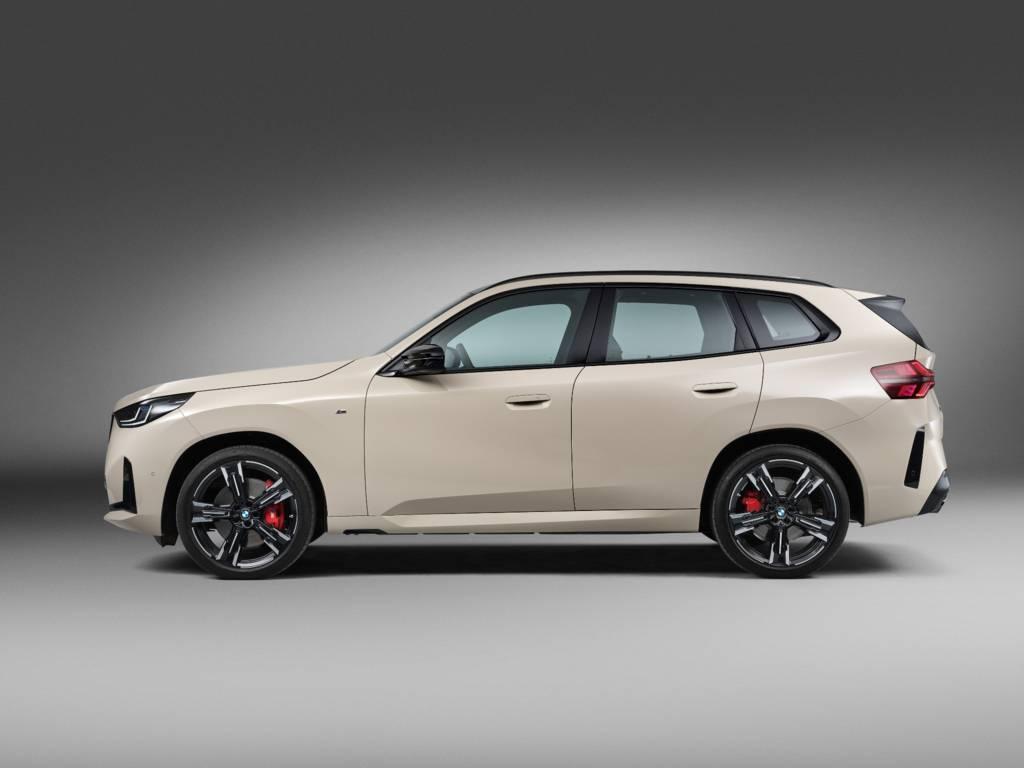

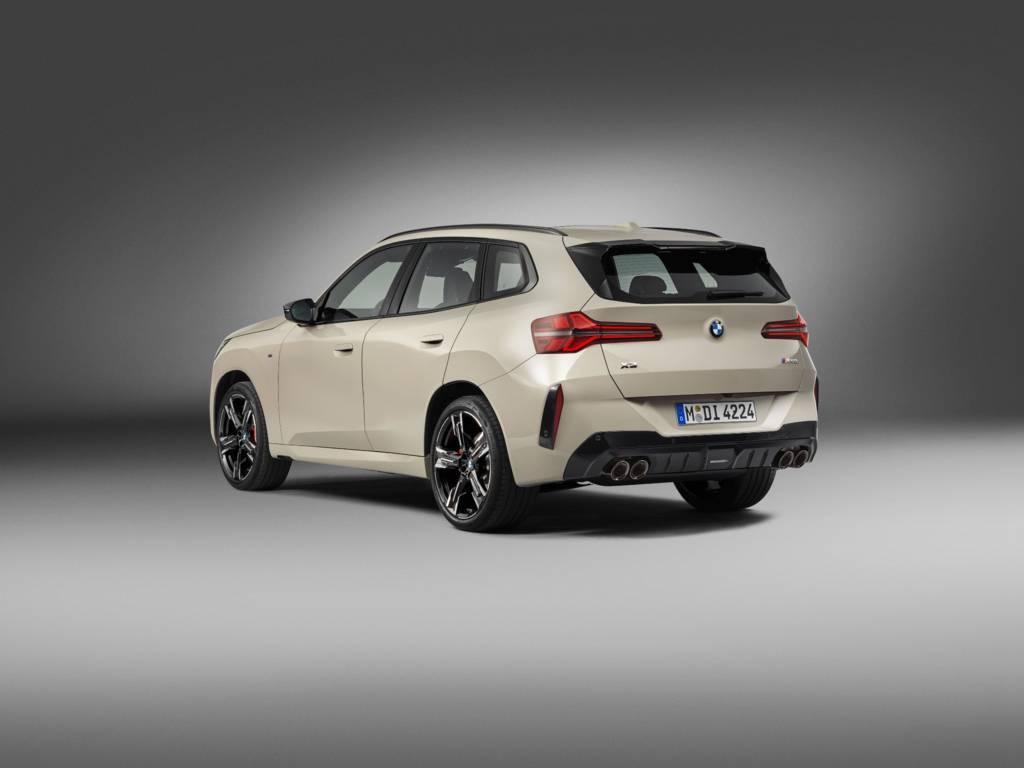


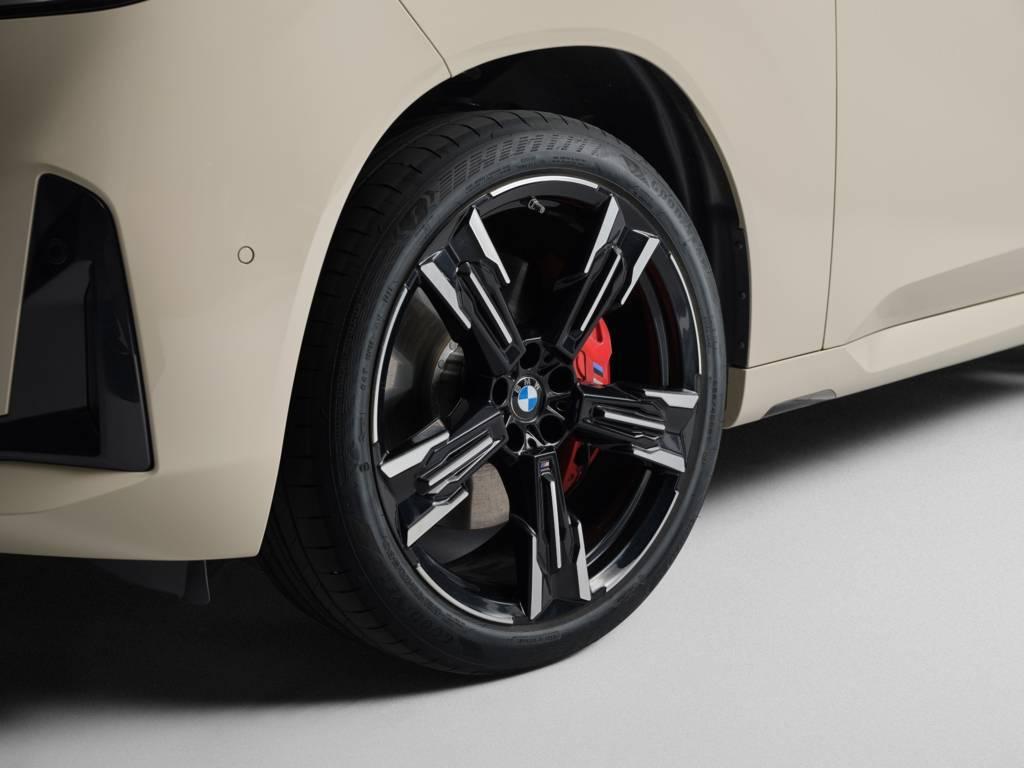

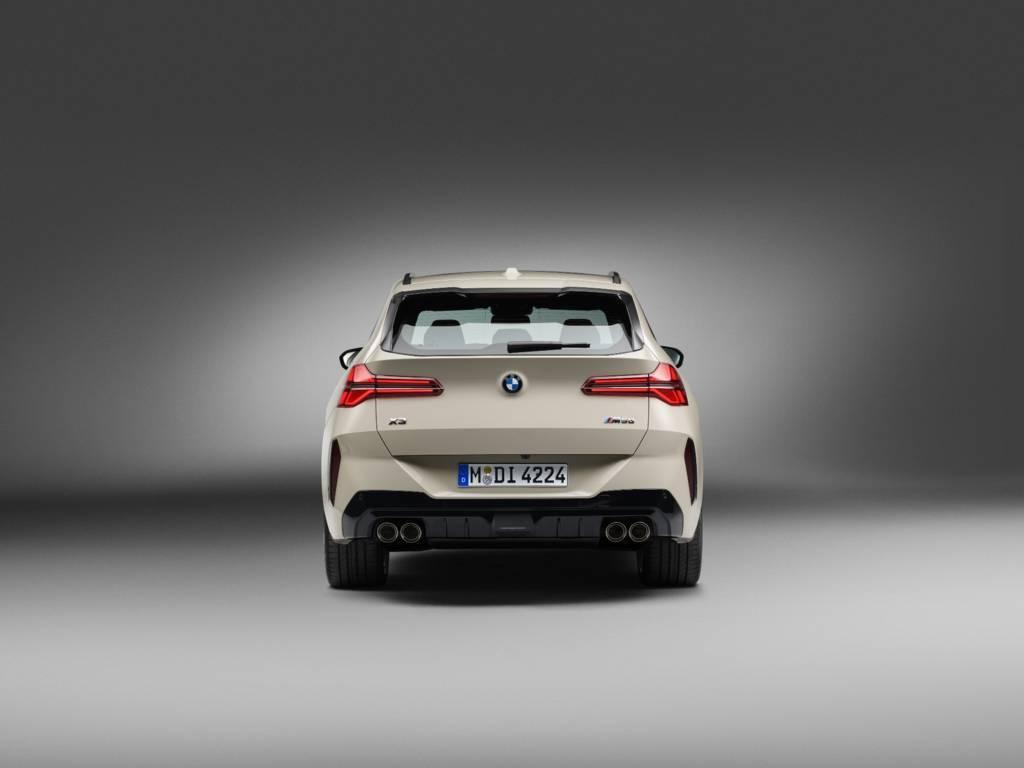
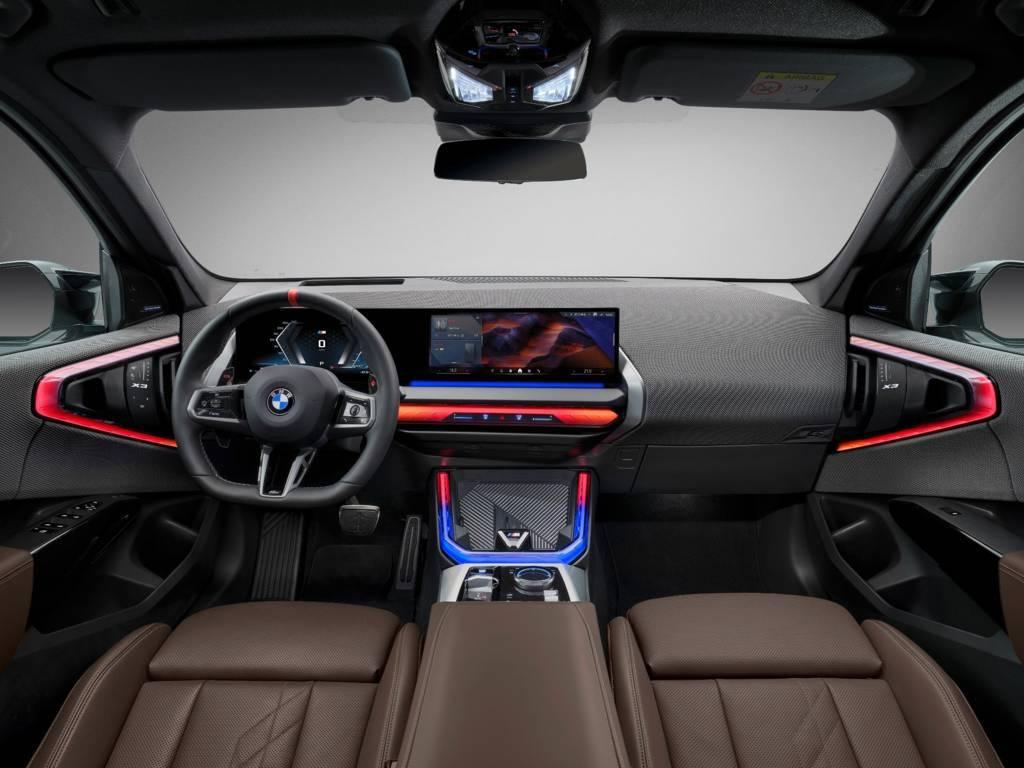

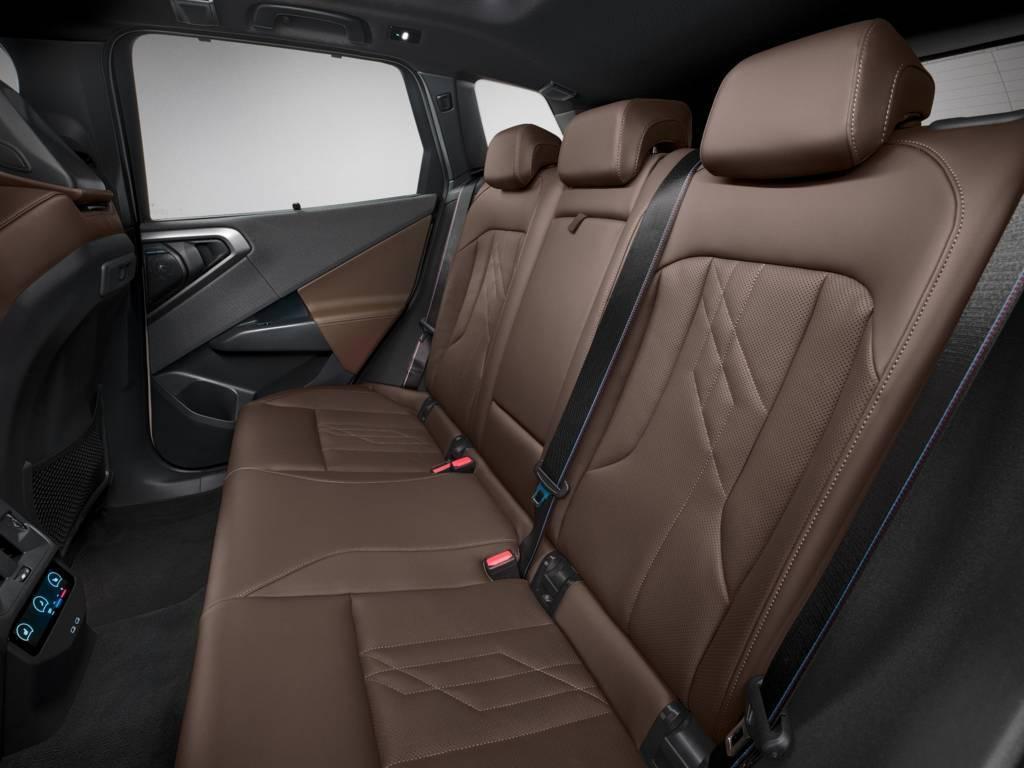
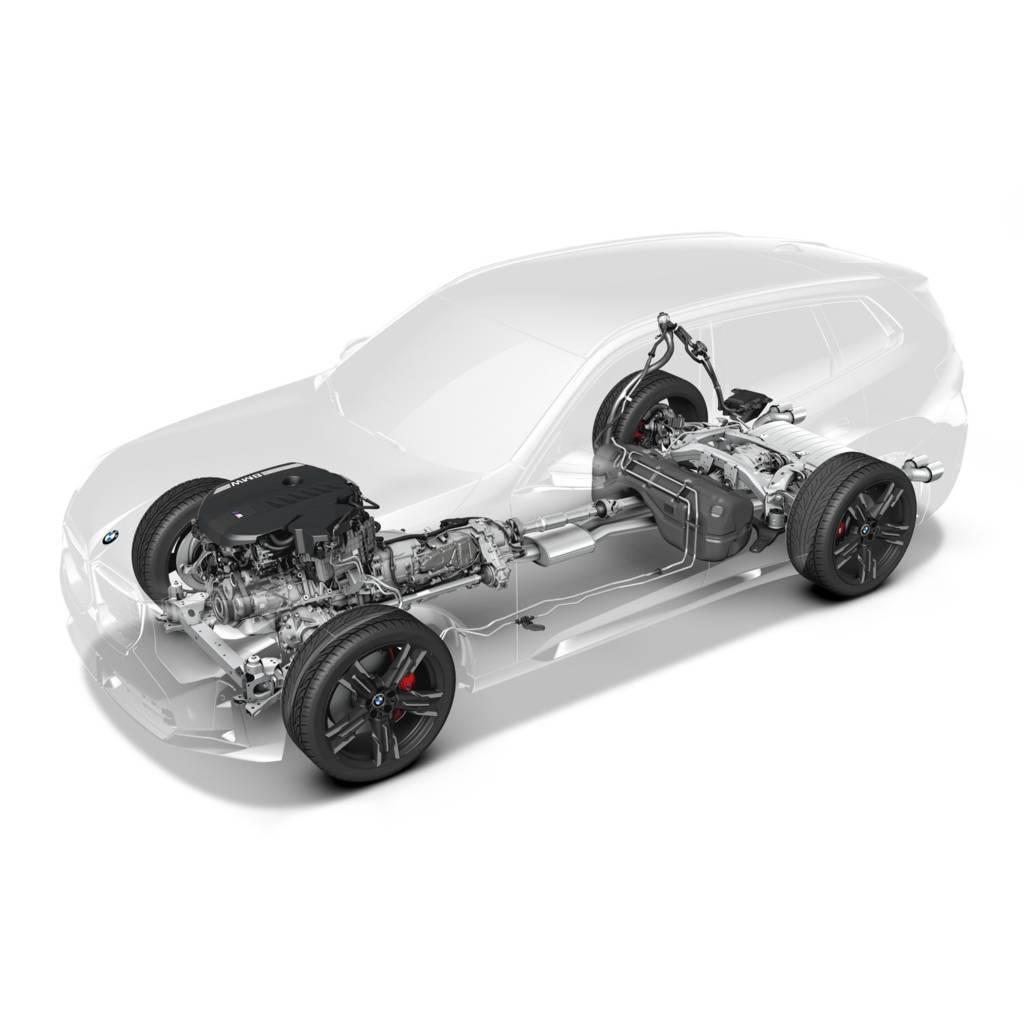

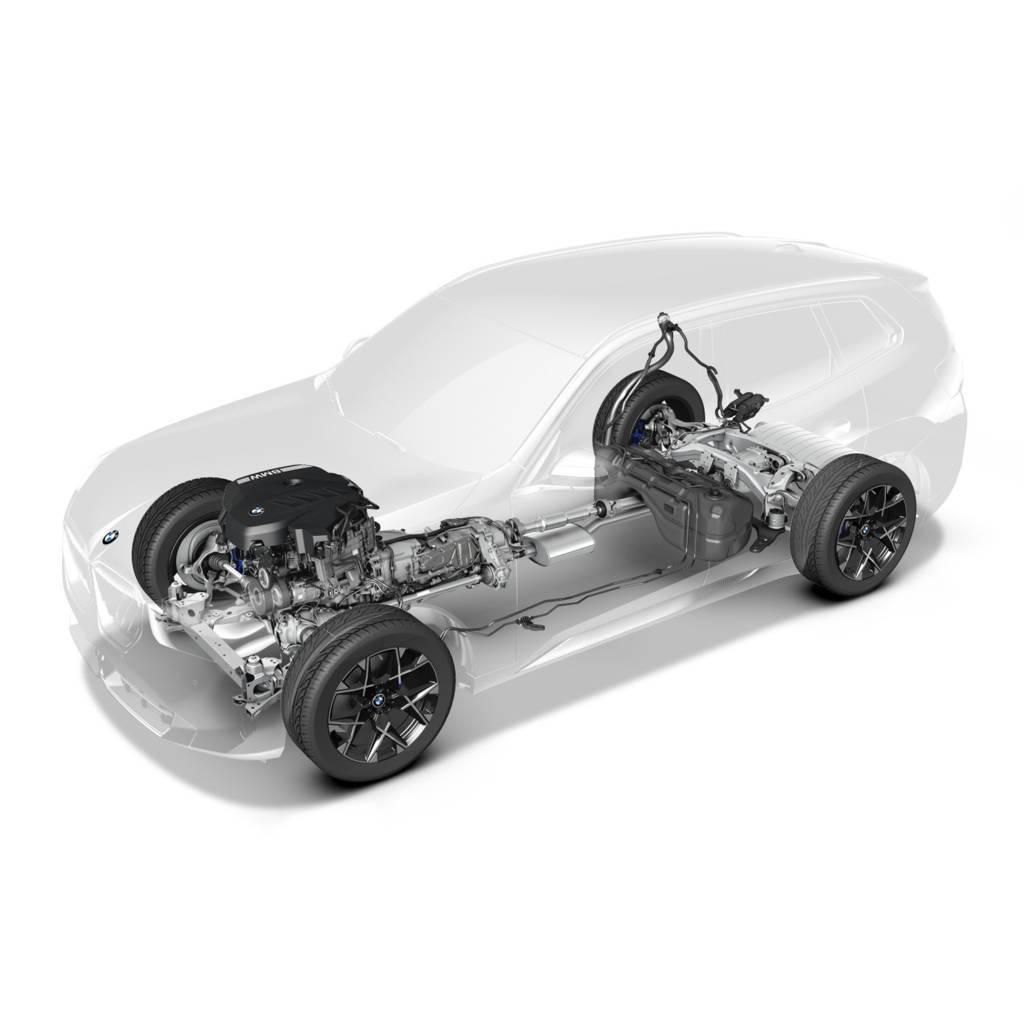
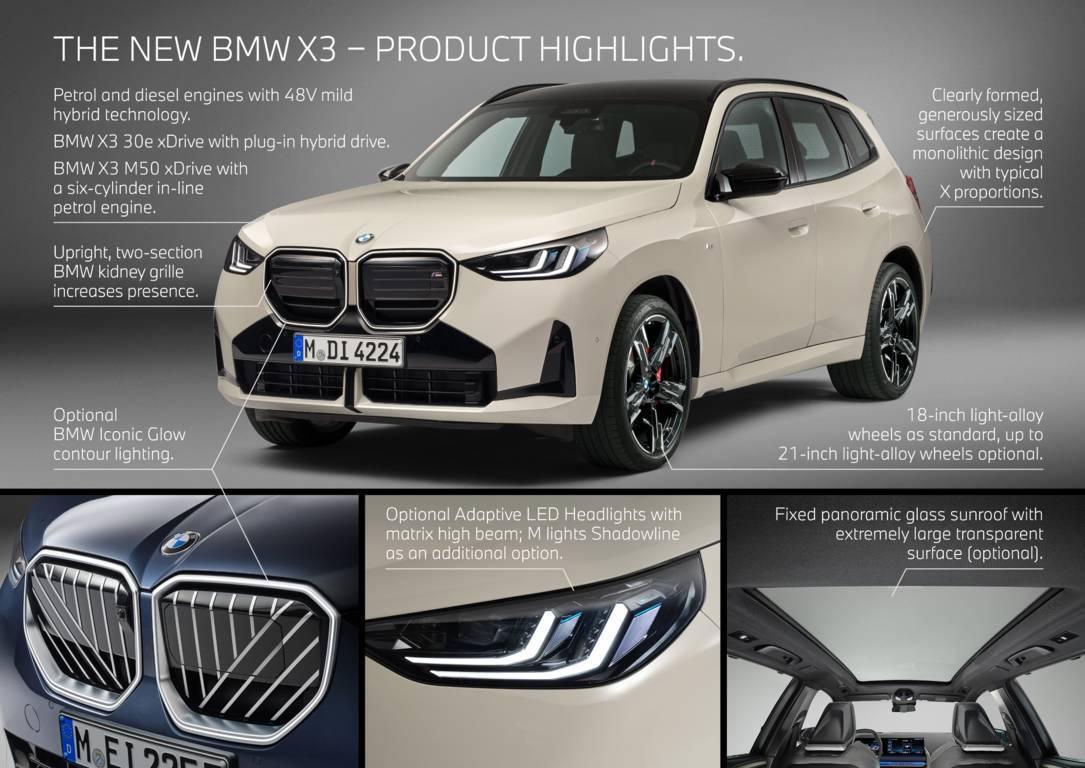

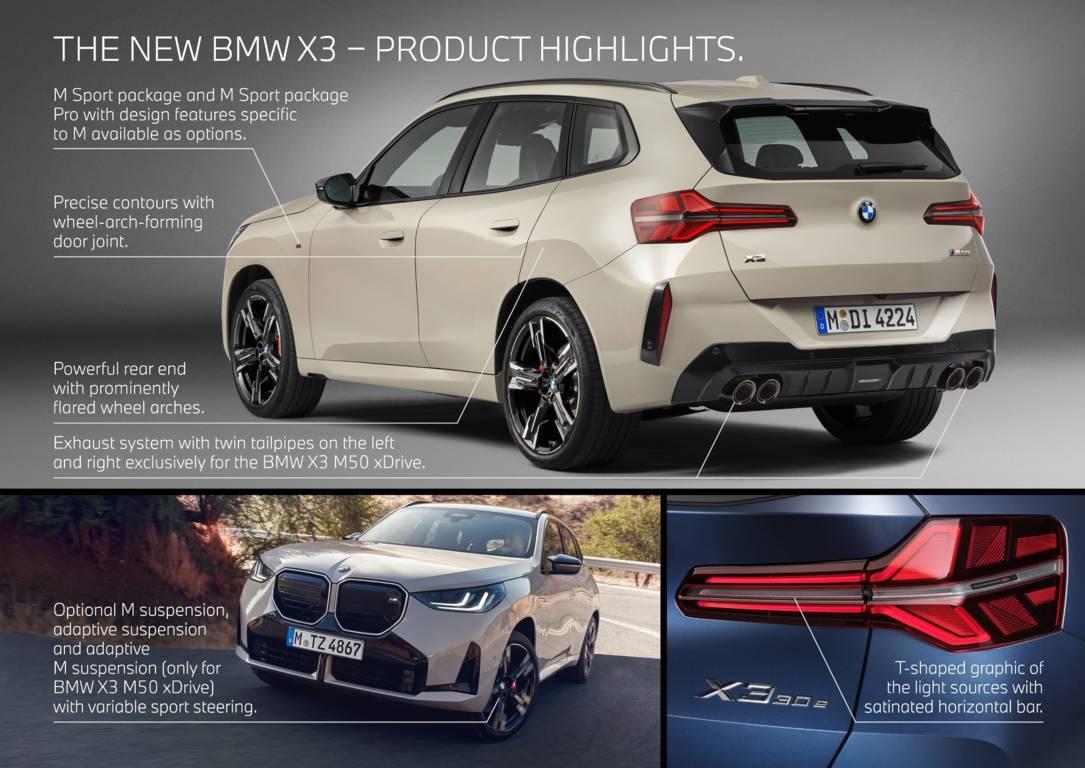 4 punti
 -
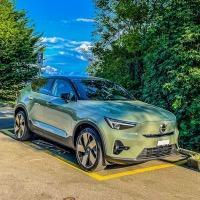
4 puntiQueste immagini con l'auto che si ricarica ed il proprietario che aspetta comodamente seduto in macchina...... si si....4 punti
-
4 punti
-
4 punti
-
I marchi hanno nel DNA delle persone che ci lavorano la più grande forza ed identità, costruita in decenni di storia ed esperienza. Questi stanno facendo tabula rasa, disintegrando valore intangibile come mai accaduto prima. Almeno questa è la mia percezione e la mia opinione.4 punti
-
Stellantis under Carlos the 2nd Le Cost Cutter killed a lot of engineering jobs especially at Auburn Hills.4 punti
-
4 puntiEh si, ma devi tenere di conto anche che X3 ha un volume annuale >300.000 unita, non 30.000 come Stelvio, quindi naturalmente hai piu possibilita per ammortizzare i motori differenti.4 punti
-
4 puntiParlando di motori, questa X3 è perfetta con i suoi diesel e benzina mild hybrid nonché i phev. Arriverà pure un 6 cilindri diesel hybrid. Inutile ricordare che se il prossimo Stelvio sarà solo elettrico, la quasi totalità dei clienti attuali prenderà questa X3 in seria considerazione… io incluso.4 punti
-
4 punti
-
3 puntiIl famoso Puretech made in Fiat 😂 Abbiamo la Stellantis di Schrodinger, dove il gruppo è completamente francese11!11!1!! ma quando ci sono grane su un qualcosa costruito in piena era di autonomia PSA diventa automaticamente un problema di gestione Fiat 🤣3 punti
-
3 puntiBMW è una delle poche case autonome rimaste, anche se non fa tutta la gamma di prodotti che incontrano i gusti europei. Va però detto, che X1, nuova X3, X5, serie 3, serie 2 e diversi prodotti della gamma M sono belle auto, contestualizzate nella loro categoria sia chiaro. Ok io sono di parte, però BMW non è tutta da buttare, vedendo cosa propongono gli altri nello stesso segmento. Detto questo, non è tutt'oro quello che luccica....e la G60 ad esempio, non riesco ancora a digerirla, al pari di X2. MA i grafici riportati da @4200blu parlando chiaro, loro hanno ragione e noi vecchi romantici delle vere BMW di fine anni '90, siamo una minoranza prossima alla totale estinzione.3 punti
-
3 punti
-
3 puntiNon è che per i Bmw N47 invece di "correttezza" volevi scrivere "presa per il culo"?3 punti
-
3 puntivogliamo parlare della correttezza della bmw? 🙄 Perché per avere un po' di correttezza li ho dovuti portare in giudizio (problema motore n47)3 punti
-
3 punti3 punti3 puntiNon è trovare difetti, è essere obiettivi. Si sta facendo passare per game-changer una roba che, secondo me, in questo momento non lo è, visto e considerato il posizionamento di mercato che gli verrà dato. Siamo su un forum, esprimiamo opinioni, funziona così.3 punti3 punti3 punti3 puntialtre bavaresi che mi riportano a momenti in cui la BMW era davvero "speciale".
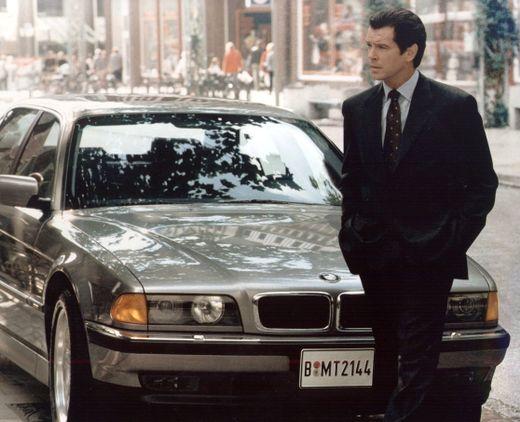
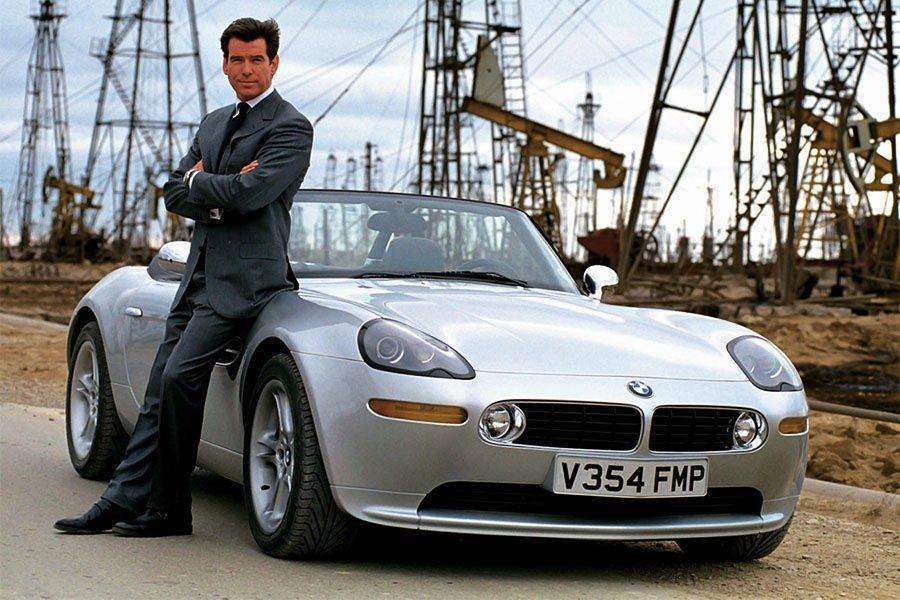
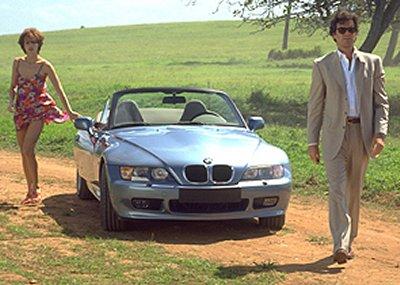 3 punti3 puntiVa ricordato il lamento di Giugiaro (che avevo riportato qualche tempo fa da qualche parte, forse proprio qui) riguardo la 19: egli sottolineava come i francesi fossero arrivati a chiedergli di disegnare un'auto... come la volevano fare loro. Curiosando sulla pagina, ho notato questa foto del posteriore R25 praticamente definitivo: sbaglio o là in fondo almeno una di quelle proposte per Supercinque, quella con i fascioni e i cerchi stile Fuego, non l'abbiamo mai vista?
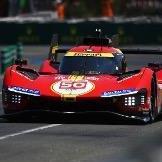
.thumb.jpg.31b5ee986457500e8655f059cfeb319b.jpg) 3 punti3 puntiHai avuto modo di guardare i listini di C3? Sembri voler criticare a prescindere.3 puntiIo per adesso non disperderei energie, c'è un mondiale di F1 che ci aspetta da 17 anni 😢3 punti3 puntiLeggo "premium" nella discussione su una Panda, e, non so perché, ma mi sanguinano gli occhi3 puntiRicapitolando, Porsche piagnucola perché la Ferrari si è nascosta prima della gara, Toyota si lamenta per la penalità a Pier Guidi troppo leggera, BMW si indigna perché Kubica andava come minimo fucilato. Capisco che saper perdere non è facile ed è molto più facile stravincere per anni correndo da soli, ma trattandosi di Case gloriose con pedigree chilometrico mi sarei aspettato un minimo di fair play in più. Molto deludenti. Spero che la Ferrari vinca anche il campionato, così magari ci fanno l’abitudine.3 punti2 punti2 puntiC'è da dire che l'agonia è partita dagli ultimi anni di FCA. Il rimandare di continuo la sostituzione di modelli chiave in quel mercato come cherokee,300c, Durango, charger/challenger è stata la potenziale condanna per quei brand. Diamine anche il lancio di modelli di sicuro successo come il G. Cherokee o il Wagoneer sono stati un'agonia per la troppa attesa. STLA semplicemente non sta apportando i dovuti correttivi, che è un problema ancora più grave visto che gli usa per redditività sono il loro primo mercato...2 puntiConcordo e stan perdendo clienti non stop da 4 anni. Le novità solo Bev interessano agli americani come agli italiani (cioè per niente). Wagoneer, Recon, Challenger… per non parlare dei V8.2 punti2 puntipare che dopo quattro mesi, la mia sia in produzione... vi farò un bel resoconto fotografico2 punti2 puntiMah… se non tirano fuori la Veloce sulla ibrida Q4, tutto quel lavoro per 4 vendite in croce mi sembra proprio inutile. Ne piazzeranno 200 km0 nei concessionari e li resteranno a prendere polvere. La lezione della 500e Abarth non gli è bastata.2 punticonfermato che sarà una macchina, che avrà almeno due ruote e uno specchietto, e che probabilmente sarà anche rossa.2 punti2 punti2 punti2 puntiDalle info delle 13.00 : - 1.2 100cv Manuale : <20k€ - 1.2 ibrida automatica 136cv. - elettrica 113cv, 44kWh, 300km <28k€ 7 posti in opzione a 850€. un elettrica con un autonomia di 400km arriverà nel 20252 punti2 puntiBe ma ha il 1.2 puretec, motore che darà sicuramente tante soddisfazioni ai meccanici in tutta italia2 punti2 punti2 puntiPer chi ha "dubbi" sul perché di una plancia così...l'idea è arrivare con il primo LCI a questa plancia con il Panoramic Vision. Addio cruscotto.2 punti2 punticon il motore della rs6 sarebbe definitiva.... sicuramente per me l'audi più bella degli ultimi 15 anni2 puntial mio concessionario alfa hanno chiesto di fare ulteriori spese "di arredi ed esterni" (e già ne aveva fatte alcune anni fa) più 130.000€ di pezzi di ricambio "obbligatori" e 2 auto sostitutive (tonale presumibilmente). Lui ha detto che a fine anno li sfancula. Ha detto di non essersi mai trovato così male come in questi ultimi anni. In più gli avrebbero dato la peugeot (ma doveva comprare tutto il necessario,software ecc a sue spese) Io gli ho detto scherzando ch eè stato un folle...con tutti i 1.2 a "bagno maria" ch eci sono ,avrebbe l'officina sempr epiena a mio avviso non stanno lavorando bene in Stellantis sotto questo aspetto. Anzi fatico a trovare un aspetto dove hanno lavorato bene. (forse la panda se non la prezzano come una mini)2 puntiIn Francia massacrano sedi e squadre … almeno su questo aspetto non è che ce l’hanno con Italia o Germania o USA, segano tutto il possibile al di là delle bandiere.2 punti2 puntia me da una sensazione di forte simpatia e freschezza. Non capisco perchè debba dare una sensazione premium una macchina la cui filosofia è stata sempre e solo quella di piacere a tutti e dare un'idea di spensieratezza e divertimento alla portata di tutti. Ricordi lo spot della panda con la musica di Cecchetto Gioca Jouer? A me è venuto in mente appena l'ho vista.2 puntiridurre il cuneo fiscale, il costo dell'energia, le tasse per rilanciare la produzione italiana invece no?2 puntiLa Leaderboard è riferita all'orario Roma/GMT+02:00
3 punti3 puntiHai avuto modo di guardare i listini di C3? Sembri voler criticare a prescindere.3 puntiIo per adesso non disperderei energie, c'è un mondiale di F1 che ci aspetta da 17 anni 😢3 punti3 puntiLeggo "premium" nella discussione su una Panda, e, non so perché, ma mi sanguinano gli occhi3 puntiRicapitolando, Porsche piagnucola perché la Ferrari si è nascosta prima della gara, Toyota si lamenta per la penalità a Pier Guidi troppo leggera, BMW si indigna perché Kubica andava come minimo fucilato. Capisco che saper perdere non è facile ed è molto più facile stravincere per anni correndo da soli, ma trattandosi di Case gloriose con pedigree chilometrico mi sarei aspettato un minimo di fair play in più. Molto deludenti. Spero che la Ferrari vinca anche il campionato, così magari ci fanno l’abitudine.3 punti2 punti2 puntiC'è da dire che l'agonia è partita dagli ultimi anni di FCA. Il rimandare di continuo la sostituzione di modelli chiave in quel mercato come cherokee,300c, Durango, charger/challenger è stata la potenziale condanna per quei brand. Diamine anche il lancio di modelli di sicuro successo come il G. Cherokee o il Wagoneer sono stati un'agonia per la troppa attesa. STLA semplicemente non sta apportando i dovuti correttivi, che è un problema ancora più grave visto che gli usa per redditività sono il loro primo mercato...2 puntiConcordo e stan perdendo clienti non stop da 4 anni. Le novità solo Bev interessano agli americani come agli italiani (cioè per niente). Wagoneer, Recon, Challenger… per non parlare dei V8.2 punti2 puntipare che dopo quattro mesi, la mia sia in produzione... vi farò un bel resoconto fotografico2 punti2 puntiMah… se non tirano fuori la Veloce sulla ibrida Q4, tutto quel lavoro per 4 vendite in croce mi sembra proprio inutile. Ne piazzeranno 200 km0 nei concessionari e li resteranno a prendere polvere. La lezione della 500e Abarth non gli è bastata.2 punticonfermato che sarà una macchina, che avrà almeno due ruote e uno specchietto, e che probabilmente sarà anche rossa.2 punti2 punti2 punti2 puntiDalle info delle 13.00 : - 1.2 100cv Manuale : <20k€ - 1.2 ibrida automatica 136cv. - elettrica 113cv, 44kWh, 300km <28k€ 7 posti in opzione a 850€. un elettrica con un autonomia di 400km arriverà nel 20252 punti2 puntiBe ma ha il 1.2 puretec, motore che darà sicuramente tante soddisfazioni ai meccanici in tutta italia2 punti2 punti2 puntiPer chi ha "dubbi" sul perché di una plancia così...l'idea è arrivare con il primo LCI a questa plancia con il Panoramic Vision. Addio cruscotto.2 punti2 punticon il motore della rs6 sarebbe definitiva.... sicuramente per me l'audi più bella degli ultimi 15 anni2 puntial mio concessionario alfa hanno chiesto di fare ulteriori spese "di arredi ed esterni" (e già ne aveva fatte alcune anni fa) più 130.000€ di pezzi di ricambio "obbligatori" e 2 auto sostitutive (tonale presumibilmente). Lui ha detto che a fine anno li sfancula. Ha detto di non essersi mai trovato così male come in questi ultimi anni. In più gli avrebbero dato la peugeot (ma doveva comprare tutto il necessario,software ecc a sue spese) Io gli ho detto scherzando ch eè stato un folle...con tutti i 1.2 a "bagno maria" ch eci sono ,avrebbe l'officina sempr epiena a mio avviso non stanno lavorando bene in Stellantis sotto questo aspetto. Anzi fatico a trovare un aspetto dove hanno lavorato bene. (forse la panda se non la prezzano come una mini)2 puntiIn Francia massacrano sedi e squadre … almeno su questo aspetto non è che ce l’hanno con Italia o Germania o USA, segano tutto il possibile al di là delle bandiere.2 punti2 puntia me da una sensazione di forte simpatia e freschezza. Non capisco perchè debba dare una sensazione premium una macchina la cui filosofia è stata sempre e solo quella di piacere a tutti e dare un'idea di spensieratezza e divertimento alla portata di tutti. Ricordi lo spot della panda con la musica di Cecchetto Gioca Jouer? A me è venuto in mente appena l'ho vista.2 puntiridurre il cuneo fiscale, il costo dell'energia, le tasse per rilanciare la produzione italiana invece no?2 puntiLa Leaderboard è riferita all'orario Roma/GMT+02:00





(1)(1).thumb.png.635c059adfaa3a2ca27f86ab608b04ba.png)













.jpg.e7d8ac5678f62f1140561918e6b7615e.jpg)
.jpg.5c752e65d0b5aa42ebc5e8c4a471fd2d.jpg)
.jpg.ec82b89bdd31a3c0d6e0eec956232e61.jpg)
.jpg.af4e052e997190bc1ee9dfbaaafea469.jpg)
.jpg.0ed97effcf6d04737eff8d028a633094.jpg)
.jpg.f237d98b5e9762913cc3015b9e4726ab.jpg)
.thumb.jpg.46228d717c405acd43b45b79fddce6a4.jpg)
.jpg.7ee22f8208ff7a85b56955669339c64a.jpg)











Account
Navigation
Cerca
Configure browser push notifications
Chrome (Android)
- Tap the lock icon next to the address bar.
- Tap Permissions → Notifications.
- Adjust your preference.
Chrome (Desktop)
- Click the padlock icon in the address bar.
- Select Site settings.
- Find Notifications and adjust your preference.
Safari (iOS 16.4+)
- Ensure the site is installed via Add to Home Screen.
- Open Settings App → Notifications.
- Find your app name and adjust your preference.
Safari (macOS)
- Go to Safari → Preferences.
- Click the Websites tab.
- Select Notifications in the sidebar.
- Find this website and adjust your preference.
Edge (Android)
- Tap the lock icon next to the address bar.
- Tap Permissions.
- Find Notifications and adjust your preference.
Edge (Desktop)
- Click the padlock icon in the address bar.
- Click Permissions for this site.
- Find Notifications and adjust your preference.
Firefox (Android)
- Go to Settings → Site permissions.
- Tap Notifications.
- Find this site in the list and adjust your preference.
Firefox (Desktop)
- Open Firefox Settings.
- Search for Notifications.
- Find this site in the list and adjust your preference.