




Classifica Utenti
Utenti più Apprezzati
(Scegli il periodo) Utenti più Apprezzati
(Storia giorno per giorno) Classifica dall'Origine
(da Marzo 2003)
(Scegli il periodo) Utenti più Apprezzati
(Storia giorno per giorno) Classifica dall'Origine
(da Marzo 2003)
-

KimKardashian
Utente Registrato26Punti14551Numero contenuti pubblicati -
Felis
Utente Registrato22Punti6270Numero contenuti pubblicati -
AlexMi
Utente Registrato16Punti9928Numero contenuti pubblicati -
gpat
Utente Registrato15Punti9133Numero contenuti pubblicati


Contenuti più Popolari
Stai visualizzando i contenuti con il più alto punteggio, pubblicati in data 07/10/24 e localizzati Tutte le aree/sezioni
-
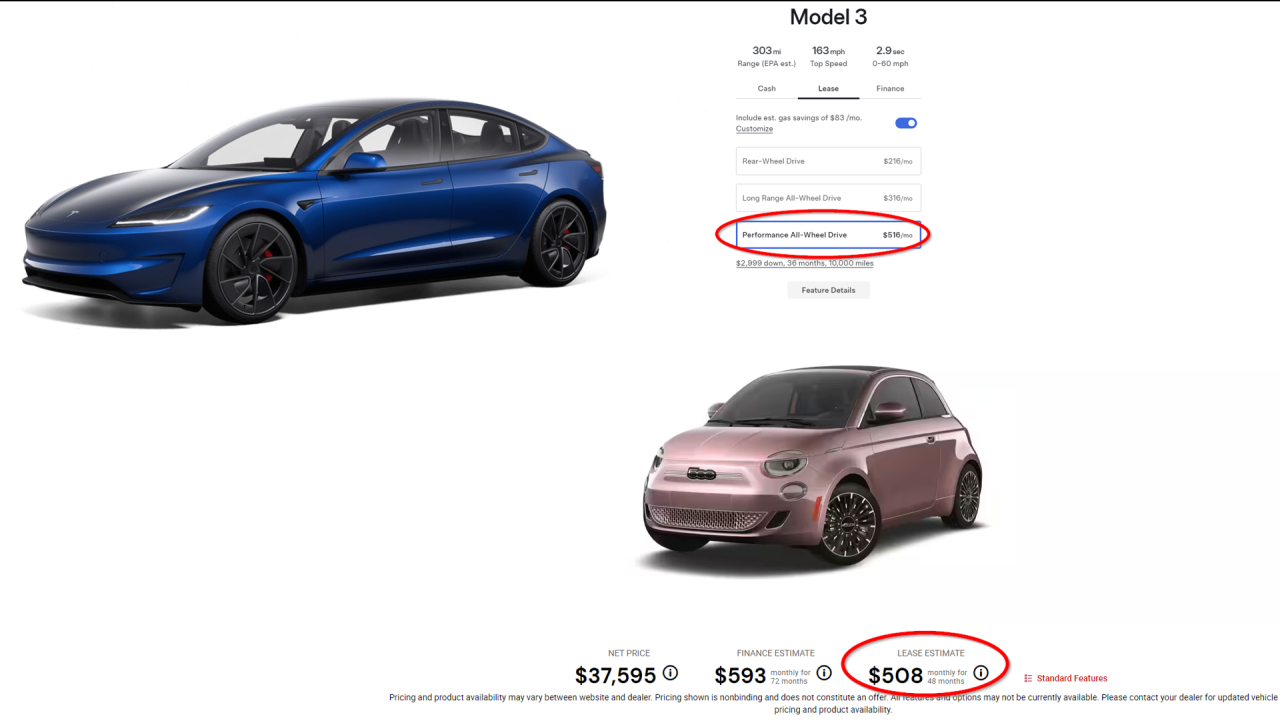
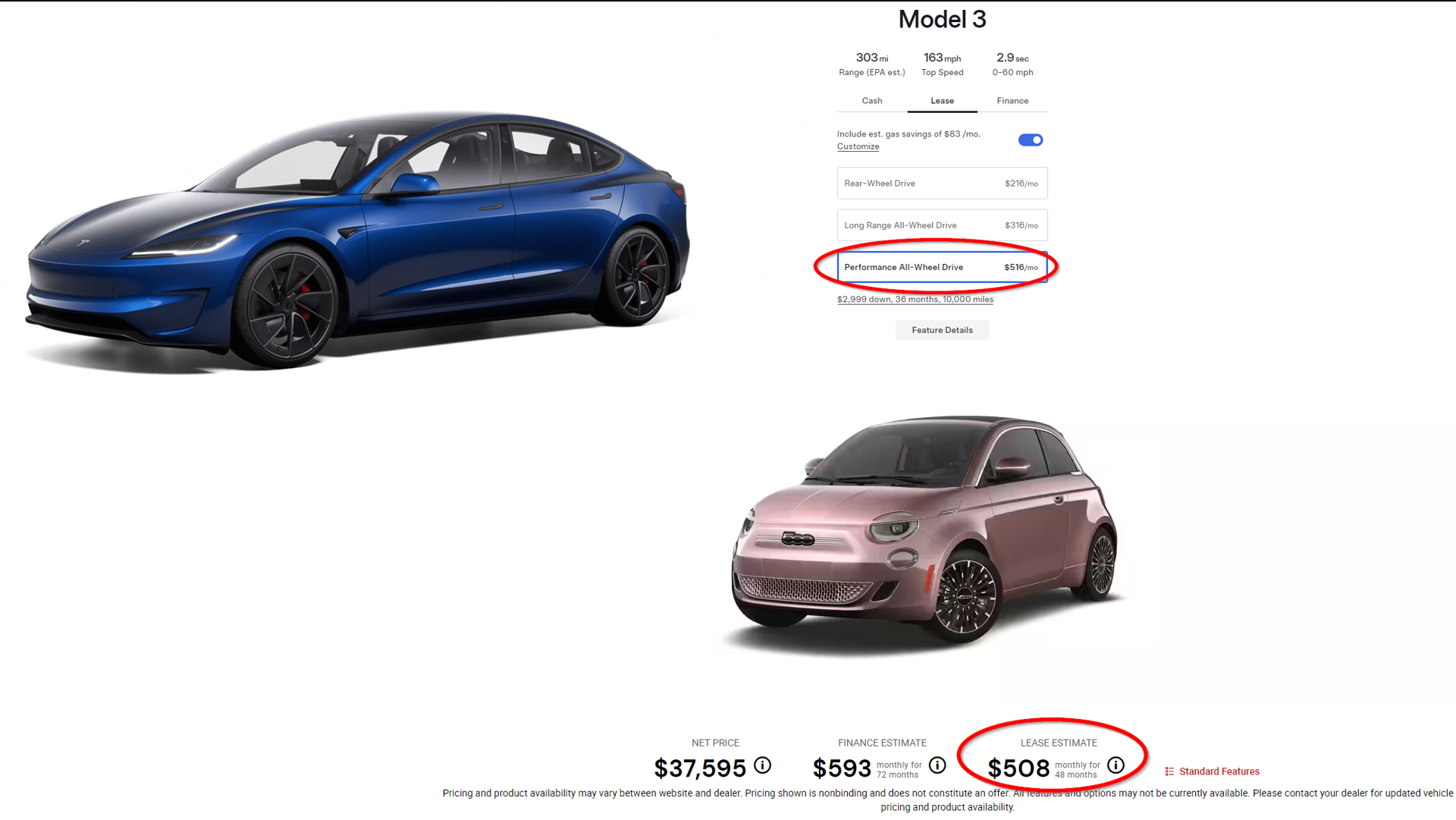
12 punti12 punti11 puntiIo però non capisco il perchè di alcune scelte...degli abbaglianti automatici, per una vettura cittadina, puoi fare a anche a meno e piuttosto metti il sedile sdoppiato. Idem per le calotte gialle con due soli colori, inutili e che avrei previsto per tutte o per nessuna. La cavolata del grigio che esce dalla già risicatissima gamma colori poi è la ciliegina sulla torta. Al netto che a me le auto grigie, bianche e nere non piacciono, e considerando che il verde è solo sulla Pandina mi rimarrebbe il blu, il giallo e il rosso. E lascia sto grigio metallizzato per il pensionato e aggiungi un azzurro, un bordeaux metallizzato, un arancione! Non sto mica dicendo di mettere il viola della versione Mamy di qualche anno fa! Quelli del marketing poi, almeno prendili con un minimo di passione per le auto. - Doveva essere Pandina quella esistente? Cavolo è sempre stato Pandino, al maschile. - La nuova doveva essere Panda anche se è lunga come una Multipla. Ok, le misure son cambiate. - Aspetta aspetta! Dobbiamo fare la cosa di Giga-Mega-Ultra Panda, e Pandina non è piaciuto! Allora marcia indietro e quella nuova diventa Grande Panda anche se sul portellone è solo PANDA e quella vecchia...Panda Classic! BAM! E in un istante torni al periodo di Punto Classic, Grande Punto e Punto EVO. - Vai sul sito e vedi che la Panda Classic viene chiamata solo Panda e su sedili e vetri riporta Pandina. Cara Fiat, ti abbiamo voluto bene e te ne vogliamo ancora, ma un minimo di rispetto in più per un'auto che tiene a galla la baracca da 40 anni potresti mettercelo. E così, aggratis e su due piedi, ti do un suggerimento anche se non ho studiato marketing: potevi fare "Panda" quella nuova e "Panda Classic" la vecchia, differenziando la versione base "Young" e quella accessoriata "Super" o "Country Club", se proprio volevi tenere l'estetica Cross. el nino11 puntio come qualcuno disse, vogliono creare i presupposti per chiudere il marchio.9 puntiYuhuuuu!! Rifanno la Croma 2!9 puntiSarà già tanto se ne vedremo 2 su 5. Mi sembra doveroso il 🤡 di rito.7 puntifatemi capire: - perpetrano sull'elettrico quando il mondo non lo vuole (ancora) - vogliono fare una coupé (che già di suo è una nicchia) elettrica (che non se la fila nessuno) - vogliono fare una compatta sportiva (elettrica) che non si filerà nessuno mmmm mi sa solo (sapendo come sono sempre stati attesi i piani dichiarati) di tante belle parole per dire qualcosa.6 punti5 puntiPraticamente la DSite sta contagiando anche Alfa Romeo… Il mercato vuole SUV grandi di lusso e sportivi e loro faranno un qualcosa di “non classificabile” 😂😂😂5 puntiLoro volevano quotarla, le agenzie davano 10 miliardi di valore. I problemi son iniziati proprio con Stellantis4 punti4 punti4 puntiRagazzi io non capisco perché anche questo topic si sta incattivendo in questa maniera. Onestamente sto facendo tesoro di ogni messaggio e lo sto prendendo come spunto per riflettere, nonostante io lavori nell'automotive e sappia abbastanza come siano fatte le singole auto. Quali sarebbero le informazioni distorte? Sto cercando di rispondere ad ogni utente cercando di rispettare ogni opinione.4 punti4 puntiFord è sempre stata coerente con il design, prima il New Edge poi il Kinetic, adesso si è praticamente persa… È più originale una Mondeo del 2007 che questo scempio4 punti...ma questo e davvero sorpredente con questi condizioni in un paese dove quasi 100% delle vendite sono in leasing??????
 3 puntima al tempo la paccottiglia francese non era inclusa nel pacchetto.3 punti3 punti3 puntiAppello urgente a tutti gli amici: vi prego, non compratela!!! C'è già abbastanza bruttezza in giro, non peggioriamo ulteriormente la situazione!!! E c'è anche troppa furbizia da marketing, con tutti questi nomi più o meno gloriosi riciclati per etichettare il furgoncino di turno!!! Dio delle automobili, egregio fautore settantacinqueiano, fa' che non se ne venda neanche una!!!3 punti3 punti3 punti3 puntiCosa c'entra sta roba con la Capri? Che schifezza.... Dell'attuale mondo dell'automotive me ne frega sempre meno....3 puntiil famoso segmento E-Jet ✈️ Nella foto Imparato che controlla i primi muli del nuovo motore del futuro E-Jet 😁
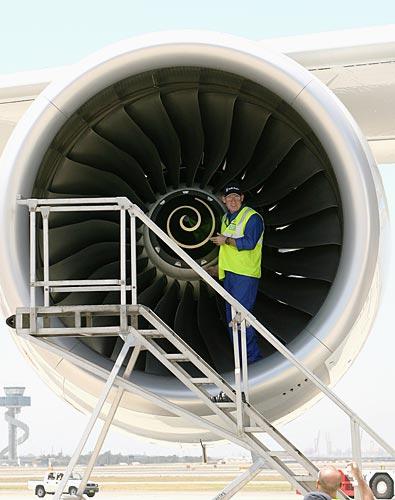 3 puntidice: "Il progetto che si chiama, tra di noi, i-get".. sarebbe qualcosa tipo "E-Jet"? Hanno sbagliato riferimento? Invece di Tesla anno preso Space-X ? 😆3 punti3 puntiQui il video delle dichiarazioni di Imparato https://stream24.ilsole24ore.com/video/motori/jean-philippe-imparato-ecco-miei-piani-alfa-romeo-modelli-arrivo-tutti-made-italy/AFMyUDeC3 puntiQuindi attendibilità pari a zero…3 puntiIn Messico arriva la nuova Dodge Attitude, altro non è che la GAC Empow cinese… Potevano rimarchiare la 408 cinese almeno era roba interna…
 3 puntiSì e rincaro la dose: a meno che non si punti alle versioni un po' di punta dei singoli modelli, non dico che uno valga l'altro, ma il prodotto è abbastanza uniformato.3 punti2 punti2 puntiactually, i don't know how the basic trim will look like, but top-spec interior is really nice there is the small Panda climbing the dashboard! and it is literally inside it
 2 puntispieghino al direttore T&E che senza utili derivanti dalle termiche le EV non trovano funding per ricerca/sviluppo etc2 punti2 puntiCerto che è meglio...Le polacchine non sono state avvallate da Stellantis, ma da Manley in chiusura dell'era FCA. Le 3 polacchine sono auto pensate per massimizzare la marginalità e condividono molte componenti, sia progettuali che a livello materiale. Panda fa invece parte dei nuovi progetti Stellantis, è costruita su una piattaforma più recente e vanta evidenti personalizzazioni anche a livello di design, materiali, soluzioni stilistiche. La prima Jeep Stellantis è stata la Wagoneer S, la prima Alfa sarà New Stelvio...lì potremo farci un'idea più chiara del posizionamento dell'altro brand italiano secondo me.2 punti2 punti2 punti2 puntiMeglio di Avenger e 600, e questo la dice lunga sulla qualità delle polacchine.2 puntiQuello che dico da qualche tempo: non basta avere i soldi per comprare FCA e diventare così una vera multinazionale. I francesi non hanno la cultura aziendale per gestire un gruppo così complesso, perché in passato hanno venduto solo in Europa, Nord Africa e qualcosina in Argentina. Non hanno né i manager capaci, né la giusta visione aziendale, perciò perderanno Nord America, Sud America e tutto il resto, tranne forse il Brasile. Forse l'unica speranza è chiamare De Meo a dirigere tutta la baracca e far risorgere l'organizzazione di FCA, ma ciò non accadrà, perché (parole di Tavares) "siamo stati (in realtà "siamo") troppo arroganti"2 punti2 punti2 puntiTemo che il tuo appello restera' inascoltato. Si vedono troppi obbrobri per strada per avere fiducia nel buon gusto delle persone2 punti2 punti2 punti2 puntiLa Fastback é un capolavoro vedendo queste immagini... Il mitico nome Capri non meritava questo obbrobrio2 puntiTutti i sei progetti deliberati su base Ncar (che ha menzionato Zipse alla conferenza annuale) sono parte della classe piccola (quindi seg-D/D+) e tutti sono altro che una Coupe. Per tutto di classe superiore su una base Ncar evoluta le tempistiche sono piu avanti e al momento non deciso finalmente.2 punti2 puntiVista nel contesto di quegli anni, ci poteva anche stare dai. Magari avrebbe fatti numeri piu importanti negli Usa che in Europa.
.thumb.jpg.d7bcd09ba5c61bd571e8ac67b78846b4.jpg)
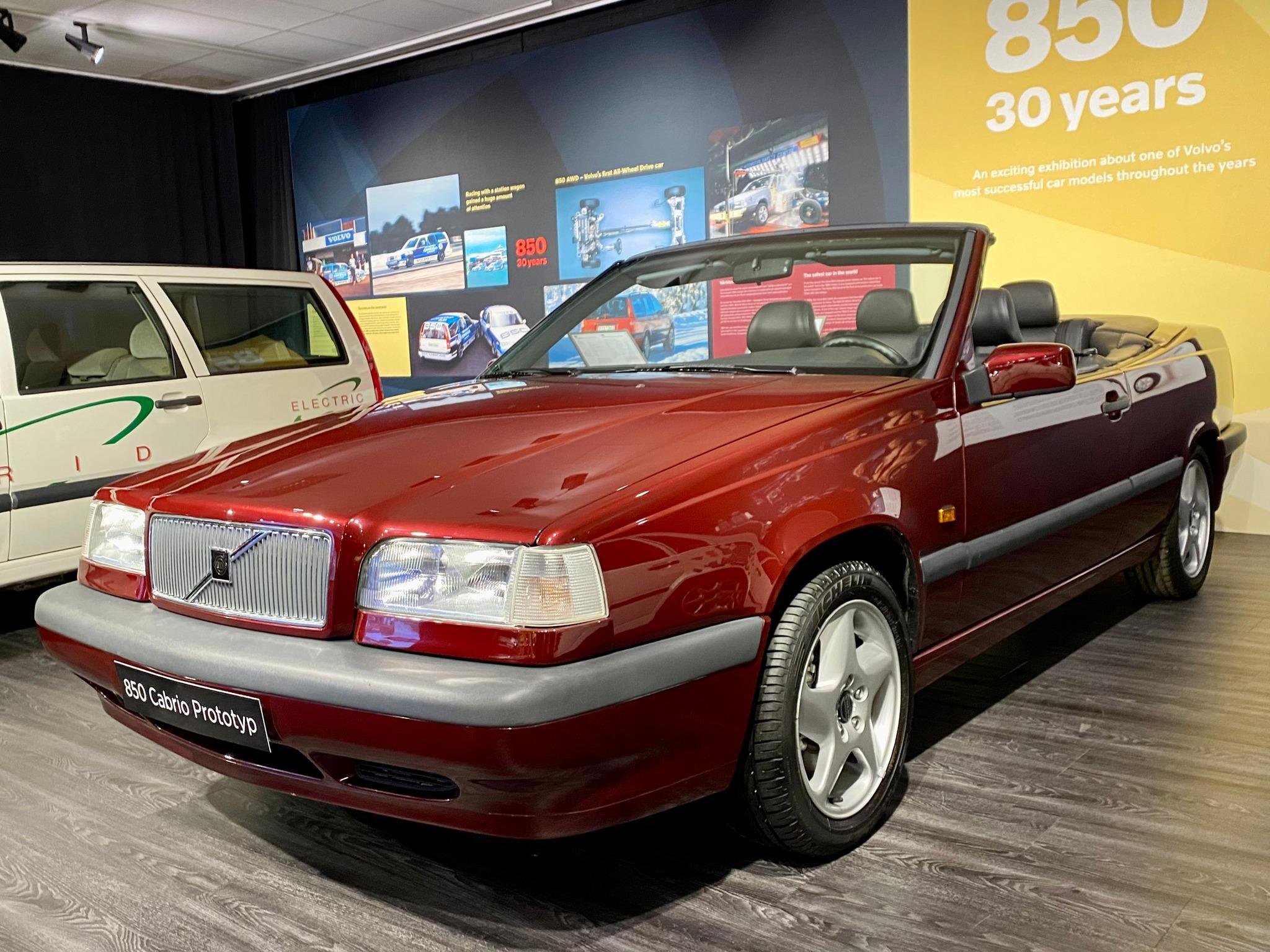
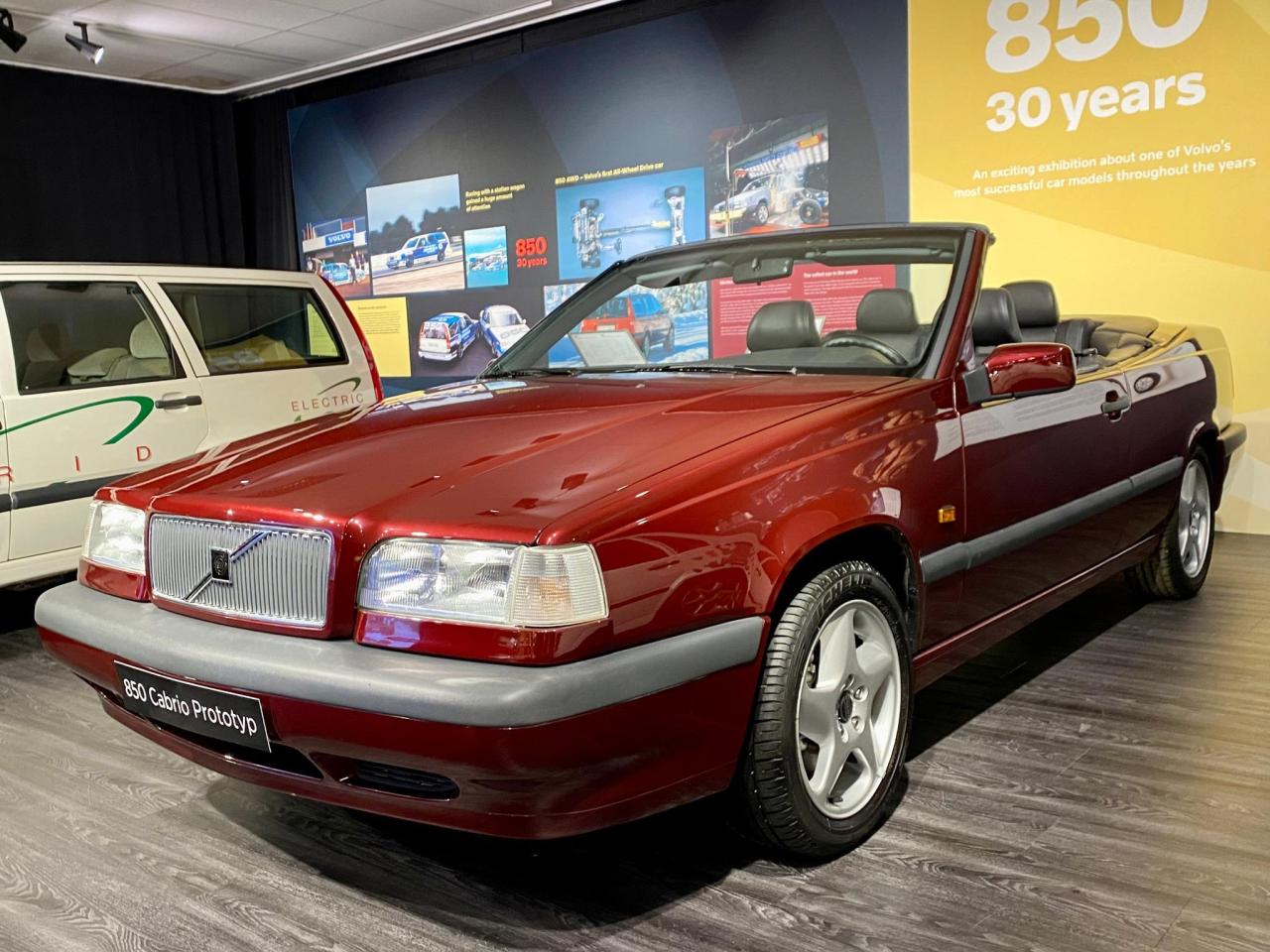 2 puntiIn effetti non ho capito molto bene quello che ha detto...in alcuni punti sbiascica mezzo italiano mezzo francese 😅 https://stream24.ilsole24ore.com/video/motori/alfa-romeo-junior-spiegata-5-minuti-un-walk-around/AFkudFeC Qui la presentazione di Junior.... con "l'innovativa" versione elettrica2 puntiTutti modelli made in Italy...con numeri che,anche se le vendite saranno ottime, saranno una goccia nel mare del vuoto cosmico degli stabilimenti italiani.2 punti2 puntiComunque i test euro NCAP sono molto severi, la dovessi comprare non mi fermerebbero questi risultati.2 punti2 puntiTempo fa avevo letto che la Omega Lotus è stato un prodotto abbastanza disconosciuto dalla GM e perfino inviso in certi mercati, tanto che in UK era marchiata esclusivamente Lotus e non Vauxhall. Infatti in quel mercato era venduta come Lotus Carlton. Credo che i retroscena che hai raccontato qui, non facciano altro che confermare quel "disconoscimento". Per me l'Omega Lotus, o Lotus Carlton, chiamatela come volete, rimane la berlina più pornografica prodotta nel suo periodo, irraggiungibile dal resto della produzione europea. Certo che gli rosicava a quelli della GM. Confrontare la "loro" Omega 3000 con la Lotus era come mettere vicine, che so, una Delta 1600GT e una Integrale 16v (e neanche evo...). Sìsì ok, la GT aveva il suo perchè come sicuramente la Omega 3000....ma le altre due erano un altro pianeta.2 puntiO, più semplicemente, ognuno dice la sua. Sarà l'autore del 3d che farà tesoro degli elementi che condivide, ignorando gli altri. Da che mondo è mondo, i forum sono così.2 punti2 punti2 puntiNon so se sia peggio Explorer o Capri Per me avrebbero dovuto fare una via di mezzo tra una Puma e una Mach-e, ovvero una Focus crossover.2 punti2 puntiThe Abarth 600 will be presented in a separate event. I think we could see at least some photos of the production version of Multipla2 punti2 puntiPiccola parentesi su Omega Lotus. Premetto che quanto vado a riportare proviene da memorie di una persona, diciamo così, al corrente dei fatti a quei tempi. Cose quindi da prendere col beneficio del dubbio. Altra premessa, potrebbe trattarsi di aneddoto già riportato in passato da altri su queste pagine e magari qualcuno arriverà scrivendomi "ma sì, ne avevamo già parlato..." Se fosse questo il caso, mi scuso, mi sono distratto. Dunque dunque, qualche tempo fa un caro amico d'infanzia ha rilevato, qui in valle, una stazione di servizio con annessa officina. I precedenti proprietari, addetto alla stazione e meccanico, rimasero lì alcune settimane a seguire l'avviamento del nuovo titolare, e una di quelle sere passate tutti insieme dopo la chiusura dell'esercizio venne fuori questa blaterata su Lotus Omega. Il meccanico infatti, non era stato sempre lì alla stazione: negli anni '80/90 era uno dei "capoccia" dell'officina del conce Opel di famiglia (che continua a tirare avanti tra macchine che non si vendono e macchine che NON SI VEDONO ) A quei tempi egli non era solo il meccanico di una tutto sommato piccola realtà Opel di una piccola valle del Nord Italia. Si interessava di corse e faceva parte, in qualche modo, dell'entourage Opel sportivo (rally e bla bla). Partecipava, seguiva, viaggiava, conosceva, faceva assistenze, vedeva gente faceva cose Quella sera, quando arrivammo a parlare di Omega Lotus, egli esordì con due parole: "Che spreco!" "Che spreco in che senso, scusa?..." Così mi raccontò ciò che aveva appreso ai tempi, frequentando i "dietro le quinte" Opel: la nascita di una Omega Lotus non era da immaginare come quella, per fare un esempio, di una Thema 8.32. Cioè, una scocca destinata a diventare una 8.32 che usciva dalla linea standard e veniva trasferita su quella dedicata alla "Thema-Ferrari": insomma un procedimento organizzato in modo da salvare più tempo e risorse possibili nel costruire una variante di un modello "stock". A quanto pare, tutte le Omega Lotus erano già nate una volta, come delle Omega (o Carlton, come preferite) 3000. Vetture finite al 100% che andavano a farsi sventrare e trasformare in tutte le parti necessarie. Usando la logica, verrebbe da pensare che una volta messo giù il piano di battaglia, si fosse arrivati a dire "bene: prendiamo dalla linea della Omega la scocca in un punto in cui è già... sufficientemente costruita e non c'è troppo da cambiare, e la portiamo dove bisogna portarla". Invece sembra che non fosse così... e se queste memorie fossero basate su fatti realmente accaduti beh.... che dire... sarebbero parte della follia di quegli anni meravigliosi.2 punti2 punti2 punti2 puntiLa prima in grigio è uno studio antesignano alla coeva 850 sedan 4 porte da realizzare, con più affinità alla Sorella 900 (a sua volta evoluta dalla 700), cosa che poi ha portato alla versione in rosso della 850. C'è da dire che poi abbiamo avuto quel capolavoro della C70 MKI che è qualcosa di straordinario ancora oggi per pulizie e raffinatezza di linee esterne.2 puntiLa Leaderboard è riferita all'orario Roma/GMT+02:00





.thumb.jpg.726bf5d0d4b007b828d2604dadfbc750.jpg)














(1)(1).thumb.png.635c059adfaa3a2ca27f86ab608b04ba.png)




.jpg.c718c0e1e8993fbc353ca41a6cacd591.jpg)





.thumb.jpg.46228d717c405acd43b45b79fddce6a4.jpg)


Account
Navigation
Cerca
Configure browser push notifications
Chrome (Android)
- Tap the lock icon next to the address bar.
- Tap Permissions → Notifications.
- Adjust your preference.
Chrome (Desktop)
- Click the padlock icon in the address bar.
- Select Site settings.
- Find Notifications and adjust your preference.
Safari (iOS 16.4+)
- Ensure the site is installed via Add to Home Screen.
- Open Settings App → Notifications.
- Find your app name and adjust your preference.
Safari (macOS)
- Go to Safari → Preferences.
- Click the Websites tab.
- Select Notifications in the sidebar.
- Find this website and adjust your preference.
Edge (Android)
- Tap the lock icon next to the address bar.
- Tap Permissions.
- Find Notifications and adjust your preference.
Edge (Desktop)
- Click the padlock icon in the address bar.
- Click Permissions for this site.
- Find Notifications and adjust your preference.
Firefox (Android)
- Go to Settings → Site permissions.
- Tap Notifications.
- Find this site in the list and adjust your preference.
Firefox (Desktop)
- Open Firefox Settings.
- Search for Notifications.
- Find this site in the list and adjust your preference.