




Classifica Utenti
Utenti più Apprezzati
(Scegli il periodo) Utenti più Apprezzati
(Storia giorno per giorno) Classifica dall'Origine
(da Marzo 2003)
(Scegli il periodo) Utenti più Apprezzati
(Storia giorno per giorno) Classifica dall'Origine
(da Marzo 2003)
-

MotorPassion
Reporter (Staff)22Punti13722Numero contenuti pubblicati -
xtom
Redattore19Punti9405Numero contenuti pubblicati -

YouDude
Utente Registrato16Punti1187Numero contenuti pubblicati -
Osv
Reporter (Staff)14Punti5477Numero contenuti pubblicati



(1)(1).thumb.png.635c059adfaa3a2ca27f86ab608b04ba.png)
Contenuti più Popolari
Stai visualizzando i contenuti con il più alto punteggio, pubblicati in data 06/07/23 e localizzati Tutte le aree/sezioni
-
Vi prego, per l'onore del forum spammiamo tutti "ToPa (Torino Parigi)" come proposta. Io mi sono messo avanti sotto al post di IG 😁12 punti
-
Ecco giopisca il sabato pomeriggio in centro!
 8 punti
 -
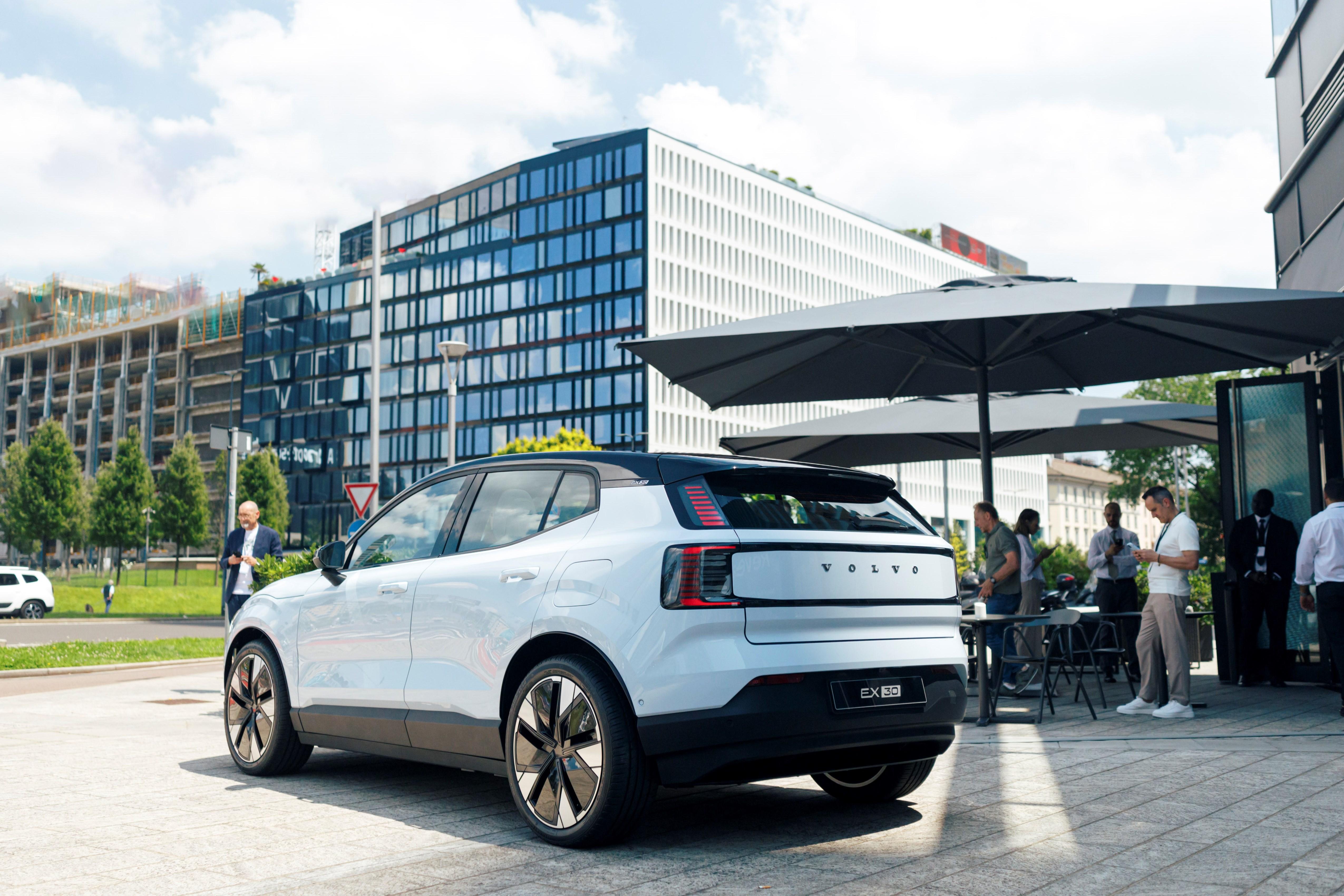
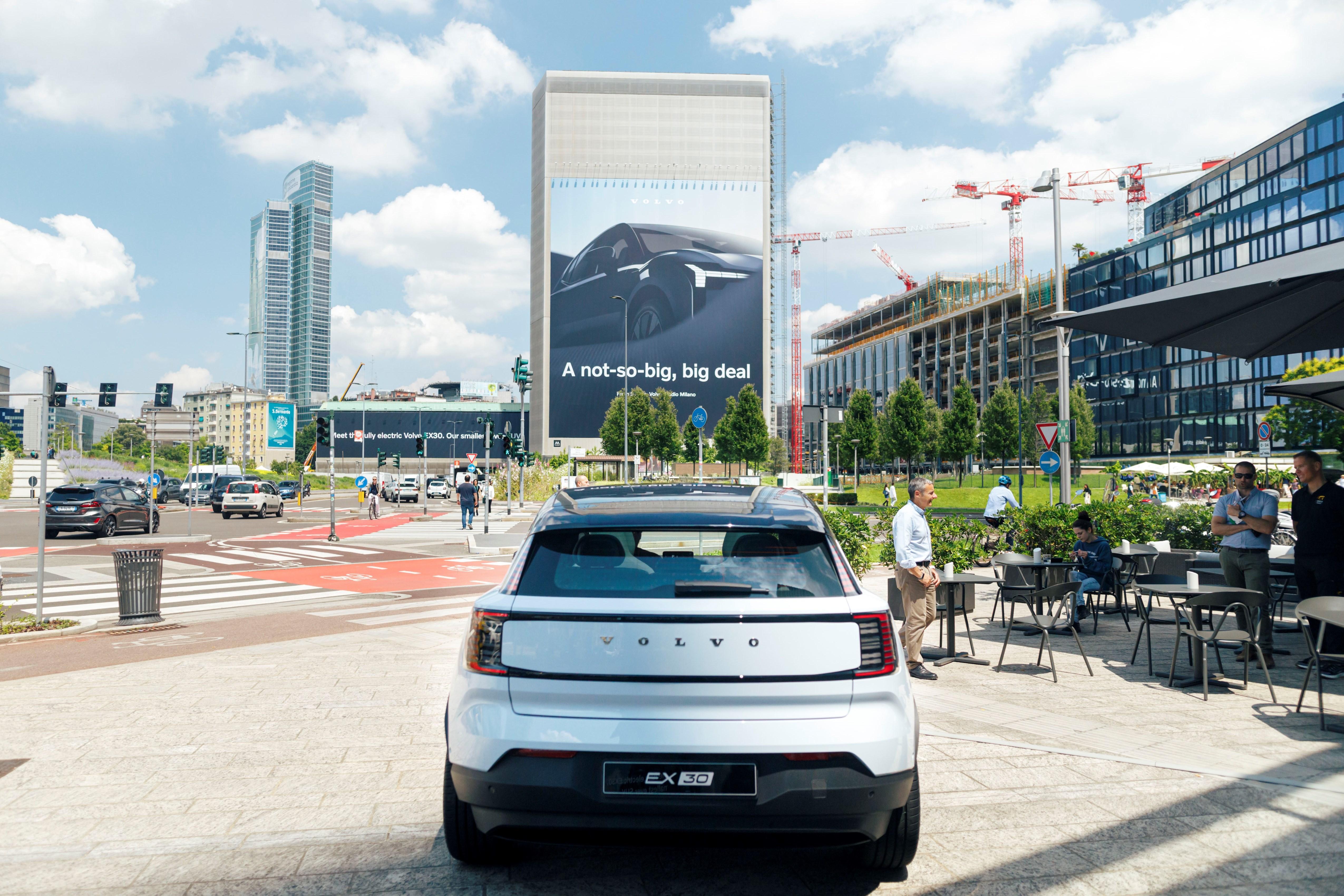
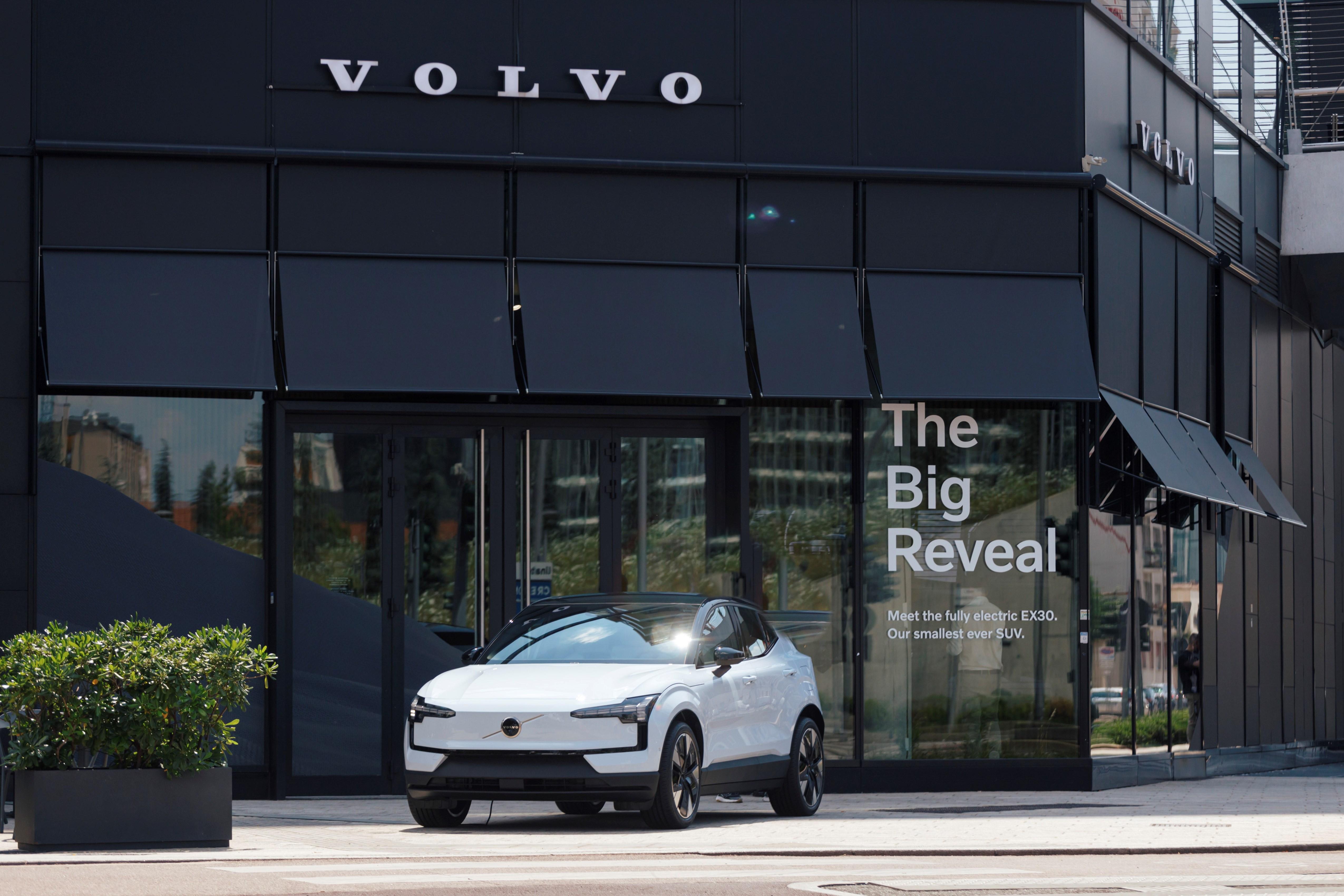
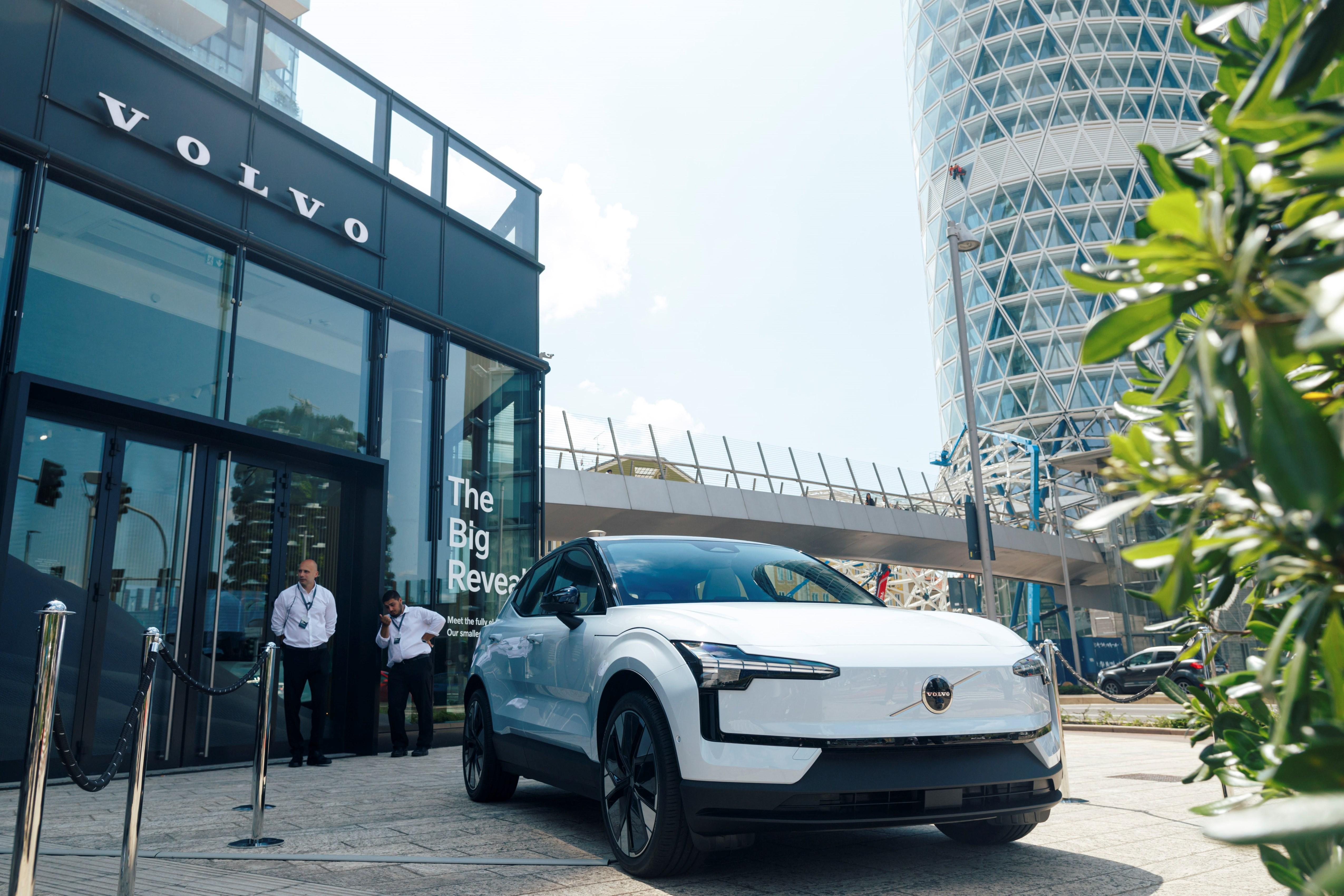
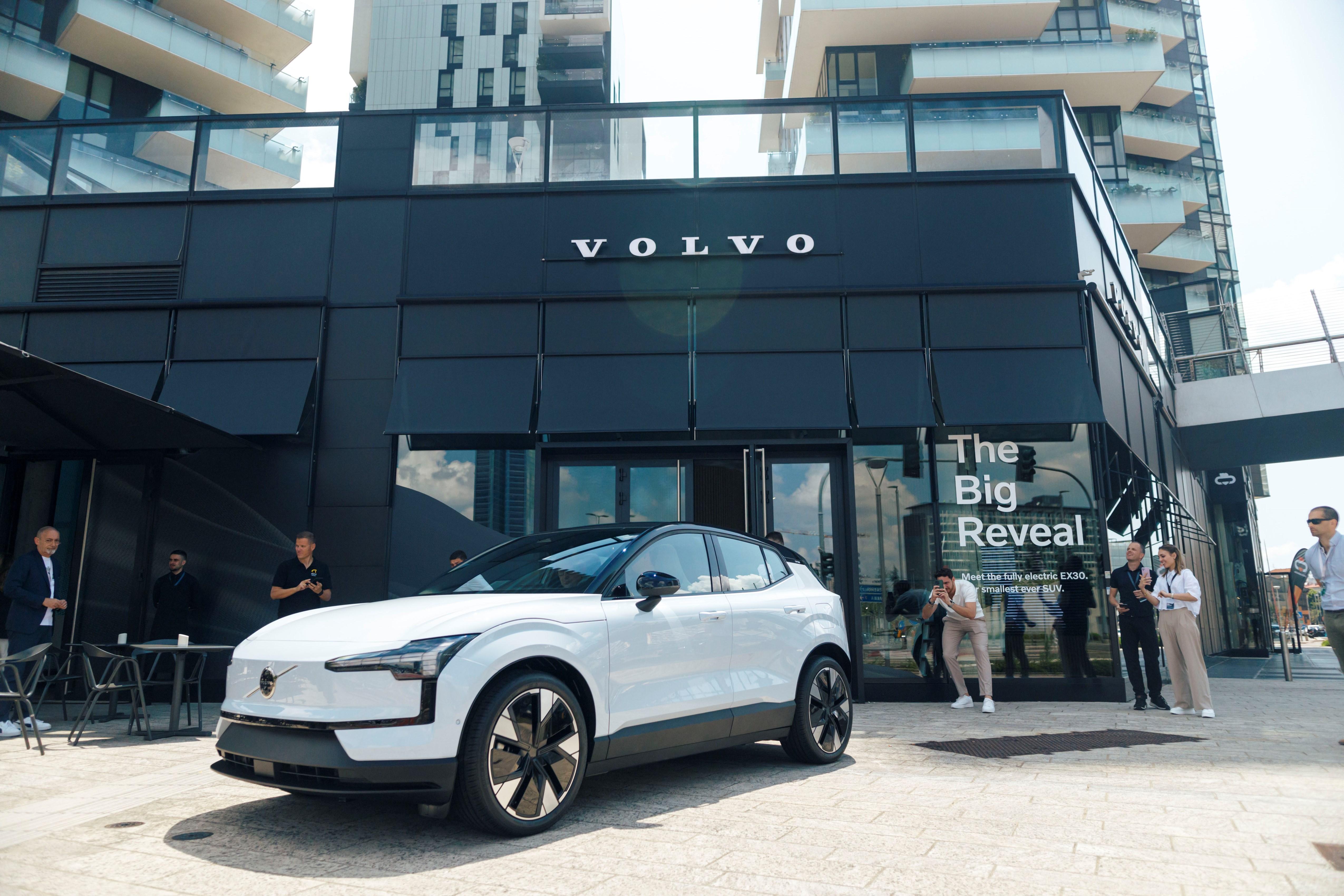
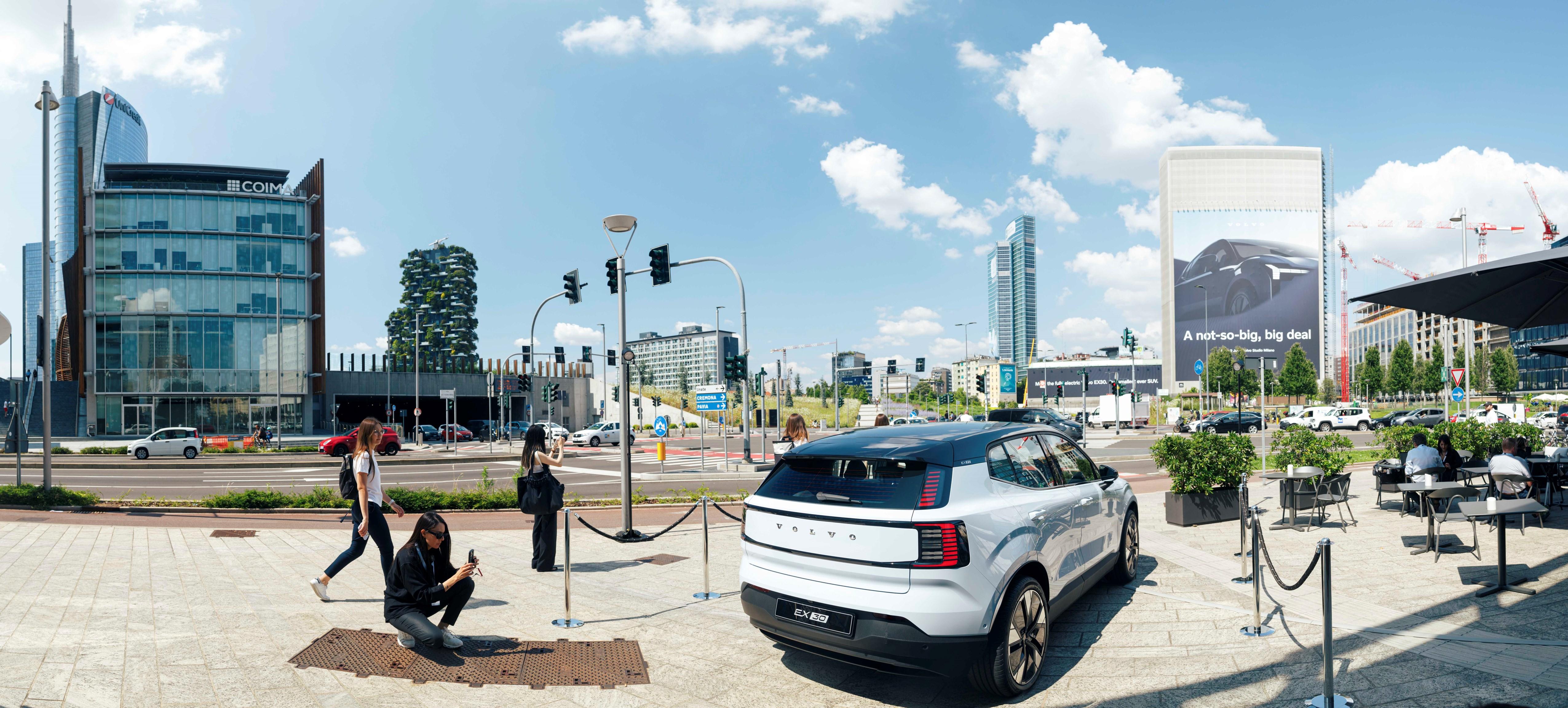
Volvo EX30 Volvo EX30 Cross Country Press release: Via Volvo Cars. Topic spy: Volvo EX30 2024 (Teaser)
.jpg.f9dd8c5992350fd9ad17c26c74768d54.jpg)
.jpg.0028df165404eeb26fb365b9cf502e75.jpg)
.jpg.fdcabf5b9391206bcdd18b97d53da8cc.jpg)
.jpg.acb775bdab165b1d80ed3b3b88e6d92d.jpg)
.jpg.e2f199cd134a8f167a314e05e67a6f43.jpg)
.jpg.d8e93fa3dc7d1f7de8d8b68b7625bdd9.jpg)
.jpg.b976087edf044ad8d6f1b3ace0bae48e.jpg)
.jpg.329049442789c0c4d677cea2ba8b6d71.jpg)
.jpg.64e28804cbecce3fb435abb0b94d692b.jpg)
.jpg.8c2dca0424592f5942f45d19e39925a0.jpg)
.jpg.25e8a0382587cad6d57c66beef9419fa.jpg)
.jpg.fd9885d9698f0154f6b7de4e4ab0fc39.jpg)
.jpg.3b50de0b64dbcb19b6c7f9e49d41243a.jpg)
.jpg.c9677da6a7fc1382daa987ea41161494.jpg)
.jpg.ca5943f83004e4875b22d59e548d0f4a.jpg)
.jpg.1c5593b465c9b301294ad537dd99caa6.jpg)
.jpg.e4c6ced4c787e4010ea3757bb2876d21.jpg)
.jpg.157c5b2ff441be944fead8baa5611714.jpg)
.jpg.ffe00e5ec04dcab19fda1f10aaf95b78.jpg)
.jpg.3591b70eef2715628f34dc59e3a990d5.jpg)
.jpg.4c19262ba1ac9b02085f4aef60c8cd52.jpg)
.thumb.jpg.293a111be3688d68da921078dd1db0e1.jpg)
.jpg.d0dfd81650944e7bee411ce28db2b454.jpg)
.jpg.5f3f564ea637e8fedcf7f7bc08056f48.jpg)
.jpg.483ff4493a98508d65f276c3587d2e7e.jpg)
.jpg.e6bf6f4d3ff30702eefb40c1684fb44b.jpg)
.jpg.b65394ff75e883a2b3b8b8d8bf907454.jpg)
.jpg.9a009859d8b06c39f648fa532b6df1b2.jpg)
.jpg.35b9fb05478733135a31f280df151b51.jpg)
.jpg.37cf1feaa4f28fb3df3f8a0680567e00.jpg)
.jpg.826b82efe193d42c29a97c861aaae8de.jpg)
.jpg.42fb181c45e10e4217b009819db11873.jpg)
.jpg.4c792799a9dfa71f2a047361643ef17e.jpg)
.jpg.16451ec7bbe6576fa2b9e05a6fccd42a.jpg)
.jpg.d458bbf11c23939cdb89f1eab1edf19c.jpg)
.jpg.f87cfc8dfaf4cea7d2ac20d9e867573b.jpg)
.jpg.185218d9da764462672b937a39cb19d1.jpg)
.thumb.jpg.4d5e277e8c6793cf04655499898306ae.jpg)
.thumb.jpg.b734db992bbd138d9bfbe55b4ff768a5.jpg)
.thumb.jpg.823f6951294b5e1d70baa6c983ddbdd2.jpg)
.jpg.e6b712030a73b99b6be4fd98415a25d8.jpg)
.jpg.cc24d43e913bca41936f785a89235de2.jpg)
.thumb.jpg.3e4a3dae536dfefaccae6e7c21d755e7.jpg)
.thumb.jpg.4ff2ffc250b728e9f26594bd651851ad.jpg) 7 punti
7 punti -
7 punti
-
36 K, che con gli incentivi diventano 31 K. A parità di capacità della batteria 51 kWh (LFP 49 kWh netti) costa meno di tutte le elettriche su CMP di Stellantis, ma in più offre un motore da 272 cv con trazione posteriore e dotazioni di serie superiori. Anche le dimensioni sono per me l'ideale, finirà che dovrò comprarla.7 punti
-
7 punti
-
7 punti
-
diciamo che era poco opportuno il momento ed il modo, ma da qui a sospenderli mi pare un pelo eccessivo.6 punti
-
5 punti
-
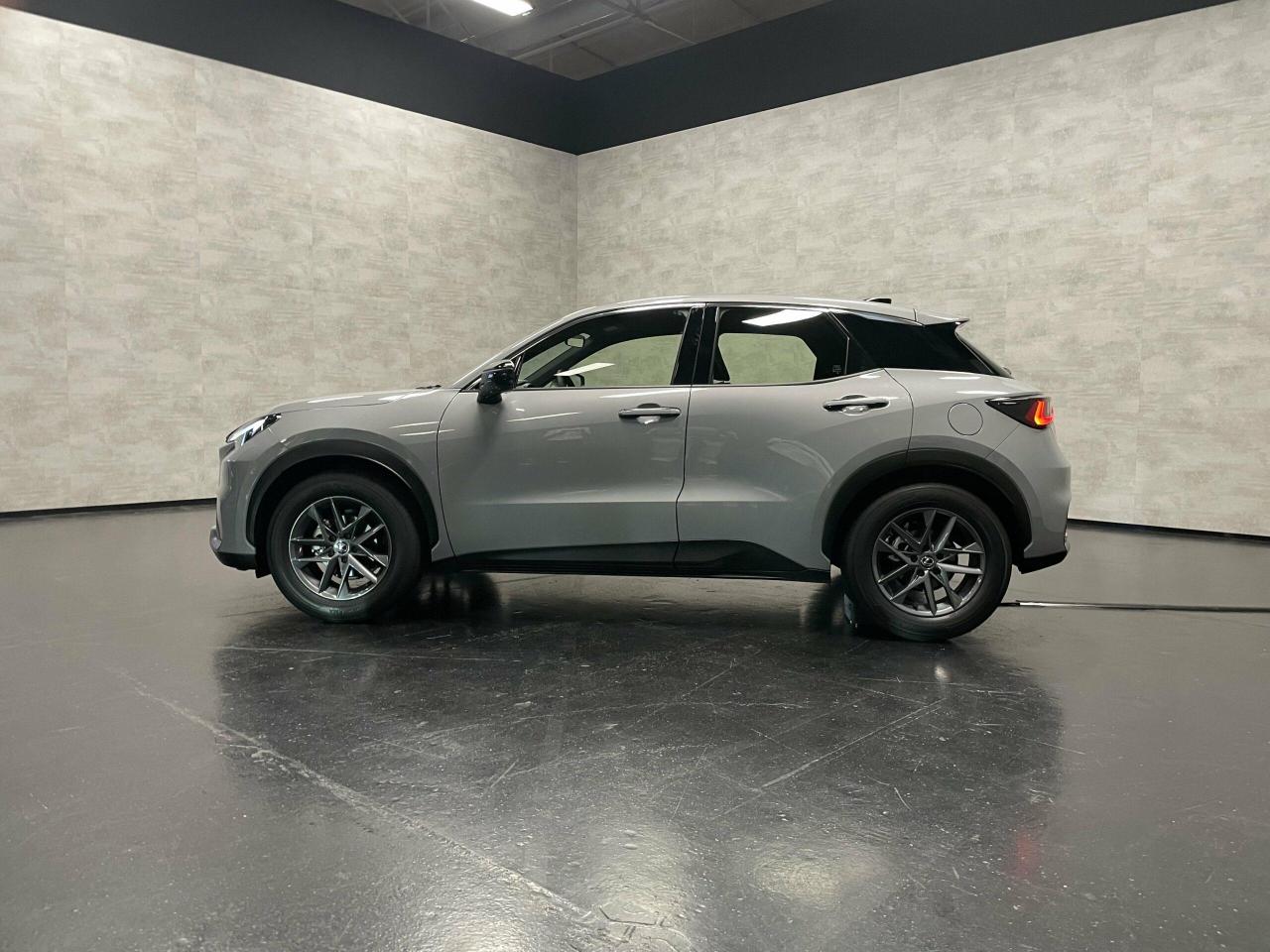
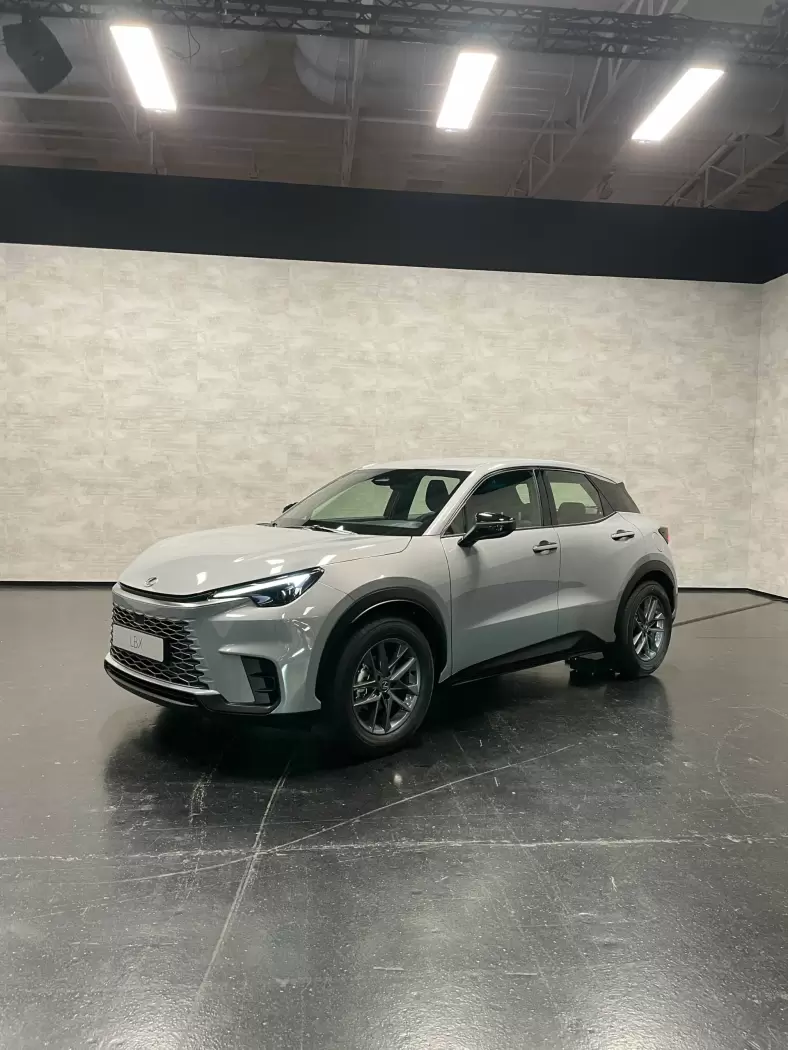
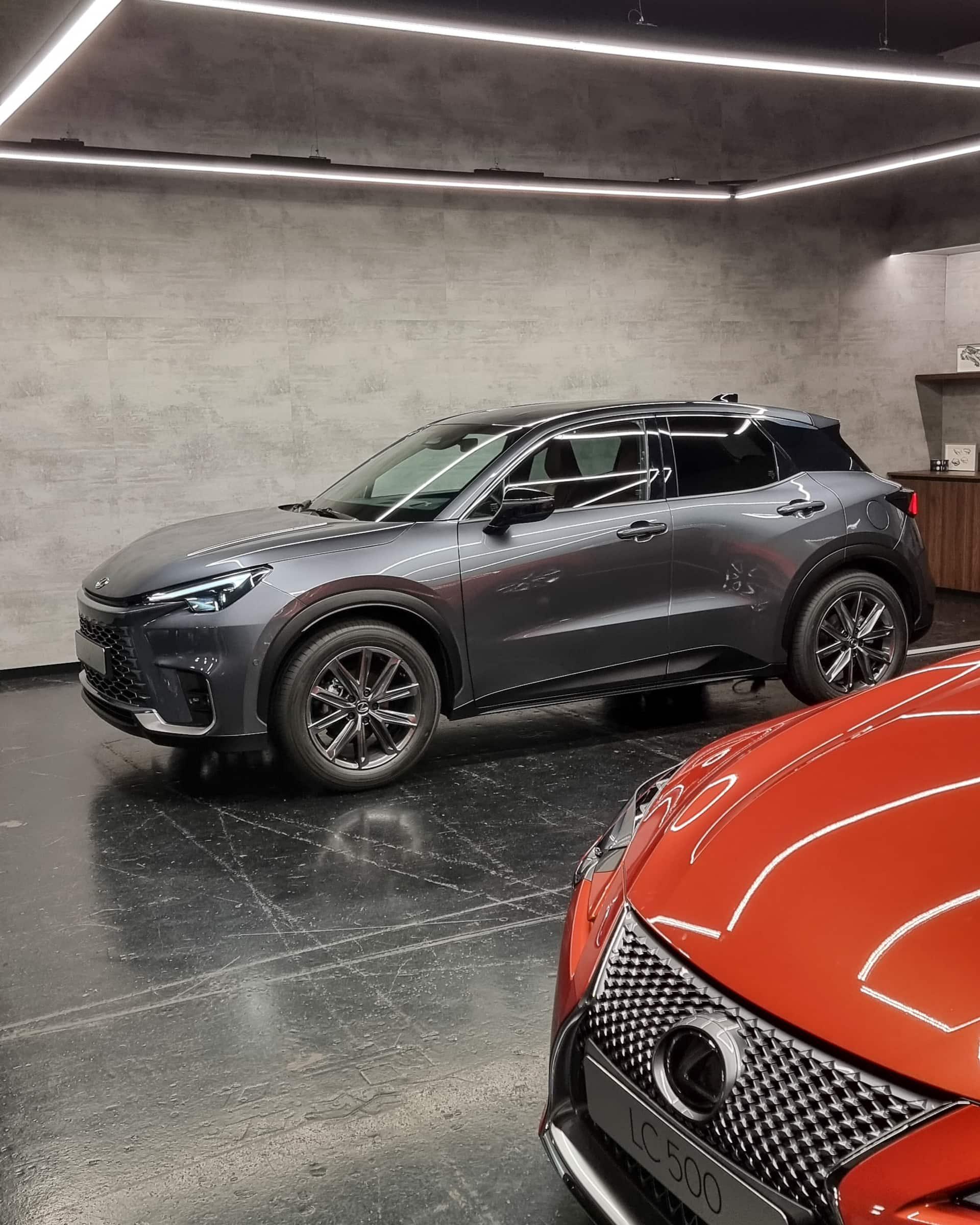
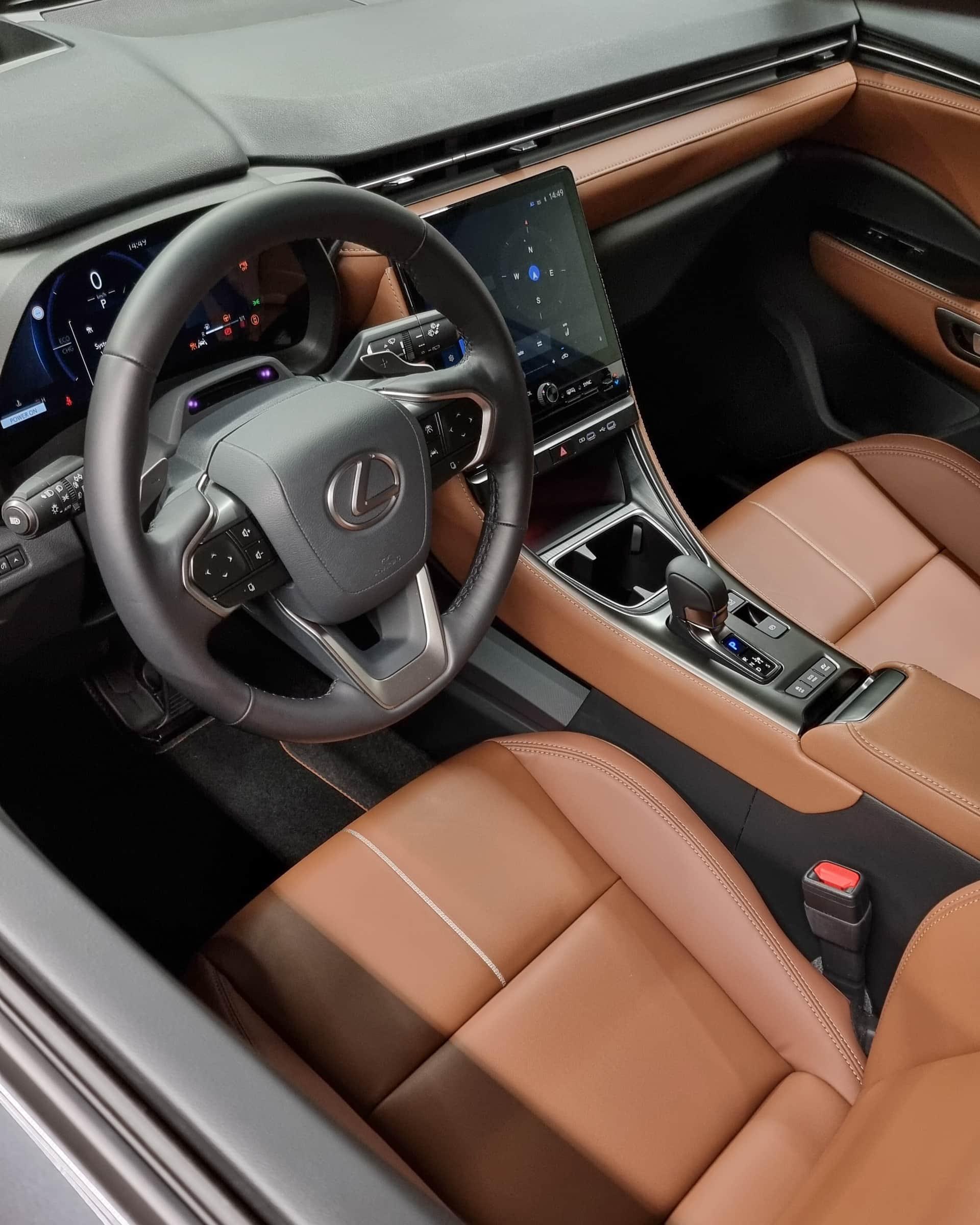
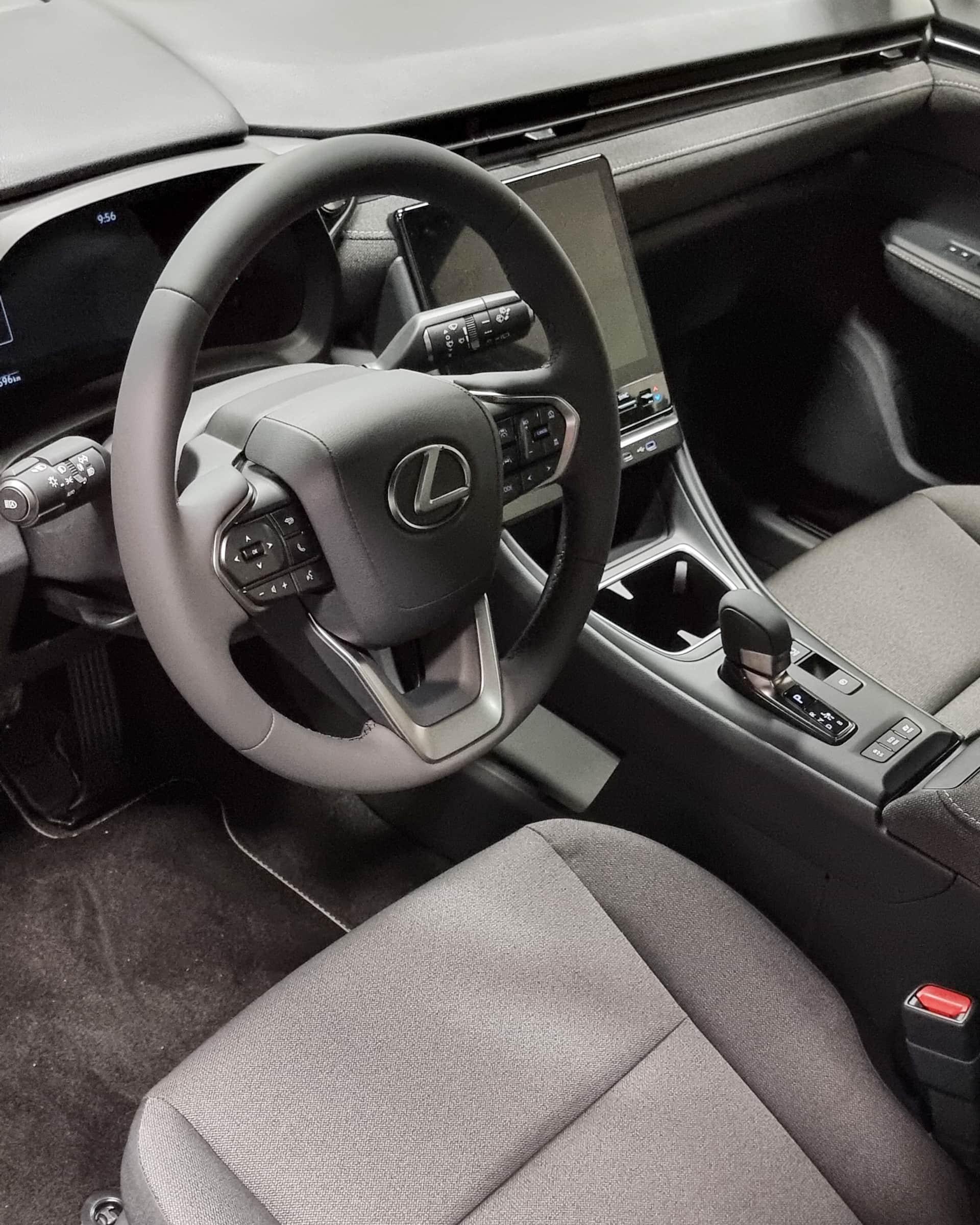
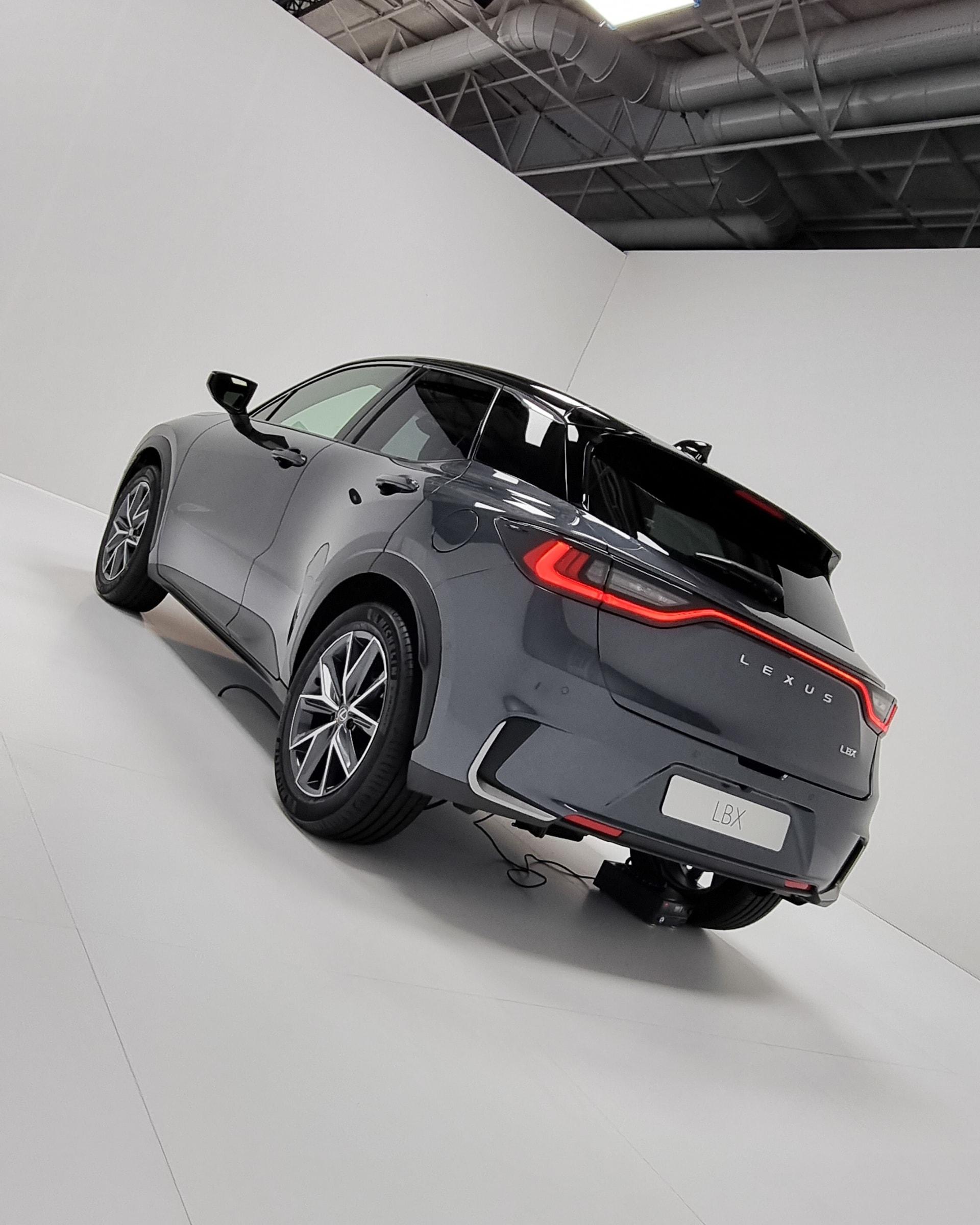
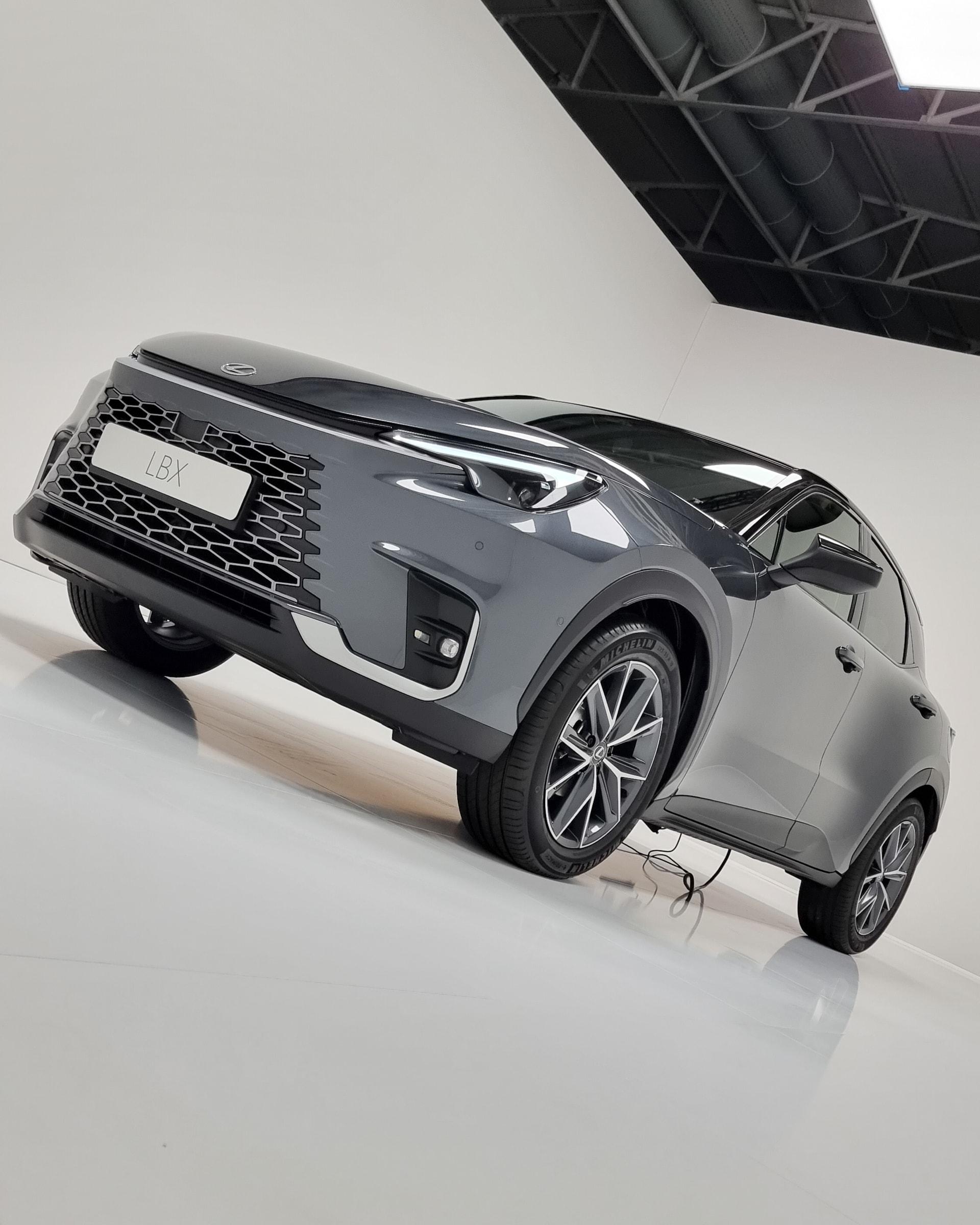
5 puntiNo, è proprio così su tutte le nuove Lexus. L'allestimento base non è dotato di Head-up Display e quindi ha un volante con più tasti fisici. Gli allestimenti alto di gamma sono, invece, dotati dell' HUD più recente di casa Lexus e quindi hanno questi pad capacitivi a sfioramento che incorporano più funzioni ma ripuliscono il layout del volante dal sovraffollamento. In sostanza, quando si passa il pollice su uno dei pad, sull'head-up display compaiono le funzioni che si stanno per attivare. Cliccando poi sul tasto fisico appena sotto il pad è possibile accedere ad ulteriori 4 funzioni (del tutto customizzabili da infotainment)... per dire, si può scegliere di abbinare a un tasto del volante la modalità motore preferita, o abbinare due tasti alla funzione "alza e abbassa" la temperatura del clima o "alza abbassa la velocità del clima". Secondo me una delle innovazioni più fighe e intelligenti presentate recentemente da Lexus.5 punti
-
Sono 12 anni e ancora non li perdono per aver scelto questa culona invece di me…
 5 punti
 -
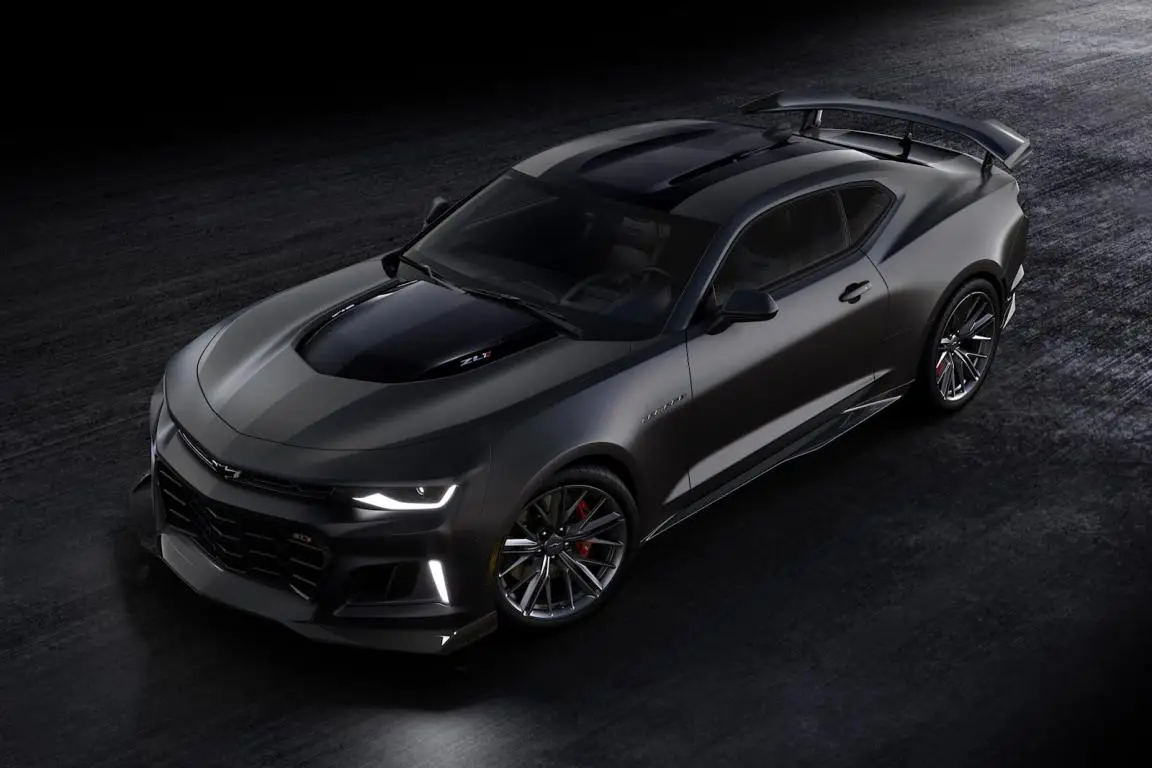
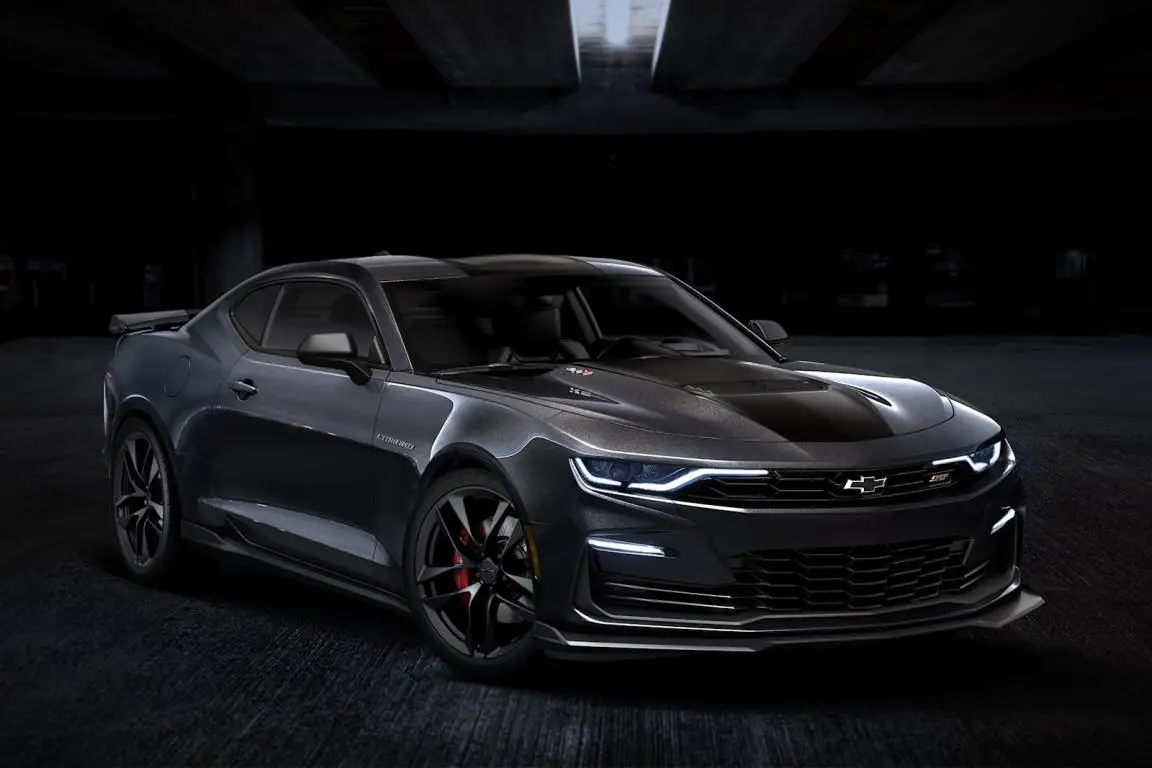
4 punti4 punti4 puntiEh ma coi tempi che corrono non è sufficientemente autarchica per permettersi tale nome 😅4 punti4 puntiIl 4 cilindri della Macan è il miglior motore mai montato su una Skoda! Sciacquiamoci la bocca prima di parlarne please...4 puntiLa Chevrolet Camaro del 2024 sarà il Model Year finale per l’auto sportiva di sesta generazione. La General Motors ha recentemente annunciato che la leggendaria vettura sarebbe stata presto ritirata, senza un successore immediato. Gli acquirenti della Chevrolet Camaro 2024 a tiratura limitata avranno l’opportunità di scegliere tra tre motori: il quattro cilindri da 278 cavalli non ha ottenuto conferma. Al contrario, sono presenti V6 da 3,6 litri, il V8 LT1 da 6,2 litri e il V8 LT4 sovralimentato da 6,2 litri. Questo sarà anche l’unico modo per ottenere qualcosa dal pacchetto 1LE di grado inferiore rispetto alle SS e ZL1. La Collector’s Edition sarà rifinita in Panther Black Metallic Tintcoat sui rivestimenti LT/RS, LT1 e SS con strisce accentate Satin Black, cerchi Satin Black da 20 pollici (o ruote forgiate opzionali), uno splitter anteriore 1LE e uno spoiler ZL1 (solo coupé). Le normali finiture Camaro 2024 aggiungono due inedite tonalità, denominate Riptide Blue e Nitro Metallic Yellow. La ZL1 Collector’s Edition da 660 CV sarà limitata a 350 esemplari ciascuna verniciata in Panther Black Matte (la prima vernice opaca offerta su una Camaro). Questo modello di punta avrà anche una striscia ZL1 nera metallizzata, pinze dei freni rosse, dadi ad alette neri e l’ala/spoiler di una ZL1 1LE. All’interno, l’auto ottiene un badge sul volante serializzato con il numero di costruzione su 350. Ogni rivestimento della Collector’s Edition include badge con scritta sul parafango anteriore con una pantera nella “R” di Camaro e una pantera sul volante. All’interno, l’auto ha finiture nere e un logo Collector’s Edition in alluminio inciso al laser sui tappetini. I clienti possono ordinare una Camaro 2024 a partire dal 15 giugno, con prezzi a partire da 32.495 dollari (poco meno di 31.800 euro al cambio attuale) per la LT coupé e 38.495 dollari (circa 37.300 euro) per la LT Convertible. I prezzi per la Collector’s Edition non sono ancora disponibili.
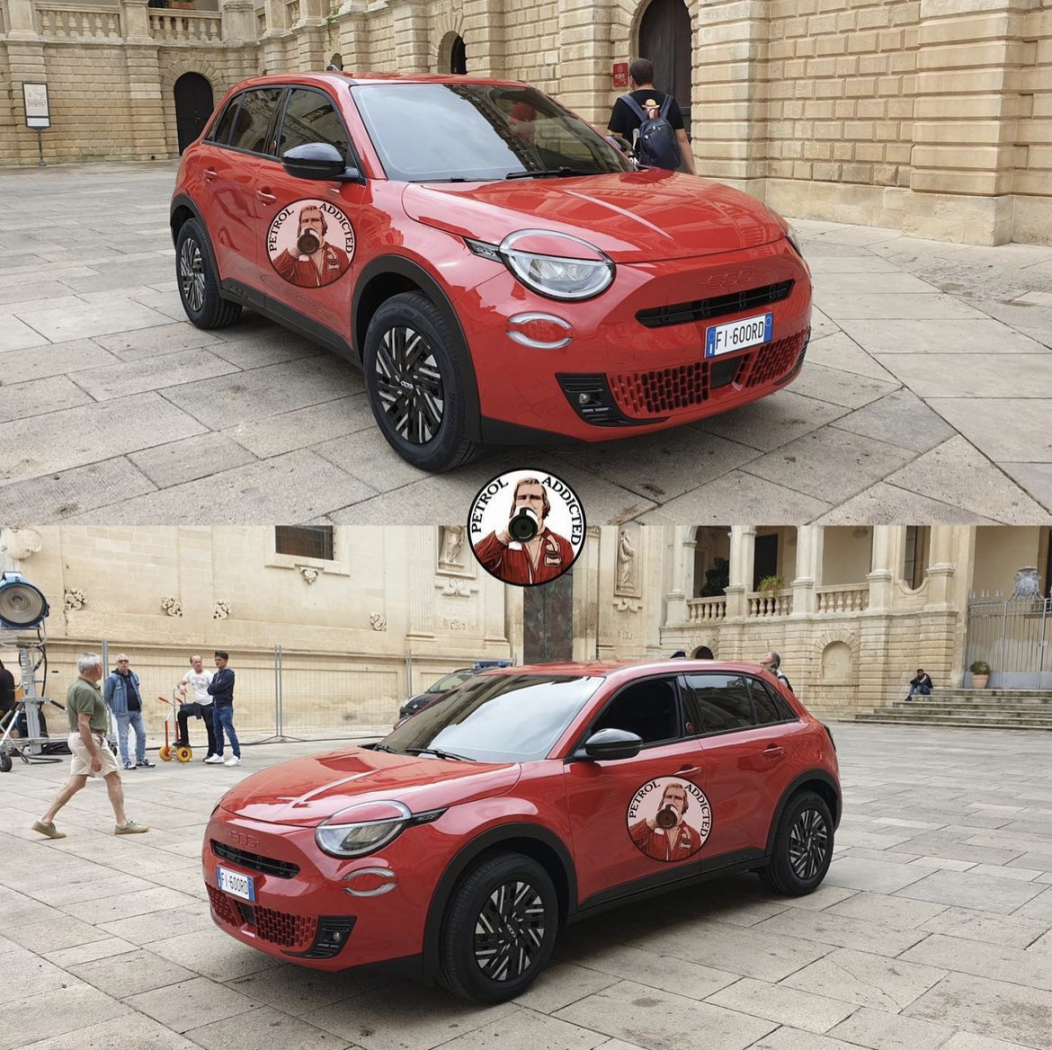
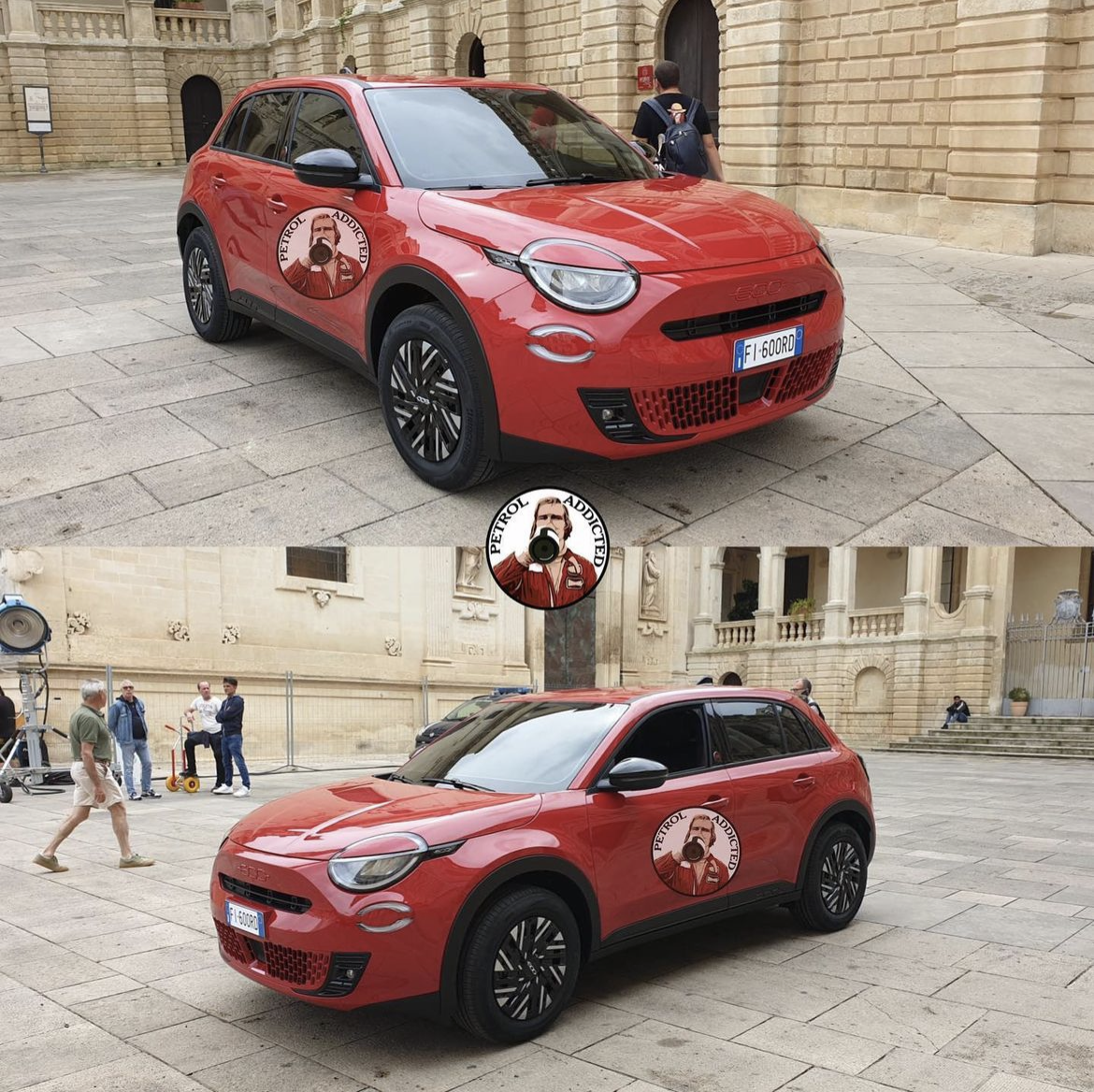
 4 puntiSgamata a Lecce, penso sia la versione (RED). (Quello sulle porte è il watermark della pagina autore dello scoop). https://www.instagram.com/p/CtMGXwmo2r-/?igshid=MzRlODBiNWFlZA==
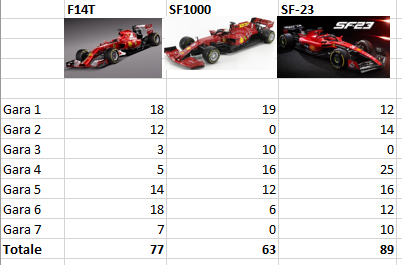
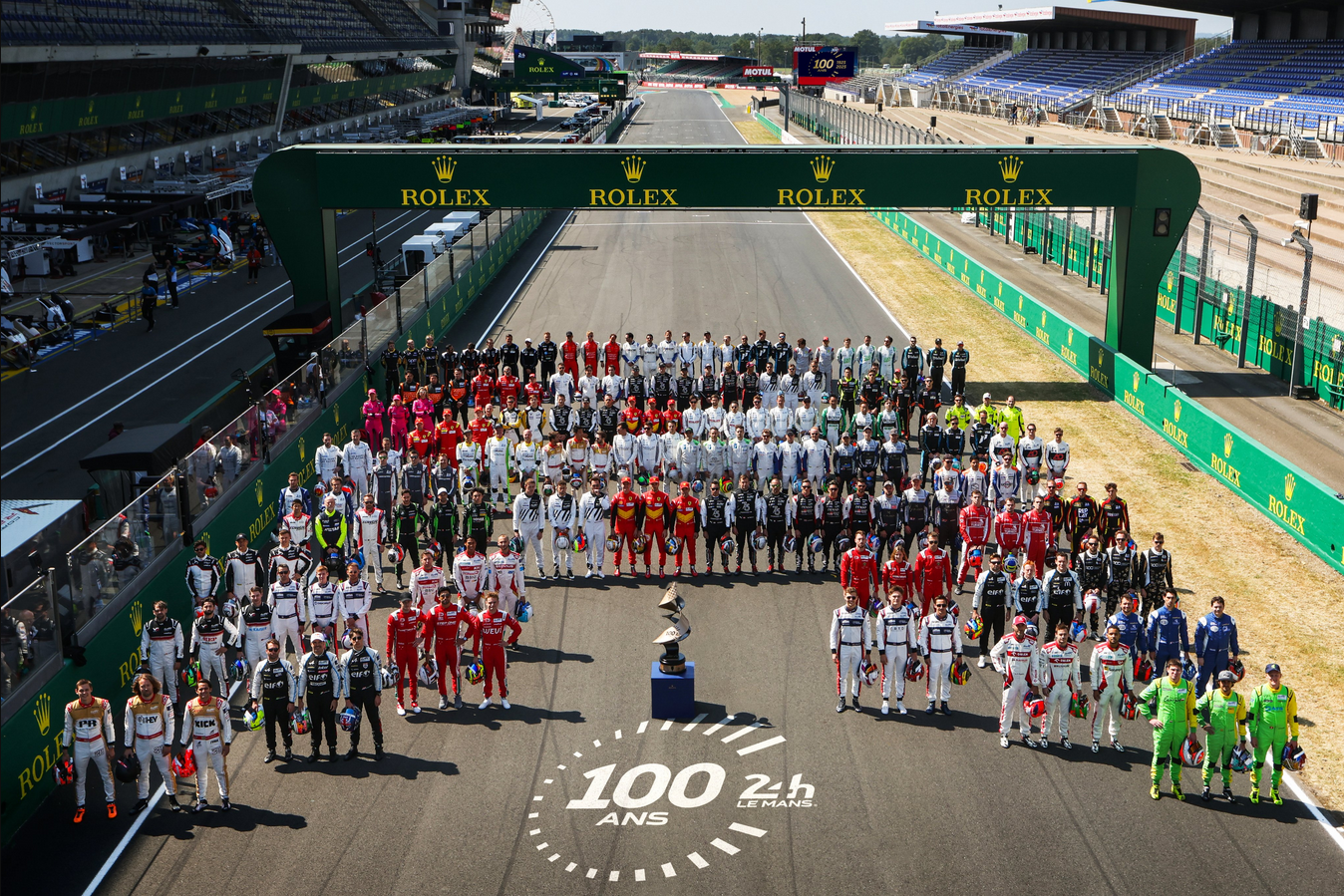
 4 puntiMaledetti bastardi devono marcire in galera! Si proceda subito a rito immediato con detenzione non inferiore a 30 anni e cospicuo risarcimento in sede civile per la povera Masolin a causa del gravissimo disagio patito. ps. al di là della coglionata e delle battute infelici del duo, mi preoccupa l'eccesso di politicamente corretto perchè rischia di diventare l'anticamera dei regimi autoritari4 puntiSe non montano il mhev sulla 600 abbiamo scoperto a cosa servono i modelli ex FCA in Stellantis, a smaltire le scorte di magazzino di PSA.4 punti4 punti4 puntiBobbi in passato ne ha dette di peggio in effetti; era inopportuna e poco professionale quella battuta, ma mi pare ci sia un clima di caccia alle streghe eccessivo.4 puntiAnch’io stavo guardando quel sedere, tuttavia mi sono sentito in imbarazzo per Bobbi quando ha avuto quell’uscita, e mi è sembrato più che altro che Vslsecchi cercasse di tergiversare, per non “bacchettare” il collega. Certe cose si guardano, si pensano, ma non si dicono. Non è che se esco in gruppo con gli amici dico a uno di loro che mi farei la moglie; lo penso e basta, me lo tengo per me 😈😈😈4 puntiClassifica aggiornata (escluse le sprint) La SF-23 stacca di 12 punti la F14T, mentre resta ultima la mitologica SF1000 con il motore della Punto grippato.
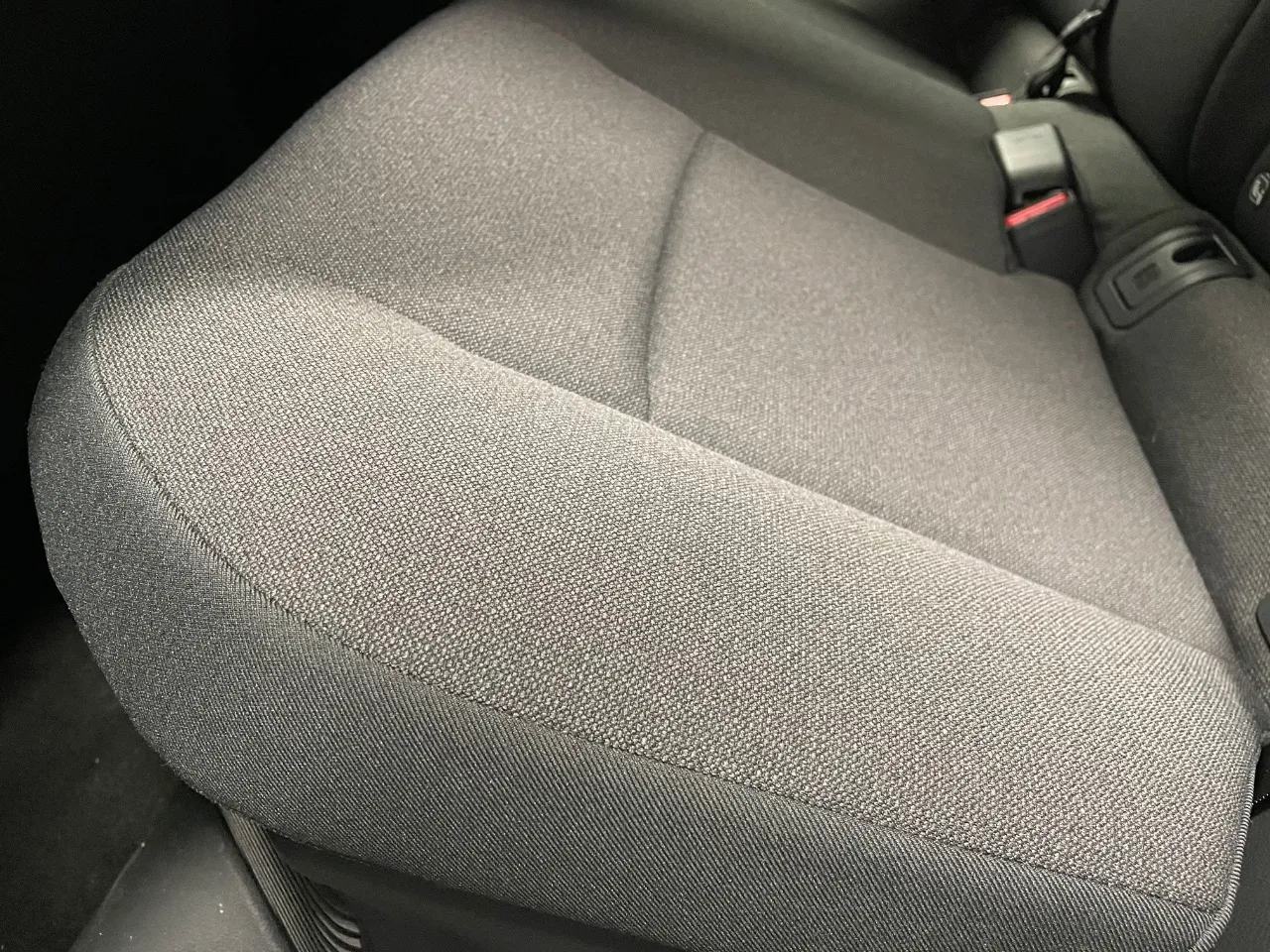
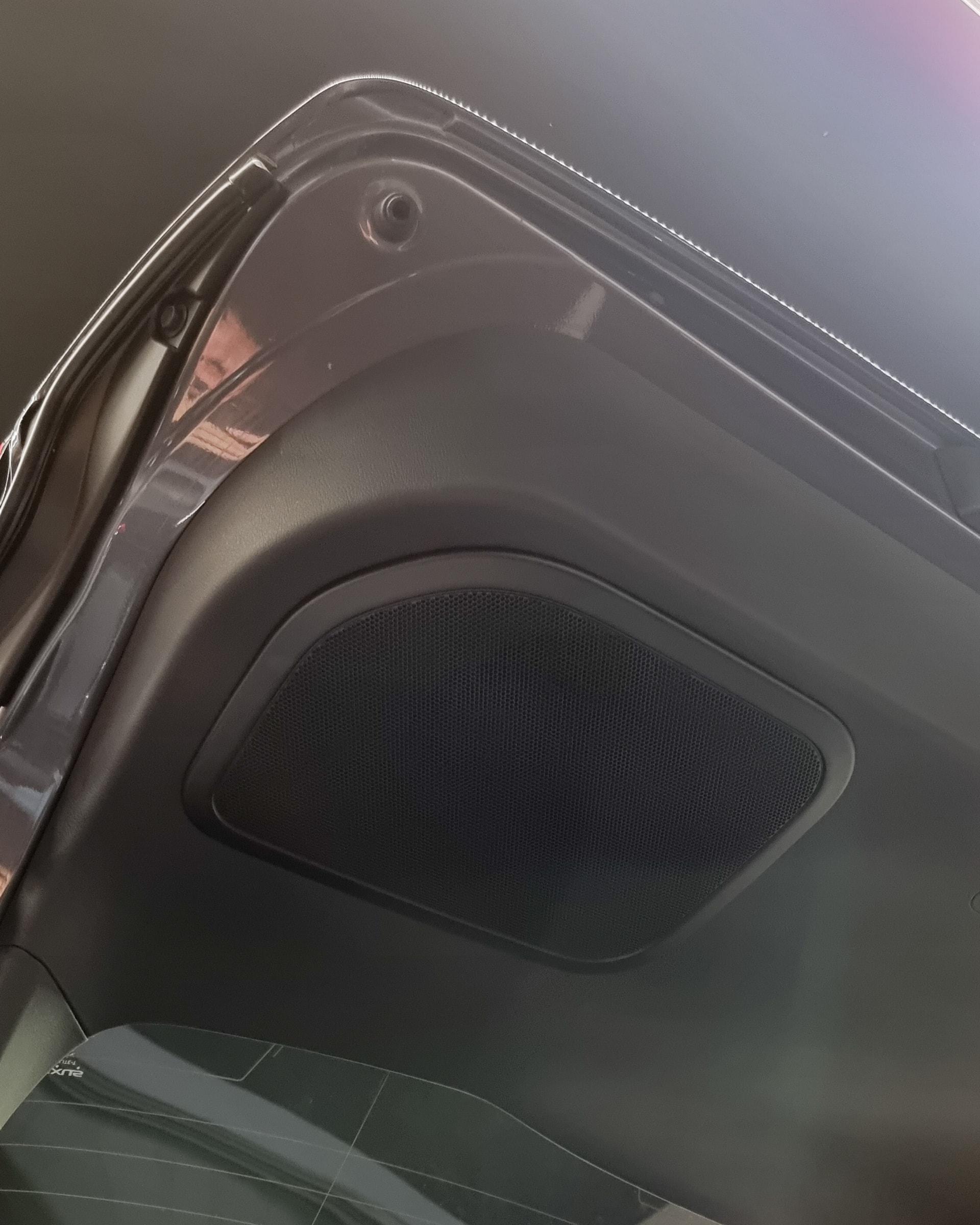
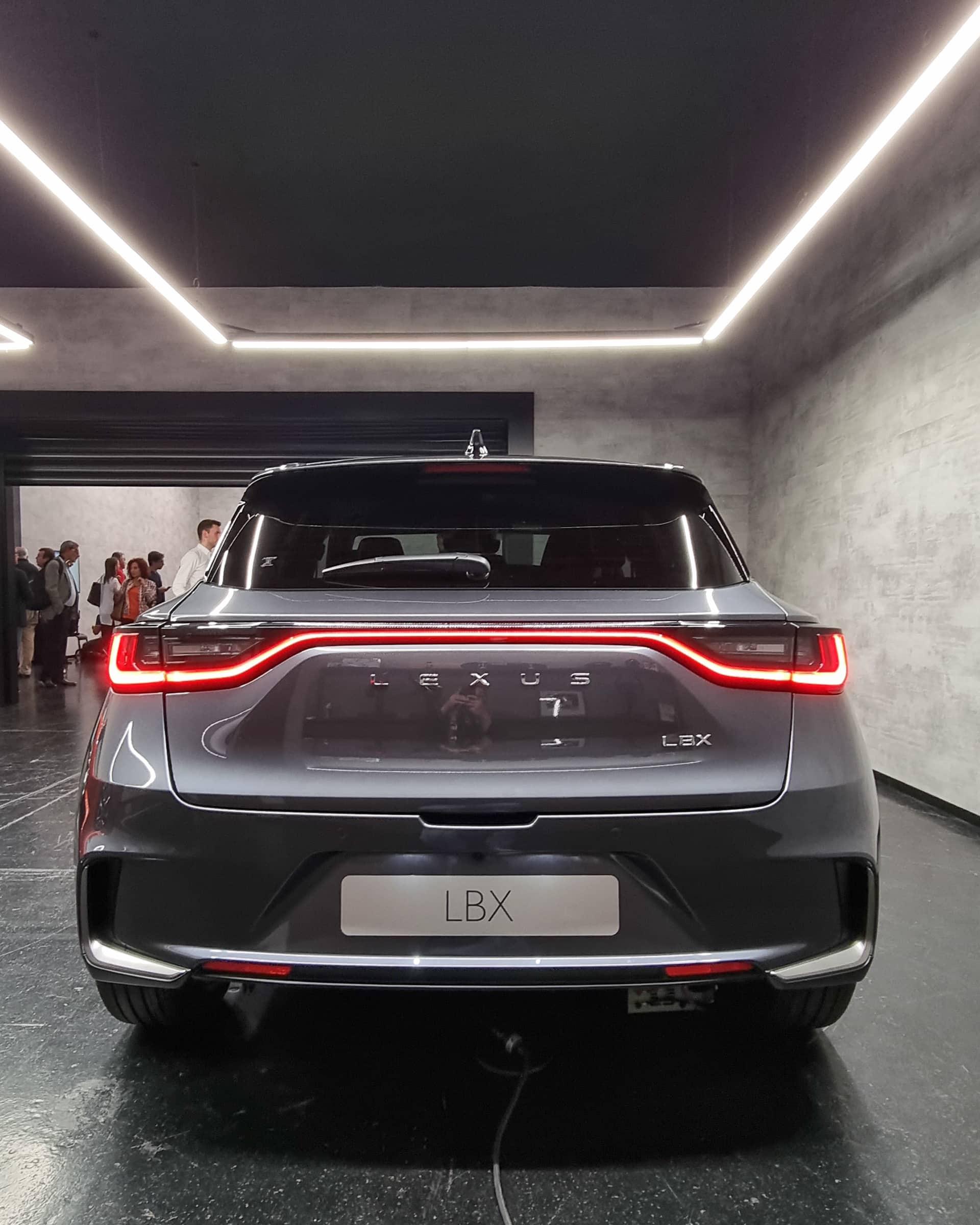
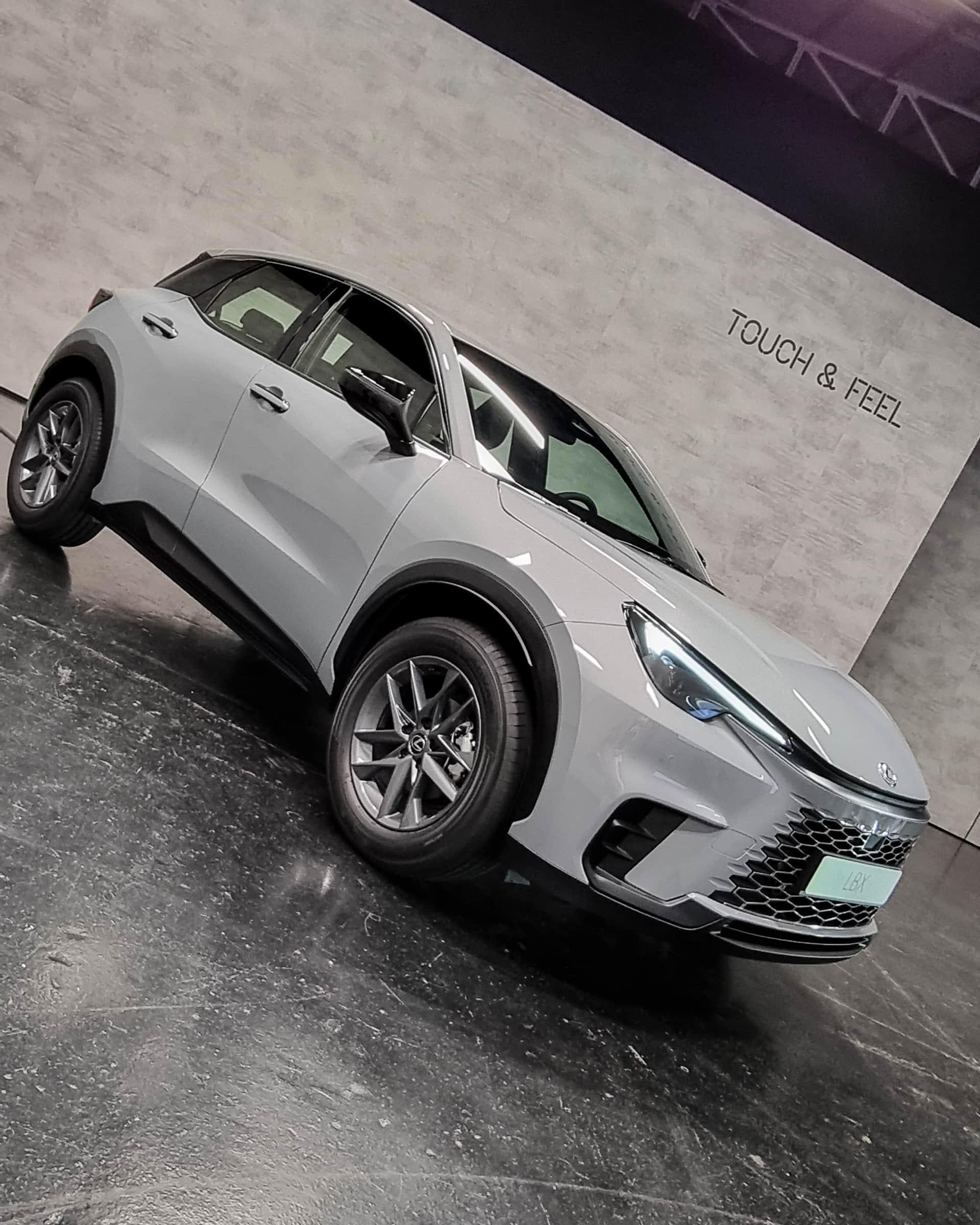
 4 puntiEh madonna, a un certo punto bisogna pur iniziare e quindi ciò che è venuto prima invecchia. Questa critica, permettimi, non ha senso.3 puntiPenso tu sia cosciente del fatto che se Alfa Romeo (o qualsiasi altra marca) producesse ciò che la sua ristretta schiera di "tifosi" radicali vuole, andrebbe in fallimento no?3 puntiDopo quasi dieci anni dall'apertura della pagina numero 1000 fatta da me, ci tenevo ad aprire anche la pagina numero 2000. Scusatemi. Credo che all'epoca ci fossero svariate controversie tra Fiat e Seat sull'importazione di modelli creati dagli spagnoli in Italia.3 puntiMi piace molto, il frontale un po' meno così come gli interni. Avrei preferito un vero e proprio schermo davanti al posto guida che tutto integrato nello schermo centrale. Ma nessuno qui si scandalizza per la bandierina svedese nei sedili su di un auto prodotta in cina?3 punti3 puntiquesto è il tipico esempio del design che detesto cioè quello che privilegia lo stile sulla funzione : se ho ben tradotto hanno eliminato tutti gli altoparlanti per concentrare il tutto in unica uscita centrale ( penso quella specie di ventilatore usb che si trova dai cinesi) quindi si sente l' audio peggio ma sul pannello abbiamo quel bellissimo oggetto rotondo enorme di design che si illlumina " All sound has been brought together on a central feature, becoming an iconic object by its design, positioning in the cabin and the lighting that accompanies it." Lo schermone centrale, come idea, mi sembra il cugino stretto di quello presentato sul concept lancia3 puntiIo non ce l'ho con i designer, ce l'ho con quelli che gli danno la possibilità di fare queste cose buttando i soldi con cui potrebbero fare ad esempio una Giulietta.3 punti3 punti3 puntiPerò nel segmento B e/o B-SUV sono rare in Europa le vetture con bocchette posteriori che siano premium o meno. L'unica che mi viene in mente che al momento nel segmento B ha le bocchette posteriori è la Skoda Fabia e Kamiq (Simply Clever 😁). Che poi mi domando, in vetture entro i 4 metri, a livello di confort sono veramente utili le bocchette posteriori centrali? Altre foto con anche dettaglio dei rivestimenti in tessuto dell'allestimento "base".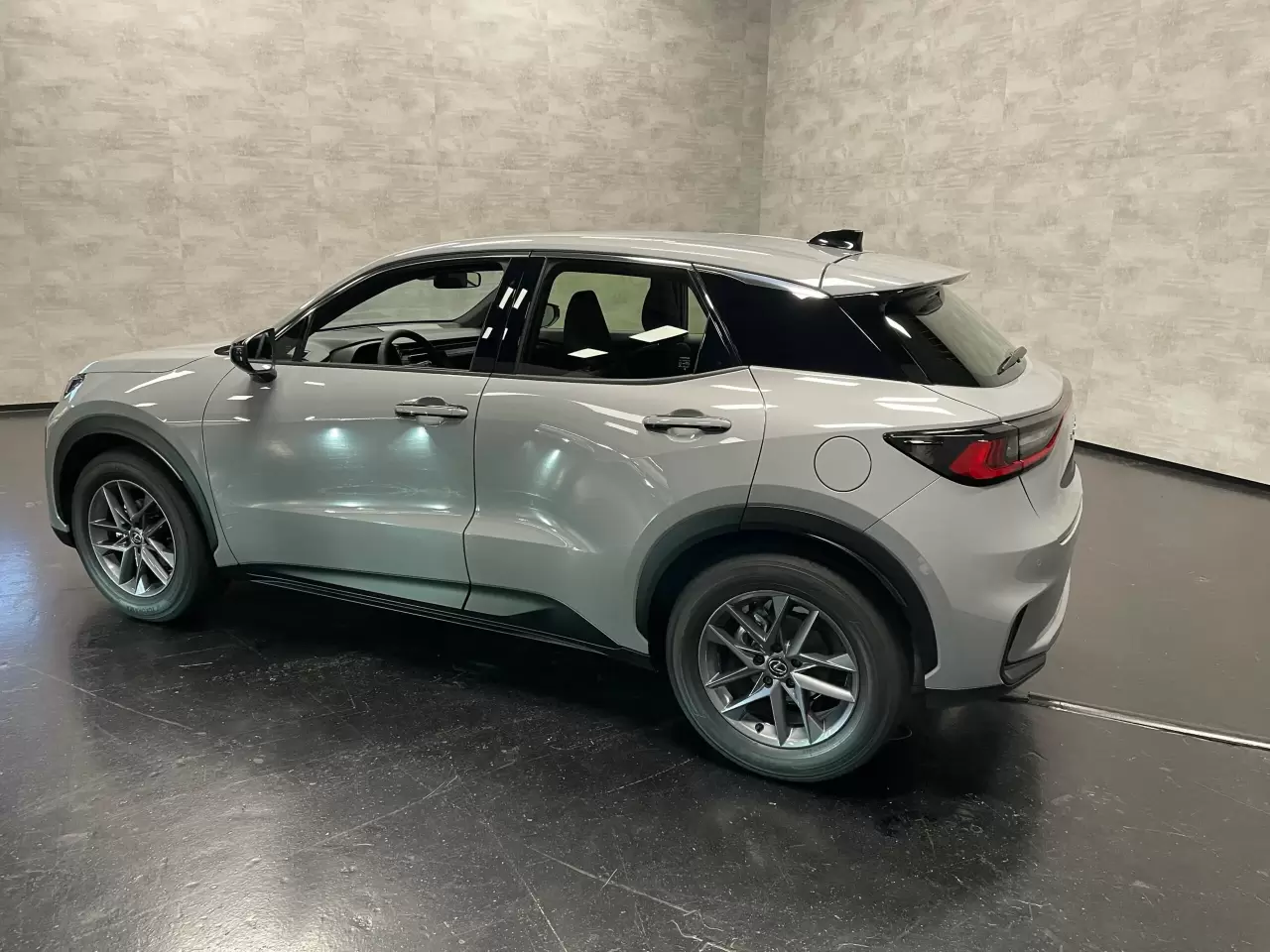
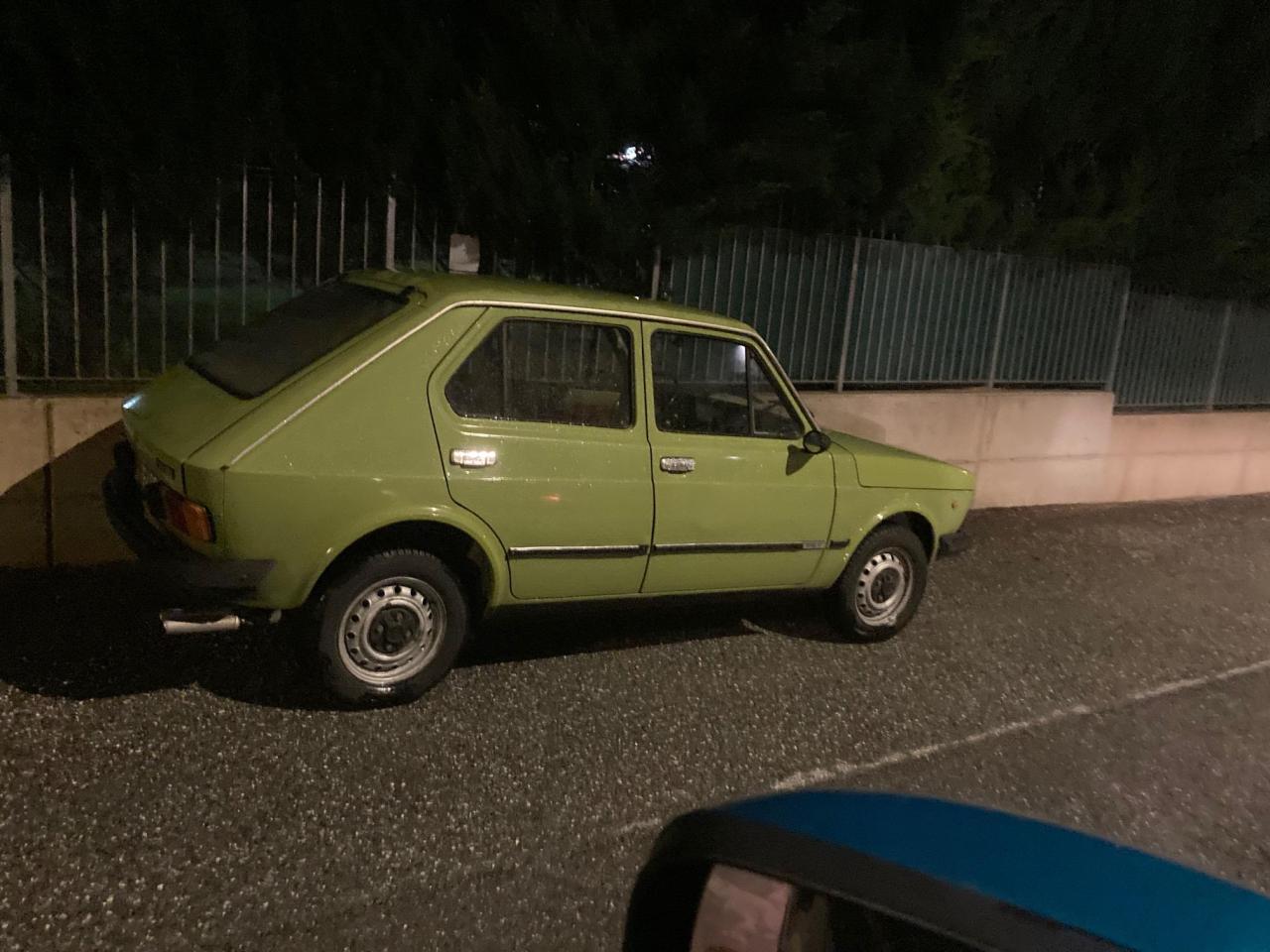
 3 puntiL'avevo scritto io! Chiarisco il mio punto: se vedo una bella tipa per strada e penso che sia "bbonaaa" mi limito a pensarlo, non mi metto a gridarle dietro "a'bbonaaaa" Certo che certe cose si pensano ma non si dicono Fa parte delle convenzioni sociali. Altro esempio: se entri in un locale e trovi all'interno una persona che puzza, non è che vai lì e le dici "tu puzzi", te lo tieni per te. E sentire la puzza, o notare l'avvenenza di una persona, se ci si limita a registrare l'informazione senza darvi un seguito, non è irrispettoso. Come può esserlo? Come può essere irrispettoso il fatto di notare qualcosa con i propri sensi, se poi - ripeto - non si dà seguito con azioni, parole, commenti? Ad essere fuori luogo sono le esternazioni, non le percezioni. Spero di aver chiarito, visto che ieri sera ha fatto un esempio un po' più "estremo". (anch'io senza polemica, giusto per chiarire il mio punto)3 punti3 puntiVisto che su tutte le vetture Stellantis verrà montato il 1.2 Benzina , con la nota problematica della Cinghia in bagno d'olio, riporto il parere alquanto dettagliato di un altro Utente (Al Volante): John V 6 giugno 2023 - 17:46 Il problema, così cerchiamo di chiuderla visto che non ne parla nessuno, è nel solito funzionamento dei PF, in questo caso GPF evidentemente (quindi un DPF, che PSA non ha mai usato avendo brevettato la tecnologia del FAP, ma per motori a benzina). La stampa dice che il GPF non dà problemi di rigenerazione, perché... la benzina non è gasolio, il prosciutto non è mortadella, ecc. ecc. Sta di fatto che del carburante in eccesso COMUNQUE viene iniettato e inviato al GPF in fase di rigenerazione (c'era un volta l'iniettore dedicato, su alcuni motori diesel, ma poi l'hanno "opportunamente" levato per questioni di costi: 1.5 dCi Renault, Toyota D-4D, GM Duramax e probabilmente altri, pochi, possibilmente la lista è completa). E COMUNQUE ancora, il carburante iniettato in eccesso finisce nella coppa dell'olio, diluendolo, dopo essersi depositato sulle pareti dei cilindri ed esser trafilato fra segmenti/raschiaolio e canne dei cilindri appunto. L'olio così "conciato per le feste" viene quindi pompato nel vano stagno della la cinghia di trasmissione. La miscela olio-benzina, comunque non certo "salutare" in generale, ne causa la corrosione. La corrosione determina il distacco di particelle le quali vanno poi a intasare la рompa dell'olio, compromettendo la corretta lubrificazione del motore e in definitiva il suo funzionamento. Da cui il geniale consiglio: cambiare olio (e cinghia magari?) ogni anno (alla faccia dell'ecologia e dei costi di gestione) per chi fa pochi km: sì ca. 10'000 come dici, ma 15'000 è la soglia "conservativa" suggerita. Per gli altri, chi "macina chilometri" (uh, che bell'espressione), non ci dovrebbero invece essere problemi. È chiaro che tutto è legato alla frequenza delle rigenerazioni, che non sono affatto "automagiche", o quasi, come vien detto. L'ultimo intervento correttivo risale a giugno dell'anno scorso. Però non è dato sapere, almeno io non riesco a trovare niente al riguardo, di cosa si sia trattato. Se s'è trattato d'un cambio strutturale (la cinghia l'hanno però già cambiata, almeno una volta, e posto che quella sia la modifica necessaria) allora magari ci siamo, se invece si è trattato del cambio delle specifiche dell'olio (anche questo già tentato, almeno una volta) allora è solo una presa per i fondelli, perché il problema sta nella benzina perdio! PS La nuova versione di questo Motore dovrebbe avere la Catena... https://www.largus.fr/actualite-automobile/moteur-1-2-puretech-a-chaine-la-nouvelle-generation-du-3-cylindres-debute-dans-l-opel-mokka-30026818.html3 puntiEccola qui targata PG ed io sono con CAP 10040 .... già arrivare da PG a noi sei bravo 😛 a vederla così sembra tenuta MOLTO bene ed oserei dire una vera rarità
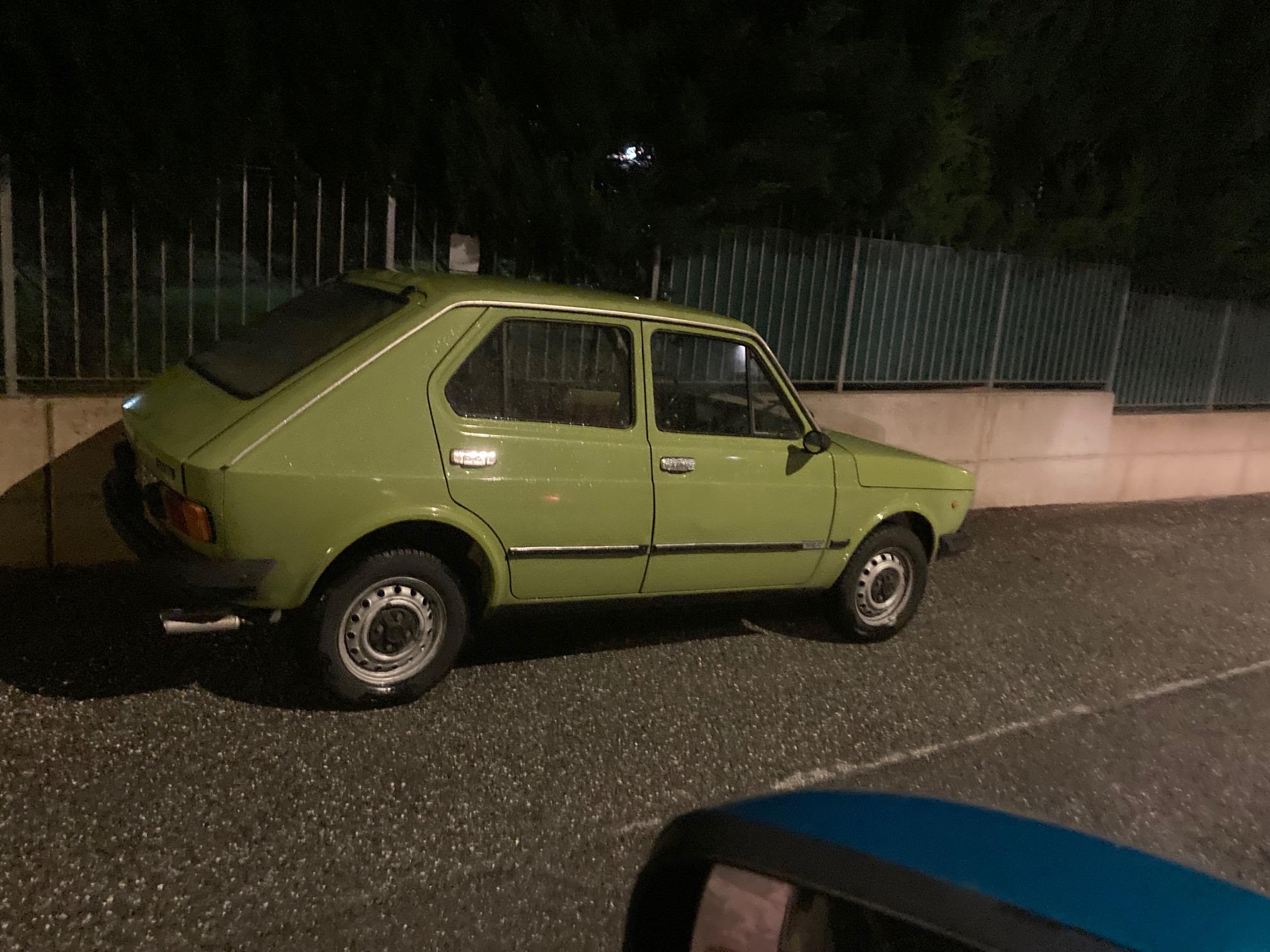
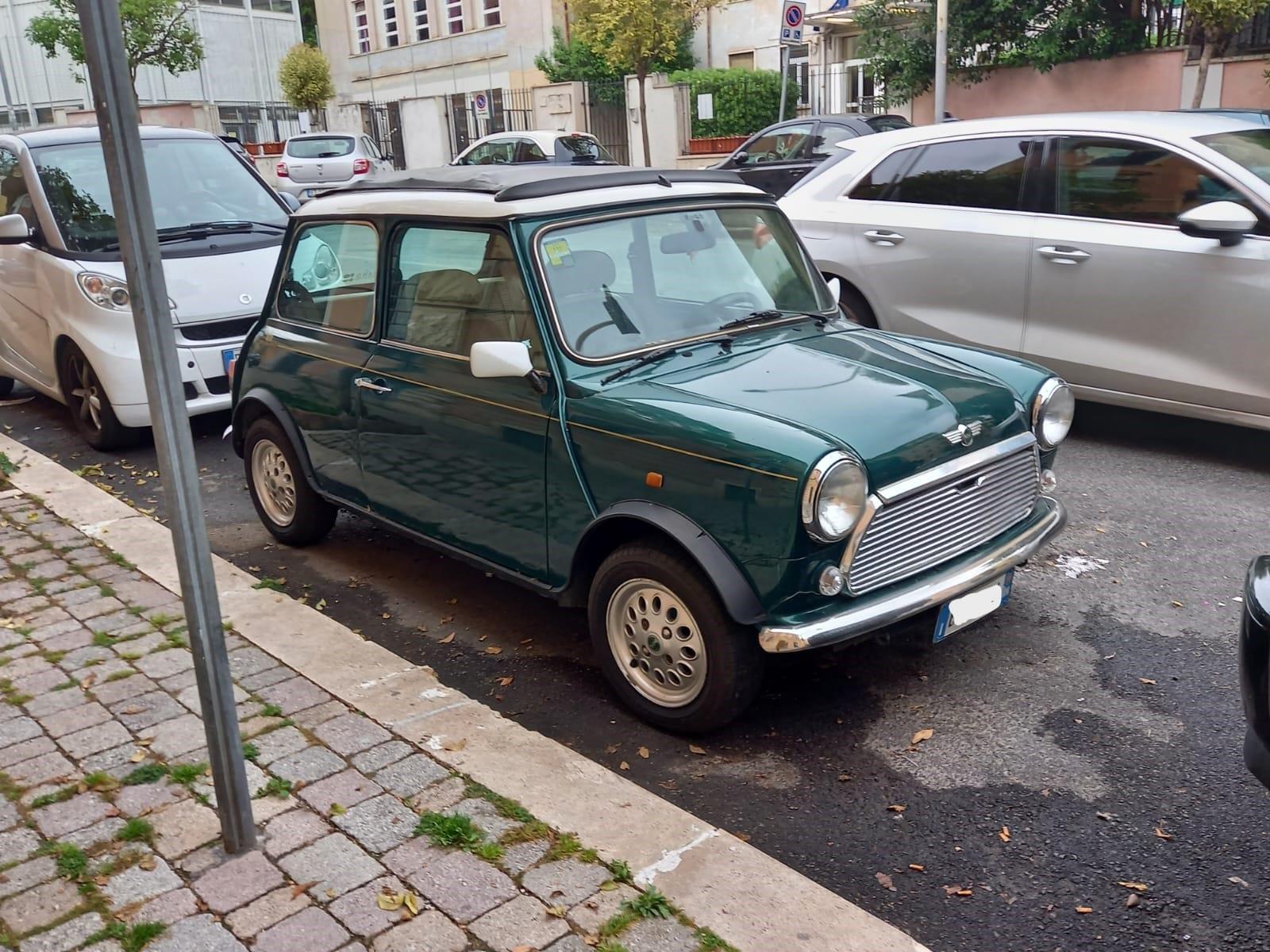
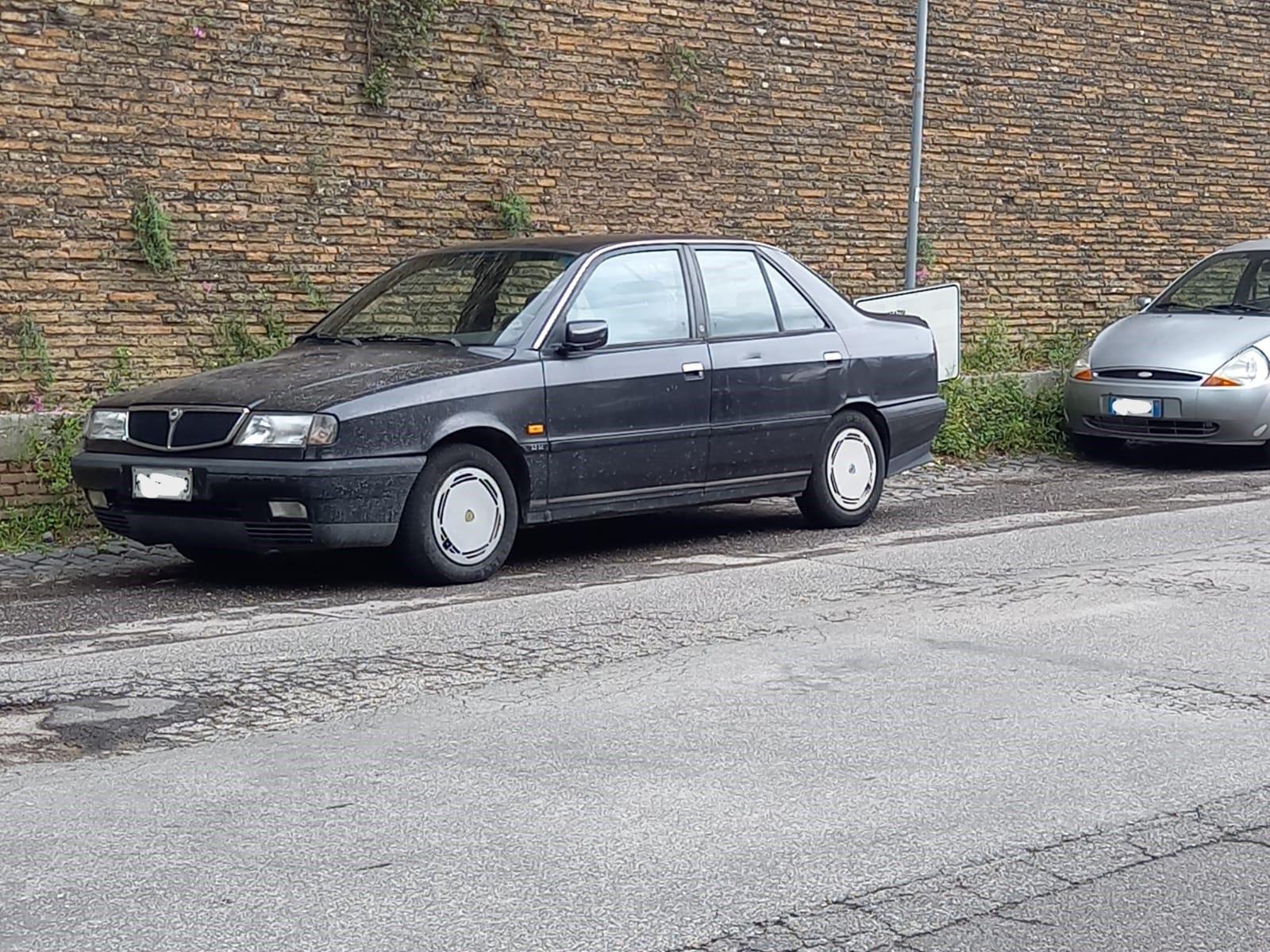
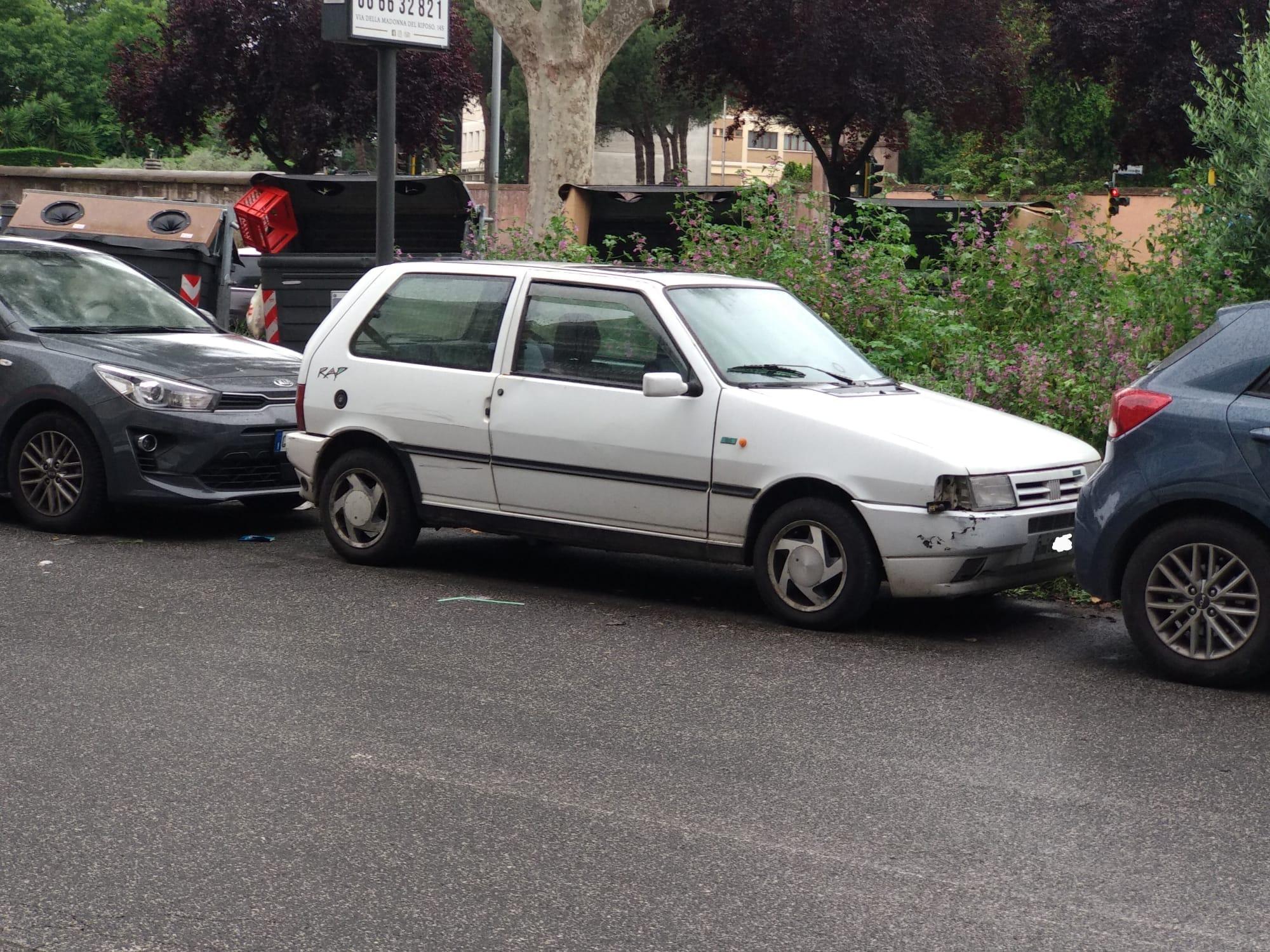
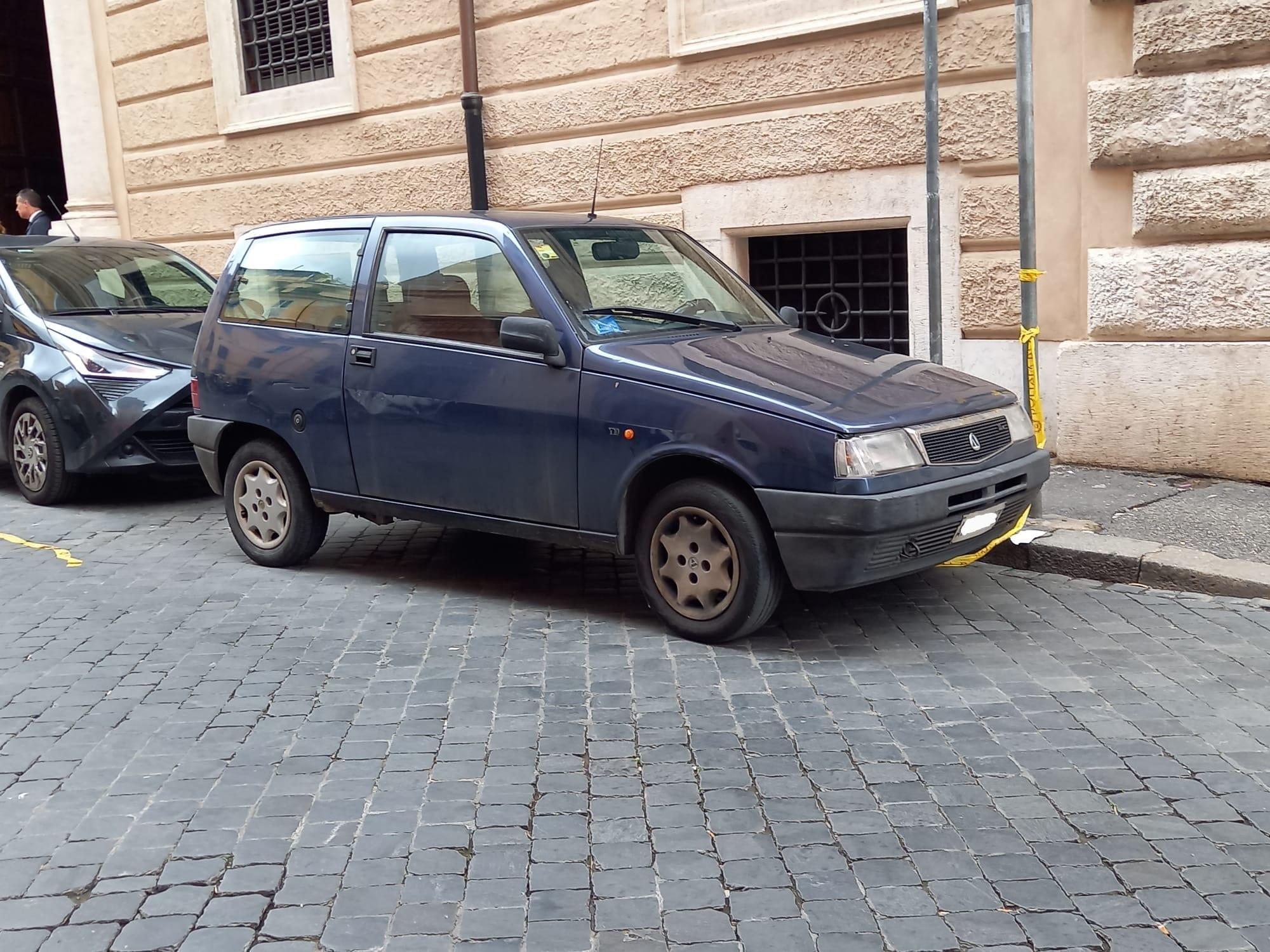
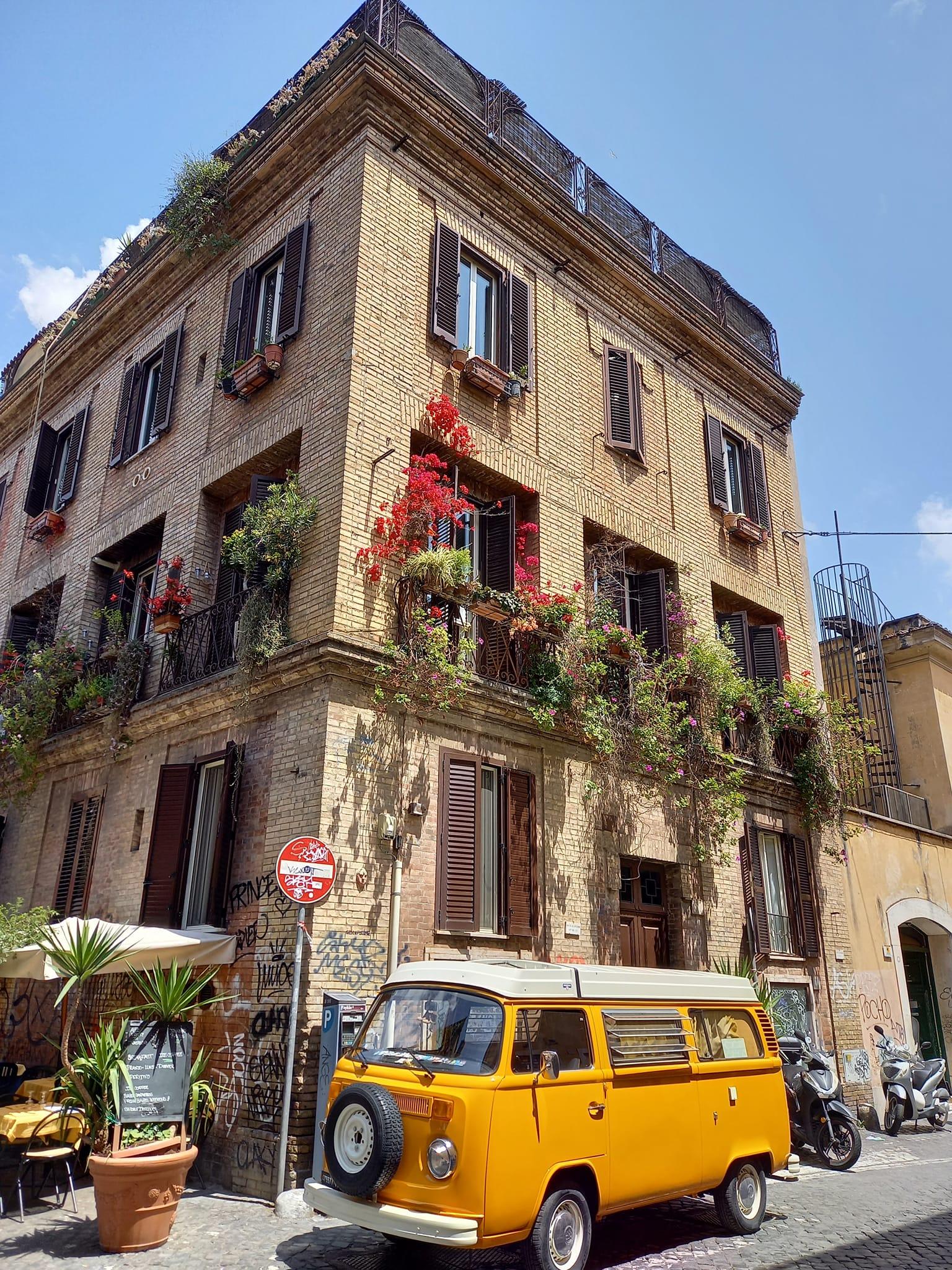
 3 puntiSi anche se non ho mai sentito un ministro dell'economia sostenere il contrario dicendo "voglio che si costruiscano sempre meno macchine in italia". Diciamo che oltre alle parole, che negli anni sono state sempre abbondanti sull'argomento, si passi anche a qualche fatto. Snellimento di giurisprudenza e burocrazia dovrebbe essere al primo punto di ogni piano politico economico, però la realtà dice che è argomento talmente ostico che nessuno riesce a cavarci le gambe3 puntiFonte bilancio depositato presso la SEC americana. Credo abbia ragione @Stellaris nel commento sopra Si è questa l'impressione, oppure il ministro non si è voluto sbilanciare su una questione delicata, e un eventuale ingresso non va certo annunciato prima, facendo questa dichiarazione sibillina. Sulla base della mia cultura economica, penso che gli Stati debbano entrare nelle aziende solo quando il mercato fallisce e quindi per preservare interessi strategici“, ha concluso Giorgetti. Quindi da una parte dice che non serve, dall'altra si riserva per interessi strategici. Comunque andrei a guardare tutte le dichiarazioni di Giorgettti, anche quelle di febbraio 23 ad un convegno sull'auto: «Vogliamo privilegiare ciò che si produce in Italia. Se lo Stato mette importanti risorse pubbliche deve valorizzare ciò che viene prodotto nel Paese e non all’estero. Ma serve l’impegno di Stellantis che deve continuare a credere nella produzione in Italia». «In Italia si producono oggi 400.000-450.000 autovetture, in Spagna quattro volte tanto. Il tentativo di riportare produzioni in Italia è un imperativo, non facile, ma stiamo incalzando l’azienda su questo», ha affermato Giorgetti. Per quanto riguarda gli incentivi il ministro ha spiegato che «il governo ha deciso finalmente di stanziare risorse importanti che dovranno incentivare la domanda, ma l’auto elettrica non deve essere un bene di lusso. Gli incentivi devono favorire l’acquisto di vetture elettriche da parte di tutti. L’auto elettrica non deve essere la seconda vettura delle famiglie abbienti che hanno un’altra vettura per le lunghe percorrenze e la utilizzano per fare le incombenze cittadine». Mi pare che abbia ben presente i problemi finora nascosti sotto il tappetto.3 puntiAmmazza se è grossa sta plancia... ci puoi piantare una vigna3 punti...e allora andiamo di 2000 ! Ormai ho il computer lentissimo e presto farò anche togliere la linea fissa e per un po' di tempo ( finchè m' imparerò a entrare qui col telefonino ) non ci sarò, quindi svuoto un po' di vecchi avvistamenti che avevo accumulato sul desktop. A parte la prima, stavolta sono tutti avvistamenti miei : Una malandata "Rap" scattata da un mio amico. Un "goodmoring" dopo una nottata di pioggerella inglese, appena aperto l' uscio di casa. Un' ormai sempre più rara da vedere Dedra, lungo le Mura Gianicolensi. Lì di fronte c'è un carrozziere, quindi non escluderei qualche futuro lavoretto. In pieno centro una "cinesina". Ci sono altre Y10 che son saltate fuori ultimamente, e tutte con targhe non romane, ma che non ho fatto in tempo a riprendere. Per finire una cartolina trasteverina : l' ennesimo mezzo d' epoca appostato nei pressi di un ristorante, questo addirittura credo funga da "ripostiglio" per tovaglie e stoviglie varie ! 😮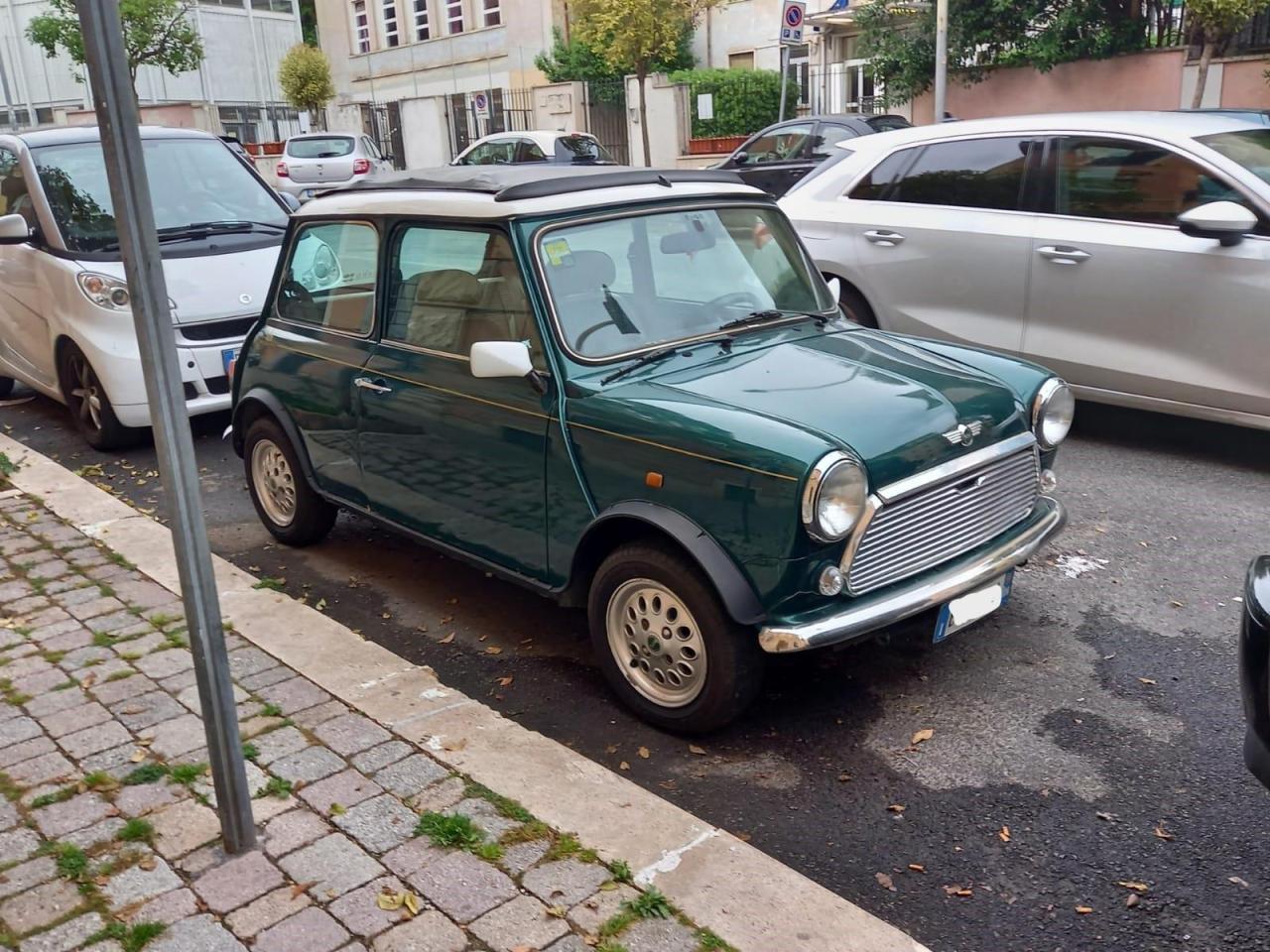
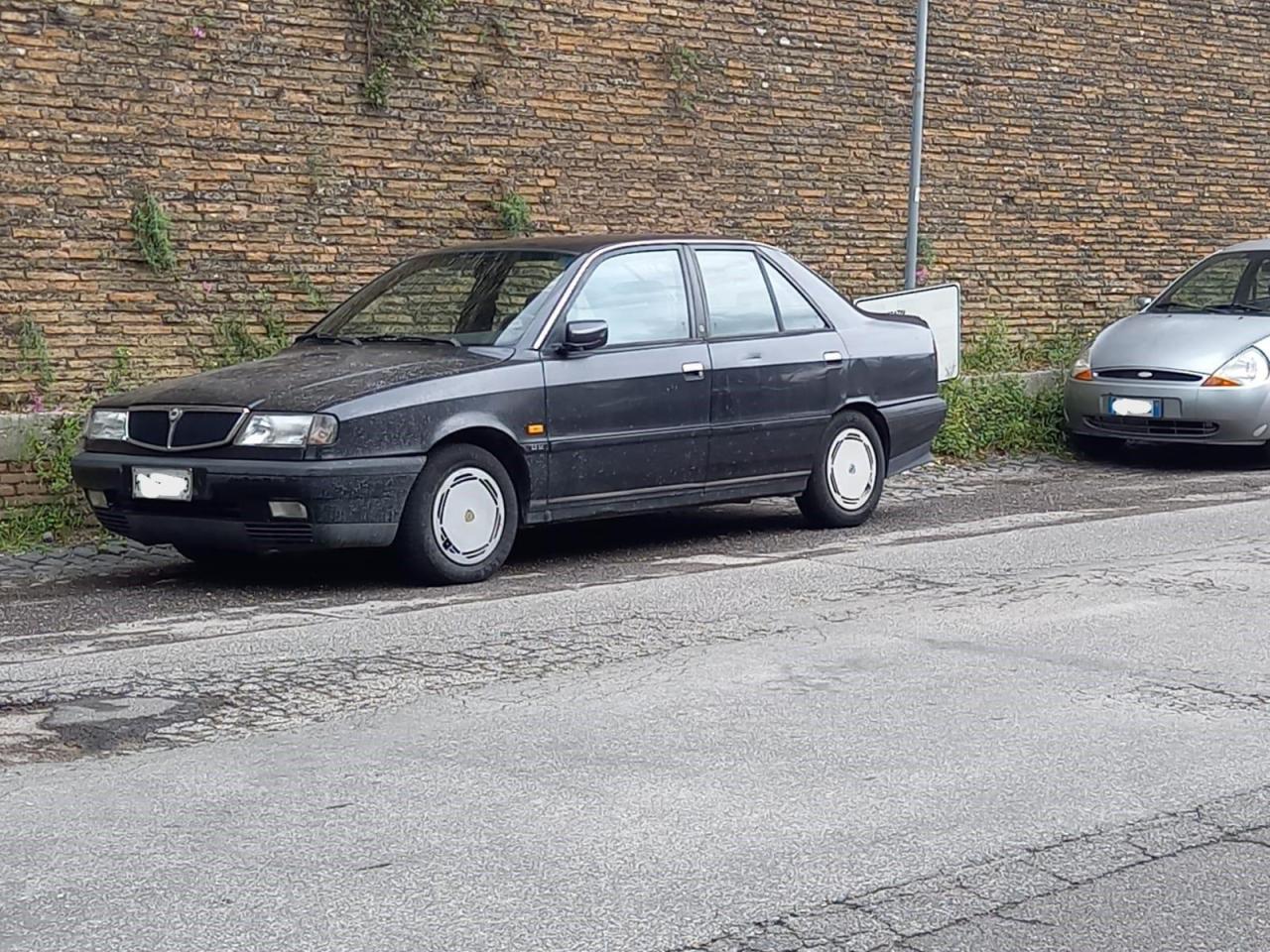
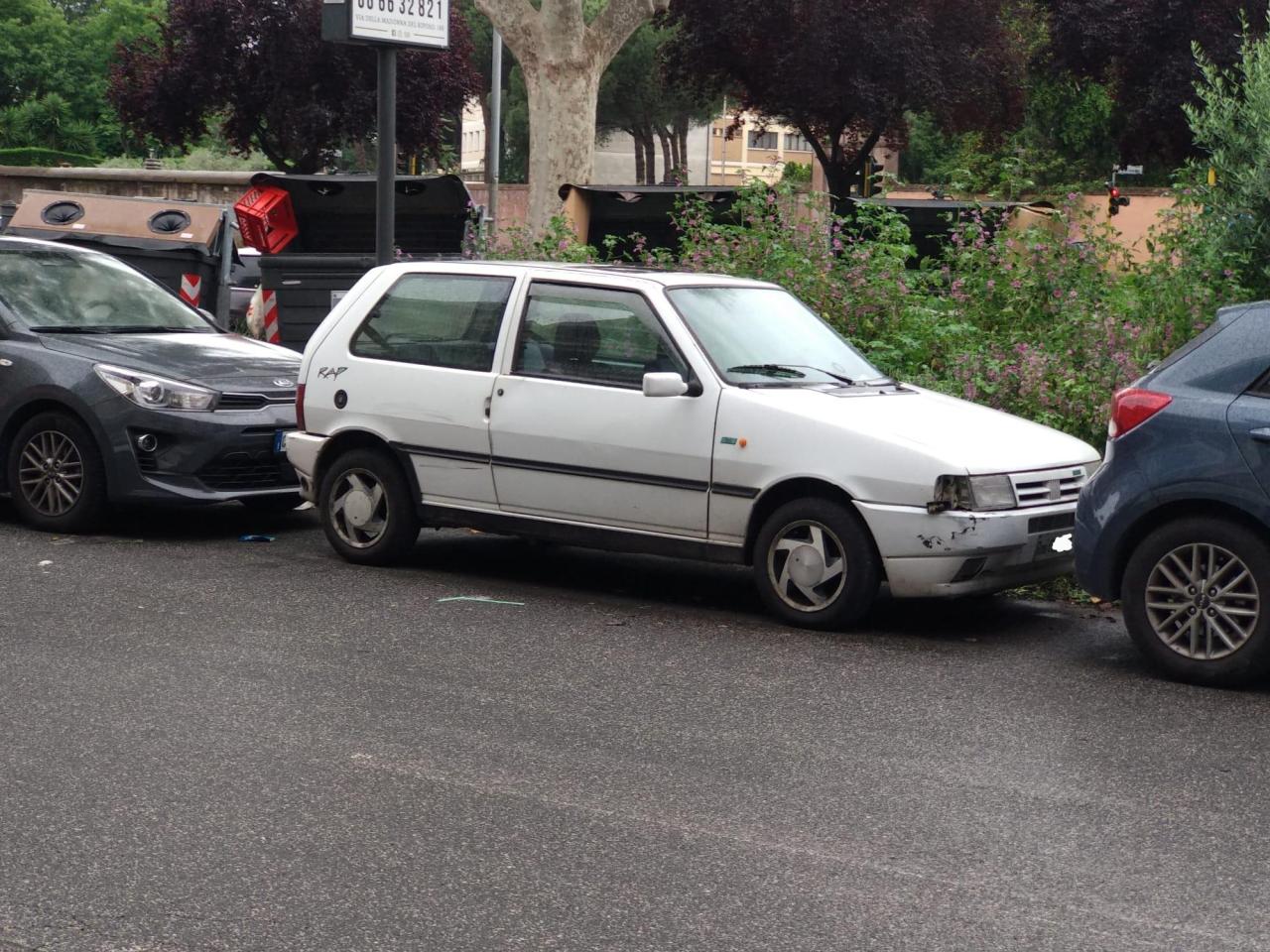
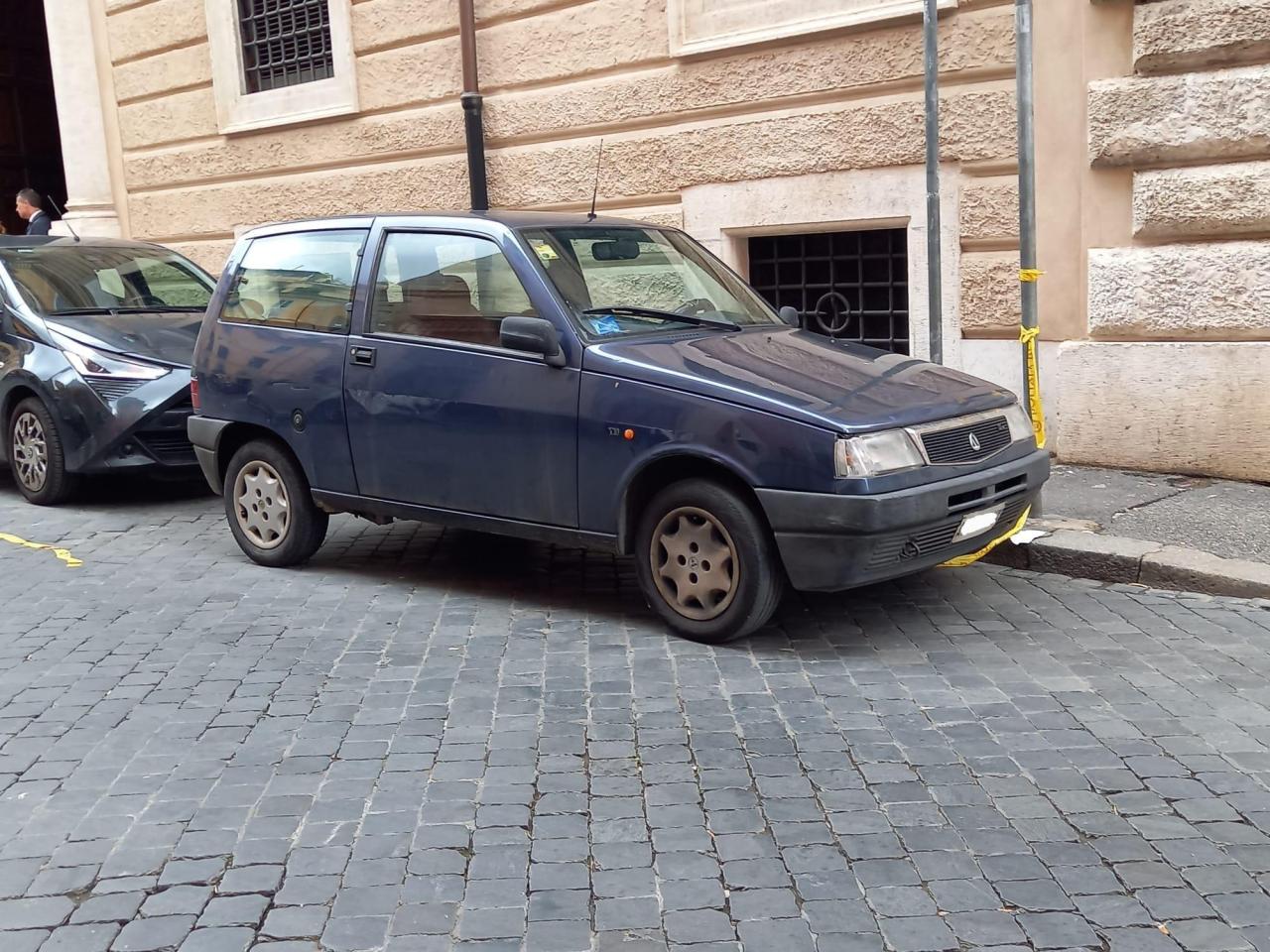
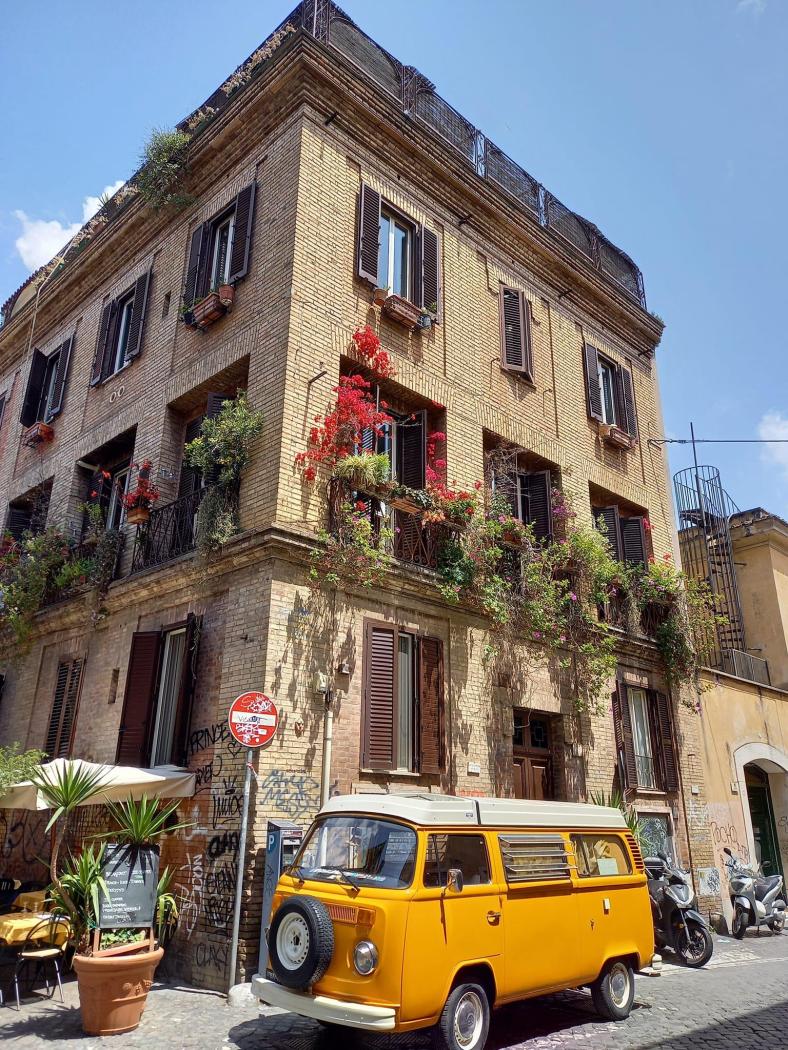 2 puntiVista oggi all'interno di Fca a mirafiori drosso, ero lì x lavoro , blu azzurro ( tipo avenger LAKE forse più scuro ) è davvero imbarazzante il posteriore, una Stilo rialzata , il.muso è piallato non so che dire 🤦♂️🤦♂️2 puntiMamma mia. Dopo aver dissacrato il nome nel 2010 con la bravetta, arriva nel 2023 la scarpa ortopedica francese. E gli danno pure la scusa perfetta per non fare la C-Hatch 🫠2 punti2 puntiGuardandola bene mi piace molto di piu' della Yaris cross per via degli archi passaruota rotondi,quelli squadrati della cross (o anche del rav)non sono granche'.2 puntiMa una cazzo di Citroen Ds, Sm.. Ami... Adattate agli stilemi 2023 o con logica steampunk no eh?2 puntiTavares sta costruendosi le scuse per smantellare gli stabilimenti italiani da qui a 5 anni.2 puntiCon il pensionamento di Wester parte un altro pilastro ex FCA 🥲. Faccio fatica a capire la logica di mettere François a capo di Fiat e di DS, marchi di poli diversi con strategie ben diverse. Avrei capito Fiat + Citroen visto che sono appaiate nel low cost. Ma Fiat e DS veramente strano. Fossi in DS sarei preoccupato …2 punti2 puntiDecalogo per l'Alfa BEV al passo con i tempi ma che non rinuncia alla sua eredità storica (eritege) "vera Alfa come quelle de na vorta": 1) interni sportivi ma con materiali peggio di una Tesla; 2) motori elettrici più piccoli ma che consumano più corrente e vanno più forte della pari concorrenza km/Kw; il vero alfista lo sa e volentieri si ferma più degli altri alla colonnina. È il prezzo da pagare in quanto portatore del marchio (Frodo scansate proprio); 3) serie di modelli striminzita, massimo 2 come ai tempi della Golden age del pianale Tipo2 4) due motori, uno per ruota rigorosamente solo sull'assale posteriore per i traversi ecologici e sostenibili senza dover impiegare il freno a mano elettrico 5) GTA senza sedili posteriori o in carbonio madre. 6) casse al posto degli scarichi posteriori con "Advanced emotional Bialbero sound experience" con 115dB esterni a vettura ferma. 7) ruote con offset ultrapositivo 😎 "Alfa Yoke" a "mezzo prosciutto" 9) Rosso Alfa individual da guardarsi esclusivamente con schermatura UV integrale. 10) Cavo di ricarica grosso come un'anaconda con spina MASCHIA a forma di Biscione visconteo decorato total body in vero ecopelo protetto IP68.2 punti2 puntiIo vorrei capire dove fa pena il GME visto che stiamo parlando di motori. Grecale doveva nascere con Ibridazioni diverse fino al phev, e questo è abbastanza noto. Vorrei capire però dove quel motore è penoso: coppia? potenza? consumi? Fluidità di marcia? Perché altrimenti diamo fiato alla bocca a caso. Anche Macan ha il 4 cilindri (oggi, perché domani è full bev), ma tutto sto stracciamento di vesti non lo vedo.2 puntiLa Leaderboard è riferita all'orario Roma/GMT+02:00

.jpg.dbcaabd84249afbec34e39b43f97ad98.jpg)
.jpg.09b0f5e9fc703b81c0bc0e490cd93cdf.jpg)
.jpg.9afa7f75531eb80605e74ce4e2e6adc7.jpg)
.jpg.934e7d683d1d912dbb27dd0b73e5f65b.jpg)
.jpg.dde8f5ca4b49abe9fb97bc21ff5cbcd5.jpg)
.jpg.be532adb906d3c029601d2fa9d61e19b.jpg)


.thumb.jpg.d20c5008a881490f9c7f843d442a34f8.jpg)




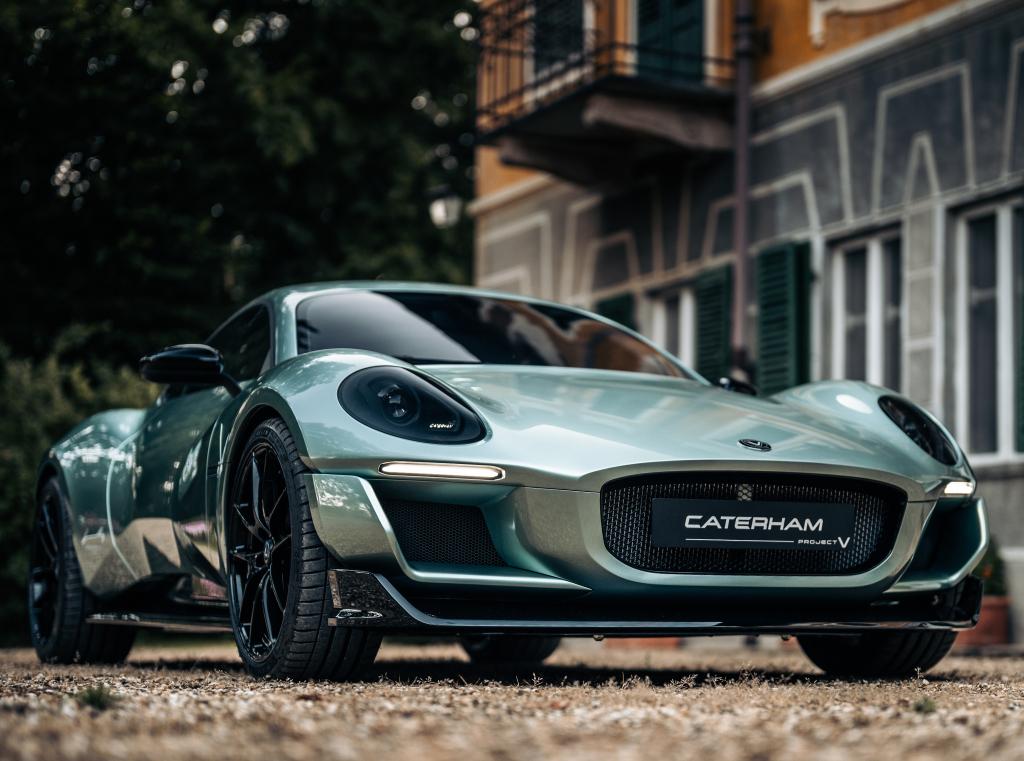
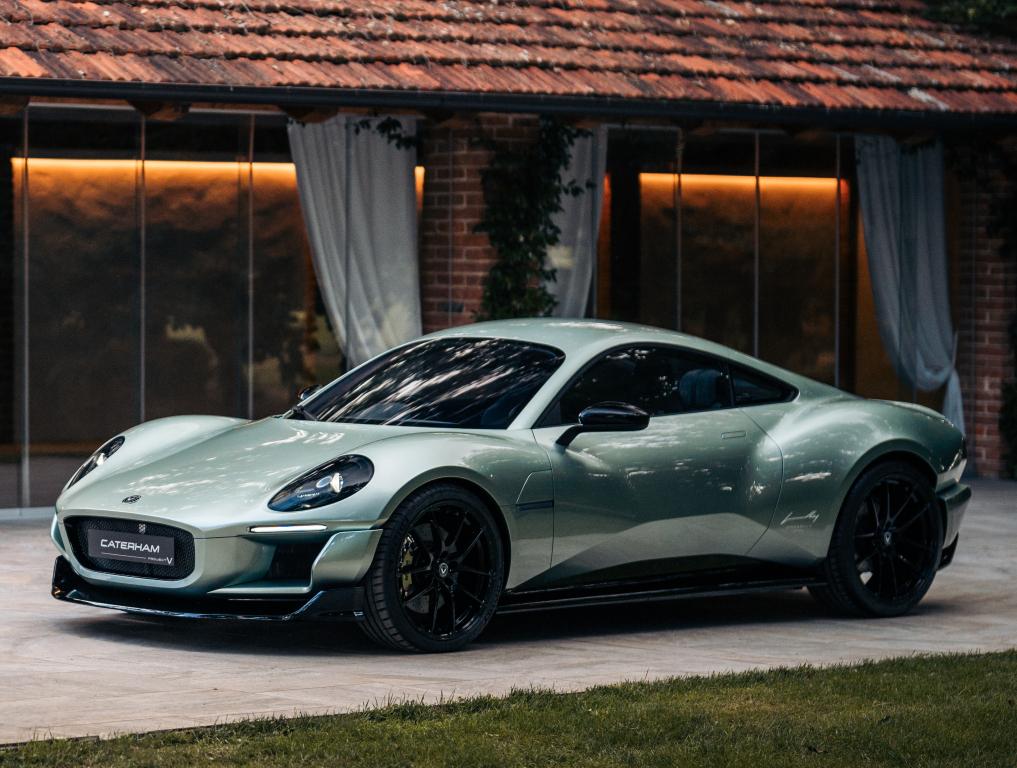
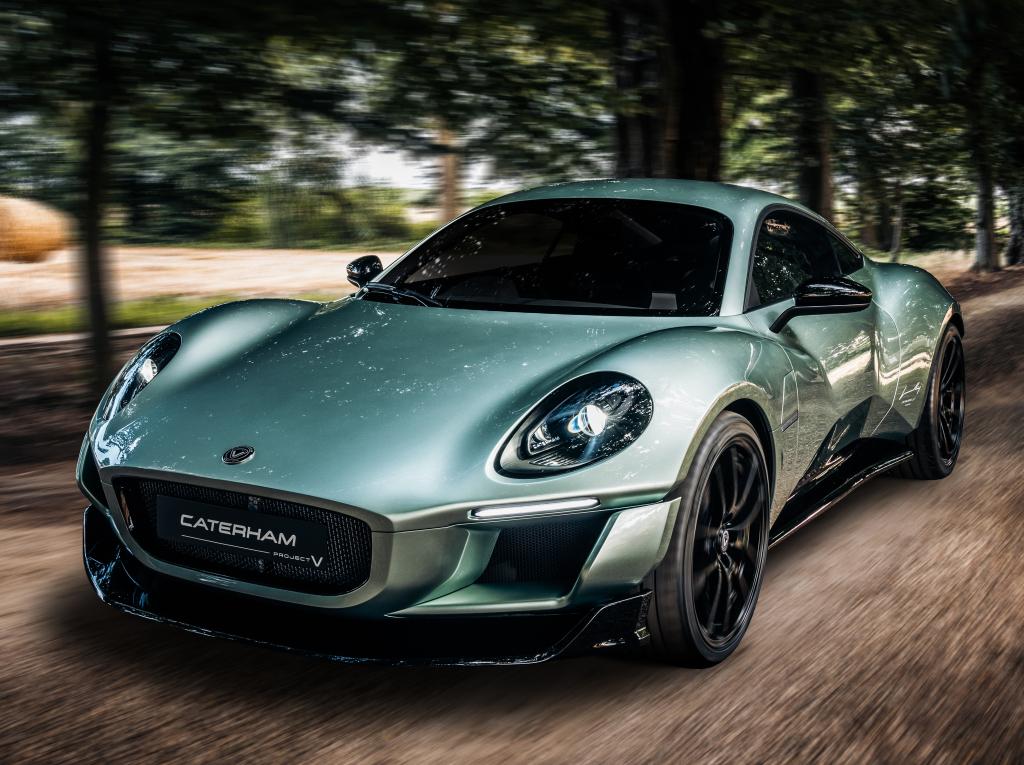
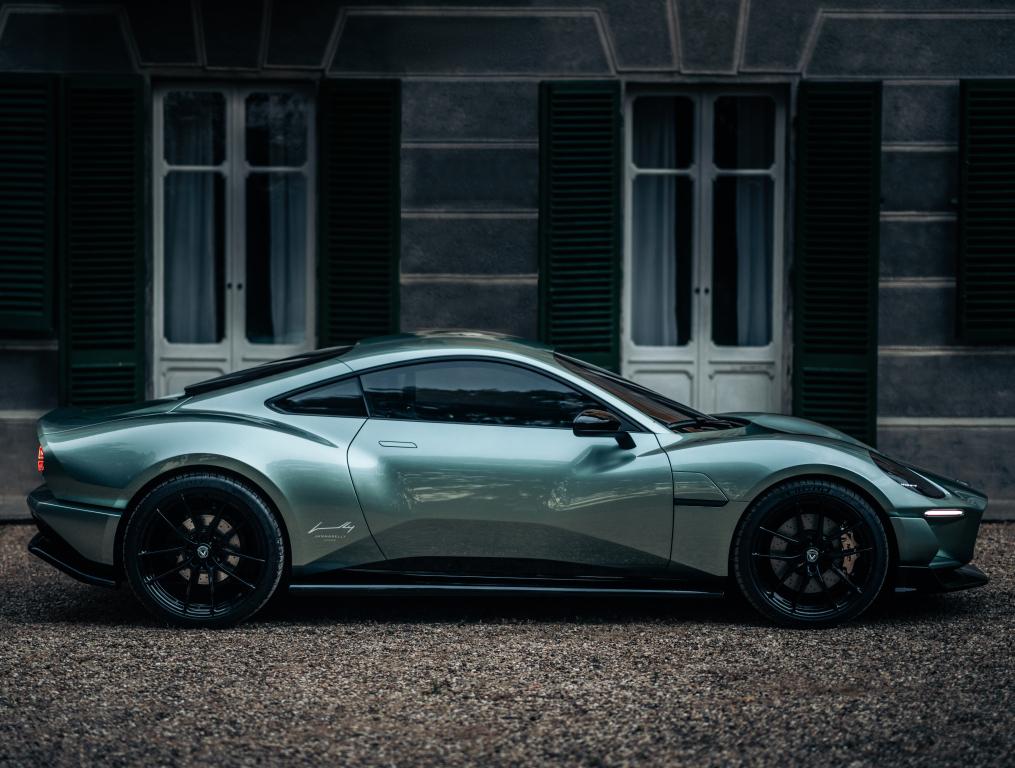
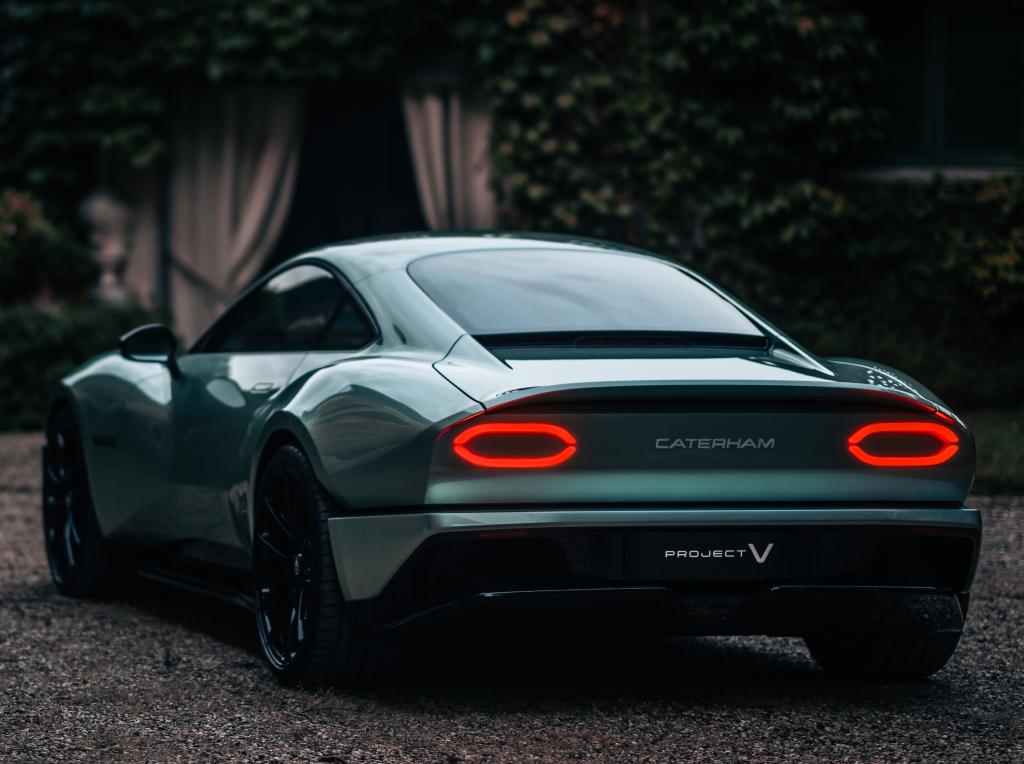
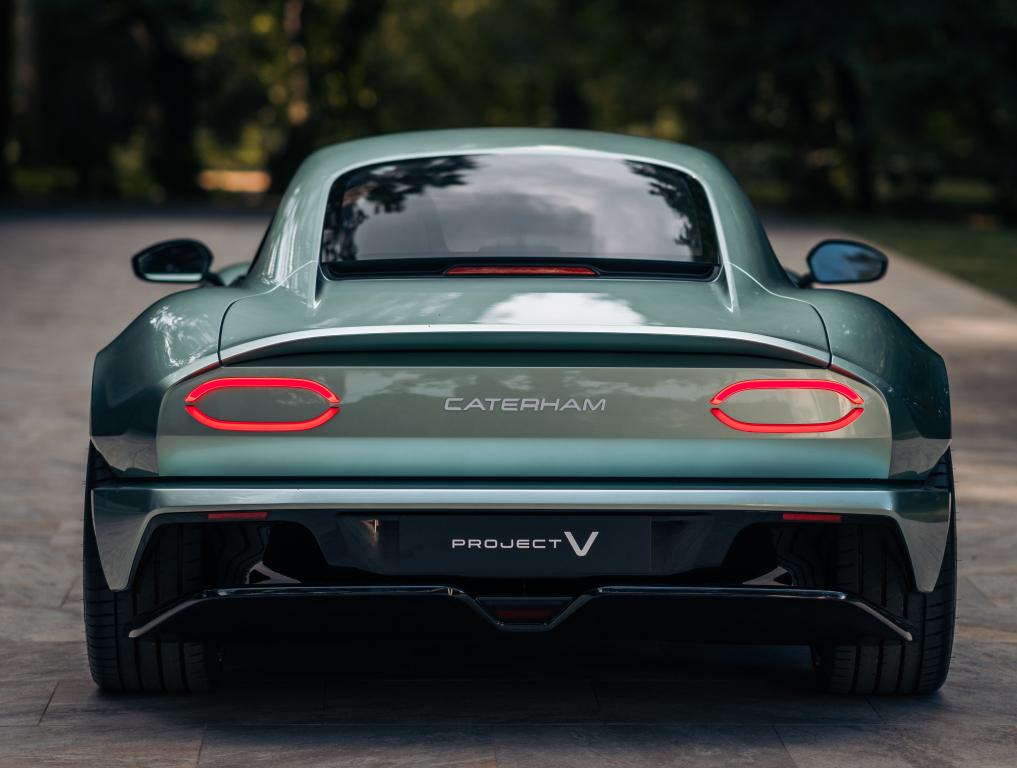
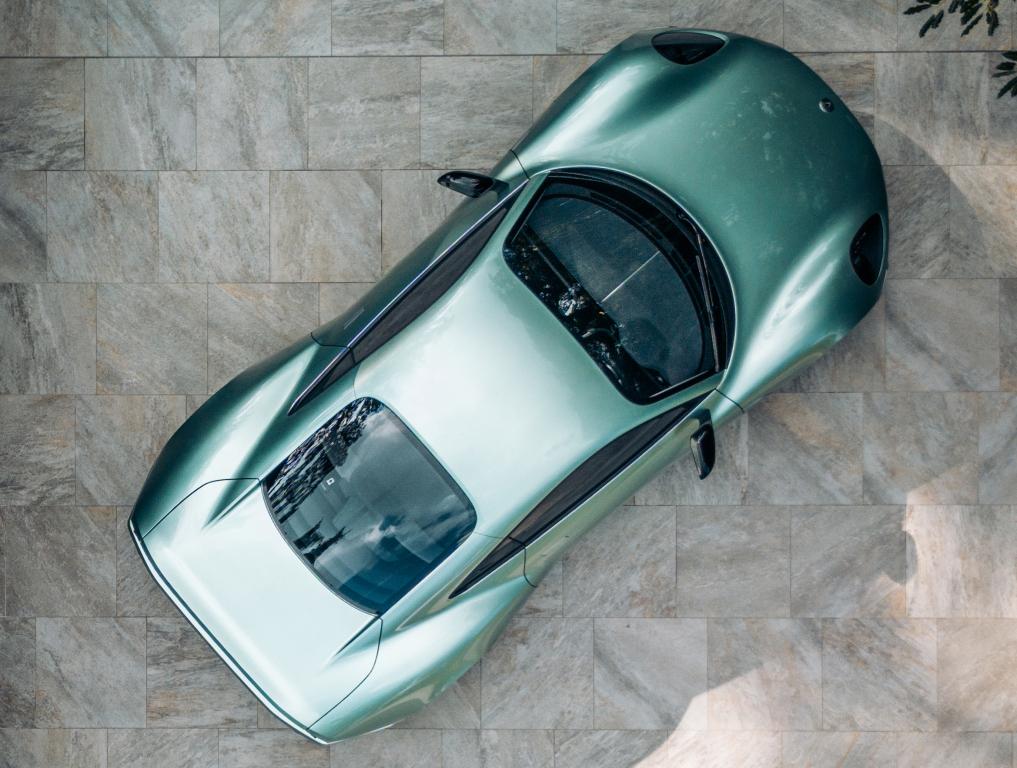



.thumb.jpg.fd45c71fbe2b1cf0ec27c4e50c684736.jpg)


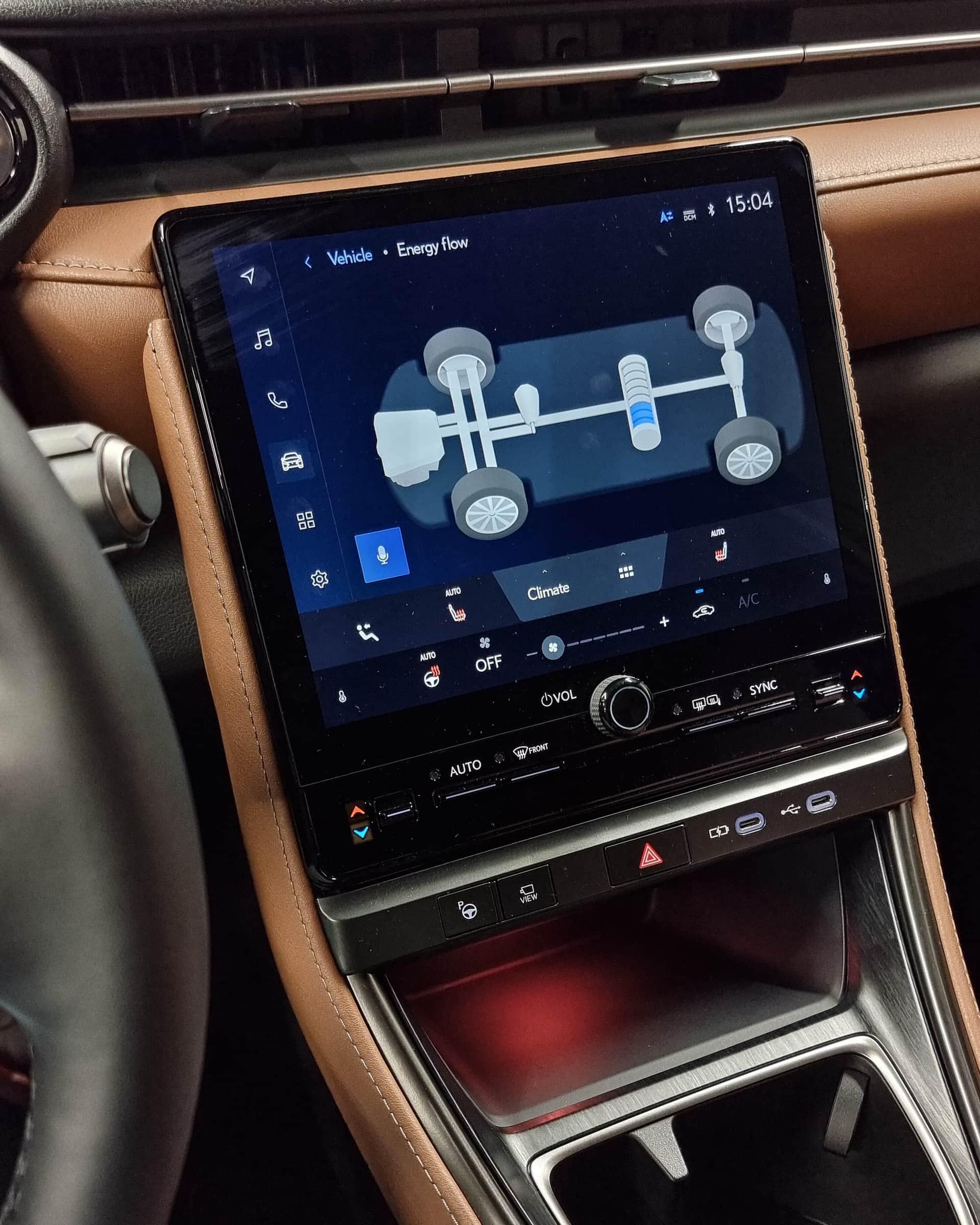
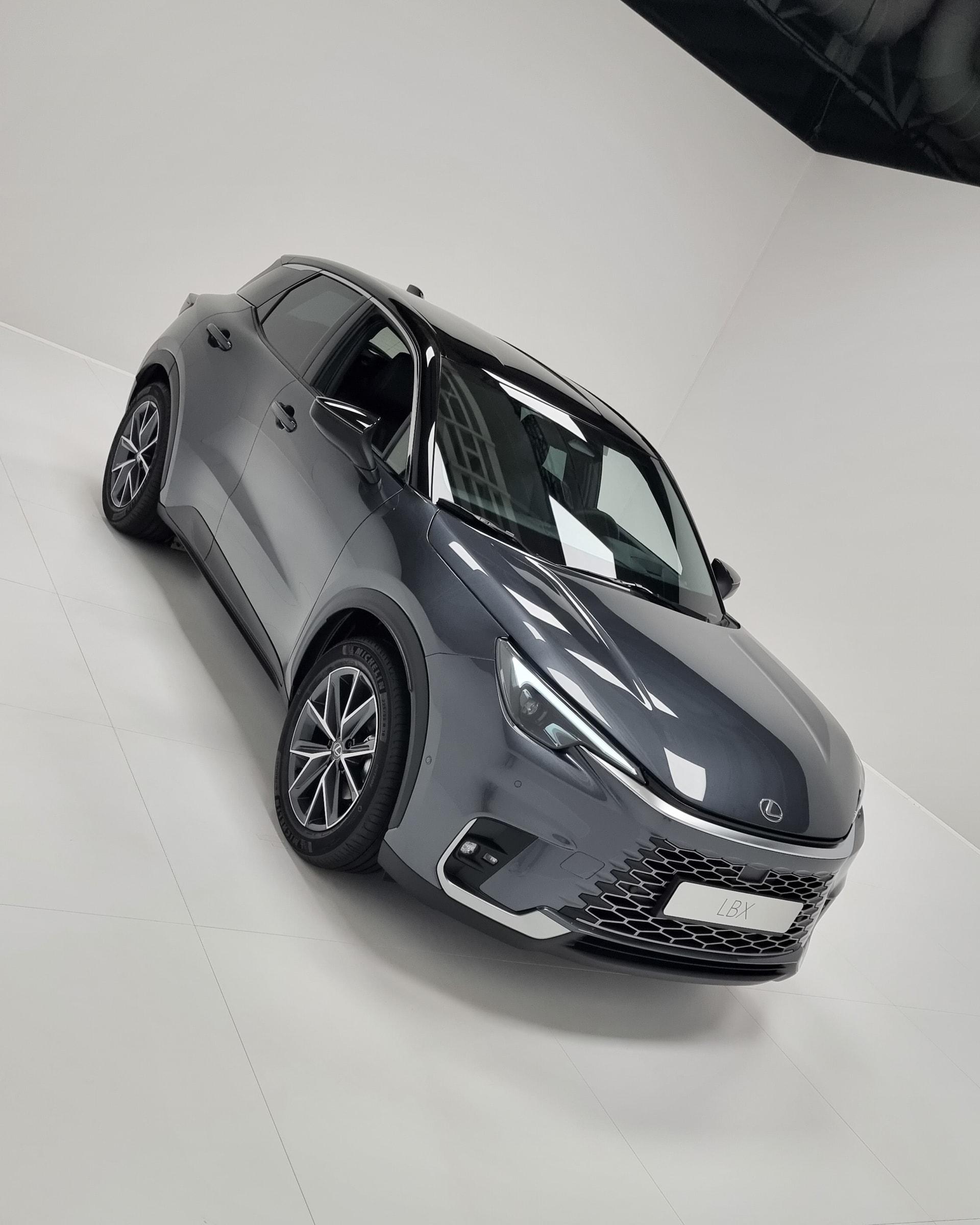
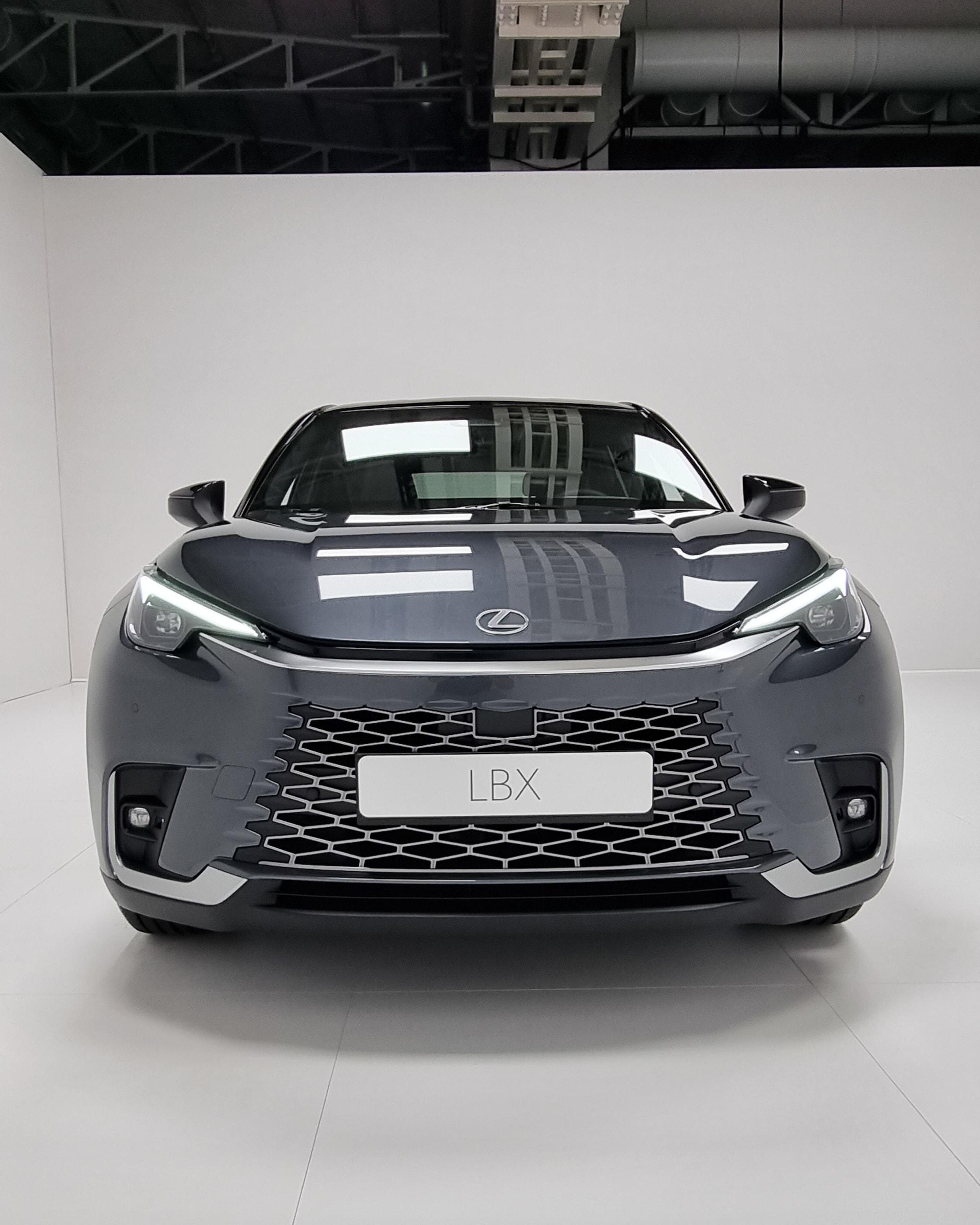
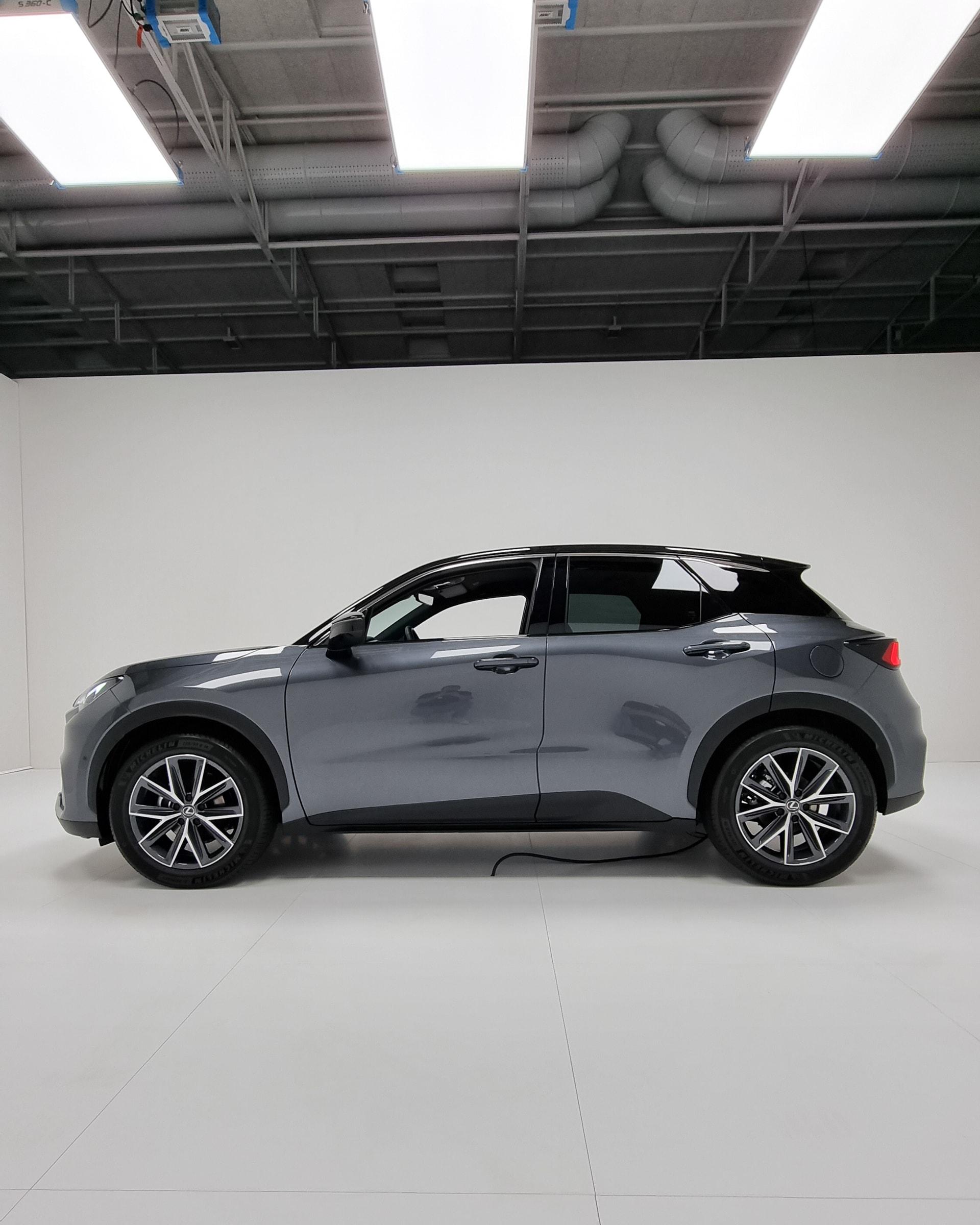






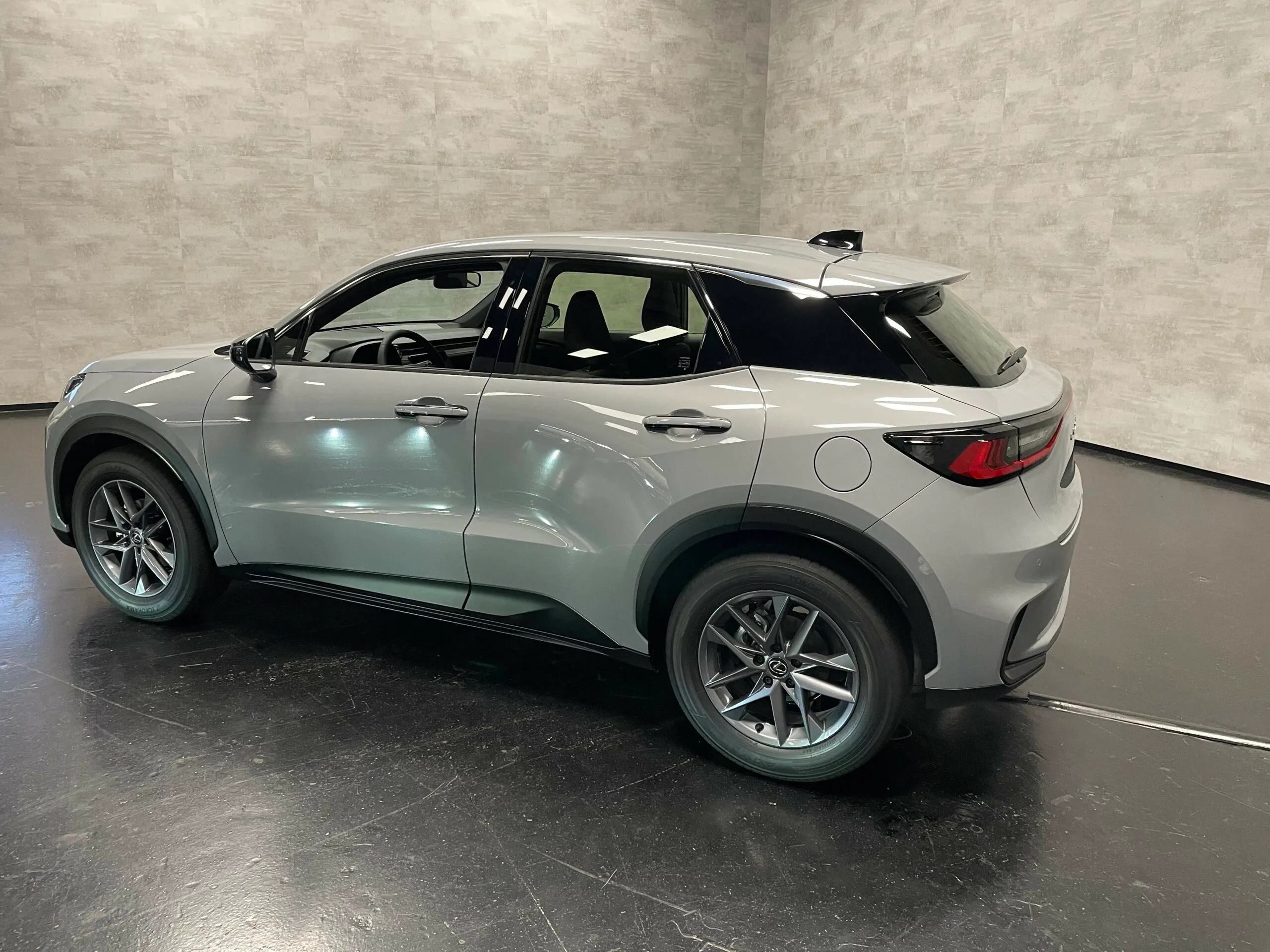
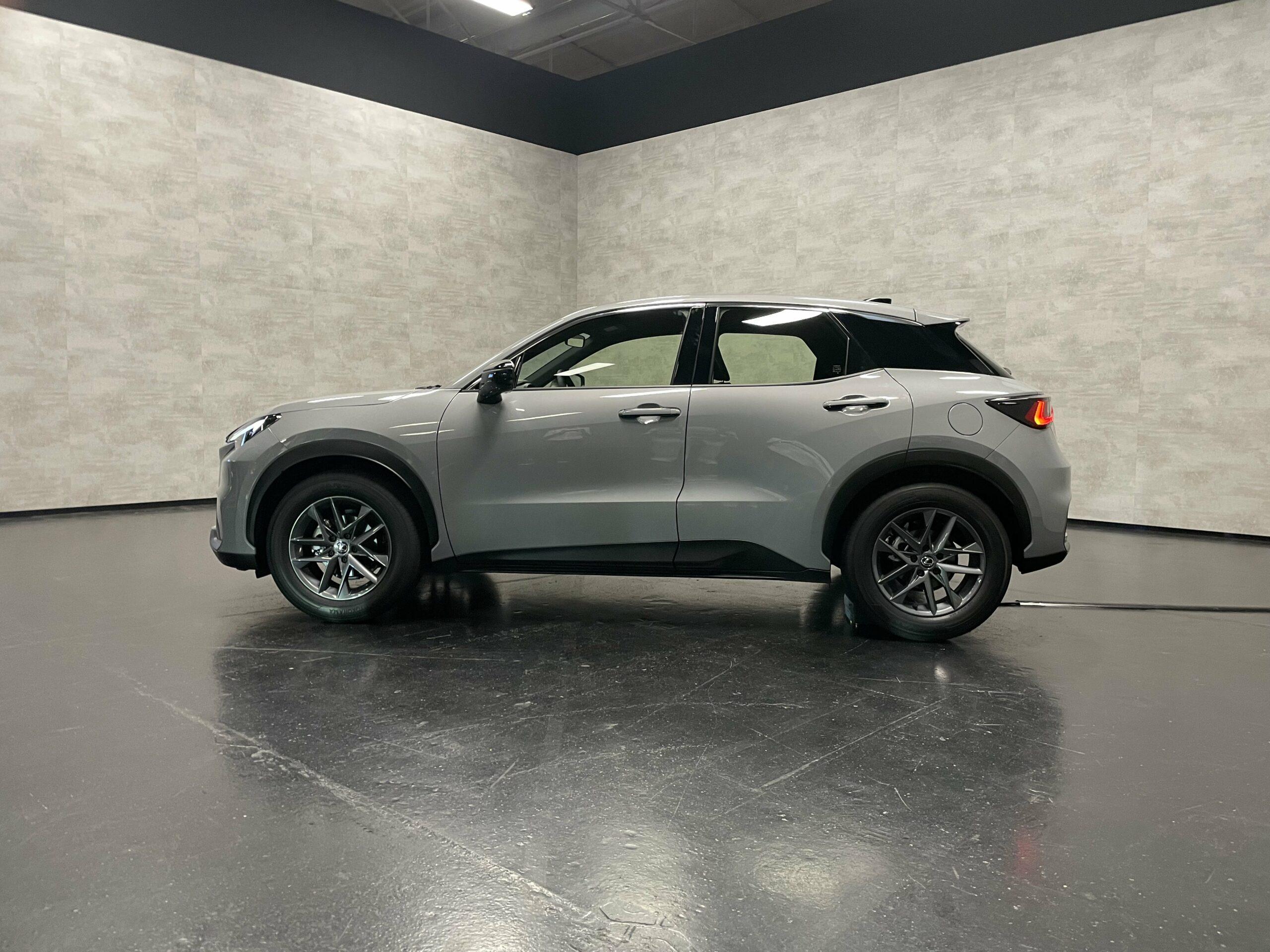
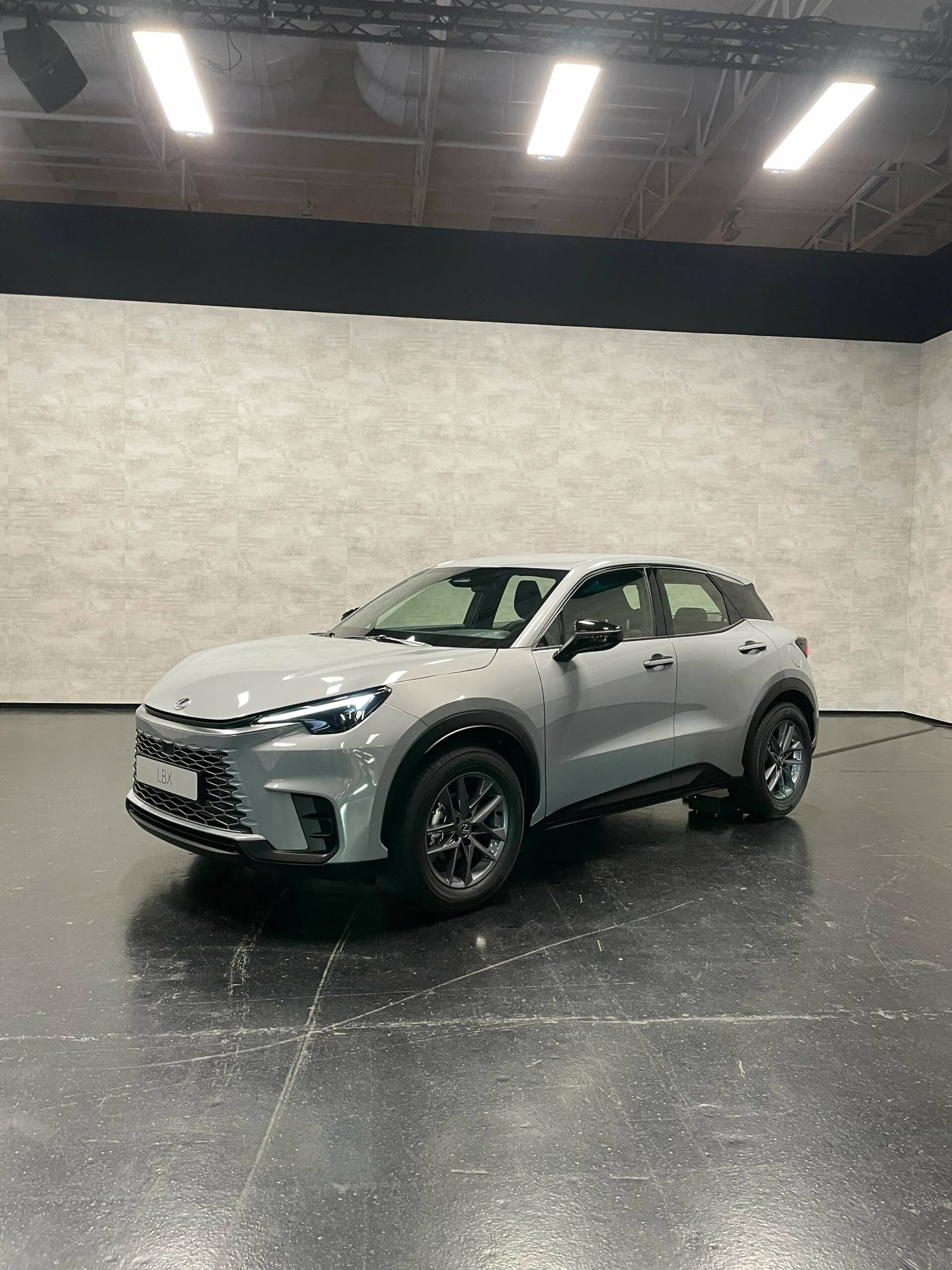











.jpg.0a9ff73d7a7ad09550fc411cda37bc7c.thumb.jpg.095392f5d8b6dc45c10ccf463694d027.jpg)




Account
Navigation
Cerca
Configure browser push notifications
Chrome (Android)
- Tap the lock icon next to the address bar.
- Tap Permissions → Notifications.
- Adjust your preference.
Chrome (Desktop)
- Click the padlock icon in the address bar.
- Select Site settings.
- Find Notifications and adjust your preference.
Safari (iOS 16.4+)
- Ensure the site is installed via Add to Home Screen.
- Open Settings App → Notifications.
- Find your app name and adjust your preference.
Safari (macOS)
- Go to Safari → Preferences.
- Click the Websites tab.
- Select Notifications in the sidebar.
- Find this website and adjust your preference.
Edge (Android)
- Tap the lock icon next to the address bar.
- Tap Permissions.
- Find Notifications and adjust your preference.
Edge (Desktop)
- Click the padlock icon in the address bar.
- Click Permissions for this site.
- Find Notifications and adjust your preference.
Firefox (Android)
- Go to Settings → Site permissions.
- Tap Notifications.
- Find this site in the list and adjust your preference.
Firefox (Desktop)
- Open Firefox Settings.
- Search for Notifications.
- Find this site in the list and adjust your preference.