




Classifica Utenti
Utenti più Apprezzati
(Scegli il periodo) Utenti più Apprezzati
(Storia giorno per giorno) Classifica dall'Origine
(da Marzo 2003)
(Scegli il periodo) Utenti più Apprezzati
(Storia giorno per giorno) Classifica dall'Origine
(da Marzo 2003)
-
led zeppelin
Utente Registrato16Punti12011Numero contenuti pubblicati -
4200blu
Utente Registrato10Punti15584Numero contenuti pubblicati -
TonyH
Utente Registrato8Punti57231Numero contenuti pubblicati -
.webp.b3606aa5b72bc7ff92168dc239e261f0.webp)
GmG
Utente Registrato8Punti2889Numero contenuti pubblicati


Contenuti più Popolari
Stai visualizzando i contenuti con il più alto punteggio, pubblicati in data 02/11/26 e localizzati Tutte le aree/sezioni
-
Abbiamo qualche primo priano di Leclerc per capire che aria tira?6 punti
-
Un cul de sac insomma...Un 1200 troppo piccolo e/o prestigioso, phev poco richiesta e costosa? Forse bastava un 1600 mhev, un diesel: sia mai😂6 punti
-
6 puntiCredo siano decine di miliardi da spendere in riparazioni. Noi in azienda abbiamo 200 Mila Stelvio diesel ferme e ci hanno detto che per risarcirci ognuna verrà sostituita con una Ferrari purosangue.6 punti
-
5 punti
-
Astuta mossa di marketing per rassicurarti sull'affidabilità del brand!
.jpeg.f6a1bca234fedc5ff19f74988137ba49.jpeg) 5 punti
5 punti -
Ma ragazzi, oggi, chi è il privato in Italia che si compra una segmento D nuova NON tedesca? L'appassionato, ma l'appassionato si prende la Giulia. E se DEVE vendere alle flotte, che senso ha lanciarla nell'anno 2027 con motori diesel o benzina mhev che resterebbero nel piazzale?4 punti
-
credo siano discussioni che fanno quelli che non la comprano4 punti
-
Avrebbe delle emissioni CO2 fuori scala per il nostro mercato. Resta il fatto che il 1.6 hev è un motore che va' portato anche da noi, poche storie, serve alla Compass, alla Grandland, alla 3008/5008, alla prossima Tonale, e anche a questa Gamma.3 punti
-
3 punti
-
E invece arrivarono persino ad omologarla. Poi per fortuna a qualcuno venne in mente che fosse una pessima idea mandarla in produzione (solo qualche preserie).3 punti
-
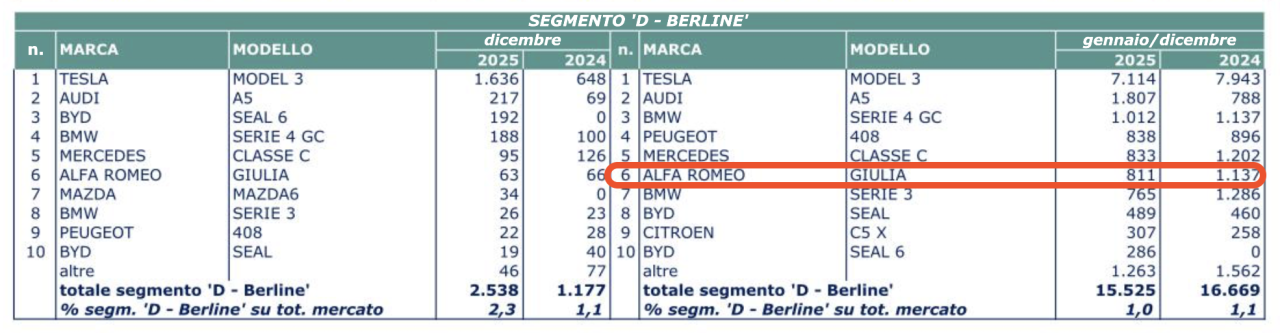
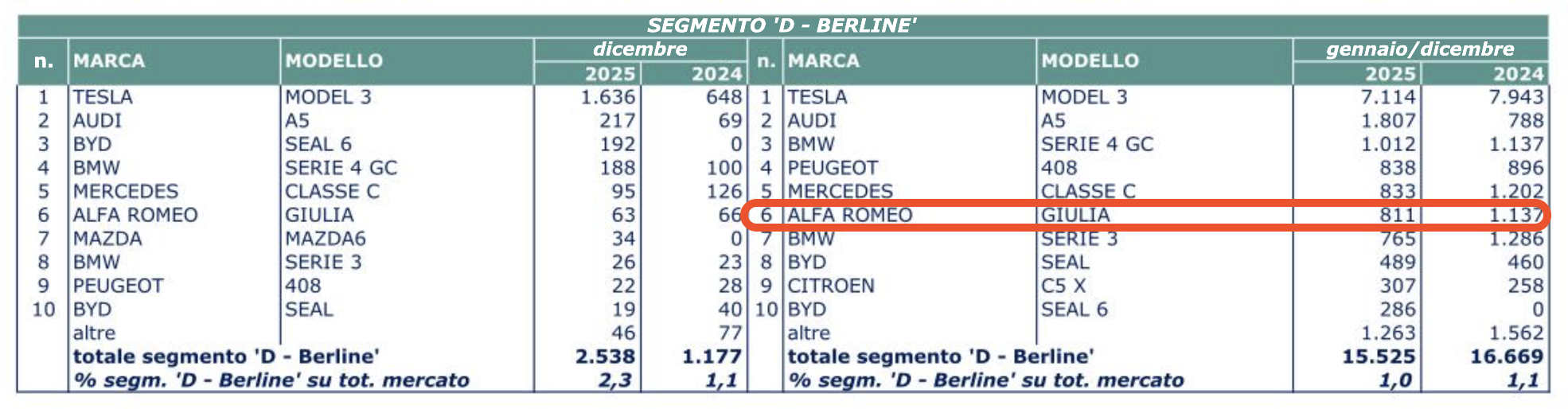
….allora solo 811 appassionati in Italia 2025, non proprio eccessivo…..speriamo che Gamma avra un po’ di piu 😎
 3 punti
 -
é incredibile come la pessima reputazione di un motore possa rischiare di compromettere in partenza quella che potrebbe essere comunque un'ottima scelta entry level. e la scellerata strategia monomotore di stellantis basata proprio su questo propulsore non fa altro che aggiungere problemi al lancio di un modello che già dovrà di suo sgomitare per trovare uno spazio commerciale degno di nota. il problema é che la reputazione del puretech non si limita più agli appassionati... ho due amici, totalmente incompetenti in materia di auto che si sono liberati di una 308 e di una 208 perché il loro meccanico li ha messi in guardia... con questi presupposti, qualsiasi modello che rischia di montare il 1.2 ha la strada in salita. logico quindi che si stiano pensando seriamente. e il fatto di avere una sola altra opzione nella banca organi non lascia molta scelta.3 punti
-
3 puntiStesso motivo di Stellantis - ammortamenti per miliardi di euro sulla mobilità elettrica.3 punti
-
3 punti
-
Preferiamo drogarci e andare con content creator di OnlyFans3 punti
-
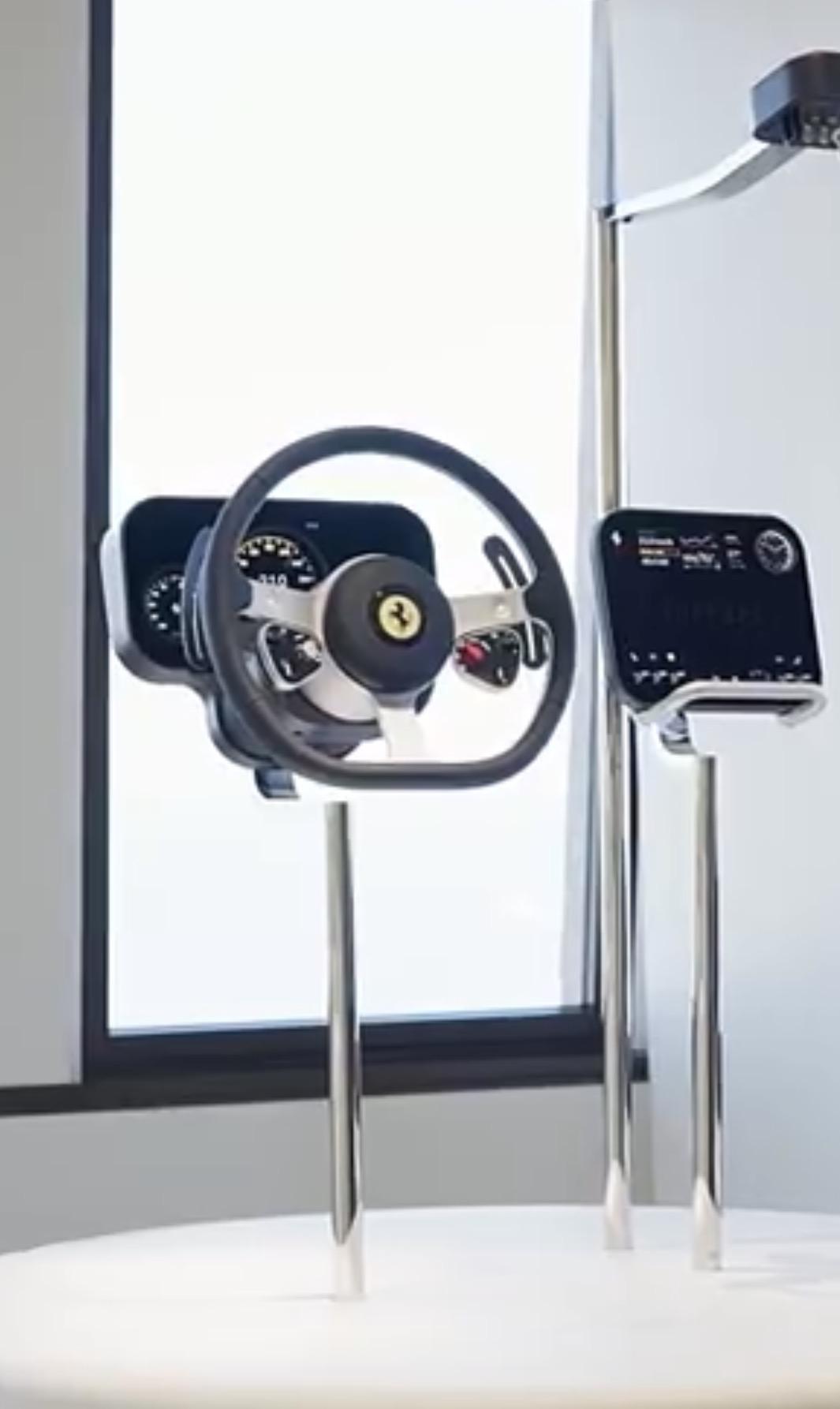
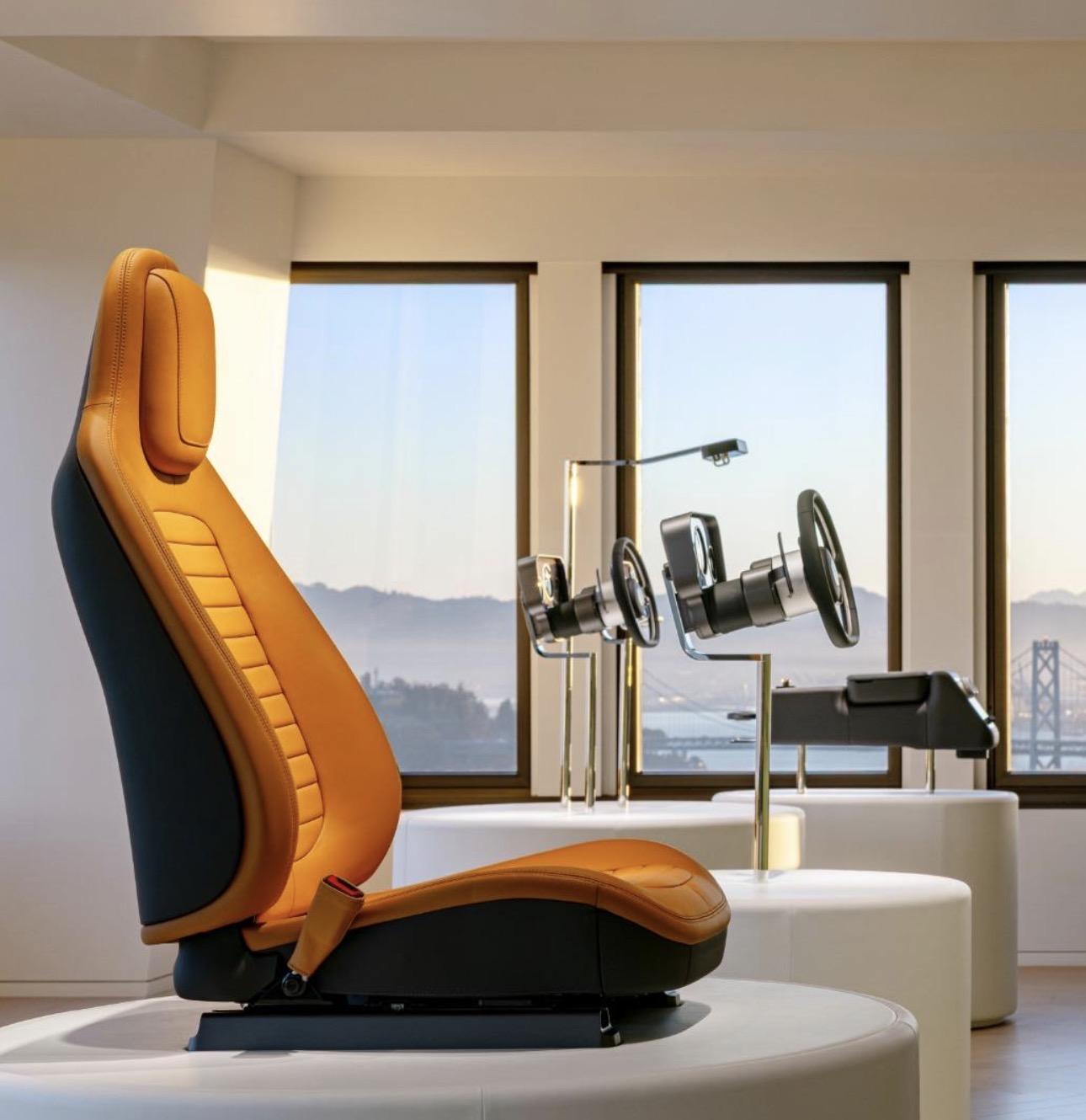
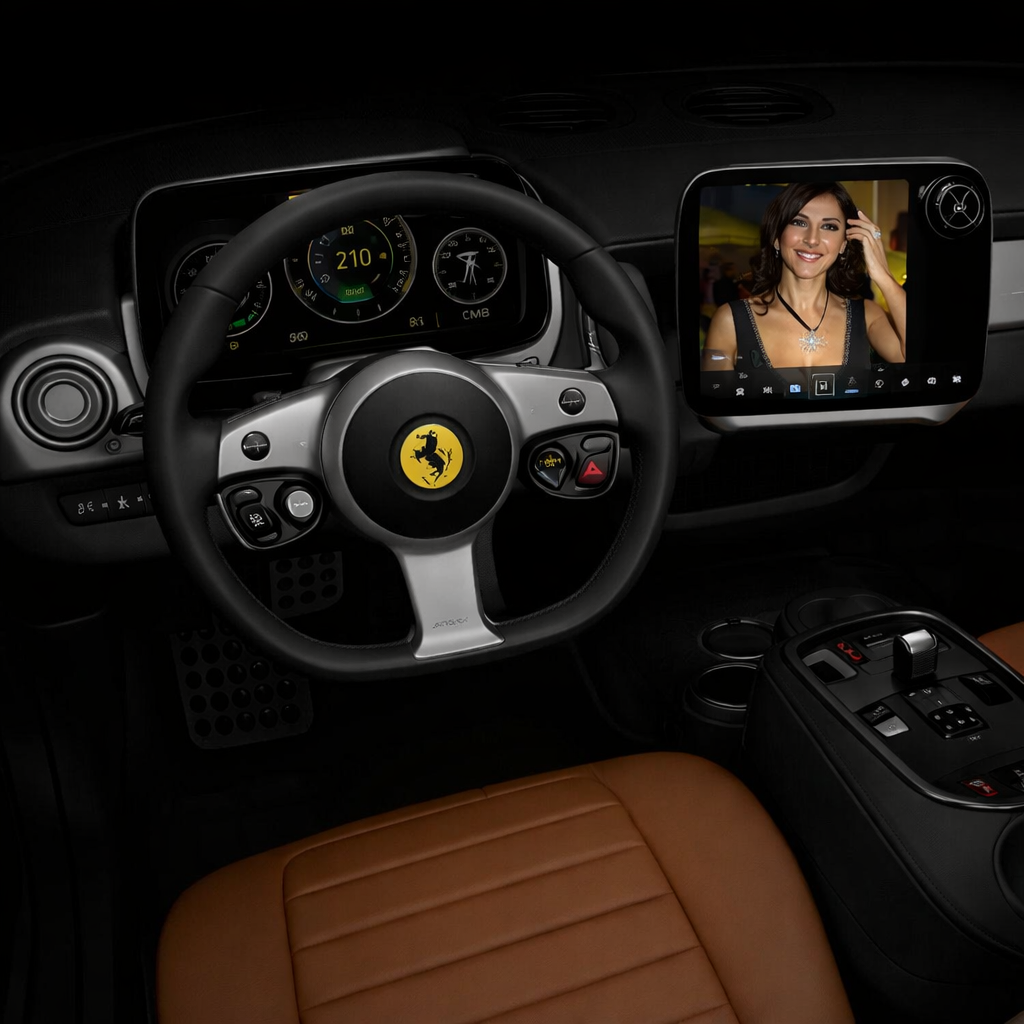
Considerate che è sta fatta una presentazione nuda e cruda del cruscotto e volante decontestualizzata dagli interni, in un ufficio 🤷🏻 Bisogna aspettare a vederli all’interno dell’auto con le finiture reali, pelle, cielo vettura, pannelli porta ecc ecc
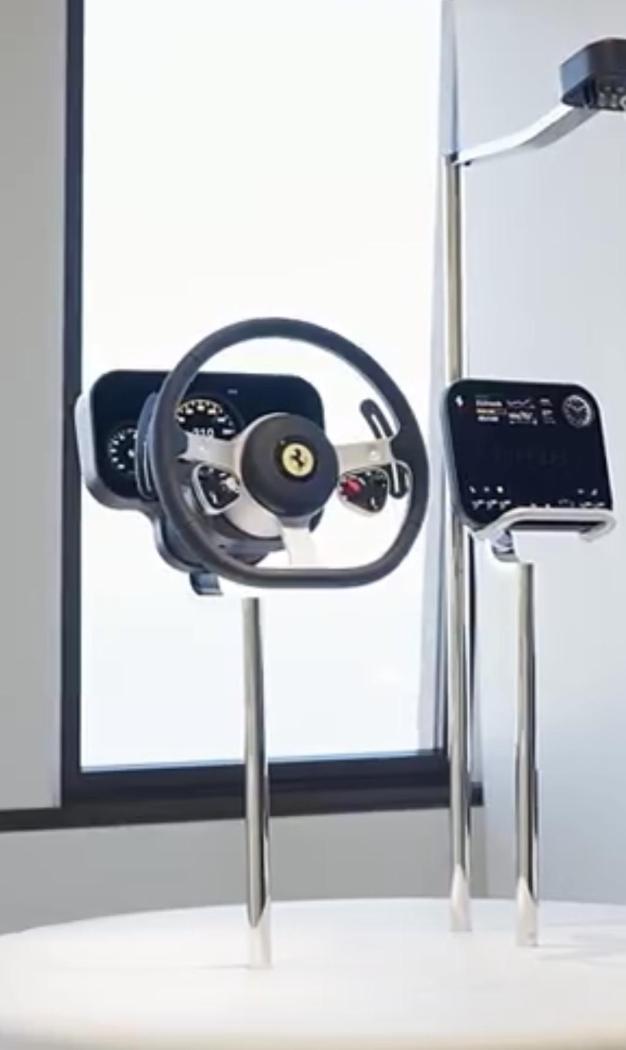
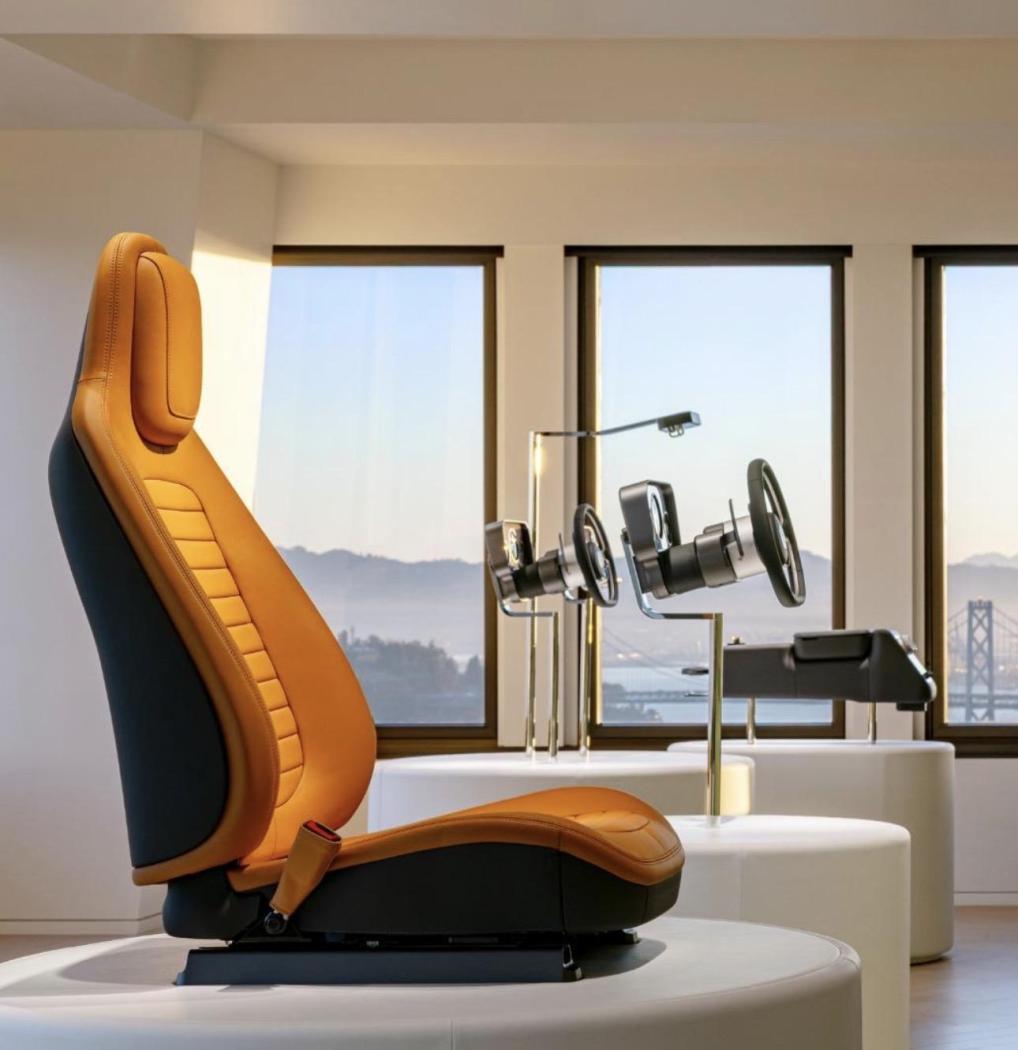 3 punti
 -
3 puntiDopo 11000 km e 4 mesi, posto qui le mie impressioni. Venendo da una Giulia 2016 180 CV manuale, il riassunto è: è un'altra macchina. Intanto è molto più confortevole, soprattutto perché più silenziosa. Non è un discorso di insonorizzazione: il motore fa proprio un rumore diverso. Mentre il primo sferragliava, questo fa un ronzio delicato. Poi le prestazioni sono un altro pianeta. Non so se è l'automatico, se sono i 20 CV in più, se sono i 90 Nm in più, se è la trazione integrale o se è un'impostazione generale diversa. Adesso la uso sempre in A, la precedente in A sembrava che fosse impantanata nella melassa. Il D l'ho usato solo per provarlo, la reattività è impressionante ma le botte nella schiena ogni volta che si tocca l'acceleratore lo rendono poco adatto per la guida normale (come sulla vecchia del resto). La combinazione trazione integrale-LSD si sente: sulla vecchia ogni accelerata a fondo era un taglio di coppia del motore, qui invece mai sperimentato, neanche in curva. Credo comunque che anche l'ASR sia stato ottimizzato, prima era veramente molto invasivo. Lo sterzo è leggermente cambiato, come noto: adesso per gli angoli più piccoli è molto più preciso, a vantaggio della guida sul dritto; tuttavia non perde niente sulle curve, è sempre un rasoio come prima. Manca solo la "botta" ai piccoli angoli, completamente inutile da un punto di vista delle prestazioni. Quale preferisco? Irrazionalmente, preferivo il vecchio. Come del resto preferivo il cambio manuale. In entrambi i casi l'auto va peggio, ma è più esaltante da guidare. Tuttavia non è una perdita significativa. Lo sterzo adesso è simile a quello osannato di 159/147/156/GT (a meno ovviamente del vantaggio dell'elettroguida che aumenta l'assistenza agli alti angoli). Il consumo è circa come la vecchia, forse appena più alto. Bisogna dire che appena tocco l'acceleratore il consumo istantaneo sale parecchio, al contrario della 180 manuale di prima. La vera regressione è una sola: il quadro strumenti. Uno pensa che si passi da un quadro analogico a uno digitale per aumentare le informazioni visualizzate. Bene, sono riusciti a fare un quadro strumenti digitale che ha meno informazioni dell'analogico che sostituisce. Non è più possibile visualizzare, per esempio, lo storico dei consumi, per il quale bisogna per forza usare il display da 8,8". Le schermate "informative" sono desolatamente vuote: la schermata ADAS contiene praticamente l'immagine dell'auto vista da dietro per "riempire", la scermata "performance" contiene solo il consumo (istantaneo e medio) o l'accelerazione laterale, le altre due neanche me le ricordo. Se si sceglie di visualizzare i pittogrammi del navigatore, con tutto lo schermo vuoto le visualizza al posto del contagiri!!!! Sono disponibili solo due "skin", quella retrò e quella più moderna (la terza praticamente spegne tutto lo schermo, non vedo l'utilità). Veramente brutto, brutto, brutto.3 punti
-
3 punti
-
Mettessero il 1.6 senza batterie o fullhybrid, non è che bisogna inventarsi la luna2 punti
-
Io sono un po' contro corrente su questo. Se la gamma è pensata come auto immagine, pochi numeri, che senso ha mettere il 1.2, peraltro un propulsore dall'immagine ormai compromessa? È un'auto cge serve a rilanciare l'immagine premium del marchio, ed aprire la strada a delta. Io farei attenzione a soluzioni innovative sulla variante BEV. D'altronde non si voleva fare di Lancia la Tesla di stellantis?2 punti
-
Non andava sicuramente peggio delle varie Taunus o Sierra 1.3 con 58 furibondi cavalli 😄. Ma appunto, su questa Gamma direi che non serve un 1.2. Così come su una Thema non mettevano ai tempi il 1.6 di Croma.2 punti
-
2 puntiBattute a parte, Filosa ha fatto mettere a bilancio 4,5 miliardi per extra fondo garanzia su difettosità veicoli. Soprattutto pure tech, ma non solo. Ancora voglia di ridere ? Da noi sono emerse dopo circa 70-80mila km (parlo di diesel). Poi certo la gestione dei NLT non aiuta … pochi concessionari hanno accordi dopo fine garanzia legale e le auto attendono nei garages validati dal noleggiatore2 punti
-
Devo dire che dopo il primo impatto shock, quei pezzi di interni che ci hanno mostrato iniziano a piacermi. Aspetto comunque di vedere l’insieme2 punti
-
Anche gli interni dicevano che erano brutti, ma dipende dai gusti, a me sembrano semplici, sobri, puliti e regolari, mi aspetto la stessa cosa per gli esterni. Per me interni brutti sono altri, tipo questi poco sobri e storti2 punti
-
2 puntiLa firma luminosa funziona perché è di rottura rispetto ai barocchismi degli ultimi 20 anni. Diluirla non ha senso. Anzi, bisogna renderla un segno distintivo prima che la mettano su mille mila auto cinesi. Semmai ci sarebbe da lavorare un po' meglio sulle superfici, per renderle levigate ma dinamiche, evitando per esempio l'effetto cadente (a.k.a. banana all'ingiù) della fiancata della Y attuale.2 punti
-
la questione della reputazione del 1.2 (che per altro non ha più la famigerata cinghia) si risolve offrendo una garanzia di 8 anni. sul resto non mi esprimo.2 punti
-
2 puntiPer i cerchi è molto semplice. Se monti cerchi NAD fa tutto il gommista. Se monti cerchi OEM usati, ti fai fare certificato di conformità da gommista e poi tramite agenzia con circa 90 euro fai collaudo in motorizzazione. Lo sto facendo per omologare i BBS sulla mia MINI2 punti
-
2 puntiUn plauso per avere un 3l 6 cilindri, invece che "quell'obbrobrio" di 2l 4 cilindri phev.2 punti
-
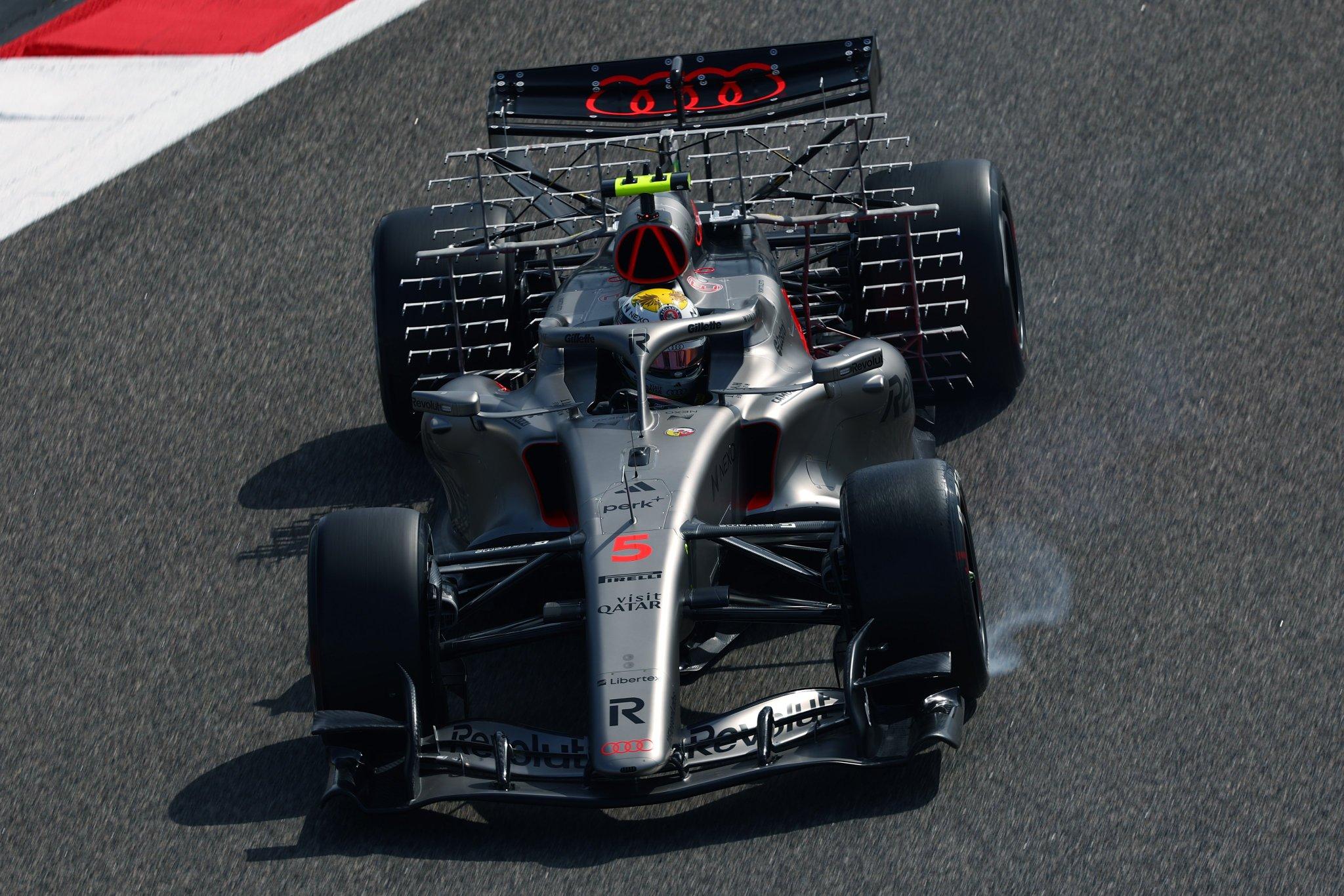
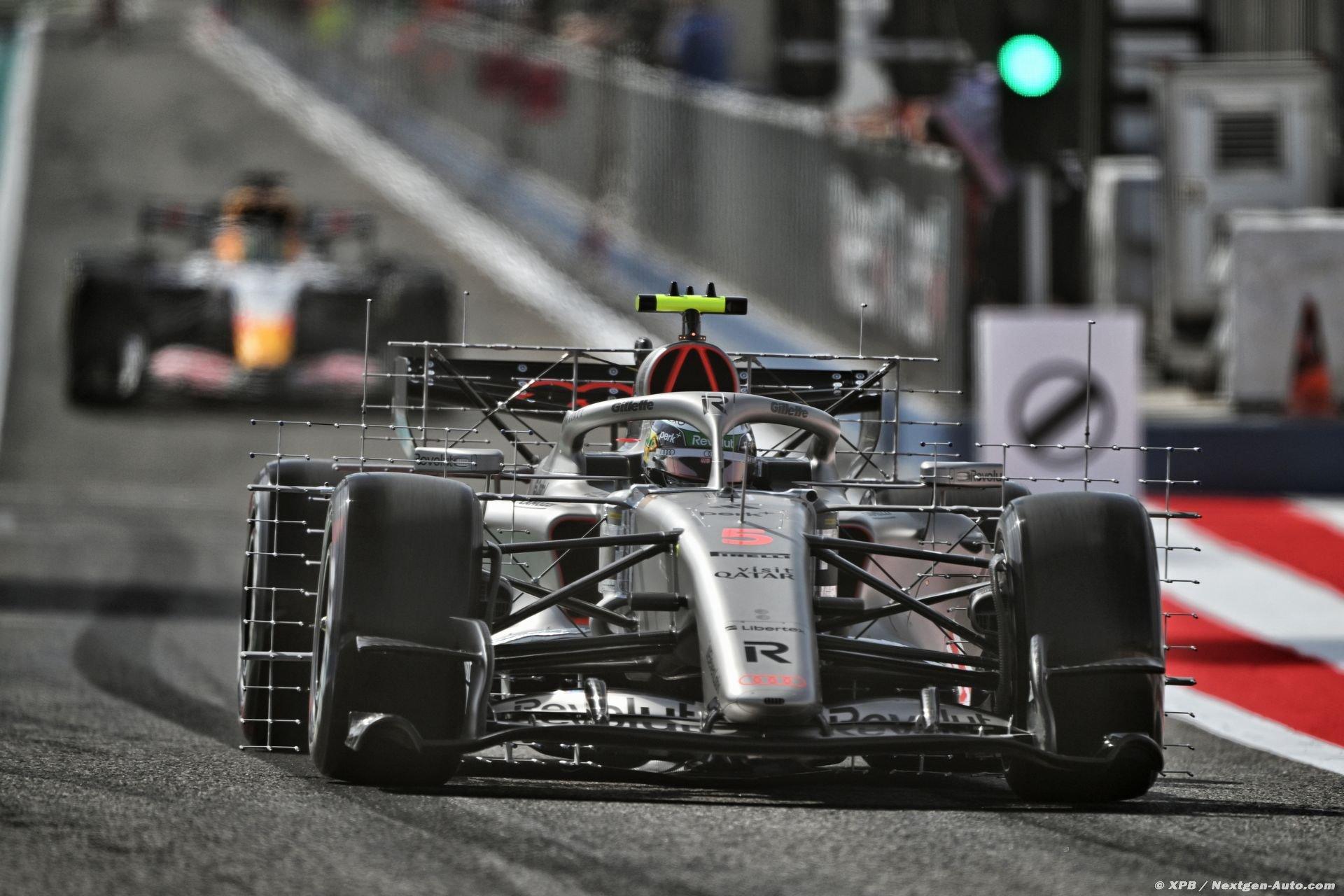
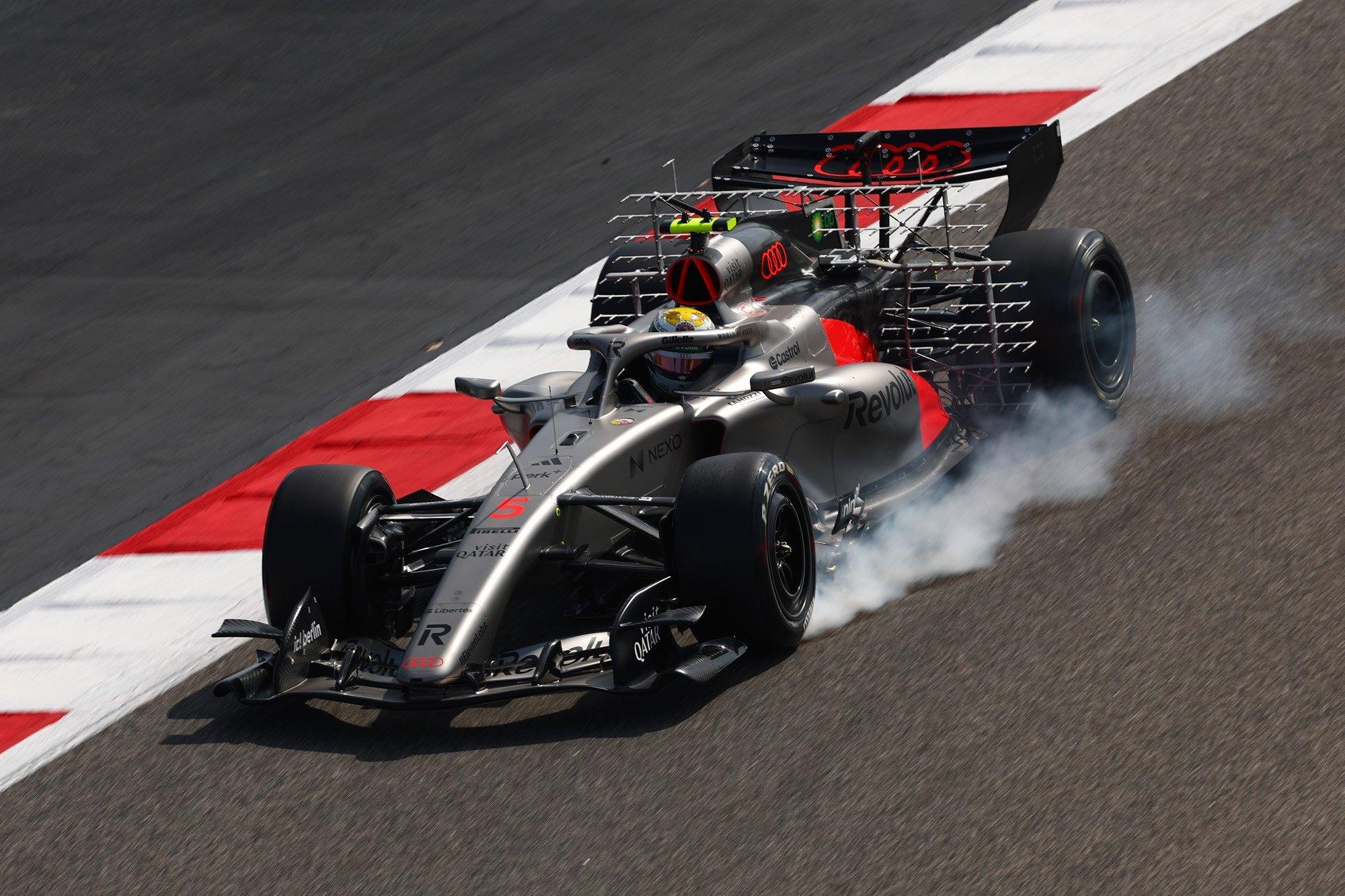
Primo giorno di test con l’Audi evoluta con pod rastremati e ingresso verticale dell’aria
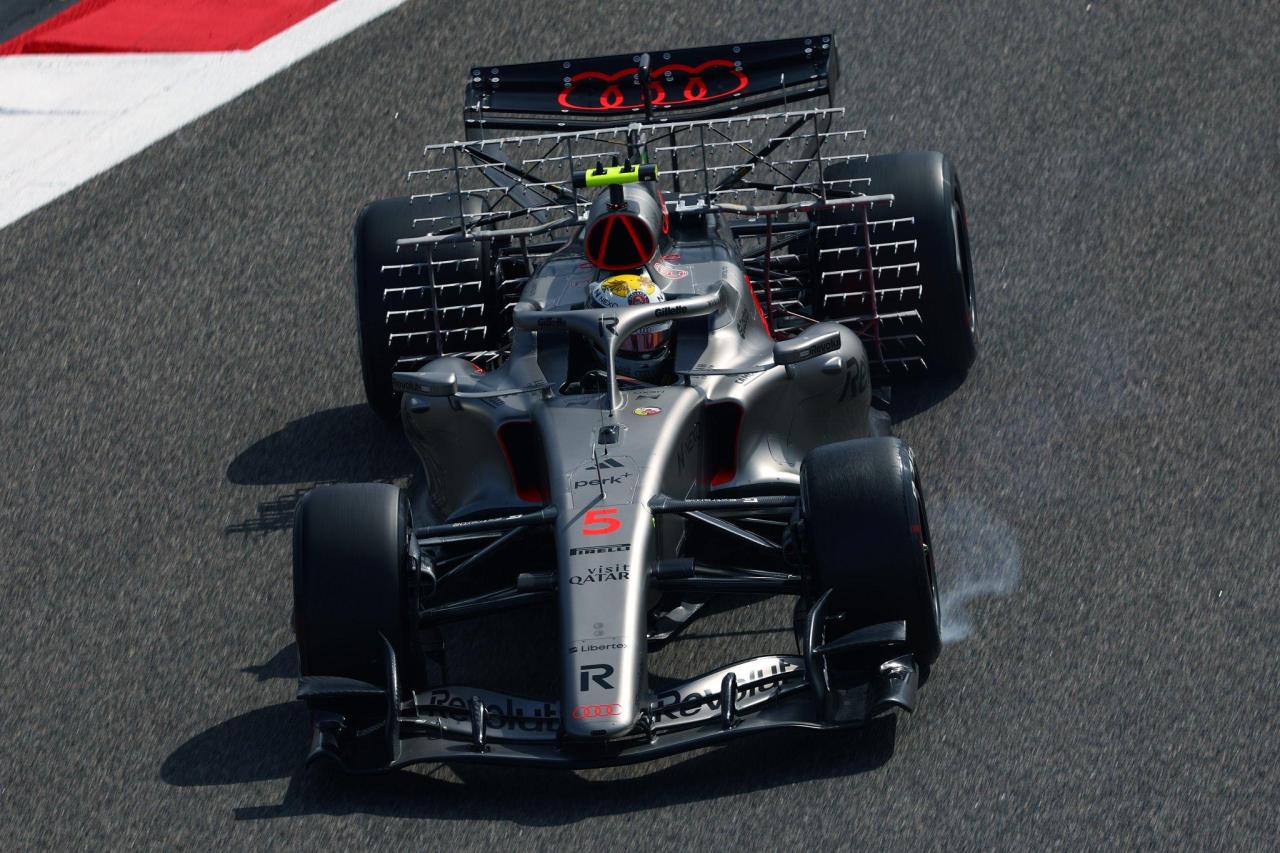
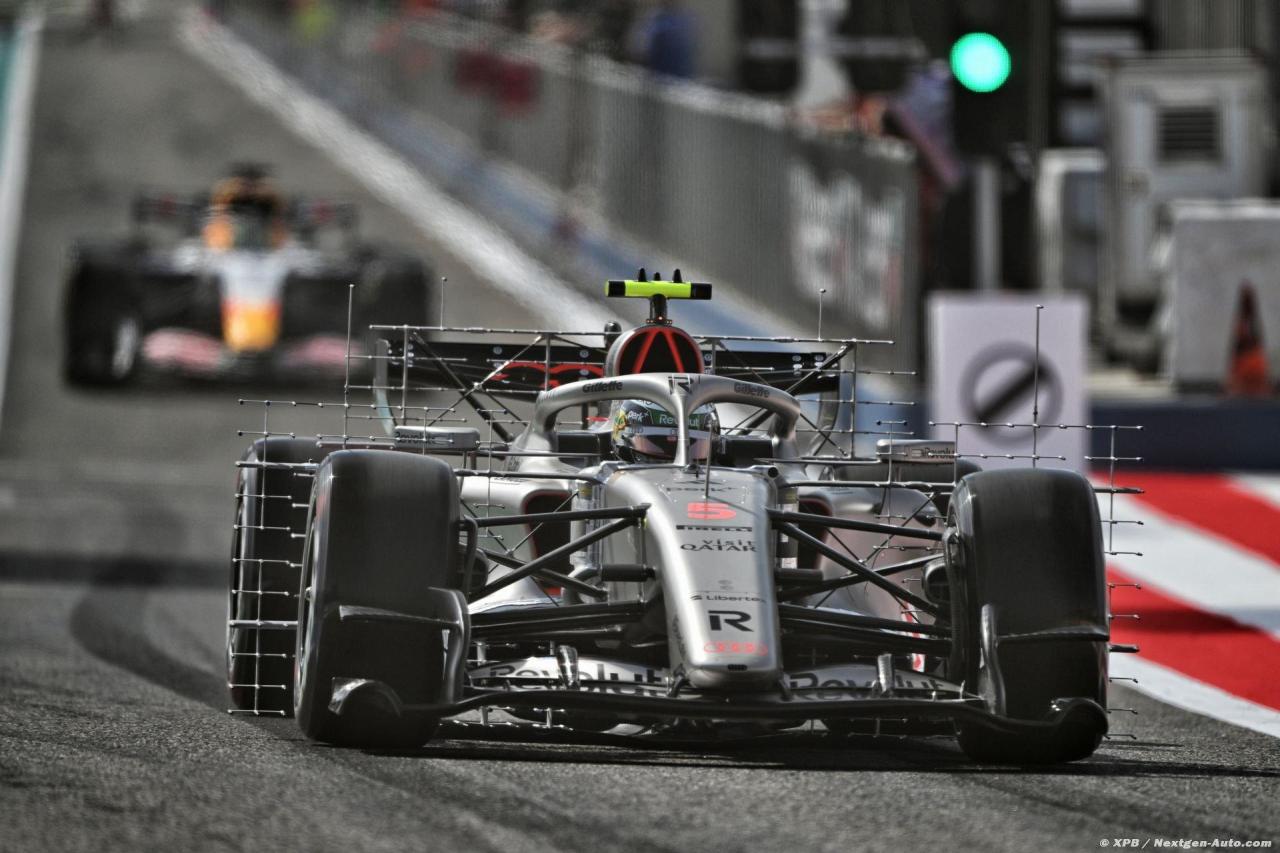
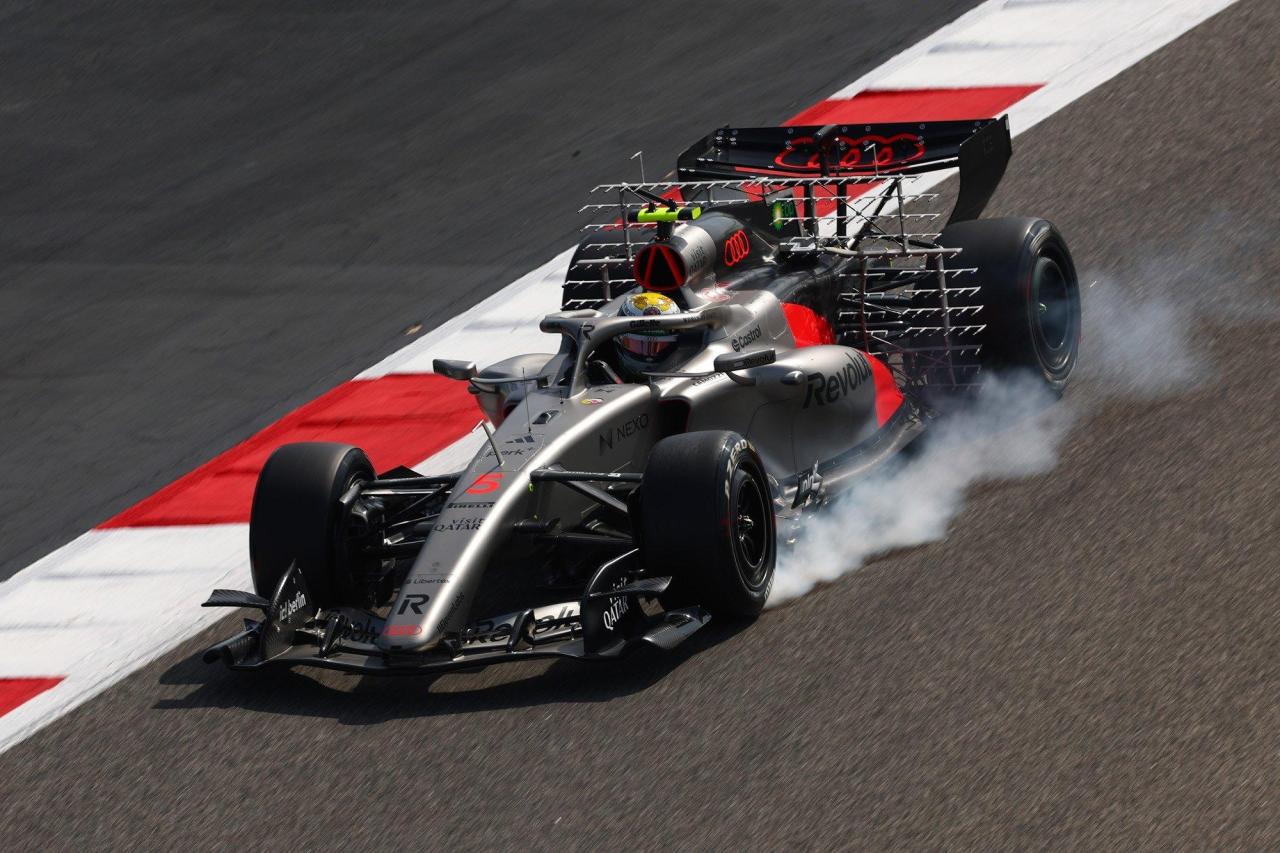 2 punti
 -
Mah, io li trovo semplicemente degli idioti.......E spero che non abbia a che fare realmente con la polizia Tedesca.2 punti
-
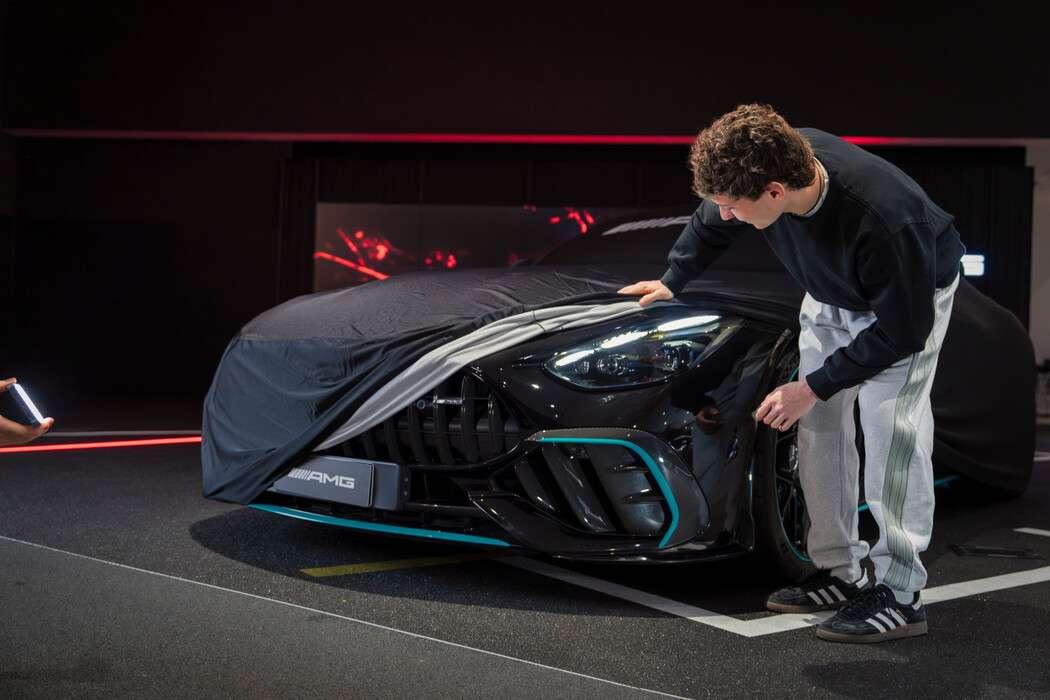
2 puntiSe ho ben capito, questa diventa il nuovo top di gamma di Mercedes nel segmento D. La casa tedesca a tutti gli effetti abbandona il segmento delle berline/SUV sportivi di classe media (tipo M3/X3M o Alfa Quadrifoglio), almeno per quanto riguarda i motori termici/ibrido, questa secondo me è una rivale di SQ5 o X3 M50, quindi sportive più "tranquille".2 punti
-
Di norma FCA prima e Stellantis poi hanno abbandonato ancor prima i propri modelli, il lasso temporale che indichi rappresenterebbe un cambiamento epocale!2 punti
-
Buongiorno a tutti, mi presento, sono Simone vivo in francia da 10 anni e sono fresco di iscrizione anche se seguo il forum assiduamente, in silenzio, da almeno 5/6 anni. Finalmente ho deciso di fare il passo e di iscrivermi. ho deciso di rispondere sotto questa discussione perché sono particolarmente legato al marchio lancia. i miei primi km al volante sono stati a bordo della Prisma 1.6 di papà. Per questo aspettavo queste spy con ansia. finalmente Lancia dopo quasi un decennio non sarà più monomodello.. so che per il momento non apportero' molto alla discussione ma riflettevo, soprattutto dopo le immagini del suv cinese che ha scopiazzato la firma luminosa a calice, a quanto basterebbe poco per aggiungere un tocco di identità ai nuovi modelli. personalmente avrei mantenuto lo scudetto all'incrocio della firma luminosa orizzontale e verticale... se non sbaglio nei bozzetti ypsilon questa idea era stata evocata. personalmente credo sarebbe sufficiente à richiamare molto di più la classica calandra lancia..2 punti
-
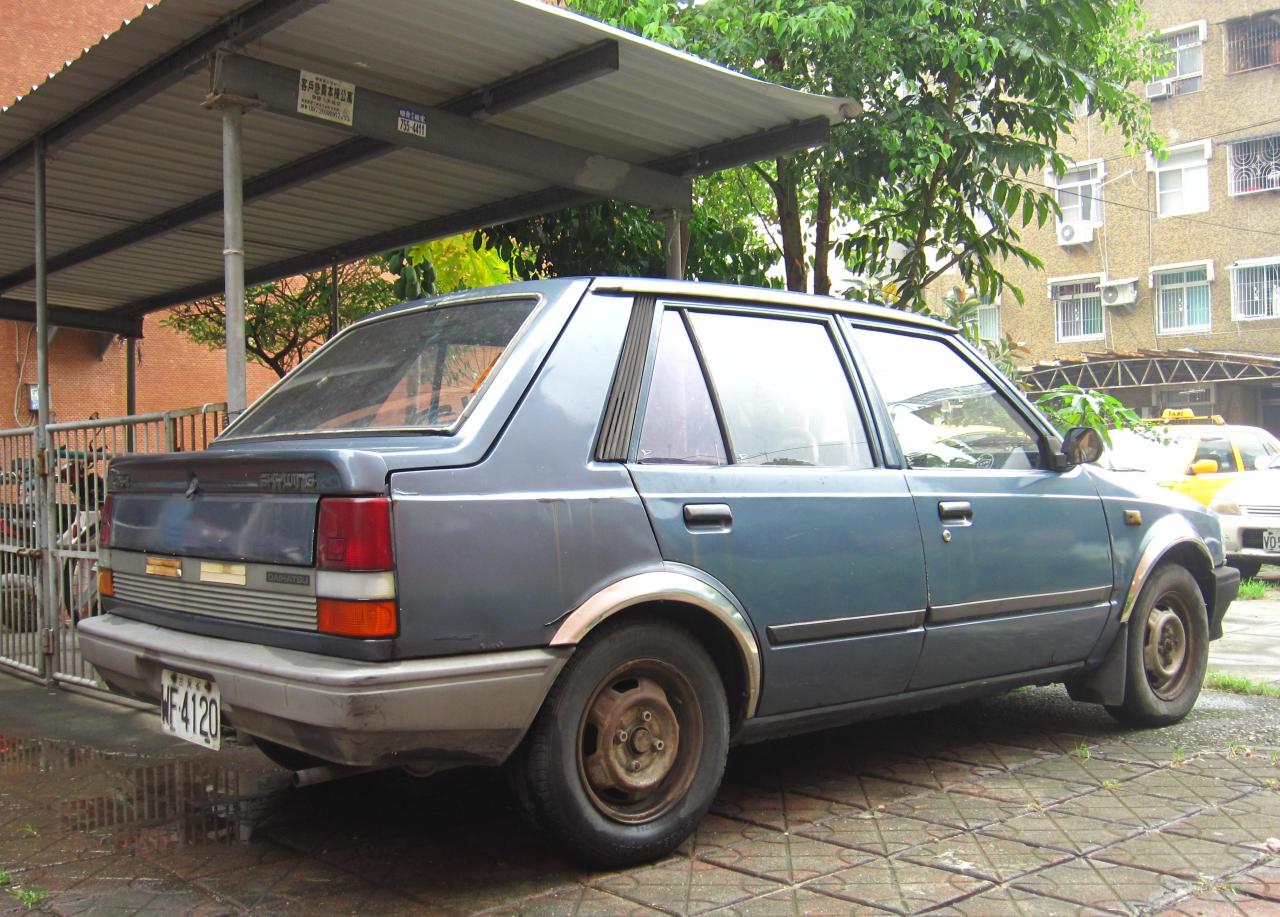
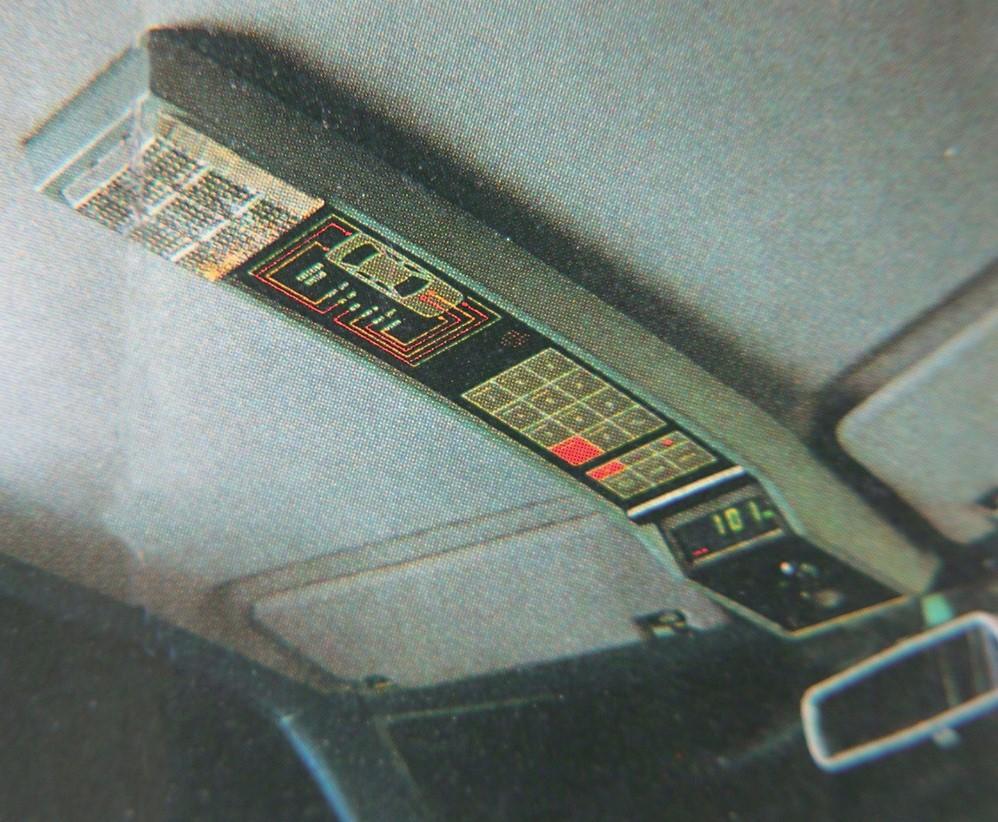
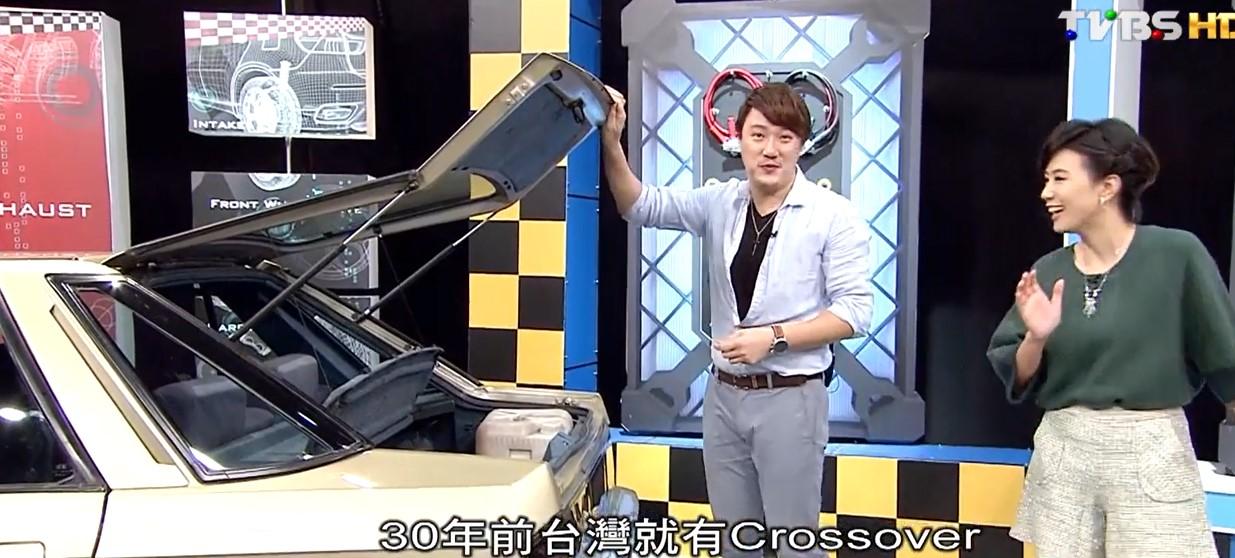
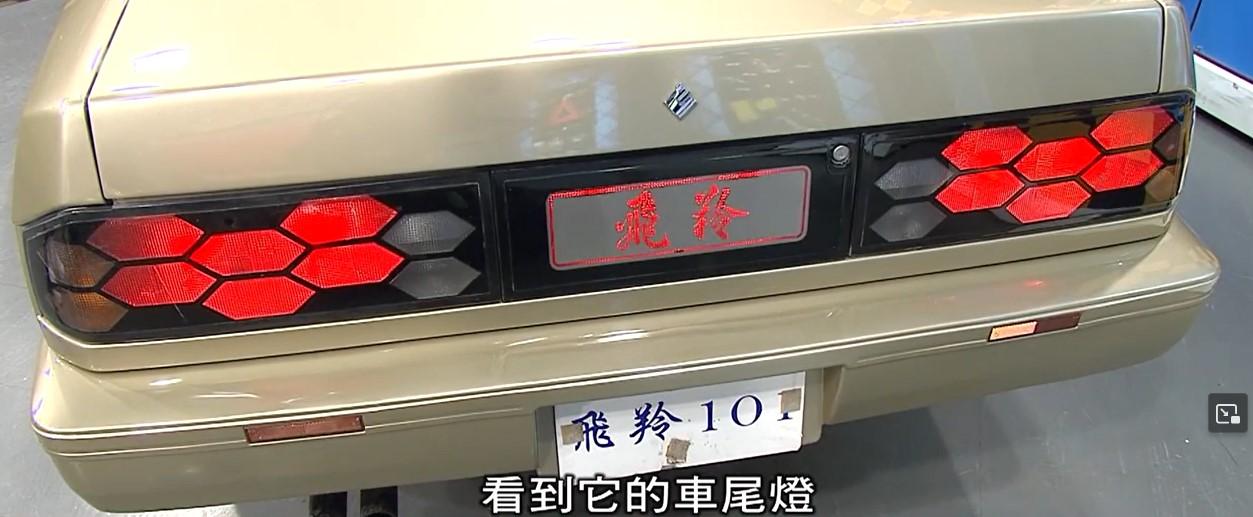
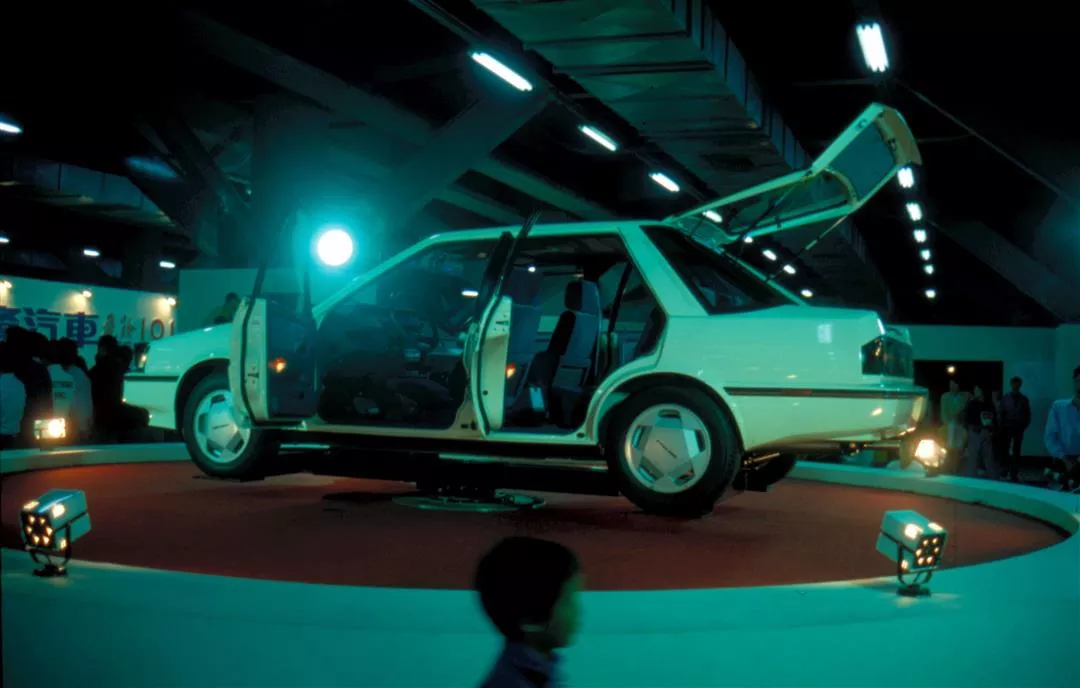
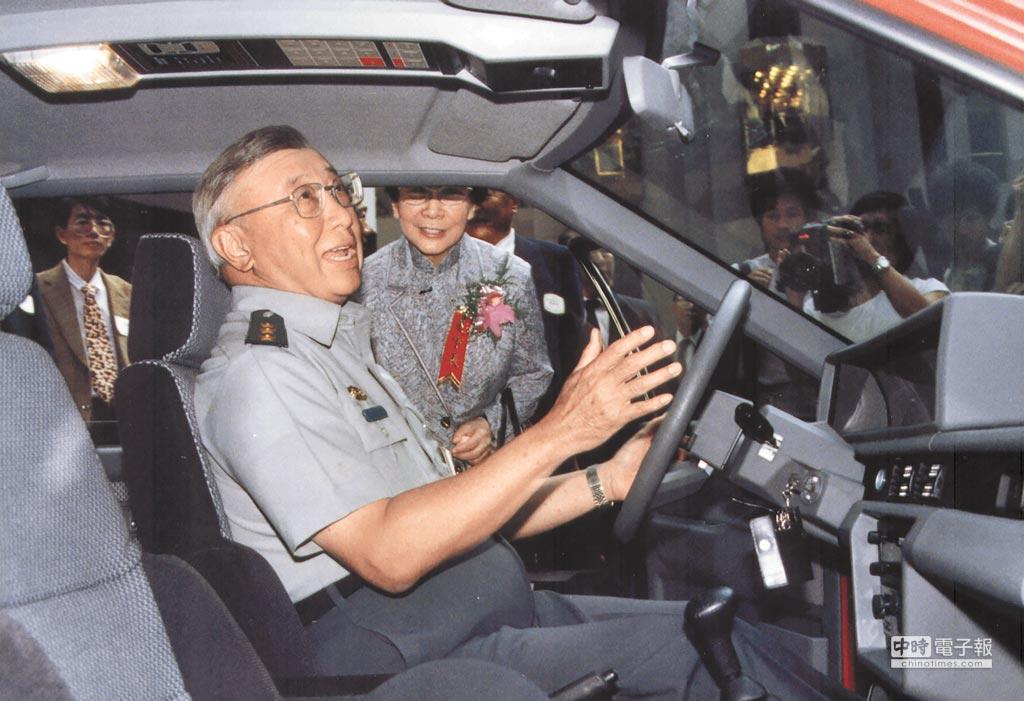
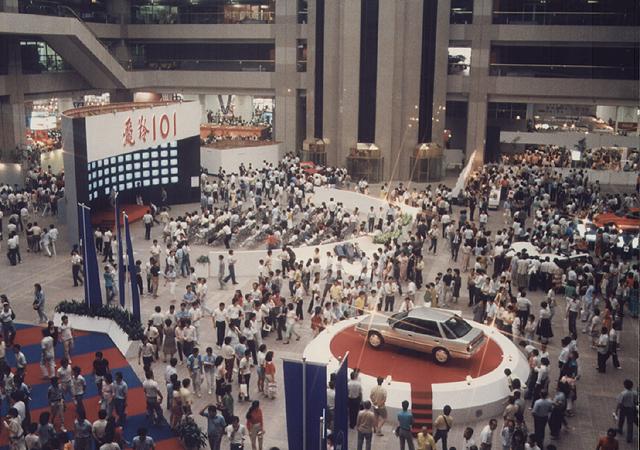
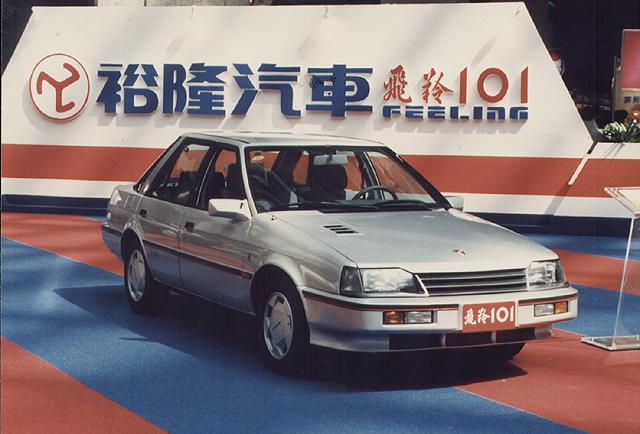
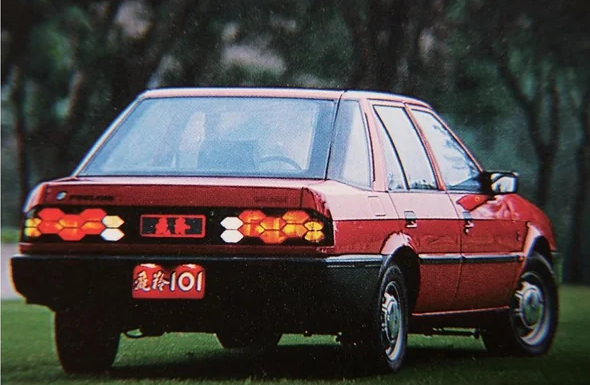
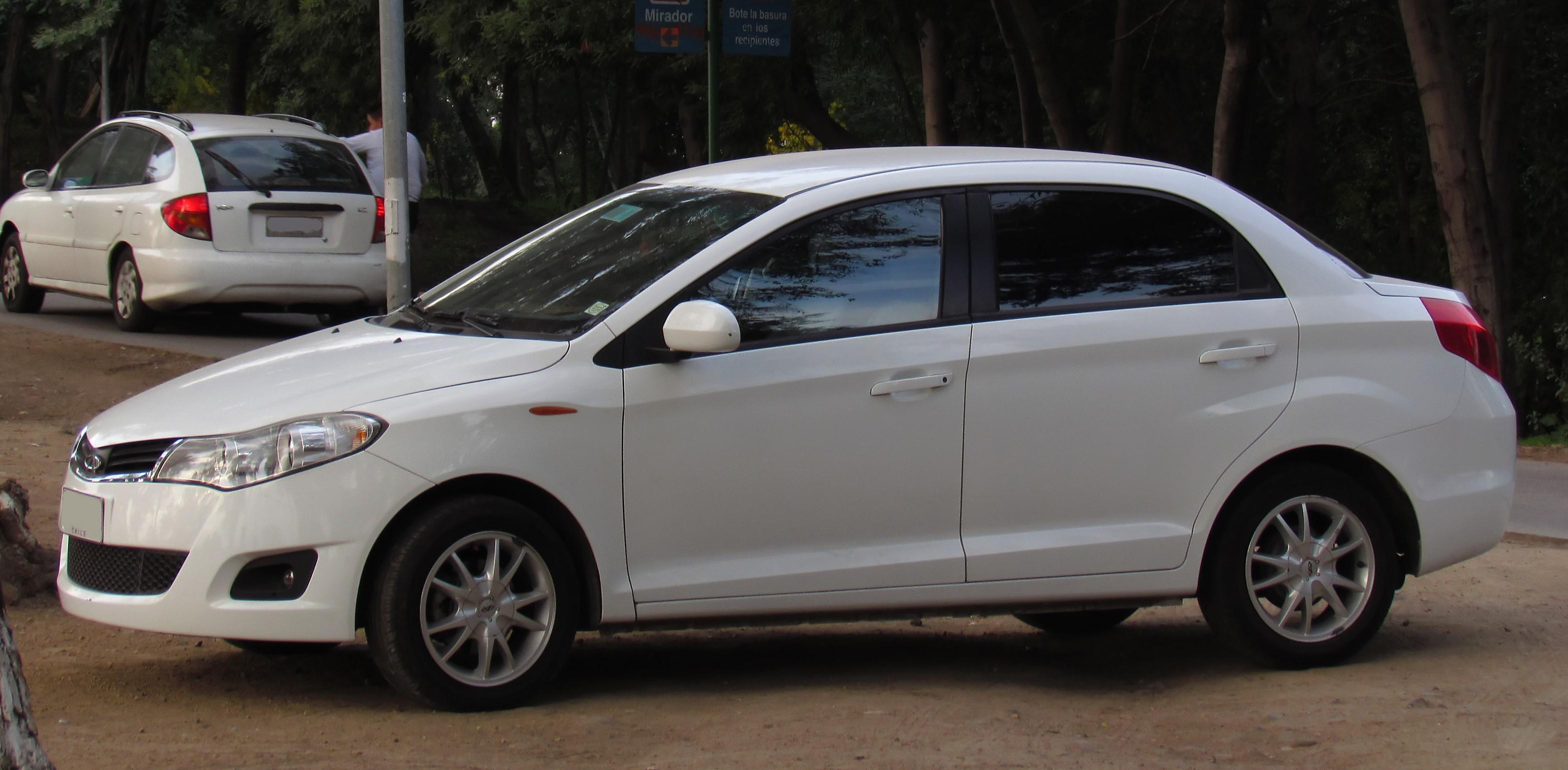
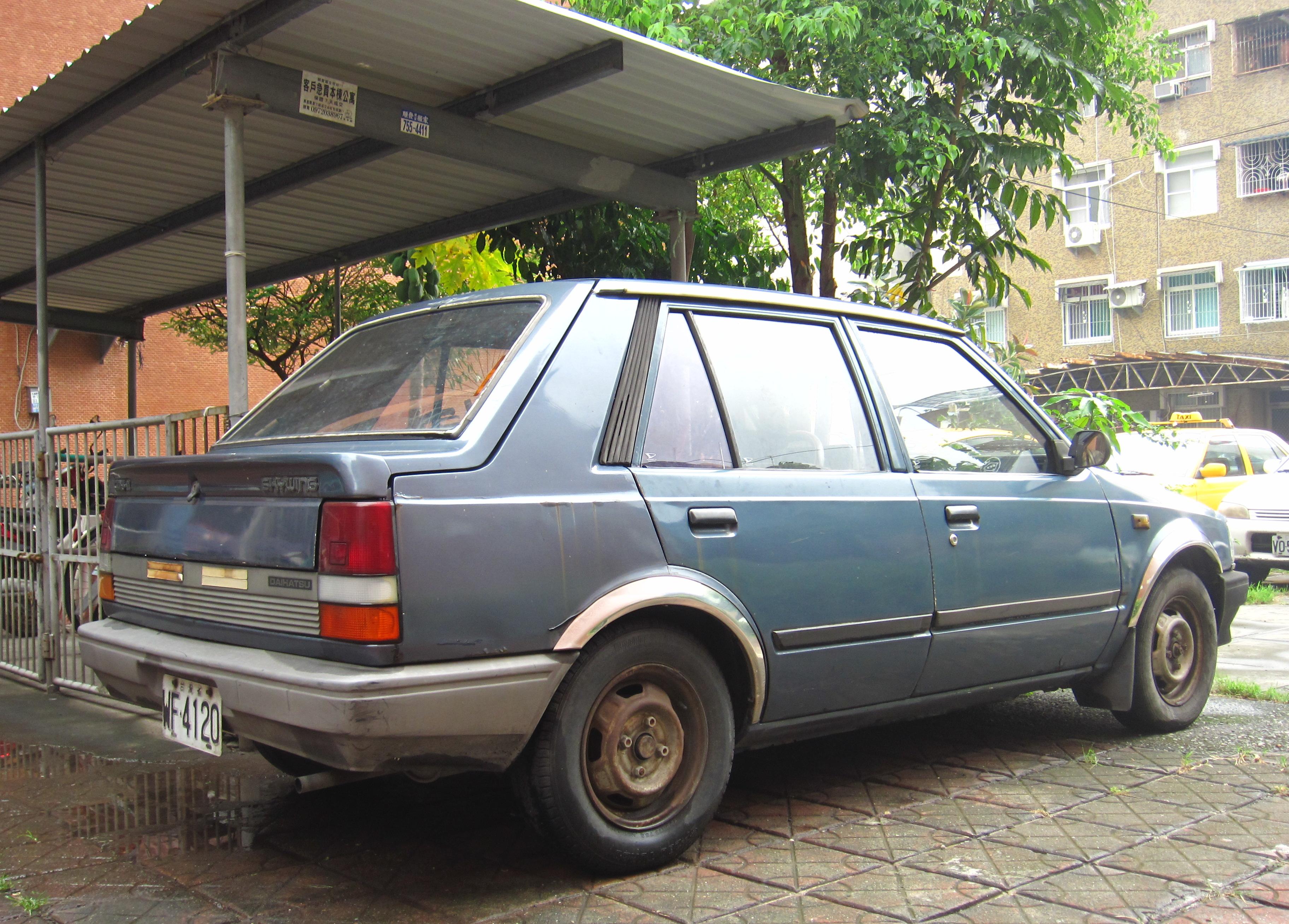
2 punti2 punti....ragazzi, basta che non voglio passare per....2 punti2 puntiAvrei ancora un paio di scoperte riguardo a questa "anomalia" delle berline tre volumi con portellone. Curiosamente, questi ulteriori esempi provengono tutti dal mondo cinese. La prima viene della Cina continentale - la Repubblica Popolare per chiarezza - e potrebbe non apparire ovvio, ma ha una particolare relazione con la nostra SEAT Toledo. E' la Chery Fulwin 2 (indicata anche come A13), prodotta dal 2009 al 2019, e disponibile anche in versione due volumi. Perché dicevo della Toledo? Partendo un po' da lontano dobbiamo ricordare che a suo tempo, Volkswagen aveva venduto a Chery diritti e linee di produzione della prima Toledo. La quale, con modifiche minimali e sempre con il suo caratteristico portellone, aveva avuto quindi una seconda vita in Cina, sotto il nome di Chery Fulwin (o A11). Be', in effetti nella gamma Chery questa Fulwin 2 (A13) sostituì la Cowin/A15, versione ristilizzata della Fulwin A11, della quale vollero mantenere questa caratteristica... Adesso ci spostiamo nella Cina insulare, in quella che formalmente si chiama “Repubblica di Cina”, perché vale la pena sviscerare l’inaspettata connessione fra questa soluzione e l'isola di Taiwan! In esclusiva per questo mercato, infatti, ho scoperto che sono state realizzate e vendute queste piccole tre volumi con portellone: Subaru Tutto, sviluppata e prodotta localmente dalla Ta Ching Motor Co. attorno al 1989, sulla base della coeva Subaru Justy: Daihatsu Skywing (1987), derivata dalla Charade del periodo. Ammetto che qui siamo al limite della definizione di "tre volumi", perché la coda di questa Skywing è talmente corta da poter rientrare fra le "due volumi e mezzo". Anche se è tutto il concetto di "volumi" che da tempo è divenuto difficile da classificare, perché l'aerodinamica, lo sfruttamento dello spazio e lo stile hanno fatto sì che le linee siano diventate sempre più varie e i volumi sfuggenti... Tornando a Taiwan, però, sempre negli anni Ottanta, ho scovato un'altra campionessa di questa specialità! In quel periodo, un coraggioso tentativo di rendere autonoma l'industria automobilistica a Taiwan, portò allo sviluppo della Yue Loong 101 Feeling, una interessante berlina qui alla sua presentazione, il 25 Ottobre del 1986, al World Trade Center di Taipei… ...quando venne mostrata anche ai dignitari della Repubblica di Cina, allora governata ancora da un partito unico (il Kuomintang) e sottoposta a legge marziale! (Le cose cambieranno di lì a poco…) Il generale sembra particolarmente incuriosito dalla ipertecnologica console piazzata sull'imperiale, d'ispirazione molto avionica, ma dalla leggibilità discutibile 🤪: Lo stile è legato a canoni giapponesi di quegli anni ed ha un che di Austin Montego, ma si caratterizzava appunto per l'inusuale portellone sulla linea a tre volumi: Un improbabile programma della TV taiwanese, dedicato alle youngtimer, ci mostra il dettaglio del lunotto tripartito e il portellone, per via del quale i conduttori la definiscono addirittura una "Crossover" 😝 : Poi si soffermano su un altro dettaglio particolare di quest'auto: Sì, i fari posteriori hanno un originale disegno a nido d'ape, ma la cosa più curiosa non sono loro... ...bensì quello che si trova in mezzo: la fascia di collegamento con il riquadro per gli ideogrammi "Fei Ling", letteralmente "Leopardo Volante", nome che venne selezionato anche per l’assonanza con la parola inglese "Feeling". E l'effetto più spettacolare è la sua retroilluminazione! Risulta che questa semi-sconosciuta vettura taiwanese sia stata esportata perfino in Europa, precisamente in Olanda, dove però non ebbe vita facile e pare ne sia rimasta una soltanto...
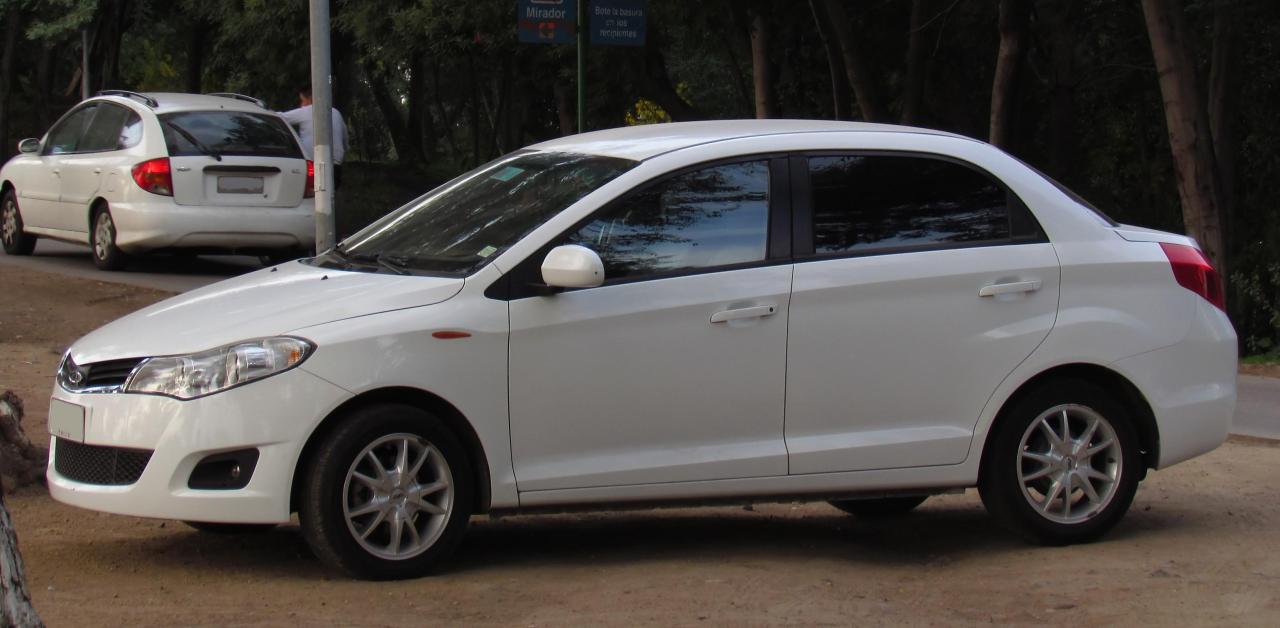
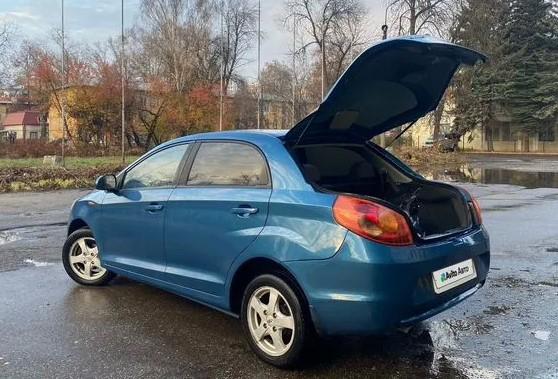
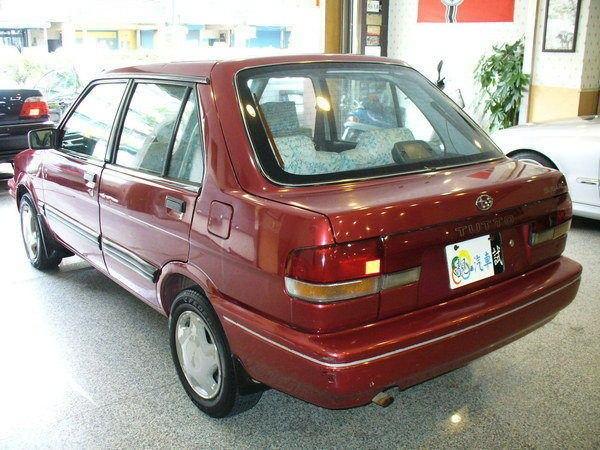
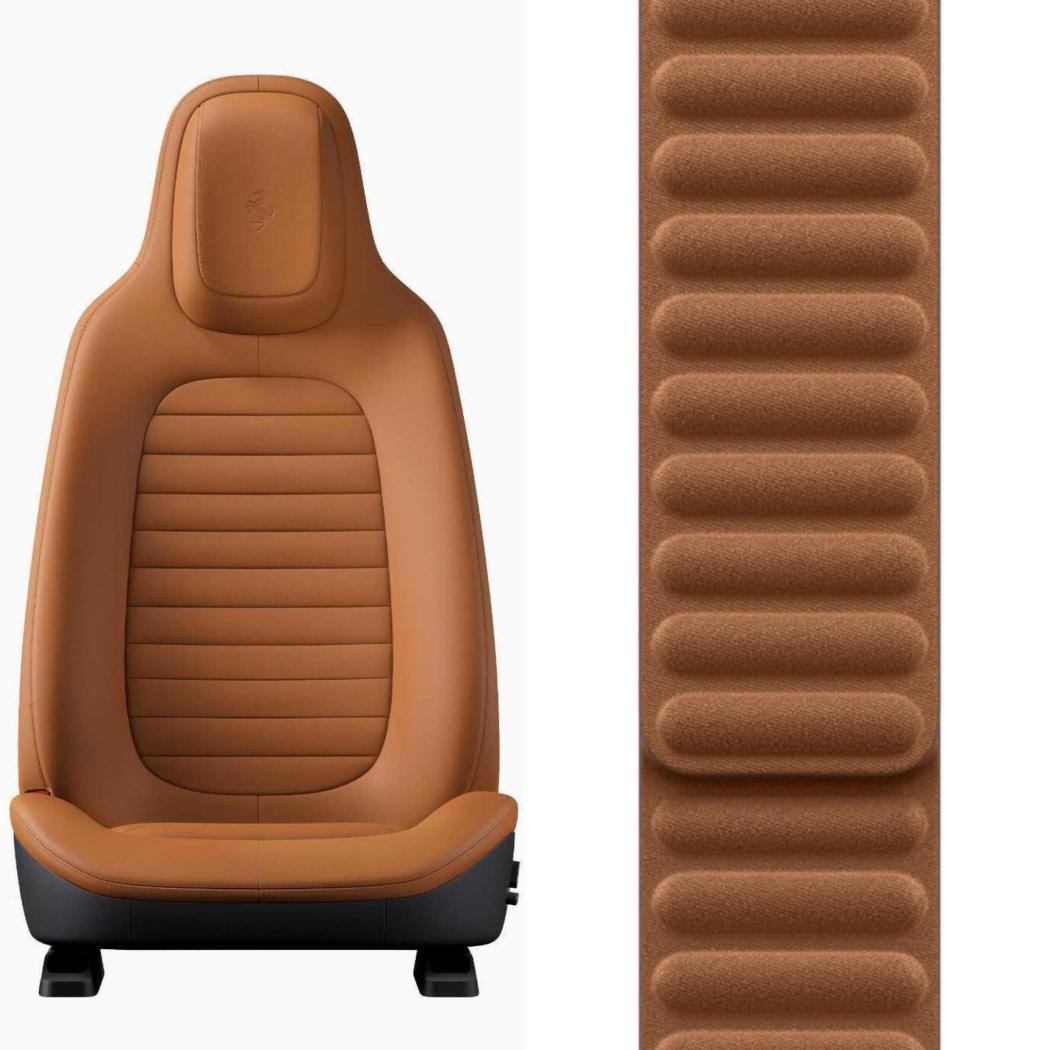
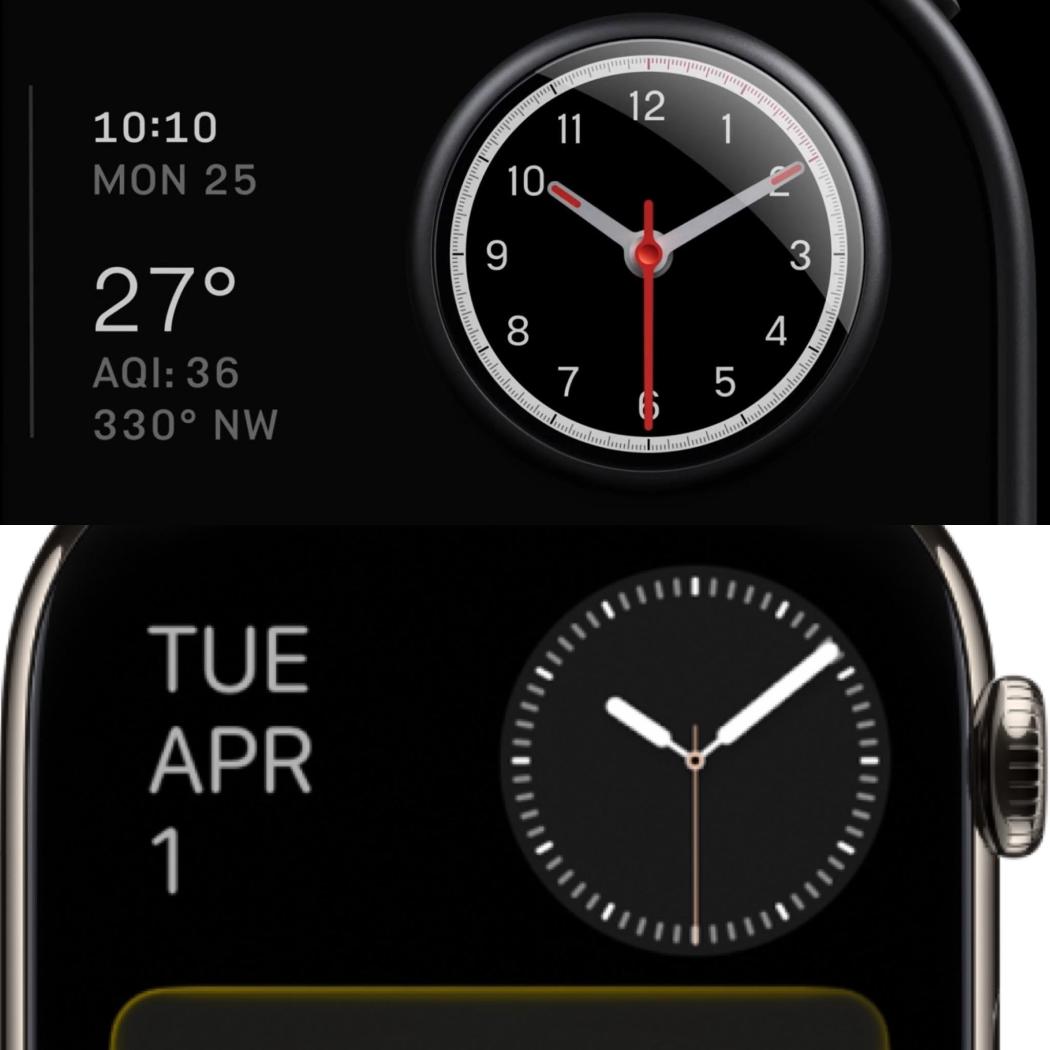
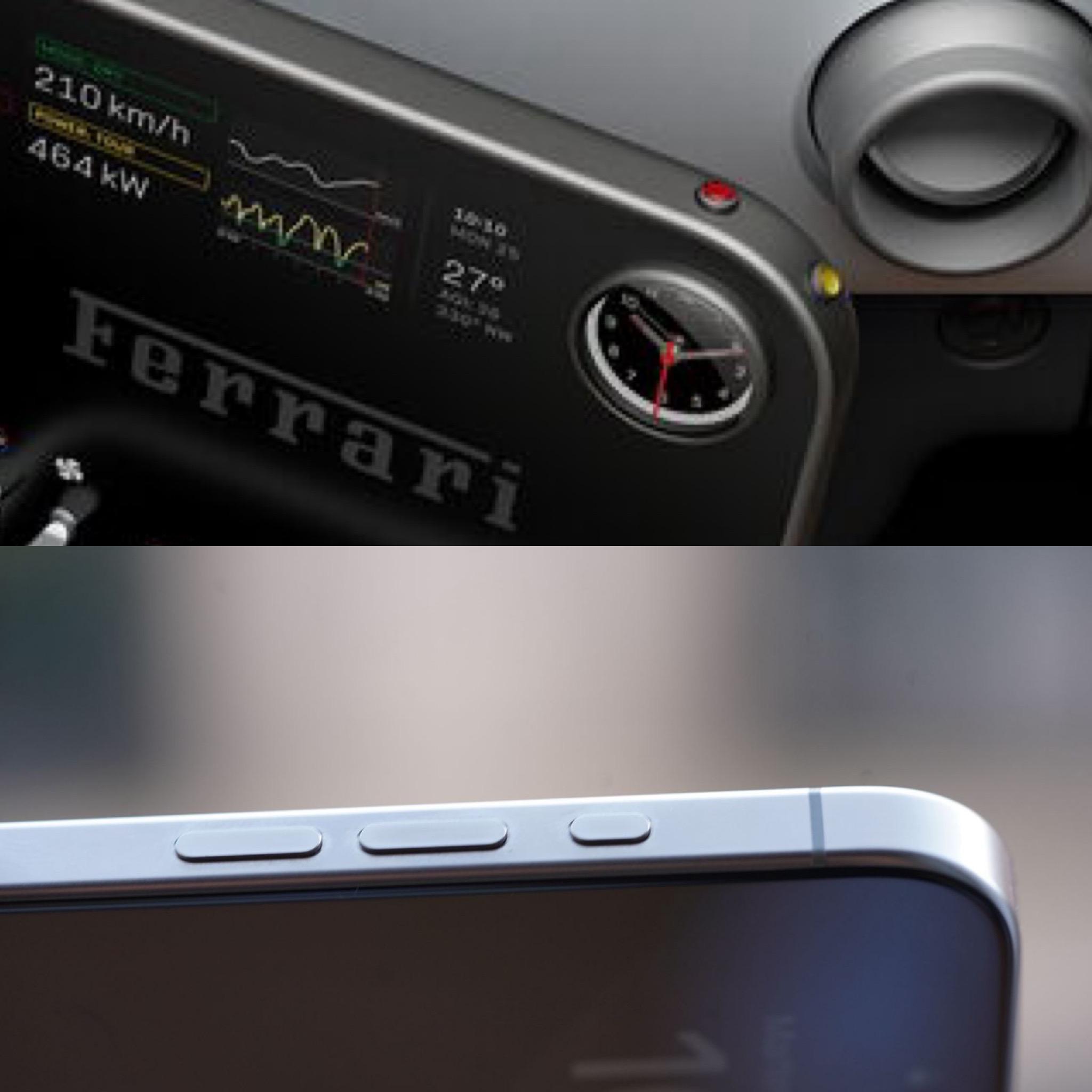
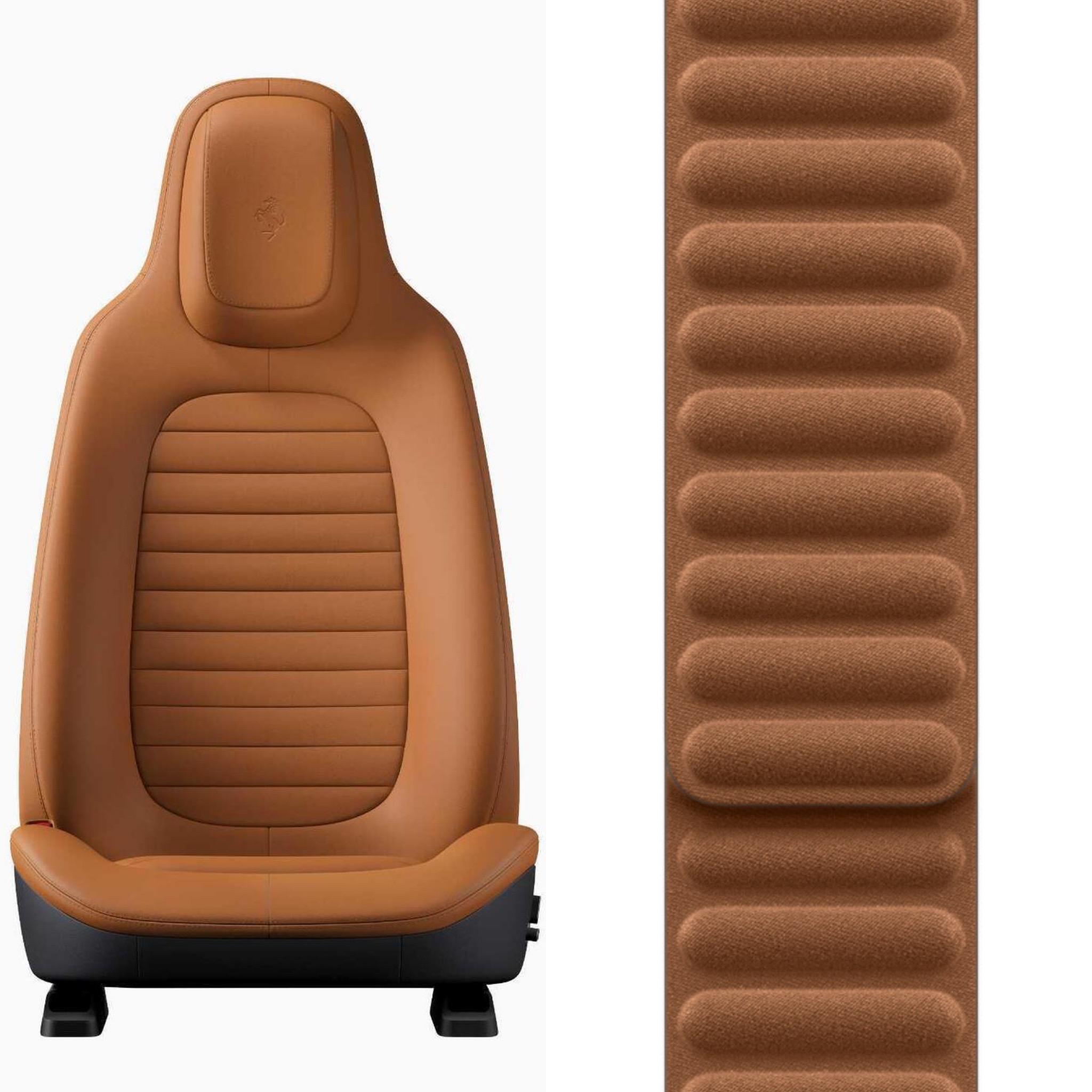
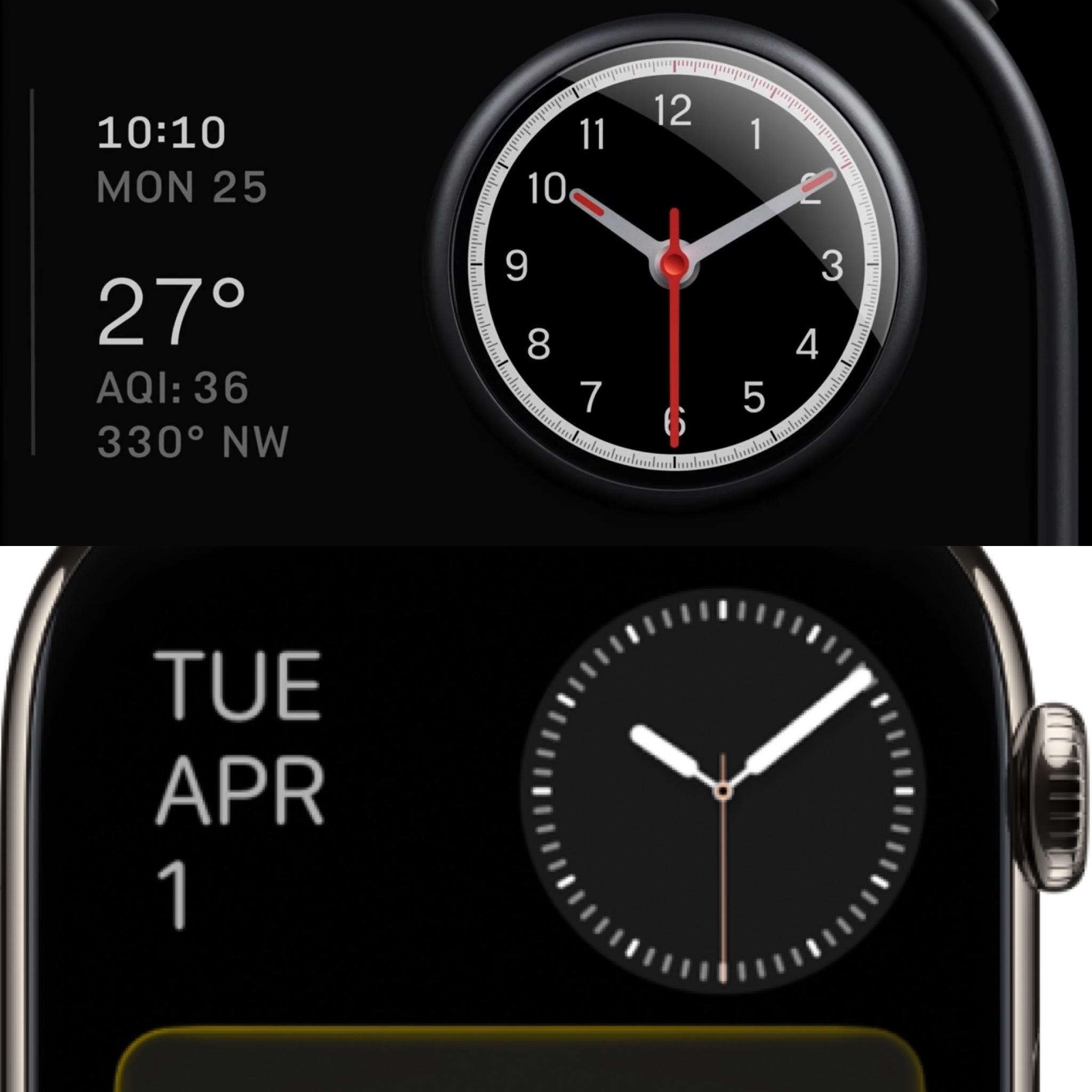
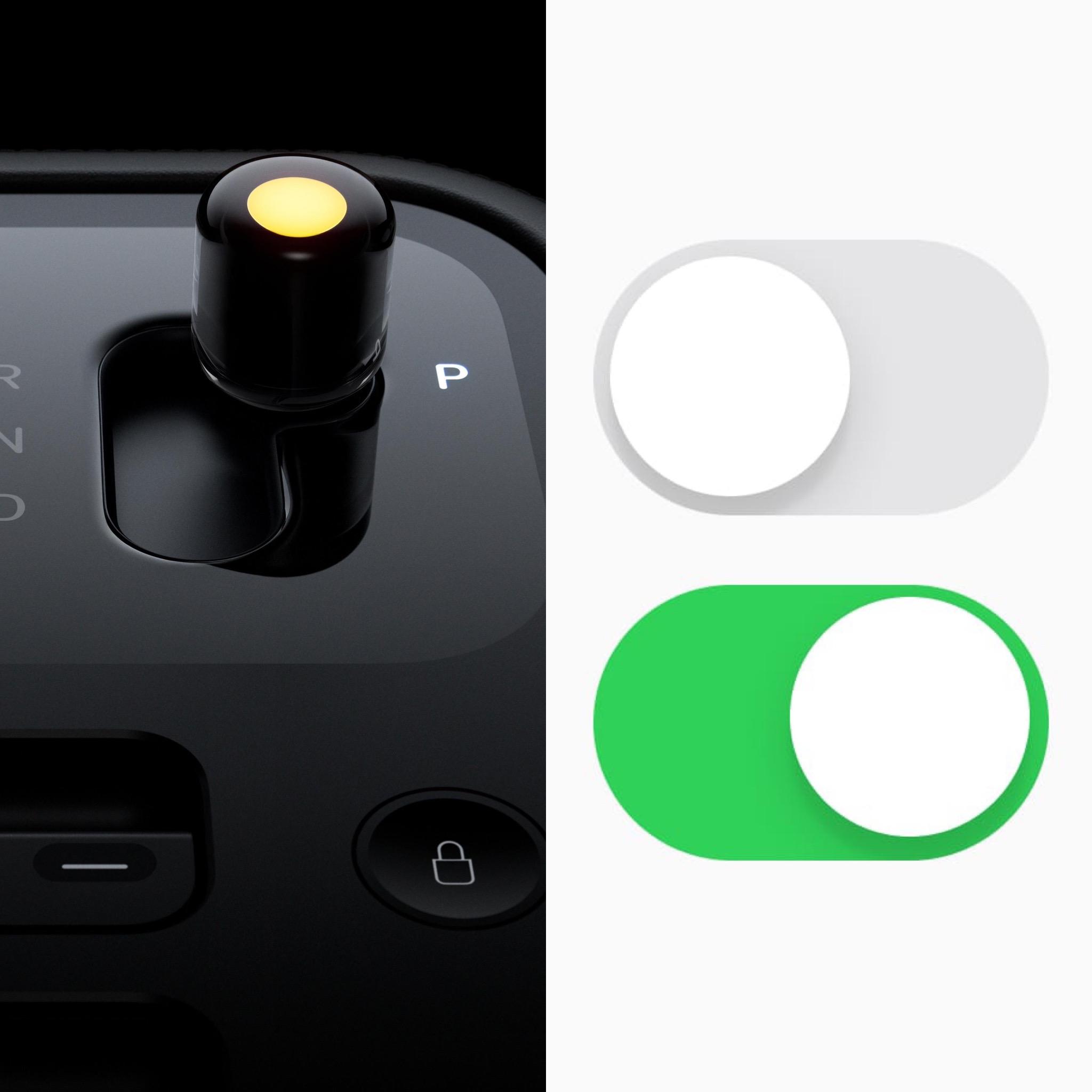
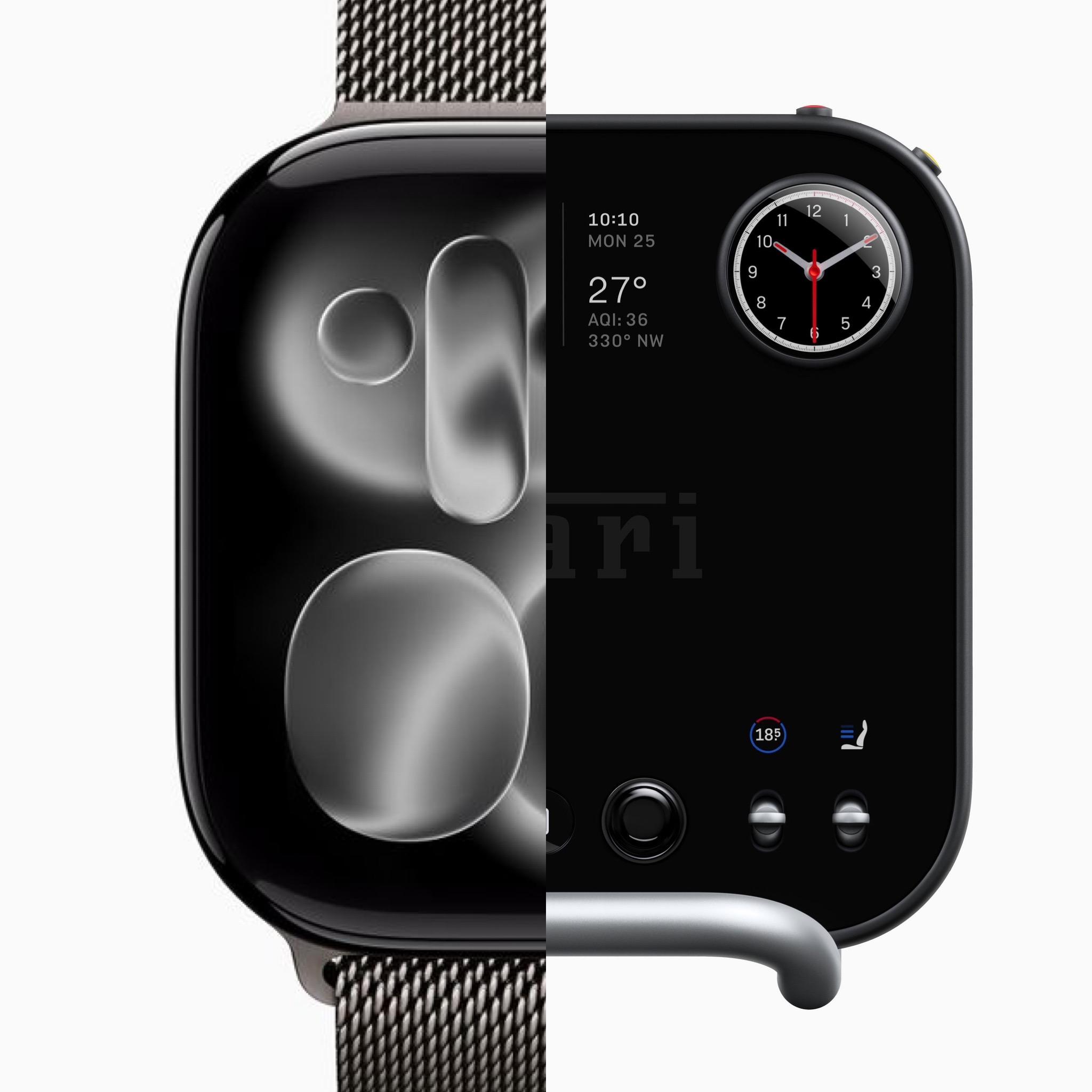
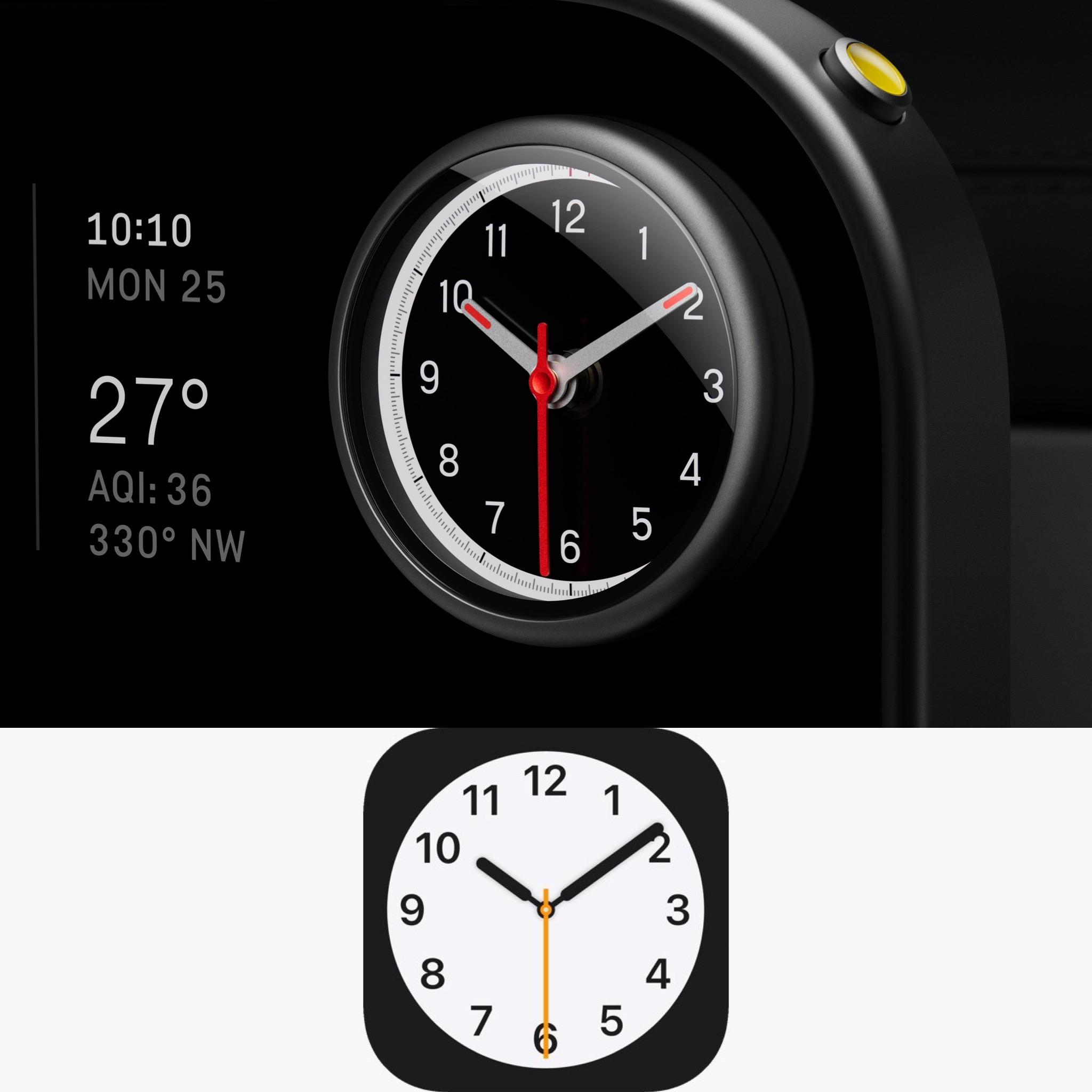
 2 punti1 puntoLa Mondeo 1.0 mi mancava, e dire che ha debuttato nel 2012 quando non si era ancora arrivati a un downsizing così spinto1 puntoMa infatti. Per me il mercato principale di questa Gamma in Italia sono le flotte aziendali, con le PHEV (o le EV). All'estero anche, non riesco nemmeno ad immaginare chi la potrebbe volere con un 1.2 3 cilindri. In passato nemmeno Mondeo con il 1.0 o 508 (sempre con il 1.2) hanno venduto chissà quanto. Motori buoni secondo me solo a poter scrivere "...con prezzi a partire da x euro...".1 punto1 puntoNo perché il mercato è limitato, su 16 mila Peugeot 3008 vendute in Italia nel 2025 ben 15 mila erano 1.2, le altre mille sono suddivise tra PHEV e BEV. E se guardiamo i numeri delle PHEV vediamo che una Gamma solo PHEV farebbe parecchia difficoltà ad imporsi https://unrae.it/files/07%20Top%2010%20per%20alimentazione%20dicembre%202025_6957f7332cf04.pdf Ovviamente parliamo di una vettura che il 95% dei volumi li farà in Italia perché all’estero ha si e no 20 concessionarie Ma anche Tiguan, 24 mila totali, di cui 5500 PHEV1 punto1 puntoSì la 296M uscira nel 2027 sicuramente nella prima parte del anno. Ieri hanno annunciato che la produzione della 296 GTB e GTS finira nel 2026. La 849 TR la chiamano « Pilot Car » dunque una delle due macchine presentate a novembre potrebbe essere une stradale ò sbaglio? @Osv 😏1 punto1 puntoPenso di si. Ma gli eventuali problemi di affidabilità legati all'alimentazione penso emergano nel corso del tempo e adesso sia ancora un pò presto per trarre delle conclusioni, considerato che il motore è in commercio da relativamente poco. Tuttavia, i sintomi che tu segnali non mi sembrano esattamente "normali" su un motore. Ok il motore a freddo che si deve scaldare, ma questo è troppo. O l'officina me li risolve, e in garanzia, oppure onestamente mi sembra una zavorra da portare a spasso tutti i giorni che mi fa anche perdere voglia di guidarla la macchina...1 puntoMa quanta Apple Car è finita qui? E come l’avrà presa Cook?!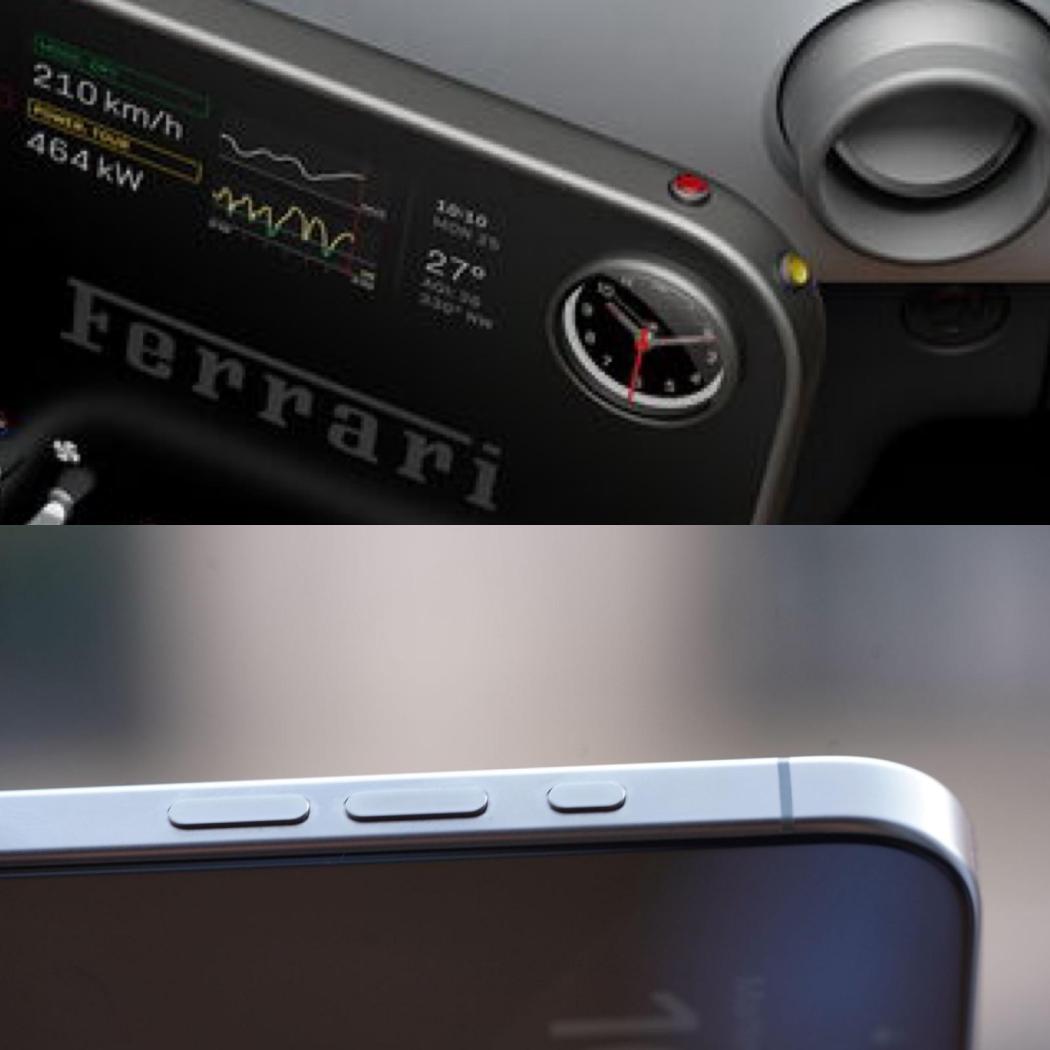
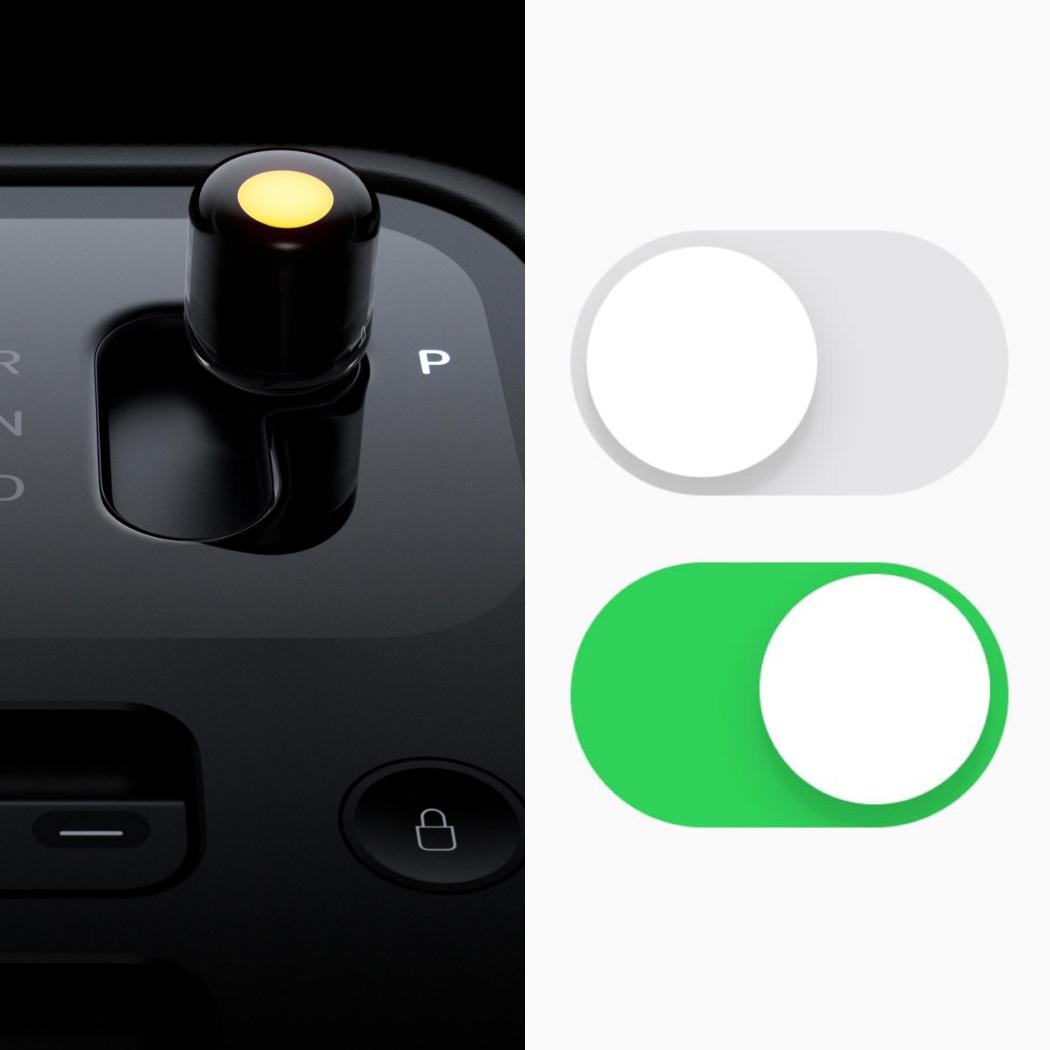
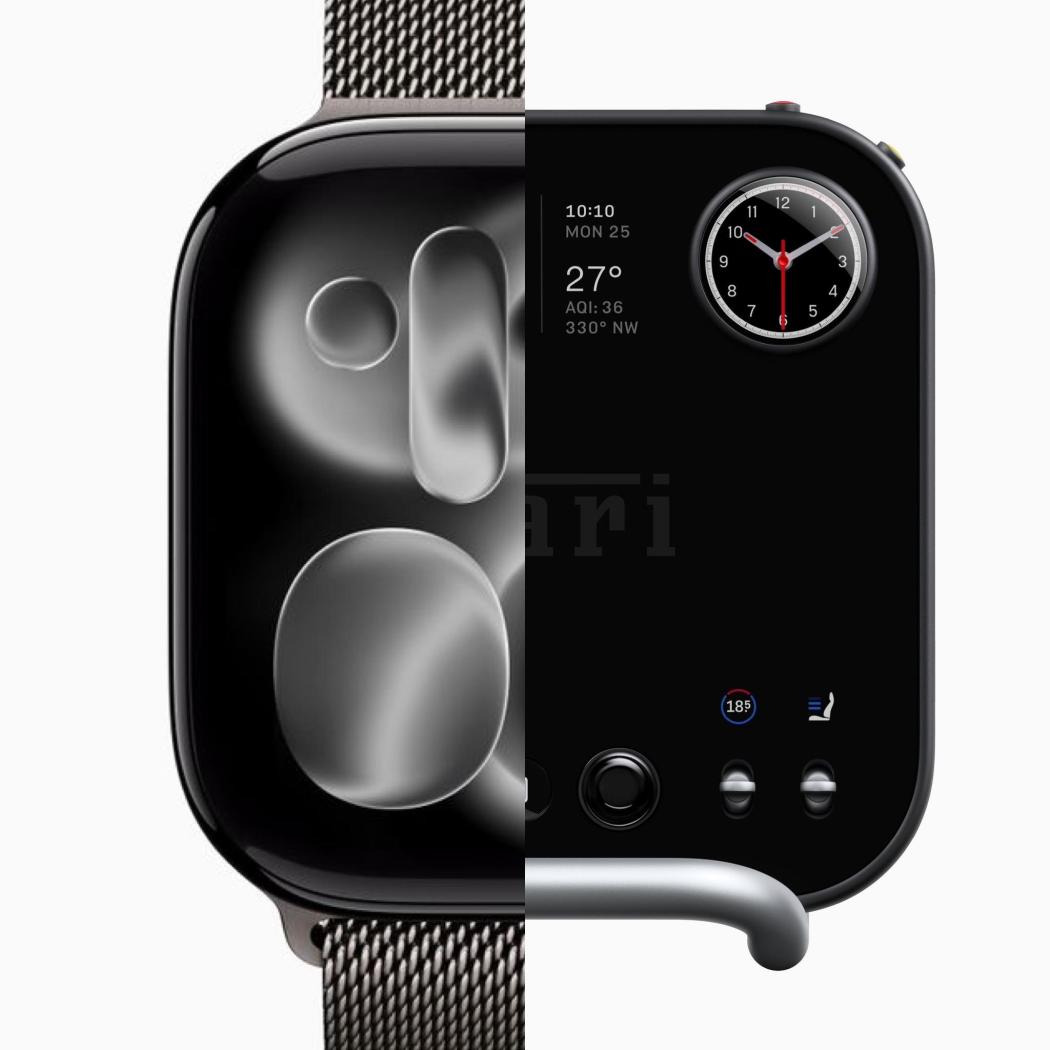
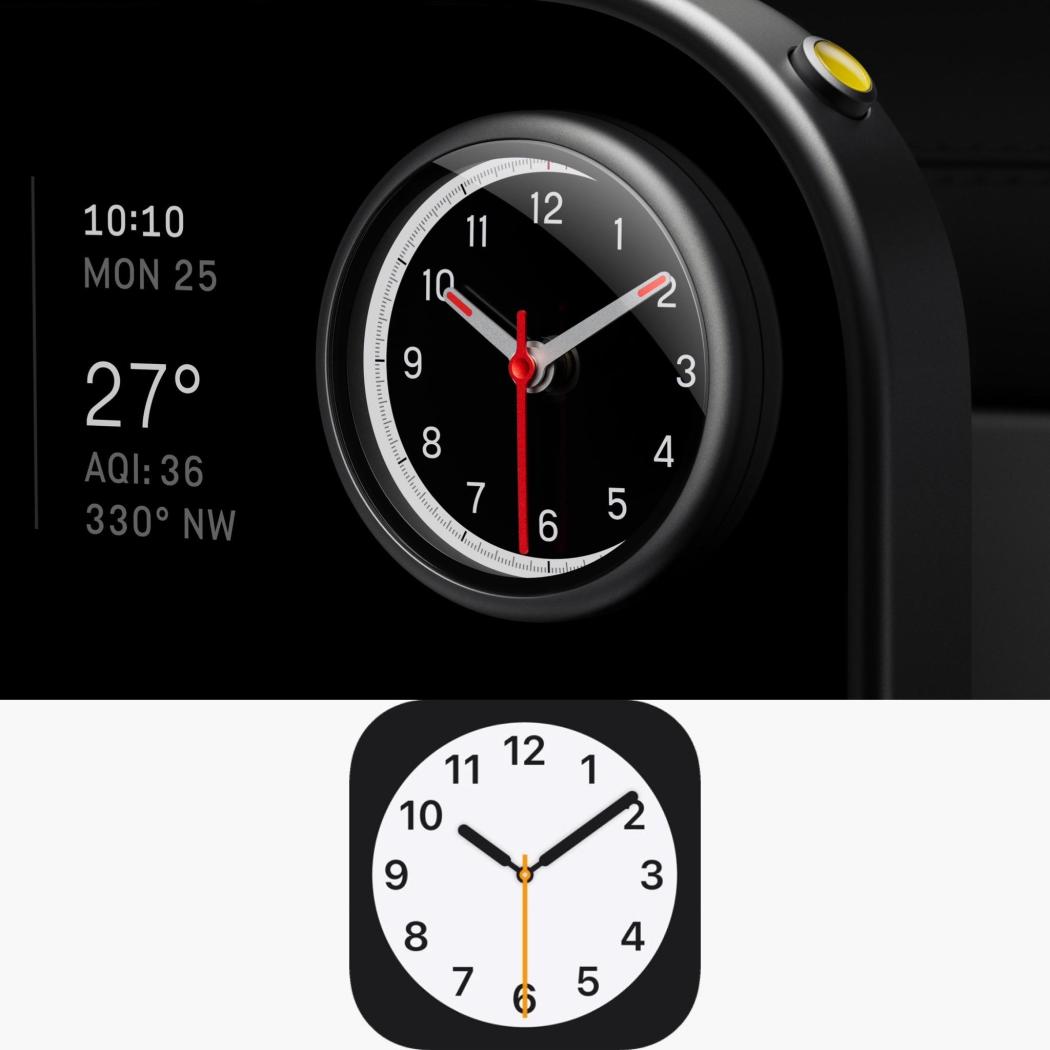 1 puntoSempre a proposito di Olimpiadi, sempre bello rivedere la splendida Mariah Carey: (commento sensato solo per chi ha visto la cerimonia sulla Rai)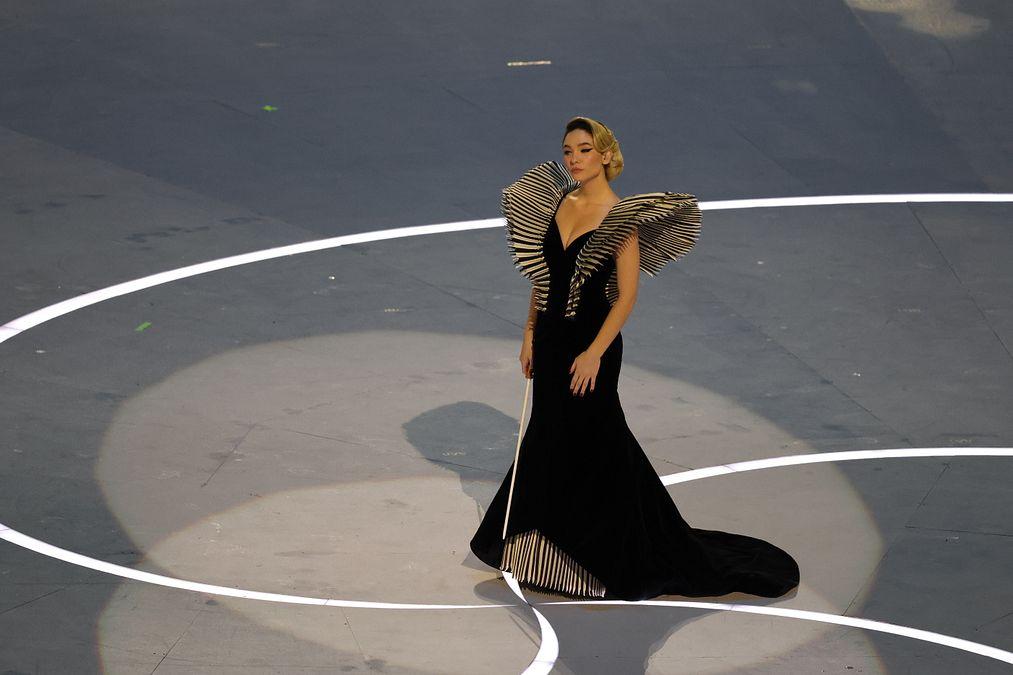
 1 puntoComunque Dacia l'anno scorso ha venduto 597.088 auto nel vecchio continente, in pratica come FIAT e Citroen messe assieme. Certe volte non servono suluzioni esoteriche.1 puntoIl 1.5 ff costa di più da produrre del 1.2 eb3, idem il 2.0 gme vs 1.6 ep4. Resta il fatto che non trovo tanto giustificabile avere 3008/Compass/Grandland a partire da 40k con il 1.2 3 cilindri. Andava messo un 1.6 "calmierato" nei cavalli....1 puntoPer me avete tutti un po' frainteso @4200blu . Semplicemente voleva intendere che l'ottimo handling di Giulia, è arrivato al costo di qualche piccolo malus come una capacità di carico sul tetto o di traino inferiore a qualche competitor. Non mi sembra che abbia detto "è una magghina demmerd". 🤣 Manco io per difendere la 155 ho preso così tanta cacca in 3 pagine di commenti...1 puntoLa Leaderboard è riferita all'orario Roma/GMT+02:00















.png.74eef16bfb60a6ff4e877a0bbc244025.png)









Account
Navigation
Cerca
Configure browser push notifications
Chrome (Android)
- Tap the lock icon next to the address bar.
- Tap Permissions → Notifications.
- Adjust your preference.
Chrome (Desktop)
- Click the padlock icon in the address bar.
- Select Site settings.
- Find Notifications and adjust your preference.
Safari (iOS 16.4+)
- Ensure the site is installed via Add to Home Screen.
- Open Settings App → Notifications.
- Find your app name and adjust your preference.
Safari (macOS)
- Go to Safari → Preferences.
- Click the Websites tab.
- Select Notifications in the sidebar.
- Find this website and adjust your preference.
Edge (Android)
- Tap the lock icon next to the address bar.
- Tap Permissions.
- Find Notifications and adjust your preference.
Edge (Desktop)
- Click the padlock icon in the address bar.
- Click Permissions for this site.
- Find Notifications and adjust your preference.
Firefox (Android)
- Go to Settings → Site permissions.
- Tap Notifications.
- Find this site in the list and adjust your preference.
Firefox (Desktop)
- Open Firefox Settings.
- Search for Notifications.
- Find this site in the list and adjust your preference.